Canva AI Video Generator Review: Features, Pricing & Alternative
Canva AI Video Generator makes video creation simple, but is it the best value? Our Canva AI video generator review explores its features, pricing, and output quality. All your needs are here.

We know that Canva is legendary for graphic design, but how well does its AI handle video generation? If you are wondering the same, we've got you. In this Canva AI video generator review, you'll get a practical look at what Canva actually offers. We'll cover its features, pricing, strengths, and limitations, along with a one-on-one comparison with Vmake AI. Let's go.
What is Canva's AI video generator
The AI video generator in Canva is located under the Magic Media feature. Instead of hunting down stock footage, arranging clips on a timeline, and tweaking endless settings, you start with a prompt. A few words are usually enough. The tool then generates a video clip based on what you've described.
The biggest draw is convenience. You don't have to switch between multiple apps just to finish a basic marketing video or social media post. Canva isn't trying to compete with professional editing software. However, if you're chasing highly customized visuals or frame-by-frame creative control, you may start to feel the limits after a while.
Key feature
AI text-to-video generation
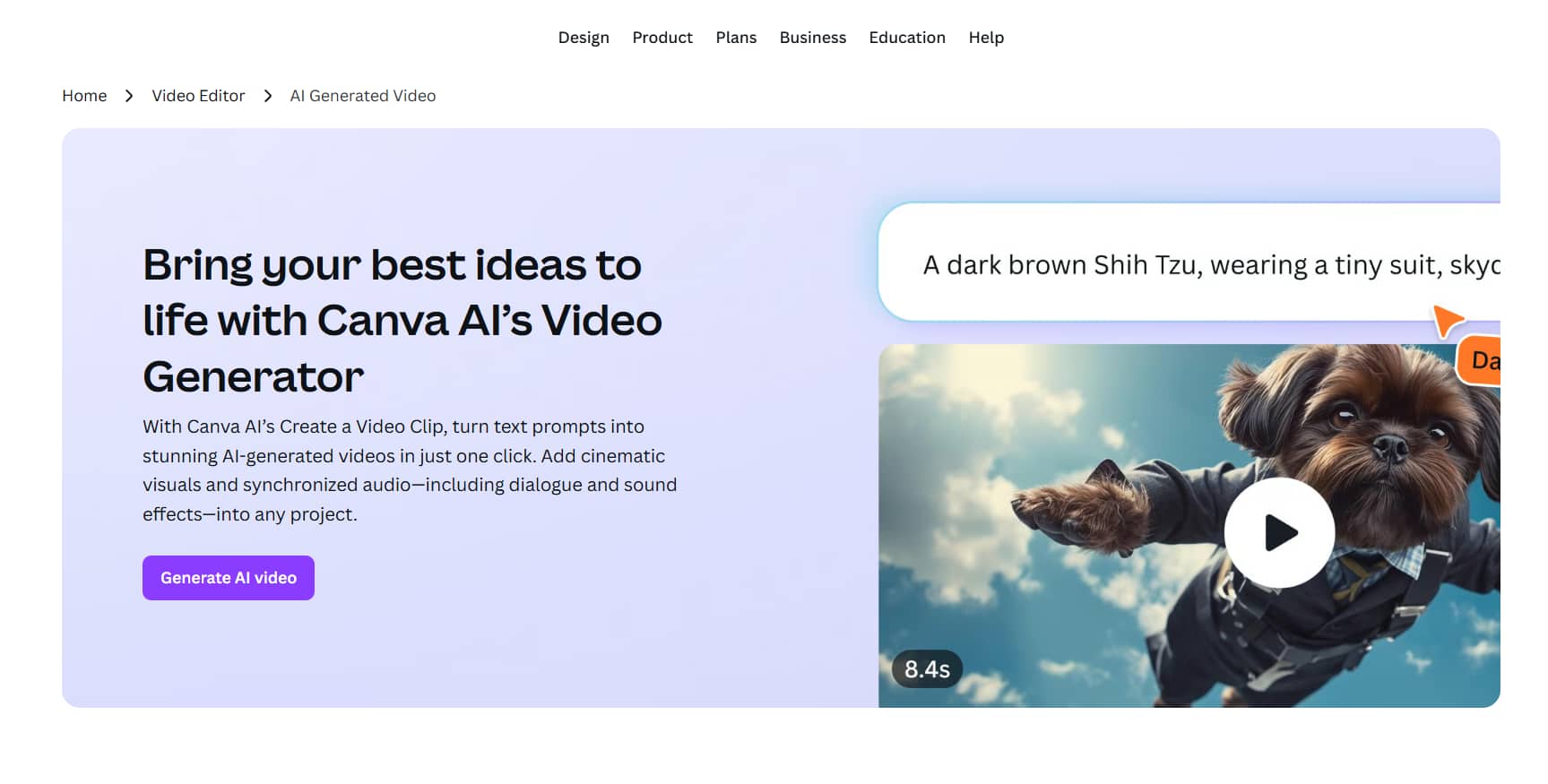
Creating a video starts with a prompt. That's really the whole idea behind Canva's Magic Media feature. You type what you want to see in plain language, and the AI turns that description into a short video clip. For quick content, that's a huge time saver.
Canva AI text-to-video generator gives you several visual styles to work with, ranging from realistic scenes and cinematic shots to animations and more artistic interpretations. That variety matters because the same prompt can serve very different purposes depending on where the content is going.
Extensive template library
Canva has a lot of templates. More than most people will ever use. If you're creating content for Instagram Reels, TikTok, YouTube Shorts, Facebook, or LinkedIn, you'll find ready-made layouts waiting for you. The dimensions are already set. The structure is there. In many cases, you can swap out the text, replace a few visuals, and have something publishable in minutes.
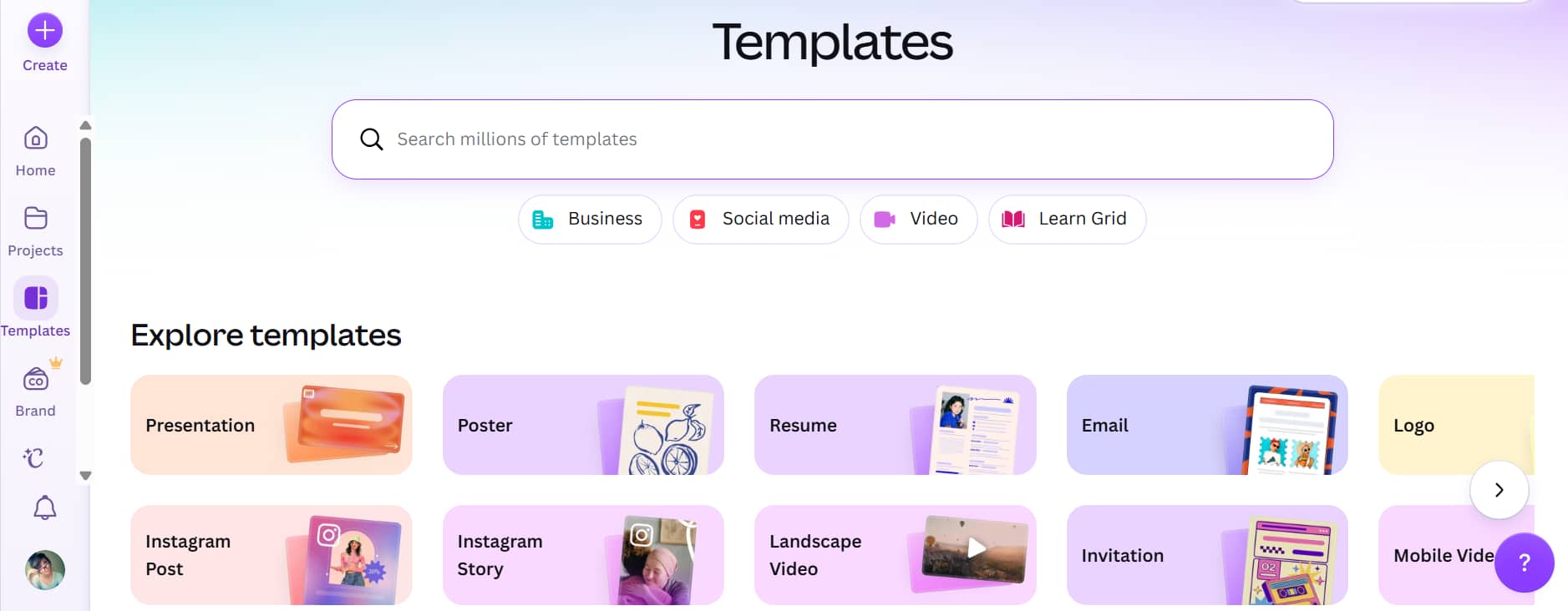
Instead of building every video from scratch, you begin with a framework that's already been thought through. Headline placement, visual hierarchy, and pacing; most of the heavy lifting is already done.
AI voiceovers and audio tools
Canva includes an AI text-to-speech feature that turns written scripts into spoken narration right inside the platform. You paste in your text, choose a voice, and the tool generates the audio for you. For tutorials, product demos, educational videos, and quick social content, which can save a surprising amount of time.
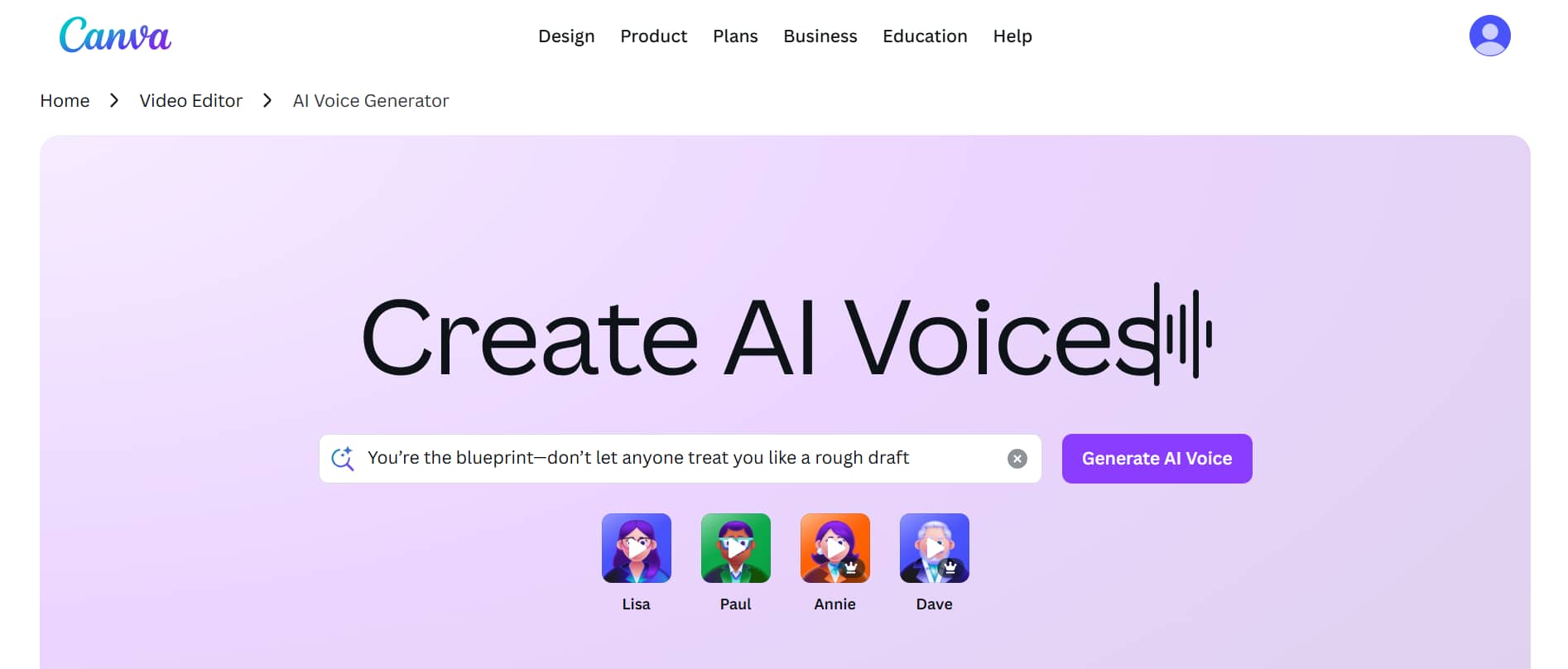
You'll also find multiple voice styles and language options available, which help when you're creating content for different audiences.
Team collaboration features
Working on video projects with a team can get messy fast. Canva tries to solve that by putting everyone in the same workspace. Instead of emailing files back and forth or wondering who's editing the latest version, you and your team can work on the same project at the same time. Someone updates the text. Another person swaps out images. A third teammate adjusts the timing. Everything happens in one place.
For distributed teams, agencies, and marketing departments, having everyone under one roof tends to make life easier. Also, Canva keeps feedback attached to the project itself. You can click on a specific element, leave a comment, tag a teammate, and discuss revisions directly where the work is happening.
How to make videos with Canva AI video generator
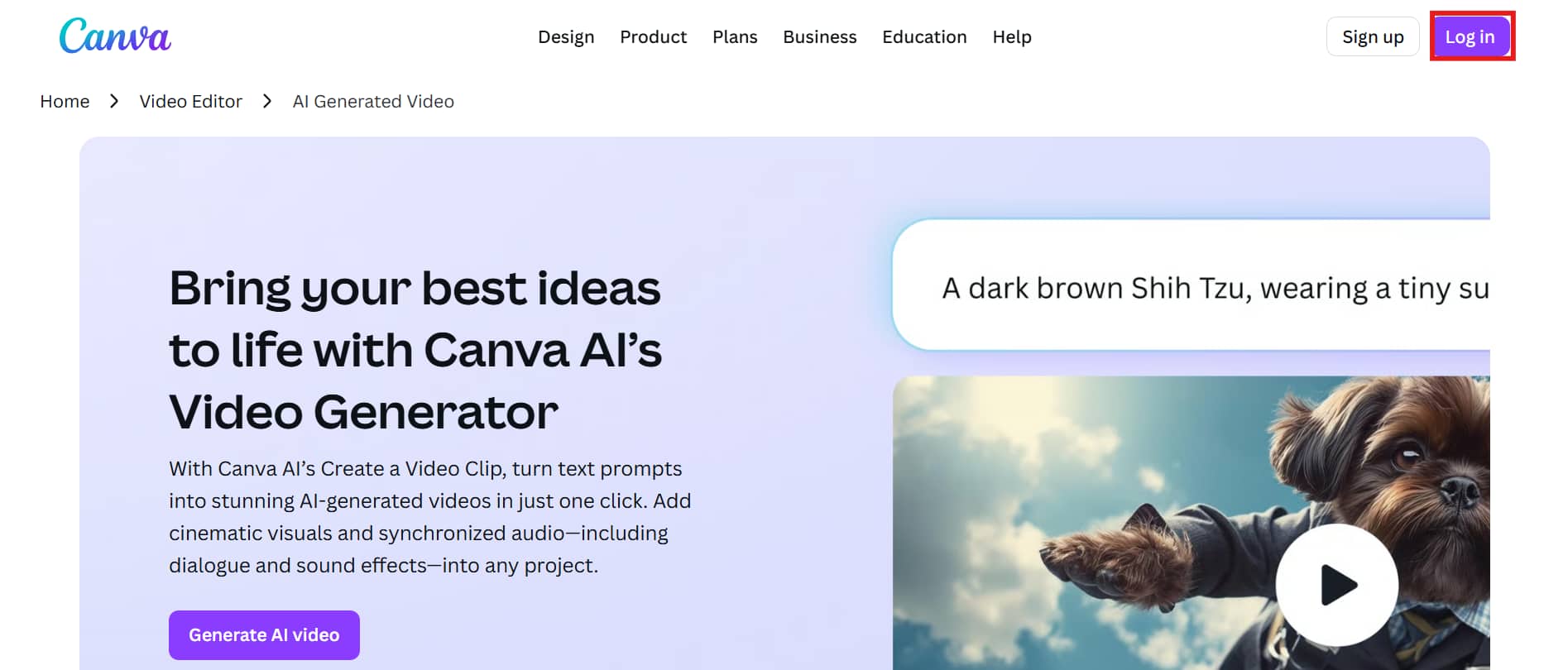
Step 1: Sign up or log in to Canva
First things first. You need a Canva account. If you've used Canva before, just sign in, and you're ready to go. New users can create an account in a few minutes through a web browser or the mobile app to begin Canva Ai video generation. Canva offers both free and paid plans, so you'll have to decide how many features you actually need before getting started.
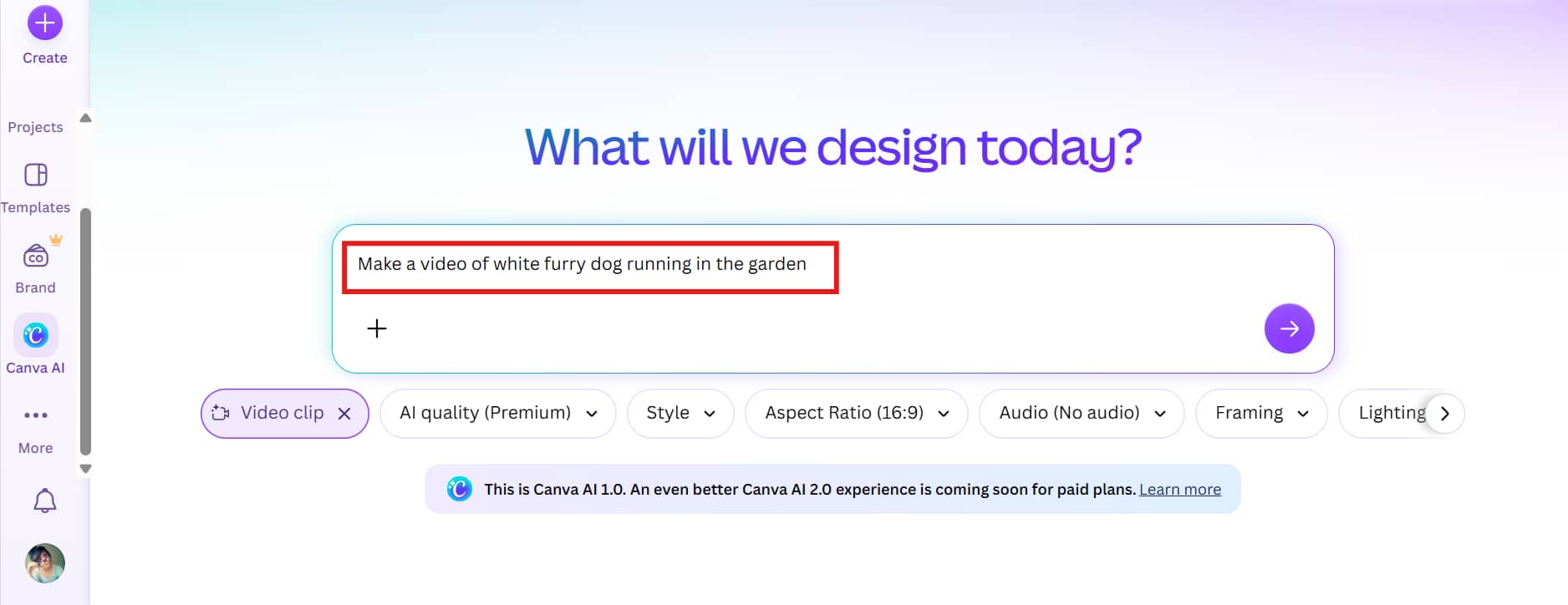
Step 2: Open Magic Media and enter the prompt
Now head over to Magic Media. You'll find it tucked inside Canva's Apps section alongside the platform's other AI tools. This is where your video starts taking shape. Rather than uploading clips and building everything piece by piece, you simply describe what you want to create. The tool takes that prompt and turns it into a video concept.
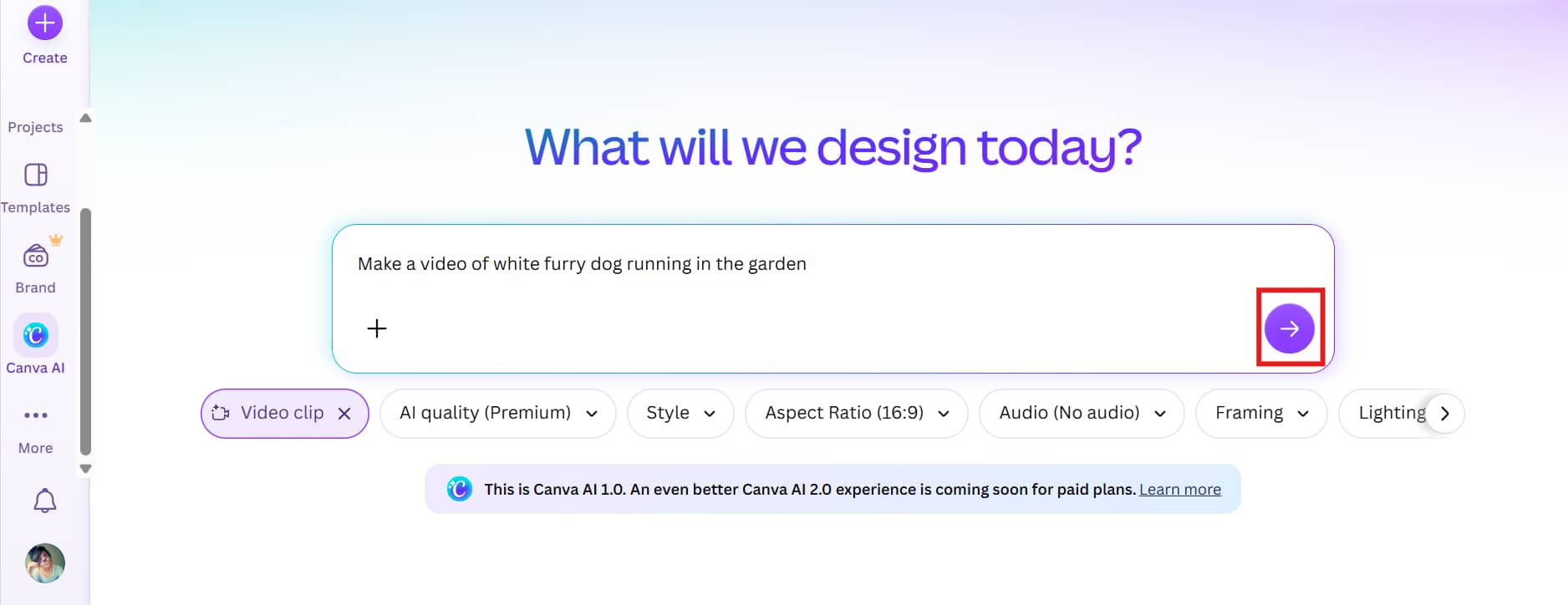
Step 3: Generate an AI video
Once your prompt is ready, hit generate. The AI takes your description and turns it into one or more video clips. Most of the time, the process only takes a short while, which is part of the appeal. You don't spend hours waiting for results.
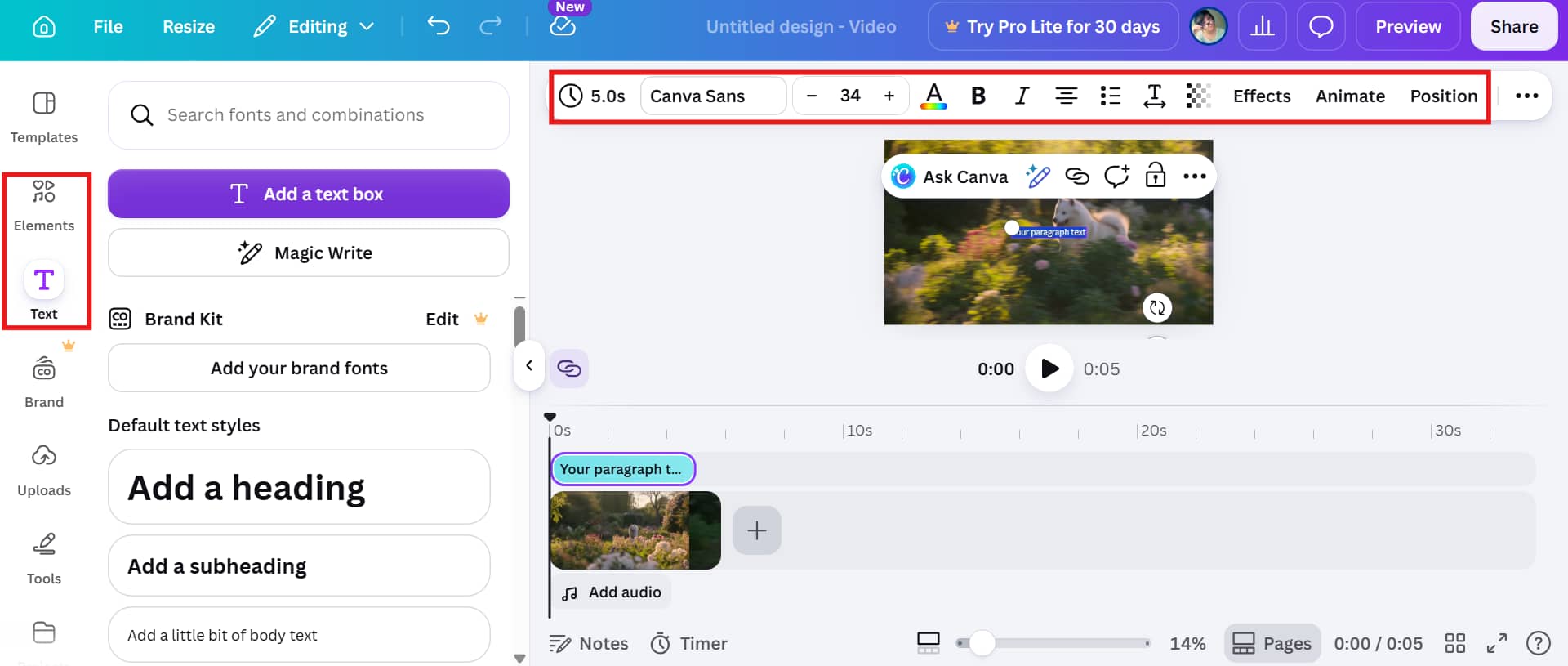
Step 4: Customize your video
The generated clip is only the starting point. Everything from text and animations to music, voiceovers, transitions, logos, and graphics can be added directly inside Canva's editor.
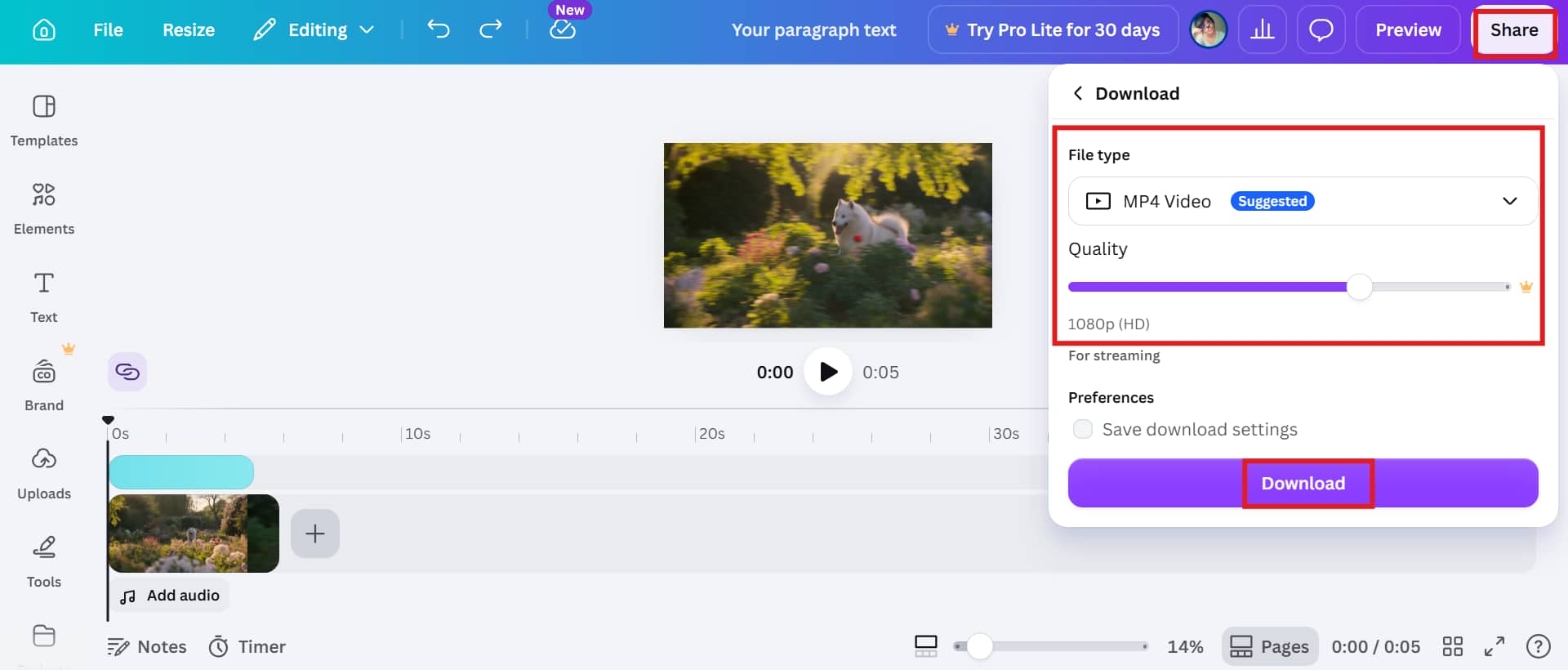
Step 5: Export and share
Export the video in the format and resolution that fits your project. Canva gives you several download options, and you can also publish content directly to various social media platforms and collaboration channels if that's part of your workflow.
Canva AI video generator pricing details
|
Canva Free |
Canva Pro |
Canva Business |
Canva Enterprise |
|---|---|---|---|
|
$0 |
$12.99 |
$15.99 |
Custom pricing |
|
|
|
|
-
Canva Free
The Free plan covers more ground than you'd expect. You can test templates, put together basic videos, and spend some time figuring out how the platform works before reaching for your wallet. Honestly, that's enough for a lot of people. If you're creating the occasional video, working on a school project, or just curious about AI video tools, you probably won't hit a wall right away.
-
Canva Pro
The Pro plan is where most serious users end up. You get access to premium templates, a larger asset library, and higher AI usage allowances. If you're publishing videos every week, the upgrade starts to make sense pretty quickly.
-
Canva Business
The Canva Business plan is built for teams. Shared brand assets do a lot of heavy lifting. You can keep logos, brand colors, fonts, templates, and marketing materials in one central location instead of chasing down files through email threads or chat messages.
-
Canva Enterprise
Enterprise sits at the other end of the spectrum. This tier focuses on larger organizations with stricter security requirements, advanced administration controls, and custom support options. Enterprise addresses that challenge with advanced administrative controls, centralized asset management, approval workflows, user permissions, and enhanced security features.
Reviews and feedback of Canva AI video generator
Pros and cons
|
Pros |
Cons |
|---|---|
|
|
What users say about Canva AI video generator
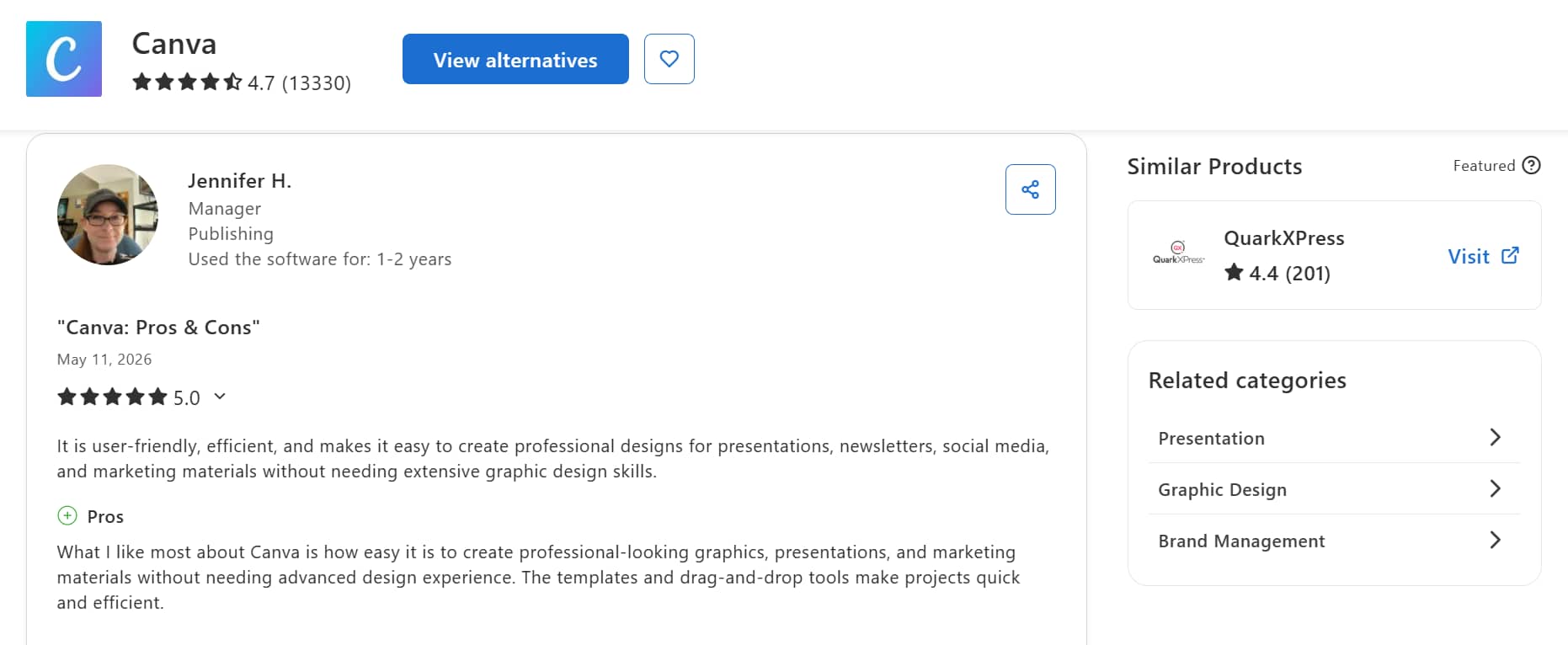
Canva's template collection is another feature users consistently highlight. Reviewers appreciate having access to thousands of ready-made templates for social media posts, videos, presentations, advertisements, and business materials.
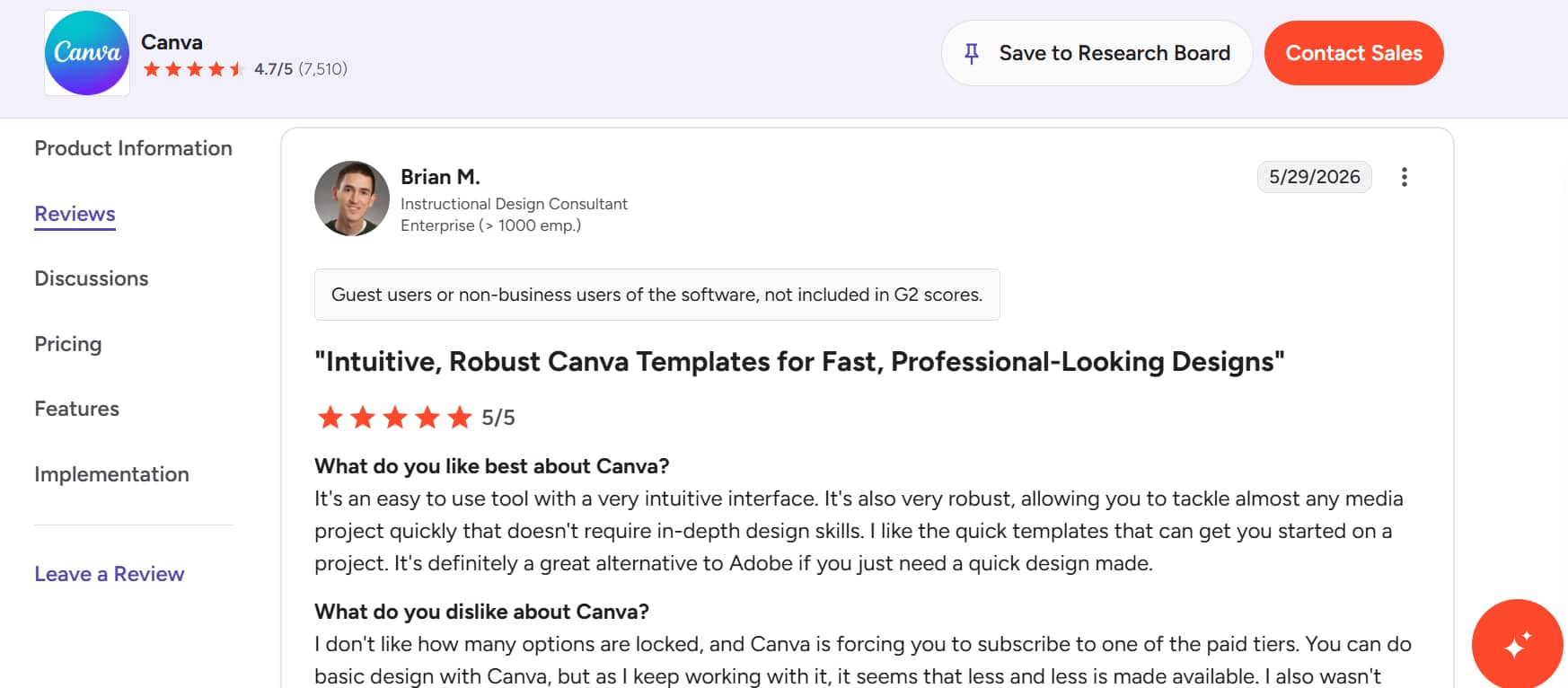
Many users mention that templates significantly reduce design time because they don't have to start from a blank canvas. Several reviewers note that they were productive within their first few hours of using the platform, which isn't something many creative tools can claim.
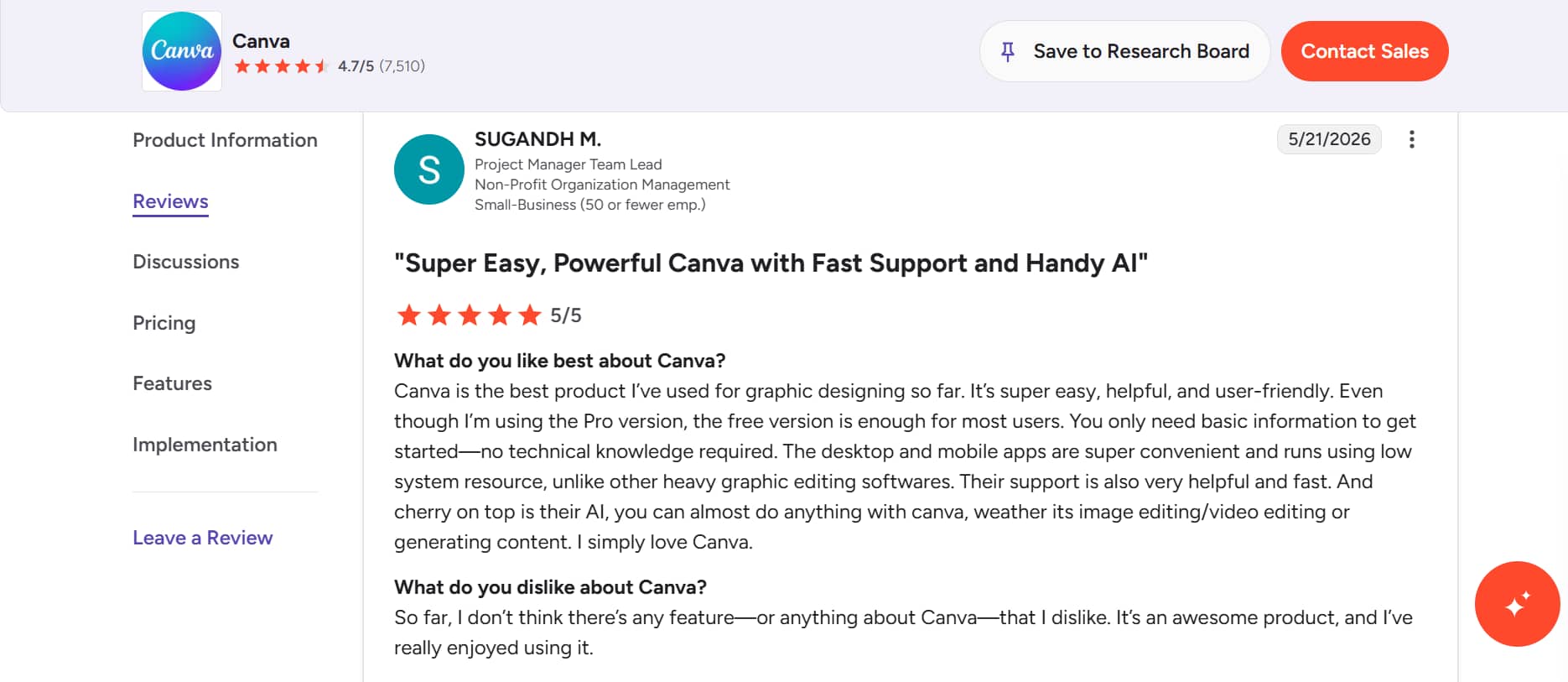
One theme comes up again and again in Canva AI video generator review discussions: simplicity. You don't need a background in design. You don't need years of video editing experience either. Many users say they were creating videos, graphics, and social media content within a surprisingly short time of signing up. That's a big reason Canva keeps attracting beginners.
Final verdict
Canva AI video generator is simple to learn, packed with templates, and combines video creation, graphic design, audio tools, and collaboration features in one platform.
However, its AI-generated videos don't always hit the mark. They can look a little generic out of the box, and you'll often find yourself making extra edits before anything feels ready to publish. While Canva can be good with templates, it's not really capable of generating outstanding AI videos. Besides, we cannot overlook that it offers less control over creation, which makes it unsuitable for professional editors.
If AI-powered video generation is your main priority, Vmake AI deserves a closer look. Canva treats AI video as one feature among many inside a broader design platform. Vmake takes a different approach. AI video creation sits much closer to the center of the experience, which changes how the platform feels when you're actually using it.
Meet Vmake AI: A powerful alternative to Canva
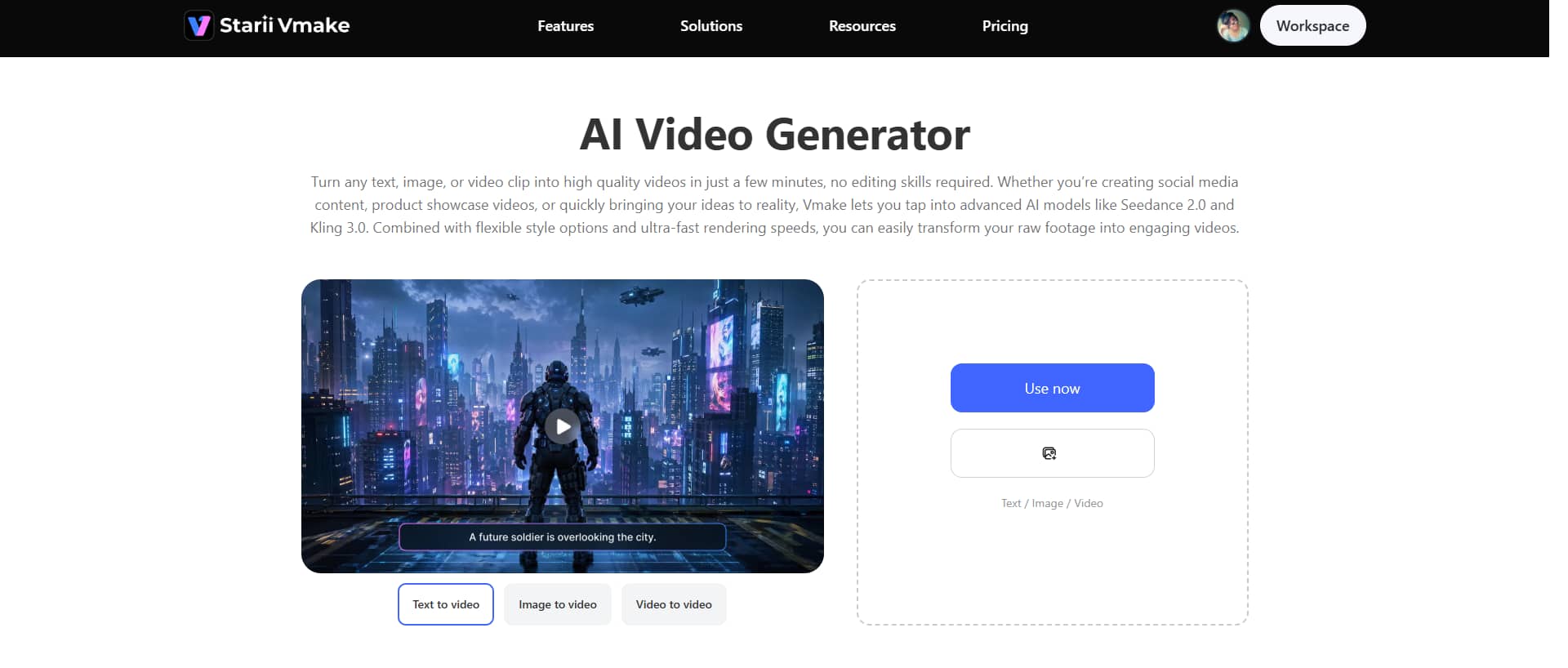
Vmake AI video generator is built for people who want more from AI video creation than basic text-to-video generation. Vmake takes a broader approach. Instead of locking you into one model, it brings several leading video generation models into the same workspace, so you can switch based on what you're trying to create. That's useful in practice because different models tend to excel at different things.
Key features
-
Multi-modal video generator
This is where Vmake starts to stand out. Vmake supports a wide range of leading video generation models, including Seedance 2.0, Kling 3.0, Google Veo 3, Sora 2, Vidu Q2, Wan 2.2, and others. Some are better at realistic motion. Others tend to produce a stronger visual style or handle prompts with more consistency.
-
High-resolution output
Vmake puts a lot of attention on producing sharper, high-resolution videos, especially for advertising campaigns, product showcases, and professional marketing content. There's also video cleanup. If your footage contains visual noise or unwanted artifacts, Vmake gives you a way to remove noise before publishing.
-
Multiple video generation methods
Different projects require different starting points. Sometimes you have a text idea. Sometimes you already have product photography. In other situations, you're working from existing visuals that need motion added to them. Vmake supports several generation methods, giving you more flexibility when building content.
Step-by-step guide
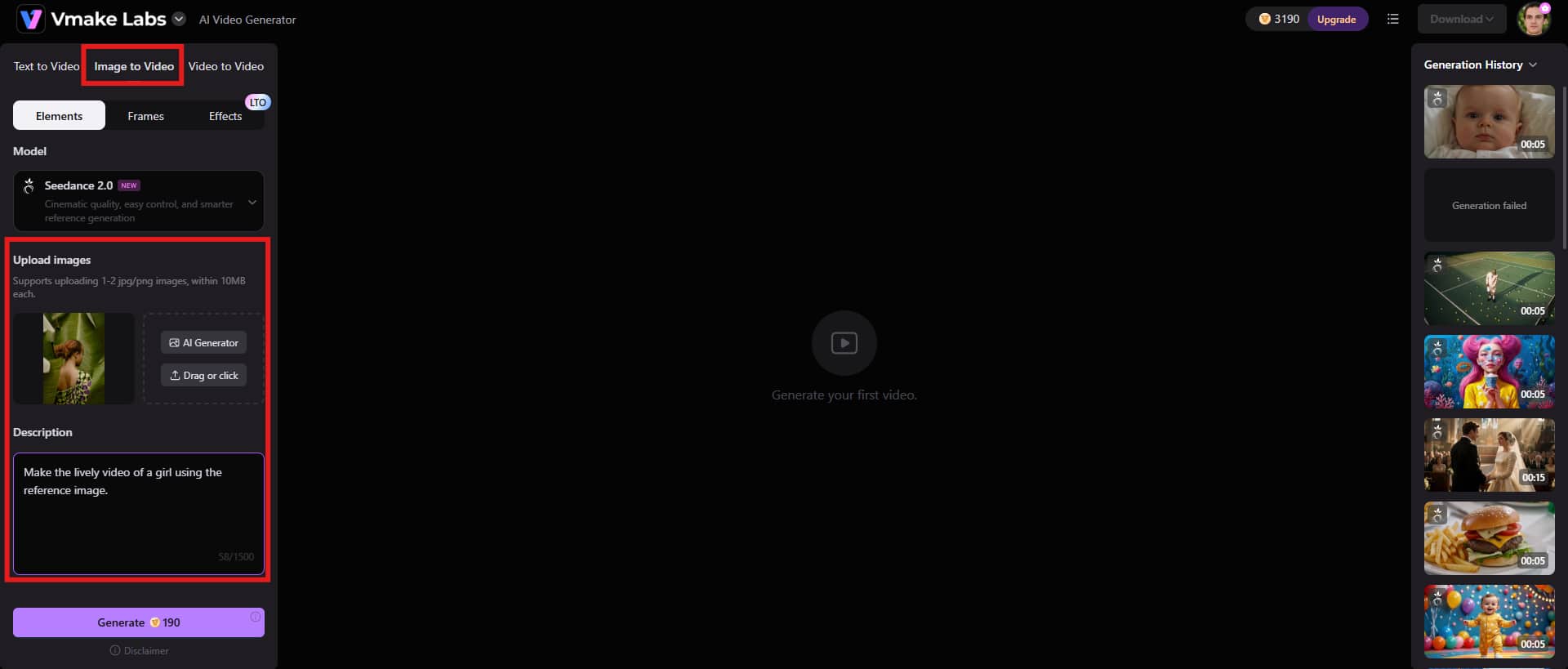
Step 1: Add your content idea
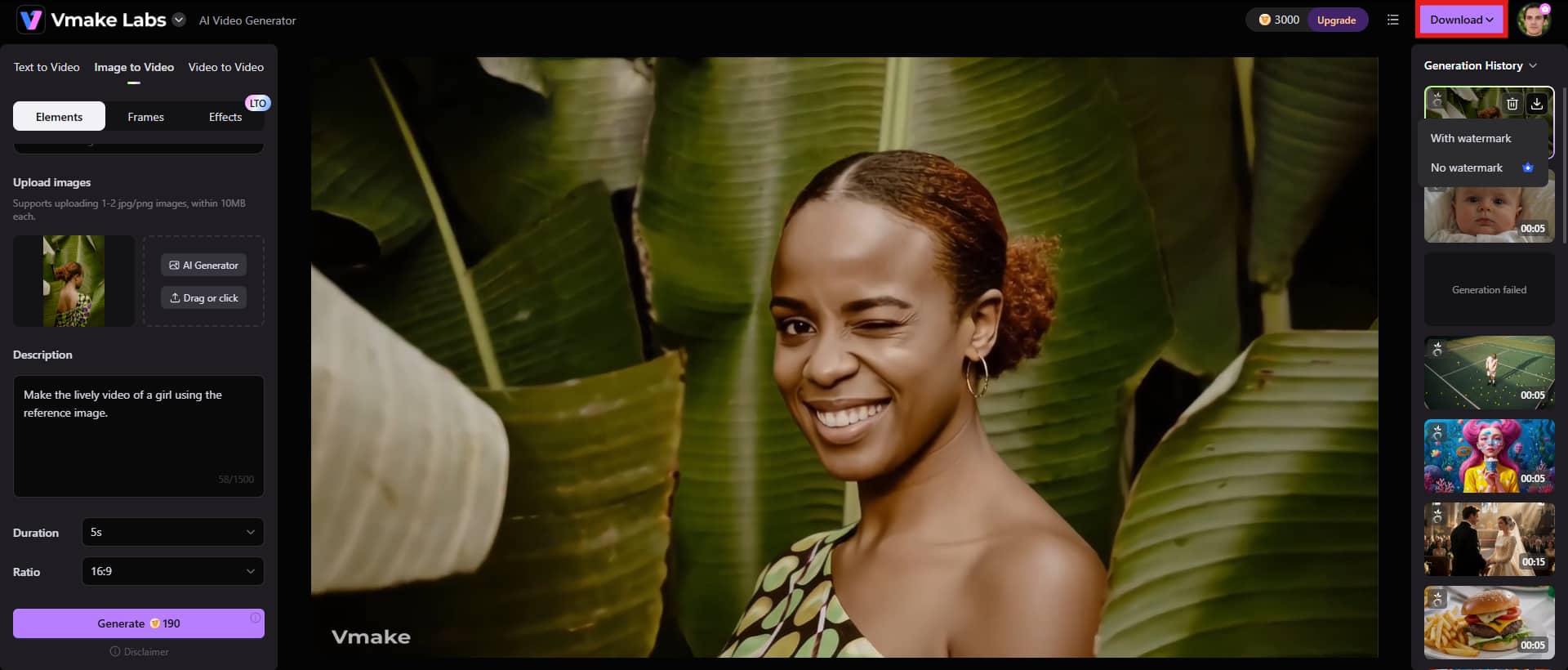
Getting started is simple. Choose the generation method that fits what you're trying to create. Next, upload your reference image and enter your text prompt.
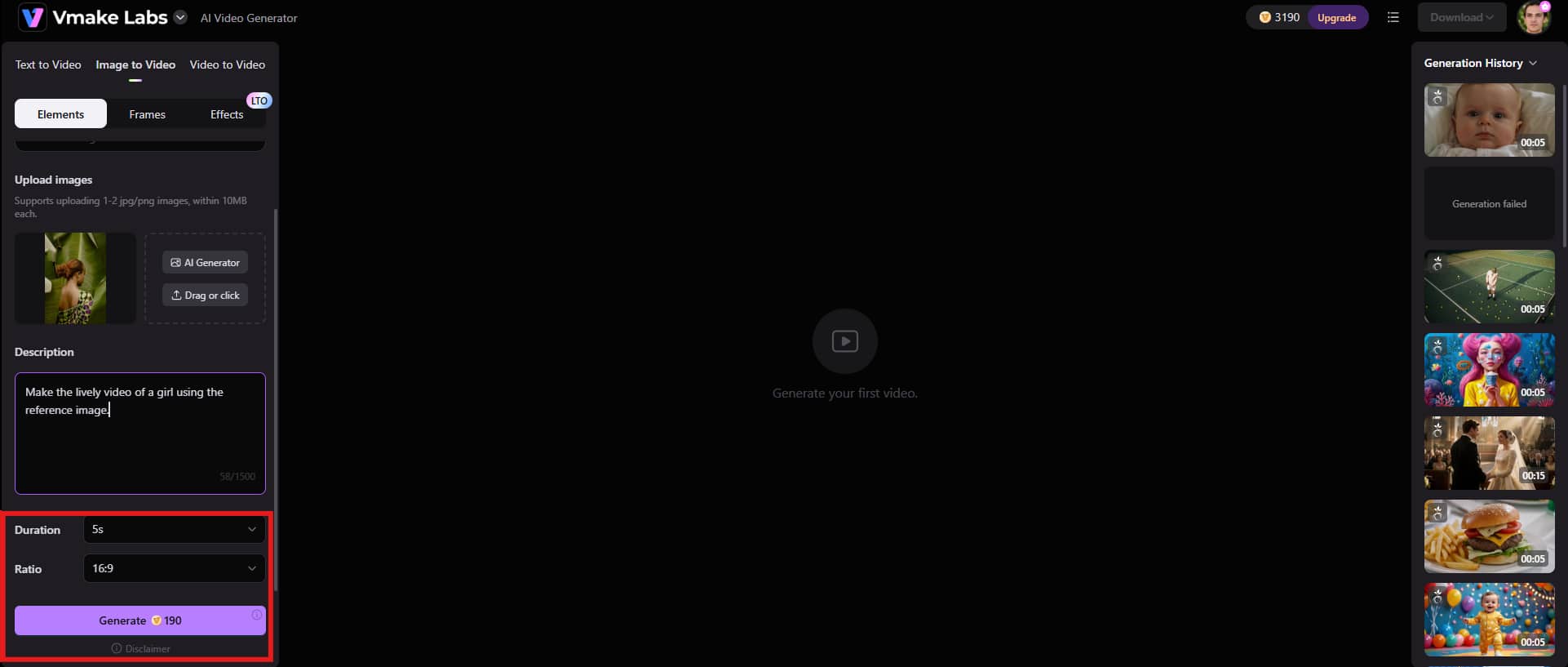
Step 2: Adjust settings and generate
Take a minute to set the final video duration. Do not keep the video too long or too short. Select the aspect ratio, depending on where your video is going to be uploaded. Click the Generate button to start the process.
Step 3: Preview and download the video
Finally, preview the video generated by Vmake. If everything seems fine, click the "Download" icon on the video and choose whether you want to save the video with or without a watermark.
Final checklist: Vmake vs Canva AI video generator
|
Features |
Vmake |
Canva |
|---|---|---|
|
AI video models |
Multiple models, including Seedance 2.0, Kling 3.0, Wan, Vidu, Google Veo, Sora, and more |
Primarily powered by Canva Magic Media |
|
Text-to-video |
Yes |
Yes |
|
Image-to-Video |
Yes |
Limited |
|
video-to-video |
Yes |
No |
|
Multi-Model Selection |
Yes |
No |
|
Video quality |
High-quality, model-dependent output |
Suitable for marketing and social media content |
|
Templates |
Limited |
Extensive template library |
|
AI voiceovers |
Yes |
Yes |
Choose Canva if:
-
You need a fast and easy way to create marketing videos, presentations, ads, or social media content.
-
You rely heavily on ready-made templates and drag-and-drop editing.
-
Your team already uses Canva for design, branding, and collaboration.
-
You want an all-in-one content creation platform rather than a dedicated AI video generator.
Choose Vmake if:
-
You want access to multiple leading AI video models and the flexibility to switch between them.
-
You need advanced generative capabilities such as image-to-video or video-to-video transformation.
-
You are focused on cinematic, creative, or highly customized AI-generated videos.
-
You want to experiment with the latest AI video technology without being locked into a single model.
Conclusion
As far as the Canva AI video generator review is concerned, the tool works for everyone, whether you are a beginner or an advanced professional. You open it, pick a template, add a prompt if you need AI help, and you've got something usable without much friction. It's especially useful when you're juggling multiple content types. Still, once you start pushing into more specific creative directions, you'll notice the AI video side can feel a bit boxed in. That's where Vmake comes in.
Instead of treating AI video as a side feature, it leans into it by using multiple generation models to make realistic visuals. Vmake makes more sense when you want to experiment with AI video generation and aren't satisfied with one interpretation of your prompt.
FAQs
Is Canva AI Video Generator free to use?
Yes, up to a point. Canva's Free plan gives you the basics, and for many people, that's enough at the start. You can create simple designs, experiment with a handful of AI video features, and get a feel for how everything works without spending a cent. The catch shows up pretty quickly. Once you start generating videos more often or pulling in premium assets, those usage limits don't feel very generous.
How does Canva AI Video Generator work?
It runs through Canva's Magic Media system. You type in a text prompt, Canva's AI interprets it, and then generates short video clips based on that description. After that, you can edit the output inside Canva's editor. It's not always consistent, though; some prompts hit well, others feel slightly off in tone or composition.
Can Canva AI Video Generator create videos from text prompts?
Yes, it can generate videos directly from text prompts. You describe what you want: scene, mood, subject, style, and Canva produces a short clip based on it. The better your prompt, the better your chances of getting usable results. Simple prompts work, but more detailed prompts tend to perform better.
How do I make videos with Canva AI Video Generator?
You start inside Canva by opening Magic Media, then choosing the video generation option. From there, you enter your prompt and generate a clip. Once your video is created, you can keep working on it right inside Canva. Add text. Swap in music. Record a voiceover, tweak transitions, or drop in your brand colors and logos until it feels like your own.
Is Vmake AI Video Generator a good alternative to Canva?
Yes, especially if your focus is on AI video generation itself rather than general content creation. Canva spreads its attention across templates, design tools, collaboration, and AI features. Vmake is more focused on the generation side. It uses multiple AI models, so instead of relying on one system to interpret your prompt, you can try different models and compare outputs. That difference matters more than it sounds. Some ideas simply look better in one model than another, and being able to switch gives you more control over the final result.
What is the best free alternative to Canva AI Video Generator?
There isn't a perfect free replacement for Canva. Most free AI video tools can generate short clips or give you a place to test prompts. The problem is that the restrictions tend to show up fast, usually in the form of lower resolution, shorter video lengths, or watermarks that make the final result feel unfinished. Vmake comes up in these conversations quite a bit, and for good reason. It's one of the more capable options in the AI video category if your goal is to turn ideas into video without getting buried in settings.

You May Be Interested
AI TikTok Video Generator | Create High-Quality AI Videos
Best AI Video Generator: Top Tools Tested (2026)
Viggle AI Video Generator Review & Top 2026 Alternatives
Trump AI Video Generator: 3 Best Tools to Create AI Videos
Canva Video Enhancer Review [2026]: Pros, Cons, and Pricing