Best AI Photo Restoration Tools in 2026 for Old and Damaged Photos
Compare the top 5 best AI photo restoration tools of 2026. Learn how to restore faded black-and-white photos with high accuracy and 1-click automation. Also, discover Vmake Labs image enhancer as the ideal option.

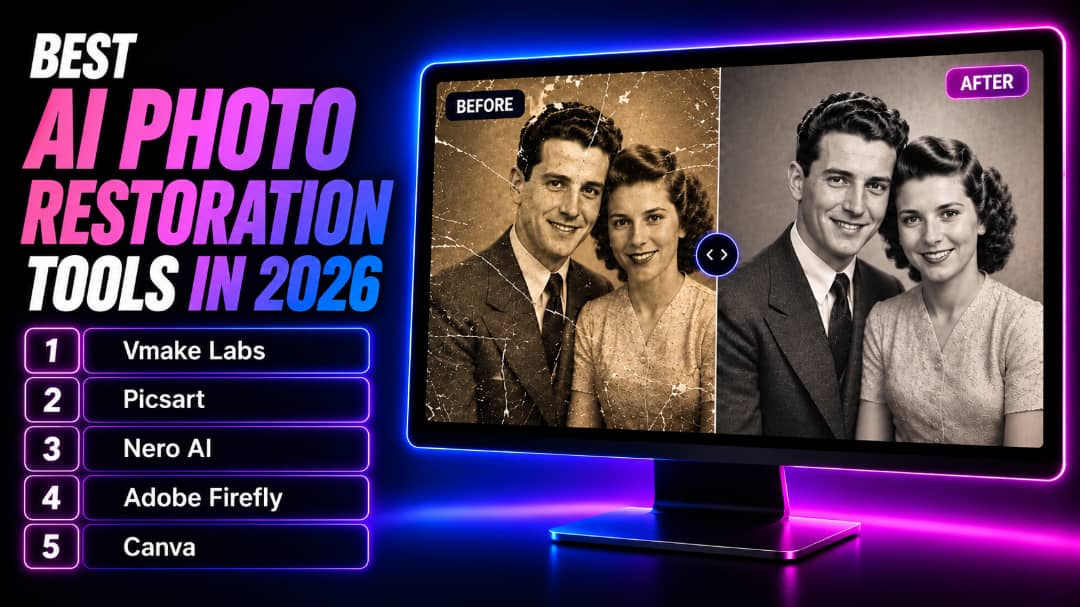
Old photographs preserve meaningful memories, but they often fade, blur, or develop scratches over time. AI photo restoration tools simplify the process of repairing these damaged images by automating tasks that once required advanced editing skills. This guide explains the key features to look for, the evaluation criteria we used, and the best AI photo restoration tools in 2026 to help restore old and damaged photos.
What is an AI Photo Restoration tool?
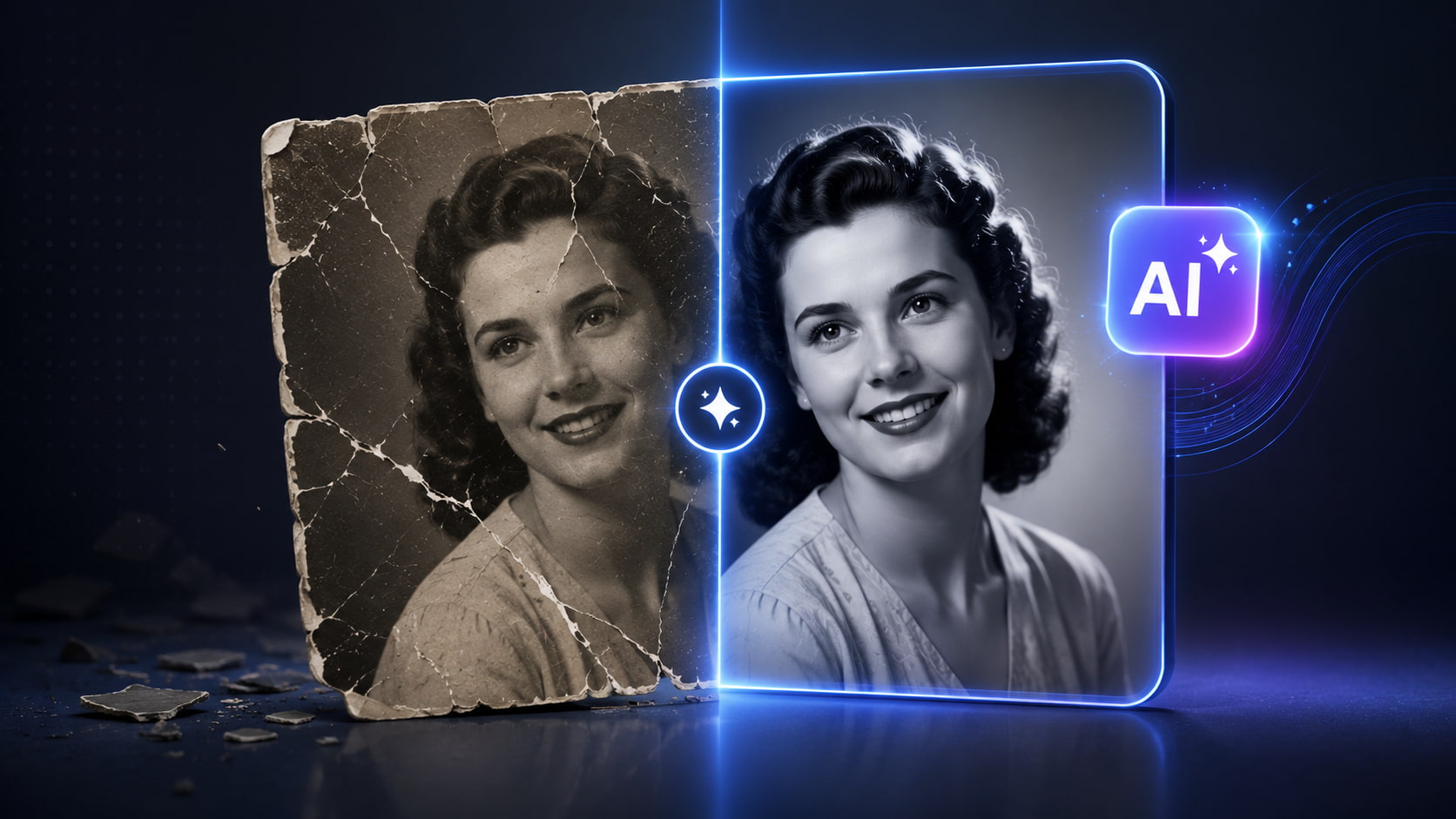
An AI photo restoration tool is software that uses artificial intelligence to repair old, damaged, or low-quality photographs. Instead of manually editing every flaw, AI automatically detects scratches, tears, fading, noise, blur, and other imperfections before restoring image details. Many tools also enhance facial features, colorize black-and-white photos, and upscale low-resolution images.
Whether you're preserving family albums or digitizing historical photographs, these tools make photo restoration faster, more accessible, and easier for users with little or no editing experience.
How did we pick the best AI Photo Restoration tools?
We compared leading AI restoration platforms using practical criteria that directly affect restoration quality, usability, and overall value for different types of users.
-
Restoration accuracy and detail preservation: We evaluated how effectively each tool repaired damaged areas while preserving natural textures, facial details, and overall image quality.
-
Processing speed and automation capabilities: The best tools deliver restored images quickly with minimal user input, making them suitable for restoring single photos or processing larger collections efficiently.
-
User interface and overall ease of use: We favored tools with intuitive interfaces, simple upload workflows, and beginner-friendly controls that make photo restoration accessible.
-
Pricing, free credits, and value: We compared free plans, subscription pricing, available restoration features, export quality, and overall value to determine which tools provide the practical long-term experience.
Top 5 AI Photo Restoration tools in 2026
AI photo restoration tools differ in restoration quality, supported features, pricing, and ease of use. The comparison below highlights five popular options in 2026, followed by a closer look at what each platform offers.
|
Tool |
Best Strength |
Restoration Features |
Ease of Use |
Free Version |
Best For |
|---|---|---|---|---|---|
|
Vmake Labs |
Complete AI photo restoration |
Scratch removal, face enhancement, colorization, image upscaling |
Very Easy |
Yes (limited credits) |
Restoring old and damaged family photos |
|
Picsart |
AI photo enhancement with creative editing |
AI enhancement, sharpening, object removal, image upscaling |
Very Easy |
Yes |
Casual photo enhancement and social media editing |
|
Nero AI |
Dedicated old photo restoration |
Damage repair, face restoration, colorization, image upscaling |
Easy |
Yes (limited credits) |
Restoring vintage and scanned photographs |
|
Adobe Firefly |
Generative AI image editing |
Generative Fill, object removal, image expansion, selective photo repair |
Moderate |
Yes (limited generative credits) |
Professional image editing and complex repairs |
|
Canva |
Simple browser-based photo enhancement |
AI enhancer, image upscaling, background editing, basic retouching |
Very Easy |
Yes |
Beginners creating restored photos for presentations and social media |
-
Vmake Labs Image Enhancer
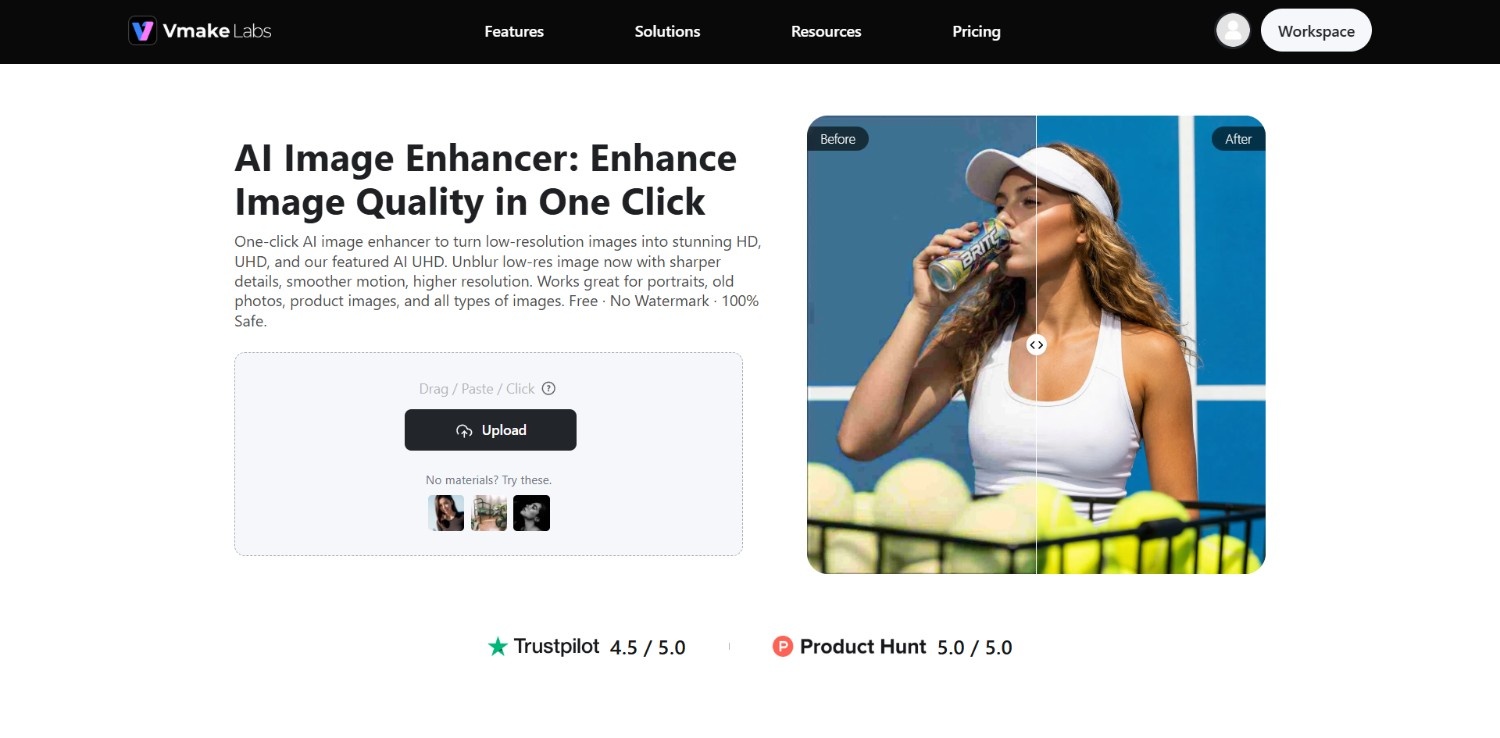
Vmake Labs Image Enhancer is an AI-powered restoration solution designed to repair old and damaged photos with minimal effort. It combines scratch removal, facial enhancement, colorization, and image upscaling in a browser-based workflow, making restoration accessible for both beginners and experienced users.
Key Features
-
AI photo restoration: Automatically repairs scratches, tears, fading, dust spots, and damaged areas while preserving natural textures and improving overall photo quality consistently.
-
AI face enhancement: Detects blurry facial features and intelligently sharpens eyes, skin details, and expressions to produce clearer, more natural-looking portraits from old photographs.
-
Black-and-white photo colorization: Adds realistic colors to monochrome photos using AI scene recognition, creating vibrant yet natural-looking results while maintaining historical visual consistency.
-
AI image upscaling: Increases image resolution up to 16K, while preserving fine details and reducing artifacts, making restored photos suitable for high-quality printing and digital archiving.
How To Use
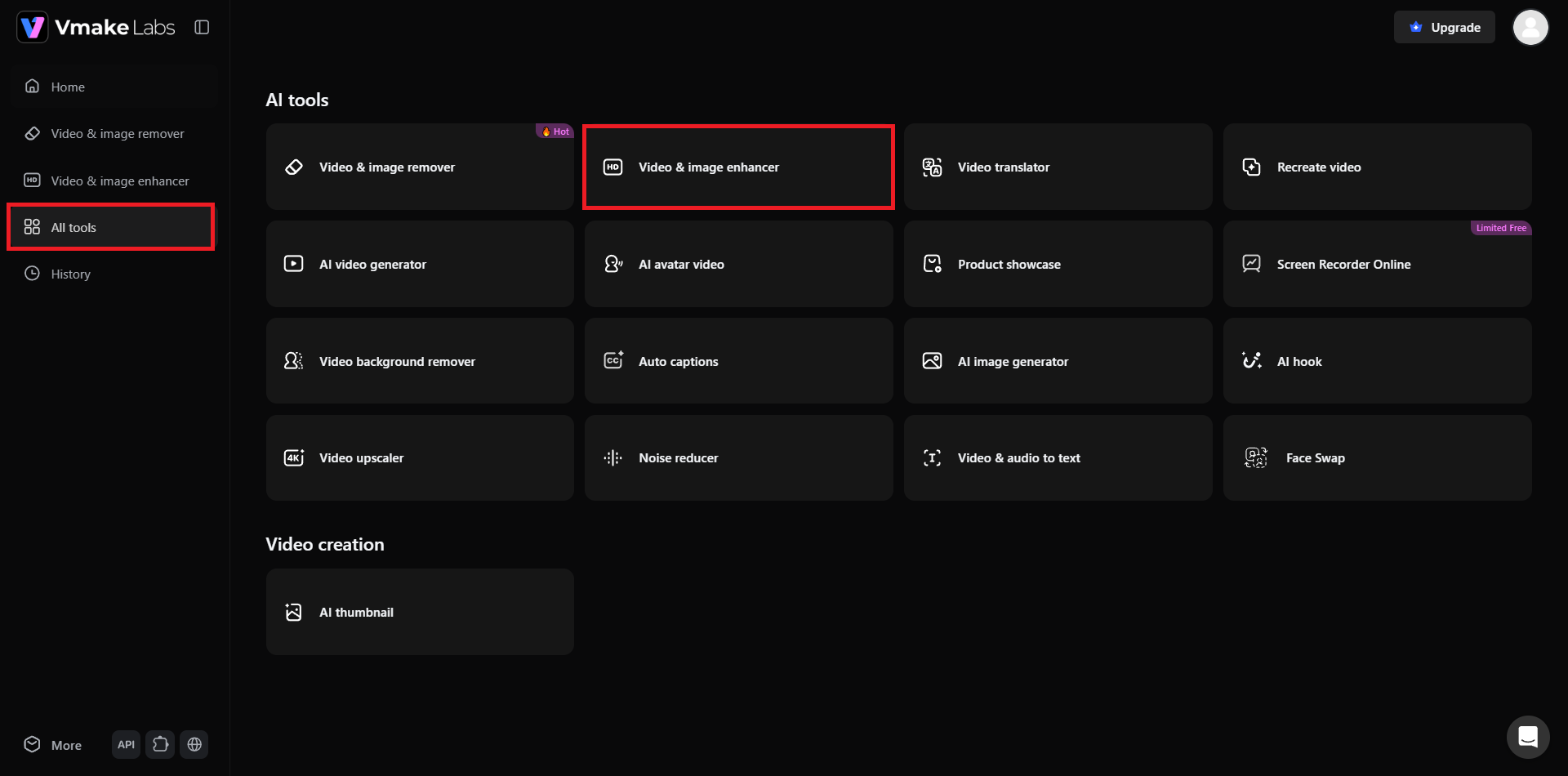
Step 1: Access Vmake Labs "Video & image enhancer" tool
Begin your journey by first accessing Vmake Labs official website and then signing in using your credentials. After signing into your account, you need to access the "All tools" option from the dashboard. Then, you need to select the "Video & image enhancer" tool from the list of options.
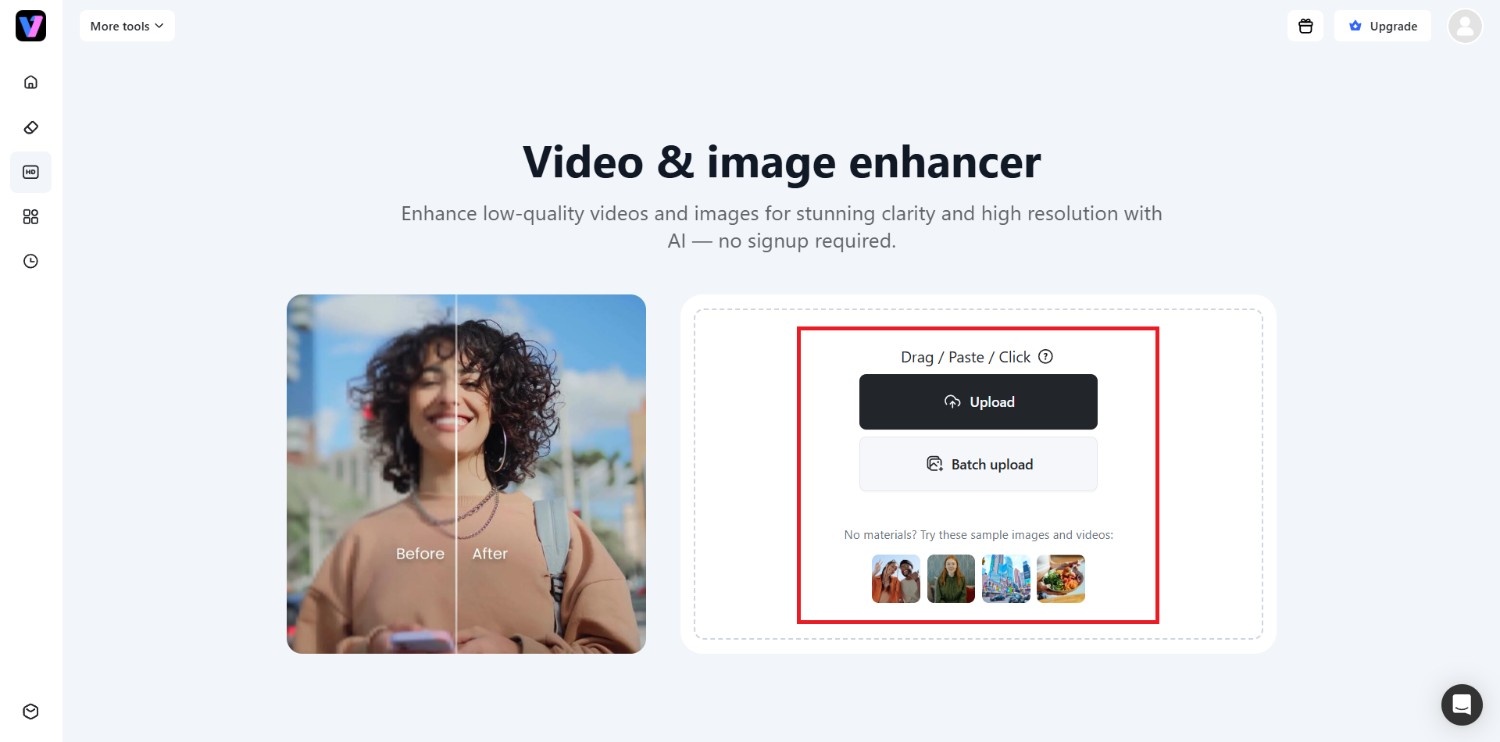
Step 2: Upload your old image or paste a link
In the next step, you will need to upload your old photograph, which you want to enhance. Keep in mind that Vmake Labs supports either uploading files from your device, or simply pasting a weblink. Additionally, there is also a "Batch upload" feature, where you can upload multiple pictures at once and enhance them altogether.
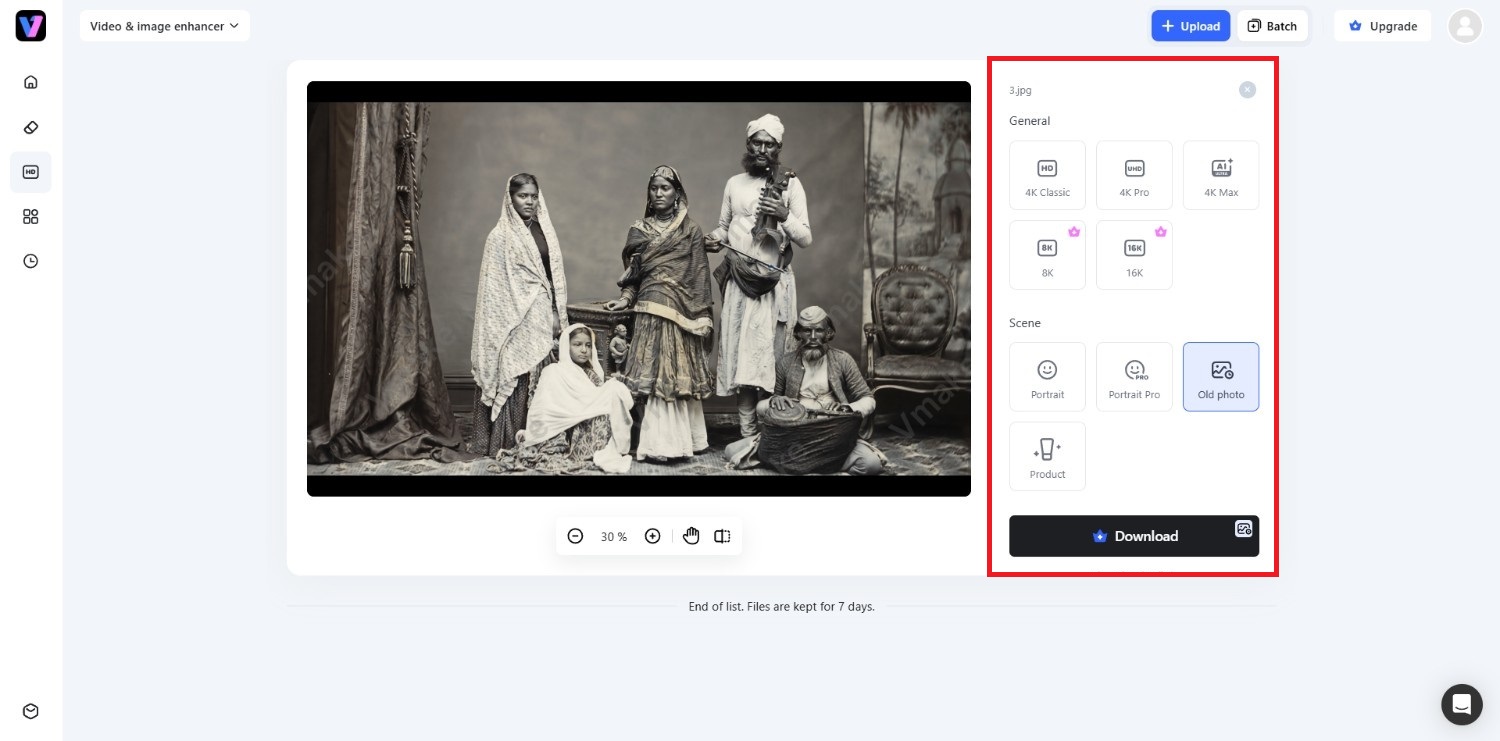
Step 3: Export your enhanced photo
After successfully uploading your photo, you need to select the ideal option, either under the "General" or "Scene" sections. Under the "General" section, you can choose to enhance the resolution, while under the "Scene" section, you can choose the ideal option for the specific type of photo you uploaded. Since we are working on an old photo here, we need to choose "Old photo".
Once you select your option, hit "Apply," and Vmake Labs will automatically enhance your image. After that, simply click on the "Download" option.
Pros & Cons
|
Pros |
Cons |
|---|---|
|
|
Best For
Users who want an all-in-one AI solution for restoring old family photos, enhancing portraits, repairing damage, and upscaling images.
Pricing
Vmake Labs offers a free plan with limited AI credits. Paid plans provide additional credits, higher-resolution downloads, batch processing, and access to advanced AI editing tools.
-
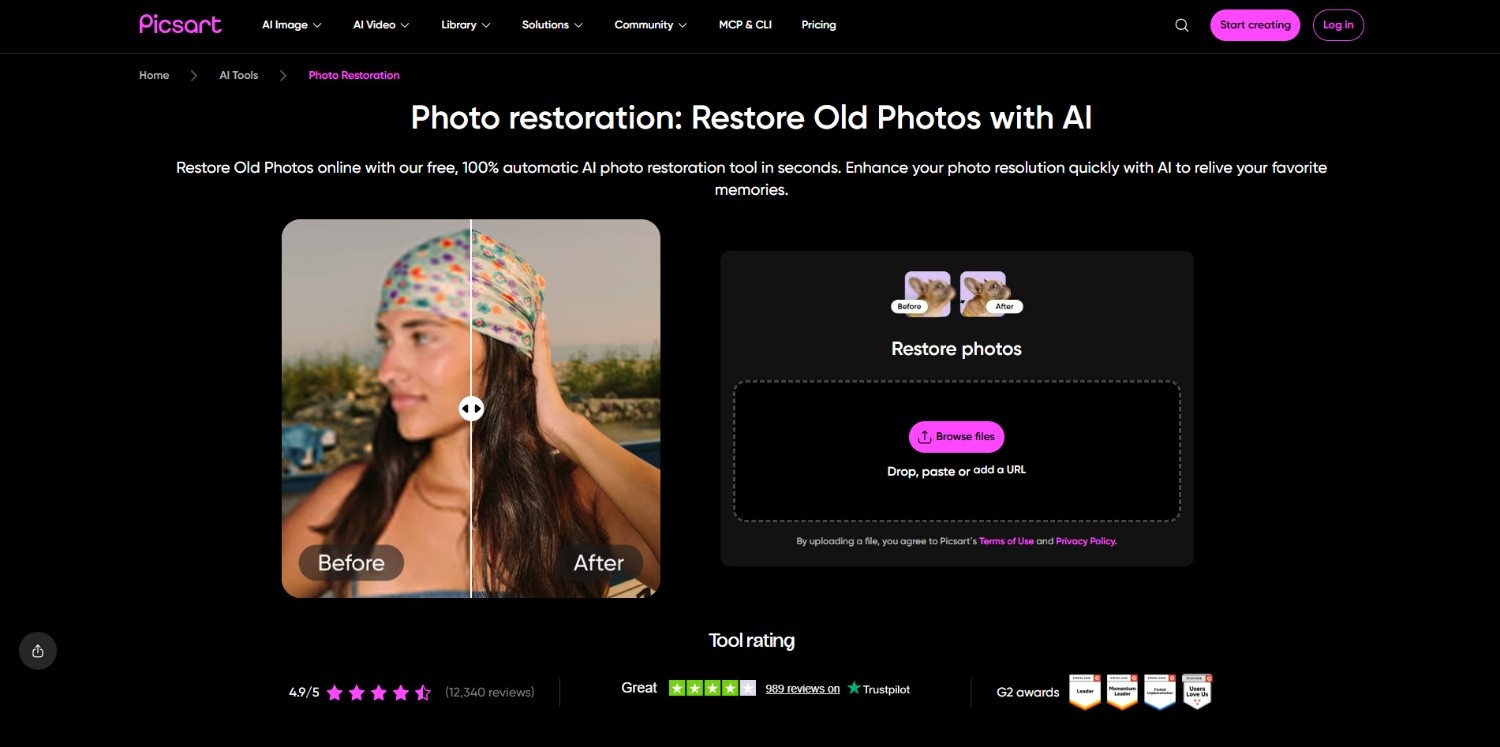
Picsart
Picsart is a versatile AI photo editing platform that includes enhancement and restoration features alongside its creative editing toolkit. Although not dedicated solely to restoring old photos, it offers useful AI-powered tools for improving image clarity, repairing imperfections, and enhancing overall quality.
Key Features
-
AI enhancement: Automatically improves image sharpness, lighting, colors, and clarity, helping faded or low-quality photos appear cleaner and more visually balanced with minimal effort.
-
AI upscale: Enlarges low-resolution images while preserving edge sharpness and reducing pixelation, making older photos suitable for larger displays and high-quality printing projects.
-
Object remover: Removes unwanted people, scratches, stains, or distracting elements from photos using AI-powered content replacement that blends naturally with surrounding image details.
-
Creative photo editor: Combines AI restoration with filters, retouching tools, background editing, and manual adjustments for users seeking both restoration and creative photo enhancement.
Pros & Cons
|
Pros |
Cons |
|---|---|
|
|
Best For
Casual users who want AI photo enhancement alongside creative editing, social media design, and everyday image improvements.
Pricing
Picsart offers a free plan with basic AI editing features. Premium subscriptions unlock advanced AI tools, higher export quality, and additional editing capabilities.
-
Nero AI
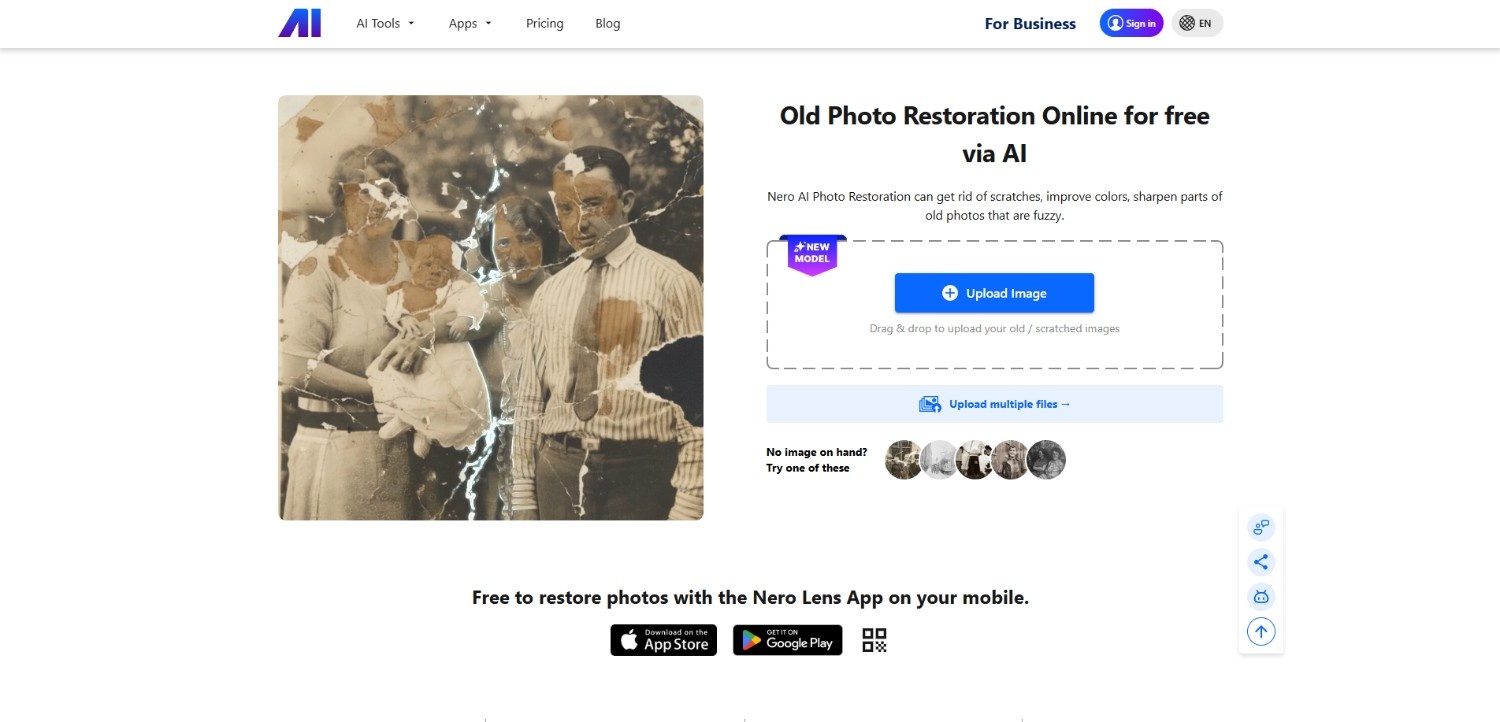
Nero AI is a dedicated photo restoration platform built specifically for repairing old, faded, and damaged photographs. Its AI models focus on restoring facial details, removing common defects, colorizing black-and-white images, and improving resolution through an intuitive, automated workflow.
Key Features
-
Old photo restoration: Repairs faded, scratched, noisy, and damaged photographs using AI models designed specifically for restoring historical and vintage family images accurately.
-
AI face enhancement: Enhances facial details, reduces blur, sharpens portraits, and restores natural-looking facial features without introducing excessive smoothing or artificial appearances.
-
AI photo colorization: Converts black-and-white photographs into realistic color images by intelligently identifying skin tones, clothing, backgrounds, and environmental details with consistency.
-
AI image upscaler: Boosts image resolution while maintaining fine textures and minimizing quality loss, producing sharper restored photos suitable for printing and digital preservation.
Pros & Cons
|
Pros |
Cons |
|---|---|
|
|
Best For
Individuals restoring vintage family photographs, scanned albums, and historical images with minimal editing experience.
Pricing
Nero AI provides limited free processing. Paid plans unlock additional credits, higher-quality exports, and advanced AI restoration features.
-
Adobe Firefly
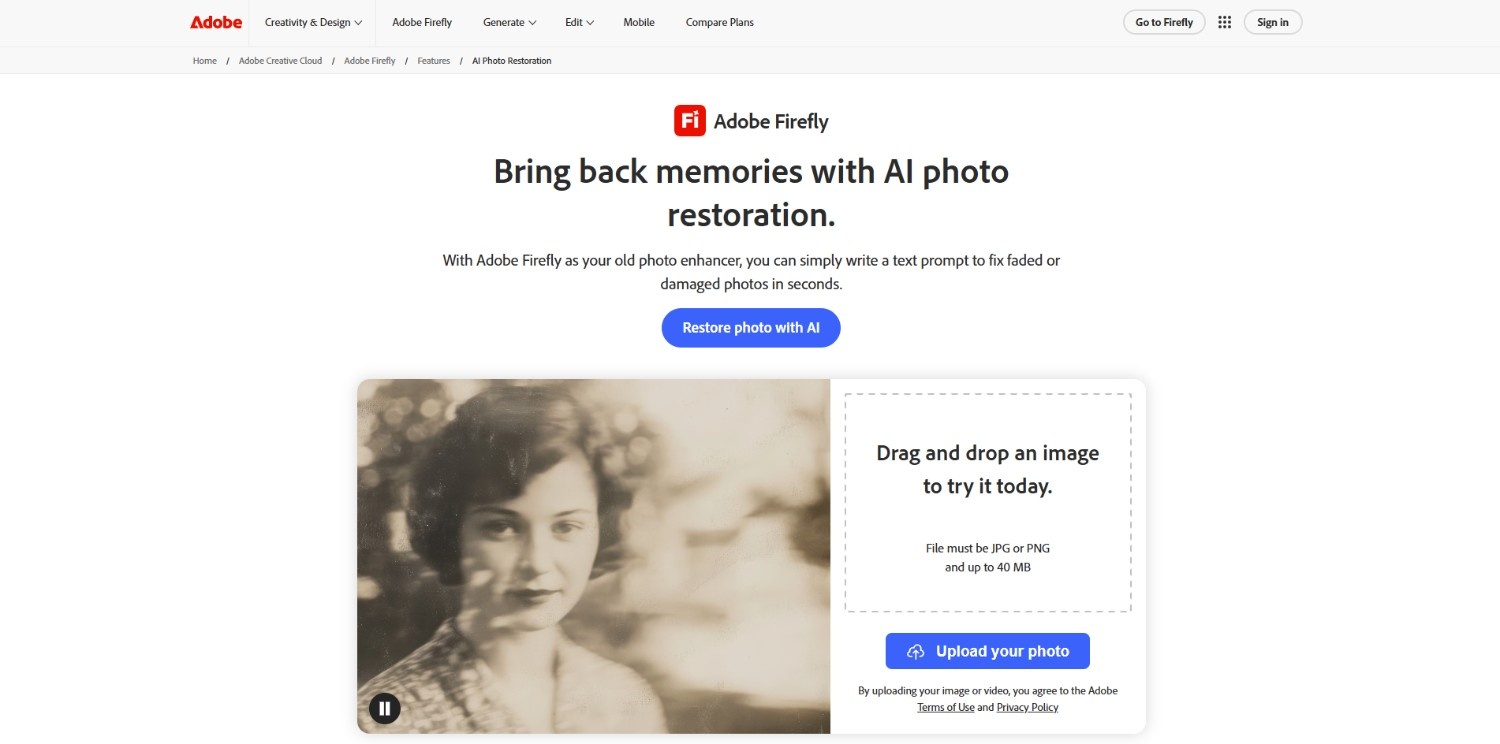
Adobe Firefly is an AI-powered creative editing platform that helps repair damaged photos using advanced generative editing tools. While not exclusively designed for photo restoration, its intelligent fill, object removal, and image expansion features enable precise, high-quality restoration workflows.
Key Features
-
Generative fill: Removes damaged sections, tears, stains, or unwanted objects by generating realistic replacement content that blends naturally with the surrounding image elements.
-
Generative expand: Extends cropped or incomplete photographs using AI-generated backgrounds that match the original composition, improving framing without obvious visual inconsistencies.
-
Object removal: Eliminates scratches, distractions, or unwanted elements through AI-assisted editing while preserving surrounding textures for cleaner and more polished restoration results.
-
Creative AI editing: Offers advanced generative editing tools for repairing, enhancing, and refining images while maintaining flexibility for professional creative workflows and detailed adjustments.
Pros & Cons
|
Pros |
Cons |
|---|---|
|
|
Best For
Photographers, designers, and professionals seeking AI-assisted restoration together with advanced image editing capabilities.
Pricing
Adobe Firefly includes limited monthly generative credits with free access. Premium plans provide additional credits and expanded AI editing features.
-
Canva
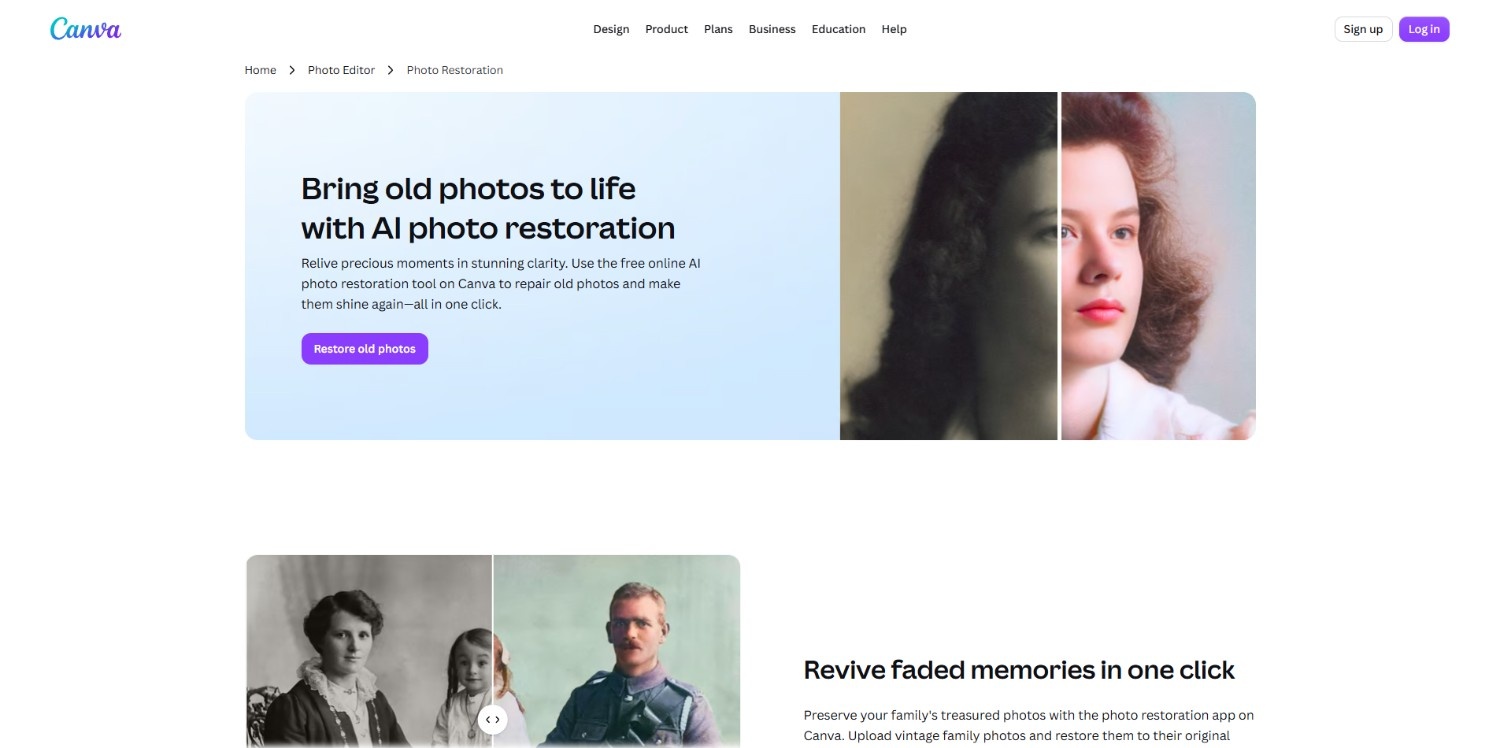
Canva is a browser-based design platform that incorporates AI-powered photo enhancement tools into its editing workspace. Along with basic restoration capabilities, it enables users to improve image quality, upscale photos, and prepare restored images for presentations, marketing materials, or social media content.
Key Features
-
AI photo enhancer: Improves brightness, sharpness, colors, and overall clarity automatically, helping old or faded images appear cleaner and more visually appealing with minimal editing.
-
Magic edit: Replaces damaged or unwanted portions of images using AI-generated content that integrates naturally with the original photograph and surrounding visual elements.
-
AI image upscaler: Enlarges low-resolution images while preserving important details, making restored photographs suitable for digital sharing, presentations, and high-quality print applications.
-
Integrated design workspace: Combines AI photo enhancement with templates, design tools, and collaboration features, allowing restored images to be used immediately in creative projects.
Pros & Cons
|
Pros |
Cons |
|---|---|
|
|
Best For
Beginners, educators, marketers, and content creators who want simple AI enhancement integrated with an easy-to-use design platform.
Pricing
Canva offers a free plan with basic AI editing features. Canva Pro unlocks premium AI tools, expanded storage, premium assets, and higher export quality.
4 Key features to look for in the best Photo Restoration software
Choosing the right AI photo restoration tool depends on more than just the restoration quality. The following features can significantly improve the final results and overall editing experience.
-
Automatic damage repair and scratch removal
AI should automatically detect scratches, dust, stains, cracks, and faded areas while preserving surrounding details. A reliable restoration tool repairs common damage with minimal manual adjustments, saving time without producing unnatural-looking textures.
-
AI-powered black-and-white photo colorization
Many historical photos are monochrome. AI colorization predicts realistic skin tones, clothing colors, landscapes, and backgrounds, helping old black-and-white photographs appear more natural while maintaining consistency throughout the restored image.
-
Facial feature enhancement and unblurring
Faces are often the most important part of old photographs. AI facial restoration improves blurry eyes, facial contours, skin details, and expressions without excessively smoothing features or creating artificial-looking results.
-
High-resolution image upscaling
Upscaling increases image resolution while preserving sharpness and fine details. This feature is useful for printing restored photographs, creating digital archives, or viewing old family pictures on larger modern displays.
Best practices to follow when using AI photo restoration tools
Even the best AI photo restoration tools perform better when provided with clean, high-quality source images. Following these practices can help improve restoration accuracy and preserve important photo details.
-
Scan photos at high DPI (600+ DPI) for better AI input
Scanning old photographs at 600 DPI or higher captures finer textures, facial details, and damaged areas. Higher-resolution scans give AI models more information to analyze, resulting in sharper restorations and improved overall image quality.
-
Clean physical prints before digitizing
Remove dust, fingerprints, and loose debris from photo prints using a soft microfiber cloth before scanning. A cleaner source image reduces unwanted artifacts and helps AI focus on repairing genuine scratches, tears, and faded regions.
-
Apply structural repairs before adding colorization
Repair scratches, tears, missing sections, and blur before using AI colorization. Restoring the image structure first provides cleaner visual information, allowing AI to generate more consistent and natural-looking colors across the photograph.
-
Maintain an unedited digital backup of original scans
Always save an untouched copy of the original scanned image before applying AI restoration. Keeping a backup lets you compare results, revisit future editing methods, or restore details if an enhancement produces unwanted changes.
Conclusion
AI photo restoration tools have made it easier than ever to preserve old memories without requiring professional editing expertise.
Whether you need to repair scratches, sharpen blurry faces, colorize black-and-white photographs, or upscale low-resolution images, today's AI solutions can significantly simplify the restoration process.
Vmake Labs stands out as a comprehensive option by combining multiple restoration features within a single workflow, while platforms like Nero AI, Picsart, Adobe Firefly, and Canva cater to different editing needs and skill levels.
Choosing the right tool ultimately depends on your restoration goals, budget, and preferred workflow.
Frequently Asked Questions (FAQs)
-
How does an AI photo restoration tool work?
AI photo restoration tools use machine learning models to identify scratches, fading, blur, tears, and other imperfections. The software automatically reconstructs damaged areas, enhances facial details, improves image clarity, and can also colorize or upscale old photographs.
-
Can AI restore photos with severe tears or missing pieces?
Yes, many AI restoration tools can reconstruct damaged areas using generative AI. However, the quality depends on how much of the original image remains, and extensive damage may still require manual editing for optimal results.
-
What scan resolution (DPI) is best for AI photo restoration?
Scanning photographs at 600 DPI or higher generally provides the best results. Higher-resolution scans preserve finer details, giving AI restoration models more information to repair damage, enhance facial features, and produce sharper final images.
-
Is AI photo restoration better than manual Photoshop editing?
AI restoration is faster and easier for most users, while manual Photoshop editing offers greater precision and control. For everyday photo restoration, AI tools are often sufficient, whereas professionals may combine AI with manual retouching.
-
Are there free AI photo restoration tools available in 2026?
Yes. Several platforms, including Vmake Labs, Picsart, Nero AI, Adobe Firefly, and Canva, offer free plans or limited AI credits. Paid subscriptions typically unlock higher-resolution downloads, additional processing credits, and advanced restoration features.

You May Be Interested
How to Fix Blurry Photos in 2026: Best Tools to Sharpen Blurry Images
Best AI Image Enhancer in 2026: Top Tools to Upscale and Fix Blurry Images

Best AI Animation Generators for Creating Images and Videos

Best App for Photo Enhancing: 8 Top Picks for 2026
Best Photo Eraser Tools in 2026: Remove Objects, Text & People from Photos
Brighten Image Online Free: Fix Dark Photos Instantly