How to Fix Blurry Photos: Best Methods to Sharpen Images in 2026
 Vmake Labs TeamMay 25, 2026
Blurry photos are frustrating, especially when the moment cannot be captured again, i.e., a family gathering, scenic sunset, or a business document. The good news is that you can fix blurry photos in 2026.
Modern AI technology helps recover detail, sharpen edges, reduce noise, and improve resolution. In this guide, you will learn how to fix blurry photos online, on iPhone, and in Photoshop.
Why Photos Become Blurry
Understanding why photos became blurry is necessary to fix the blurriness as effectively as possible. Here are some common reasons:
Camera Motion or Hand Shake
Camera shake is due to your hand movement while taking the photo. This is common in low light because the camera requires some time to capture the image. The result is a soft or smeared-looking photo.
Focus Errors
Focus errors happen when the camera focuses on the wrong part of the image. For example, the background may look clear while the person or product looks blurry. This type of blur is common in portraits and close-up shots.
Low Image Resolution
Sometimes a photo looks blurry, soft, or unclear because it is too small. This often happens with screenshots, old photos, downloaded images, profile pictures, and images saved from social media.
Compression and File Quality Loss
Compression reduces file size but can also remove important image details. Messaging apps, websites, and social platforms often automatically compress photos. This can make images look blurry, noisy, or damaged around the edges.
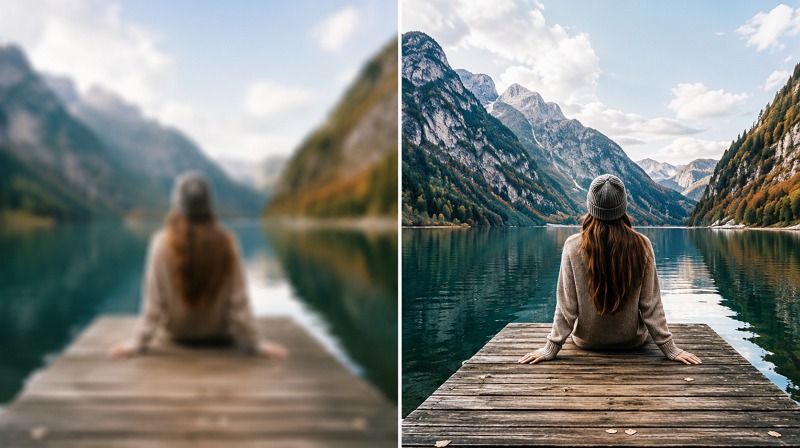
How to Fix Blurry Photos (Quick Methods)
Depending on the type of blur, several methods are available on how to fix blurry image. Let’s explore:
Use AI Photo Enhancement Tools
An efficient AI photo enhancer can automatically detect blur and improve image clarity within seconds. Among various options, Vmake AI Image Enhancer is popular for enhancing and upscaling images in a single platform. It helps deblur low-res photos by sharpening and restoring details with a single click.
Increase Image Resolution with AI Upscaling
Low-resolution images look blurry and pixelated. As sharpening alone may not be enough, go for AI upscaling. This will help increase image size while rebuilding lost pixels, thus improving image clarity.
Adjust Sharpness and Contrast
If the image is slightly soft, basic sharpness and contrast adjustments can help. Sharpness enhances edges, while contrast makes details stand out more clearly. Most photo editors offer such controls, producing the most natural-looking results.
Reduce Noise and Artifacts
Noise and compression artifacts can make photos appear soft or grainy. Noise reduction tools help clean the image before sharpening. This results in a smoother, clearer result, especially for low-light or heavily compressed photos.
Best Tools to Fix Blurry Photos Online (Free & Paid)
Many tools claim to fix blurry image, but not all of them produce the same results. Below are the best options in 2026:
Vmake AI Image Enhancer – Best for One-Click Blurry Photo Fix
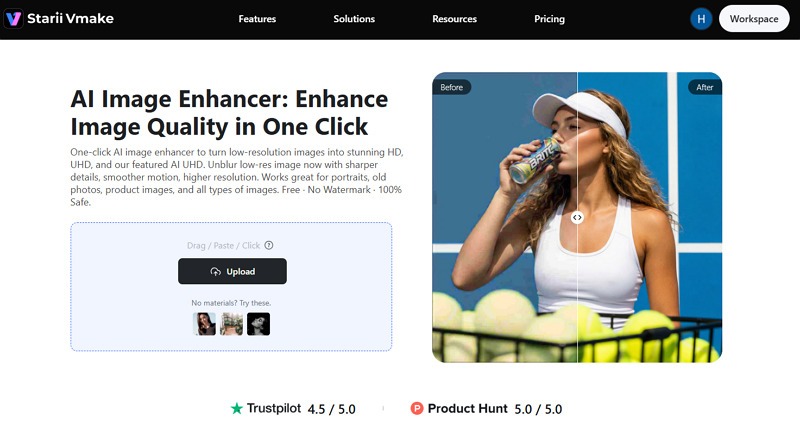
Vmake AI Image Enhancer is a versatile browser-based tool for fixing blurry photos, restoring lost details, and improving clarity with no editing experience required. It’s built for quick, natural enhancement, so you only upload a blurry image and let the AI automatically improve clarity, sharpness, and detail.
Besides increasing the resolution, it lets you enhance any type of image. It is perfect for content creators, marketing teams, and e-commerce sellers.
Key Features
Help fix AI-generated photos
Upscale photos to 2K and 4K resolution
Support processing multiple images
Strengths
Completely automatic
Safe and ad-free interface
API support for developers
Remini – Best for Portrait Photo Enhancement
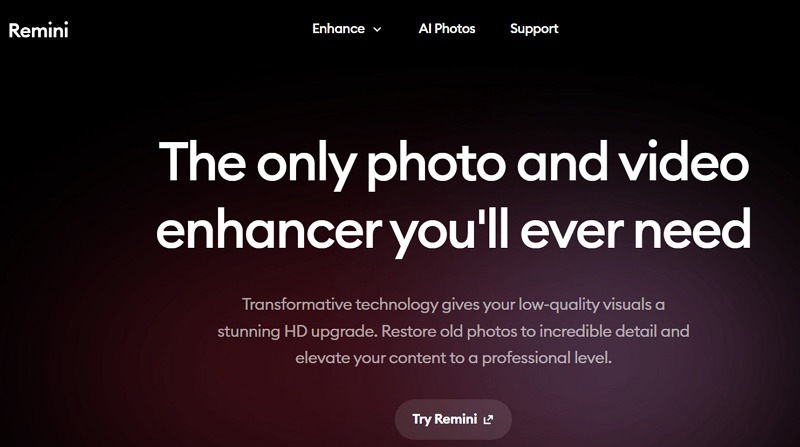
Remini is one of the most popular AI tools for restoring faces in blurry photos, improving texture, color, and clarity. It uses deep learning models trained on facial data to help recreate the missing details.
This makes it useful for improving heavily blurred portraits, damaged selfies, and old photos. However, its free version includes ads, and the output may look overprocessed.
Key Features
Enlarge images up to 2x losslessly
Advanced face reconstruction technology
Automatic sharpening and enhancement
Strengths
One-tap blur fix
Mobile-friendly design
Specialized enhancement options
Fotor – Best Free Online Blurry Image Fix
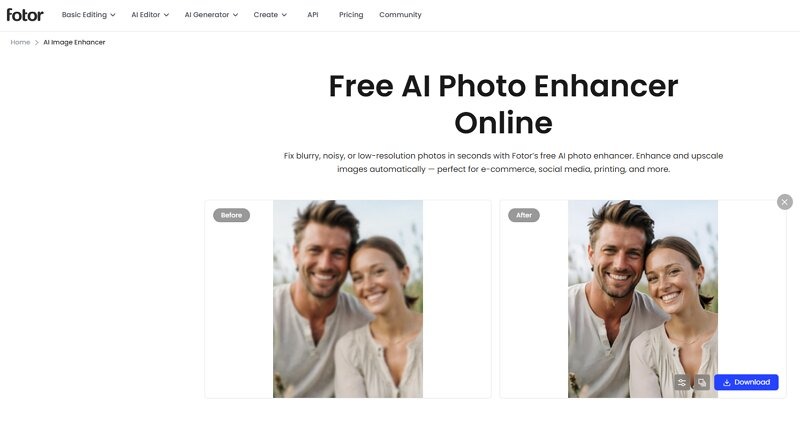
Fotor AI Photo Enhancer is another valuable tool for those who want to fix blurry images online free. It is designed to reduce noise, sharpen details, remove blur, and enhance low-resolution photos, making them clearer within seconds.
You can also edit the processed image if needed. It is suitable for improving photos for e-commerce, social media, printing, restoration, and other purposes.
Key Features
Allow batch enhancement
Support upscaling up to 2x
Offer a range of editing tools
Strengths
Extremely easy to use
Fast and budget-friendly
Available on desktop & mobile
Adobe Photoshop – Best for Professional Editing
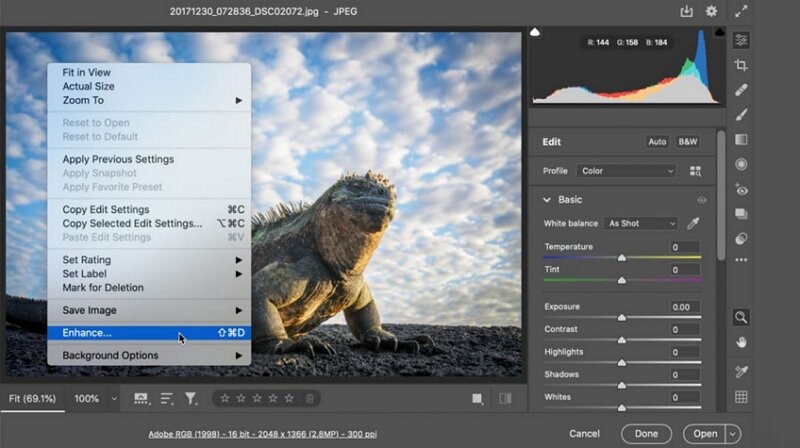
Adobe Photoshop is the industry standard for professional image editing, offering manual precision. It gives you full control over sharpening, layers, masks, resolution, noise reduction, and selective edits.
It provides unparalleled control over the editing process with tools such as Smart Sharpen, Shake Reduction, and Unsharp Mask. It works well for those already paying for Creative Cloud. However, it requires high system resources and a steep learning curve.
Key Features
Work alongside Generative Fill
Retouching and restoration options
Integrate into existing editing workflow
Strengths
Non-destructive photo editing
Granular sharpening controls
Studio-quality output
How to Fix a Blurry Photo on iPhone
Taking photos on an iPhone is common these days. So it makes sense to people looking for ways to fix blurry photos directly on their device. If you are also wondering how to fix a blurry photo iPhone users already have several options:
Use the iPhone Photos App
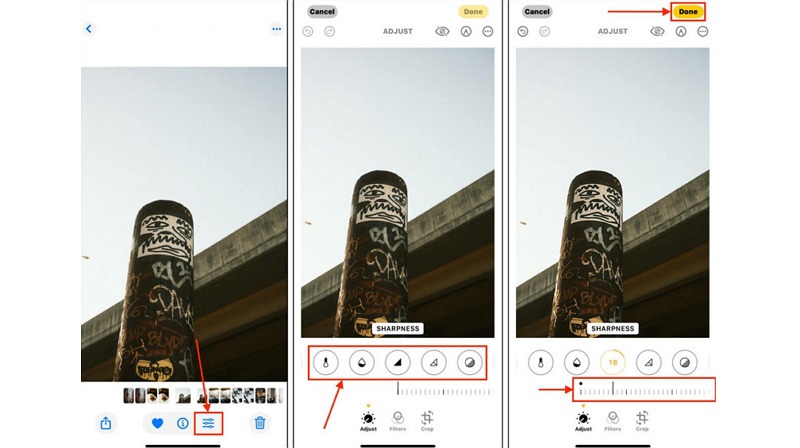
The iPhone Photos app offers a quick feature that will not perform advanced AI restoration, but it can slightly improve blurry images. It can’t fully fix a badly out-of-focus photo, but it can make everyday images look cleaner.
Open the photo and tap “Edit.”
Adjust sharpness, detail, noise reduction, exposure, etc.
For a natural result, increase all the parameters slowly.
Use AI Photo Enhancement Apps
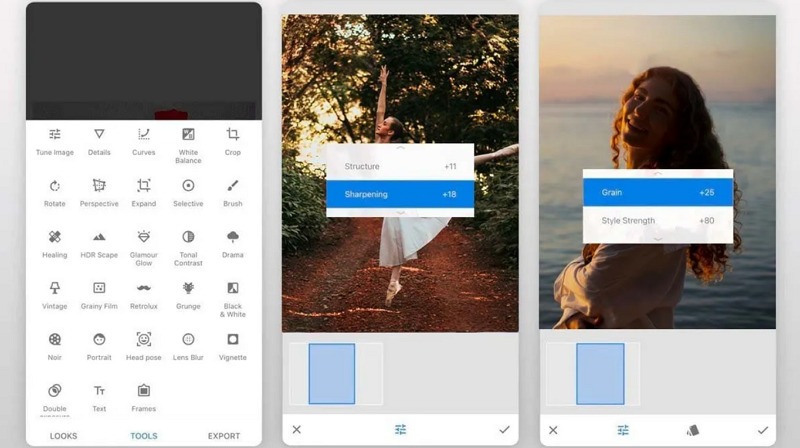
Mobile apps such as Remini or Snapseed can help Android and iPhone users sharpen blurry photos. Both are ideal for quick edits and for fixing social media photos, but in different ways. Remini is better for portraits and face enhancement, handling mild blur well. While Snapseed is useful for manual sharpening, structure, and selective edits, it is best for significant recovery with AI. To do this:
Open the photo in Snapseed and click “Tools” > “Details.”
Now, increase “Structure” to 30-50 and “Sharpening” to 20-40.
Lastly, export the output.
Use Online AI Enhancers
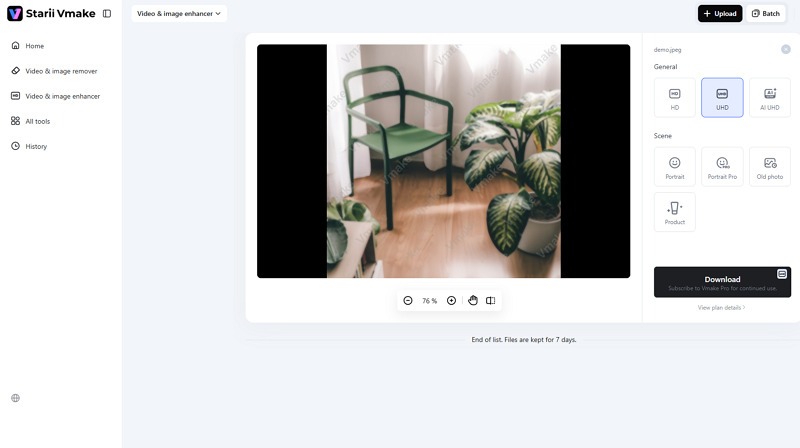
Another fantastic approach is to use online AI enhancers directly in your browser if you don’t prefer installing an app. Vmake AI Image Enhancer is a convenient solution for quickly enhancing and upscaling a blurry photo with no complex editing skills in a single click. It is ideal for social media posts, product listings, old photos, or portraits. Here is how:
Open the tool in your browser and click “Upload” to import a photo.
Now, select the resolution and pick the preferred enhancement scene.
Lastly, press “Apply” and when AI finishes processing, download the output.
How to Fix a Blurry Image in Photoshop
Adobe Photoshop is the best choice when you need a controlled, professional way to fix a blurry image. It’s not the fastest method, but it gives the cleanest results when used with expertise. Here are different ways to fix blurry images in Photoshop:
Use Smart Sharpen
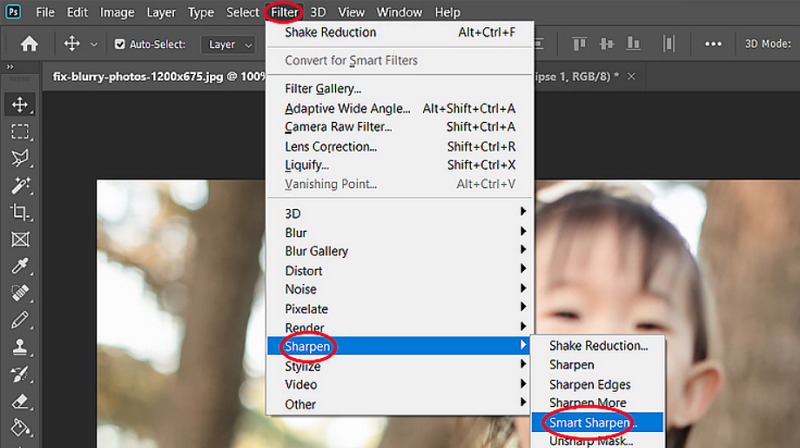
Smart Sharpen is one of the easiest Photoshop tools for fixing blurry images. Instead of actually reversing blur, it increases the edge contrast to create the perception of sharpness. It is best for mild softness, lens blur, and slightly out-of-focus images. To do this:
Convert a photo to a smart object in the layers panel.
Go to “Filter” > “Sharpen” > “Smart Sharpen.”
Adjust the “Amount,” “Radius,” and “Reduce Noise.”
Select the “Remove” option and confirm the changes.
Use the High Pass Sharpening Method
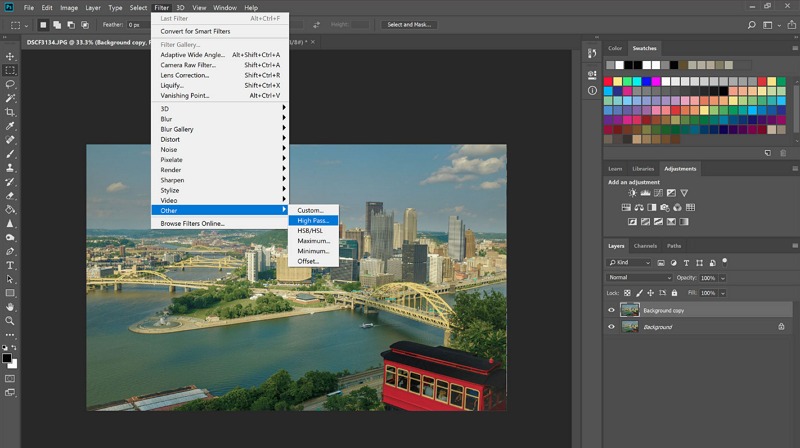
High Pass sharpening is popular because it sharpens edges without overly affecting the entire image. It adds crispness and micro-contrast to image edges, bringing out the brilliant detail in your images. It works well for portraits, product images, and social media visuals when you need natural results. Here is how:
Convert a photo to a smart object and go to “Filter” > “Other” > “High Pass.”
Select “Radius” between 1 and 3 and change the “Blend Mode.”
Click “Add Layer Mask” to sharpen specific parts of an image.
Use Photoshop Super Resolution
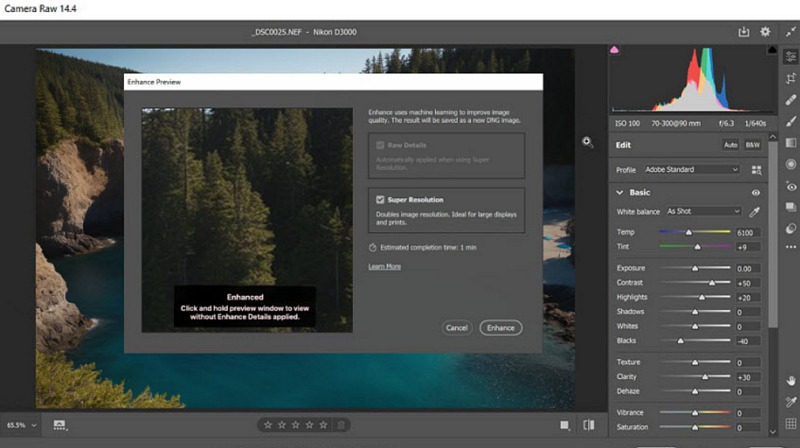
If your image is blurry because it is too small or low-resolution, you need to increase the resolution. Adobe Photoshop offers a Super Resolution feature that can increase an image’s size by 2x and pixel count by 4x. It intelligently fills gaps while keeping it close to the original, resulting in an artifact-free enlargement. It only works well for photographers working with decent-quality originals. To do this:
Open your image and click “Filter” > “Camera Raw Filter.”
Tap three dots in the right panel and choose “Enhance.”
Check the box next to “Super Resolution.” Then, hit “Enhance.”
Tips to Prevent Blurry Photos in the Future
It’s possible to fix blurry photo, but preventing blur is even better. A few simple tips save you a lot of editing time later.
Stabilize Your Camera
Camera shake is easier to prevent by holding the phone or the camera steady. For low-light shots, use a tripod, phone stand, or any stable surface. Even a 2-second timer can help by preventing camera shake when pressing the shutter button.
Check Focus Before Taking the Photo
Before taking photos, tap the subject on your phone screen to lock focus. Whether you’re capturing portraits, products, close-ups, etc., zoom in after capturing and check whether the main detail is sharp.
Use Higher Resolution Settings
Always use the highest practical resolution when taking important photos. Higher-resolution images contain more detail and are important for product photography, portfolio images, printing, web banners, real estate photos, etc.
Avoid Excessive Compression
Avoid sending images through messaging apps and social platforms that heavily compress files. For better quality, send images as documents, use cloud storage, export with high-quality settings, and keep a backup of the original file.
FAQ
Can you fix a blurry photo?
Yes, AI tools like Vmake AI Image Enhancer can sharpen details and improve resolution. However, if a photo is extremely blurred, the result is an improvement rather than a perfect restoration.
How can I fix blurry photos for free?
You can fix blurry photos free by using online AI tools such as Vmake AI Image Enhancer or Fotor. You can also use free mobile editing features in the iPhone Photos or Snapseed.
What is the best tool to fix blurry photos?
The best tool depends on your image. For a fast one-click blurry photo fix online, Vmake AI Image Enhancer is a strong option. You may consider other options as well.
Can AI really fix blurry images?
Yes, AI can fix blurry images better than traditional sharpening in many cases. AI tools can analyze edges, textures, faces, and missing details, then rebuild pixels to make the image look clearer in a few clicks.
Final Thoughts
Learning how to fix blurry photos without advanced editing skills is easier than ever. This post has provided various options to help with blurry, low-resolution, and compressed images across platforms.
Although all options are good, the fastest and easiest choice for most users is Vmake AI Image Enhancer. It’s useful for anyone who wants to fix blurry photos online for social media, e-commerce, personal memories, and more.

You May Be Interested

How to Create a YouTube Thumbnail? Create YouTube Thumbnails Using AI
1440p vs 1080p: The Ultimate Display Resolution Comparison
1440p vs 4k Comparison: Which Resolution is Better?
720p vs 1080p: Which HD resolution is actually better?
What is 1440p Resolution? A Complete Guide to QHD Displays