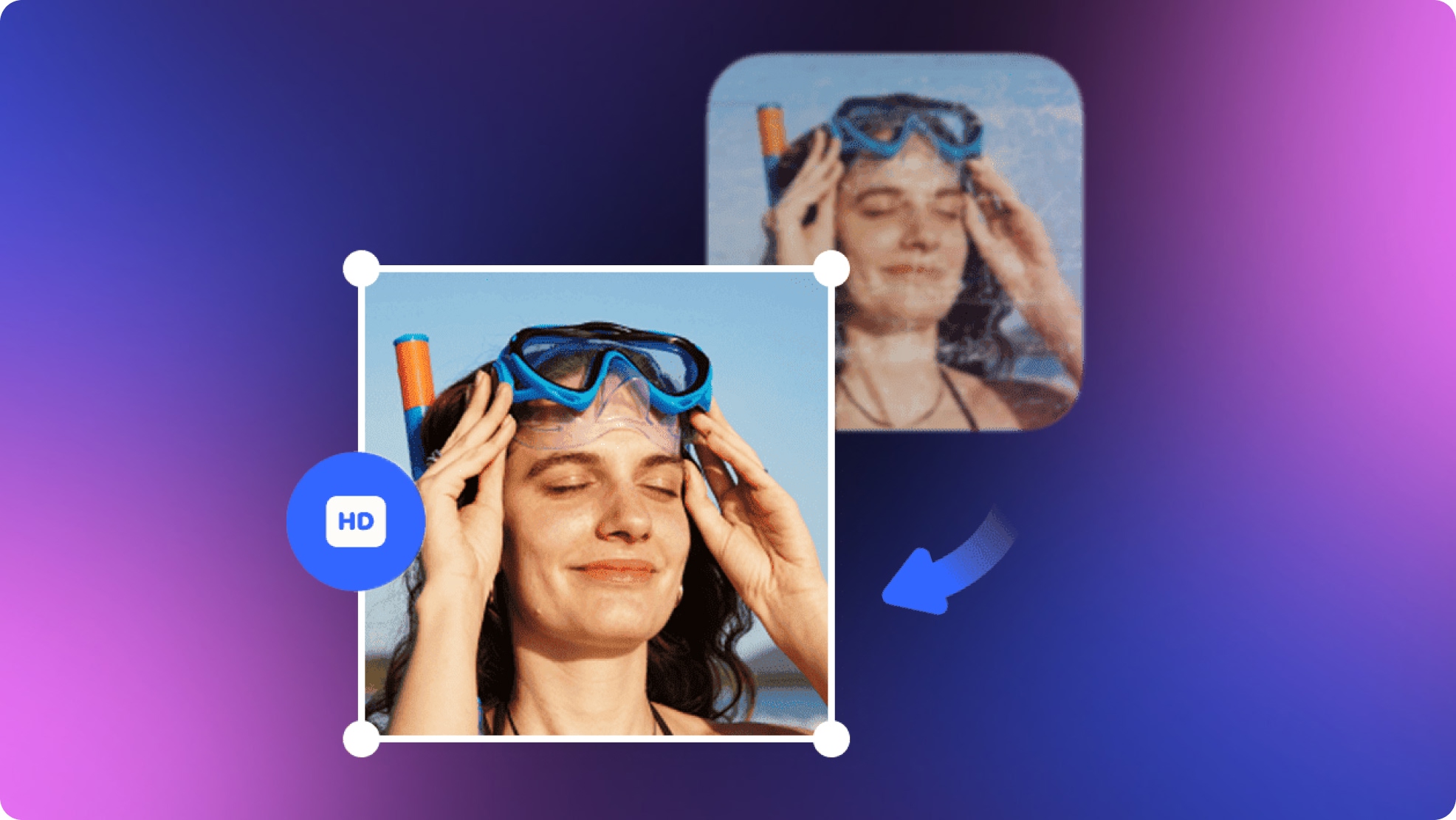
Understanding 480p Video & Learn to Enhance 480p Losslessly
 Vmake Labs TeamMarch 26, 2026
Even with today’s high-definition standards, 480p resolution hasn’t disappeared. It still appears in older recordings and low-bandwidth content. While it serves its purpose, the visual quality feels outdated on modern screens. In this article, you will learn about what 480p video resolution actually is, where you’ll use it, and practical ways to improve its quality to get the best viewing experience.
What does 480p Resolution Stand for?

The term 480p refers to a video display format that contains 720×480 pixels (in most cases). The “p” in 480p stands for progressive scan, meaning each frame is displayed in full, unlike interlaced formats.
This format is commonly known as standard definition (SD) video. Historically, it became popular during the DVD era and in the early days of digital broadcasting. It is less detailed compared to HD (720p) and Full HD (1080p). However, its lower storage and bandwidth requirements make it efficient for slower internet speeds.
When it comes to 480i vs 480p, the key difference lies in how the picture is displayed. 480i displays alternating lines per frame, which can cause flickering or blur, while 480p displays the entire frame at once, resulting in smoother motion.
Common Use Cases for 480p Videos
Despite its limitations, 480p screen resolution still has its place. Here are some of the most common scenarios where it is used:
Streaming with Limited Bandwidth
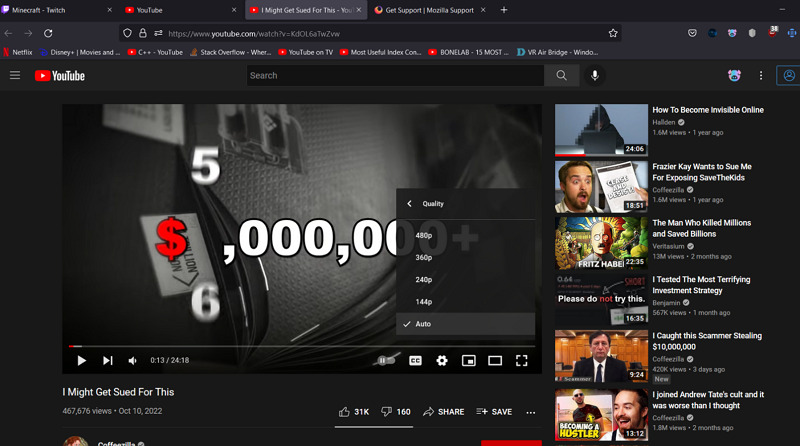 For those with limited internet speeds or data restrictions, 480p video resolution provides a balance between video quality and data usage. Some platforms default to 480p to ensure uninterrupted playback.
Older Devices and Displays
Many legacy devices, such as early smartphones, DVD players, and older television sets, were designed to support 480p resolution, making it the default playback format.
Surveillance and Security Footage
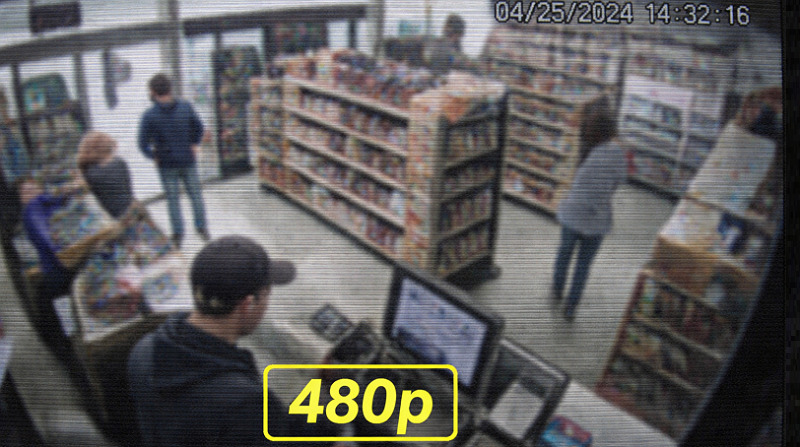 Many CCTV cameras and surveillance systems often record in 480p res to save storage space while maintaining adequate image quality for monitoring purposes.
Archived or Legacy Content
Older videos, including movies, shows, and early YouTube videos originally recorded in 480p, are still available to view, especially in the archives of video platforms.
Educational and Mobile Viewing
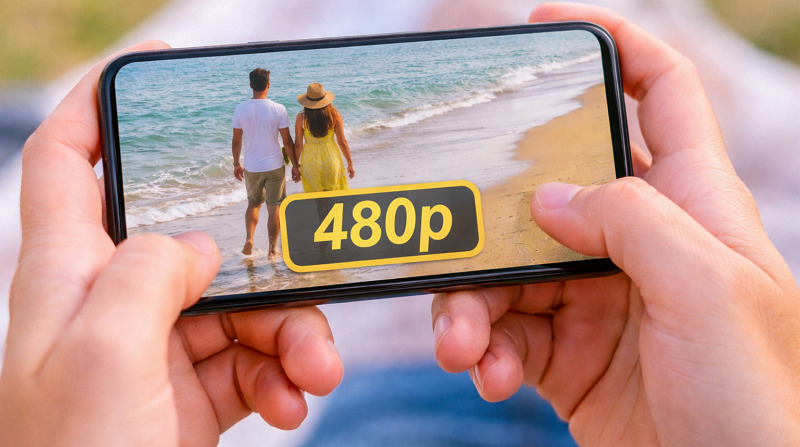 480p videos are also used for educational content. This ensures easy access on small screens, quick downloads, and less strain on devices and networks.
480p vs Higher Resolutions
Understanding how 480p resolution compares with modern formats helps you decide when it’s enough and when you need more.
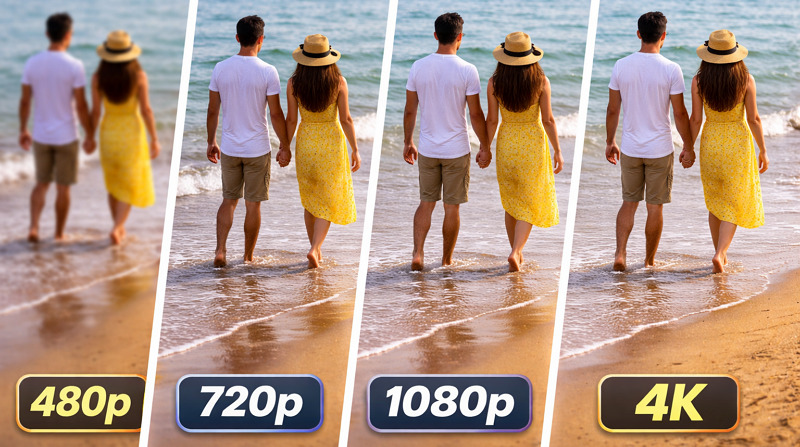 Here is a comparison chart of 480p with higher definitions like 720p, 1080p, and 4K resolutions:
|
Resolution |
480p |
720p |
1080p |
4k |
|
Pixels |
640 x 480 or 720 x 480 or 854 x 480 |
1280 x 720 |
1920 x 1080 |
3840 x 2160 |
|
Aspect Ratio |
4:3 or 16:9 |
16:9 |
16:9 |
1:1.9 |
|
File Size / Bandwidth Usage |
8-11 MB |
12-45 MB |
25-60 MB |
115-300 MB |
|
Visual Clarity |
Basic |
HD |
Full HD |
Ultra-sharp |
|
Use Cases |
Data saving, low-bandwidth streaming, and old hardware |
Live streaming, Standard displays, small screens, video conferencing |
Gaming, streaming, online content, small screen workstations |
Large screen, High-end streaming, Gaming, Post production |
|
Device Compatibility |
Standard smartphones, tablets, retro-gaming consoles |
Various smartphones, entry-level projectors, smart TVs, laptops, tablets |
Modern laptops, HD TVs, modern displays, computers, and streaming hardware |
4K native TVs, PS5, modern displays, Amazon Fire TV Cube, Chromecast |
Ultimately, the choice between these resolutions depends on the device, available bandwidth, and the viewer’s need for quality.
How to Enhance Low-Res Video Quality Like 480p?
While 480p resolution serves its purpose, it often lacks the sharpness and clarity needed for modern devices. Fortunately, several ways help improve the quality of 480p and other low-resolution videos, enhancing the overall viewing experience. Here are the 480p limitations and how you can achieve better results:
Limitations of 480p Videos
480p videos can cause various issues, especially compared to higher resolutions like 720p or 1080p. Here are a few:
-
Low Visual Detail: 480p res lacks the sharpness and clarity needed for fine details. Text, small objects, and intricate textures may appear pixelated, which can be frustrating for viewers.
-
Blurred Motion: In fast-moving scenes, 480p videos often lose clarity. The lack of higher resolution leads to motion blur, making it difficult to follow quick actions or transitions.
-
Reduced Image Quality: When viewed on larger devices such as HD or 4K TVs, 480p videos appear stretched and lack sharpness, resulting in a grainy, blurry picture.
-
Limited Viewing Experience: As technology advances, higher resolutions like 720p, 1080p, and 4K are becoming the standard. 480p videos struggle to meet the visual standards of modern displays.
Enhance Your Videos with Vmake AI Video Enhancer
One of the most effective tools for enhancing 480p video resolution is Vmake AI Video Enhancer. This remarkable tool uses artificial intelligence to automatically improve your video’s quality, without requiring technical knowledge. It works by upscaling the resolution, reducing noise, sharpening details, and enhancing overall clarity.
With an intuitive interface, you can upscale videos to 2K, 4K, or even 4K+ resolution with a few clicks. It also offers specialized AI models for portrait, product, low-light gaming, anime, and more. This makes it ideal for social creators, marketers, streamers, and gamers.
Features:
-
Work well for desktop, mobile, and online users
-
Provide you with an API and Chrome extension
-
Help upscale your low-res videos in seconds
-
Let you upscale multiple 480p videos at once
-
Allow previewing the output before exporting
-
Delete uploaded & enhanced files after 7 days
Steps to Enhance Your 480p Resolution Videos:
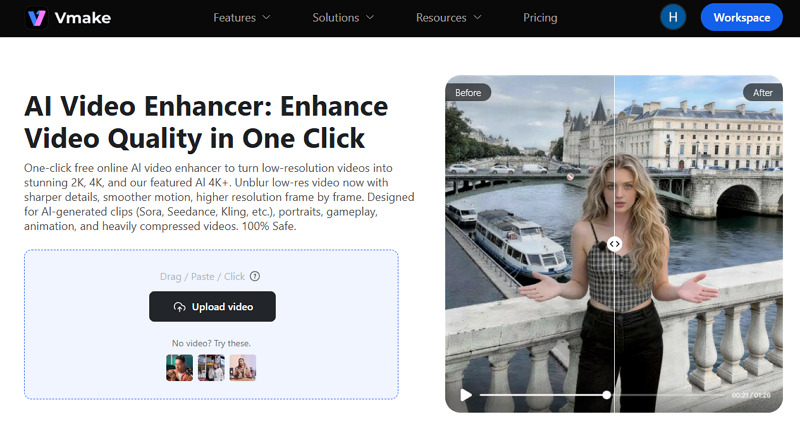
Step 1. Upload Video
The first step is to open the Vmake Video Enhancer in your browser. Now, click “Upload video” to import any 480p file.
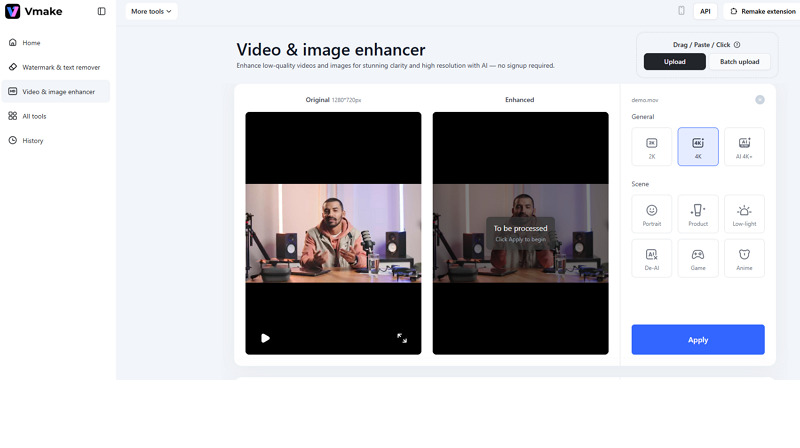
 Step 2. Select Upscaling Resolution
Next, choose the 2K, 4K, or 4K+ resolution option. You can also enhance your videos, such as with portrait mode. Then, press the “Apply” button.
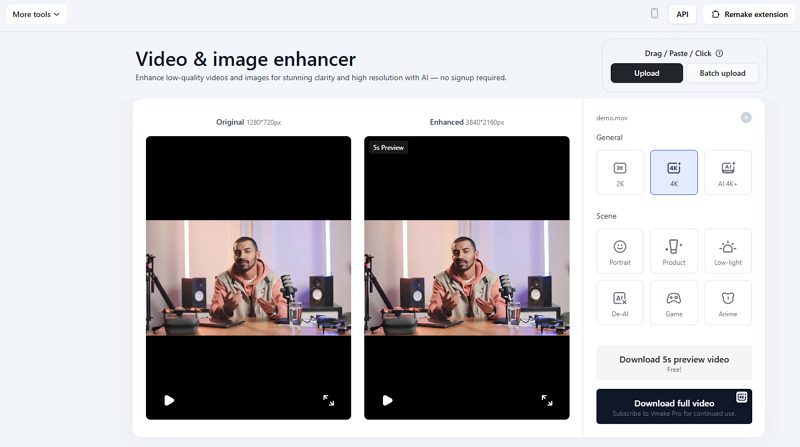
 Step 3. Preview & Export
Once the AI has finished processing, preview the results. If it’s fine, hit the “Download 5s preview video” or “Download full video.” That’s all!
FAQ About 480p Resolution
1. 480i vs 480p, which one is better?
480p res is generally considered superior to 480i because it offers progressive scan, displaying full frames at once, resulting in smoother motion and higher viewing comfort. 480i uses interlaced scanning, which can cause flickering.
2. Is 480p considered HD?
No, 480p is considered standard definition (SD). High definition starts at 720p. While 480p offers decent quality, it lacks the sharpness and detail of HD or Full HD resolutions.
3. Why is my Netflix in 480p?
This may happen due to a slow or unstable internet connection or data restrictions. Some devices may also default to this resolution for smoother playback. However, you can switch to a higher resolution.
4. Is 480p good quality for mobile phones?
480p is generally acceptable for smaller mobile phone screens, providing good visual quality at low data usage. However, higher resolutions like 720p offer better clarity on larger screens.
Conclusion
Although 480p resolution is no longer the standard for modern video, it still plays an important role in low-bandwidth streaming and legacy content. However, its limitations in clarity and detail make it essential to enhance.
If you’re working with 480p videos and want to upgrade them to meet modern standards, Vmake AI Video Enhancer is a powerful, easy-to-use solution. It can easily transform low-quality footage into sharper, more vibrant visuals. So, let’s try it today!

You May Be Interested
What is 240p Video & How to Enhance 240p Quality
How to Improve Video Quality to 720p: Best Methods in 2026

How to Convert 480p Video to 1080p (Best Upscaling Methods)
Native 4K vs Upscaled 4K: Which One to Choose?