UHD vs HD: Understanding the Differences and How to Upgrade Your Visuals
Wondering about UHD vs HD? Explore full comparisons of clarity, file size, and ideal use cases, along with AI tools to instantly upgrade your HD images to UHD. Try out Vmake Labs today!

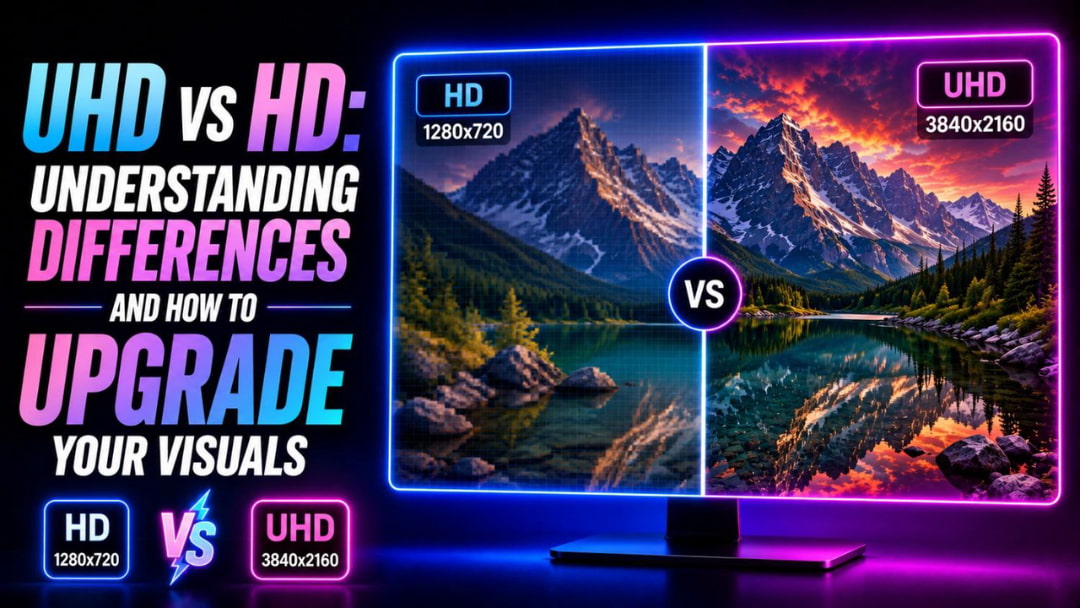
Whether you're viewing photos, streaming videos, or creating digital content, image resolution directly affects visual quality. HD and UHD are among the most common display standards, yet many people confuse their differences. Understanding how they compare helps you choose the right format for your needs. This guide explains UHD vs HD, highlights their key differences, and shows how AI can enhance HD images to higher-quality UHD results.
What is UHD vs HD?
HD (High Definition) and UHD (Ultra High Definition) are display resolutions that determine how much visual detail an image or video contains.
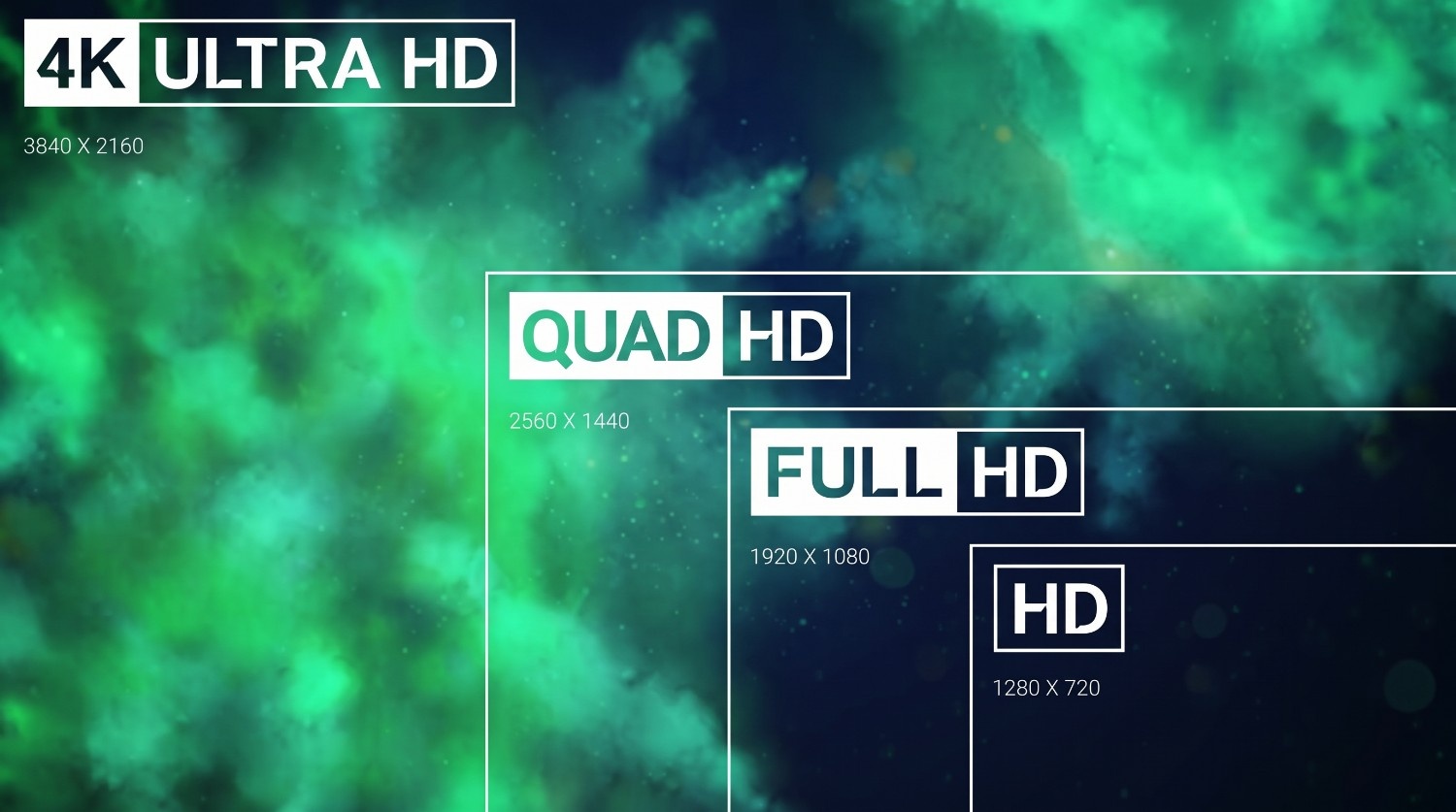
Standard HD commonly refers to 1280 × 720 pixels, while Full HD increases the resolution to 1920 × 1080 pixels for sharper visuals. UHD, commonly known as 4K UHD, delivers 3840 × 2160 pixels, four times the resolution of Full HD.
The higher pixel density creates clearer textures, finer details, and improved image quality, particularly on larger displays. While HD remains widely used, UHD has become increasingly popular for modern televisions, monitors, smartphones, and professional content creation.
HD vs UHD: key differences to note
Although both formats deliver high-quality visuals, they differ in several important areas, including resolution, image clarity, storage requirements, and display compatibility. Understanding these differences helps you choose the most suitable format for viewing, editing, or sharing content.
-
Resolution and pixel count
HD typically ranges from 1280 × 720 to 1920 × 1080 pixels, whereas UHD provides 3840 × 2160 pixels. The significantly higher pixel count allows UHD to display substantially more visual information, producing sharper and more detailed images.
-
Clarity, sharpness, and fine detail
UHD displays finer textures, cleaner edges, and more intricate details that may appear softer in HD. The improvement becomes especially noticeable when viewing high-resolution photos, videos, or graphics on larger screens or professional displays.
-
Color depth and High Dynamic Range (HDR) support
Many UHD devices support HDR technologies that improve brightness, contrast, and color accuracy. While HD content can also support HDR, UHD displays more commonly combine higher resolution with enhanced color performance for richer visuals.
-
File size and bandwidth requirements
UHD files require considerably more storage space and higher internet bandwidth because of their increased resolution. HD content is easier to store, edit, and stream, making it more practical for users with limited storage or slower connections.
-
Screen size and viewing distance compatibility
HD performs well on smaller displays where individual pixels remain less noticeable. UHD delivers greater visual benefits on larger screens or when viewed at closer distances, allowing viewers to appreciate its increased level of detail.
|
Feature |
HD |
UHD |
|---|---|---|
|
Resolution |
1280 × 720 or 1920 × 1080 |
3840 × 2160 |
|
Total Pixels |
Up to 2.07 million |
Approximately 8.29 million |
|
Image Detail |
Good everyday clarity |
Much sharper with finer details |
|
HDR Support |
Available on some content and displays |
Commonly supported on modern devices |
|
Storage Requirement |
Lower file sizes |
Larger files requiring more storage |
|
Streaming Bandwidth |
Lower internet requirements |
Higher bandwidth recommended |
|
Best Screen Size |
Small to medium displays |
Medium to large displays |
|
Typical Uses |
Daily streaming, social media, presentations |
Professional editing, gaming, cinema, large-screen viewing |
UHD vs HD: when to use each one
The right resolution depends on how you plan to use your content. Factors such as display size, storage capacity, internet speed, and image quality expectations all influence whether HD or UHD is the better choice.
Best scenarios and devices for HD
HD is ideal for smartphones, laptops, online meetings, social media uploads, presentations, and everyday streaming. It offers good visual quality while consuming less storage space and internet bandwidth than UHD.
Best scenarios and devices for UHD
UHD is best for large televisions, gaming monitors, professional photography, video editing, digital displays, and cinematic viewing. Its higher resolution delivers superior detail, making it ideal for content viewed on larger screens.
How to convert HD to UHD? A common way you should know
Converting an HD image to UHD involves more than simply increasing its dimensions. Traditional methods, such as using Microsoft Paint, enlarge existing pixels, while AI-powered upscaling analyzes image content and reconstructs missing details for a sharper, more natural-looking result.
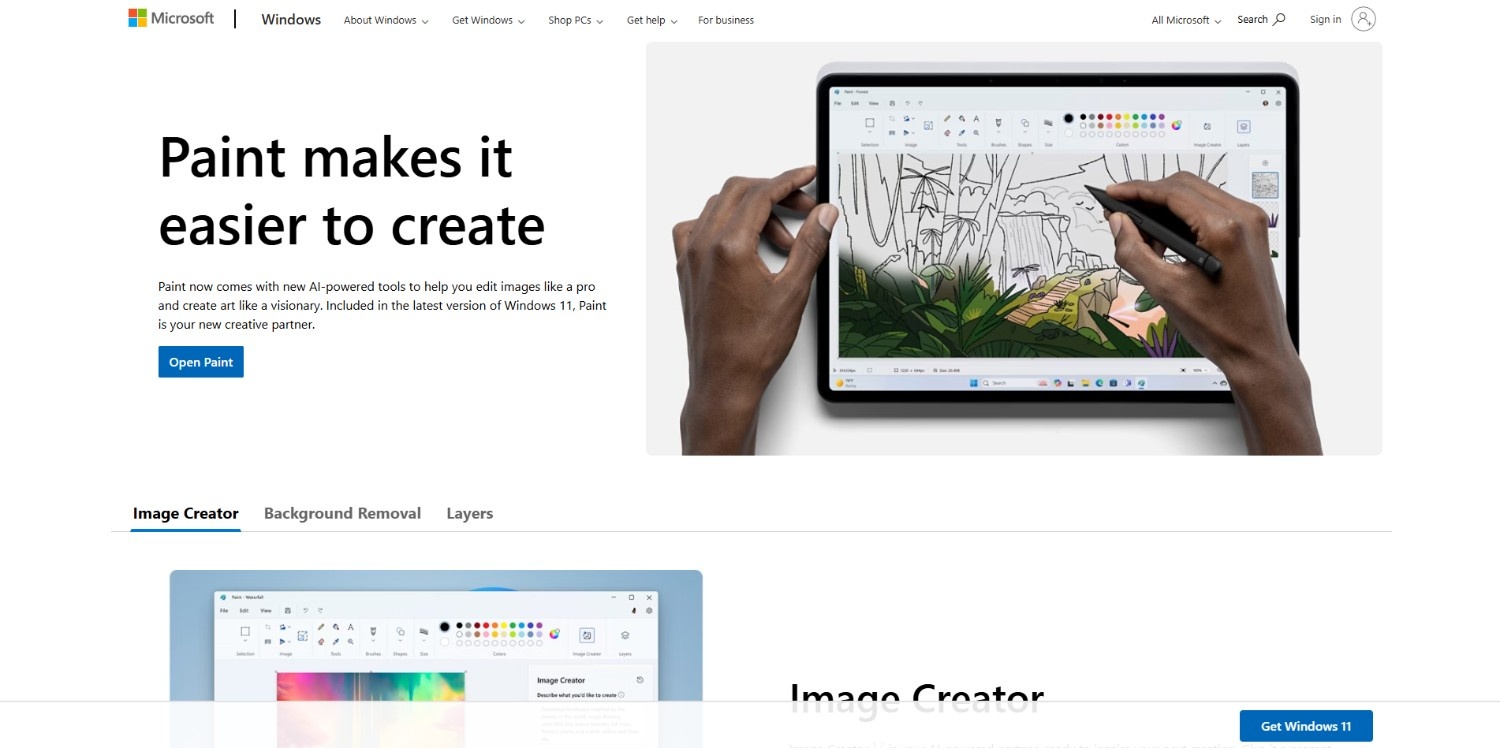
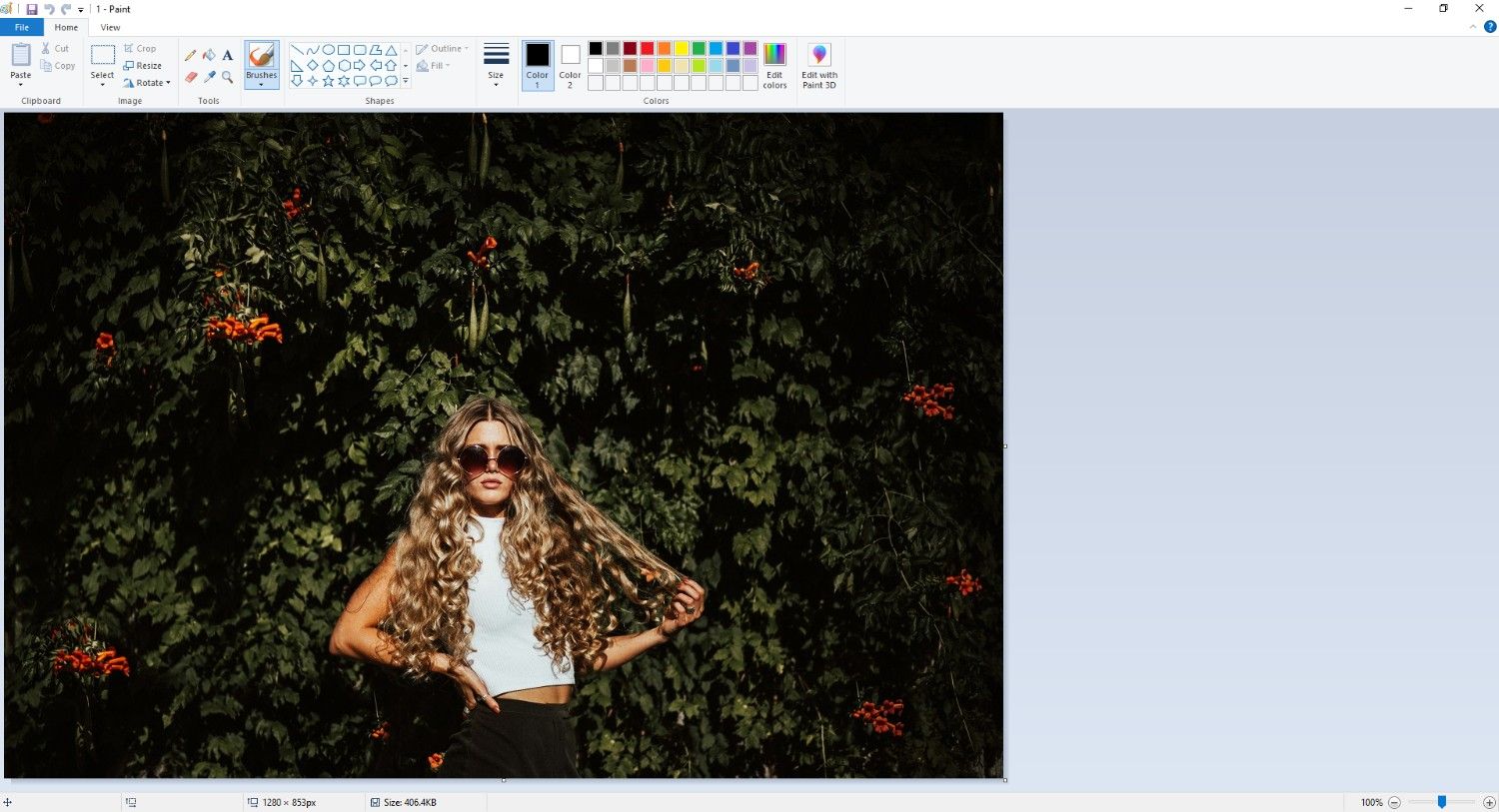
Step 1: Open the HD image in an image editor
Import your HD image into a photo editing application, such as Microsoft Paint, that supports image resizing and resolution adjustments before starting the conversion process.
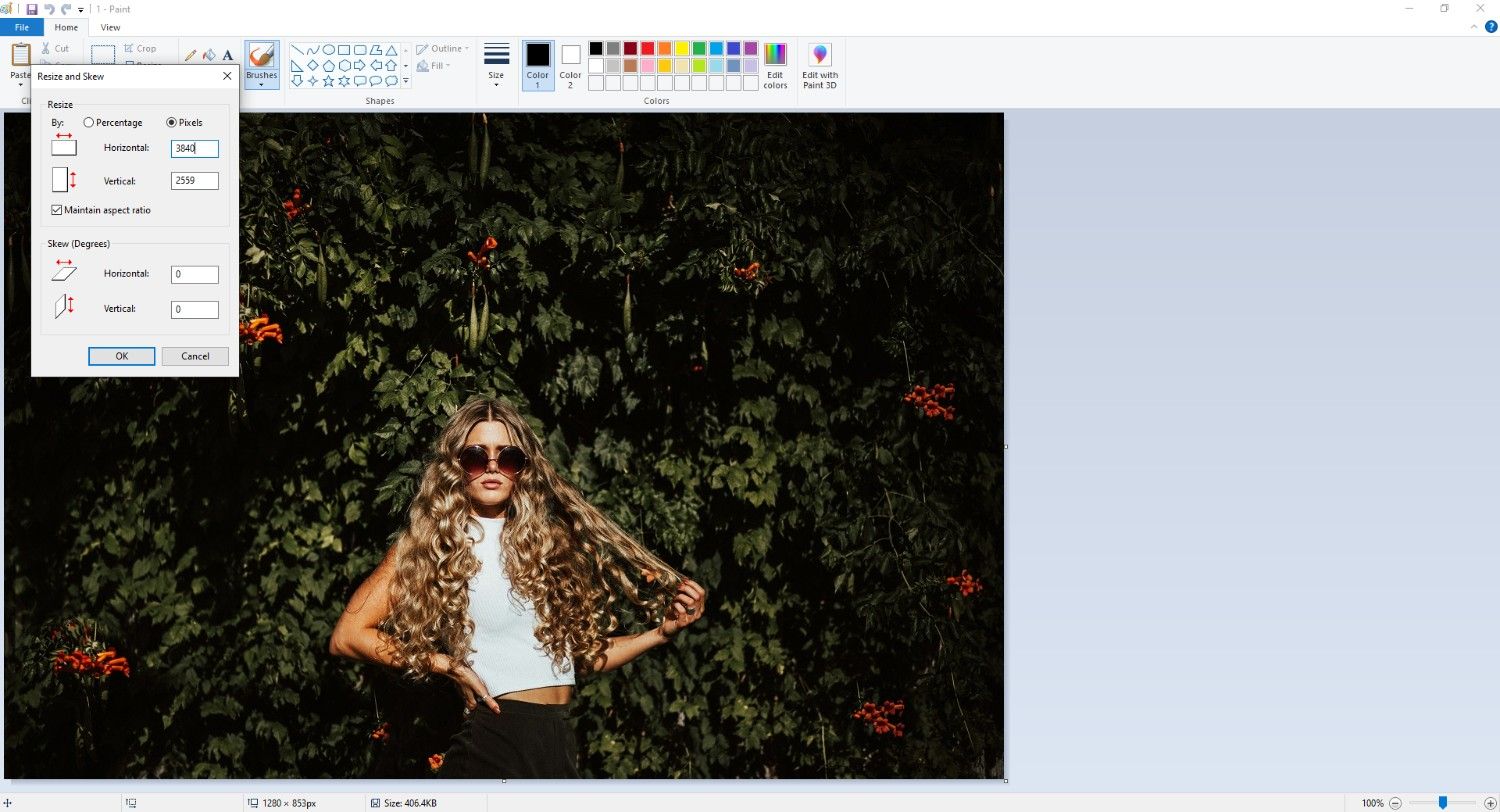
Step 2: Increase image resolution
Resize the image to UHD dimensions using the "Resize" image option. Keep in mind that the official UHD resolution is 3840 by 2160 or higher. Also, maintain the same aspect ratio when resizing.
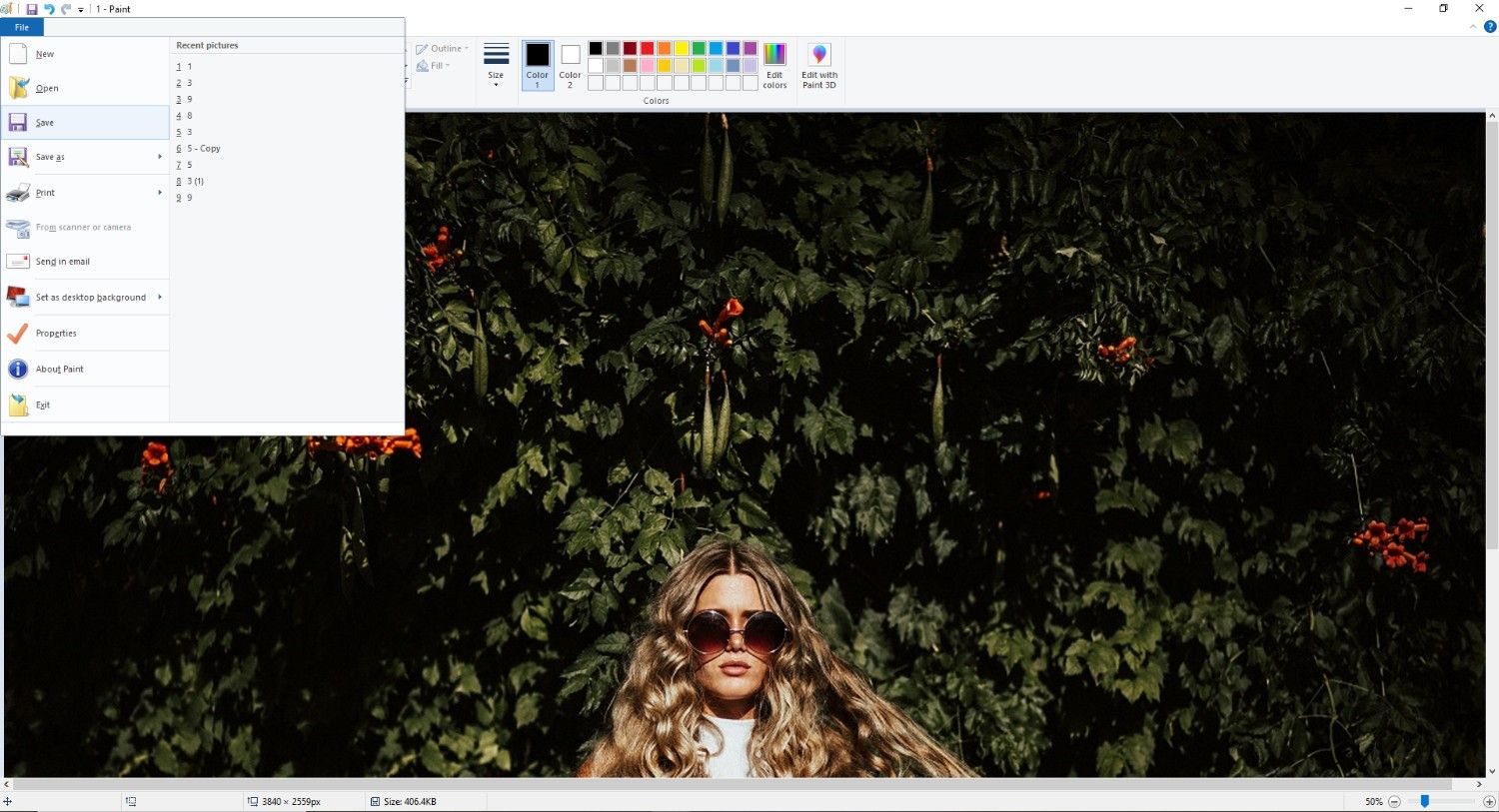
Step 3: Review and save the UHD image
Once you are happy with the results, you can proceed to save it. Simply go to "File > Save" or hit "CTRL+S" keys together, to save the upgraded resolution.
Disclaimer: Traditional methods only enlarge an image by adding pixels mathematically, which can make details appear softer. AI upscaling uses machine learning to reconstruct textures, sharpen edges, and improve overall image quality, although it cannot recover details that were never captured in the original photo.
AI upscaling: How to enhance HD photos to UHD with Vmake Labs?
Unlike Microsoft's solution, Vmake Labs Image Enhancer simplifies the process with AI-powered enhancement technology. Instead of merely enlarging the image, it analyzes textures, edges, colors, and fine details to produce clearer, sharper results with minimal manual editing.
For restoring old photos, preparing images for larger displays, or improving visuals for social media and marketing, Vmake Labs provides a fast, browser-based solution that requires only a few clicks.
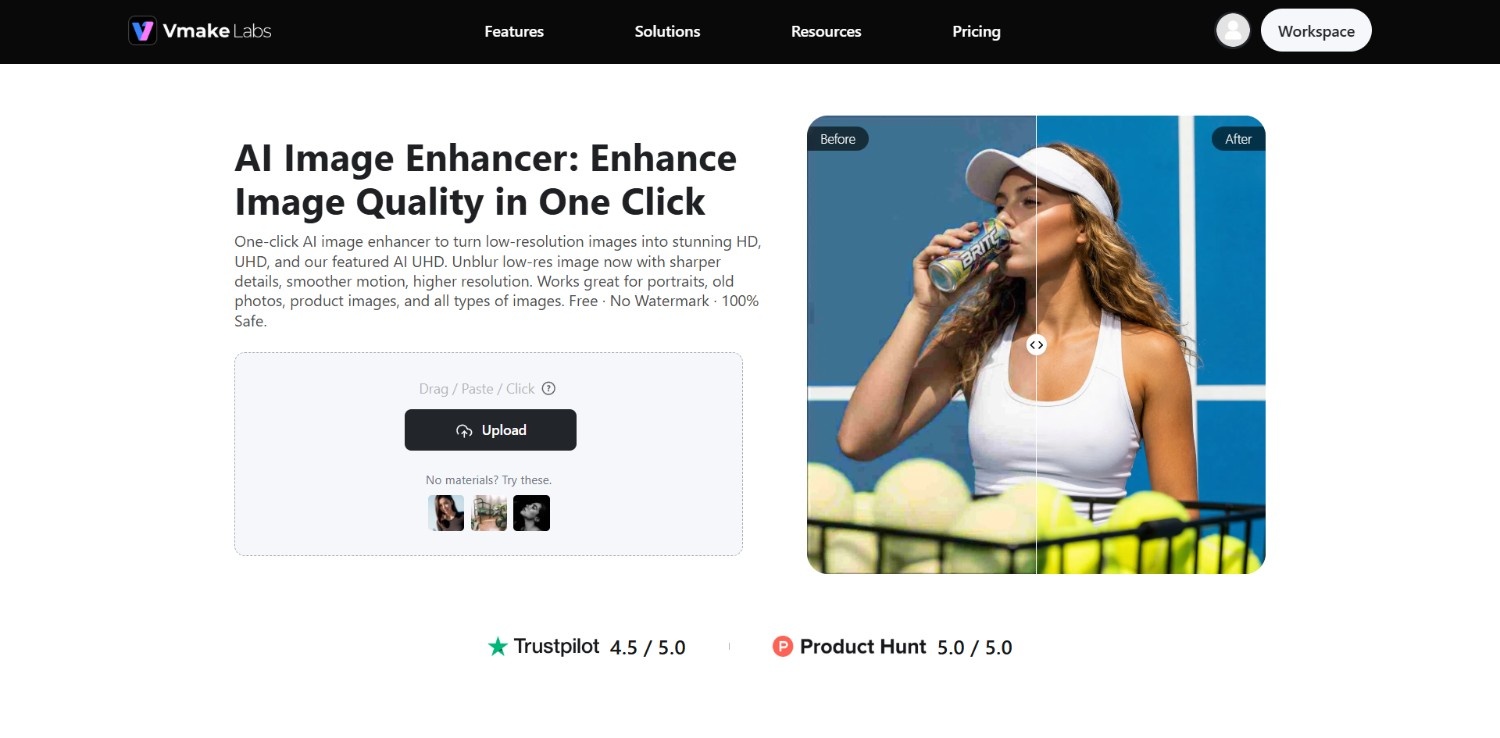
Features of Vmake Labs Image Enhancer
-
AI-powered resolution upscaling: AI analyzes image patterns and intelligently increases resolution while preserving natural textures, producing sharper 4K UHD-quality photos that look more detailed than traditional enlargement methods.
-
Noise reduction and grain removal: Automatically reduces digital noise, compression artifacts, and visible grain, helping images appear cleaner while preserving important textures and maintaining a more natural visual appearance.
-
Image unblurring and detail sharpening: Enhances soft edges, restores fine details, and improves overall sharpness, making portraits, landscapes, and product photos appear clearer without requiring complex manual editing.
-
Automatic color and contrast enhancement: Optimizes brightness, contrast, and color balance automatically to create more vibrant, visually balanced images that remain natural-looking across different viewing devices and screen sizes.
How to use Vmake Labs Image Enhancer to upscale HD to UHD?
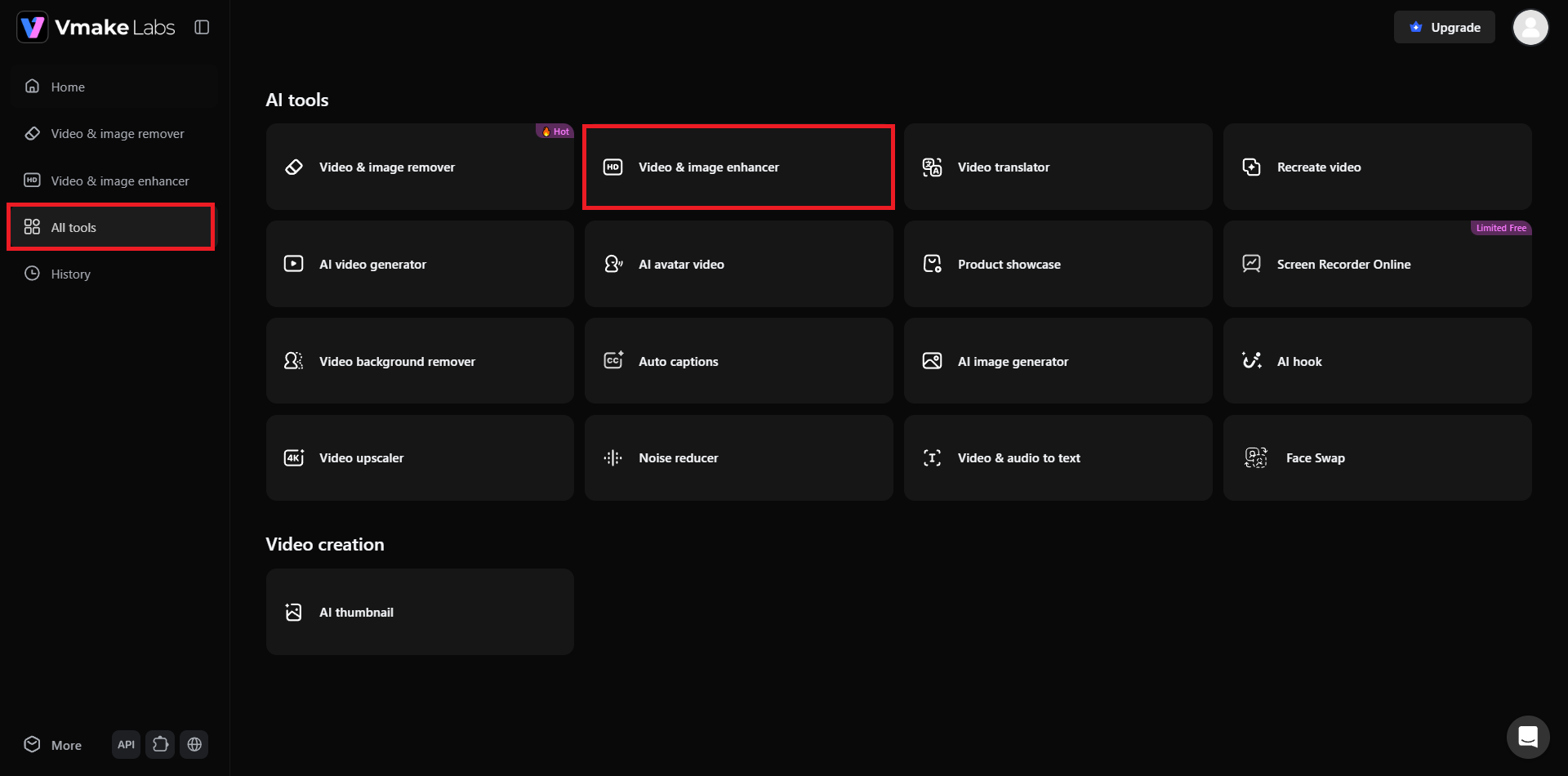
Step 1: Access Vmake Labs "Video & image enhancer tool"
Start the process by first accessing Vmake Labs official website and then signing into your account using your credentials. Once done, from your dashboard, select the "All tools" option from the left-hand menu, and then select the "Video & image enhancer" tool from the list of options.
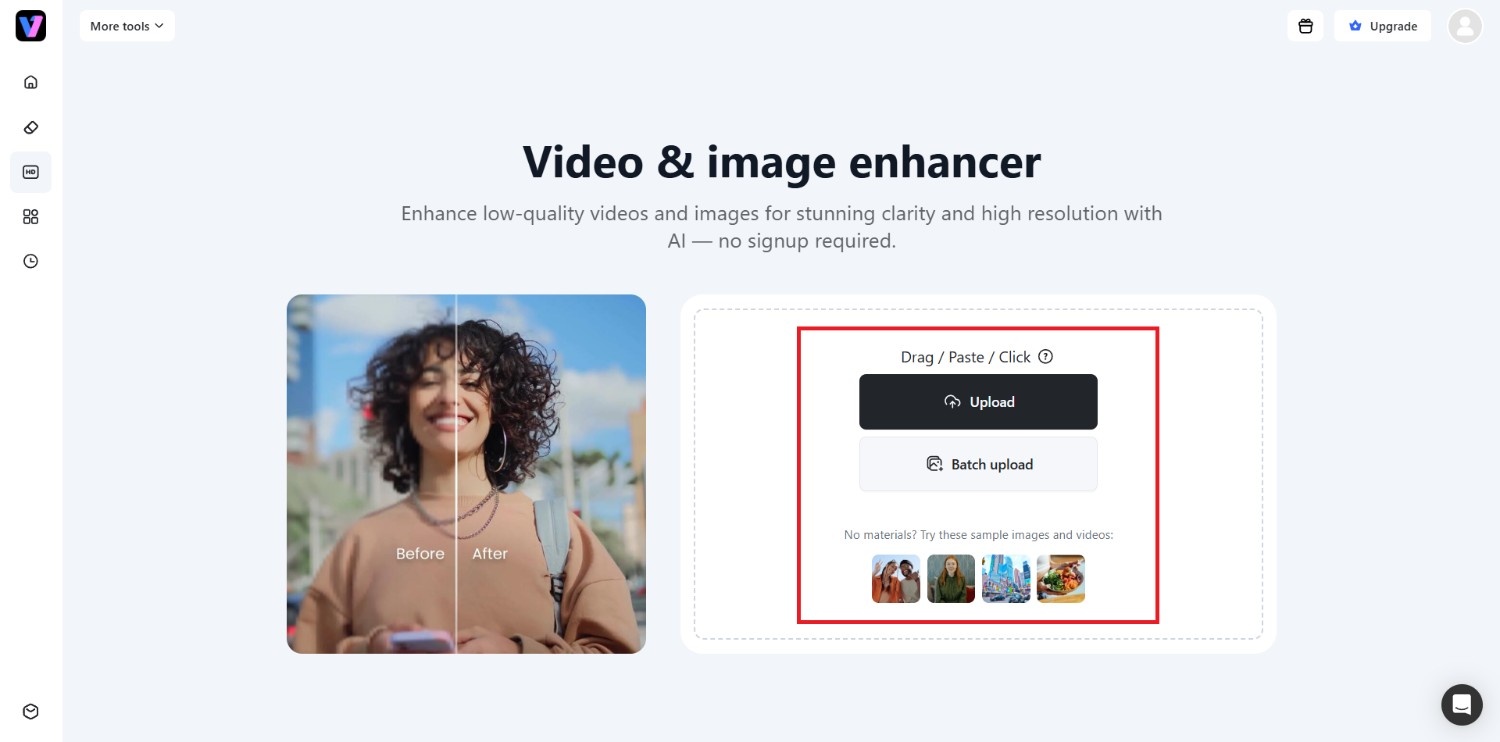
Step 2: Upload the image or provide a web link
In the next step, you will need to upload the image that you want to upscale. You can either use the default upload option, or try the paste link option to paste a web link. Additionally, there is also a "Batch upload" feature for you to upload multiple images at once, and upscale them together.
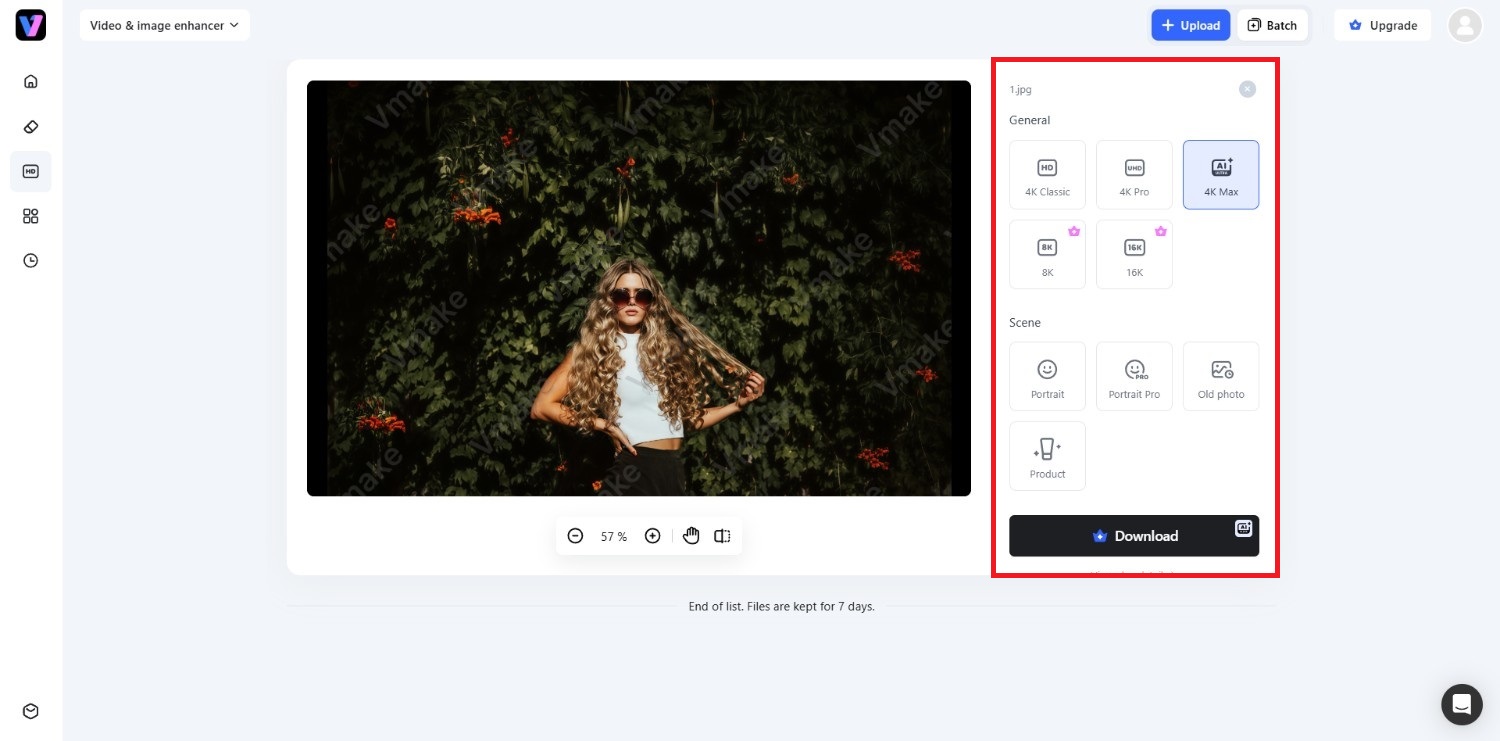
Step 3: Download the upscaled UHD image
After uploading, you will have the option to enhance the image based on "General" and "Scene" options. Since we are planning to upscale this image to UHD or 4K, we suggest using the resolution upgrade options under "General".
Simply click on any of the 4K upgrade options and then click on "Apply". Vmake Labs will upgrade the image automatically, following which you will be able to download the same for sharing.
Microsoft Paint vs Vmake Labs: HD to UHD photo upscaling
If you want to convert an HD photo to UHD, you can either use a traditional image editor like MS Paint or an AI-powered solution like Vmake Labs. MS Paint simply enlarges the image dimensions, while Vmake Labs enhances resolution by reconstructing details for a sharper and more natural-looking result.
|
Feature |
MS Paint (Traditional Upscaling) |
Vmake Labs (AI Upscaling) |
|---|---|---|
|
Upscaling Method |
Enlarges images using interpolation |
Reconstructs details while increasing resolution |
|
Image Quality |
May appear softer after enlargement |
Produces sharper, clearer visuals with improved detail, up to 16K resolution enhancement. |
|
Manual Editing |
Requires manual resizing and adjustments |
Most enhancements are applied automatically |
|
Best For |
Basic image resizing and simple edits |
High-quality photo enhancement and UHD upscaling |
Tips and tricks to follow when enhancing HD photos to UHD
Converting HD photos to UHD can improve visual quality, but the final result depends on the original image and your editing approach. These best practices help produce cleaner, sharper, and more natural-looking outputs.
-
Start with the highest quality HD source file
Always use the highest-quality HD image available. Photos with minimal compression, better lighting, and stronger detail provide more visual information, allowing enhancement tools to produce cleaner results with fewer artifacts and improved overall sharpness after upscaling.
-
Crop and frame prior to upscaling
Complete any cropping or composition adjustments before increasing the image resolution. Upscaling the final composition preserves processing resources and ensures the enhanced image maintains consistent detail without unnecessarily enlarging areas that will later be removed.
-
Avoid over-sharpening and artifact creation
Excessive sharpening may introduce halos, jagged edges, or unnatural textures that reduce image quality. Apply sharpening conservatively and compare the enhanced image with the original to maintain a balanced, realistic appearance throughout the final result.
-
Choose the correct output format for your use case
Select an appropriate file format based on how the image will be used. PNG preserves maximum quality for editing and graphics, while JPEG offers smaller file sizes suitable for websites, social media, and everyday sharing.
Conclusion
HD and UHD each serve different purposes depending on your viewing device, storage capacity, and quality requirements. While HD remains a practical choice for everyday use, UHD offers significantly greater detail and clarity, especially on larger screens and for professional projects.
Simply enlarging an HD image with traditional interpolation increases its dimensions but cannot recreate lost detail, often resulting in softer visuals. Modern enhancement tools can produce sharper and cleaner results by improving image quality during the upscaling process.
By understanding the strengths of each format and following recommended enhancement practices, you can choose the most suitable solution for your needs.
Frequently Asked Questions (FAQs)
-
Is UHD four times better than HD?
UHD has four times the pixel count of Full HD, allowing it to display finer details and sharper images. However, visible improvement depends on the screen size, viewing distance, and original content quality.
-
Can you display UHD content on a standard HD screen?
Yes. UHD content can be displayed on an HD screen, but it will be downscaled to match the display's native resolution. You won't see the additional details that UHD can provide.
-
What is the key difference between 1080p Full HD and 4K UHD?
The primary difference is resolution. Full HD measures 1920 × 1080 pixels, while 4K UHD measures 3840 × 2160 pixels, providing significantly more pixels for greater clarity and finer image detail.
-
Will upgrading an HD photo to UHD increase the file size?
Yes. Increasing an image's resolution generally creates a larger file because it contains more pixels. The final size also depends on the chosen file format, compression settings, and image content.
-
Why do some photos still look blurry after upscaling to UHD?
If the original photo lacks detail, is heavily compressed, or is out of focus, increasing its resolution alone cannot fully restore lost information. The quality of the source image remains an important factor.

You May Be Interested
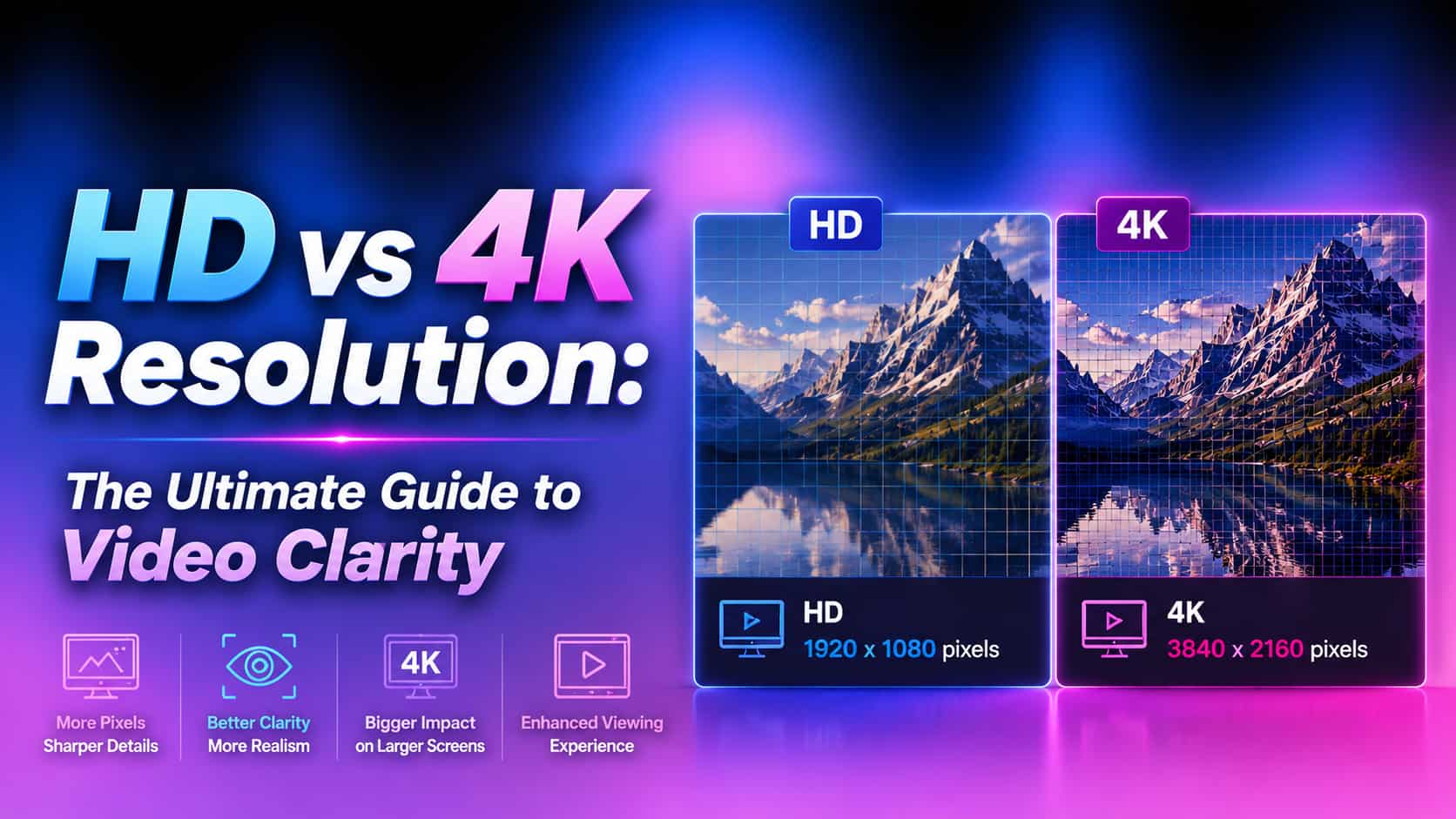
HD vs 4K Guide: Evaluating Video Resolution Standards
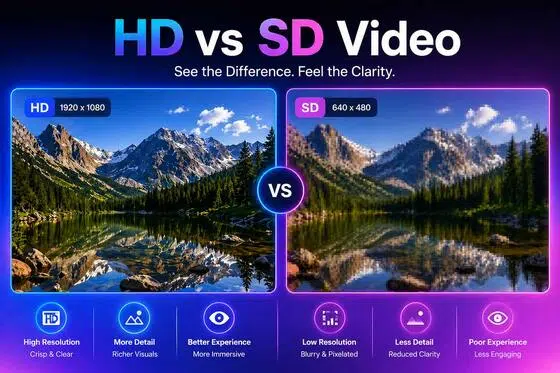
HD vs SD Video Comparison: Everything You Need to Know

HDR vs SDR: What's the Difference and Which Looks Better?
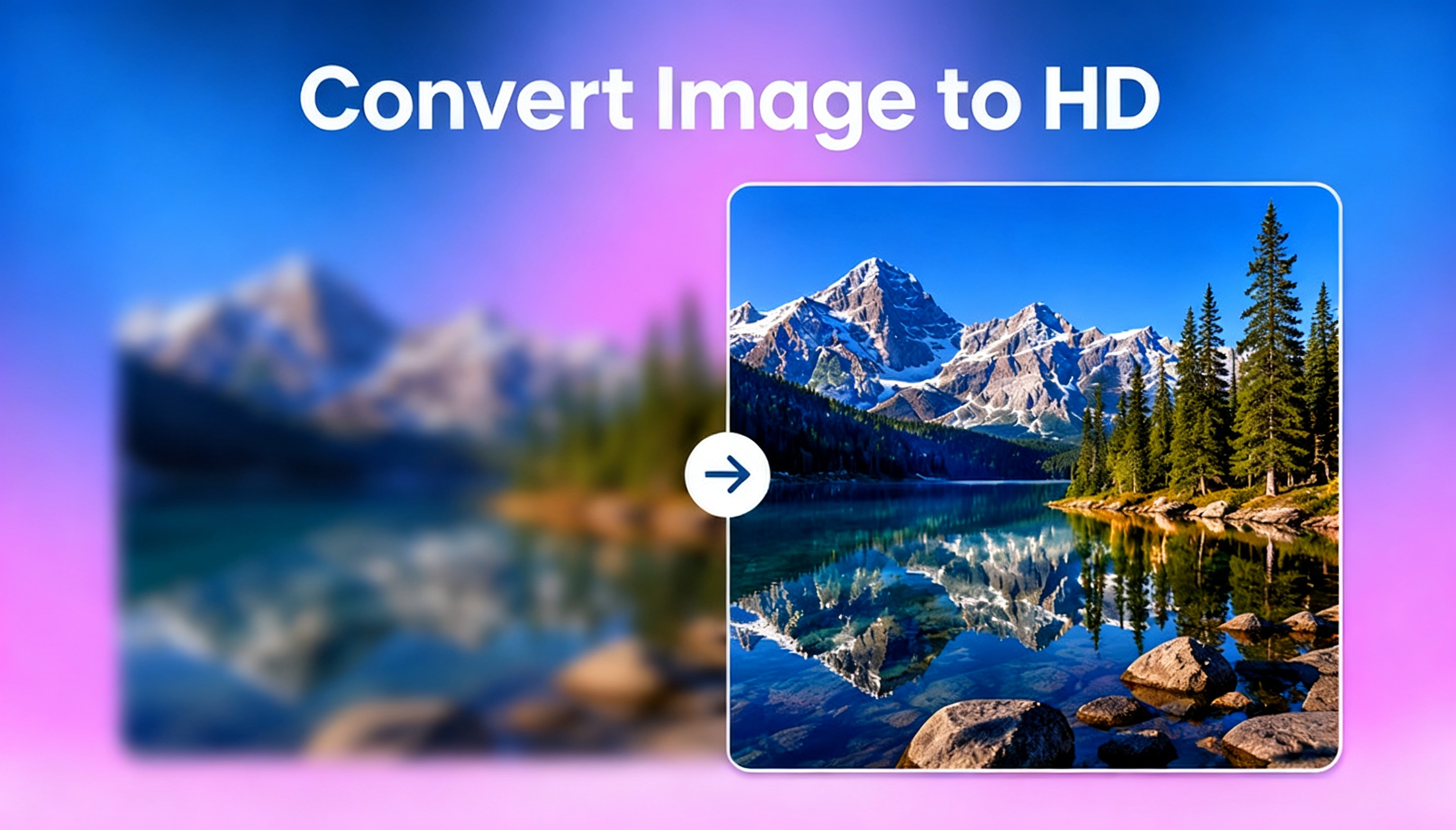
How to Convert Image to HD in 2026: Free AI Tools to Upgrade Image Quality
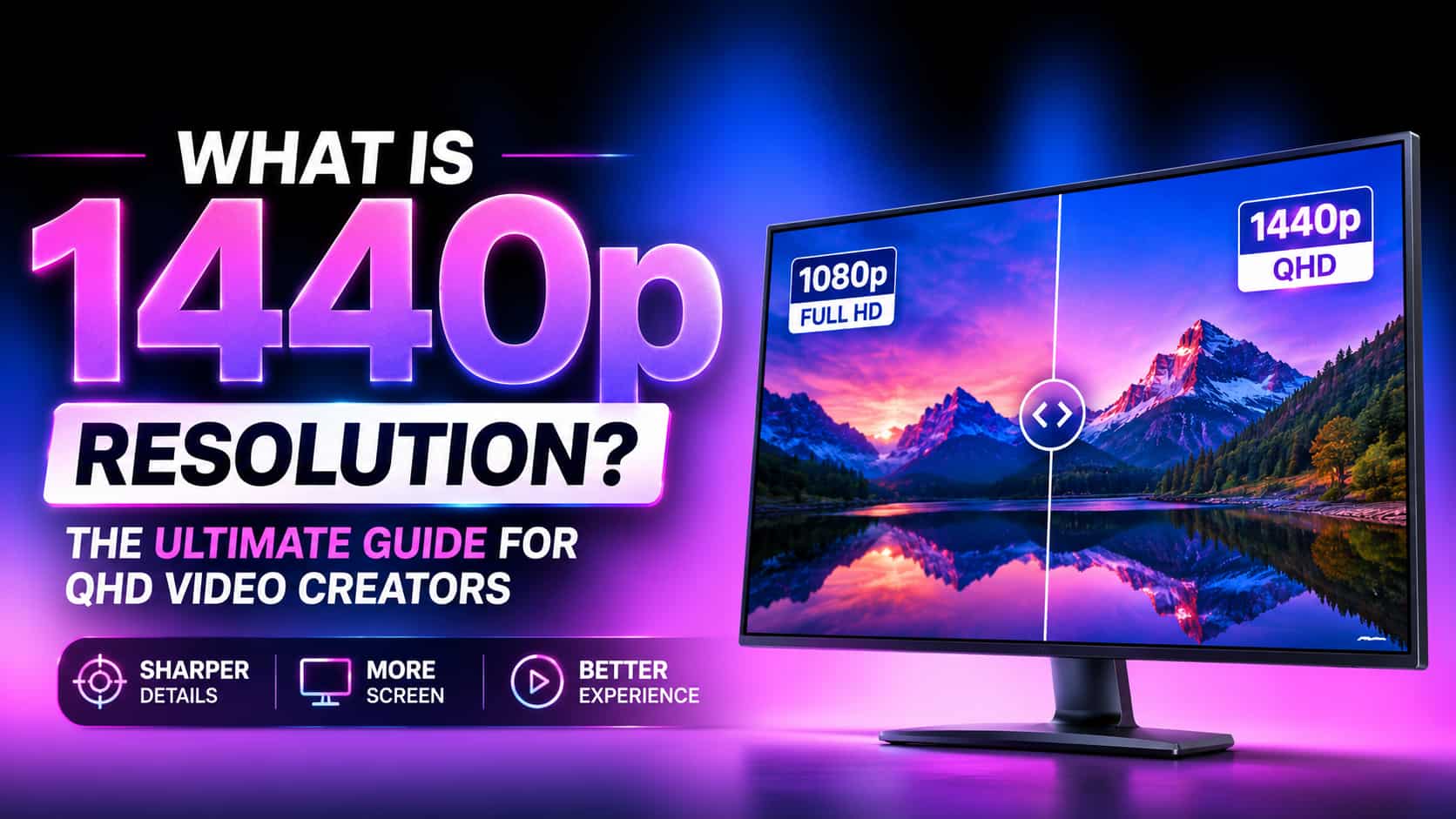
What is 1440p Resolution? A Complete Guide to QHD Displays