1440p vs 4k Comparison: The Complete Resolution Guide
 Ken DawsonMay 22, 2026
The 1440p vs 4k comparison always comes down to a brutal choice between performance and presentation. Native 4K provides the stunning visual density that modern clients expect. It'll also quickly overwhelm standard processing units, turning a simple timeline edit into a sluggish nightmare. Dropping your project down to 1440p solves the immediate rendering bottleneck. The major trade-off is that you sacrifice critical sharpness the moment that file hits a large living room screen. It's a deeply frustrating workflow constraint that forces editors to compromise either their time or their image quality. We'll detail the exact technical parameters of both resolutions below so you know exactly what your hardware is fighting against. After that, we'll look at how intelligent upscaling mathematically bridges this gap. You obviously can't expect miracles from severely blurred source files. But the right neural networks can handle the heavy visual lifting your GPU can't.
What Does Video Resolution Mean: 1440p vs 4K Defined
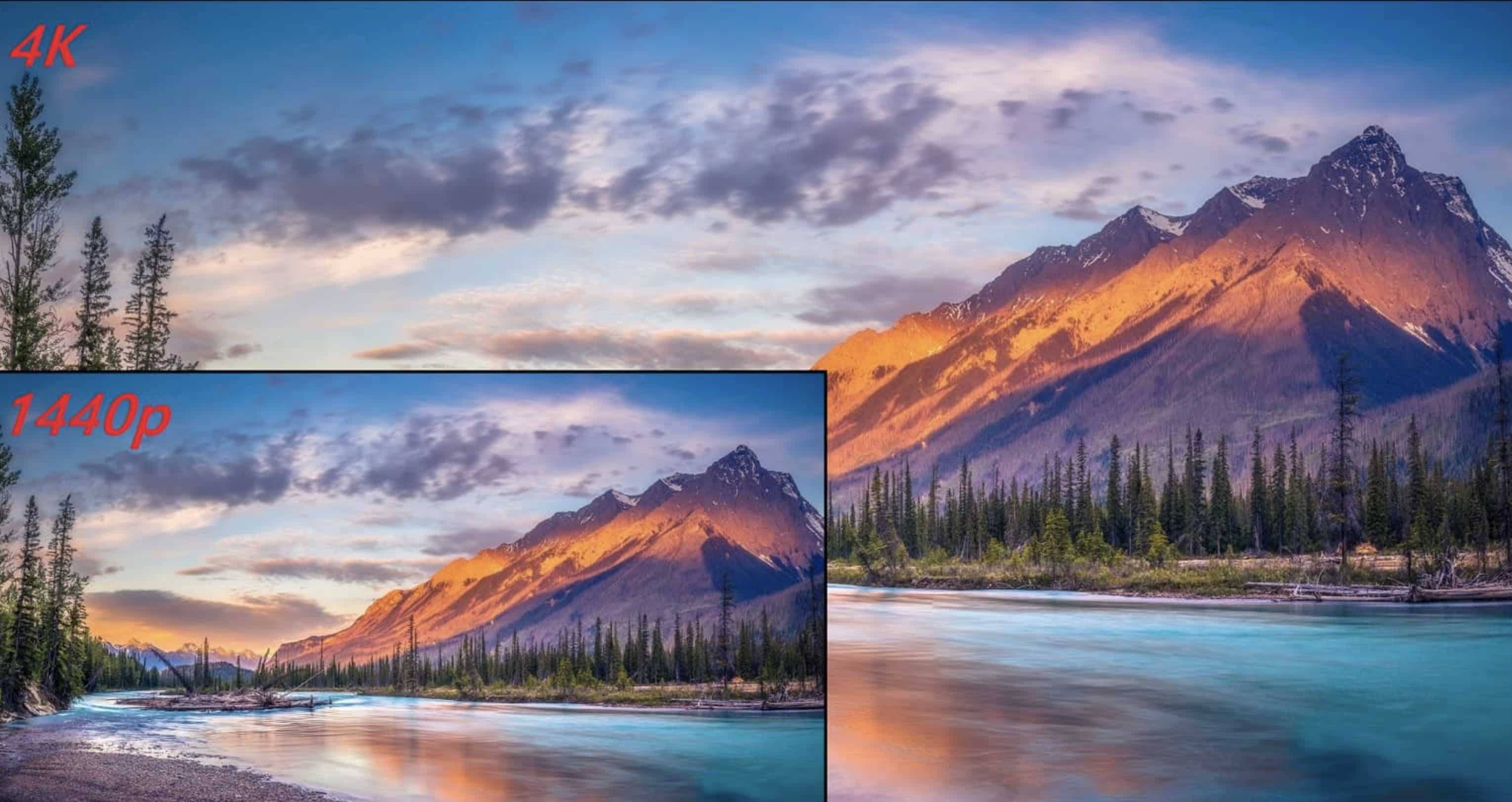
Digital resolution is literally just a grid of tiny light squares. More squares mean sharper images. That's the basic math. You multiply the horizontal pixel count by the vertical count. The result is your total pixel density. Higher numbers give you finer textures on a jacket. They make text readable instead of looking like a smudge.
If you look back at what is 480p resolution, it's amazing we ever watched television on those old square boxes. Today, the standards are drastically higher.
-
1440p: You'll hear the pros call this Quad HD or QHD. It measures 2560 by 1440 pixels across your screen.
That gives you exactly four times the detail of the old 720p footage we used to think looked acceptable.
Right now, this sits as the absolute baseline for most digital work. You get a legitimately crisp image. You don't have to melt your graphics card to edit it. It's the pragmatic choice for daily content creation. Though I'll admit it occasionally feels a little soft on massive ultra-wide curved monitors.
-
4K: Best Buy boxes slap "Ultra HD" or UHD on this. We're talking 3840 by 2160 pixels.
That giant container holds four times the visual data of a standard 1080p file, and the visual density looks incredible. But here's the brutal reality everyone ignores. Processing these giant files demands absurd rendering hardware. Hit play on a raw 4K timeline, and your laptop fans will instantly sound like a jet engine taking off.
Technical Details On Resolutions
Let's look at the raw numbers.
|
Feature |
1440p (QHD) |
4K (UHD) |
|---|---|---|
|
Pixel Count |
~3.68 Million |
~8.29 Million |
|
Aspect Ratio |
16:09 |
16:09 |
|
Best Use Case |
High Refresh Rate Gaming, Mid-tier Editing |
High-End Video Production, Large OLED TVs |
|
File Size Impact |
Moderate (Manageable storage/bandwidth) |
Massive (Requires vast storage/high bitrate) |
Going from roughly three million pixels to over eight million isn't a small jump. You ask your GPU to draw five million extra squares every single frame. The thermal load gets massive fast.
1440p vs 4K: Performance Across Different Devices
Where you watch changes the entire conversation. A video that looks flawless on an iPhone can look like a blurry mess on a living room wall. You really have to cater your export settings to the specific hardware your audience uses most.
-
PC Monitors & Gaming:
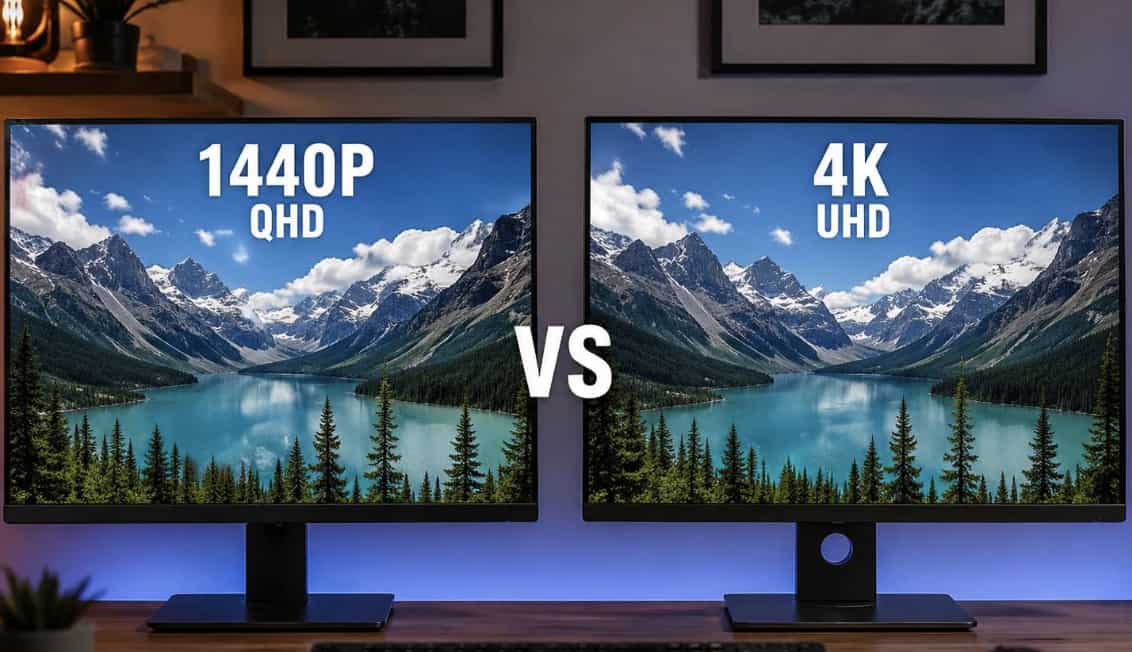
1440p owns the desktop space right now. Mid-tier graphics cards can actually hit high framerates with it. Try forcing native 4K on those same machines. You'll watch your smooth gameplay turn into a slideshow. Gamers figured this out years ago. Refresh rates matter more than raw pixel counts when you sit two feet away from a screen. It's the only practical choice if you don't have thousands to drop on a massive GPU upgrade.
-
OLED TVs & Home Theaters:
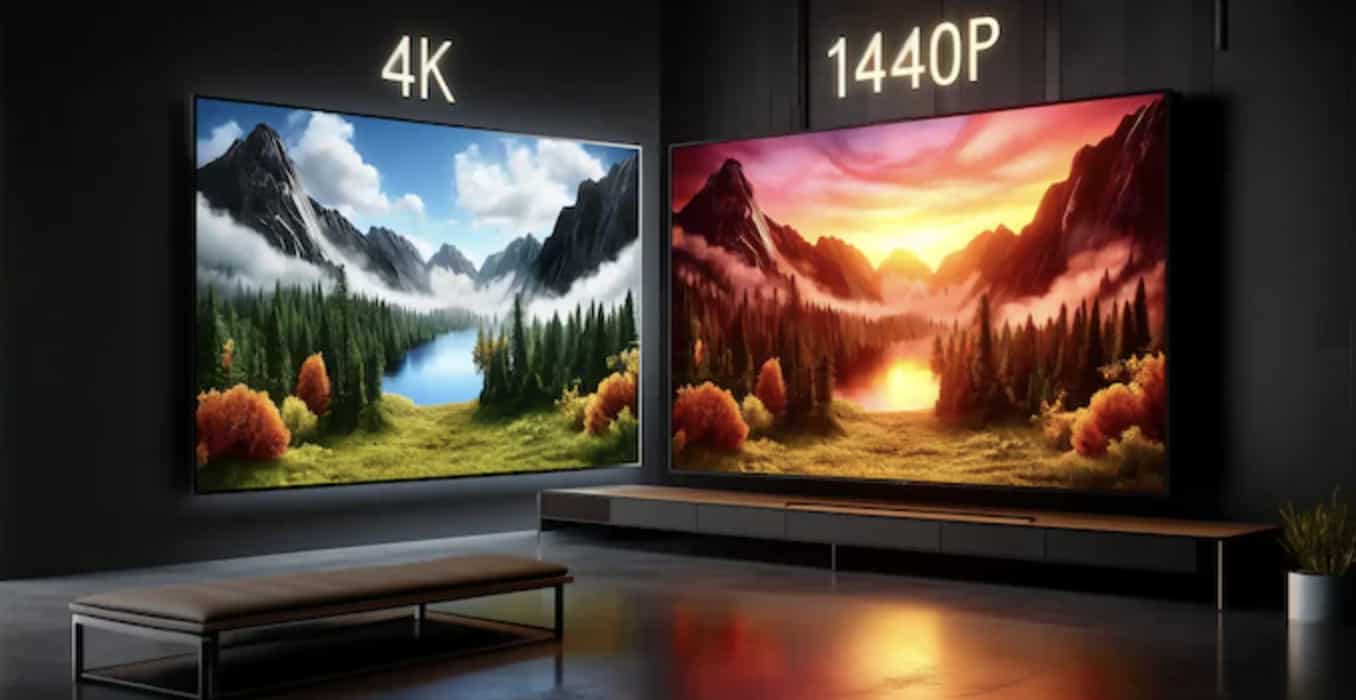
The living room is a completely different beast. You basically have to use 4K here. If you stretch a 1440p signal across a 65-inch OLED, the pixel density drops like a rock. Edges get soft. Text looks fuzzy. Built-in TV upscalers try to fix it, though they usually just slap an ugly sharpening halo around anything that moves fast. This is the part most hardware gets totally wrong.
-
Cameras & Video Production:
Creators are constantly fighting platform compression. YouTube will absolutely crush your files the second you upload them. Feeding their algorithm a dense 4K file gives you a sort of protective buffer, so the final output keeps a bit more structural detail. Obviously, shooting 4K won't fix terrible lighting or bad framing. A sharp video can still be a terrible video.
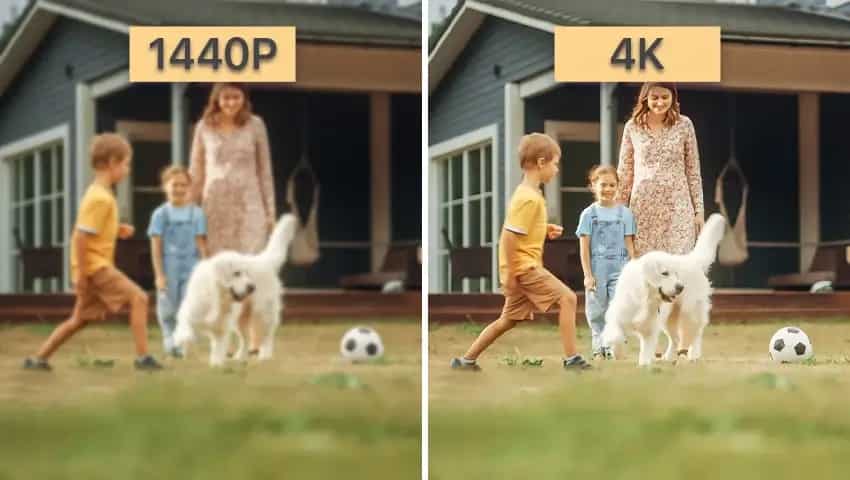
The Core Problem: Hardware Limits and Pixel Density
This whole debate revolves around physical limitations. We want big screens. Big screens demand lots of pixels. If you give them a low-resolution file, things get blocky. Viewers hate macroblocking. They click away immediately.
Working entirely in native 4K introduces a severe logistical bottleneck. Heavy thermal strain forces standard computer processors to throttle, leading to dropped frames across your editing timeline. High-resolution source files also consume storage capacity at an alarming rate. You might invest in a massive solid-state drive only to see it fill up after a single weekend shoot. Most independent production teams lack the enterprise-grade server infrastructure required to handle that constant influx of data.
Transferring these massive project folders creates hours of dead time. When you finally hit render, the system architecture maxes out. Your primary workstation becomes effectively useless for other tasks until the export finishes. We constantly try to circumvent these hardware limitations with proxy files and clever file management. Physical hardware constraints still dictate the pace of production, though. I suspect we'll be fighting storage and bandwidth limits for at least another decade.
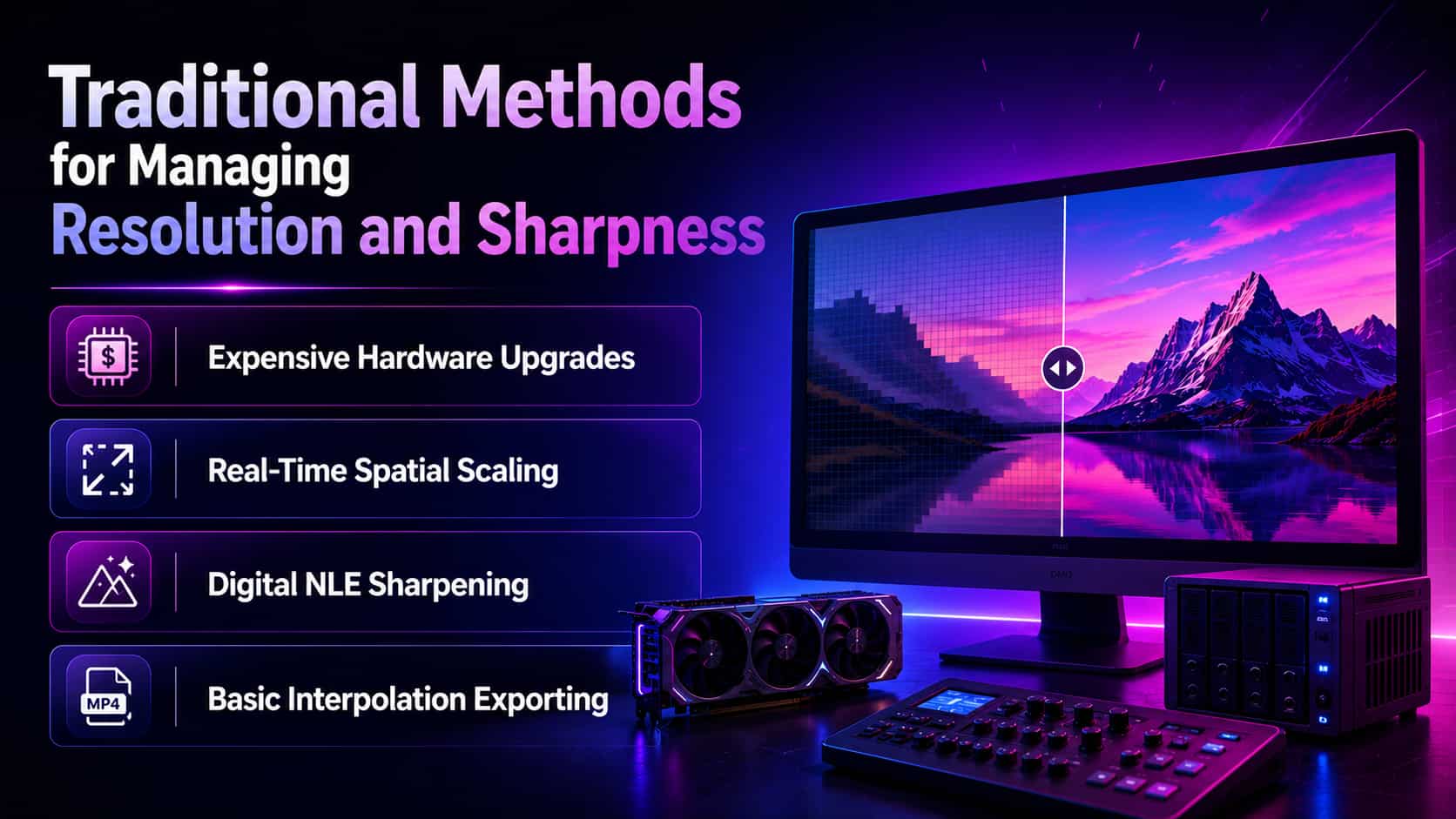
Traditional Methods for Managing Resolution and Sharpness
People rely on a few common workarounds. None of them are magic.
-
Expensive Hardware Upgrades: You can just buy your way out of the problem. Drop a massive amount of cash on a professional GPU and 128GB of RAM. It handles 4K fine. Your wallet won't recover for a while, though.
-
Real-Time Spatial Scaling: Gamers use software tricks like DLSS or FSR to fake the high resolution. The computer renders a smaller image and guesses the rest. It looks incredible until things move fast. Then you see weird ghosting trails following characters around.
-
Digital NLE Sharpening: Editors love the unsharp mask tool. You put a 1440p clip on a bigger timeline and crank the sharpness slider inside Premiere. It forces harsh contrast onto every edge. The downside is it ruins skin tones. Faces start looking crunchy and unnatural.
-
Basic Interpolation Exporting: You drop your standard footage into a 4K sequence and export. The editing app stretches the pixels to fit. It doesn't create new detail. The end result is just a massive file that looks incredibly soft.
Every traditional method forces a compromise you shouldn't have to make. You either spend thousands on workstation upgrades or accept a final video that looks artificially soft. Post-production desperately needs a reliable way to edit in lightweight formats without permanently sacrificing the premium 4K delivery clients demand. Automated neural networks bridge this exact gap. Instead of simply stretching dead pixels, specific AI models calculate and draw the missing visual data from scratch. That brings us directly to Vmake AI.
Meet Vmake AI: Next-Gen Intelligent Video Enhancer
Basic pixel stretching is dead. Vmake AI video enhancer uses neural networks to fill the gap between normal formats and a final 4K delivery. You give it the smaller file. It handles the heavy math on the cloud.

Key AI capabilities
-
AI 4K+ Upscaling: The software reads your standard-resolution file and predicts the missing 4K data points. Instead of blurring things, this video quality enhancer draws the new pixels. It rebuilds the image based on thousands of reference models it studied.
-
Detail Reconstruction: It finds lost edge data and textures. High-frequency patterns occasionally confuse the model. A really chaotic background full of moving leaves might look a bit strange. It handles normal environments and faces beautifully, though. It pulls individual strands of hair back out of a compressed mess.
-
Noise Reduction Algorithms: Heavy compression leaves blocky shadows. The engine targets and removes this noise while it scales. You skip the tedious step of running a separate denoiser pass.
-
De-AI Mode: Over-processed media usually looks like plastic garbage. Everything gets way too sharp.
This specific mode forces the software to back off the aggressive artificial sharpening, which leaves your final output looking like it has actual film grain. It fools people into thinking the footage came straight from a real camera. It can struggle slightly if your subject is standing in near-total darkness. But it handles standard lighting perfectly.
-
Batch Processing Environment: Doing this clip by clip will completely ruin your weekend. Nobody wants to sit there babysitting a render queue at 2 AM. Just use the batch video upscaling tool to dump your entire folder of random clips into the queue at once. Go to sleep. Wake up to finished files.
Step-by-Step Guide: How to Upscale Resolution with Vmake AI
You don't need to keyframe anything. It literally takes four steps.
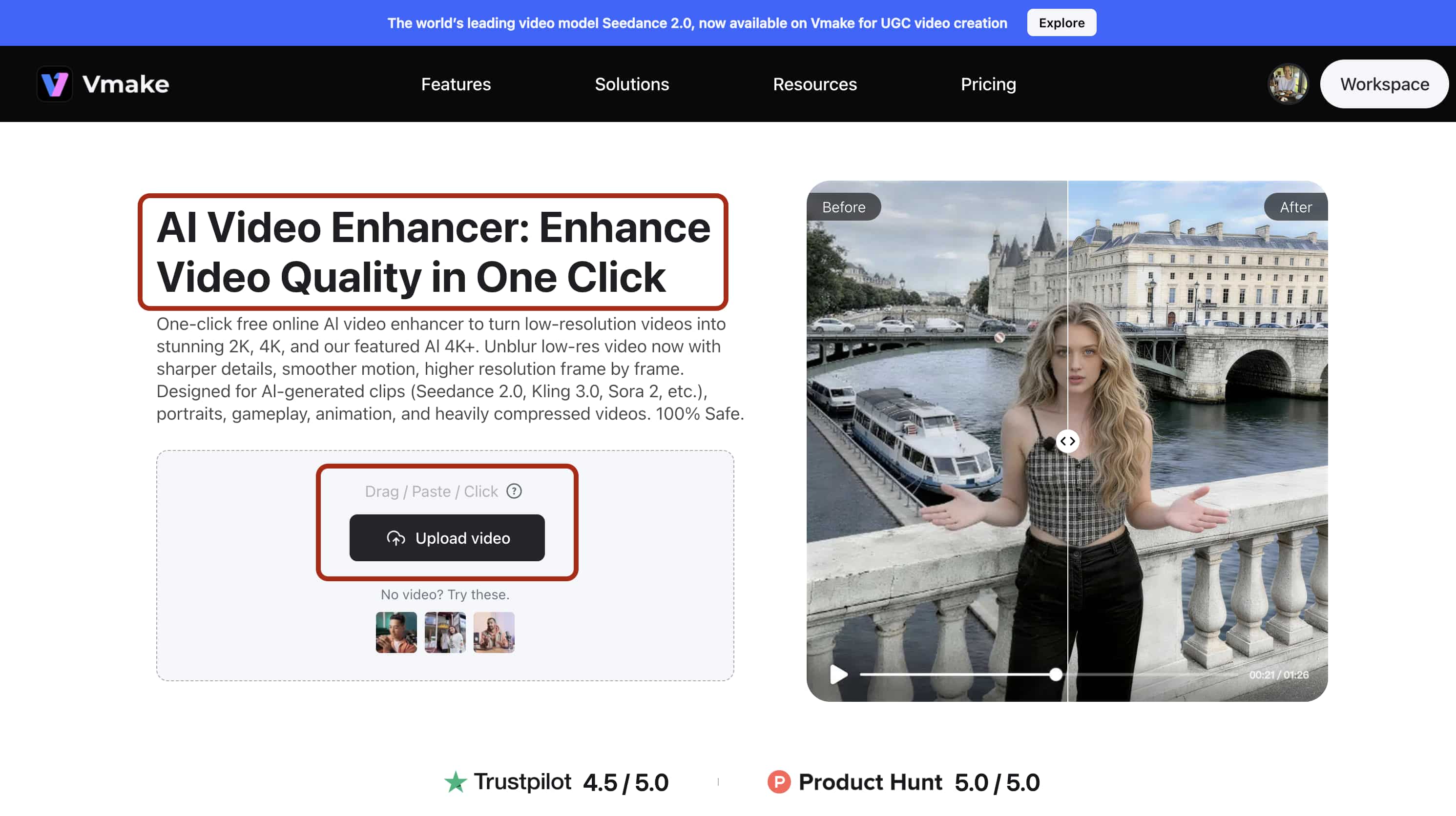
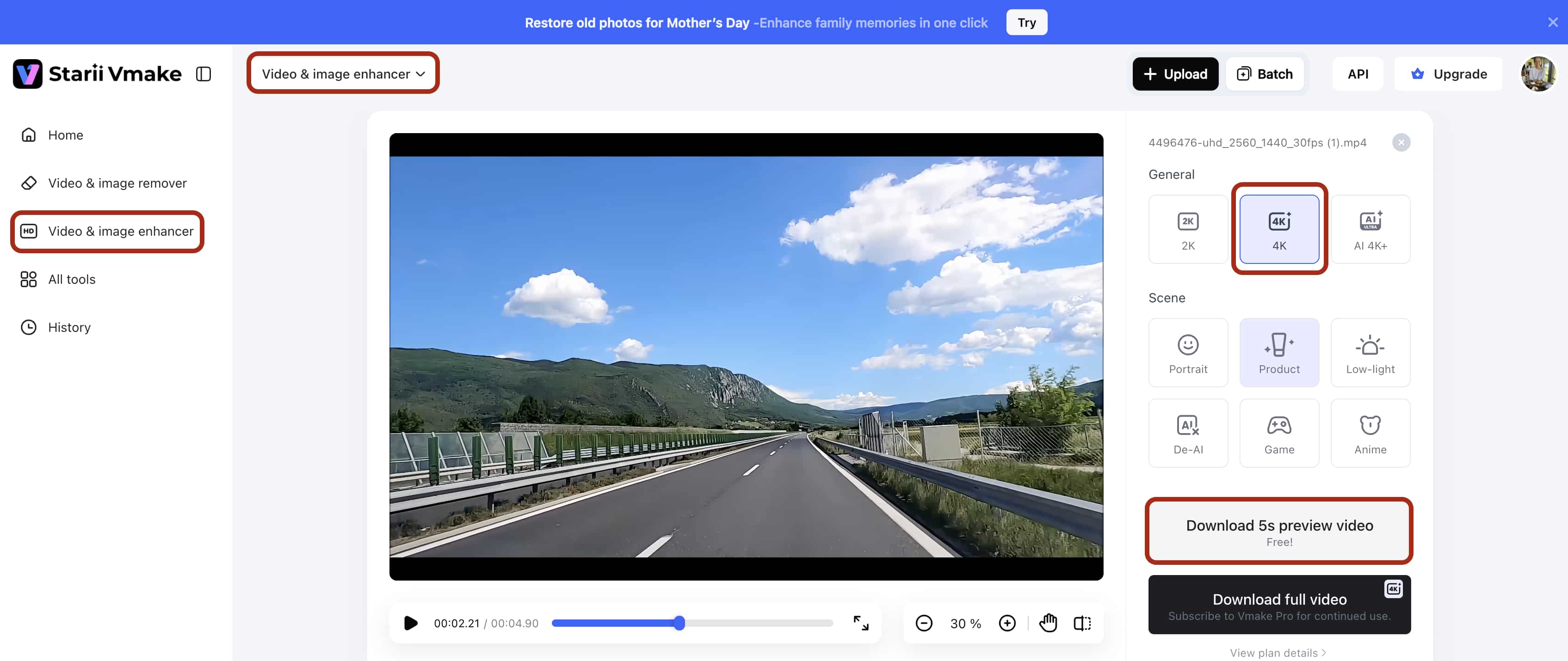
Step 1: Upload: Import your 1440p or standard resolution video file directly into the Vmake AI Video Enhancer workspace. Drag and drop works perfectly.
Step 2: Select/Adjust: Choose the target 4K output resolution and select the appropriate enhancement mode for your specific media type. The default settings handle almost every scenario you throw at them.
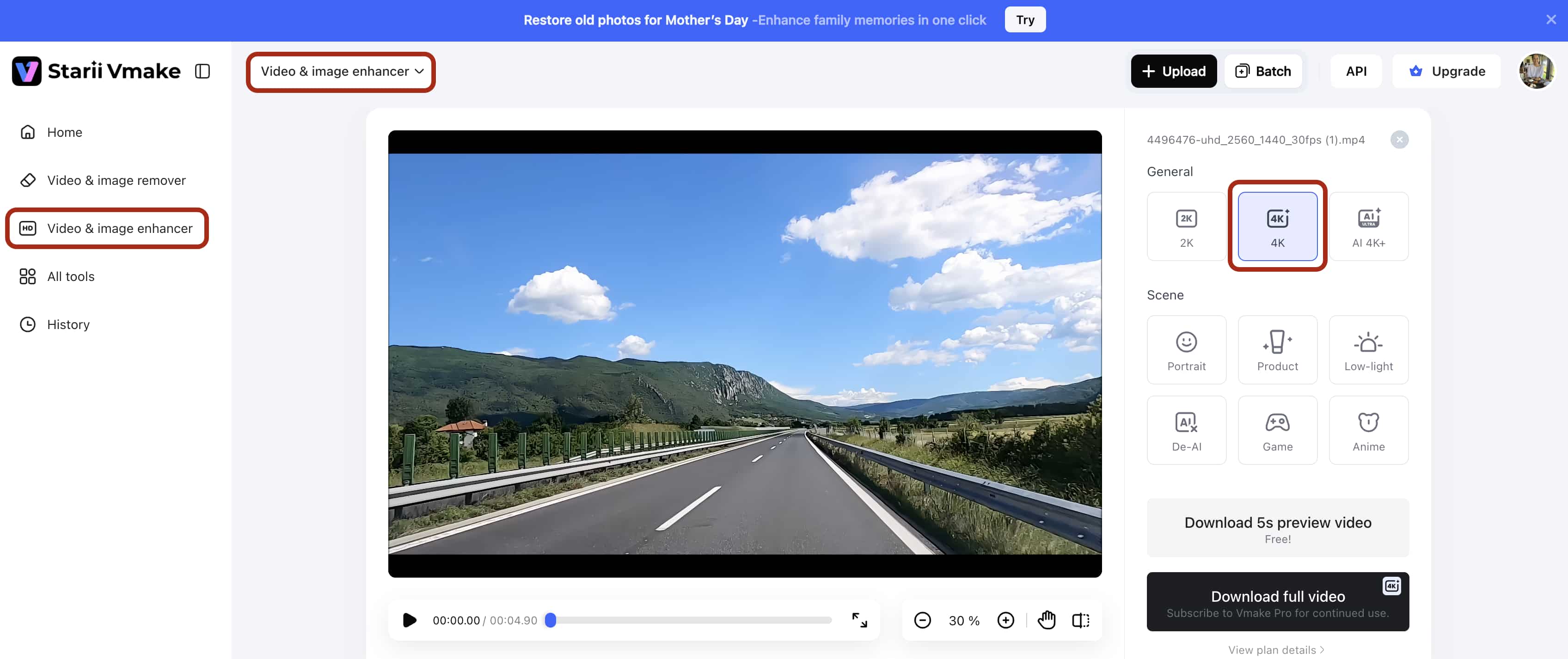
Step 3: Preview: Review the optimized frame to verify the upscaling quality and structural accuracy. That tells you immediately if the upscale worked well.
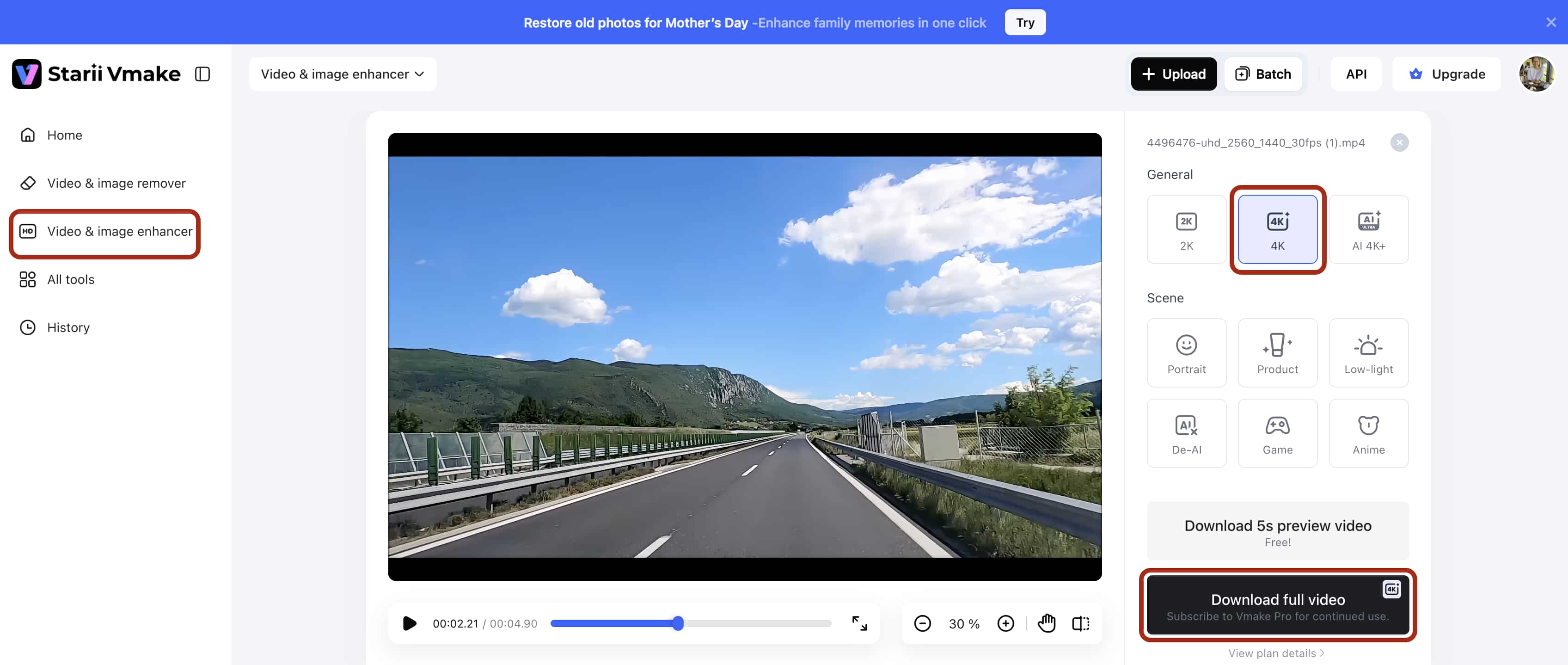
Step 4: Export: Render and download the finalized high-resolution media asset for distribution.
Pro Tips for High-Resolution Media Workflows
Bad habits ruin good software. Set your workflow up correctly from the start.

-
Pair Resolutions with Hardware: Match your monitor to how far away you sit. A 27-inch 1440p screen looks razor-sharp from two feet away. Buying a 4K panel for a tiny desk is a waste of money. Save the high resolution for the living room TV.
-
Implement Proxy Editing: Don't scrub massive 4K clips on your timeline. Your computer will hate you. Make lightweight 1080p proxies first. Reconnect the heavy files right before you hit export. Keeping your timeline responsive matters way more than staring at maximum pixels while you chop up a scene. Taking an hour to generate proxies saves ten hours of lagging playback.
-
Optimize Bitrates: A massive resolution needs a massive bitrate. Exporting 4K at 5 Mbps just gives you sharp, high-definition garbage. Give the file room to breathe. High data density gives tools like a 4k to 16k converter the baseline info they need to do their job properly. Don't choke the data pipeline right at the very end of your project.
Conclusion
The whole 1440p vs 4k debate is basically a constant tug-of-war. You balance the physical limits of your computer against what your audience actually expects to see. 1440p keeps your timeline fast and your CPU cool. But 4K is what clients pay for. AI upscaling sits right in the middle of that mess. You get to edit fast in standard resolution. Then you let the neural networks crunch the heavy math for the final delivery. It'll be interesting to see if consumer hardware ever fully catches up to the software demands, but we aren't there yet.
FAQs
Is the visual difference between 1440p and 4K noticeable? You literally won't see it on a phone screen.
Look at a huge living room television, though, and the missing pixels jump right out at you. Displays over 27 inches expose the lower density of 1440p fast. The 4K file gives you much cleaner edges and deeper textures.
Which is better for competitive gaming, 4K vs 1440p?
1440p wins. You need fast frames to react. 4K just punishes your graphics card too heavily during intense action scenes. 4K looks amazing for slow RPGs, but fast-paced shooters demand the speed you only get from a smaller resolution.
Can Vmake AI upscale a 1440p video to 4K? Yeah, it handles the jump surprisingly well.
The neural networks actually draw the missing edge details. You don't get that blurry mess Premiere spits out when you just drag a small clip onto a big timeline. I've noticed it sometimes hallucinates weird background textures if there's a ton of chaotic motion. Standard shots look great, though.
Are there free ways to upscale video resolution?
Every basic editing app does this for free in the export window. It sucks. Standard interpolation just takes the pixels you already have and stretches them further apart. Your file gets physically larger on the hard drive. The image itself stays completely soft.
Does 4K resolution affect video editing performance?
Native 4K will choke a normal computer to death. You have to dump thousands of dollars into RAM and a top-tier processor just to scrub the timeline without lagging. Most of us just use 1080p proxies to survive the edit. Maybe one day the big hardware companies will make cheap chips that handle raw 4K natively, but I'm not holding my breath.

You May Be Interested
Nano Banana vs Veo 3: A Detailed Head-to-Head Comparison
Native 4K vs Upscaled 4K: Which One to Choose?
[Updated!] How to Upscale Anime Video to 4K Online
Native 4K vs Upscaled 4K: Which One to Choose?