What is 1440p Resolution? The Ultimate Guide for QHD Video Creators
 Ken DawsonMay 24, 2026
So, exactly what is 1440p resolution anyway? Stop chasing 4K specs just because a retail box demands it. Big-box stores aggressively push Ultra HD screens as the only logical upgrade path. Meanwhile, budget buyers get trapped with aging 1080p setups.
Most people assume higher pixel counts automatically mean better video. The reality usually hurts. Try forcing an average workstation to render native 4K footage. Playback stutters, fans scream, and systems crash. On the flip side, editing modern UI timelines on a 1080p screen feels suffocating. In this guide, we will cover the basics of 1440p and deepen your understanding through various resolution comparisons. Let's dive in now.
What is 1440p? Understanding the Basics
When someone asks what 1440p is, they are actually questioning the vertical axis of the monitor itself. The hardware holds precisely 1,440 vertical lines stacked from top to bottom. Horizontal scale shifts the math completely. Since modern hardware defaults almost exclusively to a 16:9 widescreen ratio, those vertical lines must stretch across a broader base. So, what resolution is 1440p for the whole display? The grid aligns 2,560 horizontal pixels against 1,440 vertical ones. That locks the standard specs at 2560 x 1440.
Engineers rarely cite these raw numbers on the floor. They just call it QHD, or Quad High Definition. Buyers frequently confuse the word "quad" with 4K, but geometry tells a different story. Older 720p HD panels measure 1280 x 720. Doubling both the width and the height multiplies the total surface area by exactly four. Essentially, one QHD monitor houses the raw pixel volume of four 720p screens.
Figuring out the what is 1440p resolution size takes basic multiplication. Run the numbers, and you get about 3.68 million individual pixels. Cramming nearly 4 million distinct light diodes into a desktop frame drastically tightens the visual pitch. Object edges look razor-sharp. Digital typography reads exactly like a printed magazine.
1440p vs. 1080p vs. 4K: How Do They Compare?
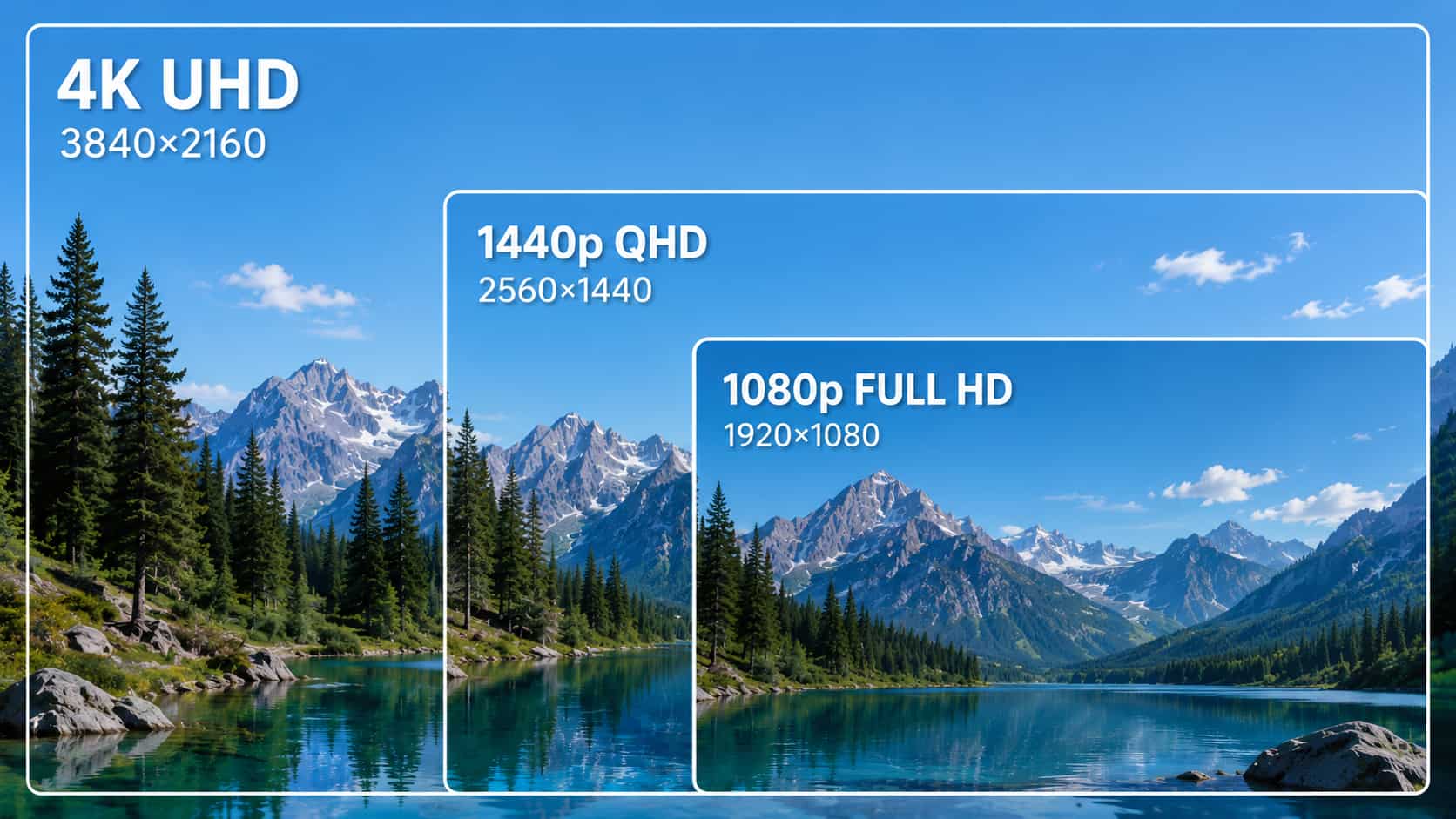
Putting these resolutions side-by-side shows why specific tasks demand different pixel densities. Visualizing the jump means looking at total pixels next to the resulting hardware strain.
-
1080p (FHD): Full High Definition measures 1920 x 1080. That hits just over 2 million pixels. For a decade, this ruled the market. Today, it requires zero specialized processing power. Stretching 2 million pixels across a 27-inch monitor, though, ruins pixel density. Text looks jagged. Media feels soft.
-
1440p (QHD): Measuring 2560 x 1440 puts roughly 3.7 million pixels on the glass. You get a 78% jump in raw data over 1080p. The difference hits you immediately. 3D textures render flawlessly. Professional apps finally open up, letting creators view massive timelines without scrolling endlessly.
-
4K (UHD): Ultra High Definition sits at 3840 x 2160. That is 8.3 million pixels. Pushing 8 million pixels 120 times every single second requires insane computational power. Lacking flagship hardware causes severe lag. Many editors actually rely on a 1080p to 4K converter for their final exports. They edit locally in 1440p to keep the machine responsive.
Why 1440p is the "Sweet Spot" for Creators and Gamers
Hardware geeks hate compromising on performance. Yet, they overwhelmingly buy 1440p panels. Why? 4K architecture creates massive bottlenecks. QHD delivers a perfectly optimized experience.
-
Cost-to-Performance Ratio: Buying a 4K monitor triggers a hidden financial trap. You also have to buy top-tier graphics cards to run it. QHD gives you substantially better visuals than FHD, bypassing the luxury price tag of Ultra HD setups. You get pro-grade clarity on a realistic budget.
-
Hardware Demands: Fast-moving visuals need high refresh rates. Hitting 120Hz at 4K pushes GPUs to their thermal limits. QHD, conversely, lets mid-tier graphics cards push high frame rates effortlessly. The result? A fluid, stutter-free screen that never interrupts your creative flow.
-
Workspace Real Estate: Pixel density dictates UI scaling inside Windows or macOS. At 1080p, editing software feels totally cramped. Jump to 4K on a 27-inch monitor, and UI icons become microscopic. You have to enable artificial scaling, which defeats the point of the extra space. QHD natively lets video editors snap multiple timeline panels onto one screen with perfect legibility.
Enhance Your Video: Upgrade Low Quality to 1440p Resolution with Vmake
Playing older media on a dense QHD screen creates an immediate problem. Run a 1080p video on a 1440p display, and the monitor relies on simple interpolation to stretch the frame. This primitive logic just duplicates adjacent colors. You get blurry, washed-out footage that ruins the experience.
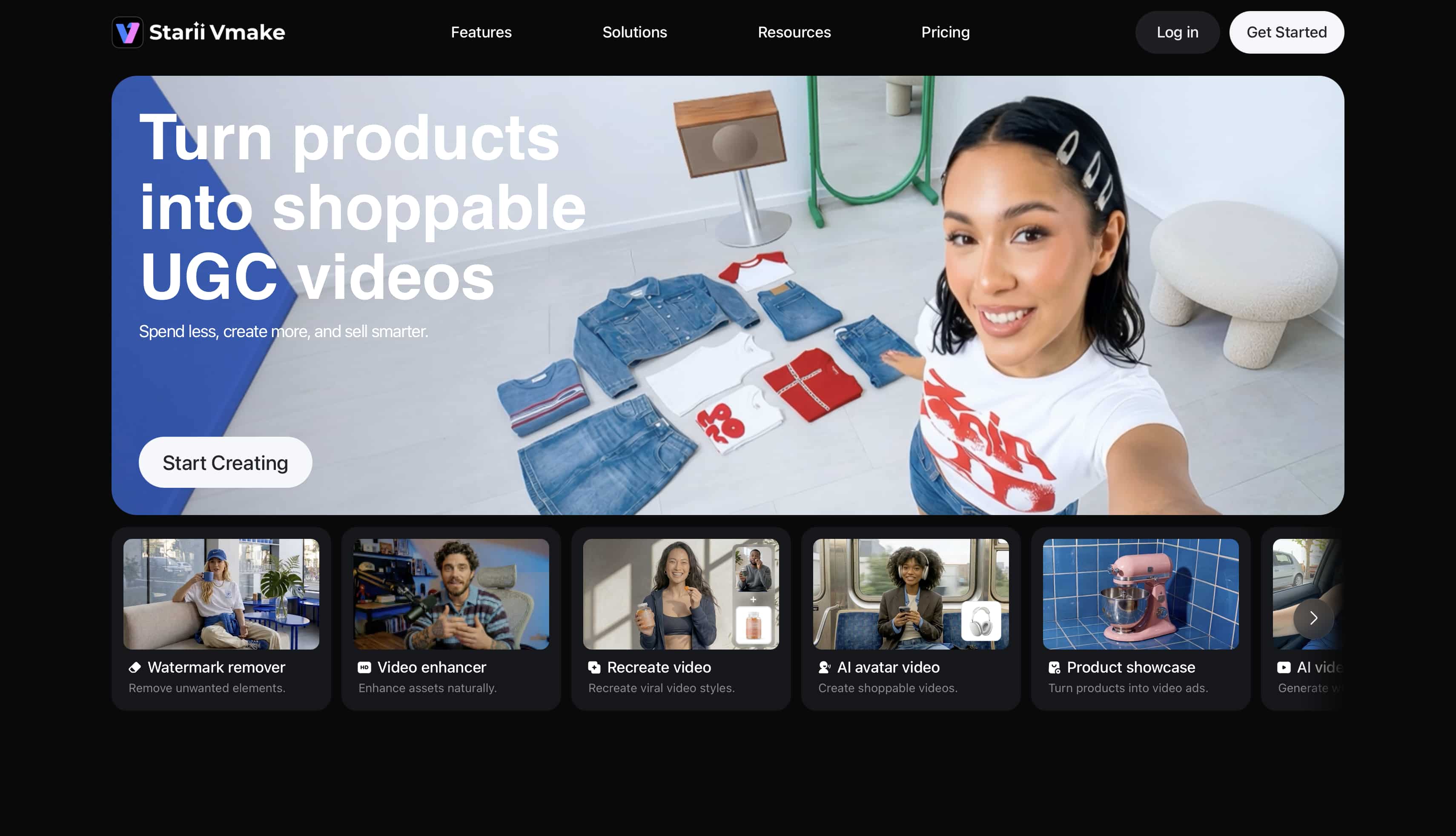
Traditional upscaling software tries sharpening these blurred edges. It usually fails, leaving behind digital artifacts and harsh grain. Fixing this properly requires neural networks capable of regenerating actual missing data. Vmake AI video enhancer provides the definitive AI-powered solution for this exact bottleneck. Featuring a proprietary engine ranked globally at the top for repairing generative video, the tool bridges the gap between legacy footage and modern screens. Marketers use it to modernize visual libraries without booking expensive reshoots.
Step-by-Step Operation:
-
Upload Media: Open the main workspace. Upload a low-resolution file directly from your drive, or just paste a URL from an online video link.
-
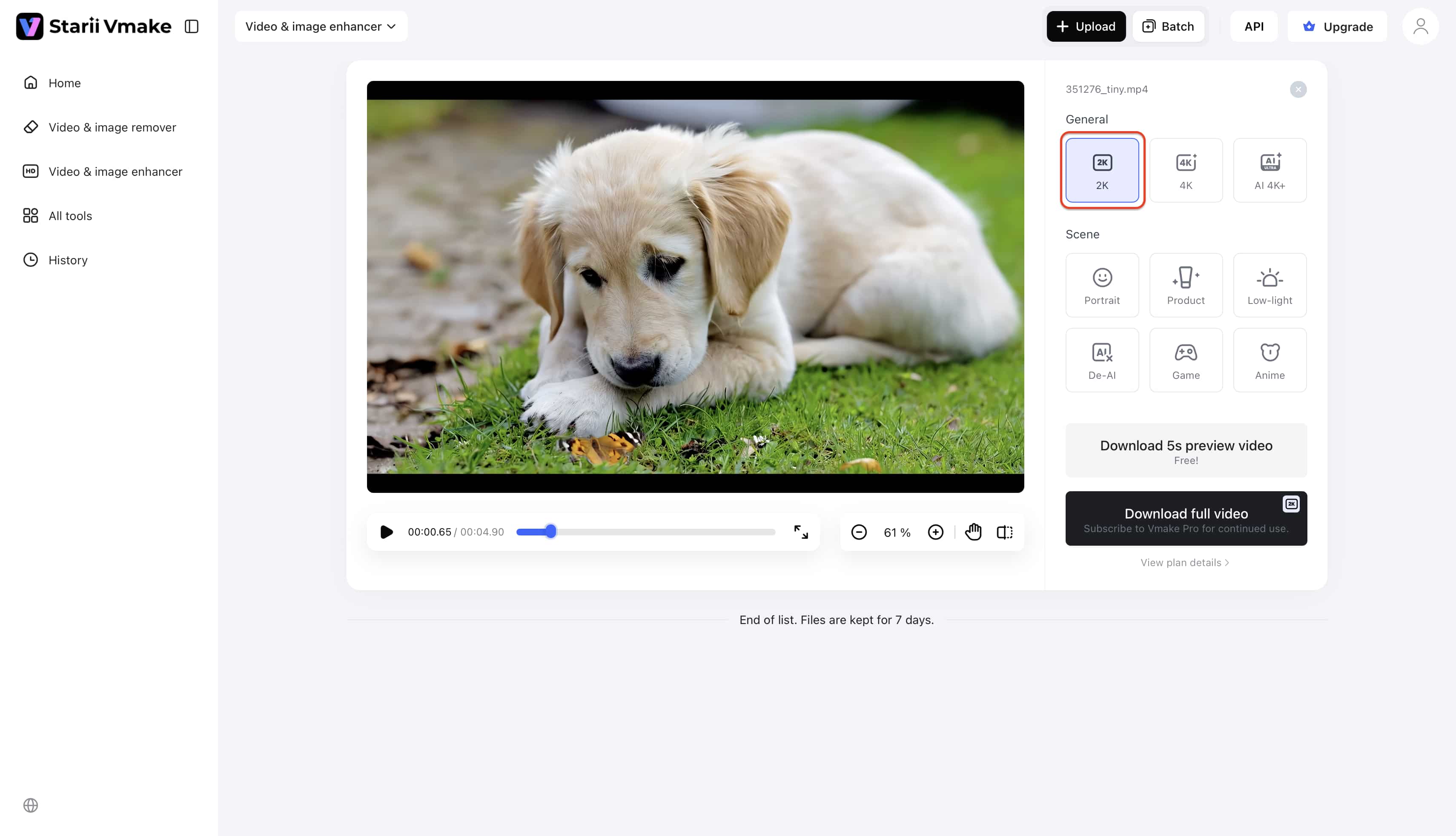
Configure Enhancement: Pick your targeted algorithm. Choose the "General" setting to push resolutions up to 2K/1440p or 4K. Alternatively, apply specialized modes like "Portrait" or "Product" based on the subject.
-
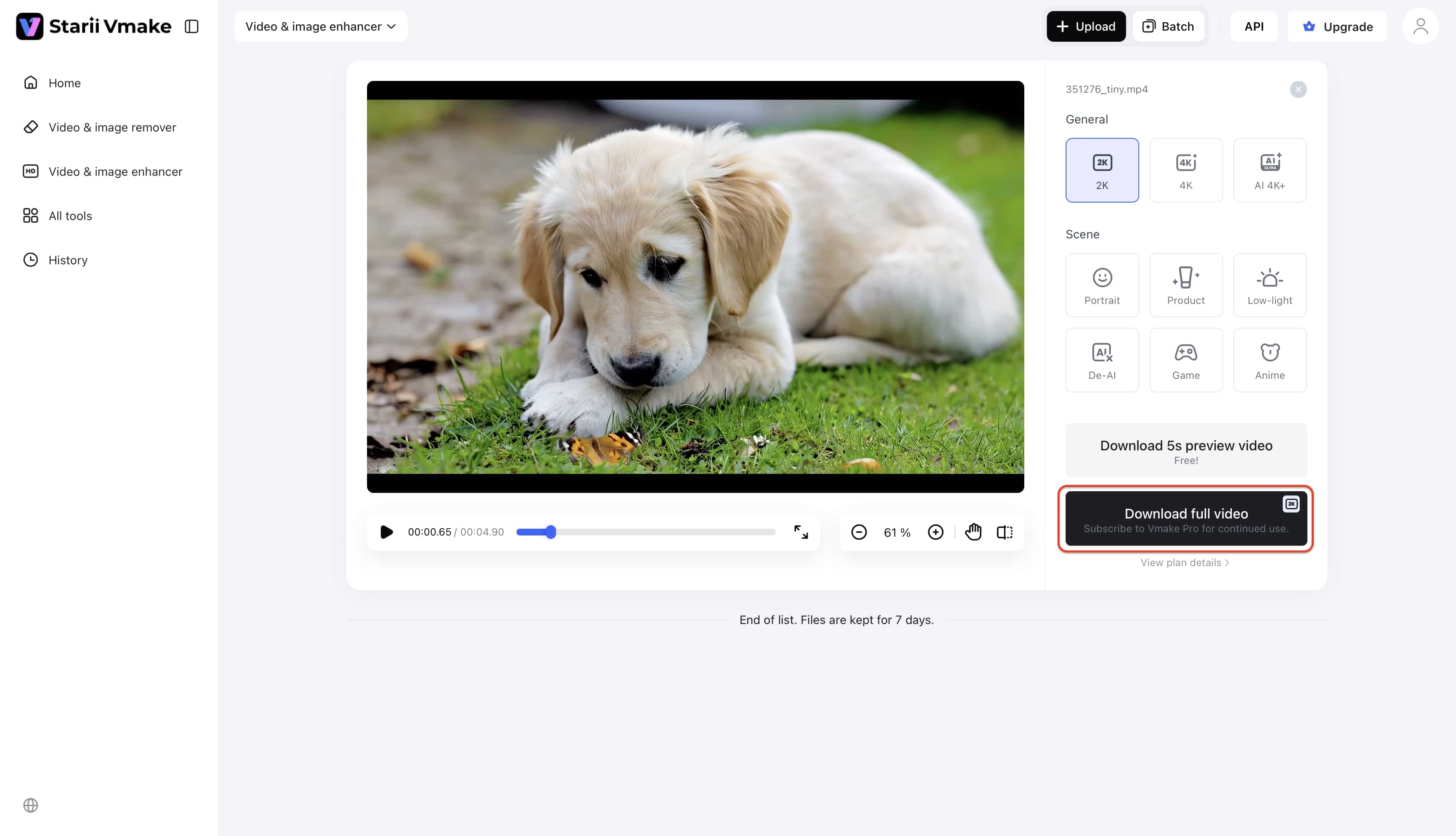
Generate and Export: Click generate to start. The AI sequentially rebuilds the frame data. Preview the enhanced clarity, then download the finalized high-definition file.
Key Features:
-
AI 4K+: Smart generative enhancement that redefines video clarity and repairs blurry footage.
-
De-AI Mode: Specialized algorithm designed to eliminate "AI feelings" such as fake faces, unnatural lighting, or distortions in AI-generated videos.
-
Batch Processing: Effortlessly process up to 30 media assets simultaneously, vastly outperforming competitor concurrency limits.
Where is 1440p Resolution Most Commonly Used?
Specs mean nothing without real-world context. QHD panels have penetrated almost every corner of modern hardware.
-
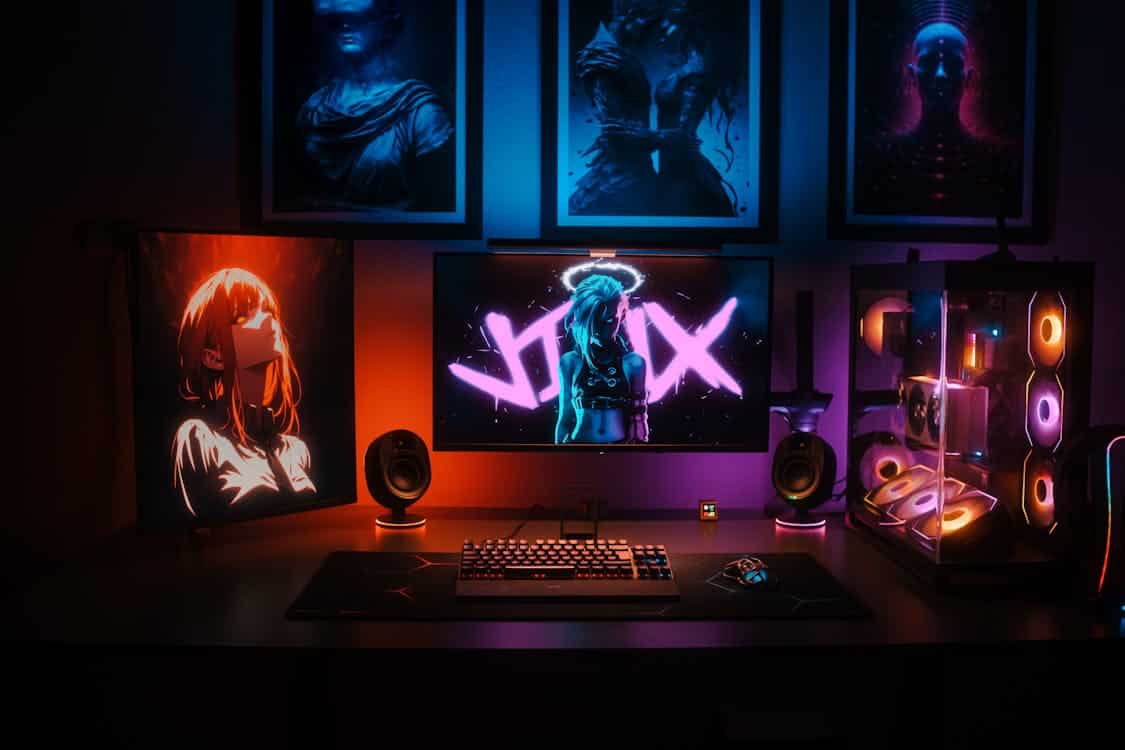
Gaming Monitors: Engineers consider the 27-inch monitor the absolute sweet spot for QHD. Spreading 3.68 million pixels across a 27-inch diagonal yields roughly 109 Pixels Per Inch (PPI). This specific density ensures virtual environments stay incredibly sharp at normal desk viewing distances. No awkward UI scaling needed.
-
Flagship Smartphones & Tablets: Read the spec sheet of any premium mobile device. Most utilize QHD architecture. Compressing nearly 4 million pixels onto a phone screen delivers ultra-crisp text. The pixel grid literally becomes invisible to the naked eye.
-
Social Media & YouTube: Platforms recognize the bandwidth efficiency here. YouTube supports native QHD uploads. Uploading at this exact resolution forces YouTube's backend to allocate a higher-quality video codec (VP9) to your specific file. For creators looking to enhance YouTube content, uploading at 1440p causes far fewer compression artifacts than a standard 1080p pipeline.
-
Professional Creator Laptops: Mobile workstations built for video editors heavily favor 2.5K/QHD panels. These displays offer way more timeline workspace than Full HD laptops. They achieve this productivity boost without killing battery life like native 4K panels do.
-
Corporate & Programming Workspaces: Enterprise IT departments prioritize sheer efficiency. Dual QHD setups remain the gold standard for corporate productivity. Data analysts can snap massive financial spreadsheets side-by-side. Programmers view thousands of lines of code simultaneously with zero eye strain.
Hardware Requirements to Run 1440p Smoothly
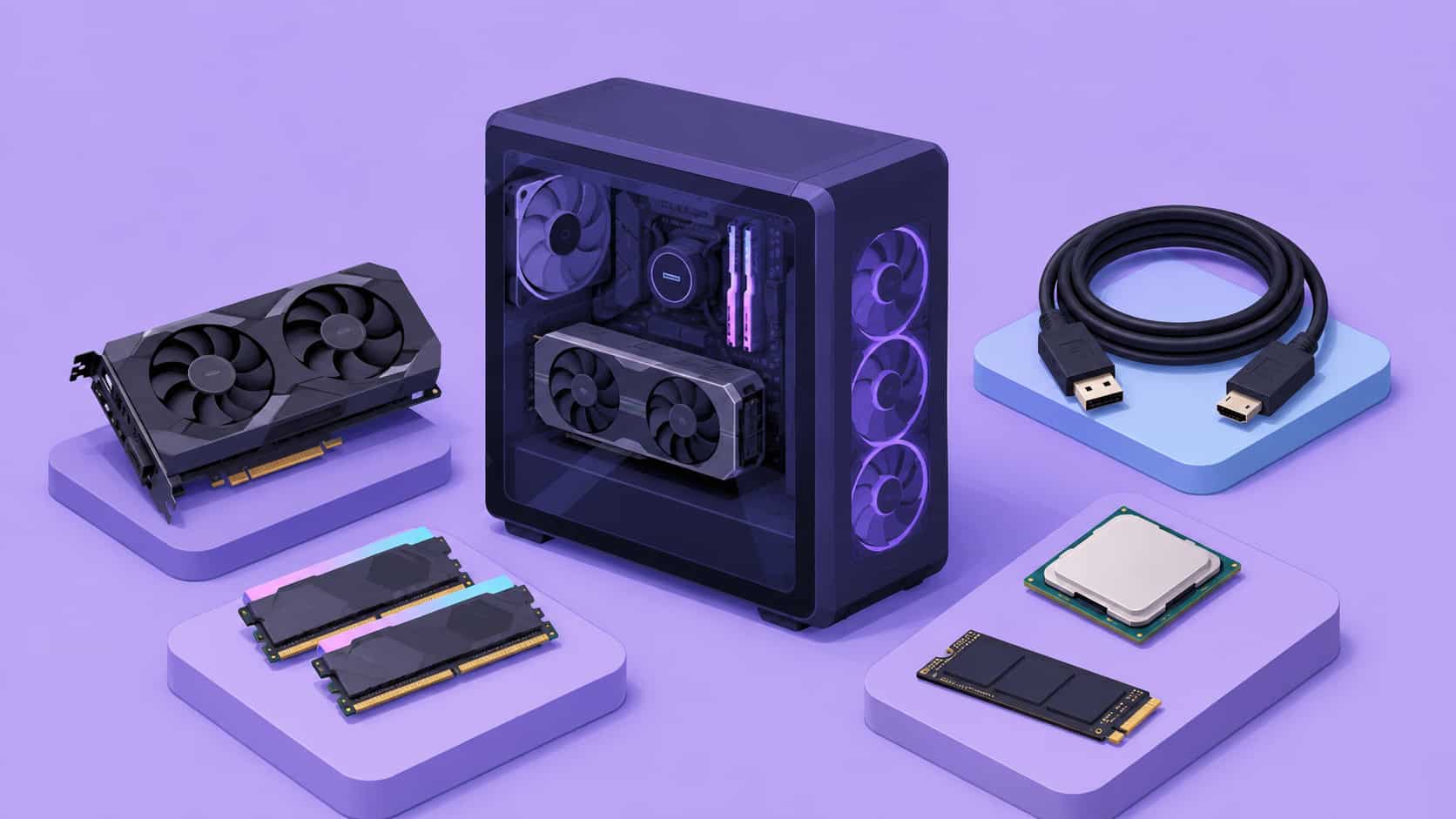
Swapping out a monitor is the easy part. Actually driving a QHD display requires a realistic look at what your computer can handle. You are asking your rig to push 78% more pixels per second compared to a standard high-definition setup. Miss these computing baselines, and your workflow will just choke on its own data.
-
Mid-to-High-Tier Graphics Card (GPU): Painting 3.6 million pixels onto a screen 60 or 144 times a second takes heavy lifting. If you plan to scrub through timelines or run games without frustrating UI lag, a basic integrated chip won't cut it. Treat dedicated hardware like the NVIDIA RTX 4060 or the AMD Radeon RX 6700 XT as your absolute floor for a fluid experience.
-
Adequate RAM (Memory): Bigger resolutions mean much heavier asset files. Your system memory has to catch all that uncompressed data before the processor asks for it. Sitting at 16GB of RAM is barely scraping by today. If you juggle heavy creative applications while multitasking, stepping up to 32GB isn't a luxury—it is practically mandatory.
-
High-Bandwidth Display Cables: People rarely think about their wiring until the screen flickers. An old HDMI cord physically lacks the bandwidth to shove QHD data through at high refresh rates. Grab a DisplayPort 1.2 or at least an HDMI 2.0 cable. You need that massive gigabit-per-second pipeline to keep a 144Hz signal from randomly dropping out mid-task.
-
A Balanced Processor (CPU): Pairing an expensive graphics card with an aging processor creates an immediate bottleneck. The CPU has to feed logic instructions to the GPU fast enough to keep it busy. A solid mid-range chip, like a recent Intel Core i5 or AMD Ryzen 5, stops that data traffic jam and keeps your frame delivery rock solid.
-
Storage Speed (NVMe SSD): File sizes explode when you bump up the resolution scale. Pulling heavy QHD ProRes files into a nonlinear editor requires aggressive retrieval speeds. Ditch the older mechanical or SATA drives. An NVMe solid-state drive running on modern PCIe lanes lets your machine pull massive files instantly, completely eliminating those random operating system stutters.
Wrapping Up: Why 1440p is the Popular Display Choice
Hardware constraints dictate reality. 1440p brilliantly bridges the gap between raw hardware limits and stunning visual fidelity. It completely outclasses older 1080p standards in sharpness and workspace utility. At the same time, it avoids the extreme thermal throttling and diminishing visual returns associated with full Ultra HD. Adopting QHD infrastructure helps professional creators maximize their daily productivity. Gamers secure high, stable frame rates. Stop compromising on visual clarity. If your archived source footage falls short of this standard, leveraging a YouTube video upscaler easily bridges the quality gap.
FAQs
Is 1440p considered 2K or 4K?
Technically, 1440p sits directly between standard HD and 4K. Brands formally call it QHD or 2.5K. While marketers sometimes slap a "2K" label on it to sell boxes, true cinema 2K resolution actually uses a completely different 2048 x 1080 pixel grid format.
Is 1440p good for PC gaming?
Yes. Hardware reviewers consistently call it the optimal standard. You get a massively sharper image than 1080p. Players easily spot distant details without spending a fortune on the massive, power-hungry graphics cards required to render games in true 4K.
Can I watch 4K videos on a 1440p monitor?
Absolutely. Video players automatically downscale 4K footage to fit the QHD screen. When you compare native 4K vs upscaled content, the downscaled version actually yields a crisper final image due to higher bitrates from the original source file.
What is the difference between QHD and WQHD in 1440p?
QHD uses a standard 16:9 widescreen layout for a 2560 x 1440 grid. WQHD keeps that same vertical height but aggressively stretches the width to 3440 pixels. This creates the highly immersive 21:9 ultrawide canvas incredibly popular with top video editors.
Does a 1440p resolution size consume more laptop battery?
Yes. Rendering 78% more pixels than a basic HD panel drains processing power rapidly. Plus, the physical screen needs a much stronger backlight array to push light through the dense pixel grid, draining standard laptop power cells significantly faster.

You May Be Interested
Nano Banana vs Veo 3: A Detailed Head-to-Head Comparison
Native 4K vs Upscaled 4K: Which One to Choose?
[Updated!] How to Upscale Anime Video to 4K Online
Native 4K vs Upscaled 4K: Which One to Choose?

(2026) How to Create 4K Cinematic AI Videos: Seedance 2.0
Upscale Videos to HD: Free Online Methods and Optimization Tips