Stable Diffusion AI Image Generator: A Complete Review
Create stunning visuals with the Stable Diffusion AI image generator using text prompts and reference images. Explore its features and limits, plus how Vmake Labs simplifies AI image creation.

Stable Diffusion is one of the most recognizable names in AI image generation, offering extensive control over how images are created and transformed. But its flexibility can also mean that it is more complex than beginner-friendly options. In this review, we look at its features, workflow, strengths, and limitations
What is Stable Diffusion AI image generator?
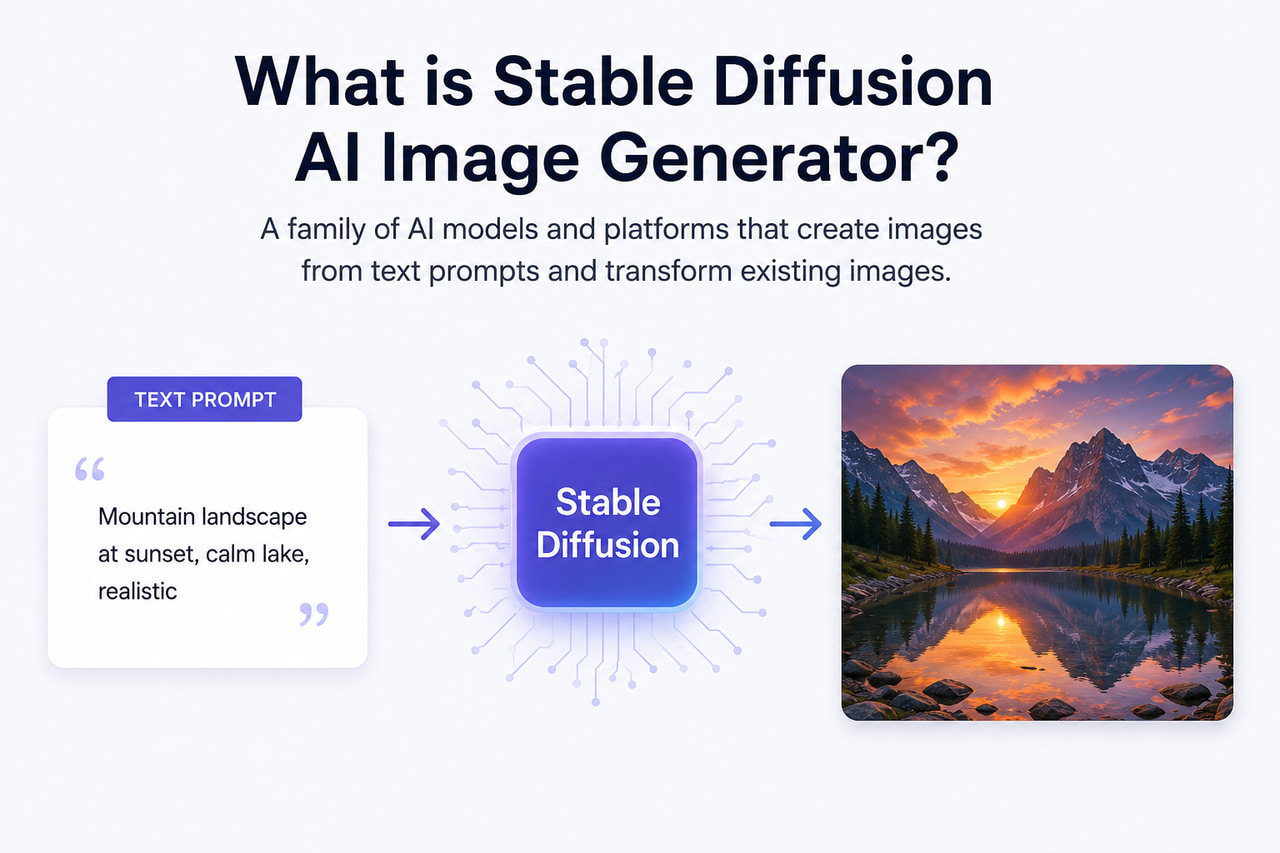
The Stable Diffusion AI image generator refers to a family of generative AI models and the different platforms built around them. Stable Diffusion entered public release in August 2022, when Stability AI published the model weights under the permissive Creative ML OpenRAIL-M license, which allows commercial and non-commercial use, alongside model cards, code, and a Hugging Face diffusers notebook (Stable Diffusion Public Release). The current line-up spans the SD 3.5 family (Large, Turbo, and Medium), plus the SDXL and SDXL Turbo models, distributed through self-hosted licenses, the Stability AI API, and cloud partners (Stability AI Image Models).
How does Stable Diffusion work?
Stable Diffusion turns visual noise into an output matching your prompt. It slowly interprets the input as it constructs the image. The prompt can mention things such as subject, environment, lighting, composition, and artistic style. How it feels will be different depending on the model and interface. This means that the same prompt will yield different results on Stable Diffusion platforms.
What can you create with Stable Diffusion?
-
Photorealistic images: Create realistic portraits, scenes, and objects with detailed textures, lighting, and depth.
-
AI art and illustrations: Generate creative artwork in different artistic styles, from digital illustrations to conceptual visuals.
-
Character concepts: Develop original characters with different appearances, outfits, poses, and visual styles.
-
Product visuals: Create product concepts, promotional imagery, and visual variations for creative or marketing projects.
-
Landscapes and environments: Generate natural scenery, cityscapes, interiors, and imaginative environments with detailed backgrounds.
-
Stylized artwork: Explore anime, fantasy, cinematic, surreal, and other distinctive visual styles through customized prompts.
-
Image variations and transformations: Use existing images as references to create new versions, change styles, or explore alternative visual directions.
How to use Stable Diffusion AI image generation
Basic Stable Diffusion AI image generation workflow is fairly simple, but it can get a little more complex with advanced configurations. Browser-based tools are usually an easier place to start than local installs.
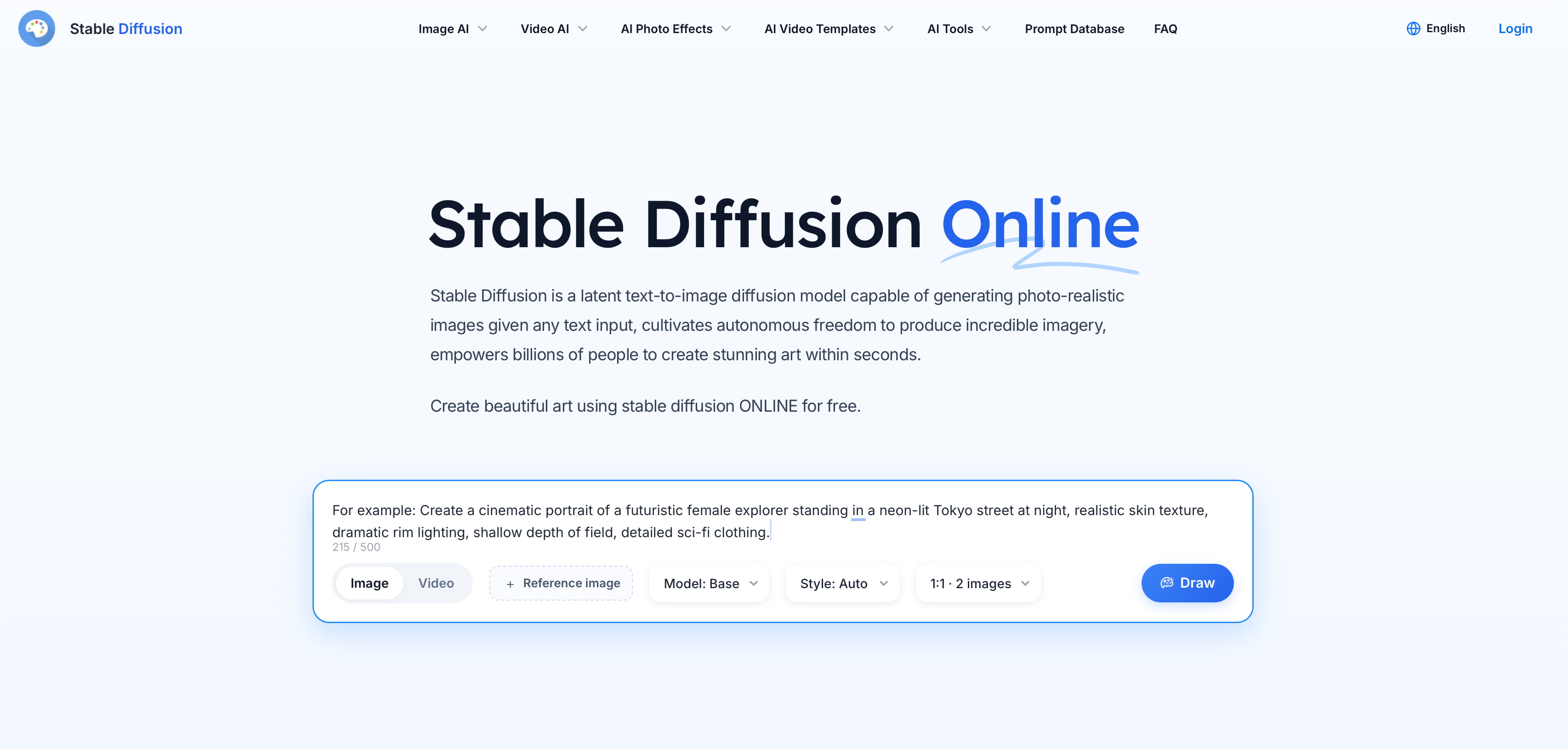
Step 1: Choose a Stable Diffusion interface or platform
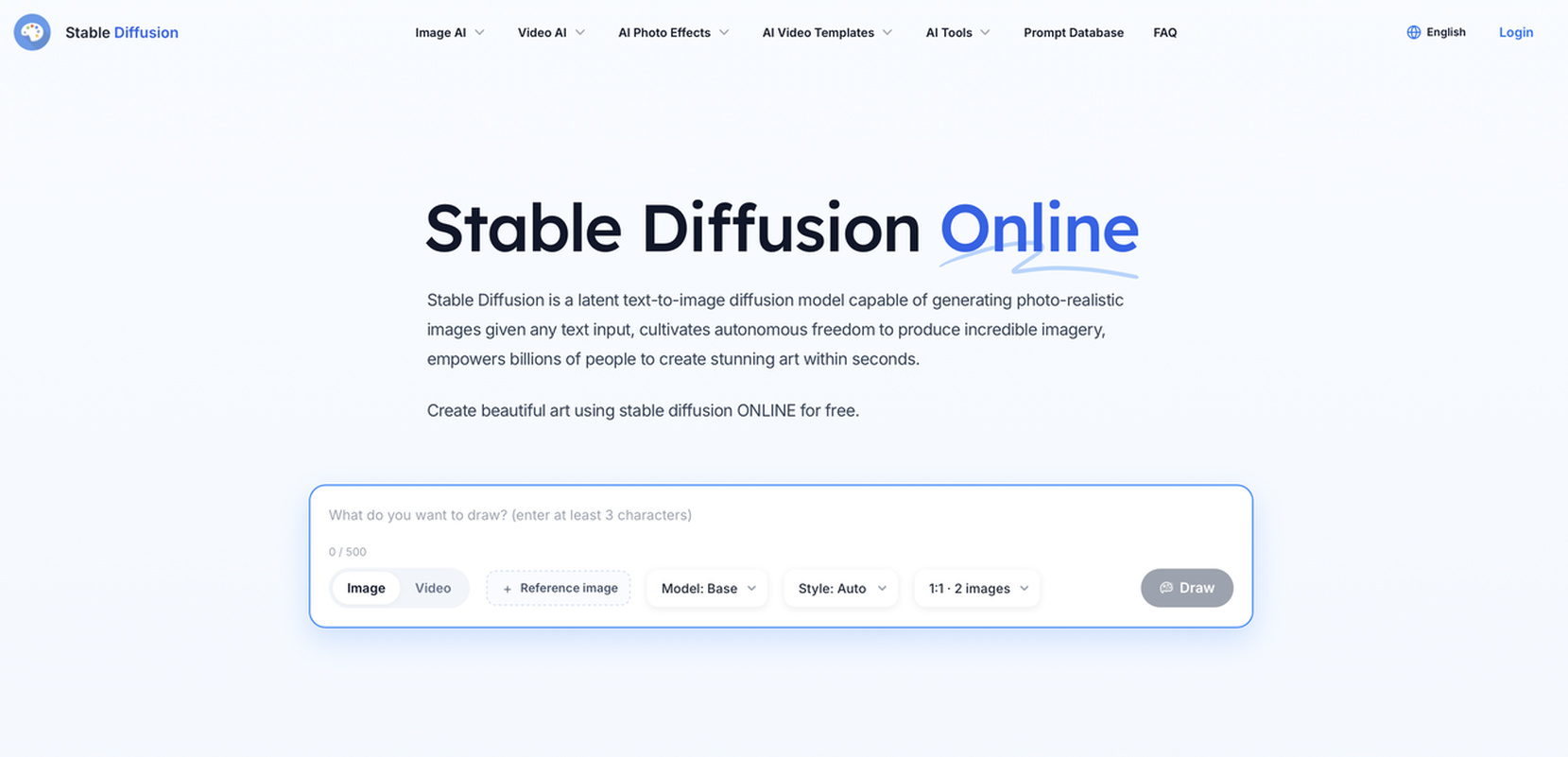
Choose a browser-based generator, third-party service, or locally installed interface. You have the choice based on the model, controls, editing features, and price alternatives that you have.
Step 2: Enter a prompt and adjust generation settings
Describe the visual you want, including the subject, environment, style, lighting, composition, and mood. Then adjust settings such as image size, sampling steps, guidance scale, seed, negative prompt, and model or checkpoint if available. Beginners can start with default settings and experiment gradually.
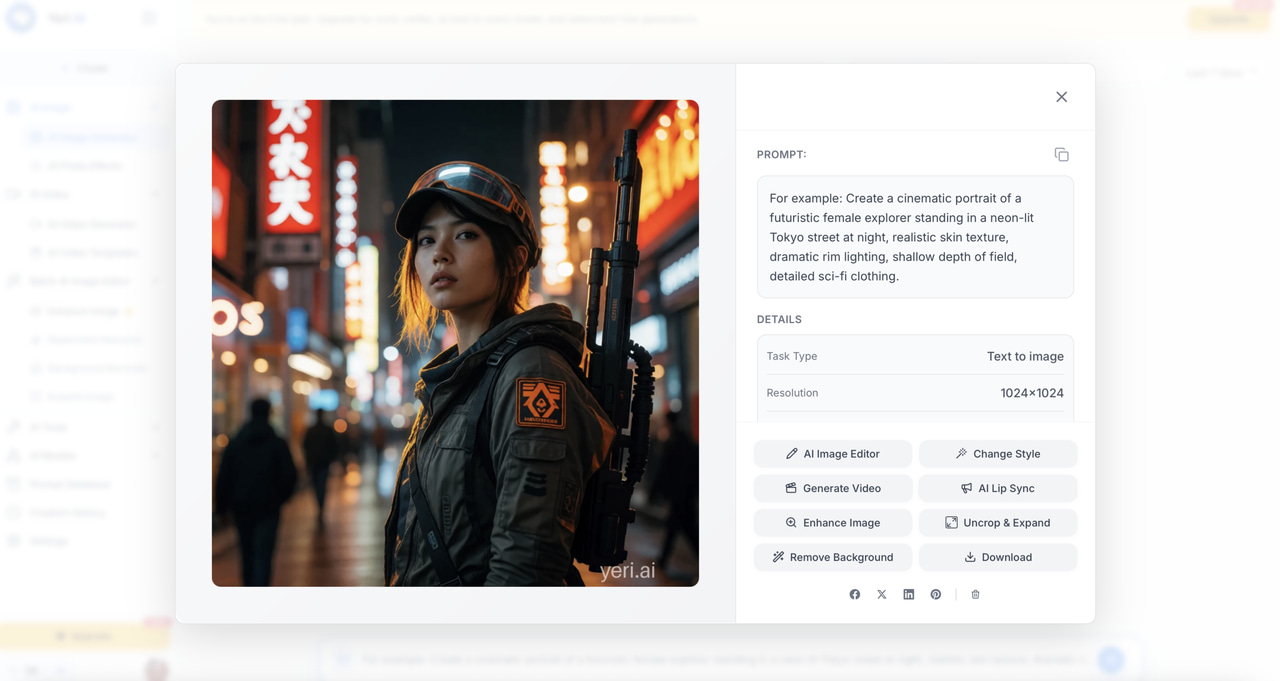
Step 3: Generate and refine the image
Generate the image and review the result for composition, detail, realism, and prompt accuracy. Adjust the prompt or settings as needed, then use image-to-image or inpainting for further refinement if needed.
Key features of Stable Diffusion AI art generator
The various interfaces of Stable Diffusion provide an amazing range of creative possibilities. Users can create images from prompts, convert references, change generation parameters, navigate styles, and modify selected areas.
Text-to-image generation
Written descriptions are transformed into images by text-to-image creation. Elements like the subject, setting, lighting, mood, composition, and artistic direction can all be specified. In general, clear, pertinent instructions offer more guidance than simply adding more words.
Image-to-image generation
Image-to-image generation uses an existing image as a reference for creating a new visual. It can help transform a style, develop variations, or adapt to an existing concept while retaining some characteristics of the original.
Customization and generation controls
The model, dimensions, aspect ratio, sample technique, sampling steps, guidance scale, seed, and negative prompts can all be changed by users, depending on the interface. Although these choices offer more control over the creation process, novices may find the workflow more complex.
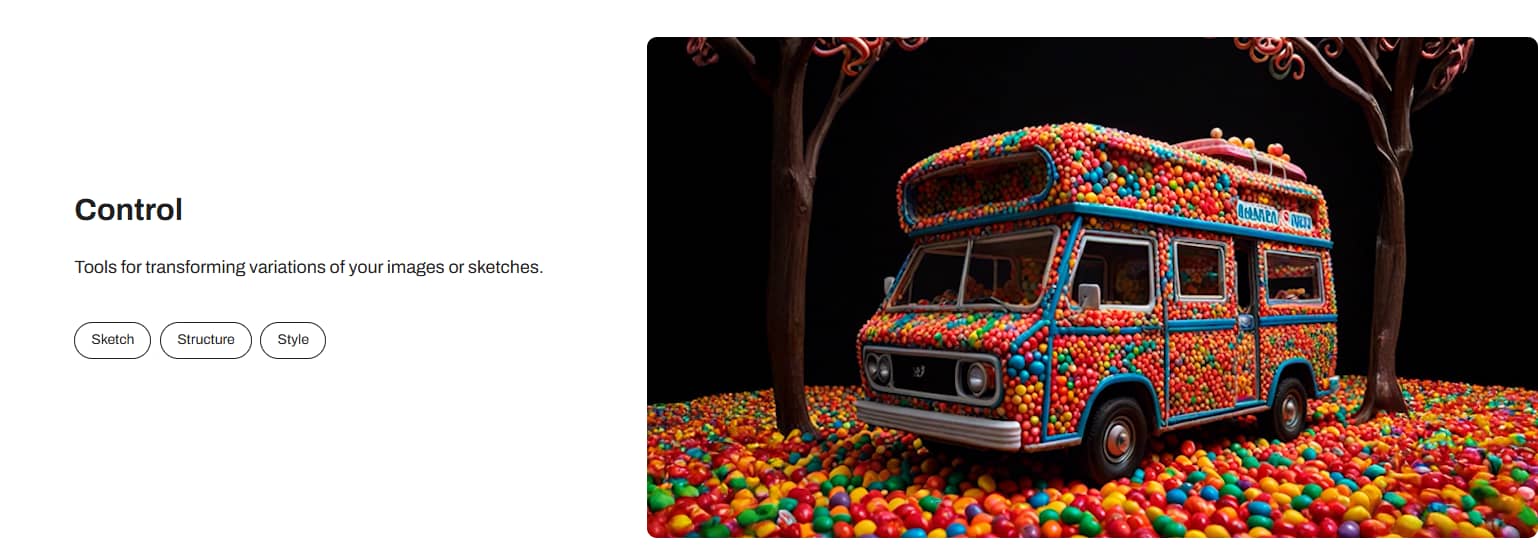
AI art styles and customization
Photorealism, illustration, anime, concept art, fantasy, and cinematic imagery are just a few of the many visual styles that Stable Diffusion supports. For more particular creative outcomes, some solutions also support custom models and LoRAs.
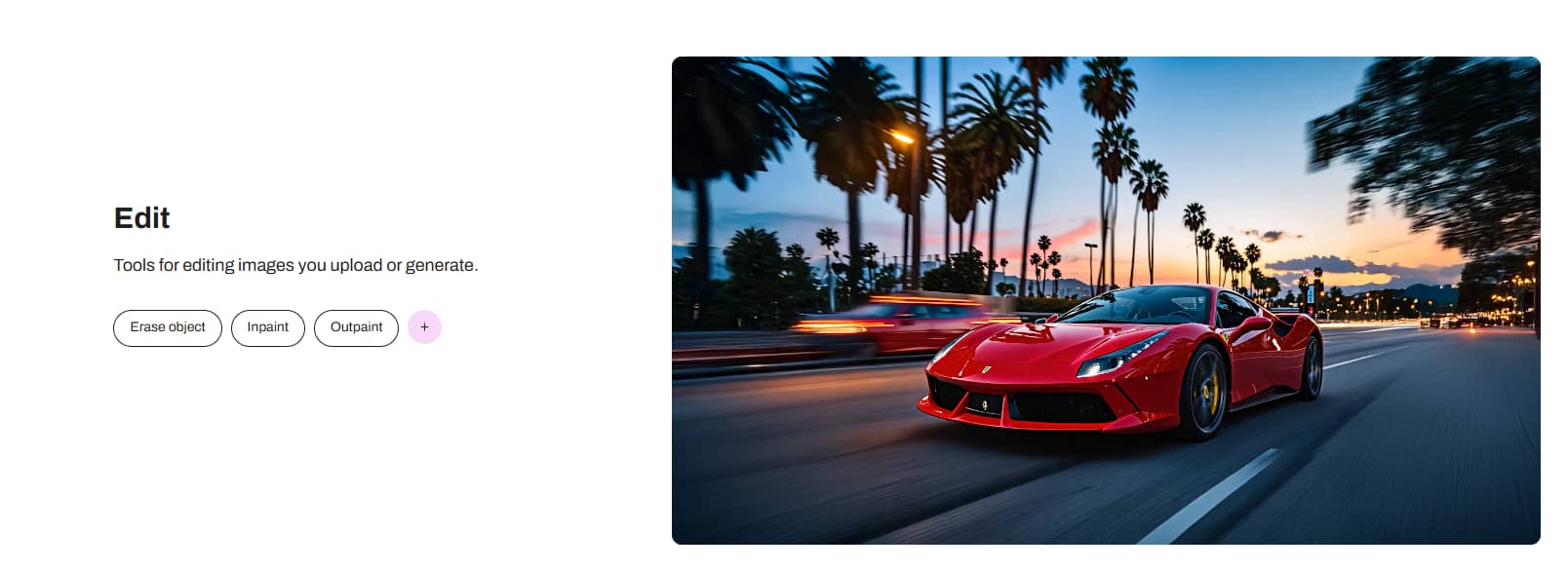
Inpainting and image editing
Inpainting allows you to edit a particular area rather than create a whole image. You can use it to get rid of unnecessary items, change details, or edit specific areas of a composition. Editing options differ among interfaces.
Stable Diffusion AI generator free options and limitations
Depending on how it is implemented, Stable Diffusion may or may not be free. Local installations have distinct technological needs, and various websites and platforms may implement their own credit limits, restrictions, and pricing structures.
Is Stable Diffusion AI image generator free?
There are free ways to access Stable Diffusion, including some browser-based services and local implementations. However, free access does not necessarily mean unlimited generation. Third-party platforms may offer a certain number of free credits or generations before requiring payment. Local use can provide a different experience, but it may require more technical knowledge and computing resources. Therefore, there is no single answer to whether the Stable Diffusion AI image generator is free. It depends on how and where you access it.
What are the limitations of free Stable Diffusion generators?
Free Stable Diffusion generators can impose restrictions that vary between platforms. Common limitations include:
-
Limited generation credits: Free plans may provide only a fixed number of generations, which can run out quickly with regular use.
-
Queues or slower processing: Free users may experience longer wait times, especially when demand is high, or the platform prioritizes paid users.
-
Restricted model selection: Some free platforms limit access to certain models, checkpoints, or advanced generation options.
-
Limited generation controls: Advanced settings may be unavailable on free plans, reducing the level of control over image generation.
-
Watermarks on some platforms: Some services may add watermarks to images generated or downloaded through their free tier.
-
Resolution restrictions: Free users may be limited to lower resolutions, making the output less suitable for professional or large-format use.
-
Paid access to advanced features: Features such as additional editing tools, premium models, or higher generation limits may require a paid plan.
Stable Diffusion pricing considerations
Stable Diffusion does not have one universal subscription price because different services provide access in different ways. Some platforms use credit-based pricing, while others offer subscriptions or different levels of access. Before choosing a service, compare the number of generations, available models, resolution options, advanced controls, and other features included in the plan. This is especially important if you plan to use Stable Diffusion AI image generation regularly for commercial or professional projects.
Stable Diffusion AI image generator review: Pros, cons, and assessment
Stable Diffusion is not a single tool but an ecosystem of models and interfaces, and results depend heavily on which version and interface you use. The assessment below is based on public documentation and community experience across common creative scenarios, covering how the generator handles prompts, reference images, and generation settings.
|
Capability area |
Assessment |
|---|---|
|
Image generation quality |
Simple prompts return clear results. Detailed prompts put realism, lighting, and accuracy to the test, and artistic prompts show strong style flexibility. Stability AI positions the SD 3.5 line around versatile styles and diverse outputs, with SDXL offering 3.5 billion parameters and high-resolution, photorealistic results. |
|
Prompt accuracy and composition |
Clear prompts are easy to interpret. Complex instructions can introduce unexpected elements, and multi-subject scenes or precise compositions are harder to control. Prompt adherence is a focus of the current SD 3.5 line, which Stability AI markets as rivaling much larger models. |
|
Image-to-image performance |
Low transformation strength preserves the reference image; high strength allows bigger creative changes but alters more details. |
|
Customization and control |
Models, sampling, image size, seeds, guidance, and negative prompts give extensive control, but the number of settings makes the workflow heavier for casual users. The official package ships an adjustable safety classifier by default, and the current lineup adds editing services for inpainting, outpainting, background removal, and upscaling. |
|
Detail and realism |
Strong textures, depth, and realistic lighting appear when the right model and settings are used. Hands and facial details remain inconsistent. |
|
Text and subject consistency |
Readable text is hard to generate accurately. Keeping the same character or subject across generations typically requires additional workflows. |
|
Learning curve and model differences |
Advanced controls take time to learn, and results vary considerably between models and interfaces. The original v1.4 release specified about 6.9 GB of VRAM and recommended NVIDIA GPUs; today the practical choice is often between quality-focused SD 3.5 Large, the four-step Turbo, and Medium, which is built for consumer hardware. |
Pros and cons
|
Pros |
Cons |
|---|---|
|
Extensive creative control |
Can have a steeper learning curve |
|
Large ecosystem of models and community resources |
Results vary significantly between models and interfaces |
|
Strong customization options |
Advanced settings can overwhelm beginners |
|
Supports both text-to-image and image-to-image workflows |
Local setups may require technical knowledge |
|
Suitable for advanced experimentation |
The experience depends heavily on the platform being used |
Community feedback
Summarize broader user opinions and recurring themes from:
-
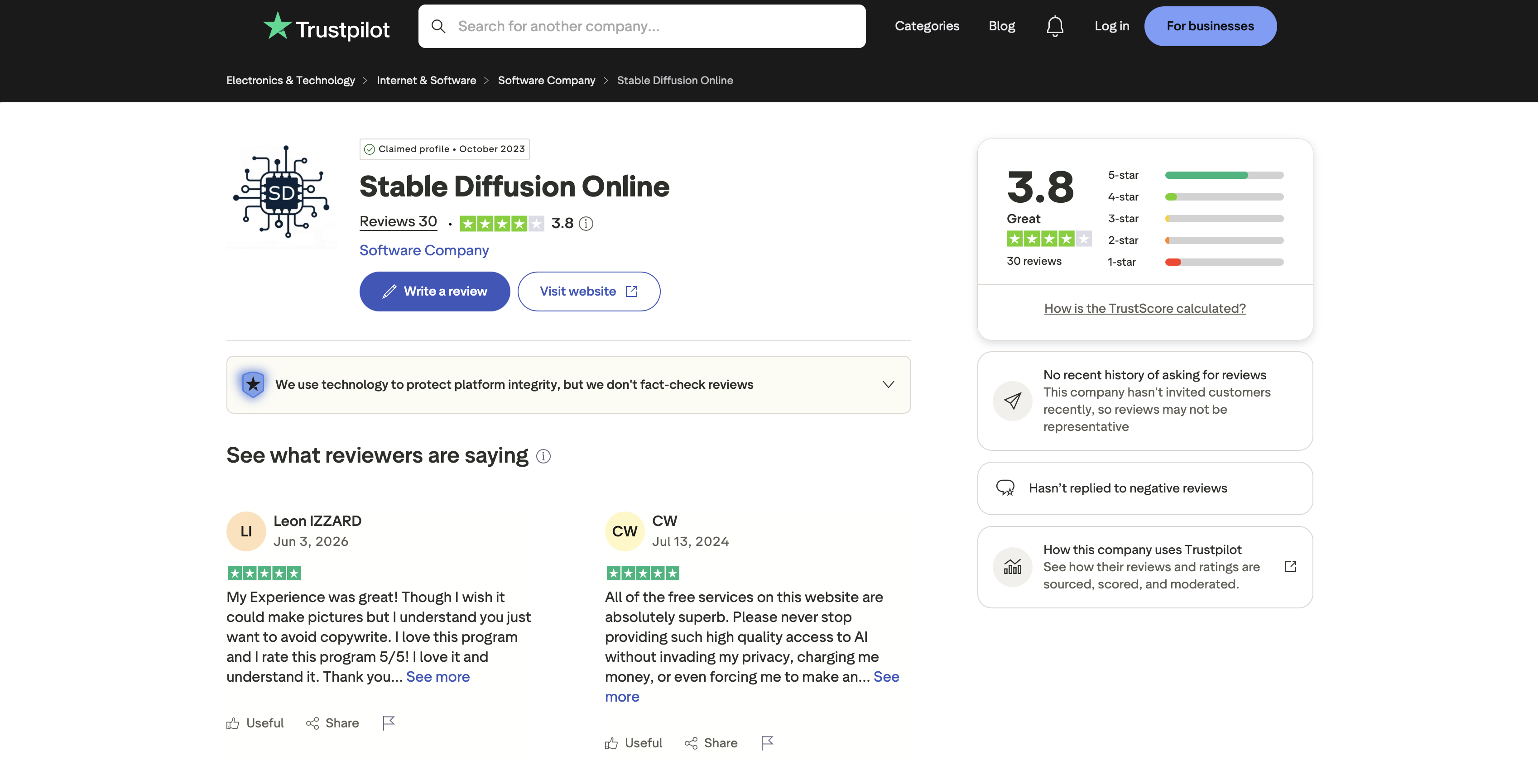
For Trustpilot, the available reviews also show generally positive sentiment, with users highlighting their overall experience and access to free AI services. However, the review volume is limited, so these opinions are best treated as supplementary feedback rather than representative of the entire user base.
-
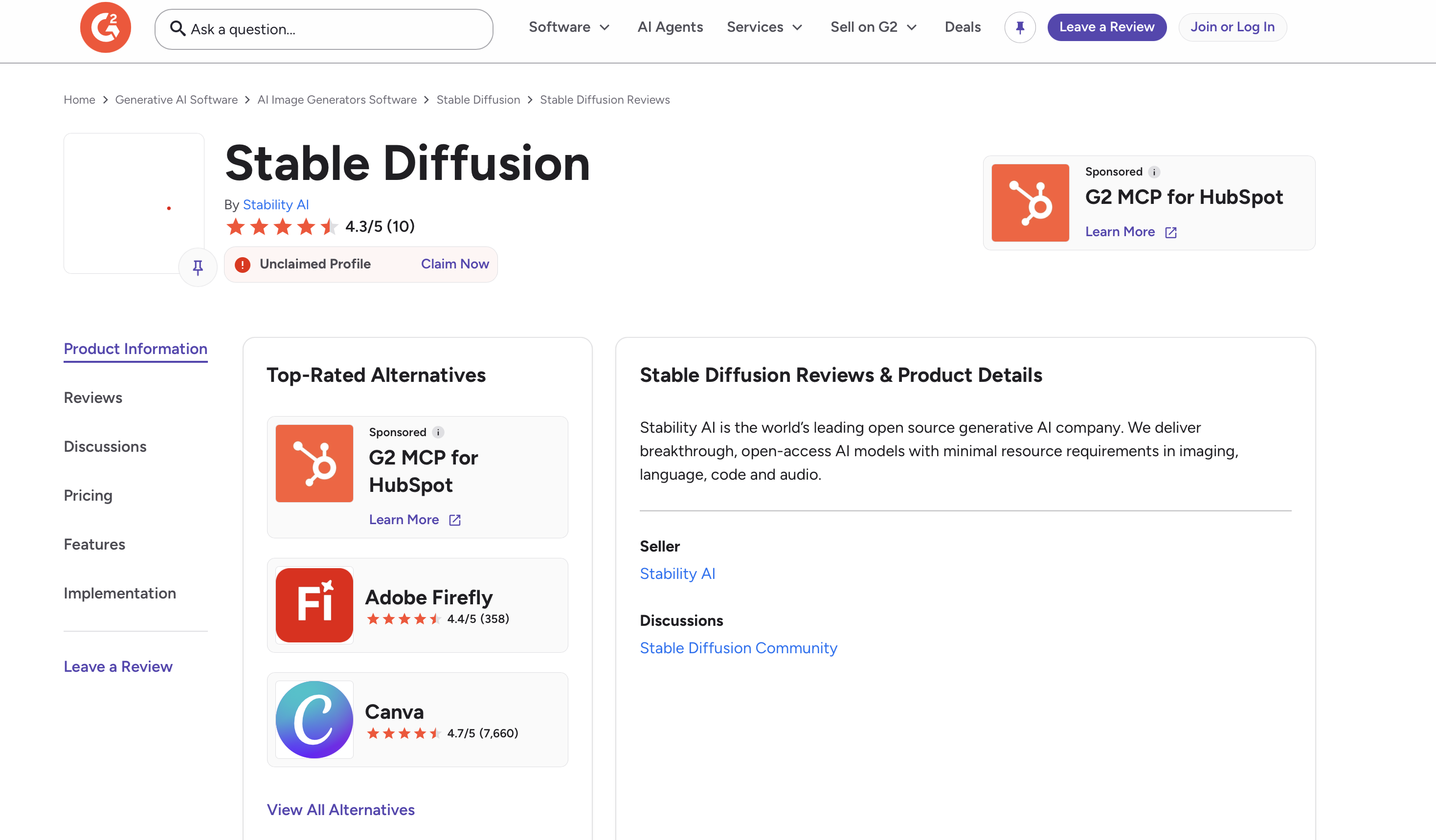
User feedback on G2 is generally positive. The rating suggests a favorable overall experience, although the small review sample means it should be viewed as an indication rather than a definitive measure of user satisfaction. G2 lists Stability AI as the seller and describes Stable Diffusion as an open-source generative AI offering with open-access models.
Stable Diffusion's biggest strength is also its main trade-off. Extensive control can benefit experienced creators but add complexity to everyday image creation. For users who want a more straightforward way to generate visuals, Vmake Labs offers a simpler alternative.
Best Stable Diffusion AI image generator alternative: Vmake Labs
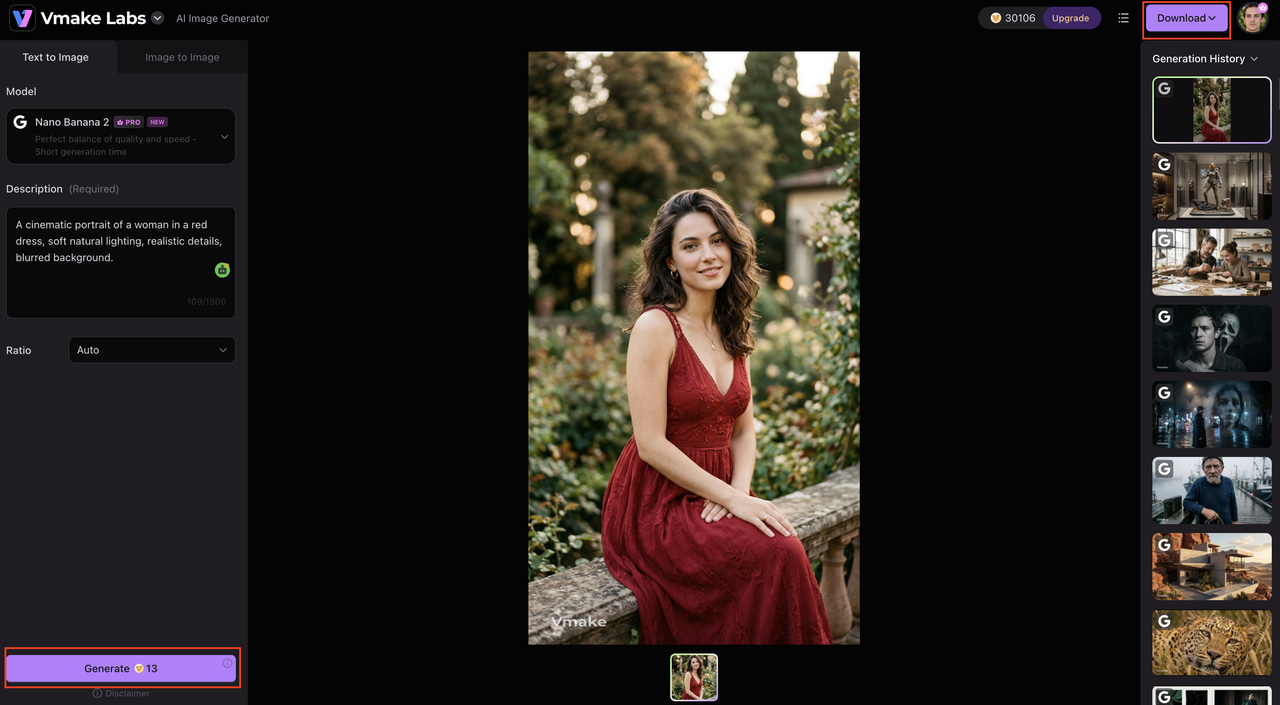
Vmake Labs is a more accessible alternative for creators who want to generate professional-looking AI images without navigating Stable Diffusion's more complex settings. Its browser-based workflow supports text-to-image and image-to-image generation, along with multiple AI models and reference-image capabilities. This makes it suitable for marketers, social media creators, and businesses that prioritize speed, simplicity, and creative flexibility.
How to generate images with Vmake Labs
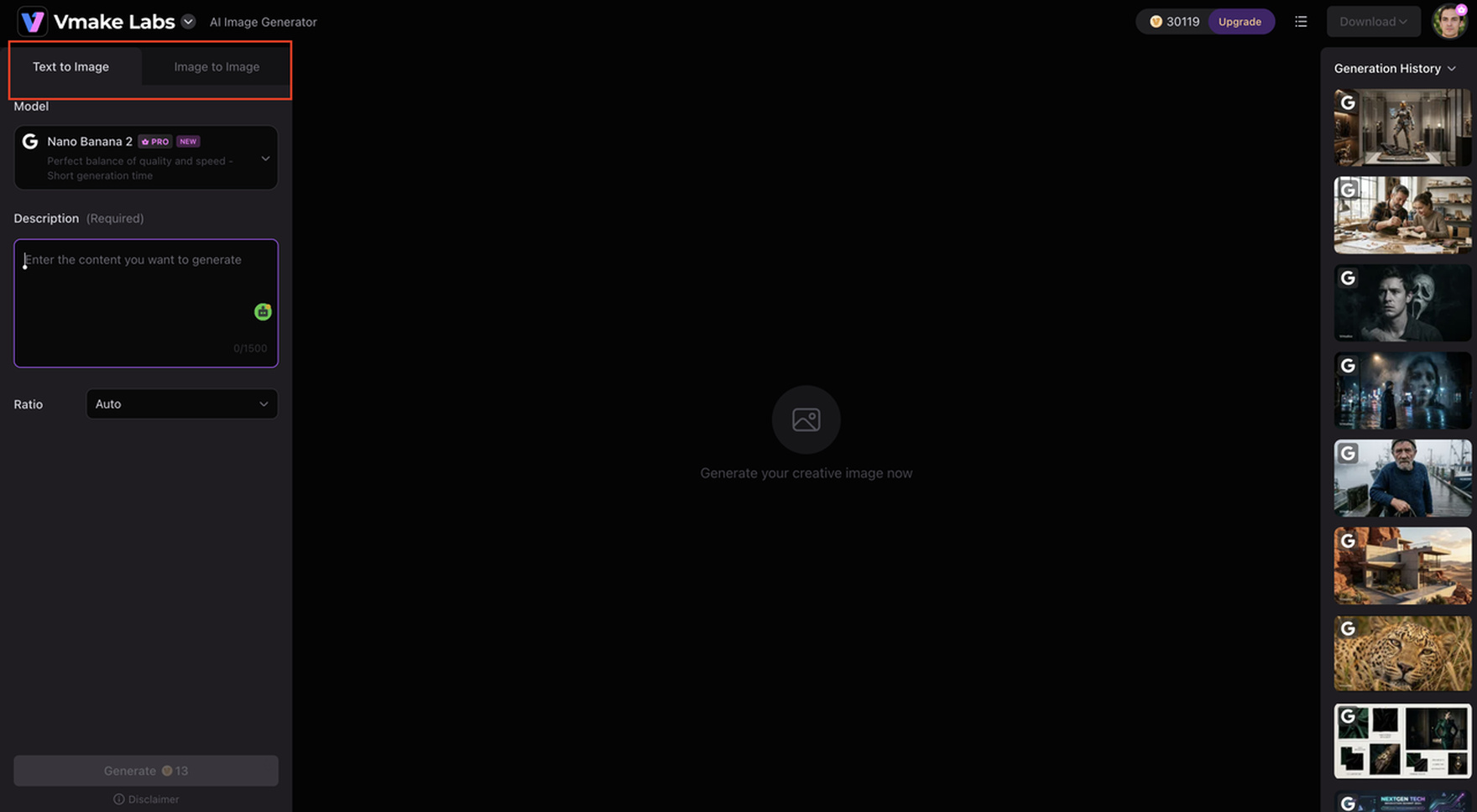
Step 1: Choose a generation mode Open Vmake Labs Image Generator and choose Text to Image to produce an image from a text prompt, or Image to Image to develop a new visual based on reference photos. In Image to Image mode, you can submit 1-3 reference images.
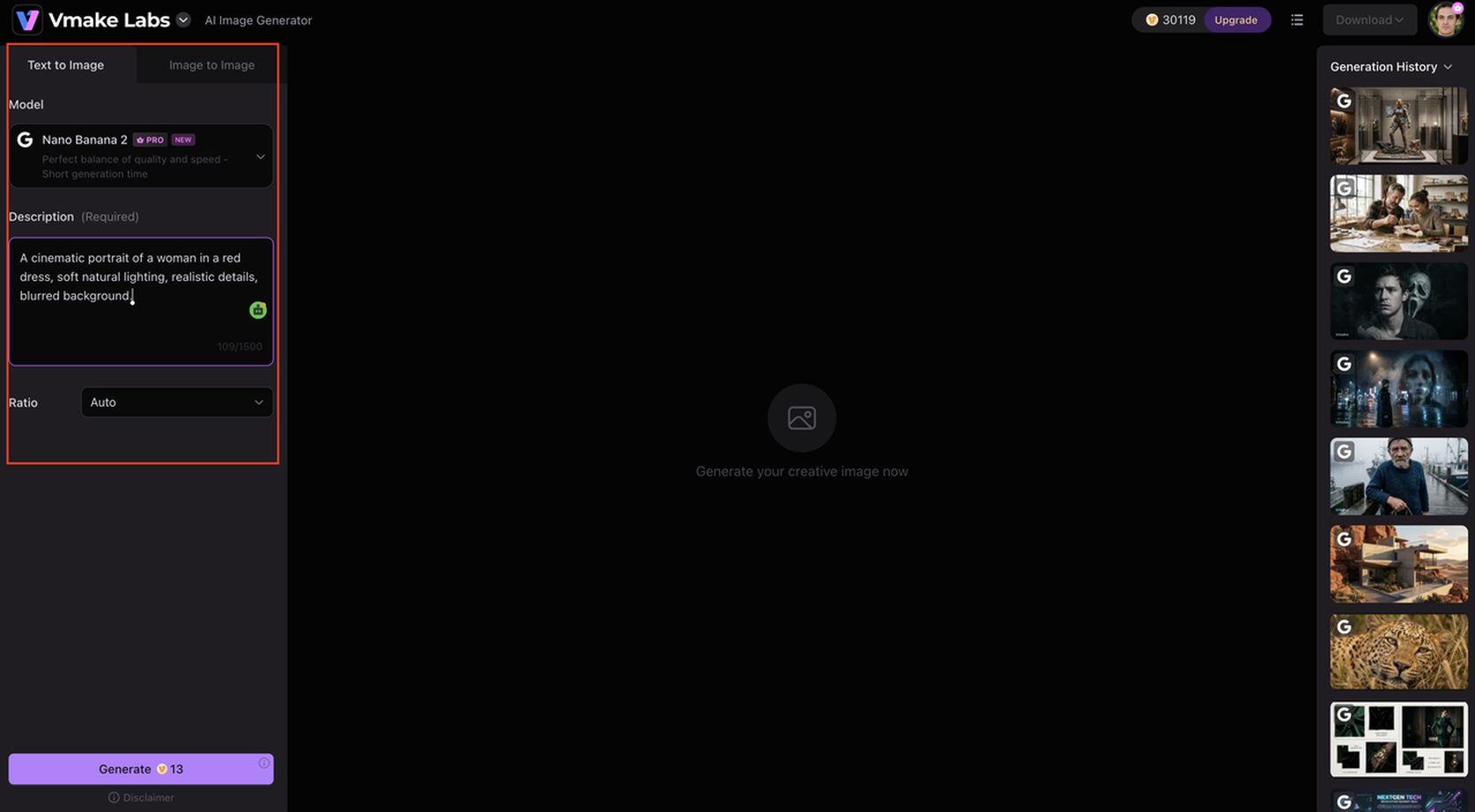
Step 2: Add your input and choose the settings Enter a description of the image you want to create. For Image to Image, describe the desired visual effect after uploading your reference images. Then select an available AI model, such as Nano Banana, Nano Banana Pro, Seedream 4.0, or GPT Image 1, and choose an aspect ratio for your image.
Step 3: Generate, preview, and download Click Generate to create the image, then preview the result. Once you are satisfied with the output, download the generated image for your project.
Why choose Vmake Labs over Stable Diffusion?
-
Simpler browser-based workflow: Vmake Labs offers a straightforward browser-based experience for AI image creation. You can generate visuals without dealing with complex installations, model configurations, or extensive technical settings.
-
Text-to-image and image-to-image generation: Create visuals from written prompts or transform existing images using reference-based generation. This lets you start with either a creative idea or an existing visual.
-
Multiple AI models in one place: Vmake Labs provides access to multiple AI models, including Nano Banana, Nano Banana Pro, Seedream 4.0, and GPT Image 1. You can select a model based on the visual you want to create.
-
Reference-image-based generation: Upload one to three reference images and describe the visual direction you want. This can help you create new variations while using existing visuals as a starting point.
-
Faster workflow with fewer technical controls: Vmake Labs reduces the number of configuration decisions required before generating an image. This lets you focus on your prompt, model, and aspect ratio rather than advanced generation settings.
-
Useful for creative and marketing projects: The streamlined workflow can support social media visuals, product imagery, marketing content, and other creative projects where accessible and efficient image generation is important.
-
Beyond image generation: Vmake Labs can also fit into broader image workflows where creators need an image enhancer, image sharpener, or AI image fixer to improve existing visuals. For older or lower-quality references, tools for photo restoration or unblur image workflows can also be useful before creating new visuals.
Stable Diffusion vs. Vmake Labs AI image generator
Stable Diffusion and Vmake Labs have differing perspectives on the topic of AI image generation. Stable Diffusion is all about personalization and detailed control, while Vmake Labs is about a simplified approach with multiple models and easy-to-use image-generation tools.
|
Factor |
Stable Diffusion |
Vmake Labs |
|---|---|---|
|
Ease of use |
Better suited to users comfortable with AI settings |
Beginner-friendly |
|
Customization |
Extensive |
Streamlined |
|
Model ecosystem |
Very broad |
Multiple models available |
|
Text-to-image |
Yes |
Yes |
|
Image-to-image |
Yes |
Yes |
|
Technical setup |
May be required depending on the platform |
Browser-based |
|
Best for |
Advanced experimentation and control |
Fast, accessible image creation |
Choose Stable Diffusion if you want granular control, model experimentation, and extensive customization. Vmake Labs is a better option if you want a more accessible workflow for creating professional-looking visuals without dealing with complex configurations.
Conclusion
The Stable Diffusion AI picture generator is designed for producers who want to be flexible, customizable, and in control of their image generating. But its complex options can be hard for beginners to get their heads around. Vmake Labs makes the choice easier with text-to-image and image-to-image generation, several AI models, and reference-image compatibility. The browser-based process makes it easy to generate great visuals without the hassle of extensive settings. If you want more control, then you should check out Stable Diffusion. Vmake Labs is a realistic option for your image generation needs for a faster, more accessible creative workflow.
FAQs
-
Is Stable Diffusion AI image generator free?
Some Stable Diffusion implementations are free to use. However, the number of credits, generation restrictions, available models, and advanced features differ from platform to platform. Local and browser-based alternatives may also have various requirements as well.
-
Is Stable Diffusion good for beginners?
Stable Diffusion is easy to use and beginner-friendly with a basic UI. But extensive controls for models, sampling, seeds, and guiding can make the learning curve a little steeper than simpler AI picture generators. Browser-based alternatives would be an easier place to get started, though, such as Vmake Labs.
-
Can I use Stable Diffusion for commercial images?
Commercial use is subject to the applicable license terms for the particular model, platform, and use. Always check licensing terms for commercial use of created photos. For creators looking for an easier process for quality visuals, platforms like Vmake Labs are worth checking out.
-
What is the difference between Stable Diffusion and other AI image generators?
Stable Diffusion is well renowned for flexibility, model variation, and user control. Other AI picture creators are fast and easy. For example, Vmake Labs is a browser-based approach that integrates numerous models for those who desire simpler image creation.
-
Is there a simpler alternative to Stable Diffusion?
Yes. A browser-based AI picture generator featuring text-to-image and image-to-image workflows is provided by Vmake Labs. Without having to deal with the complicated setup that is frequently involved with Stable Diffusion, you may choose an available model, choose an aspect ratio, supply hints or reference photos, and produce visualizations.

You May Be Interested
AI Animal Generator: Make Realistic Animal Images with AI
Adobe Firefly AI Image Generator Review: Features & Pricing
Adobe Firefly AI Video Generator Review & Best Alternative
Best AI Avatar Generators in 2026 (Compared & Reviewed)
Artguru AI Image Generator Review 2026: Is It Worth Trying?