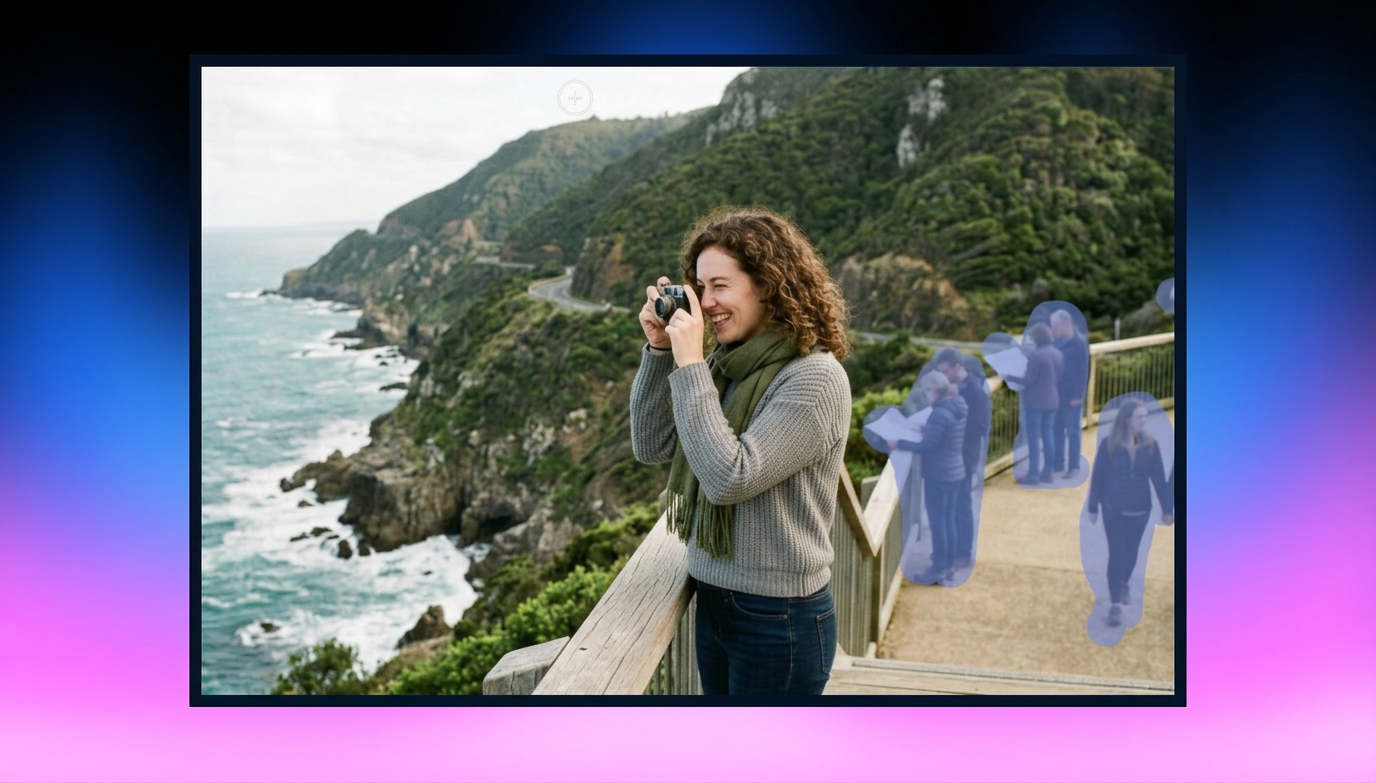
Remove Objects from Photo iPhone: A Complete Step-by-Step Guide
Want to remove an object from a photo on an iPhone with ease? Explore built-in editing methods and AI-powered cleanup for cleaner images, then achieve even better results with Vmake Labs today.

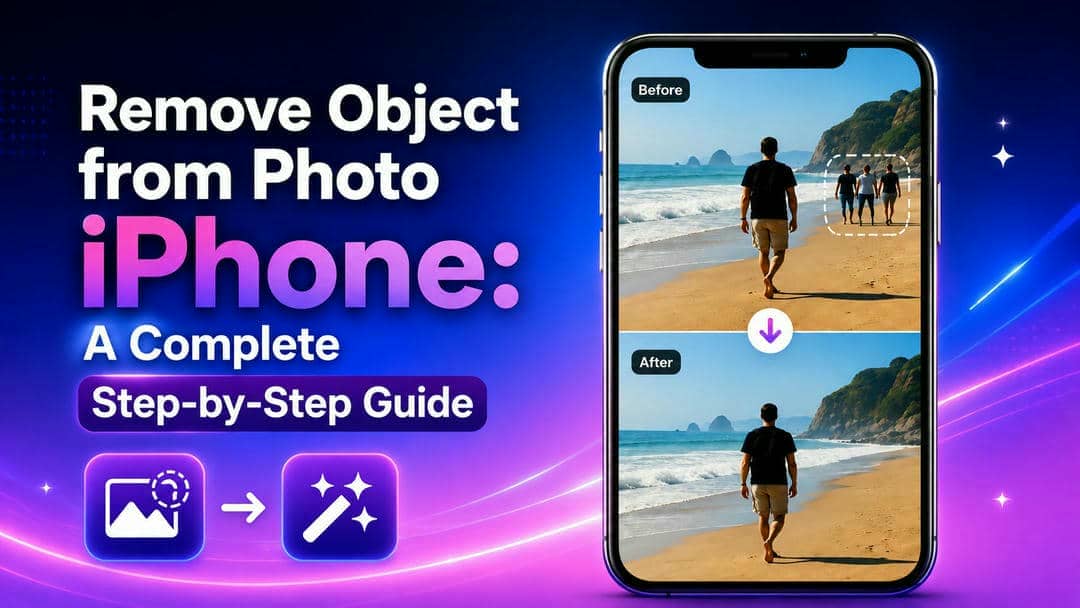
A perfect photo can easily be spoiled by unwanted people, distracting objects, reflections, or text in the background. Luckily, today's iPhones and AI editing tools have made cleanup easier than ever. This guide will explain the best ways to remove unwanted objects while maintaining natural-looking, high-quality results with minimal effort.
What does it mean to remove objects from photos on the iPhone?
Object removal is the process of erasing unwanted elements from an image while intelligently filling the space, so the edited photo looks natural and untouched. Instead of cropping important parts of your picture, AI analyzes the surrounding pixels and reconstructs the missing background. This makes it easy to remove objects from photos while preserving the original composition and overall image quality.
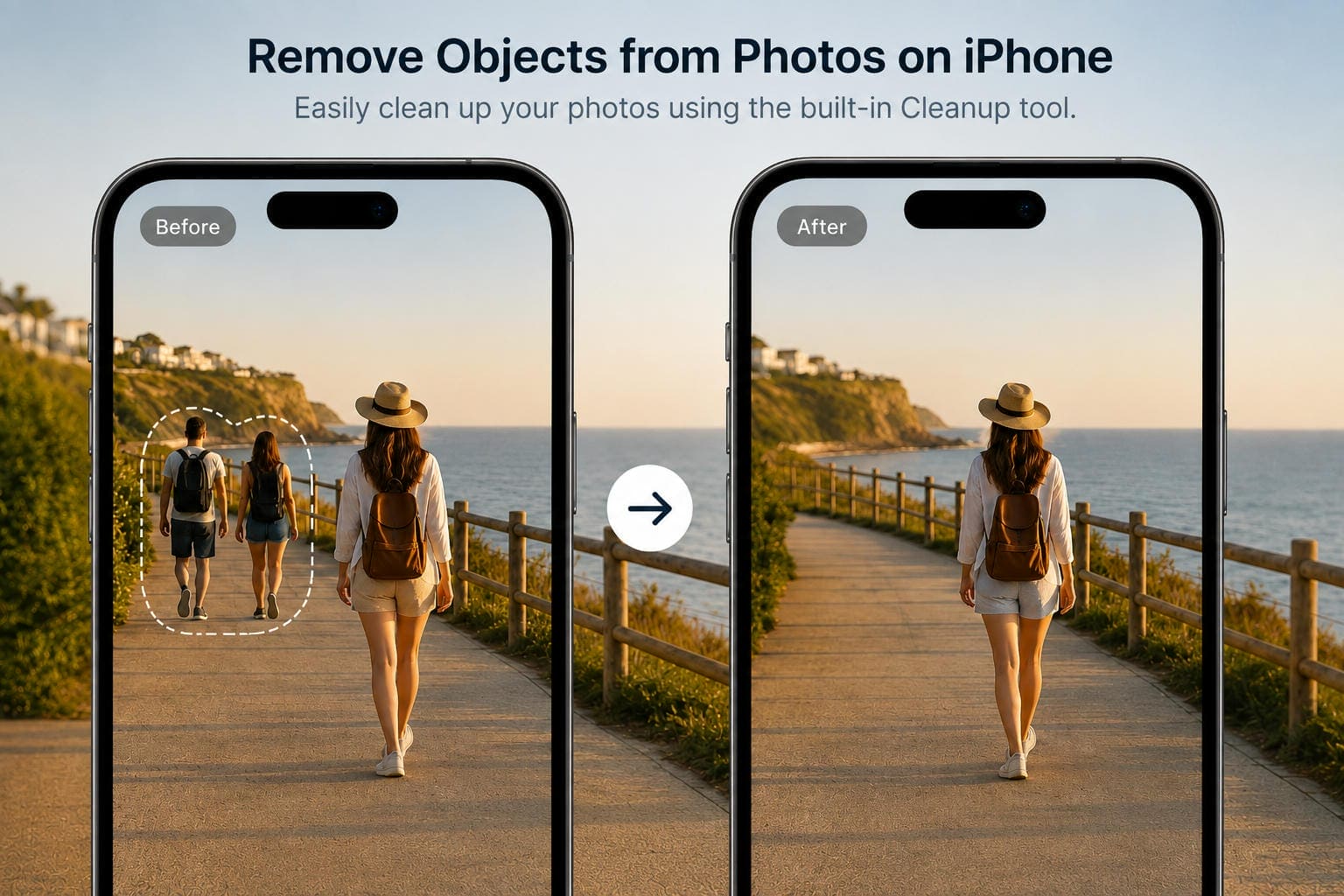
Common situations where iPhone users remove objects from photos
Object removal can improve photos in many everyday situations, helping you create cleaner and more professional-looking images without cropping important details. Here are some common examples:
-
Travel photos: Remove strangers, vehicles, or distracting objects to keep the focus on landmarks and scenery.
-
Portraits: Eliminate background clutter or unwanted people to create cleaner, more polished portraits.
-
Food photography: Remove utensils, napkins, or other distractions to make meals look more appealing.
-
Product listings: Erase unwanted items from the background to create cleaner product photos for online marketplaces.
-
Social media posts: Remove photobombers, signs, or distracting objects before sharing images on Instagram, Facebook, or other platforms.
How to remove objects from photos on iPhone: 2 Ways explained
Apple has upgraded its Photos app with AI-powered editing tools that make it easier than ever to remove unwanted distractions. Your iPhone has Apple Intelligence built right in, so you can remove people, objects, and other distractions right in the Photos app without downloading any extra software.
Use Apple's Cleanup feature (iOS 18+)
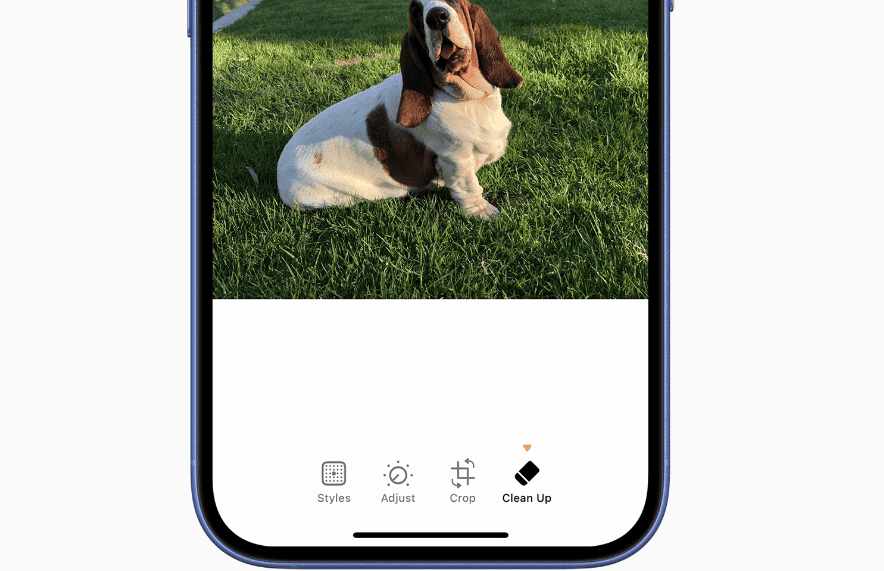
Apple's Cleanup feature uses AI to identify and remove unwanted objects and smartly reconstruct the background. Just open your photo, tap Edit, select Cleanup, and draw over the object you want to remove. The AI makes this choice in seconds, and that's why it's a great solution for cleaning up small objects, background distractions, or people from simple scenes.
Note: The cleanup feature is currently available on iPhones that support Apple Intelligence, including the iPhone 15 Pro, iPhone 15 Pro Max, and newer compatible models. Older iPhones can still use the standard editing tools in the Photos app, but they do not include Apple's AI-powered object removal feature.
If you need true AI object removal without upgrading your device, browser-based tools like Vmake Labs work directly in Safari. This lets you remove unwanted objects from photos online without relying on Apple Intelligence-compatible hardware or installing additional software.
Remove distractions with the Photos app
Even if your iPhone doesn't have the cleanup feature, the Photos app has editing tools that will make your photos better. Crop out distracting edges, adjust brightness, fine-tune shadows, or improve contrast to minimize the impact of undesirable elements. They can also help remove glare from photo areas to create a cleaner overall appearance, but objects can't be completely erased.
Cleanup feature vs. standard photo editing tools
|
Feature |
Apple Cleanup |
Standard Photos Editing |
|---|---|---|
|
Availability |
Requires an iPhone with Apple Intelligence |
Available on most iPhones |
|
Object removal |
Removes unwanted objects using AI |
Cannot completely remove objects |
|
Background editing |
Reconstructs the background automatically |
Only adjusts the existing image |
|
Best For |
Removing people, objects, and distractions |
Improving lighting, color, and composition |
If your iPhone supports Apple Intelligence, the Cleanup feature is the best option for removing unwanted objects because it uses AI to erase them and reconstruct the background naturally. If your device doesn't support Cleanup, the standard photo editing tools can still enhance your images by adjusting lighting, color, and composition, although they can't completely remove objects.
Step by step: How to remove objects from an iPhone photo without an app
Apple's built-in Cleanup feature makes it easy to remove unwanted objects from photos without downloading any additional apps. Available on supported iPhones with Apple Intelligence, this AI-powered tool can erase people, background distractions, and other unwanted elements while naturally filling in the surrounding area. In just a few simple steps, you can clean up your photos directly in the Photos app and save a polished, high-quality result.
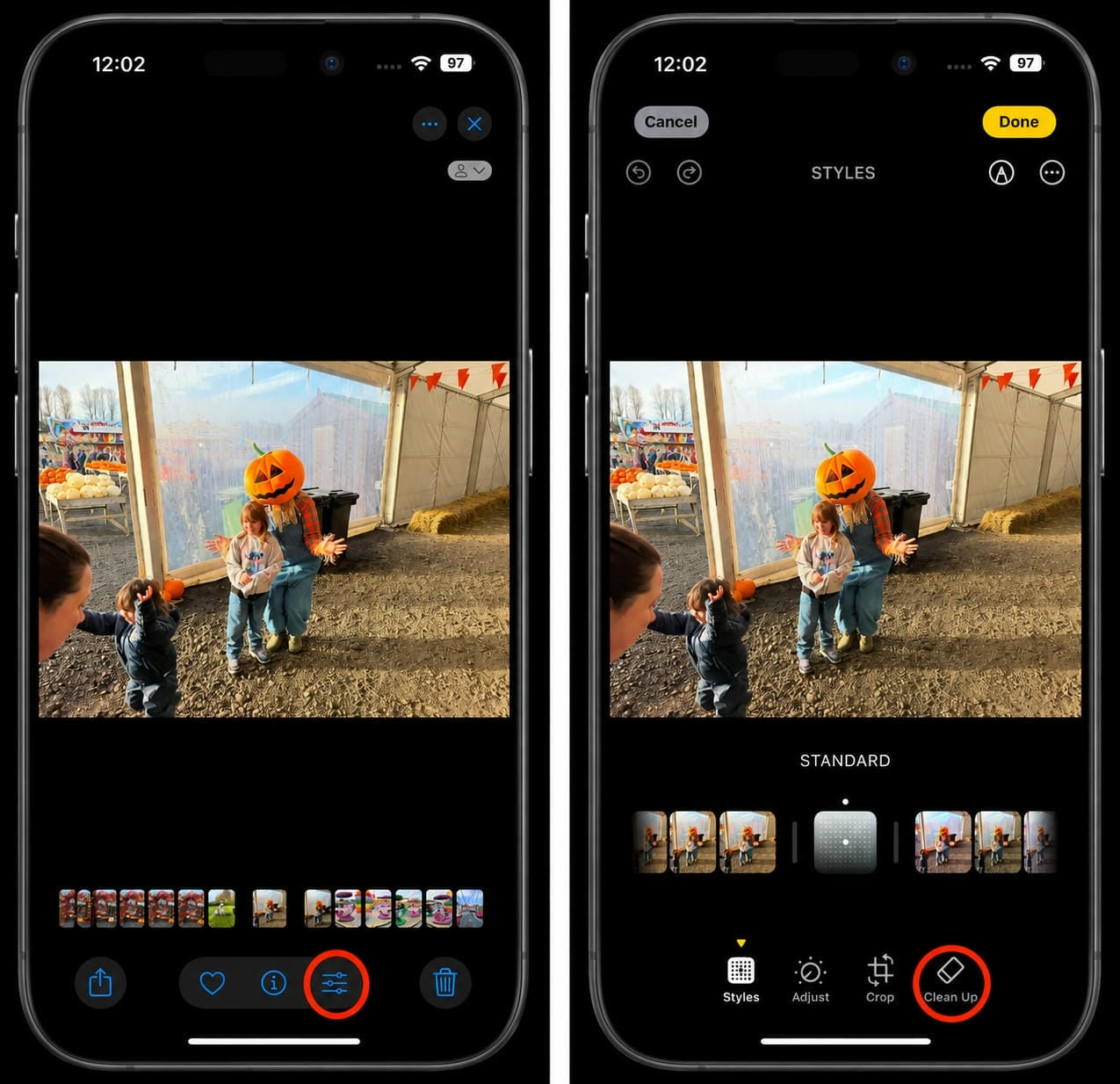
Step 1: Open the photo and access the clean up tool
Open the Photos app and select the image you want to edit. Tap Edit to enter the editing screen, then choose Clean Up from the toolbar at the bottom. If you're using the feature for the first time, iOS may briefly download the required AI resources before the tool becomes available.
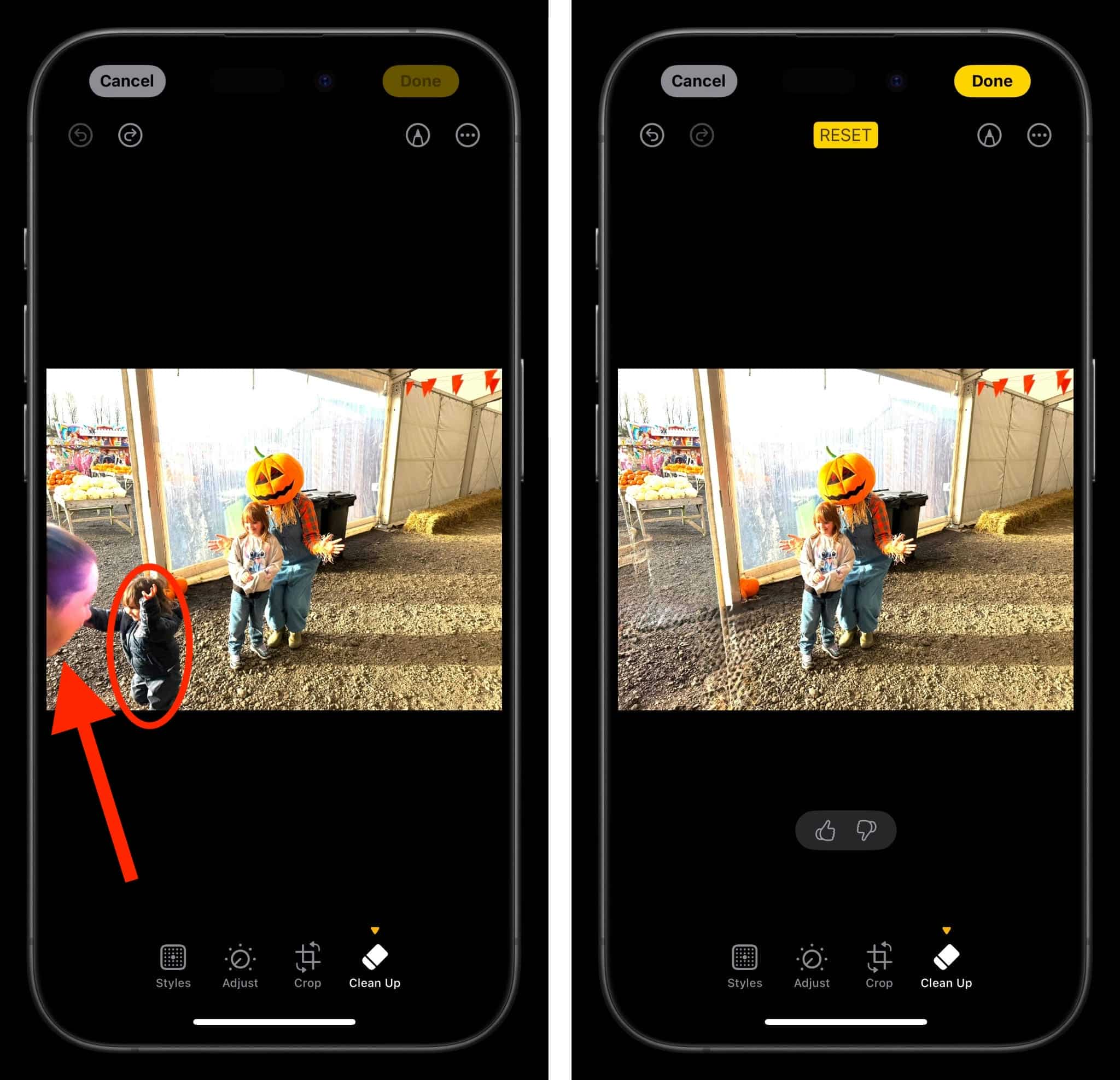
Step 2: Select the object and save the result
With the Clean Up tool open, tap, brush, or circle the unwanted object you want to remove. Apple's AI will automatically erase the selected object and seamlessly reconstruct the surrounding background for a natural-looking result. Once you're satisfied with the edit, tap Done to save the cleaned-up photo.
Removing small distractions with Apple's built-in tools is quick and convenient, but more challenging edits often require smarter AI and greater precision. In the next section, we'll explore how Vmake Labs makes it easy to remove people, text, logos, and other unwanted objects directly from your browser. No app installation is required.
How to remove unwanted objects from photos with Vmake Labs
When you need something more powerful to clean up your photos beyond what Apple's built-in editing tools can do, Vmake Labs offers a robust browser-based solution. It has artificial intelligence (AI) technology that can erase undesired persons, objects, text, logos, watermarks, and other distractions while rebuilding the background naturally. No software to install; just upload your image, modify it online, and obtain the result in minutes. Whether you're repairing travel photographs or generating professional content, Vmake Labs makes it simple to remove a person from an image with precise, high-quality results.

Step 1: Upload your photo
Open the Vmake Labs Remove Object from Photo tool in Safari or any web browser. Upload the image you want to edit by dragging and dropping it or selecting it from your device.

Step 2: Let AI remove the object
Use the Smart Brush or Box Selection tool to highlight the unwanted area, then let Vmake Labs process the image with advanced AI. Within seconds, it reconstructs the background naturally and also functions as an image watermark remover for more versatile photo editing.

Step 3: Preview and download your edited image
Once the AI finishes processing, preview the result to ensure the object has been removed naturally. If necessary, adjust the selection and process the image again. When you're satisfied with the result, download your edited image in high quality.

Key features of Vmake Labs image remover
-
AI-powered object, person, text, and watermark removal: Vmake Labs uses advanced AI to identify and remove undesired objects, people, text, logos, and watermarks with no effort. This program intelligently fills in the eliminated region to generate a clean, natural-looking image.
-
Automatic and manual object removal modes: Choose automatic mode for fast AI-powered editing or switch to manual mode when you need greater control over complex removals. This flexibility makes it suitable for both quick touch-ups and detailed edits.
-
Smart brush and box selection tools for precise editing: Brush and box selection tools let you accurately highlight the exact area you want to remove. This precision helps achieve cleaner edits, especially when working with small objects or detailed backgrounds.
-
Natural AI background reconstruction: After removing unwanted elements, the AI seamlessly reconstructs the surrounding background by matching textures, colors, and patterns. The result looks smooth and realistic without obvious editing marks.
-
Browser-based workflow with no app installation required: Vmake Labs works directly in your web browser, so there's no need to download or install an app. iPhone users can simply open Vmake Labs in Safari, upload a photo, remove unwanted objects, and download the edited image without switching devices or installing additional software.
-
Simple upload, edit, and download process: The editing method is intended to be fast and easy for beginners. Just upload your image, erase the undesired stuff, see the preview, and download the final image in just a few clicks.
-
Supports high-quality image export: Vmake Labs retains image clarity and detail in the editing process, enabling you to export high-quality output. This makes altered photographs perfect for social networking, presentations, websites, and professional use.
Built-in iPhone tools vs Vmake Labs: Which should you choose?
Both Apple's built-in editing tools and Vmake Labs make it easy to remove unwanted objects from photos, but they serve different needs:
|
Feature |
iPhone Built-in Tools |
Vmake Labs |
|---|---|---|
|
Installation |
No installation required |
Browser-based, no installation required |
|
Device Compatibility |
Limited to supported iPhones and iOS versions |
Works on iPhone, Android, Windows, and Mac |
|
AI Object Removal |
Available on supported Apple Intelligence devices |
AI-powered removal for people, objects, text, and watermarks |
|
Ease of Use |
Simple for basic edits |
Beginner-friendly with guided AI editing |
|
Selection Tools |
Tap or brush to select objects |
Smart brush and box selection for precise edits |
|
Background Reconstruction |
Good for simple backgrounds |
More natural AI background reconstruction for complex scenes |
|
Batch Editing |
Not available |
Supports batch processing for multiple images |
|
Best Use Cases |
Everyday photo cleanup |
Product photos, travel images, portraits, social media content, and professional editing |
|
Export Quality |
Standard photo export |
High-quality image download after editing |
If you only need to remove a small distraction from an occasional photo, Apple's built-in Cleanup feature is a convenient choice.
However, if you're working with complicated backgrounds, removing multiple objects, or editing images across different devices, Vmake Labs offers greater flexibility and more advanced AI capabilities. It also doubles as an AI image fixer, making it useful for enhancing image quality after object removal.
Conclusion
Removing unwanted objects from iPhone photos is easier than ever thanks to Apple's built-in editing tools and modern AI technology. The cleanup feature is a nice option for supported devices, while browser-based editors allow more flexibility for more complex editing. If you are a person who frequently removes people, text, logos or distracting background elements, Vmake Labs provides accurate AI-powered editing without the need to install any app. It also helps to enhance general image quality with natural background reconstruction and makes a great choice for personal photos, product images and social media content.
FAQs
How do I remove objects from photos on my iPhone for free?
If your iPhone supports Apple's cleanup feature, you can remove unwanted objects directly in the Photos app for free. For more advanced edits, Vmake Labs also provides a browser-based solution that requires no installation and delivers more accurate results for complex backgrounds. It's a great choice when you need to remove objects from a photo quickly and naturally.
Can I remove objects from photos on my iPhone without downloading an app?
Yes. Apple's built-in editing tools are suitable for basic photo cleanup, while browser-based platforms like Vmake Labs let you edit directly in Safari without installing an app. Simply upload your image, remove the unwanted elements, and download the finished result within minutes.
Does Vmake Labs work on iPhone Safari?
Yes. Vmake Labs works seamlessly in Safari, allowing you to edit photos directly from your iPhone without downloading software. It also supports Android, Windows, and Mac, making it a convenient option if you edit photos across multiple devices.
Which iPhones support Apple's Cleanup feature?
Apple's cleanup feature is available on Apple Intelligence-supported devices, including the iPhone 15 Pro, iPhone 15 Pro Max, and newer compatible iPhone models. Older iPhones can still use standard editing tools, but they won't include Apple's AI-powered object removal feature.
Is Vmake Labs better than the built-in iPhone object remover?
It all depends on what you want to edit. Apple's cleanup tool is good for quick edits, while Vmake Labs has more advanced AI capabilities to remove people, text, logos, and complex distractions. It also has precise editing tools, which make it a great AI image fixer to get cleaner and more professional-looking results.
Will removing objects reduce my photo quality?
Not necessarily. Modern AI editors are designed to preserve image quality while rebuilding the background naturally. After removing unwanted elements, you can further improve sharpness and clarity with an image enhancer, helping your edited photos look polished and ready to share.

You May Be Interested

Best AI Watermark Remover for Clean, Fast Edits
AniEraser Watermark Remover by Media.io: 2026 Hands-On Review
How to Remove Green Screen from Video: Best Methods and Tools in 2026

iPhone Speech to Text: Complete Guide for Beginners