
How to Remove Green Screen from Video Easily
 Ken DawsonApril 8, 2026
Green screen is a great technology used to help you replace your rather boring background with anything you see fit. In order to do that, you are adding a green panel as your background, and then using software, you can alter it to be anything you want. The problem with green screen footage is that it can sometimes alter your look and the overall video quality. So it’s a very good idea to remove the green screen from your video.

The reason why green is used as a basic screen background is that it’s usually very different from human skin and clothes. In order to edit videos and add a new background, you must have a color that’s easy to remove/isolate, and green is the right answer.
That’s why you will see green screen being used in the case of film and TV production, but also content creation, corporate videos, gaming and live streams, but also corporate videos. It’s a great idea to use green screen to create a great video; however, removing the green screen is essential for this process.
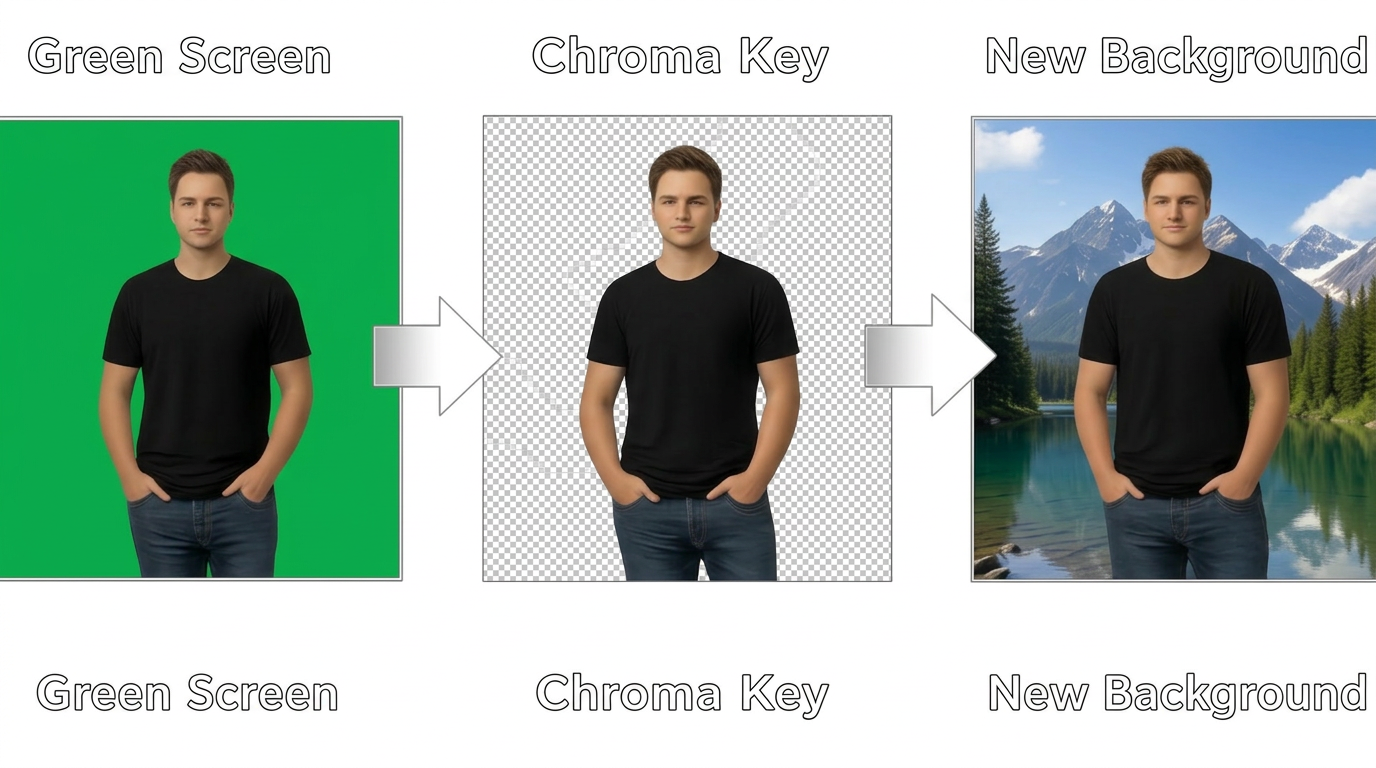
- You are selecting the green color range at first
- Then, you remove that color from all frames in your video
- You are refining the edges, be it hair, shadows, or fine details
- At the end, you are placing a new background behind the subject
It’s the most effective method you can use to improve the video’s quality and look. The upside is that it will help eliminate a lot of potential problems, and it will help make the process inherently better.
Best Methods to Remove Green Screen from Video
The upside when it comes to removing green screen from video is that there are a multitude of different methods you can use. You can see the most common ones below.
Using AI background removal tools
AI tools are effective because they identify the subject and then remove the background without worrying about color selection. The upside is that you don’t need any technical knowledge, the video is processed fast, and you can have automatic edge detection, too. This method is very good for beginners, and it can work for quick edits or social media creators.
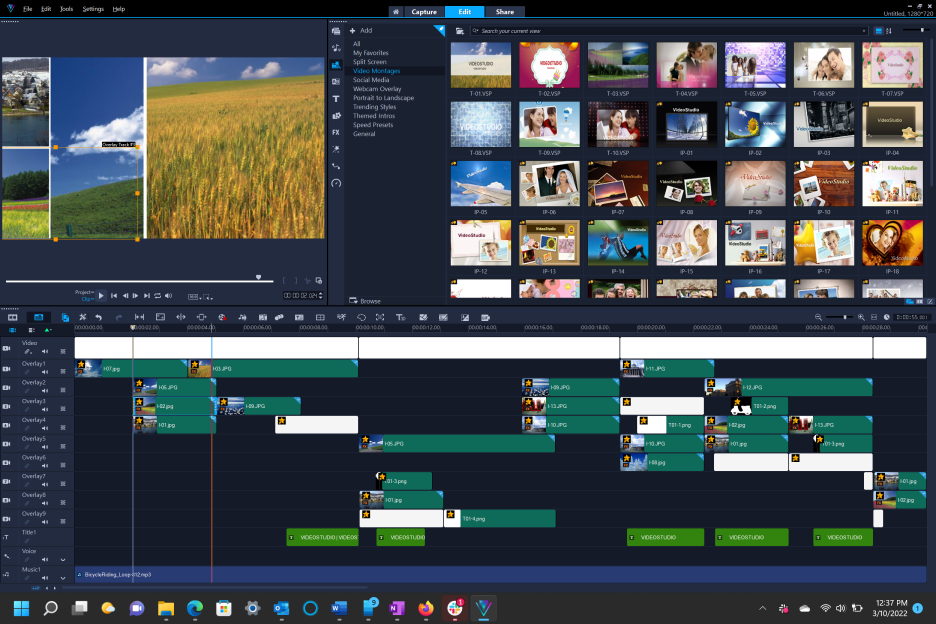
Using video editing software
Relying on video editing software can be a great idea because it offers more control over your chroma key settings. The problem is that you have a much higher learning curve, which is why this is ideal for the complex scenes. There’s also the fact that you are doing a lot of manual work, and this can take a huge amount of time.
Is it still worth it? Yes, because you have shadow retention, edge feathering, spill suppression and color tolerance control. AI tools control that on their own, so if you need to control it yourself, then video editing software will be a good option.
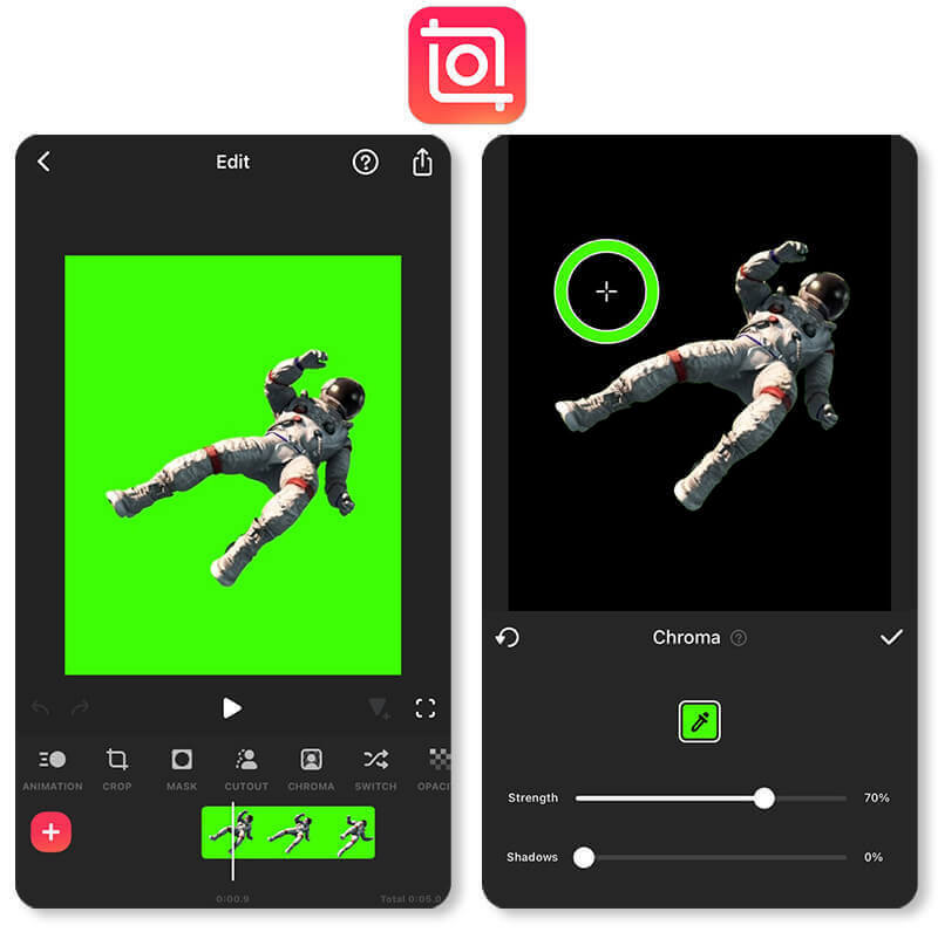
 Mobile apps
If you want to do a quick edit, mobile apps can be a solid option to consider. Some of them have very advanced green screen removal features, so you can easily edit videos on your smartphone without a problem. You can do one-tap background removal, real-time previews, use pre-made backgrounds or templates, and so on. Clearly, this is a method more suitable for on-the-go editing and TikTok or Instagram content creation.
Manual rotoscoping and masking
When you have very difficult footage where the green screen removal process fails, your only good approach is to use manual rotoscoping or masking. That means you will do subject isolation for every frame, and you can draw masks around the person and refine motion manually.
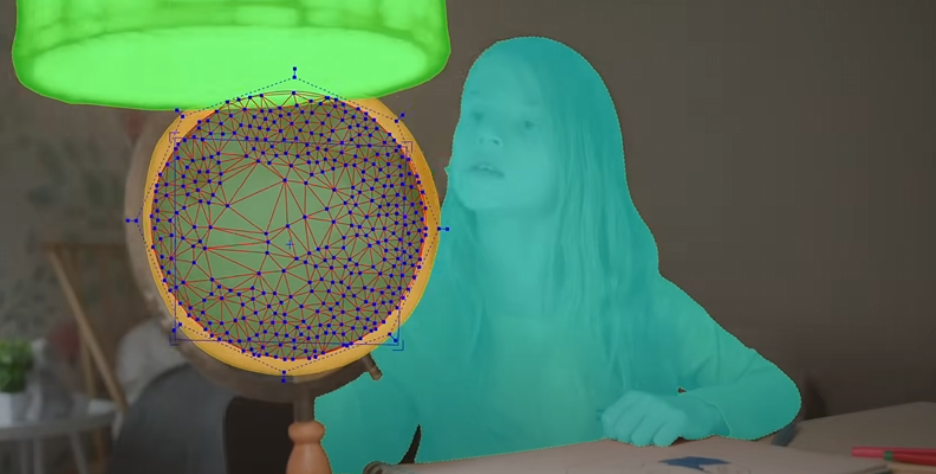
While this method can prove to be very accurate, the downside to it is that it requires a huge amount of time and advanced video editing skills. It’s not for everyone; learning it can take a long time, and outsourcing it can get very expensive.
Step-by-Step: Remove Green Screen Using Vmake
If you want to remove green screen from videos effectively, a very good tool to help with that process is Vmake. The main focus of this tool is to identify green screen in your footage and remove it without a problem. Here’s the step-by-step process on how to use it!
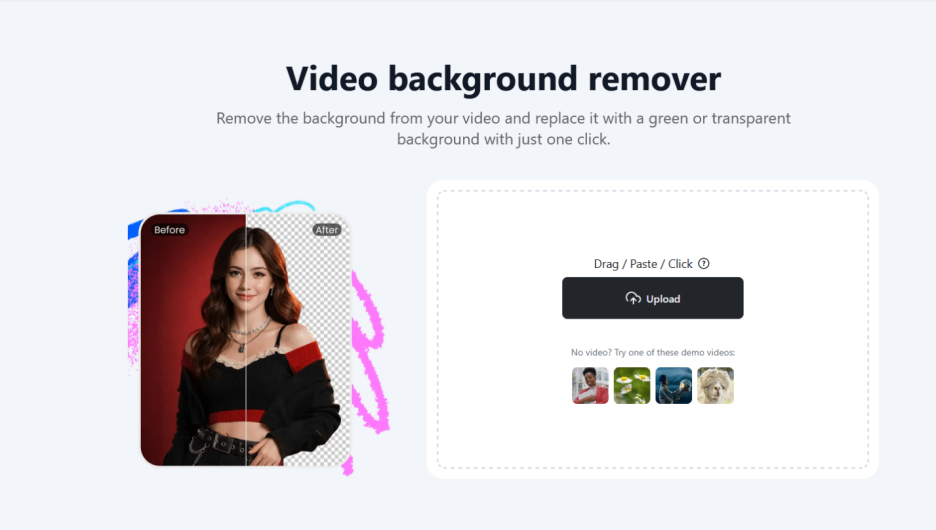
Upload the video
First, you will need to choose a video that you want to upload. You go to Vmake Video Background Remover, and then press Upload, choose your video, and wait a few seconds until the video is loaded. The AI will automatically detect the green video background.
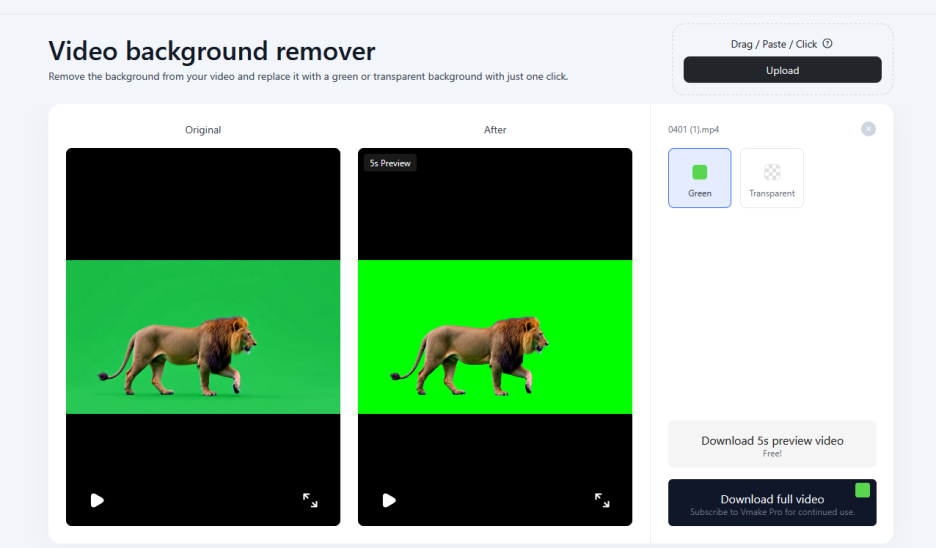
Removing the background
Once you have uploaded the image, all you need to do is choose that you want a transparent background and press Apply. You can keep the green screen if you want, or you can remove it. You press Apply after making your choice and wait for a few seconds.
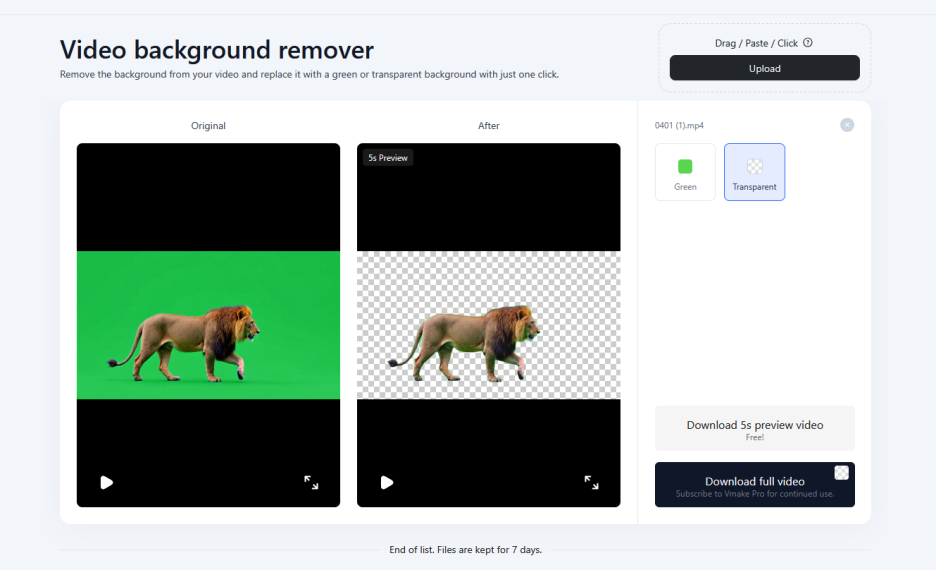
Preview the result
After you remove the green screen, you can see a preview of the result before you download the video. That way, you can either keep working on the video if there are things to remove, or you can download the video and enjoy it.
 Common Problems When Removing Green Screen
- Green reflections on the subject usually cause green spill, and that will lead to less-than-natural edges. It’s very common when you have uneven or extremely strong lighting.
- Uneven lighting is also problematic because bright spots or shadows can end up making it harder to remove the green screen cleanly.
- The same thing is valid when it comes to jagged or blurry edges. Motion and hair will create rough edges after removal.
- If there are similar green tones, it’s possible that some of those might also be removed during the green screen removal process as well.
- Also, if your input is of very low quality, that will be a problem because it lowers the keying accuracy. The same thing is valid if your videos are compressed, which will affect the green screen removal accuracy.
FAQs About Green Screen Removal
What’s the best way to remove green screen?
Ideally, you want to use an AI background remover. Not only is it automating the process, but it’s also very fast. Other methods can work, but they require previous knowledge and can be very time-consuming. That makes an AI green screen remover the much better option.
Can you remove the blue instead of the green screen?
Green is used because it’s rarely present in skin tones and clothing. It’s a contrasting tone that makes it much easier to remove. If you can find a blue nuance that works for you, then that’s great. But for most footage, green is used because it’s much easier to remove.
Will AI remove backgrounds without a green screen?
Yes, but having a green screen makes it easier. AI tools will try to remove all background details, but there will be more details to remove, and that can take more time. Plus, results might not be as accurate when compared to a green screen. With a green screen, you have a single surface type to remove, which is easier to do and more seamless.
Can you fix green edges around a subject?
Yes, you can do that. The best approach is to use spill suppression. And on top of that, you can also start using some edge refinement tools. It always depends on the type of green screen you use, the subject type, and other details.
Can you remove the green screen on a phone?
Yes, removing green screen via a phone is possible. There are detailed apps and also online tools meant to help you remove green screen without any concerns or problems.
Why does the video look patchy after green screen removal?
At times, you will notice that the background feels patchy because there was uneven lighting or various shadows that interfered with the green background. Using an AI tool will help you solve this problem.
Can you remove a green screen from compressed video?
Yes, however, the accuracy will be lower due to the video quality not being ideal. You will have compression artifacts and lost detail. Even if the green screen removal works great, the video quality will not be excellent due to the initial compression.
What resolution is recommended for green screen removal?
Ideally, you want to have at least 1080p videos in order to have precise and high-quality green screen removal.
Final Thoughts: The Easiest Way to Remove Green Screen
Using an AI tool like Vmake is a very good idea, because it allows you to remove any green screen without any issues or previous knowledge. Thanks to the powerful AI systems in place, you can have an excellent quality without having to learn how to do all of this manually. It’s highly recommended to give Vmake Video Background Remover a shot if you want fast, effective, and dependable green screen removal.

You May Be Interested

5 Best Free Green Screen Video Backgrounds for Creators

5 Tools to Make Best Green Screen Backgrounds for Every Video Style

How to Edit Videos with Green Screen Backgrounds Easily
