MOV vs MP4: Which Format Makes More Sense for Editing and Streaming?
Explore the real differences between MOV vs MP4 formats, including editing performance, playback support, compression, and file management for modern video workflows.


MOV and MP4 both store video, audio, and metadata, but behave very differently in practice. One is built for editing, the other for delivery. Picking the wrong one creates friction. Want to differentiate them and choose the right tool for the job? Here's your guide.
Understanding MOV and MP4 Video Formats
Both are container formats, not codecs. A container is simply a wrapper that holds your video stream, audio track, subtitles, and metadata together so everything plays in sync. The codec inside handles actual compression. MOV and MP4 can technically share some of the same codecs, which is part of why people find the comparison confusing.
What is MOV?
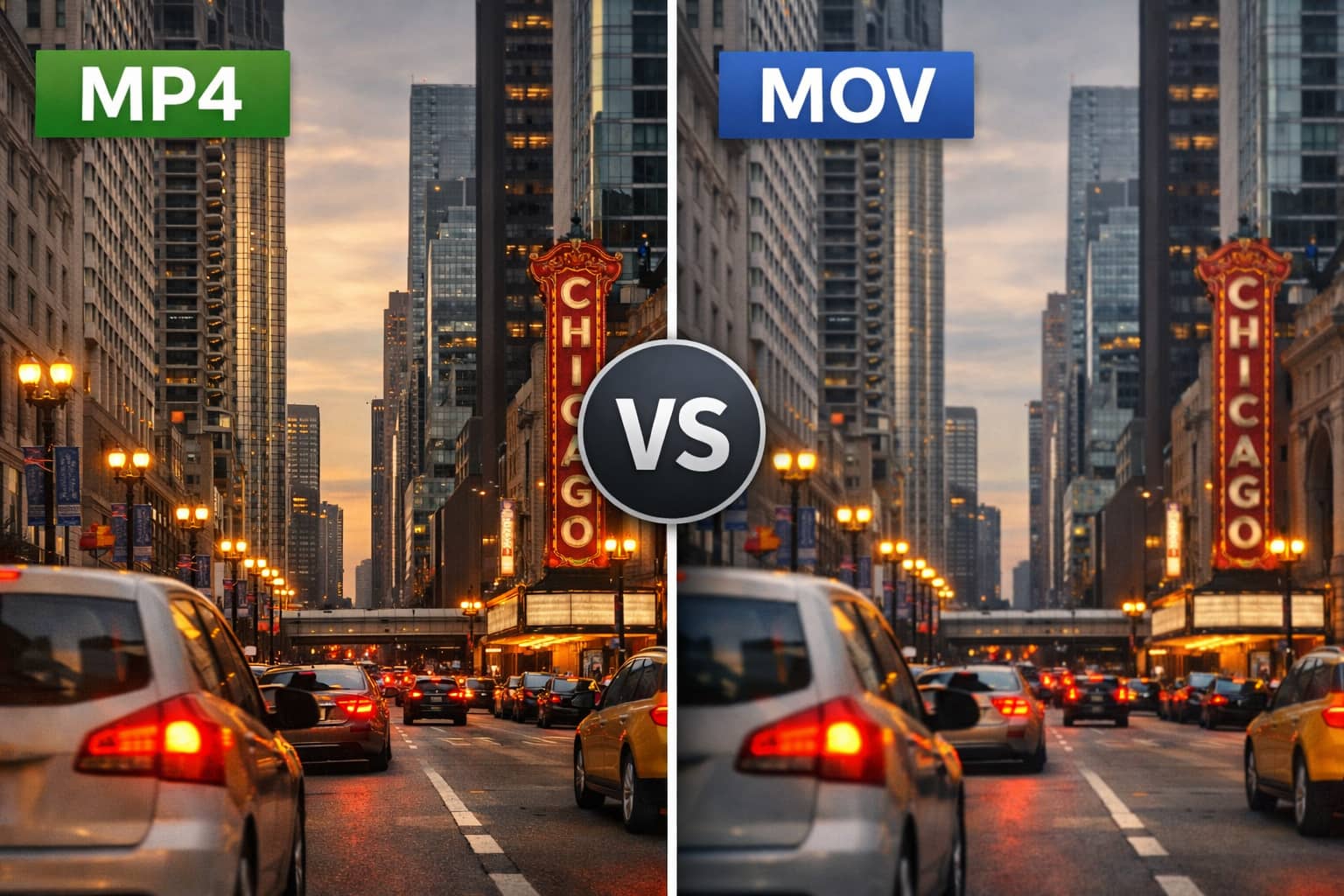
Apple built MOV for QuickTime, and it still carries that identity. Designed for editing, preserving detail, supporting multiple audio tracks, and holding metadata cleanly through post-production. Editors working in Final Cut Pro or iMovie often keep files in MOV format throughout because the format holds up well under repeated exports and color correction passes.
The downside is file size. MOV files get big, especially with codecs like Apple ProRes. That's by design, fidelity over efficiency. On a professional drive, that's manageable. Trying to send one over an email or upload it somewhere that is not built for it is a different story.
What is MP4?
MP4 has become one of the most popular video formats due to its wide compatibility. It is supported by most browsers, smartphones, smart TVs, and streaming platforms. Services such as YouTube, Instagram, and TikTok handle MP4 files smoothly, making the format well-suited for sharing and online playback.
The format uses lossy compression, trading some data to keep file sizes manageable. A well-encoded MP4 at a reasonable bitrate holds up well for web delivery. Leaner, faster to upload, easier to share, which is why it's become the go-to for content creators, ecommerce brands, agencies, and anyone publishing video at scale.
MOV vs MP4 comparison: The biggest differences
The biggest differences usually appear once the footage leaves the editing timeline and starts moving through real workflows and uploading, streaming, transferring, archiving, and rendering. That is where the choice of container starts to affect daily work rather than just technical specs.
Comparison chart
|
Feature |
MOV |
MP4 |
|---|---|---|
|
Compression |
Uses lighter compression and often retains more source data during editing |
Uses stronger compression to reduce file sizes more efficiently |
|
File Size |
Usually larger, especially with high-bitrate exports or ProRes workflows |
Smaller and easier to store, upload, and transfer |
|
Editing Flexibility |
Commonly preferred for professional editing, color grading, and post-production. |
Better suited for faster editing, delivery, and lightweight workflows |
|
Streaming Support |
Less optimized for online streaming and social uploads |
Highly optimized for streaming platforms, browsers, and mobile playback |
|
Playback Compatibility |
Works especially well inside Apple and QuickTime-based environments |
Broad compatibility across phones, browsers, TVs, Windows, Mac, and social platforms |
|
Upload Speed |
Larger files often result in slower uploads and longer transfer times |
Smaller files upload faster and process more smoothly online |
|
Best Use Case |
Professional filmmaking, editing masters, and post-production pipelines |
Streaming, YouTube uploads, sharing, ecommerce videos, and everyday playback |
MOV vs MP4 quality
A lot of people assume MOV automatically means "better quality," but it is a little more complicated than that. MOV often preserves more source data during editing and export, especially in professional workflows that use high-bitrate codecs. That gives editors more flexibility when adjusting color, shadows, highlights, and texture detail later.
MP4 still looks excellent in most situations, though. Modern compression keeps visual quality surprisingly strong while dramatically reducing file sizes. For regular uploads, streaming, ecommerce demos, AI creative ads, and social content, many viewers would never notice a meaningful difference.
Storage and performance demands
MOV files usually demand more storage space because they preserve more data internally. That also means longer transfer times, slower uploads, and heavier playback requirements on older systems.
MP4 is easier to manage almost everywhere. Smaller file sizes upload faster, stream more smoothly, and place less pressure on lower-powered laptops or mobile devices. That becomes important for remote teams, agency collaboration, and creators constantly sharing drafts online.
Improving older MOV and MP4 footage with Vmake AI
Even well-exported files sometimes lose detail: compression artifacts appear, and fine textures soften. Social media platforms aggressively recompress uploads, especially short-form video. After enough exports or format conversions, footage can start to look noticeably flatter than the original. That is where enhancement tools become useful.
Vmake AI helps restore clarity automatically without forcing creators into long manual editing sessions: softer textures, blurry edges, compression damage, inconsistent detail. The platform handles much of that cleanup through browser-based AI processing. Because it processes everything right in the browser, many creators use it as a quick, lightweight enhancement step before uploading. It's the ideal fix for restoring crispness to videos that have been degraded by repeated format hopping, whether you're converting MOV to MP4 or turning a GIF into a high-quality video.
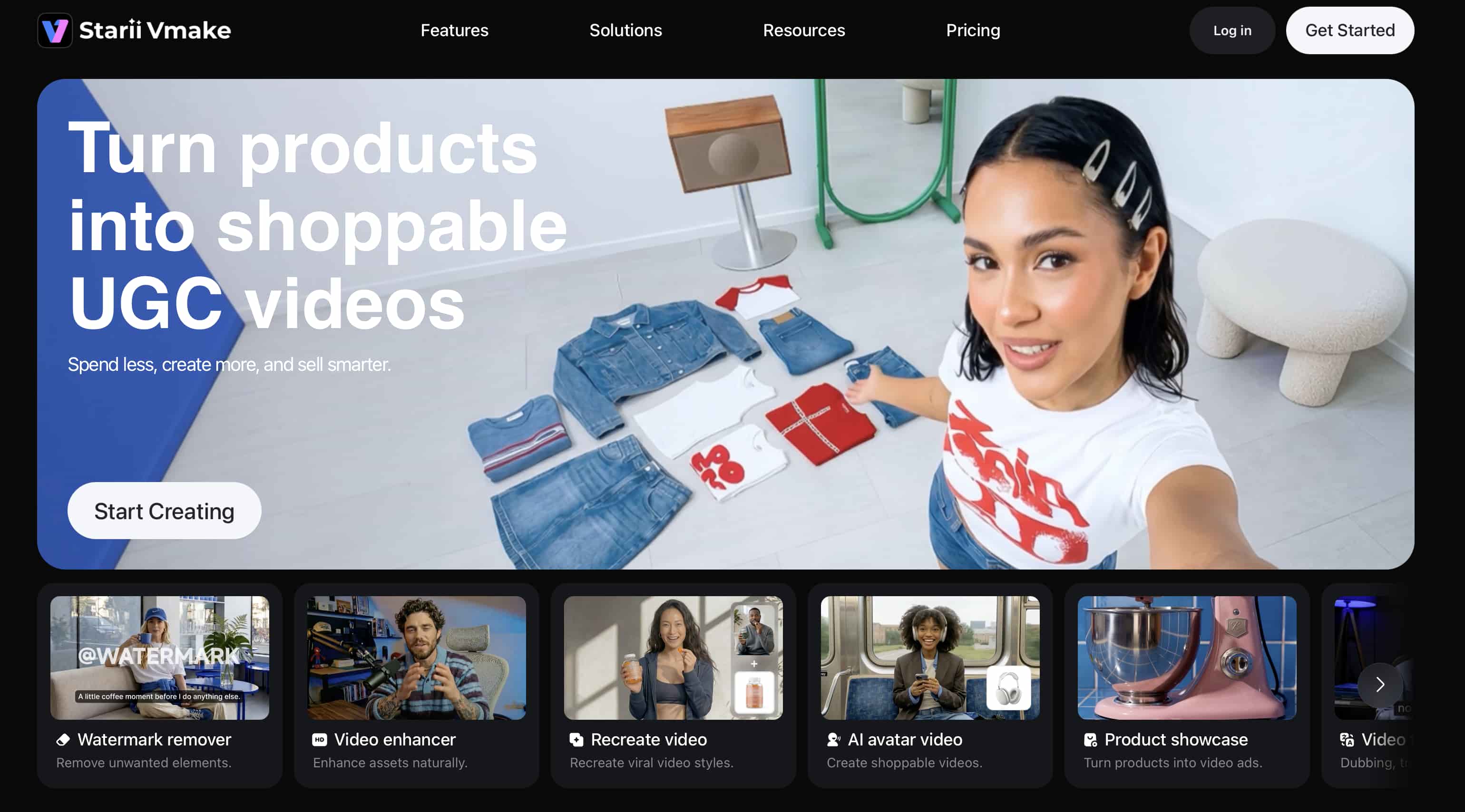
Key capabilities include:
-
AI video upscaling: Improves lower-resolution footage to 4K while naturally recovering softer details, rather than just enlarging the video and making edges look overly sharp or artificial.
-
Blur and noise reduction: Helps clean up softer footage, compression grain, camera shake artifacts, and rough-looking digital noise. The footage still retains its natural texture rather than becoming overly smooth or plastic-looking.
-
Batch enhancement: Useful for handling multiple exports at once. Instead of uploading and processing files individually, you can run several clips together and save a decent amount of time.
-
4K and AI 4K+ export support: Higher-resolution exports generally hold up better after YouTube, TikTok, or other platforms compress the footage again during upload.
-
Browser-based workflow: No heavy installation process or complicated setup. Upload the video, process it online, preview the results, then download the final version when it looks right.
How to improve MOV and MP4 video quality using Vmake AI
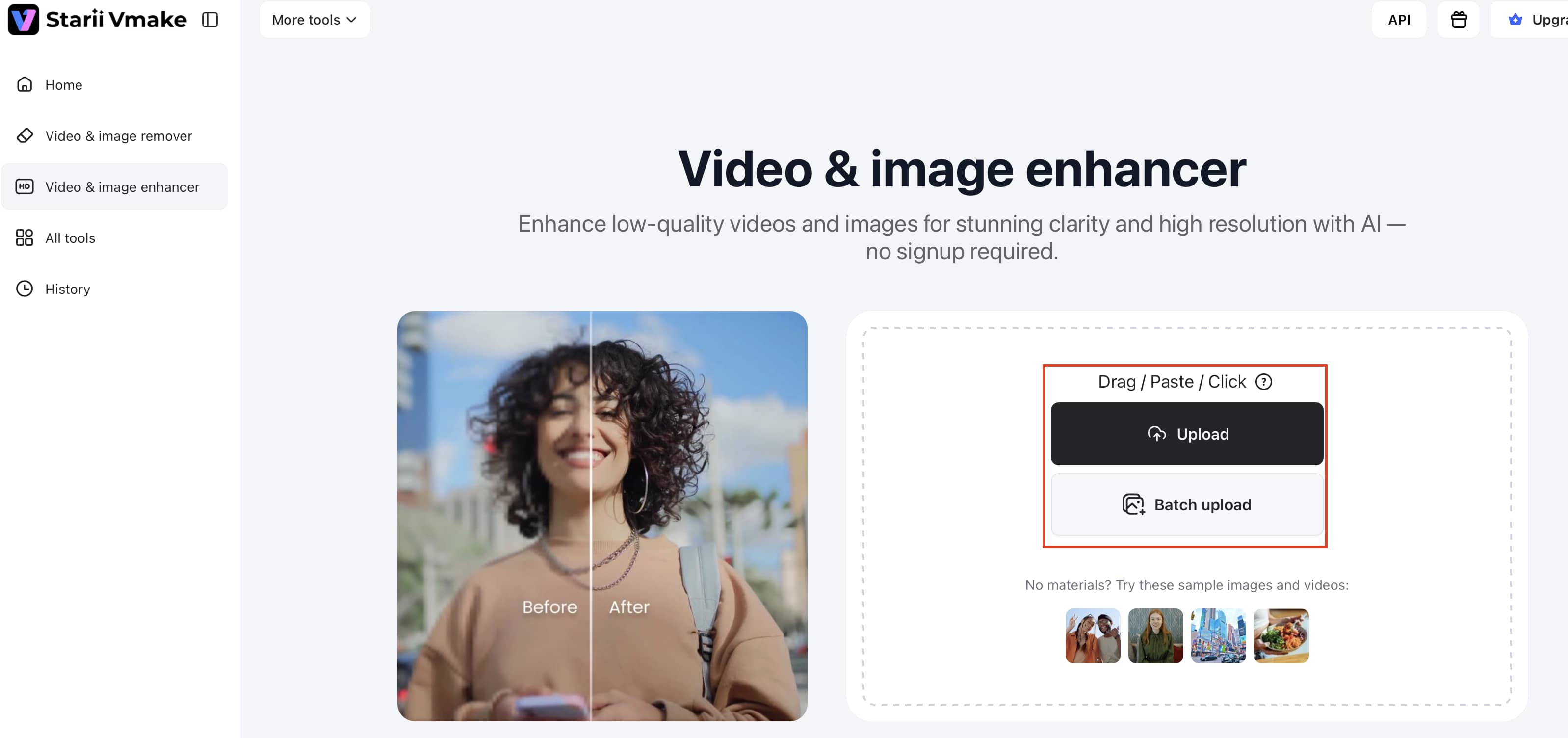
Step 1: Upload your MOV or MP4 video
Open the Vmake AI workspace and upload the MOV or MP4 video you want to enhance. Once the upload is complete, wait for the file to load in the editing interface before accessing the quality enhancement tools.
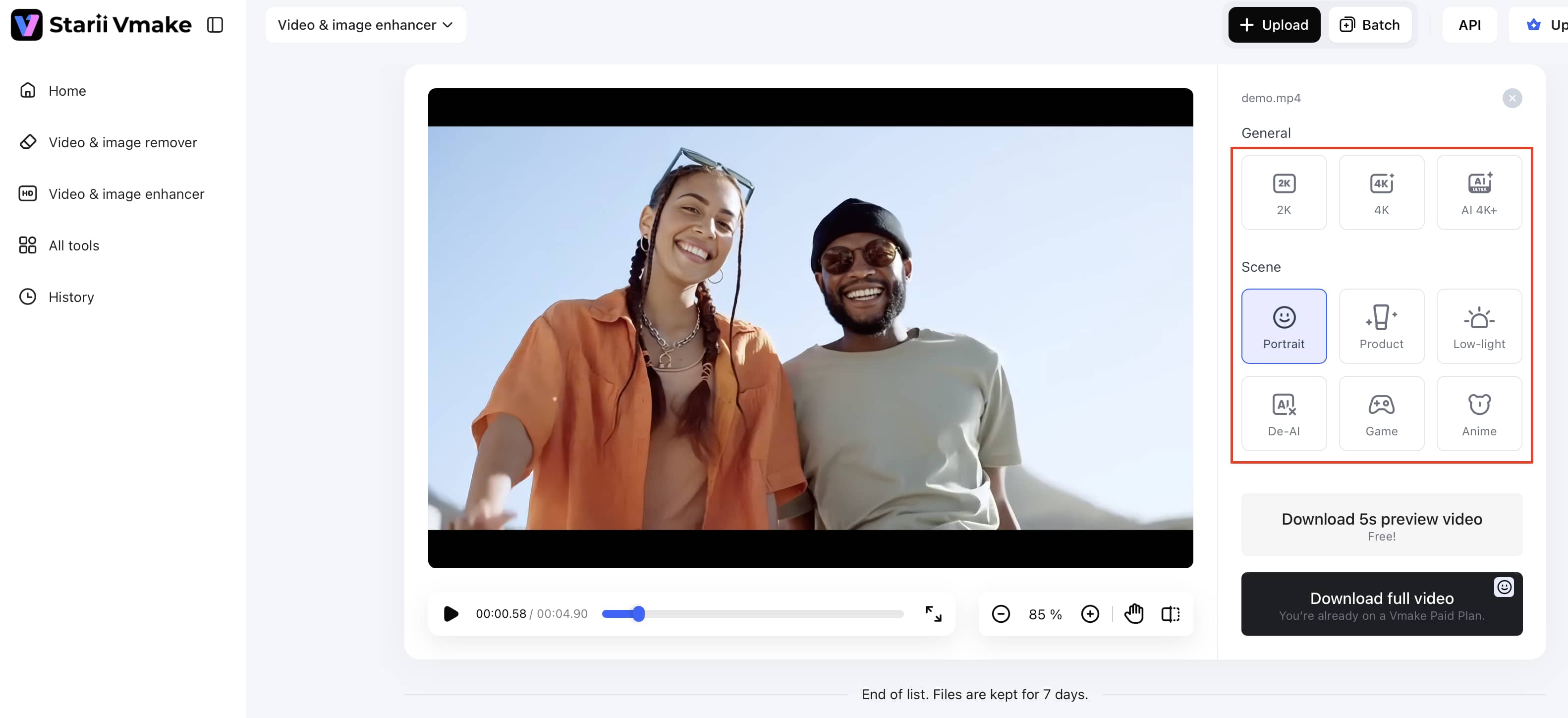
Step 2: Apply AI-driven improvements
Once you upload your file, the smart technology analyses your footage automatically to find the best improvement model. You may increase the resolution to 2K, 4K, or even AI 4K+. It has particular presets for Portraits, Products, Gaming, Anime, and Low-Light conditions to provide a customized finish.
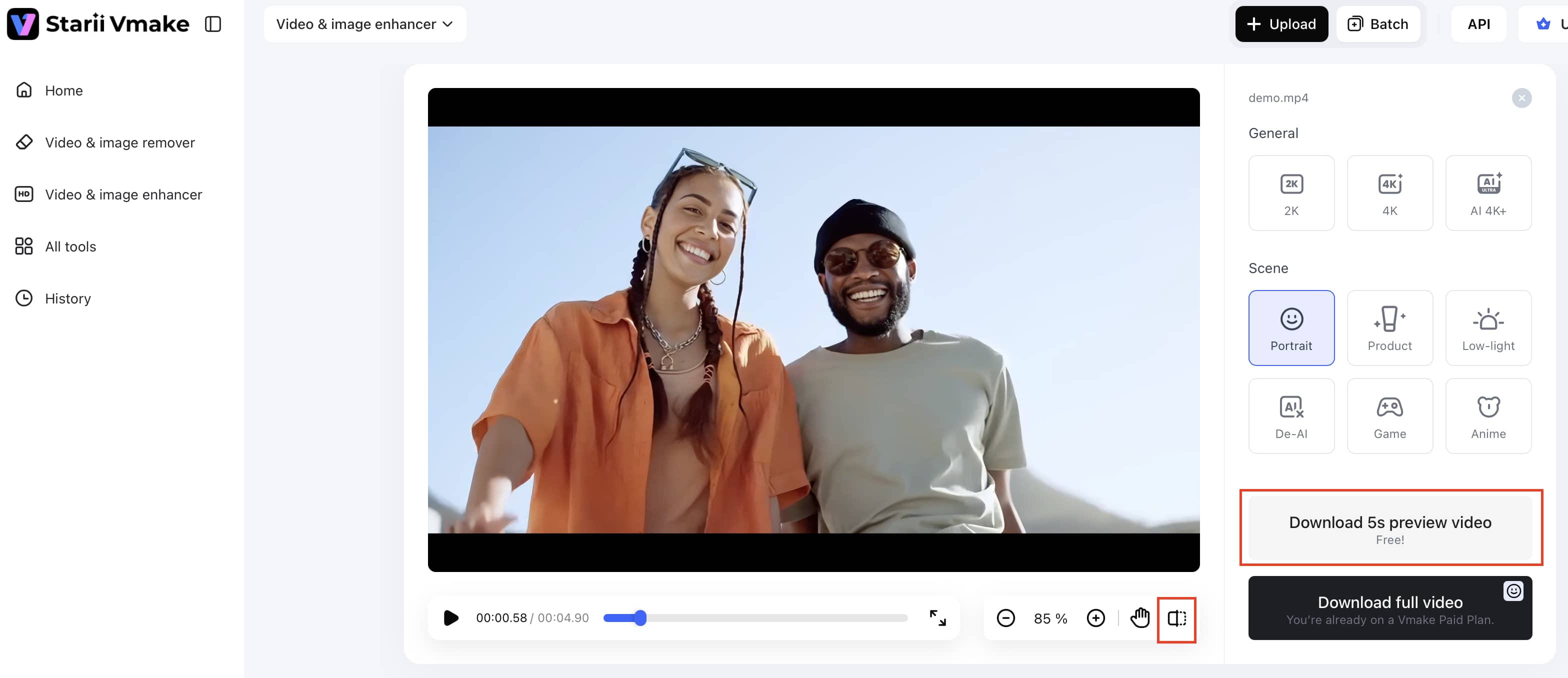
Step 3: Preview the improved version
Check the before-and-after preview before exporting. Compression softness usually shows up most around faces, text, lighting, and fast-moving areas of the video.
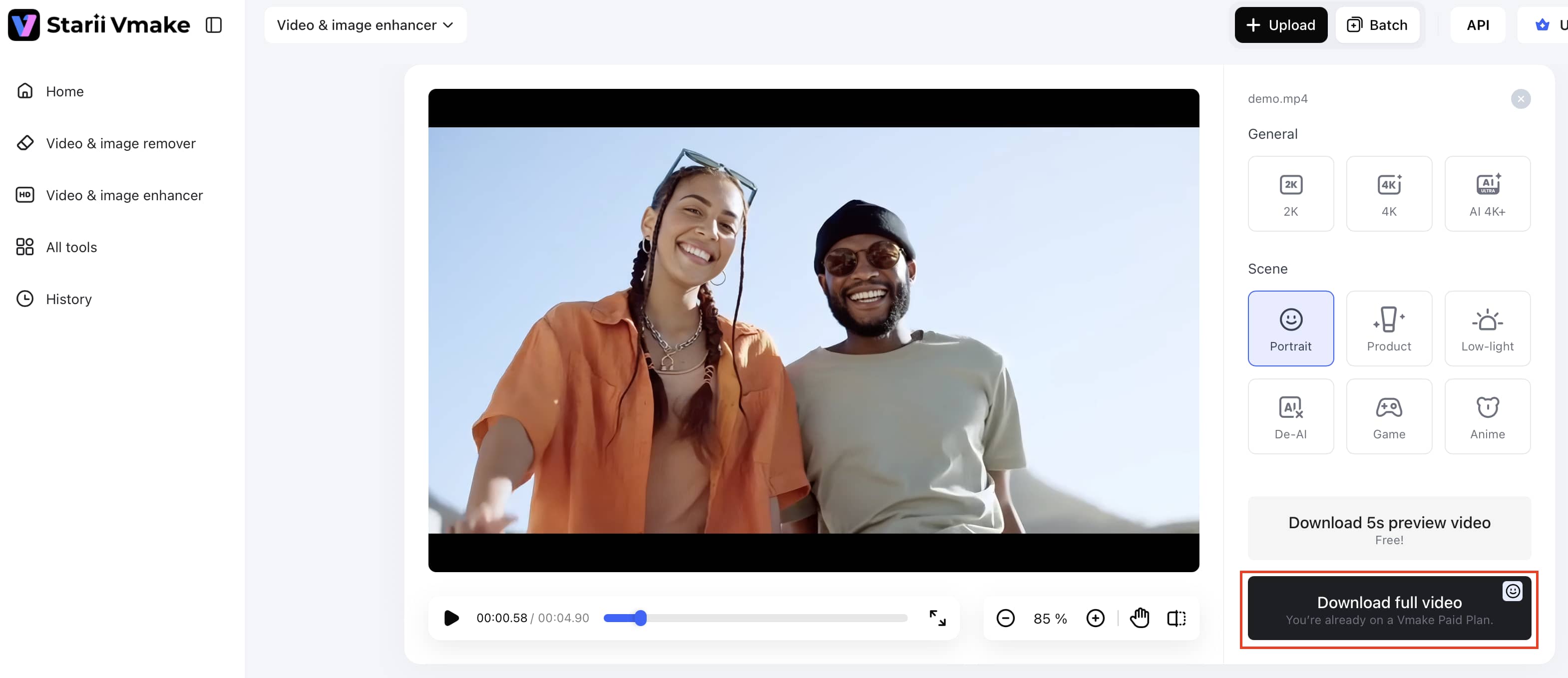
Step 4: Export the final video to a higher quality
Download the improved file once everything looks right. Many creators export the final version as an MP4 afterward for easier streaming, sharing, and mobile playback.
Which is better between MOV vs MP4 for different workflows?
The better option depends less on technical theory and more on what happens after the export button gets pressed.
For content creators and YouTubers
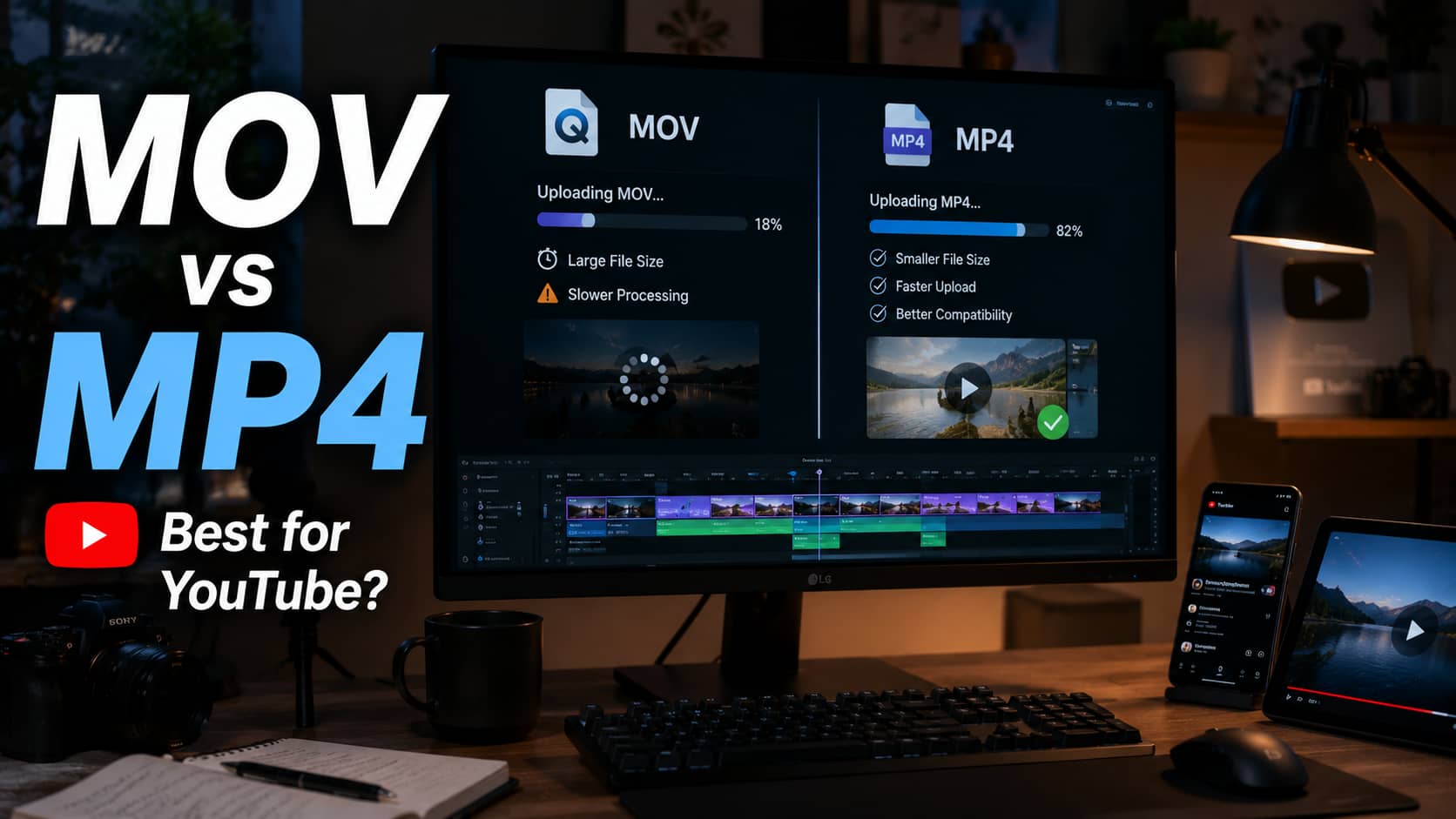
MP4 usually makes more sense here. Uploads process faster, playback compatibility stays reliable, and social platforms compress the files more predictably.
Large MOV uploads can become frustrating fast, especially on weaker internet connections. That is partly why many creators convert editing masters into MP4s before publishing long-form videos, AI TikTok video generator clips, or YouTube video subtitle generator workflows online.
For video editors and filmmakers
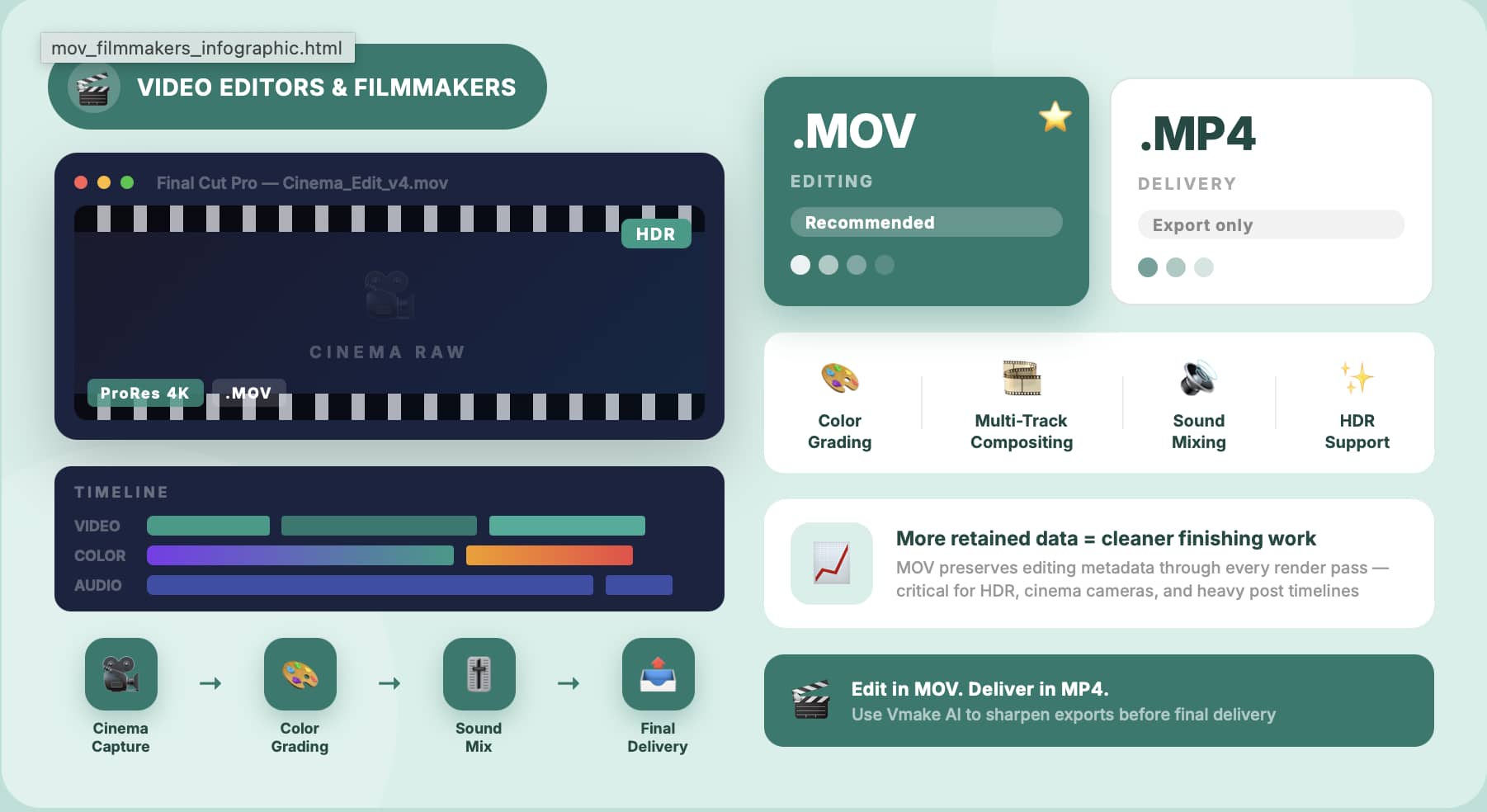
MOV still fits editing environments more comfortably. Larger files are annoying, sure, but the extra retained data helps with color grading, compositing, sound mixing, and post-production work.
That matters more once projects involve HDR footage, cinema cameras, or more extensive finishing work within professional timelines.
For ecommerce and product videos
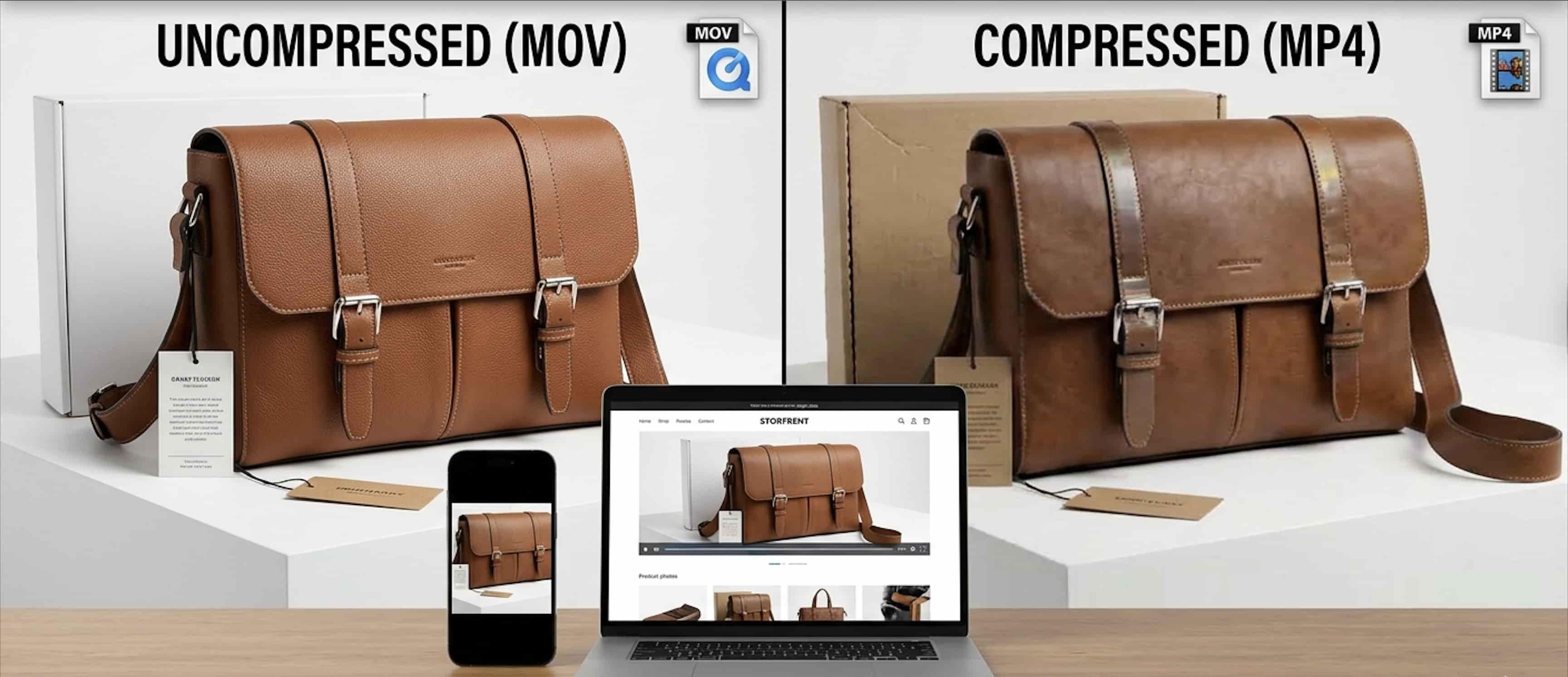
Cleaner visuals build trust online. Product textures, reflective surfaces, fabric detail, and packaging edges. Compression destroys those details quickly.
A lot of ecommerce creators export final delivery versions as MP4s anyway because the smaller files load faster across storefronts and mobile devices. The editing master often stays in MOV while the public-facing delivery version becomes MP4.
For remote teams and agencies
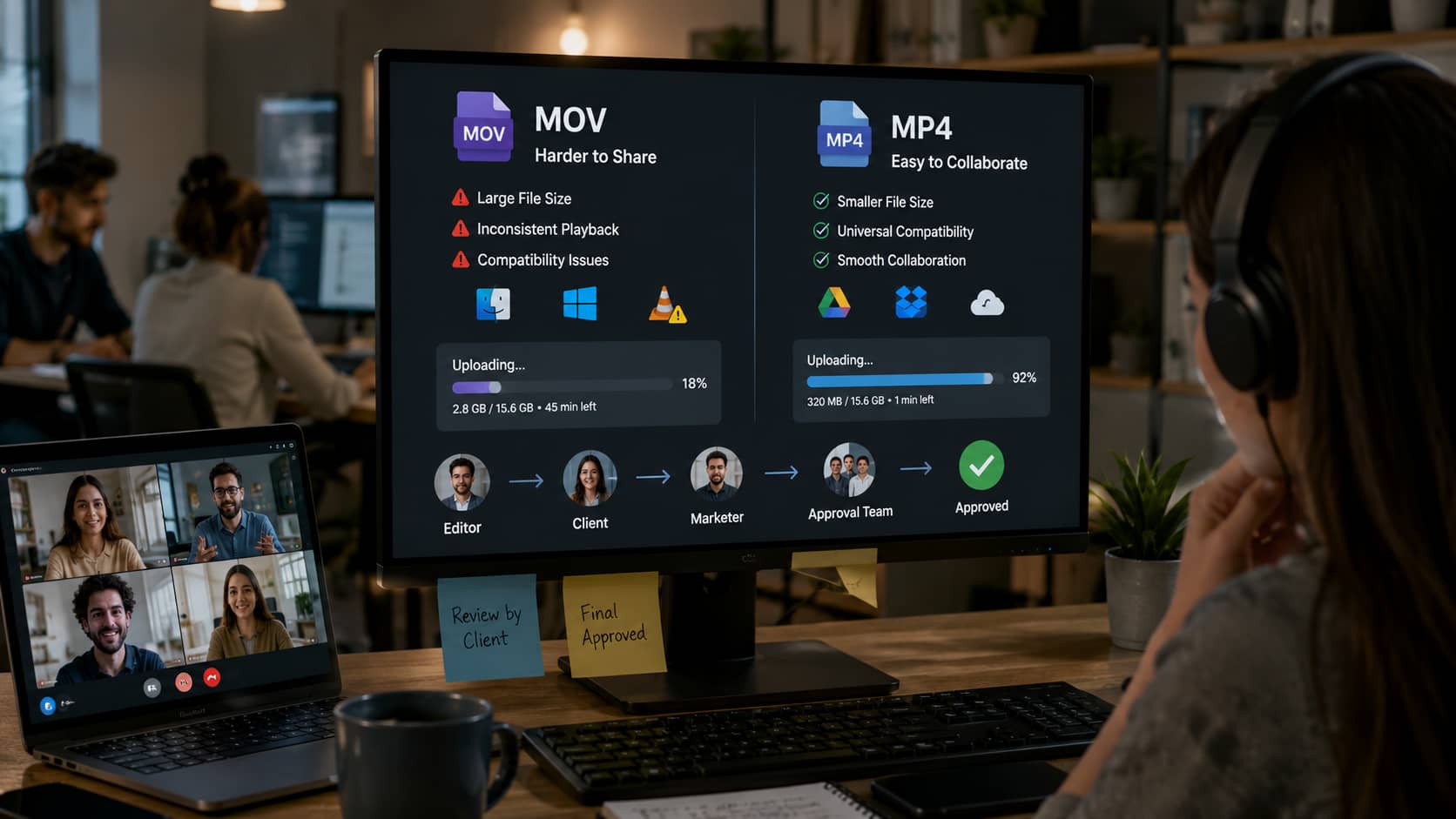
MP4 simplifies collaboration across different systems. Windows, Mac, browser previews, cloud storage. Everything tends to behave more consistently.
That reliability matters for agency environments where files constantly move between editors, clients, marketers, and approval teams.
For Apple users
MOV still integrates naturally into Apple-heavy workflows. Final Cut Pro, QuickTime, and certain post-production pipelines simply handle MOV more comfortably.
That does not automatically make it better overall. It just fits the ecosystem more naturally.
Conclusion
MOV and MP4 usually fit different stages of the workflow. MOV is still common in editing and post-production because it keeps more source detail and handles high-quality exports better. MP4 leans more toward convenience. Smaller files, faster uploads, smoother playback across phones, browsers, and streaming platforms. Most creators bounce between both depending on what they are doing. And honestly, after enough uploads or conversions, even good footage can start looking softer than expected. That is where tools like Vmake AI become useful for sharpening details and cleaning up compressed-looking video before publishing.
Frequently Asked Questions
What is the biggest difference between MOV vs MP4?
It mostly comes down to how the file is being used afterward. MOV tends to suit editing and post-production work better because it retains more source information during export. MP4 is built more around efficiency. Smaller files, smoother playback, easier sharing. That is a big reason MP4 became the default for streaming platforms, online uploads, and everyday playback across different devices.
Is MP4 better than MOV for streaming and YouTube uploads?
Yes — for uploads and streaming, MP4 wins hands down. It processes faster on YouTube, plays smoothly across phones, browsers, and TVs, and rarely runs into the compatibility hiccups that MOV sometimes causes. Many editors still cut in MOV and switch to MP4 when exporting — a practical, no‑nonsense workflow. And if compression leaves the final video looking softer than it should, Vmake AI can sharpen the details before it goes live.
Does MOV preserve better quality than MP4?
Sometimes, particularly during editing and high-bitrate exports. MOV can preserve more source information depending on the codec and export settings being used. Still, a properly encoded MP4 can look extremely good too. Compression settings usually matter more than the container itself.
Which format creates smaller files: MP4 vs MOV?
MP4 almost always creates smaller files because the compression is more efficient. That makes uploads, storage, and file transfers much easier to manage over time. If smaller exports start losing texture or clarity afterward, Vmake AI can help improve overall playback quality automatically.
Is MOV vs MP4 important for editing workflows?
It matters more than most people think, especially on larger projects. MOV holds onto more editing data through post-production, while MP4 is better suited for sharing and online delivery — so using both at different stages is common practice. The problem shows up when compressed exports lose detail before publishing. Vmake AI handles that cleanup, restoring sharpness and clarity, so the final video actually looks like the version you finished in the edit.
Can Vmake AI improve MOV vs MP4 quality automatically?
Yes. Vmake AI can sharpen softer footage, reduce visible compression damage, improve textures, and upscale lower-resolution exports automatically without requiring frame-by-frame manual editing.

You May Be Interested
2026 Fotor Video Enhancer Review: Features and Top Alternatives
How to Change Video Resolution Without Losing Quality