MKV vs MP4 Comparison: Differences, Benefits & Use Cases
Compare MKV vs MP4 and learn the differences in quality, compatibility, file size, subtitles, and streaming performance to choose the best video format.

Choosing between MKV and MP4 seems simple until playback errors, broken subtitles, or upload failures stall your workflow. That's usually when people realize these two formats aren't interchangeable at all. This guide breaks down everything you actually need to know about MKV vs MP4. Let's learn together.
What is MKV
MKV stands for Matroska Video. The format came out as an alternative to older containers that felt restrictive and outdated. It's not just a video file in the usual sense; it's more like a container that packs a bunch of media elements into a single package. Video, audio, subtitles, metadata, chapter information; all together.
Key Features of MKV
-
Multiple audio tracks: MKV handles multiple audio tracks really well. Besides, it's incredibly useful for multilingual content. Anime collections especially lean hard on MKV because subtitle groups and audio options get complicated fast.
-
Multiple subtitle tracks: This is where MKV genuinely pulls ahead. You can pack several subtitle files into one video and switch between them whenever you want.
-
Chapter support: MKV supports chapter markers, which sounds boring until you're trying to skip through a three-hour movie or lecture recording without dragging a timeline back and forth like a maniac.
-
Metadata storage: You can pack a surprising amount of metadata into an MKV file. Titles, descriptions, tags, cover art - even other organizational details most people ignore.
-
Error recovery capabilities: MKV includes error-recovery support, which can help if part of a file is corrupted. However, if corruption is severe enough, the file's still going down.
Pros and Cons of MKV
|
Pros |
Cons |
|---|---|
|
|
What Is MP4?
MP4, officially called MPEG-4 Part 14, became the default video format for a reason. You open an MP4 file, and most of the time it just works. Phone, laptop, smart TV, browser, editing app - no weird codec warnings, no random playback drama. It's built to store video, audio, subtitles, and image data in a single container file. You'll usually find MP4 files with H.264 or H.265 video codecs, basic subtitle tracks, and streaming-friendly encoding.

Key Features of MP4
-
Broad compatibility: This is MP4's biggest advantage by far. You can import an MP4 file onto almost any device, and there's a good chance it'll play immediately. No extra software. No obscure media player downloads.
-
Efficient compression: MP4 keeps file sizes fairly small without making your videos look completely wrecked. That's a huge reason it's everywhere online.
-
Streaming-friendly architecture: MP4 works really well for streaming. You can play any video without needing any plugins.
-
Support for various codecs: MP4 supports a huge range of modern video and audio codecs to keep the playback consistent.
Pros and Cons of MP4
|
Pros |
Cons |
|---|---|
|
|
MP4 vs MKV: Key differences explained
|
Feature |
MKV |
MP4 |
|---|---|---|
|
Full name |
Matroska Video |
MPEG-4 Part 14 |
|
Compatibility |
Moderate |
Excellent |
|
File Size |
Larger |
Smaller |
|
Streaming support |
Limited |
Excellent |
|
Subtitle support |
Advanced |
Basic |
|
Multiple Audio Tracks |
Excellent |
Supported but limited |
|
Best use |
Archiving and media storage |
Streaming & sharing |
-
Video quality comparison
When it comes to MKV vs MP4 quality, both do better at keeping details and resolution. What really matters is the codec sitting inside the file. For example, an H.264 video inside an MKV container can look exactly the same as that same H.264 file packaged inside MP4.
Still, MKV tends to get picked more often in comparing MP4 vs MKV quality, for high-bitrate or lossless video storage, because it handles advanced media setups better. That's great if you're archiving movies or building a serious media collection.
-
File size comparison
MP4 usually keeps file sizes smaller. That's one of the main reasons it's everywhere online. Smaller files make uploads faster, transfers easier, and storage less painful on phones or laptops that already seem permanently low on space.
MKV can get noticeably larger, especially once you start adding multiple subtitle tracks, several audio languages, chapter markers, and metadata. Flexibility sounds great until one movie file suddenly takes up an absurd amount of storage.
-
Compatibility
This is where MP4 pulls ahead pretty clearly. Most devices, browsers, editing apps, smart TVs, and social platforms support MP4 without much friction. You open the file, and it usually works immediately.
MKV compatibility has improved a lot over the years. Still not perfect though. Certain mobile devices, browser players, and older TVs continue to struggle with native MKV playback, especially when unusual codecs or subtitle formats get involved.
-
Streaming performance
MP4 works better for streaming. MP4 was built around online playback from the start, which is a big reason videos usually load faster and buffer less across websites and streaming apps. You upload the file, hit play, and most platforms handle it without much drama. That's exactly why YouTube, social media apps, and streaming services keep recommending MP4 uploads by default.
MKV isn't really aimed at heavy web streaming. It performs better for local playback, home media servers, or archived content stored on external drives.
-
Subtitle and audio track support
This is the category where MKV genuinely stands out. You get far more flexibility with subtitles, audio tracks, chapter support, and advanced media customization. Multiple languages, styled subtitles, and commentary tracks; MKV handles all of it far better than MP4 in most cases.
MP4 does support subtitles and multiple audio tracks, too. However, the functionality feels more limited once you start working with complicated media setups or large collections.
MKV file vs MP4: Which format should you choose
Now that you have compared MKV vs MP4, let's outline which format you should continue with.
Choose MKV If:
-
For movies and TV shows: MKV is the preferred format for many movie collectors because it can store multiple audio tracks, subtitles, chapters, and metadata inside a single file. If you keep Blu-ray rips or international content, having everything organized in one place makes a noticeable difference.
-
You watch foreign-language content regularly: If you frequently switch between subtitle languages or alternate audio tracks, MKV makes the experience much smoother. One file can hold dubbed audio, original language tracks, commentary tracks, and multiple subtitle options without creating a mess.
-
You archive media for long-term storage: When you're building a personal media library, flexibility matters more than compatibility. MKV keeps related content bundled together, which helps preserve the original viewing experience years down the road.
-
You run a home media server: Platforms like Plex, Jellyfin, and Emby work exceptionally well with MKV files. If you're streaming your own collection across different devices, MKV gives you more control over audio, subtitles, chapters, and media organization.
Choose MP4 If:
-
You upload videos to YouTube, TikTok, or social media: MP4 is usually the easiest option. Most platforms already expect it, which means fewer upload issues, faster processing, and less time troubleshooting format-related problems.
-
You share videos with friends, clients, or coworkers: If you need a file that opens without questions or extra software, MP4 is generally the safer choice. Most phones, tablets, smart TVs, and computers support it out of the box.
-
You stream videos across multiple devices: MP4 was built with compatibility in mind. It works well in web browsers, mobile apps, streaming services, and media players, which is one reason it's become the default format for online video.
-
You record content for everyday use: Whether you're exporting a presentation, saving screen recordings, or transferring videos from your phone, MP4 keeps things simple. Most people never need the extra features MKV offers, and that's exactly why MP4 remains so popular.
Vmake AI: Enhance MKV and MP4 videos instantly
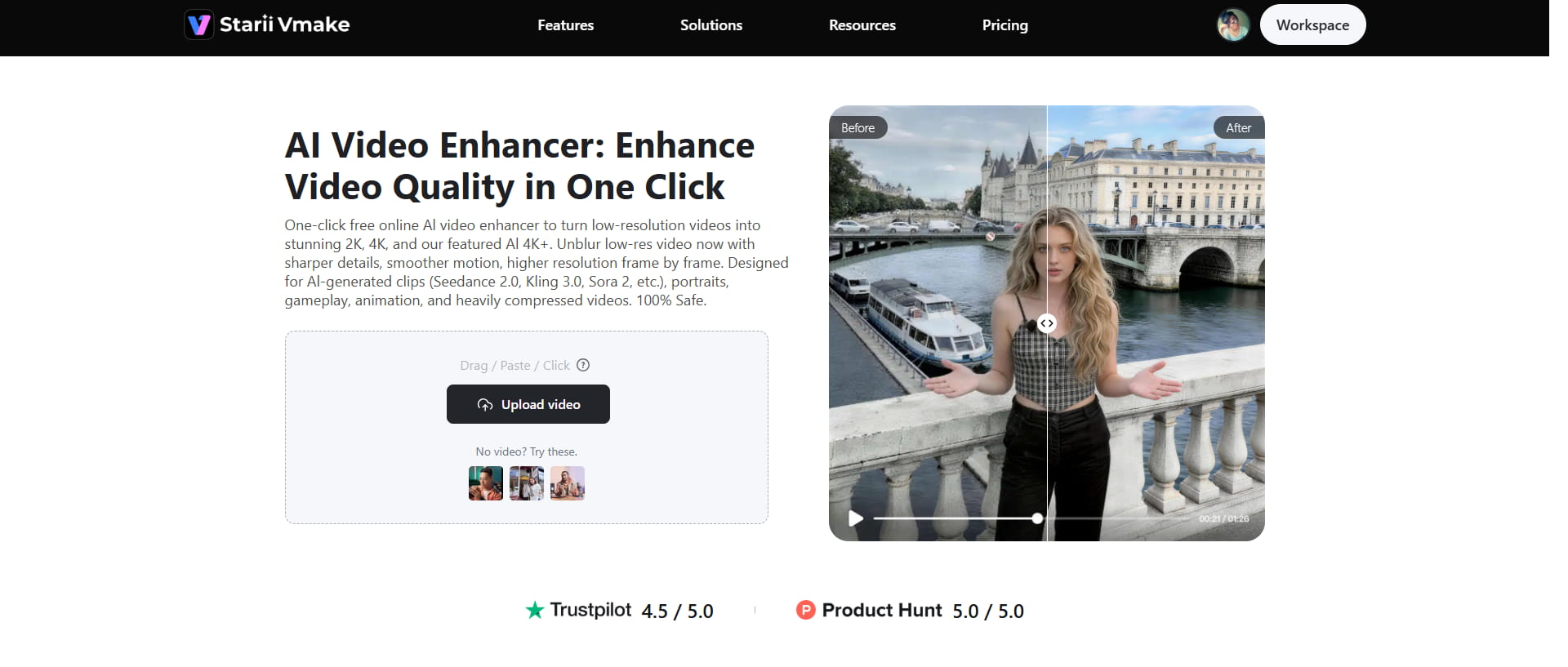
Vmake AI video enhancer uses AI processing to improve video quality for both MKV and MP4 files. You can upscale resolution, sharpen blurry footage, remove noise, and clean up videos that look compressed or washed out after multiple uploads. The tool tends to work best for creators who upload videos regularly, marketers who handle product content, social media users who clean up phone footage, and editors who try to save clips that almost look usable.
Step-by-step guide
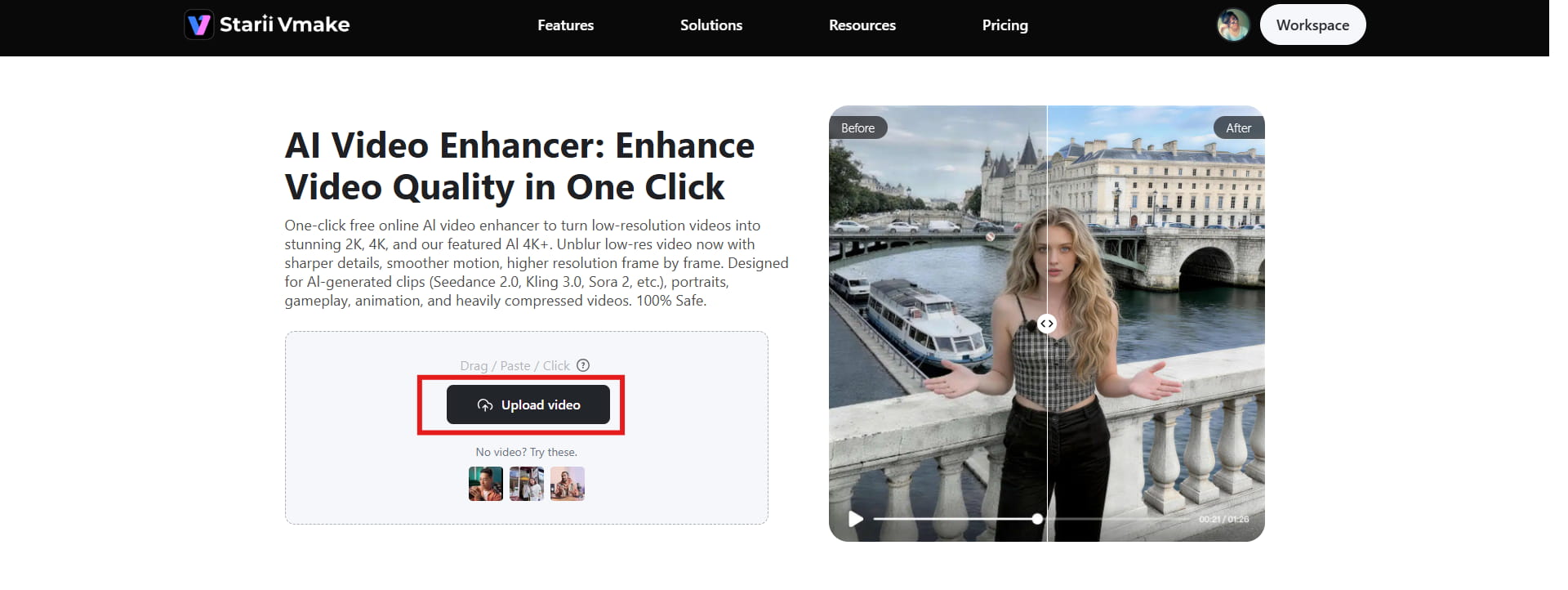
Step 1: Upload the reference MP4 or MKV video file
Start by uploading your video file into the Vmake interface. Hit the "Upload video" button, pick your MP4 or MKV file, and let the tool pull it in.
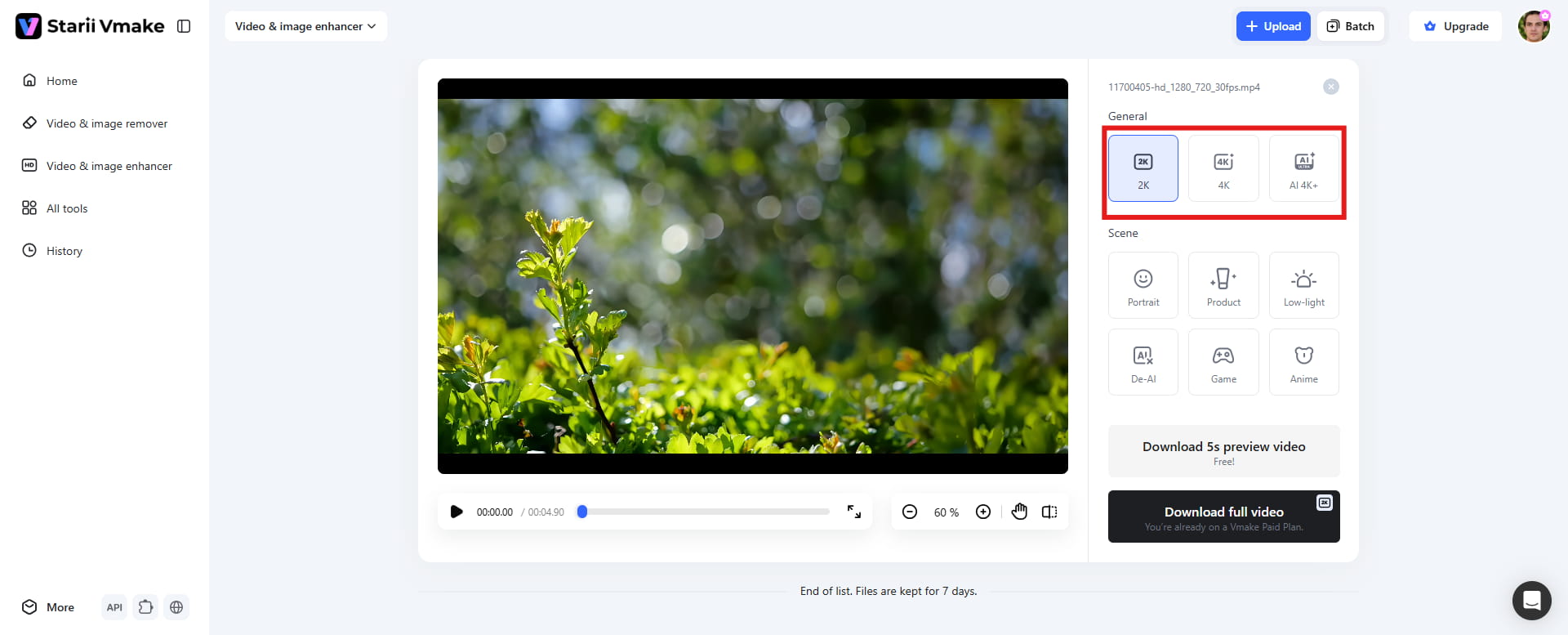
Step 2: Vmake automatically chooses the resolution preset
Once you are done uploading, the tool automatically chooses the resolution preset and starts enhancing the video's resolution. Additionally, you can manually choose the resolution preset, like 4K or AI 4K+.
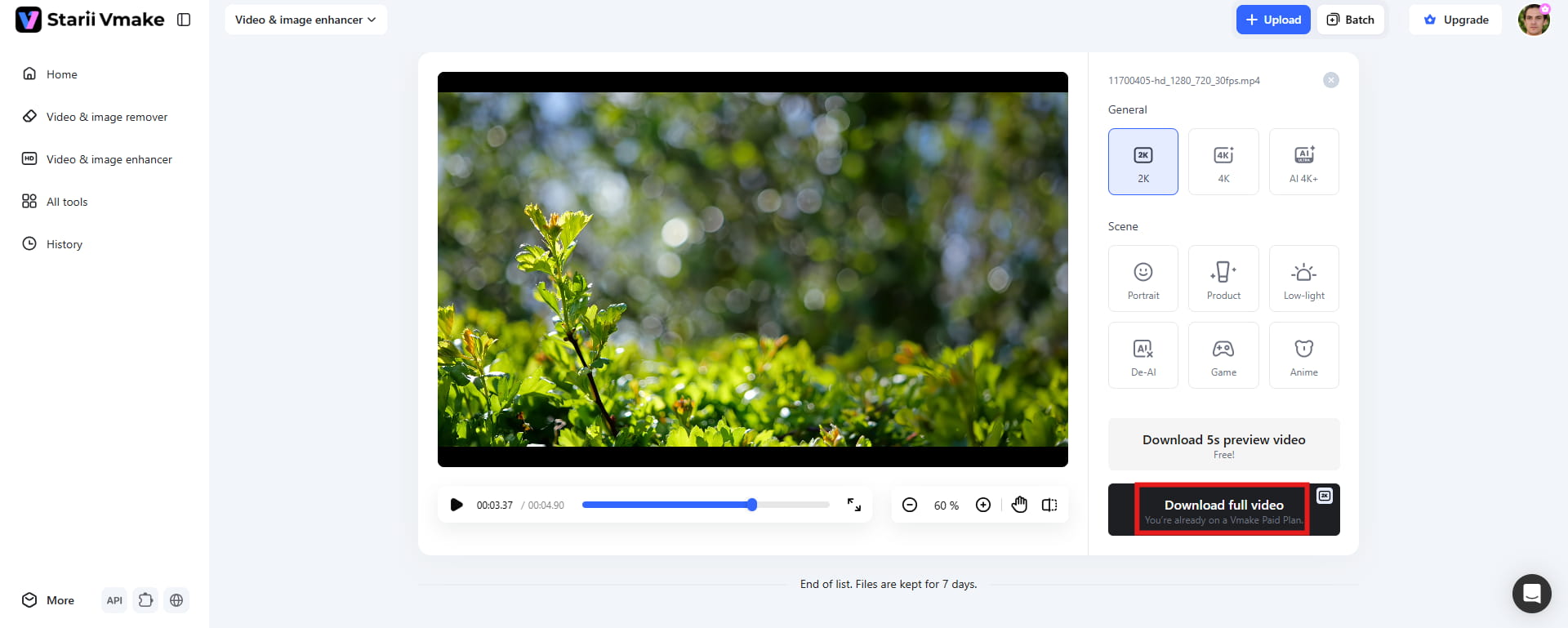
Step 3: Preview and download the video
You can then preview the enhanced video file on the interface. If everything looks good, you can click the "Download" option in the bottom-right corner to save the enhanced file for later use.
Key features
-
Supports all major video formats: With Vmake, you can upload common formats like MP4, MKV, MOV, AVI, and several others without wasting time converting files beforehand.
-
One-click enhancement: The one-click enhancement mode handles most of the cleanup automatically. Upload your video, choose the preset, and let AI handle the rest.
-
Multiple resolution presets: Vmake gives you a few different resolution presets to work with, including 2K, 4K, and AI 4K+. Pick a preset, run the video through, and see how far the footage can realistically go.
-
De-AI mode: De-AI Mode identifies the visual artifacts that make footage look machine-made and reduces over-smoothing, fixes texture repetition, and improves light and color balance. The focus is on texture, detail, and overall realism.
-
Portrait restoration mode: Portrait restoration mode shifts attention where it matters most: the face. Eyes, eyebrows, lips, skin texture, and hair receive extra attention, helping soft or low-quality footage look cleaner and more defined.
Conclusion
MKV and MP4 both store video well, but they solve completely different problems. That's really what this MKV vs MP4 comparison comes down to.
MKV leans heavily toward flexibility. Multiple subtitles, extra audio tracks, chapter support, metadata control, and large media archives. MP4 takes almost the opposite approach. Smaller file sizes. Easier sharing. Better streaming support. Broader compatibility across devices that honestly don't always play nicely with anything outside the standard formats. Neither format is perfect, though, and the final choice depends on your needs.
Whatever format you end up using, video quality still matters. Tools like Vmake can clean up blurry footage and restore some of the details that cheap cameras or poor lighting tend to wipe out.
FAQs
Is MKV better than MP4?
Not really, as both just focus on different priorities. MKV gives you much more flexibility with subtitles, audio tracks, metadata, chapter support, and large media collections. If you're building a serious movie archive or running a home media server, those extra features start becoming genuinely useful pretty quickly. MP4 takes a simpler approach instead, with better compatibility and easier playback.
Does converting MKV to MP4 reduce video quality?
If you're only changing the container format and not re-encoding the actual video, the quality usually stays the same because the video data itself isn't being altered. The real problems usually start when the conversion software recompresses the video during export. That's when sharp details disappear, compression artifacts start crawling across darker scenes, and weird color shifts suddenly make the footage look noticeably cheaper than the original.
Why is MP4 more popular than MKV?
MP4 works almost everywhere without forcing you to think about codecs, subtitle support, or playback compatibility. Upload it to social media, send it through messaging apps, open it on a phone, edit it in basic software; it usually keeps things simple.
Can MP4 contain subtitles and multiple audio tracks?
Yes, it can. But once you start working with advanced subtitle formatting, multiple language configurations, or complicated media setups, MP4 starts feeling more restrictive than MKV pretty quickly.
Which format is best for YouTube and online streaming?
For streaming, MP4 is usually the safer choice by a pretty wide margin. Smaller file sizes, faster uploads, smoother playback, broader compatibility; all of that matters online. Streaming platforms already optimize around MP4 because it's easier to process and more reliable across browsers, mobile apps, and slower internet connections.
Can I enhance both MKV and MP4 videos?
Yes, you can improve both MKV and MP4 files with AI tools like Vmake. It does a decent job sharpening softer edges, cleaning up visible noise, and pushing lower-resolution footage closer to something you'd actually want to watch on a bigger screen.

You May Be Interested
2026 Fotor Video Enhancer Review: Features and Top Alternatives
How to Change Video Resolution Without Losing Quality
Seedance 2.0 vs Sora 2: Which AI Video Generator Wins in 2026?
Demystifying 2K Video Resolution: The Ultimate Guide
Best AI Video Generator: Top Tools Tested (2026)
Video Color Correction vs. Color Grading: What's the Difference?

MOV vs MP4: What's the difference and which is better?