
AVI vs MP4: Understanding the Real Difference Between Video Formats
Compare avi vs mp4 formats, understand file size, compatibility, and video quality differences, and learn how Vmake AI helps improve video workflows easily.

AVI and MP4 aren't really competing in the same way. They just solve different problems. MP4 is the practical one. Smaller files, easier streaming, plays almost anywhere without a second thought. You barely have to think about it. AVI feels heavier, and it is Older too. But editors still reach for it when they care more about holding onto detail than keeping file sizes under control. Not always, though. Sometimes it's just a habit sticking around from older workflows. There's no clean winner here. It comes down to what you're actually doing with the video, and people often figure that out only after they've exported the wrong format once or twice.
What are AVI and MP4?
What is AVI
AVI stands for Audio Video Interleave. Microsoft introduced it back in the early '90s to pack video and audio together inside one file. It caught on quickly because most players and editing programs could handle it without fuss.
You'll still bump into AVI today, in archived footage, older recording systems, or professional editing workflows. The appeal is simple: less compression, more detail. But the tradeoff shows up fast. Files balloon in size, making them harder to move or store. For restoration work or projects where detail matters more than convenience, that bulk is worth it.
What is MP4
MP4 is the everyday standard now. Phones record in it, editing apps export to it, and streaming platforms prefer it. The reason is obvious: smaller files that still look good enough for most users.
That difference matters. An AVI might look pristine, but try uploading or storing dozens of them, and you'll feel the weight. MP4 keeps things light. It fits right into YouTube uploads, Instagram Reels, TikTok clips, even basic presentation slides or quick phone recordings. Nothing fancy about it. Just practical. Compatibility is where MP4 quietly wins. You open it on a smart TV, it plays. Same file on a browser, tablet, laptop, even that old phone you forgot in a drawer — still fine. No codec hunting, no weird plugins. It just runs. And honestly, that's usually all you're asking for when you're in a hurry.
AVI vs MP4 codecs explained
AVI and MP4 are video container formats. A container stores the different components of a media file, including video streams, audio tracks, subtitles, and metadata, within a single file.
A codec is the technology used to encode and compress video data. It decides how your video gets stored. And how it's played back later. Containers and codecs are not the same thing. People mix them up all the time. A container just holds the pieces, video, audio, and subtitles, all of them sitting together in one file. The codec does heavy lifting. It squeezes the data down and then pulls it back out when you hit play.
AVI files usually show up with older codecs like DivX or Xvid. You'll still find them buried in old folders or legacy edits that nobody wants to touch again. MP4 feels more current. It uses codecs like H.264 and H.265, which keep quality decent without blowing up file size, though don't expect miracles on badly shot footage; it can only do so much.
Here's where people get it wrong. The file extension doesn't tell you much on its own. AVI or MP4 on the label? Not enough. Quality, size, smooth playback, all of that comes from codec, bitrate, resolution, and how the file was exported. And honestly, most bad exports you see online aren't the format's fault at all.
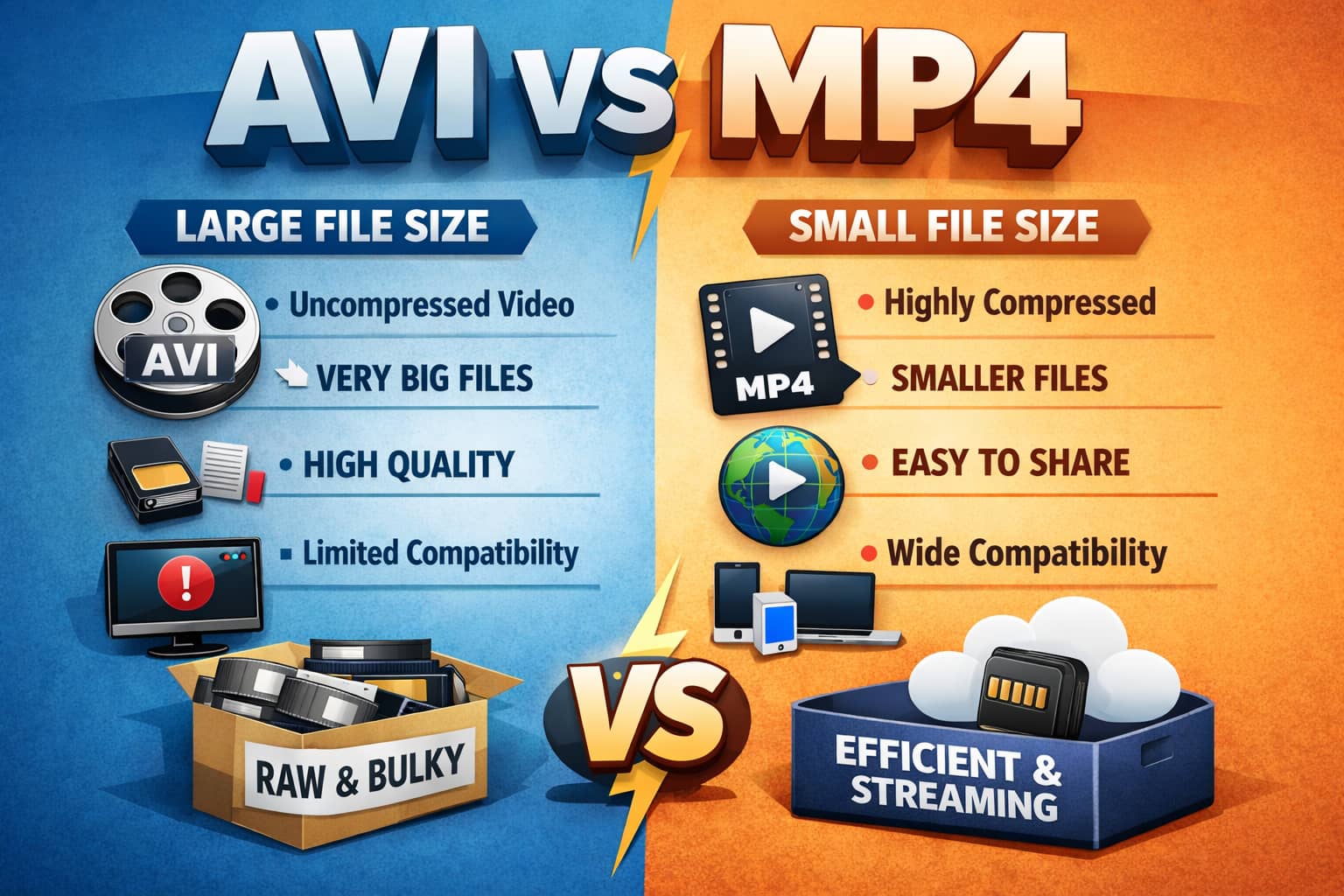
AVI vs MP4: Key differences explained
|
Feature |
AVI |
MP4 |
|---|---|---|
|
Compression Efficiency |
Lower compression |
Better compression with smaller files |
|
File Size |
Larger video files |
More storage-friendly |
|
Playback Compatibility |
Limited support on some modern devices |
Works across most platforms and browsers |
|
Streaming Performance |
Slower online playback |
Optimized for streaming and social media |
|
Video Quality |
Preserves more raw data |
Maintains quality with efficient compression |
|
Editing Workflow |
Often used in older editing systems |
Easier for modern editing and sharing |
|
Transfer Speed |
Takes longer to upload or transfer |
Faster uploads and downloads |
|
Best Use Case |
Archiving, raw footage, local storage |
Streaming, mobile playback, content sharing |
MP4 is normally the better choice for most everyday use. Smaller files, better compression, and it works on almost any device without effort. That's why it shows up everywhere, streaming, social media, quick sharing. AVI is still around, just less common now. It's heavier, older, but sometimes used when people want to keep more original data, mostly in archives or older editing setups. Not the first option anymore, but not completely useless either. There's no clear winner. It really depends on what you're doing with the video, and you usually figure that out after a mistake or two.
Next we'll look at when AVI makes sense, when MP4 is the safer pick, and how AI video enhancement tools can improve both, though they won't magically fix bad source footage.
Pros and Cons of AVI and MP4 formats
AVI keeps more raw detail, which makes it useful for editing or archiving, but the files grow large quickly. MP4 is lighter, easier to share, and plays smoothly across modern devices.
Advantages of AVI vs MP4:
|
Feature |
AVI |
MP4 |
|---|---|---|
|
Video Quality |
Often preserves more original video data due to lighter compression. |
Maintains good visual quality while using more efficient compression. |
|
Codec Support |
Supports a variety of video and audio codecs. |
Commonly supports modern codecs such as H.264 and H.265. |
|
Editing Workflows |
Frequently used in legacy editing systems and archived projects. |
Works well for modern editing, sharing, and distribution workflows. |
|
Playback Compatibility |
Compatible with many older media players and desktop environments. |
Supported by most browsers, mobile devices, smart TVs, and streaming platforms. |
|
Storage & Sharing |
Suitable for local storage and archival purposes. |
Smaller file sizes make storage, sharing, and uploads more efficient. |
|
Modern Features |
Basic support for media content. |
Supports subtitles, metadata, and multiple audio tracks more effectively. |
Limitations of AVI vs MP4:
|
Feature |
AVI |
MP4 |
|---|---|---|
|
File Size |
Files can become very large, especially with longer or high-resolution videos. |
Compression may reduce some fine detail at lower bitrate settings. |
|
Online Sharing |
Larger files can result in slower uploads and transfers. |
Encoding can require more processing time depending on settings. |
|
Streaming Performance |
Less optimized for web streaming and social media platforms. |
Playback of newer codecs may require updated software on older systems. |
|
Modern Media Features |
Limited support for advanced subtitle, metadata, and audio-track features. |
Quality depends heavily on codec, bitrate, and export settings. |
|
Workflow Efficiency |
Large files may slow backups, transfers, and cloud storage workflows. |
Higher compression settings can increase export complexity. |
Improve AVI and MP4 video quality with Vmake AI
Video quality issues show up pretty quickly, especially once you start working with AVI or MP4 files a lot. Old AVI clips tend to look dull or just a bit rough around the edges. MP4 is cleaner most of the time, but push it through a few uploads or edits and you start noticing detail loss creeping in.
That's where tools like Vmake AI come in. It handles things like video blur remover and video enhancer, making footage sharper and clearer without turning the process into a complicated editing job.
Key AI capabilities:
-
AI video upscaling: It pushes low-resolution footage up to 4K, and yeah, it can bring back some detail you thought was gone. Works well on clean footage struggles a bit when the original is already heavily compressed or noisy.
-
Blur and noise reduction: Reduces visual noise, compression artifacts, and that annoying soft blur. Textures usually stay natural, but push it too far and things can start looking slightly "smoothed out," which you'll notice quickly.
-
Batch enhancement: Lets you process multiple clips in one go. Handy when you've got a folder full of footage. Not perfect for mixed-quality files, though results can feel inconsistent across very different clips.
-
4K export support: it lets you render videos in higher resolution, which helps them look better on larger screens. Just don't expect new detail to appear if it wasn't in the original footage, it won’t magically show up in 4K.
-
Browser-based workflow: Enables users to upload, enhance, preview, and export videos directly through a web browser without requiring desktop software installation.
Quick tutorial: Enhancing AVI and MP4 videos with Vmake AI
Step 1: Upload
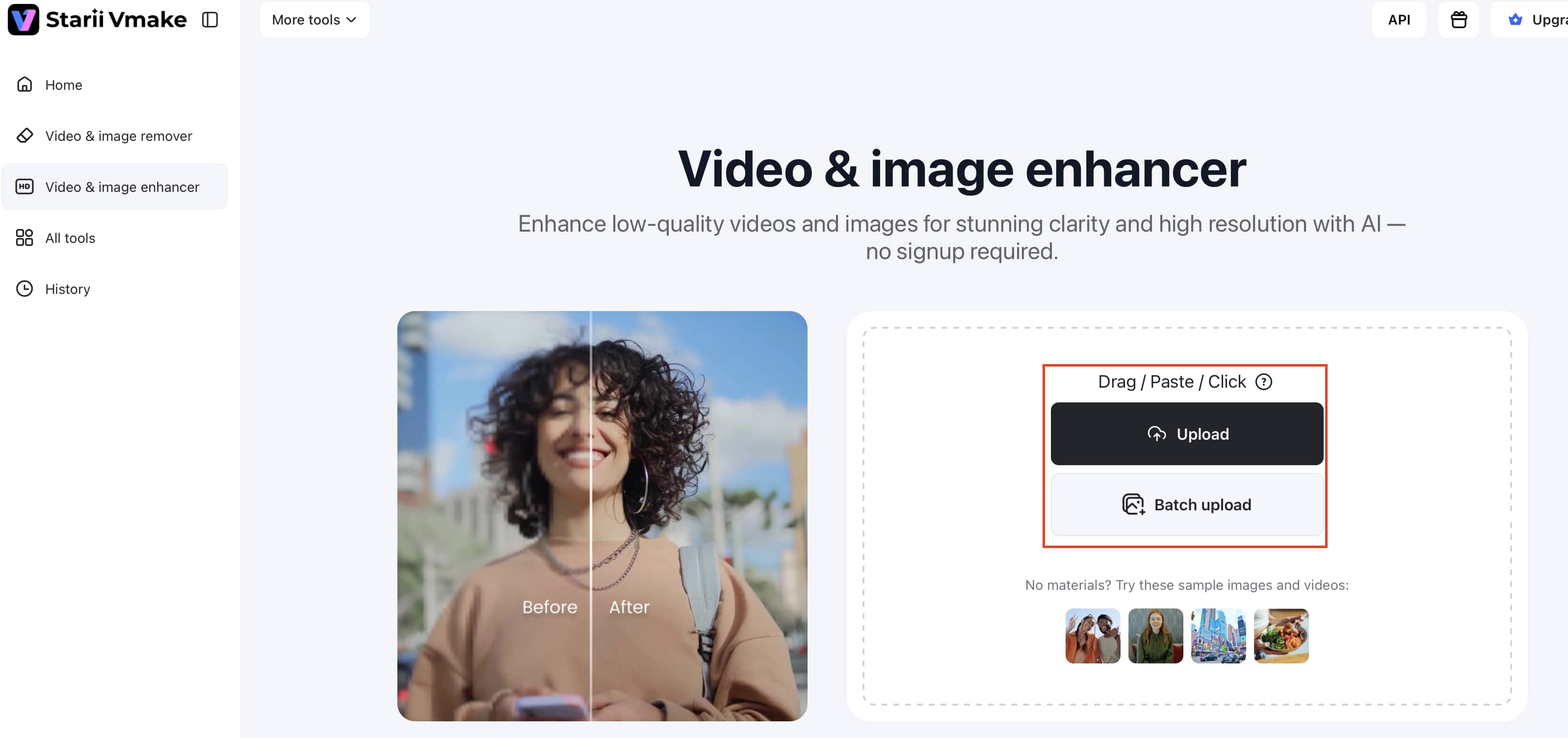
Select Video & Image enhancer from the dashboard, then click Upload and choose the AVI or MP4 file you want to improve. Once the upload is complete, wait for the video to appear in the editing workspace before applying enhancement settings.
Step 2: Select enhancement settings
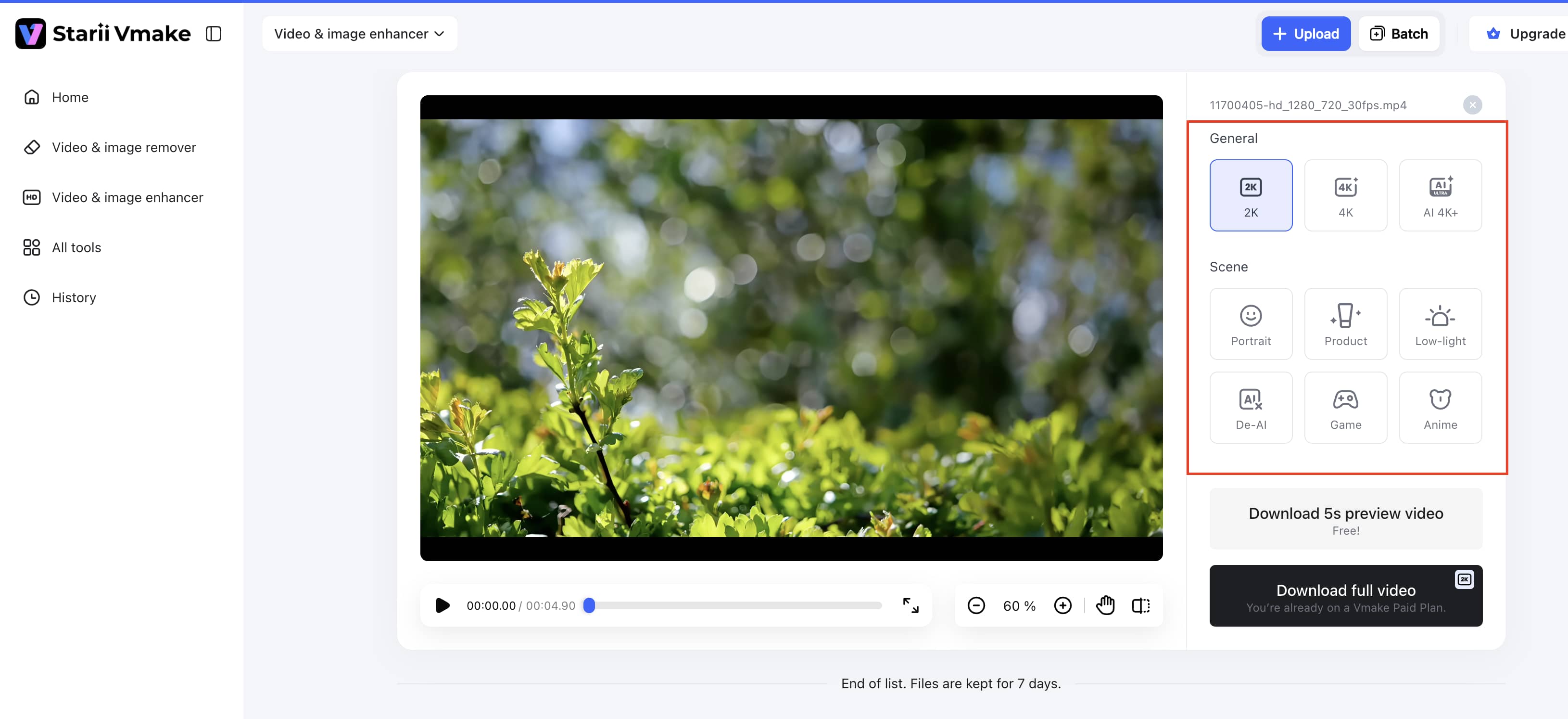
Choose your desired resolution, such as 2K, 4K, or AI 4K+, and switch the "Scene" to your preferred Mode.
Step 3: Preview
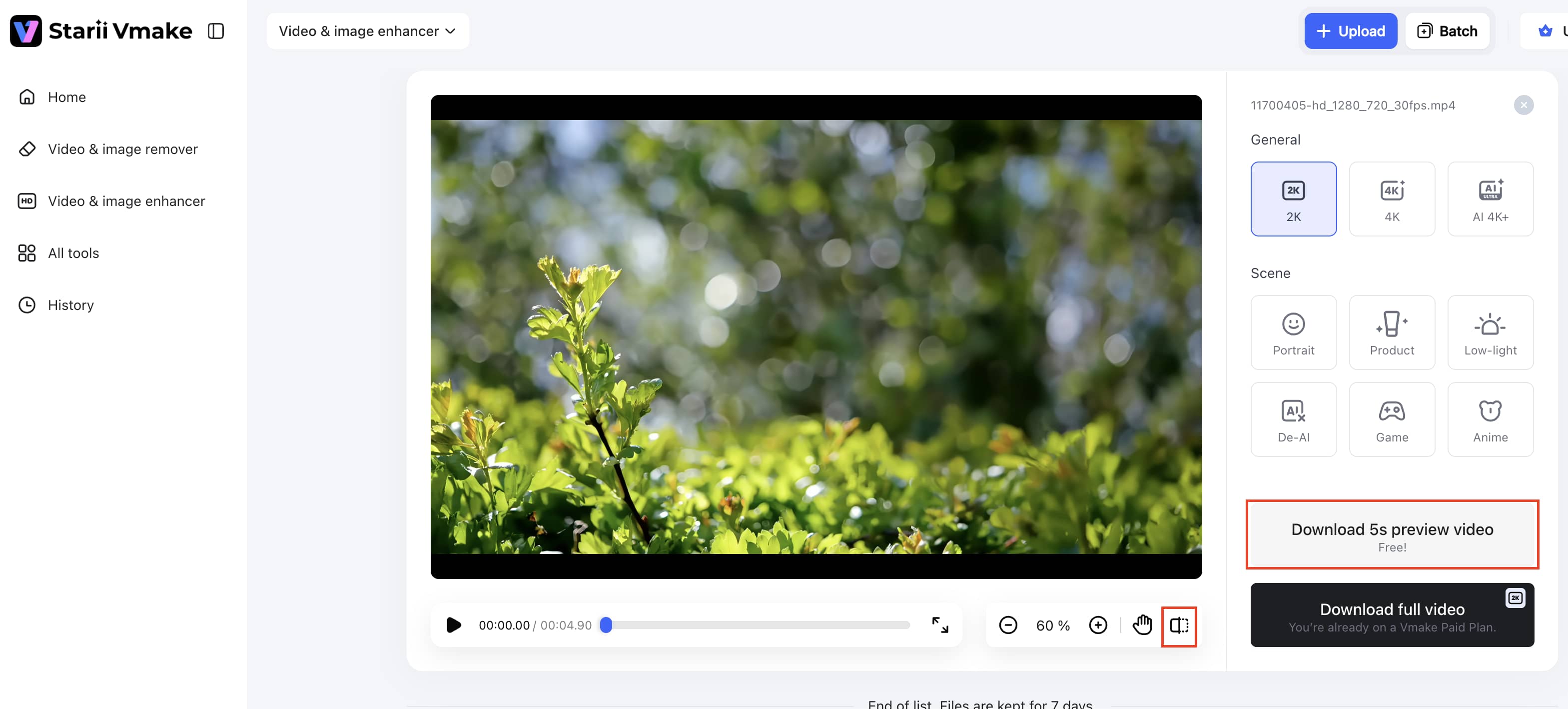
Compare the original and enhanced video quality side by side using the real-time player. Hit "Download" and save the improved AVI or MP4 video in high quality to your local storage device.
Step 4: Export
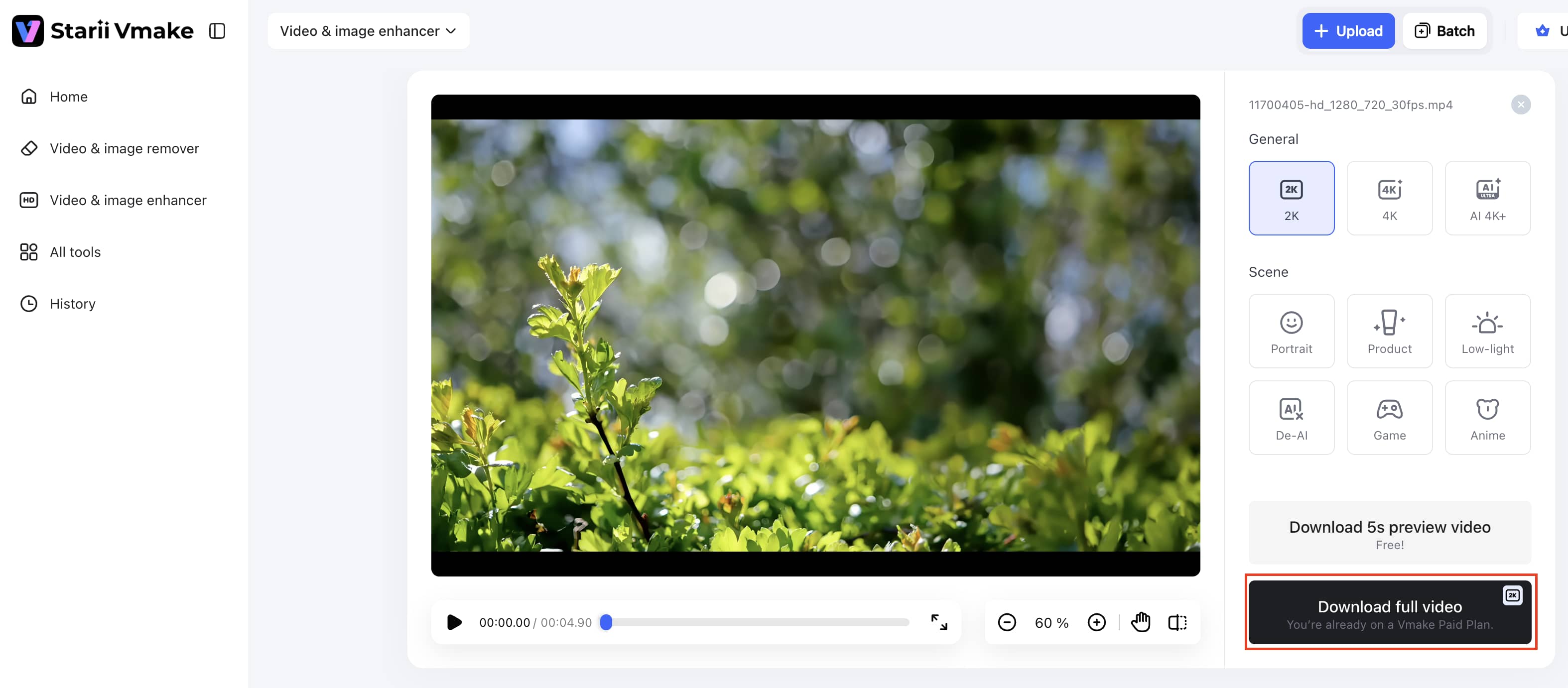
Once it looks good, export in high quality. The file's ready for editing, uploading, streaming, or posting. No extra cleanup needed.
Expert tips for choosing between AVI vs MP4
Pick AVI if detail matters and storage space isn't a concern. Go with MP4 for smaller files, easy sharing, and smooth playback across devices.
-
For streaming and social media: MP4 is usually the more practical option for online content. The files are smaller, uploads are quicker, and most platforms handle MP4 without any issues. That is a big reason almost every social media app prefers it.
-
For preserving original quality: AVI is still useful for projects where preserving more original video detail matters. Many editors and archived video collections continue using AVI because of its lower compression.
-
To avoid quality loss: Repeatedly converting a video from one format to another can slowly reduce visual quality. Keeping one original master file helps prevent unnecessary quality loss during editing.
-
For balanced video exports: Bitrate can quietly make or break a video. Set it too low, and the footage starts looking soft or blocky. Push it too high, and the file size balloons for barely any visible improvement. Finding the middle ground usually gives the cleanest results.
-
For protecting original footage: Before compressing or converting anything important, keep a copy of the original file somewhere safe. It only takes one bad export or accidental overwrite to realize how useful that backup really is.
-
For smoother compatibility: Different devices and editing programs handle video formats differently. Checking compatibility beforehand helps avoid playback problems, lag, or export issues later.
-
For improving compressed MP4 videos: Compressed MP4 videos sometimes lose sharpness after uploading online. Vmake.ai can help improve clarity and restore cleaner details before publishing content.
-
For restoring older AVI footage: Older AVI files may look outdated on modern screens because of lower resolution or visual noise. Vmake.ai helps refresh older footage by improving sharpness and overall playback quality.
Beyond format conversion and enhancement, Vmake AI also supports creators working in e-commerce, agency, real estate, fitness and health, and short-form content production. From AI creative ads and visual hook creation to AI clip maker and AI music video generator workflows, the platform helps simplify modern video production.
Conclusion
AVI and MP4 are built for different jobs. AVI keeps more of the original video data intact, which is why it still shows up in archived footage, older recording systems, and traditional editing setups. The downside is hard to ignore, though. AVI files get huge fast, making them awkward to upload, store, or stream online.
MP4 is different. It's lighter, easier to share, and works pretty much everywhere, from phones to browsers to social platforms. That convenience comes with a trade-off. After multiple rounds of compression, videos can start looking soft, noisy, or noticeably less detailed.
That's where Vmake AI helps. Instead of digging through complicated editing controls, you can quickly sharpen blurry footage, recover lost clarity, and reduce video noise in just a few steps.
FAQs
What is the biggest difference between AVI vs MP4?
The main difference is compression. AVI files normally retain more raw video information, which can help preserve quality, but they become much larger. MP4 does compression more efficiently, so videos take up less space and are easier to upload, store, or stream.
Which format is better for streaming: MP4 vs AVI?
MP4 is the more practical and better option. AVI is just too heavy for consistent streaming because its files are massive. MP4 uses compression that handles data much more efficiently. That means your video actually loads quickly and plays without constant buffering on phones, tablets, and basically any browser you throw at it.
Why is MP4 more commonly used today?
Because it's practical. MP4 keeps the quality looking good while cutting the file size way down. Plus, it works everywhere: browsers, apps, social media. AVI just doesn't have that kind of reach anymore.
Can Vmake AI improve AVI vs MP4 video quality automatically?
Yes. Both AVI and MP4 videos can be sharpened, cleaned up, and enhanced automatically. With tools like Vmake, AI can reduce noise, improve clarity, and make older footage look fresher, regardless of the format.
Which format creates smaller files: AVI vs MP4 format?
MP4 creates much smaller files as its compression tech is more advanced, so you get lighter files without trashing the picture. AVI stays bulky.
Can AVI files be converted to MP4 without losing quality?
Yes. If you use good export settings and the right codec, the converted MP4 will look almost identical to the original AVI, just easier to store and share.

You May Be Interested
2026 Fotor Video Enhancer Review: Features and Top Alternatives
How to Change Video Resolution Without Losing Quality
Seedance 2.0 vs Sora 2: Which AI Video Generator Wins in 2026?
Demystifying 2K Video Resolution: The Ultimate Guide
Best AI Video Generator: Top Tools Tested (2026)
Video Color Correction vs. Color Grading: What's the Difference?
