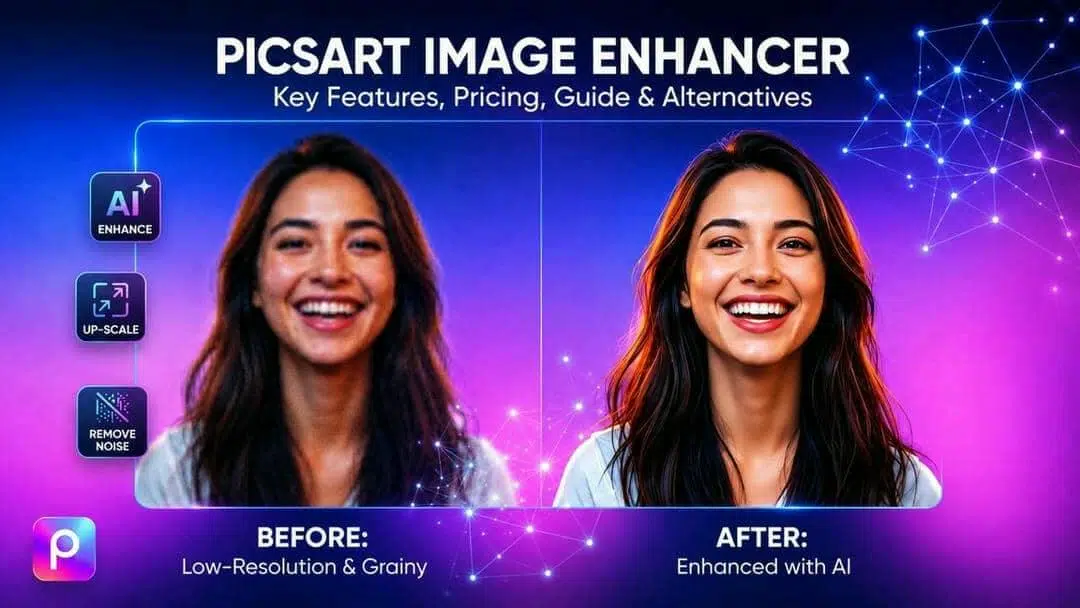
Picsart Image Enhancer: Key Features, Pricing, Guide & Alternative
Explore Picsart Image Enhancer to improve blurry, low-quality photos using AI. Learn its features, pricing, pros, cons, and compare results with Vmake Labs Image Enhancer for better edits today
We tested the Picsart Image Enhancer on portraits, product photos, old images, and blurry files, focusing on image quality, AI enhancement, processing speed, and ease of use. Learn about its major features, pricing, workflow, and alternatives in this guide, so you can determine if it's the right choice for your image enhancement needs in 2026.
What is Picsart Image Enhancer?
Picsart Image Enhancer is an AI-powered photo editing tool that helps users improve image quality with minimal effort. It can sharpen blurry photos, enhance details, reduce noise, and improve overall clarity through automatic AI adjustments. The tool is designed for creators, marketers, and everyday users who want better-looking visuals quickly.
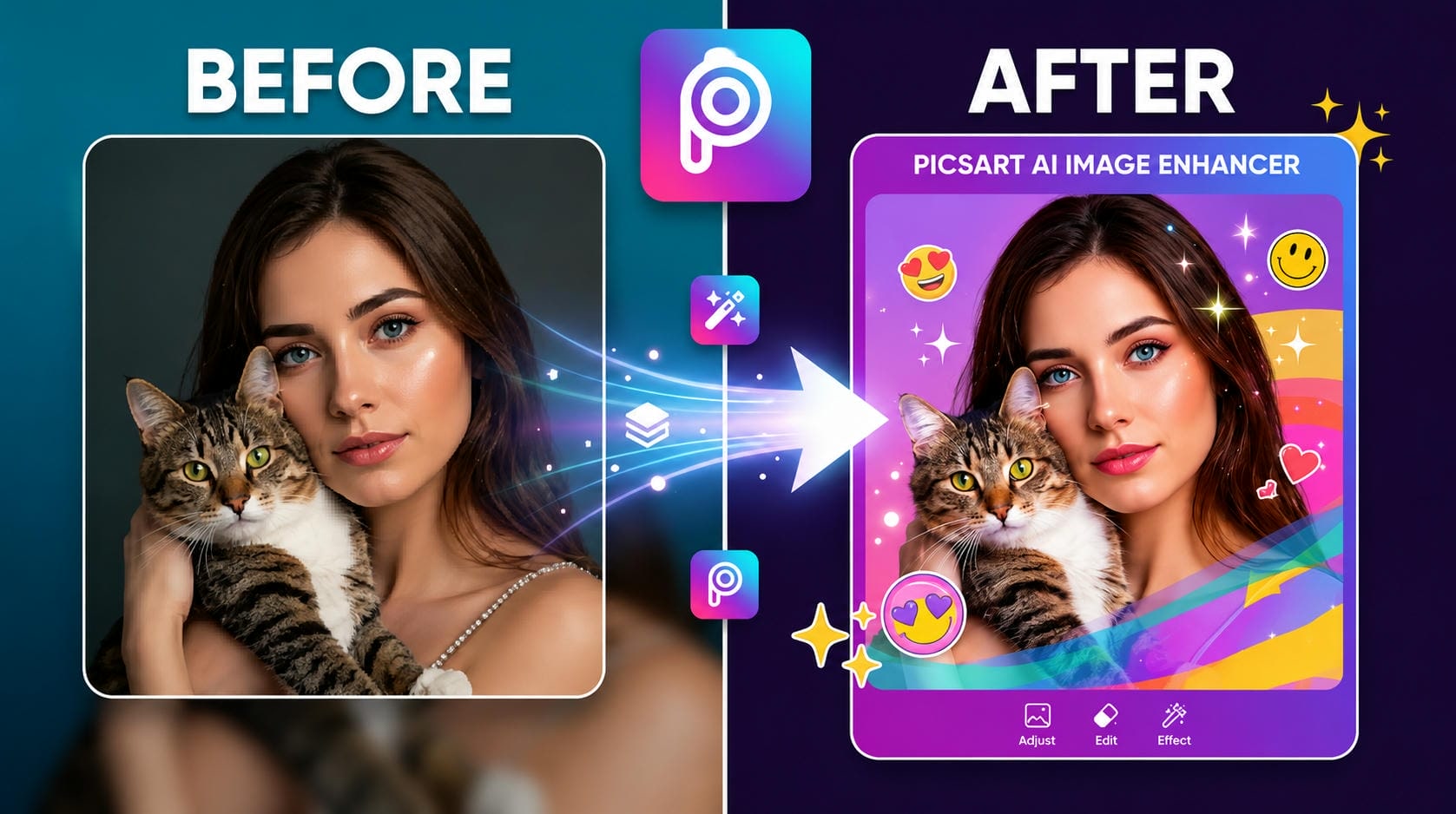
Picsart is a web and mobile app that makes photo enhancement easy, even for those who don't have advanced editing skills. Users can improve portraits, social media images, and creative projects while maintaining natural-looking results. For users wanting more control over the clarity of their photos, an image sharpener can sharpen fine detail and improve the sharpness of an image.
Key features of Picsart AI image enhancer
-
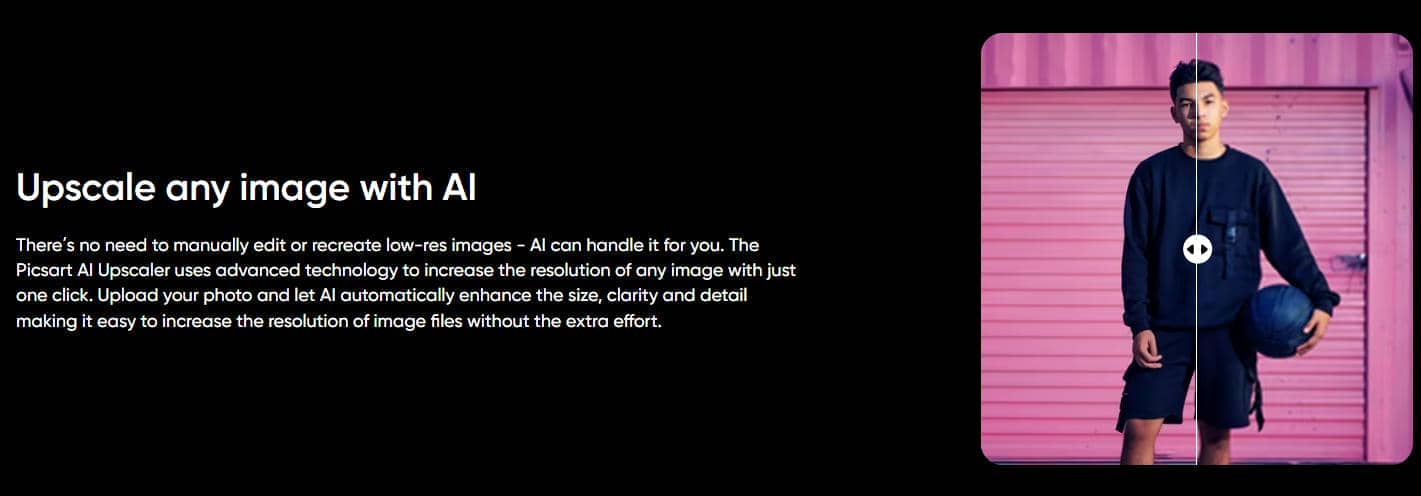
AI image upscaling: We tested Picsart by upscaling a low-resolution product image for use on social media and ecommerce listings. The enhancement was completed in around 5–10 seconds, and the image looked noticeably sharper with better edge definition. While most textures were preserved well, very fine text became slightly softer after enlargement, making the results better suited for digital content than large-format printing.
-
Blur and noise reduction: To evaluate this feature, we uploaded a low-light smartphone photo with visible grain and mild motion blur. Picsart successfully reduced background noise and improved overall clarity without making the image look overly processed. However, photos with heavy blur still lacked fine detail, so the feature works best on images with minor to moderate quality issues.
-
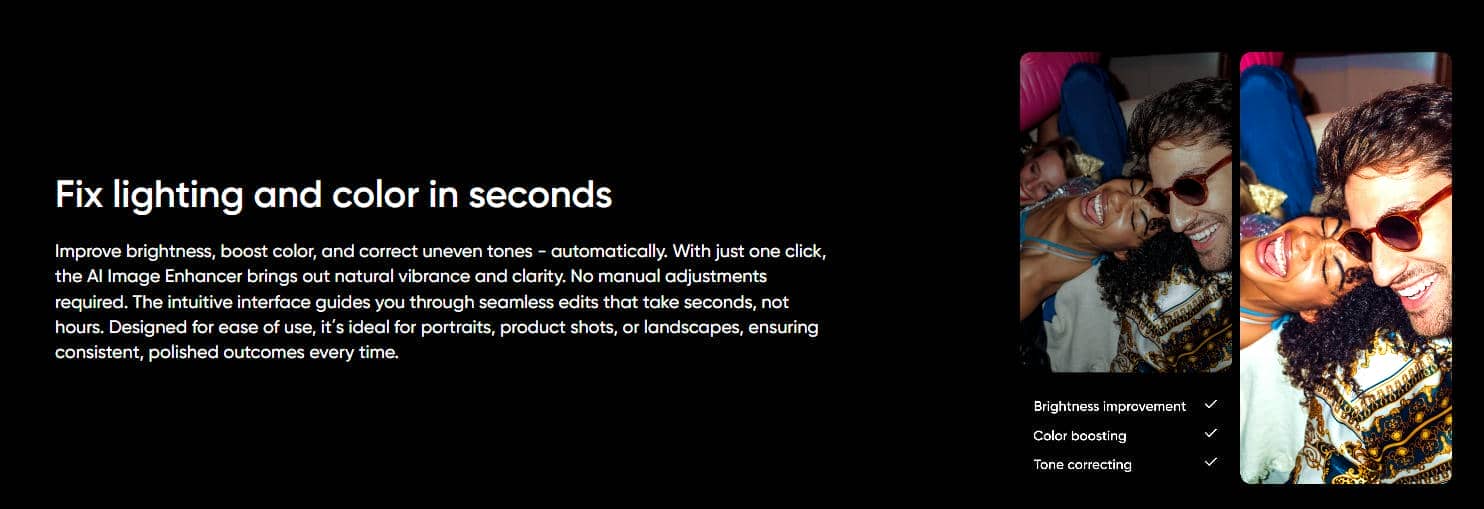
One-click image quality enhancement: The one-click enhancement automatically adjusted brightness, contrast, sharpness, and colour balance without requiring any manual editing. During our test, the image looked cleaner and more vibrant within a few seconds, making it useful for quick edits. In high-contrast photos, however, sharpening was occasionally a little stronger than expected.
-
Portrait and face enhancement: We tested portrait enhancement using both indoor and outdoor photos. Facial features appeared sharper, and skin tones remained natural without creating an overly artificial "beauty filter" effect. The results looked realistic for most portraits, although slight smoothing was noticeable when working with close-up images.
-
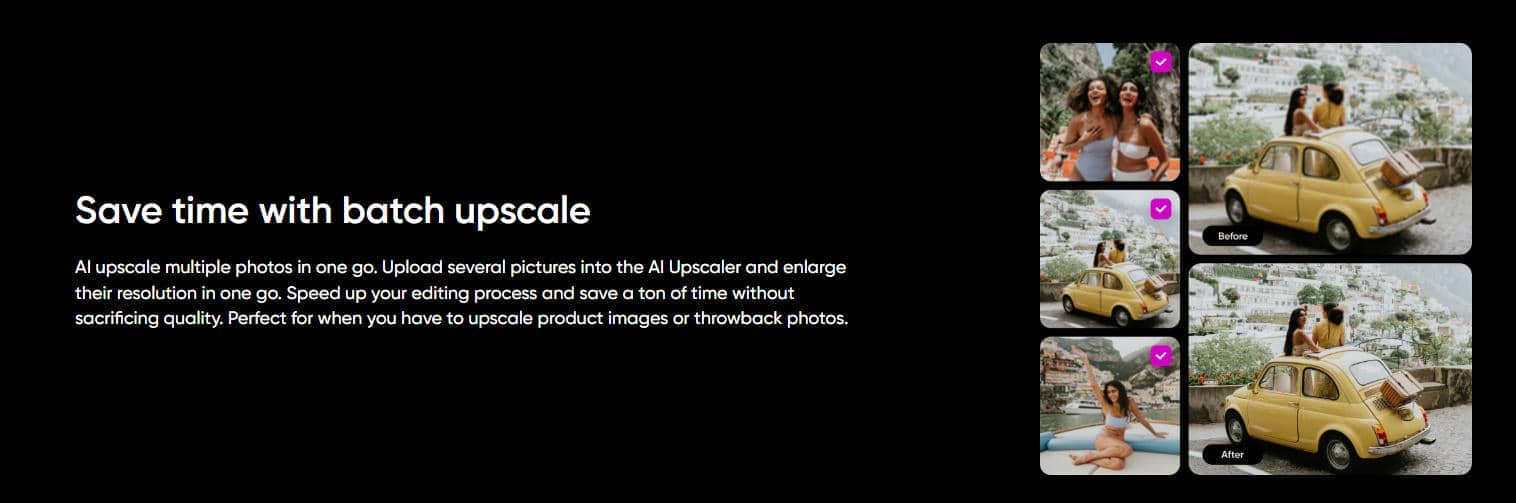
Batch editing and creative AI tools: Batch processing worked smoothly when enhancing multiple images in a single session, making it convenient for creators and ecommerce sellers handling larger image collections. Processing remained consistent across our test images, although total processing time naturally increased with larger batches. The additional AI editing tools also provide flexibility for users who want to make further creative adjustments after enhancement.
-
Export quality and supported formats: After enhancement, exported images retained most of the improvements seen during editing and were suitable for websites, social media, and digital marketing materials. We did not observe noticeable compression artifacts in our test exports, and the supported export options make it easy to use enhanced images across different online platforms. Users requiring print-quality images should still verify the final export resolution before publishing.
How to enhance image quality with Picsart image enhancer
Picsart Image Enhancer makes it easy to improve the quality of your images without the need for advanced editing skills. An AI-powered tool automatically analyzes your photo to improve its clarity, reduce imperfections, and enhance visual details. In just a few steps, the user can complete the entire process.
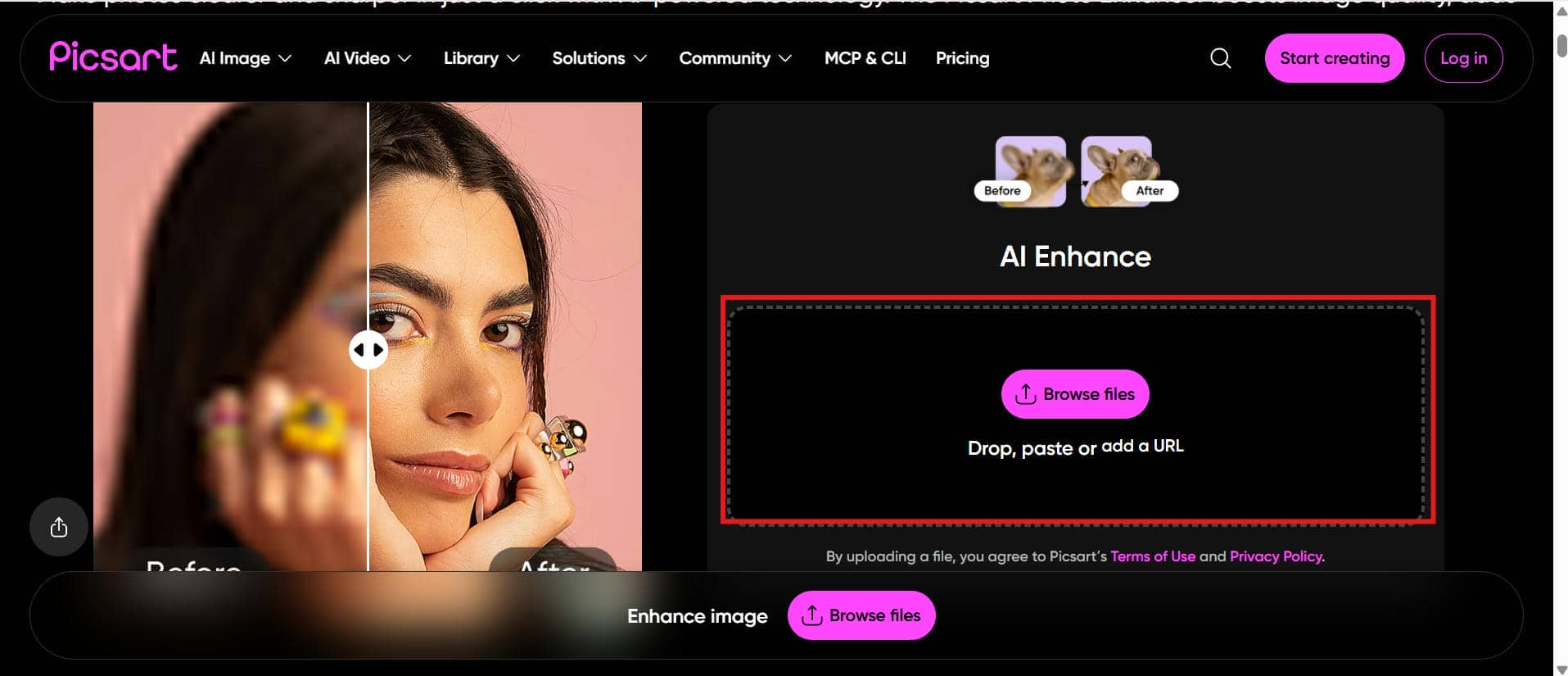
Step 1: Open Picsart Image Enhancer and upload your image
Start by opening Picsart Image Enhancer and uploading the photo you want to improve. The platform automatically analyzes the image and prepares it for AI-powered enhancement.
Step 2: Let Picsart AI enhance your photo automatically
After uploading, Picsart processes the image and applies automatic improvements, including sharpness adjustments, clarity enhancement, and noise reduction. The AI system optimizes the photo while keeping the results natural.
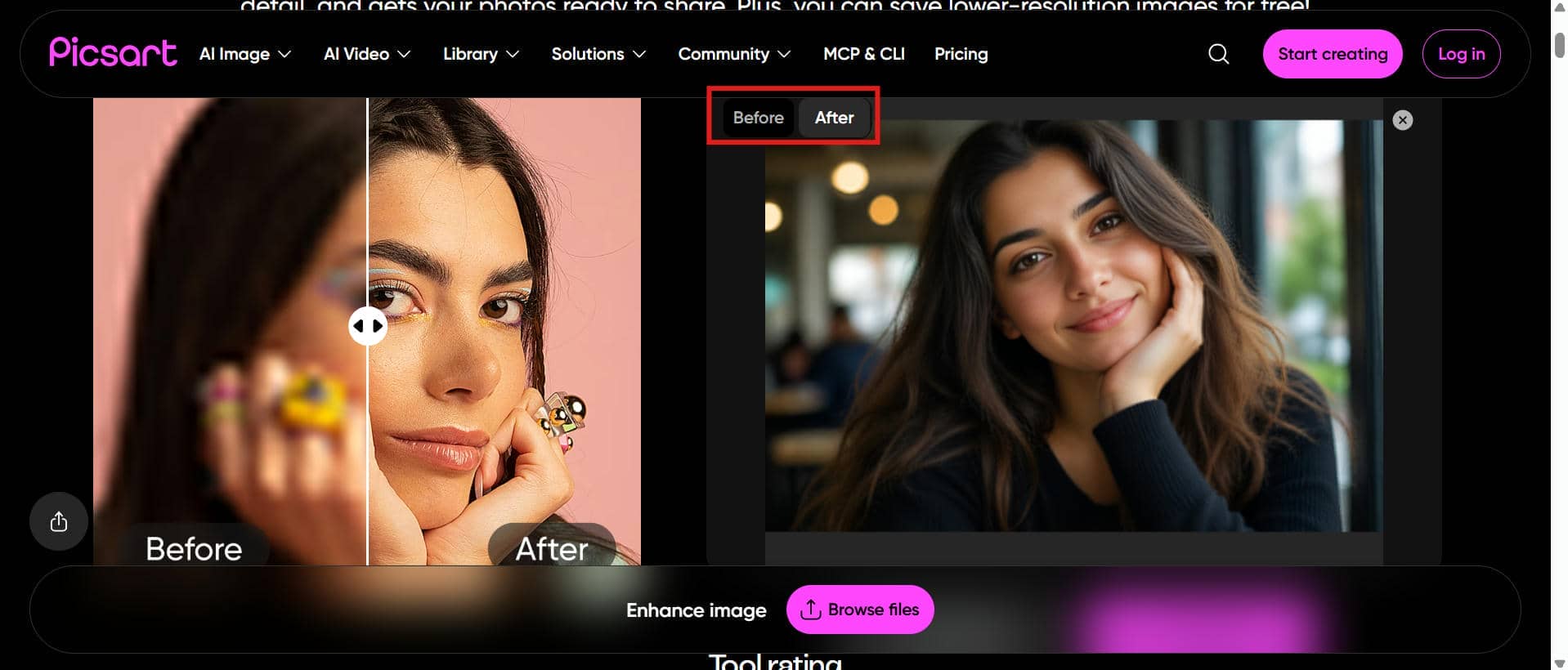
Step 3: Preview the enhanced image and download it
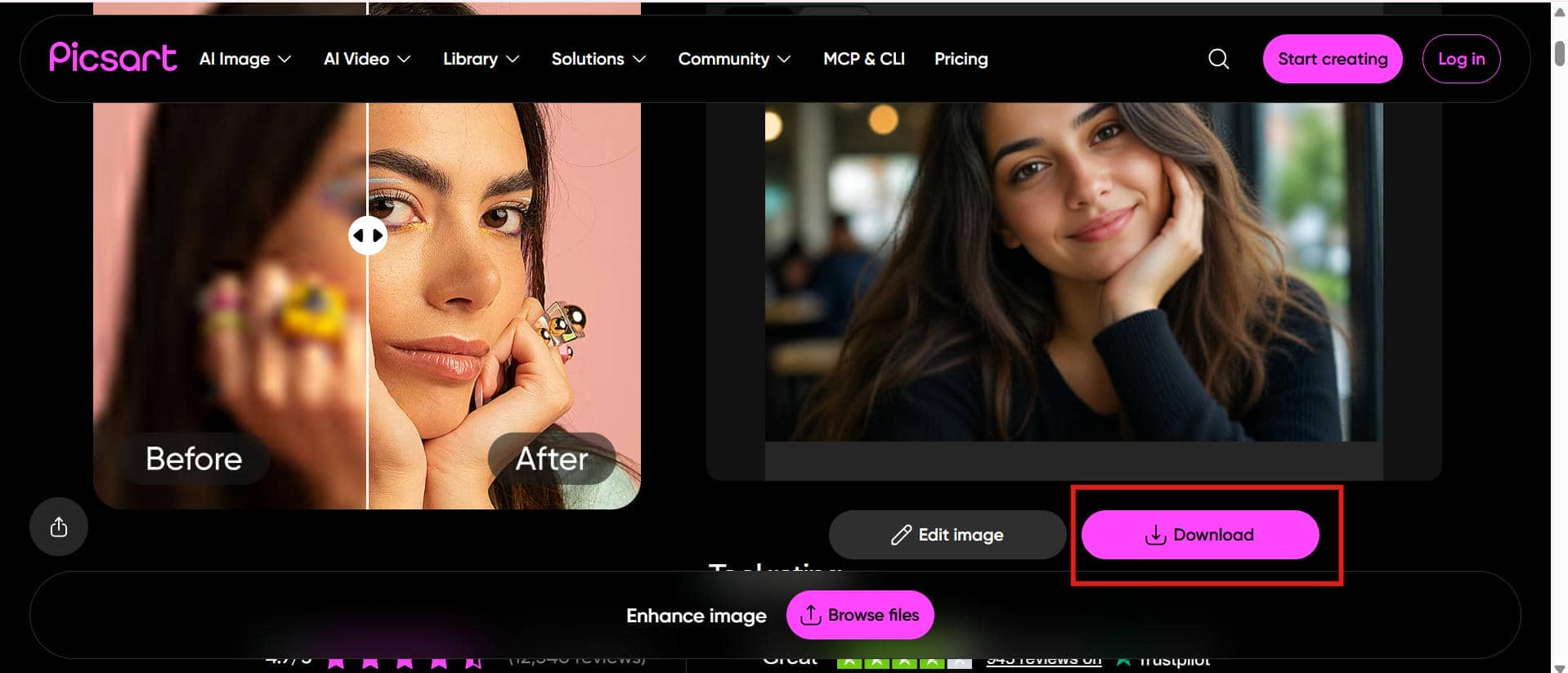
Once the enhancement process is complete, preview the updated image to check the improvements. If you are satisfied with the result, download the enhanced photo or continue editing it with Picsart's additional creative tools.
Picsart image enhancer pros, cons, and pricing
Picsart Image Enhancer offers a simple and convenient way to improve photo quality with AI-powered editing features. It is suitable for beginners who want quick image improvements without complex editing steps. While the free version provides basic enhancement options, some advanced AI tools and features require a paid subscription.
Pros and Cons
|
Pros |
Cons |
|---|---|
|
|
Pricing
|
Plan |
Pricing |
Best For |
|---|---|---|
|
Free |
Users who want to try basic AI editing and image enhancement with limited usage and access to selected features. |
|
$15/month |
Individuals and creators who regularly use AI image enhancement and editing tools. |
|
$75/month |
Businesses, teams, and professionals who need higher usage limits, premium AI features, and advanced creative tools. |
If you only need occasional image enhancements, the free plan is a good starting point for testing Picsart's AI capabilities. However, creators and businesses that require higher usage limits, premium AI tools, and uninterrupted workflows will benefit more from the Pro or Ultra plans.
Real feedback from users
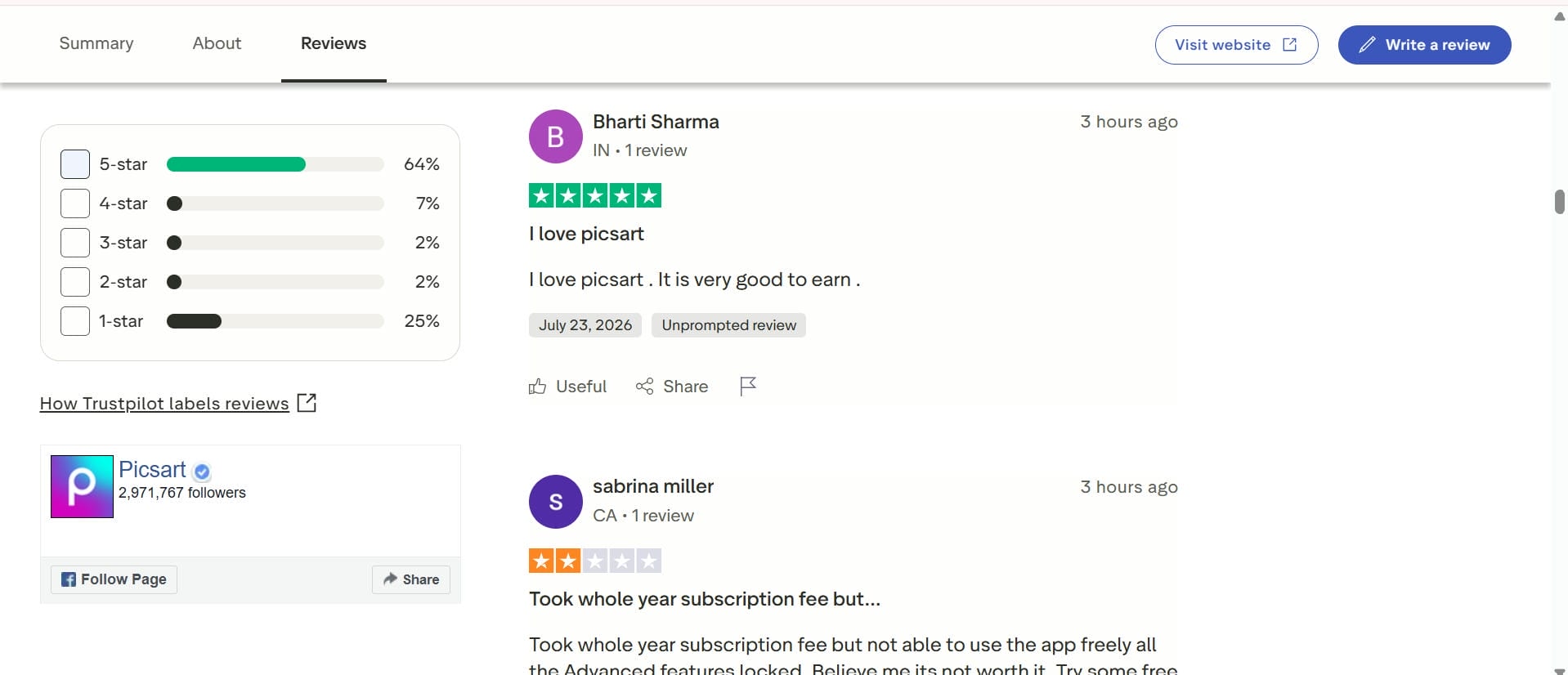
Trustpilot Reviews
Trustpilot reviews show that many users enjoy Picsart's accessibility and a variety of AI editing tools. Customers commonly highlight its simple workflow and helpful features for improving photos without professional editing skills. However, some reviews mention that results can vary depending on image quality and that certain features are limited to the free version.
Quora Discussions
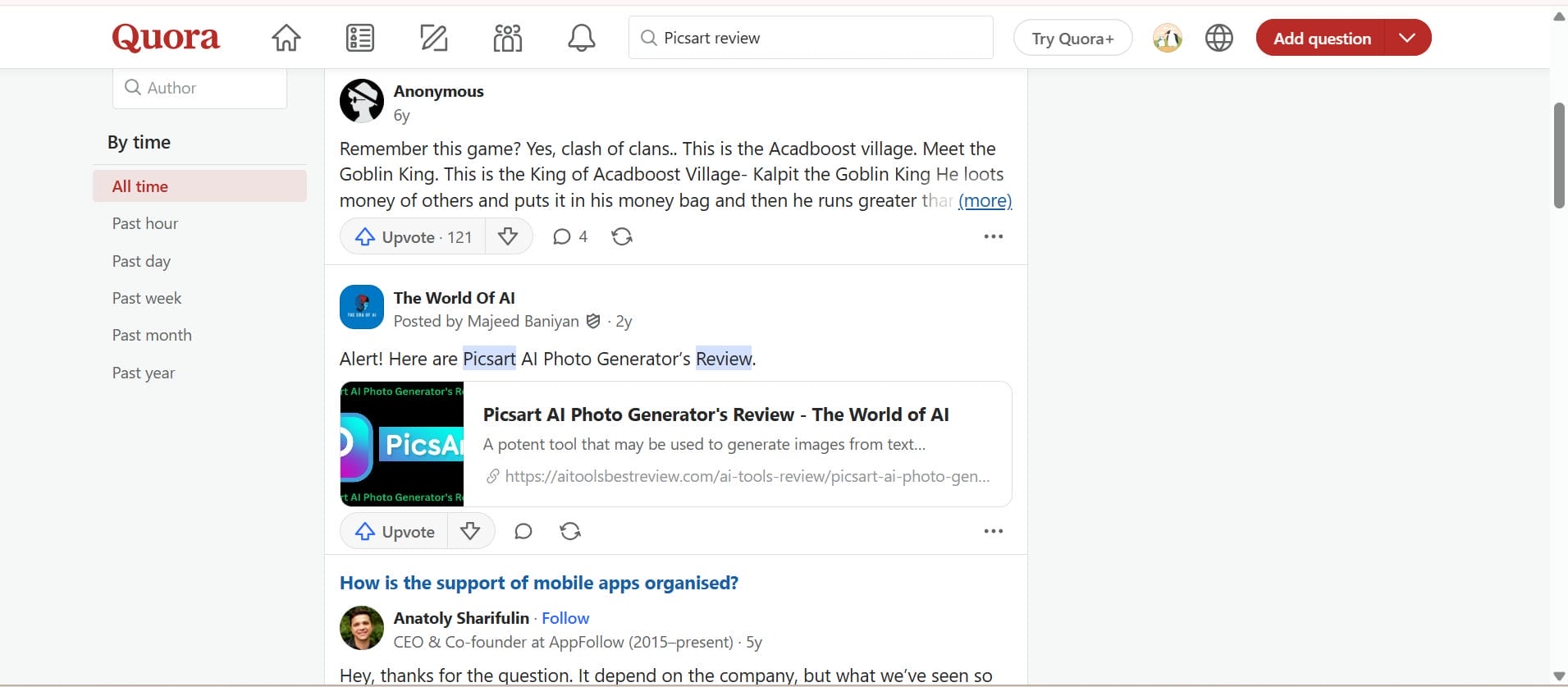
On Quora, users frequently discuss Picsart as a convenient option for casual photo editing and quick visual enhancements. Many contributors recommend it for beginners who want an easy-to-use editing platform, while some suggest exploring dedicated AI enhancement tools when working with highly blurred, damaged, or low-resolution images.
Afterthought
At the end of the day, the right tool really just depends on what you're trying to fix. For quick, on-the-go edits and creative filters, Picsart is great. But if you need to actually save a low-res photo or handle professional design work, you need something more specialized. Standard sharpeners only go so far, which is why a dedicated tool like Vmake Labs AI Image Enhancer is worth looking into—it gives you the specific, high-quality results regular editors miss.
How to enhance images with Vmake Labs AI image enhancer
Vmake Labs AI Image Enhancer makes it easy to improve blurry, compressed, pixelated, and low-quality images using a simple, browser-based process. Designed for creators, photographers, ecommerce businesses, and marketers, it enhances image clarity while preserving natural details. Vmake Lab's advanced AI, including AI image fixer, makes restoring visuals and generating professional-quality images easy without complex editing tools.
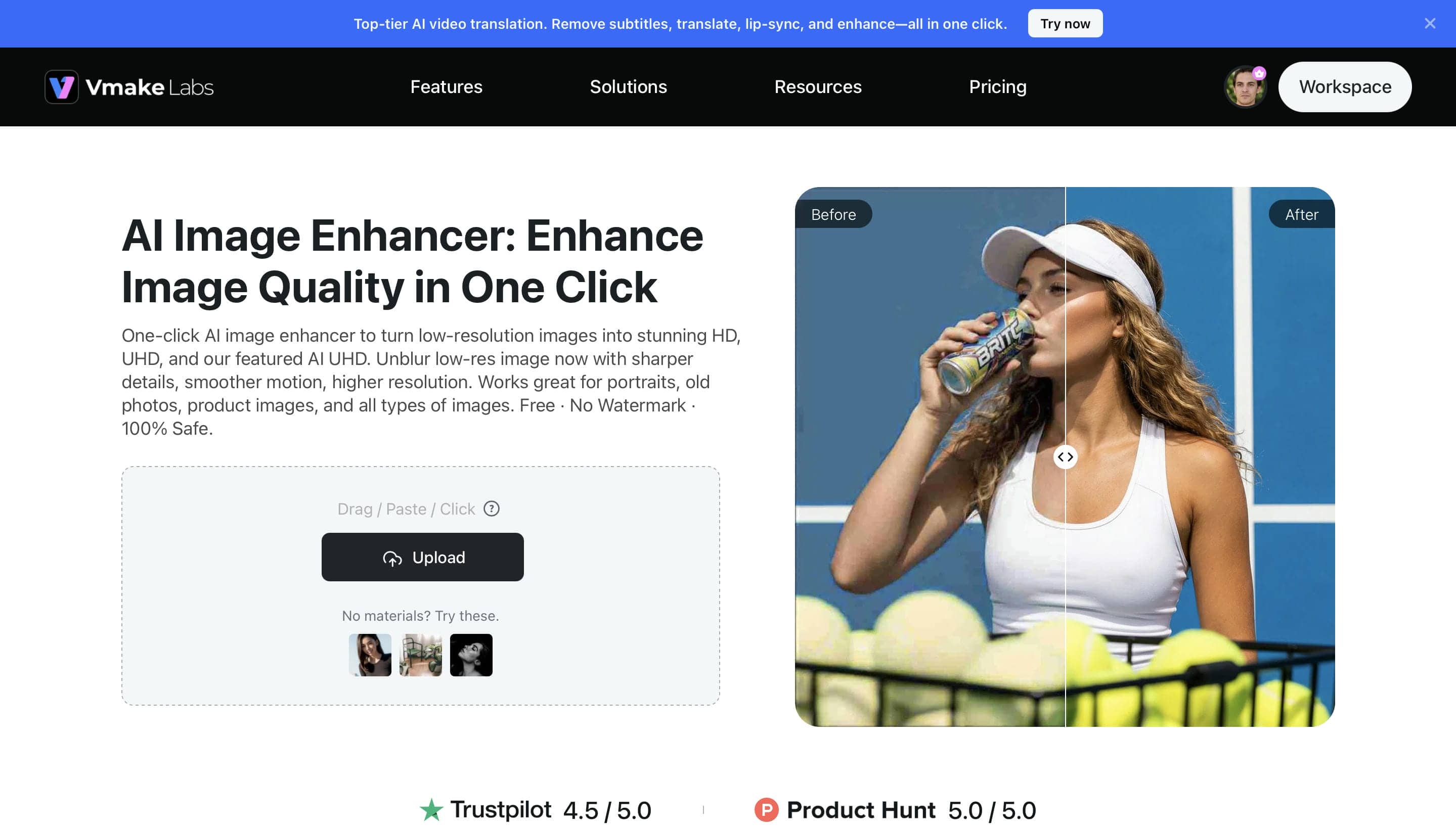
Key features of Vmake Labs AI image enhancer
-
Self-developed AI repair model: Vmake Labs uses its proprietary AI repair model to restore blurry, compressed, AI-generated, or damaged images with high accuracy while preserving important visual details. This helps users recover low-quality images quickly, reducing the need for time-consuming manual editing and making old or damaged photos usable again.
-
AI-powered image enhancement: AI-powered enhancement automatically sharpens images, reduces noise, and improves overall clarity with a single click. This allows creators, marketers, and businesses to enhance images in seconds while maintaining consistent quality across multiple projects.
-
Clarity enhancement and Scene Mode: Users can fine-tune image clarity and choose from different Scene Modes to optimize enhancement for portraits, products, landscapes, and other photo types. These options simplify the editing process by automatically applying settings suited to different scenarios, helping users achieve more natural-looking results without manual adjustments.
-
Intelligent image restoration: Vmake Labs restores pixelated, blurry, compressed, or damaged photos while preserving natural colours, textures, and fine details. This makes it easier to improve old photographs, low-resolution images, and compressed files for social media, ecommerce, or professional use without sacrificing image quality.
-
Efficient batch image processing: The platform supports batch enhancement of up to 30 images in a single session, allowing multiple files to be processed simultaneously. This significantly reduces editing time for photographers, ecommerce sellers, and content creators who need to enhance large collections of images while maintaining consistent results.
-
Versatile enhancement for multiple scenarios: Vmake Labs enhances a wide range of image types, including portraits, product photos, landscapes, AI-generated artwork, and social media visuals through a browser-based workflow. Its versatility enables users to manage different enhancement tasks within a single platform, streamlining creative workflows and improving productivity without switching between multiple editing tools.
Steps to enhance images using Vmake Labs
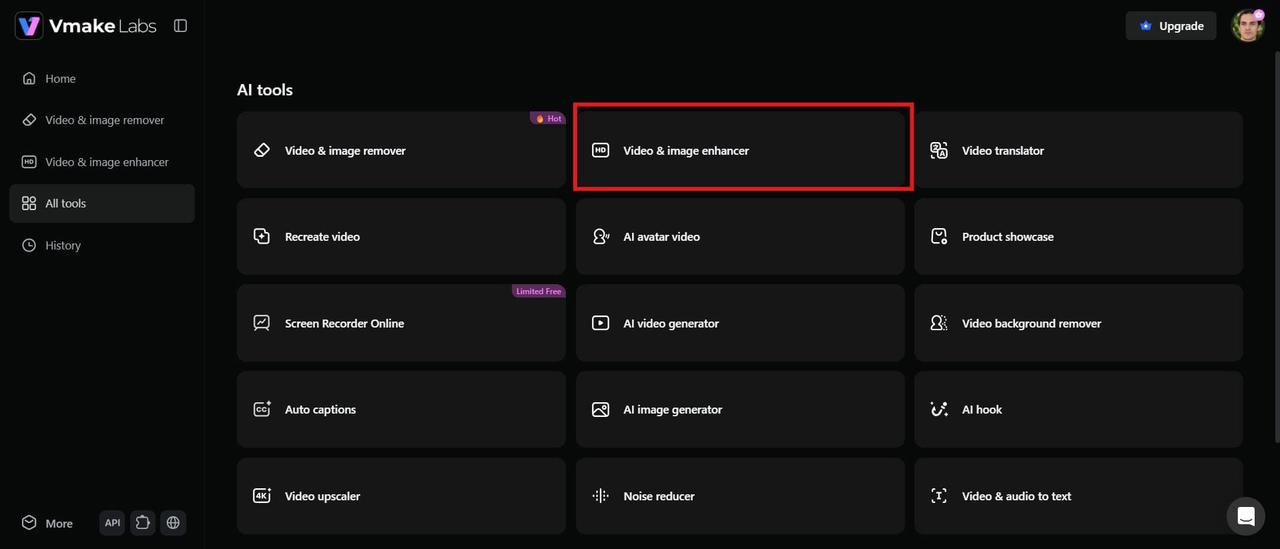
Step 1: Open the Vmake Labs AI image enhancer
Start by visiting the Vmake Labs AI Image Enhancer page and accessing the online tool. The simple browser-based interface allows you to begin enhancing images without downloading any software.
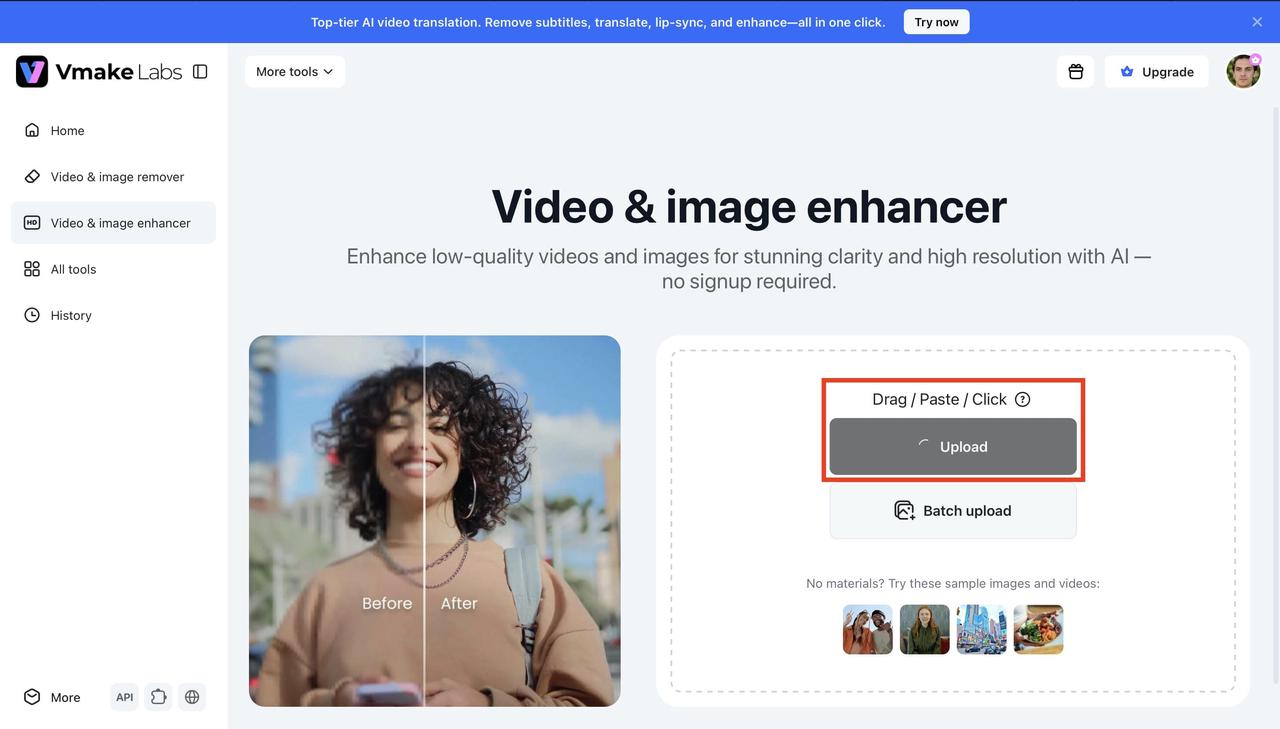
Step 2: Upload your image
Upload the photo you want to enhance and let the AI system analyze its quality. Vmake Labs automatically processes the image to improve clarity, details, and overall visual appearance.
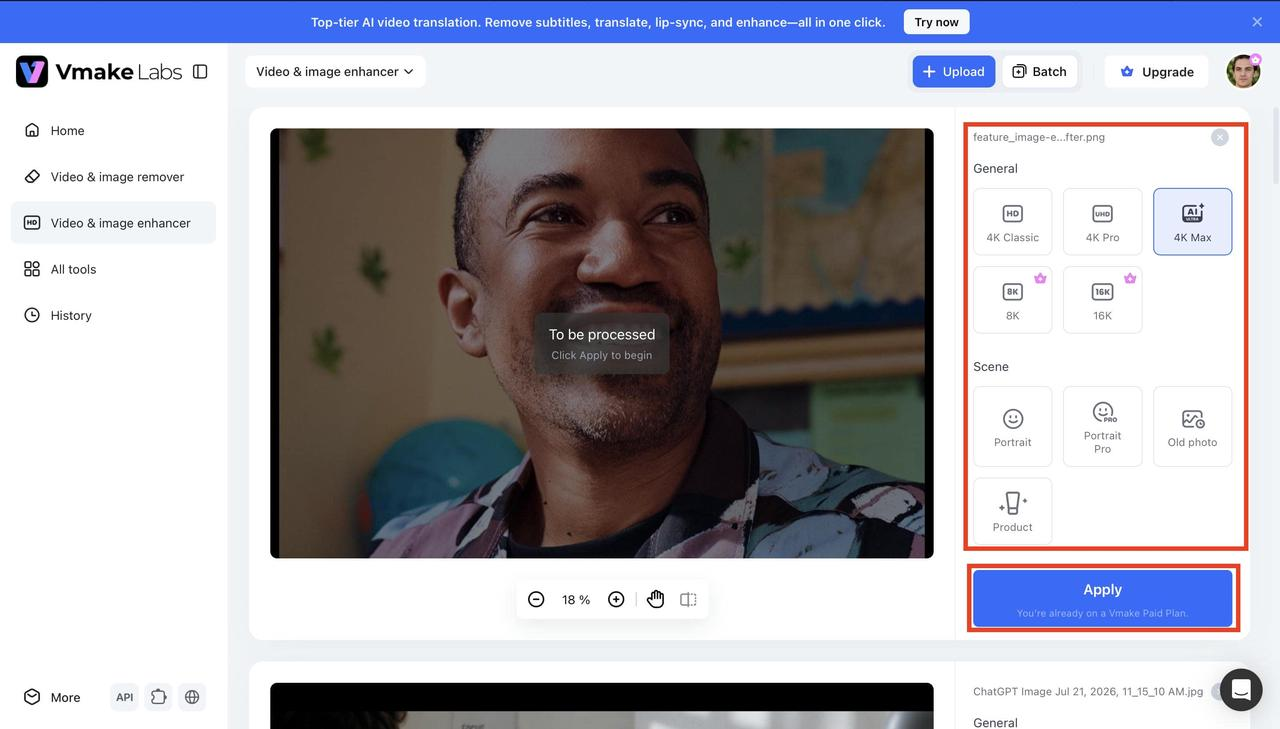
Step 3: Choose an enhancement model
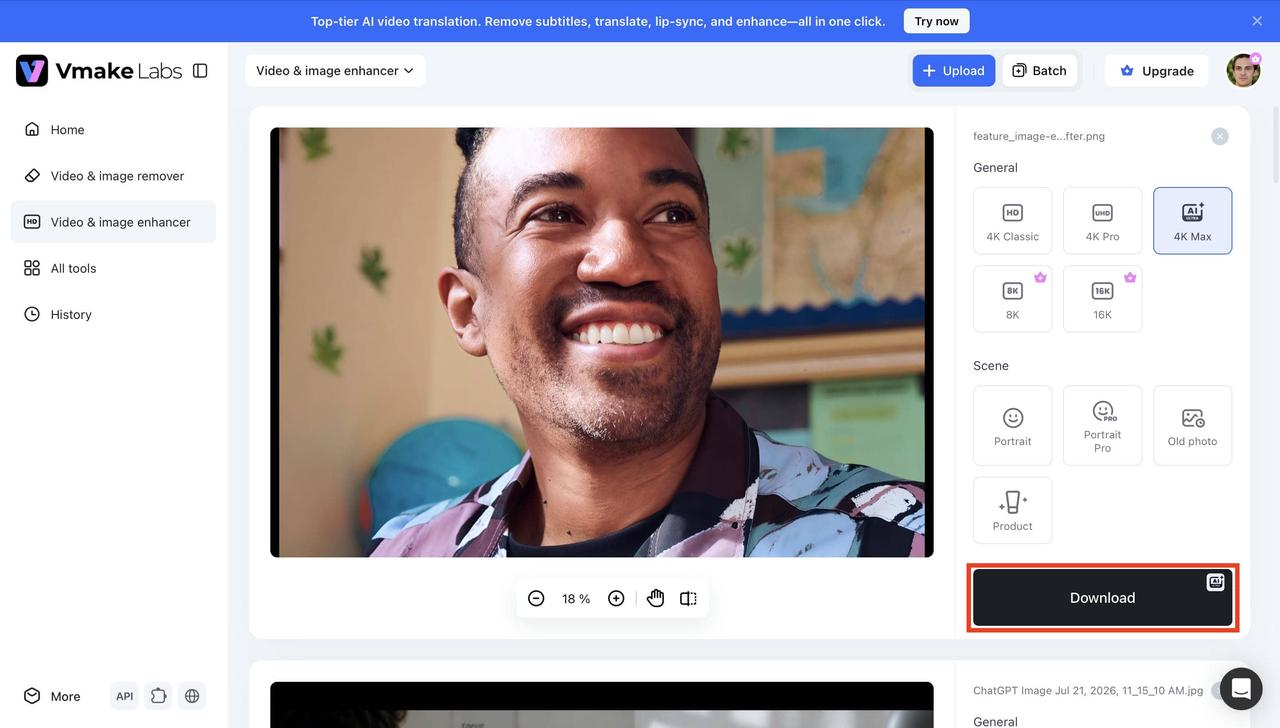
Select the enhancement mode that best matches your image, such as 4K Classic, 4K Pro, 4K Max, 8K, 16K, Portrait, Portrait Pro, Old Photo, or Product. After choosing the appropriate mode, click Apply to let the AI process your image.
Step 4: Download the enhanced image
After the enhancement process is complete, preview the improved image and check the results. Once satisfied, download the enhanced version with improved sharpness and image quality.
Picsart image enhancer vs Vmake Labs AI image enhancer
Both Picsart Image Enhancer and Vmake Labs AI Image Enhancer utilize artificial intelligence to enhance the quality of photos but serve different needs of users. Picsart is built for quick edits and creative editing, so it's a good bet for everyday users. Vmake Labs provides even more advanced AI-powered restoration, resolution options and professional enhancement features for creators, businesses and high quality visual workflows. Here, we highlight their key differences to help you choose the right one.
|
Feature |
Picsart Image Enhancer |
Vmake Labs AI image enhancer |
|---|---|---|
|
Platform |
Web, Mobile & Desktop |
Browser-based |
|
AI Enhancement |
AI-powered enhancement |
AI-powered image enhancement with multiple enhancement modes |
|
Resolution Options |
Standard enhancement |
HD, UHD, AI UHD, 8K, and 16K output options |
|
Enhancement Modes |
General enhancement |
Portrait, Portrait Pro, Old Photo, Product |
|
Image Upscaling |
Supported |
AI upscaling with detail preservation |
|
Image Sharpening |
AI sharpening |
AI sharpening with artifact correction |
|
Old Photo Enhancement |
Supports low-quality images |
Dedicated Old Photo enhancement mode |
|
Product Photo Enhancement |
General enhancement |
Dedicated Product enhancement mode |
|
Image Upload |
Upload images from device |
Upload single or multiple images for enhancement |
|
Batch Processing |
Limited |
Supports batch enhancement for up to 30 images |
|
Ease of use |
Beginner-friendly |
One-click browser-based workflow |
|
Processing Speed |
Cloud-based |
Fast cloud-based AI |
|
Free Version |
Limited free features |
Free with premium options |
|
Export Quality |
High-quality export |
High-quality export with selectable resolution options |
|
Best For |
General photo enhancement |
Portraits, product photos, old photos, high-resolution enhancement, and batch processing |
Which tool should you choose?
Choosing between Picsart Image Enhancer and Vmake Labs AI Image Enhancer depends on your image quality needs, editing goals, and workflow requirements.
Choose Picsart Image Enhancer if...
-
You want quick and simple photo improvements: Picsart is a good choice if you need a beginner-friendly tool for improving everyday photos, social media images, and personal projects with minimal effort.
-
You need creative editing features: If you want image enhancement along with additional filters, design elements, and creative editing options, Picsart provides a wide range of tools on one platform.
-
You prefer mobile-friendly editing: Picsart works well for users who want to enhance images directly from mobile devices without using complex editing software.
Choose Vmake Labs AI Image Enhancer if...
-
You need advanced AI image restoration: Vmake Labs is suitable for users working with blurry, compressed, pixelated, or low-quality images that require professional-level enhancement and detail recovery.
-
You require high-resolution image output: If you need improved image quality for professional use, Vmake Labs provides advanced resolution options, including HD, UHD, AI UHD, 8K, and 16K enhancement capabilities.
-
You process multiple images regularly: Photographers, ecommerce businesses, marketers, and content creators can benefit from batch processing support to enhance multiple images efficiently while maintaining consistent quality.
-
You need specialized enhancement workflows: Vmake Labs comes with specialized AI enhancement features for various images like portraits, product photos, old images, and creative images, which makes it a better choice for professional image enhancement needs.
Conclusion
AI image upscalers are simple to operate and don't demand complex editing skills to generate quality images. Picsart Image Enhancer is great for quick edits, creative projects, and everyday enhancements. Vmake Labs AI Image Enhancer is the best choice for advanced restoration, professional results, and efficient workflows. Vmake uses powerful AI technology and versatile enhancement options to help creators, photographers, and businesses improve image quality and also facilitates tasks such as photo restoration. The best tool for you depends on what you’re trying to edit, what the image needs, and how much enhancement you need.
FAQs
Is Picsart image enhancer free to use?
Picsart Image Enhancer offers free access with limited features and credits. Users can improve their photos without paying, while premium plans unlock additional AI tools, advanced editing features, and higher usage limits for more frequent enhancement needs.
How do I enhance image quality with Picsart AI image enhancer?
To enhance image quality with Picsart, upload your photo, let the AI system process the image, review the improved result, and download the final version. The tool automatically adjusts sharpness, clarity, and overall visual quality.
Can Vmake Labs improve blurry or low-quality images?
Yes, Vmake Labs AI Image Enhancer can improve blurry, pixelated, compressed, and low-quality images using advanced AI restoration technology. It enhances details while maintaining natural textures and colors, making it useful for tasks like removing objects from photo workflows and professional image editing.
Does Picsart AI image enhancer upscale image resolution?
Yes, Picsart supports AI-powered image upscaling to improve resolution and image quality. However, users who need advanced output options, such as higher-resolution enhancement and professional image processing, may prefer dedicated AI enhancement platforms.
Which AI image enhancer provides better results?
The better option depends on your editing requirements. Picsart is suitable for quick creative edits, while Vmake Labs provides advanced enhancement features for professional restoration, product visuals, and high-quality content creation.
Is Vmake Labs AI image enhancer a good alternative to Picsart image enhancer?
Yes, Vmake Labs is a strong alternative for users who need professional AI image enhancement, restoration capabilities, and flexible output options. It helps creators, photographers, and businesses maintain consistent visual quality while managing large-scale image workflows using features such as HD photo converter support.

You May Be Interested
2026 Topaz Labs Video Enhancer: Hands-On Review
Best AI Image Upscaler Tools in 2026: Upscale Images to 4K, 8K & Beyond

Airbrush Video Enhancer Review 2026: Features, Pros, and Cons
Best AI Image Enhancer in 2026: Top Tools to Upscale and Fix Blurry Images
Best AI Photo Enhancer Tools in 2026 (Free & Online): Improve Image Quality Instantly