How to Restore Blurry Old Photos on Your Phone: A Complete Guide
Wondering how to restore blurry old photos on phone? Uncover top mobile editing techniques and quick AI enhancers, such as Vmake Labs image enhancer, to sharpen, unblur, and colorize legacy prints.

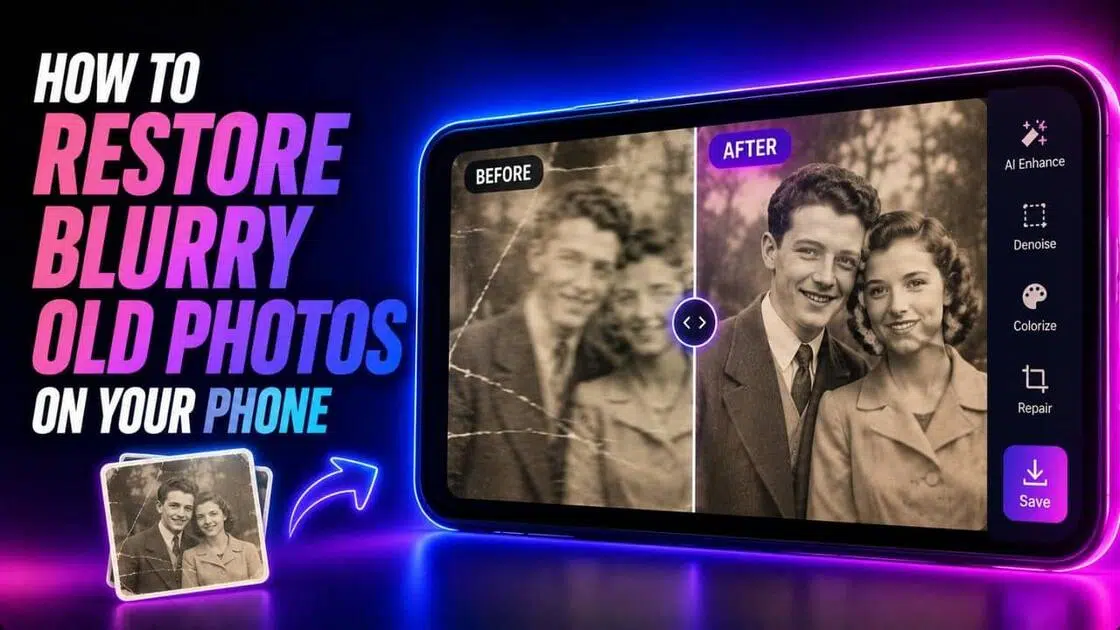
Old photographs preserve meaningful memories, but years of storage, repeated handling, and outdated imaging technology often leave them blurry or faded. Fortunately, modern smartphones and AI-powered restoration tools make it easier to improve image clarity without professional editing skills. This "how to restore blurry old photos on phone" guide explains why old photos lose quality, why restoration matters, and how to restore blurry old photos manually or with AI using Vmake Labs.
Why do old photos become blurry?
Old photographs can lose sharpness for several reasons before or after they are digitized. Understanding these common causes helps you choose the most suitable restoration method.
-
Camera focus issues and motion blur during original capture
Many vintage cameras relied on manual focus or slower shutter speeds. Slight camera movement or subject motion during capture often produces permanently blurred photos, especially in low-light environments.
-
Age-related physical degradation, fading, and discoloration
Paper photographs naturally deteriorate over time. Exposure to sunlight, humidity, oxidation, and frequent handling gradually softens image details while causing fading, discoloration, and reduced overall sharpness.
-
Low resolution and sensor limitations of vintage cameras
Older film cameras and early digital cameras captured less image detail than modern devices. Limited resolution makes enlarged or scanned photos appear softer and blurrier on today's high-resolution displays.
-
Compression and quality loss during digital scanning
Improper scanning settings, excessive jpeg compression, or repeated file saving can reduce image quality. These processes often introduce blur, artifacts, and detail loss beyond the original photograph.
-
Environmental damage from moisture, dust, and scratches
Long-term storage exposes photographs to dust, mold, moisture, fingerprints, and scratches. These physical imperfections reduce image clarity and make old memories appear less detailed and visually appealing.
How to restore blurry old photos manually on your phone?
If you prefer not to use AI, most smartphones include built-in photo editing tools that can slightly improve blurry old images. While manual image editing cannot recover missing details, it can enhance sharpness, brightness, and overall appearance.
Step 1: Import the old blurred photo and tweak sharpness
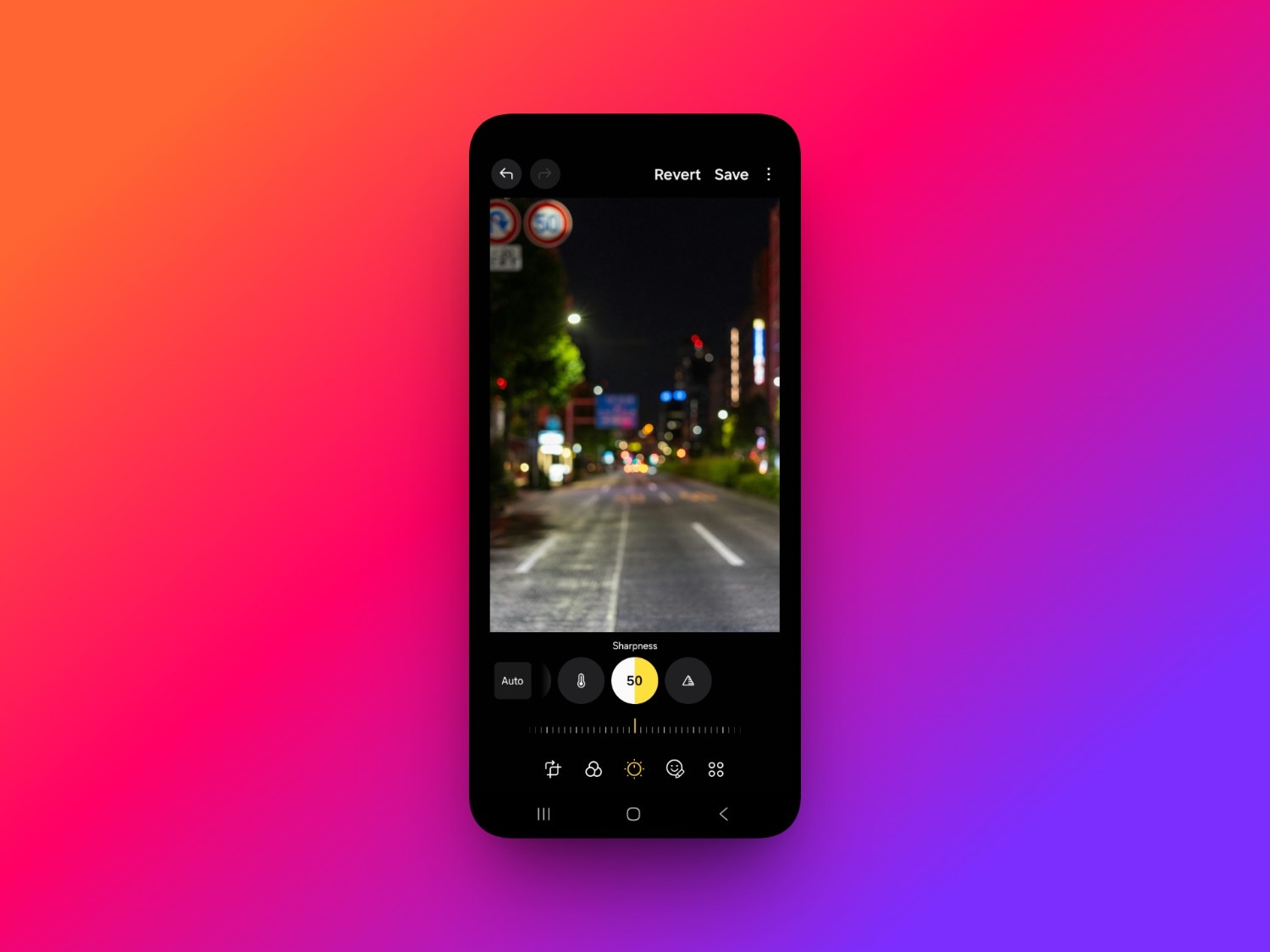
Start your journey by first accessing your blurred photo, from your phone's gallery. Proceed to open the photo, and then access the image editing options. Here, you will be able to edit your blurred photo in a variety of different ways. Start by first increasing the photo's "Sharpness".
Step 2: Tweak the brightness and contrast levels
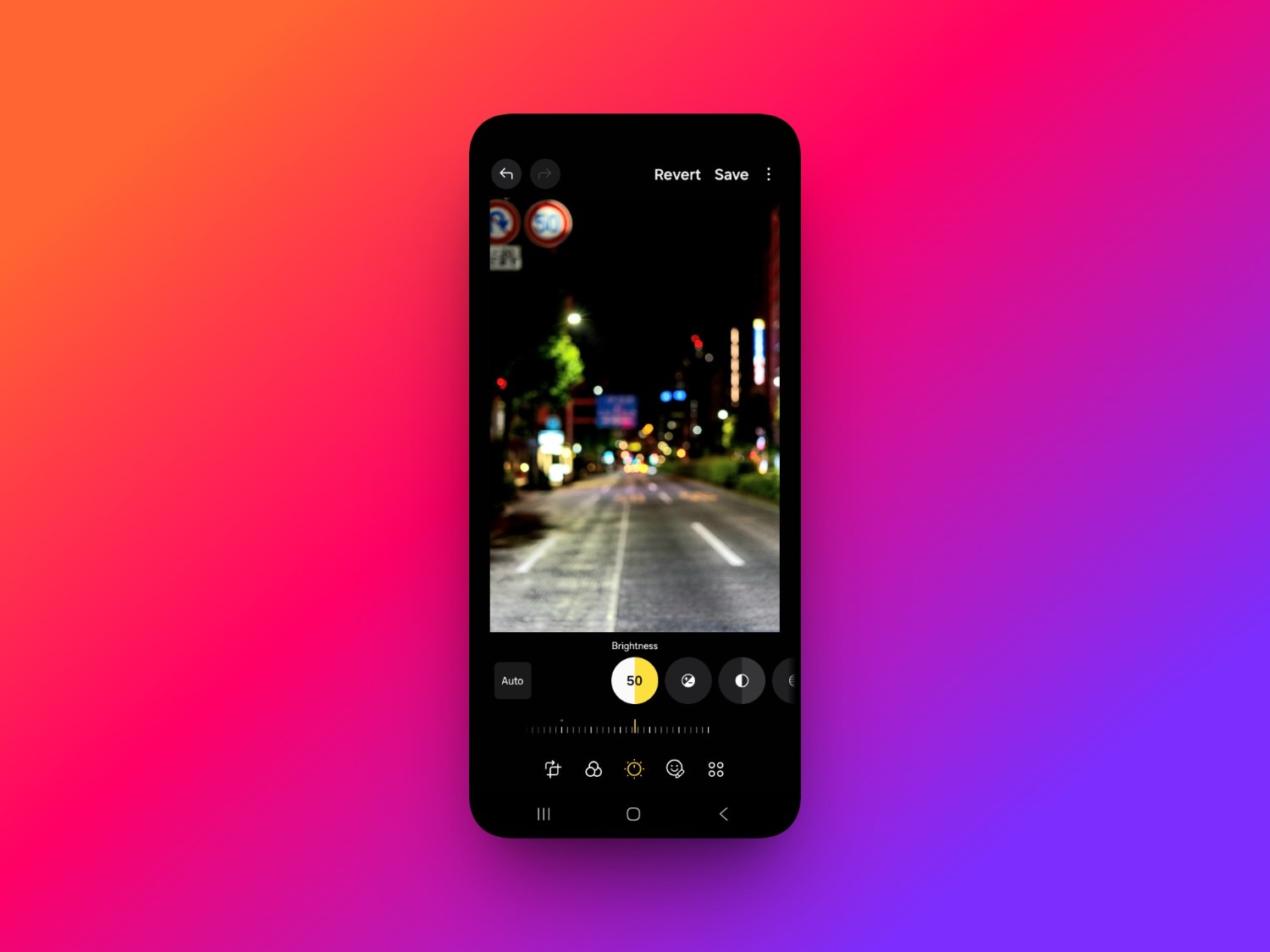
After enhancing the sharpness of the photo, you then need to increase its "Contrast" and "Brightness". Keep in mind that for the best results, it is better to keep the values at 50% or lower. Contrast will help prioritize blacks and colors, while brightness will help show the subject a bit more effectively.
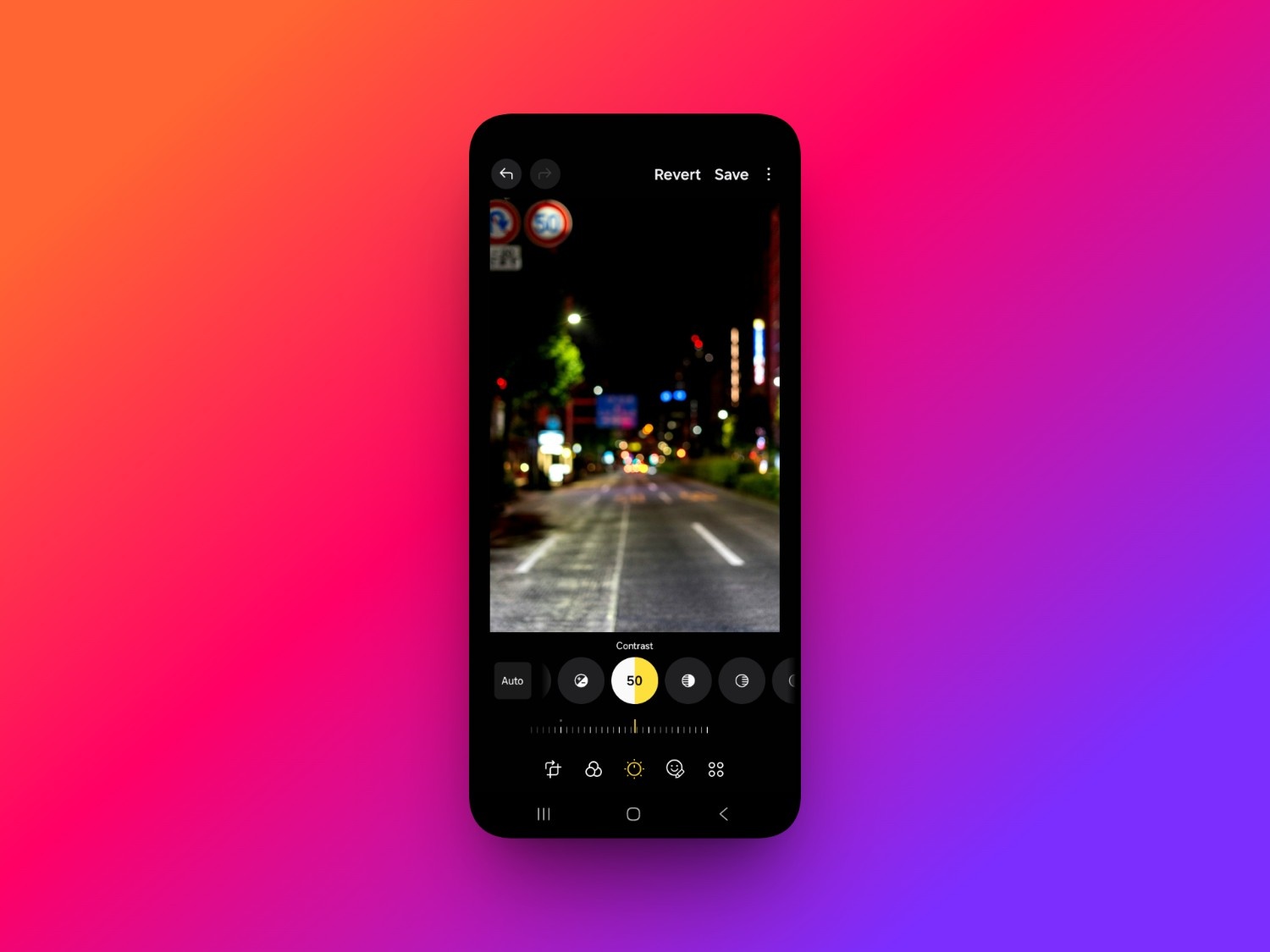
Step 3: Export your enhanced image
After manually enhancing your blurred photo, simply click on "Save" and your edits will be saved on the main file. However, if you want to export the edited file without destroying the original photo, click on the "Save a copy" option.
Manual restore vs AI restore: a simple comparison
Both manual editing and AI restoration can improve old photographs, but they differ in effort, capabilities, and final results. The comparison below highlights the key differences.
|
Comparison |
Manual Restore |
AI Restore |
|---|---|---|
|
Ease of use |
Requires manually adjusting multiple editing settings to improve the photo, making the process slower for beginners. |
Automatically analyzes and enhances images with minimal user input, making restoration quick and beginner-friendly. |
|
Restoration quality |
Improves visible sharpness but cannot realistically reconstruct missing facial details or severely blurred areas. |
AI intelligently restores fine details, improves clarity, and enhances overall image quality more naturally. |
|
Scratch removal |
Surface scratches, dust, and tears usually require careful manual retouching or multiple editing apps. |
AI can automatically detect and reduce scratches, dust marks, and other common photo imperfections. |
|
Time required |
Each image may require several minutes of editing depending on its condition and your experience. |
Most photos are enhanced within seconds using automated AI processing. |
|
Skill level |
Requires familiarity with editing tools and image adjustments to achieve balanced results. |
Suitable for users of all experience levels with little to no photo editing knowledge. |
How to restore blurry old photos using Vmake Labs?
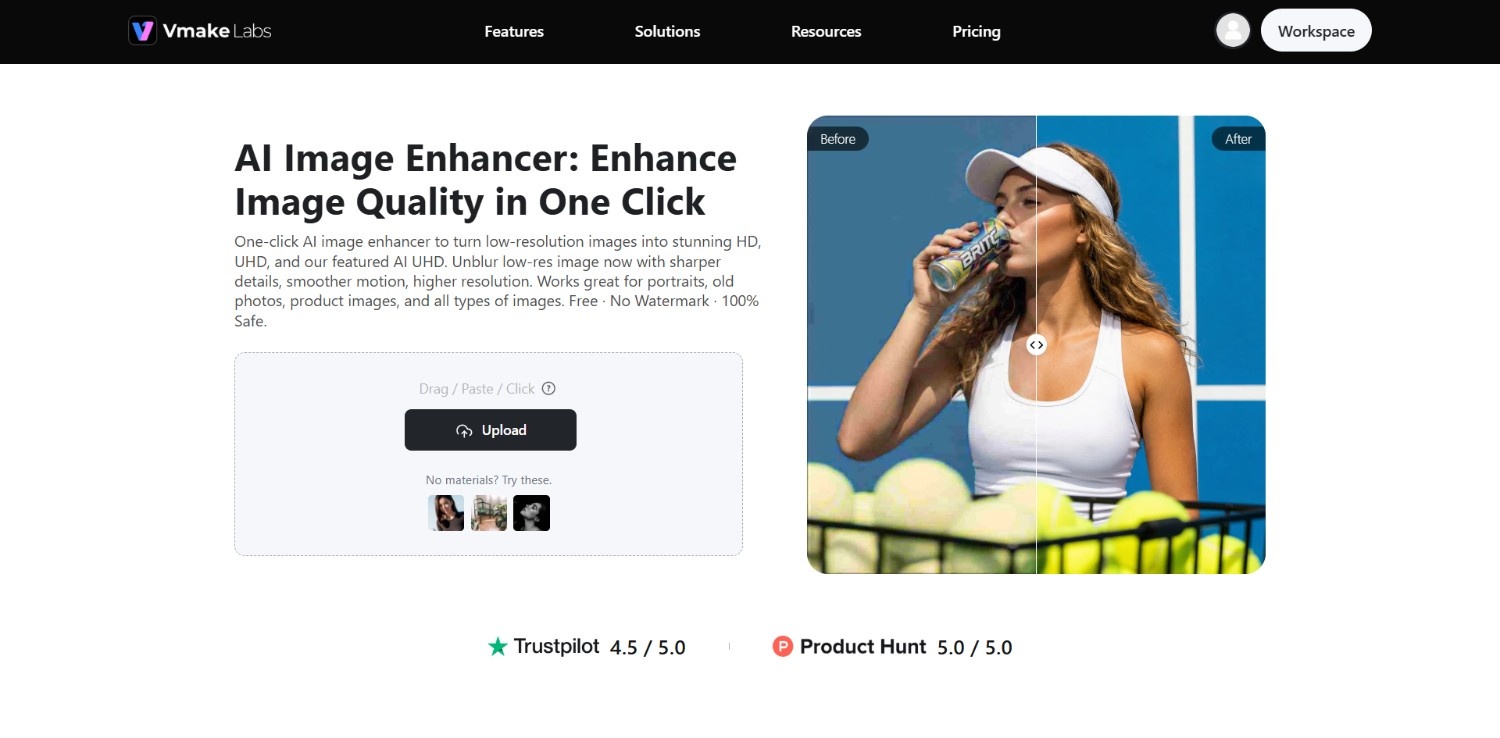
Manual editing works well for minor improvements, but restoring heavily blurred, scratched, or faded photographs often requires more advanced technology. Vmake Labs Image Enhancer uses AI to analyze damaged images and automatically enhance clarity, repair imperfections, and improve overall quality in just a few steps.
Instead of manually adjusting multiple editing sliders, users can upload an old photo and let AI perform tasks such as sharpening details, reducing scratches, restoring facial features, and increasing resolution. Since Vmake Labs works directly in a web browser, you can restore blurry old photos on your phone without installing professional photo editing software.
Features of Vmake Labs image enhancer
-
Restore precious memories in minutes
Instead of spending time adjusting multiple editing settings, quickly restore blurry old photos on your phone and preserve meaningful family memories with minimal effort.
-
Improve clarity without editing experience
Skip the learning curve of professional photo editors. Vmake Labs automatically enhances blurry, faded, and damaged photos, making restoration simple for users of any skill level.
-
Create photos ready to print and share
Restore facial details, improve overall clarity, and produce high-quality images suitable for family albums, framed prints, cloud storage, or sharing across social media and messaging apps.
-
Save time with automatic AI enhancement
Rather than manually correcting sharpness, colors, and imperfections, let AI handle the restoration process so you can achieve polished results in just a few taps on your phone.
How to use Vmake Labs to unblur old photos?
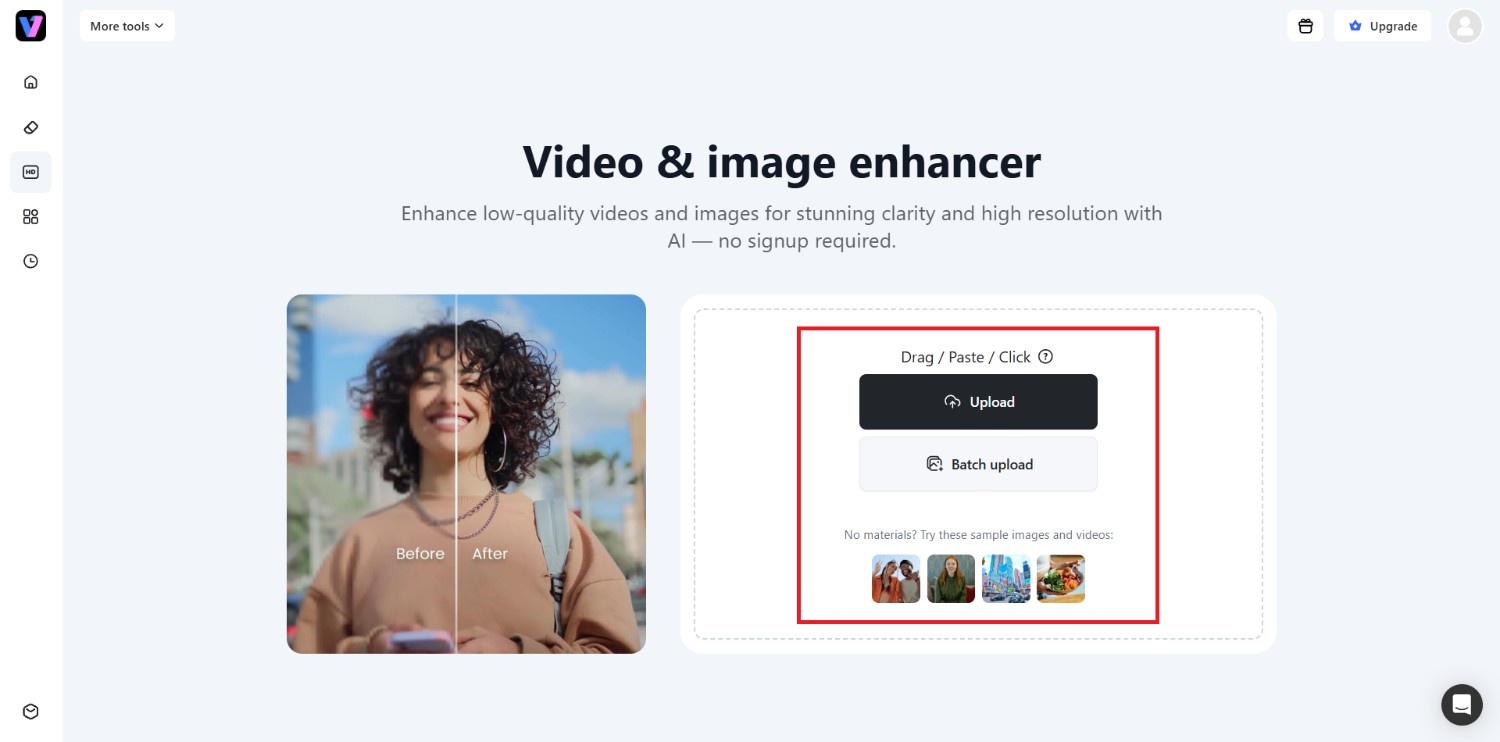
Step 1: Access Vmake Labs "Video & image enhancer" tool
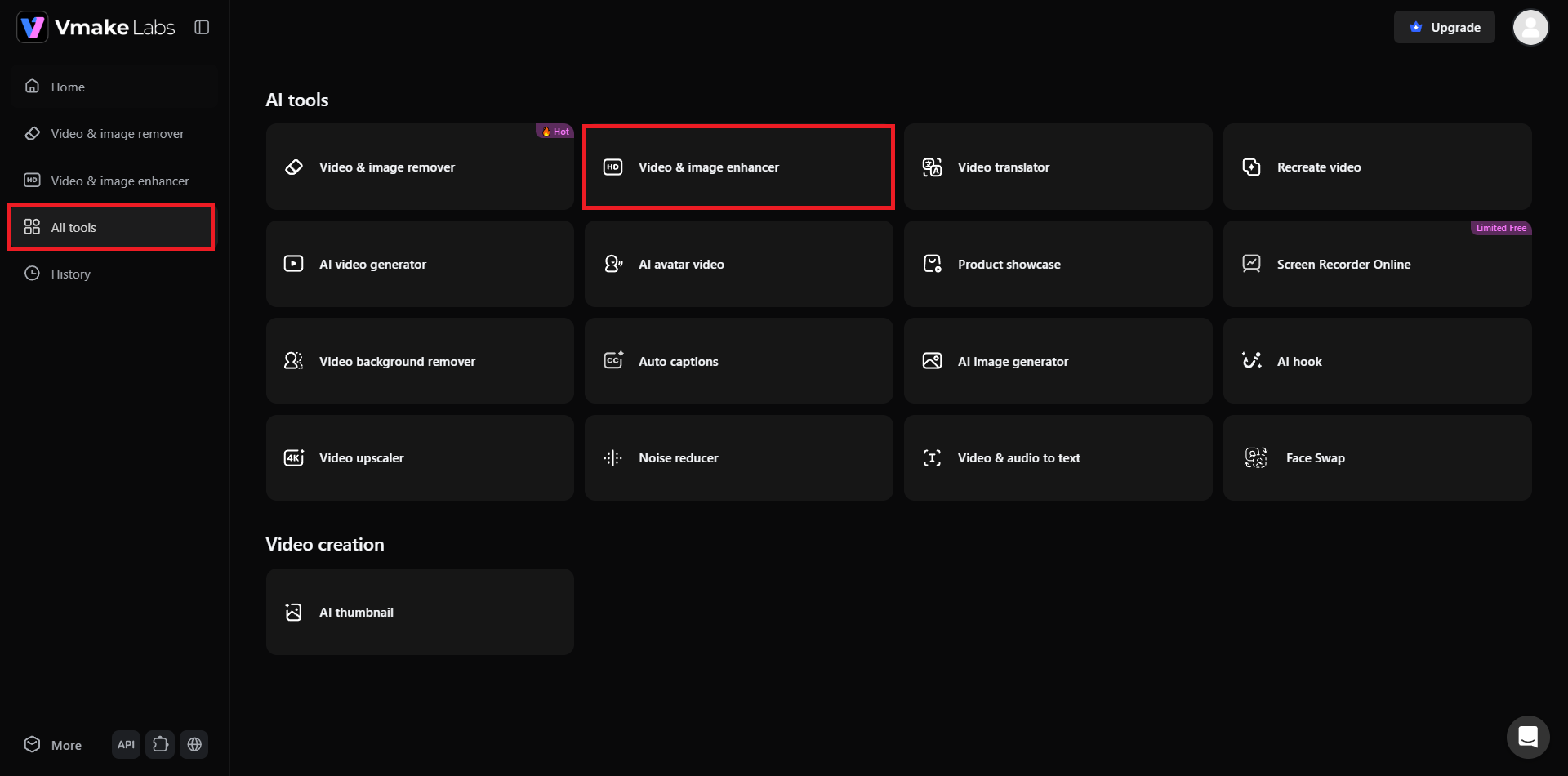
Start things off by first signing into your Vmake Labs account and then accessing the "All tools" section. From the "All tools" page, you will need to select the "Video & image enhancer" tool.
Step 2: Upload your blurred old photo or paste a web link
In the next step, you will need to upload your blurred photo, or even paste a link, so that Vmake Labs automatically extracts it. Additionally, there is also a "Batch upload" feature that allows you to upload and enhance multiple blurred photos at once.
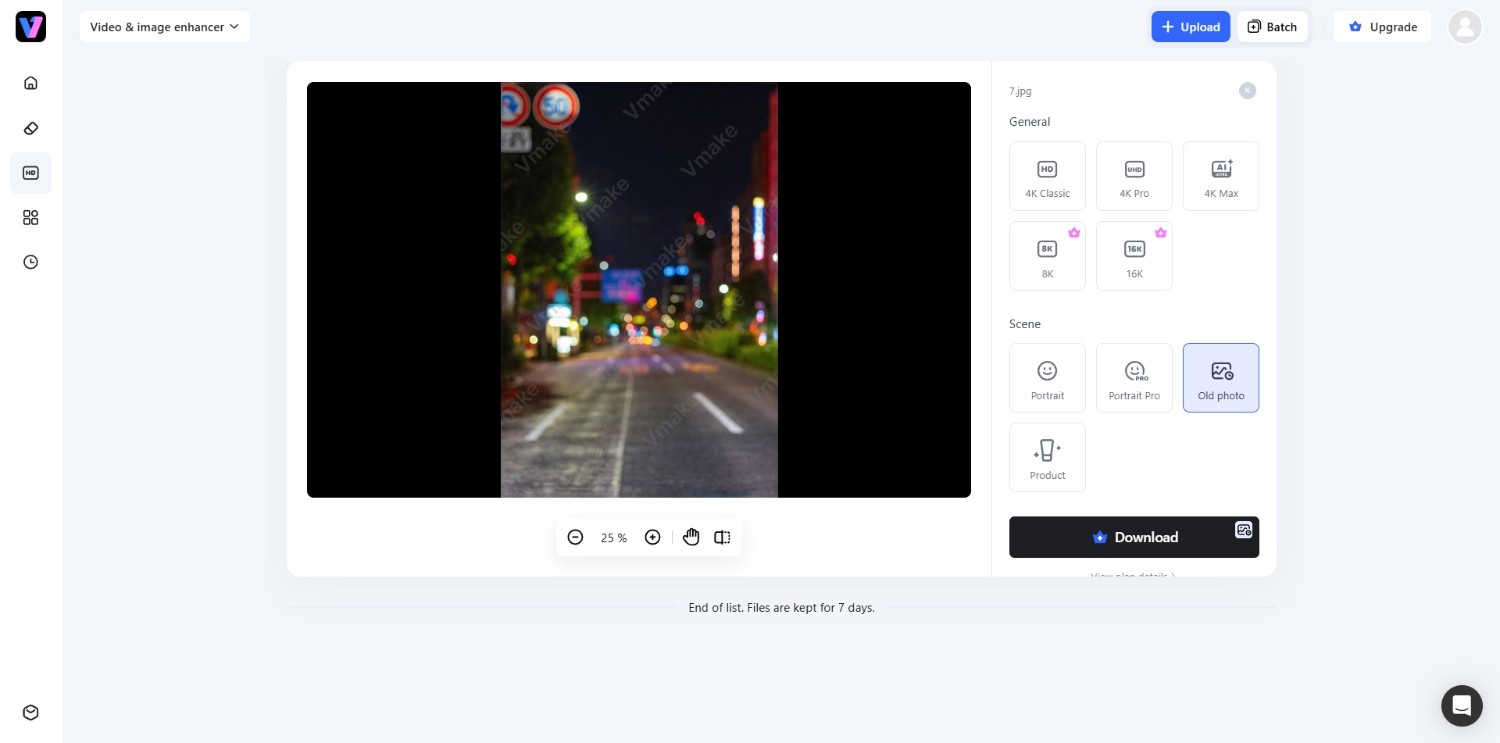
Step 3: Enhance your old blurred photo and download
After successfully uploading, you need to click on either of the options available under "General" or "Scene" monikers. For instance, since we are working with a blurred old photo, we used the "Scene > Old photo" option. Once done, hit "Apply".
Vmake Labs will enhance your image automatically and once that is completed, you can download it for use or sharing purposes.
Tips and tricks to follow when restoring blurry old photos
Following a few best practices before and during restoration can significantly improve the final result. These simple tips help preserve image quality while minimizing the risk of introducing new imperfections.
-
Photograph physical prints under even and glare-free lighting
If scanning isn't possible, photograph the print under soft, even lighting. Avoid direct sunlight, flash reflections, and shadows to capture the maximum amount of detail for restoration.
-
Always maintain an untouched original digital copy
Before making any edits, save a duplicate of the original scan or photo. Keeping an unedited version allows you to restart the restoration process without losing the source image.
-
Avoid over-sharpening to prevent visual artifacts and noise
Applying excessive sharpening can create halos, grain, and unnatural edges. Increase sharpness gradually and compare the edited image with the original to maintain a realistic appearance.
-
Combine colorization with sharpness adjustments for maximum clarity
When restoring black-and-white photos, apply colorization after improving sharpness. Combining both enhancements often produces clearer, more lifelike images while preserving important facial and background details.
Conclusion
The process of "how to restore blurry old photos on phone easily" no longer requires expensive software or professional editing skills. While your phone's built-in editing tools can improve brightness, contrast, and sharpness for minor imperfections, they have limited ability to recover missing details or repair physical damage.
AI-powered solutions such as Vmake Labs simplify the process by automatically enhancing clarity, reducing scratches, restoring facial details, and upscaling image quality with minimal effort. Whether you're preserving treasured family memories, creating digital archives, or preparing photos for printing and sharing, choosing the right restoration method helps bring your old photographs back to life while protecting them for future generations.
Frequently Asked Questions (FAQs)
-
Can AI completely repair heavily blurred or physically torn photos?
AI can significantly improve many blurry, faded, or scratched photos by reconstructing missing details and reducing visible damage. However, restoration quality depends on the original image condition, and severely damaged areas may not be fully recoverable.
-
Is scanning an old photo better than taking a smartphone photo of it?
Yes. A high-resolution scan usually captures more detail and produces consistent lighting. However, a smartphone photo taken under even and glare-free lighting can also provide good results for AI restoration.
-
Can I colorize a black-and-white old photo while unblurring it on my phone?
Yes. Many AI restoration tools, including Vmake Labs, can sharpen blurry images and add natural-looking color to black-and-white photographs, allowing you to perform both enhancements in a single workflow.
-
How long does it take to restore a blurry photo using Vmake Labs?
Most restorations take only a few seconds after the image is uploaded. Processing time may vary depending on the photo's resolution, file size, and the complexity of the restoration.
-
Will restoring an old photo reduce its original file resolution?
Not necessarily. AI restoration tools often preserve or even increase image resolution through upscaling, while manual editing generally maintains the original resolution unless you intentionally export the image at a lower quality.

You May Be Interested
How to Fix Blurry Photos in 2026: Best Tools to Sharpen Blurry Images
Best AI Image Upscaler Tools in 2026: Upscale Images to 4K, 8K & Beyond
Best AI Image Enhancer in 2026: Top Tools to Upscale and Fix Blurry Images
PhotoGrid AI Image Enhancer Review: Tested & Worth It?

Best AI Animation Generators for Creating Images and Videos