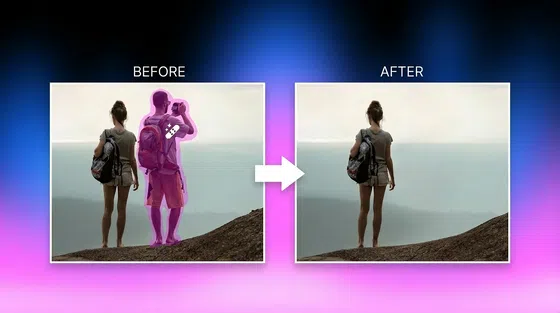
How to Remove People from Photos: Two Ways You Need to Know
Don't let unwanted tourists spoil your memories. Here is how to remove people from photos instantly and keep the focus on you. Get clean, perfect pictures now with Vmake Labs!
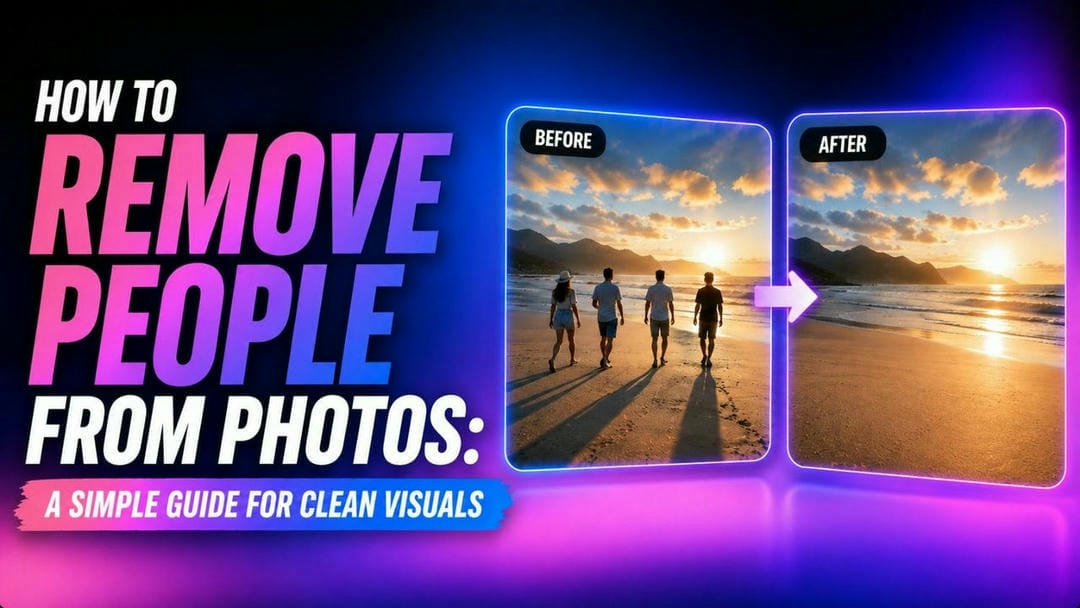
Capturing the perfect shot is often a matter of timing, but in busy public spaces, capturing a completely clear background is almost impossible. Whether it is a tourist blocking a scenic view or a random passerby interrupting a portrait, unwanted figures can easily ruin an otherwise great image. Fortunately, modern editing tools make removing people simple and accessible.
Why you might need to remove people from photos
While taking photos spontaneously captures a moment, unwanted subjects frequently compromise the shot's overall quality. Here are the primary reasons you might need to clean up your images.
-
Eliminating photobombers and visual clutter: A stunning landscape or a candid portrait can lose its appeal when cluttered with distracting elements. Removing accidental photobombers and background visual noise helps the viewers appreciate the scene exactly as you intended.
-
Keeping the focus on your main subject: Every photograph has a story to tell, which relies on a clear focal point. When background figures draw attention away from your main subject, the image's impact is diluted. Erasing these distractions ensures the viewer's eyes go exactly where they should.
-
Protecting the privacy of unsuspecting bystanders: Sharing images on social media or public portfolios sometimes raises privacy concerns for people captured in the background. Removing strangers from your personal photos is a respectful way to preserve their privacy.
-
Designing polished media assets for professional use: Commercial photography, web design, and marketing materials require clean, distraction-free imagery to look professional. Removing bystander traffic or unwanted figures keeps your brand professional.
How to remove people from photos using Adobe Photoshop?
For decades, Adobe Photoshop has been the industry standard for detailed photo editing. Here is how to erase things in Photoshop, especially people and objects:
Step 1: Import photo and duplicate layer
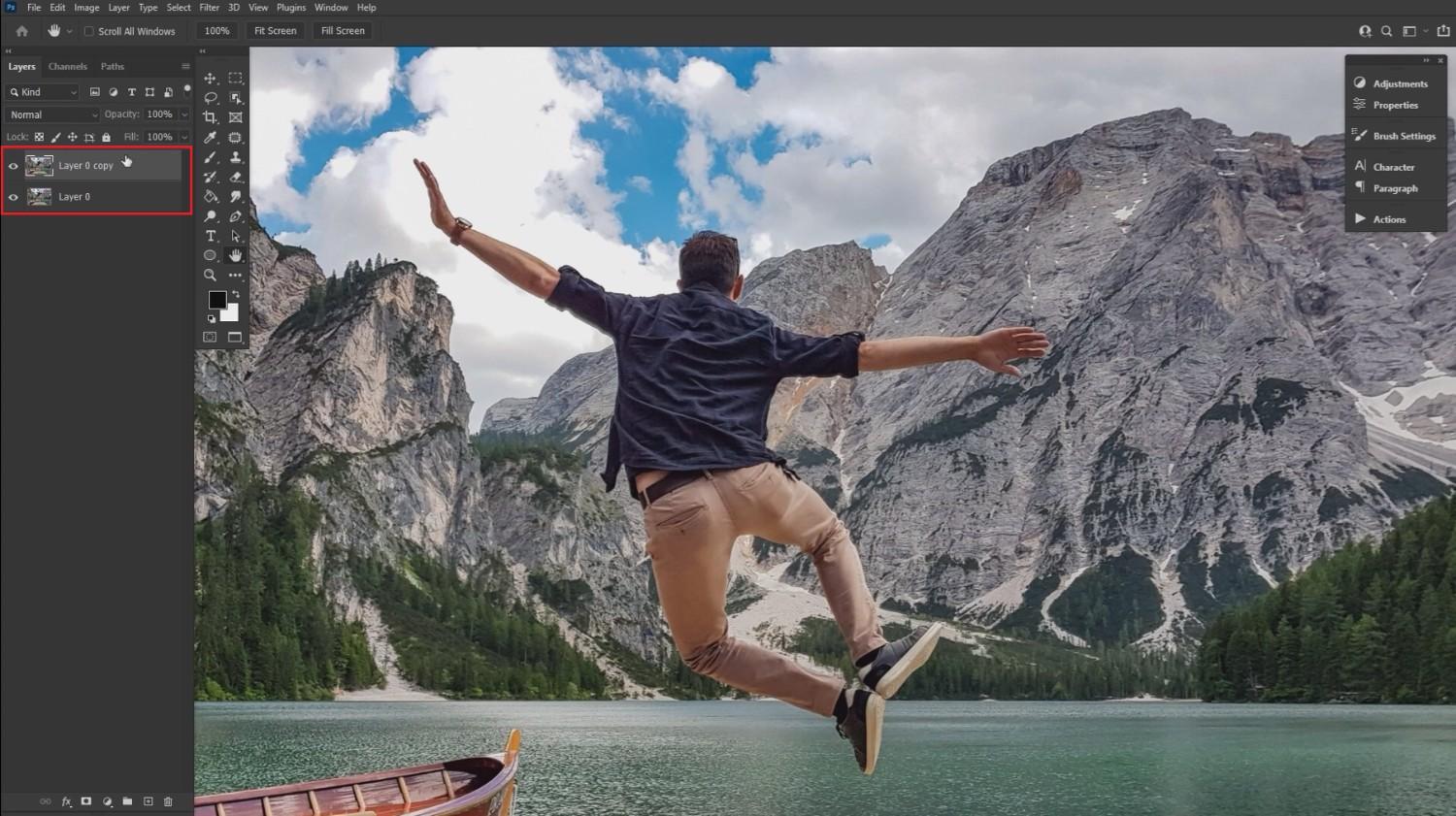
Start your journey by first launching Adobe Photoshop on your computer (Windows/Mac OS) and then importing your picture onto it. Once imported, duplicate the photo's layer, so that the original image remains intact.
Step 2: Use the lasso tool
After duplicating the layer, you need to select the duplicate layer and start editing. First, select the "Lasso" tool from your list of tool options, and then using your mouse pointer, select the people you want to remove from the photo. This will help you set the boundaries for auto-removal, without destroying the rest of the picture.
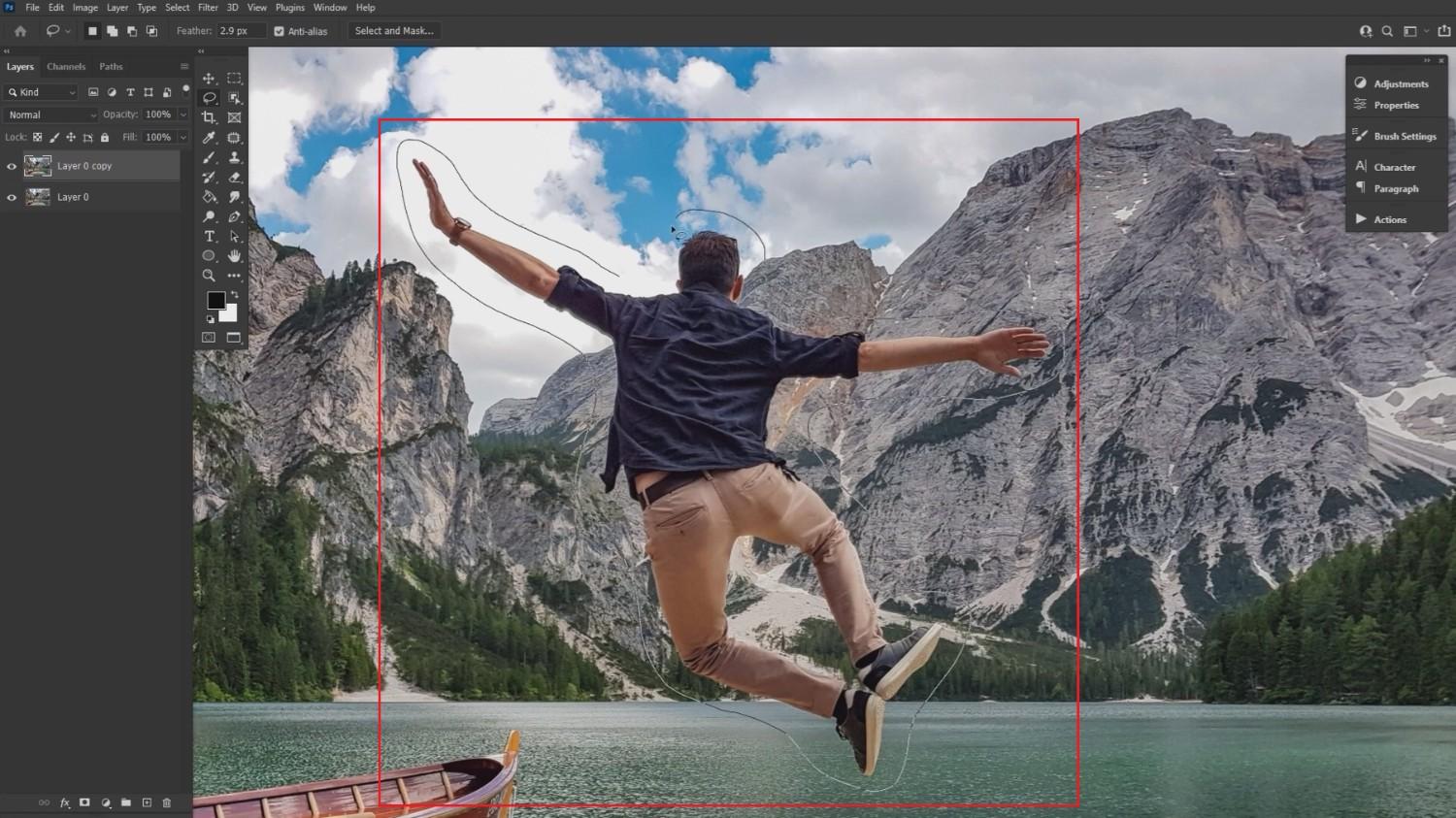
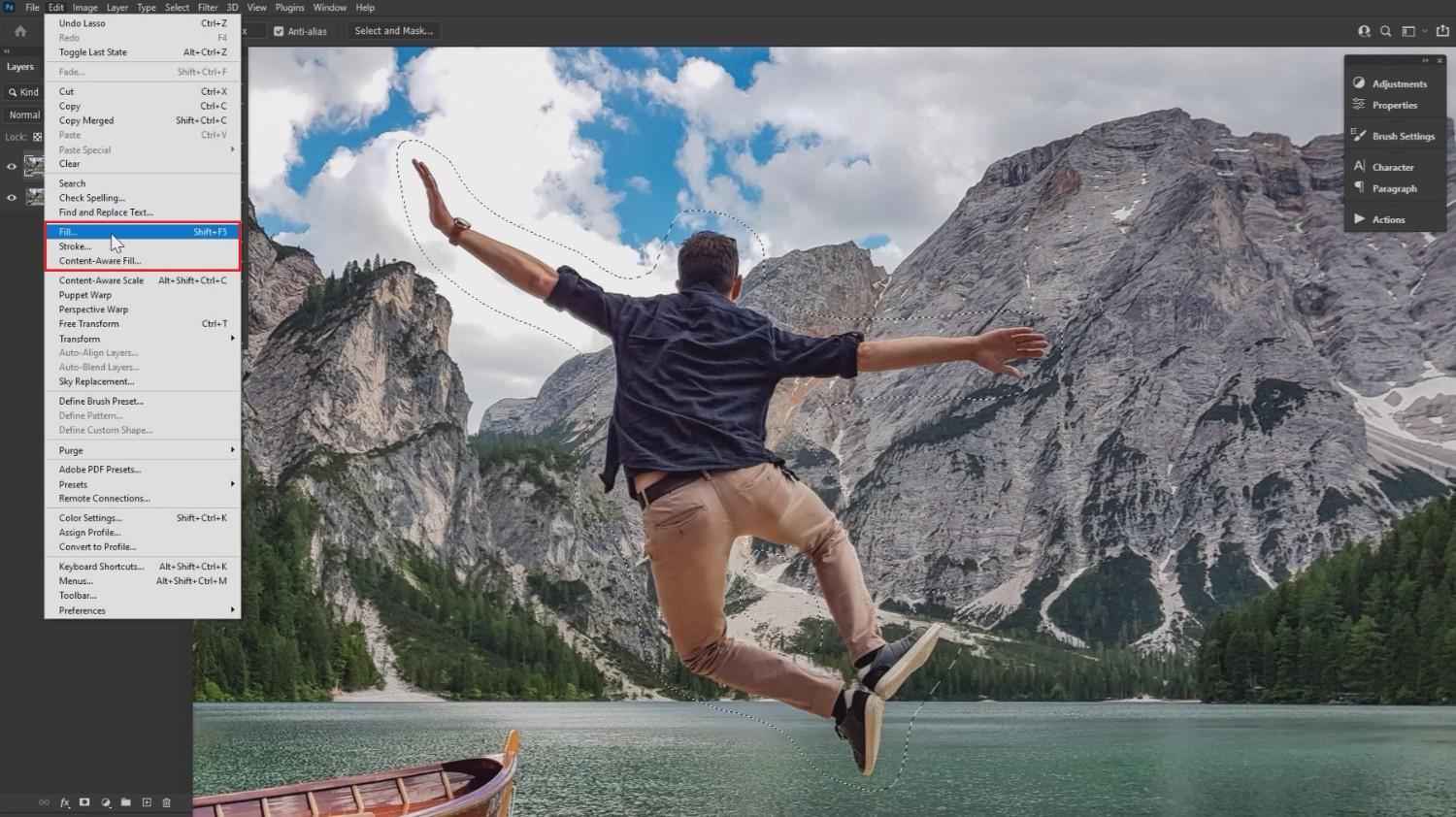
Step 3: Select the "Edit > Fill" option
After selecting the subject of removal using the lasso tool, you need to select the "Edit > Fill" option. This will help you to remove the subject or people from the photo, without disturbing the scenery background, or leaving any white spots after removal.
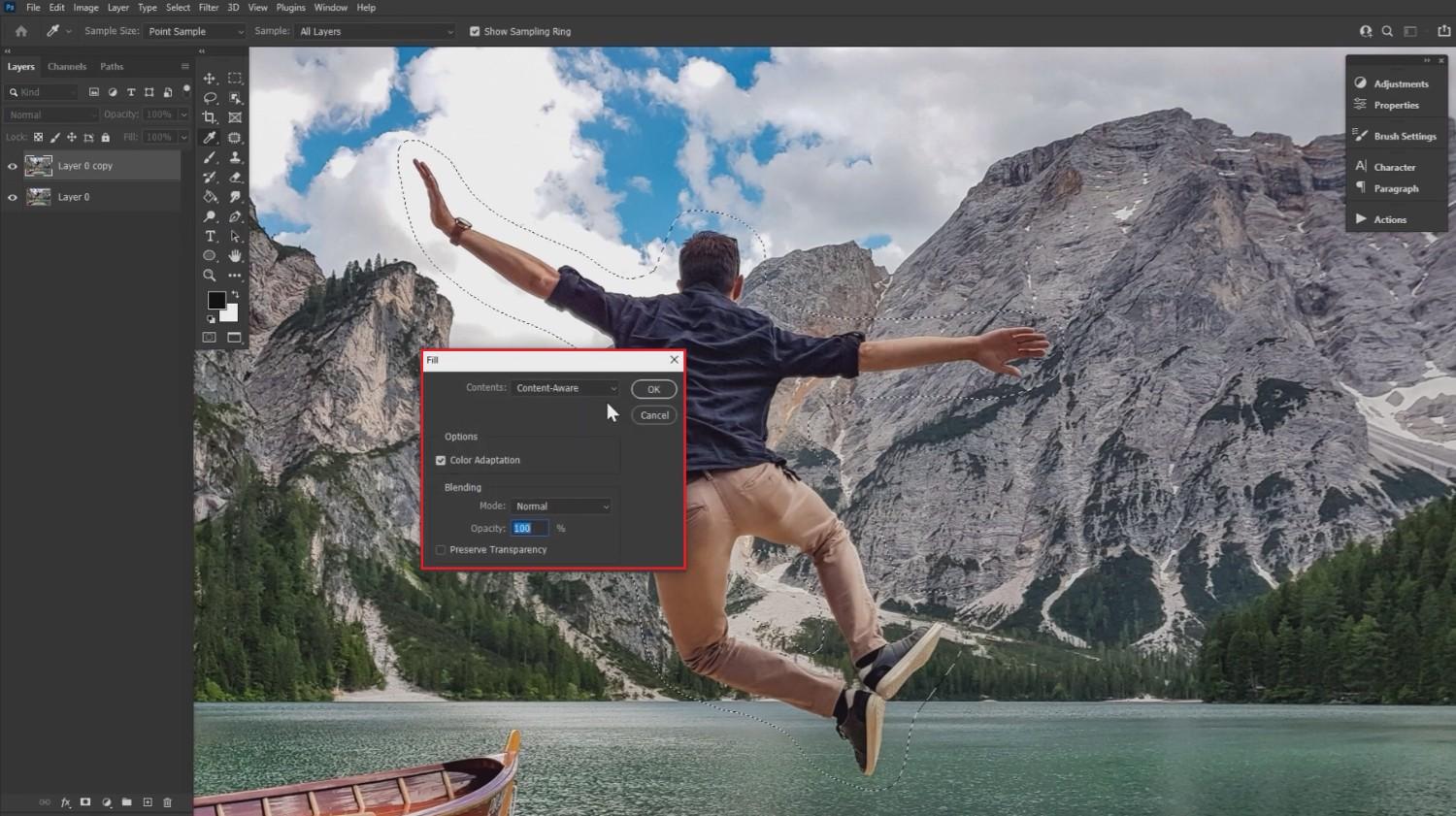
Step 4: Choose the "Content Aware" option
Once you select the "Fill" option, a dialog box will appear. Here, you need to select the "Content Aware" option, as well as check the "Color Adaptation" option. Additionally, keep the "Blending" mode normal and opacity at 100%. Also, uncheck "Preserve Transparency", unless you are working with logos, PNG assets, etc.
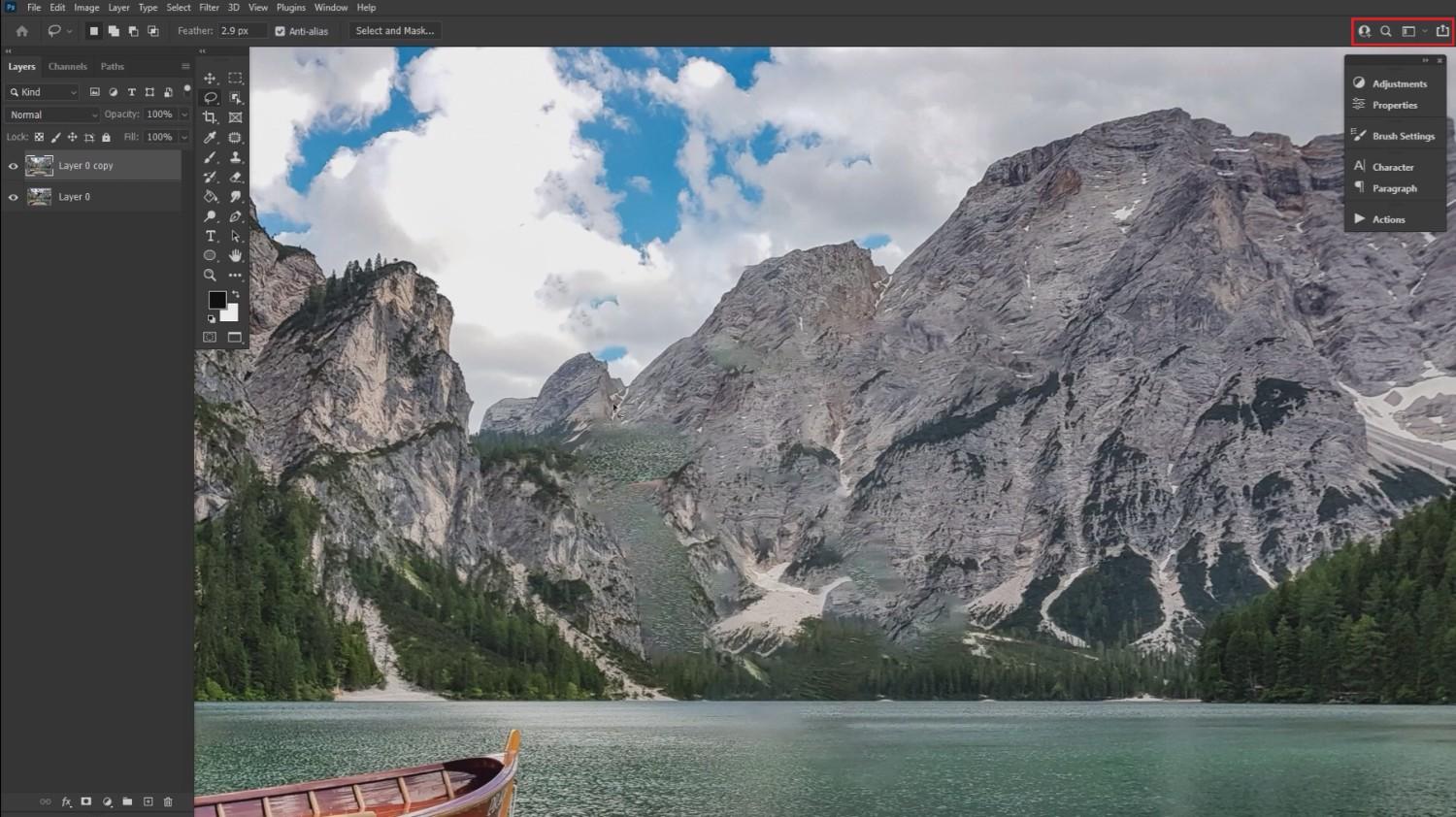
Step 5: Remove people and export
Upon clicking on "OK", the people or subject will be removed from the picture and you will be greeted with a clean image. Once done, proceed to click on the export option on the extreme right-hand area of your screen, to successfully save your clean image.
Erasing things in Photoshop: pros & cons
While Photoshop is a powerful and versatile platform, it might not be the ideal solution for every user or project. Understanding its strengths and weaknesses can help you decide if it is the right fit.
| Strengths | Weaknesses |
|---|---|
|
Professional-Grade Precision Photoshop offers complete pixel-level control. This allows editors to manually adjust intricate details, recreate missing textures, and fine-tune complex edges for a flawless, professional-grade result. Advanced Multi-Layer Editing Working with multiple layers allows you to perform non-destructive edits. You can easily isolate adjustments, mask specific areas, and revert individual changes without affecting the rest of the image. Versatile Tool Selection With the Clone Stamp, Patch Tool, Healing Brush, and Content-Aware Fill, Photoshop provides a massive toolkit tailored to handle diverse and challenging object-removal scenarios. Non-Destructive Workflow By utilizing smart objects and adjustment layers, you can experiment freely. Your original photo remains entirely untouched, ensuring you never lose the source data during complex edits. |
Steep Learning Curve Mastering Photoshop requires significant time and practice. Beginners often struggle with its complex interface, layered workflow, and manual dexterity needed to blend edits convincingly. Expensive Subscription Costs Photoshop requires an ongoing monthly or annual Creative Cloud subscription. For casual users who only need occasional object removal, this recurring financial commitment can be difficult to justify. |
Because of Photoshop's steep learning curve and high subscription costs, many creators look for faster, more intuitive alternatives. This is where AI-powered web tools like Vmake Labs offer a streamlined, highly effective solution without the manual hassle.
How to remove people from photos using Vmake Labs?
If you are looking for an easier, quicker alternative to heavy desktop software, Vmake Labs offers a powerful web-based utility designed specifically to handle object and person removal. Accessible directly from your browser, the tool uses advanced artificial intelligence to analyze your photo's context and instantly erase unwanted elements.
Rather than spending hours learning complex selection masks and manual brush blending, you can simply upload your image, highlight the target, and let the AI do the heavy lifting. It is a highly efficient solution for both quick social media cleanups and fast professional turnarounds.
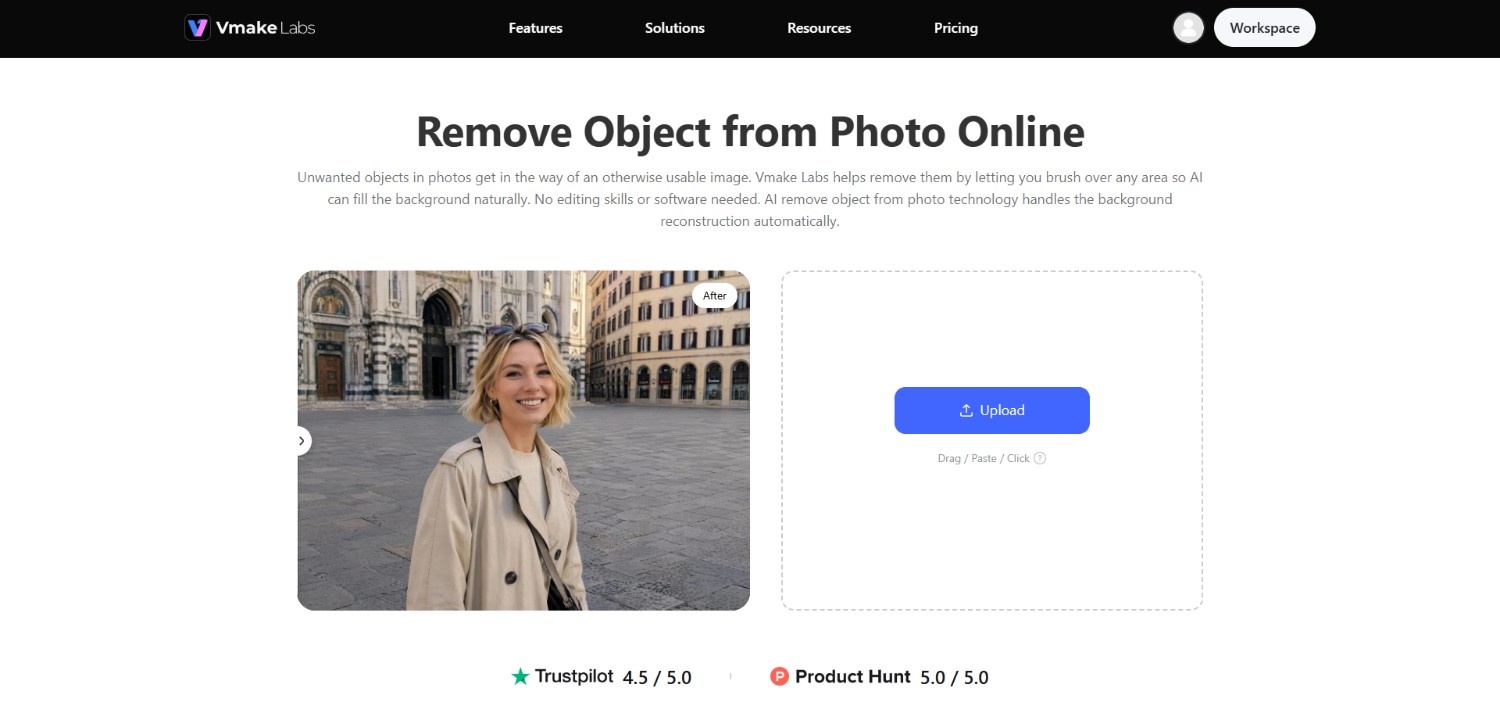
Key features of Vmake Labs image object removal tool
-
AI-powered object removal with seamless scene reconstruction: The advanced AI automatically analyzes the patterns, lighting, and textures surrounding the removed person. It then regenerates the empty background space, leaving a completely natural, undetectable blend.
-
Manual brush tool for precise object removal: For complex images, the adjustable manual brush lets you precisely define the edit boundary. You can easily scale the brush size to target small details or larger background figures.
-
Remove people, logos, text, and unwanted objects: This versatile tool is not limited to people. It cleanly erases text overlays, watermarks, timestamps, logos, and unexpected structural clutter, giving you full control over your visual assets.
-
Frictionless browser-based editing with no software installation: Enjoy instant editing access directly from your web browser with no system installations. This lightweight tool allows you to clean up images quickly from any desktop or mobile device.
-
Efficient batch processing for multiple images: Save time by editing several photos simultaneously. The batch processing feature lets you highlight and remove unwanted subjects across multiple files in a single, streamlined editing run.
-
Natural background reconstruction while preserving image quality: The advanced AI automatically analyzes patterns, lighting, and textures surrounding the target area. It regenerates empty spaces flawlessly, delivering natural background reconstruction while preserving original image quality.
Step-by-step guide: how to remove people from photos using Vmake Labs?
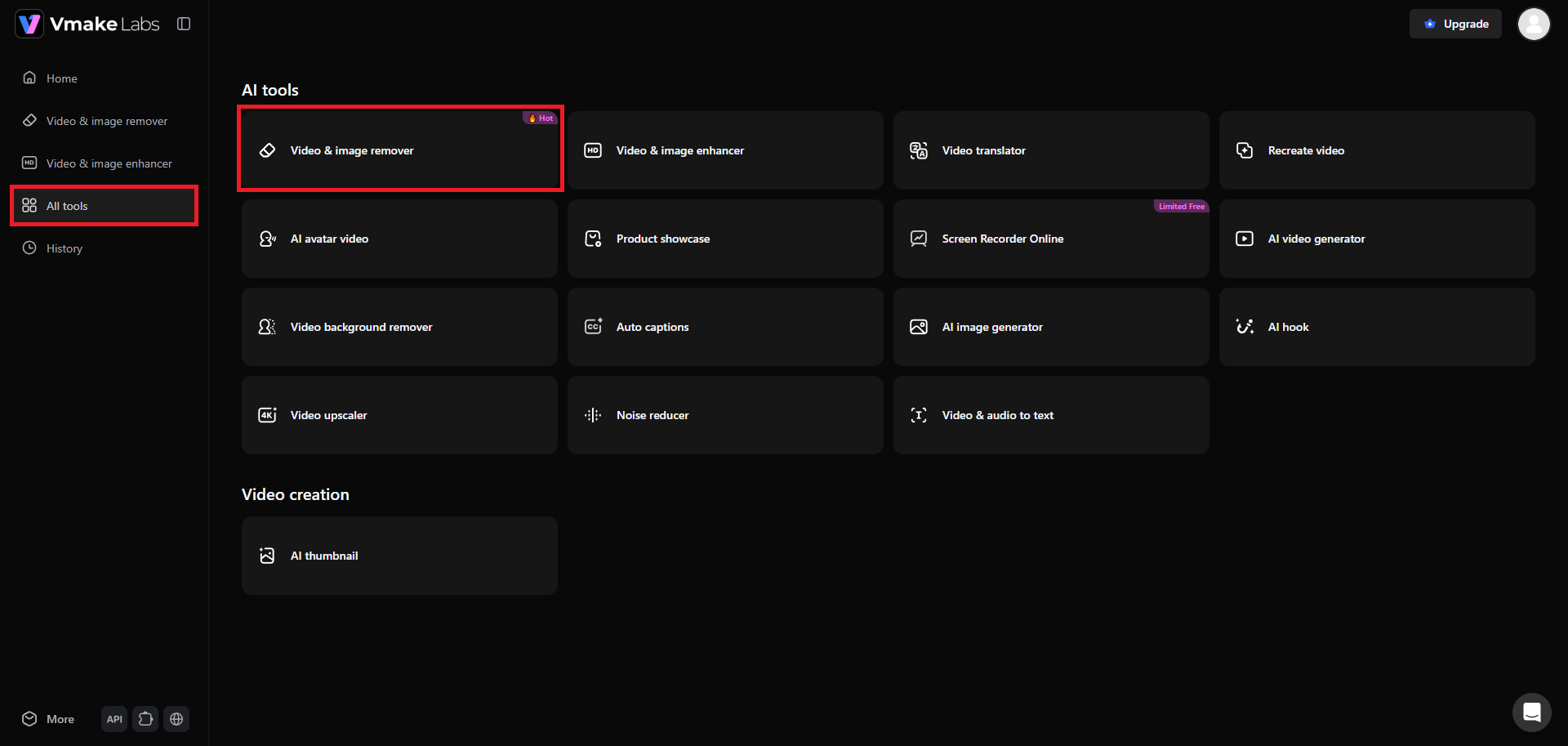
Step 1: Access the "Video & image remover" tool
Start your journey by first accessing your Vmake Labs account. After signing in, from the dashboard head over to the "All tools" section, and from there you need to choose the "Video & image remover" tool. This will give you access to the Vmake Labs feature that will help you remove people from photos.
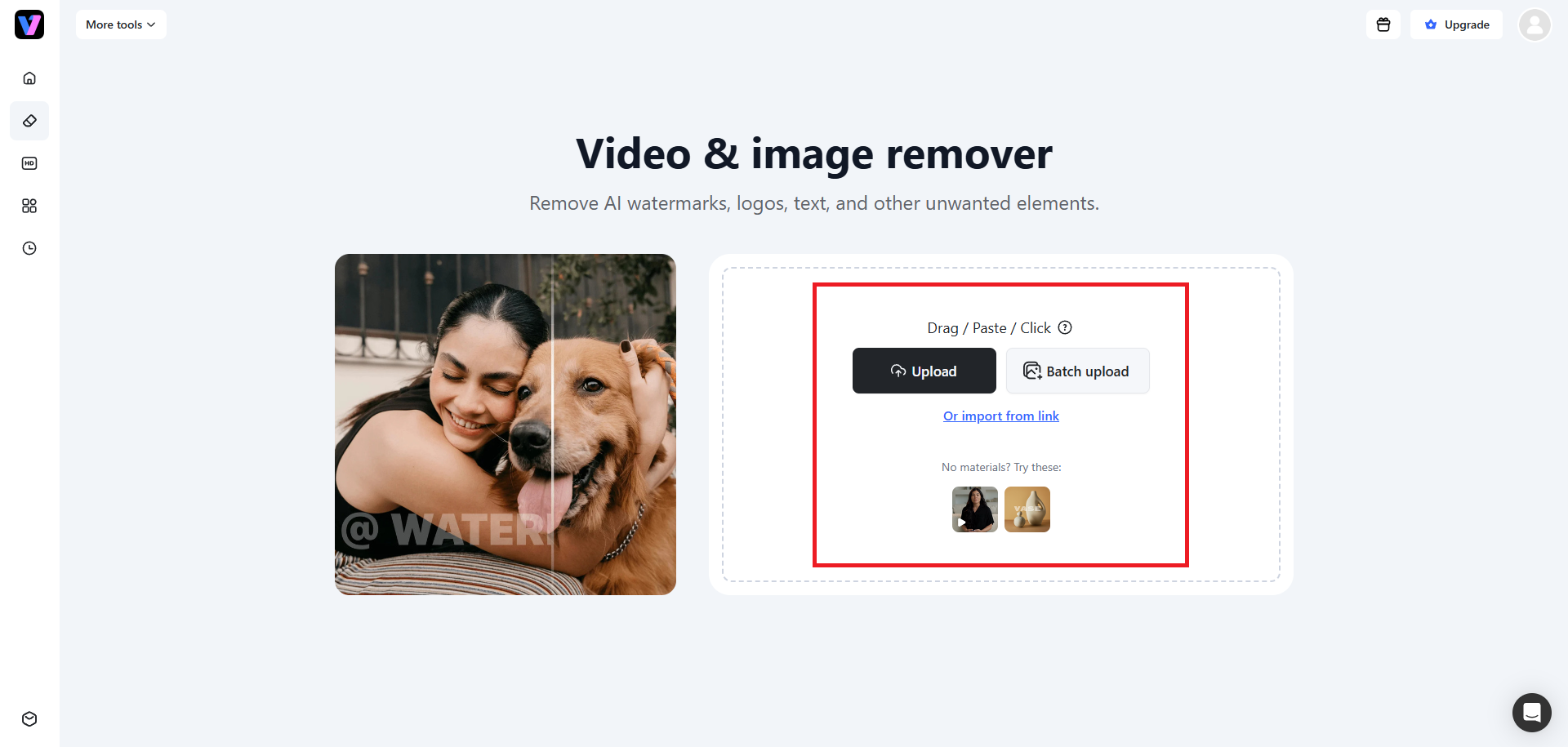
Step 2: Upload your desired photo or paste a weblink
In the next step, you need to upload the photo, from which you want to remove people. Keep in mind that Vmake Labs allow batch upload as well as pasting a weblink. Additionally, you can also upload videos to remove passersby, video watermarks, logos, etc.
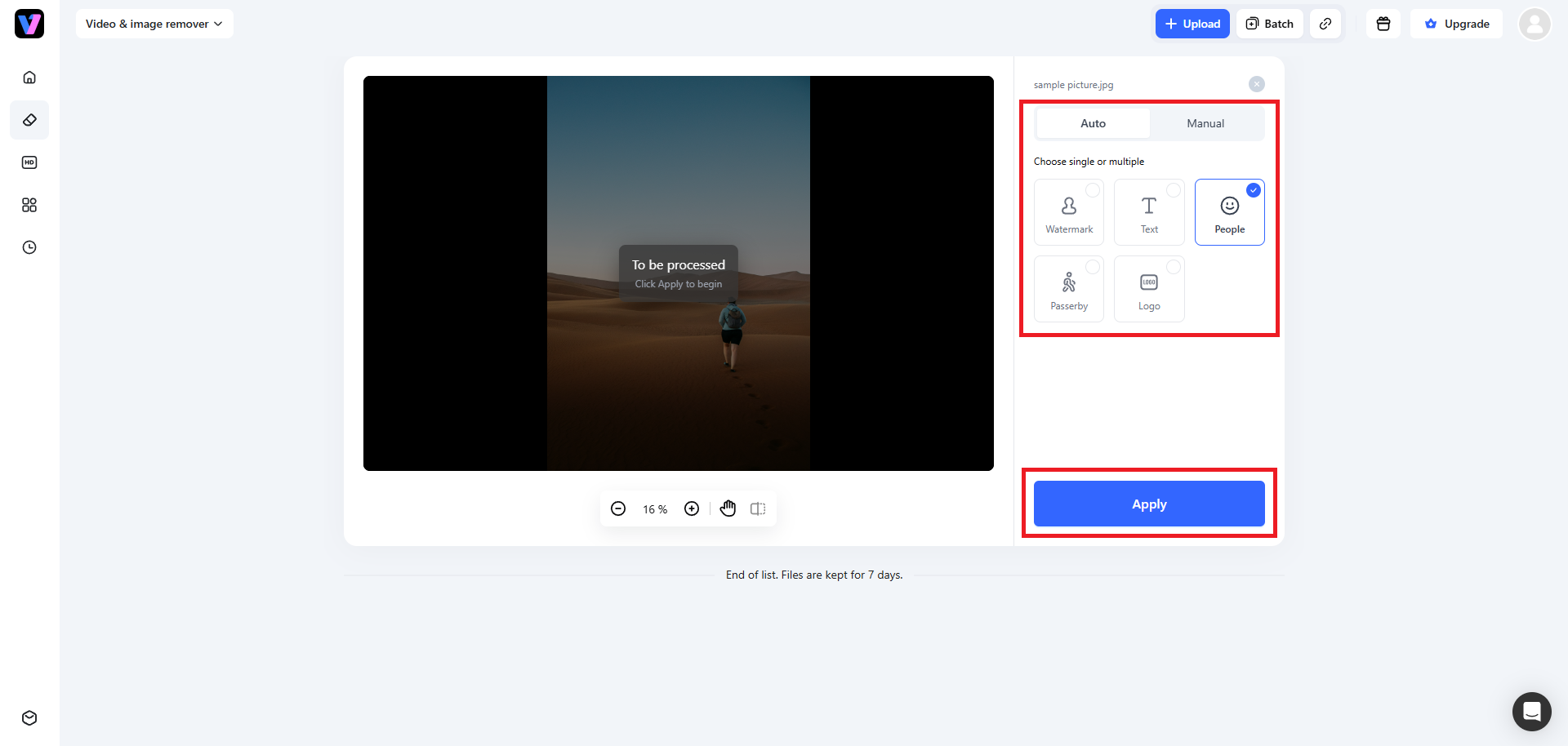
Step 3: Remove people and export
After successfully uploading your photo, you need to choose between "Auto" and "Manual" removal. Use "Auto" if you want to keep it simple, by selecting the items/objects you want to remove from the picture (we have chosen "People" in this example).
Alternatively, for "Manual" removal, you will have the option to manually erase each and every object/people in the photo. Once done, click on "Apply" and Vmake Labs will remove any people from the photo to give you the final result. You can then download it to your device for sharing.
Adobe Photoshop vs. Vmake Labs: which is better for removing people from photos?
Choosing between Adobe Photoshop and Vmake Labs depends on your project requirements and editing skill level. While Photoshop provides unmatched pixel-level precision and advanced manual tools for complex compositions, Vmake Labs offers a streamlined, browser-based solution powered by automation.
This comparative summary highlights their key operational differences, helping you choose the right tool for your specific image cleaning needs.
|
Feature |
Adobe Photoshop |
Vmake Labs |
|---|---|---|
|
Skill Level Required |
Advanced (steep learning curve) |
Beginner (highly intuitive) |
|
Installation |
Desktop software required |
Browser-based (no installation) |
|
Processing Speed |
Manual editing (minutes to hours) |
Automated AI (seconds) |
|
Batch Processing |
Complex scripting required |
Built-in automated batch uploads |
|
Pricing Model |
Recurring monthly subscription |
Accessible free and paid tiers |
Essential tips for a better way to remove people from photos
While AI tools make object removal incredibly easy, applying a few smart strategies can significantly improve the realism of your final results. Here are the best practices to keep in mind.
-
Upload high-resolution source photos for cleaner inpainting
Starting with a sharp, high-quality image provides the AI with more pixel data to analyze. This extra detail helps the algorithm accurately replicate textures and colors, resulting in a much cleaner, sharper, and more convincing background fill.
-
Work in segments when editing large crowds
Instead of highlighting an entire crowd at once, remove people in small, separate segments. Processing them individually allows the AI to sample smaller neighboring areas, which prevents visual distortion and keeps the background structures accurate.
-
Zoom in close to target edge transitions accurately
When brushing over a subject near complex elements, zoom in to apply a precise mask. Keeping your selection tight prevents the tool from accidentally sampling the wrong background textures, ensuring crisp, realistic edges.
-
Remove cast shadows along with the main subject
People always cast shadows on ground surfaces. If you only erase the person, the floating shadow will look unnatural. Always paint over both the subject and their cast shadow to ensure a completely seamless edit.
Conclusion
Removing unwanted people from your photos no longer requires professional graphic design skills or hours of manual editing. While traditional software like Adobe Photoshop continues to offer unparalleled control for advanced editors, web-based platforms like Vmake Labs have revolutionized the workflow.
By combining automated AI precision with simple, intuitive controls, Vmake Labs enables anyone to clean up distracting backgrounds instantly. Whether you are prepping professional marketing assets, creating crisp travel memories, or polishing social media posts, utilizing the right tools and techniques will ensure your final visuals look clean, polished, and beautifully composed.
FAQs
Can I remove multiple people from a single photo at the same time?
Yes. You can use the brush tool to highlight multiple people or objects across different areas of your photo and erase them all simultaneously in a single processing run.
Will removing a person from my photo decrease the final file resolution?
No. Professional AI tools like Vmake Labs are specifically engineered to reconstruct missing pixels while fully preserving the original dimensions, sharpness, and resolution of your uploaded file.
Do I need professional graphic design experience to use AI object removers?
No, you do not need any formal design training. AI-powered tools are built with simplicity in mind, requiring only basic brush selection to instantly produce seamless, professional-quality results.
How can I remove people from photos on an iPhone?
To easily remove people from photos, iPhone users can utilize native iOS tools like Clean Up in Photos, or open web-based platforms like Vmake Labs via Safari to quickly clean backgrounds.
Can you erase multiple things in Photoshop?
Yes, you can erase multiple things in Photoshop simultaneously. By using tools like the Lasso or Marquee, you can make several selections across your image and apply Content-Aware Fill to erase them all at once.

You May Be Interested
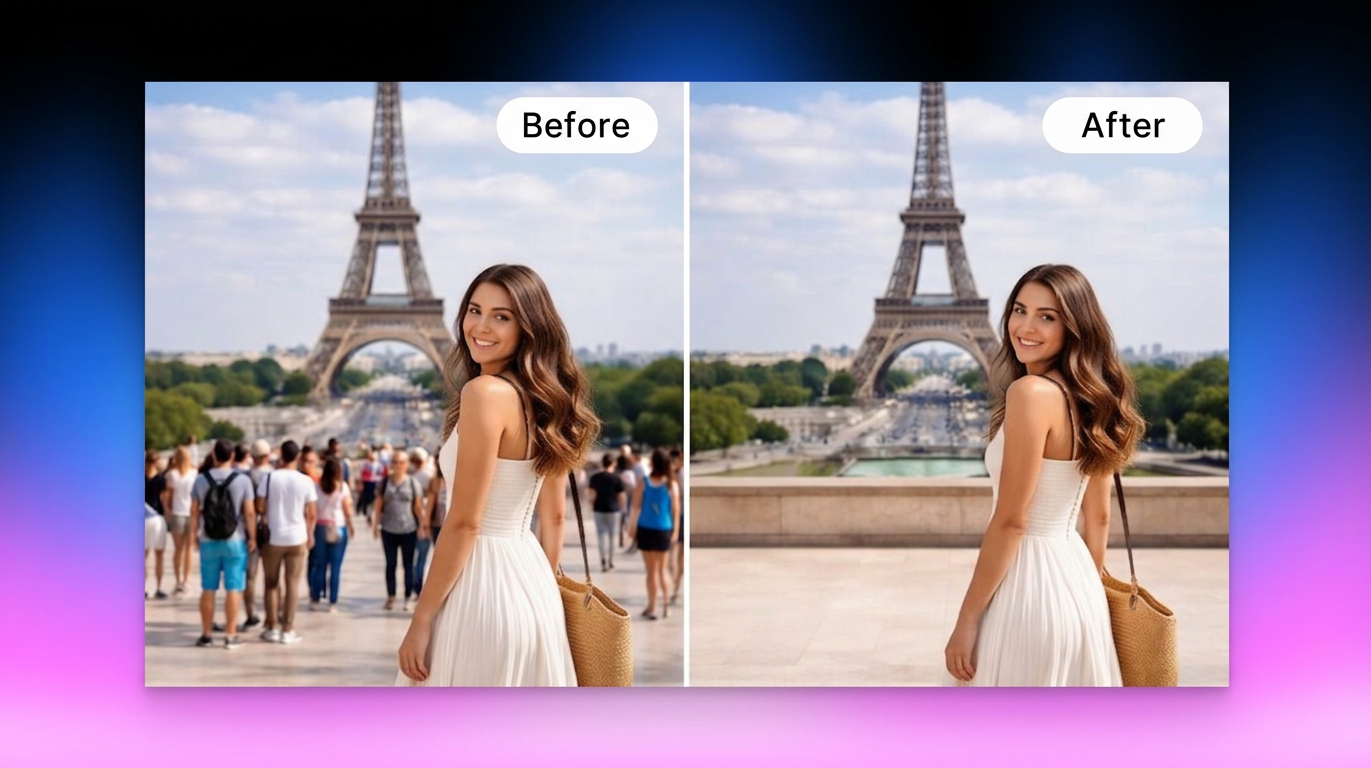
How to Remove People from Background: Fast AI Tools
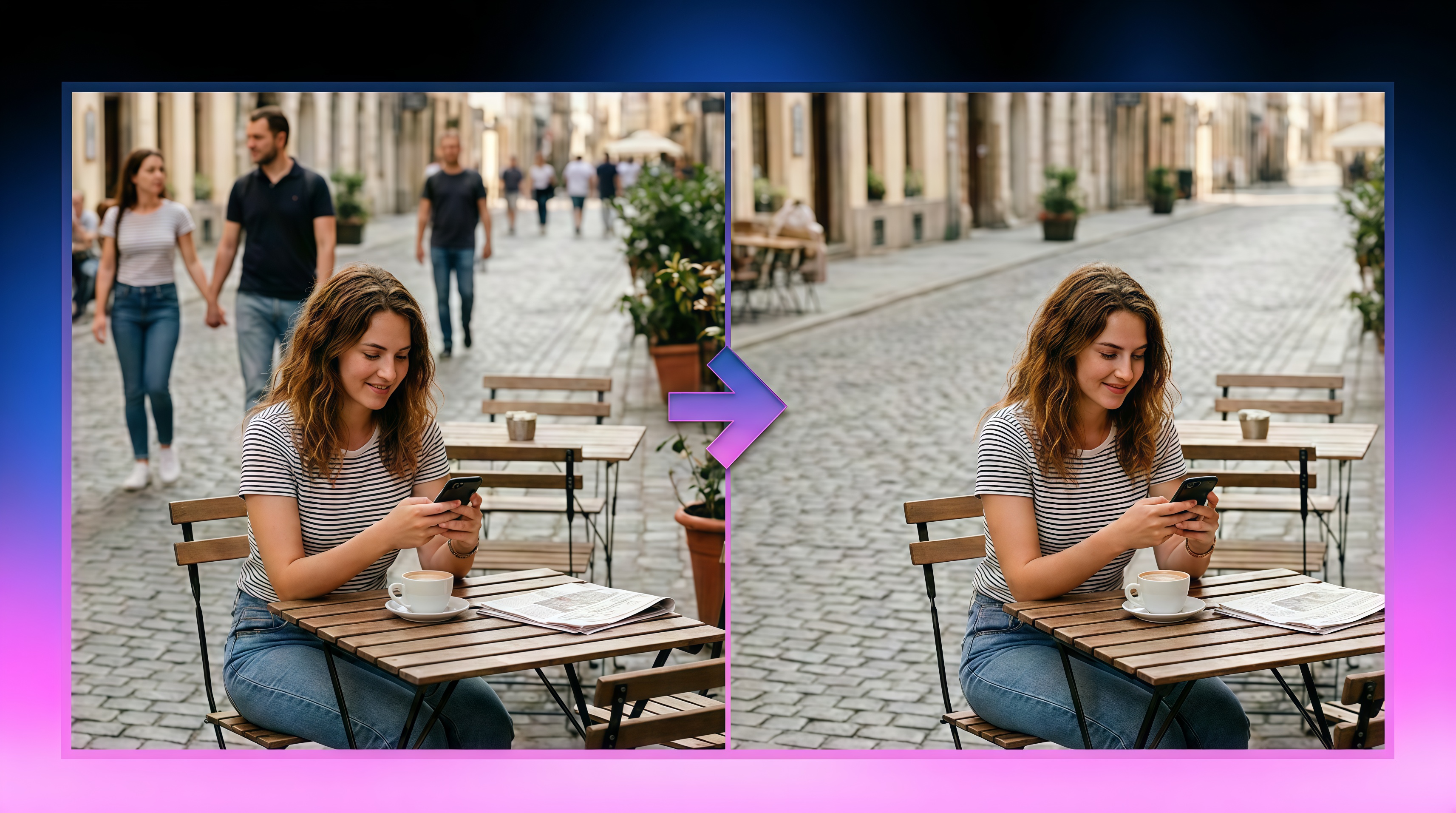
How to Remove People from Photos on Android: Easy AI Methods
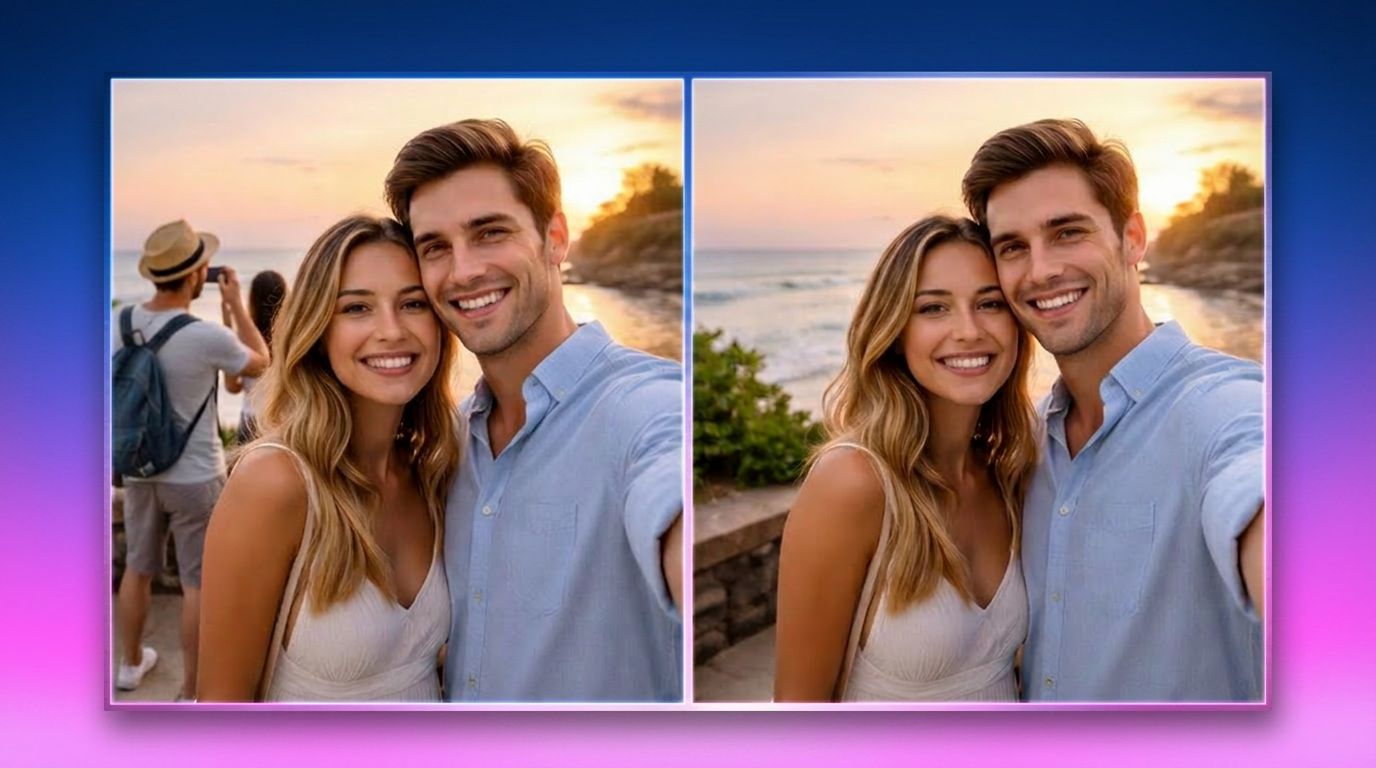
How to Remove a Person in Snapseed: Faster AI Tools
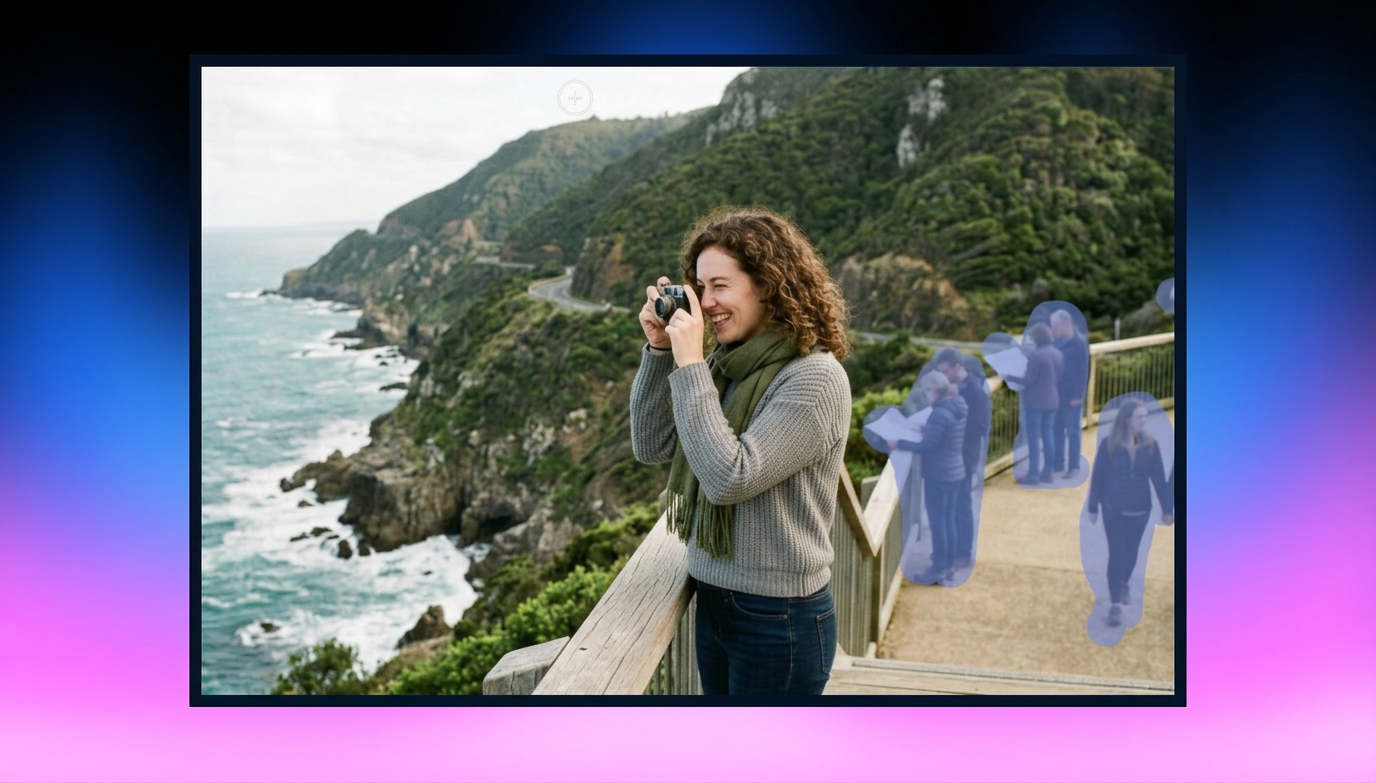
How to Remove People from Photos on iPhone: Best AI Tools & Easy Methods