How to Remove People from Photoshop: Complete Guide & Better AI Tools
 Ken DawsonApril 1, 2026
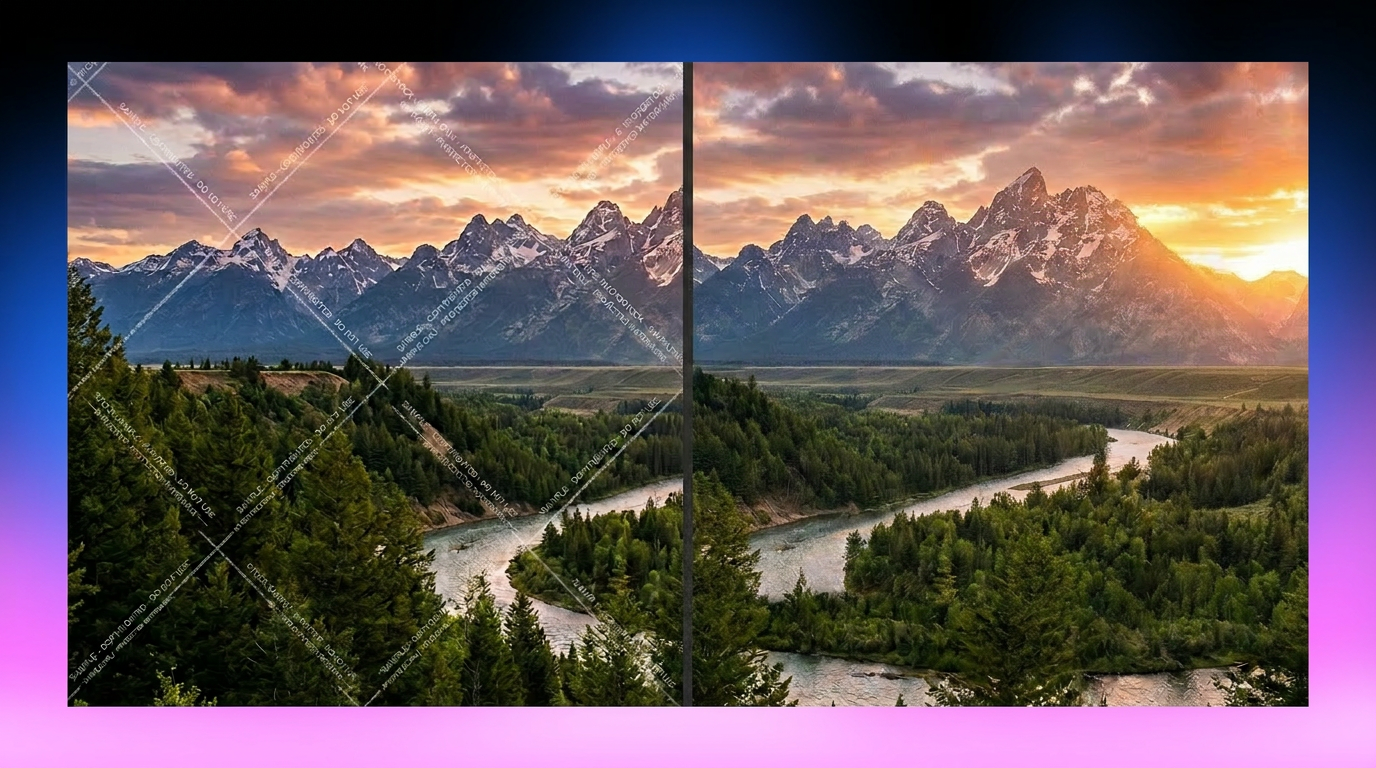
No doubt, we’ve all taken photos that would be perfect if only that one random person weren’t in the background. Whether it’s a crowded tourist spot or an unexpected photobomber, learning how to remove people in Photoshop can completely transform your images. This guide helps you use Photoshop to remove person, as well as introduces AI alternatives.
How to Remove People in Photoshop (Traditional Methods)
Photoshop is a comprehensive photo-editing program that offers various tools to help remove unwanted subjects. While powerful, these methods require a bit of patience and practice. Let’s start with the most commonly used techniques.
Before jumping in, open your picture in Photoshop and duplicate its background layer (Ctrl/Cmd + J). This ensures you always have the original image as a backup.
Method 1: Content-Aware Fill (Basic Removal)
Content-Aware Fill is a powerful feature for removing all kinds of items from an image, including large objects and people. It uses advanced technology to analyze patterns, textures, and colors in adjacent pixels, generating and seamlessly blending a realistic replacement for the removed content. In the workspace, you can also create a new layer and put the replacement content on it. Here is how to remove a person in Photoshop:
Step 1. Import Photo
First of all, open the image file in Photoshop as a layer in a document. To do so, click “File” > “Open.” Browse for the image and press “OK” to import.
Step 2. Select the Person
From the toolbar at the left side of your screen, pick the “Object Selection Tool.” Then, click the subject you want to remove, and this tool will automatically select it.
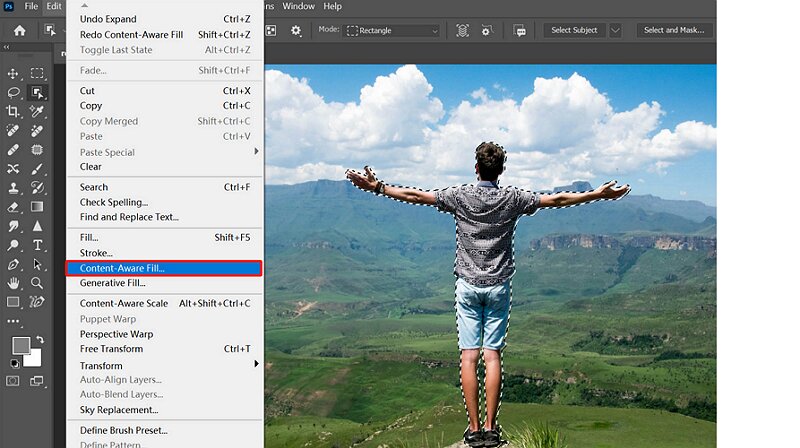
Step 3. Pick Content Aware Fill
Next, right-click on the person you’ve selected and choose the “Content Aware Fill” option from the menu.
Step 4. Save Changes
A new window will appear on the side with the final result. You can adjust the settings as needed, then press “Apply” to save the changes.
Method 2: Clone Stamp Tool (Precise Editing)
As the name implies, the Clone Stamp tool lets you duplicate a part of the image and place it over the person you want to remove. It’s a bit complex and requires some skill to use effectively, but you will gain more control and more precise results. This is especially useful when dealing with detailed backgrounds. Let’s comply with the given steps on how to remove someone in Photoshop:
Step 1. Select the Clone Stamp Tool
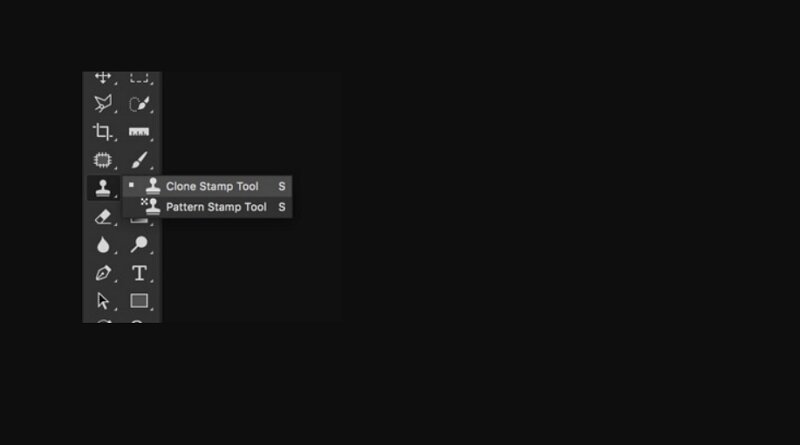
Open the required picture in Photoshop. Now, click the stamp icon from the side toolbar and then select the “Clone Stamp tool.”
Step 2. Define the Source Point
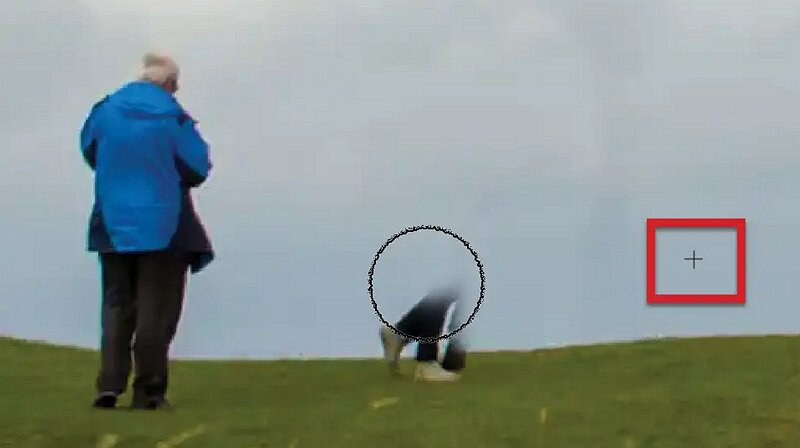
Next, hold “Alt” (Windows) or “Option” (Mac) to select any area in the background that you want to clone onto the specific person.
Step 3. Paint and Remove Person
Lastly, paint over the person or object in your shot to remove it. You can define new source points for different areas and repeat the process. That’s all!
Why Photoshop isn’t Always the Best Choice
While Photoshop is powerful, it’s not always the most practical method on how to erase a person in Photoshop. Many beginners struggle with the learning curve, especially when trying to figure out how to edit out a person in Photoshop efficiently. Here is why:
Time-Consuming: Even simple edits can take several minutes or longer if the background is complex. For beginners, it can take hours.
Skill Barrier: Tools like Clone Stamp require practice. Without experience, results may look unnatural or messy.
Limitations: Photoshop relies heavily on manual work. While Content-Aware Fill helps, it’s not always accurate, especially in crowded scenes.
Better Alternative: Zawa AI Photo Editor for Photo Person Removal
Given these limitations, those who frequently need to remove someone in Photoshop often look for faster, more beginner-friendly alternatives. In that case, Zawa AI Photo Editor can save you a lot of time.
This remarkable online tool offers a range of editing functionalities, including a powerful eraser. It helps detect and remove distractions from your photos both automatically and manually. You can remove not only unwanted people but also text, watermarks, eyeglasses, and glare with ease. The processing will be fast, and the results will be flawless. You can even process multiple images at once to handle large projects.
How to Remove a Person with Zawa
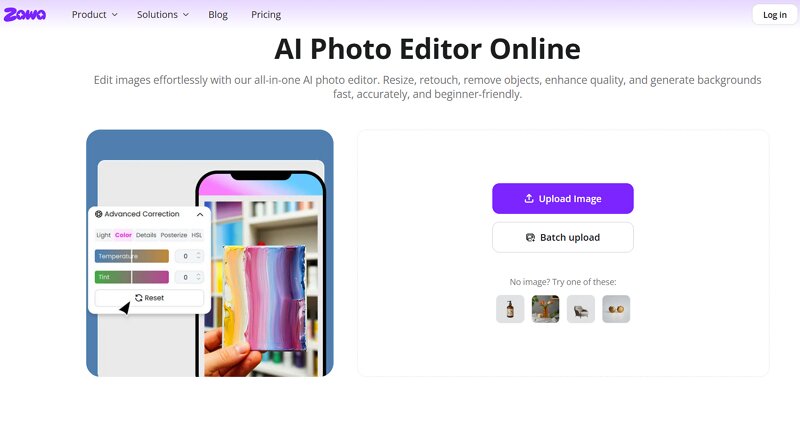
Step 1. Upload Image
The first step is to open the Zawa AI Photo Editor tool in your browser. Now, click the “Upload Image” to open the required photo.
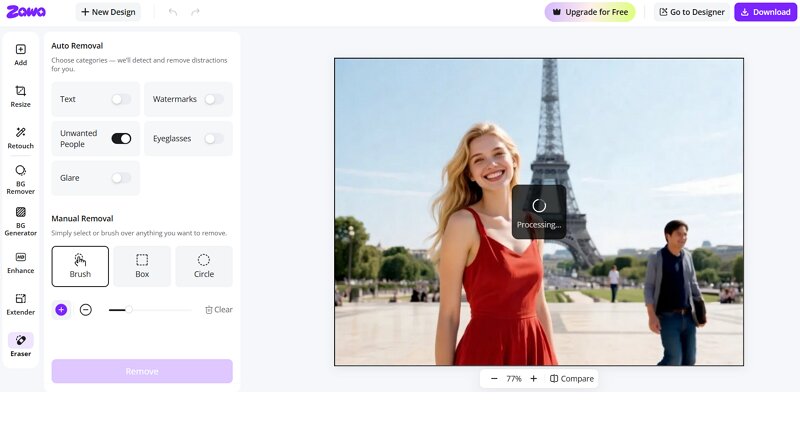
Step 2. Select the Eraser Tool
Next, select the “Eraser” tool from the side column. Then, turn on the “Unwanted People” switch. You can also manually paint over the unwanted people.
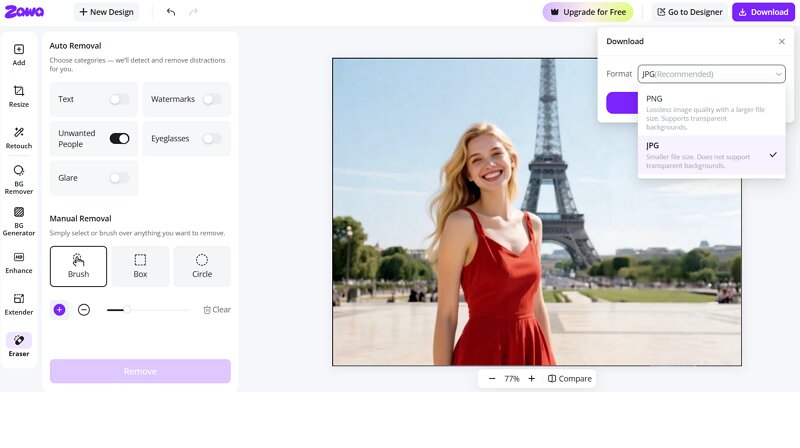
Step 3. Remove People and Download
Lastly, press the “Remove” button and let AI finish the processing. Once done, tap “Download,” choose the output format, and hit “Download” again. That’s all!
 Why Zawa Beats Photoshop for This Task
Here is how Zawa takes the lead when it comes to Photoshop remove person tasks:
Speed: Photoshop remove people in several minutes, while Zawa completes the job in seconds.
Ease of use: No need for manual selection or learning tools like Lasso or Clone Stamp. So, Zawa is perfect for beginners.
Cost: Zawa offers a free tier, whereas Photoshop requires a paid subscription.
Quality: AI preserves background details better than manual methods, especially in complex scenes.
Extra Tip: Remove People from Videos with Vmake
Removing people from photos is useful, but what about videos? That’s where the Vmake Remove People tool comes in handy. This superb platform can quickly remove unwanted watermarks, subtitles, and people from videos in a blink.
Its AI technology can easily recognize any person in the video and eliminate them with high precision. However, you can choose either manual or automatic removal, depending on your preference. It even offers batch support for removing people from multiple videos at once, saving time.
How Vmake Works for Video Removal:
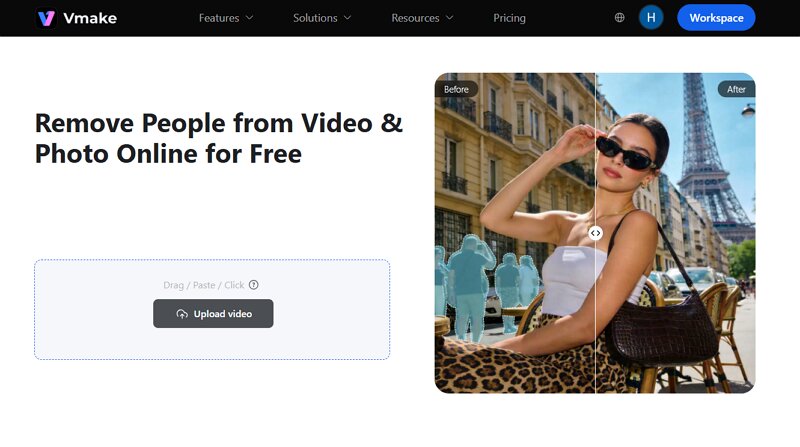
Step 1. Import Video
First of all, visit the Vmake Video Removal website. Now, click the “Upload video” button or drag and drop the video into this tool.
Step 2. Select the Passerby Option
It’s time to choose the “Auto” or “Manual” feature. For automatic, select the “Passerby” option; for manual, paint over the person. Then, press “Apply.”
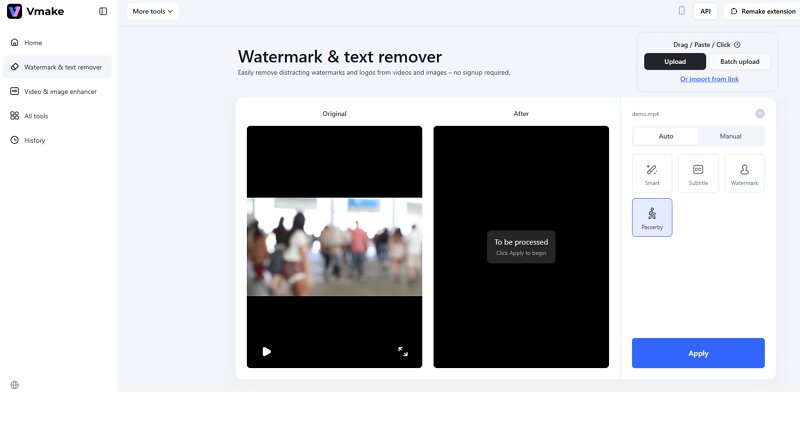
Step 3. Download Output
When the AI has finished processing, hit the “Download 5s preview video” or “Download full video.” You are all done!
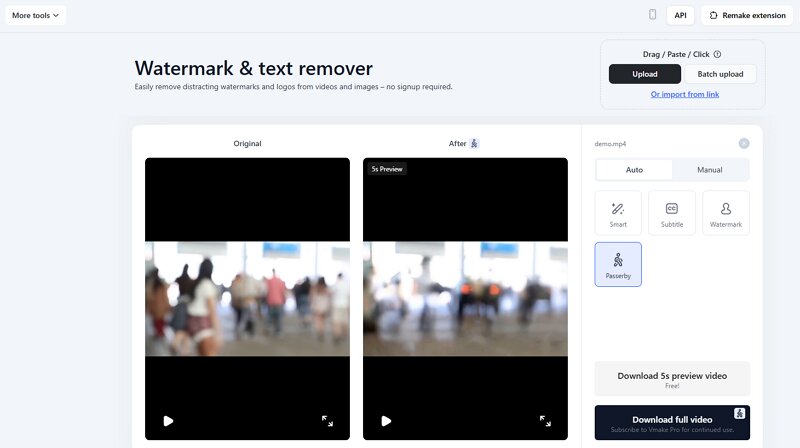
FAQs
1. How to get rid of shadows after you remove someone in Photoshop?
It requires some extra steps. After removing the person in Photoshop, you’ll need its tools like Clone Stamp or Healing Brush to clean up shadows and ensure the background looks natural.
2. Are AI tools better than Photoshop to remove a person?
AI tools can automatically detect and remove people from images and intelligently fill backgrounds, saving time compared to manual editing in Photoshop and producing more realistic results in complex scenes.
3. Will removing a person affect image resolution or clarity?
If people removal is done correctly, image quality remains intact. However, poor editing or excessive cloning can lead to blurry patches or visible inconsistencies, thereby reducing the overall clarity of the photo.
Final Thoughts
Learning how to delete people in Photoshop is a valuable skill, especially if you enjoy photography or content creation. Although Content-Aware Fill and Clone Stamp features give you full control, they require time and practice.
So, for speed and simplicity, an AI-powered tool like Zawa is a smarter alternative. And when it comes to removing people in videos, try Vmake for its ease of use, quick processing, and professional-looking output.

You May Be Interested

Google Gemini|Copy Paste This Simple Prompts to Create “Hug my younger self ” Photos