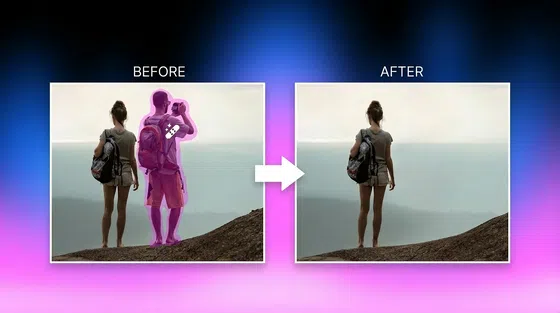
How to Remove a Person in Snapseed: Step-by-Step Guide
 Ken DawsonApril 14, 2026
When editing photos, removing unwanted people is essential, especially when they photobomb your shot. Snapseed, a popular mobile photo-editing app, offers powerful tools to help enhance your images, but removing people can be tricky. So, if you’re wondering how to remove people in Snapseed, you’re not alone.
In this guide, you’ll learn how Snapseed remove person, its limitations, and some better alternatives for photos and videos.
How to Remove People in Snapseed: A Step-by-Step Guide
If you are committed to using this app for your edits, the Healing tool is your primary resource. Here is the detailed process for removing a person:
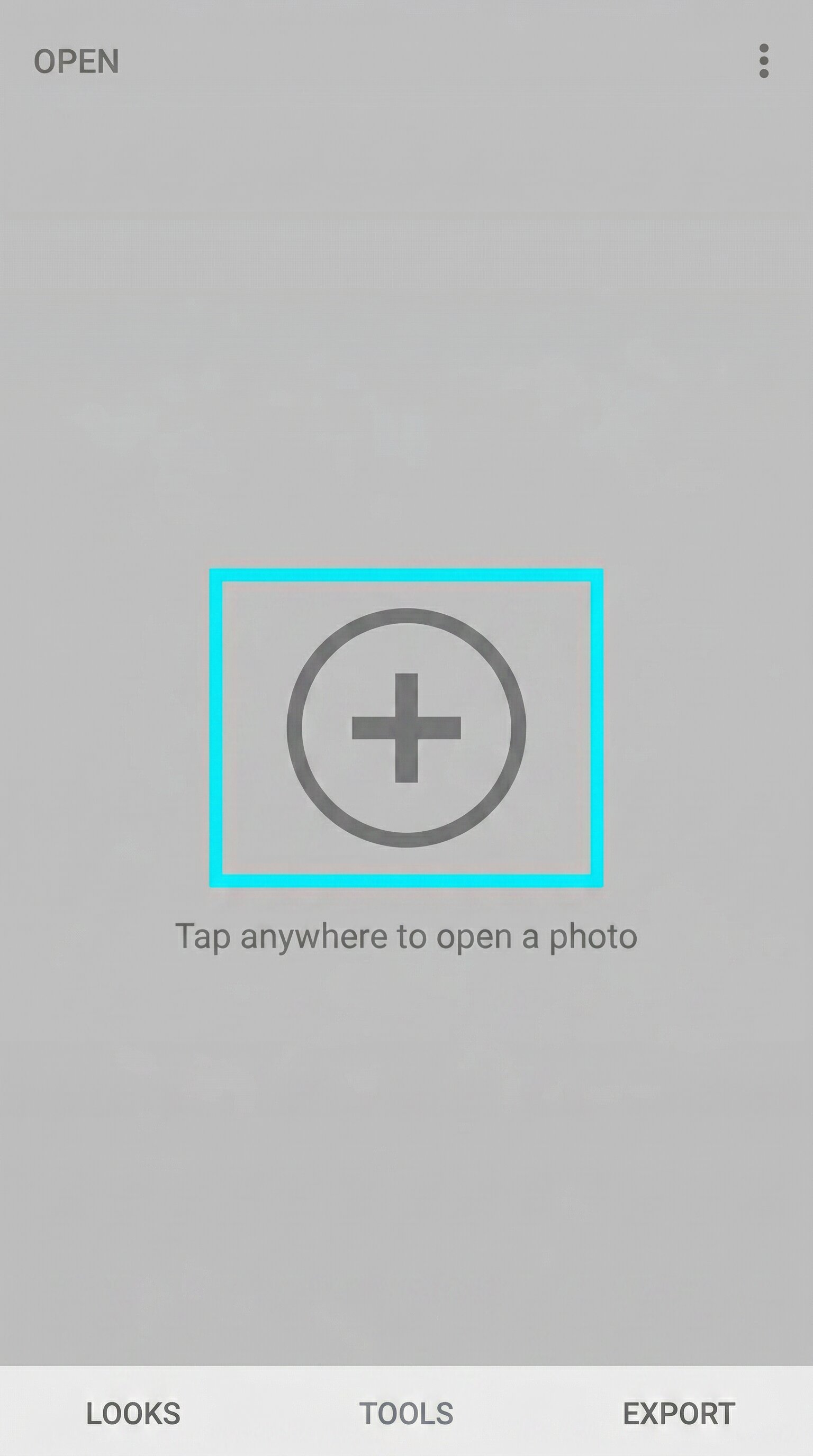
Import Your Photo: Open Snapseed and tap anywhere on the screen to select the image you want to edit from your device.
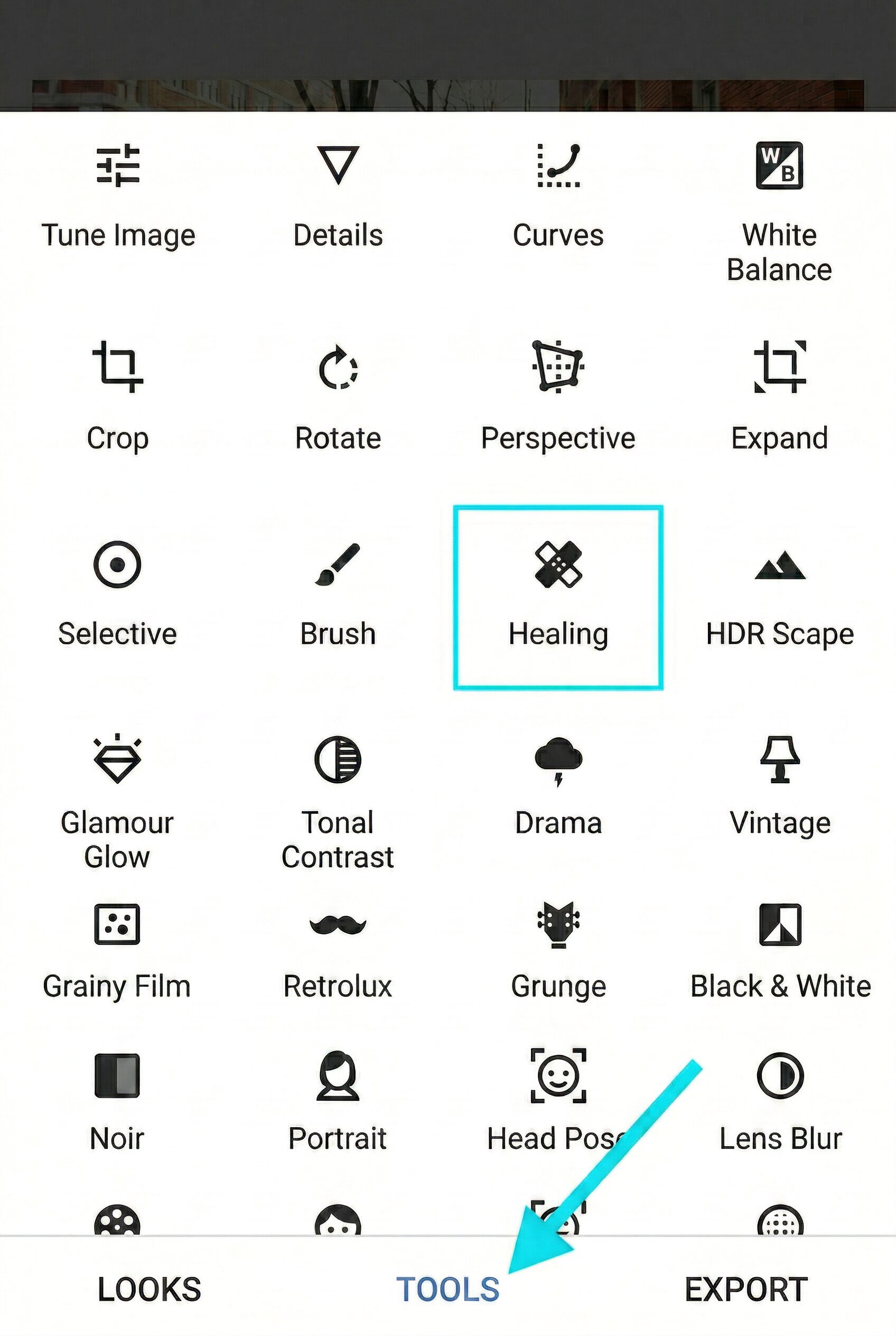
Access the Healing Tool: Tap on "Tools" at the bottom of the screen and select the "Healing" icon from the menu.
Zoom for Precision: Use two fingers to pinch and zoom in closely on the person you want to remove. Precision is key in Snapseed: as the tool works by cloning nearby pixels.
Brush over the Subject: Carefully paint over the person with your finger. You will see a red highlight covering the area. Once you lift your finger, the app will attempt to patch the space using surrounding textures.
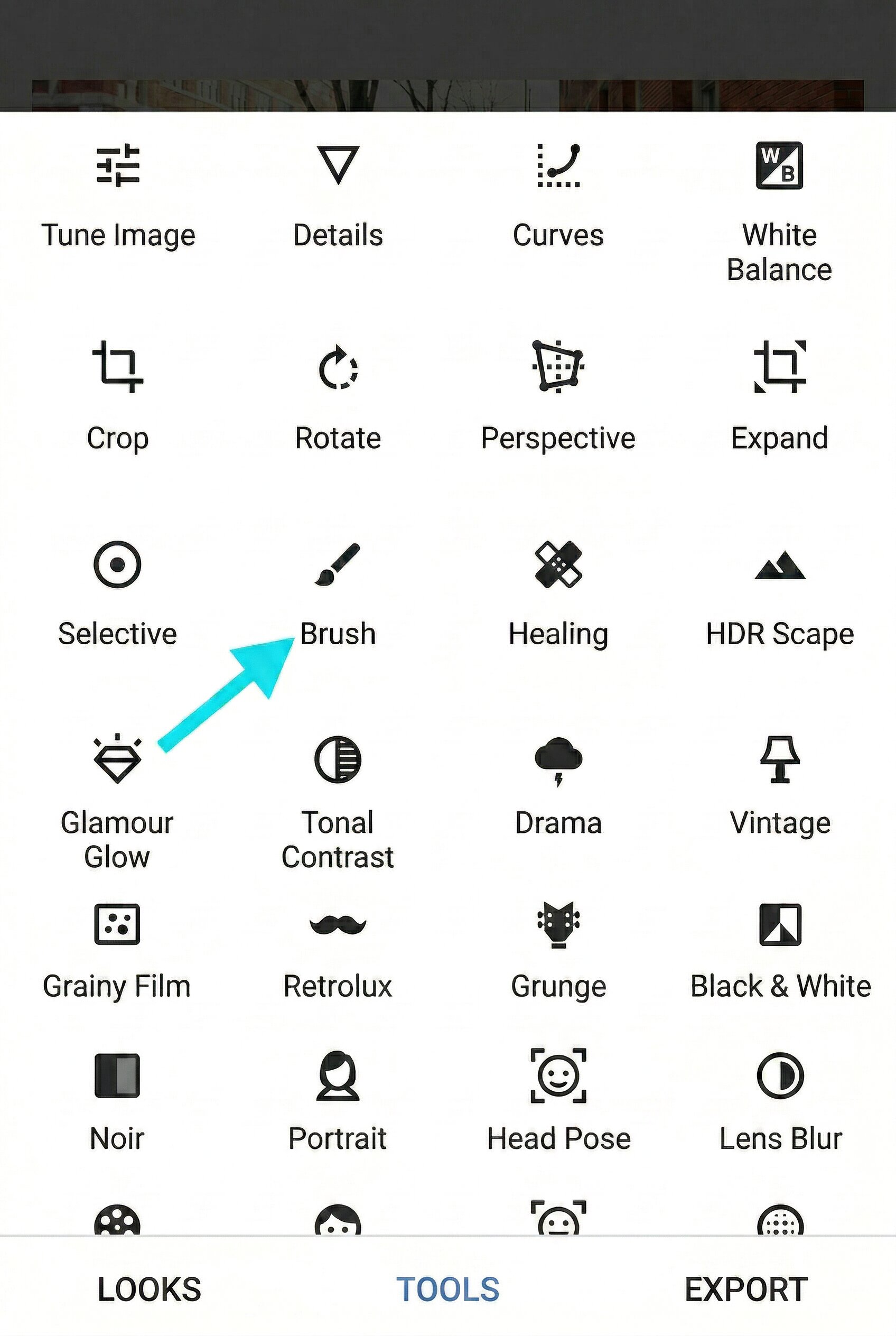
Refine the Edges: Since the first pass often looks messy, you may need to tap smaller areas repeatedly to blend the background more naturally.
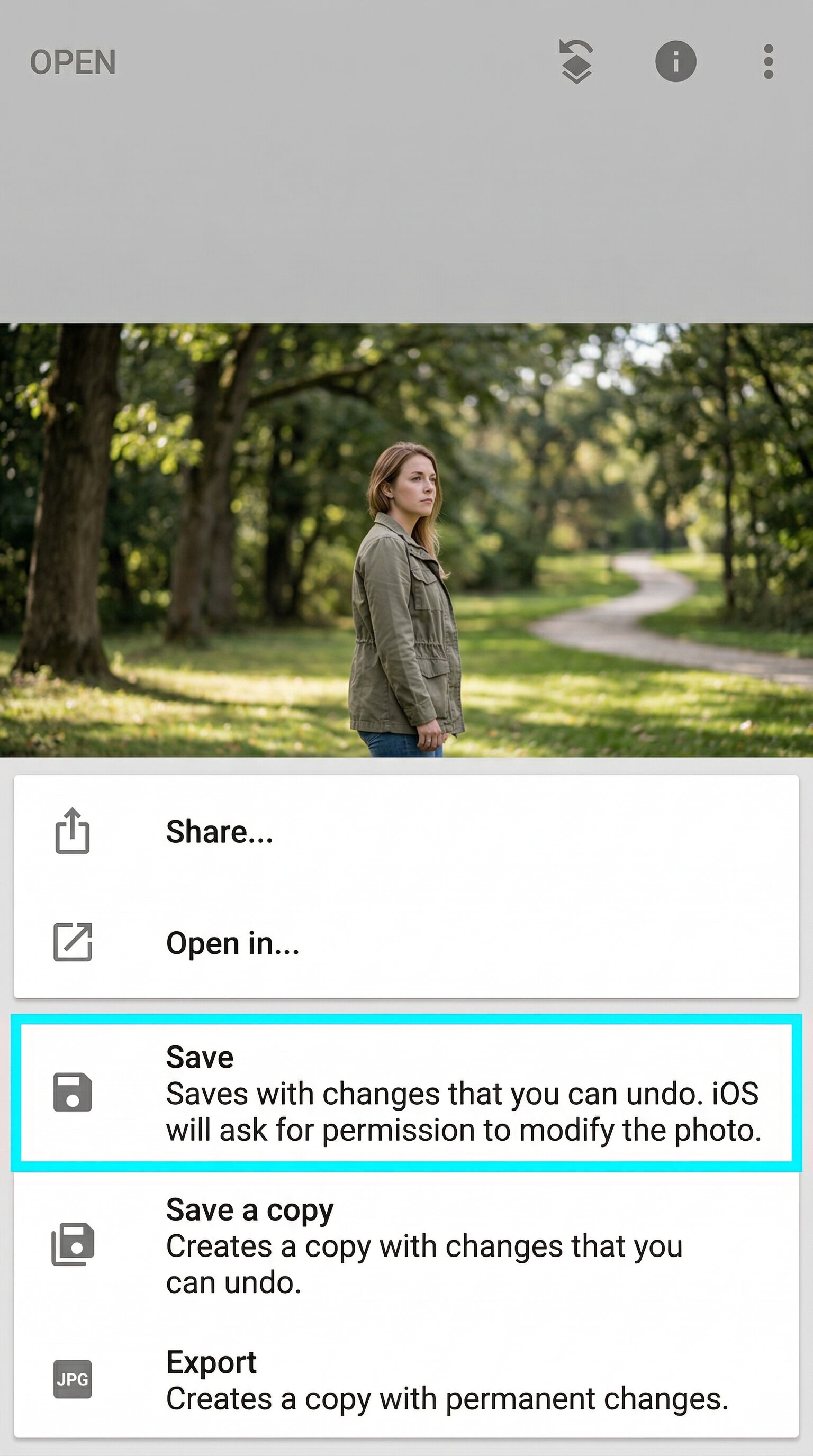
Save Your Edit: Once the person has disappeared, tap the checkmark to apply the changes and then select "Export" to save your work.
Why Snapseed Isn’t Ideal for Removing People
Snapseed is a free photo editing app by Google for Android & iOS users, offering a wide variety of creative filters, effects, and color & exposure controls. It has a Healing tool that removes blemishes, spots, objects, and even people from your photos.
However, this isn’t the best choice to remove people from photo in Snapseed for various reasons, such as a lack of support for video editing or batch processing. It requires manual editing and handles only basic edits. It may also struggle with removing large or complex objects, resulting in an unnatural look.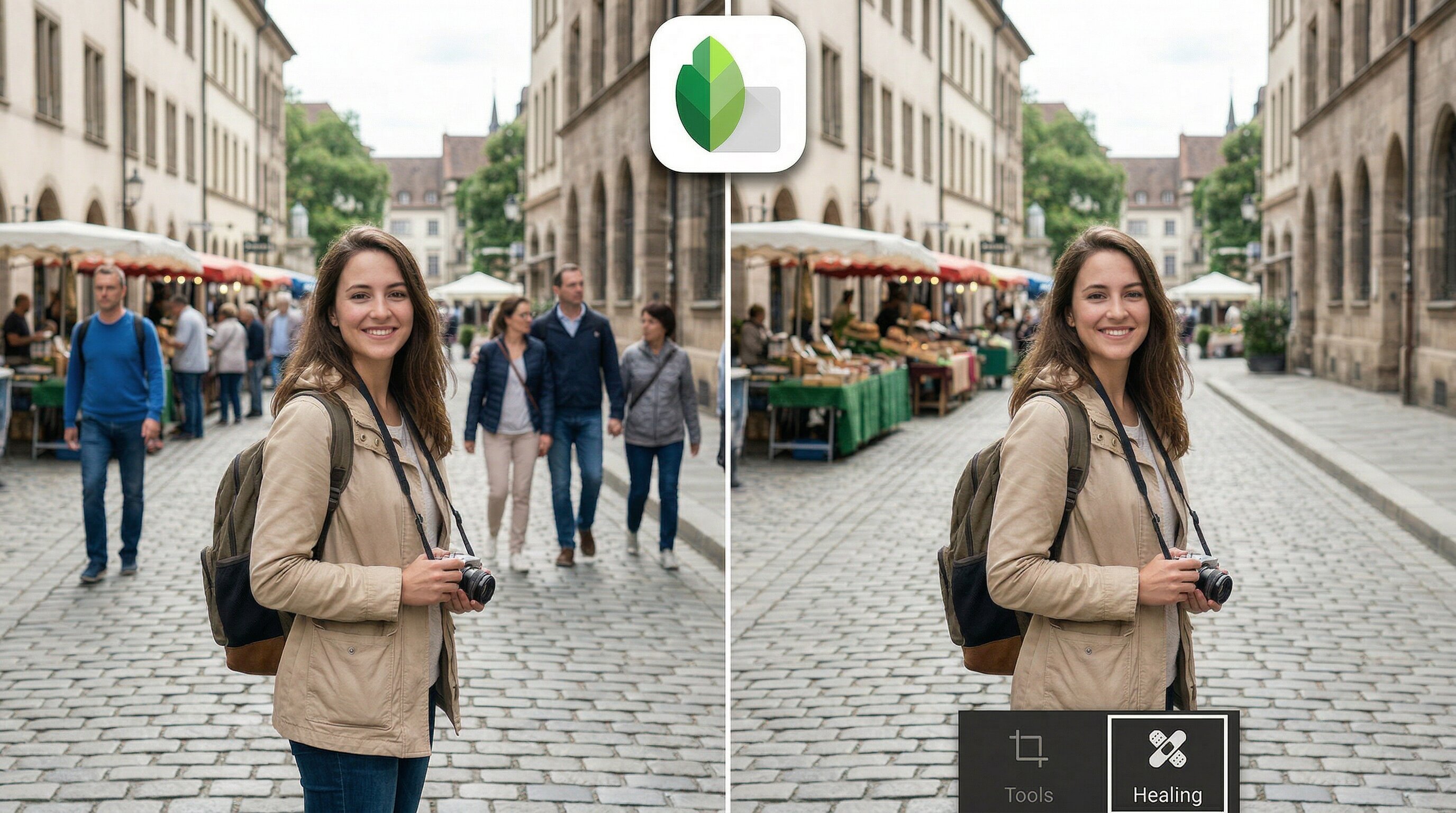
Better Mobile Alternative: Zawa AI Photo Editor
To remove person from photo without Snapseed limitations, users often look for a more efficient and reliable photo editing option. In this regard, Zawa is an AI-powered tool that has revolutionized this process.
Unlike Snapseed, Zawa uses cutting-edge artificial intelligence to seamlessly detect and remove unwanted people, objects, and watermarks from your images. The best part? It offers both manual and automatic processing. Plus, you can do either without requiring advanced technical knowledge or editing skills. Besides, you can erase and generate backgrounds as well with precision.
How to Remove a Person with Zawa
Below is a step-by-step guide on how to remove people on Snapseed alternative:
Step 1. Upload Image
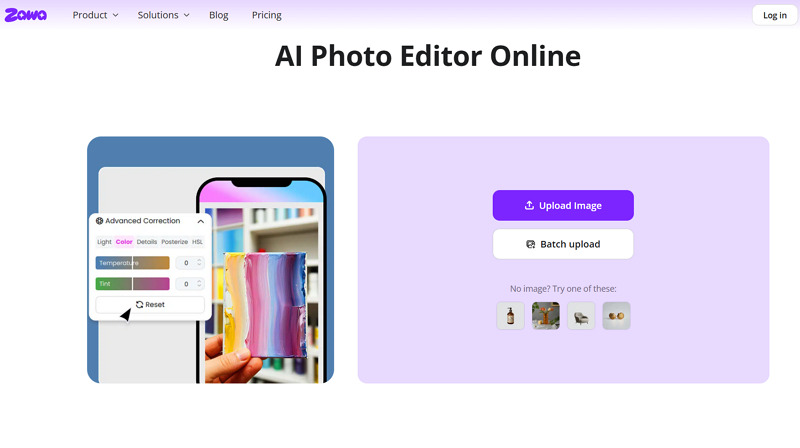
First of all, open the Zawa AI Photo Editor website and click the “Upload Image” button to import the required file.
 Step 2. Select the Eraser Tool
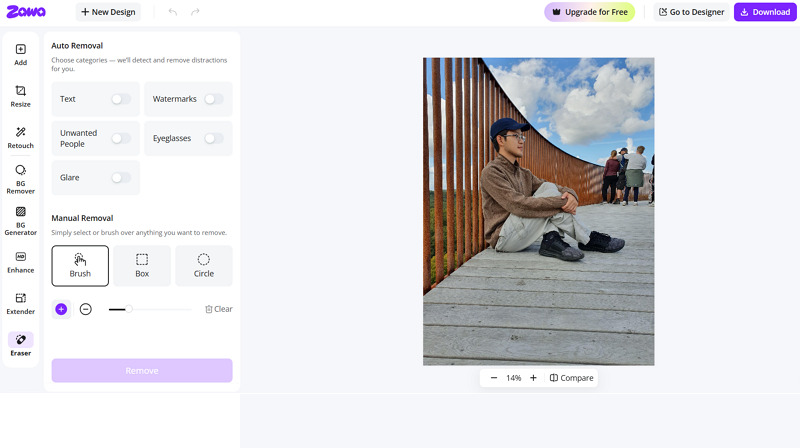
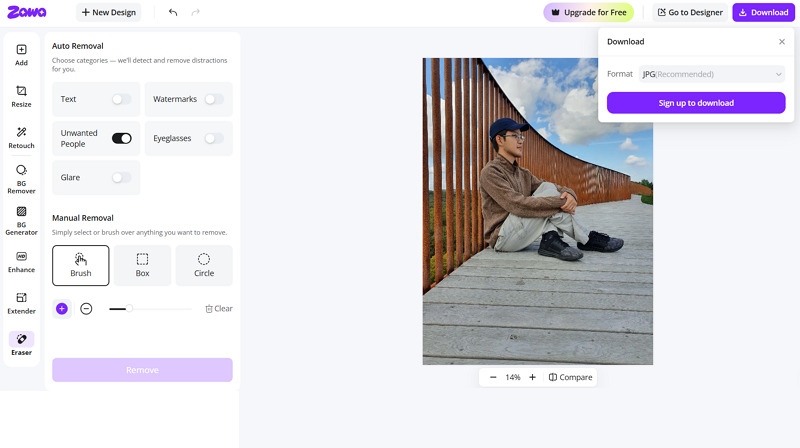
It’s time to choose the “Eraser” tool from the side column. Next, either enable the “Unwanted People” button or manually select the people you want to remove.
 Step 3. Download the Output
Once processing is complete, press the “Download” button in the top-right corner, choose the desired format, and hit “Download” again. That’s all!
 Why Zawa Beats Snapseed for This Task
Zawa AI surpasses Snapseed in multiple ways when it comes to removing someone from a photo. Here are the main points to consider:
Simple, accurate, and beginner-friendly
Remove people from photos in a single tap
Analyze and repair the removed area with AI
Support both automatic & manual processing
Handle complex backgrounds and textures easily
Offer resizing, retouching, and enhancement features
Help process multiple images in a batch, saving time
Extra Tip: Remove People from Videos with Vmake
While Zawa is a great tool for photos, what about videos? Sometimes, unwanted people in videos can be just as distracting as they are in photos. Thankfully, there is a solution.
Vmake Remove People is an AI-powered tool that is capable of automatically detecting and removing people from both videos and photos. You can also erase watermarks, logos, text, or other unwanted elements. It can handle moving objects frame by frame to deliver professional-looking results. Whether you are dealing with a quick social media clip or a more professional video project, this online platform can help streamline the process.
New Feature: Remove People for Photos
Vmake now also supports removing people from photos, including removing all people from the image or keeping the main subject while removing bystanders.
How Vmake Works for Video Removal
Let’s comply with the given steps on how to remove people from a video using Vmake:
Step 1. Upload Video File
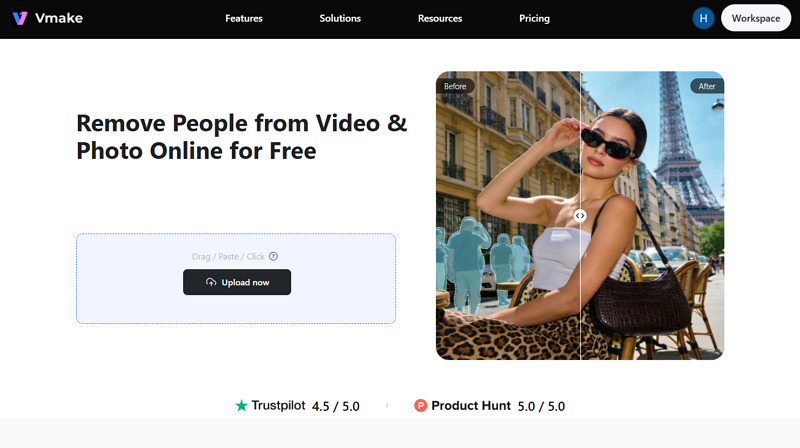
The first step is to open the Vmake Remove People in your browser. Now, press the “Upload now” button or drag & drop the video file.
 Step 2. Choose the Removal Method
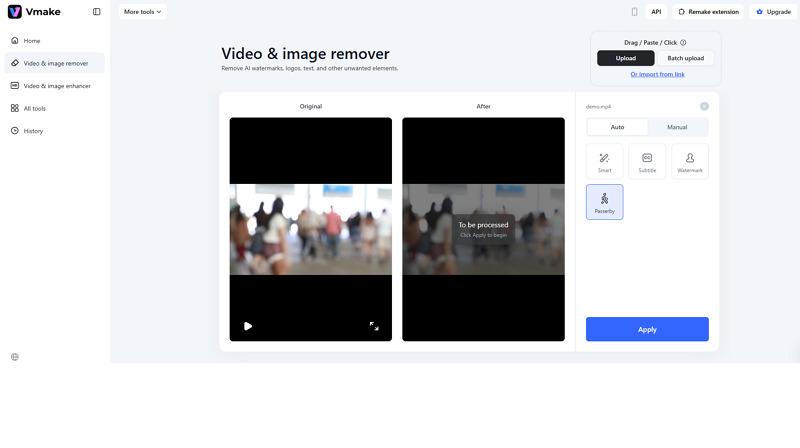
Next, select the “Auto” or “Manual” removal. For the manual method, paint over the people; for the auto method, select the “Passerby” option. Then, press “Apply.”
 Step 3. Remove and Download
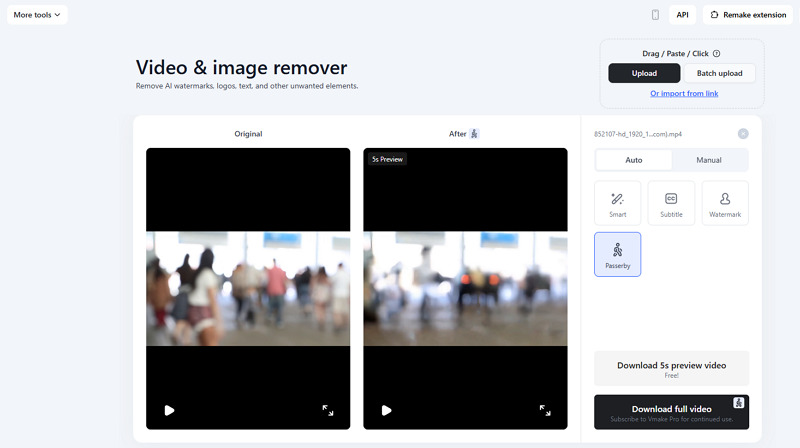
Finally, when AI finishes processing, hit the “Download 5s preview video” or “Download full video.” You are all done!
 Why Vmake Stands Out
Help remove people from both photos & videos
Fast and accurate detection with AI technology
Clean and natural background reconstruction
Always deliver professional results in one click
Delete uploaded files automatically after 7 days
Support processing multiple files simultaneously
Offer a preview for a side-by-side comparison
Ideal for creators, eCommerce, and personal use
FAQ
1. How to remove a person from a photo in Snapseed?
To remove people from a photo in Snapseed:
Firstly, open your image and select the Healing tool.
Zoom in and brush over the person you want to remove.
Then, export the edited photo, and you’re all done!
2. What is the Snapseed Healing tool?
The Healing tool in Snapseed helps remove unwanted objects or imperfections from photos by blending surrounding pixels seamlessly to fill the gap. However, you can use double exposure to achieve a cleaner background.
3. Can you remove objects in Snapseed?
Yes, you can delete objects, blemishes, spots, or other distractions in Snapseed using the Healing tool. Paint over the object, and it replaces the area with the surrounding textures.
4. Which is the best alternative to Snapseed for people removal?
Zawa AI is a great AI-powered alternative for people removal in photos. However, if you need to remove people from both videos and images, Vmake provides smoother, more accurate results.
Final Thoughts
This post has provided various methods on how to remove person in Snapseed and its alternatives. While Snapseed is a great tool for basic edits, Zawa AI Photo Editor is a superior AI-powered photo editing tool that delivers seamless, natural-looking output.
But if you prefer to remove people from videos, Vmake Remove People is an outstanding solution that makes it easy and quick. Let’s try it today for both photos and videos.

You May Be Interested
Best Photo Eraser Tools in 2026: Remove Objects, Text & People from Photos
How to Remove People from Background: Fast AI Tools
How to Remove People from Photos on Android: Easy AI Methods
How to Remove People from Photos on iPhone: Best AI Tools & Easy Methods