
Google Gemini Ghostface Prompt: Create Spooky AI Images
Create spooky AI images with a Google Gemini Ghostface prompt. Explore copy-and-paste prompts for cinematic horror scenes and bring eerie Ghostface ideas to life with Vmake Labs AI.

The Google Gemini Ghostface prompt trend is simplifying converting normal images and ideas into creepy horror scenes. With the right mix of subject, setting, lighting, pose and composition, you can produce Ghostface-inspired imagery that is cinematic. This guide includes ready-to-use prompts, practical writing tips and a simple Vmake Labs workflow.
What is a Google Gemini Ghostface prompt?
A Google Gemini Ghostface prompt is a detailed instruction for creating or editing an image around a Ghostface horror scene. It tells the image model what should appear in the frame and how those elements should look. You can describe the subject, Ghostface's position, setting, lighting, camera angle, mood, and visual style. A short prompt such as "create a Ghostface image" leaves most of those choices to the model. It may place Ghostface in an unexpected location, choose a different environment, or create lighting that does not fit the scene you had in mind.
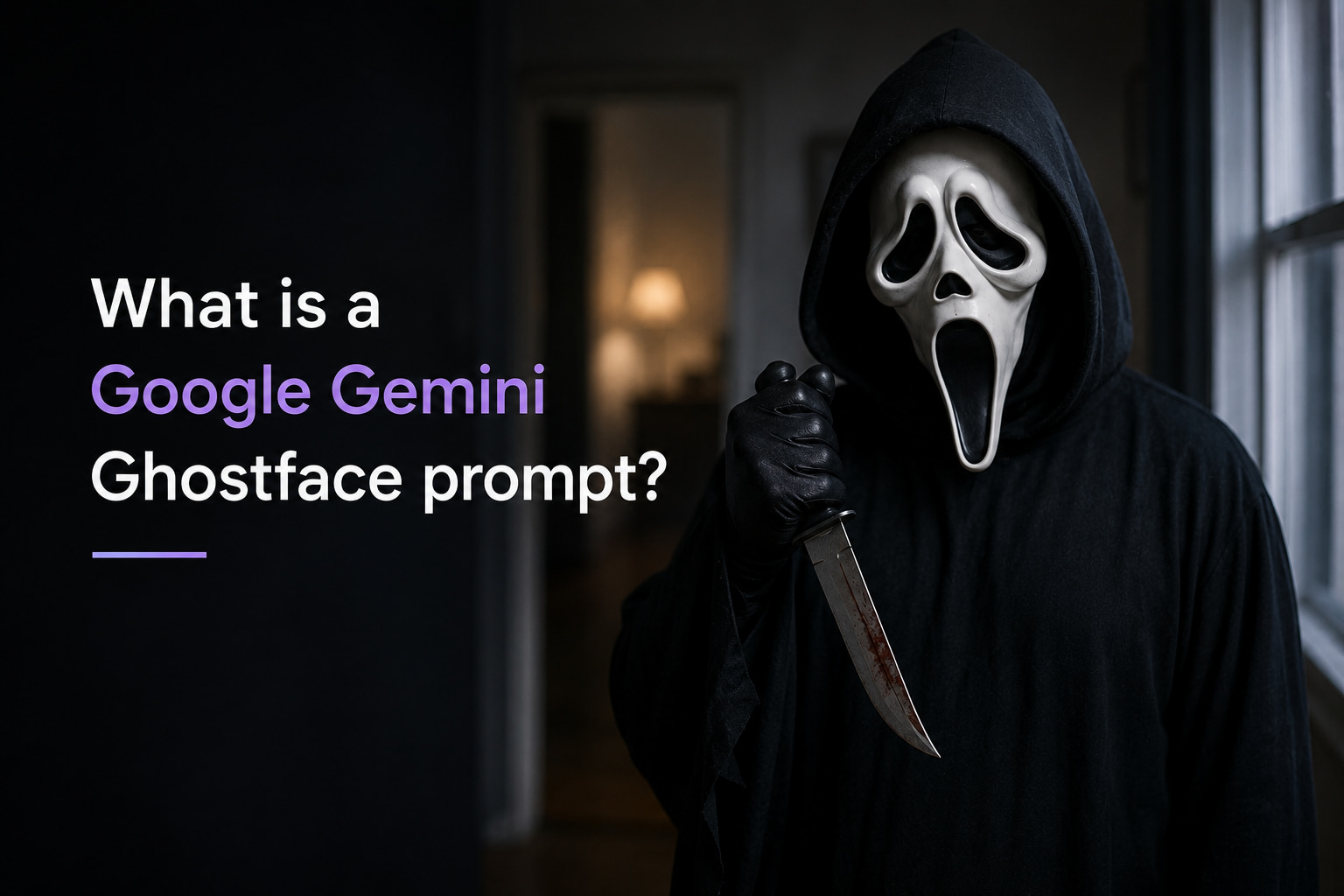
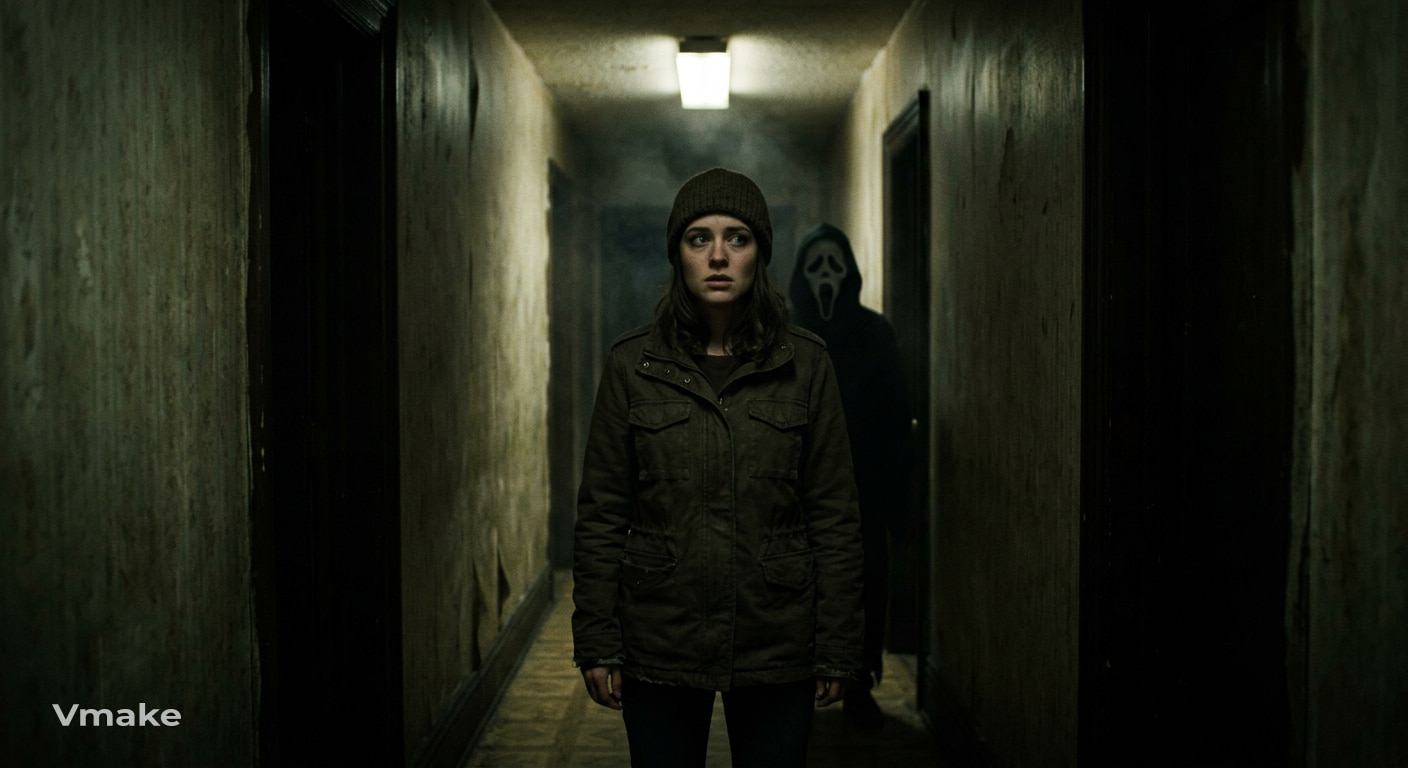
A more specific Gemini Ghostface prompt gives the model a clearer visual brief. For example, you could ask for a person standing alone in a dark hallway while Ghostface watches from the far end. You could then add details such as cold overhead lighting, light fog, deep shadows, and a cinematic horror photography style. Reference images can also help when the image-generation workflow accepts them as input. You can provide a photo of the person you want to feature and use the prompt to describe the new setting, Ghostface's position, lighting, and overall atmosphere. The result will still depend on the model, source image, and wording of the prompt. If something looks wrong, change the specific instruction causing the problem instead of adding more unrelated details.
Key elements for creating effective Ghostface AI prompts
When writing a Ghostface prompt for Gemini AI, include specific details that define the subject, scene, composition, and overall visual direction. Each element adds useful context and helps turn a basic idea into a more specific image concept.
|
Prompt Element |
Key Details & Description |
|---|---|
|
Main Subject |
Details on character/object, attire, looks, expression, stance, and posture. |
|
Ghostface Character |
Appearance, attire, pose, and exact placement (e.g., background, door frame, obscured). |
|
Action & Pose |
Specific movements or interactions (e.g., subject holding a flashlight, Ghostface stalking). |
|
Setting |
Horror location (e.g., dark alley, misty woods) with environmental cues (rain, fog, debris). |
|
Lighting |
Light source, direction, and mood (e.g., neon, moonlight, high contrast, rim lighting). |
|
Camera & Framing |
Shot angle and composition (e.g., low-angle, wide shot, over-the-shoulder, close-up). |
|
Mood |
Dominant emotional tone (e.g., eerie, tense, ominous, suspenseful). |
|
Visual Style |
Aesthetic treatment (e.g., horror film style, film grain, cinematic color grade). |
|
Image Quality |
Detail requirements (e.g., realistic textures, precise shadows, atmospheric depth). |
Ghostface Gemini prompts you can use
These Ghostface Gemini prompt copy-and-paste examples give you several starting points for creating horror images. Change the person, location, lighting, clothing, or composition to make each prompt fit your idea.
Classic Ghostface horror scene
Create a realistic cinematic horror scene of a person standing alone in a narrow hallway at night, wearing a dark jacket and looking toward the camera. Place a Ghostface figure several feet behind the person, partially hidden in deep shadows. Use flickering ceiling light, subtle fog, dramatic contrast, realistic textures, and shallow depth of field. Create a tense, unsettling atmosphere with a balanced cinematic composition.
Cinematic Ghostface portrait
Dramatic close-up portrait of a person in a dark environment with Ghostface coming out of the shadows from behind them. Add moody side lighting, subtle rim light, high contrast, realistic skin and fabric textures, shallow depth of field, and a softly blurred background. Get the composition to be cinematic and atmospheric. Ghostface should be in the frame, but not overshadowing the main subject.
Ghostface behind the subject
Using the provided reference image as the main subject, create a realistic cinematic horror scene while preserving the person's recognizable appearance, clothing, and general pose. Position a Ghostface figure directly behind the subject, at a natural distance, obscured by darkness. Add ambient lighting to cold blue tones, soft fog, deep shadows, realistic environmental textures and a tense nighttime atmosphere. Don’t take the subject out of the scene and put them in an unnatural position.
Ghostface in a dark forest
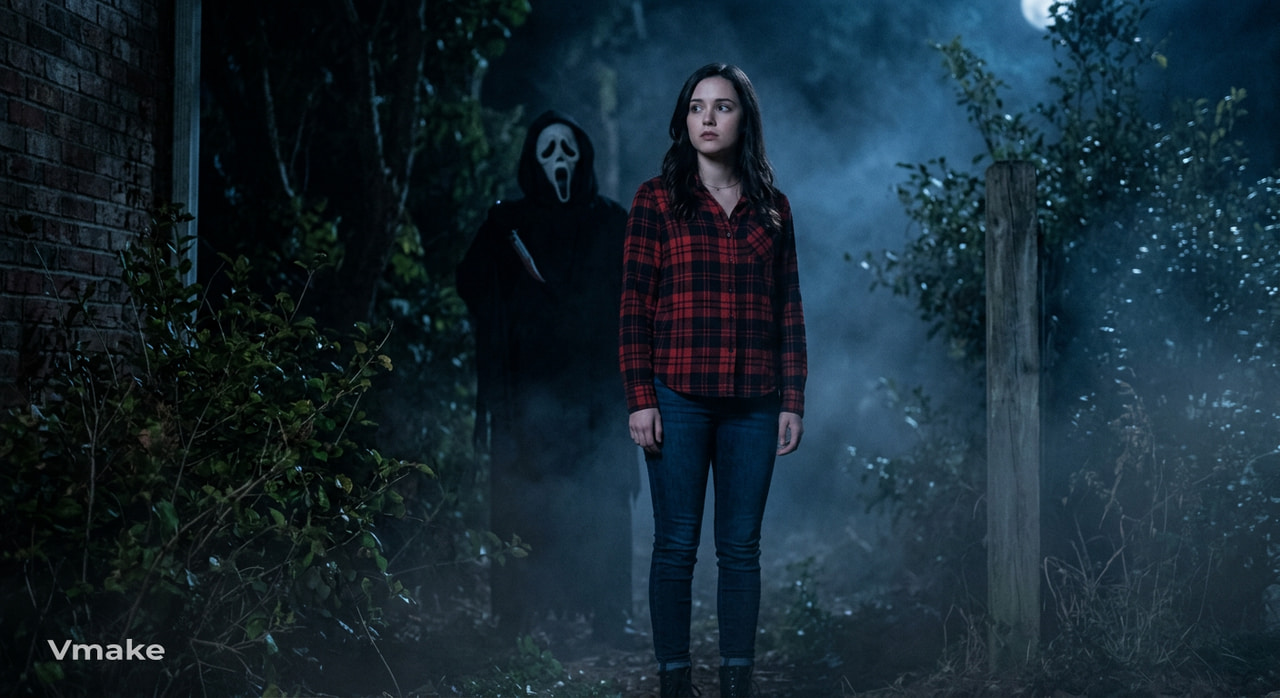
Make a realistic scary scene at night in a thick foggy forest. A single person stands on a narrow forest path with a Ghostface figure peering from the trees behind. Pale moonlight filtering through branches, subtle mist, long shadows, detailed trees and foliage, cinematic wide-angle composition. Make the scene mysterious, tense, and atmospheric but not graphic.
Ghostface Halloween scene
Halloween parties, outside at night, people, pumpkins, decorations, warm string lights, cinematic in the background, in the shadows, put a Ghostface figure, half hidden in the shadows. Warm foreground lighting, cool blue nighttime colors, realistic textures, a bit of fog, a suspenseful horror film atmosphere.
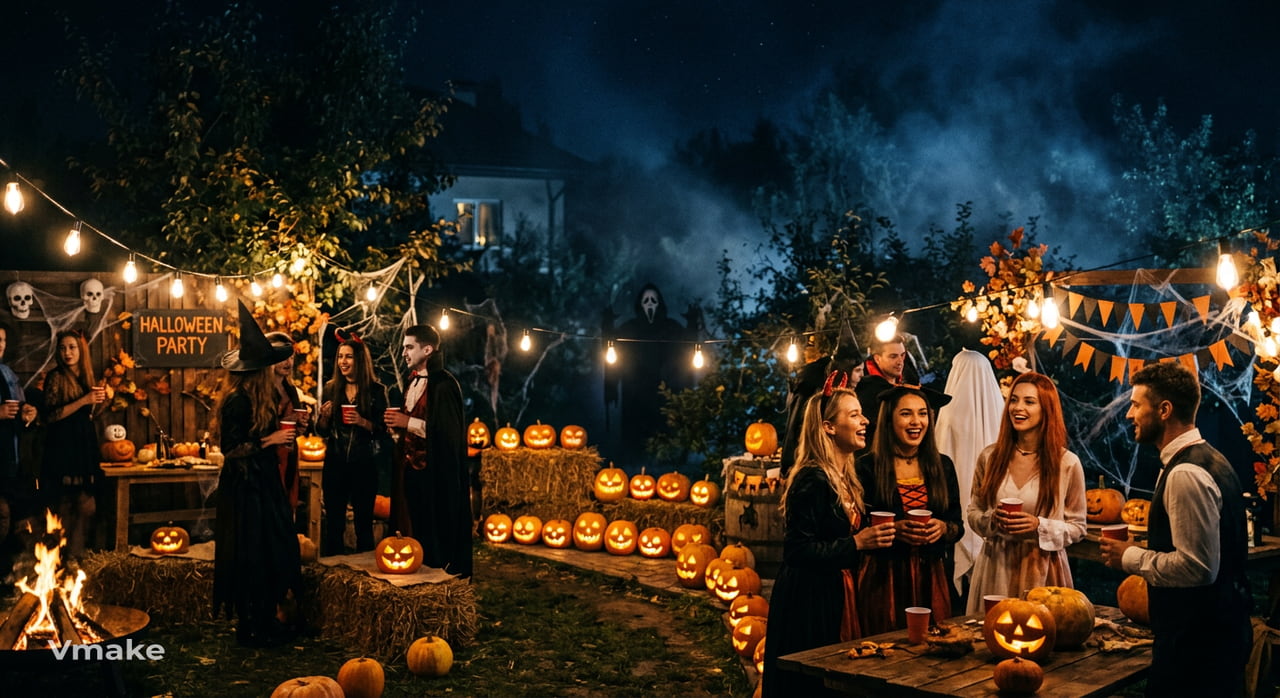
Ghostface movie-poster concept
Dramatic theatrical horror poster with a central character in the foreground and a ghostface figure behind, emerging from the darkness. Strong cinematic lighting, deep shadows, atmospheric fog, dramatic perspective, realistic textures, dark red and black visual palette. Make sure both characters are visually prominent. Leave clean negative space around the composition for a possible movie title.
How to create Ghostface-style AI images with Vmake Labs
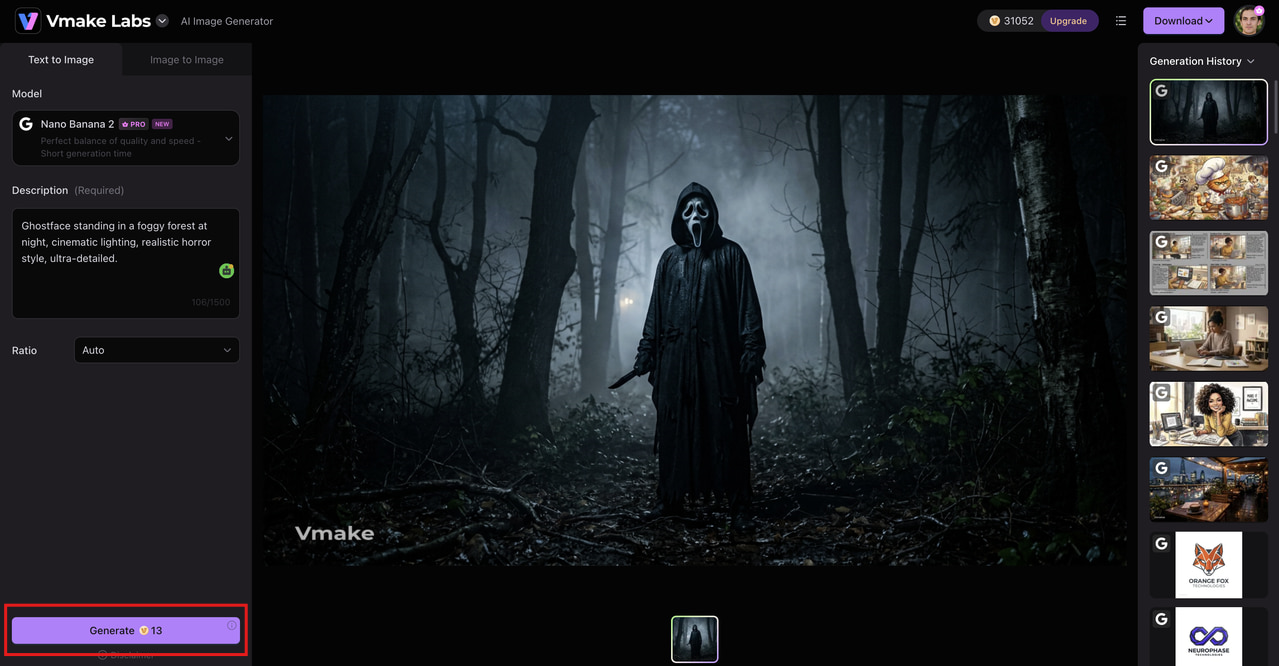
You can easily test out Ghostface-inspired horror ideas with Vmake Labs AI Image Generator by using text prompts and reference pictures. Describe the subject and setting, how the character is placed, the lighting, mood and visual style, then create different versions of the scene. You can also browse a range of built-in AI models and image generation styles to find an aesthetic that works for your concept. Reference images can help you guide the subject or composition, and prompt refinements can help you tune the background, pose, shadows, and overall atmosphere.
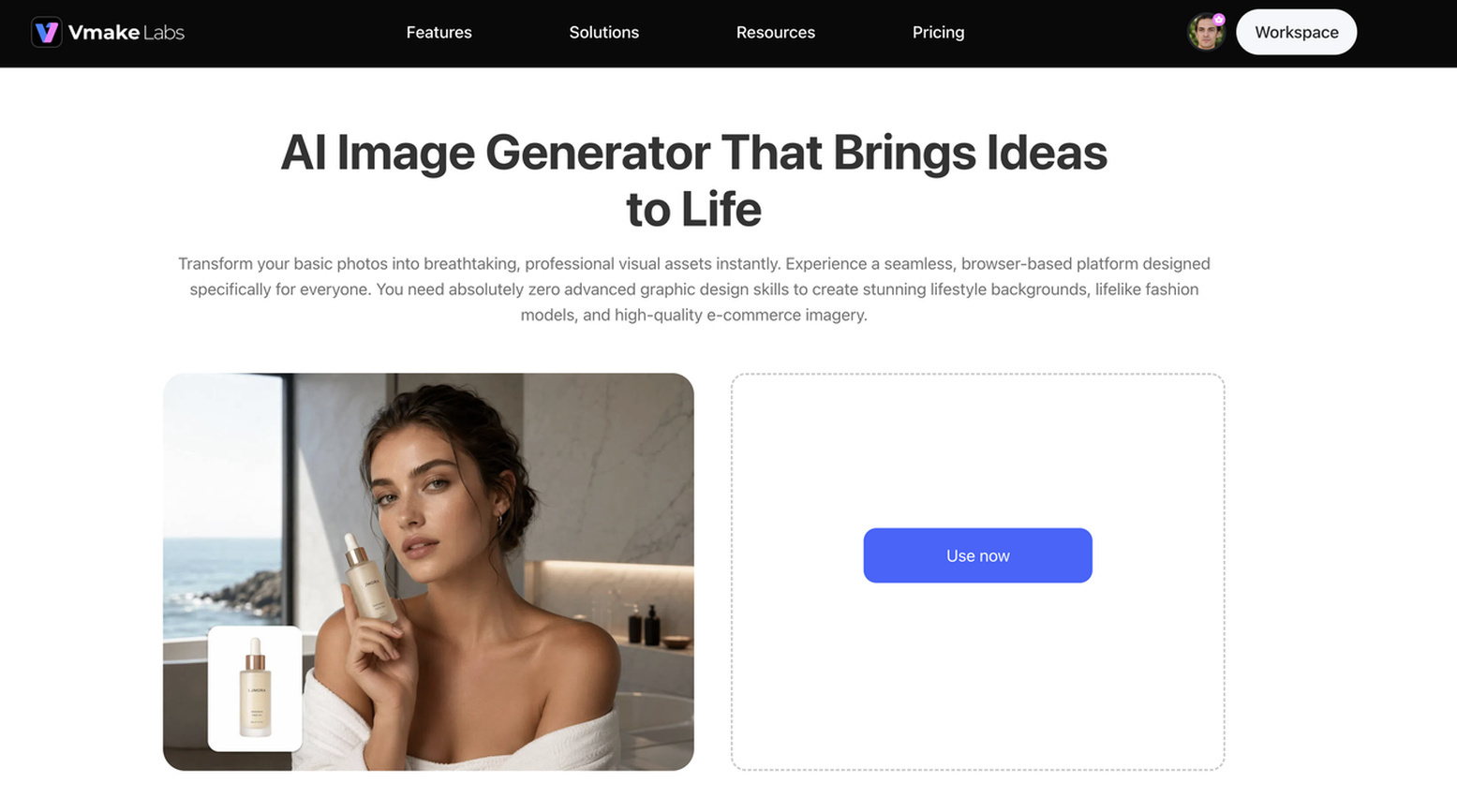
Key Vmake Labs features for horror image creation
For users experimenting with Gemini AI Ghostface prompt ideas, Vmake Labs provides a text-based workflow for developing similar horror concepts. You can build a scene from a written description and change the direction through prompt edits.
-
Text-based AI image generation: Turn a written scene description into an AI-generated image. Describe the subject, setting, pose, lighting, and overall mood to create a horror-themed visual.
-
Reference image support: Use an existing image to provide visual direction when supported by the workflow. A reference can help guide the subject, composition, or overall appearance of the scene.
-
Creative variations: Create different versions of the same horror concept by changing selected details. Experiment with settings, poses, lighting, or character placement to find a preferred result.
-
Visual style exploration: Experiment with realistic, cinematic, atmospheric, or other creative treatments. Adjust the prompt to change the mood, lighting, textures, or overall appearance.
-
Detailed image generation: Describe specific subjects, environments, and visual elements to build a more complete scene. Details such as textures, shadows, backgrounds, and atmospheric effects can add depth.
Steps to generate a Ghostface-inspired image
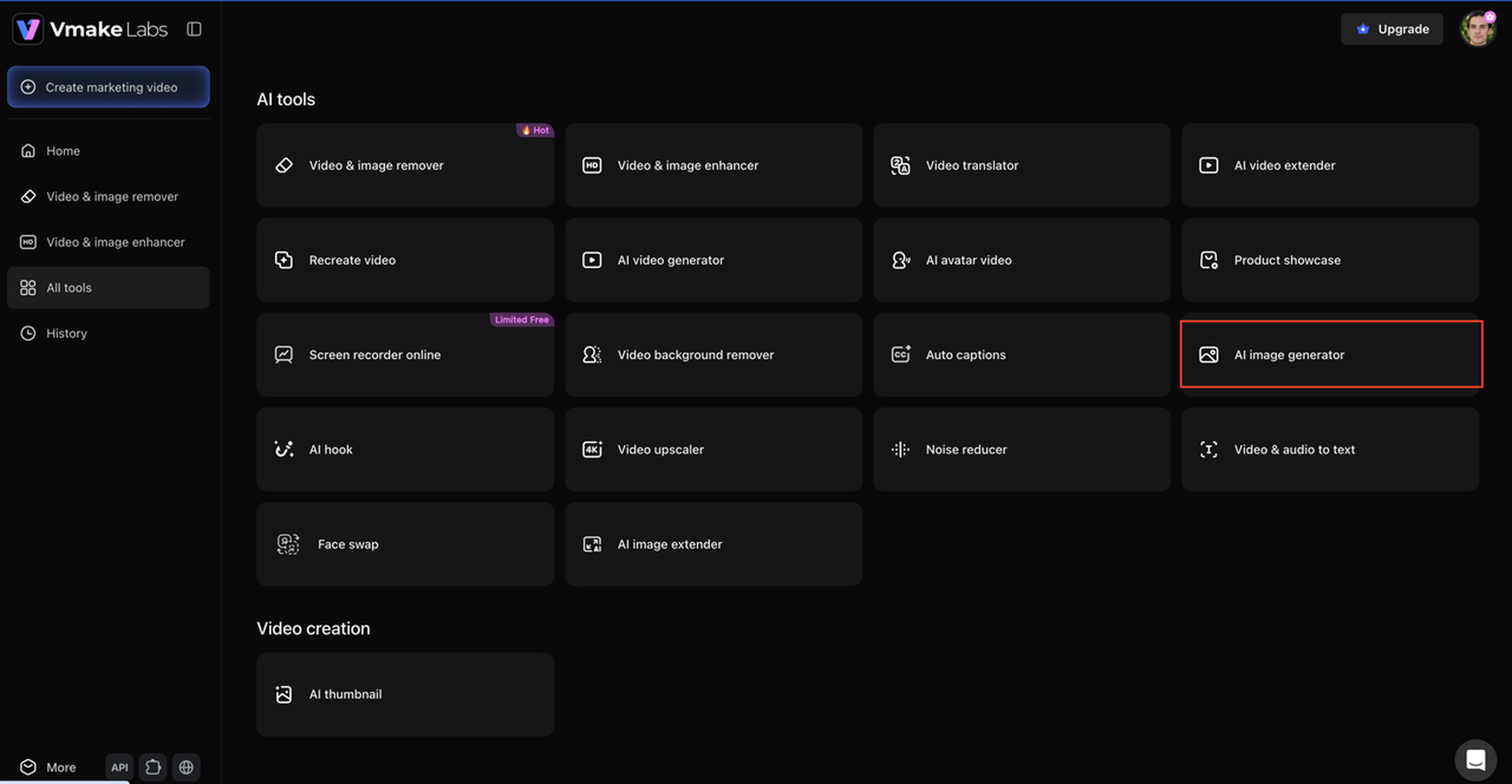
Step 1: Open Vmake Labs AI Image Generator.
Open the Vmake Labs AI Image Generator and start the image-generation workflow. Decide on the subject, setting, Ghostface placement, and mood before entering the prompt.
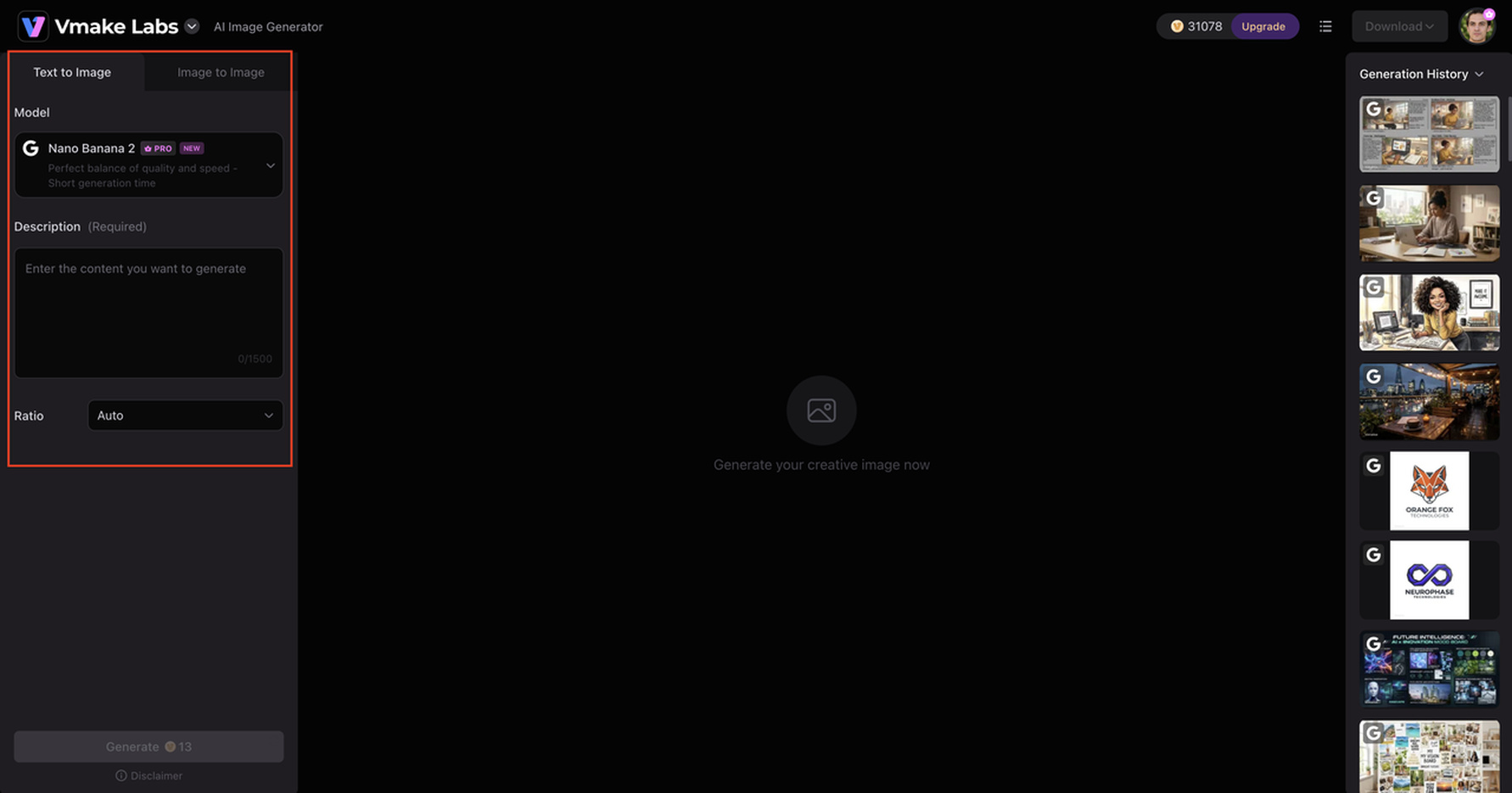
Step 2: Enter your Ghostface-inspired prompt and add a reference image if needed.
Describe the subject, Ghostface's position, environment, lighting, camera framing, and mood. Add a reference image when you want to provide additional visual direction.
Step 3: Generate the image and refine the prompt to adjust the setting, pose, lighting, or mood.
Review the generated image and identify what needs changing. Adjust details such as character placement, lighting, background, camera angle, or atmosphere.
Common mistakes to avoid with Ghostface AI prompts
Avoiding common prompt-writing mistakes can help you create clearer and more consistent Ghostface AI images.
-
Using vague descriptions: Avoid prompts that only say, "Create a scary Ghostface image." Add details about the subject, setting, lighting, mood, and composition.
-
Adding too many unrelated elements: Keep the scene focused on one clear subject and setting instead of combining multiple unrelated environments or ideas.
-
Ignoring composition: Specify where Ghostface should appear in relation to the main subject, such as in the background, behind the subject, or at the end of a hallway.
-
Using conflicting visual styles: Avoid combining incompatible instructions such as cartoon, photorealistic, and vintage-film aesthetics in the same prompt.
-
Skipping lighting and atmosphere: Horror scenes depend heavily on shadows, contrast, fog, and environmental lighting, so describe these elements when they matter to the scene.
-
Overloading the prompt: Include useful visual details without adding unnecessary instructions that compete with the main idea. If the generated image still has minor visual issues, an AI image fixer can help clean up the result.
Conclusion
A good Google Gemini Ghostface prompt will give you a good idea of where to start with regards to creating a horror image. Describe the subject, Ghostface's position, setting, lighting, framing, and mood before adding smaller details. Ready-to-use prompts can speed up the process, and targeted edits can help you fix the weak results. You can also try the Vmake Labs AI Image Generator to explore similar horror concepts using text and reference images. Begin with one scene, create a version, and tweak the details that need work. Some exact changes to the background, lighting, character placement, or camera angle can make the final image more in line with your idea.
FAQs
-
What is a Google Gemini Ghostface prompt?
The Google Gemini Ghostface prompt is a detailed instruction for using an image model to create or edit a horror-themed scene featuring Ghostface. It can specify the subject, Ghostface's appearance and placement, setting, action, lighting, camera angle, mood, and visual style to guide how the final image should look.
-
Can I copy and paste a Ghostface Gemini prompt?
Yes, you can copy and paste a pre-made Ghostface Gemini prompt, and then edit it to fit your scene. Make it more personalized by changing the subject, location, lighting, pose, or Ghostface's position.
-
How do I write a Ghostface prompt for Gemini AI?
Start by describing the main subject, Ghostface's appearance and position, the setting, action, lighting, camera angle, and mood you want in the image. Then choose a visual style that matches your concept, such as realistic horror photography, cinematic film aesthetics, dramatic lighting, or a darker atmospheric look.
-
Can I use my photo with a Ghostface Gemini prompt?
If your Gemini image-generation workflow supports reference images, you can use your photo as a visual reference for the subject. Vmake Labs also provides an image-generation workflow where reference images can help guide creative concepts when supported.
-
How can I make Ghostface AI images look realistic?
Use specific descriptions for lighting, shadows, textures, camera framing, and the surrounding environment. You can also experiment with Vmake Labs to explore realistic and cinematic horror concepts, then refine individual details when the result does not look natural.
-
Can I create Ghostface-style images with Vmake Labs?
Yes, Vmake Labs AI Image Generator can be used to explore horror-inspired image concepts with text prompts and reference images. Describe the subject, setting, character placement, lighting, and mood, then refine the concept to create different cinematic variations.

You May Be Interested

Guide to Gemini AI Video Generator: Features, Steps, & Alternative
Gemini Image Generator Review: Hands-on Review & Alternative
Best AI Image Enhancer in 2026: Top Tools to Upscale and Fix Blurry Images
Best AI Image Upscaler Tools in 2026: Upscale Images to 4K, 8K & Beyond
Can Gemini Generate Images? Review, Test & Features Today

Google Gemini|Copy Paste This Simple Prompts to Create “Hug my younger self ” Photos
