
How to Google Translate a Video: A Complete Step-by-Step Guide
Want to know how to Google Translate a video? Learn how to translate YouTube captions with Google Translate and discover how Vmake Labs Video Translator creates multilingual videos faster.

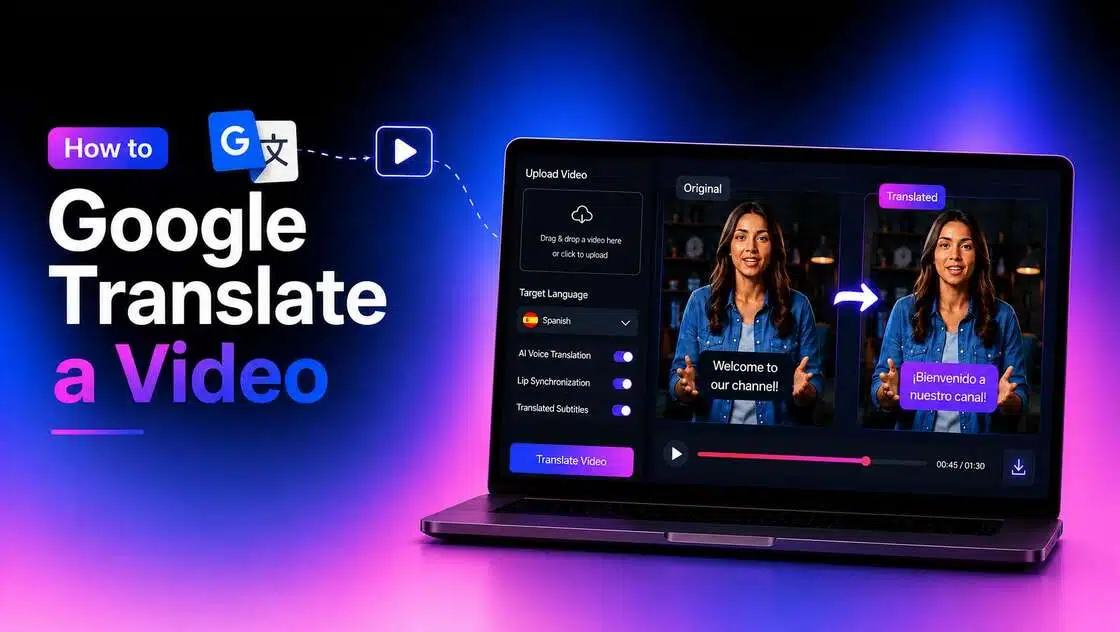
Want to reach viewers in different languages? If you're wondering how to Google Translate a video, Google Translate can help translate captions, but it can't translate complete videos. This guide explains how to translate YouTube subtitles using Google Translate and explores a faster AI-powered workflow for multilingual video translation.
Can You Google Translate a Video?
Google Translate is one of the most widely used translation tools on the planet, but its capabilities are more limited than most people realize for video content. To understand what's actually possible, it helps to separate what the tool is built to do from what people often assume it can do.
What Google Translate Can Do
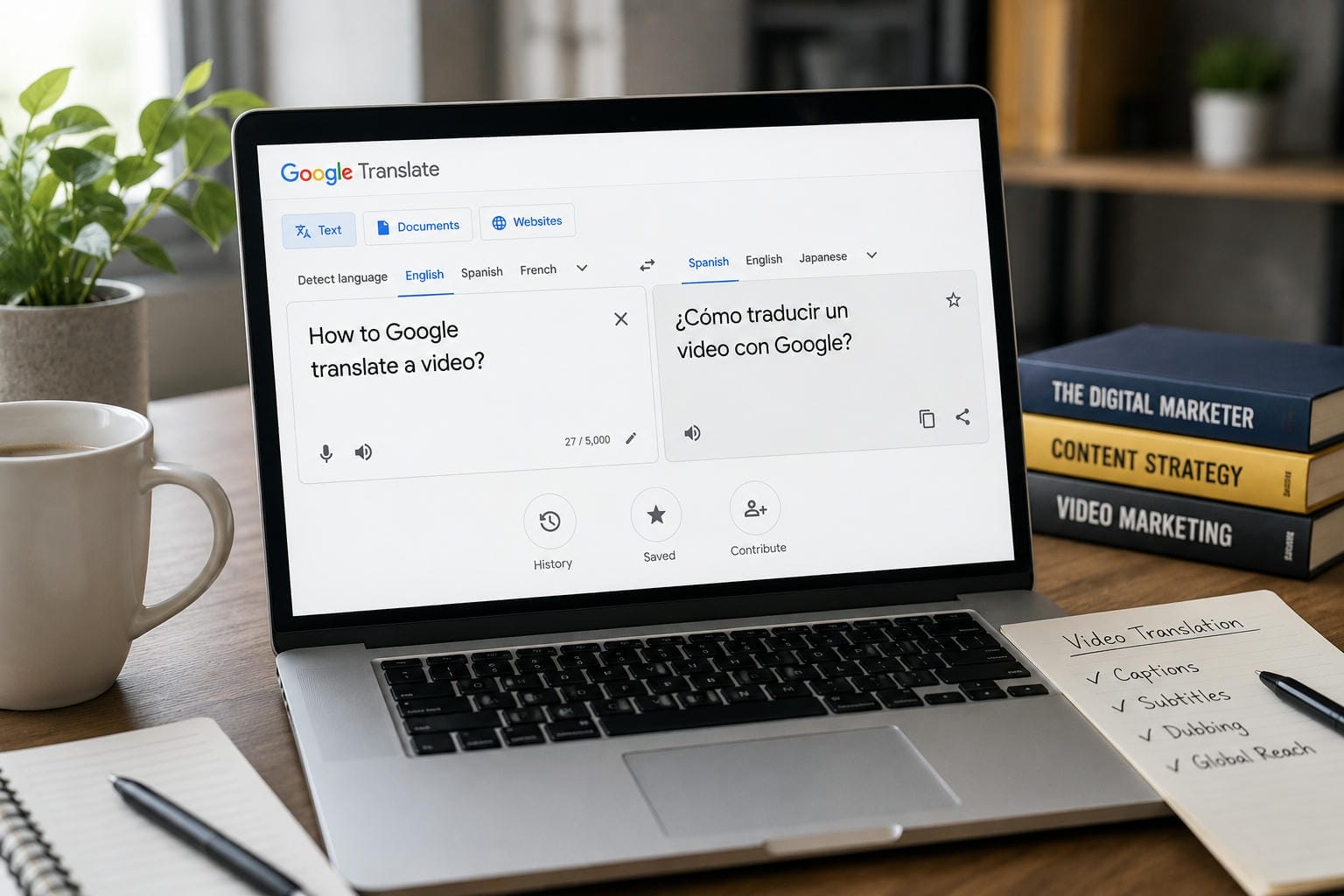
Google Translate isn't designed to handle video files directly. Instead, it focuses on translating text, speech, documents, and websites across a wide variety of languages. While it can help you understand foreign-language videos by translating written transcripts, subtitles, or descriptions—and even track live speech using Conversation mode—it cannot modify the video itself. If your workflow requires automated subtitles, translated audio, and a fully localized video file, you will need to pair Google Translate with a specialized AI video translation tool or utilize YouTube's native subtitle features.
How to Google Translate a YouTube Video
This is the subtlety: Although Google Translate cannot translate a YouTube video directly, you can use Google Translate to translate captions that are already set up in YouTube Studio and then post the translated text as a new subtitle track. Although it is a laborious process, it is effective for translating simple subtitles.
Step 1: Generate or access YouTube captions
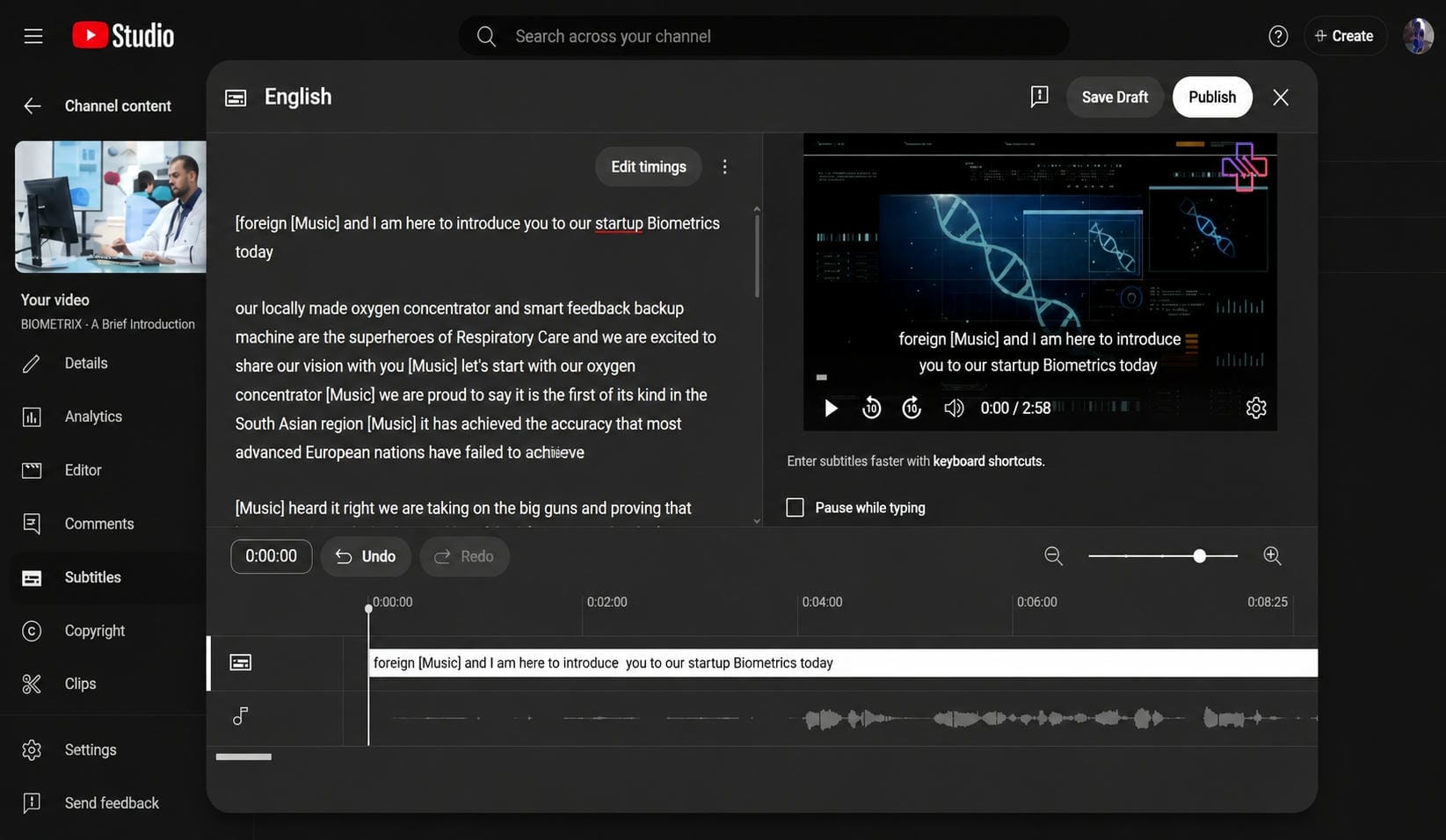
Open YouTube Studio first. You may either upload an existing caption file or let YouTube create captions for you by opening the desired video and going to the "Subtitles" section. If you're starting from scratch, review the auto-generated captions carefully before translating them, as any mistakes will carry over into the translated subtitles.
Step 2: Translate the captions with Google Translate
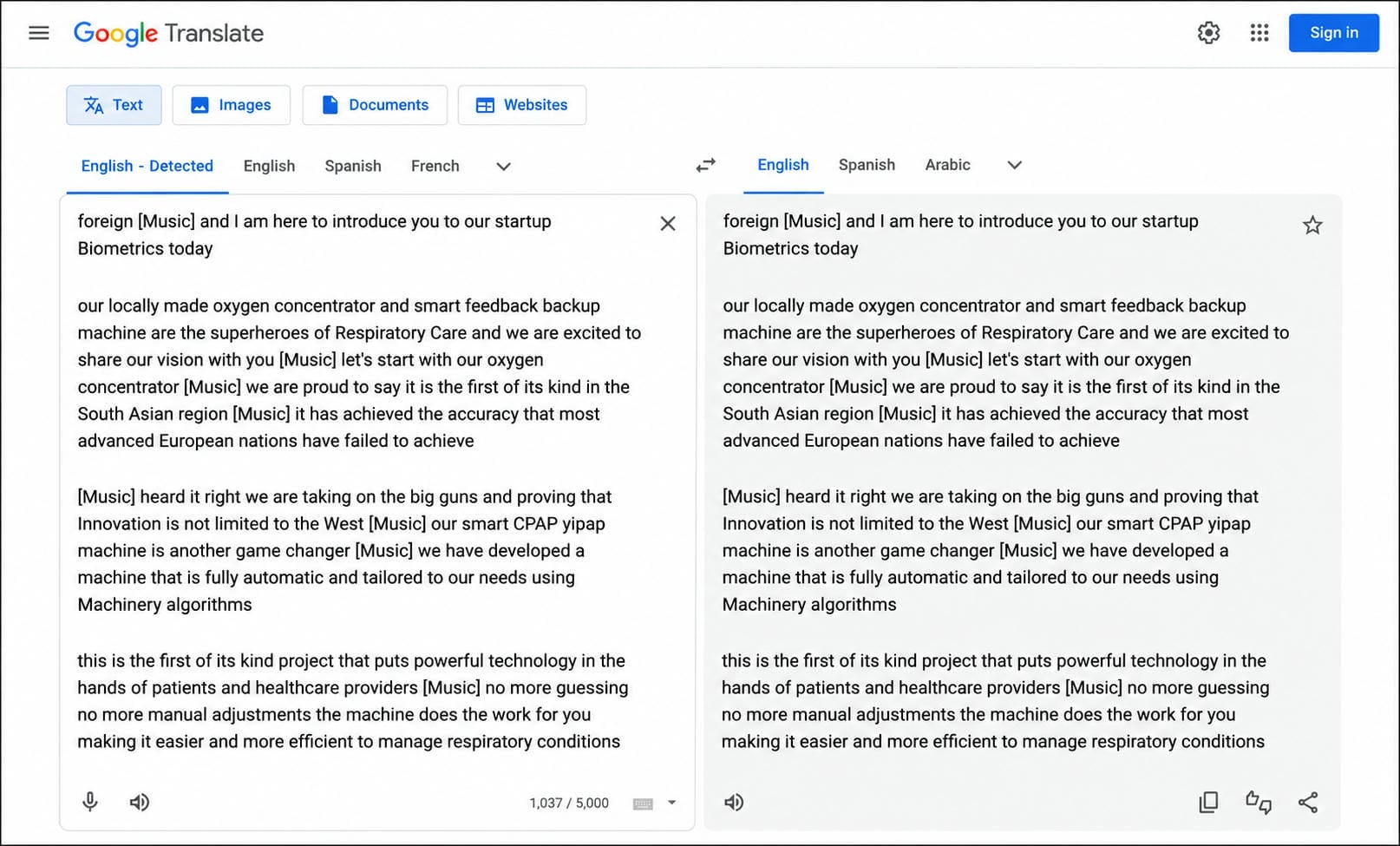
After you have a clear transcript or caption file, copy the text into Google Translate, choose your target language, and let the script be translated. The translated text must then be reformatted into a suitable subtitle file (such as an.srt), ensuring that the time markers remain consistent with the original captions.
Step 3: Upload the translated subtitles to YouTube
Head back to YouTube Studio, go to the subtitles section for your video, and add a new language track. Upload your translated subtitle file, double-check the timing of the video, and publish. Viewers can now select this new language from the captions menu.
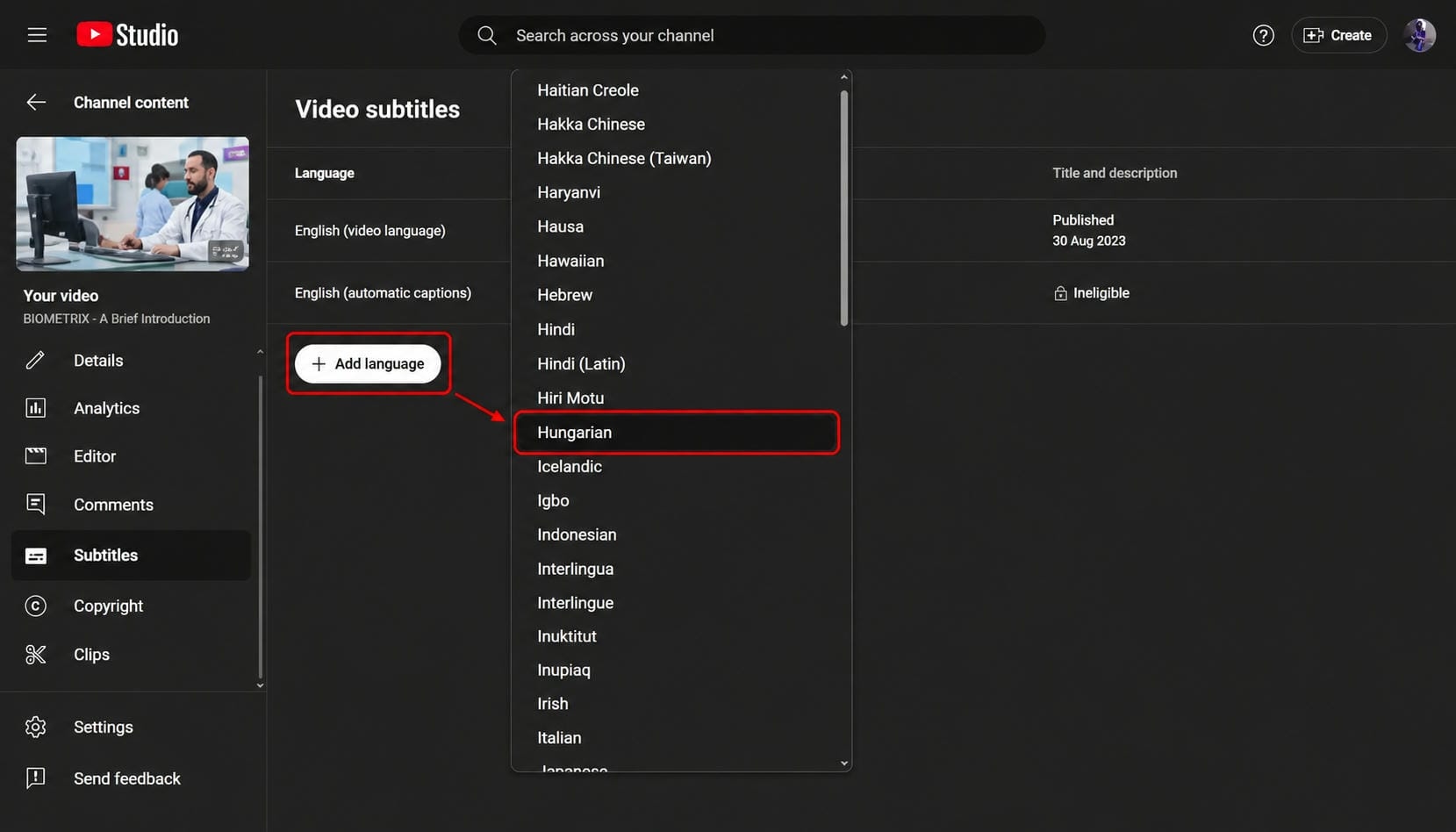
Limitations of using Google Translate for YouTube videos
This workflow is a practical way to add multilingual subtitles, but it still involves several manual steps. You'll need to generate captions, translate them separately, review the results, and upload the translated file yourself. More importantly, only the subtitle text is translated. The original narration, voice, and lip movements remain unchanged.
This procedure might be adequate for infrequent creators. However, the process can easily become monotonous if you frequently publish marketing videos, podcasts, interviews, tutorials, or social media content in several languages. In those situations, translating lip movements, audio, and subtitles all at once with an AI-powered Google video translator can save time.
How to Translate Any Video with Vmake Labs
If you are looking to scale your video content globally without losing hours to manual text conversion and timestamp synchronization, there is a vastly superior alternative. Modern AI platforms combine an AI subtitle generator, audio translation, and video localization into a single workflow, eliminating the need to switch between multiple tools.
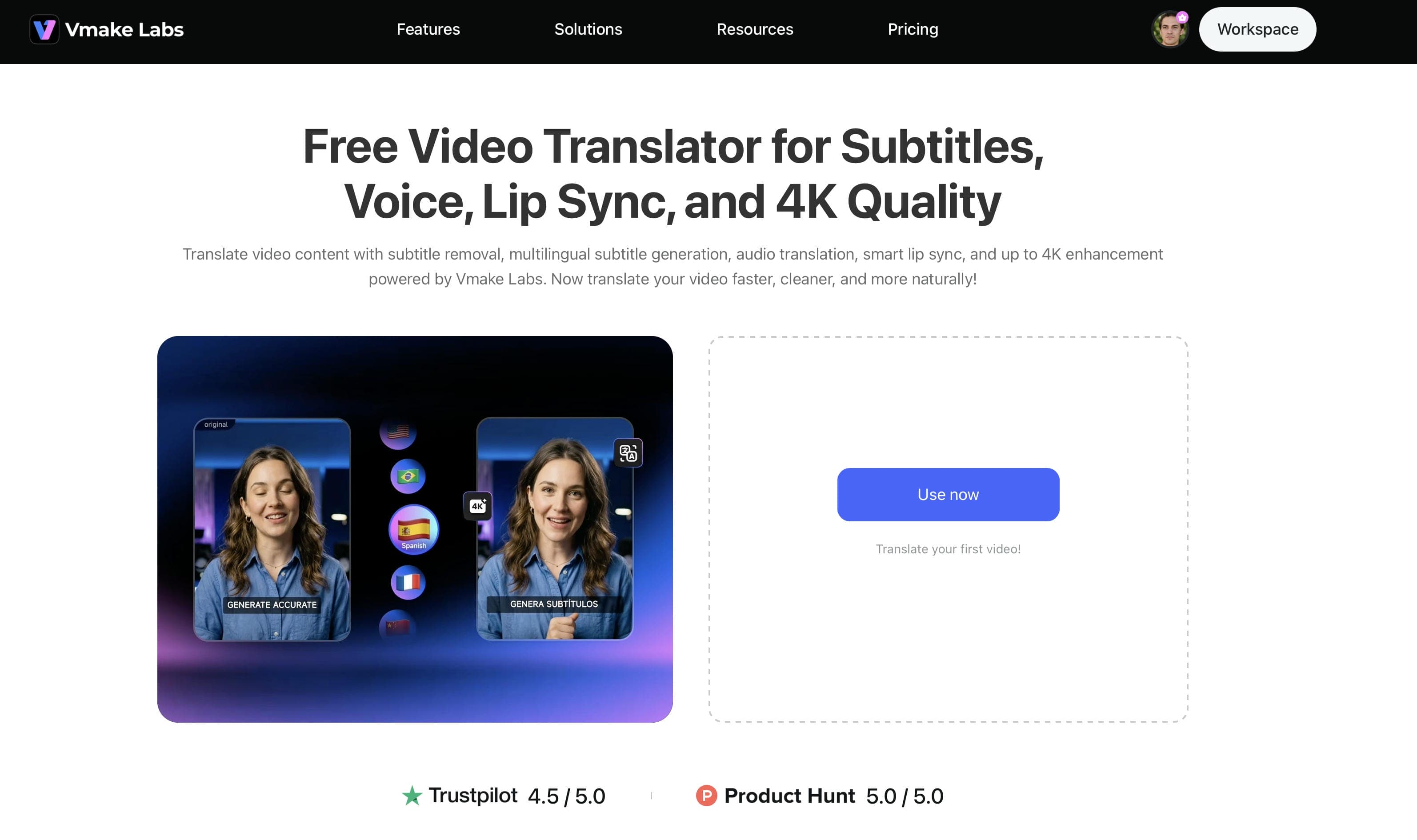
The Vmake Labs Video Translator is an all-in-one cloud platform engineered specifically to take raw footage and completely localize it into multiple languages. Instead of just changing the text layers, Vmake modifies the actual voice, timing, and visual elements to create a natural, professional-grade localized viewing experience.
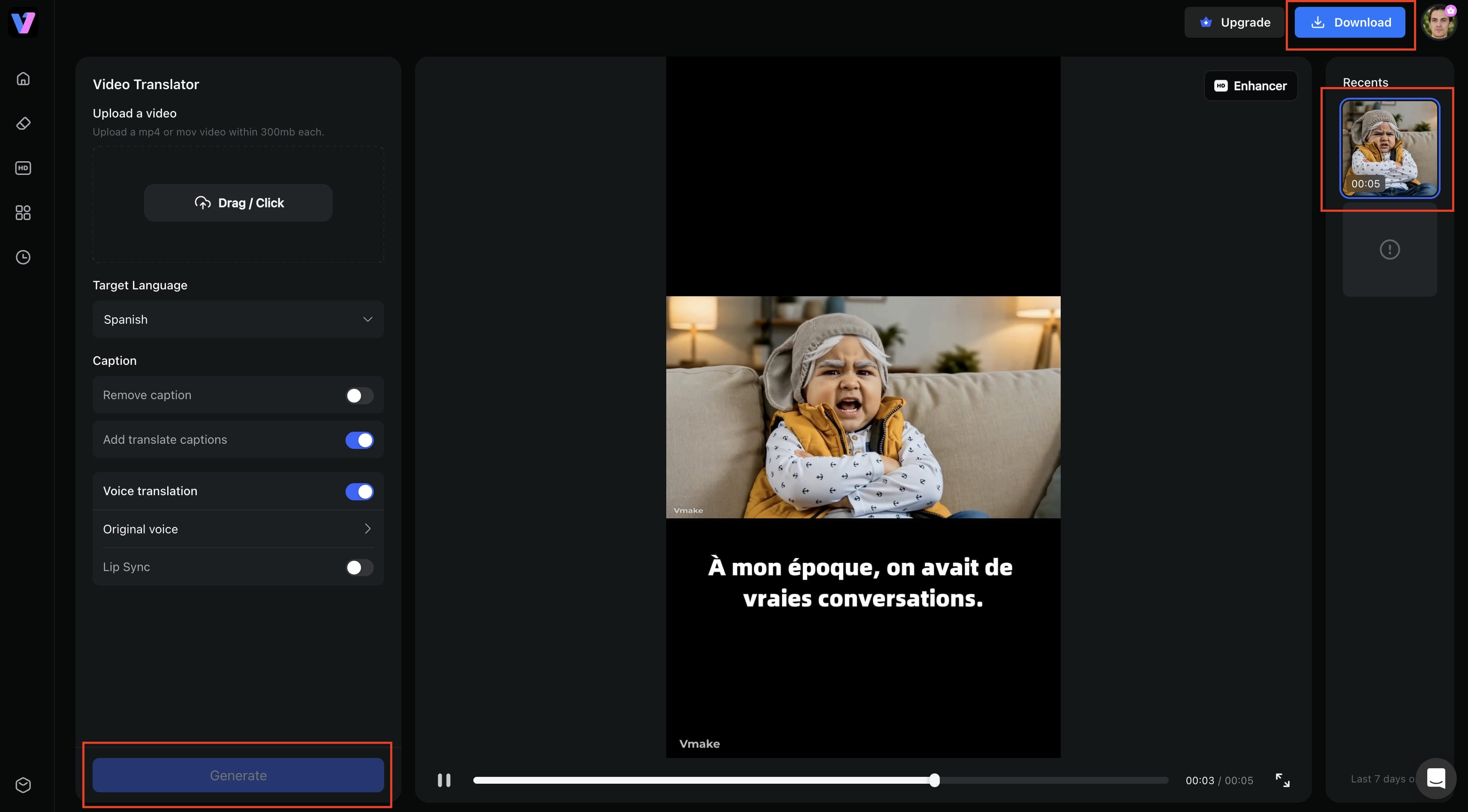
Step 1: Upload your video
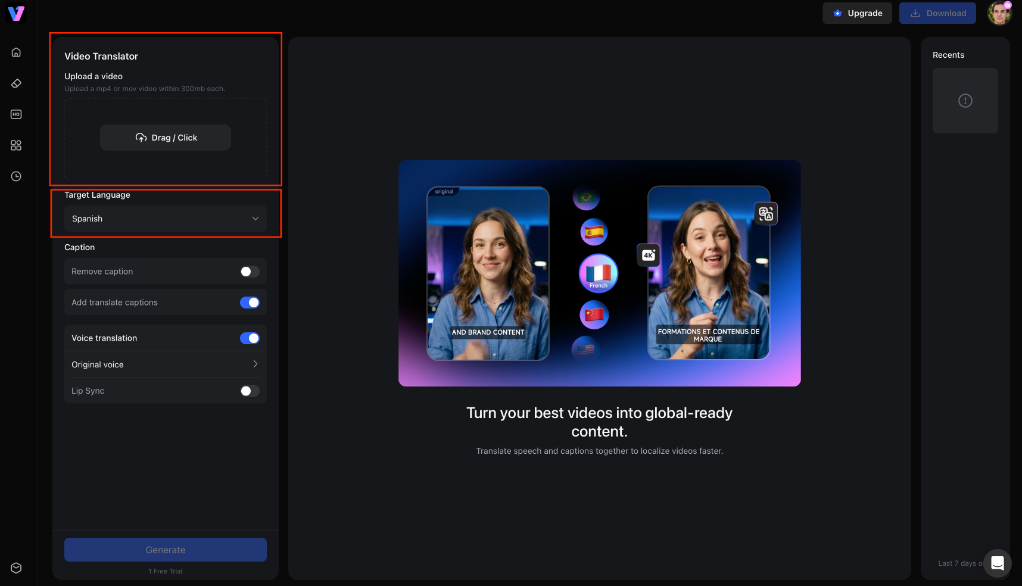
Open Vmake Labs Video Translator and upload your video by dragging it into the editor or selecting it from your device. Once uploaded, choose the target language to begin the translation process. The tool supports popular formats such as MP4, MOV, M4V, 3GP, and AVI.
Step 2: Select the features you need
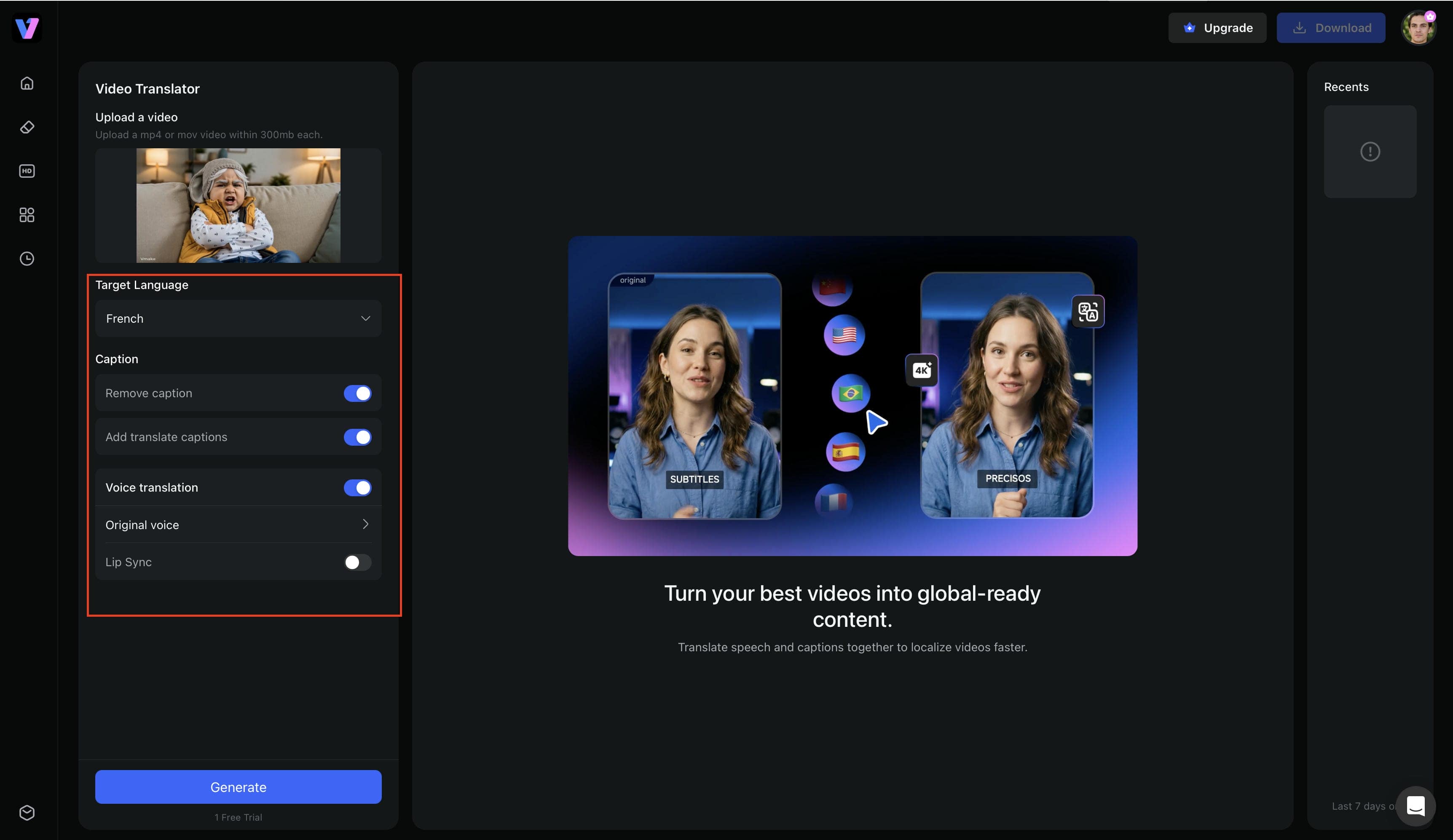
Choose the translation features that fit your project. You can remove or translate subtitles, enable voice translation, generate AI-dubbed audio, activate lip synchronization, and choose a preferred voice tone.
Step 3: Generate and export
Click Generate to process your video. Once the translation is complete, export your video with multilingual subtitles, AI dubbing, lip synchronization, and up to 4K enhancement, depending on the features you enabled before processing.
Why Choose Vmake Labs Video Translator?
When evaluating platforms for international content creation, look at how a unified workflow changes your production speed:
-
One-Stop Translation Workflow: Process subtitles, translate languages, generate voice-over dubbing, align lips, and upscale image quality inside the exact same workspace without switching between disconnected editing software applications.
-
Flexible Subtitle Control: Effortlessly strip away original hardcoded or burned-in subtitles from your video files, or choose to automatically generate and burn beautifully timed, translated closed captions directly back onto your clips.
-
Audio Translation and Voice Cloning: Complete script translation, natural voice cloning, and audio dubbing in one seamless step. The system preserves the original speaker's vocal timbre and tone variations across 14 distinct global languages.
-
Intelligent Lip Synchronization: Align physical mouth movements to match the newly generated audio tracks seamlessly, removing the awkward aesthetic of traditional voice dubs and making speakers look completely natural.
-
Up to 4K Enhancement: Upscale low-resolution, heavily compressed social media footage directly inside the post-production loop, giving you high-definition assets that look professional across international distribution networks.
Google Translate vs. Vmake Labs Video Translator
So how do these two approaches actually compare side by side? Google Translate is a general-purpose tool that happens to help with parts of the video translation process, while Vmake Labs Video Translator was purpose-built for translating complete videos. The table below lays out the practical differences.
|
Feature |
Google Translate |
Vmake Labs Video Translator |
|---|---|---|
|
Primary purpose |
Translate text, speech, and transcripts |
Translate complete videos |
|
Subtitle workflow |
Translate copied captions or transcripts manually |
Remove, generate, and translate subtitles automatically |
|
Audio translation |
Live conversation translation only |
AI-generated translated audio for videos |
|
Lip synchronization |
Not available |
Built-in lip synchronization |
|
Voice quality |
Standard translated speech |
Natural voice with timbre synchronization |
|
Video export |
Not supported |
Export translated videos ready for publishing |
|
Time required |
15–30+ minutes with manual translation and subtitle upload |
1–3 minutes to set up, then automated processing |
|
Best suited for |
Learning and understanding content |
Content creation and multilingual publishing |
If you just want to understand what a video is saying, Google Translate's text and speech tools can get you there.
If you're producing content for an audience and need a finished, publish-ready translated video, Vmake Labs is built for that specific job.
Tips and Common Mistakes for Better Video Translation
Even when using Google Translate or AI-powered video translation tools, a few simple steps can make a noticeable difference in the final result. Following best practices helps improve subtitle readability and translation quality, while avoiding common mistakes ensures your translated videos remain clear, accurate, and engaging for viewers.
Best practices for video translation
-
Start with clear audio: Record or upload a video with minimal background noise and clear speech. Avoid overlapping speakers whenever possible, as high-quality audio leads to more accurate transcription, subtitles, and AI dubbing.
-
Keep subtitles easy to read: Use short subtitle lines and ensure they remain on screen long enough for viewers to read comfortably. Well-timed subtitles improve accessibility and help audiences follow the content without distraction.
-
Review the translated video: Always preview the final video before publishing. Check subtitle accuracy, verify that AI dubbing sounds natural, and confirm that names, technical terms, and brand names have been translated correctly.
Common mistakes to avoid
-
Relying entirely on machine translation: Google Translate and AI tools can occasionally miss context or translate phrases too literally. Always review the translated subtitles or audio before publishing.
-
Using poor-quality source audio: Videos with background noise, echoes, or unclear speech can reduce transcription accuracy and lead to translation errors. Starting with clean audio produces better results.
-
Ignoring subtitle timing: Even accurate subtitles can be difficult to follow if they appear too quickly or stay on screen for too little time. Review subtitle timing to ensure a comfortable reading experience.
-
Choosing the wrong language settings: Double-check the source and target languages before translating. Incorrect language selection can result in inaccurate subtitles or dubbed audio.
Conclusion
Google Translate is a wonderful place to start for basic video localisation since it can be used to translate documents, transcripts, and subtitle text. It does not, however, produce AI dubbing, export multilingual films, or translate entire video files. An AI-powered solution can save a significant amount of time when producing material for YouTube, social media, marketing, or online education. With just one workflow, Vmake Labs Video Translator can translate videos, produce dubbed audio and subtitles, synchronise lip movements, and export multilingual videos that are ready for publication.
FAQs
Can Google Translate translate a video directly?
No, submitted video files cannot be instantly translated by Google Translate. It does neither analyse video content or produce translated versions of videos, but it can translate text, documents, web pages, and spoken chats. A specialised video translation solution like Vmake Labs Video Translator is required if you require dubbed audio, translated subtitles, and a video that is ready for publication.
How do I Google translate a YouTube video?
You can translate a YouTube video's captions by generating or accessing subtitles in YouTube Studio, translating the subtitle text with Google Translate, and uploading the translated subtitles as a new language track. This method works well for subtitle translation, but if you also want translated audio and lip synchronization, an AI video translator can complete the entire workflow in one place.
Can Google Translate translate video audio?
No, Google Translate does not substitute a different language for the original audio in a video. Through its mobile app, it can translate spoken conversations in real time, but it isn't made to produce dubbed audio for videos. Tools like Vmake Labs Video Translator can produce translated audio and subtitles if your project calls for multilingual voiceovers.
Is there a Google video translator?
For uploading, translating, and exporting whole videos, Google does not now provide a specialised video translator. While Google Translate can assist with translating transcripts and subtitle text, artists usually use AI video translation solutions when they require export-ready videos in various languages, dubbing, lip synchronisation, and subtitles.
What is the easiest way to translate a video into another language?
The simplest strategy relies on your objective. Google Translate is an easy choice if all you need to do is comprehend or translate subtitles. An AI video translator such as Vmake Labs can automate lip synchronisation, AI dubbing, and subtitle translation when producing multilingual videos to post on YouTube, social media, or other platforms, minimising the amount of manual editing needed.

You May Be Interested
Seedance Reviews and Google Veo 3: Full Comparison Guide
