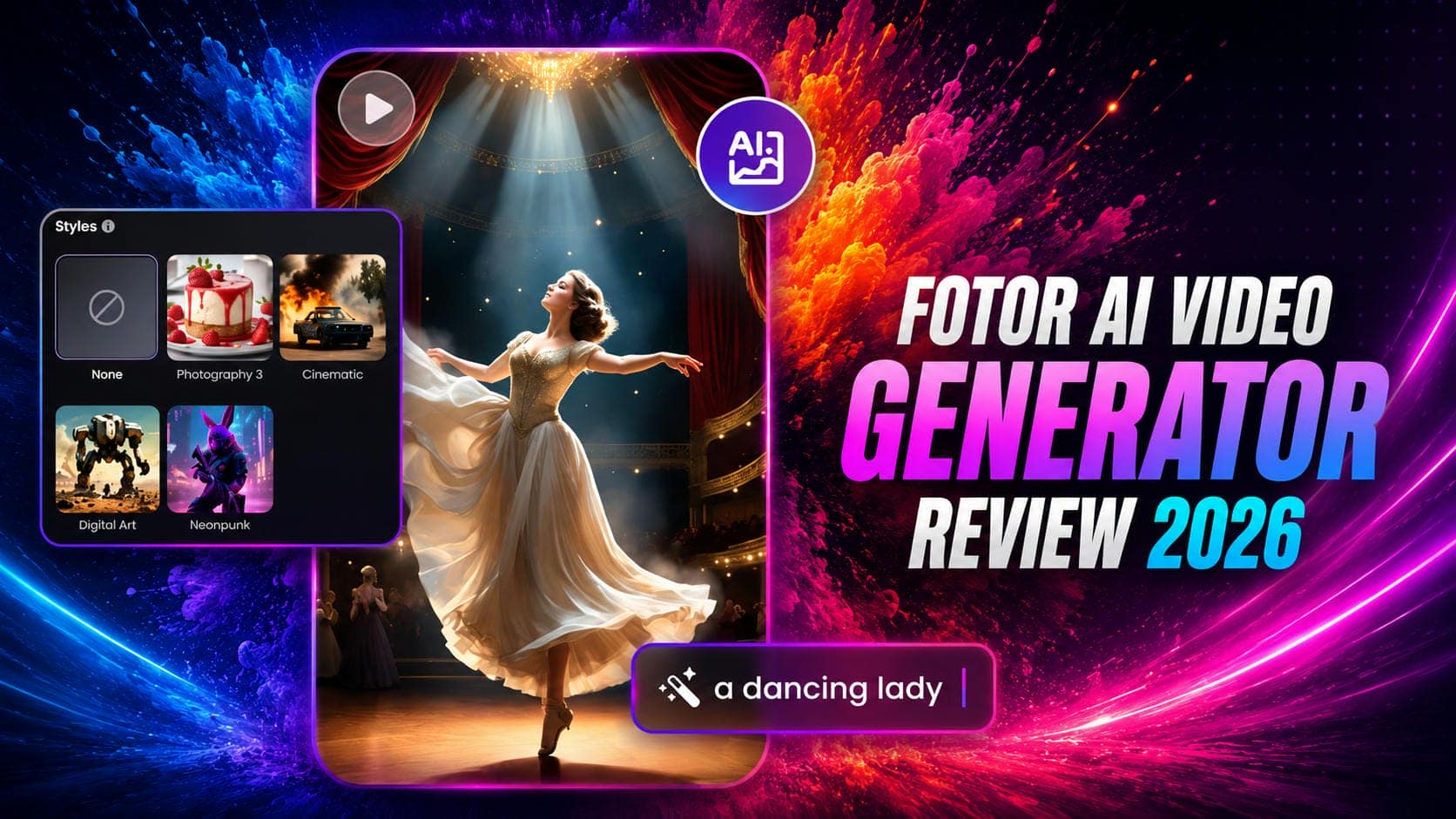
Fotor AI Video Generator Review: Is It Worth It in 2026?
Fotor AI Video Generator promises quick AI-powered video creation, but how well does it perform? This review explores its features, pricing, video quality, and the best alternative, Vmake AI, for creators.

With AI video tools appearing almost weekly, veterans in the photo space are rushing to adapt. Fotor, a name synonymous with quick web-based photo filtering and template design, has stepped into the video arena. This comprehensive review breaks down its strengths, limitations, and comparisons with dedicated video AI platforms.
Overview of Fotor AI Video Generator
Fotor built its reputation as an accessible, web-based photo editing platform. However, the ecosystem has expanded significantly to capture the growing demand for automated motion content. The Fotor AI video generator is their direct answer to creators who need moving visuals but lack the hardware or expertise to manage traditional rendering software.
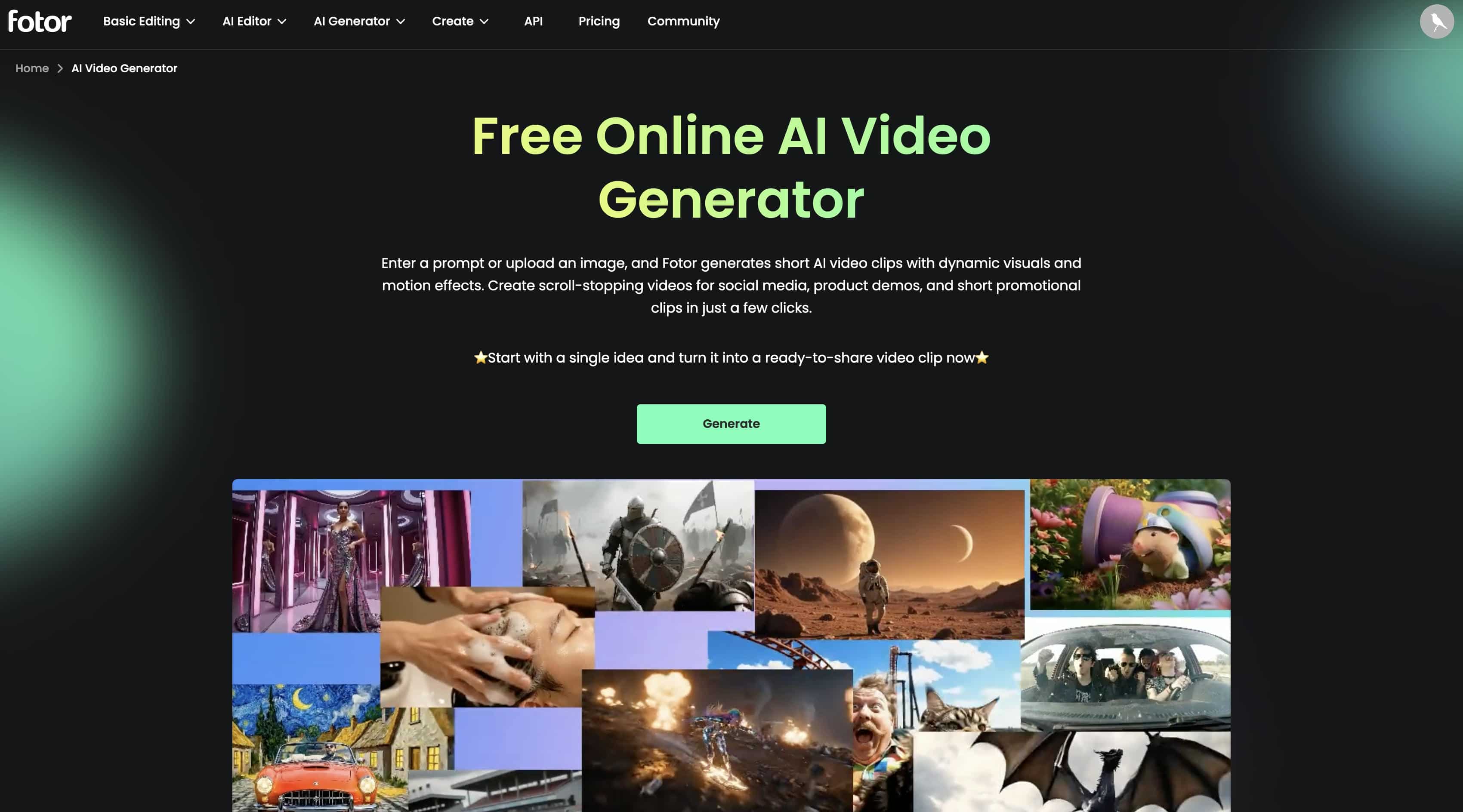
It’s a lightweight suite focused on social media administrators, ecommerce storefront owners, and casual content creators, built for fast asset creation. It’s meant for speed, not to compete with the heavier-duty PC post-production programs. The platform's primary output is short-form horizontal and vertical clips (usually under 15 seconds) designed for TikTok, Instagram Reels, and fast-paced promotional banners.
Core Capabilities
The tool sets up several entry paths for creators, keeping its interface straightforward to reduce friction:
-
Text-to-Video Generation: Users type descriptive text prompts to create unique visual environments from scratch.
-
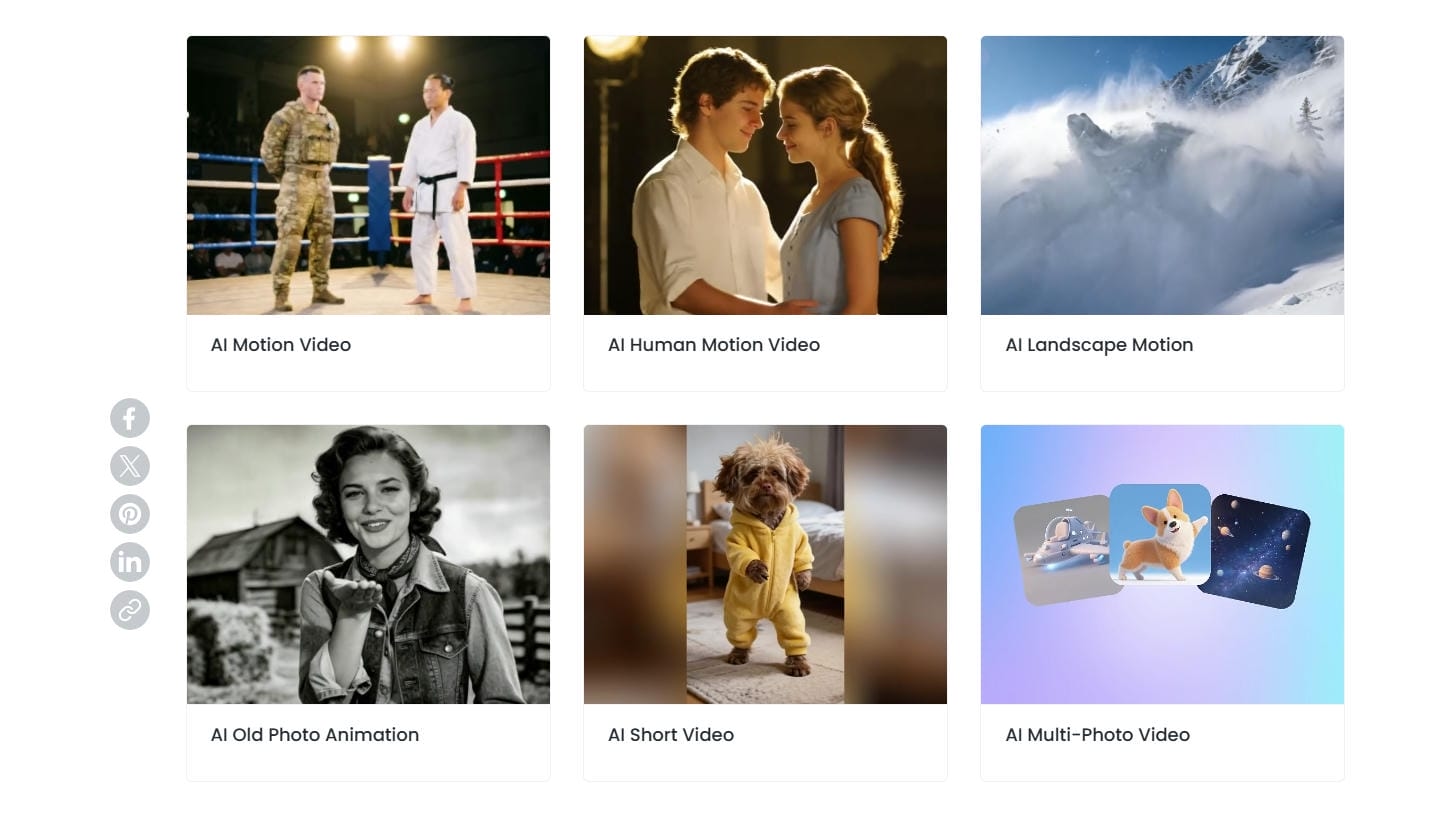
Fotor AI Image to Video Generator: This feature takes static graphics, such as a product snapshot or an AI-generated portrait, and applies physics-based motion to animate them.
-
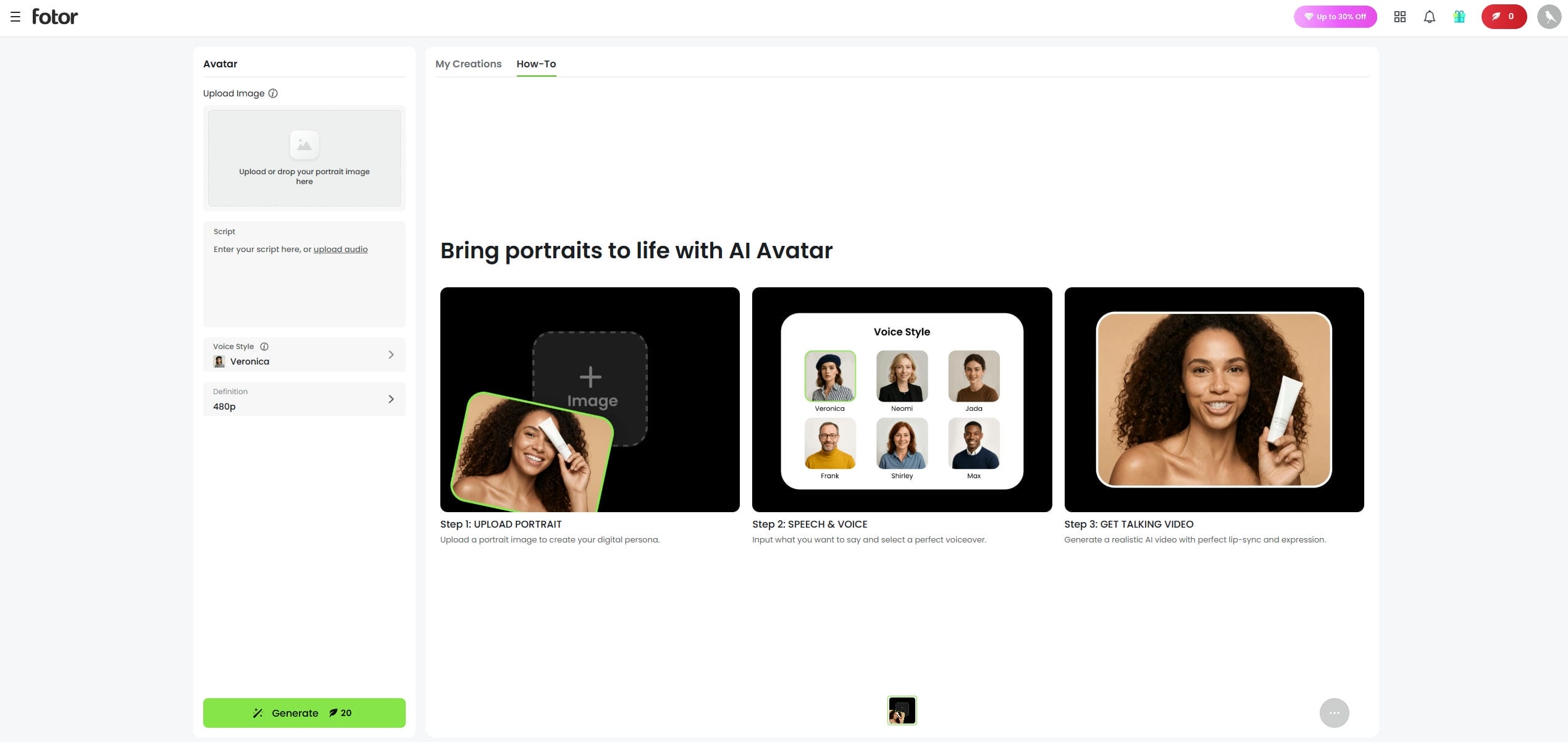
Fotor AI Lip Sync Video Generator: A dedicated portal that maps scripted audio tracks onto digital avatars or static facial photos.
-
Template-Based Video Creation: Standard graphical overlays and text layouts for users who want to construct videos using traditional timeline structures instead of raw AI generation.
Key Features of Fotor AI Video Generator
To understand whether the Fotor AI video generator performs well across production tasks, we need to examine how its core engines process your inputs.
AI Video Creation System
At its heart, the prompt-based engine builds scenes by translating descriptive text variables into visual frames. You select an output style such as cinematic, anime, 3D render, or watercolor, type your setting, and let the cloud servers render it. The system handles scene building automatically, making it easy to create abstract or stylized footage without manual asset hunting.
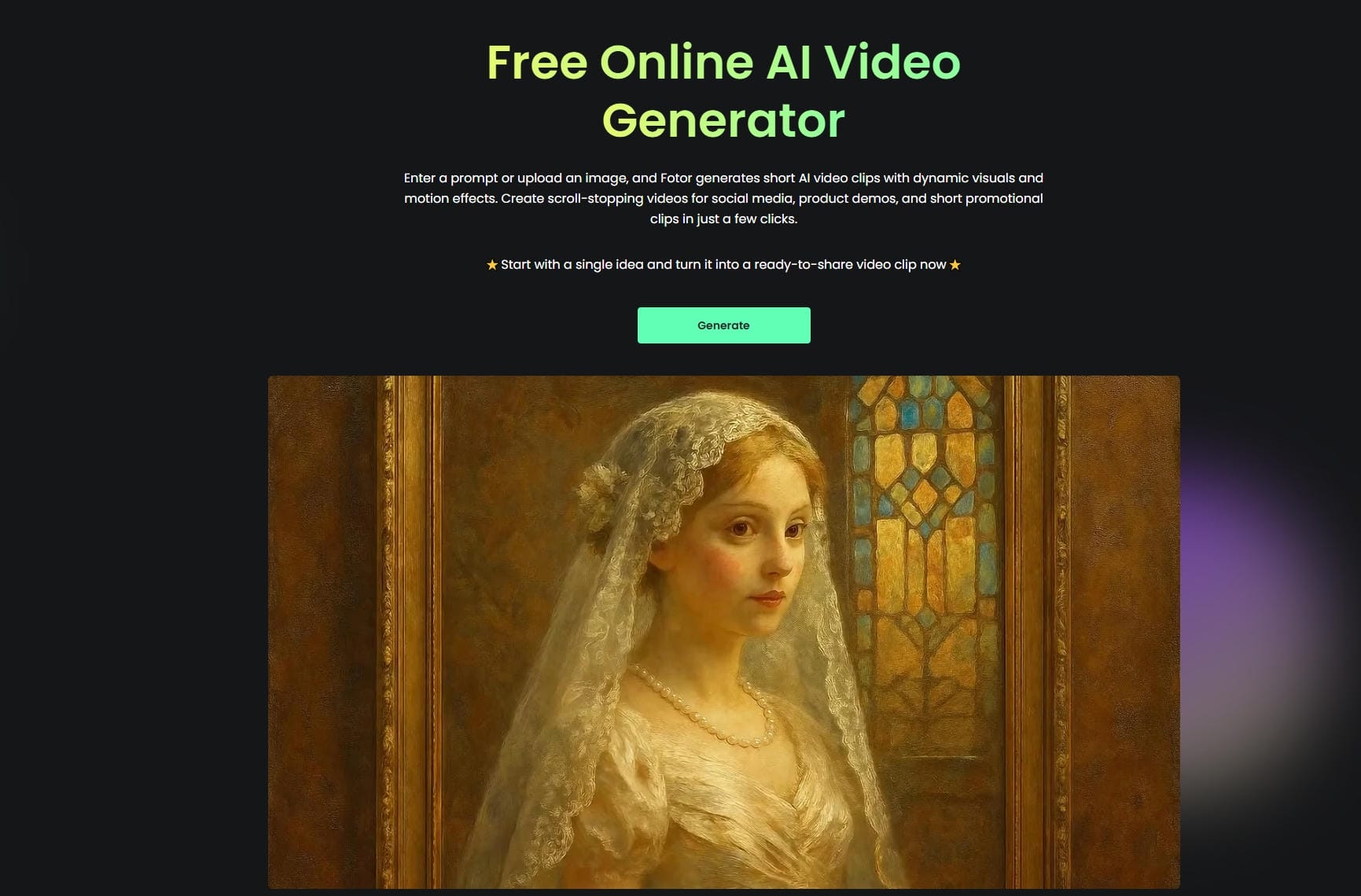
Image to Video Animation
The Fotor AI image-to-video generator is highly effective for animating design assets. If you upload a static landscape or a character model, the AI evaluates depth and edges to simulate camera pans, zooms, or gentle environmental movements such as wind and flowing water. This provides an efficient way to turn still product photos into social media-ready clips without setting up a full camera rig.
Lip Sync AI Videos
For creators building presentation slide decks or social commentary, the Fotor AI lip-sync video generator offers a straightforward talking-head feature. You upload an audio file or type a text script, select a target face or digital avatar, and the tool matches the mouth shapes to the spoken phonemes. While it provides a functional solution for automated avatars, the facial microexpressions can occasionally feel rigid compared to dedicated, high-end studio avatars.
Built-In Editing Tools
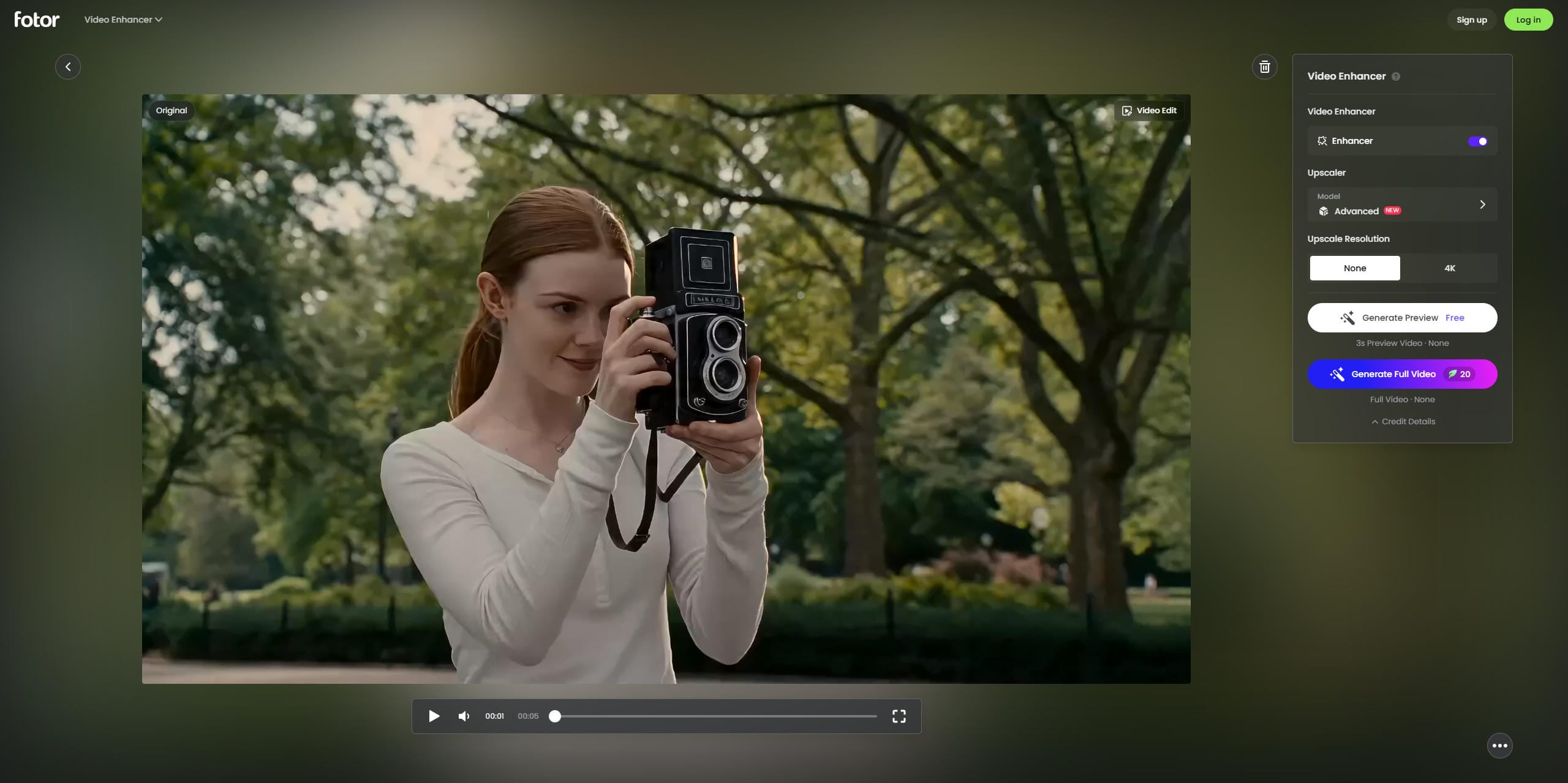
Once the AI finishes generating your core clip, Fotor passes the file into a basic browser-based timeline. Don't expect multi-track layering or deep audio mixing here; it focuses entirely on essentials. You can trim the clip's duration, apply standard color filters, and pick background music tracks from their built-in audio library to finalize your social assets.
Community Reviews
Below is a summary of verified user feedback from leading software review platforms.
G2
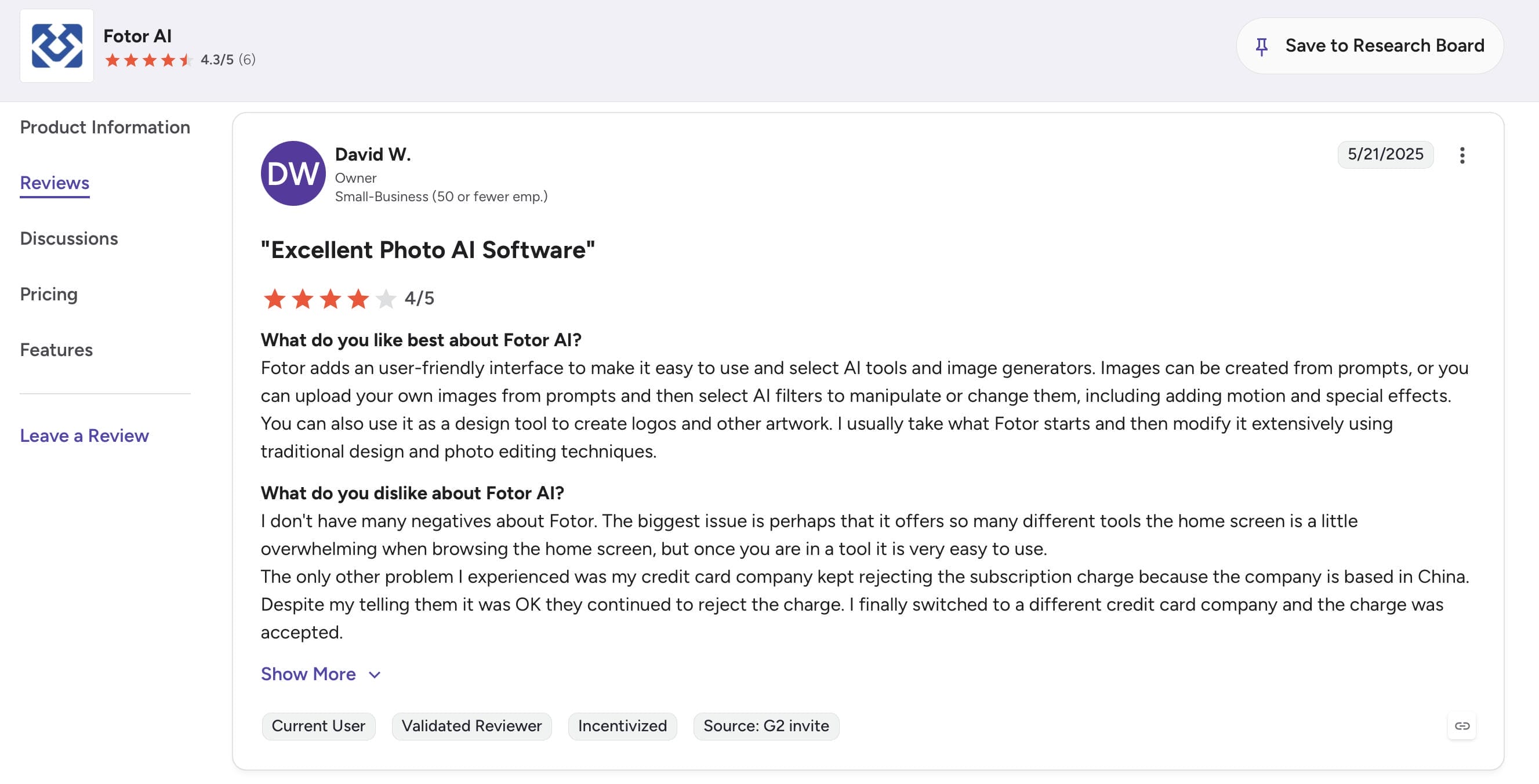
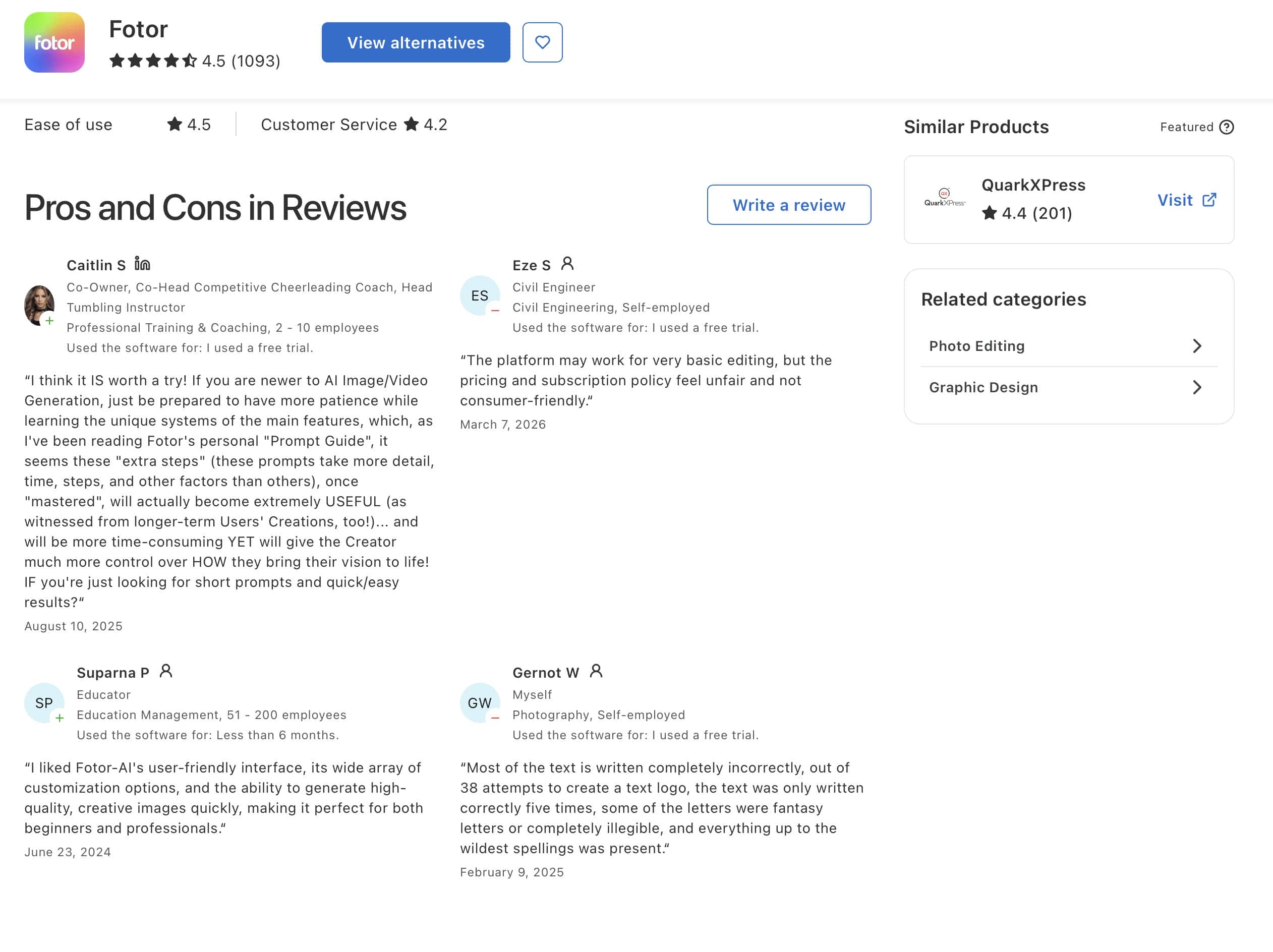
G2 reviewers frequently highlight Fotor's user-friendly interface and broad collection of AI-powered creative tools. Users appreciate being able to generate images from prompts, apply AI effects, and edit content without a steep learning curve. One reviewer noted that Fotor provides a strong starting point for creative projects, although the large number of available tools can feel overwhelming at first.
Capterra
Capterra reviews generally praise Fotor for its user-friendly interface, creative flexibility, and ability to generate content quickly. Users appreciate the platform's customization options and broad range of AI-powered tools, although some reviewers mention a learning curve for advanced features, occasional inconsistencies in AI outputs, and concerns about pricing or subscription policies.
Review Summary
Across review platforms, Fotor is widely regarded as an accessible AI creation tool that helps users produce content efficiently. While ease of use and creative capabilities are frequently highlighted, some users would like to see improvements in pricing flexibility, feature discoverability, and output consistency.
How to Use Fotor AI Video Generator
Creating footage inside Fotor's cloud environment requires a simple three-step process that bypasses complex timeline configurations.
Step 1: Open AI Video Generator in Fotor
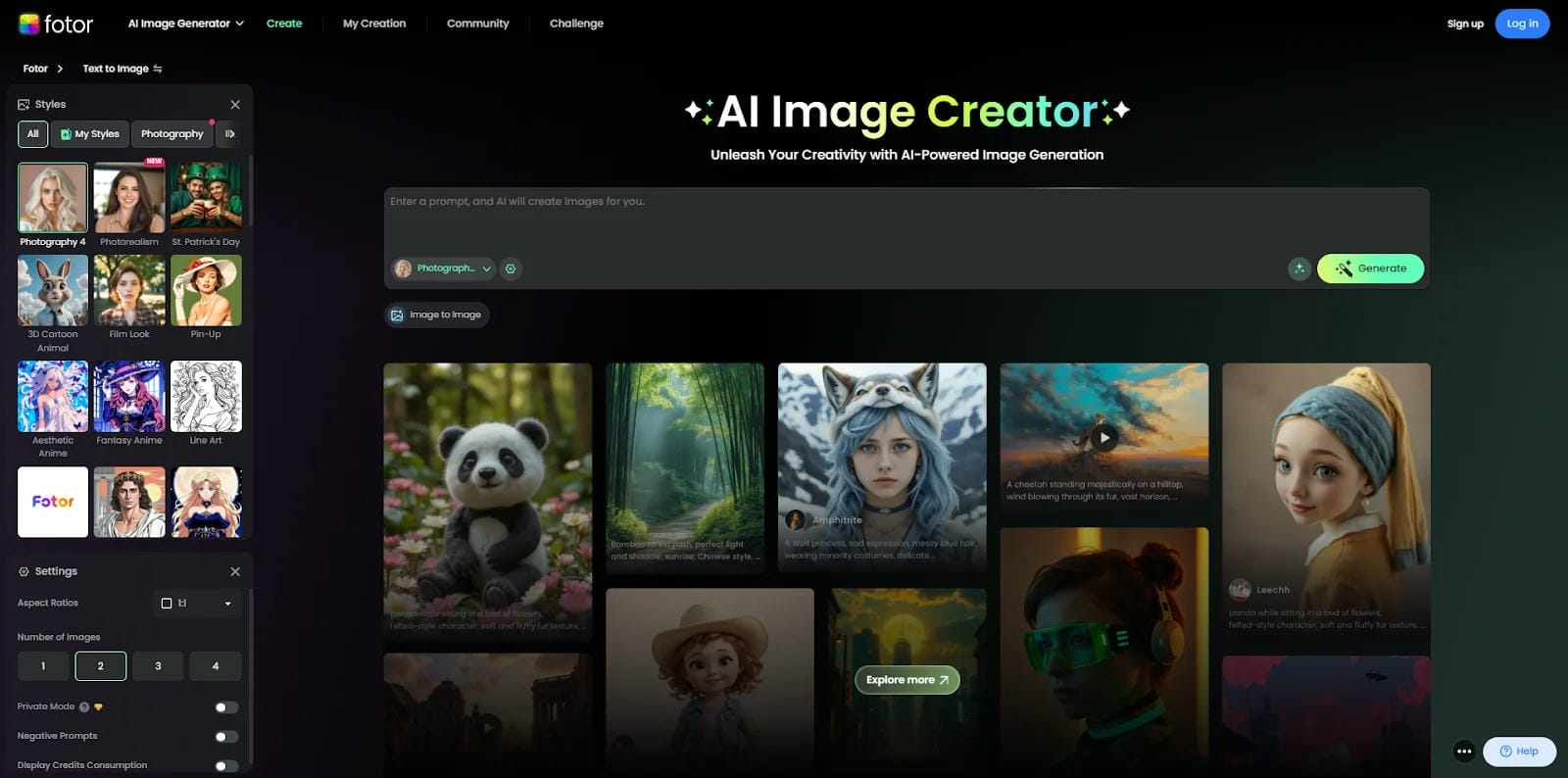
Log in to your account dashboard, navigate to the AI Tools sidebar, and select the Video Generator module. You will be greeted by a clean workspace split between text prompt inputs, image upload zones, and style configuration panels.
Step 2: Add Input Content and Customize Video
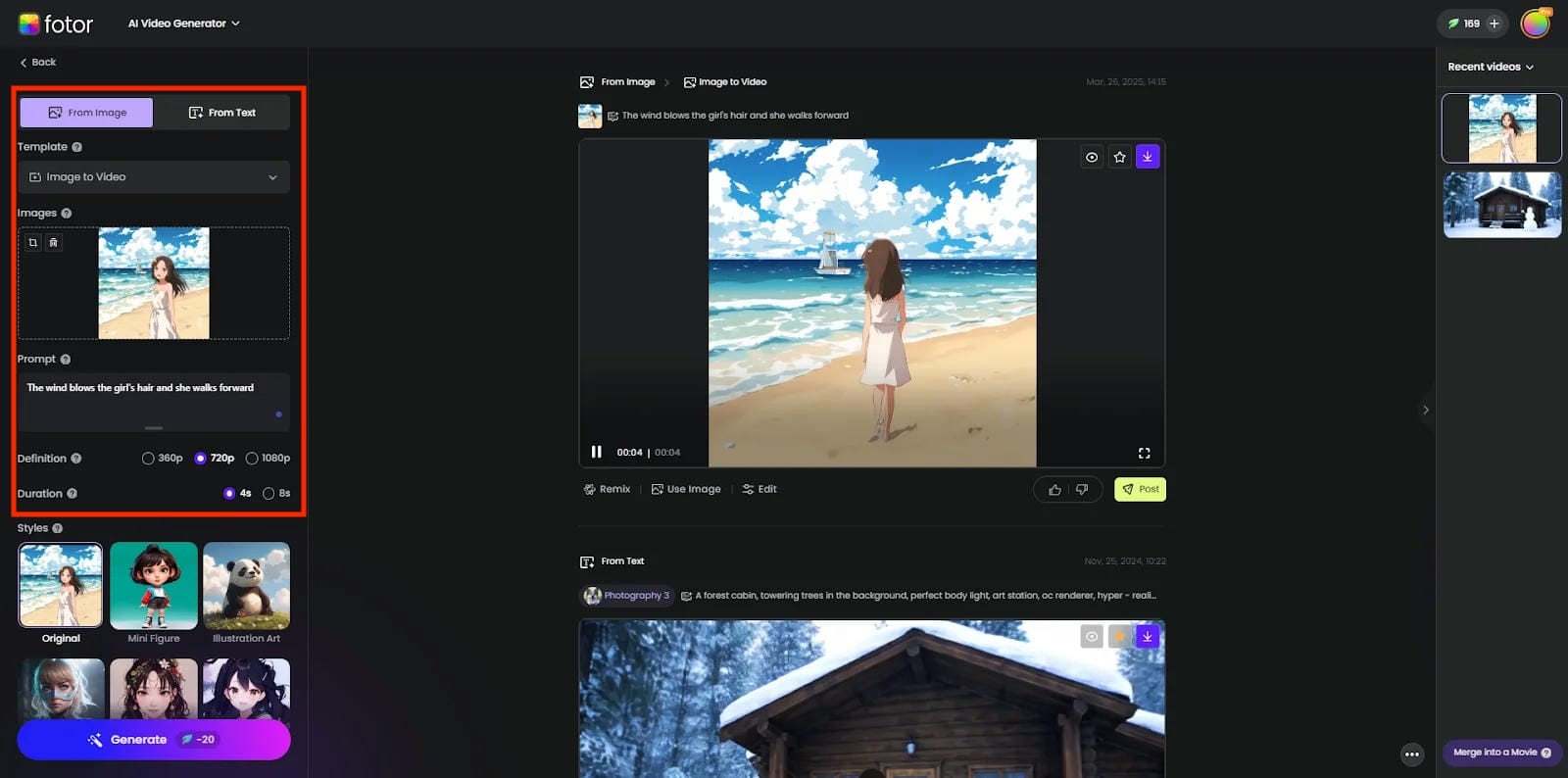
Type out your descriptive prompt with clear lighting and environmental details, or drop a high-resolution file into the Fotor AI image-to-video generator interface. Use the configuration sidebar to choose your aspect ratio, adjust the camera motion intensity slider, and select your visual art style.
Step 3: Generate and Export Video
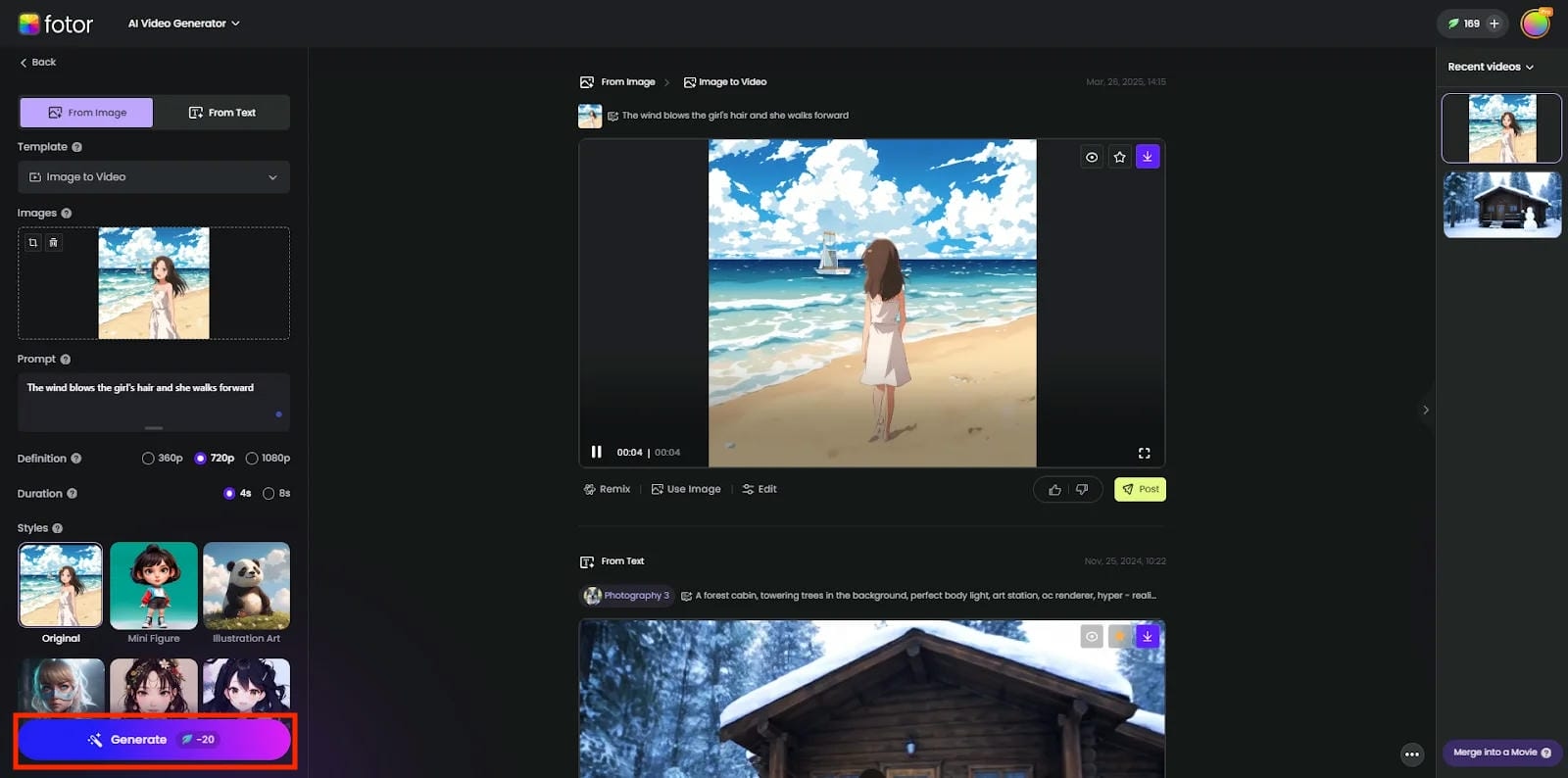
Click the "Generate" button, which consumes a set number of your account's cloud credits. Once the processing queue completes, preview the motion in your browser. If it looks correct, hit export to download the final MP4 to your local drive.
Pros, Cons, and Pricing of Fotor AI Video Generator
Pros & Cons
|
Pros |
Cons |
|---|---|
|
|
|
|
|
|
|
|
Pricing and Plans
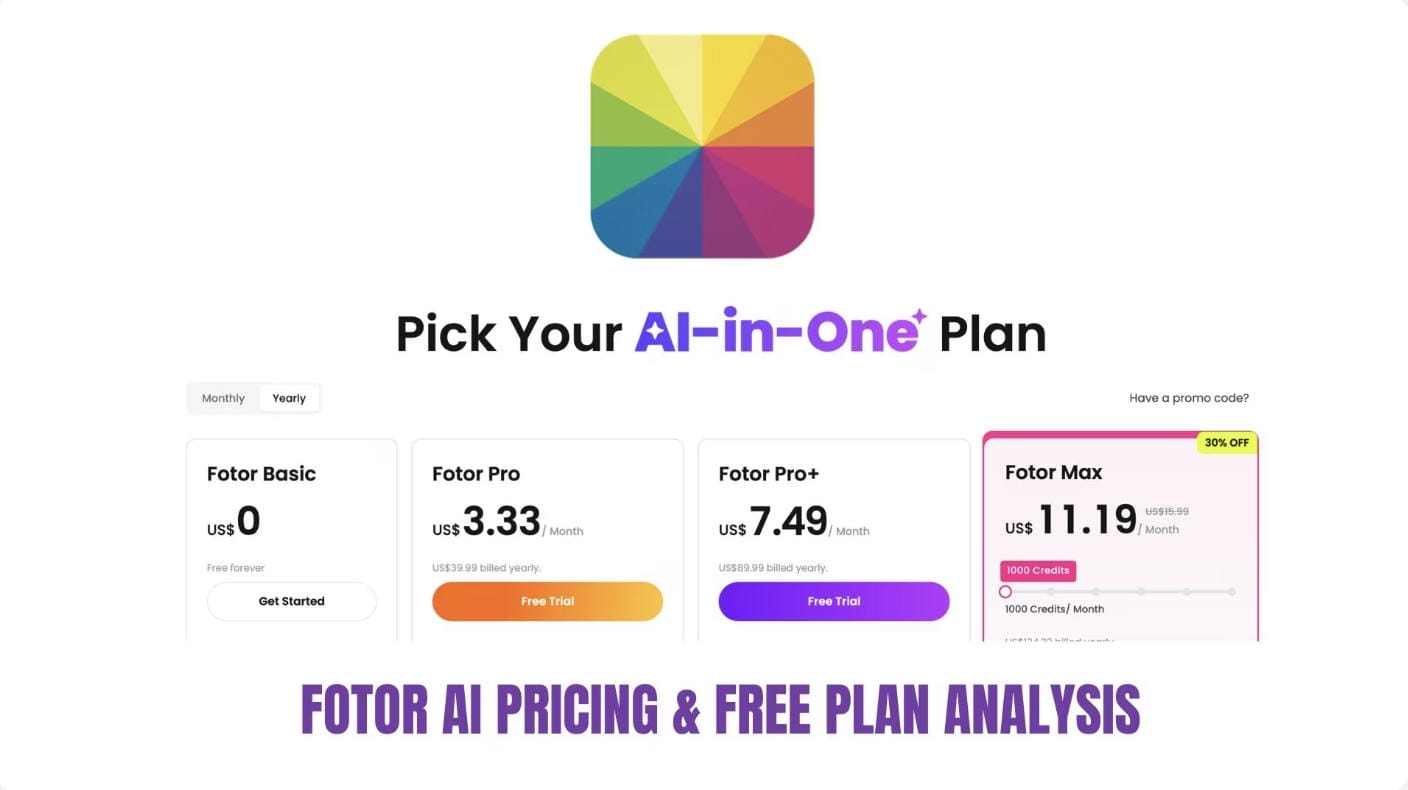
Fotor runs on a unified, credit-based ecosystem. While Fotor'sfree AI video generator tier lets you explore the dashboard and run low-resolution tests, functional video generation is locked behind paid subscriptions such as Fotor Pro or Pro+.
|
Plan |
Price (approx.) |
Key Benefits |
|---|---|---|
|
Basic |
Free |
Limited AI credits, watermarks, basic tools |
|
Pro |
~$8.99/month or ~$3.33/month annually |
100 AI credits/month, HD exports, no watermark, premium assets |
|
Pro+ |
~$19.99/month or ~$7.49/month annually |
300 AI credits/month, advanced AI tools, and larger storage |
Afterthought
While Fotor is a great, accessible springboard for quick social media clips, its credit-heavy model and simplified timeline can feel restrictive for high-yield commercial production. If you find yourself hitting the ceiling of Fotor's creative controls or struggling with output consistency, it's worth shifting to a platform engineered specifically for digital storefronts and e-commerce workflows. That brings us directly to Vmake, an AI generator that trades Fotor's broad playground for highly targeted, retail-centric automation tools designed to turn raw footage into polished, conversion-ready assets.
Meet Vmake AI: A Powerful Alternative to Fotor AI Video Generator
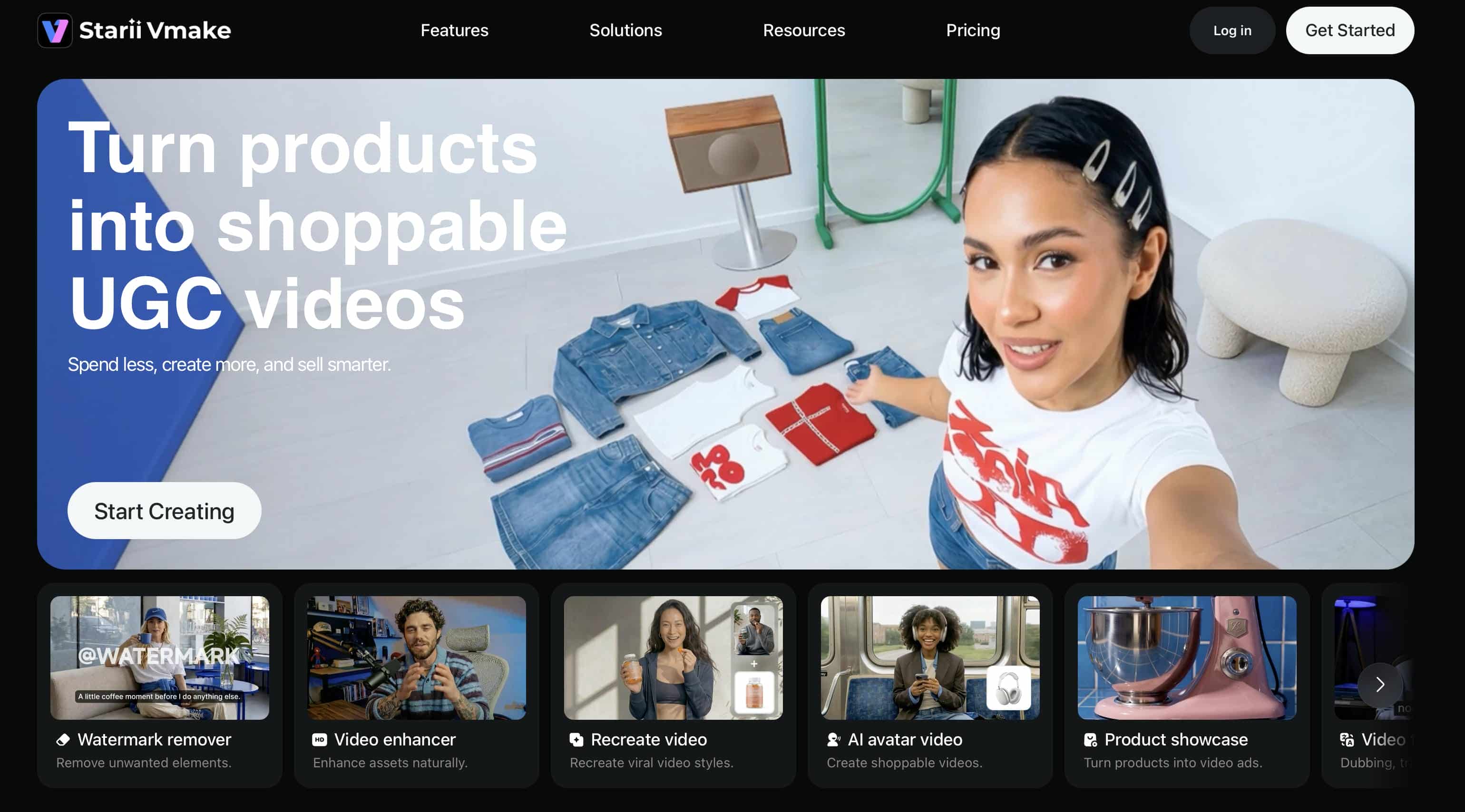
Vmake AI is engineered from the ground up specifically as a video-first creation and enhancement platform. Instead of treating video generation as an add-on feature inside a photo-editing dashboard, Vmake AI optimizes its models for crisp textures, structural stability, and professional video outputs. Its AI video generator focuses on turning raw files and simple inputs into highly polished assets without the muddy compression artifacts common in multi-purpose platforms.
Key Features:
-
AI video generation with multi-models: Access many advanced AI video models from one platform. Switch between models like Kling 3.0, Seedance 2.0, and more to produce videos with varied visual styles, motion quality, and creative outputs.
-
Text-to-video and image-to-video generation: Convert textual prompts or submitted photos into interesting video snippets. The AI creates movement, animations, and dynamics of scenes on its own, giving life to static information.
-
AI avatar & talking video creation: Create AI avatar videos with synced speech, facial expressions, and realistic movements. This function is helpful for presentations, lessons, product demos, and marketing efforts
-
AI-enhanced video processing and upscaling: Improve video quality with AI-enabled technology that sharpens details, reduces noise, enhances clarity, and increases resolution.
-
Adjustable export options and time settings: Create videos in high-resolution formats, with up to 4K output quality. There are also configurable duration settings ranging from 2 to 15 seconds, allowing users to personalize movie length.
How to Generate Videos Using Vmake AI:
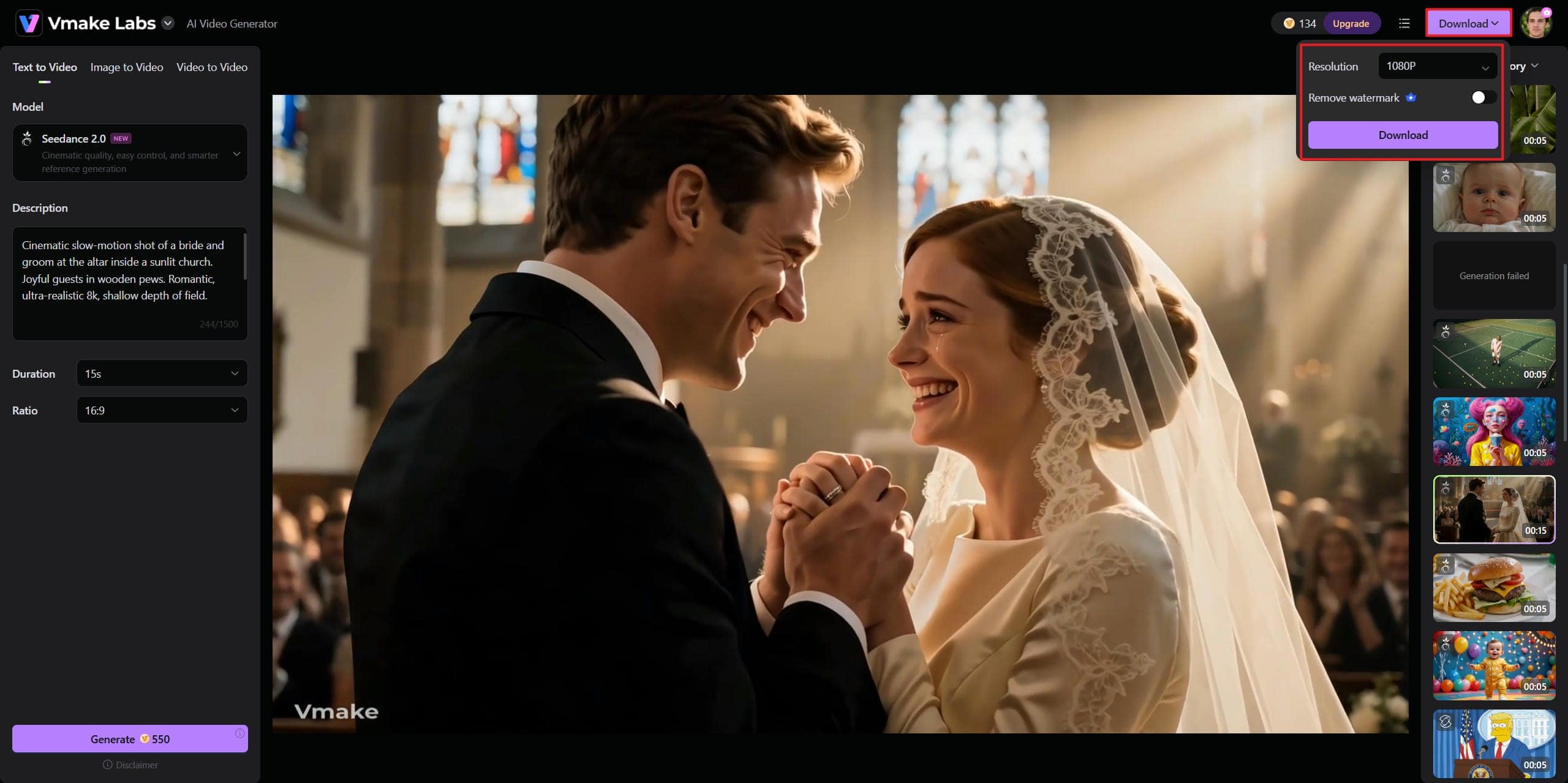
Step 1: Open the AI Video Generator
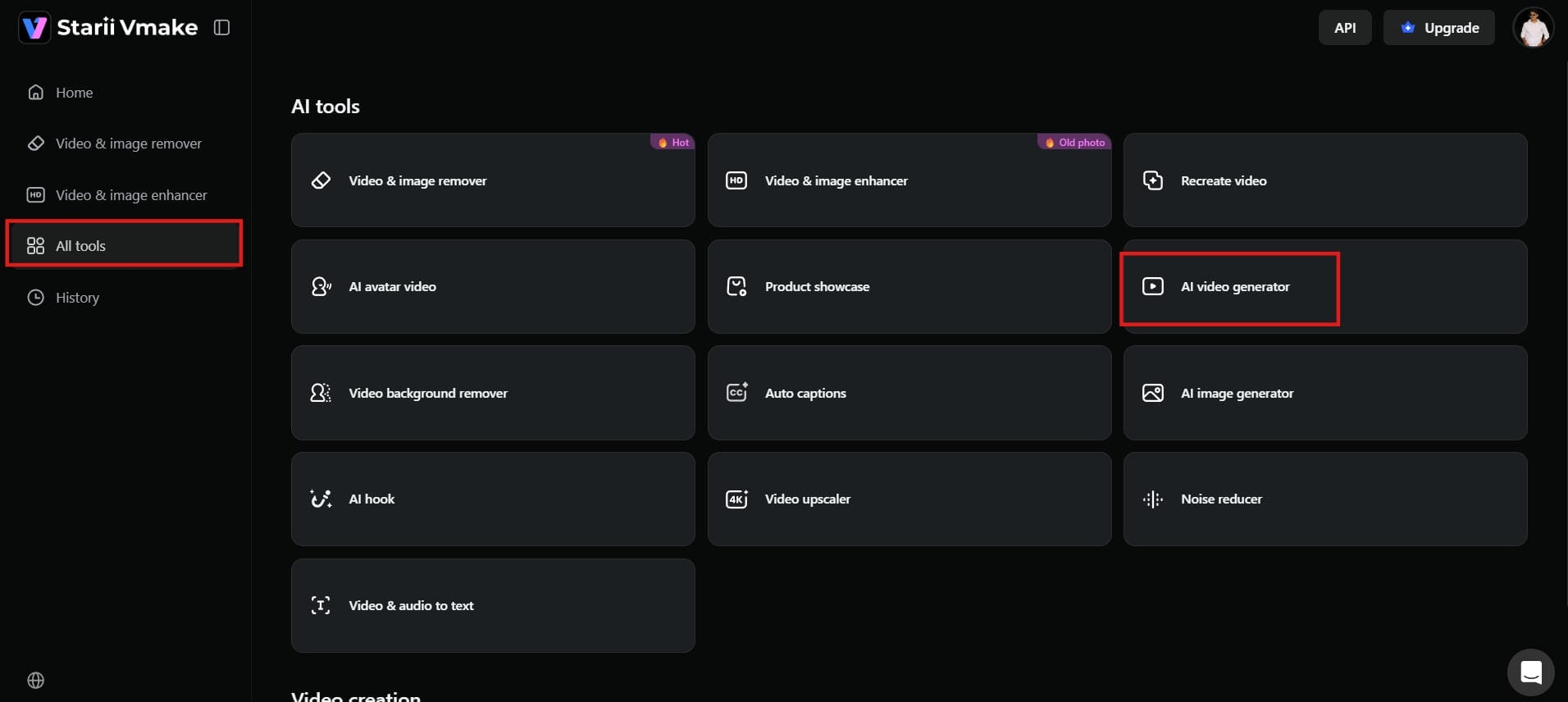
Log in to your Vmake AI account. On the dashboard, go to "AI tools" and click on "AI video generator". This will open the video creation page, where you can start making videos.
Step 2: Enter Prompts and Generation Settings
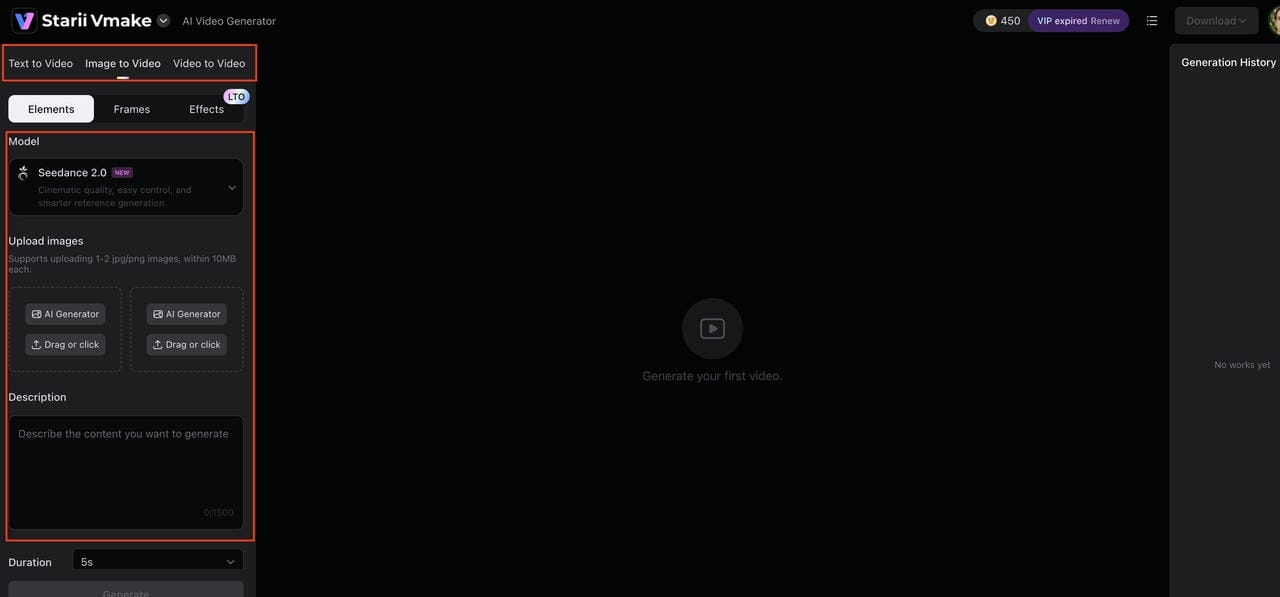
Type a clear description of the video you want, or upload a photo or short clip to begin with. Then choose your AI model, set how long the video should be (usually 2 to 15 seconds), and pick the aspect ratio if needed.
Step 3: Generate, Preview, and Export the Final Video
Click the "Generate" button and wait a few seconds for the AI to create your video. Once it's ready, watch the preview. Once satisfied, click "Download" to save the video. You can now use it for social media, marketing, or any other project.
Fotor AI vs Vmake AI
|
Feature |
Fotor AI |
Vmake AI |
|---|---|---|
|
Core focus |
AI photo editing and basic creative tools |
AI video generation and video enhancement |
|
Ease of use |
Simple interface, more photo-oriented workflow |
Lightweight and video-focused workflow |
|
AI video generation |
Limited video capabilities |
Full AI video generation support |
|
Enhancement tools |
Strong for images (retouch, filters, enhancement) |
Strong for videos (blur removal, sharpening, upscaling) |
|
Output quality |
Best suited for images |
Optimized for video clarity and smooth playback |
|
Best for |
Designers working with photos and graphics |
Creators focused on video content quality |
Overall, Fotor AI is great when your work revolves around images and quick edits, but it doesn't go deep into video creation. Vmake AI, on the other hand, is built specifically for video, especially when you need cleaner output, better sharpness, and AI-driven enhancement without spending time on manual editing.
Conclusion
In this Fotor AI video generator review, Fotor is a great multi-tool for graphic designers and social media teams who require rapid, stylish video material, but it’s not designed for high-end video perfection. The biggest benefits are its ease of use and quick processing. However, users seeking higher-quality video generation, enhancement features, and more advanced workflows may prefer dedicated video platforms such as Vmake AI.
FAQs
Is Fotor AI video generator free to use?
No, it’s not wholly free. Fotor has a credit system, and on the free tier, you can only access the dashboard and run low-res trials. Paid monthly subscription with HD outputs and no watermark on downloads. Vmake AI is a dedicated, high-quality alternative for a more video-focused workstation from day one.
What is the Fotor AI image-to-video generator?
It’s a tool that turns still photographs into short moving clips by simulating camera pans, zooms, or environmental movements. It also automatically calculates depth to provide movement, so you don’t have to adjust it frame by frame. If your textures get fuzzy or blurry during the process, Vmake AI's dedicated image-to-video engine retains the tiny details absolutely steady and clear.
How does the Fotor AI lip sync video generator work?
Upload a raw audio file or enter a text script, then link it to a still photo or a pre-made digital character model. Fotor’s lip-sync engine analyzes vocal sounds and dynamically adjusts the avatar's mouth movements to match the speech patterns, resulting in a functional talking-head presentation video.
Is Fotor AI good for professional video editing?
No, it doesn’t have fancy post-production tools. Fotor lacks multi-cam tracking, custom masking, keyframing, and fine-grained bitrate controls, but it does provide rapid, automated short-form clips. If you want Pro-level results without complicated manual editing, just switch to Vmake AI, and you’ll get powerful automated video enhancement, blur removal, and 4K upscaling.
What is the best alternative to the Fotor AI video generator?
If you like video sharpness, clarity, and clean rendering, Vmake AI is the ideal solution. Fotor considers video an extension of their photo suite; Vmake AI was developed exclusively for video processes. The upshot is better frame interpolation and detail enhancement capabilities that won’t make your final movie look soft or pixelated.

You May Be Interested
AI TikTok Video Generator | Create High-Quality AI Videos
Best AI Video Generator: Top Tools Tested (2026)
Viggle AI Video Generator Review & Top 2026 Alternatives
Trump AI Video Generator: 3 Best Tools to Create AI Videos
How to Remove CapCut Watermark
Nero AI Review 2026 Explained: Is the Tool Worth Using?
2026 Fotor Video Enhancer Review: Features and Top Alternatives