How to Transcribe Audio in DaVinci Resolve 20
Learn how to transcribe audio in DaVinci Resolve 20 using its built-in speech-to-text feature. See the complete workflow, common limitations, and an AI alternative with Vmake Labs.

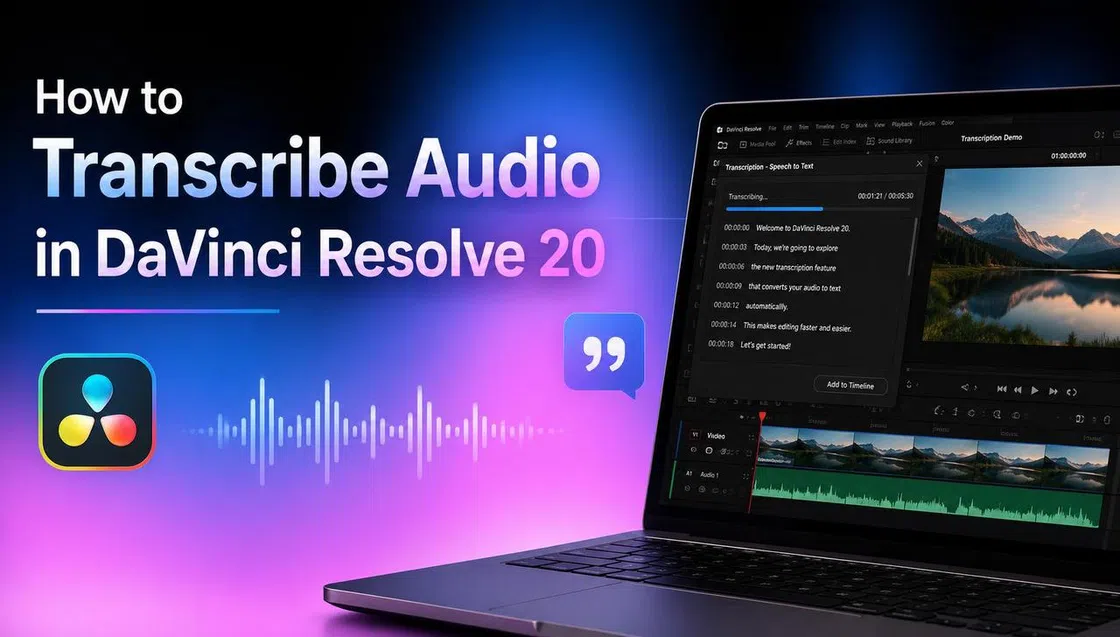
Learning how to transcribe audio in DaVinci Resolve 20 will save you hours editing interviews, podcasts, tutorials, and videos. In this guide, we'll look at the built-in speech-to-text workflow, what you need, and a quick browser-based alternative using Vmake Labs to create accurate, editable transcripts.
Can DaVinci Resolve 20 transcribe audio?
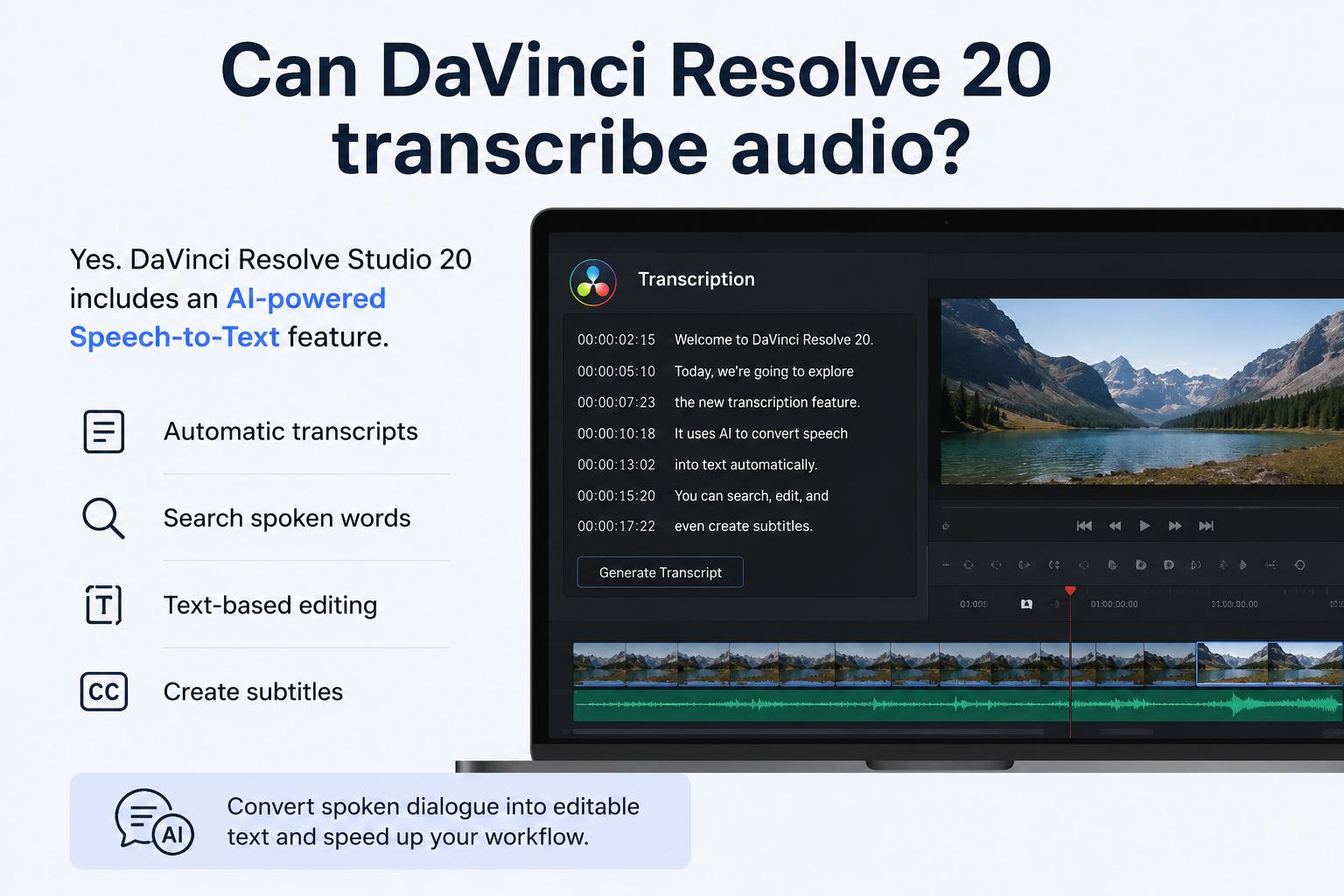
Yes. DaVinci Resolve Studio 20 includes an AI Speech-to-Text tool that generates an editable transcript of spoken dialogue. Instead of typing conversations manually, editors can generate a transcript directly from their timeline, making it easier to navigate footage, edit by text, and create subtitles.
Requirements before you begin
Before learning how to transcribe audio in DaVinci Resolve 20, make sure you have the following in place:
-
DaVinci Resolve Studio: The Speech-to-Text feature is available only in the Studio (paid) version of DaVinci Resolve.
-
Supported audio or video files: Import audio or video files in formats supported by DaVinci Resolve before generating a transcript.
-
Clear audio quality: Recordings with clear speech, minimal background noise, and good microphone quality produce more accurate transcripts.
-
AI model download: The first time you use Speech-to-Text, DaVinci Resolve may prompt you to download the required AI language model before transcription can begin.
Is DaVinci Resolve 20 Speech-to-Text free?
No. The built-in Speech-to-Text feature is available only in DaVinci Resolve Studio, the paid version of the software. If you're using the free version of DaVinci Resolve, you won't have access to AI-powered transcription or text-based editing tools. For users who already edit videos in DaVinci Resolve Studio, the integrated transcription feature is convenient because it works directly within the editing timeline. However, if your primary goal is simply to convert audio or video into text, purchasing the Studio version may not be necessary.
A browser-based transcription tool like Vmake Labs can be a practical alternative. It lets you upload audio or video files, generate AI-powered transcripts, edit the text, and export it in formats such as TXT or SRT without installing desktop software. This makes it a convenient option for creators, students, marketers, and professionals who need fast, standalone transcription.
How to transcribe audio in DaVinci Resolve 20
Once your project is ready, the transcription process only takes a few steps. DaVinci Resolve analyzes the dialogue in your selected timeline, converts speech into text, and allows you to review or edit the transcript before using it for editing or subtitles.
Step 1: Import your audio or video into your project
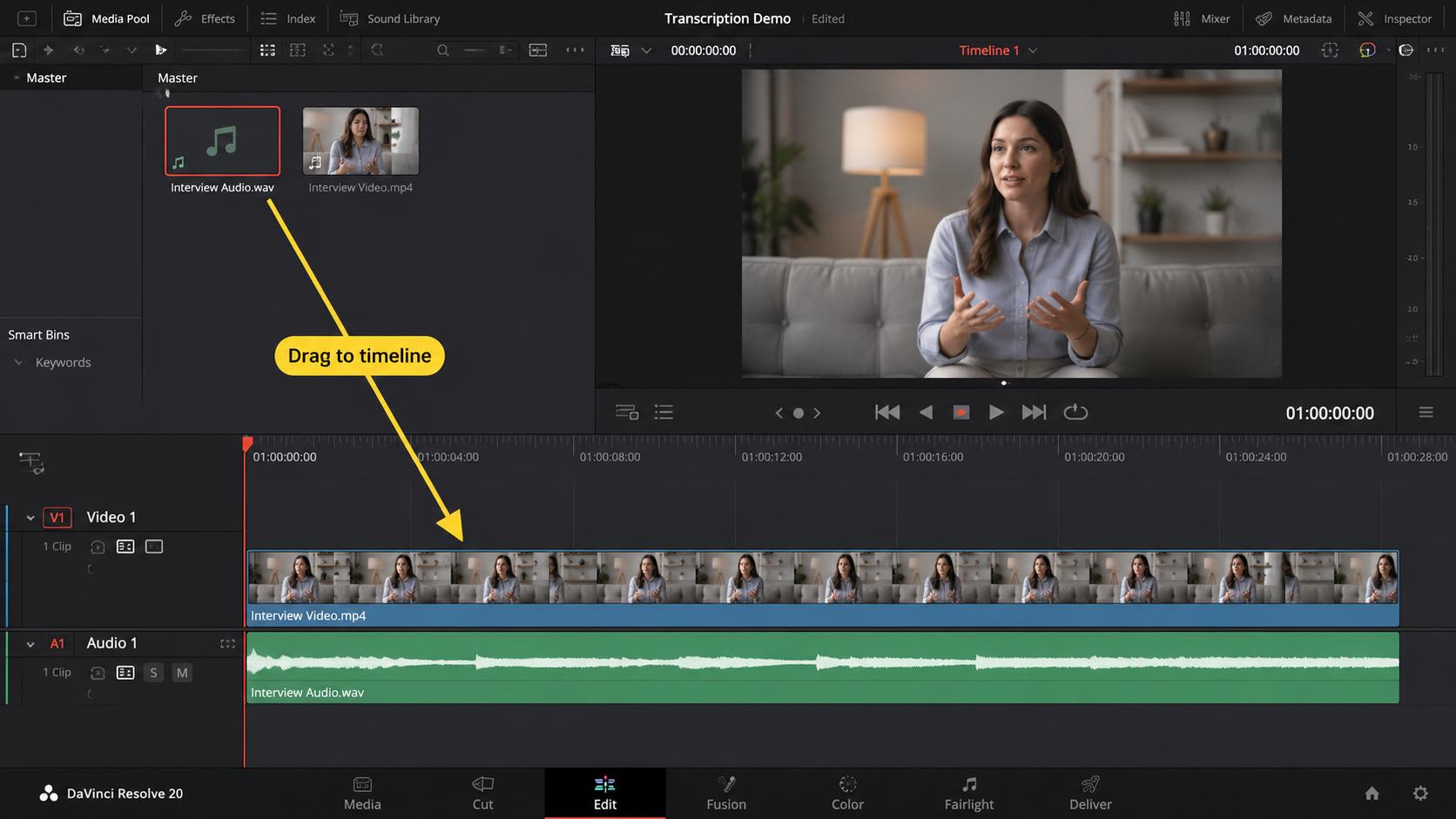
Open DaVinci Resolve Studio and either create or open a project. Import your video or audio file into the Media Pool and then drag it onto your timeline. Before you begin transcribing, make sure your clips are in the proper order.
Step 2: Open the transcription panel and generate the transcript
Go to the Edit page and open the Transcription panel. Select the timeline you want to transcribe, choose the appropriate language if prompted, and generate the transcript. DaVinci Resolve will automatically convert the spoken dialogue into text.
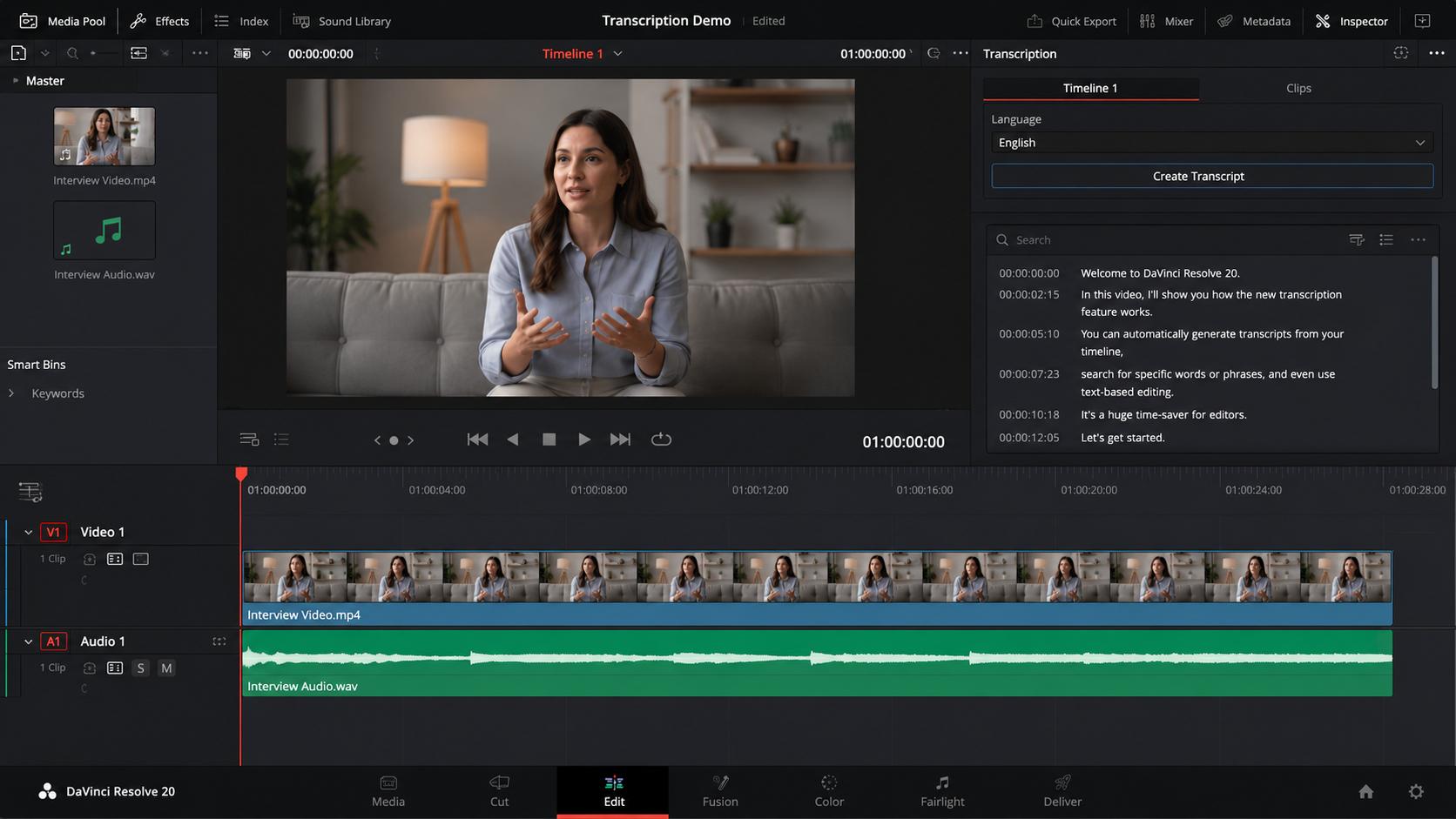
Step 3: Review, edit, and export subtitles or continue editing
Please review the transcript and correct any names, technical terms, or transcription errors. You can search dialogue, edit text, or create subtitles from the transcript. Once you're happy with them, export your subtitles or continue editing your project.
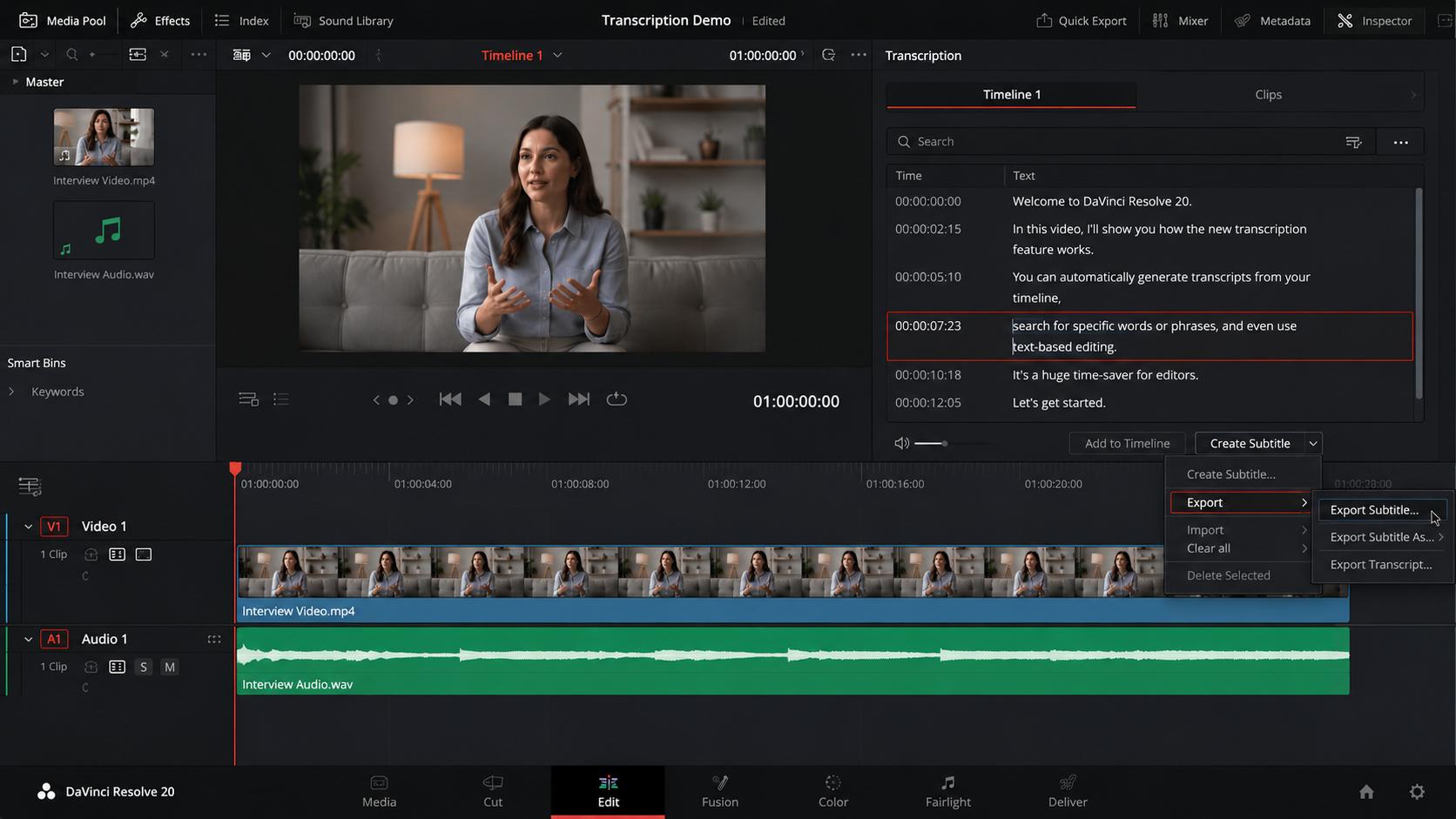
Pros and limitations of DaVinci Resolve Speech-to-Text
DaVinci Resolve Studio's Speech-to-Text feature is a useful tool for editors who want transcription integrated into their post-production workflow. Before choosing it, consider the following advantages and limitations.
|
Pros |
Limitations |
|---|---|
|
Built directly into DaVinci Resolve Studio, it allows you to transcribe, edit, search dialogue, and create subtitles without switching to another application. |
Available only in DaVinci Resolve Studio. The free version does not include the AI-powered Speech-to-Text feature. |
|
Supports text-based editing, making it easier to find spoken words, remove unwanted dialogue, and speed up editing for interviews, podcasts, and tutorials. |
Requires installing and running desktop software, which may be unnecessary if your only goal is audio or video transcription. |
|
Automatically generates transcripts from spoken dialogue, reducing manual transcription time and improving overall editing efficiency. |
Transcription accuracy depends on recording quality. Background noise, overlapping speakers, accents, or technical terminology may require manual corrections. |
If transcription is part of your regular video editing workflow, DaVinci Resolve Studio is a convenient choice. However, if you simply need fast, standalone transcription without installing editing software, a browser-based solution like Vmake Labs may be a more practical option.
An easy workaround: Transcribe audio faster with Vmake Labs
If you don't need a whole video editing suite and just want a transcript, Vmake Labs offers a faster alternative. It's a browser-based AI program that enables you to transcribe audio and video without installing software. Upload your file or paste a supported video link, choose your transcription settings, and get an editable transcript in minutes. It's an easy-to-use solution for creators, marketers, students, podcasters, and business people who need precise speech-to-text with the flexibility to export.
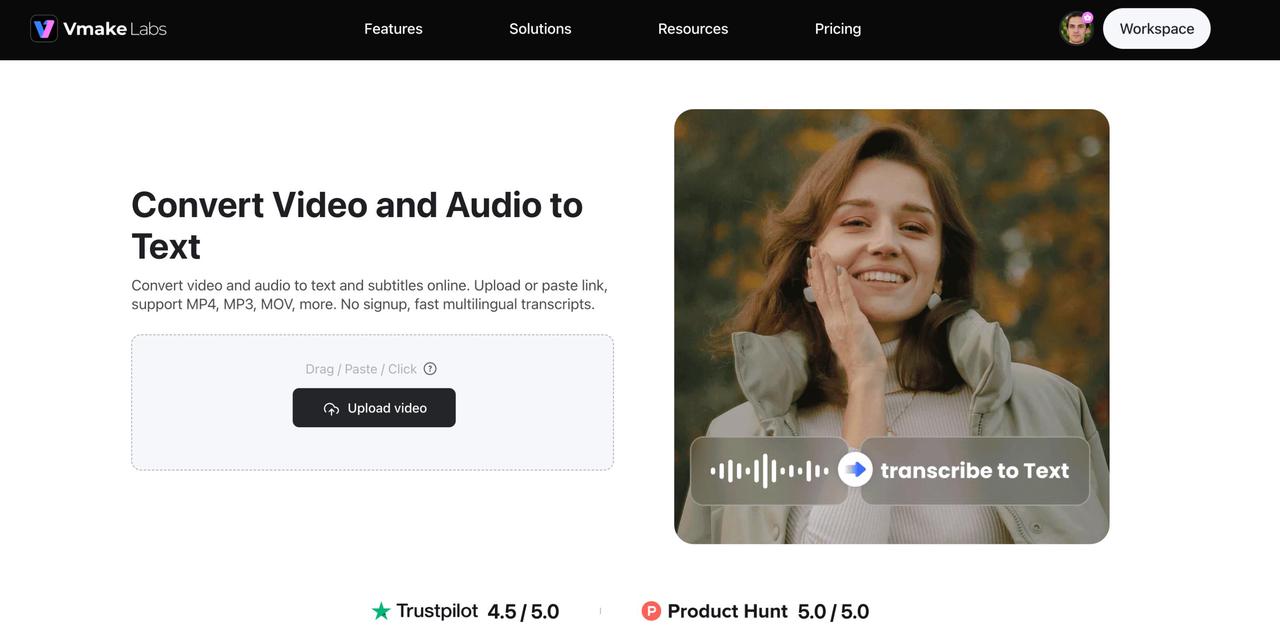
Step 1: Upload your audio or video
Go to the Vmake Labs Video & Audio to Text page and upload your audio or video file. You can also paste a supported YouTube or TikTok link instead of uploading a file manually. Once your media is added, Vmake Labs prepares it for transcription automatically.
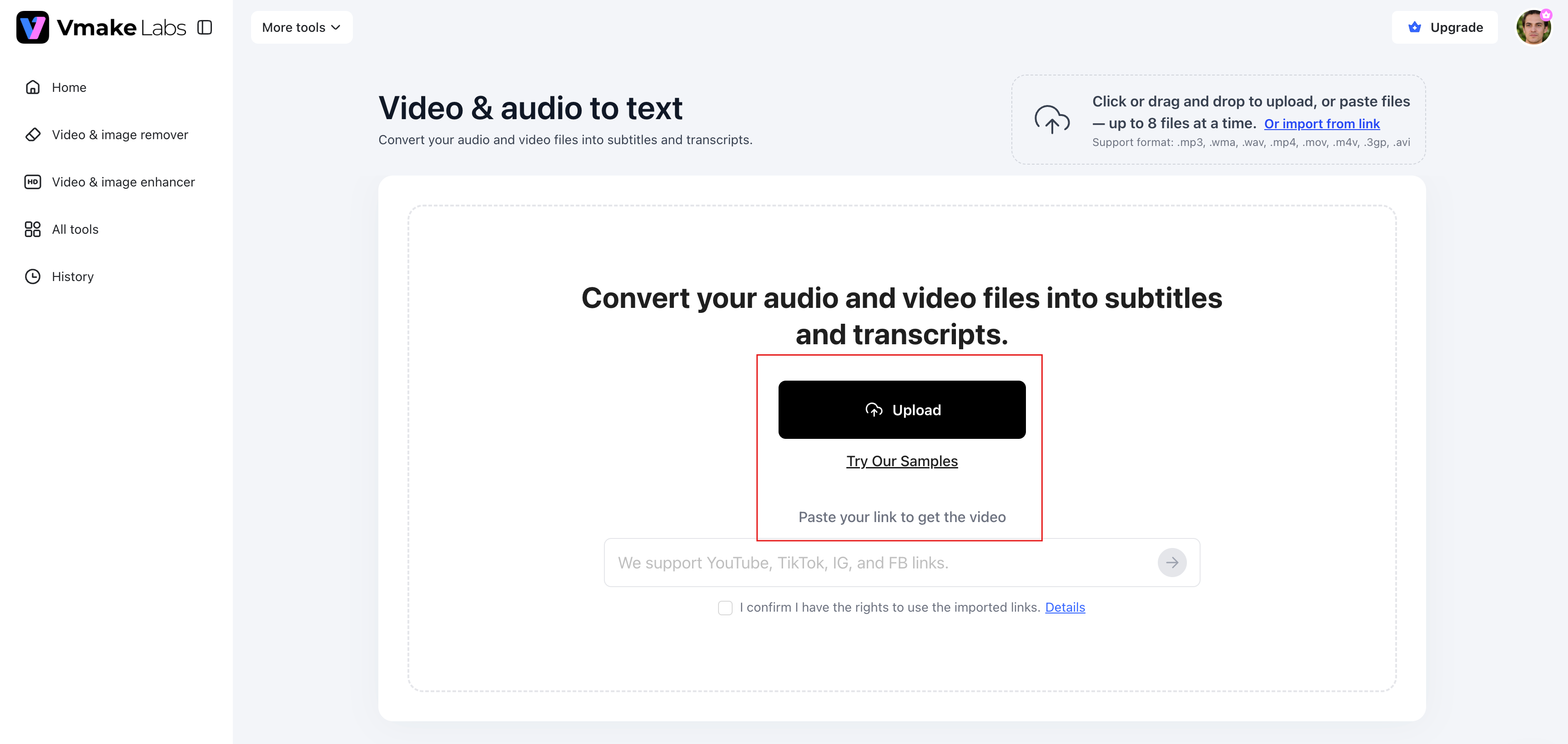
Step 2: Choose the transcription language and settings
Choose the language for your recording and adjust any transcription settings as needed. Pick the right language: this will improve accuracy, especially for multilingual content. Once everything is ready, start the AI transcription.
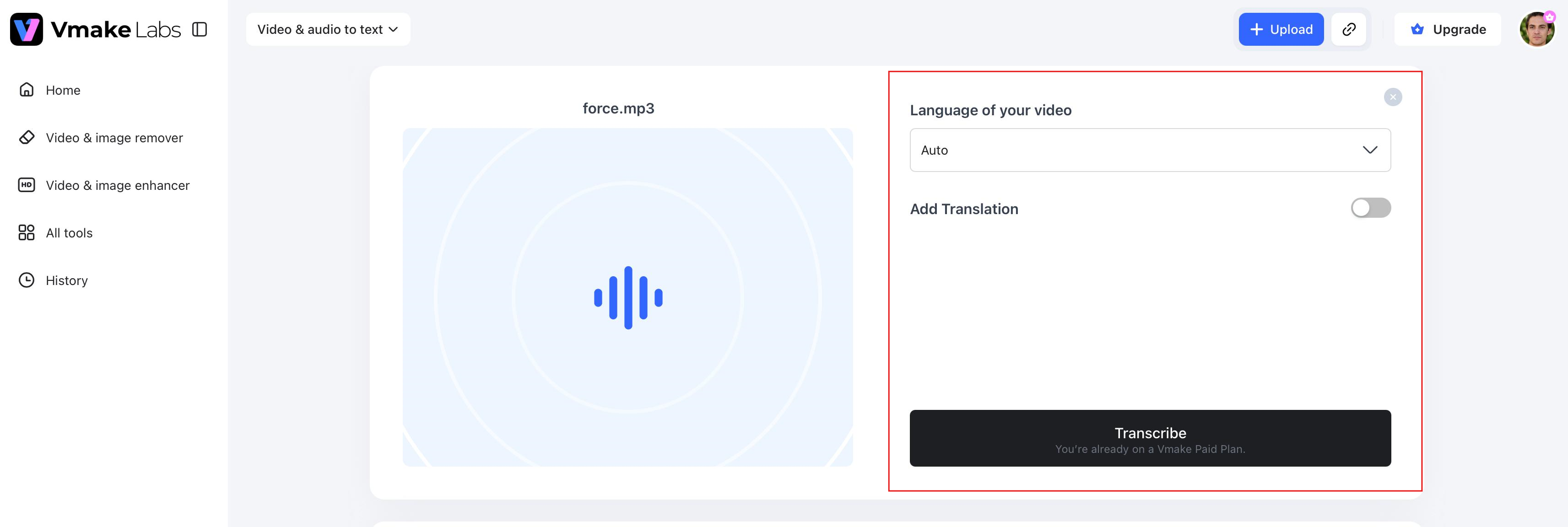
Step 3: Generate, edit, and export the transcript
The transcript will be available in the built-in editor for review after processing. Correct anything you need, then export your transcript in TXT or SRT format for editing, subtitles, documentation or repurposing content.
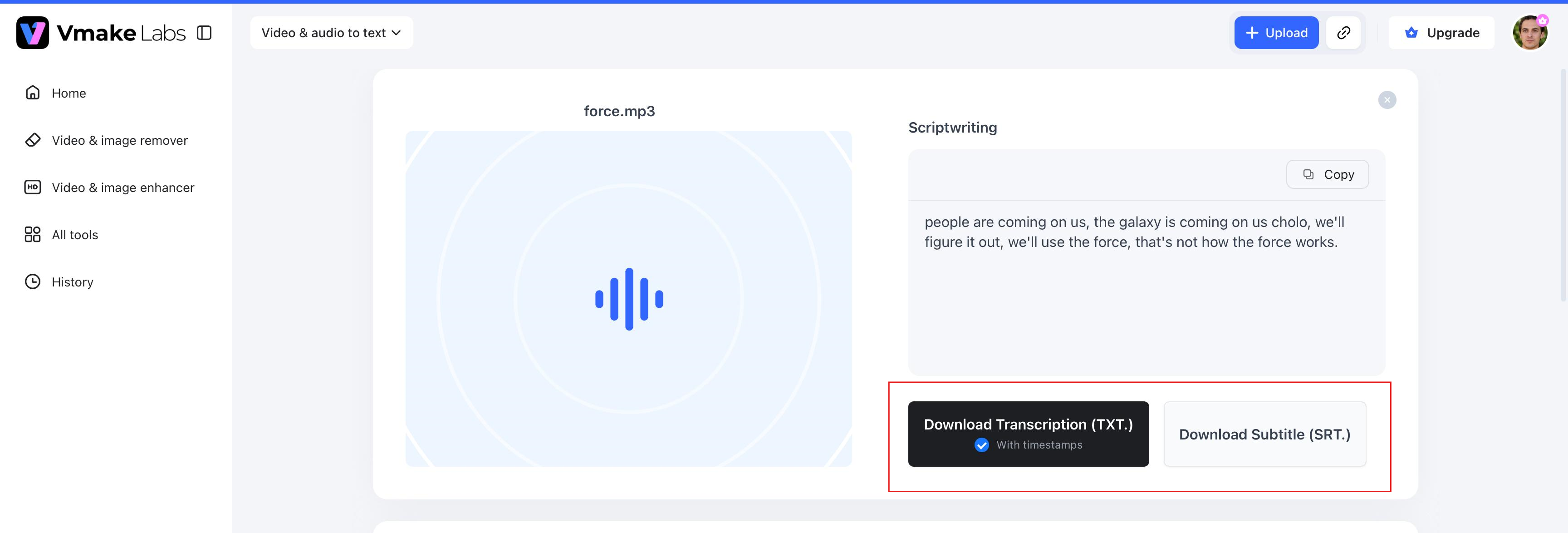
Key features of Vmake Labs
Vmake Labs includes several features that make audio and video transcription faster and more convenient:
-
Upload files or paste links: Upload exported audio or video files, or paste supported YouTube and TikTok links for transcription.
-
Browser-based AI transcription: Convert speech to text online without downloading or installing software.
-
Multilingual transcription: Transcribe audio and video in multiple supported languages for global content.
-
Editable transcripts with TXT and SRT export: Review and edit transcripts before exporting them in TXT or SRT format.
-
Fast speech-to-text processing: Generate transcripts quickly to support post-production and content creation workflows.
-
Multiple file format support: Upload a wide range of audio and video file formats for seamless transcription.
Final checklist: DaVinci Resolve 20 vs Vmake Labs
Both DaVinci Resolve 20 and Vmake Labs convert speech to text, but they are meant for different workflows. DaVinci Resolve is ideal if you transcribe as part of your video editing workflow. Vmake Labs is all about fast, standalone transcription that runs entirely in your browser.
Quick comparison
|
Feature |
DaVinci Resolve 20 |
Vmake Labs |
|---|---|---|
|
Platform |
Desktop software |
Browser-based |
|
Audio transcription |
Yes |
Yes |
|
Video transcription |
Yes |
Yes |
|
Text editing |
Timeline-based |
Transcript editor |
|
Multiple languages |
Supported |
Supported |
|
Export options |
Subtitle export |
Multiple transcript exports |
|
Best for |
Video editors |
General transcription and content creation |
Which tool should you choose?
Choose DaVinci Resolve 20 if transcription is part of your video editing workflow. The built-in Speech-to-Text feature works right inside the editing timeline, so you can create transcripts, search spoken dialogue, make text-based edits, and generate subtitles, all without leaving the application. It’s a great option for editors already using DaVinci Resolve Studio for post-production.
Choose Vmake Labs if you want a quick standalone tool for transcription without installing software on your desktop. It has a browser-based platform that allows you to upload audio or video files, paste supported YouTube and TikTok links, generate AI-powered transcripts, edit the text online, and export the results in TXT or SRT format. It’s a great fit for creators, educators, marketers and anyone focused on transcription.
Review AI-generated transcripts before publishing, regardless of the tool you choose. Artificial intelligence can be very accurate with clear recordings, but sometimes gets the names, technical terms, abbreviations or punctuation wrong. Taking a few minutes to proofread and correct the transcript will help ensure it’s accurate, professional and ready for subtitles, documentation or content publishing.
Tips for more accurate transcription
Even the best AI transcription tools perform better with clean recordings and the right setup. If you're using DaVinci Resolve Studio, these tips can help improve transcription accuracy and reduce the amount of manual editing afterward.
-
Download the AI language model first: DaVinci Resolve Studio may prompt you to download the required Speech-to-Text language model before generating your first transcript.
-
Transcribe clean dialogue tracks: If possible, use dialogue-only audio instead of a full mix with music and sound effects to help the AI recognize speech more accurately.
-
Reduce background noise before transcribing: Apply noise reduction or clean up your audio to minimize distractions that could affect transcription quality.
-
Use a quality microphone: Record with a good microphone and encourage speakers to talk clearly for more accurate speech recognition.
-
Select the correct transcription language: Choosing the right language ensures the AI interprets pronunciation, grammar, and vocabulary more accurately.
-
Review names and technical terms: AI may misinterpret proper nouns, acronyms, or industry-specific terminology, so proofread the transcript before exporting or publishing.
Conclusion
Learning how to transcribe audio in DaVinci Resolve 20 helps streamline video editing by turning spoken dialogue into searchable, editable text. While DaVinci Resolve Studio works well for editors, Vmake Labs offers a faster browser-based alternative for standalone audio and video transcription. Choose the tool that best fits your workflow, review the generated transcript for accuracy, and export it in the format you need for subtitles, editing, or documentation.
FAQs
How do you transcribe audio in DaVinci Resolve 20?
To transcribe audio in DaVinci Resolve 20, open your project in DaVinci Resolve Studio, import your audio or video, and place it on the timeline. Open the Transcription panel, generate the transcript, then review and edit the text before using it for subtitles or text-based editing.
Does DaVinci Resolve 20 support speech-to-text?
Yes. DaVinci Resolve Studio 20 includes an AI-powered Speech-to-Text feature that converts spoken dialogue into editable transcripts. It also supports text-based editing, dialogue search, and subtitle generation to speed up video editing workflows.
Is audio transcription available in the free version of DaVinci Resolve?
No. The Speech-to-Text feature is available only in DaVinci Resolve Studio. If you don't have the Studio version but still need to transcribe audio or video, browser-based tools like Vmake Labs can generate transcripts without requiring desktop editing software.
Can I edit the transcript after it is generated?
Yes. You can review and edit AI-generated transcripts before export or use them with both DaVinci Resolve Studio and Vmake Labs. So make sure to check names, technical terms, and punctuation to ensure the final transcript is correct.
What is the best alternative to DaVinci Resolve for audio transcription?
If you want a transcription tool, not a full video editor, Vmake Labs is a handy alternative. It works in your browser, supports audio and video transcription in many languages, allows you to edit transcripts online, and provides TXT and SRT export for subtitles, documentation, and content creation.

You May Be Interested
VEED.io Audio to Text: Everything You Need to Know in 2026

ChatGPT Video Generator Review: Features, Pricing & Best Alternative
How to Generate Thumbnails with AI: Guide for Optimized Previews
How to Transcribe Video to Text in 2026: Free Online AI Tool