What Is a Storyboard? Definition, Examples, and How to Make One
Learn what a storyboard is, plan scenes, organize shots, and turn creative ideas into engaging video and animation visuals with a simple AI-powered workflow using Vmake Labs effortlessly online.

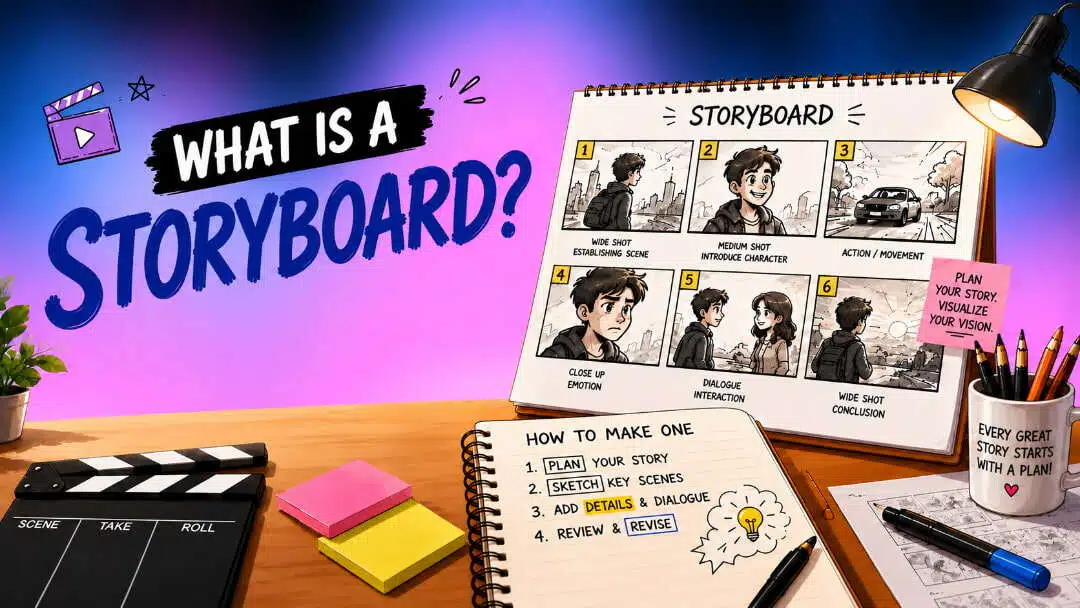
A storyboard turns an idea into a visual plan before production begins. It helps creators see how scenes connect, what each shot should show, and where the story is heading. Whether you're making a film, animation, advertisement, presentation, or school project, storyboarding makes creative decisions easier to plan and communicate.
What Is a Storyboard?
A storyboard is a graphical representation of how a story, video, animation, or presentation will unfold. It is a series of panels showing the shots and scenes that are intended to be used in the order they appear. Each panel can show characters, actions, settings, camera angles, and important visuals. Storyboarding is the process of taking a creative idea or written story and turning it into a clear visual sequence before production begins. It helps the creators understand how the individual shots connect and how the story will work in its entirety.
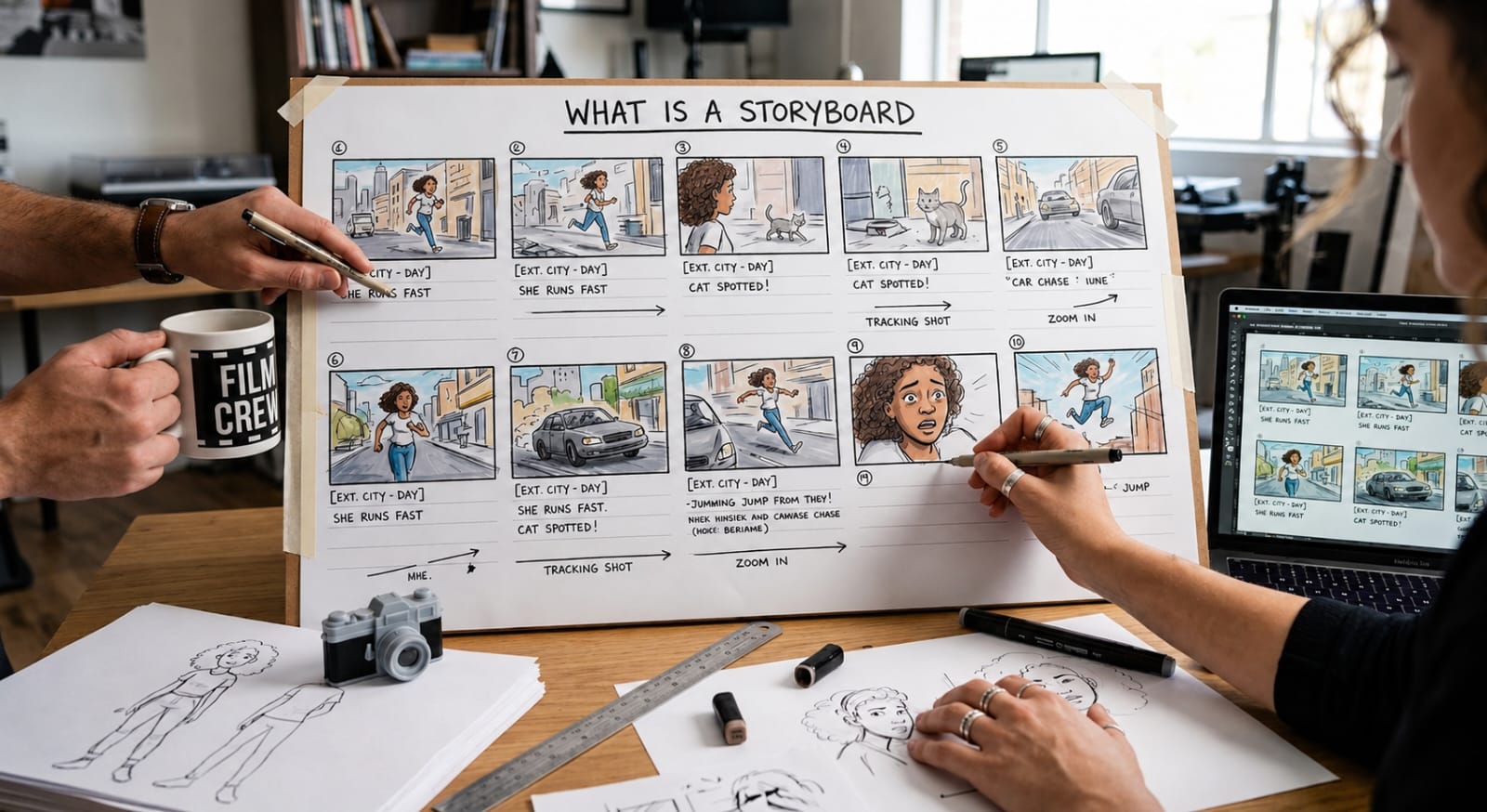
Storyboards and scripts are collaborative tools, but they are not interchangeable. A script tells the story through dialogue, narration, actions, and scene directions; a storyboard shows what those moments should look like on screen. A script might say a character walks into a room, but the storyboard can show the wide shot, the character's movement, and the camera angle. This enables creators and production teams to visualize the end product.
Storyboard examples: Types and real-world uses
Storyboard examples can vary greatly from one project to another. A filmmaker may use detailed panels with directions for cameras; a student may use simple sketches to explain the flow of a presentation.
-
Film and video storyboards: Help directors plan shots, camera angles, character positions, locations, and scene transitions before shooting. They are a visual guide on how to make a smooth and organized video.
-
Animation storyboards: Help animators plan character movements, expressions, camera angles, timing, and transitions. They make it easier to visualize the story before creating the final animation.
-
Advertising and marketing storyboards: Help teams plan commercials, product videos, social media content, and promotional campaigns. They show how the message and visuals progress from one scene to another.
-
Educational storyboards: Help teachers and students organize lessons, demonstrations, presentations, and educational videos. They break complex information into simple visual sequences that are easier to understand.
-
Presentation or UX storyboards: This is a visual way of mapping out how a user moves through a presentation, website, app, or customer journey. They show how each screen or interaction connects to create a coherent overall experience.
Storyboard examples for students
Students don't have to be talented artists to create useful storyboards. Some real-world instances of it are:
-
Short-film project: Plan the major shots, character actions, and transitions before filming.
-
Book-to-video assignment: Convert important moments from a book into a sequence of visual scenes.
-
Science explanation video: Show an experiment, process, or scientific concept step by step.
-
Historical event presentation: Arrange important people, locations, events, and dates into a visual narrative.
Why is Storyboarding important?
Storyboarding turns creative ideas into a clear visual plan, helping creators organize scenes and understand how each shot connects. It improves storytelling and scene flow by making pacing, transitions, framing, and composition easier to evaluate. It also gives teams a shared visual reference, making collaboration between writers, directors, designers, and editors more effective. A storyboard also helps identify missing scenes, awkward transitions, and other problems before production begins. Planning shots in advance can reduce unnecessary reshoots and revisions while making production more efficient. It also helps teams estimate the locations, characters, props, equipment, and visual effects needed for the project.
How to make a Storyboard for a video or animation
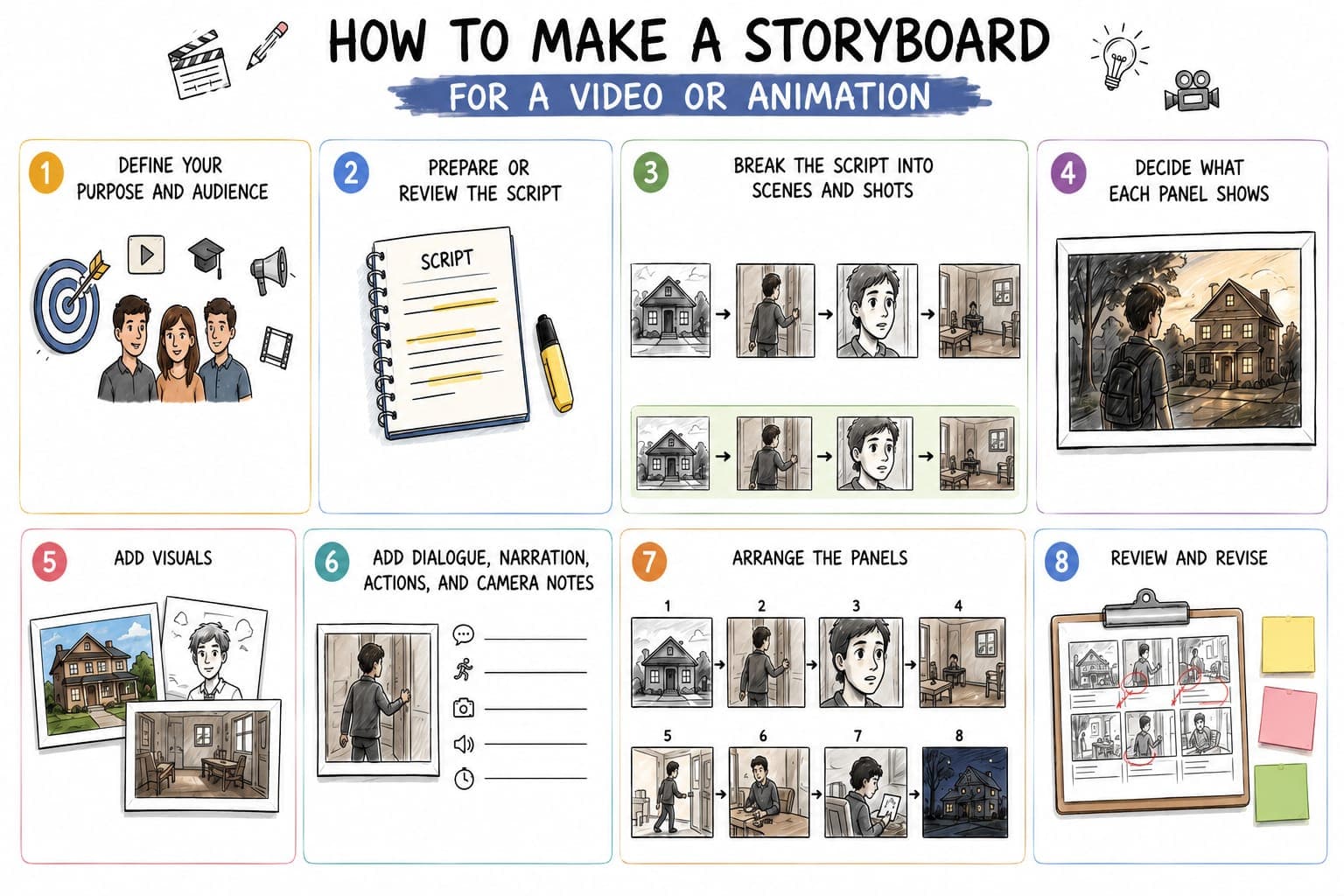
Learning how to make a storyboard is easier when you focus on planning the story rather than creating perfect artwork. Start by defining your purpose and audience, then review your script to understand the key actions, dialogue, and scenes.
-
Define your purpose and audience
Decide what you're creating and who's going to view it. Consider whether it's a social video, educational animation, advertisement, or cinematic project. This will enable you to select the right style of visuals, tone, and level of detail.
-
Prepare or review the script
Read through the script and highlight the important actions, the dialog, the locations, and the emotional moments. If you don't have a complete script, prepare a basic scene outline. This gives you a clean base from which to plan your storyboard.
-
Break the script into scenes and shots
Divide the story into smaller scenes and identify the shots needed for each scene. For example, a person arriving home could include an exterior house shot, opening the door, a close-up of their expression, and an interior room shot.
Scene: A person arrives home.
Shots: Exterior house → person opening the door → close-up of their expression → interior room.
-
Decide what each panel shows
Every panel should be a significant visual moment. Draw only shots that will impact the story, pacing, or visual direction. Don't draw every little movement. They must be simple and easy to understand.
-
Add visuals
Create sketches, reference photos, or digital visual references for each panel. Select images that describe the scene you want to depict simply. To keep the panels flowing together, use the same visual style.
-
Add dialogue, narration, actions, and camera notes
Add important details below or beside each panel. Including dialogue, narration, character movements, camera angles, sound effects, and approximate timing. These notes help explain how each shot should be produced.
-
Arrange the panels
Arrange the storyboard panels in chronological order from beginning to end. Look over the sequence to make sure the story is flowing naturally, and each shot is easy to understand. Ensure that the visuals tell the story without a long-winded explanation.
-
Review and revise
Read through the entire storyboard and get feedback if you can. Look for confusing shots, lack of information, or pacing. Edit the panels until the sequence is clear and prepared to guide the production process.
Once your storyboard structure is clear, the next step is to turn your ideas into visuals that make each scene easy to understand. Instead of relying only on rough sketches, you can use an AI-powered visual creation tool to develop consistent scene references, characters, and compositions. Vmake Labs can help you create storyboard visuals that bring your planned shots to life and make the overall sequence easier to visualize.
How to create Storyboard visuals with Vmake Labs
Vmake Labs is a platform that transforms simple scene descriptions into visual frames by creating images from your storyboard ideas. You can create references for characters, settings, actions, and compositions, then tweak them to match your creative direction. Use the Vmake Labs AI image generator to turn storyboard concepts into visual references and refine each scene before production. The Vmake Labs AI image enhancer can also help improve the clarity and quality of your visual frames.
Create Storyboard Visuals with Vmake Labs
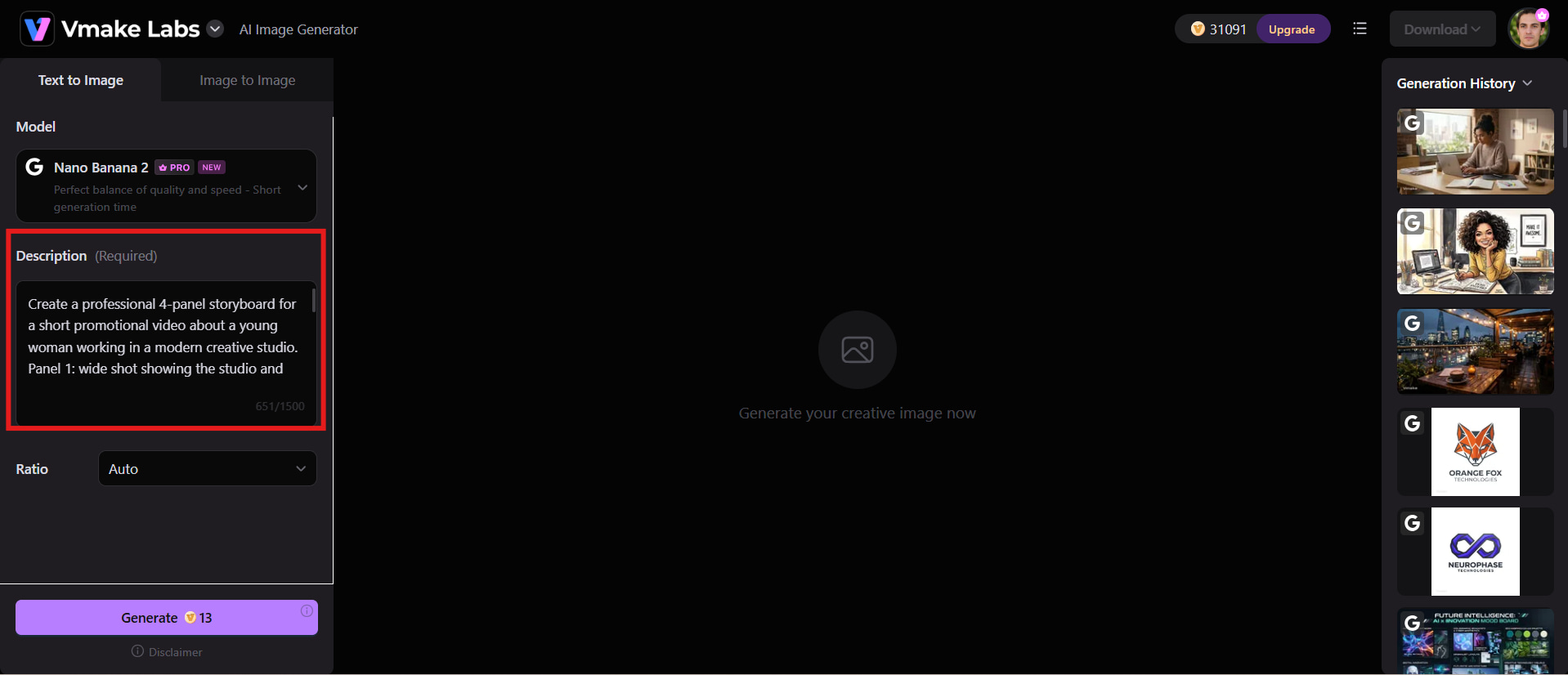
Step 1: Describe your scene
Describe the scene you want to imagine with the characters, setting, actions, camera angle, mood and visual style. A good prompt gets you a visual very close to your idea from your storyboard.
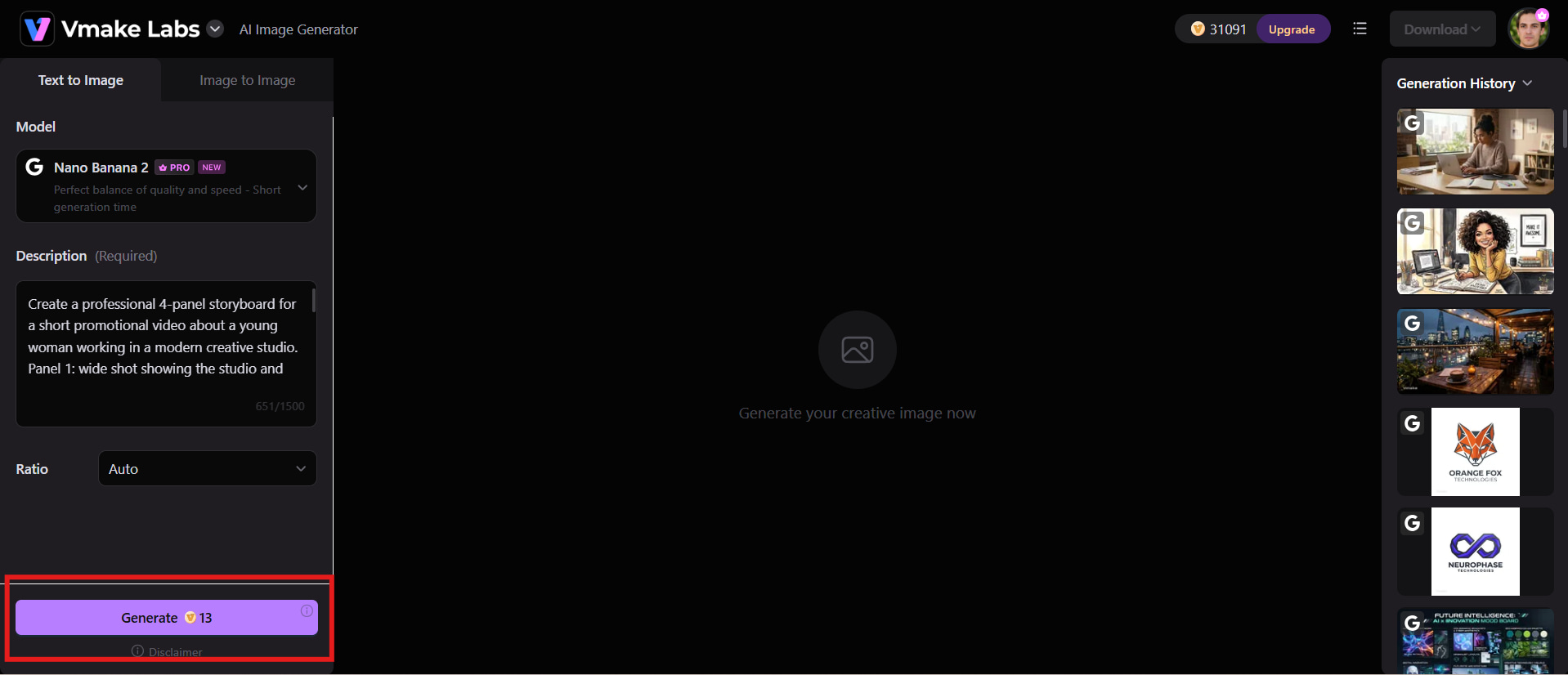
Step 2: Generate and refine the visual
Create your first visual and see how it measures up to your storyboard needs. Tweak details like composition, setting, character placement, lighting, or style until the shot matches your intention.
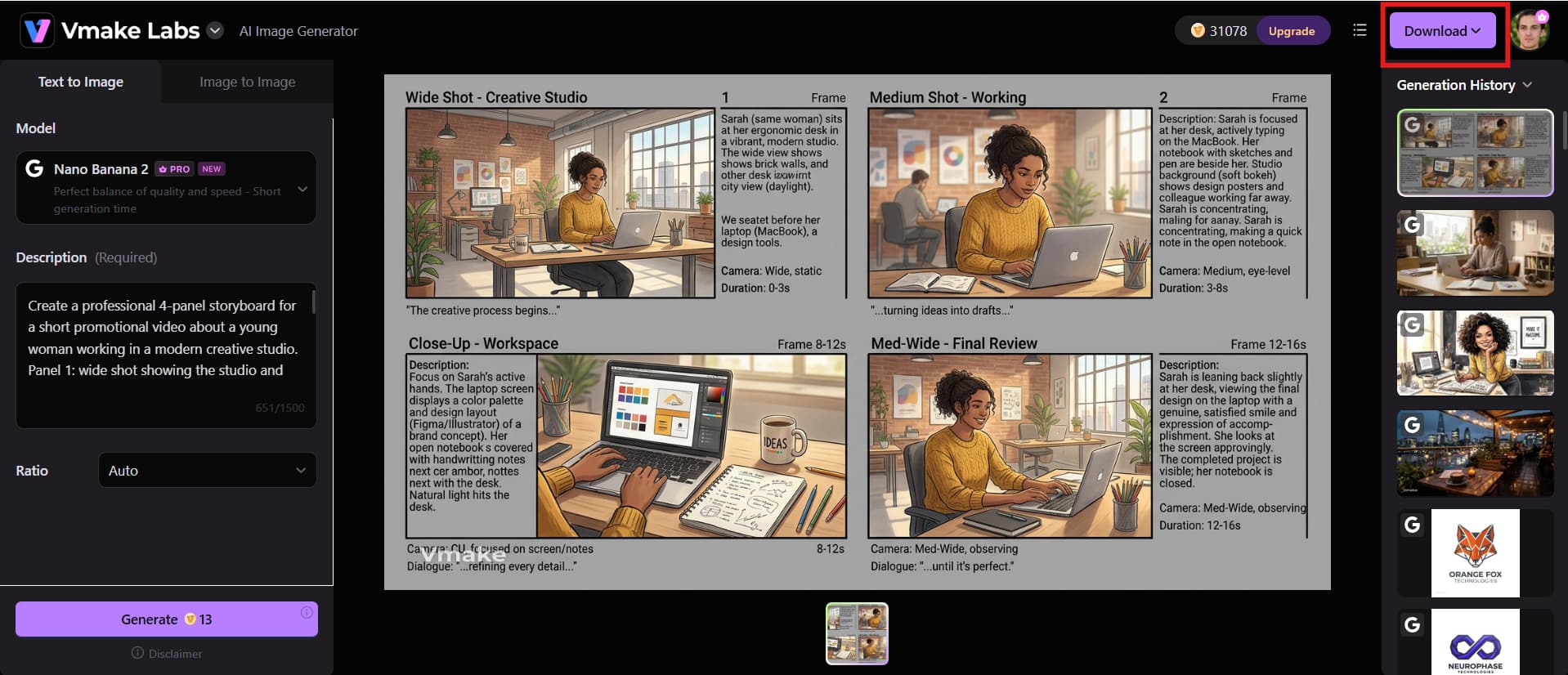
Step 3: Use the visuals in your storyboard
Place your completed visuals into the panels of your storyboard, in the right order. Add dialog, narration, camera notes, actions and other details to create a complete visual guide for production.
How Vmake Labs helps with Storyboard Visuals
-
AI-powered image generation: Turn descriptions of scenes into visual references for characters, settings, actions, and compositions. And be sure to check out the Vmake Labs AI image generator to turn your storyboard ideas into images.
-
Fast scene visualization: Create visual references for individual storyboard panels without having to draw every frame manually.
-
Image editing and refinement: Adjust generated visuals when you need to change the scene, style, composition, or other visual details.
-
Flexible creative applications: Use generated visuals as references for videos, animations, advertisements, social media content, and other creative projects.
Conclusion
A storyboard is your visual playbook, taking a rough idea and transforming it into a polished final video. You can find flaws early, see the big picture, and get everyone thinking the same way. Whether you're doing a quick video or a full campaign, storyboarding will save you headaches and time down the line. And with AI tools like Vmake Labs, you don't need drawing skills to bring your scenes to life, just your imagination and a quick prompt to build visual references in seconds.
FAQs
-
What is a storyboard used for?
A storyboard is used to visually plan a video, film, animation, advertisement, presentation, or other sequential project. It shows how scenes and shots should progress before production begins. It helps creators organize ideas, plan visuals, and maintain a clear story flow.
-
What's a storyboard supposed to include?
A storyboard typically includes visual panels representing key shots, along with dialogue, narration, character actions, camera angles, movement, locations, and transitions. Timing or sound notes can also be added when they are important. These details help the production team understand each scene clearly.
-
How do I create a storyboard as a beginner?
Start by defining your project's purpose and audience, then review your script and divide it into scenes and shots. You can use Vmake Labs to create visual references for important moments instead of drawing every panel manually. Add notes about actions, dialogue, and camera direction to complete your storyboard.
-
How do you make a storyboard for a video?
Break the video script into individual scenes and shots, then decide what each shot should show. Vmake Labs can help generate visual references for characters, settings, actions, and compositions that you can use in your storyboard. Arrange the visuals in sequence and add dialogue, actions, camera notes, and timing.
-
How to make a storyboard for animation?
For animation, divide the script into scenes and identify important character actions, poses, expressions, and camera movements. Vmake Labs can help you visualize these moments with generated images that serve as references for individual panels. Add timing, dialogue, and transition notes to create a clear guide for animation.
-
Can I make a storyboard online with Vmake Labs?
Yes, Vmake Labs can help you create visual references for storyboard panels using AI-powered image generation. Describe your characters, settings, actions, and compositions, then refine the generated visuals to match your concept. You can arrange the visuals into a sequence and use them as references for video or animation projects.

You May Be Interested

10 Interior Design Mood Board Ideas With AI Prompts
ChatGPT Barbie Prompt to Create Your Own Barbie Box AI Doll
Top 10 Mood Board Ideas to Inspire Your Next Project
What Is B-roll? Definition, Types & Tips for Better Videos