Transcribe.mov Review: Is It Worth Using in 2026?
Wondering if Transcribe.mov is the right AI transcription tool? Explore its features, pricing, pros and cons, performance, and compare it with Vmake Labs to choose the best transcription solution.

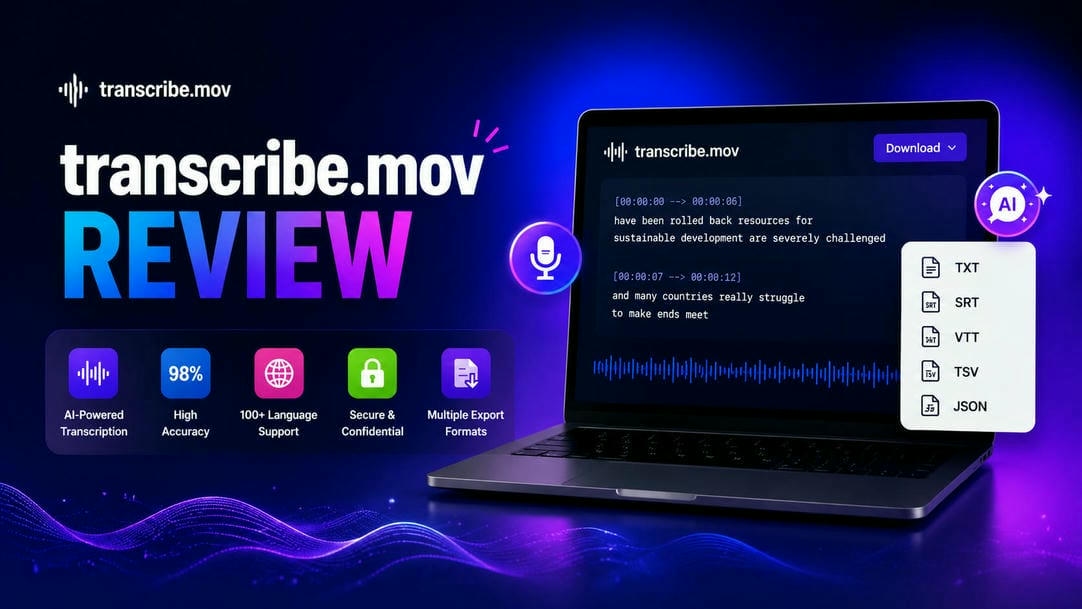
If you're looking for an AI tool to convert audio and video into text, this transcribe.mov review covers everything you need to know. We'll examine its features, pricing, performance, ease of use, and limitations while helping you decide whether it's the right transcription tool for your needs in 2026.
Overview of Transcribe.mov
Transcribe.mov is a browser-based AI transcription platform that converts audio and video into editable text. It supports over 100 languages and features speaker recognition, automatic timestamps, and multiple export formats. The simple interface makes it suitable for creators, students, professionals, and businesses. Its free plan is ideal for users who need quick and easy transcription.
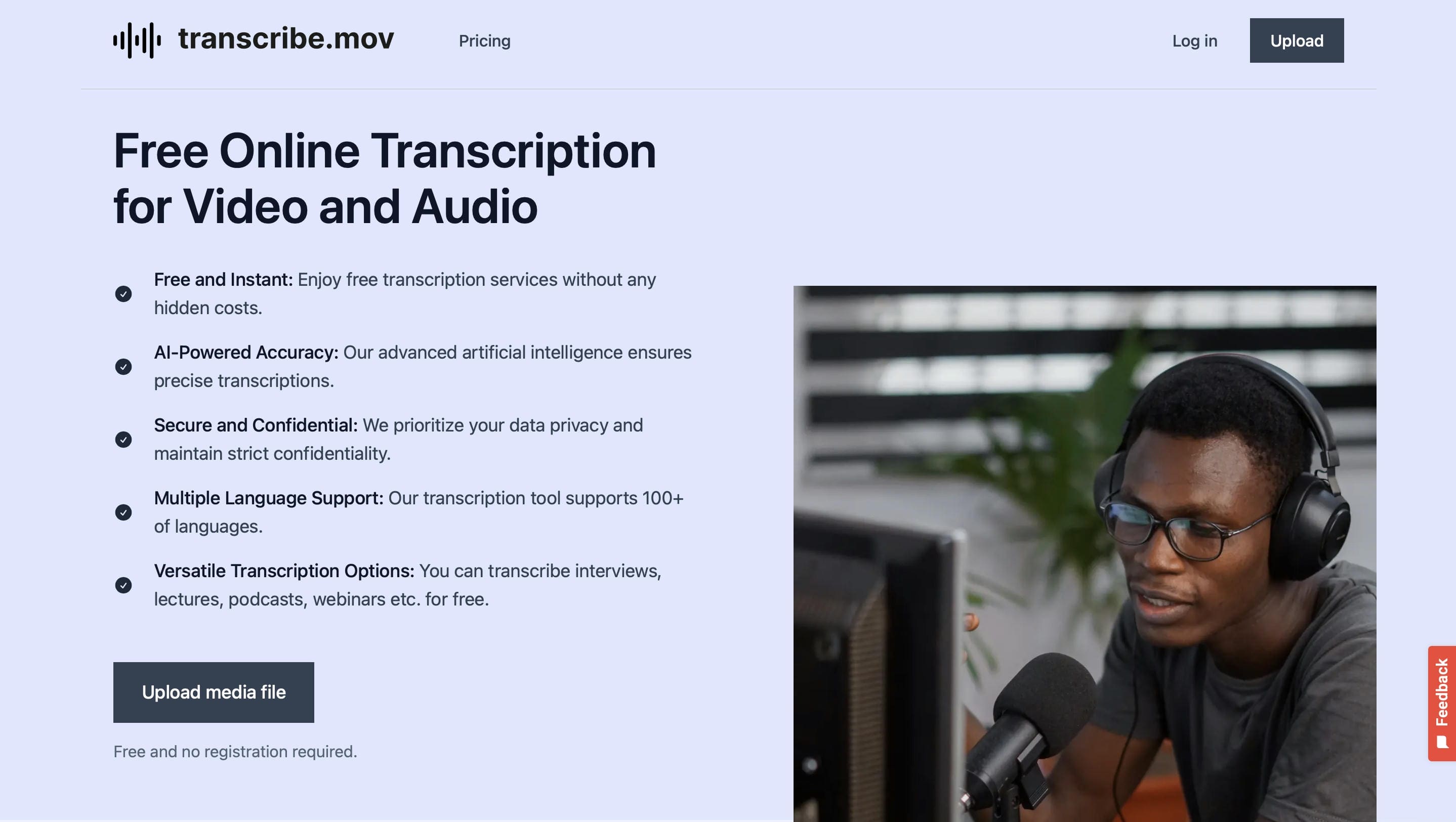
Transcribe.mov Features and How to Use
Transcribe.mov provides a solid combination of export, editing, and transcription options that is simple to use for daily tasks:
Key Features of Transcribe.mov
-
AI-Powered Audio and Video Transcription: Instead of transcribing recordings by hand, you can let the AI convert audio and video into text within minutes. It handles everyday recordings well, but files with heavy background noise or unclear speech may still need a quick review.
-
Speaker Recognition and Automatic Timestamps: The platform automatically separates different speakers and adds timestamps throughout the transcript, making longer conversations much easier to follow. This is one area where many transcription tools fall short, although speaker labels can occasionally need minor adjustments in recordings with overlapping voices.
-
Built-in Transcript Editor and Export Options: Edit transcripts directly after transcription and export them in formats such as TXT, SRT, VTT, TSV, and JSON. These options support documentation, subtitle creation, and content publishing.
-
Multilingual Transcription Support: Transcribe recordings in different languages without relying on separate transcription tools. It's a practical feature for multilingual projects, though you'll still want to review transcripts that include strong accents or mixed-language conversations.
How to Use Transcribe.mov
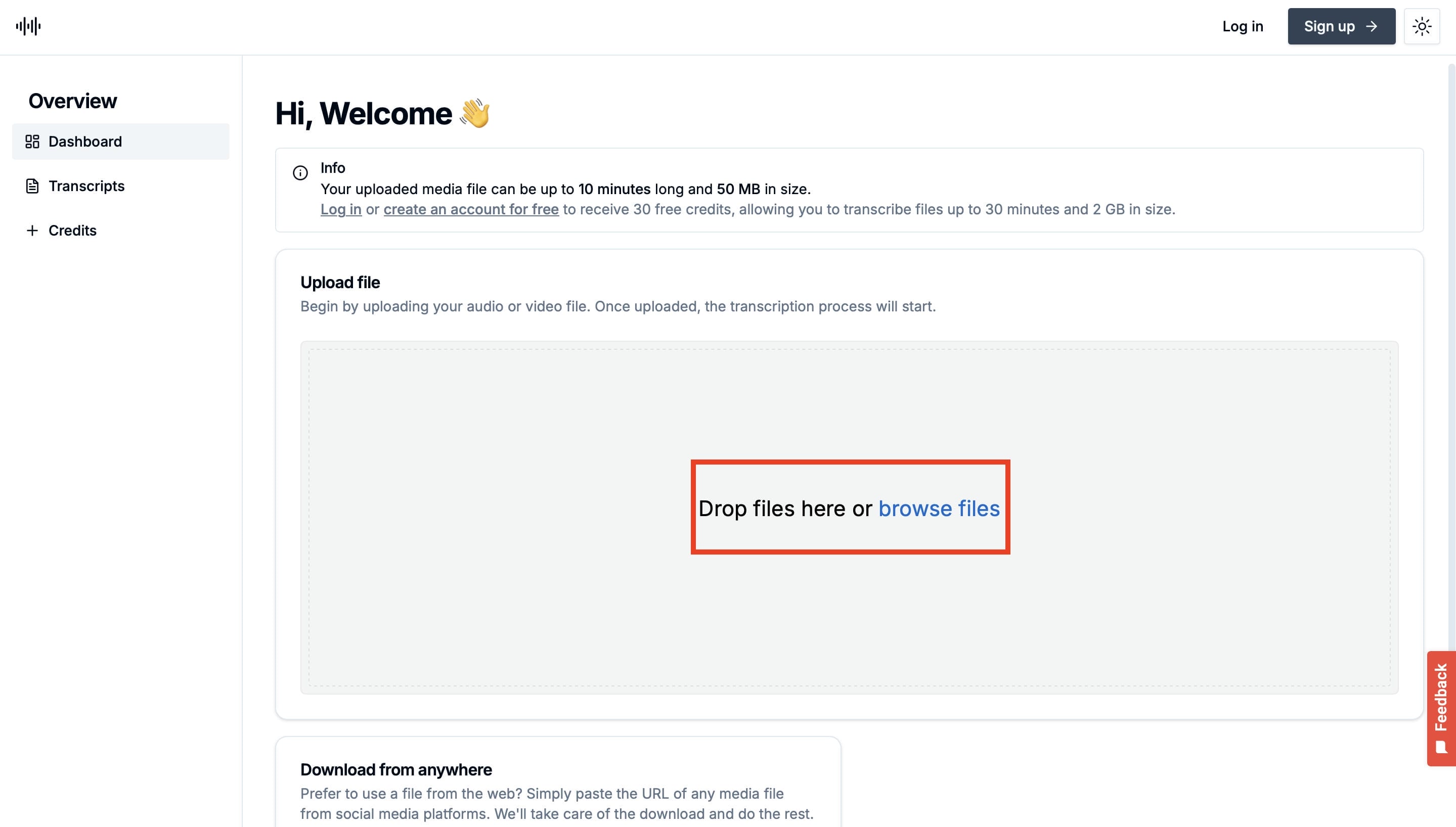
Step 1. Upload Your Media File
Open Transcribe.mov and drag your audio or video file into the upload area, or click Browse files to select it from your device. Once the file is added, click Upload to begin processing.
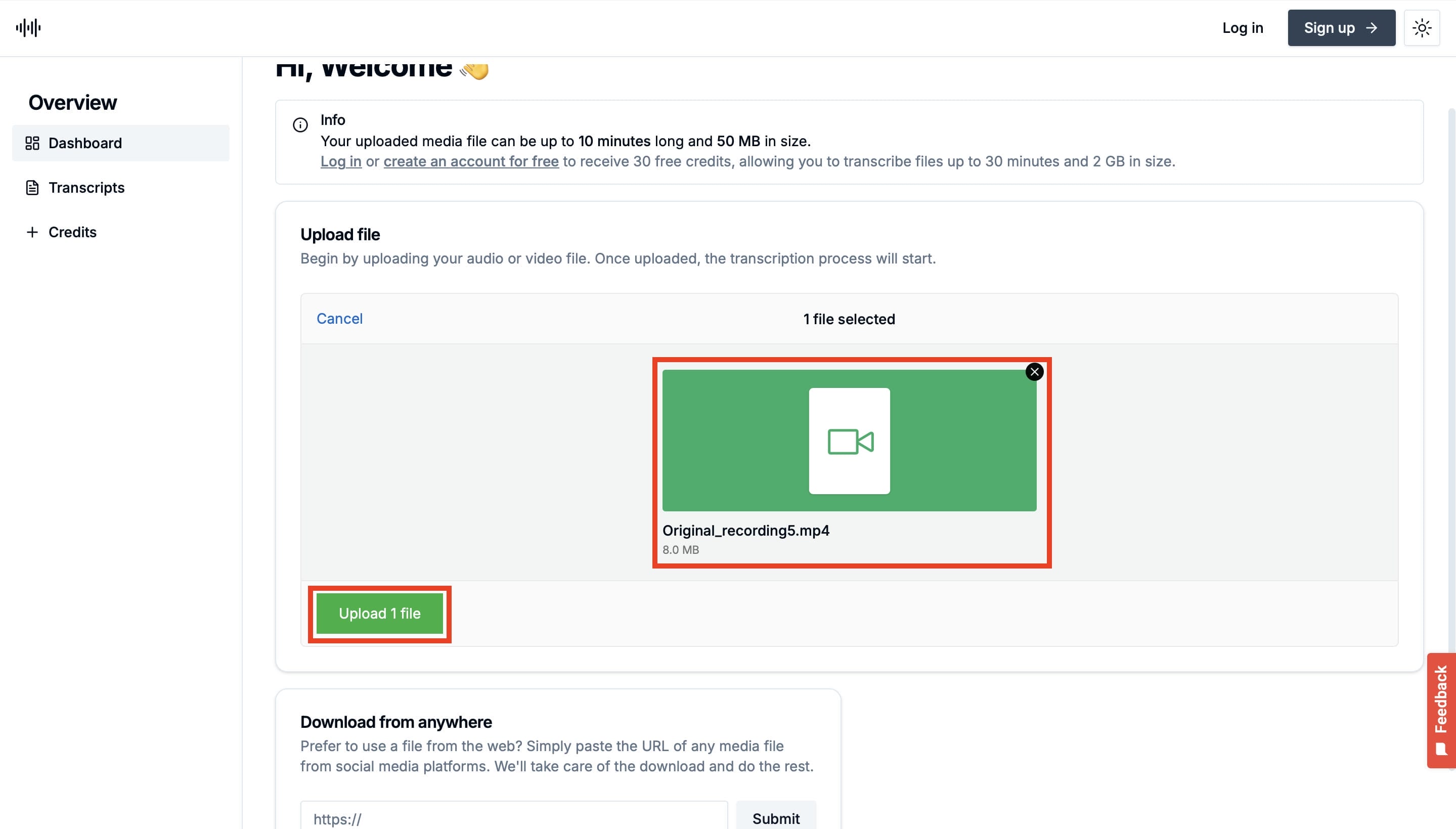
Step 2. Start the Transcription
After selecting your file, click Upload 1 file to begin the transcription process. Transcribe.mov will process the recording and generate a transcript, though larger files may take a little longer to complete.
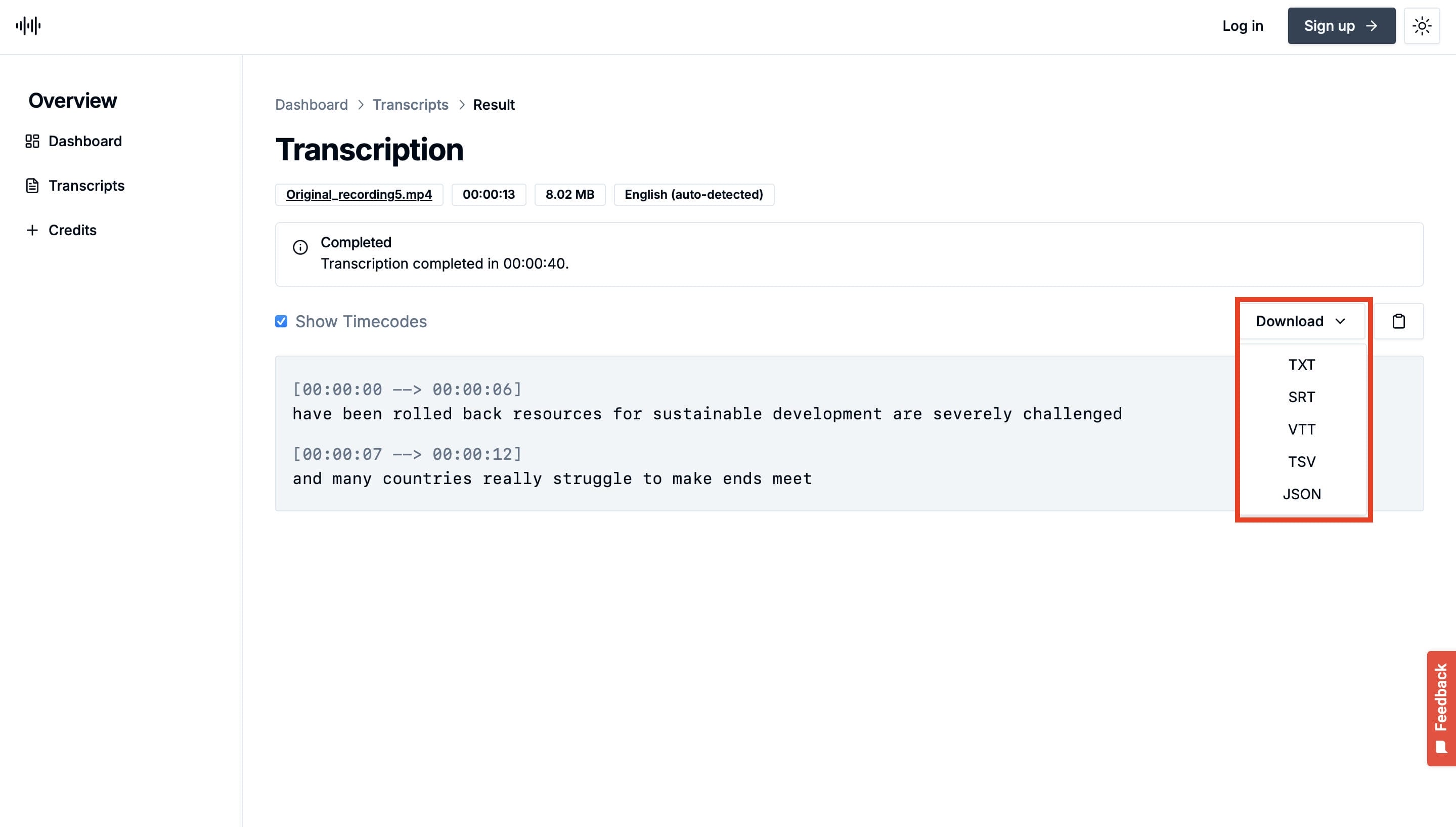
Step 3. Review and Download the Transcript
After the transcript is generated, review it for any necessary corrections before downloading it. You can export the file in TXT, SRT, VTT, TSV, or JSON format, depending on where you plan to use it.
Pros, Cons, Pricing, and Performance Overview
Before choosing Transcribe.mov, take a closer look at its strengths, limitations, pricing, and overall performance. This overview gives you a better idea of what the platform offers and where it may fall short.
Pros and Cons
|
Pros |
Cons |
|---|---|
|
Supports transcription for both audio and video files |
Free usage is limited to 10-minute files and 50 MB uploads |
|
Clean and beginner-friendly interface |
No real-time/live transcription support |
|
Supports 100+ languages |
Credit-based pricing may not be ideal for frequent users |
|
Includes automatic timestamps and speaker recognition |
Limited transcript editing capabilities compared to full-featured transcription platforms |
|
Exports transcripts in TXT, SRT, VTT, TSV, and JSON formats |
Collaboration and team workflow features are limited |
|
Allows transcription without creating an account for basic usage |
Advanced features require paid credits |
Pricing Plans
|
Plan |
Credits |
Transcription Time |
Price |
|---|---|---|---|
|
Free |
Limited |
Up to 10 minutes (50 MB max upload) |
Free |
|
Basic |
120 Credits |
120 minutes (2 hours) |
$5.90 |
|
Standard |
300 Credits |
300 minutes (5 hours) |
$10.90 |
|
Premium |
600 Credits |
600 minutes (10 hours) |
$19.90 |
Editorial performance review
Getting started with Transcribe.mov is straightforward since you can upload a file directly from your browser and begin transcribing without installing any software. Its clean interface makes the platform easy to use, especially if you're new to AI transcription. The platform delivers good transcription accuracy for recordings with clear speech and processes most audio and video files within a reasonable time.
However, larger files or recordings with background noise and overlapping speakers may still require a quick review. Overall, it performs well for everyday transcription tasks, but users managing larger projects or requiring advanced collaboration features may find it somewhat limiting.
Meet Vmake Labs: A Powerful Alternative to Transcribe.mov
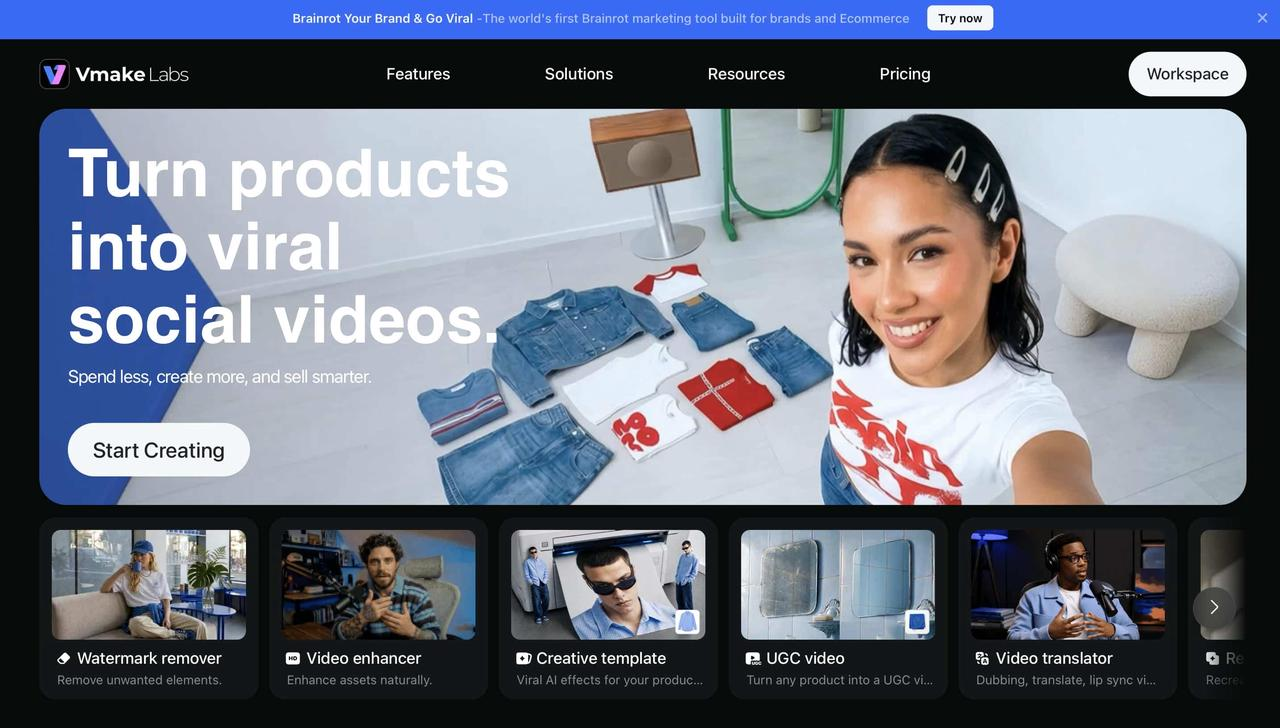
If your transcription needs are more complex, think about using Vmake Labs. It integrates audio and video transcription, language support, and subtitle generation into one platform. For regular users who create, transcribe, and oversee video material.
Key Features of Vmake Labs
-
Fast AI Processing: Generate transcripts in just a few clicks with AI-powered processing that helps save time when working with audio and video content.
-
Accurate Transcription Output: Vmake Labs delivers transcripts that are accurate enough for most interviews, meetings, lectures, and podcasts, reducing the need for manual corrections. For recordings with unwanted background sounds, you can remove noise from video before transcription to improve clarity.
-
Multiple Export Options: Download transcripts in formats suitable for subtitles, documentation, and content publishing, making it easier to integrate them into different workflows.
-
Flexible for Different Workflows: Suitable for creators, educators, businesses, and professionals who need AI transcription for a variety of personal and commercial projects.
How to Transcribe Audio or Video with Vmake Labs
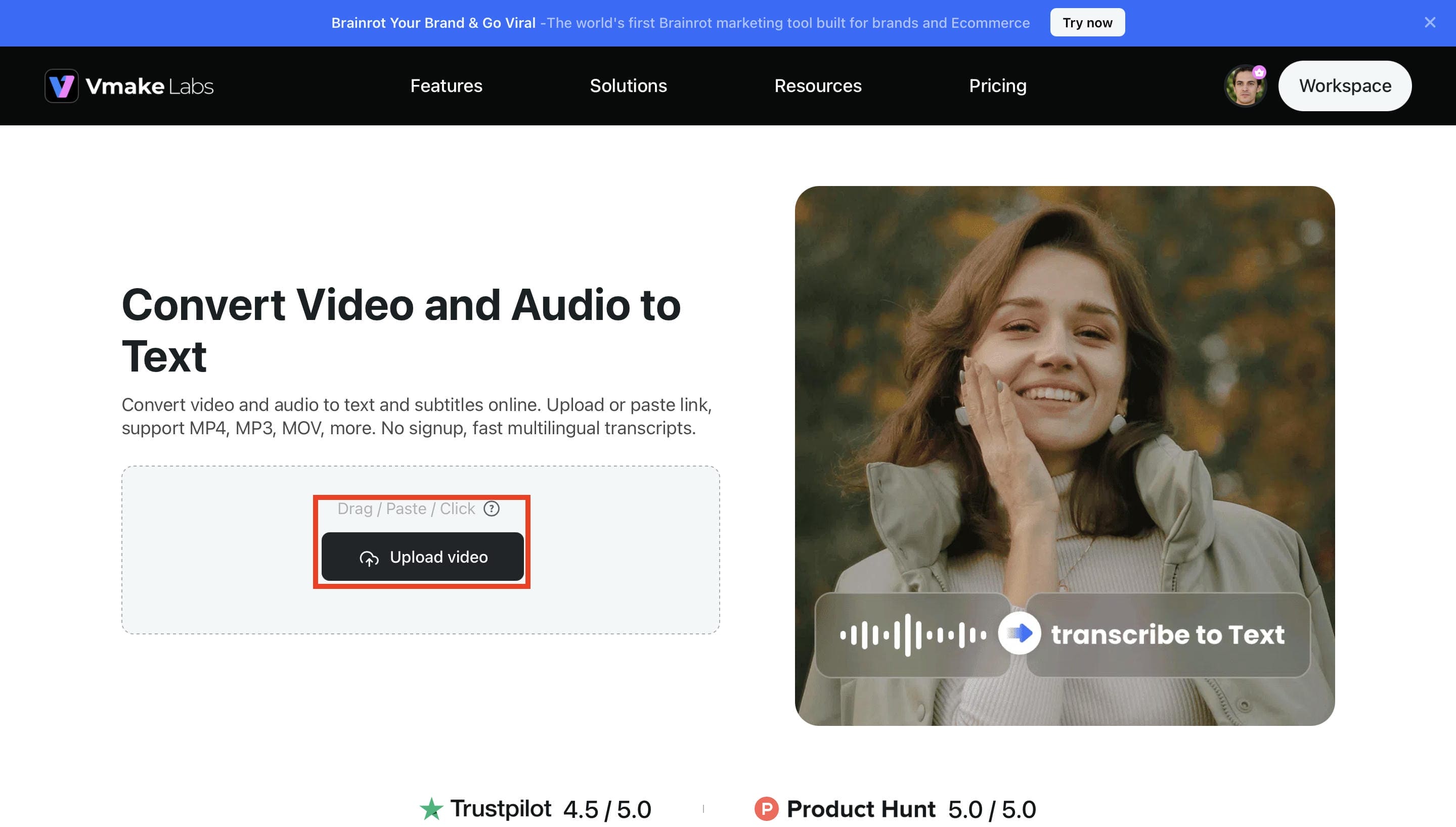
Step 1. Upload Your File
Open the Vmake Labs Video & Audio to Text tool and upload your audio or video file from your device. Because the platform allows several file formats, you can start transcribing with only a few clicks.
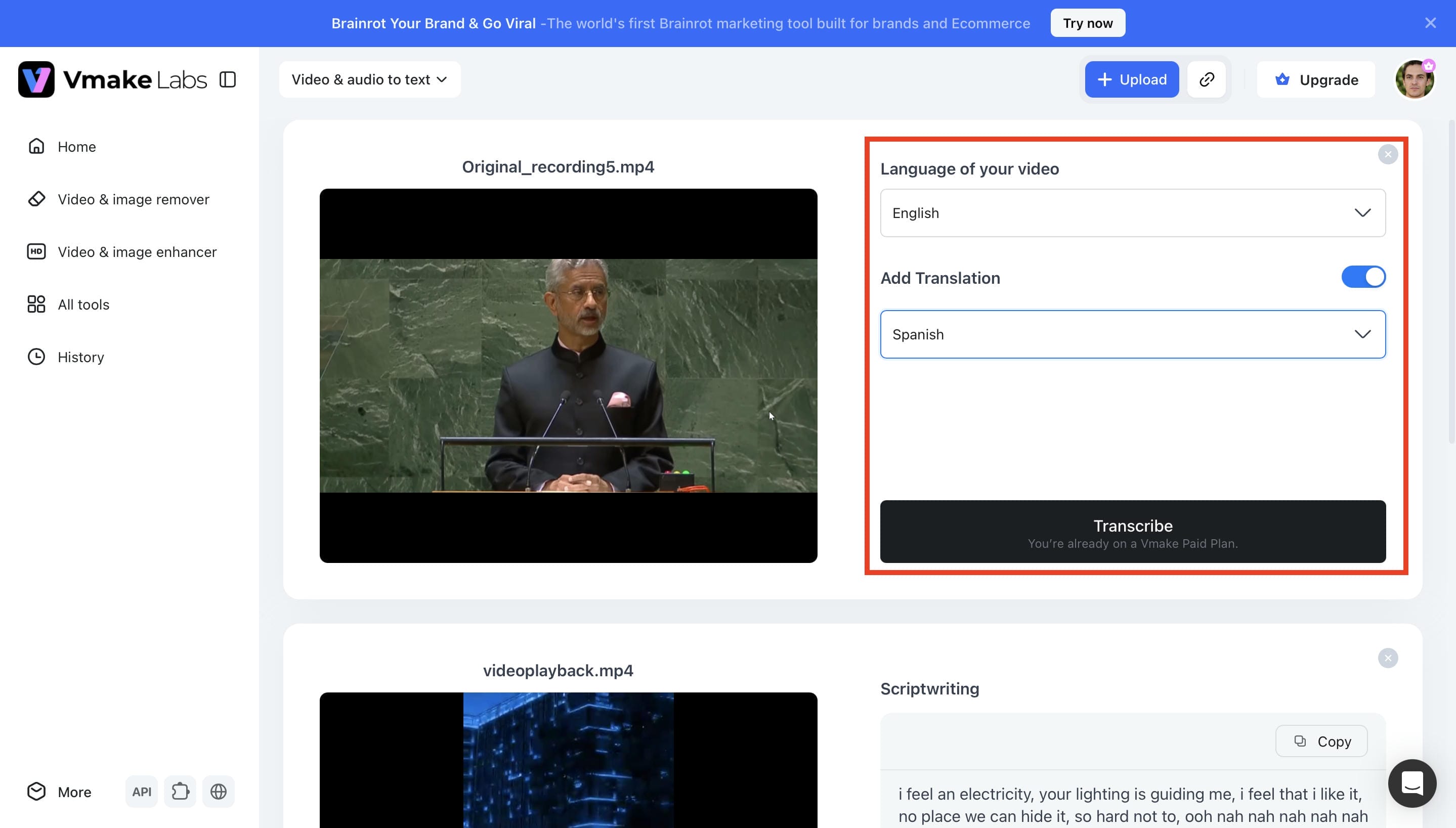
Step 2. Select the Language and Translation
Select the language spoken in your recording and choose a translation language if required. Then click Transcribe to start the AI transcription process and generate your transcript.
Step 3. Transcribe Video to Text
Once the transcription is complete, review the generated text and download it in your preferred format. If needed, you can also export subtitles for use in videos, presentations, or other content.
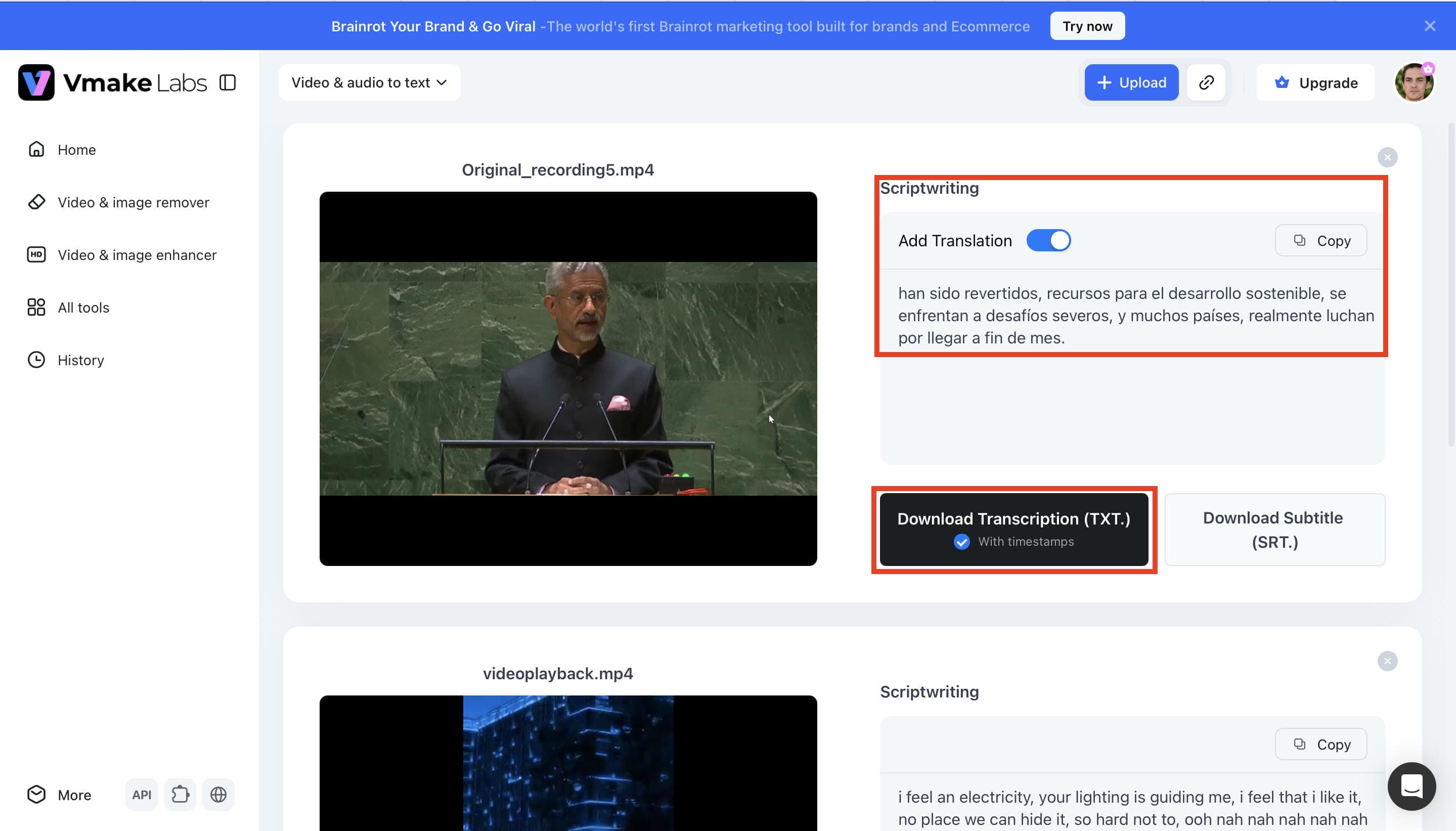
Transcribe.mov vs. Vmake Labs
While both Transcribe.mov and Vmake Labs use AI to convert audio and video into text, they differ in pricing, workflow, and overall flexibility. The comparison below highlights what each platform offers to help you choose the one that best fits your workflow:
|
Comparison Criteria |
Transcribe.mov |
Vmake Labs |
|---|---|---|
|
Core Function |
AI audio and video transcription |
AI audio and video transcription |
|
Supported Input Formats |
Multiple audio and video formats |
Multiple audio and video formats |
|
AI Transcription Accuracy |
High |
High |
|
Speaker Recognition |
Yes |
No |
|
Transcript Editing |
Built-in editor |
Built-in editor |
|
Export Options |
Multiple export formats |
Multiple export formats |
|
Ease of Use |
Beginner-friendly |
Beginner-friendly |
|
Pricing |
Credit-based pricing (Free plan available; paid credits start at $5.90) |
Subscription-based pricing (Free plan available; paid plans start at $9.99/month) |
|
Best For |
Quick AI transcription |
Flexible AI transcription workflows |
Which Tool Should You Choose?
Transcribe.mov is a good place to start if you're searching for a simple AI transcription tool. With speaker recognition, language support, and a variety of output formats, it covers the fundamentals and is appropriate for routine transcribing tasks. For occasional usage, credit-based pricing is beneficial, but over time, regular users can find it less affordable.
Vmake Labs is a solid option that should be taken into consideration as your transcription requirements expand if you want a more flexible workflow with subscription-based pricing, subtitle development, and more AI transcription technology options.
Conclusion
For those looking for a simple method of turning audio and video into text, Transcribe.mov is a dependable choice. It is an excellent choice for professionals, artists, and students since it provides the essential transcribing functions required for daily operations. However, if you often transcribe lengthier recordings, the credit-based price can be less feasible. Vmake Labs is an excellent substitute if you want a more adaptable workflow with subscription-based pricing, and other AI transcription tools like AI subtitle generators. The best option ultimately relies on your workflow and transcribing requirements.
FAQs
Does Transcribe.mov require an internet connection?
Yes, and it's unavoidable to upload files, create transcripts, and get the results. You need an internet connection because Transcribe.mov runs completely inside your browser. The difference is more pronounced with larger files, as a slow or unreliable connection can extend upload and processing times, so if you frequently work with intermittent Wi-Fi, remember this before depending on a browser-based transcribing tool for time-sensitive jobs.
Can I transcribe multiple files at once?
Transcribe.mov mainly processes one file at a time, and the number of recordings you can transcribe depends on your available credits and account limits. That's perfectly fine for occasional use, but it can feel limiting if you're managing several projects at once. If you regularly work with multiple audio or video files, Vmake Labs offers a workflow that's better suited to handling ongoing transcription tasks.
Does Transcribe.mov support long audio or video files?
Yes, but there are limits; the free plan supports uploads of up to 10 minutes and 50 MB, while longer audio or video files require additional paid credits. That's usually enough for occasional interviews or meetings. Still, if you regularly transcribe long podcasts, webinars, or conferences, the credit-based pricing can become less economical than a subscription-based plan.
What file formats can I upload to Transcribe.mov?
Transcribe.mov supports a variety of common audio and video file formats so that most recordings can be uploaded without additional conversion. Once the transcription is complete, you can export it to TXT, SRT, VTT, TSV, or JSON formats for documents and subtitles. Vmake Labs also supports multiple media formats and export options if you need greater flexibility.
What is the best alternative to Transcribe.mov?
If Transcribe.mov doesn't quite meet your needs, Vmake Labs is one of the strongest alternatives to consider. It offers AI-powered audio and video transcription, multilingual support, transcript editing, subtitle generation, and flexible subscription plans for users who transcribe content regularly. While Transcribe.mov works well for occasional projects, Vmake Labs may be a better fit if you're looking for a more flexible transcription workflow.

You May Be Interested
VEED.io Audio to Text: Everything You Need to Know in 2026

ChatGPT Video Generator Review: Features, Pricing & Best Alternative

How to Generate Thumbnails with AI: Guide for Optimized Previews
How to Transcribe Video to Text in 2026: Free Online AI Tool
How to Transcribe Audio Recording to Text in Minutes