HappyScribe Audio to Text: A Complete Guide & Review
Need to convert audio into text? Learn how HappyScribe audio to text works, compare its features and limitations, and discover how Vmake Labs transcribes audio and video into text in minutes.

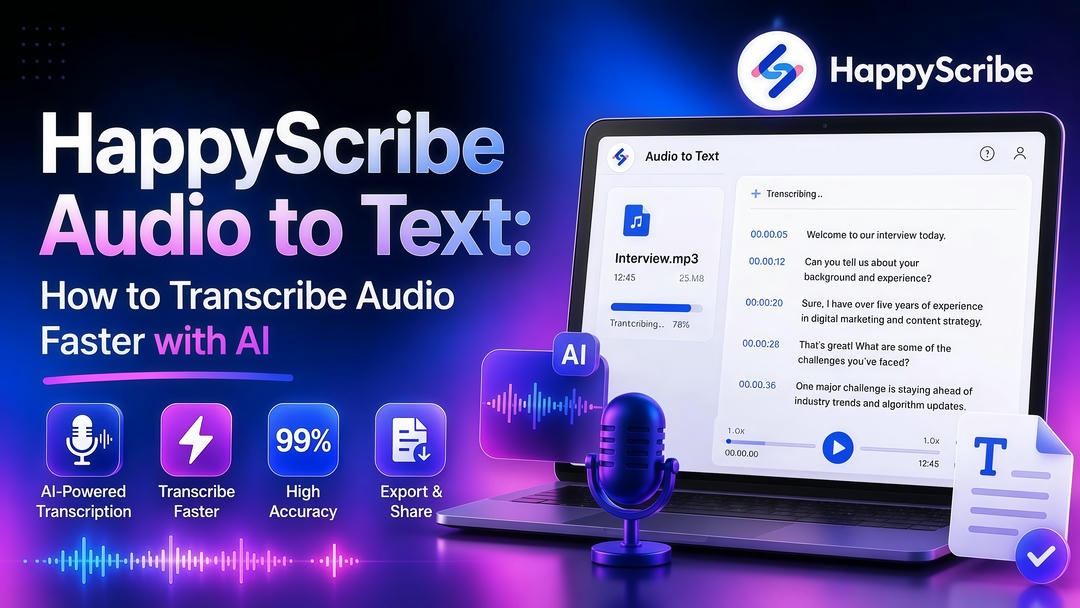
In today's fast digital world, converting spoken words into written text is crucial for content creators, researchers, and enterprises alike. Time-saving, accessible, and productive: the benefits of transcription automation. In this guide, we take a look at HappyScribe Audio to Text, review its features, and provide a better alternative for maximum productivity.
What Is HappyScribe Audio to Text?
HappyScribe is an AI-powered transcription platform that converts spoken content from audio and video files into editable text. It's designed for users who need transcripts for meetings, interviews, podcasts, webinars, lectures, subtitles, and other recorded content. The platform uses automatic speech recognition (ASR) to generate transcripts quickly while also offering a human transcription service for projects that require additional accuracy.
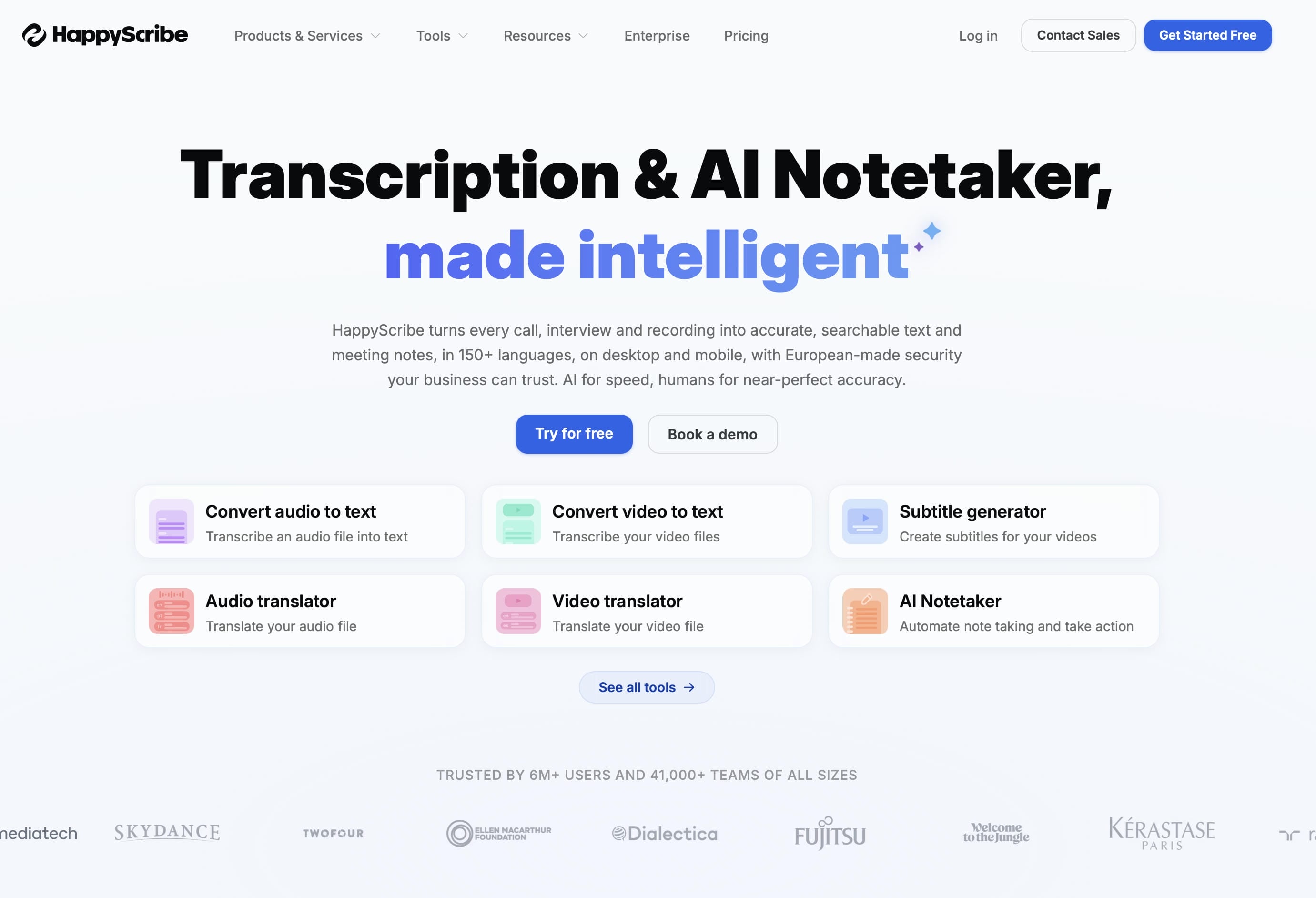
HappyScribe supports multiple languages. It supports a variety of audio and video formats, and an online editor where users can review, edit and export the transcripts in different file formats. Whether you're a content creator, educator, researcher, or business professional, it's an easy way to get searchable, editable text from your recordings.
Benefits of HappyScribe Audio to Text
HappyScribe offers several features that make the transcription process more efficient for both individuals and teams.
-
Fast AI-powered transcription: Convert audio and video recordings into text within minutes, helping reduce the time spent on manual transcription.
-
Supports multiple languages: Transcribe content in various languages, making it suitable for multilingual projects and international audiences.
-
Interactive transcript editor: Review, edit, and refine transcripts directly within the platform before downloading the final version.
-
Speaker identification and timestamps: Automatically organize conversations with speaker labels and timestamps for easier navigation.
-
Multiple export formats: Export transcripts in commonly used formats for documentation, subtitles, captions, or further editing.
-
Human transcription option: Choose professionally reviewed transcripts when higher accuracy is required for important projects.
How to Convert HappyScribe Audio to Text
HappyScribe uses a straightforward workflow to convert audio and video recordings into editable text. After uploading your file, you can configure the transcription settings, review the generated transcript, and export it in your preferred format.
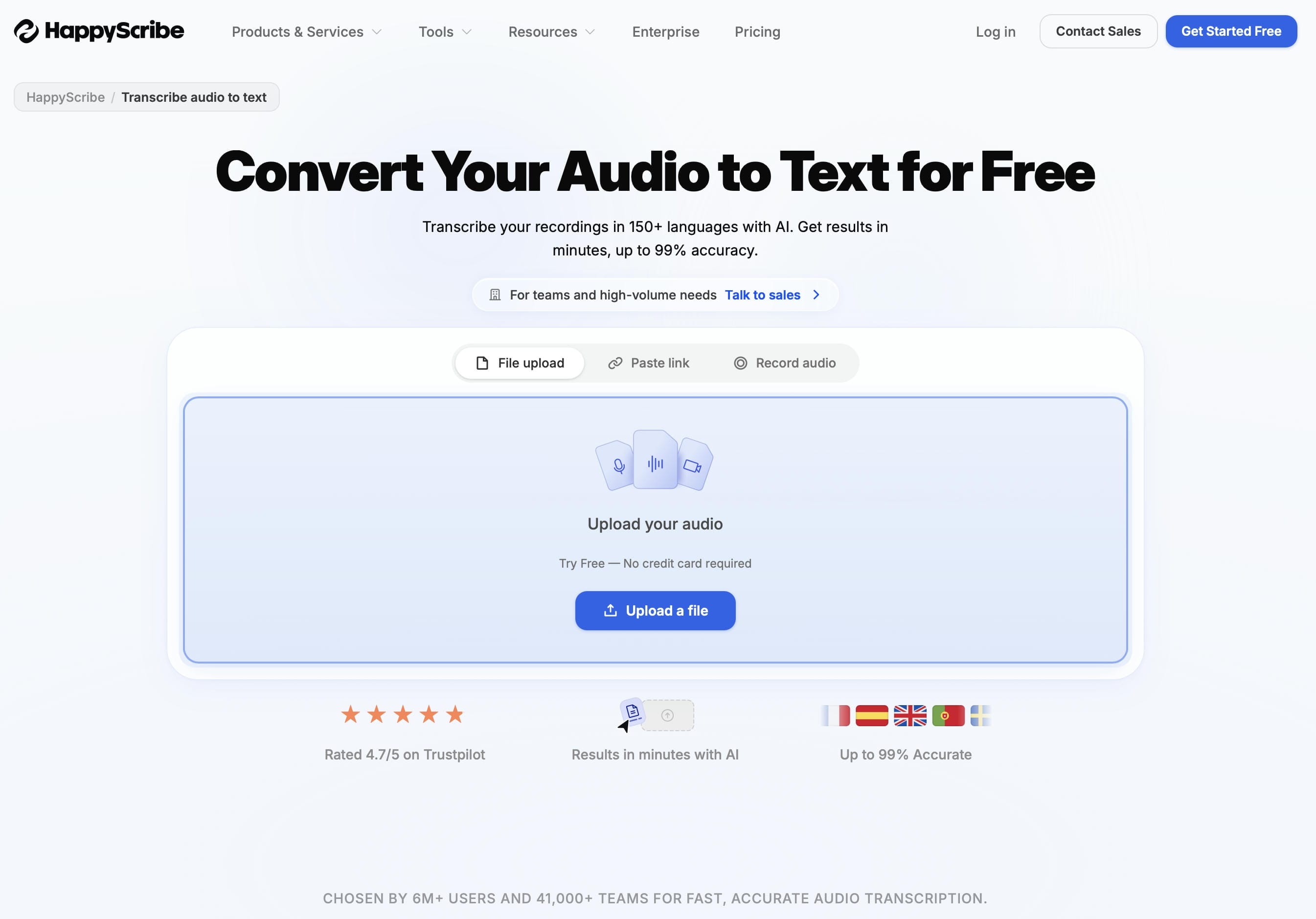
Step 1: Upload your audio or video file
Log in to your HappyScribe dashboard, click Upload, and select a file from your device. You can also import files directly from cloud storage services such as Google Drive or Dropbox.
Step 2: Select the transcription language
Choose the language spoken in your recording and, if available, the appropriate regional variant. Then select whether you want AI transcription for faster results or Human transcription for projects that require a higher level of accuracy.
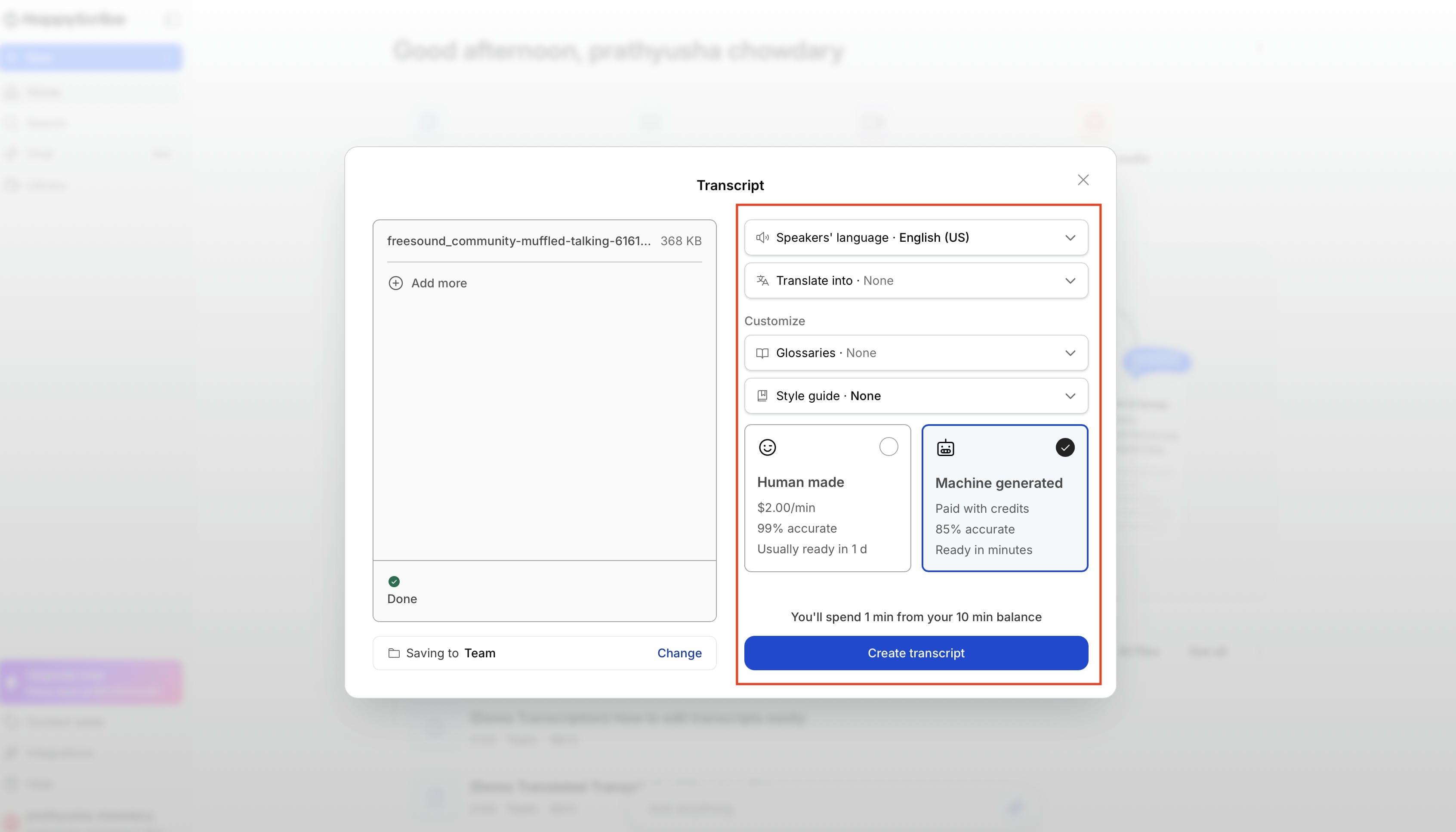
Step 3: Generate and review the transcript
Start the transcription process and wait for HappyScribe to generate the transcript. Once it's ready, open the built-in editor to review the text alongside the audio and make any necessary corrections.
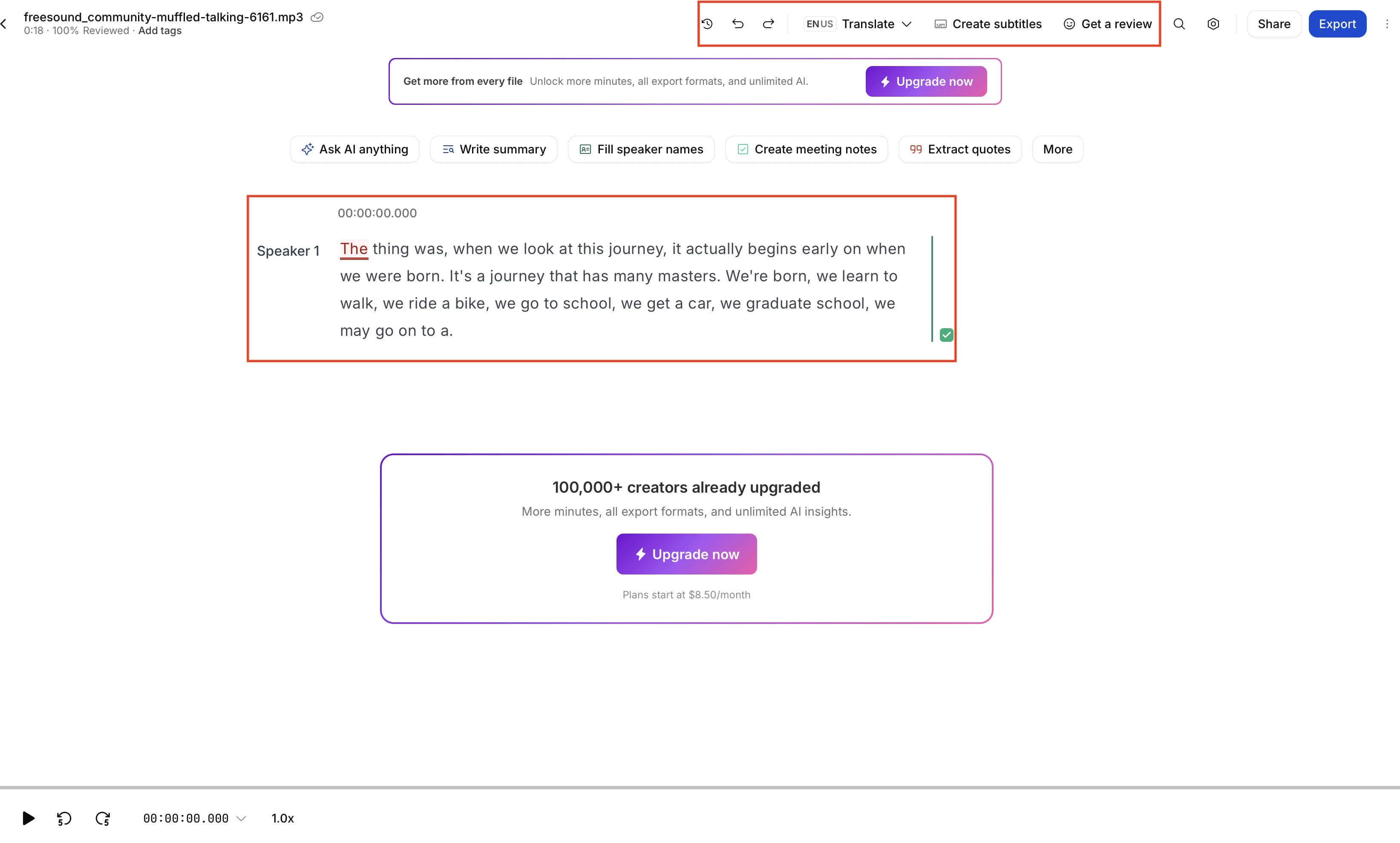
Step 4: Edit and export your transcript
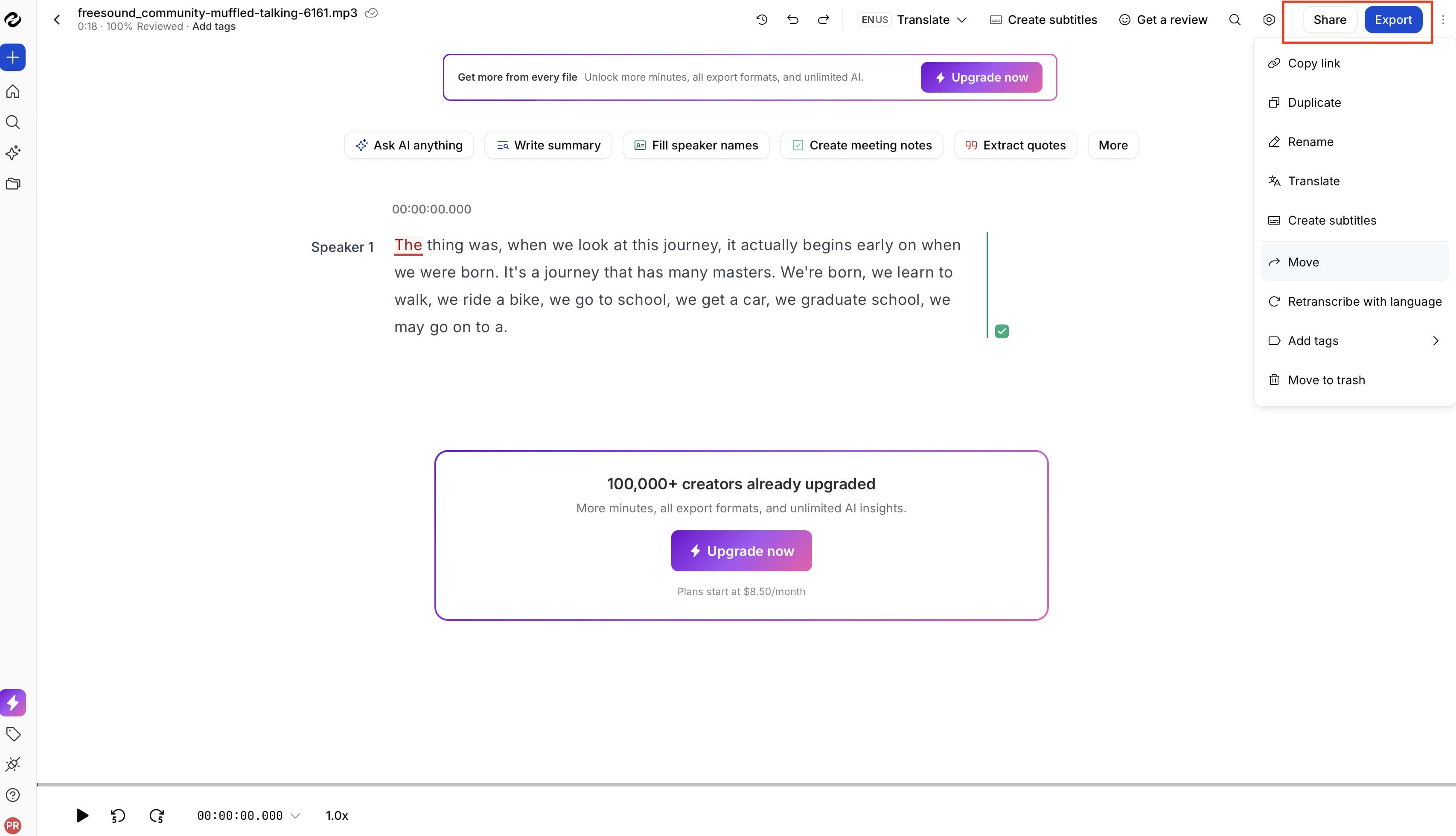
You can use the interactive editor to correct, update speaker names and improve the transcript before exporting. HappyScribe has export options like DOCX, PDF, TXT, and SRT, so you can easily use the transcript for documentation, subtitles, or content creation.
HappyScribe Pros, Cons, and Pricing
HappyScribe combines AI-powered transcription with editing tools and multilingual support, making it suitable for a wide range of transcription tasks. Like most AI transcription platforms, however, its performance depends on factors such as audio quality, background noise, and speaker clarity.
|
Pros |
Cons |
|---|---|
|
Fast transcription for clear recordings |
Free plan has limited transcription time |
|
Easy to review and edit transcripts |
Speaker identification can occasionally be inaccurate |
|
Supports multiple languages for global users |
Accuracy may decrease with strong accents or background noise |
|
Multiple export options for different workflows |
Advanced features require a paid subscription |
|
Human transcription available for higher accuracy |
Human transcription costs extra |
Pricing
HappyScribe offers plans for different transcription needs. The free plan is a good way to test the platform with occasional recordings, while the basic plan is suitable for individuals who regularly transcribe meetings, interviews, or lectures. If you need higher transcription limits, more advanced features, or collaboration tools for larger projects, upgrading to the Pro or Business plan is a practical next step.
|
Plan |
Price (Annually Billed) |
Best For |
|---|---|---|
|
Free |
Free |
Trying AI transcription with limited usage |
|
Basic |
$8.50/month |
Individuals with small transcription needs |
|
Pro |
$19/month |
Professionals and small teams |
|
Business |
$59/month |
Teams and agencies with higher transcription volumes |
While HappyScribe offers AI and human transcription options for different use cases, some users may prefer a more streamlined workflow for transcribing both audio and video. If you're looking for an alternative with AI-powered transcription, editable transcripts, and support for uploaded files and supported online links, Vmake Labs is another option worth exploring.
How to Convert Audio to Text with Vmake Labs
Vmake Labs is an AI transcription tool that converts audio and video into editable text in just a few steps. Whether you're creating meeting notes, transcribing interviews, generating subtitles, or documenting lectures, the platform offers a simple workflow that lets you upload your content, generate transcripts, and export the results from one place.
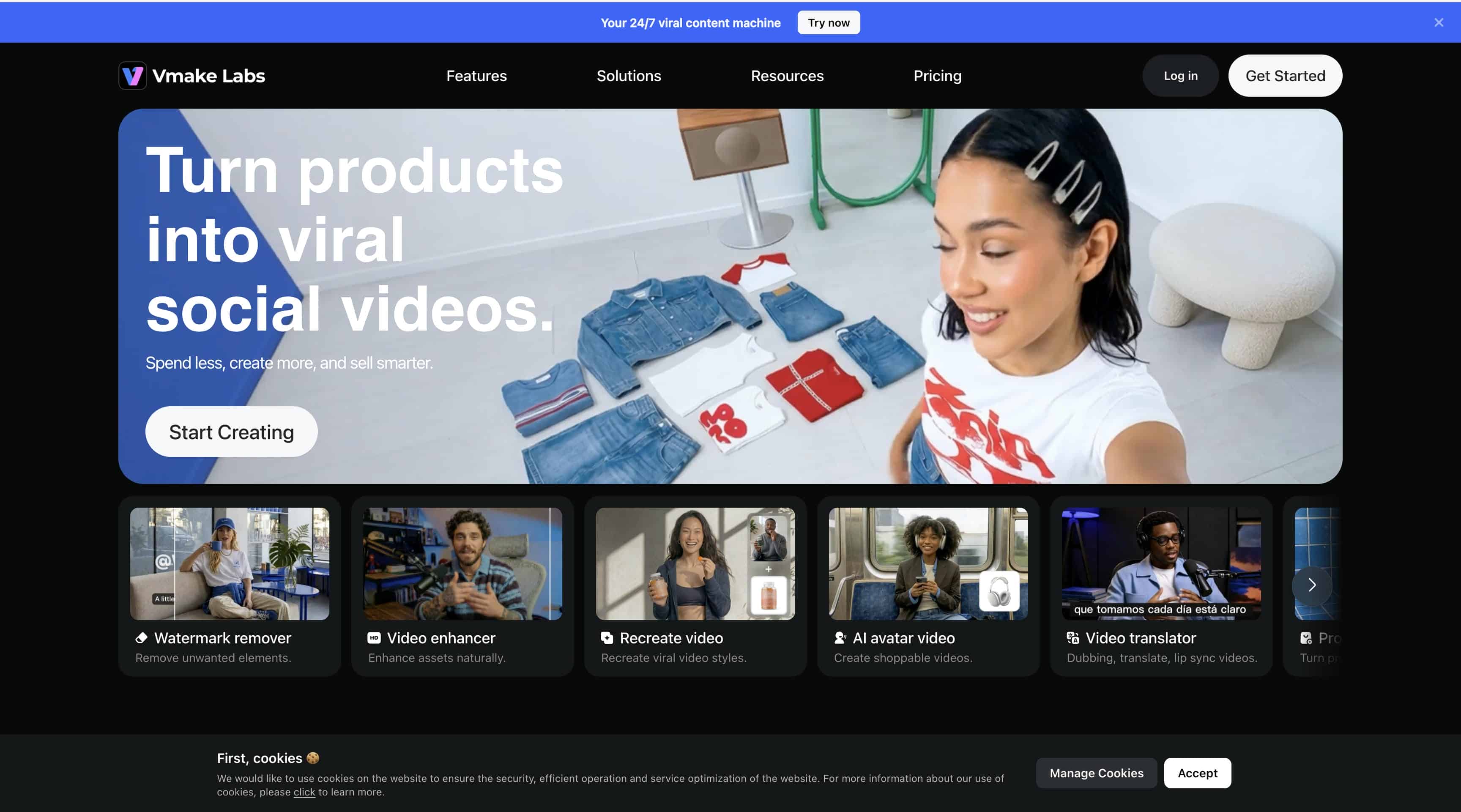
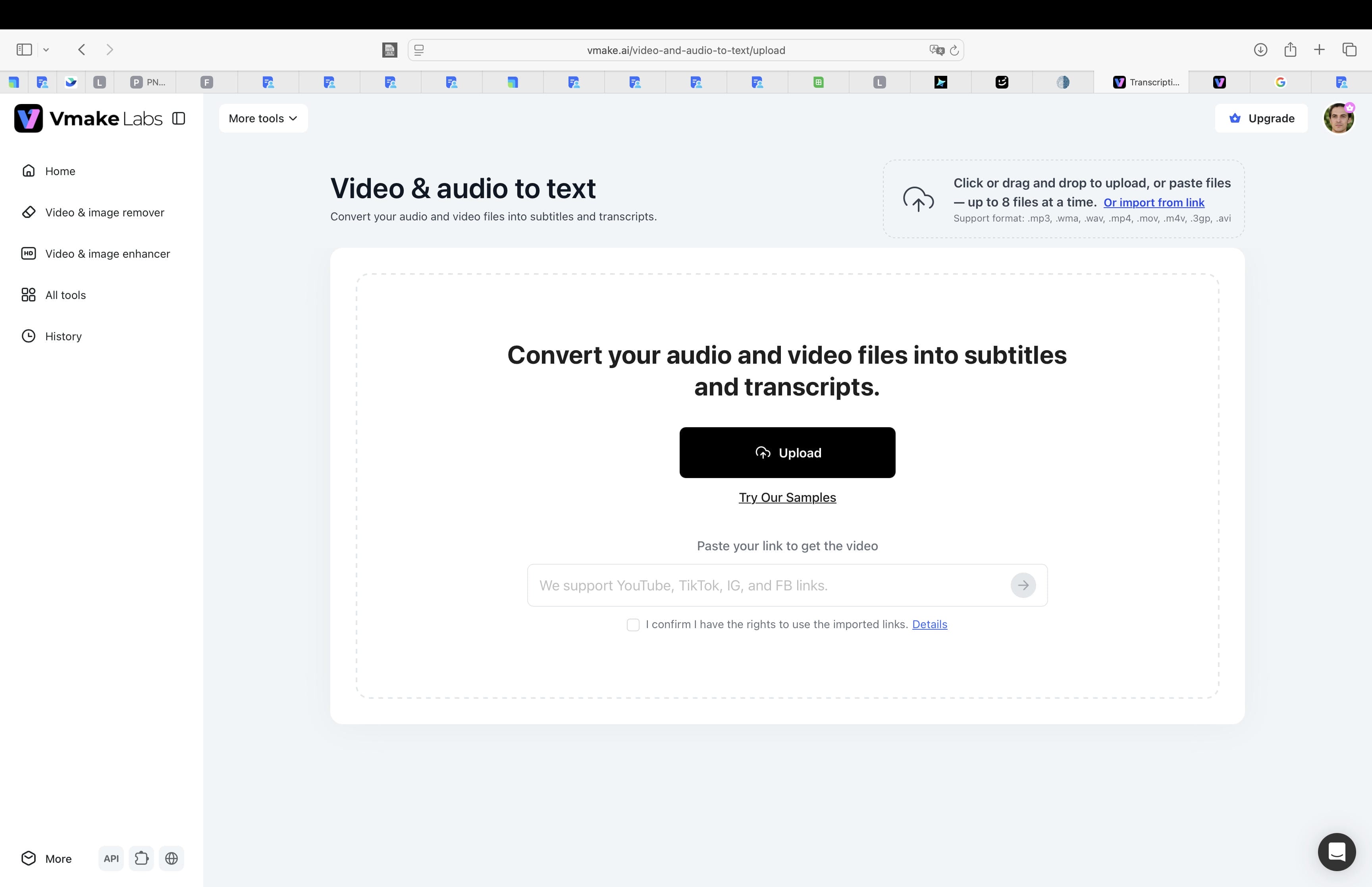
Step 1: Upload your audio file
Open the Video & Audio to Text tool in Vmake Labs and click Upload. Select the audio or video file you want to transcribe from your device. After the upload is complete, the file appears in the workspace, ready for transcription.
Step 2: Select the transcription language and settings
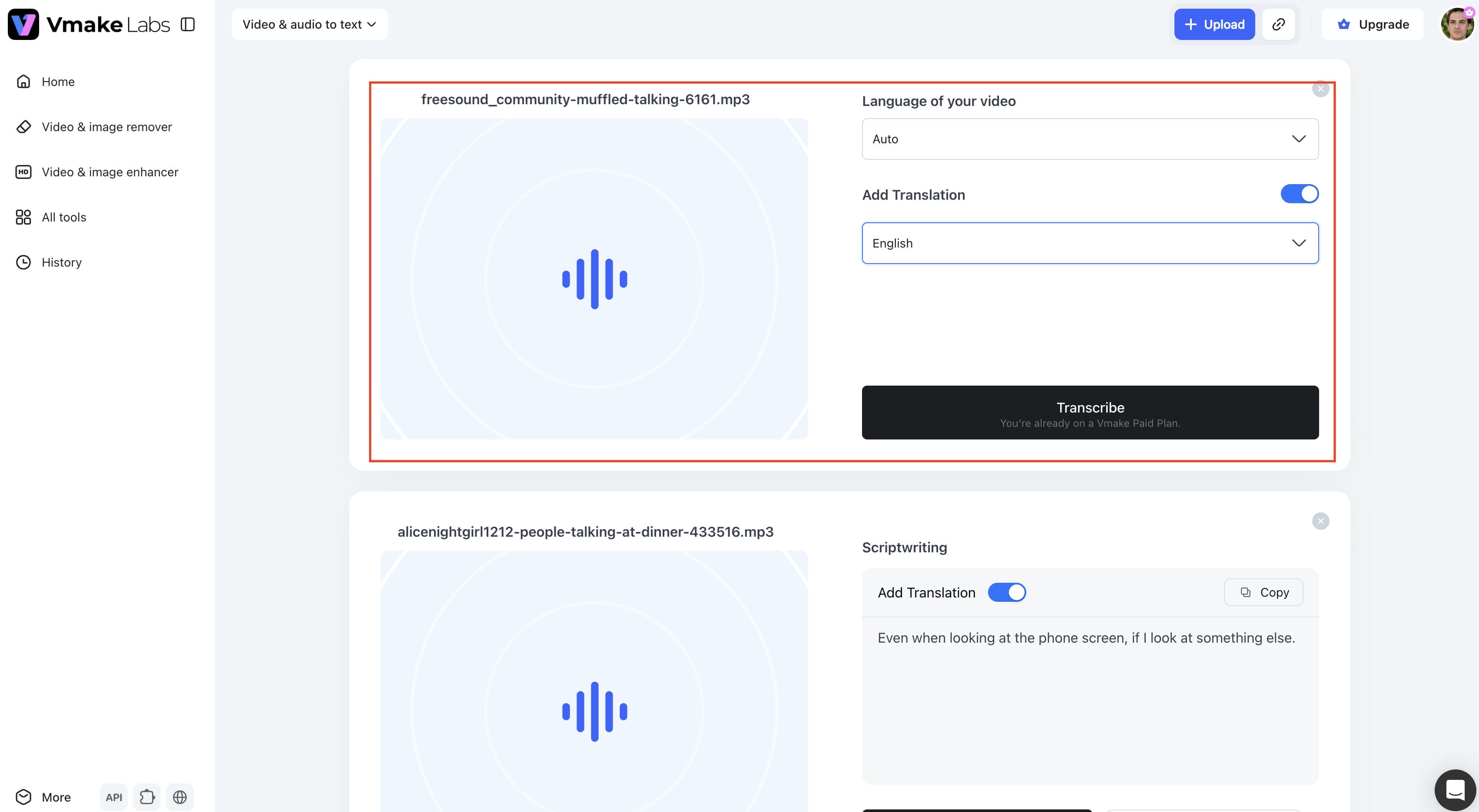
Choose the language spoken in your recording using the Language of your video dropdown. If you need a translated transcript, enable Add Translation and select the target language. Once your settings are ready, click Transcribe to start the transcription process.
Step 3: Generate, review, and export the transcript
After processing, Vmake Labs displays the transcript in the workspace, where you can review the text or copy it directly. When you're finished, download the transcript as a TXT file with timestamps or export subtitles in SRT format for videos.
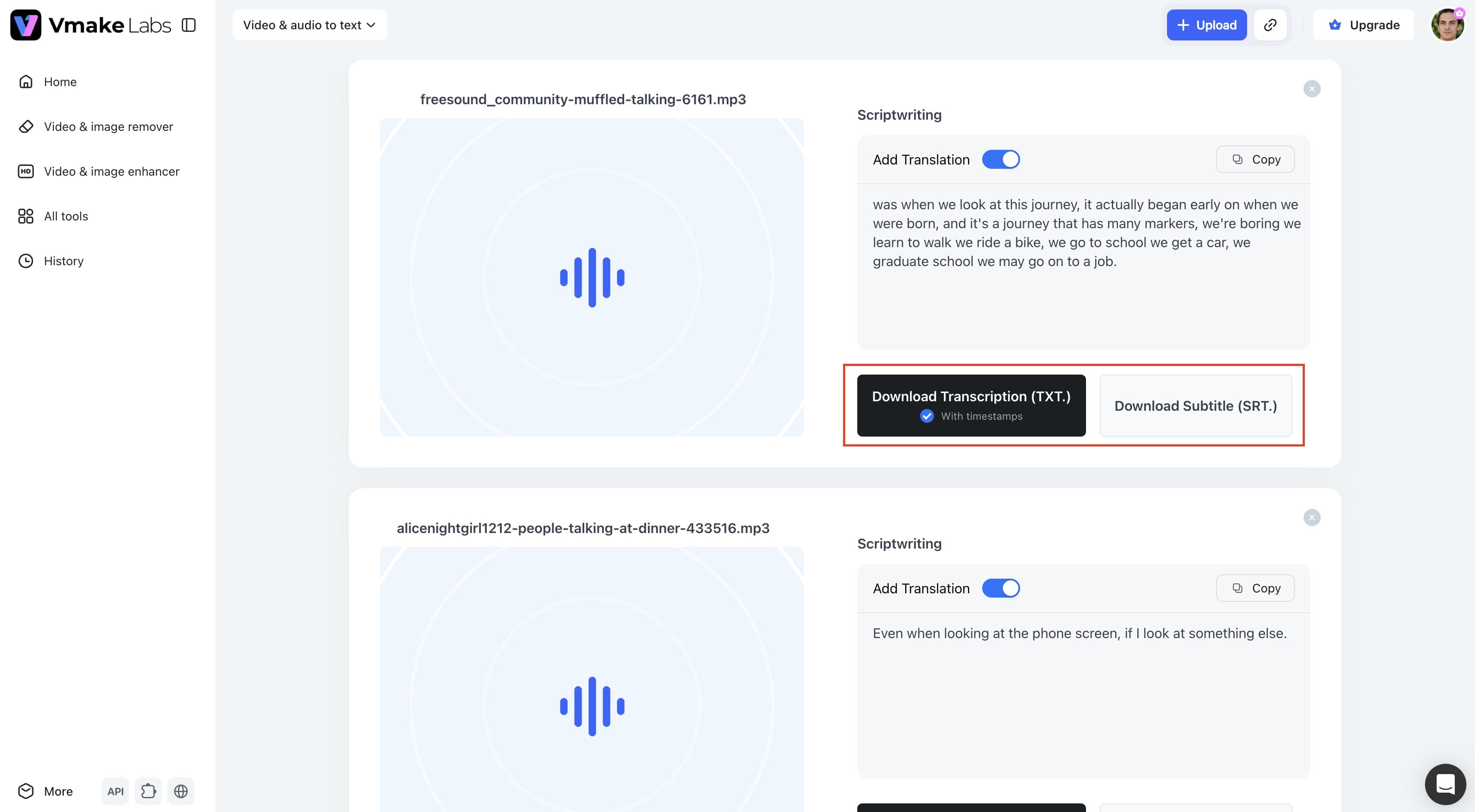
After transcription, users can easily edit, copy, and export their transcripts for different workflows without switching between multiple tools. This also makes Vmake Labs a practical video transcript generator for meetings, interviews, webinars, podcasts, and other recorded content.
Key Features of Vmake Labs Audio to Text
Vmake Labs is designed to simplify transcription while supporting a variety of content types and workflows.
-
AI audio and video transcription: Convert spoken content from both audio and video files into editable text within minutes.
-
Supports multiple languages: Generate transcripts for multilingual recordings by selecting the appropriate transcription language.
-
Fast and accurate speech recognition: Quickly process recordings using AI-powered speech recognition to produce editable transcripts.
-
Editable transcript output: Review, correct, and copy transcripts before exporting the final version.
-
Audio and video link transcription: Generate transcripts from supported online links in addition to uploaded files.
-
Simple upload and export workflow: Complete the entire transcription process from upload to export in one streamlined workspace.
HappyScribe Audio to Text vs Vmake Labs
HappyScribe and Vmake Labs both use AI to convert audio and video into editable text. While they share several core transcription features, there are some differences in workflow, supported inputs, and intended use cases.
|
Feature |
HappyScribe |
Vmake Labs |
|---|---|---|
|
AI transcription |
Yes |
Yes |
|
Audio transcription |
Yes |
Yes |
|
Video transcription |
Yes |
Yes |
|
Direct link transcription |
Limited |
Supported |
|
Editing transcripts |
Yes |
Yes |
|
Processing speed |
Fast |
Fast |
|
Ease of use |
Simple |
Simple one-page workflow |
|
Best for |
Professional transcription |
Fast everyday transcription and content creation |
If you need AI transcription with the option to use human-reviewed transcripts, HappyScribe is a solid choice.
For users who want a streamlined workflow to transcribe audio, video, and supported online links from one platform, Vmake Labs offers a convenient solution with editable transcripts and easy export options.
Tips for More Accurate Audio-to-Text Results
To ensure you get the absolute best results from any automated AI transcription platform, implementing a few practical optimization strategies before and after processing can make a significant difference.
-
Record clear, high-quality audio: The accuracy of any speech-to-text engine is highly dependent upon the source file. Clear vocals: Use dedicated external microphones, not the device mics, whenever possible.
-
Reduce background noise: Environmental sounds such as air conditioners, traffic, wind, or distant chatter can confuse AI algorithms. Record in a quiet, enclosed space, so the speaker's voice is isolated and clear.
-
Speak at a natural pace: If you talk too fast, mumble, or have a heavy accent, people may not hear or understand words you say. Speaking in a steady, clear cadence and articulating words clearly will improve recognition rates.
-
Upload the correct file format: Ensure your media files match the formats natively supported by your chosen platform to avoid compression artifacts or processing errors during upload.
-
Review names and technical terms: Automation tools can have a hard time with proprietary brand names, niche industry jargon, or uncommon last names. Look at the produced text specifically to fix these terms.
-
Edit the transcript before publishing: Treat AI outputs as an incredibly advanced first draft. Take a few minutes to read through the document, fix minor punctuation errors, and organize the text layout before utilizing it for your final project.
Conclusion
HappyScribe Audio to Text is a reliable transcription platform for converting audio and video recordings into editable text. With AI-powered transcription, multilingual support, an interactive editor, and optional human transcription, it meets the needs of both personal and professional users. If your priority is turning audio or video into editable text quickly, Vmake Labs simplifies the entire process, from upload and transcription to editing and export, in a single workspace. Besides generating editable transcripts, it can also be used as an AI subtitle generator by exporting subtitles in SRT format for different video projects.
FAQs
How does HappyScribe audio to text work?
HappyScribe uses AI-powered speech recognition to convert spoken content from uploaded audio and video files into editable text. After the transcript is generated, users can review, edit, and export it in different file formats. For projects that require greater accuracy, HappyScribe also offers a human transcription service.
Is HappyScribe audio to text accurate?
Yes. HappyScribe usually does a good job transcribing audio recordings that have clear speech and little background noise. But, as with most AI transcription tools, ultimate accuracy is impacted by things like the quality of the audio, the speaker's accent, overlapping conversations, and technical terminology. You are advised to check the transcript against the original before using or publishing it.
Can I use HappyScribe to transcribe video files?
Yes. HappyScribe offers transcriptions for both audio and video, giving users the ability to upload recordings like webinars, interviews, presentations, lectures, and podcasts. The transcript produced can then be edited and exported in a variety of formats.
What file formats does Vmake Labs support for transcription?
Vmake Labs supports popular video formats including MP4, MOV, M4V, 3GP and AVI for easy transcription of your video content. Users can also upload supported audio files, or use supported online links to generate editable transcripts from a single platform.
Can Vmake Labs transcribe both audio and video files?
Yes. Vmake Labs can transcribe both audio and video files into editable text using AI-powered speech recognition. After the transcript is generated, you can review, edit, copy, and export the text for meeting notes, interviews, podcasts, subtitles, documentation, and other content workflows.

You May Be Interested
How to Download Audio from Instagram: Quick Guide for 2025
How to Transcribe Audio to Text: Efficient Guide
How to Translate a Video to English: Subtitles, Audio & AI Translation