Topaz Labs Image Enhancer: Performance, Key Features, & Alternative
Explore our comprehensive Topaz Labs image enhancer review covering performance, pricing, pros, cons, and whether it's worth it. Check how to use Vmake Labs to upscale the image quality effortlessly.

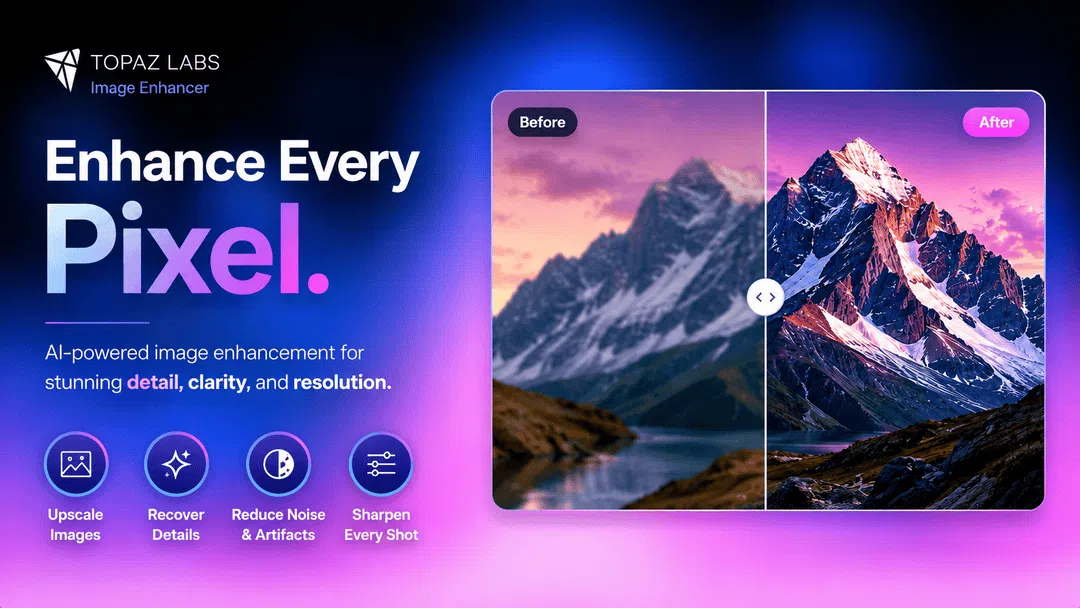
Topaz Labs image enhancer is among the most recognizable AI photo enhancement tools for photographers, designers and content creators who need to restore image quality without complex editing. It combines multiple AI models into a single workflow, from upscaling low-resolution images to denoising and sharpening details. In this article, we will discuss its features, pricing, real-world performance and compare it to Vmake Labs as a web-based alternative.
What is Topaz Labs image upscaler: A quick overview
Topaz Labs Image Enhancer is an AI-powered tool to automatically improve image quality. Instead of traditional editing methods, it employs deep learning models trained on millions of images to intelligently upscale photos, remove digital noise, offer image sharpening, and recover facial features, while maintaining natural textures.
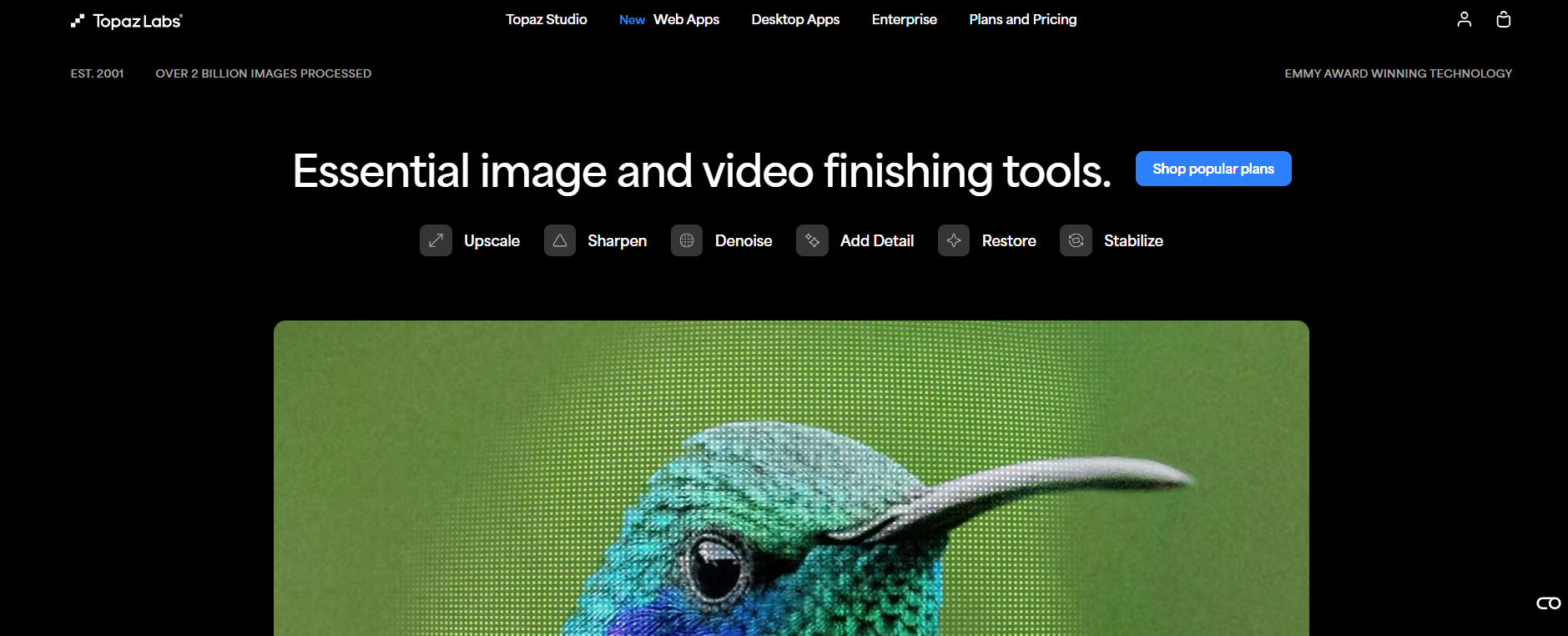
Unlike many online image enhancers, Topaz Photo AI works both online and on your computer, making it a good choice for photographers who work with high-resolution RAW files or large commercial projects. Topaz Photo AI can be used as a standalone desktop application for Windows and macOS. It also works as a plug-in directly with Adobe Photoshop and Lightroom Classic, making it easy for photographers to add AI enhancement to their existing editing workflow without the hassle of exporting images multiple times.
Key features of Topaz Labs AI image upscaler
Topaz Photo AI combines a bunch of clever photo enhancement tools into one application, so you don't need to switch between multiple editors. Here's what makes it a popular choice for the pros.
-
AI upscaling
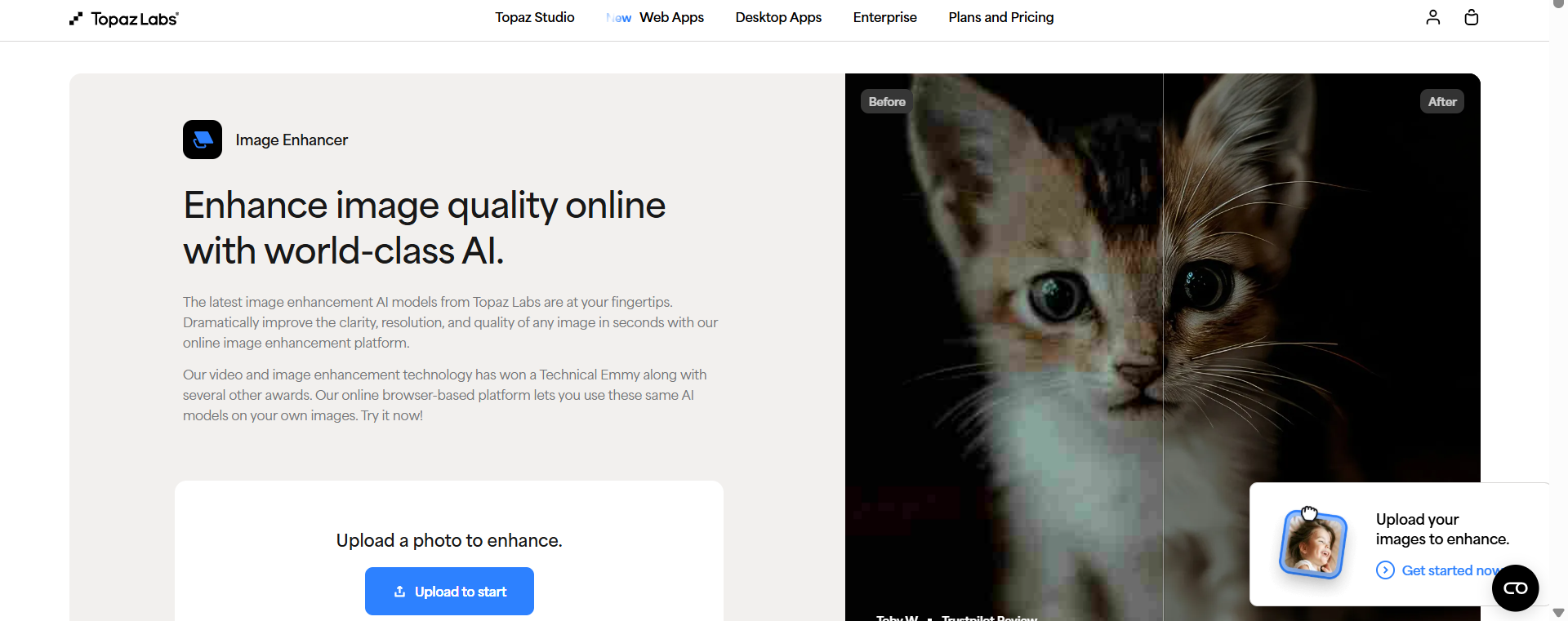
Topaz Photo AI uses deep-learning models to enhance images by reconstructing lost detail, not just enlarging pixels. Users can upscale photos for large format printing, product photography, wildlife images, digital art and older low-resolution files, with improved sharpness. The AI tries to keep the natural textures, so enlarged pictures are much more detailed compared to standard interpolation methods.
Example: We upscaled a 1200 × 800 landscape photo and compared it to standard resize. The enhanced image showed noticeably sharper tree branches, clearer building edges, and more defined textures in rocks and grass.
-
Recover faces
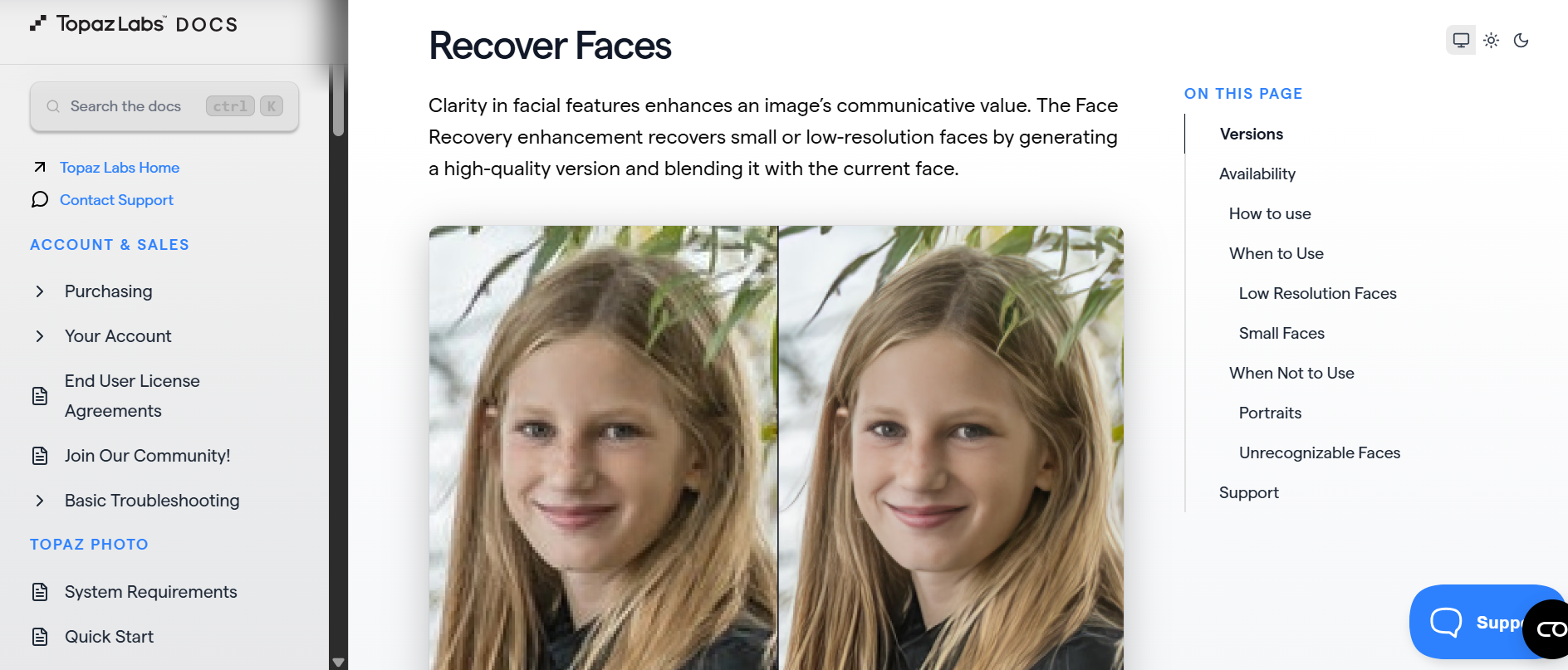
Small or distant faces often lose detail when taking pictures. The AI-based Recover Faces feature is able to detect facial structures and reconstruct realistic eyes, lips, eyebrows and skin details. Rather than creating completely fake faces, it tries to reconstruct recognizable facial features while maintaining the natural look.
Example: We upgraded a group photo that had several faces smaller than 100 pixels in size. With Recover Faces turned on, the facial features were definitely sharper with a better definition of eyes, eyebrows and smiles.
-
Batch processing
After a single shoot, professional photographers will often process hundreds or sometimes thousands of photos. Topaz Photo AI also has batch enhancement, meaning users can apply AI upscaling, denoising, sharpening, and face recovery to multiple photos at once. This saves a lot of time when editing, but you will still get the same quality for each project.
Example: We imported 10 portrait photos from the same photoshoot and applied the same enhancement settings through batch processing. All the images were automatically processed by the software with consistent sharpness, noise reduction and enhanced facial clarity across the whole collection.
-
Noise reduction
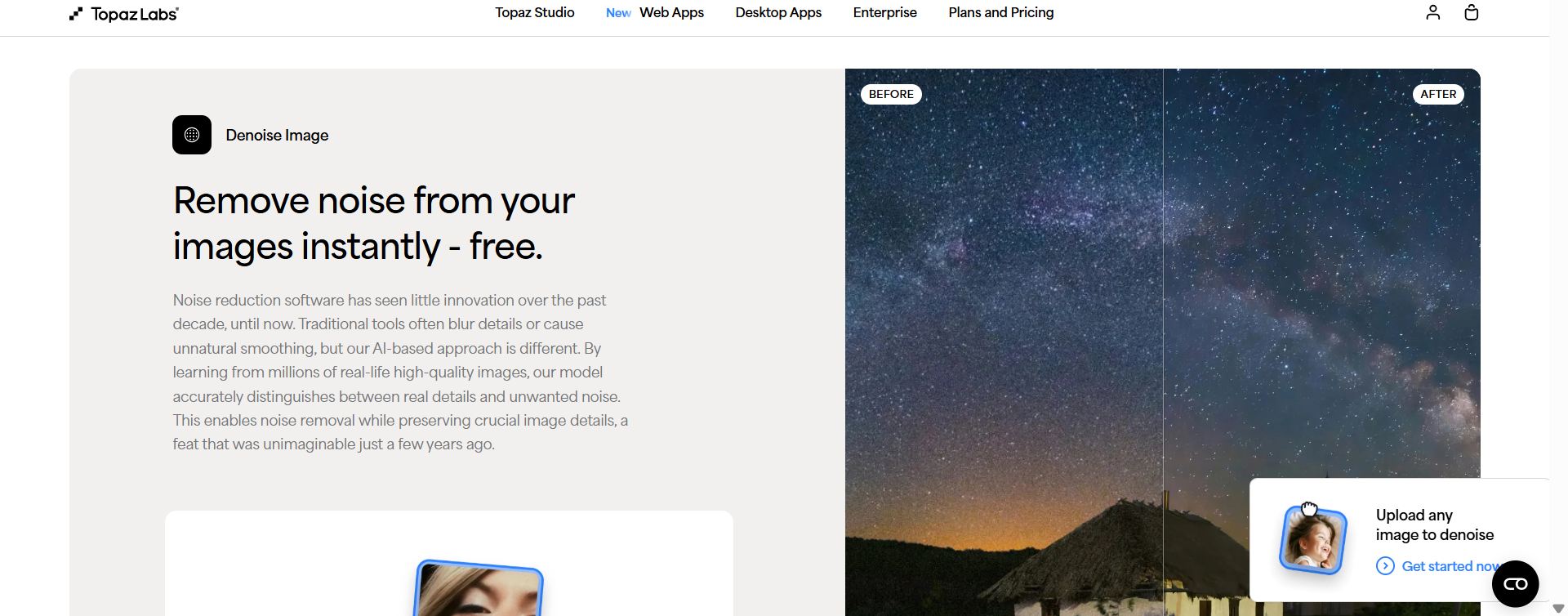
High ISO photography is often accompanied by digital grain in low-light conditions. Topaz Photo AI can distinguish between image noise and authentic textures, so it can remove unwanted grain but preserve fine detail such as hair, fabric and skin texture. This is particularly useful when doing wildlife, events, sports, and astrophotography.
Example: We took a city photo at night with ISO 6400 and analyzed it. The AI took out most of the visible color noise and grain from the sky, but retained the sharp outlines of the buildings, streetlights and window details.
-
Autopilot AI
Autopilot AI is the automatic image analysis system in Topaz Photo AI. Once an image is opened, it automatically unblur image, removes noise, adjusts resolution limits and identifies facial subjects before offering enhancement settings suggestions. The suggestions can either be accepted for quick fixes or manually customized to suit user preferences.
Example: We uploaded five different images for testing: a portrait, a wildlife shot, an old scanned photo, a landscape, and an indoor low-light image. Autopilot correctly identified the key problems in each of the files, such as the portrait needing face recovery, the low-light image requiring denoising, and the wildlife shot needing sharpening.
How to use Topaz AI image enhancer: Guide
It's easy to get started with Topaz Photo AI, even if you're new to AI photo editing. Here's how to use Topaz Labs to upscale images and make them better from start to finish.
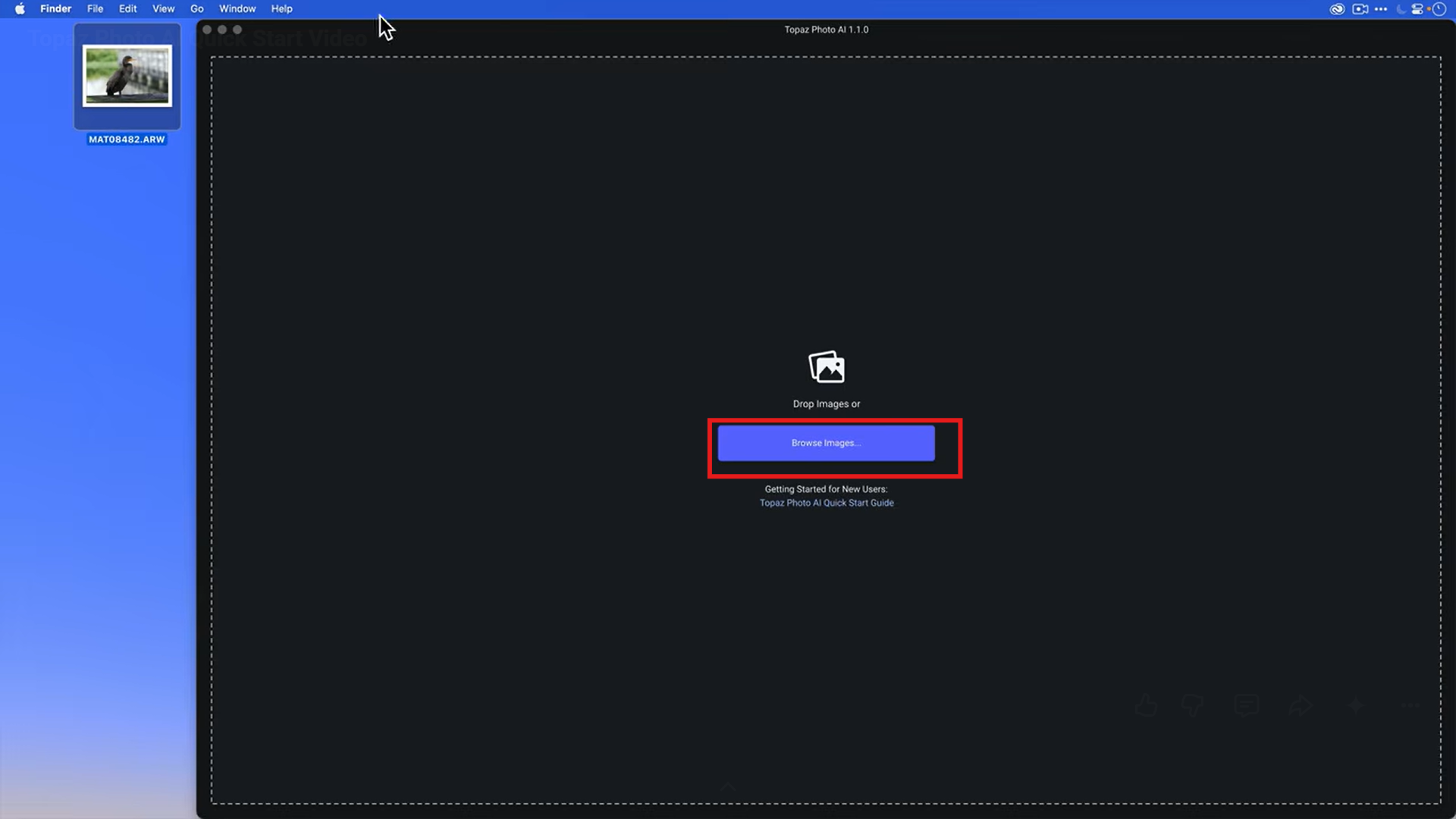
Step 1: Open Topaz AI and upload an image
Launch the image enhancer in Topaz and upload the image by dragging and dropping it into the workspace or by clicking it in the file browser. The software supports JPEG, PNG, TIFF and RAW image formats.
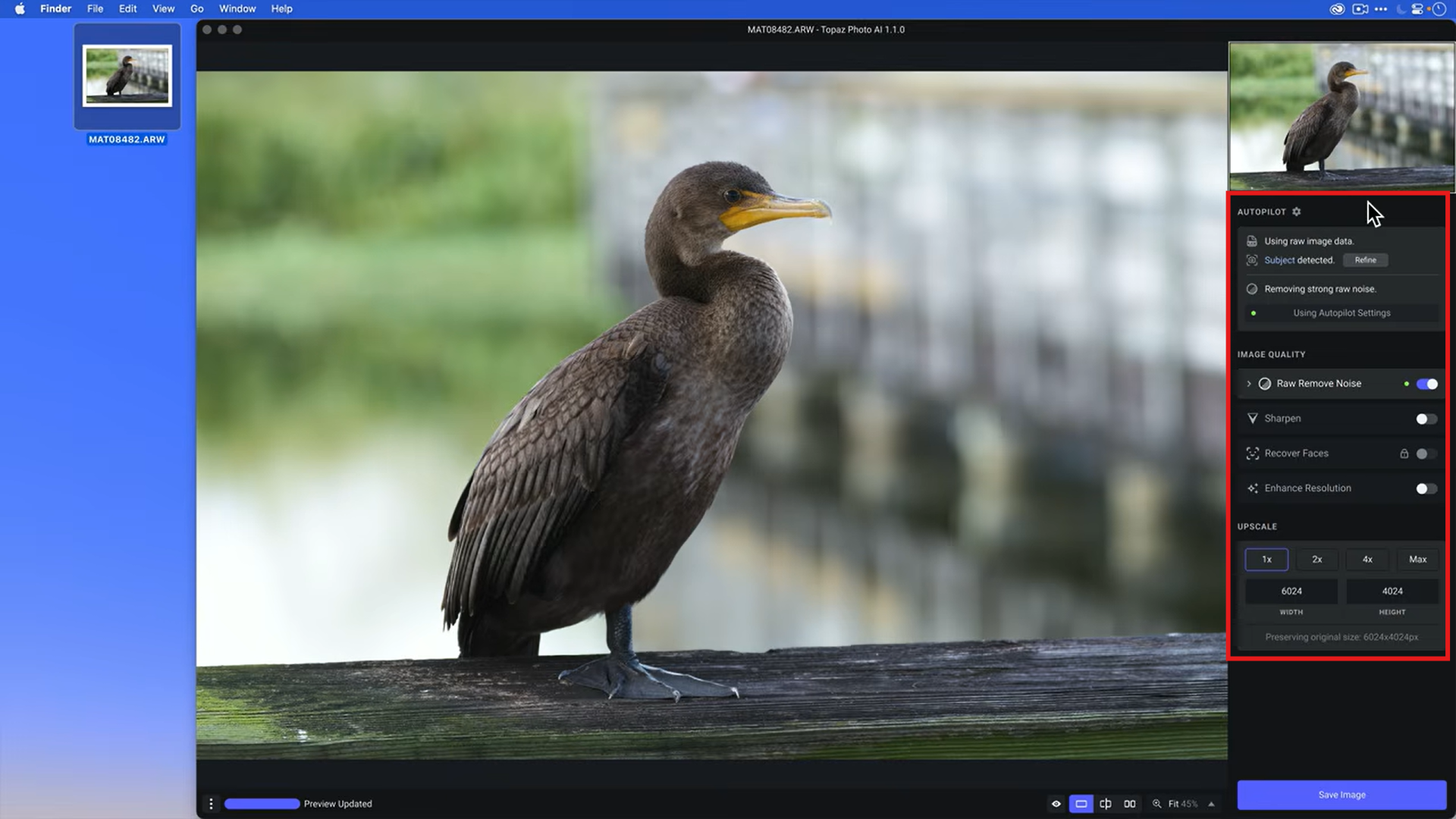
Step 2: Let Autopilot enhance the image
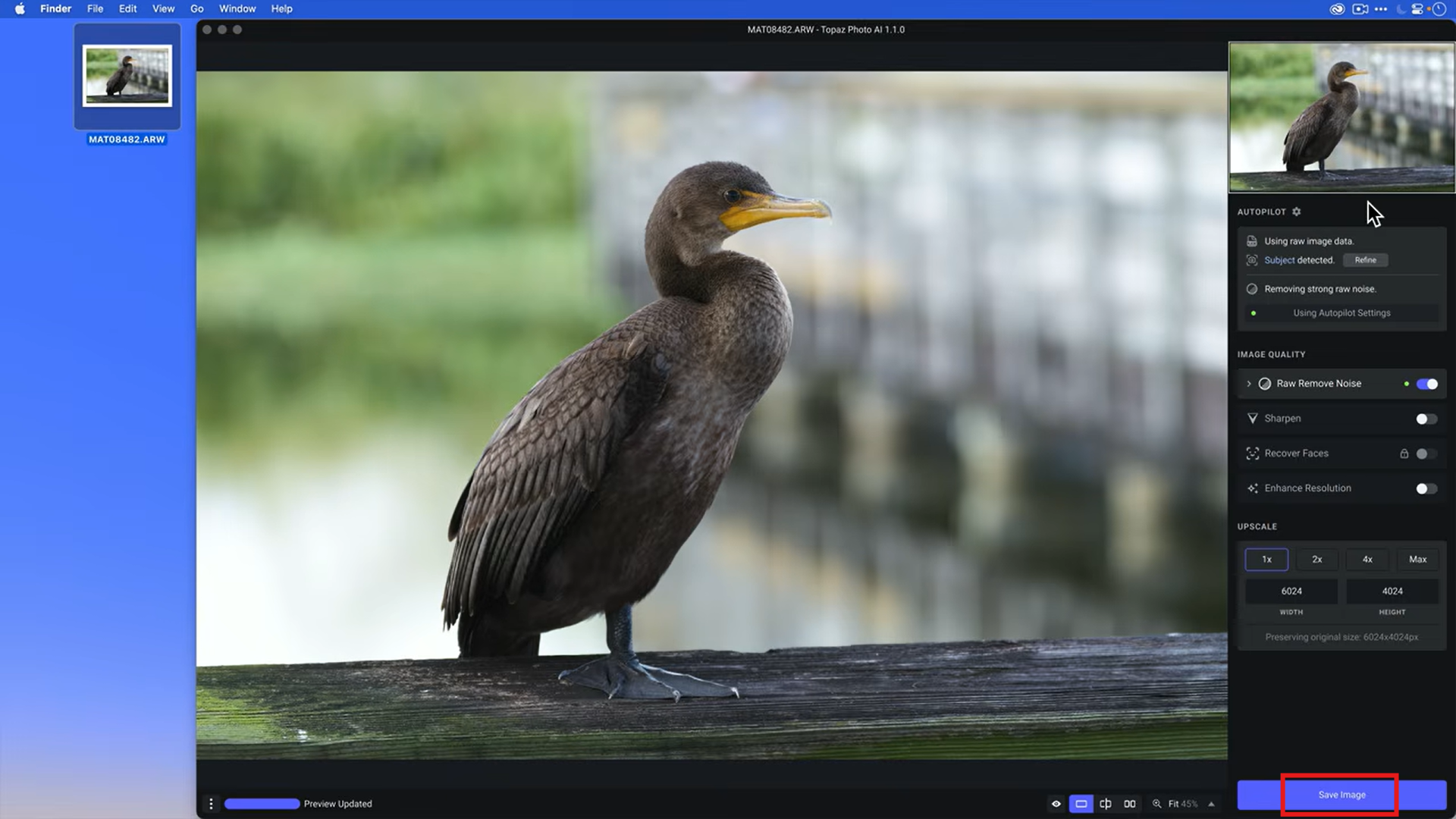
Once the image is loaded, Autopilot automatically scans the image for blur, digital noise, resolution limitations and facial subjects. Within seconds, it provides enhancements to your photo done for you.
Step 3: Save changes and export the image
Click Apply or Save Image, and the AI will work on your photo. Processing speed depends on your computer's CPU, GPU and image resolution. The finished picture can be saved as a JPEG, PNG, TIFF or DNG file as per your preference. Select output resolution and destination folder.
Topaz Photo AI image enhancer: Pricing, pros and cons
Before buying any AI photo editor software, you need to understand the cost and the value you will get. Topaz Photo AI offers a one-time purchase, not a monthly subscription, which makes it different from other desktop applications. Here is a closer look at its pricing and major strengths and limitations.
Pricing
|
Custom Topaz Studio plan |
Topaz Photo |
|---|---|
|
$69/mo |
$39/mo |
|
|
Who should choose the Topaz Studio plan?
The Topaz Studio plan is perfect for professionals and teams who rely on AI-enhanced image editing. This includes all Topaz apps, unlimited local and cloud rendering, private local rendering, and the most comprehensive workflow.
Who should choose Topaz Photo Plan?
If your primary goal is to improve image quality rather than access the entire Topaz ecosystem, the Topaz Photo Plan offers much better value. At $39/month, it provides unlimited local rendering, unlimited cloud image rendering, and 11 AI-powered enhancement tools that are sufficient for most photographers, content creators, and designers.
Pros and cons
Like any AI photo editing software, Topaz Photo AI has its strengths and limitations. It is known for high-quality image enhancements from powerful AI models for upscaling, denoising, sharpening and face recovery, making it a popular choice among photographers and creative professionals. But its premium price, desktop-only workflow and hardware requirements might not make it for everyone. Here's what you need to know.
|
Pros |
Cons |
|---|---|
|
|
Topaz image enhancer: What people actually say
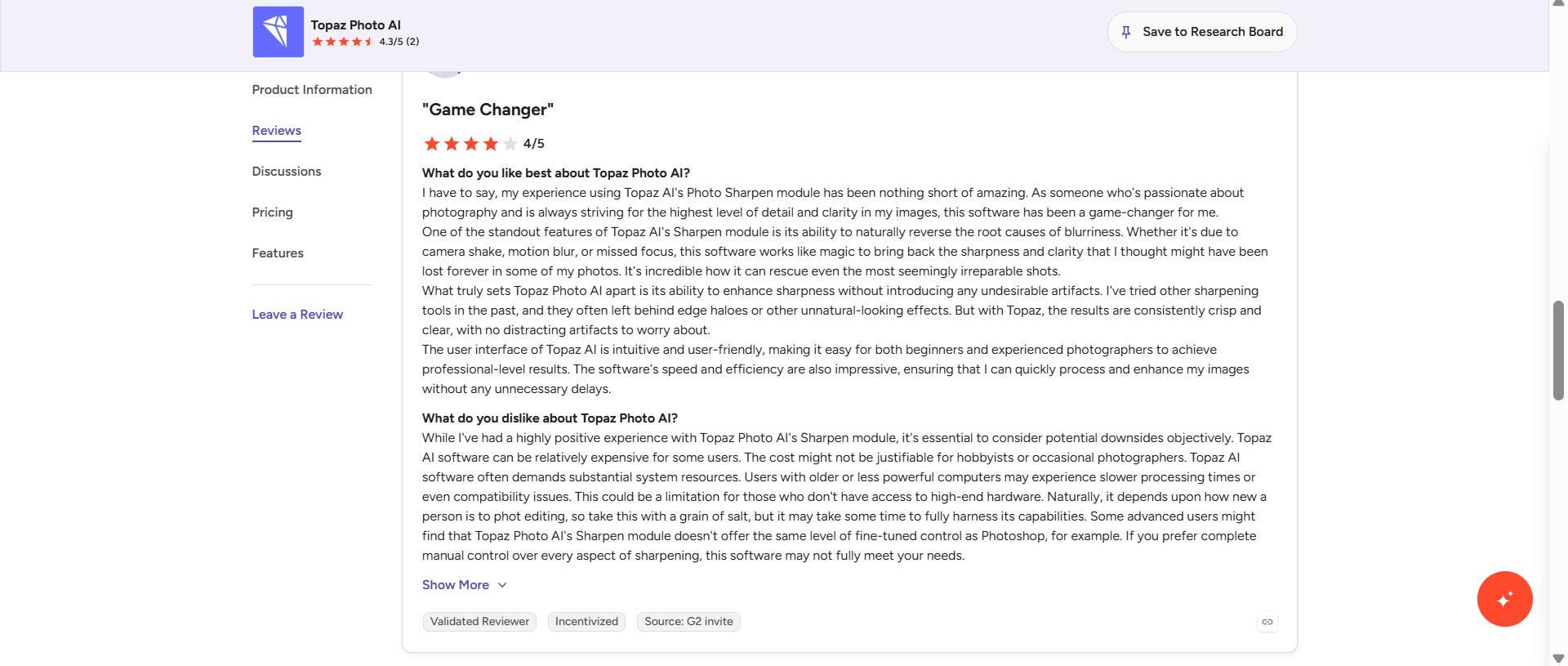
Photographers and content creators generally appreciate Topaz Photo AI for its image quality, particularly for AI upscaling, noise reduction and sharpening. Users in G2 and other photography communities praise the way the software can save difficult images that traditional editors cannot deal with. But it's been criticized for its pricing, hardware requirements, and occasional AI artifacts.
What do users like?
-
Good AI image enhancement: Topaz Photo AI is one of the best AI upscaling, denoising and sharpening tools, according to many users, especially for wildlife, portrait and low-light photography.
-
Simple Autopilot workflow: The Autopilot function is very useful for beginners, as it automatically detects problems in photos and suggests the appropriate changes, with the user only needing to make a few adjustments.
-
Effective handling of difficult photos: Users frequently remark on the software's ability to rescue blurry, noisy and underexposed photos that would otherwise be worthless, and recover valuable shots.
What users don't like?
-
Too expensive for casual users: Another common criticism is that the price is difficult to justify for casual users who only enhance images from time to time.
-
Requires powerful hardware: People with older machines report slow rendering, high GPU usage and crashes from time to time when processing large images.
-
AI artifacts in difficult images: Some reviewers claim aggressive sharpening or upscaling can introduce unnatural facial details, halos or distorted textures, particularly when the original image quality is very poor.
Editorial review
Topaz Photo AI is one of the most powerful desktop AI solutions for image enhancement. Its intelligent upscaling, denoising, sharpening and facial recovery make it particularly attractive to photographers and professionals who care more about the quality of the image than the speed of processing.
However, the cost and advanced hardware needs are something you cannot overlook. It is a desktop application, which makes it unsuitable for most users looking for quick image enhancement. If you want a browser-based solution that doesn't require installation and provides faster AI enhancement for your everyday images, then Vmake Labs is worth considering.
Vmake Labs: A web-based alternative to Topaz image upscaler
Vmake Labs AI image enhancer is an online AI-powered image enhancing tool for creators, marketers, ecommerce sellers and casual users who want to enhance image quality without the need to install desktop software. It all runs in the browser, so users can enhance photos from just about any device with a few clicks. The platform is also a handy choice for personal and commercial use, as it allows you to do AI upscaling, portrait optimization, old photo restoration, product image enhancement, and batch processing.
Step-by-step guide
Step 1: Upload an image
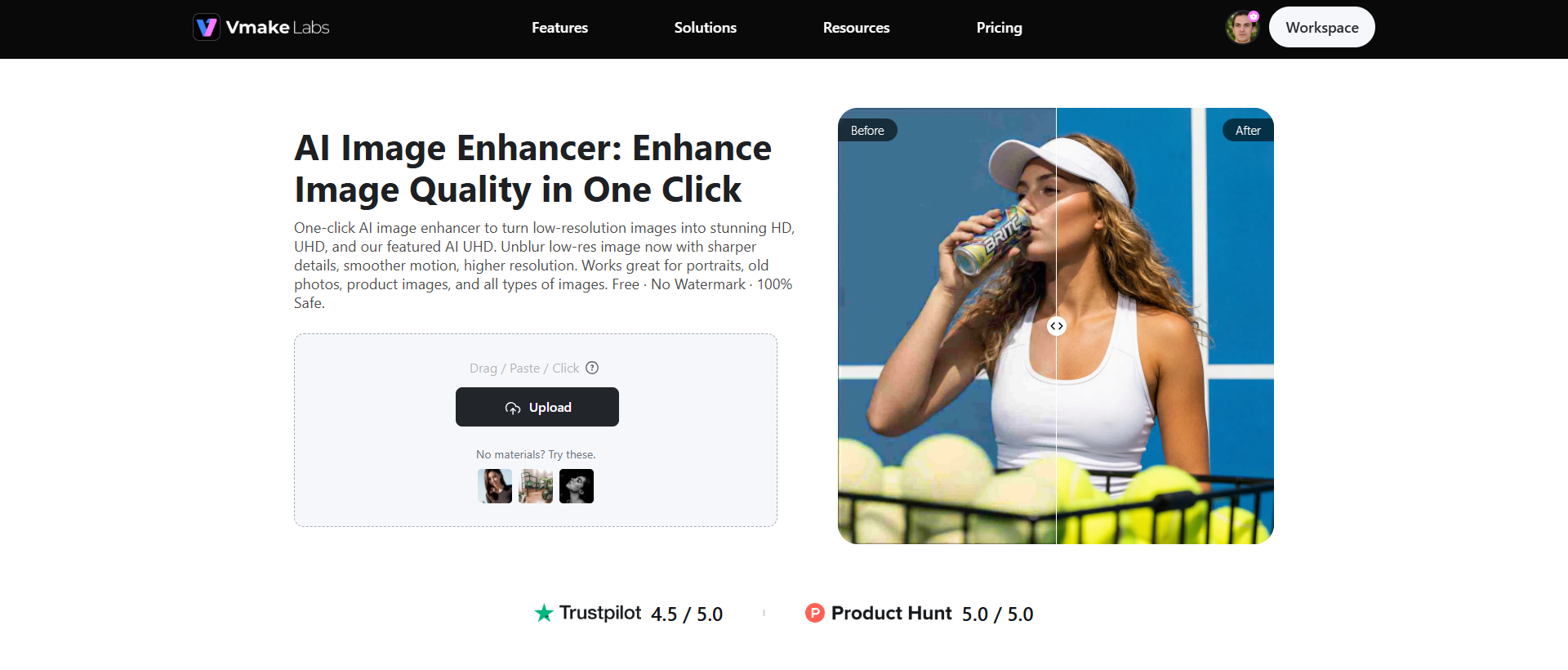
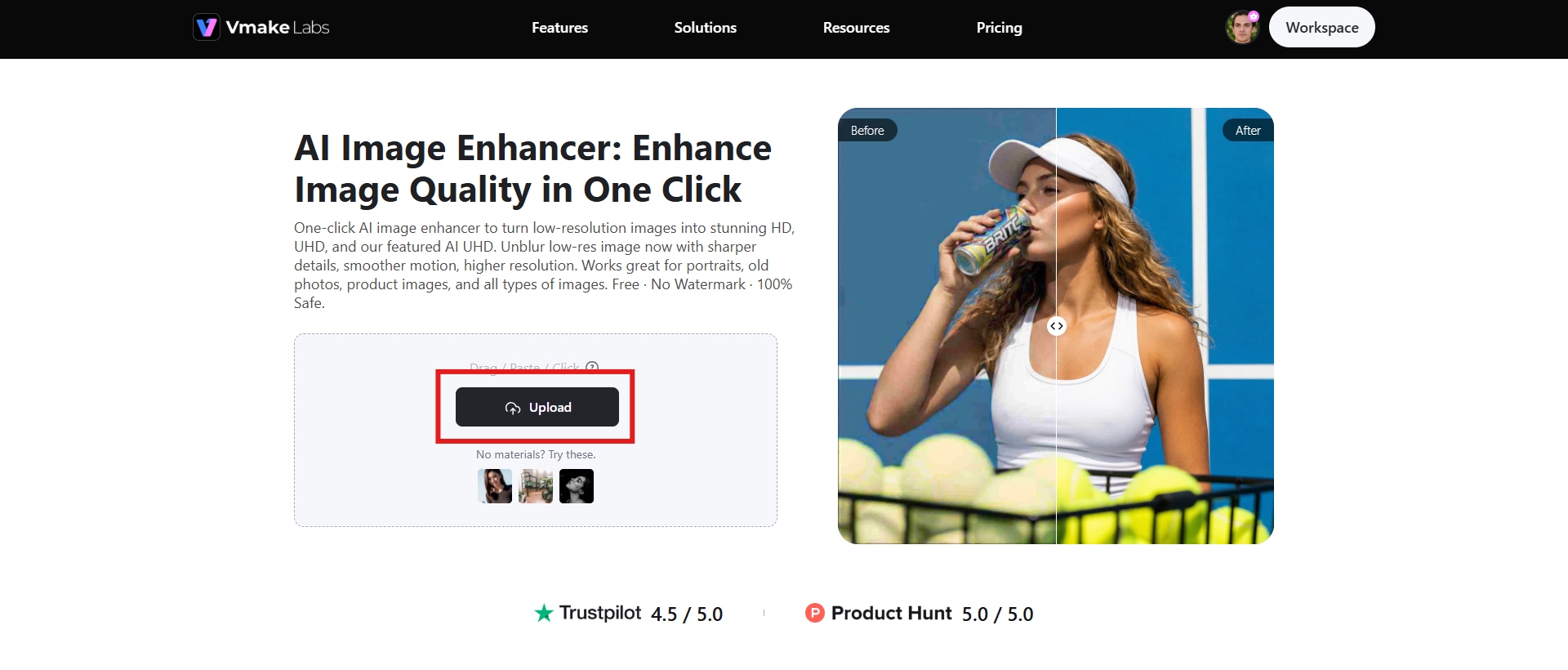
Open the Vmake Labs Image Enhancer page and upload your photo by dragging it into the workspace or clicking on the "Upload" option on your device. The tool supports a number of common image formats.
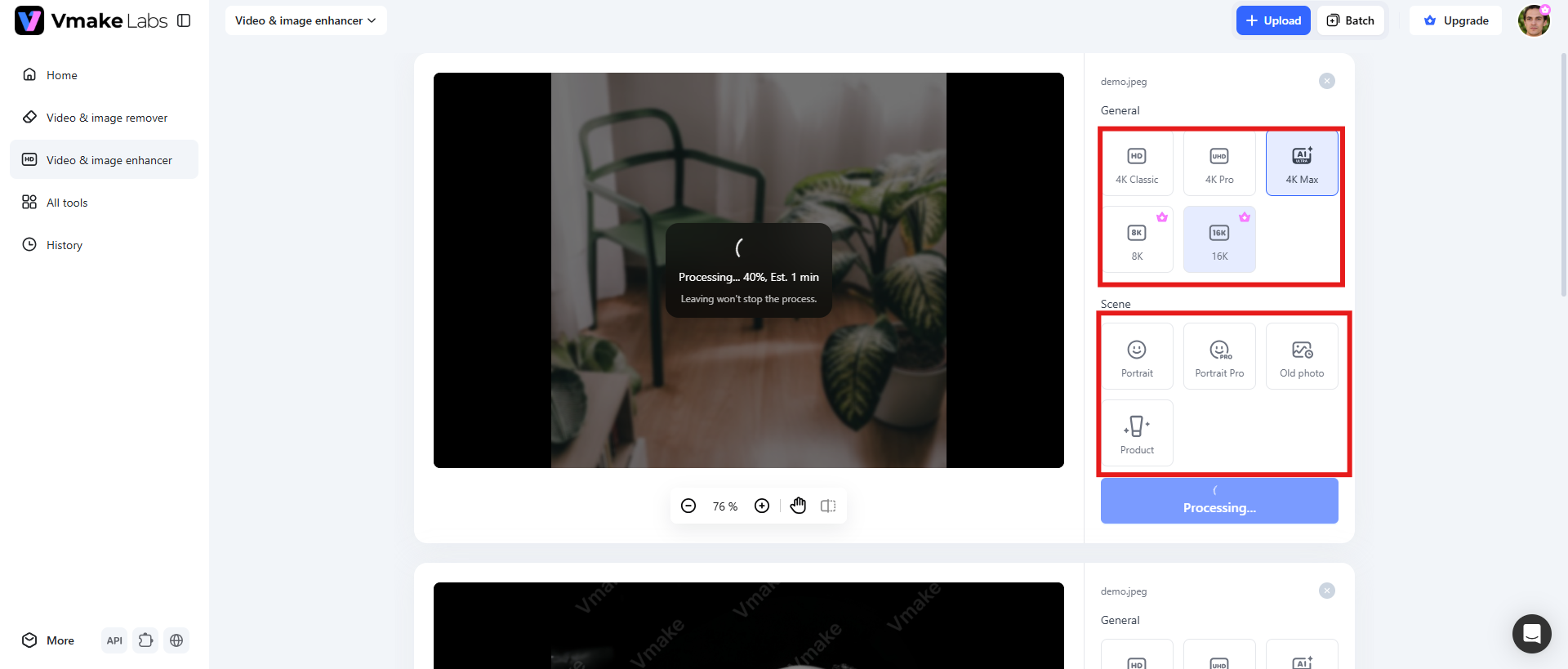
Step 2: Choose enhancement mode
Depending on whether you are restoring portraits, product photos or old images, you can select different levels of clarity and optimization modes. Click "Apply" to start the process. The AI will automatically analyze it and improve it based on your scene mode selection.
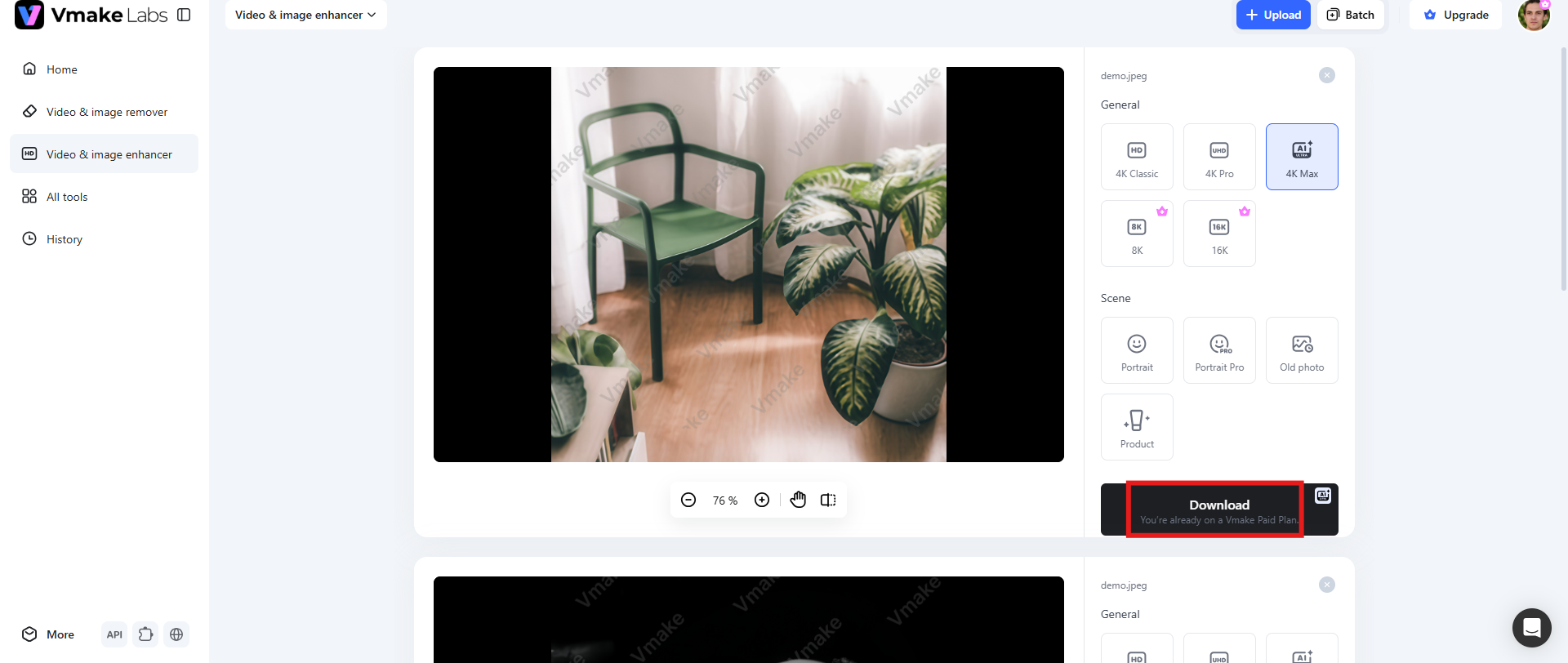
Step 3: Download the image
Get a preview of the improved version. If everything seems fine, click "Download" to save the final image after processing.
Key features
-
Clarity options HD-16K
Vmake Labs offers a variety of AI clarity options, from standard HD enhancement to ultra-high-resolution 16K output. This flexibility enables users to optimize images for social media, ecommerce, marketing materials or large format printing, while retaining improved sharpness and detail.
-
Scene mode (Portrait/Portrait Pro/Old Photo/Product)
Vmake Labs also offers scene-specific AI modes rather than a single enhancement model for all images. Portrait and Portrait Pro are built to improve skin tone and facial details, Old Photo is meant to restore faded or damaged photos, and Product mode is fine-tuned for clarity and texture for e-commerce photography.
-
Batch enhancement
This platform is ideal for online sellers, photographers and marketing teams working with multiple assets, as it allows users to upload and optimize as many as 30 images at a time. Batch processing is time-saving and consistently improves an entire set of images.
Choose your tool: Topaz Labs image enhancer vs Vmake Labs
Topaz Photo AI and Vmake Labs are two renowned tools for enhancing image quality but they cater to different types of users. Topaz is more for the professional desktop editor with lots of controls, whereas Vmake Labs is all about convenience with an online workflow. We break down their major differences to help you pick the best solution for your unique needs.
|
Features |
Topaz Labs |
Vmake Labs |
|---|---|---|
|
Platform |
Desktop software for Windows and macOS with offline processing. |
Fully web-based tool that runs in a browser without installation. |
|
AI image upscaling |
AI enlarges images while reconstructing realistic details, making it ideal for professional printing and high-resolution outputs. |
Upscales images from HD to 16K with one click, optimized for digital content, ecommerce, and marketing visuals. |
|
Noise reduction |
Advanced AI removes digital noise from RAW and low-light photos while preserving natural textures. |
Automatically reduces image noise during enhancement to improve overall clarity for everyday photos. |
|
Performance |
Delivers industry-leading enhancement quality, but processing speed depends on your computer's hardware. |
Cloud-based AI processes images quickly without relying on your device's CPU or GPU performance. |
|
Paid pricing |
Starts from $39/mo |
Starts from $9.99/mo |
Conclusion
Topaz Labs image enhancer is best for professional photographers, designers and advanced users who demand maximum image quality, local processing and deep editing control. The software is a good investment for professionals who frequently edit large image collections, as AI models consistently provide excellent results for high-resolution photography, wildlife, portraits, and print projects.
However, if you prefer convenience, speed and accessibility, then Vmake Labs is the better choice. Its browser-based workflow eliminates installation, offers intuitive AI enhancement, supports scene-specific optimization, and batch processing for up to 30 images, making it ideal for ecommerce sellers, marketers, social media creators and everyday users.
FAQs
Is Topaz Labs Image Enhancer worth buying?
Yes, absolutely. If you're editing RAW files often, blowing up photos for print, or want professional-level AI enhancement, Topaz Photo AI is a great value despite costing more up front. But for casual users who enhance images once in a while, the web-based options may be cheaper.
Can Topaz Labs improve blurry or low-resolution images?
Yes. Topaz Photo AI can sharpen slightly blurry photos, reduce noise, recover facial details and increase the resolution of low-res images using AI models, which can better generate missing details than traditional resampling methods. The best results occur when there is still usable visual information in the original image.
Does Topaz Labs work offline?
Yes, Topaz Labs apps work offline, but with important caveats. An internet connection is required for the initial license activation and to download the required AI models (which can require up to 150GB of storage). After you have set it up, you can disconnect. But sometimes the apps need to go online and check your license.
What is the best alternative to Topaz Labs Image Enhancer?
For users seeking an online solution, Vmake Labs is a good choice. It offers browser-based AI enhancement, HD to 16K clarity options, scene-specific enhancement modes and batch processing, and it does not require any software installation.
Does Topaz Labs support batch image processing?
Yes. The software allows the processing of several images simultaneously, which is very efficient for photographers, studios, and businesses that have to manage large collections of photos.
Is Topaz Labs suitable for beginners?
Yes. The Autopilot AI feature is designed for the novice, automatically identifying image issues and recommending improvements. Advanced users also have the option to manually tweak individual AI settings for more control over the final output.

You May Be Interested
2026 Topaz Labs Video Enhancer: Hands-On Review
Best AI Image Upscaler Tools in 2026: Upscale Images to 4K, 8K & Beyond

Airbrush Video Enhancer Review 2026: Features, Pros, and Cons
Best AI Image Enhancer in 2026: Top Tools to Upscale and Fix Blurry Images
Best AI Photo Enhancer Tools in 2026 (Free & Online): Improve Image Quality Instantly