Remove Getty Images Watermark: Best Ways to Get Clean Images
Explore effective ways to remove Getty Images watermarks with step-by-step guidance. Learn how to use Vmake Labs to eliminate watermarks and get high-quality, clean images.

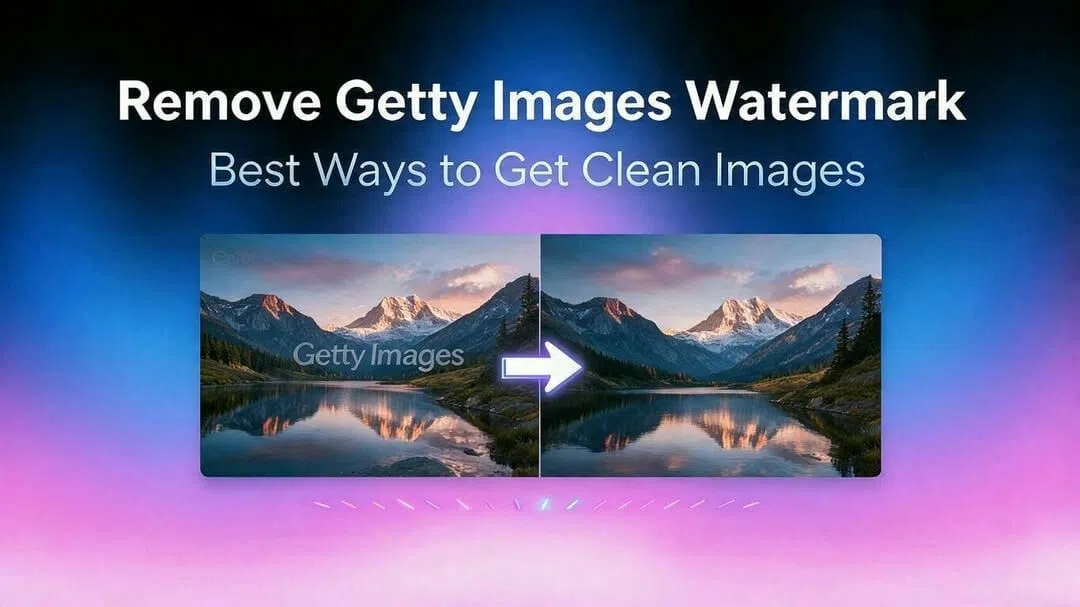
Getty Images watermarks are there to protect copyrighted material and cannot be removed without permission or a valid licence. In this guide, you'll learn how to access clean, watermark-free Getty Images the right way, including licensing and downloading authorized images. Besides, you'll learn AI and manual methods to remove Getty images watermark (for authorized images only).
What is the purpose of Getty images watermark?
Getty Images watermarks the preview images to protect copyrighted content and to prevent the use of copyrighted content for commercial or personal purposes without permission. The watermark is a clear copyright message that informs users that the image is for preview purposes only and must be licensed properly to be used without restrictions.
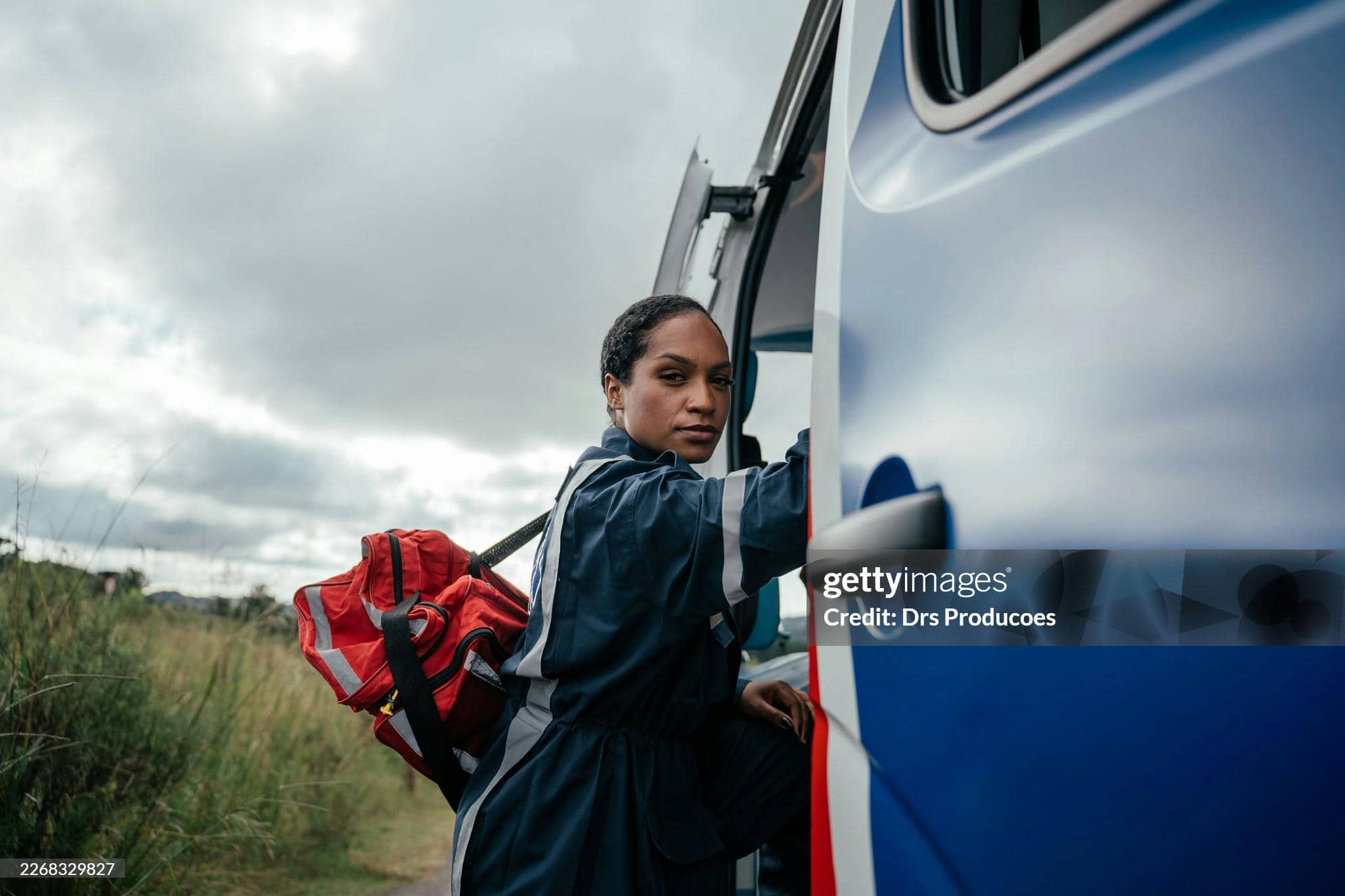
Difference between preview images and licensed downloads
|
Preview images |
Licensed downloads |
|---|---|
|
|
Best ways to remove Getty Images watermark
There are some legitimate ways to get Getty Images without the watermark. The best method depends on whether you already have the image rights or just need the official licensed version.
Option 1: Download the licensed image from Getty Images
The best and safest way to get a clean Getty Images photo is to download the licensed version from Getty Images itself. Once you purchase the right license, you will receive the image without the preview watermark, and the legal usage rights attached to your license.
Step-by-step guide
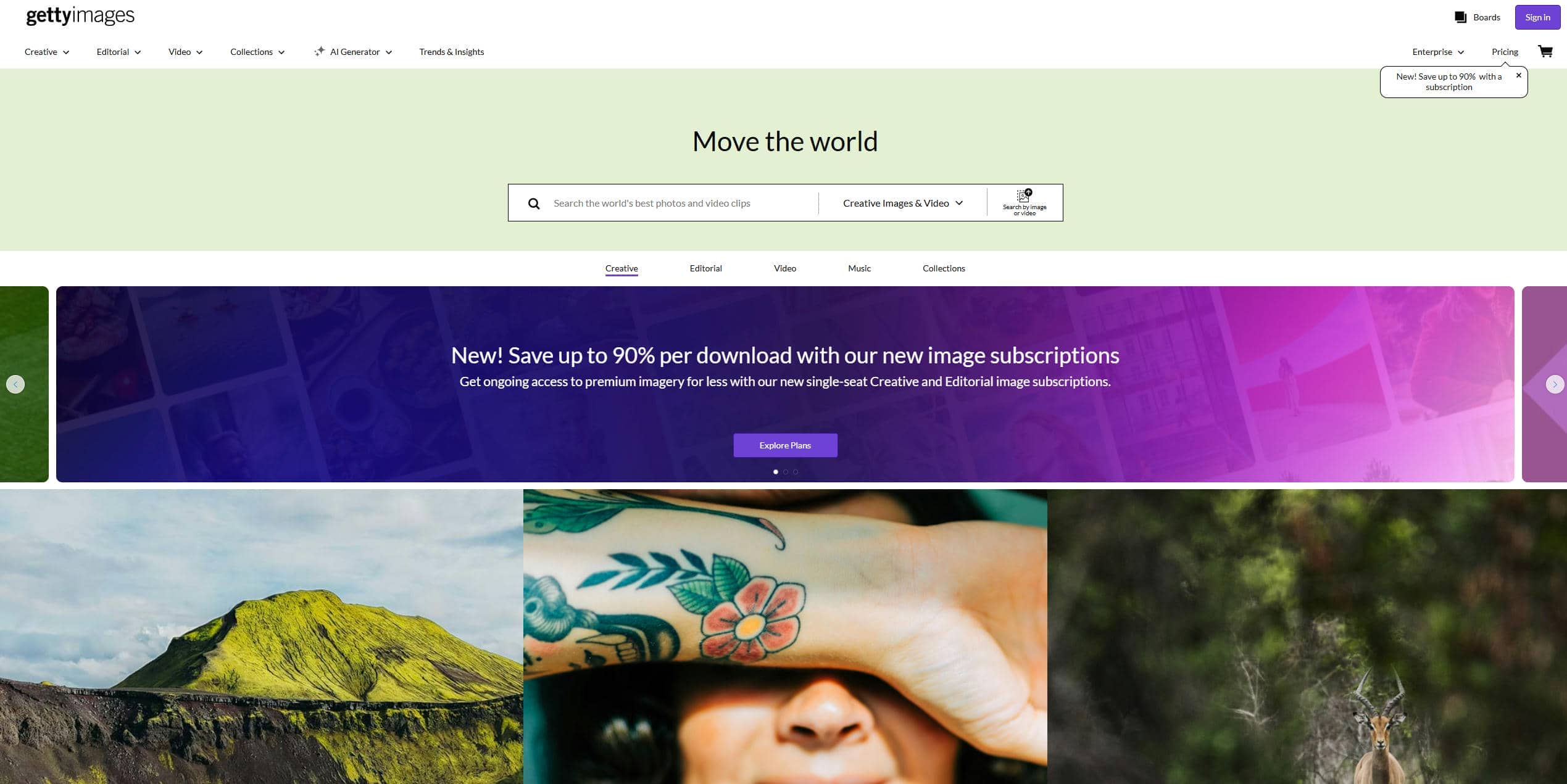
Step 1: Find the right image
Go to Getty Images and find the image you're looking for. Find the most fitting photo by subject, style, orientation, and purpose using relevant keywords, filters and categories.
Step 2: Choose the Right License
Once you find the image, check out the licensing options. Select a license that is right for your intended use, whether it is commercial advertising, editorial use, websites, presentations or other projects.
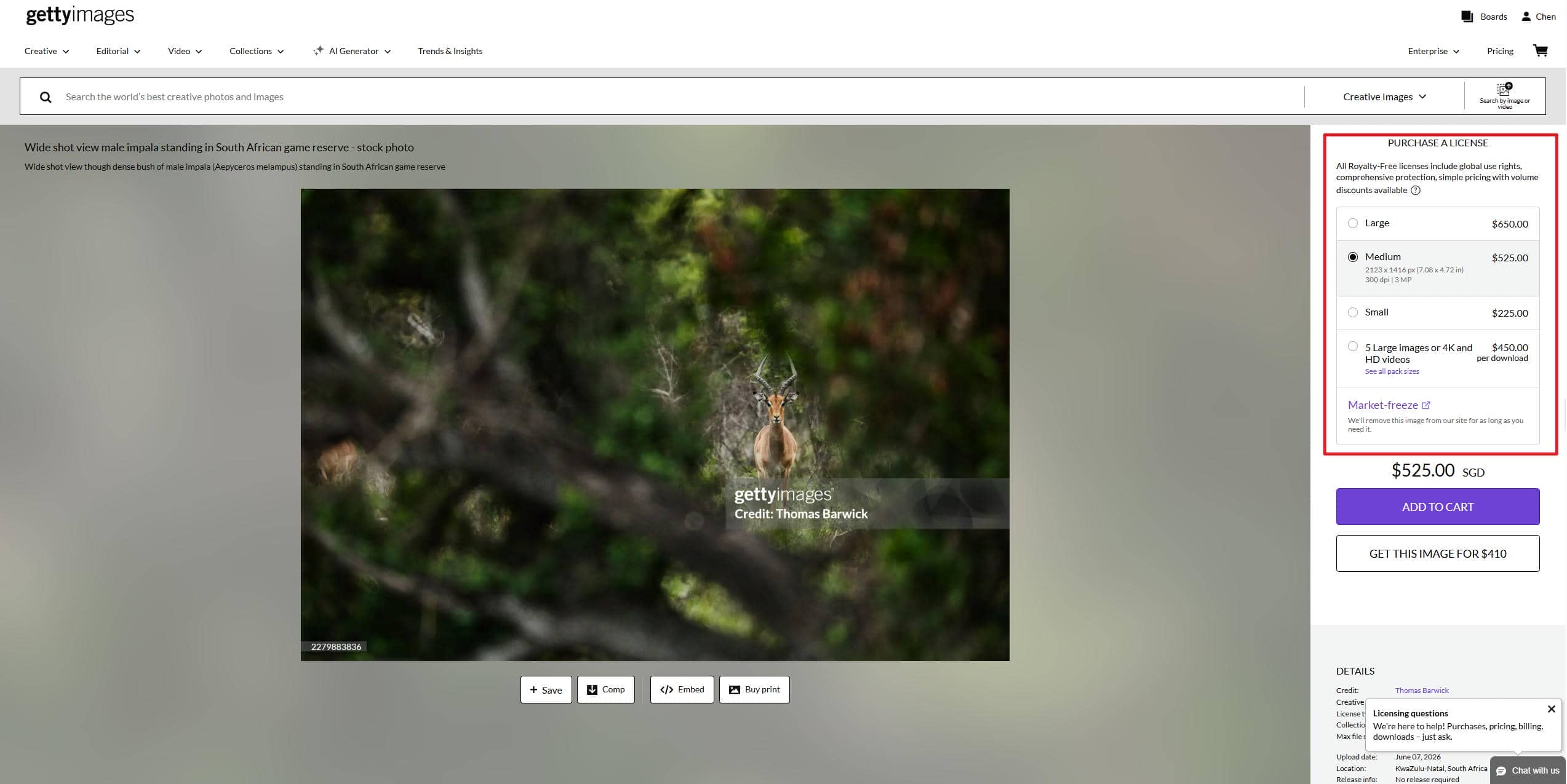
Step 3: Complete the purchase or access via a subscription
Purchase the image license directly or access it through an existing Getty Images subscription or organizational account. This makes sure you have the legal rights to use the image.
Step 4: Download the clean image file
After the license is approved, download the original image in high resolution without the preview watermark. The licensed file is offered under the terms of the agreement you chose.
Features
-
Original high-resolution image
With licensed downloads, you get the actual, full-quality image file from Getty Images, not a preview with a watermark. Thus, the image is preserved in its original resolution, details, colors and professional quality.
-
Official usage rights and licensing
Every image you download carries a license dictating your permitted usage of the image. This provides specific permission for some uses such as marketing campaigns, websites, publications or commercial projects.
-
No need for image restoration
Because the licensed file is the original source image, areas covered by a watermark do not need to be reconstructed using AI tools or manual editing methods.
Option 2: Use AI Getty image watermark remover tools (Authorized Images Only)
If you own the rights to an image but only have a watermarked version, AI-powered editing tools can smartly fill in the covered areas. The tools then automatically analyze the surrounding pixels and generate replacement content. Here's how to remove Getty image watermark using AI.
Vmake Labs
Vmake Labs AI watermark remover leverages AI to automatically detect and remove unwanted elements such as watermarks, logos, text overlays and even people from images. It employs machine learning to recover the missing background while maintaining the quality of the image. Vmake Labs is only available for images that you are legally authorized to edit, such as your own licensed downloads, company-owned assets or images for which you have received editing permission.
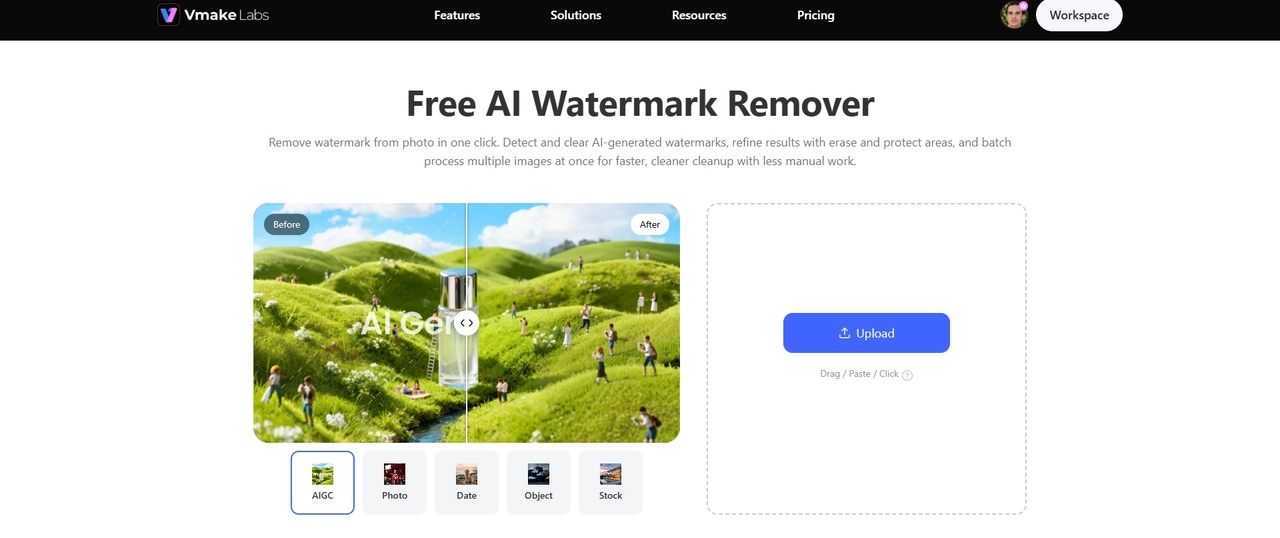
Step-by-step guide
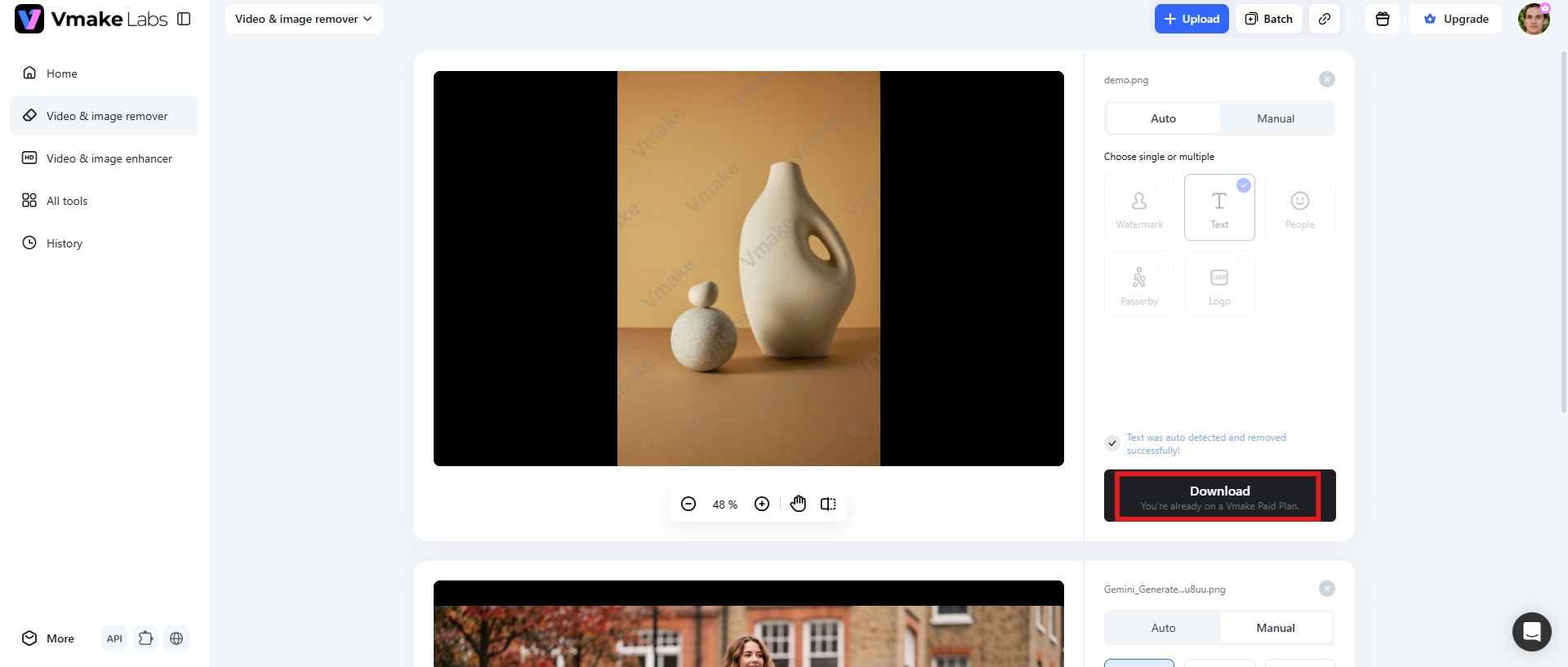
Step 1: Upload an image
Upload the image you have permission to edit on Vmake Labs' AI editing platform. Click "Upload" to import an image from your device from which you want to remove the watermark from.
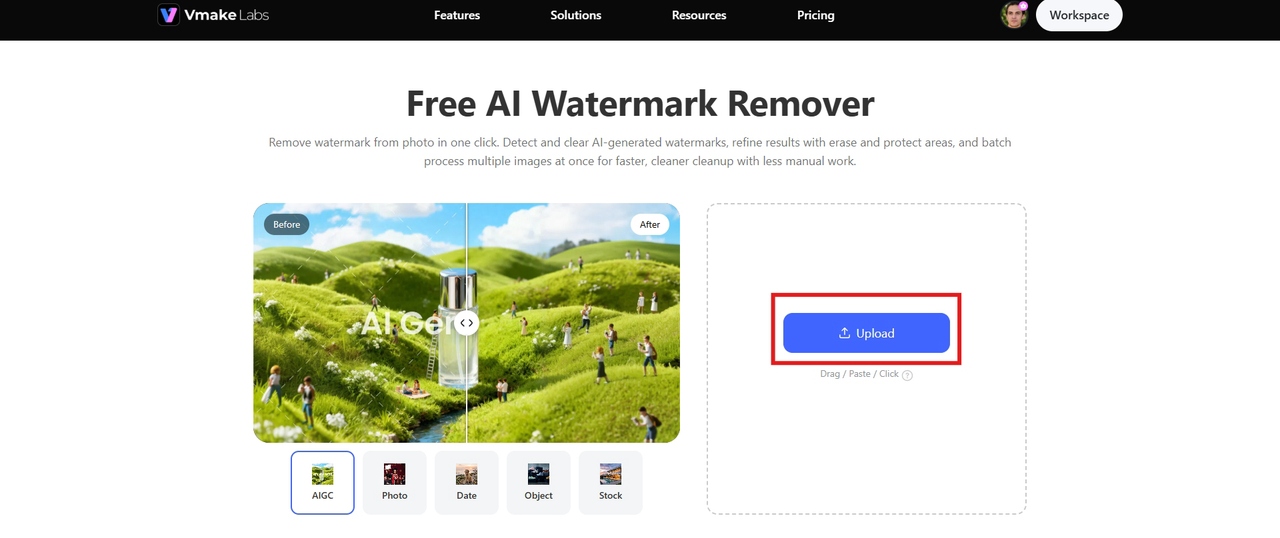
Step 2: Select the Mode
Further, select the mode to edit as per your need. Vmake Labs has two options: Auto and Manual. Select Auto for fast watermark removal or Manual for detailed control. You click "Apply," and the AI analyzes that section and comes up with a replacement that fits in with the rest of the piece.
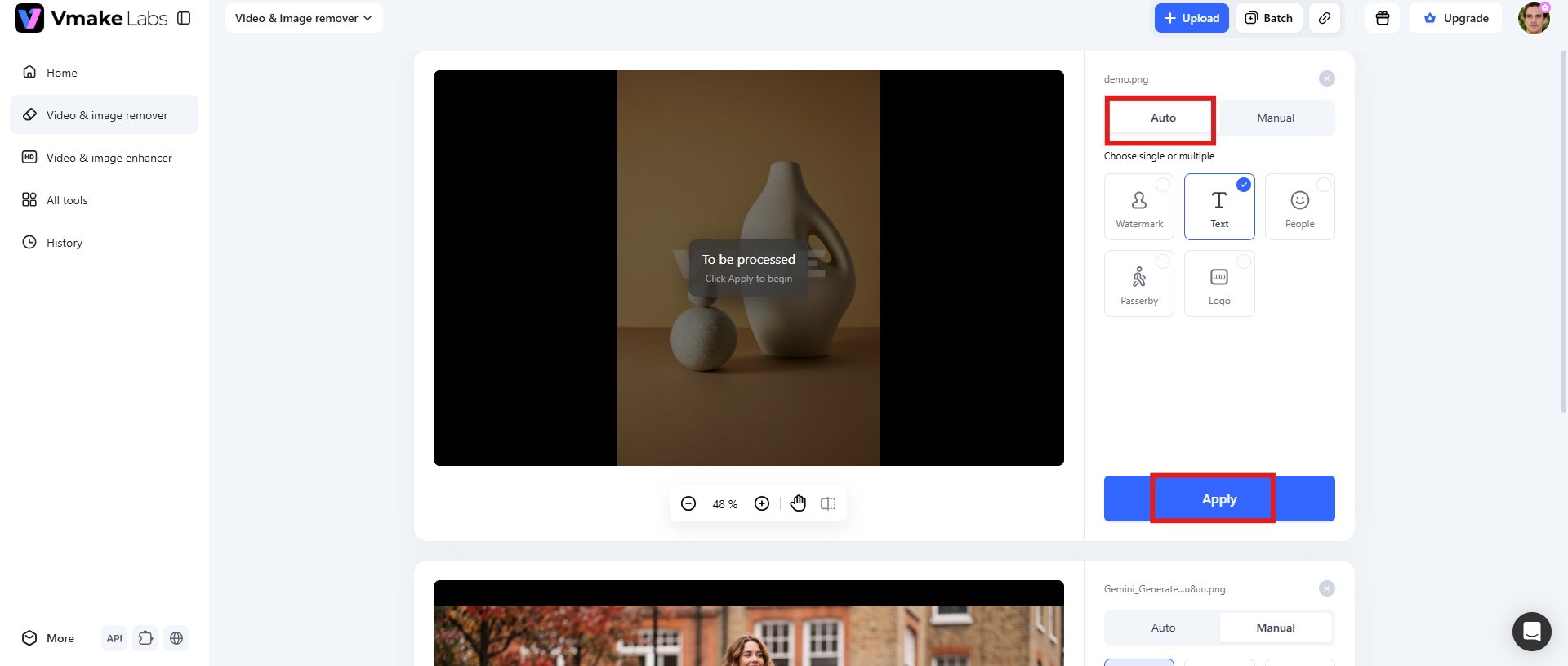
Step 3: Download the Picture
Once the AI processing is finished, you can view the edited picture and see the final result. When the output is as you expect, click "Download" to save the processed image in high quality.
Key features
-
Reconstruct the background naturally
Vmake Labs uses AI-powered image reconstruction technology to analyze surrounding pixels, textures, colors and patterns. When you delete an unwanted element, the tool fills in the gap with generated material that's supposed to mimic the original background, which helps keep the image natural and seamless.
-
Remove people from photo
Vmake Labs can also remove people or objects from images, while keeping the overall composition. This feature helps to clean up backgrounds, improve the focus of a photo or remove distractions from your authorized images.
-
Batch processing
The tool supports batch editing so users can work on more images more efficiently. With an improved workflow, users can select multiple images and make AI-enhanced upgrades in a single, more efficient way, making it easier to work with larger image collections.
-
High-resolution export
After the editing is done, Vmake Labs allows the user to export images in high resolution. This preserves the image's details and quality, and makes the final results more suitable for professional presentations, digital content, marketing materials and other authorized uses. You can also use image enhancer to upgrade the image quality.
Pixelbin
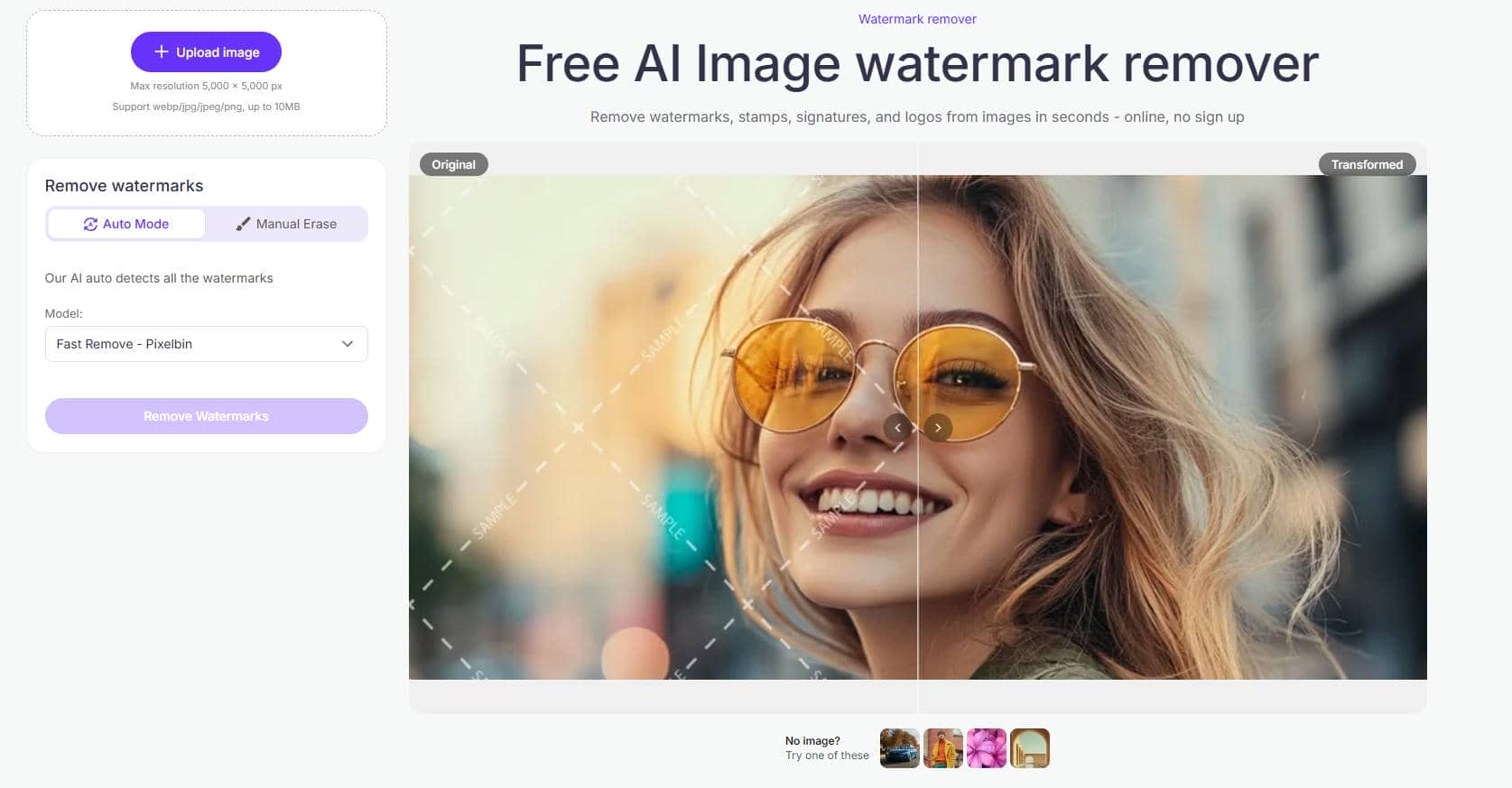
Pixelbin is an AI-powered media optimization platform that provides image enhancement and object removal features. Its AI editing tools can detect unwanted visuals and smartly fill in the surrounding areas. This makes it useful for restoring authorized images. Like any watermark remover software, you should only use Pixelbin on images that you own or have permission to edit. Let's remove Getty image watermark using Pixelbin.
Step-by-step guide
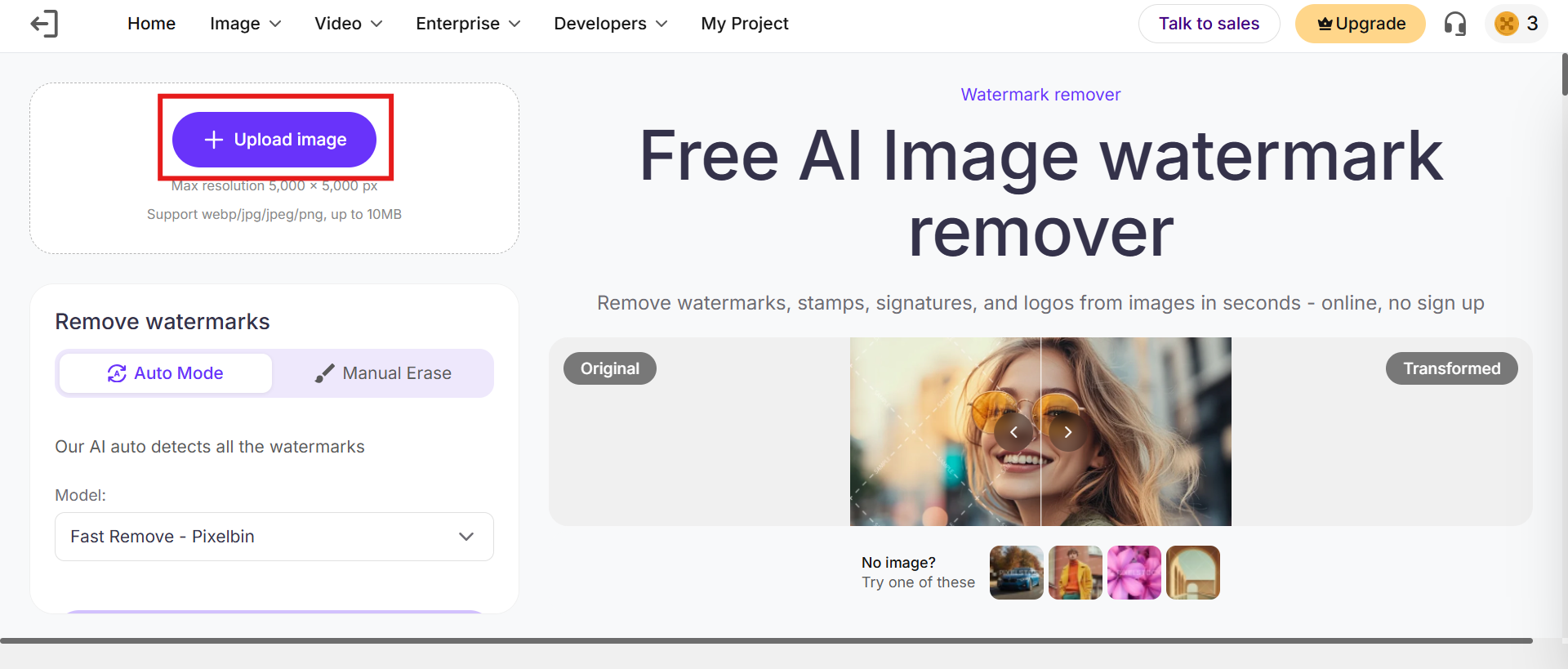
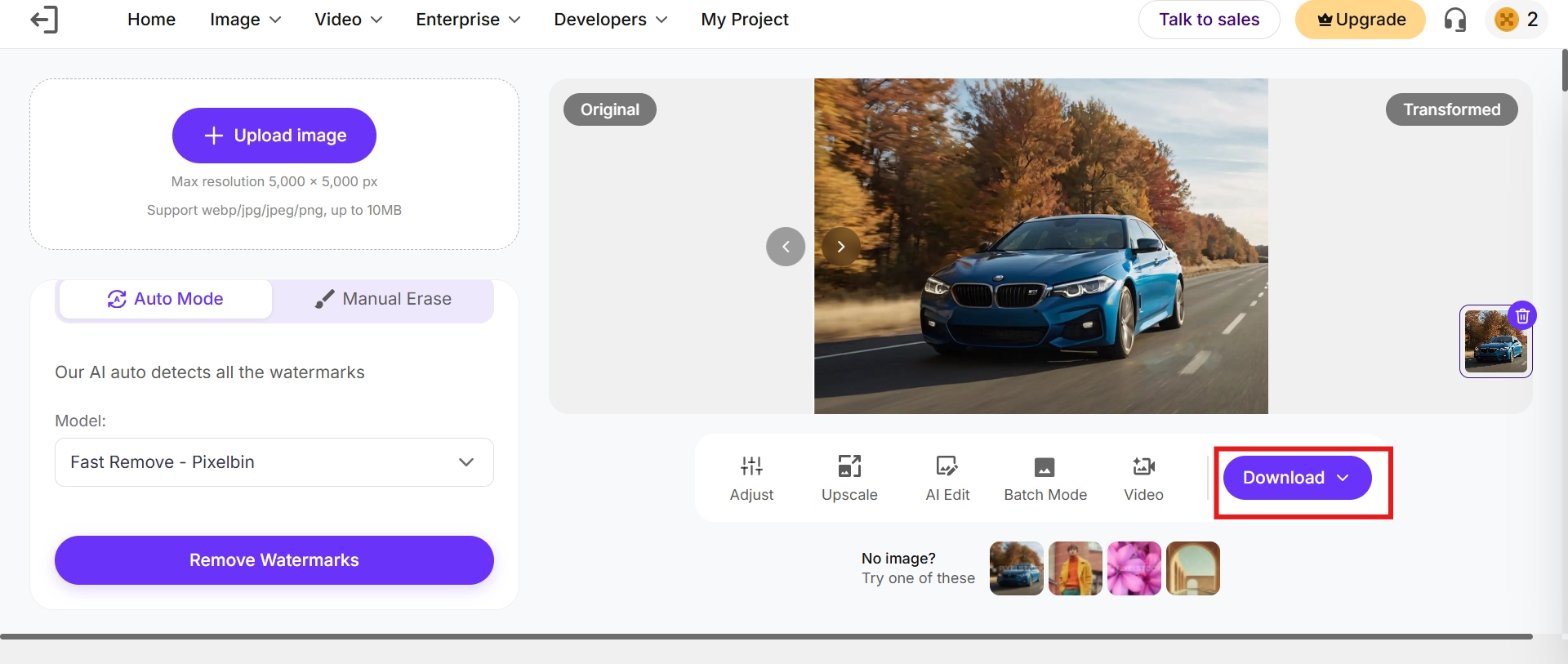
Step 1: Upload an image
Upload the image you have permission to edit into the Pixelbin editing workspace. The platform takes a few popular image formats and prepares the file for AI analysis.
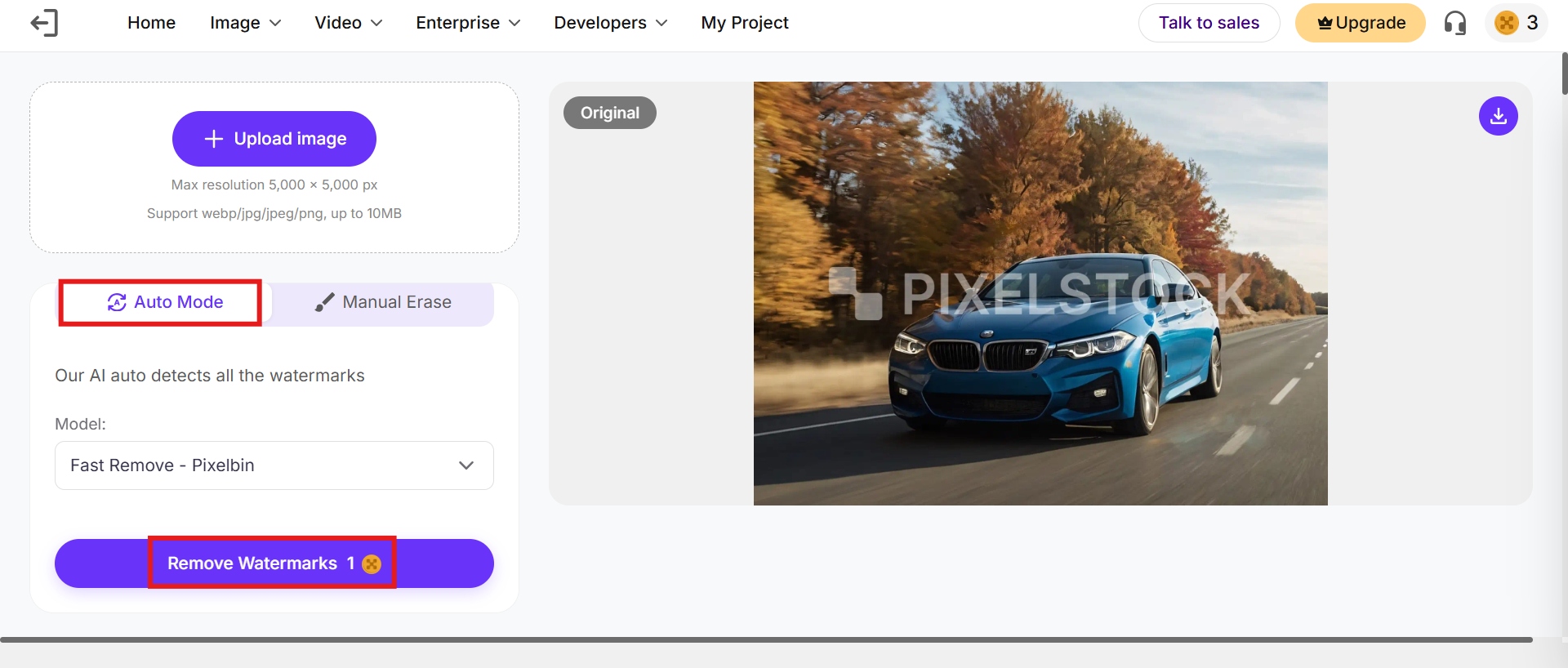
Step 2: Select the watermark removal tool and process
Select the appropriate AI-powered object or watermark removal feature. Pixelbin scans the image to detect the unwanted overlay and finds the surrounding visual information needed to reconstruct the affected area. Choose the "Auto" mode and click "Apply" to let the AI do the removal automatically.
Step 3: Download the image
Take a close look at the edited image and determine if the areas that were reconstructed appear to blend in with the original background. Once it's finished, your final image is ready for download for your approved use.
Features
-
AI-based image processing: Pixelbin uses AI to scan the images and automatically edit them by cropping and removing unwanted elements and enhancing the visual quality.
-
Cloud-based editing workflow: That makes it easy to process images online, without needing to install desktop software, which is convenient for individuals and teams.
-
Image optimization tools: Pixelbin offers an array of image optimization tools to enhance, manage and optimize digital images for various use cases, besides object removal.
Option 3: Manual editing of authorized Getty images with photo editors
AI tools automate much of the process, but manual editing gives users more control of the final result. For simple backgrounds, photo editors have tools like clone, healing, content-aware and retouching that can remove unwanted elements more accurately. Careful manual editing takes longer and requires more experience, but can often produce more natural-looking results. Here's how to remove the Getty image watermark using manual editors.
Photopea
Photopea is a free, browser-based photo editor that looks very similar to Adobe Photoshop. It supports PSD files, layers, masks and advanced retouching tools, so it is a good choice for manually removing watermarks on images you have permission to edit.
Step-by-step guide
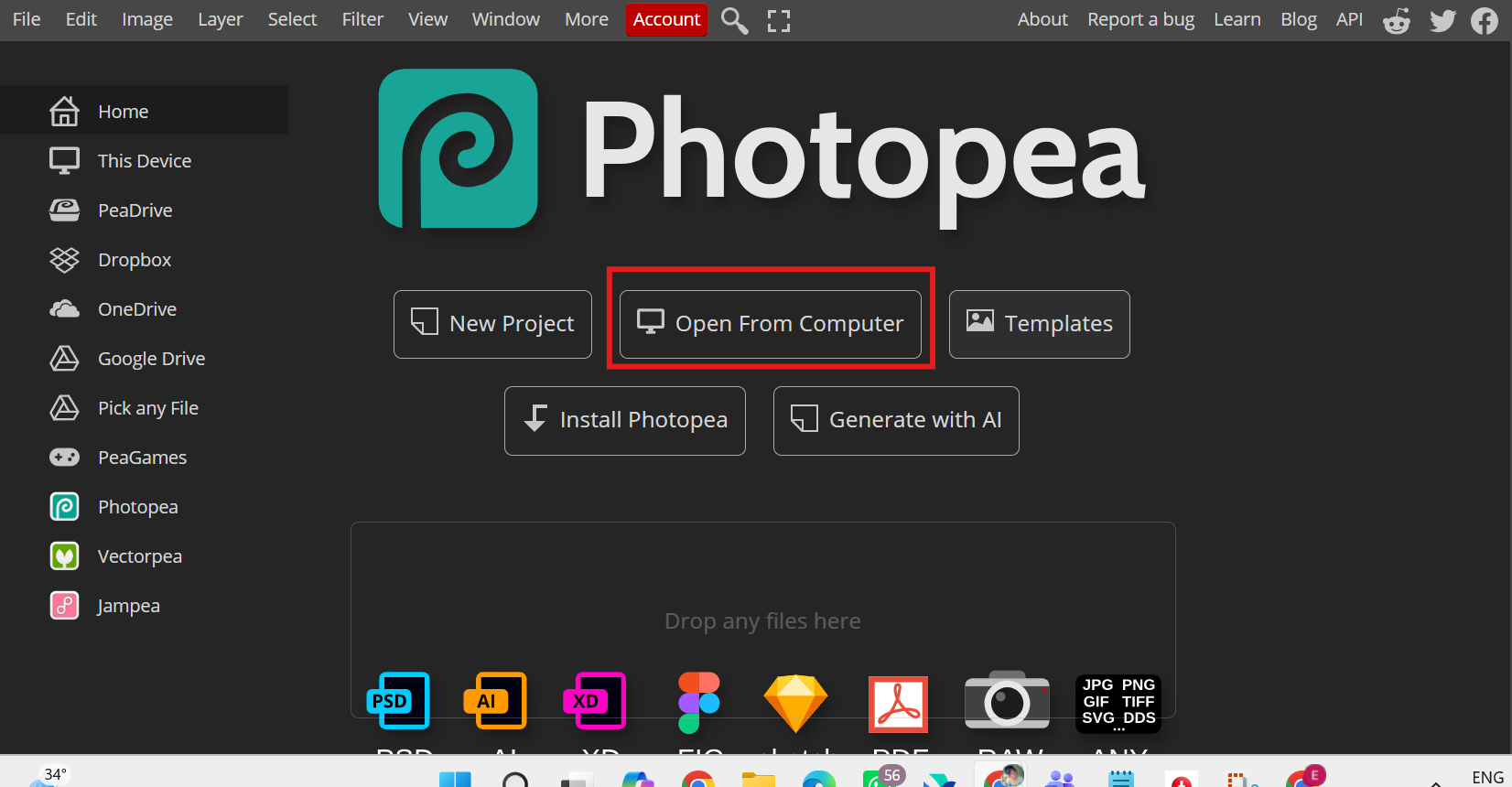
Step 1: Upload the image
Launch Photopea in your web browser and upload the authorized image to the tool. It accepts a wide range of file formats, so upload without worrying and prepare an editing workspace.
Step 2: Use healing and clone tools
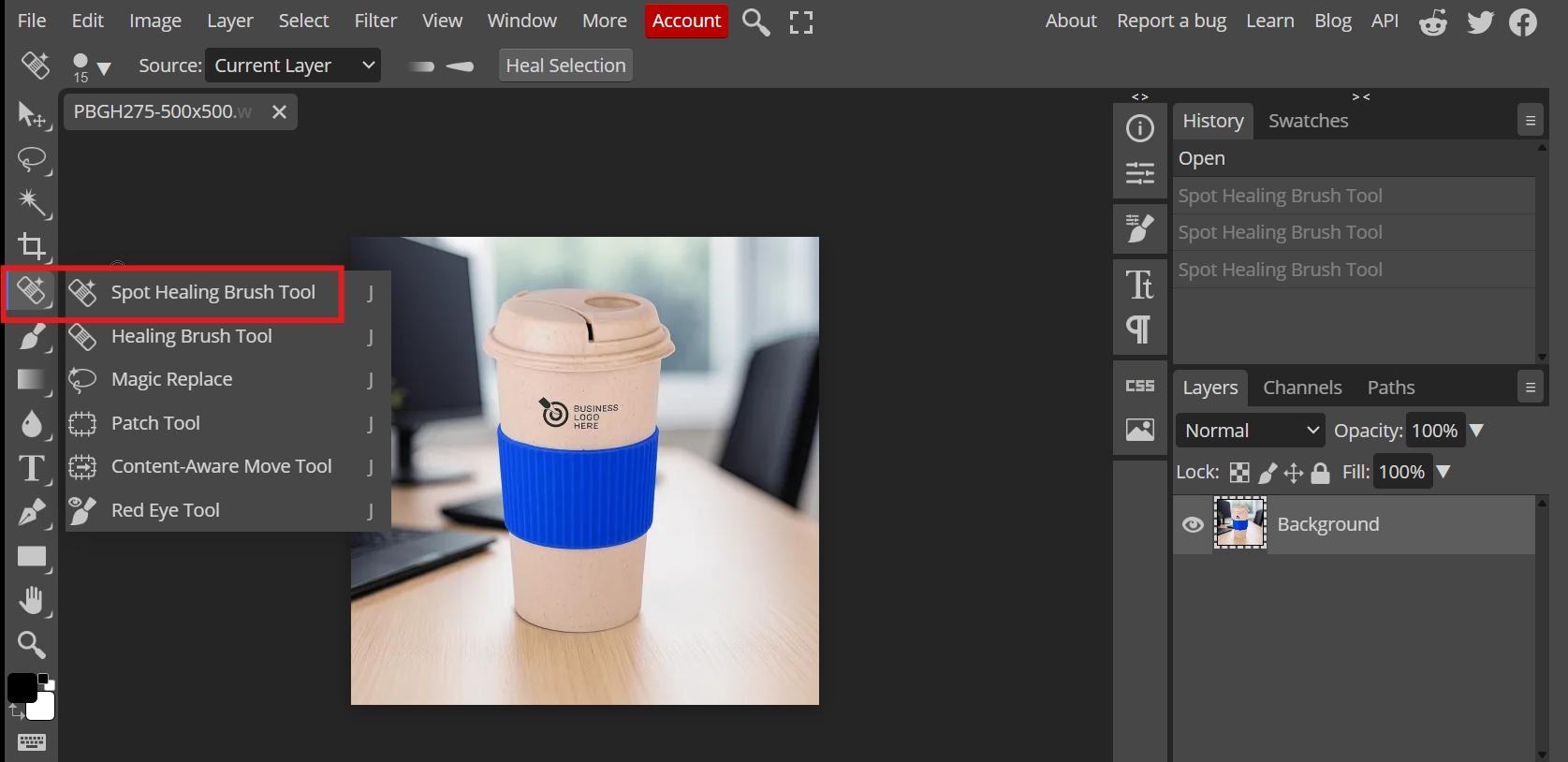
Use the Healing Brush, Spot Healing Brush or Clone Stamp tools in Photopea to manually fix unwanted areas. These tools sample textures from the surrounding area and blend them into the selection.
Step 3: Refine and download
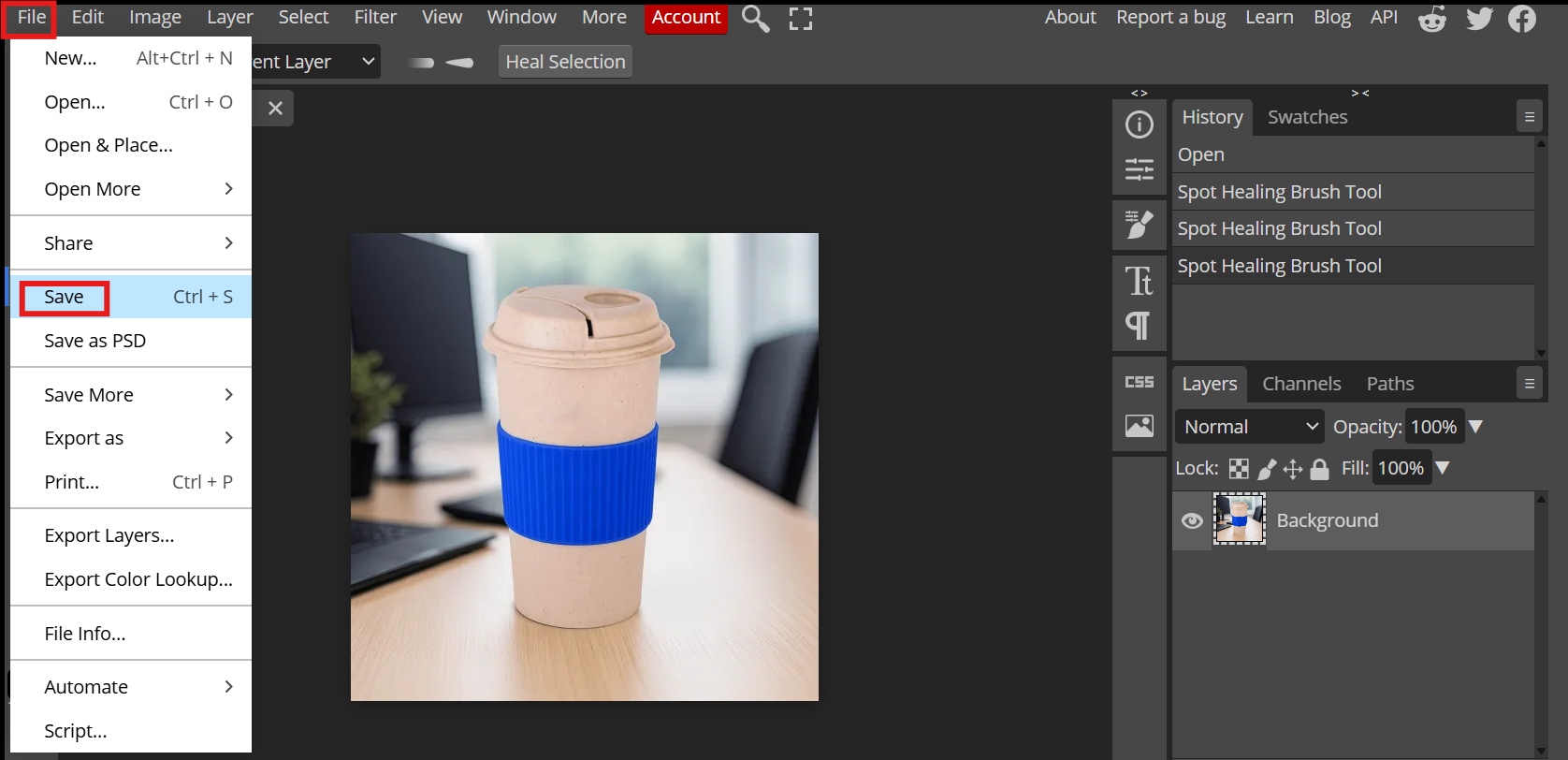
Fix edges, colors and textures of the repaired areas to make the image look consistent. Save the finished image in your desired format via File > Save, without losing image quality.
Features
-
Photoshop-like interface: Photopea has a professional editing interface similar to standard desktop software but works directly in a web browser.
-
Layer and mask support: The platform also offers advanced editing capabilities such as layers, masks, and PSD files, enabling users to make intricate modifications to images.
-
Healing and clone tools: Photopea has retouching tools for manually fixing unwanted areas and blending them with the image details around them.
Pixlr
Another browser-based image editor for those who want professional editing tools without installing desktop software is Pixlr. It includes tools for traditional retouching as well as AI-powered editing to eliminate unwanted objects from licensed images. Here's how to remove text from a picture using Pixlr.
Step-by-step guide
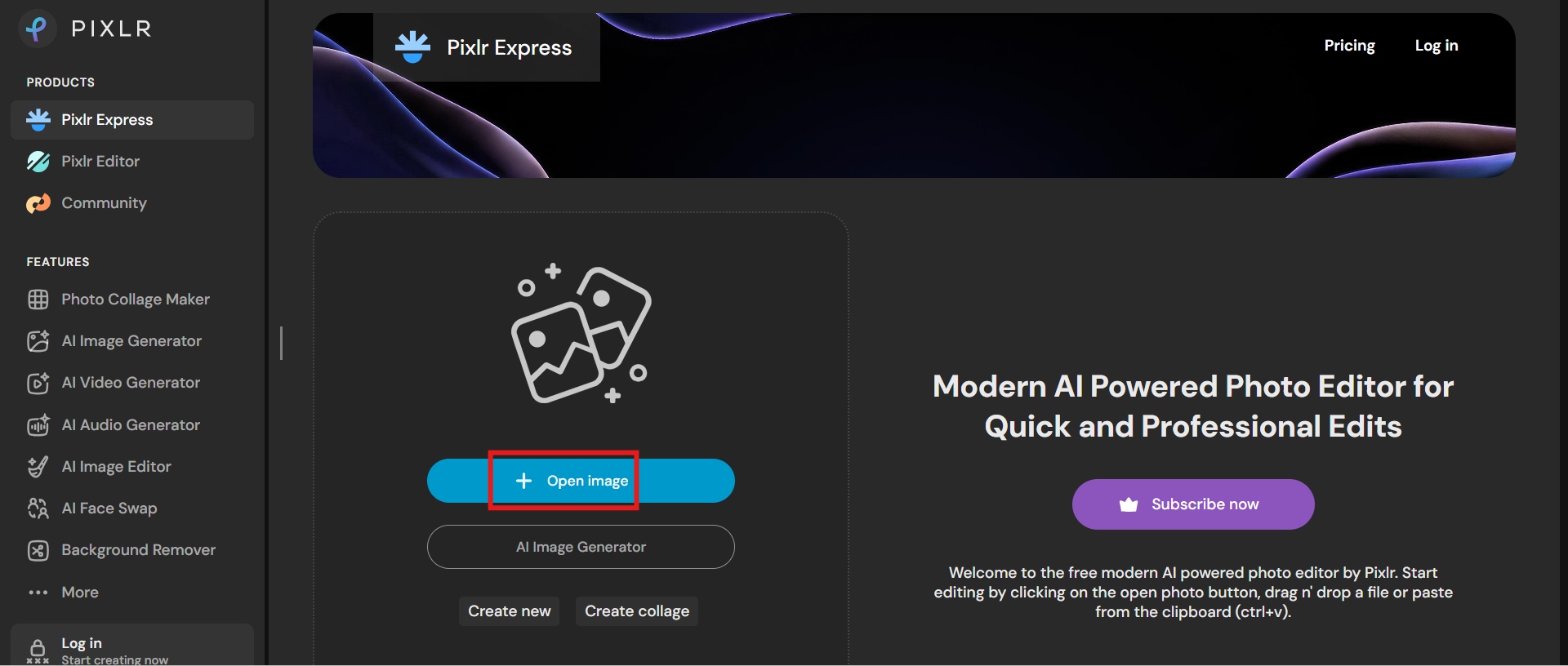
Step 1: Import the image
Open Pixlr and load the image you are allowed to edit. The file opens quickly in the browser-based editor, with immediate access to its retouching tools.
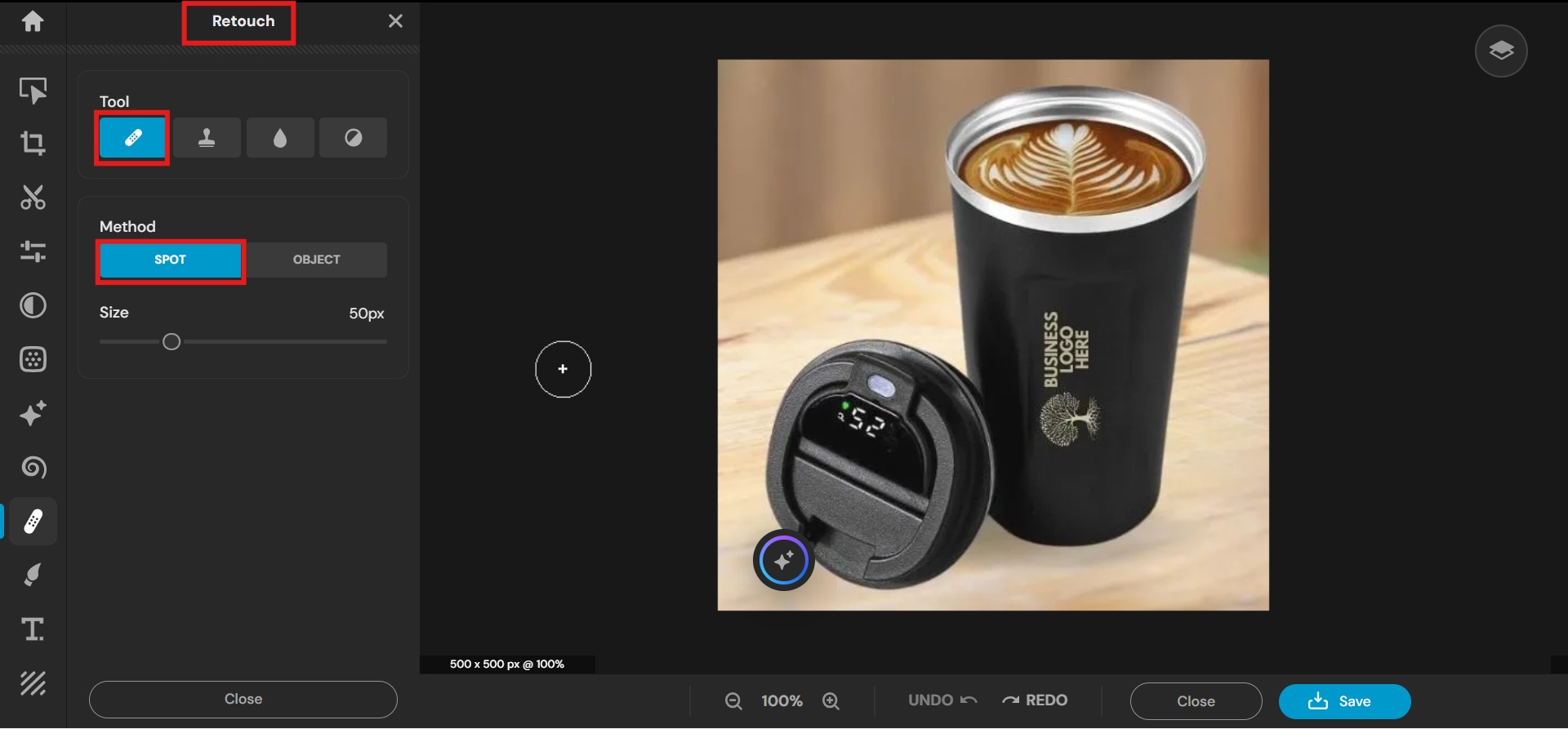
Step 2: Use Retouch tools
Use Heal, Clone or AI-assisted retouching tools and paint out the watermark carefully. The tool will automatically blend the pixels around the edges of the selection, but you can also manually tweak the selection to refine it.
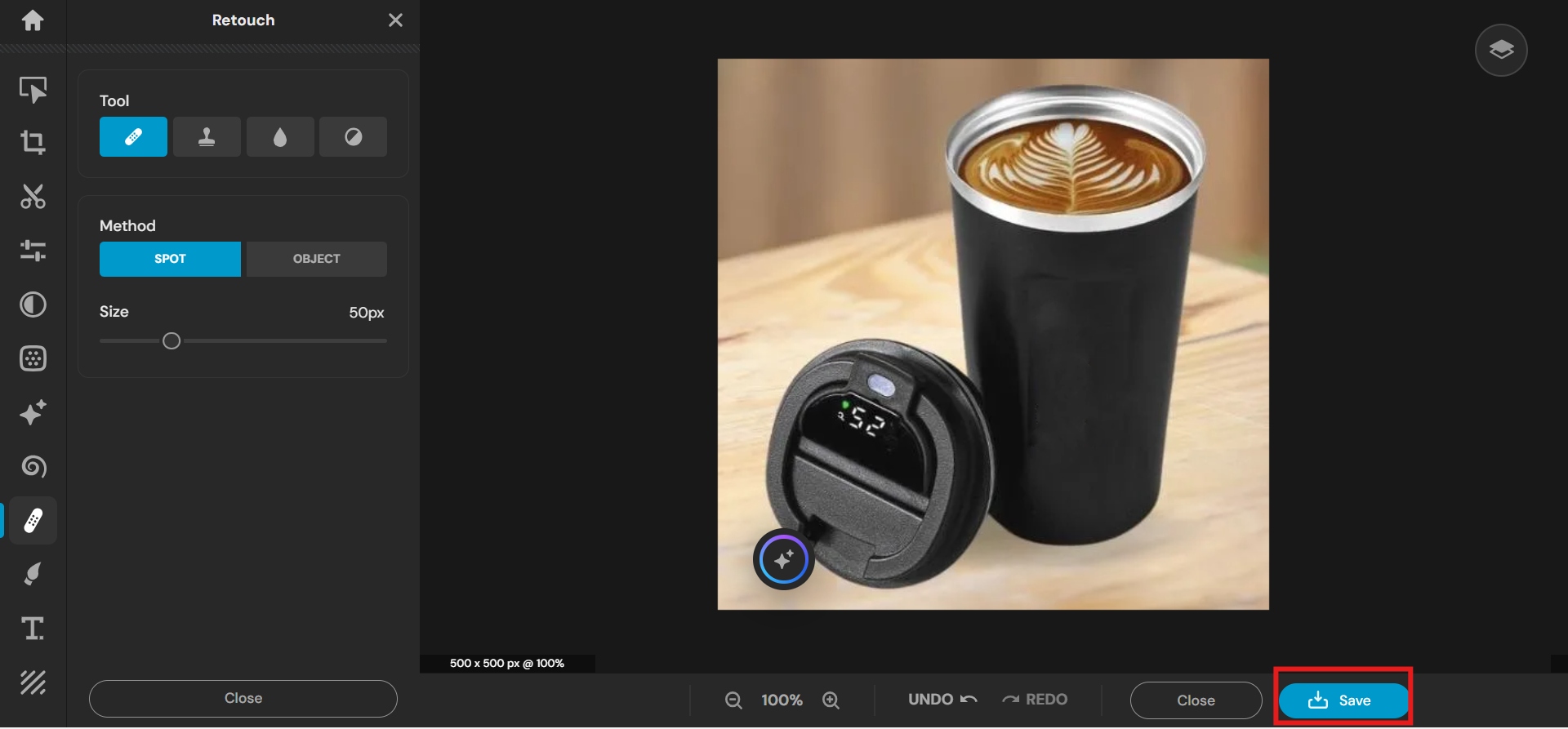
Step 3: Adjust and export
Check the edited areas carefully for any refinements needed to improve texture consistency and edge blending. Repeat until the fixed area looks natural. When you are happy with the final look, save the image in the file format and resolution you prefer.
Features
-
Combines manual effort with AI assistance: Pixlr offers traditional editing features along with AI-powered tools that help with things like removing objects and enhancing images.
-
User-friendly interface: The platform has a simple layout, which makes it easier for beginners to access photo-editing features without much training.
-
Multiple retouching options: Pixlr offers healing tools, cloning features, filters and adjustment options to cover a wide range of editing needs.
Tips for better watermark removal results from authorized images
To remove unwanted elements from an image, you need to do more than just use an AI tool or editing software. By following these best practices, you can achieve cleaner, more natural-looking results when editing images that you own or have permission to modify.
-
Use high-resolution images
Higher resolution images give AI tools and manual editing software more visual information to work with. Bigger images have more details and textures and color variations in them, which makes it easier for the editing algorithms to understand the surrounding areas and recreate missing sections more accurately.
-
Crop when appropriate
If the unwanted element is near the edges of the image or in an area that does not affect the main subject, cropping can be a simple and effective way to improve an image. A well-placed crop can eliminate distractions while keeping the overall composition and visual balance of the photo intact.
-
Edit at full size
Always try to work with the original, full-resolution image, not a compressed preview or resized copy. When you edit at full size, AI tools and manual retouching software have more image information to work with, enabling more precise adjustments. It also gives you more control when you're fixing small details, blending textures and refining edges after the first removal.
-
Retouch remaining artifacts
Even sophisticated AI tools can sometimes leave subtle artifacts behind when removing unwanted elements, especially in areas with complex textures, patterns or detailed backgrounds. So, after the image is processed, zoom into the areas you've retouched and look for issues like pattern repetition, blurry spots, colors that don't match, and unnatural edges, and clean them up.
-
Avoid excessive AI smoothing
Sometimes AI enhancement features can over-process an image, removing natural textures or making certain areas look too smooth. Once you've cut out the bad parts, don't go overboard with the auto enhancement, because if you smooth the image too much, it will end up looking like a fake.
Conclusion
The best way to get a clean Getty Images photo is by legitimate and authorized channels. Make sure you're using the image legally by purchasing or downloading the properly licensed version directly from Getty Images. If you already have an image or permission to change it, AI-powered tools like Vmake Labs or manual editors can help remove unwanted elements and make the image look better. These techniques can save time and enable flexible editing.
Removing Getty images watermark using AI watermark removal and manual editing tools is intended for authorized images. By choosing licensed content and using editing tools in a responsible way, users can create professional-looking results without violating the rights of creators.
FAQs
Can I legally remove a Getty Images watermark?
Removing a Getty Images watermark from a preview image without permission may infringe copyright laws and Getty Images' licensing terms. Watermarks are used to protect copyrighted material and to show that an image needs to be properly authorized before use. If you purchase the image, own the rights to it, or have permission to edit it, you may edit your licensed copy of the image in accordance with the usage terms.
What is the best AI tool for removing Getty Images watermarks?
If you have the legal right to edit an image, you can use AI tools like Vmake Labs to help you delete unwanted elements and automatically reconstruct the image. It supports batch processing and ensures high-res downloads. However, the best tool depends on your editing needs, how complex the image is, and the output quality you want.
Will removing a watermark restore the original image quality?
No. Deleting a watermark does not restore the original image, because the pixels hidden under the watermark are not available in the preview file. While AI tools and manual editing software can estimate and recreate missing areas, they cannot recover the exact original details. To obtain the authentic, full-quality image, you must download the properly licensed image from Getty Images.
Are Getty Images downloader websites safe to use?
There are many third-party websites for downloading Getty Images, but these are not recommended, as you may get unauthorized copies, violate copyright laws or put yourself at risk of security problems such as malicious downloads or services that are not honest. The safest way is to source images directly from Getty Images or other authorized stock image providers that provide proper licensing and usage rights.
What's the easiest way to get a clean Getty Images photo?
The best and most foolproof way to get a clean Getty Images photo is to buy or access the licensed version from Getty Images directly. When you download a file with a license, what you're getting is the original, watermark-free file with the rights to use it. There's no need to recreate the image or further edit it.
Which is better: AI watermark removal or manual editing?
It depends on the image and editing requirements. AI watermark removal tools are faster and more convenient, perfect for simple cleanup jobs on authorized images. Manual editing tools give more control and precision, especially for complex images with intricate backgrounds or textures. The best solution for the highest quality and authenticity is still to get the original licensed image.

You May Be Interested

Best AI Watermark Remover for Clean, Fast Edits
AniEraser Watermark Remover by Media.io: 2026 Hands-On Review
How to Remove Green Screen from Video: Best Methods and Tools in 2026
Batch Watermark Removal with Vmake AI