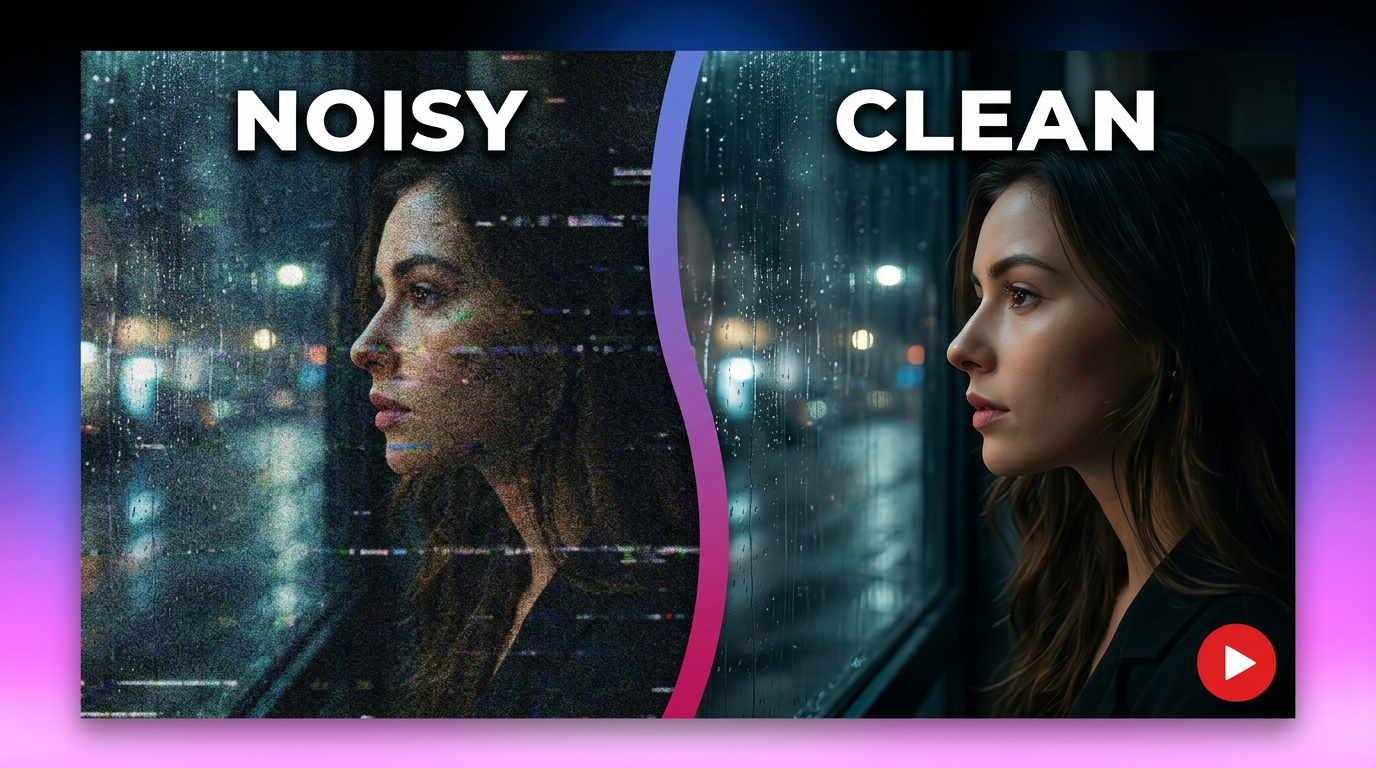
Remove Dust from Photo AI: Quick Ways to Clean Scans & Digital Shots
Discover how to remove dust from photos using AI tools in seconds. Clean scanner dust, sensor spots, and specks from old photos using free online editors, mobile apps, and desktop software.

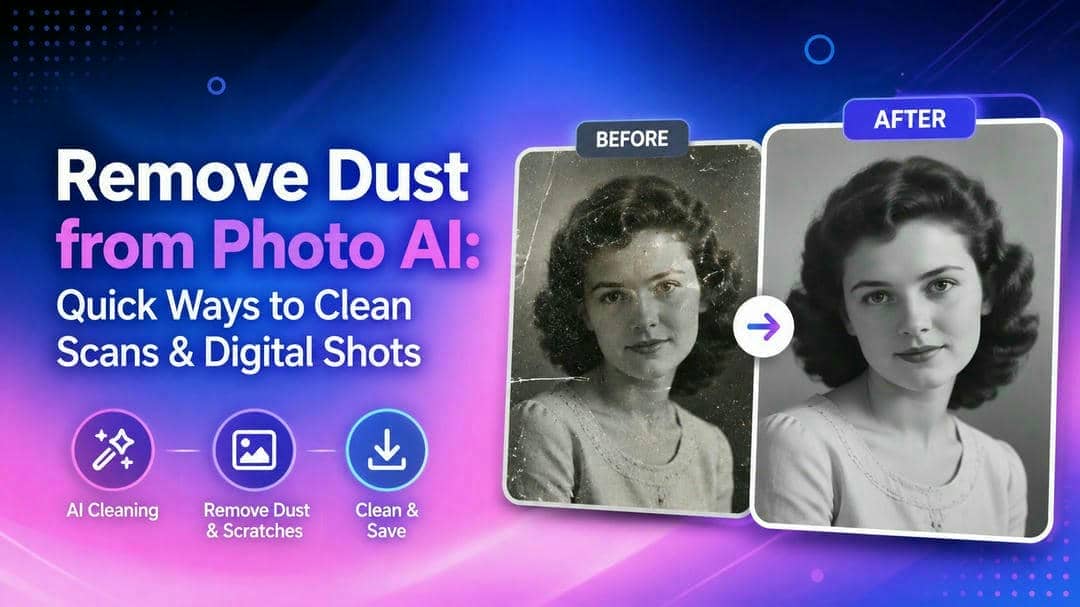
Dust, scratches, and tiny spots make even the best photos look old and poorly kept. Luckily, today's AI tools can easily spot and remove these imperfections in seconds and don't require any advanced editing skills. In this guide, you will learn the easiest ways to restore photos online, on desktop, and on mobile while maintaining natural image quality.
What is AI photo dust removal?
AI photo dust removal uses machine learning to automatically detect and erase small imperfections like dust particles, spots, and minor scratches while intelligently filling in the area with natural-looking textures from the surrounding image.
Types of dust AI can remove
-
Surface dust
-
Sensor dust spots
-
Small scratches
-
Specks and stains
Benefits over manual photo editing
-
Removes imperfections within seconds.
-
Requires little or no editing experience.
-
Produces more consistent results than manual retouching.
-
Preserves surrounding textures and details.
How to remove dust from photos online for free
If you want a fast, web-based solution without the hassle of installing complicated software, your best option is to use an online object remover. Vmake Labs is a powerful free online AI tool perfect for removing unwanted elements like dust spots, specks, and tiny imperfections from photos. Its smart AI detection and natural fill technology make cleaning scans, sensor dust, and old prints effortless without any software download.

Key features of Vmake Labs
-
AI smart detection & removal: Vmake Labs AI automatically scans your photo and detects dust spots, specks, sensor marks, and minor scratches. It intelligently removes them in seconds, saving you hours of manual editing and delivering clean, professional results.
-
Manual selection mode: When dust sits close to important details like a face or a product edge, switch to manual mode and brush over the exact spot you want gone, keeping the AI focused only where you point it.
-
Batch processing: Process multiple dusty photos at once with Vmake Labs. Upload an entire folder of scanned images or digital shots, apply dust removal to all of them simultaneously, and save massive time on large restoration projects.
-
Natural fill for seamless results: Once a dust spot is removed, the AI rebuilds that area using nearby texture and color, so the fix blends into the surrounding photo instead of leaving a blurry patch or obvious edit behind.
Steps to remove dust from photos with Vmake Labs
Getting started is simple. Follow these three easy steps to clean dust, spots, and specks from your photos using Vmake Labs.
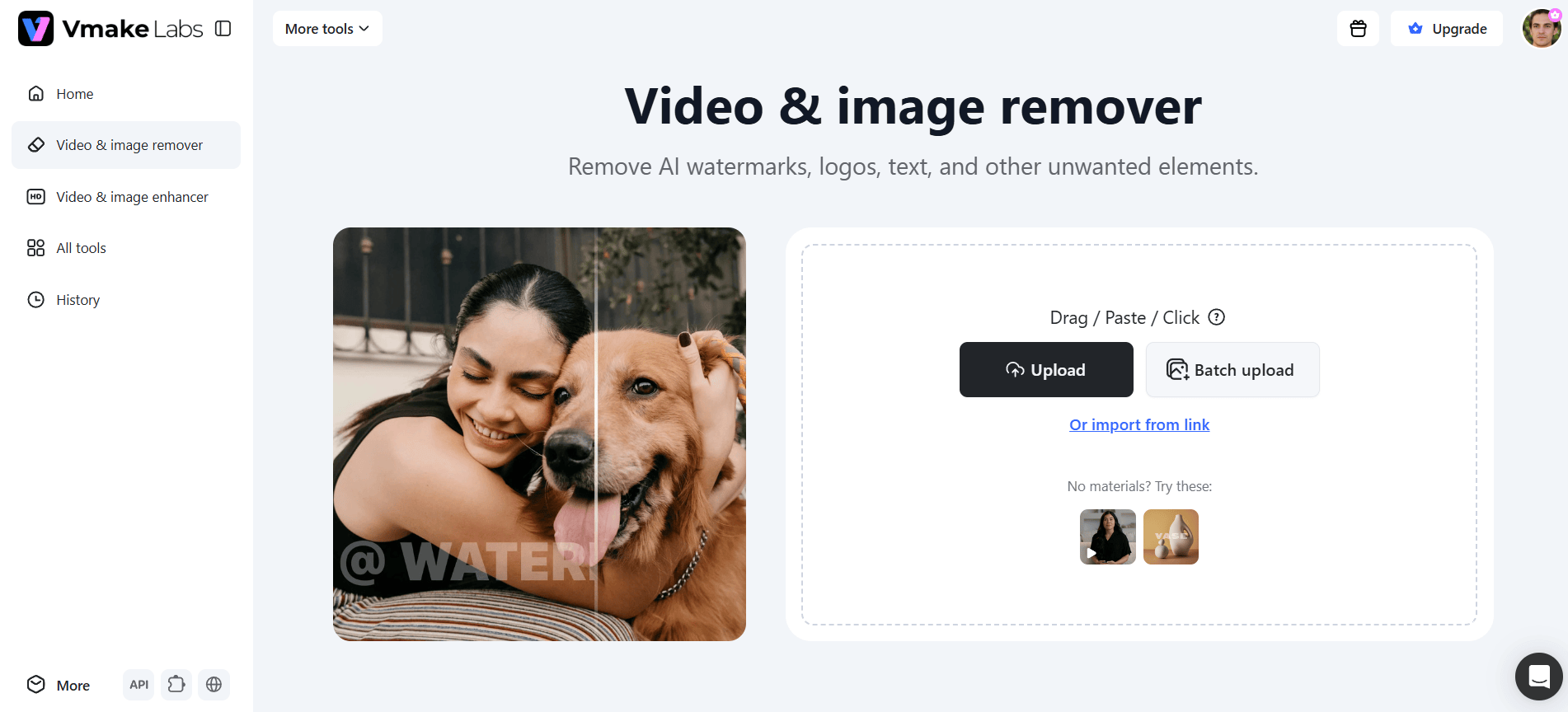
Step 1: Upload images
Launch the Vmake Labs "Video & image remover" tool and hit on the "Upload" button to upload the image that contains dust spots or scratches. You may also upload your image by dragging and dropping it into the upload section or even use the "Batch upload" option to restore several images at once.
Step 2: Choose mode and remove dust
After the upload, select "Auto" mode to allow the AI to detect and remove dust from the entire photo, or choose "Manual" mode and brush over the places on your own. Click "Apply" to enable the AI to automatically detect and remove imperfections.

Step 3: Preview and download
Preview the result with natural-looking fill. Make any final adjustments if needed, then click the "Download" button to save your clean, dust-free photo.

How to remove dust spots from photos on Desktop
If you prefer desktop editing or need greater control over photo restoration, Adobe Photoshop is an excellent choice. It includes powerful retouching tools like the Spot Healing Brush and Dust & Scratches filter that can eliminate dust spots, scratches, and small blemishes while preserving surrounding textures. Although it requires more manual work than AI-powered online tools, Photoshop delivers precise, professional-quality results for scanned photos and digital images.
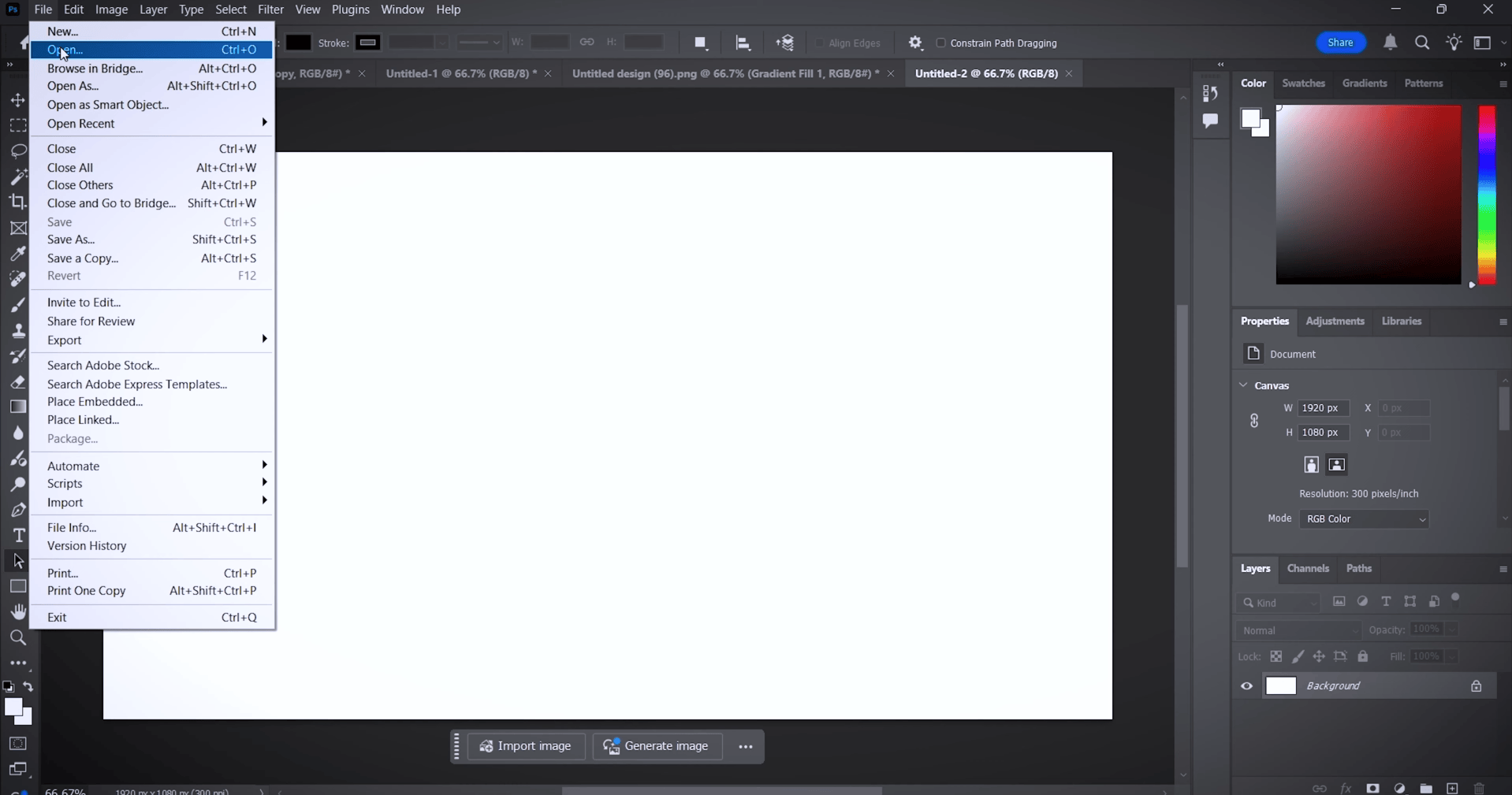
Step 1: Open your photo
Launch Photoshop and open the image you want to restore. Duplicate the background layer (Ctrl/Cmd + J) so you can edit non-destructively and preserve the original photo.
Step 2: Heal the spots
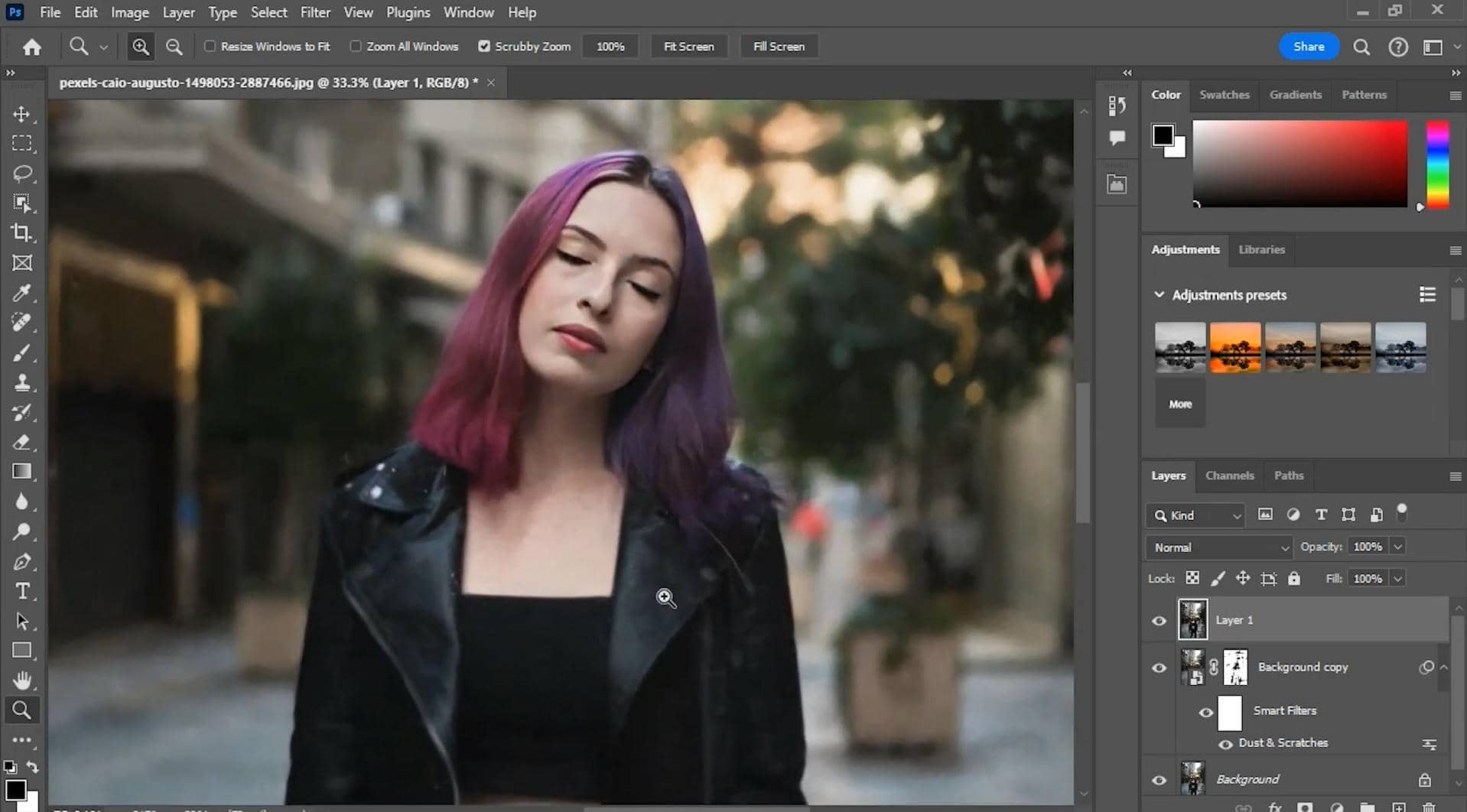
Grab the Spot Healing Brush, set the brush size a little larger than each spot, and click or drag over the marks. For dust scattered across a wider area, try Filter > Noise > Dust & Scratches and adjust the radius and threshold until the spots fade without softening detail you want to keep.
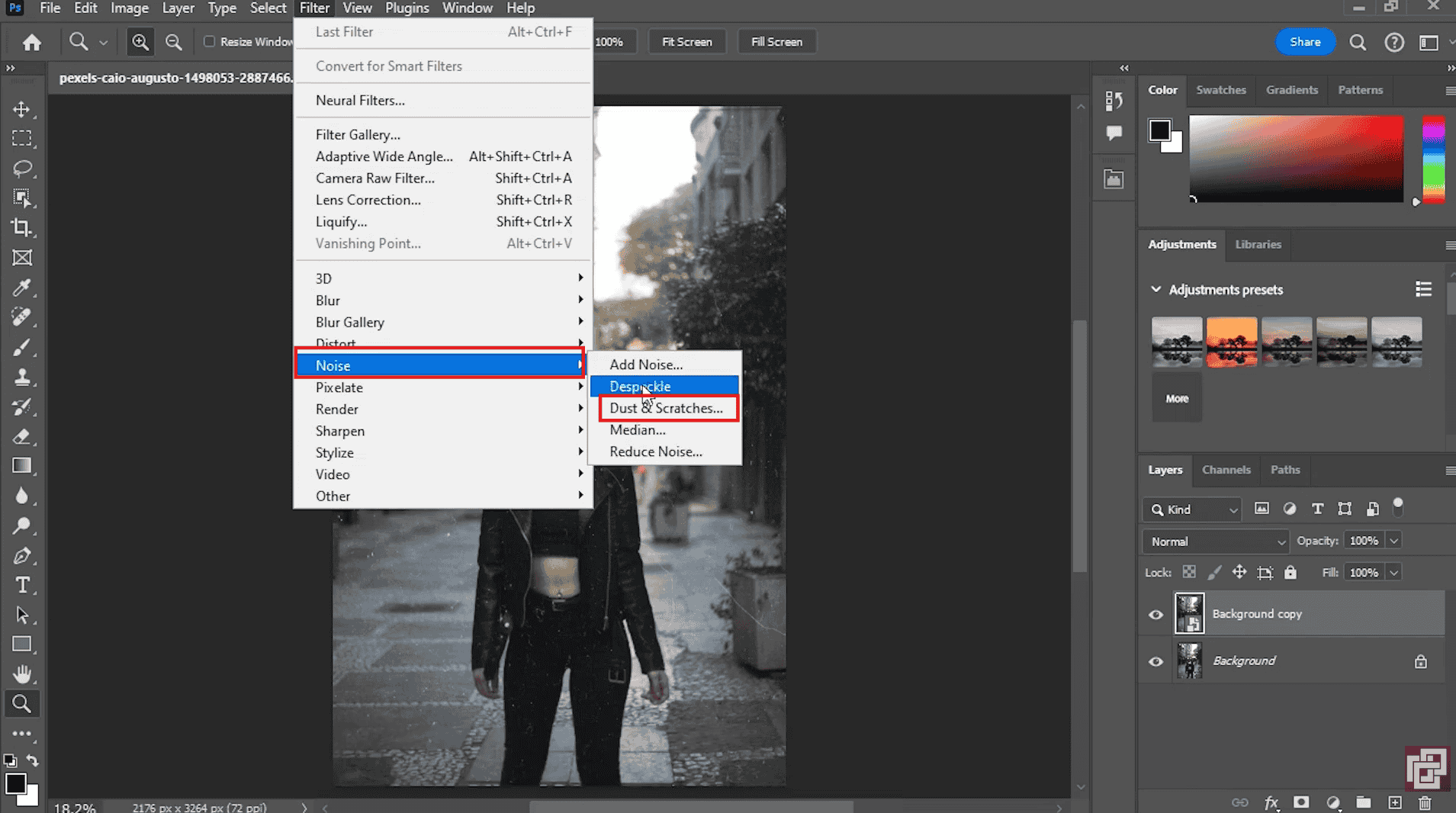
Step 3: Review and export
Zoom in to check for any remaining dust or imperfections. Make additional touch-ups if needed, and export the cleaned photo.
How to remove dust from photos using a mobile app
If you prefer editing on your phone, Picsart offers AI-powered retouching tools that make removing dust and small distractions quick and simple. Its AI-powered Remove tool makes photo cleanup quick and beginner-friendly, while manual brush controls provide extra precision. Whether you're restoring scanned photos or fixing recent images, Picsart helps you achieve cleaner results without needing a desktop editor.
Step 1: Upload your photo
Open the Picsart app and tap the + button to upload the photo you want to restore from your device's gallery.

Step 2: Remove the dust
Select the Remove tool, then brush over the dust spots, scratches, or unwanted marks. The AI analyzes the surrounding area and fills the selected regions for a natural-looking result.

Step 3: Save your restored photo
Review the edited image and make any additional touch-ups if necessary. Once you're satisfied, tap Download or Save to export the restored photo to your device in high quality.
Which dust removal method is right for you?
Choosing the right dust removal tool depends on your workflow, editing experience, and the number of photos you need to restore. Here's how Vmake Labs, Adobe Photoshop, and Picsart compare across the most important factors.
|
Criteria |
Vmake Labs |
Photoshop |
Picsart |
|---|---|---|---|
|
Best use case |
Quick fixes for scans, sensor dust, old prints |
Precise, professional-grade restoration |
Quick mobile photo cleanup |
|
Ease of use |
Beginner-friendly, no skills needed |
Steeper learning curve |
Beginner-friendly |
|
Processing speed |
Seconds per photo |
Slower because most edits are manual |
Fast for individual photos |
|
AI automation |
Full auto-detect + manual brush option |
Manual only (Spot Healing Brush, Dust & Scratches filter) |
AI-powered Remove tool with manual brushing |
|
Batch support |
Yes, batch upload for multiple photos |
No native batch dust removal |
No |
|
Cost |
Free plan available with premium options |
Paid subscription |
Pro subscription required |
|
Supported devices |
Web browser on desktop and mobile |
Desktop only |
iOS and Android |
|
Output quality |
Natural AI fill with high-quality results |
Highest precision and control |
Good for quick edits, less fine control |
Which option should you choose?
-
Choose Vmake Labs if you want the fastest AI-powered solution, need batch processing, or prefer editing directly in your browser.
-
Choose Adobe Photoshop if you require maximum precision and professional-level restoration for heavily damaged photos.
-
Choose Picsart if you mainly edit photos on your phone and want a simple, beginner-friendly way to remove dust spots.
Common reasons photos have dust and spots
Dust spots can appear for several reasons, and understanding their source makes it easier to prevent in the future. Some originate during photography, while others appear when scanning or storing printed photos. Below are the most common causes of dust and spots on images.
-
Camera sensor dust: Your sensor carries a slight charge whenever the camera's on, and that charge pulls dust in like a magnet. Once it lands, it blocks light from hitting that exact spot, and you get a gray mark that shows up in the same place shot after shot, especially at narrower apertures.
-
Dust on camera lenses: Dust on the front element rarely shows up in your shots since it sits far from the sensor. Dust or smudges on the rear element are a different story, since that's much closer to the sensor and can soften detail or cut contrast.
-
Dust introduced during photo scanning: Scanner glass picks up dust fast, and so does whatever print or negative you're scanning. That combination leaves speckled marks scattered across your digital copy.
-
Dust and scratches on old, aging prints: Photos sitting in drawers and boxes for years pick up dust, fingerprints, and small surface scratches. All of that gets captured the moment you scan or photograph the print.
Tips for better dust removal results
Follow these practical tips to achieve the cleanest, most natural-looking results when removing dust from your photos.
-
Use the highest-resolution image available: Start with the original high-resolution file for the best results. Higher resolution gives AI tools more detail to analyze, leading to more accurate dust detection and seamless repairs without losing sharpness.
-
Remove dust before upscaling: Always clean dust spots first before enlarging or upscaling your photo. This prevents the AI from amplifying imperfections and ensures cleaner, more professional results in the final high-resolution image
-
Preserve natural textures: Avoid over-processing. Use light touches with AI tools to maintain the photo's original grain, skin texture, and fine details, so the restored image still looks authentic and lifelike.
-
Save a copy of the original image: Always keep the untouched original version saved separately. This allows you to go back if needed and compare results, giving you full flexibility during the restoration process.
-
Clean the scanner glass before scanning old prints: Dust and fingerprints on the scanner glass can create new spots that AI must remove later. Wipe the glass with a microfiber cloth before every scan to capture a cleaner image from the start.
-
Crop unnecessary borders before using AI: Trim white borders, scanner edges, or damaged margins before running AI dust removal. This helps the AI focus on the important parts of the photo, improving detection accuracy and reducing unnecessary processing.
-
Review the restored photo before exporting: Carefully inspect your image at 100% zoom after cleaning. Check for any remaining spots, unnatural patches, or lost details before saving the final version
Conclusion
Removing dust, scratches, and unwanted spots no longer requires hours of manual editing. AI-powered tools can restore scanned photos, old prints, and digital images in just a few clicks while preserving natural details. Whether you use Vmake Labs online for instant results, Photoshop on desktop for professional precision, or Picsart on mobile for quick edits, you can restore your images in minutes while preserving natural quality. Say goodbye to distracting spots and enjoy cleaner, sharper photos. Ready to restore your images? Remove dust from photos now and bring your memories back to life!
FAQs
Can AI automatically remove dust spots from photos?
Yes, AI can automatically detect and remove dust spots, specks, and minor scratches in seconds. Tools like Vmake Labs use smart detection to clean your photos quickly with natural-looking results.
What is the best free tool to remove dust from photos online?
Vmake Labs is a strong free, browser-based pick. It runs AI smart detection, offers manual selection for tighter control, and uses natural fill, so the cleaned area blends smoothly into the rest of the photo.
Can I remove dust spots from photos on my phone?
Yes, you can easily remove dust spots on your phone. Vmake Labs works smoothly in mobile browsers, while apps like Picsart offer dedicated AI tools for on-the-go dust removal.
Does AI photo dust removal work on old photographs?
Yes, AI photo dust removal works excellently on old photographs. Vmake Labs AI cleans dust, specks, and aging marks from vintage prints and scanned images while preserving original details.
Can AI remove dust and scratches from scanned photos?
Yes, AI can remove both dust and scratches from scanned photos. Vmake Labs intelligently detects and repairs these imperfections with natural fill, restoring clarity to your digitized memories.

You May Be Interested
Airbrush Watermark Remover Review (2026): Features and Pricing

AniEraser Watermark Remover by Media.io: 2026 Hands-On Review

Batch Watermark Removal with Vmake AI

Best AI Watermark Remover for Clean, Fast Edits

How to Remove CapCut Watermark