Remove Background Noise Audio Video Chrome Store Extension for Clarity
Looking for a Chrome extension to remove background noise from audio or video? Discover how browser extensions work, their limitations, and how Vmake Labs enhances speech with AI for cleaner recordings.

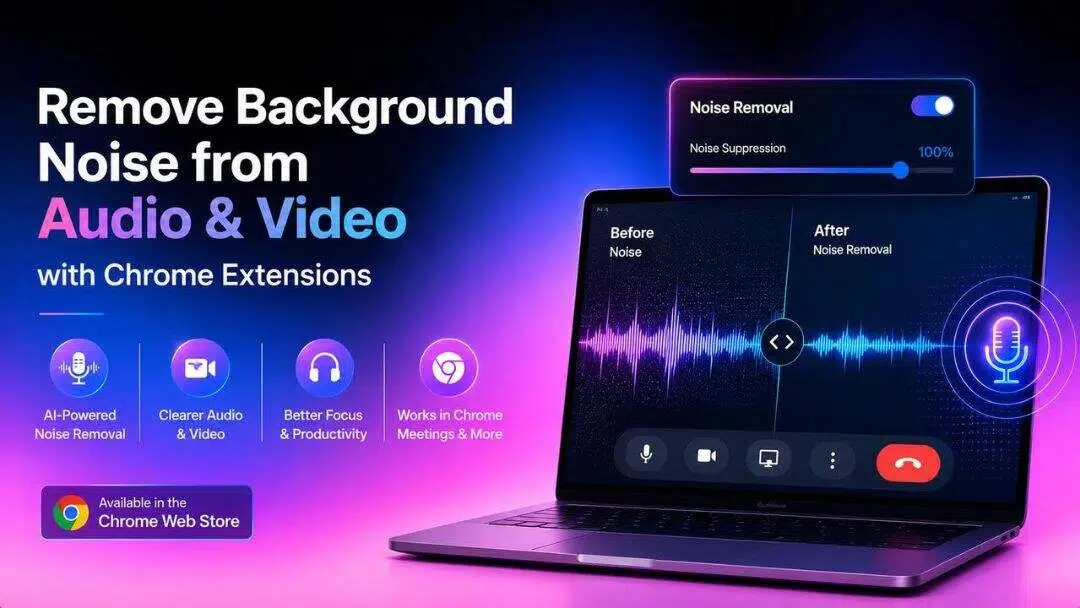
Background noise makes it difficult to understand meetings, recordings and videos. A remove background noise audio video Chrome Store extension can help to cut down on distractions when doing tasks within a browser, but sometimes that's not enough. This guide covers Chrome extensions, what they can do, and how Vmake Labs adds AI to recorded videos.
What is a Chrome extension for removing background noise from audio and video?
Background Noise Removal Chrome extension is a browser plugin that helps to reduce unwanted sounds from the microphone input during recordings and online communication. These add-ons employ AI or noise suppression technology in order to provide a cleaner sound with fewer distractions, such as keyboard clicks, fan noise, traffic and background conversations. They are used extensively for online meetings, browser voice recordings, podcasts, voice notes, and web-based editing tools. They do improve live audio captured in Chrome, but their ability to fix existing audio or video files is often limited.
Best Chrome extensions for background noise removal
The right extension to choose depends on how you work. Some tools are built for live meetings, and others help you cut down on distractions when recording your browser. Background noise removal extensions can improve microphone audio, but they vary in AI quality, supported platforms, and ease of use. Here are 5 popular Chrome extensions that users often choose for browser noise suppression.
|
Tool |
Best use case |
AI noise reduction |
Browser-only or desktop |
Free plan |
Can process recorded files |
|---|---|---|---|---|---|
|
Remove Background Noise for Google Meet |
Google Meet meetings |
Yes |
Browser-only |
Yes |
No |
|
Krisp |
Remote work and online meetings |
Yes |
Browser + Desktop |
Yes (limited) |
Yes (desktop app) |
|
Noise Blocker |
Everyday browser communication |
Basic AI |
Browser-only |
Yes |
No |
|
Google Meet Noise Cancellation |
Google Workspace meetings |
Yes |
Browser-only (built into Google Meet) |
Included with eligible Google Workspace plans |
No |
|
NVIDIA Broadcast |
Streaming, recording, and professional calls |
Yes |
Desktop |
Yes |
Yes |
How we selected these Chrome extensions
We selected these Chrome extensions based on Chrome Web Store ratings, ease of use, AI background noise removal quality, supported platforms, pricing, and user feedback. We also considered how effectively each tool reduces common background sounds while maintaining clear voice quality during online meetings and browser-based recordings.
-
Remove Background Noise for Google Meet
Designed specifically for Google Meet, this extension helps suppress everyday background sounds while keeping voices more understandable during meetings. It is easy to install and works directly inside Chrome, making it a convenient option for users who spend most of their day in virtual meetings.
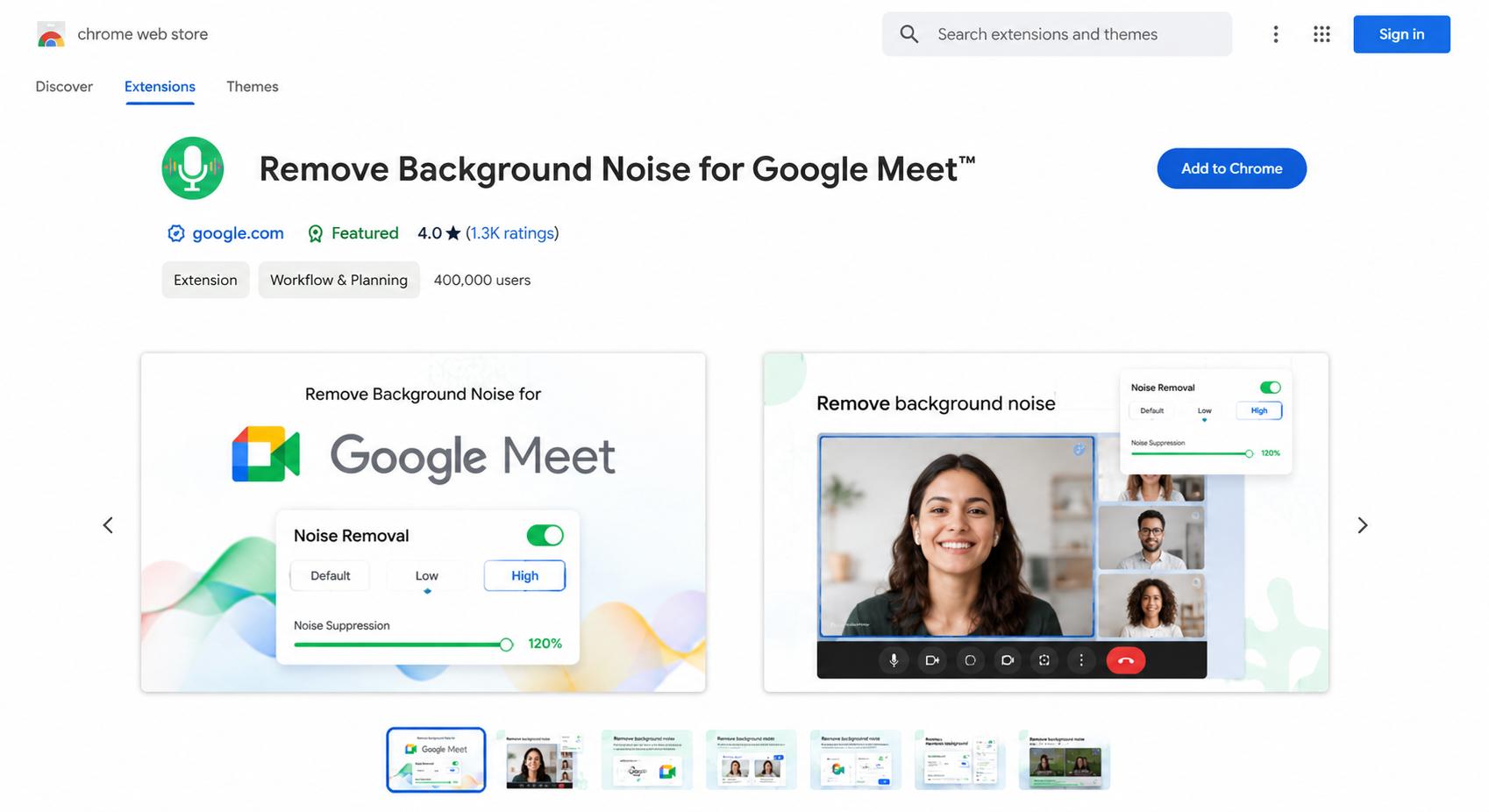
Best for: Google Meet users who want quick browser-based noise suppression.
Pros
-
Easy Chrome installation
-
Improves meeting audio clarity
-
Simple to use with Google Meet
Cons
-
Limited to supported browser workflows
-
Not suitable for existing video or audio files
-
Few advanced customization options
-
Krisp
Krisp is one of the best-known AI-powered noise suppression tools available as a Chrome extension and desktop application. It removes background sounds from both incoming and outgoing audio during calls, making conversations clearer in busy environments while supporting several popular communication platforms.
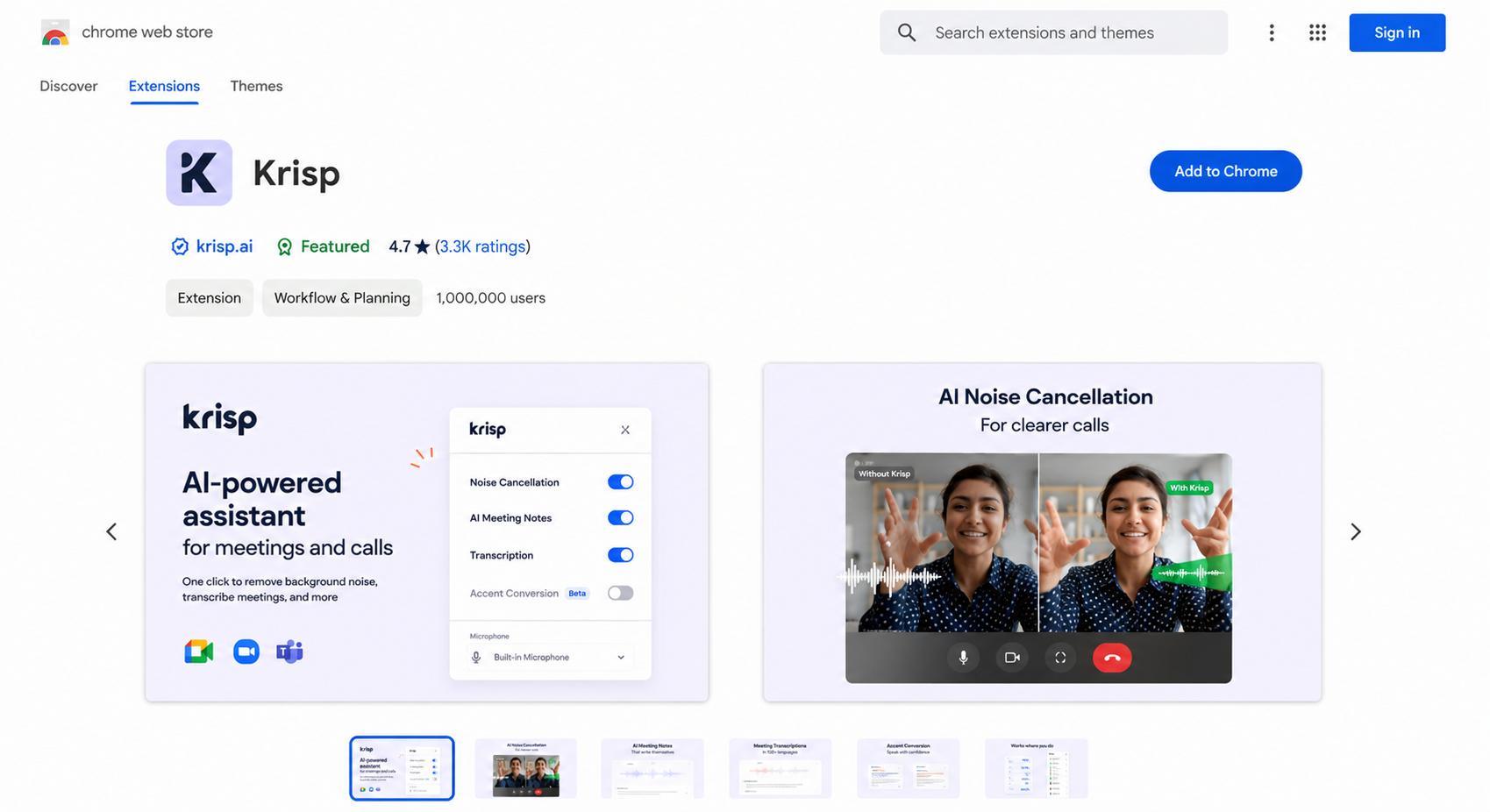
Best for: Remote professionals, customer support teams, and frequent online meetings.
Pros
-
Strong AI-powered noise cancellation
-
Supports multiple meeting platforms
-
Improves both speaker and listener audio
Cons
-
Advanced features require a paid plan
-
Best experience comes with the desktop app
-
Limited editing for previously recorded files
-
Noise Blocker
Noise Blocker automatically filters common environmental sounds while allowing speech to remain clear during browser communication. Its lightweight design makes it suitable for users who want basic noise suppression without installing large desktop software or learning advanced audio settings.
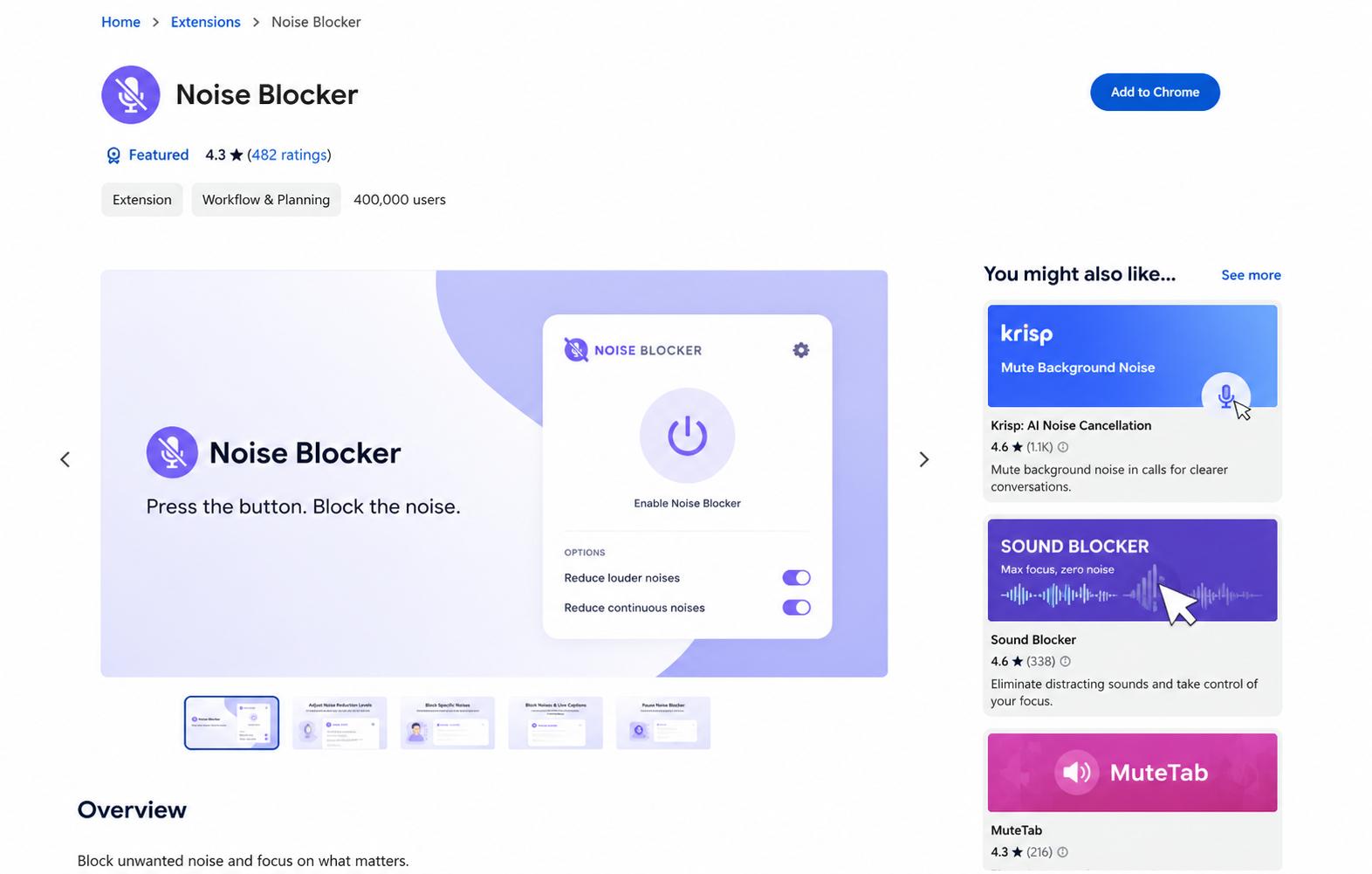
Best for: Everyday browser users seeking a simple audio enhancement tool.
Pros
-
Lightweight and easy to use
-
Reduces common environmental sounds
-
Minimal setup required
Cons
-
Less effective against complex noise
-
Basic controls compared with AI editors
-
Doesn't professionally enhance exported recordings
-
Google Meet Noise Cancellation
There’s a built-in noise cancellation feature in Google Meet for eligible users, which helps reduce unwanted background noise during meetings without any additional configuration in the browser. The feature is embedded in the platform, so it’s easy to turn on and helps users have more fluid conversations when they are collaborating virtually.
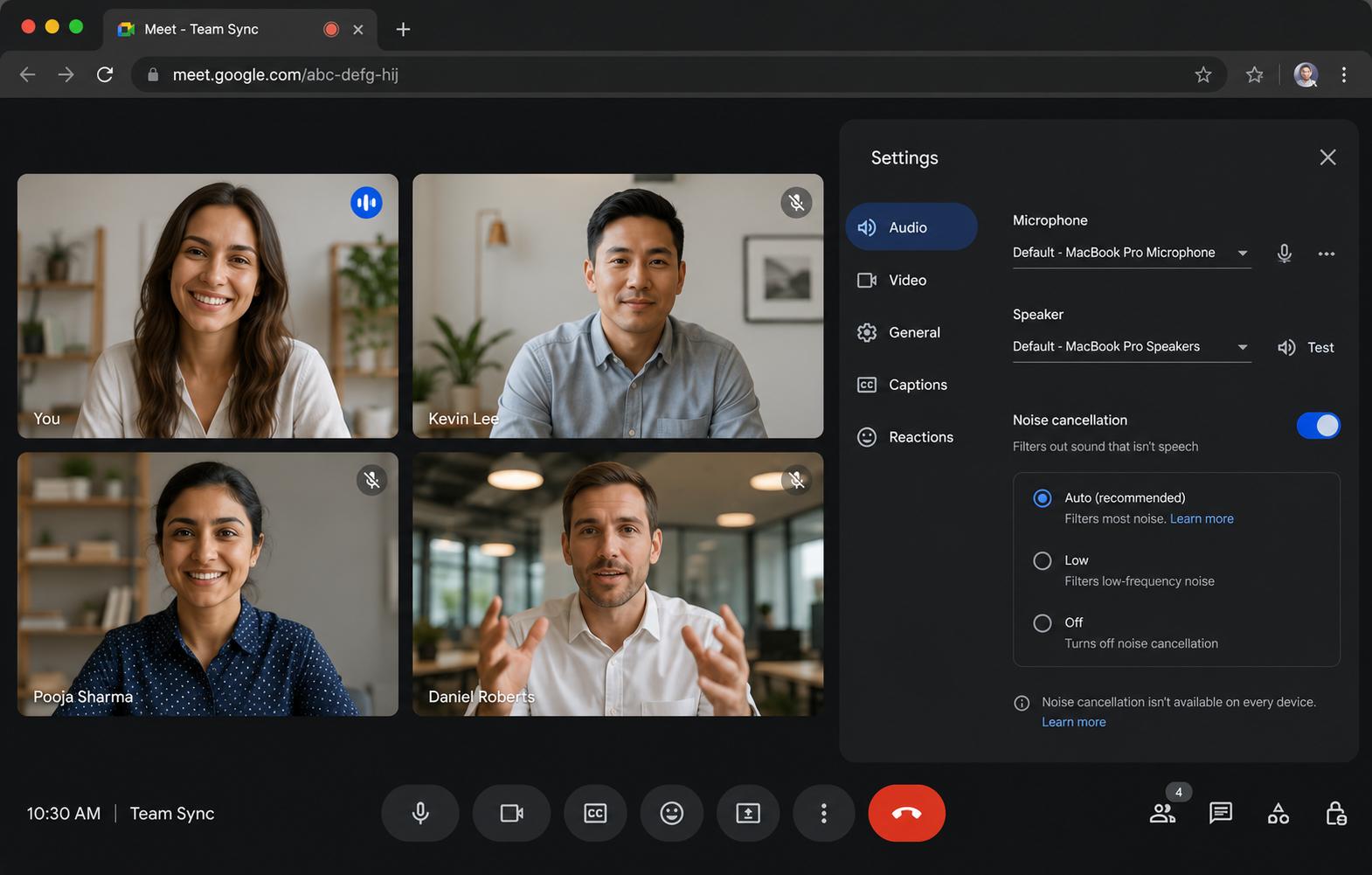
Best for: Google Workspace users hosting regular online meetings.
Pros
-
Built directly into Google Meet
-
No additional extension setup
-
Good for routine meeting noise reduction
Cons
-
Only works within Google Meet
-
Availability depends on account type
-
Cannot process existing media files
-
NVIDIA Broadcast (Chrome-compatible workflow)
NVIDIA Broadcast is a desktop application, but it’s commonly used together with Chrome-based meetings and browser recording tools. Its AI processing can dramatically improve microphone performance, especially for those with compatible NVIDIA graphics cards.
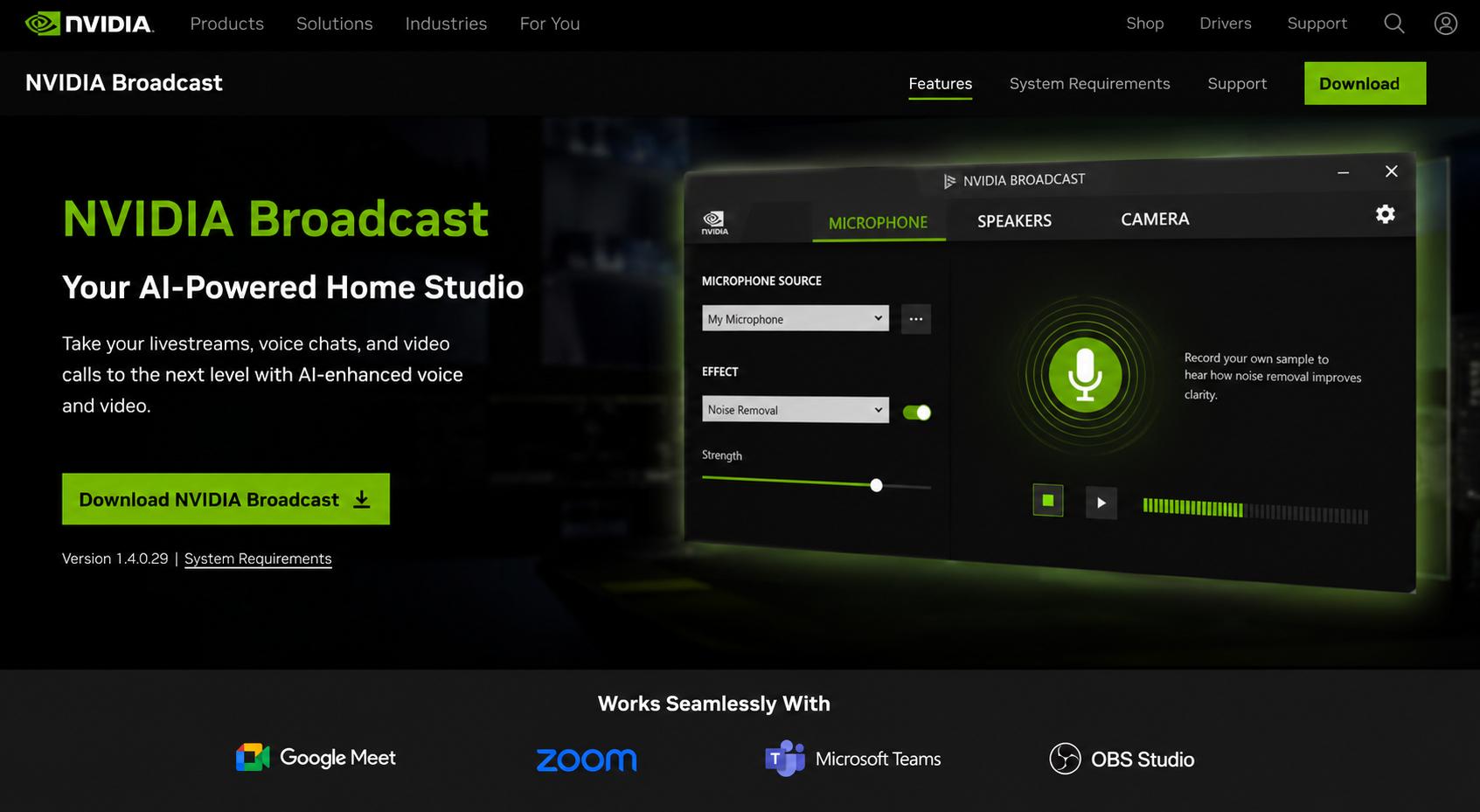
Best for: Content creators and professionals with NVIDIA GPUs.
Pros
-
Excellent AI speech enhancement
-
Handles challenging background noise well
-
Suitable for streaming and recording
Cons
-
Requires compatible NVIDIA hardware
-
Not a standalone Chrome extension
-
Higher system requirements than browser-based tools
How to remove background noise with a Chrome extension
Once you've chosen a background noise removal extension, setting it up usually takes only a few minutes. Most Chrome extensions focus on improving microphone audio during live meetings or browser-based recordings rather than editing existing media files. The steps below use Krisp as an example, but the process is similar to that of many other Chrome extensions.
Step 1: Install the Chrome extension
Go to the Chrome Web Store and search for Krisp or another chrome extension to remove background noise. Click Add to Chrome, finish the install, and allow the extension to access the microphone when it asks so it can work with your audio.
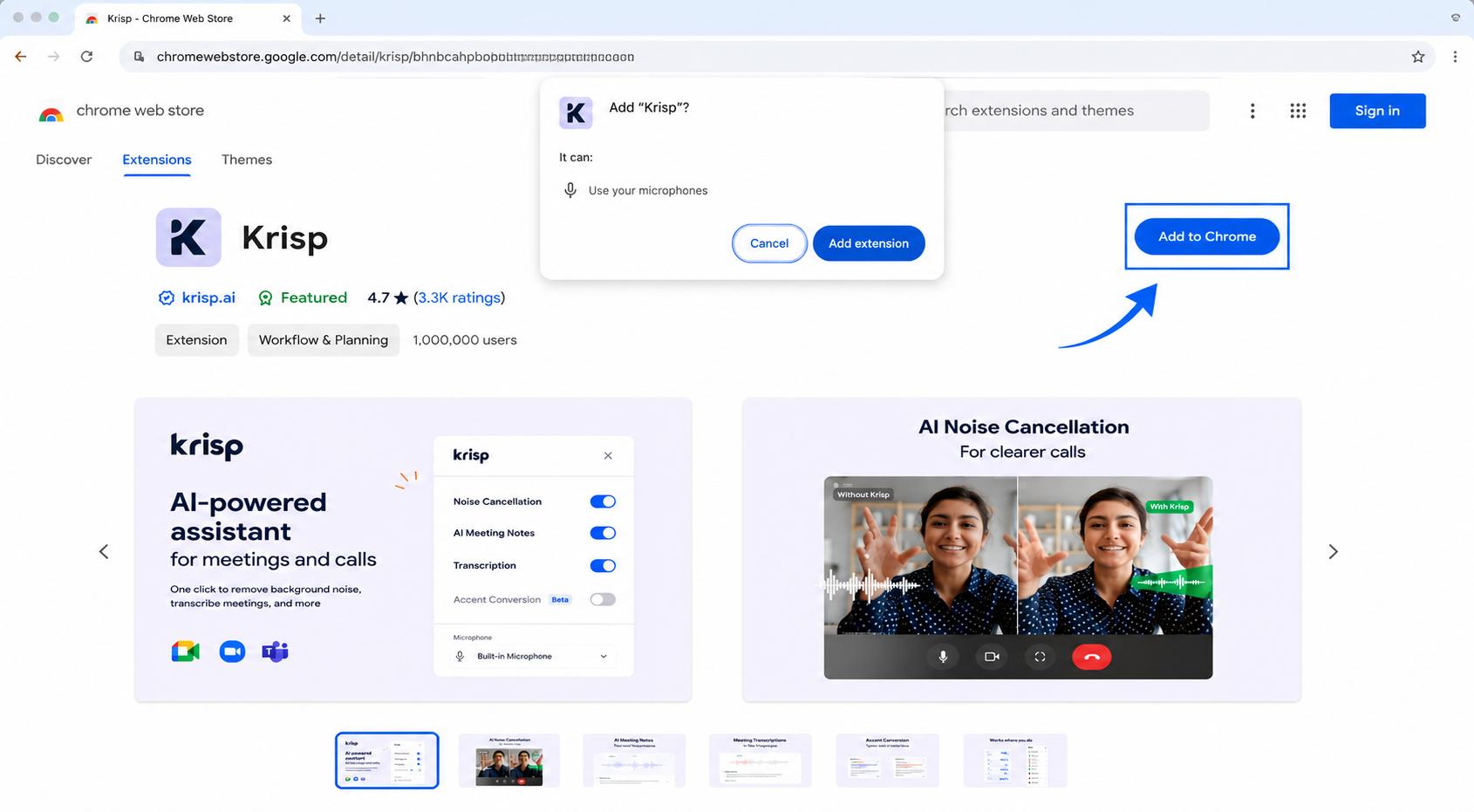
Step 2: Enable background noise removal
Launch the extension from the Chrome toolbar and turn on noise cancellation. Select your preferred microphone, then verify that background noise suppression is enabled before starting a meeting or recording.
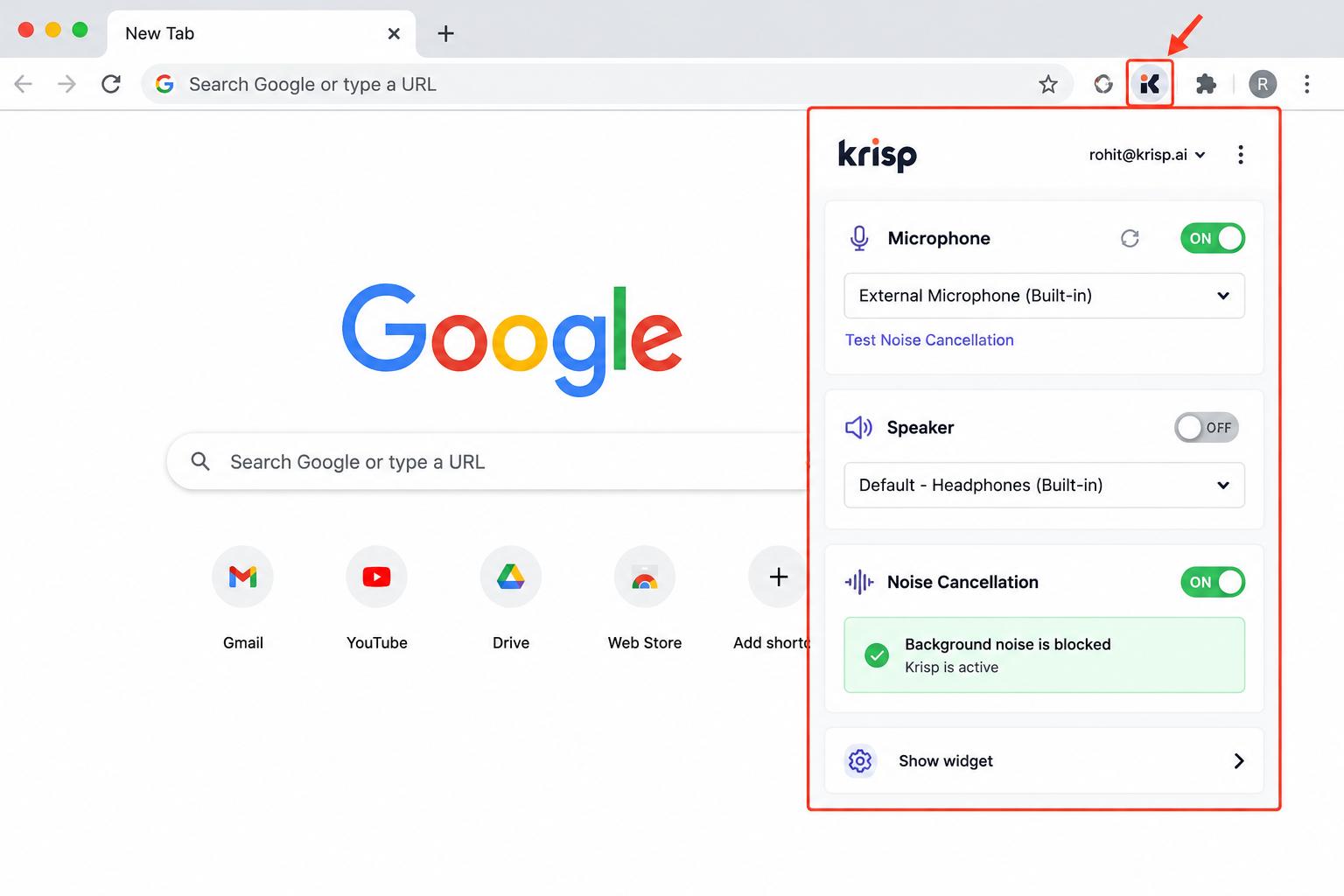
Step 3: Test and use the extension
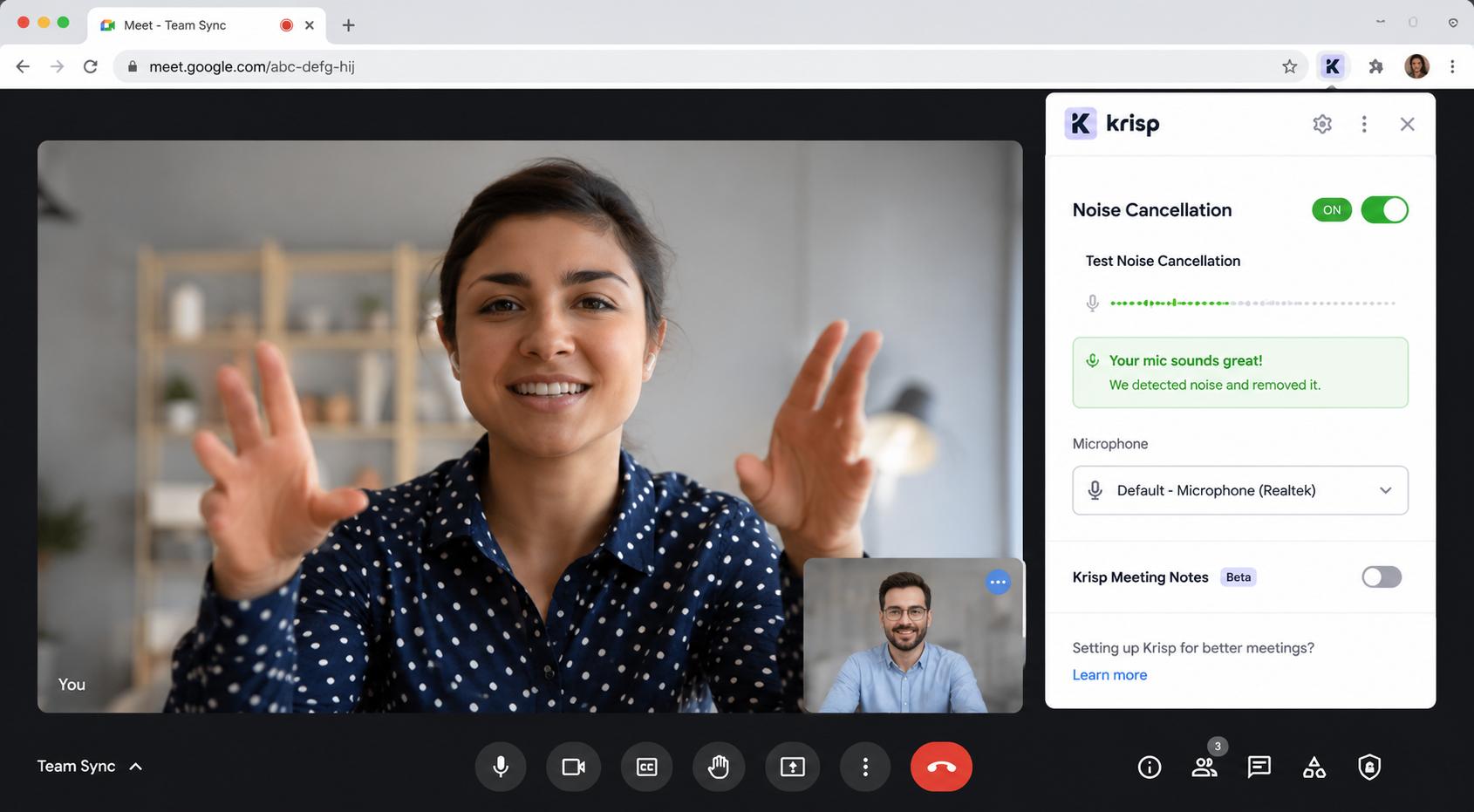
Test your microphone using the extension's audio check or by joining a meeting. Once everything sounds clear, use the extension during browser-based calls or recordings to reduce distracting background noise automatically.
Common limitations of background noise removal Chrome extensions
Chrome extensions are a handy tool for cutting out unwanted noise while browsing live, but they're not meant for every audio cleanup job. Most operate only with microphone input and provide limited editing options after a recording is complete. Understanding these limitations will help you determine when a browser extension will do the trick and when a standalone audio enhancement tool is the better choice.
|
Limitation |
Impact on users |
|---|---|
|
Browser-only processing |
Only works with live browser audio |
|
Cannot clean existing recorded videos |
Cannot improve previously recorded media files |
|
Cannot separate overlapping speakers |
Multiple voices remain difficult to distinguish |
|
Performance depends on microphone quality |
Better microphones deliver clearer noise reduction |
|
Browser permission issues |
Microphone access problems affect performance |
|
Limited AI models |
Struggles with complex background noise environments |
For live meetings and browser recordings, Chrome extensions can be a practical solution. However, if you're editing existing videos or audio files, you'll need a tool that can process recorded media instead of just microphone input. That's where AI-powered solutions like Vmake Labs AI Noise Remover help by enhancing speech and reducing unwanted background noise in uploaded videos.
Vmake Labs: Removing background noise from videos with AI
Whether you are restoring a webinar, cleaning up a YouTube video, or enhancing a customer testimonial, Vmake Labs Noise Remover makes it a cinch. The online AI tool takes the uploaded video files and makes the speech clearer by removing the distracting sounds, without needing complex editing skills. It provides a full workflow to clean recorded videos with clear voices and high export quality instead of relying on browser-based microphone suppression.
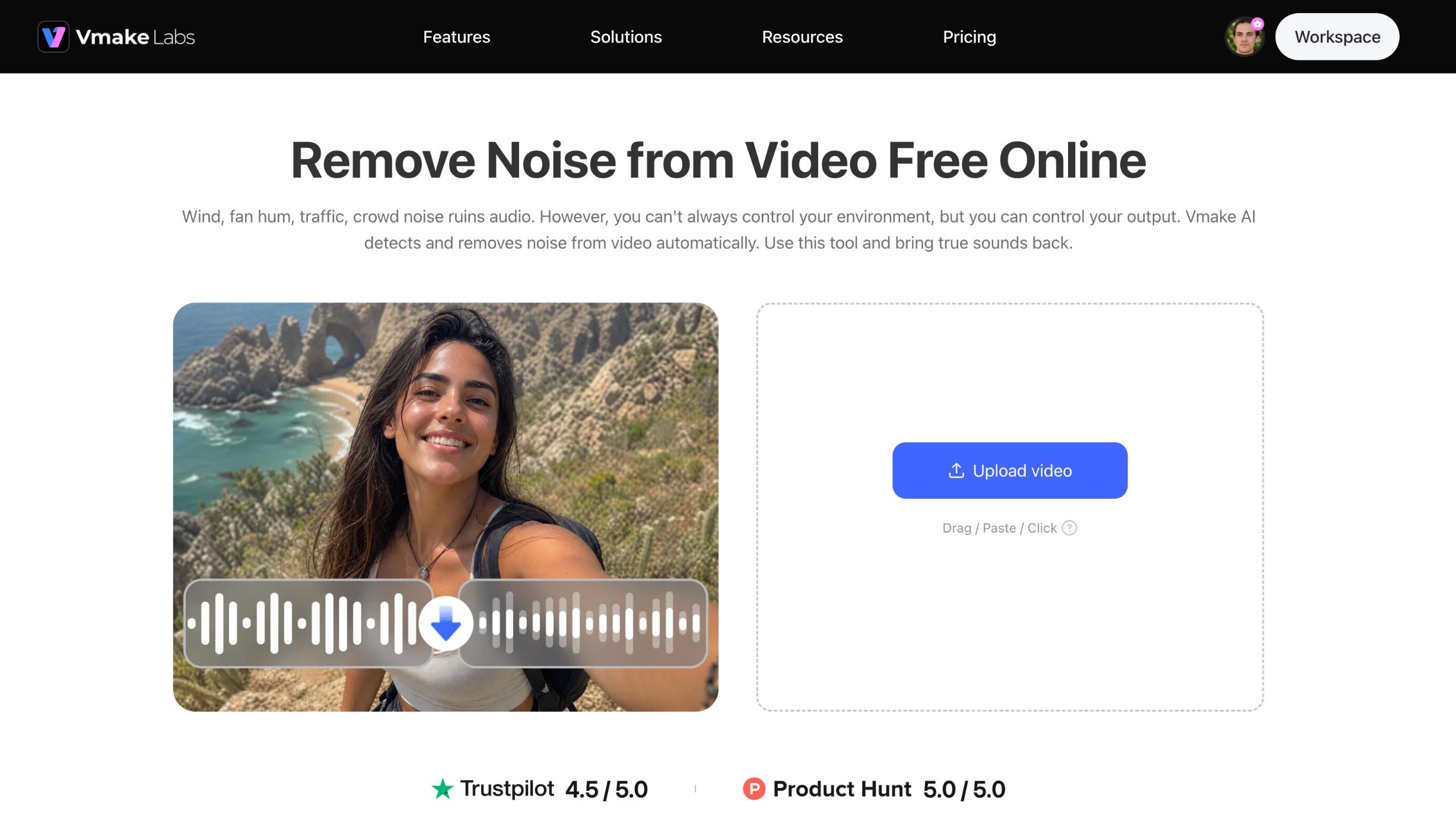
Features for removing background noise from videos
-
Automatically detect unwanted noise: Vmake Labs uses AI to identify unwanted sounds such as traffic, wind, keyboard clicks, fan noise, and background conversations. It automatically reduces these distractions while preserving the original speech, helping recordings sound cleaner with minimal manual effort.
-
Speech-focused audio enhancement: The AI prioritizes spoken dialogue instead of lowering every sound equally. This keeps voices natural, improves clarity, and makes conversations easier to understand even when the original recording contains challenging background noise.
-
High-quality video export: After processing, you can export your enhanced video with clear audio while preserving the original video quality. The result is suitable for tutorials, webinars, marketing videos, interviews, and other professional content.
How to remove background noise from videos
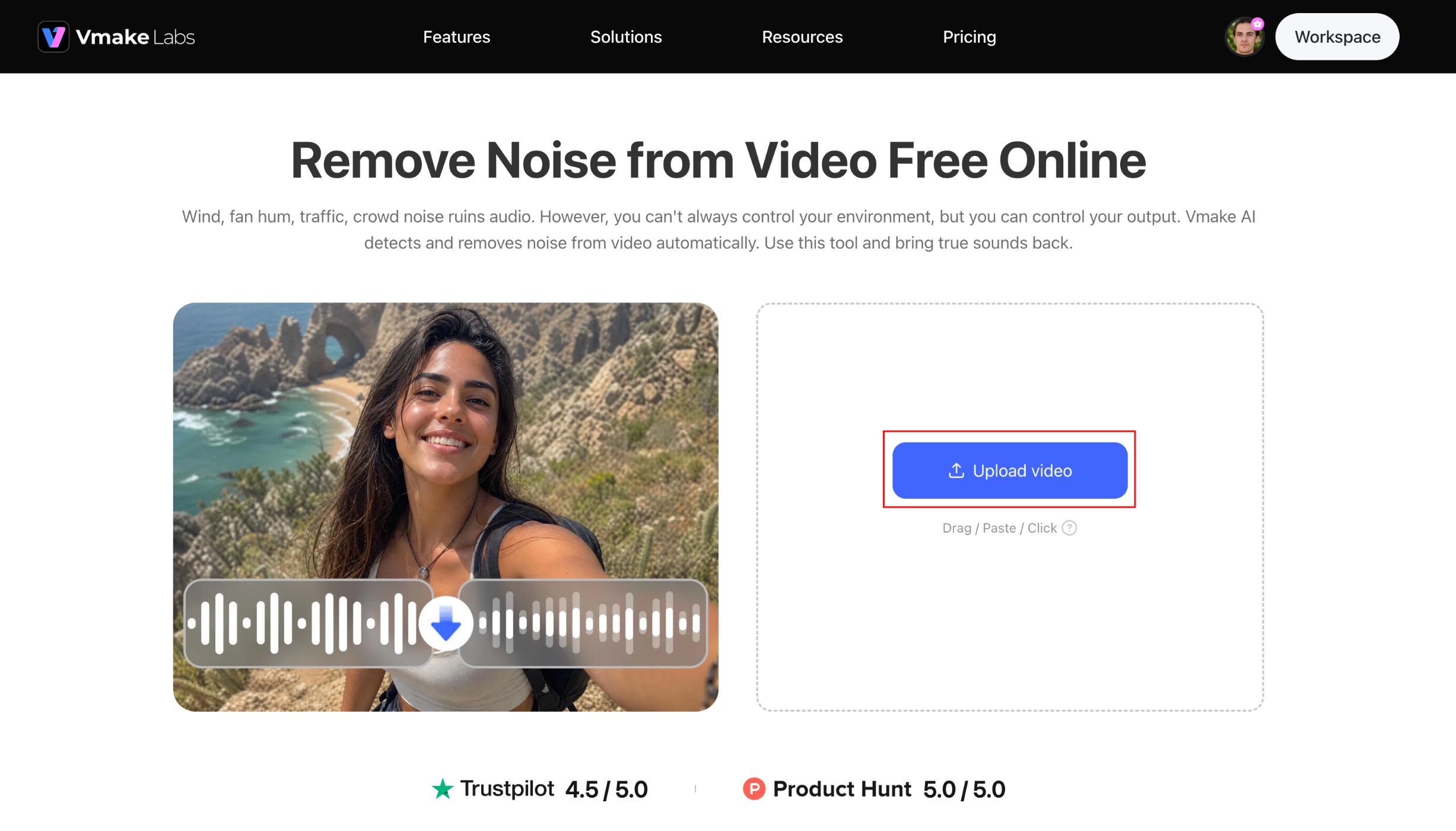
Step 1: Upload your video
Open Vmake Lab Remove Noise and upload the video you want to enhance. The online tool accepts supported video formats and prepares files for AI processing.
Step 2: Let the AI remove background noise
Start the enhancement process and allow the AI to analyze the audio. It automatically detects unwanted sounds while preserving speech for a cleaner listening experience.
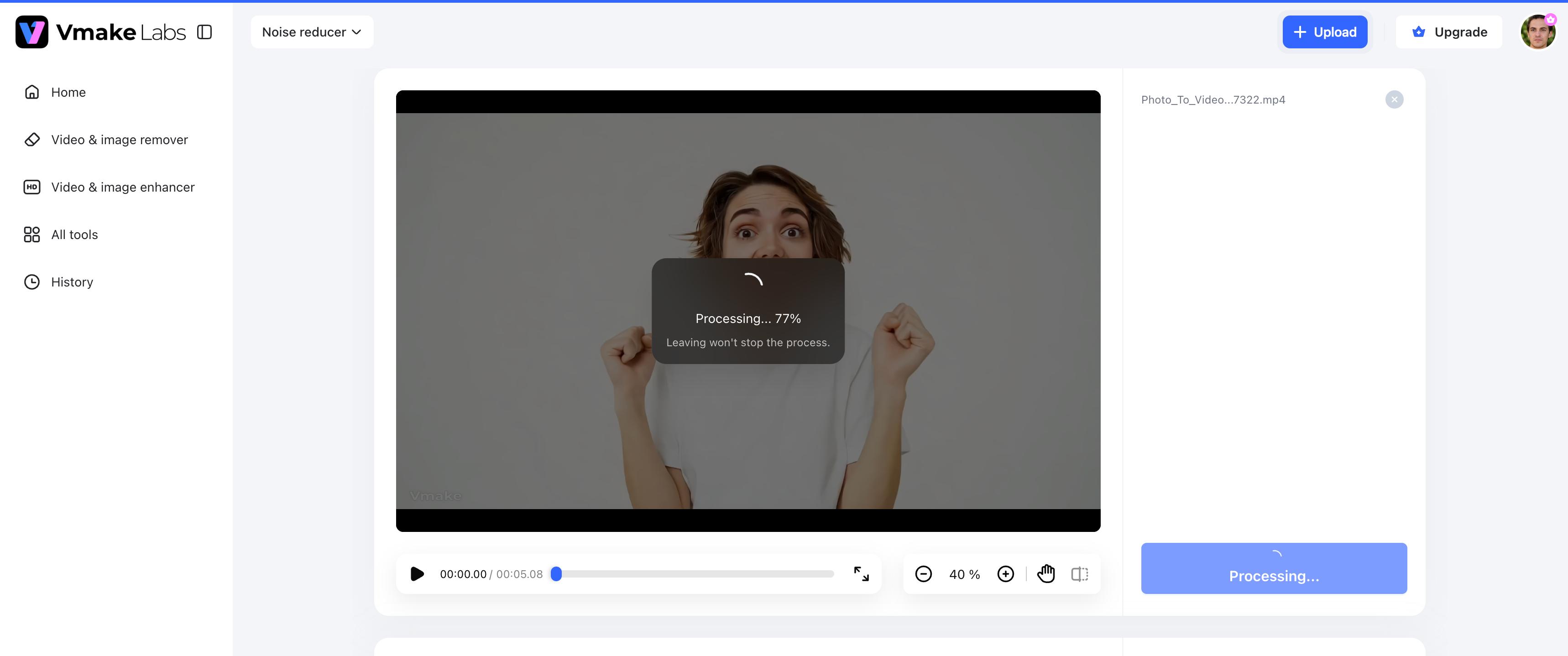
Step 3: Preview and export
Review the processed video to compare the improved audio with the original recording. Once you're satisfied, export the enhanced version for publishing, sharing, or further editing.
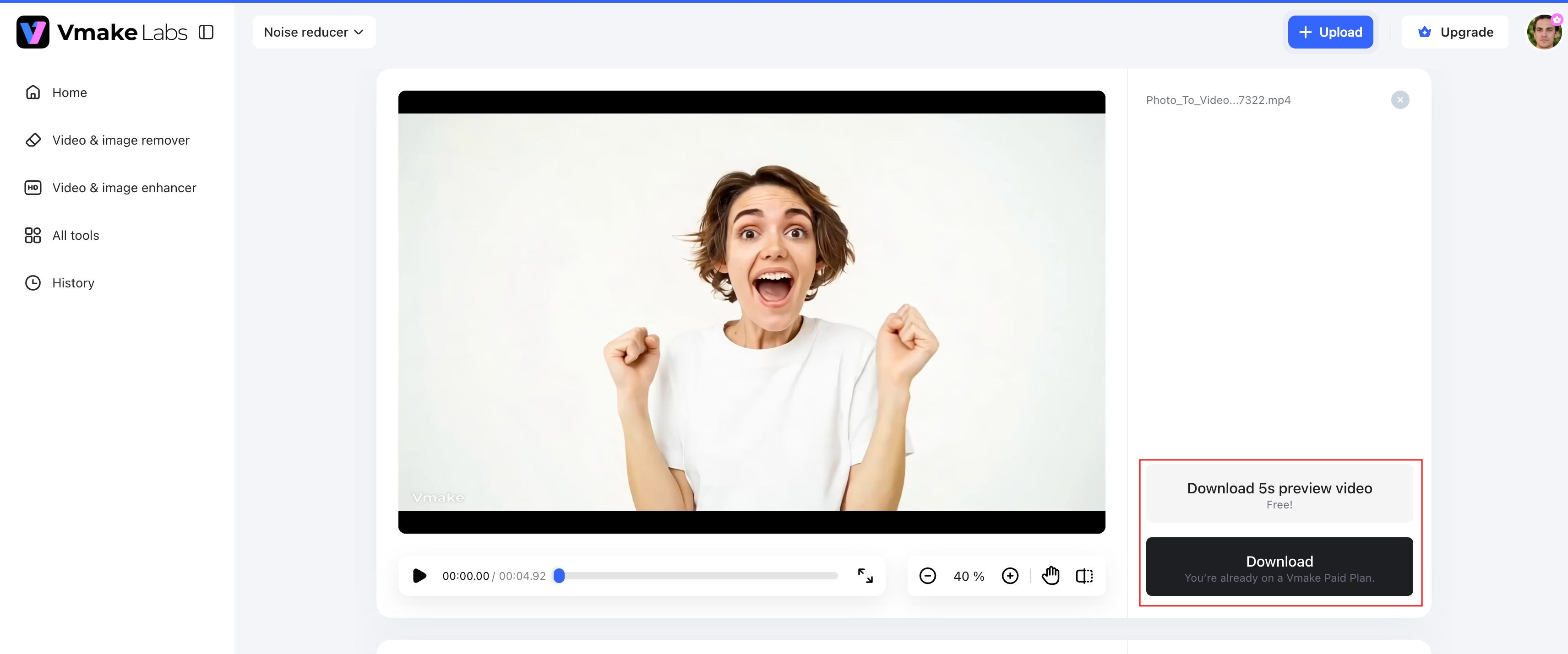
Tips for getting the cleanest audio after noise removal
Whether you're recording with a smartphone, webcam or dedicated microphone, there are some best practices you can follow to help you get cleaner and more professional results after processing.
-
Record close to the microphone: Your voice will be clearer, and less background sound will be picked up if you speak close to the microphone.
-
Reduce room echo: Record in a space with curtains, carpets, or soft furnishings to minimize echoes and improve speech quality.
-
Avoid clipping: Maintain a consistent audio level to avoid sound distortion that can't be corrected when noise is removed.
-
Use higher-quality source recordings: Clear recordings give AI more information to separate speech from unwanted sounds accurately.
-
Don't over-process audio: Applying excessive noise reduction may make voices sound unnatural or remove important details.
-
Preview before exporting: Listen to the boosted recording to make sure that speech is still clear and balanced before you download.
Conclusion
Chrome extensions are a simple way to reduce background noise for meetings and live recordings in the browser, so that everyday conversations sound better with a little effort. However, they are limited to improving the quality of existing audio and video files. For creators, educators, businesses and professionals working with recorded content, AI-powered processing offers improved accuracy in speech enhancement and better overall audio quality. Vmake Labs Remove Noise removes unwanted background sounds from uploaded videos while keeping natural voices, making it a practical tool for creating cleaner, more professional recordings without complicated editing.
FAQs
Can a Chrome extension remove background noise from existing videos?
Most Chrome extensions focus on live microphone input rather than uploaded media files. If you need to clean recorded videos, an AI tool like Vmake Labs Remove Noise can reduce background noise while preserving speech for clearer playback.
What's the difference between browser noise suppression and AI noise removal?
Browser noise cancellation filters microphone input live for meetings and recording. AI Noise Removal like Vmake Labs Remove Noise) analyses a video or audio file you already have, breaking down speech and unwanted sounds to better improve it.
Do Chrome background noise removal extensions work offline?
Some Chrome extensions work offline, but some have limited offline functionality or need processing on the browser or internet connection. Vmake Labs and other online AI tools allow you to edit uploaded videos without any desktop software.
Can AI improve speech while removing background noise?
Yes. Modern AI tools are designed to reduce unwanted sounds while preserving speech clarity. This allows voices to remain natural and understandable without introducing noticeable distortion.
Will removing background noise reduce video quality?
Background noise removal mainly enhances the audio track, so it doesn't have to affect video quality. Vmake Labs Remove Noise preserves the original video while improving audio clarity, helping you export cleaner, more professional recordings.

You May Be Interested
How to Get Clear Background Noise Removal in Premiere Pro
How to Remove Background Noise in Audacity: A Complete Guide
How to Remove Background Noise from Audio: Step-by-Step Guide