How to Blur Background in Zoom on Desktop & Mobile
 Ken DawsonFebruary 28, 2026
Zoom video calls are now part of everyday life, whether you’re working remotely, attending online classes, or meeting clients. But not everyone has a perfectly tidy or distraction-free space behind them. So, knowing how to blur background in Zoom helps you stay professional, protect your privacy, and keep the focus on you instead of your surroundings. In this guide, you’ll learn how to make background blur in Zoom on desktop and mobile.
Step-by-Step: How to Blur Background in Zoom on Desktop
Using Zoom on a computer gives you the easiest access to its built-in background tools. Its blur background feature works on most modern laptops & PCs, and it’s the easiest way to soften your background without using a virtual image. However, you will need the latest version of Zoom and an account. It can be enabled before or during a meeting, helping you stay focused without distractions. Here is how to blur the background in Zoom:
Step 1: Open Zoom Settings
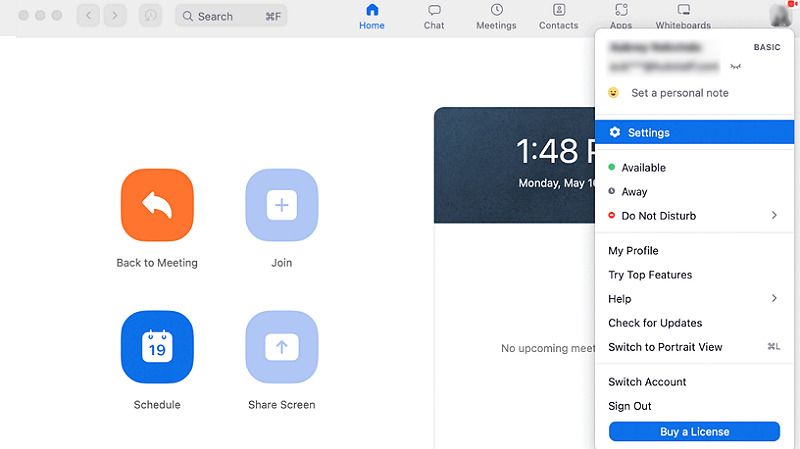
Open the Zoom desktop app and sign up or log in to your account. Click on your profile image and tap “Settings.”
Step 2: Select Backgrounds
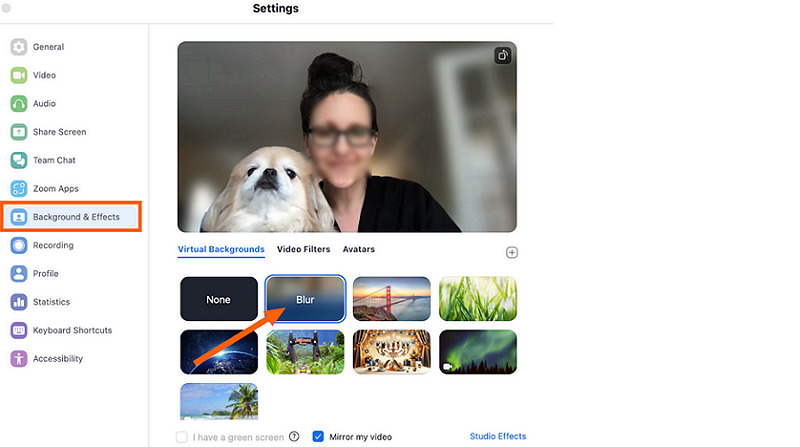
Next, press the “Background & Effects” tab from the side column. Scroll to the “Virtual Backgrounds” and select “Blur.” You’ll see the blurry background.
 Step 3: Blur Video Background
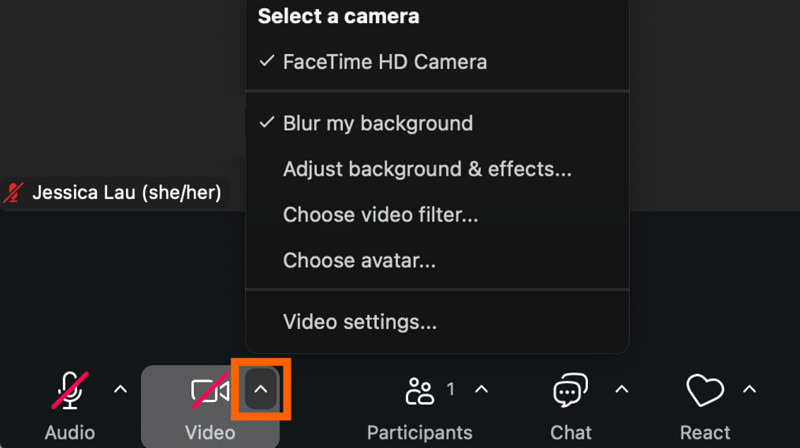
But if you are already in a meeting without blurring the background, tap the “^” icon next to “Start Video/Stop Video.” Then, choose “Blur my background.” All done!
How to Blur Background in Zoom on Mobile
For those who prefer joining meetings from their phone or tablet, Zoom still lets you keep your surroundings private when you’re on the move or in a busy space. The feature is built into the new Android and iOS devices and can be enabled in a few taps, making it perfect for quick calls and remote check-ins. Let’s comply with the given steps on how to blur background in Zoom:
Step 1: Open More Settings
After signing up or logging in to your account, click the “More” button from the controls on the home screen.

Step 2: Choose Backgrounds
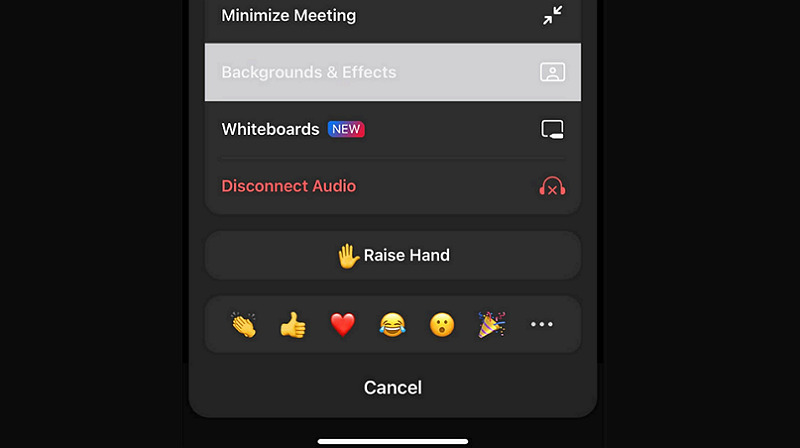
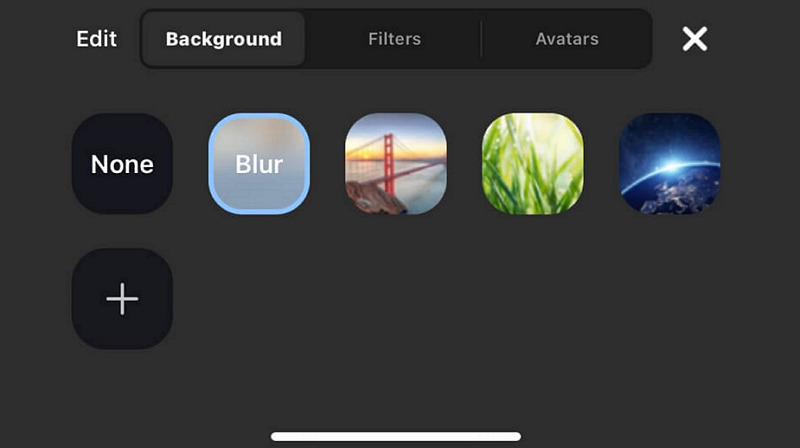
Next, you have to find and click the “Backgrounds & Effects” tab to see available background options.
Step 3: Apply Blur Effect
Lastly, select the “Blur” effect, then join or return to the meeting. You will see the background instantly become blurry.
Common Zoom Background Blur Issues (From Reddit & Forums)
Even though the background blur feature is simple, many users on Reddit and the Zoom community report problems enabling it. Here are the most common complaints and fixes:
Blur Option Not Showing
A common thread on Reddit involves the blur option vanishing entirely after a software update. Forums suggest this is often a whitelist issue, where Zoom’s new version doesn’t yet recognize a specific processor (like the Google Pixel 10 or newer Intel chips).
If you are on a computer, try downloading the 64-bit version of Zoom specifically, or use the Winget command to reinstall it. Mobile users often have to wait for a hotfix update (like version 6.6.10) to restore the feature.
The “Disappearing User” Glitch
Many users report that when they enable blur, their own image disappears, leaving only a blurred background or a black screen. This usually happens because the software is struggling to distinguish you from your surroundings.
Improve your lighting and avoid a low-resolution webcam. Sit facing a light source and avoid bright windows behind you. Zoom’s blur works best when your face is clearly visible.
Grainy or Pixelated Edges
Users often complain that the blur eats their hair or ears, or that parts of the background flicker in and out around their shoulders. This is typically a sign that the computer’s processor can’t keep up with the real-time video processing.
To avoid this, close other high-power apps (like Chrome tabs or Photoshop) before your meeting. Also, avoid wearing clothes that match your wall color, as this makes it much harder for the AI to detect your edges.
The Portrait Lighting Override
Some users find that their background is blurred even when the blur setting is turned OFF. Forum members discovered that a separate feature called Portrait Lighting can actually trigger a subtle, permanent blur.
Always use the official Zoom Desktop App or Mobile App. If you must use a browser, stick to Google Chrome or Microsoft Edge, as Firefox and Safari often block the background features for security reasons.
FAQs about How to Blur Background in Zoom
1. Why doesn’t my Zoom have a blur option?
Your computer may not meet the hardware requirements. Older processors often struggle to separate you from your background. Also, check that your Zoom app is fully up to date.
2. How can I update Zoom?
Launch the desktop app, then click your profile picture in the top-right corner. Select “Check for Updates” from the list. If an update is available, follow the steps to install it.
3. Is the background blur available for free?
Yes, the background blur feature is completely free for all Zoom users, including those on the Basic (free) plan. You do not need a paid subscription.
4. Does background blur work with external webcams?
Yes. The blur effect is handled by the Zoom software on your computer, not the camera itself. Most modern USB webcams support background blur without issues.
Extra Tips: Remove Video Background in One Click
Blurring your background in Zoom works well for live meetings, but sometimes you need to completely remove or replace a video background, especially for tutorials, presentations, and marketing videos. In that case, Vmake Background Remover is an ultimate solution.
Unlike Zoom, this remarkable online tool can fully isolate the subject and swap the background with transparent or green color in pre-recorded videos. Its one-click processing makes it useful for educators, remote professionals, and content creators who want polished visuals without complex editing.
Features:
Offer a user-friendly interface, suitable for beginners
AI-driven background removal without green screen
Help remove the background without losing quality
Support multiple formats, i.e., MP4, MOV, WebM, etc.
Remove background from multiple videos at once
Step-by-Step Guide to Remove Video Background:
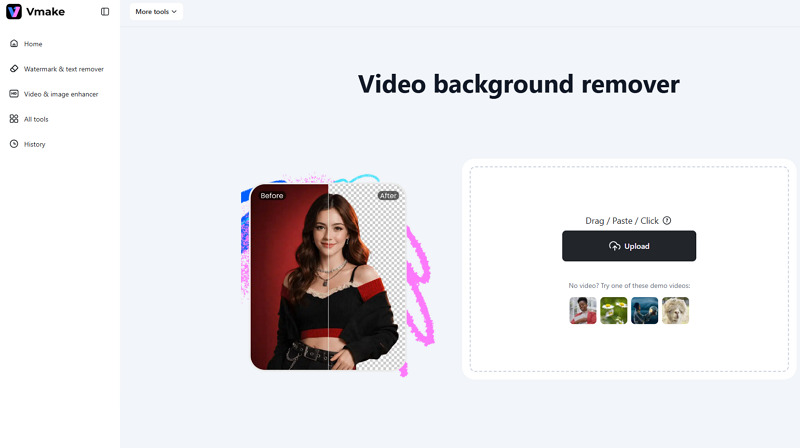
Step 1. Upload Video File
First of all, open the Vmake Video Background Remover in your browser. Now, drag & drop or click to upload the video file.
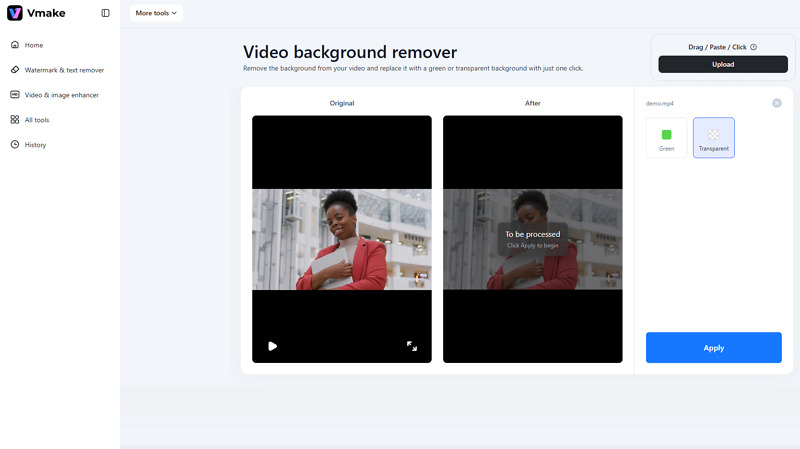
Step 2. Choose Transparent Background
Next, select the “Transparent” option for quick background removal or “Green” to add a green screen for later editing. Tap “Apply.”
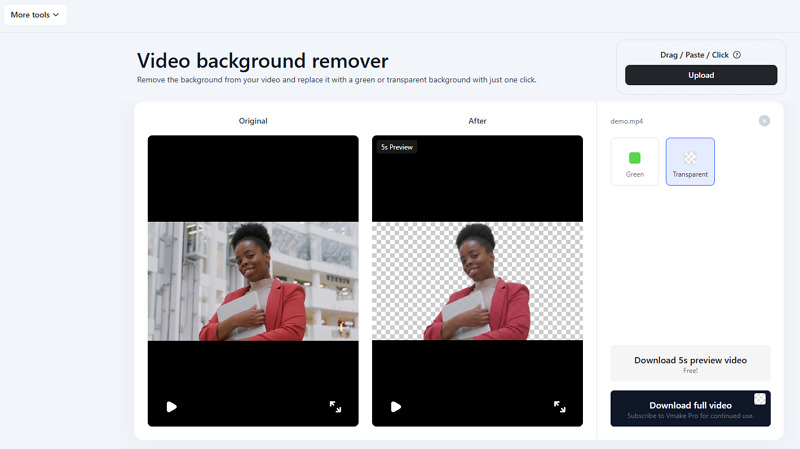
Step 3. Preview and Download
Once the AI finishes its processing, hit “Download 5s preview video” or “Download full video.” That’s all!
 Conclusion
After reading this post, you should now know how to blur my background in Zoom to reduce distractions and protect your privacy during meetings. Whether you’re on a desktop or a mobile device, the built-in blur feature takes only seconds to enable and works well for most meetings.
However, if you need more than a simple blur, such as fully removing or replacing a background in recorded videos, try Vmake Background Remover for extra flexibility and control.

You May Be Interested

5 Best Free Green Screen Video Backgrounds for Creators