[2026] OBS Background Removal: How to Remove Background in OBS Easily
 Vmake Labs TeamFebruary 22, 2026
Creating a professional look for live streaming, YouTube content, or Zoom meetings still starts with the green screen. This solid-colored backdrop is also the top choice for OBS background removal as it can be isolated with high precision and replaced with gameplay or custom graphics.
However, a proper setup (even lighting, distance from background, minimal wrinkles) is crucial to give your viewers a sharp, polished experience that looks like a high-end studio. Today, you will learn how to remove background OBS, with or without a green screen.
How to Remove Background in OBS with Green Screen
If you want to remove the background of a live broadcast or a recording, OBS Chroma Key is the perfect solution. It can quickly cut out the portrait, providing the highest results by adjusting smoothness, contrast, etc. Here are the steps of background removal OBS:
Step 1: Set Up the Green Screen
Firstly, make sure the green screen is properly set up. You can use any green material, but it’s best to use specialized green-screen fabric to avoid inconsistencies.
Step 2: Configure OBS Settings
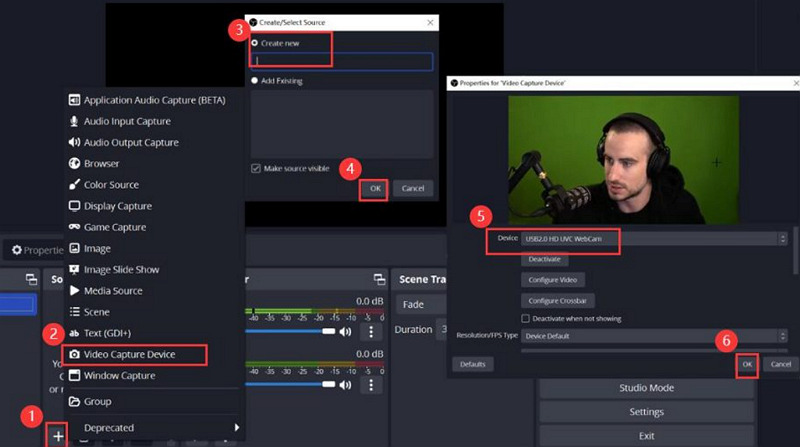
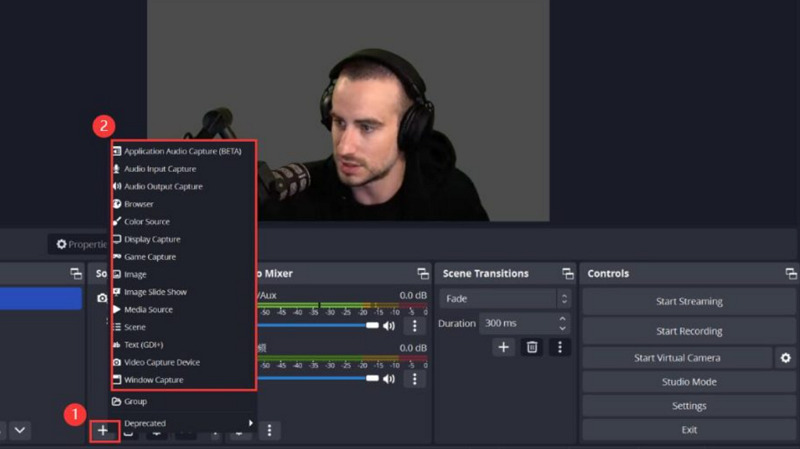
Now, download, install, and launch OBS. Then, click the “+” icon under the “Source” window. Pick the “Video Capture Device,” enter a name, and choose the camera from the drop-down list. Click “OK.”
Step 3: Apply Chrome Key
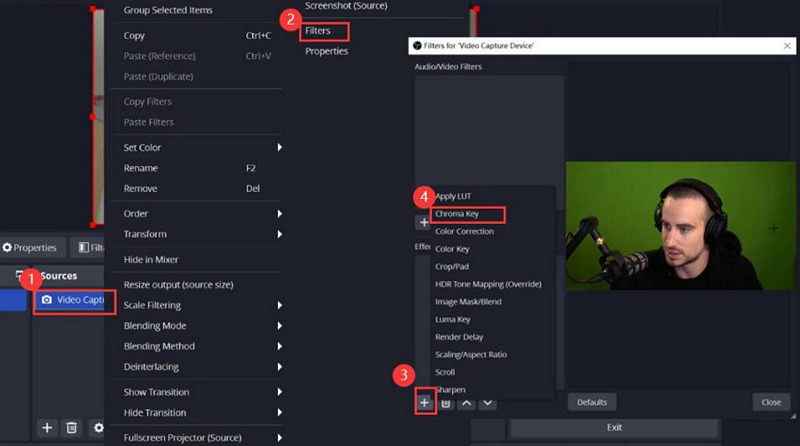
It’s time to right-click the camera source in the “Sources” list and select “Filter.” From the “Effect Filters” section, tap the “+” icon and choose “Chroma Key” from the list. Name the filter and hit “OK.”
Step 4: Make Adjustments
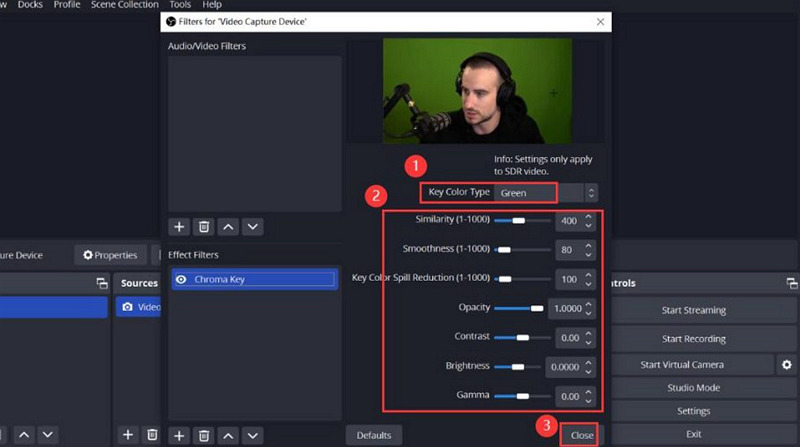
Next, choose “Key Color Type” as green, and adjust the sliders for similarity, smoothness, key color spill reduction, and other parameters. Click “Close” when you are done.
Step 5: Start Recording
If you want to replace the background, click the “+” icon under the “Source” window again. Choose the media type and the corresponding source. Then, hit “OK.” Once you’re done with all the settings, press the “Start Recording” button.
Need a Green Screen Background for Your Video? Try Vmake!
Whether you don’t have a green screen background or need a more automated solution, Vmake Video Background Remover is an excellent choice.
This AI-powered online tool lets you instantly replace your background with a green or transparent background without any physical setup. Supporting MOV, MP4, and WebM formats, its smart technology can detect and erase unwanted backgrounds in a single click for various projects.
With a user-friendly interface, it can also remove the background from multiple videos at once. Even the processing will be fast and lossless, delivering the best possible output quality.
Step-by-Step Guide to Use OBS Remove Background Alternative:
Step 1. Upload Video File
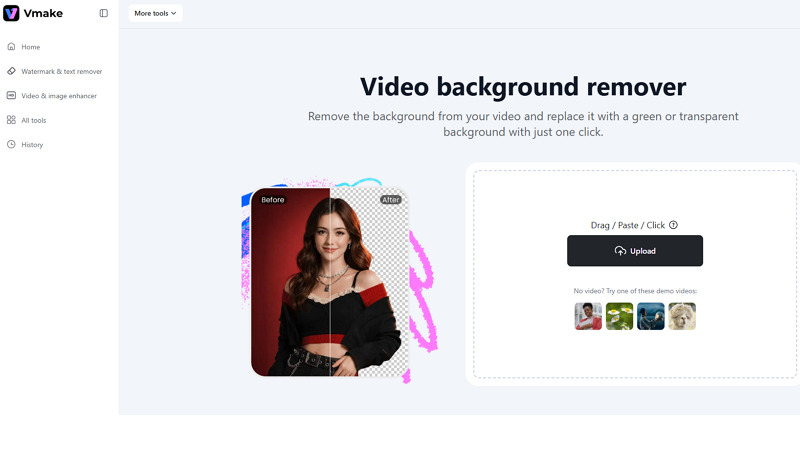
After opening the Vmake Video Background Remover tool in your browser, drag & drop or click to upload the required video.
Remove Background from Video Now!
Step 2. Select the Background
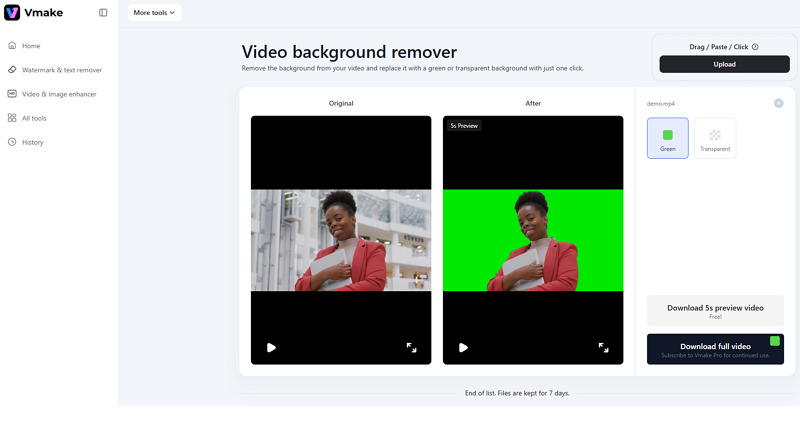
After processing, you can select the “Green” option to apply to one or multiple videos to let AI do its magic.
Step 3. Preview and Download
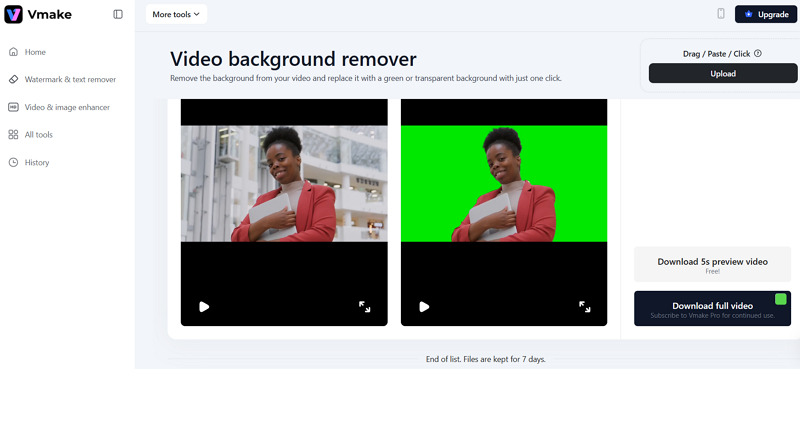
Lastly, you can preview the output. If it looks fine, press the “Download 5s preview video” or “Download full video.” That’s all!
 How to Apply OBS Background Removal Plugin
For those needing OBS remove background without green screen, an advanced plugin can be a game-changer. This powerful OBS background removal plugin uses AI-powered separation technology to effortlessly erase and replace your video background, even without a green screen.
However, you must have OBS 28+ and a 64-bit system. Since it was added recently, it’s still not integrated with the initial OBS installation. But don’t worry; here are the steps on how to install and use this OBS background removal tool correctly:
Step 1: Open the OBS Resources
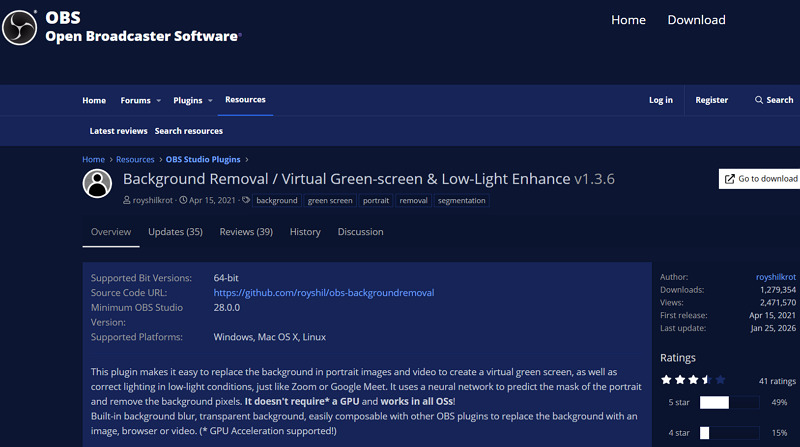
Open the background removal plugin on the OBS Studio website and press the “Go to Download” button.
Step 2: Download Background Removal Plugin
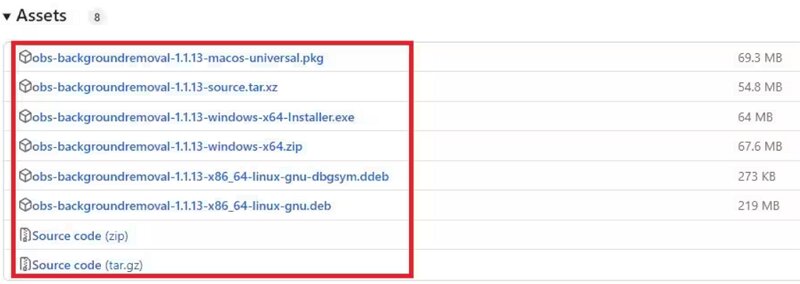
Now, click the background removal zip file for Windows 64 because the Windows firewall can block the installation wizard. You may install it for Mac or Linux, depending on your system.
Step 3: Extract the Plugin Folder
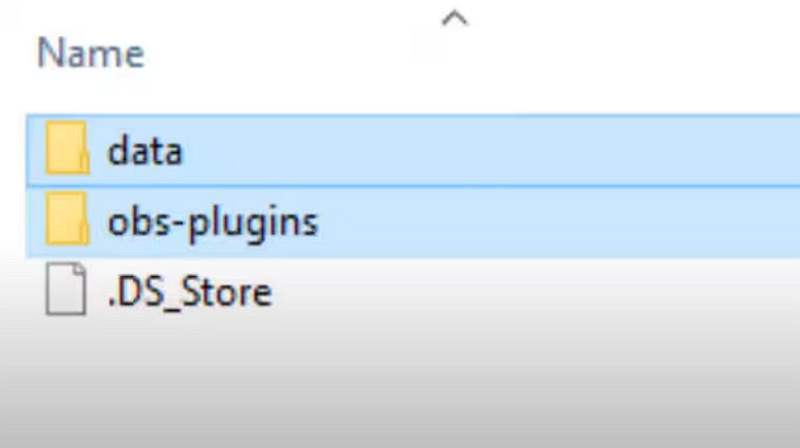
After the download completion, extract the ZIP file. Then, access the “obs-backgroundremoval-win64” folder. Then, select “data” and “obs-plugins” folders, right-click them, and tap “Copy.”
Step 4: Integration with OBS
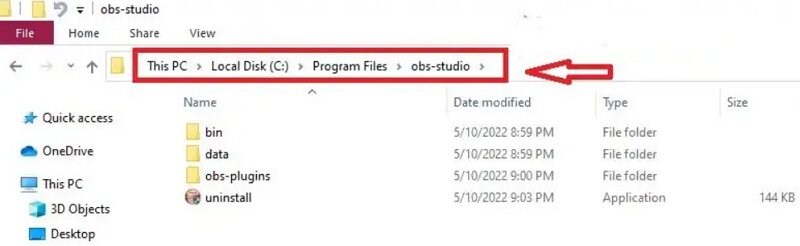
You have to paste them into the OBS Studio folder. By default, it’s “C > Program Files > obs-studio.” Make sure that OBS isn’t running when installing and extracting the plugin. If not, restart the software after installation.
Step 5: Select Video Capture Device
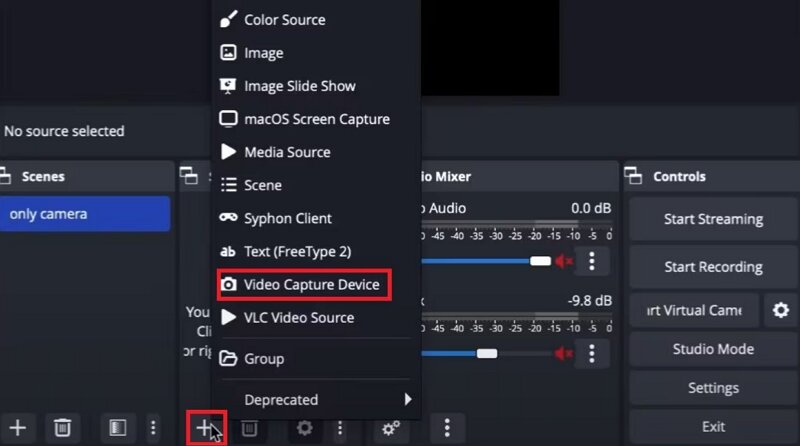
After installing the plugins, launch OBS, click “+” under the “Sources” section, and choose “Video Capture Device.” Select your webcam under the “Device” drop-down list, and click “OK.”
Step 6: Choose Background Removal
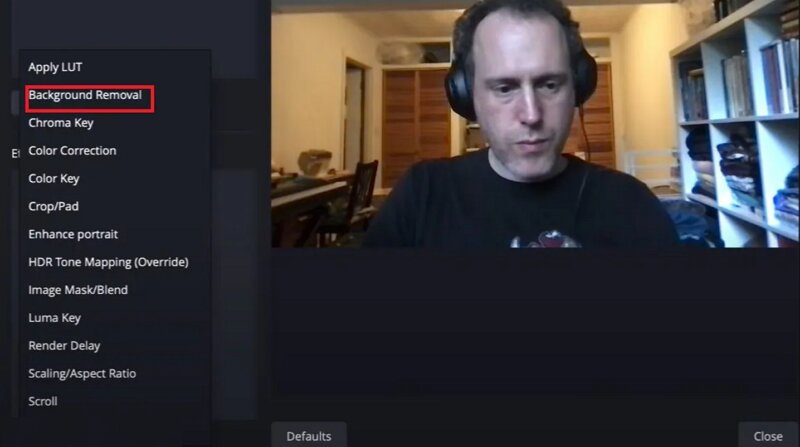
Next, click the “Effect Filters” icon, tap the “+” button, and pick “Background Removal.” You can change the parameters manually or click “Select Color” and pick “Green.”
How to Remove Background in OBS with a Virtual Camera
Do you know that OBS can also remove your video background for streaming platforms? The OBS virtual camera output can be used in Zoom, Teams, Discord, or other similar software instead of using the basic filters built into those apps. Here is how:
Step 1: Apply Background Removal Filter
Whether you’re using a Chroma Key for a green screen or a plugin, make sure to apply the background removal filter. This will ensure the background is removed when OBS sends the output.
Step 2: Enable Virtual Camera
Next, click the “+” button in the “Sources” box to add a Video Capture Device. From the bottom-right of the OBS, click “Start Virtual Camera” under the “Controls” dock.
Step 3: Enable Virtual Camera
In Zoom, Teams, or other software, select the “OBS Virtual Camera” as your video source. Your OBS output with the removed background will now be displayed. That’s all!
Which is Better? Remove OBS Background with or without Green Screen?
Deciding between a physical green screen and a software-based plugin depends on your priorities, i.e., professional precision and space. While AI-powered removal has improved significantly in 2026, the traditional green screen remains the gold standard for high-end broadcasts. Here is a comparison chart to help you choose the right method:
|
Feature |
Green Screen |
No Green Screen |
|
Precision |
High |
Moderate |
|
Setup |
Require space and lighting |
Just installation |
|
Consistency |
Stable |
Variable |
|
Cost |
High |
Low |
|
System Resources |
Low |
High |
|
Ideal for |
High-quality production |
Users on the go |
Common OBS Background Removal Issues
While using the background remover OBS is usually straightforward, technical glitches can occasionally disrupt your stream. Let’s address some common issues:
OBS Background Removal Not Working
Sometimes, the OBS background removal effect might not work as expected. This could be due to poor lighting, a messy background, or incorrect Chroma Key settings. But if you’re using a plugin, your camera source may be inactive. Double-check your setup and adjust the settings accordingly.
High CPU Usage and Performance Drops
Using background removal, especially with plugins, can consume significant system resources. If you notice stream lagging or your computer fans spinning loudly, try lowering the resolution or quality settings in OBS. Upgrading your GPU can also help improve performance.
Compatibility and Crash Problems
Why does OBS crash when I remove background? It may be due to outdated plugins, or the version may no longer be compatible after the OBS update. Make sure OBS, the plugins, and drivers are up to date. If the problem persists, turn off other heavy filters.
FAQs About OBS Background Removal
1. How to remove background noise in OBS?
To reduce the background noise of PC fans, air conditioners, or keyboard clicks, position your microphone away from the noisy equipment. Otherwise, try the OBS background noise removal filter to reduce unwanted sounds.
2. Which one is better, NVIDIA Broadcast or a solid background removal plugin?
It depends on your preferences. However, NVIDIA background removal OBS delivers the best results. But the drawback is its hardware requirement. It is only available for PC users with an NVIDIA GPU.
3. Can OBS blur the background?
Yes, you can blur the webcam background using free plugins like OBS Studio background removal. You only need to install it into the OBS plugins folder. While applying it as an effect filter, adjust the Blur Background Factor slider.
Conclusion
Whether you choose to use a green screen or an AI-powered plugin, OBS background removal can dramatically improve the quality of your streams, recordings, or video calls. If you don’t have a green screen, the OBS Background Removal Plugin is a fantastic solution. For those seeking a hassle-free way to remove video backgrounds or add green screen instantly, Vmake Background Remover is the top choice. Try it today and enjoy one-click background removal!

You May Be Interested

123APPS Watermark Remover Review (2026): Pros, Cons, and Pricing

Seedance 2.0 vs Sora 2: Which AI Video Generator Wins in 2026?

Top 20 Captions to Make Your YouTube Shorts Go Viral

Google Gemini|Copy Paste This Simple Prompts to Create “Hug my younger self ” Photos