Remaker AI Image Enhancer: Features, Pricing, Limitations & Alternative
Wondering if Remaker AI image enhancer is worth it? Read our detailed review covering its features, pricing, pros, cons, and overall performance. Use Vmake Labs to enhance your images instantly.

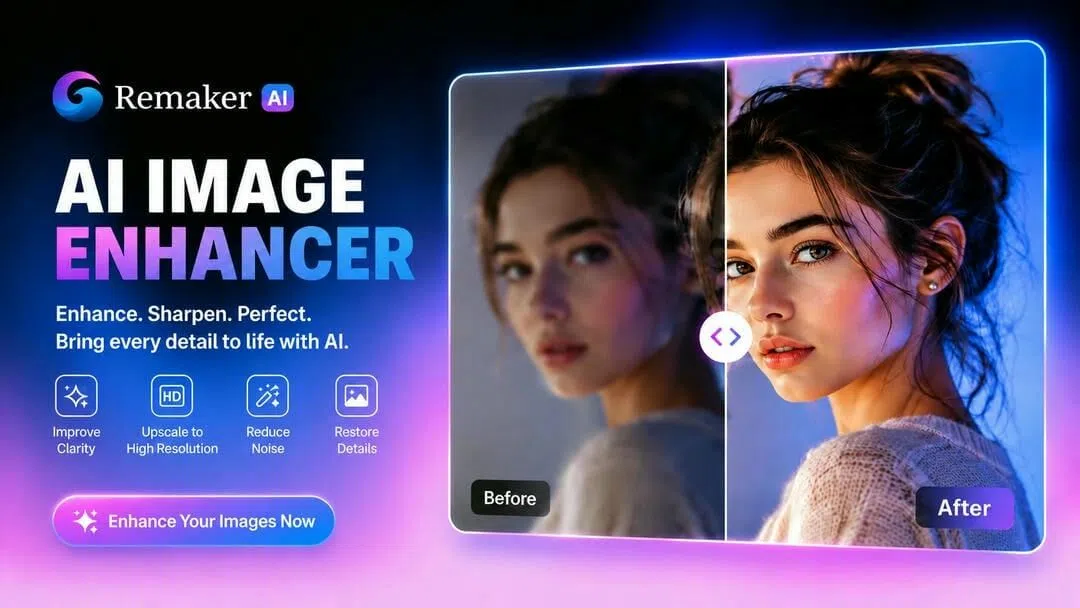
Whether it's restoring family pictures to fix those blurry portraits or enhancing product images for social media, AI image enhancers can help you save hours of manual editing. In this article, we review Remaker AI Image Enhancer, including its features, pricing, limitations, real user feedback and a powerful alternative to consider.
What is Remaker image enhancer?
Remaker AI image enhancer is an online AI-powered photo enhancement tool that provides a quick way to enhance image quality in just a few clicks. No need to manually adjust sharpness, noise or resolution. Users upload an image, and the AI automatically analyzes and enhances the image.
The tool supports a number of enhancement features, like image upscaling, face enhancement, denoising, blur removal, and old photo restoration. Because it runs completely in the browser, no software installation or photo editing experience is required to use it. It's widely used by photographers, ecommerce sellers, marketers, students and regular people who want better, high-quality images fast.
Key features of Remaker AI image enhancer
Remaker AI combines multiple enhancement technologies into one platform, simplifying the process of improving various types of images without needing advanced editing skills. These are the main features and how they each help to produce clearer, higher-quality photos.
-
AI image upscaling
Remaker AI can upscale low-resolution images and tries to retain details and textures. Traditional resizing methods tend to create blurry images. AI predicts what is missing to create a sharper, cleaner image. This feature is great for printing photos, enhancing social media images, or enlarging old digital pictures.
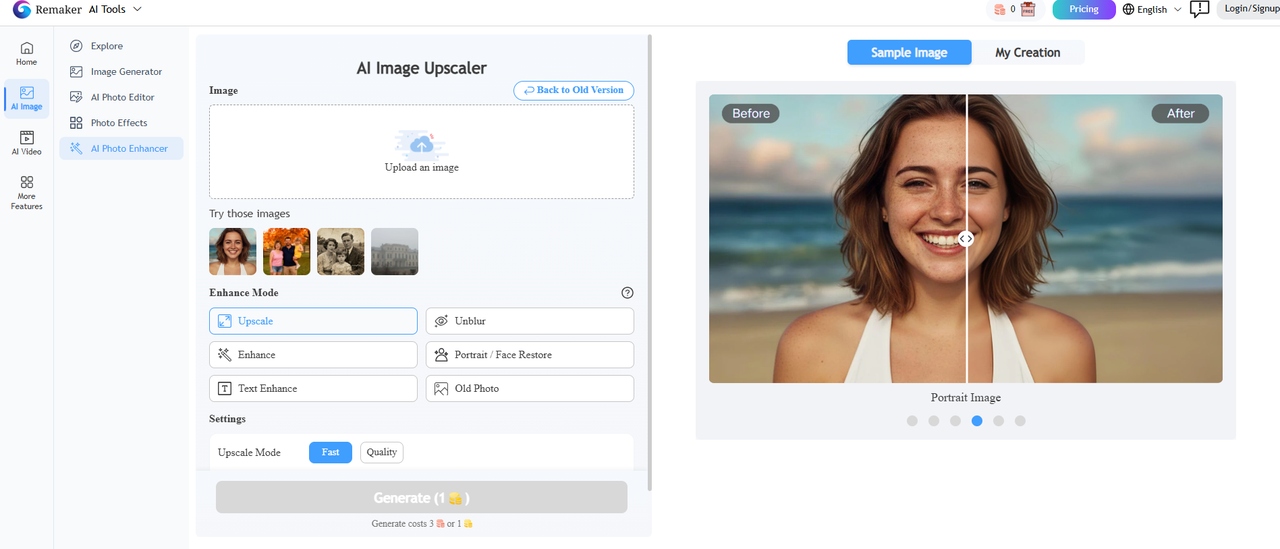
Testing observation: When testing, images of moderate resolution (around 720p-1080p) exhibited a large increase in edge sharpness and texture detail after upscaling. Very low-res images could pick up more detail but could still look a bit artificial when blown up greatly.
-
Blur removal & sharpening
The softness may be caused by slight camera shake, compression artifacts or low-quality uploads. Remaker's image sharpener uses advanced AI sharpening algorithms to improve edge definition, unblur image and enhance overall clarity. It doesn't completely recover very blurred images, but it does significantly improve slightly blurred images.
Testing observation: Photos with a little bit of motion blur seemed to be noticeably sharper, especially around facial features and text. But the improved images still showed a lack of fine detail when the image was heavily blurred or had serious focus issues.
-
Face enhancement
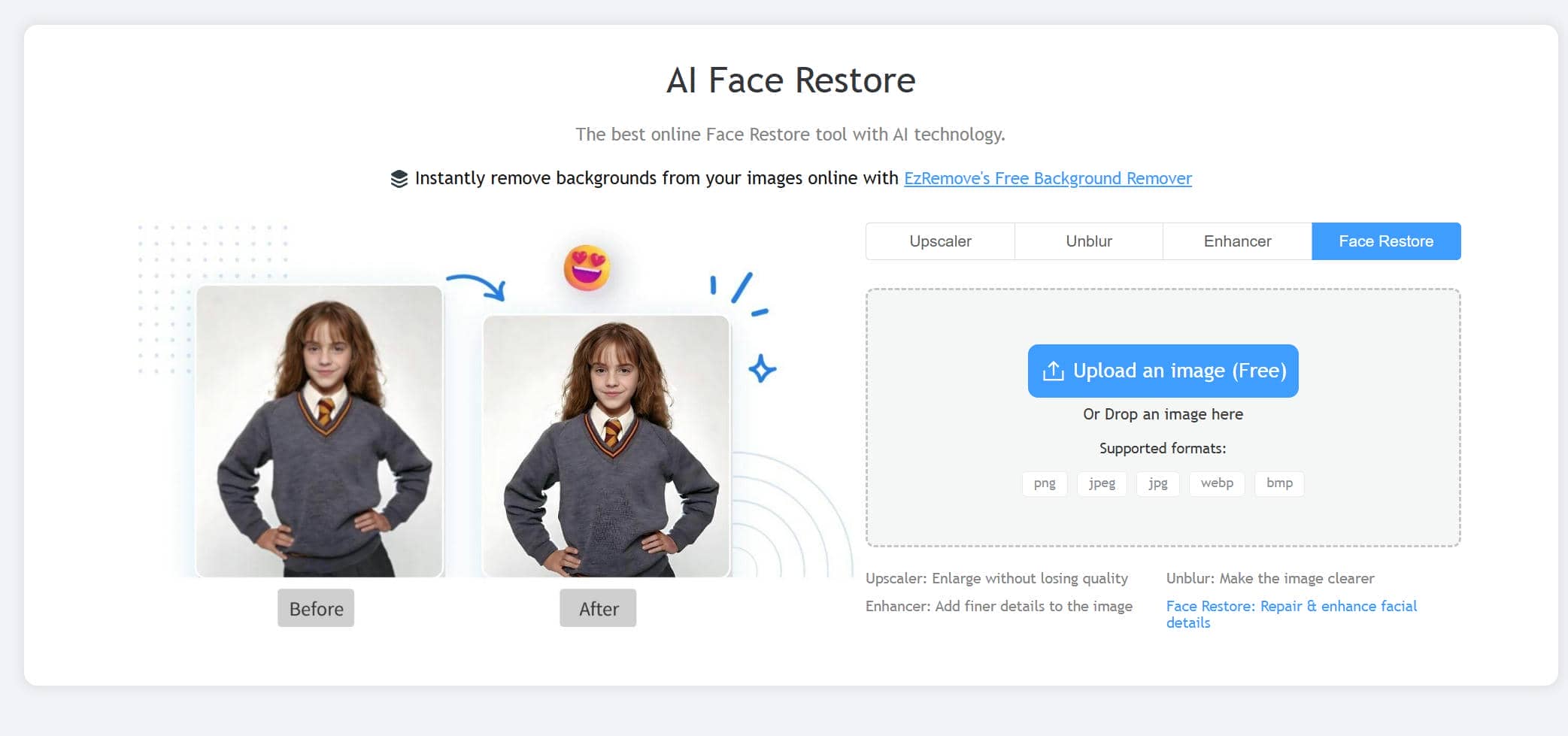
One of the most popular features of Remaker is portrait enhancement. The AI recognizes areas of the face and improves facial features like the eyes, skin texture, and overall sharpness. This is particularly useful for profile photos, selfies, ID photos and older digital portraits.
Testing observation: Faces were clearer with better-defined eyes and sharper facial contours. The changes were subtle on already high-quality portraits, but older or compressed photos showed more obvious improvements.
-
Noise reduction
Images that are not well lit tend to show digital noise or grain. Remaker AI removes this unwanted texture while preserving important detail in the image. The result is cleaner-looking portraits, landscapes and indoor photographs.
Testing observation: The AI did a good job reducing grain in low-light shots while keeping most edges. In a few cases, aggressive noise reduction slightly softened fine textures such as hair or fabric.
-
Old photo restoration
Remaker is a tool for restoring old photos that removes scratches, restores faded colors, improves sharpness and emphasizes faces. AI restoration makes a huge difference in a lot of images with very little effort, but many historical or family photos may still require manual editing.
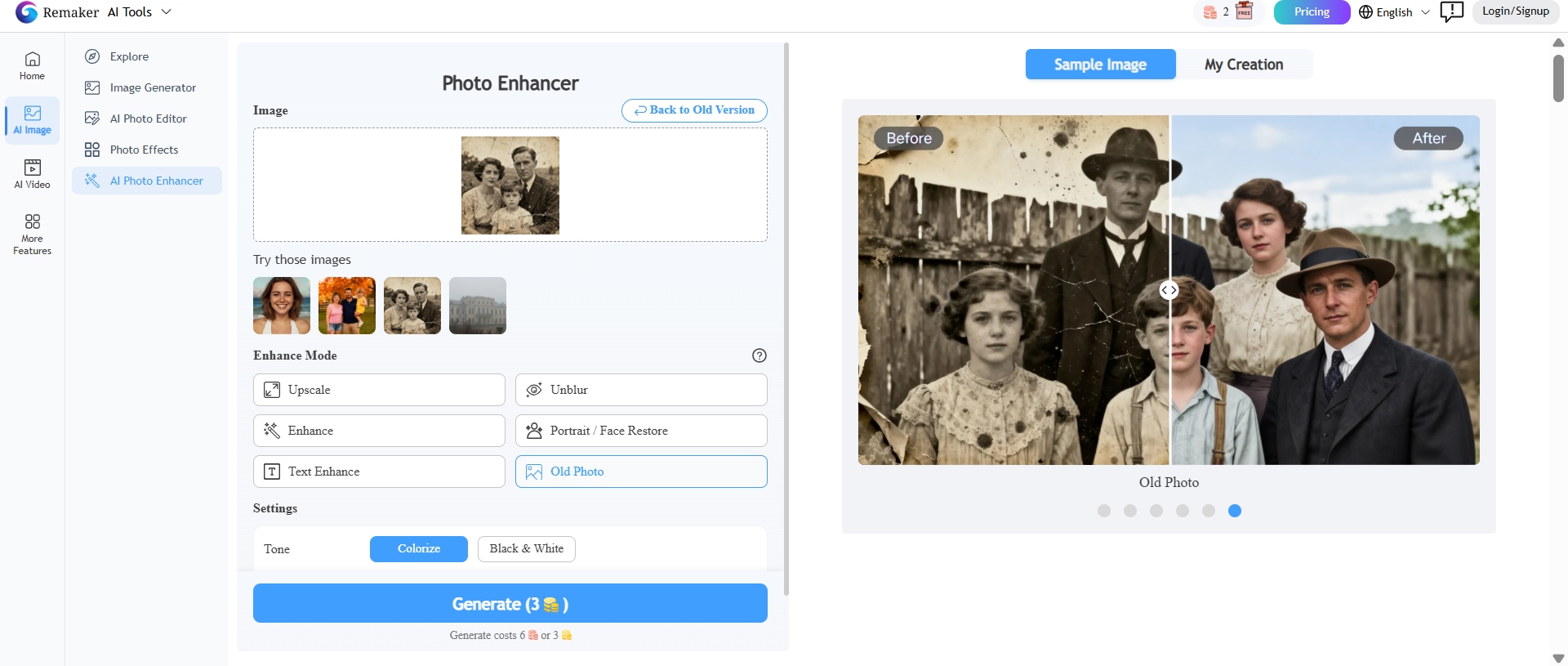
Test observation: Old family photos looked cleaner, with sharper contrast and facial details enhanced after restoration. It did a good job with light scratches and dulling, but heavy tears and serious damage still had to be touched by hand for best results.
How to upscale images with Remaker image enhancer
With Remaker AI, it takes a few minutes to enhance an image. No experience with photo editing required. Follow this step-by-step process to upload your image, have the AI enhance it, and download the enhanced version.
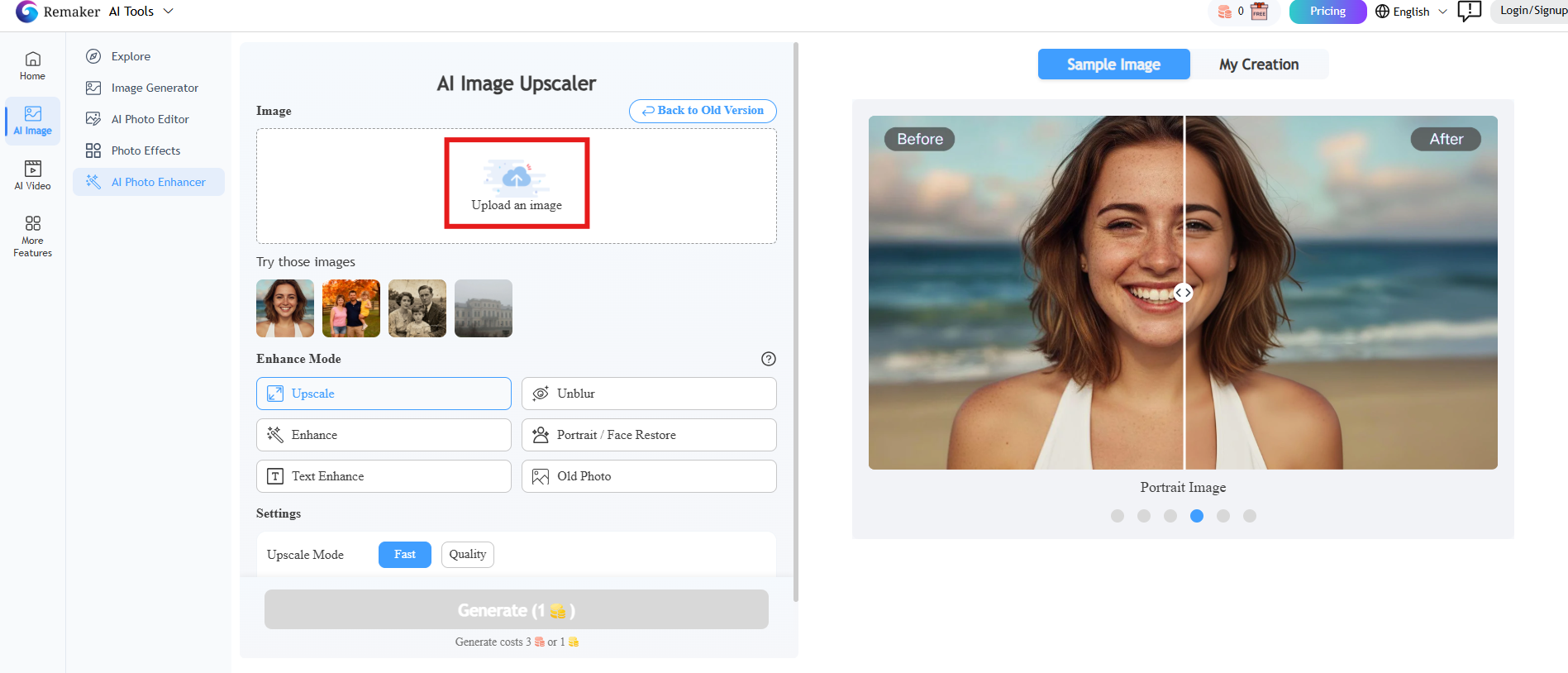
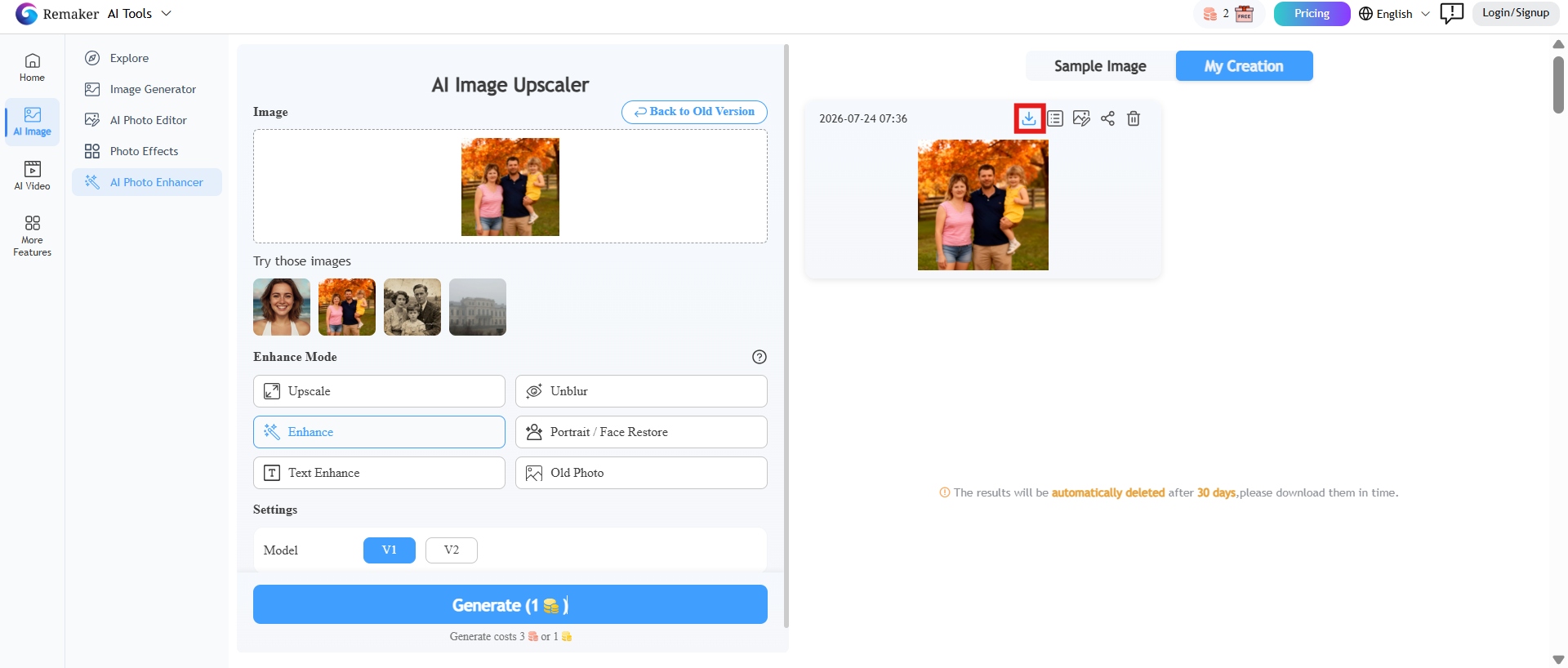
Step 1: Open Remaker AI and upload the image
Go to the Remaker AI website and click on the Image Enhancer tool. The interface has a simple upload area where you can drag and drop your image or browse files from your computer. Choose the image you want to enhance.
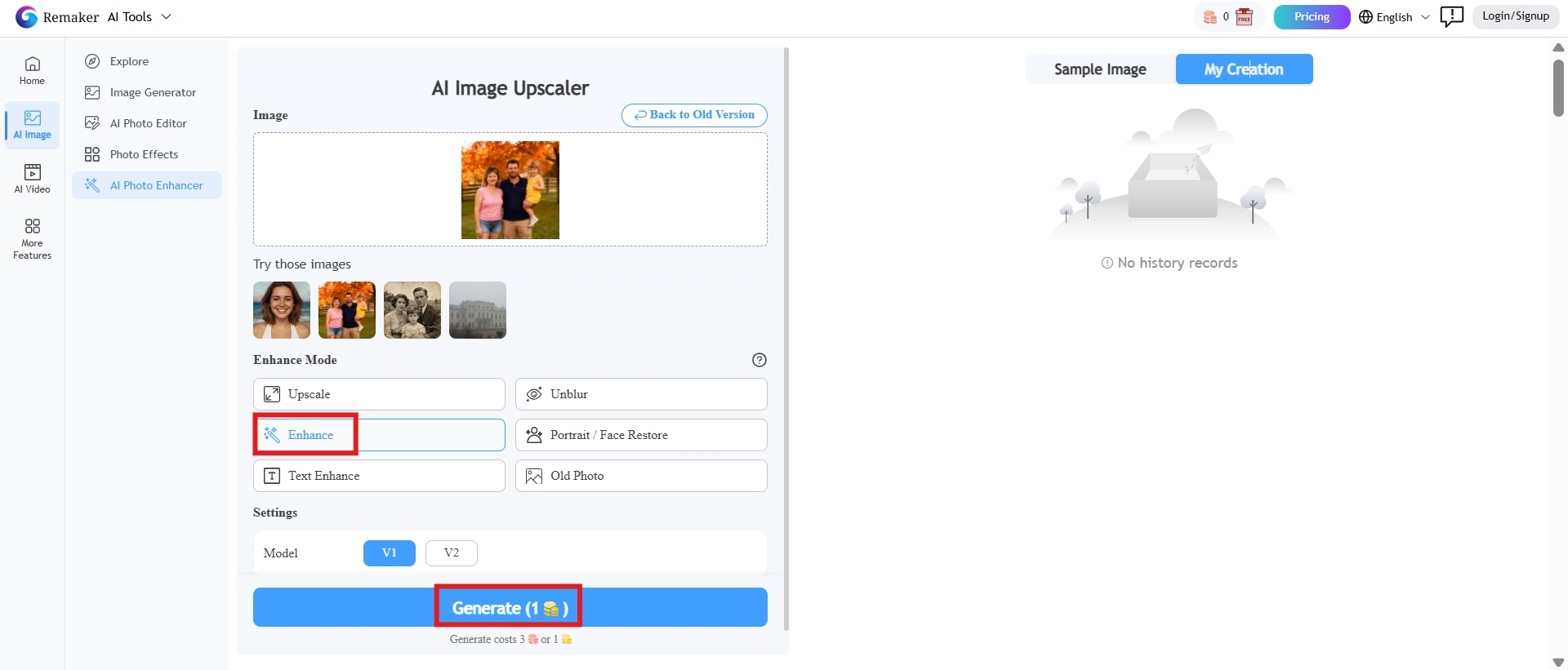
Step 2: Let AI enhance the image
Once you upload the image, Remaker AI automatically analyzes the image to identify pain points and enhance it within a few seconds. You can also choose enhancement mode. Click "Generate" to begin. This usually takes a few seconds, depending on the size of the image and the load on the server.
Step 3: Compare and download the enhanced photo
Compare the result and download the polished version to your device. Credits or a paid plan may be required for higher quality exports.
Remaker AI image enhancer: Pricing, pros & cons
Before choosing an AI image upscaler, you should know about its pricing, advantages and disadvantages. Here is a breakdown of the pricing options for Remaker AI, along with its biggest advantages and potential limitations.
Pricing
|
Credits |
Price |
|---|---|
|
200 credits |
$5.99 |
|
530 credits |
$9.99 |
|
1100 credits |
$19.99 |
|
3000 credits |
$49.99 |
|
20,000 credits |
$299 |
The usage of credits is as follows.
|
Task |
Credit usage |
Best for |
|---|---|---|
|
Standard image enhancement |
1 credit per image |
Improving overall sharpness, clarity, and colour with a single click. |
|
AI image upscaling |
1-2 credits per image |
Increasing image resolution while preserving details for printing or larger displays. |
|
Face enhancement |
2 credits per image |
Sharpening facial features, improving portraits, and restoring selfies or profile photos. |
|
Old photo restoration |
2-3 credits per image |
Repairing faded, damaged, or vintage photographs with AI restoration tools. |
Remaker AI has flexible credit-based plans from $5.99 for 200 credits to $299 for 20,000 credits. Many basic features are also available for free. Instead of a monthly subscription, the platform's pay-as-you-go credit system means light users only pay when they need more credits. Purchased credits never expire, so it is a flexible option for those who don't do a lot of editing.
However, if you do a lot of image processing or work with large batches of images, the credit system can become less economical over time. Everything costs credits to improve, so heavy users may be buying additional credit packs more than they realize.
Pros and cons
Every AI image enhancer has its strengths and trade-offs, and Remaker AI is no different. It is known for its user-friendly interface, fast AI-driven enhancements, and a variety of image editing tools, but its credit-based pricing and limited free features might not suit everyone. We'll take a look at the pros and cons to give you a balanced view and help you decide whether Remaker AI is right for your image enhancement needs.
|
Pros |
Cons |
|---|---|
|
|
Remaker image enhancer review from the community: How people rate it
Users appreciate Remaker AI for its ease of use and promptness. Many praise that it can greatly improve portraits, upscale low-resolution images, and restore old photos without any editing experience. Users also praise the clean interface and browser-based workflow, which allows them to improve images without downloading software.
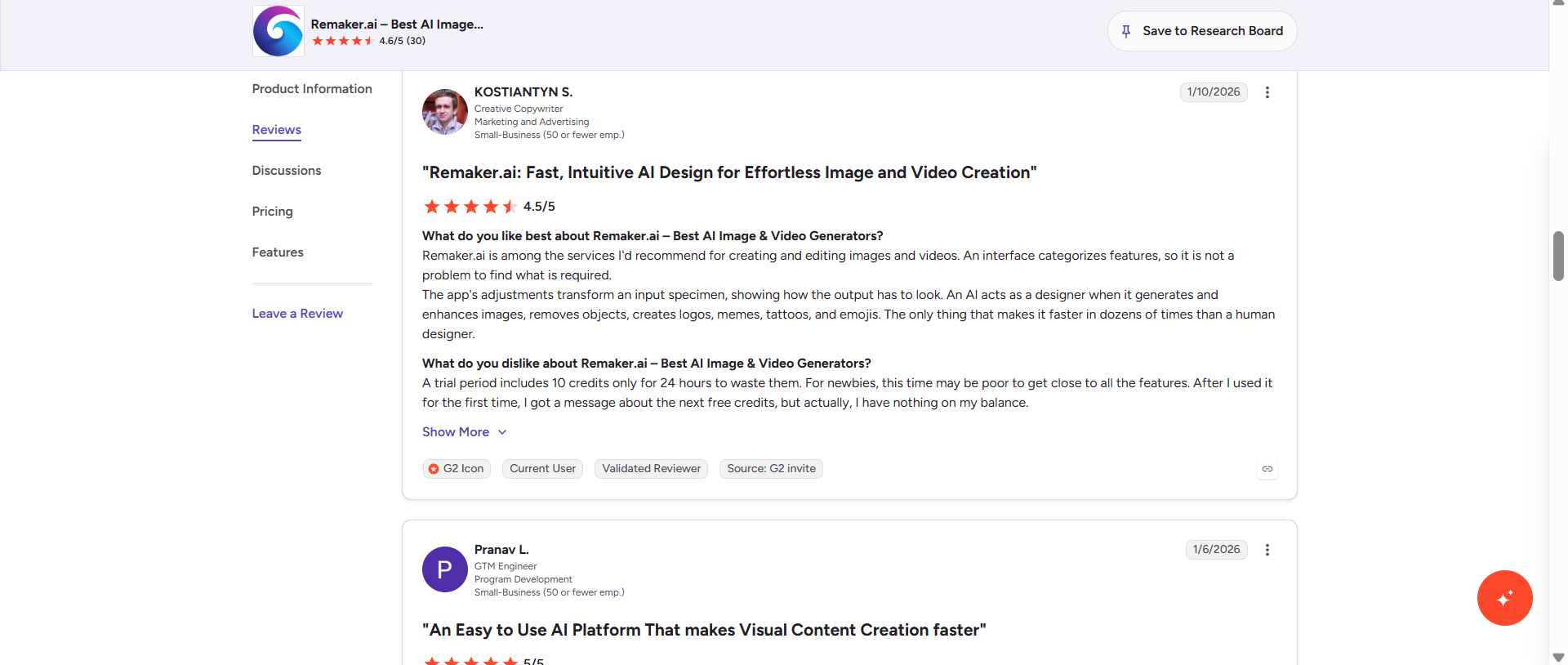
Common criticism
A few users mention that the free version has pretty noticeable limits as a result of its credit system. Others say the results of AI can be dependent on the original quality of the image and that heavily blurred or badly damaged photos don't always improve dramatically. Some users also want more manual editing controls and consistent output quality across different types of images.
Overall analysis
Overall, Remaker AI is generally considered a handy online AI image enhancer for casual users looking for quick improvements. However, creators who process large batches of images or require higher-resolution outputs often look for alternatives that give them more flexibility, higher export quality, and more enhancement options.
If you often upscale multiple images, need ultra-high-resolution output support, or want specialized AI enhancement modes for portraits, products, and old photos, then Vmake Labs offers a more feature-rich workflow worth considering.
Meet Vmake Labs: A smart alternative to Remaker AI image enhancer
Vmake Labs AI image enhancer is an online tool designed for creators, ecommerce sellers, photographers and businesses that require consistent high-quality images. It increases sharpness, removes noise, restores details and supports HD up to 16K resolutions using AI-powered enhancement models. Vmake Labs offers special enhancement modes for specific types of images. You can fine-tune portraits, product photos, historical images and day-to-day photography with very little manual effort.
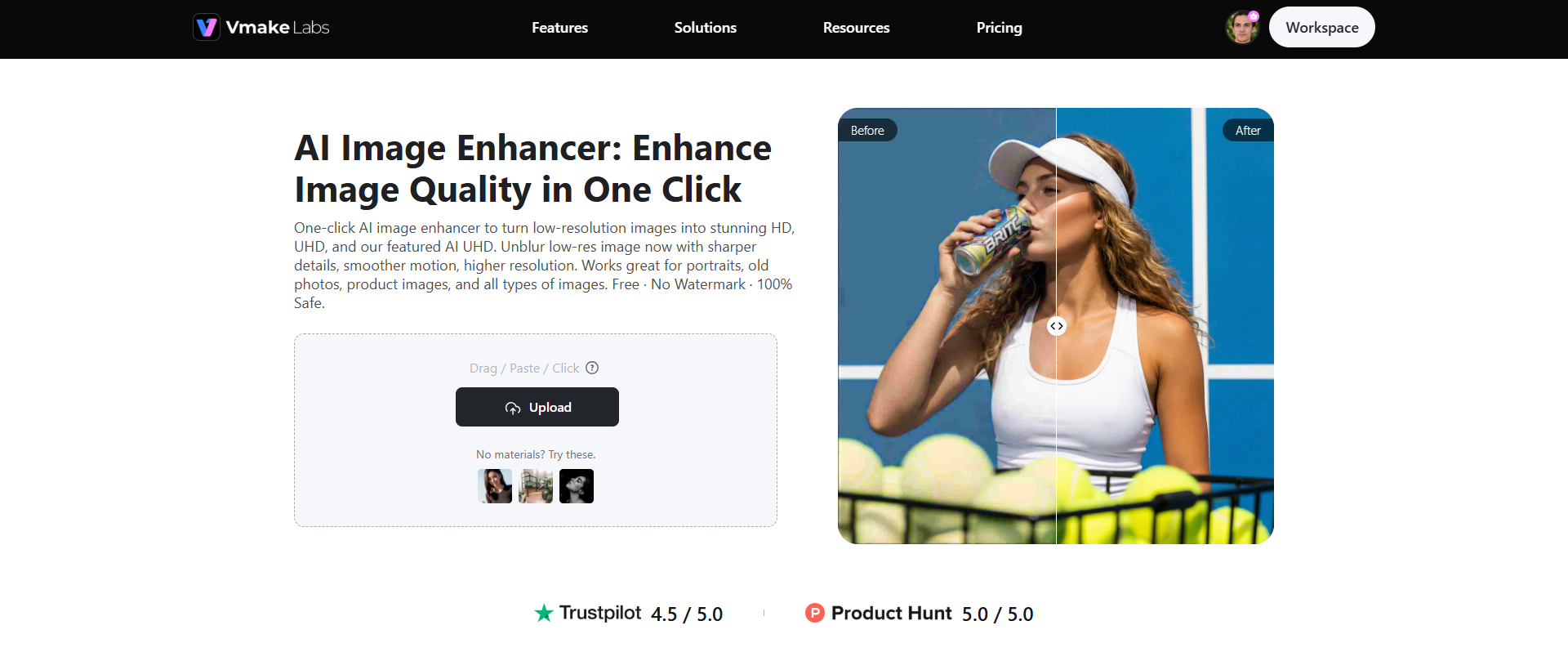
Step-by-step guide
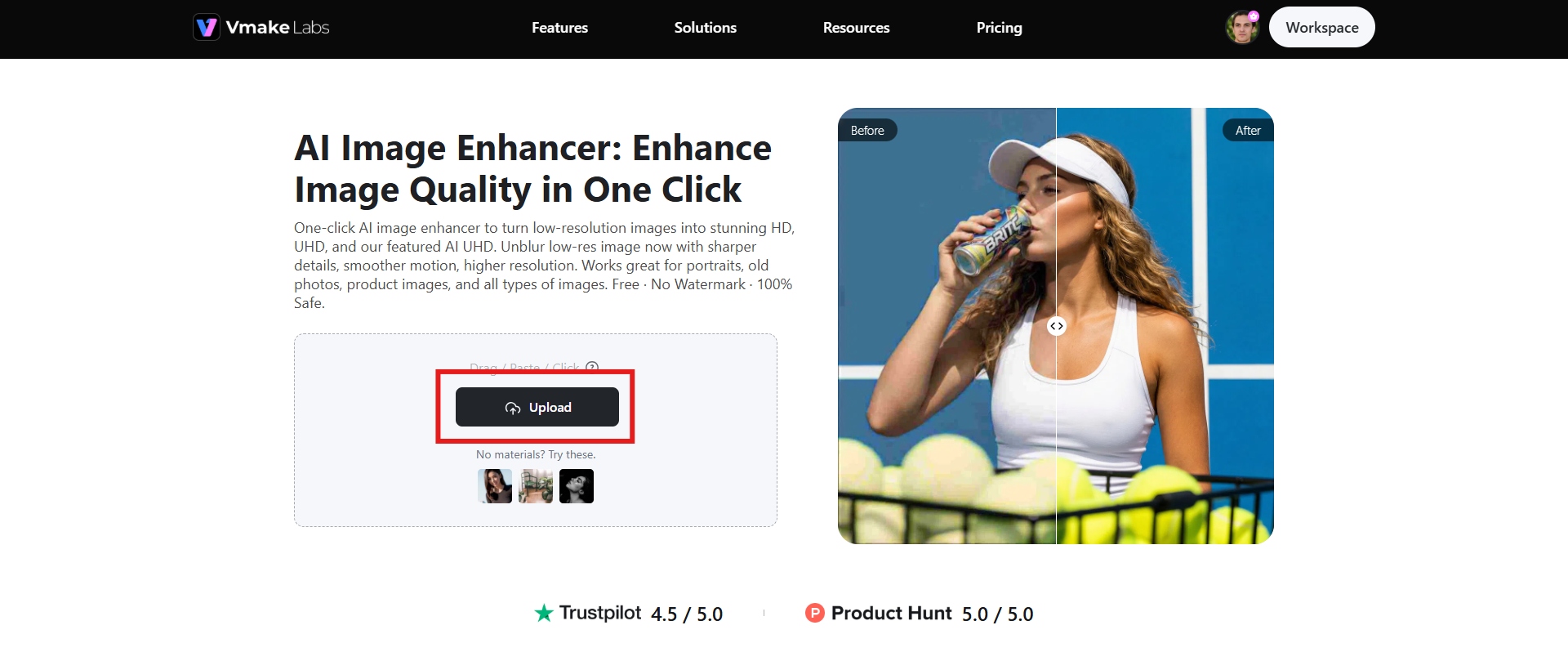
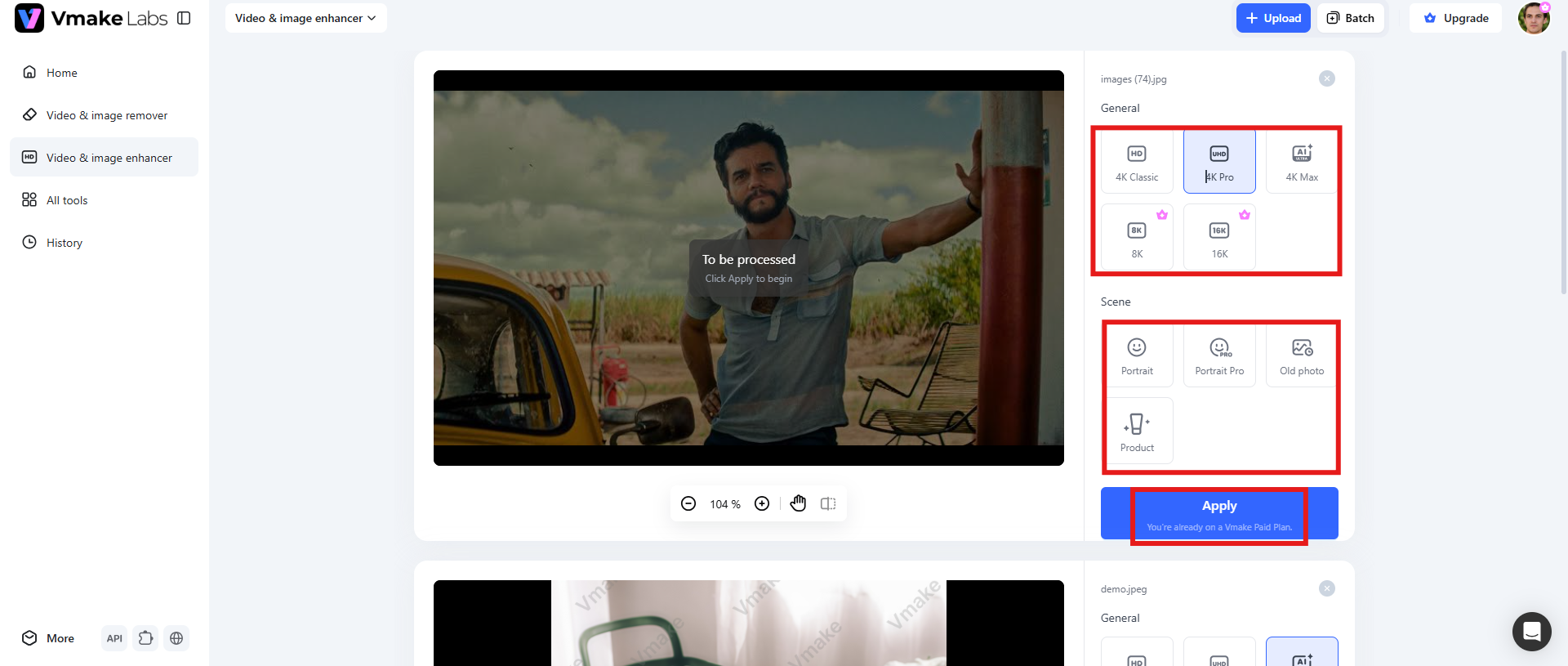
Step 1: Upload an image
Navigate to the Vmake Labs image enhancer page and upload your image by dragging it into the upload window or selecting it from your device. Click "Upload" to import the image you want to enhance.
Step 2: Choose image enhancement mode
The AI analyzes the image automatically. Select your preferred scene mode (e.g., Portrait, Portrait Pro, Old Photo, or Product) and choose your desired clarity level. The enhancement process will start automatically.
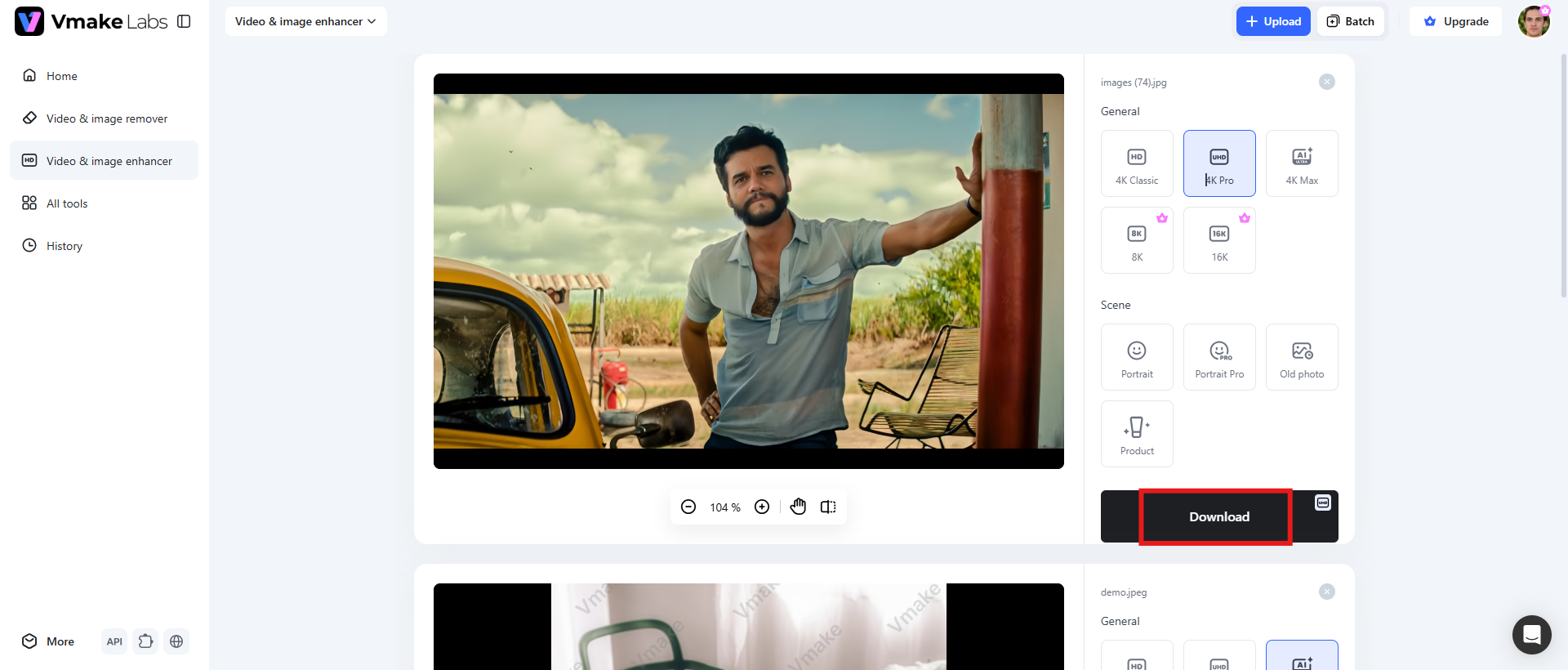
Step 3: Download the image
When the processing is finished, preview the improved result and download the improved version. Now the image is improved and ready to share, print, upload to ecommerce listings or use in professional presentations.
Key features
-
Clarity options: HD-16K
Vmake Labs is a platform that enables users to upscale images from standard HD resolution to up to 16K resolution, making it ideal for a wide range of applications, including social media posts, large-format printing, and commercial use.
-
Scene mode (Portrait/Portrait Pro/Old Photo/Product)
Instead of using the same enhancement settings for all images, Vmake Labs has dedicated AI Scene Modes for different subjects. You can choose from Portrait, Portrait Pro, Old Photo, or Product mode, and the AI will work on the image accordingly.
-
Batch enhancement
Vmake Labs also has batch enhancement for users working with multiple images. This means that multiple photos can be processed at the same time. This feature saves a lot of time versus improving images one by one, and it is particularly helpful for photographers, online sellers, marketing teams, and content creators who routinely work on large sets of images.
Remaker image enhancer vs Vmake Labs: A quick comparison table
Remaker AI and Vmake Labs are both using artificial intelligence to improve images, but they differ in features, workflow and the target audience. To help you choose the best tool for your image enhancement needs, here's a comparison that highlights their key differences.
|
Features |
Remaker AI |
Vmake Labs |
|---|---|---|
|
Primary focus |
General-purpose AI image enhancement combined with other AI tools such as face swap and photo editing. |
Dedicated AI image enhancement platform focused on improving image quality and resolution. |
|
AI image upscaling |
Upscales low-resolution images and improves sharpness for everyday use cases. |
Supports advanced AI upscaling with clarity options ranging from HD to 16K for higher-quality outputs. |
|
Ideal users |
Casual users, students, and individuals who occasionally enhance photos. |
Content creators, photographers, ecommerce sellers, marketers, and users who frequently process images. |
|
Paid from |
Starts from $5.99 |
Starts from $9.99 |
|
Batch processing |
Can process 50 images simultaneously |
Can process up to 30 images at a time |
|
Maximum output resolution |
Produces high-quality enhanced images suitable for digital sharing and general printing, but does not emphasise ultra-high-resolution exports. |
Supports enhancement up to 16K resolution, making it ideal for large-format printing, commercial design, and professional content creation. |
|
Processing speed |
Most images are processed within a few seconds, although speed may vary depending on server load and image size. |
AI enhancement is also fast, with efficient cloud processing and batch workflows helping reduce the time spent on large image collections. |
|
Face enhancement |
Detects faces automatically and sharpens facial features, making portraits and selfies appear clearer. |
Includes dedicated Portrait and Portrait Pro modes that optimize facial details while maintaining natural-looking skin textures. |
|
Old photo restoration |
Restores faded or damaged photographs by improving clarity, colours, and facial details. |
Features a dedicated Old Photo mode trained specifically for restoring vintage photographs with improved detail and contrast. |
|
Installation requirements |
Fully web-based, no software installation required. Works on desktop and mobile browsers. |
Also entirely browser-based, allowing users to enhance images without downloading or installing software. |
Which one to choose?
It all depends on how often you are going to enhance images and how much quality you need.
Choose Remaker AI image enhancer if you need a simple, web-based image enhancer for occasional use. It's a good option for sharpening portraits, restoring old photos, or upscaling a few images without having to install software. Credit-based pricing is also suitable for low-frequency editors.
Choose Vmake Labs if you're going to be processing multiple images regularly, need HD–16K output, or want dedicated AI modes for Portrait, Portrait Pro, Product, and Old Photo enhancement. With its batch processing and specialised enhancement options, it is a better fit for photographers, ecommerce sellers, designers, marketers, and content creators who need consistent, high-quality results.
Conclusion
For users without professional editing skills, Remaker AI image enhancer provides an easy way to improve the quality of images. The program is great for quickly upscaling images with AI, enhancing portraits, denoising and restoring old photos. It is a good option for casual users who want to make some basic enhancements using a web browser.
But for users who need to process large volumes of images regularly, require higher resolution output, or want AI models optimized for portraits, products, and historical photos, Vmake Labs may be a more capable solution. HD-16K clarity options, dedicated scene modes and batch enhancement features provide greater flexibility for content creators, ecommerce businesses, photographers and design professionals.
In conclusion, Remaker AI is a good choice for basic image enhancement, while Vmake Labs is better for users who need more advanced AI enhancement features and a workflow designed for professional results.
FAQs
Is Remaker AI Image Enhancer free to use?
Yes, Remaker AI Image Enhancer has a free tier that allows you to enhance images with no upfront payment. However, the free version is limited by a daily number of credits and usage, making it best for testing the platform or for occasional edits.
Does Remaker AI increase image resolution?
Yes. Remaker AI uses AI-based upscaling technology to increase the resolution of an image, while trying to preserve fine details, textures and sharpness. AI upscaling creates cleaner and more natural images than traditional resizing, so it's a handy tool for printing and social media, as well as presentations and e-commerce product photos.
Can Remaker AI restore old or blurry photos?
Yes. Remaker AI has some specific tools for repairing old photos, removing blurs, enhancing faces and reducing noise. These features can bring faded family photos back to life, sharpen slightly blurry images, and recover facial details with little effort.
What are the limitations of Remaker AI Image Enhancer?
Remaker AI is very user-friendly and does a good job with many images, but it does have a couple of limitations. The platform uses a credit-based pricing model, which could mean that heavy users end up buying more credits as they go. The free version has limitations on usage, and it needs an internet connection to process images because the tool is fully cloud-based. The enhancement process is also largely automated, which means users have less manual editing control than they would in professional photo-editing software.
Is Vmake Labs a good alternative to Remaker AI?
Yes. If you're looking mainly for AI image enhancement and not so much for a full suite of AI editing tools, Vmake Labs is a good option. It's got better features, including HD–16K detail options, AI scene modes for portraits, products and old photos, and batch enhancement that can work on multiple images simultaneously. For those who regularly work on editing photos for content creation, ecommerce, photography, or professional projects, Vmake Labs offers a more personalized workflow and more flexibility than Remaker AI.

You May Be Interested
2026 Topaz Labs Video Enhancer: Hands-On Review
Best AI Image Upscaler Tools in 2026: Upscale Images to 4K, 8K & Beyond
Airbrush Video Enhancer Review 2026: Features, Pros, and Cons
Best AI Image Enhancer in 2026: Top Tools to Upscale and Fix Blurry Images
Best AI Photo Enhancer Tools in 2026 (Free & Online): Improve Image Quality Instantly