Pixella Review: A Closer Look at Its AI Image Tools
Pixella review covering its AI image generator, image editor, enhancement and upscaling tools, pricing, free access, pros, cons, user feedback, and how it compares with Vmake Labs for image creation.

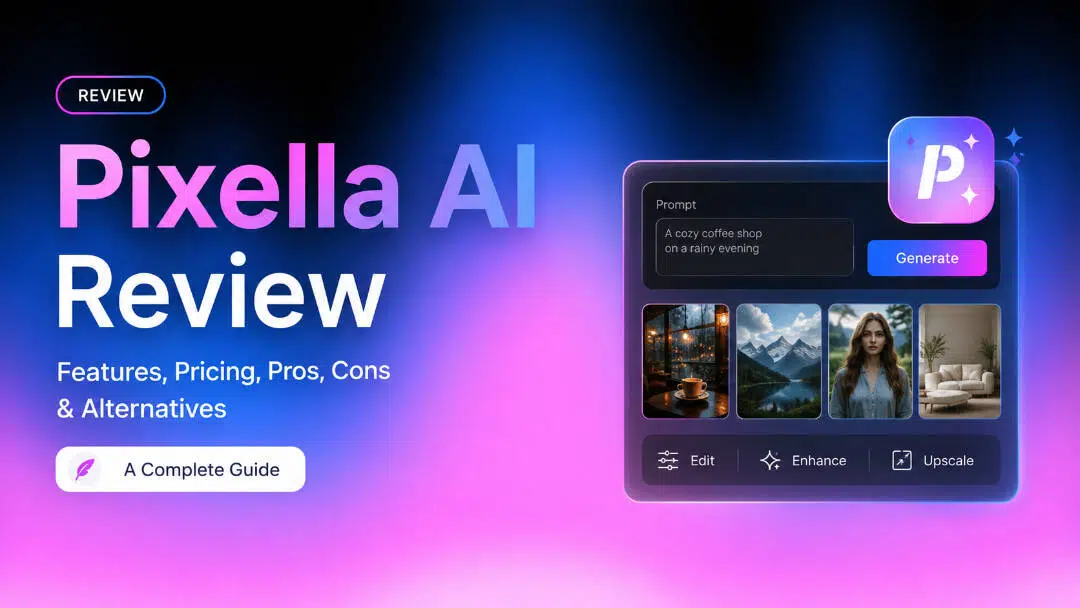
Pixella is a single, image-centric platform for AI image generation, editing, enhancement, and upscaling. On paper, that sounds useful, but the real question is how well those tools fit into everyday creative work. In this Pixella review, we’ll look at its workflow, image tools, pricing, user feedback, limitations and how it compares to the alternative, Vmake Labs.
What is Pixella AI?
Pixella is an AI-powered image platform designed to help users create, edit, enhance, and upscale images from a single workflow. Instead of focusing only on generating new visuals, it brings several image-focused tasks together, making it useful for creators, marketers, ecommerce sellers, and other users who regularly need to produce or refine visual content. You can use it to explore a new image concept, work with an existing visual, or improve an image that needs better clarity or resolution before it is ready to use.
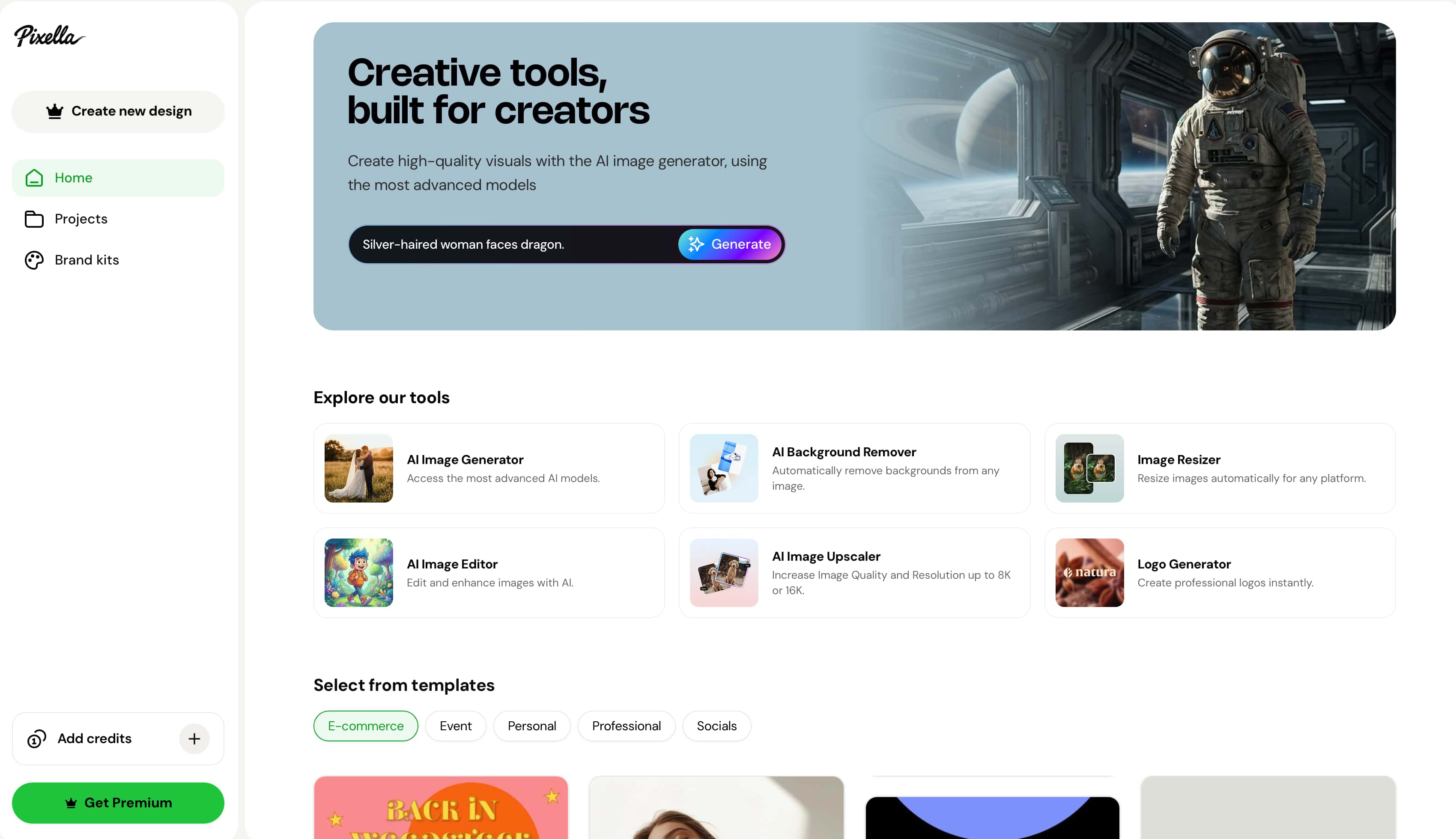
The appeal of the platform is less about a single feature, and more about how the capabilities work together. A creator might create an image and then edit it. An ecommerce seller might begin with a product photo already in existence and concentrate on editing, enhancement or upscaling. In this review, we go beyond the feature list of Pixella to evaluate how these workflows actually work in practice, including image quality, editing accuracy, retention of detail, ease of use, consistency of output and the limits that may impact regular use.
Pixella's main capabilities
Pixella covers the main image tasks users are likely to need in one place, from creating new visuals to working with images they already have. Its core capabilities include AI image generation, image editing, image enhancement, and upscaling, with each tool aimed at a different stage of the creative workflow.
-
AI image generation: Create new visuals from text prompts and turn an idea or description into an image.
-
AI image editing: Make changes to existing images instead of recreating the entire visual from scratch.
-
Image enhancement: Improve the clarity and overall quality of an existing image, particularly when the original looks soft or lacks definition.
-
Image upscaling: Increase an image's resolution when you need a larger output while retaining as much detail as possible.
-
Creative image refinement: Generate an initial visual and continue refining it through editing when the first result is close but not quite ready to use.
-
Image quality improvement: Use enhancement and upscaling to prepare existing visuals for uses where sharper or higher-resolution images are needed.
How we evaluated Pixella
We have tested Pixella on its core image workflows. Both in terms of output quality and experience of the tools. The review looks at how well it adheres to prompts, takes edits, improves image quality, retains detail during upscaling, ease of use, and consistency across different outputs.
What we evaluated
|
Test area |
What we evaluated |
|---|---|
|
AI image generation |
Prompt adherence, composition, detail, and overall image quality |
|
Image editing |
Accuracy of changes and preservation of important image details |
|
Image enhancement |
Sharpness, clarity, texture, and natural-looking improvements |
|
Upscaling |
Resolution, detail recovery, and visible artifacts |
|
Ease of use |
Interface, controls, workflow, and learning curve |
|
Output consistency |
Quality across different images and prompts |
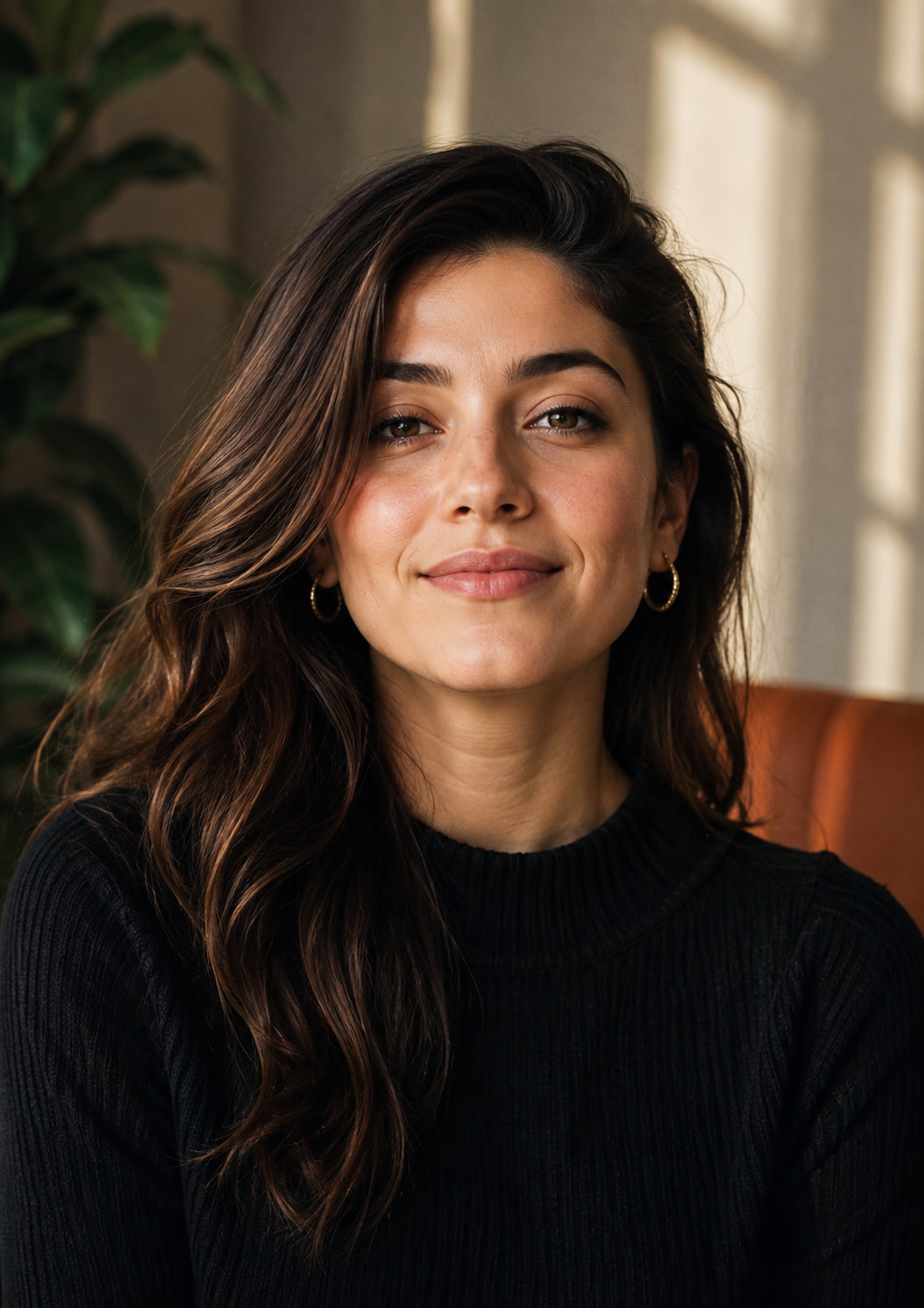
We used different image types, prompts, and workflows where applicable to see how Pixella performs beyond a single result. The observations in the following sections are based on those tests rather than on the presence of a feature alone.
Potrait
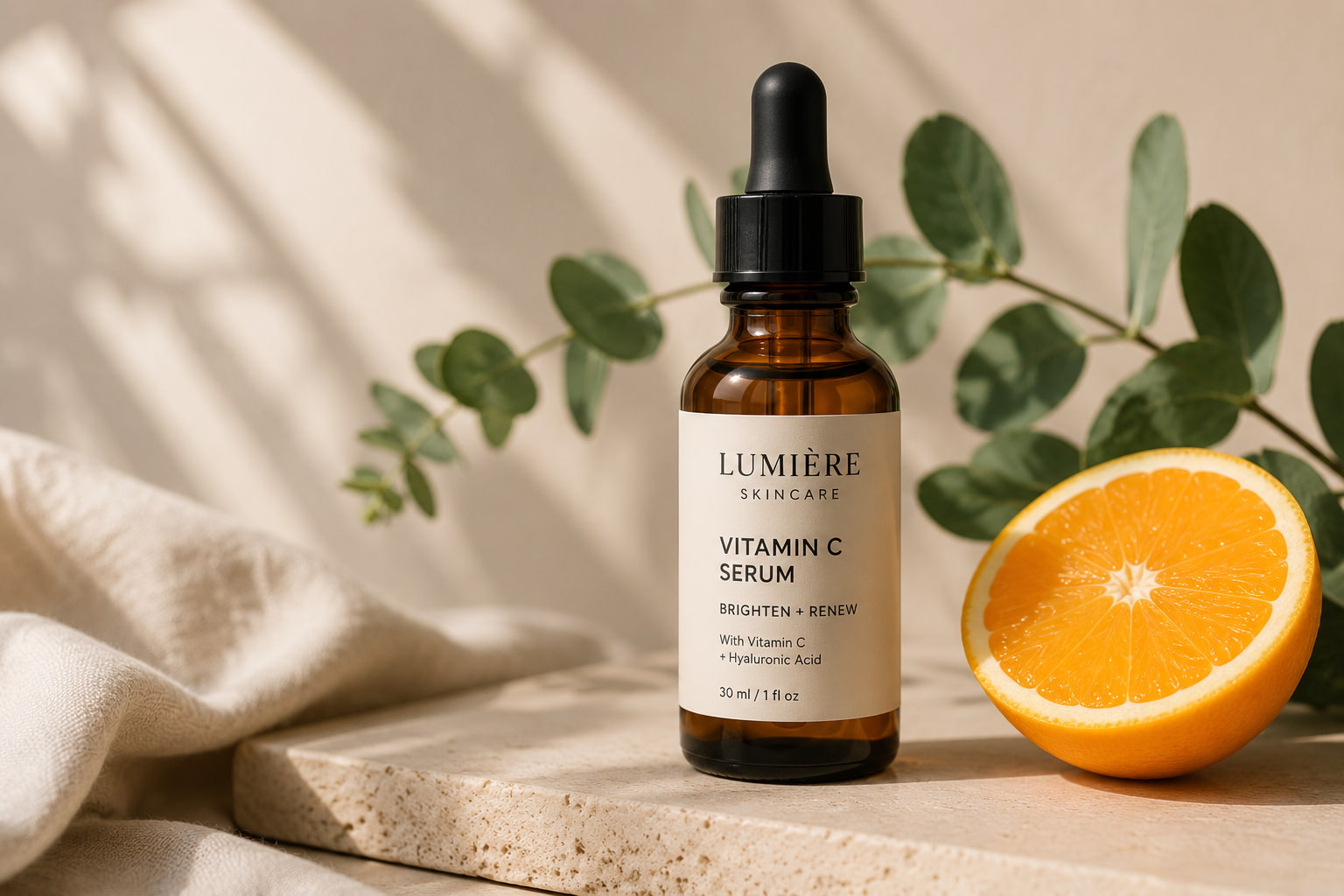
Product
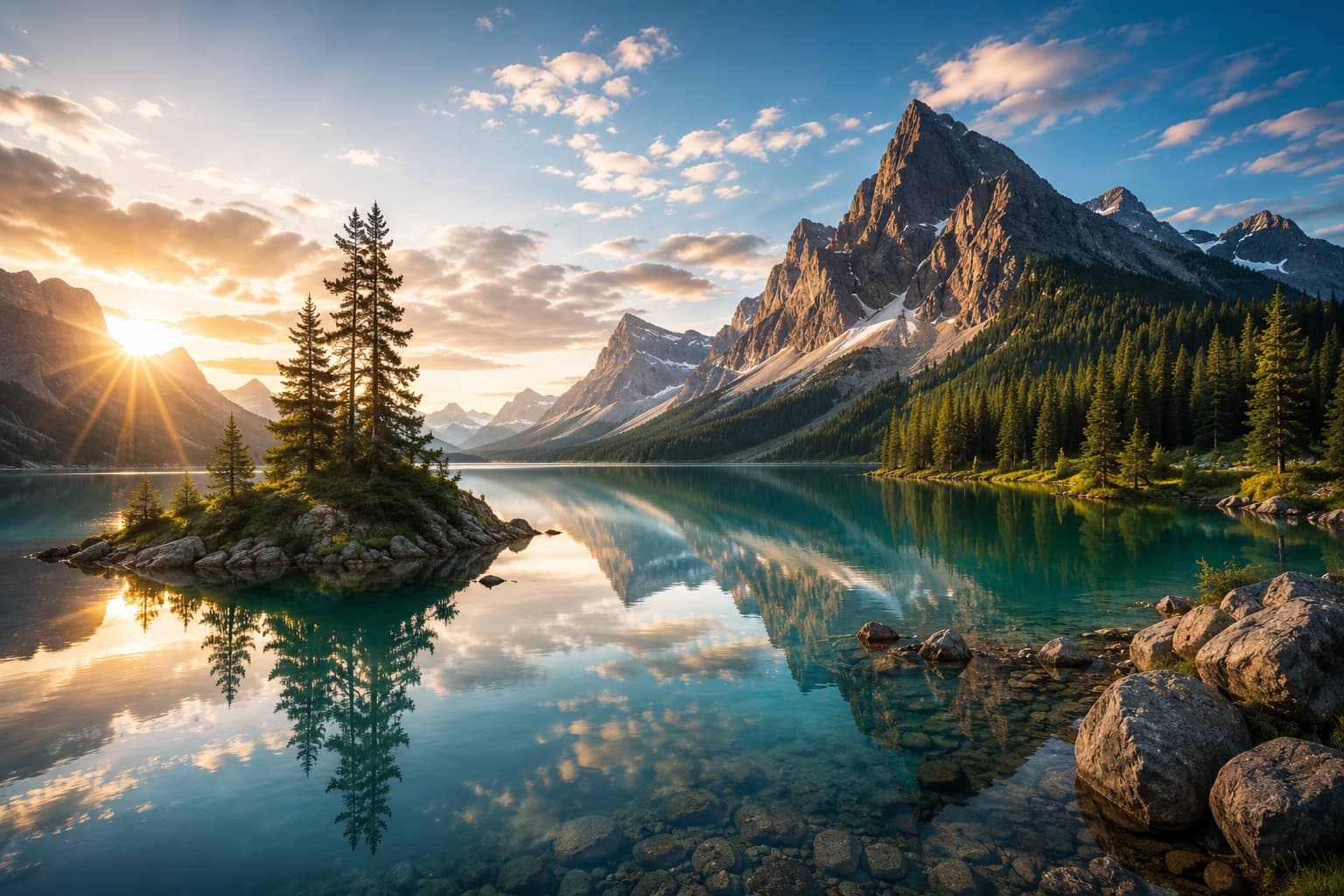
Landscape
Using Pixella for image generation and editing
You can create new images with Pixella, or work with images you already have. The workflow is pretty simple: select the task you want to do, give it a prompt or source image, look at the result, and tweak if needed. This difference in workflow matters, because it is not the same to create a new visual than to improve an existing one.
How to generate images with Pixella AI
To make an image, start with a precise description of the image you want. Include the subject, setting, style, composition, lighting and any details that matter to the final result. Once the image is generated, check it against the prompt, not just on the basis of it looking good. If the prompt is incorrect or missing important details, revise the prompt and generate a new version.
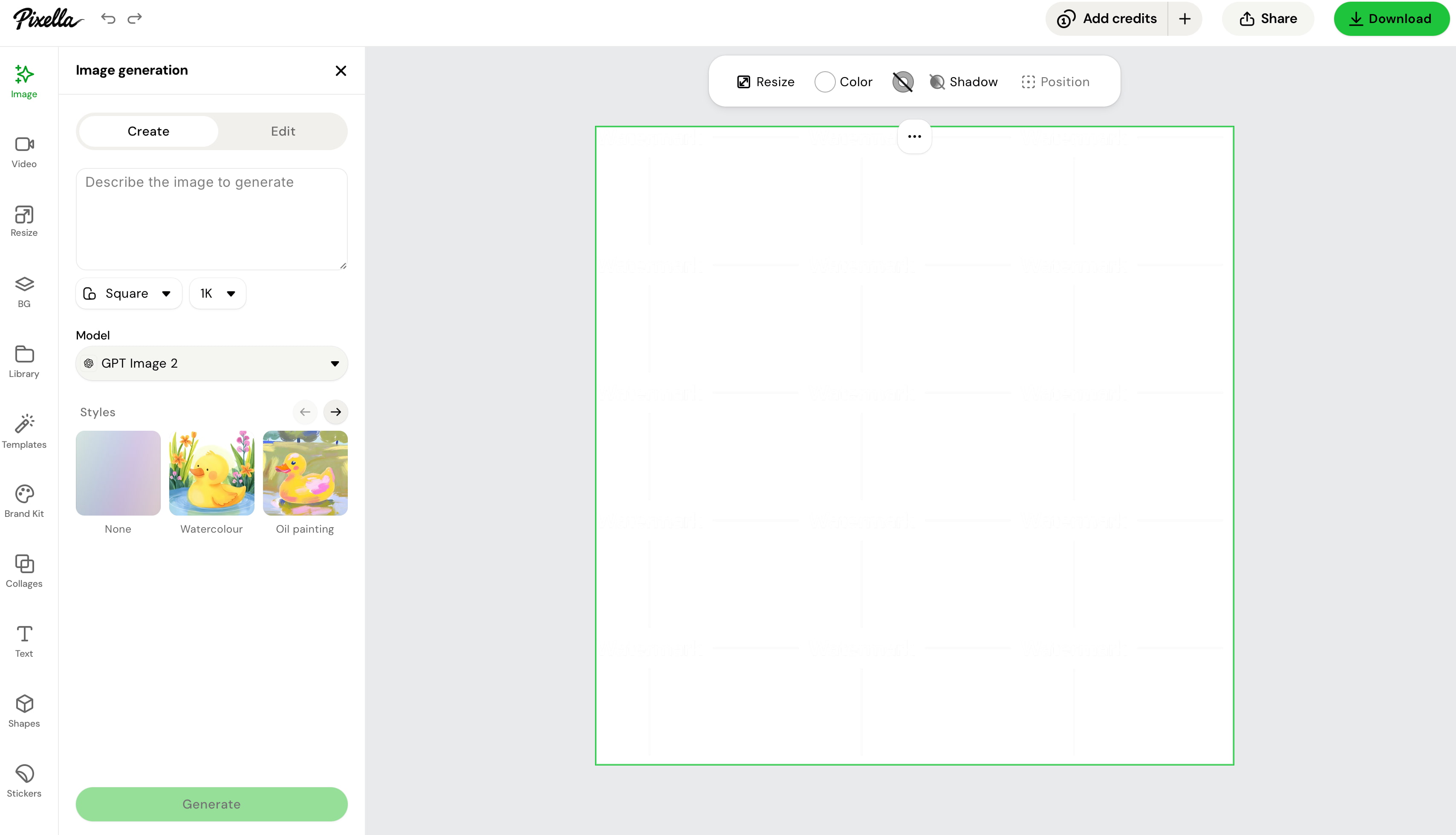
Step 1: Start an image-generation project
Open Pixella and choose its image-generation option to start a new visual. Begin with a clear idea of what you want to create, especially if the image needs to follow a particular style, setting, or composition.
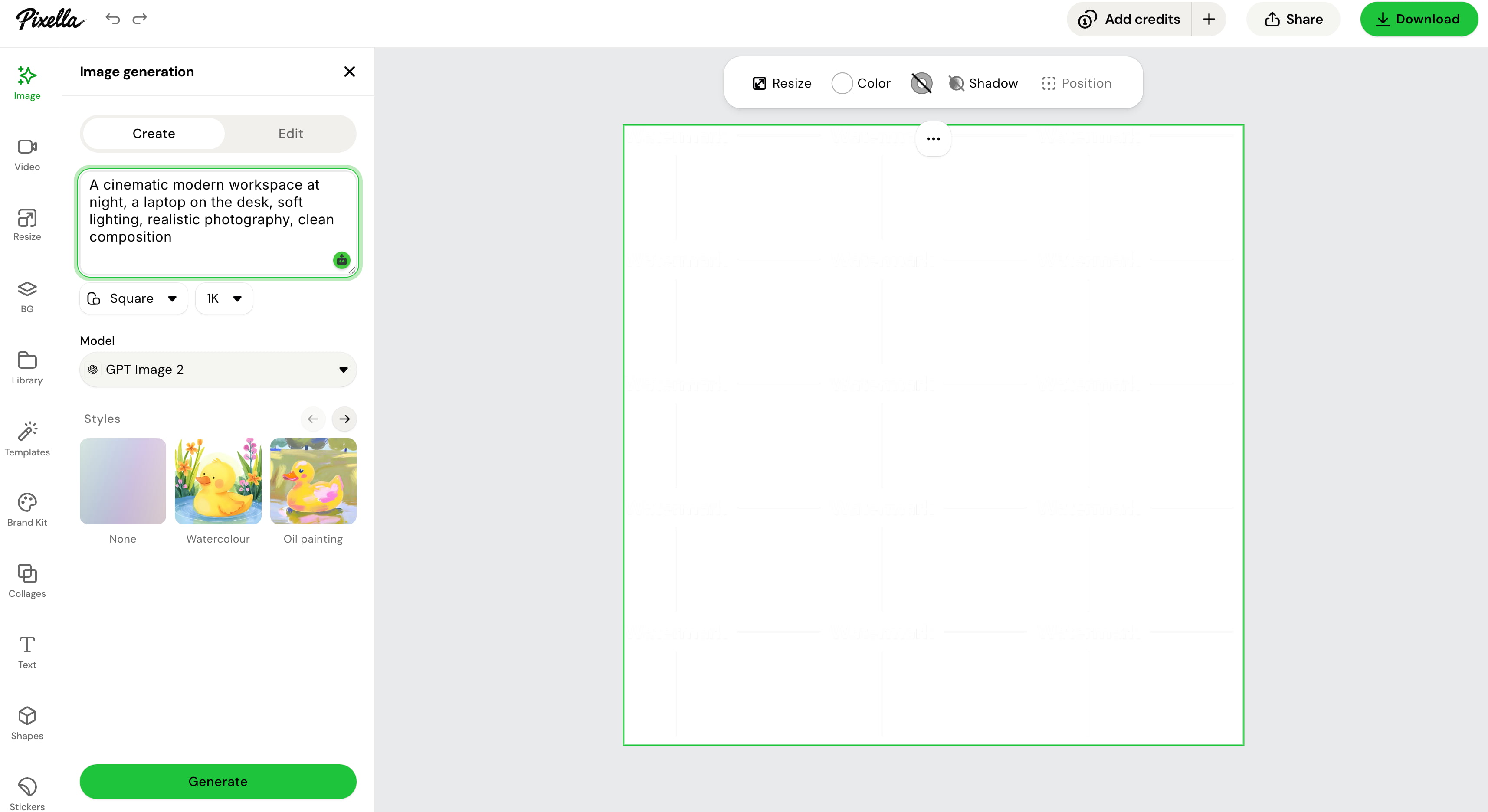
Step 2: Describe the image
Enter a prompt that includes the subject matter, background or setting, visual style, composition, lighting, and any other details important for the result. The more specific you are regarding the important aspects of the prompt, the easier it is to evaluate whether the generated image fits your intended concept.
Step 3: Generate and refine
Create the image and compare the output to your prompt. If the composition, subject details, style, etc. are not quite right, modify the prompt and generate another version until the output is closer to what you need.
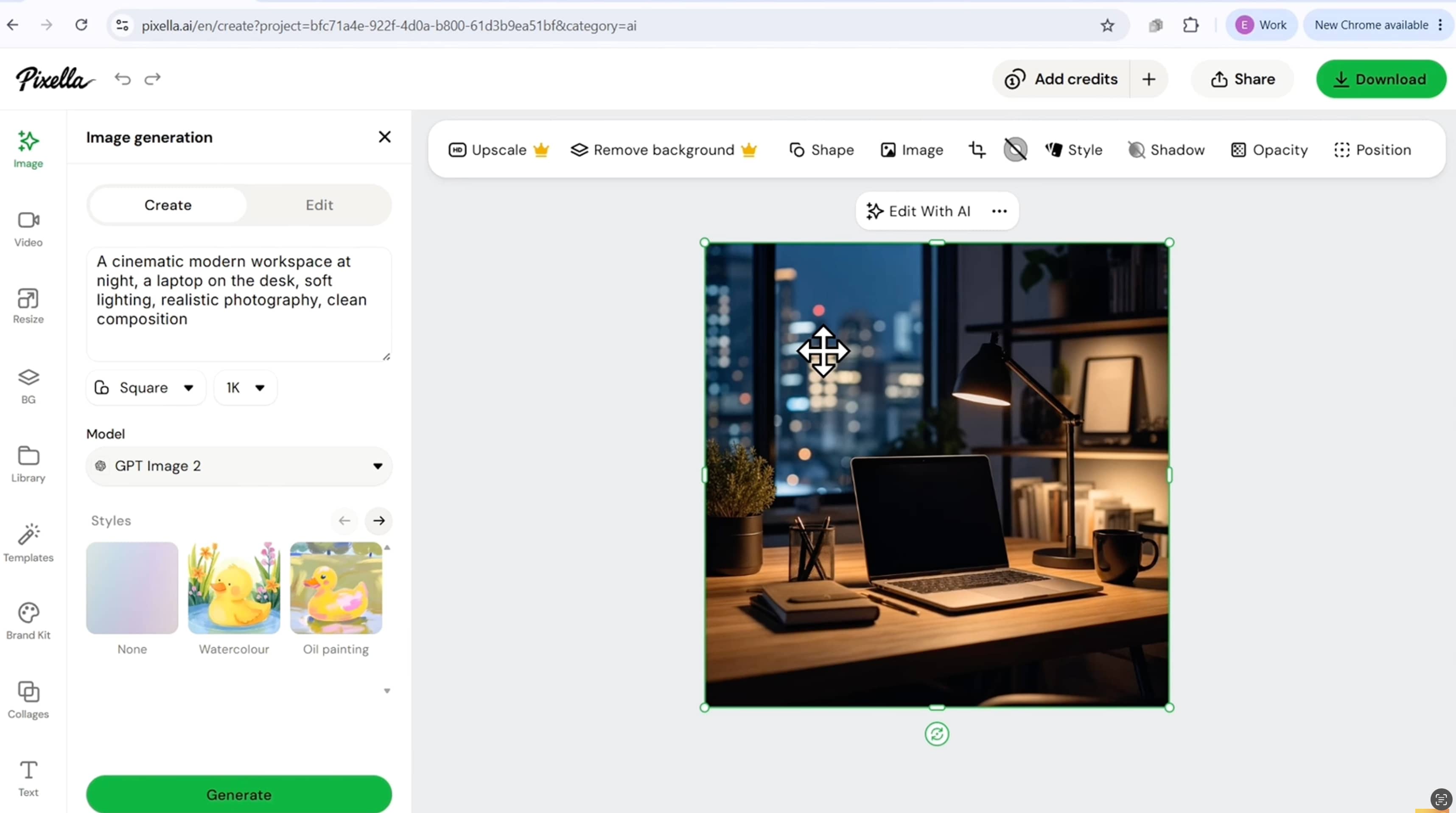
Pixella AI image editor
Pixella's AI image editor is designed for refining existing visuals rather than creating a completely new image. You can use it when an image is close to what you need but requires changes to specific elements, such as the subject, background, or overall appearance. The main thing to watch for is how accurately the requested change is applied without affecting important details elsewhere in the image. For product photos and portraits in particular, preserving the original subject while making the requested adjustment is important, since unwanted changes can make the final image less useful.
Image enhancement and upscaling
Pixella also has tools to better the image quality and increase the resolution if you need a cleaner or bigger output from an existing file. Enhancement can be used to help soft or blurry images and upscaling when you want to display a low resolution image at a larger size. When you review the results, don't just look at the image and see if it looks sharper, but also look at fine details, textures, facial features and edges for overprocessing or artificially added detail.
Pixella pricing, pros, cons, and user feedback
The real worth of Pixella isn’t just what its tools can do, but how much access you get for free, and what the paid plans unlock. I’d split out the pricing details for this section from the general pros and cons and use user feedback as supporting context, rather than taking individual reviews as a verdict on the platform.
Pixella pricing and free access
Pixella currently offers two 7-day access options: 7-Day Limited Access and 7-Day Full Access. Both are introductory offers that renew at $49.99/month after the first seven days. The Full Access option costs $2.50 more for the initial seven-day period but includes substantially more features. The pricing screen also shows watermark-free downloads, while the exact terms and limits of any ongoing free access are not shown here.
|
Plan |
7-day price |
Renewal |
Key features |
|---|---|---|---|
|
7-Day Limited Access |
$9.99 |
$49.99/month |
10+ AI design tools, high-resolution export without a watermark, Pro AI image editing |
|
7-Day Full Access |
$12.49 |
$49.99/month |
All Limited features, plus Pro AI image generation, AI image enhancement, priority generation speed, forever cloud storage, and commercial usage rights |
Pros and cons of Pixella
Pros
-
AI image generation and editing in one platform.
-
Image enhancement and upscaling options.
-
Several image-focused tools for different workflows.
-
Covers both image creation and refinement.
-
7-Day Full Access includes high-resolution exports without a watermark.
Cons
-
Paid access renews at $49.99/month after the 7-day introductory period.
-
Limited Access excludes Pro AI image generation and AI image enhancement.
-
The quality of generated and edited results can vary by image and task.
-
Users may need to refine prompts or edits to get the desired result.
-
The value depends on how frequently you use its different image tools.
What users say about Pixella
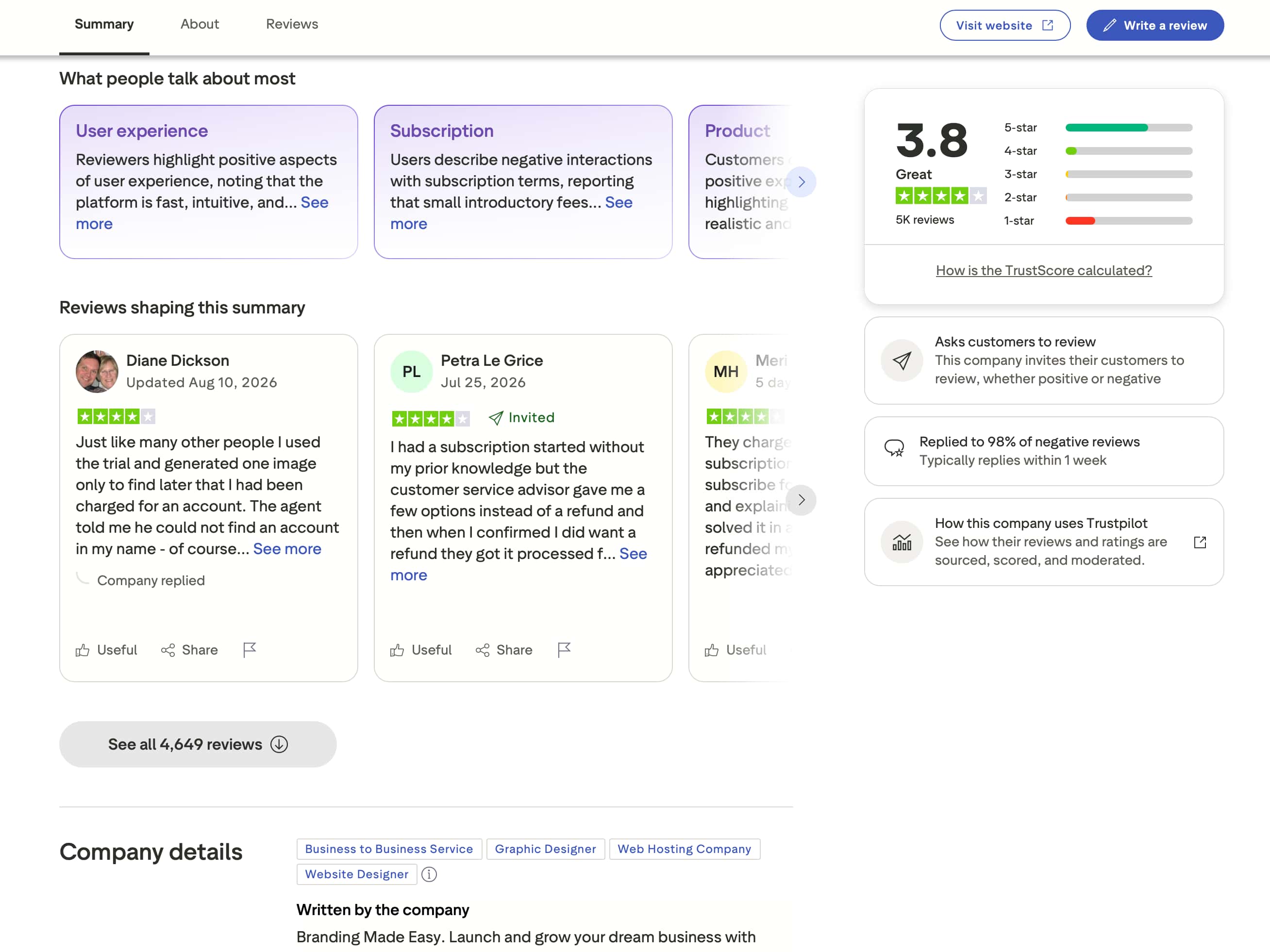
Trustpilot has around 5,000 reviews with an average of 3.8 out of 5 stars, with users praising how fast and easy Pixella is to work with. But there are also subscription complaints, including reports of surprise charges after introductory offers. Some reviewers said customer support helped them with billing issues.
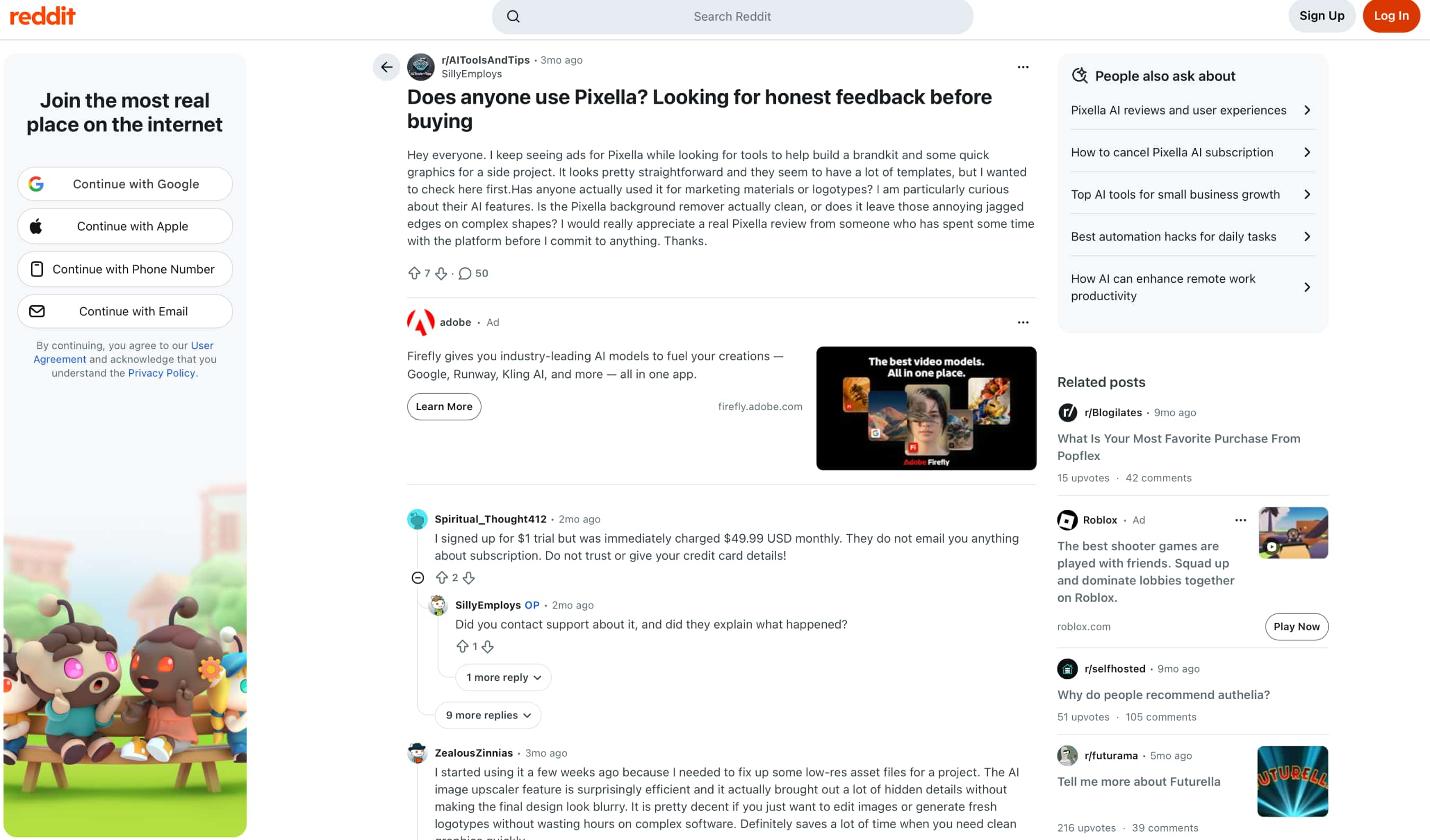
Reddit reaction is also mixed. One user praised Pixella’s AI upscaler for enhancing low-res assets and saving time, while another said they were billed $49.99/month following an initial $1 payment. Other users have questioned the quality of things like background removal, particularly on more complex shapes. These are based on my personal experience and are meant to be used as a guide only, not a definitive conclusion and should be used in conjunction with your own testing.
Is Pixella worth using?
Pixella is perfect for creators, marketers and users who frequently create or edit images. It’s flexible in its blend of generation, editing, enhancement and upscaling, but also makes it easy for you to work on everyday tasks. However, before you decide to subscribe to a paid plan, it’s worth considering the $49.99/month renewal and mixed subscription feedback. It’s a better fit for regular users than for occasional image creators overall.
Vmake Labs AI Image Generator as an alternative
If you want more flexibility in how you create an image, Vmake Labs AI Image Generator is worth considering as an alternative to Pixella. It supports both Text to Image and Image to Image generation, with multiple AI models and reference-image support. The workflow is browser-based, so you can create, review, and download images without installing separate software.
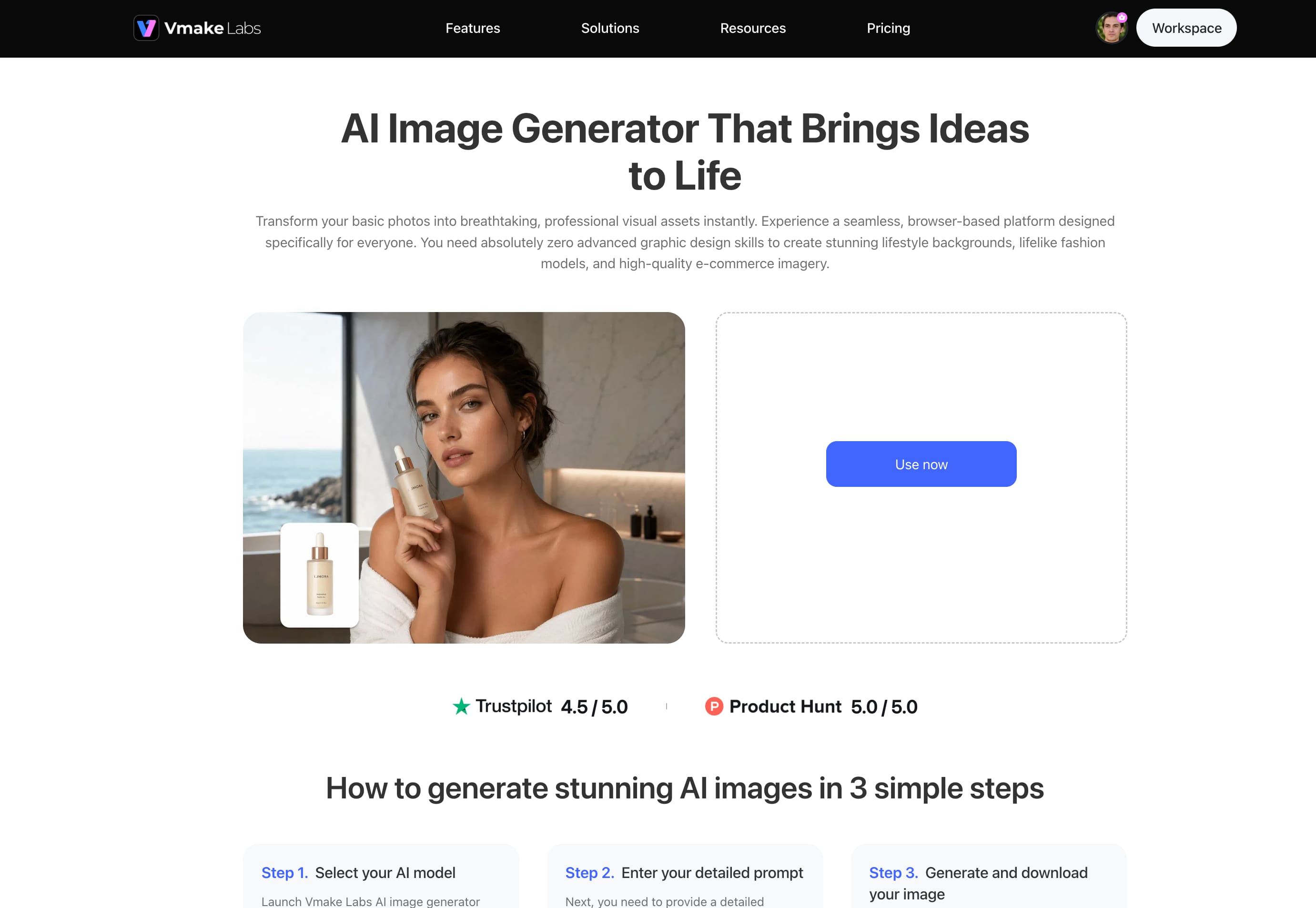
How to create images with Vmake Labs
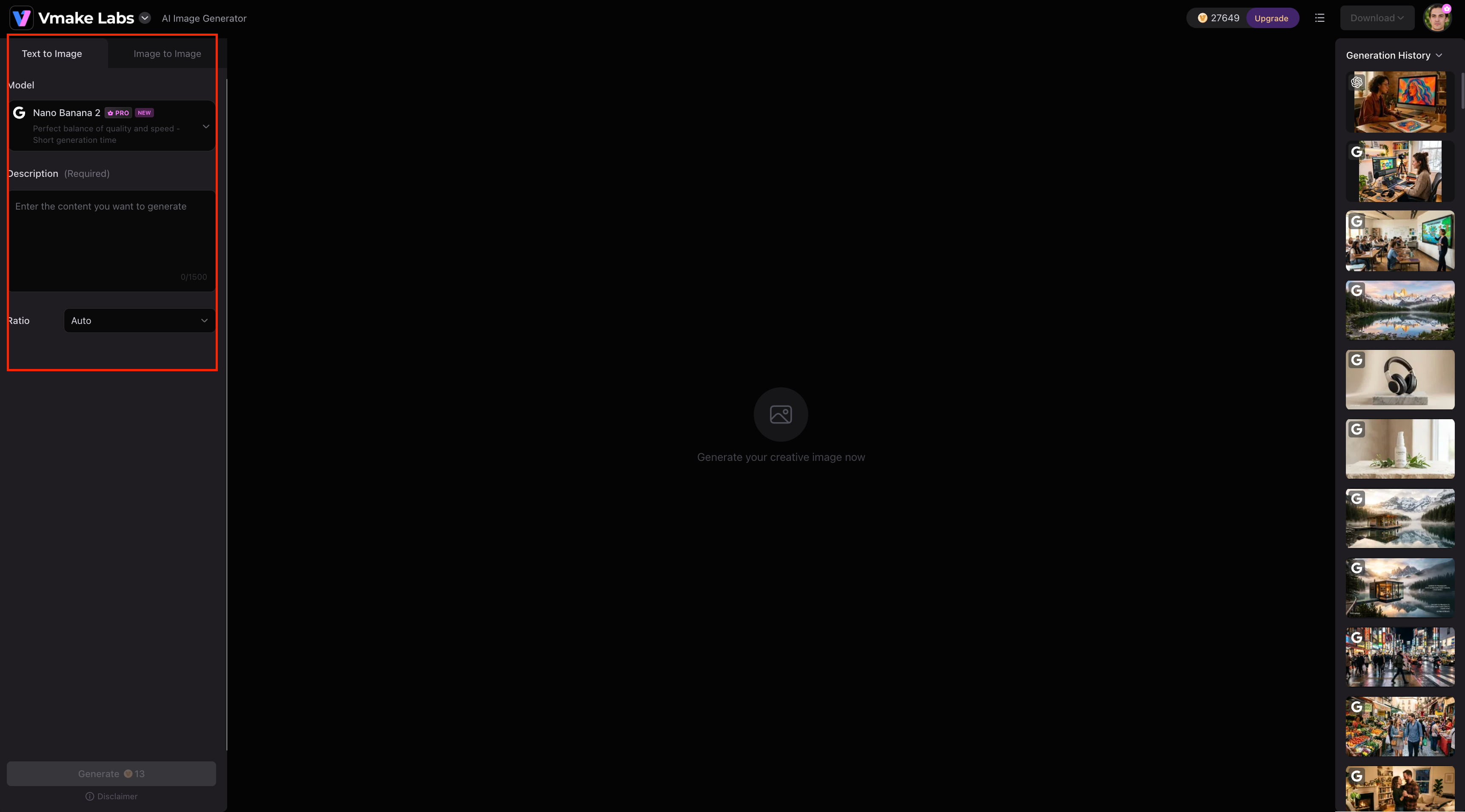
Step 1: Choose a generation method
Open the Vmake Labs AI Image Generator and select Text to Image if you're starting with a written idea, or Image to Image if you want to use an existing visual as a reference. Image to Image supports 1–3 reference images, which can help guide the subject, style, or composition.
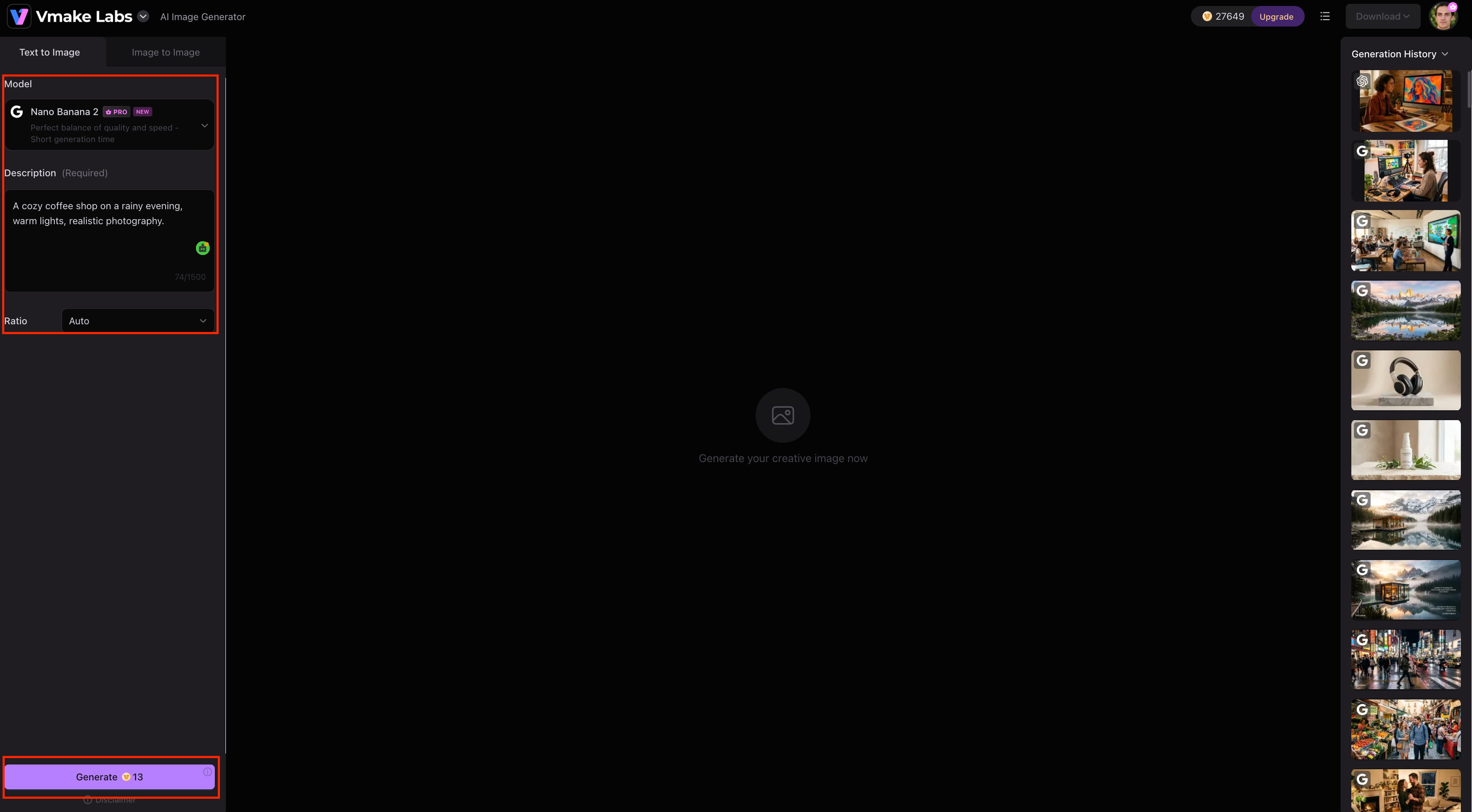
Step 2: Add your input and choose a model
Enter your prompt or upload your reference images, then choose an available model such as Nano Banana 2, Nano Banana Pro, Nano Banana, Seedream 4.0, or GPT Image 1. You can also select the aspect ratio and other available generation settings before creating the image.
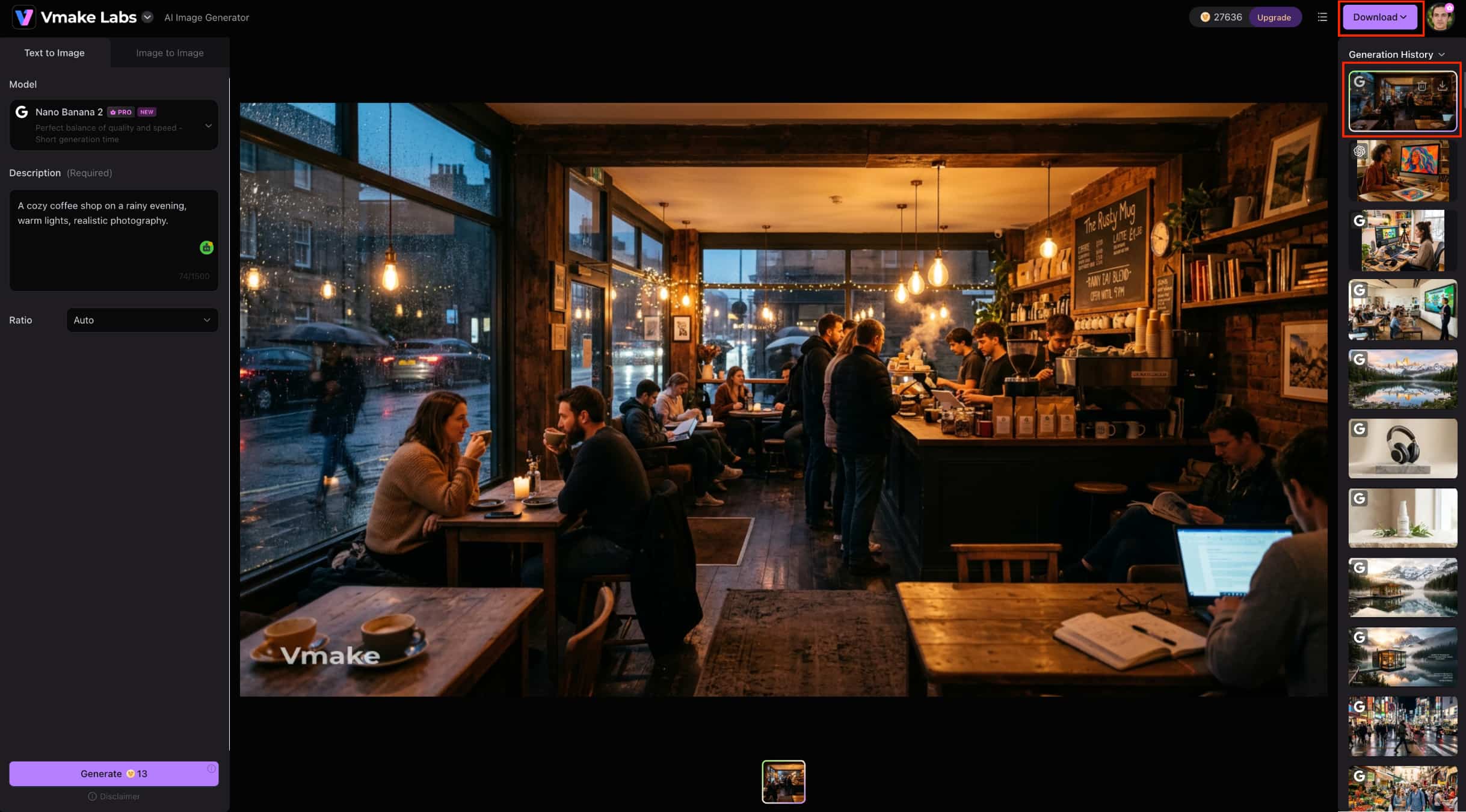
Step 3: Generate and download
Click Generate to create the image and review the result against your prompt or reference. If the output needs changes, refine your input or try another model before generating again. Once you're satisfied, download the finished image for your project.
Why consider Vmake Labs AI Image Generator?
-
Multiple AI image models: Choose from models such as Nano Banana 2, Nano Banana Pro, Nano Banana, Seedream 4.0, and GPT Image 1 for different creative needs.
-
Text to Image and Image to Image: Create a visual from a prompt or use an existing image as the starting point for a new variation.
-
Reference-image support: Upload 1–3 reference images to give the generation more direction, which can be useful for products, branding, and visual concepts.
-
Flexible aspect ratios: Select an aspect ratio that fits the intended use, whether you're creating content for social media, ecommerce, presentations, or websites.
-
Browser-based workflow: Generate, preview, refine, and download images directly in the browser without installing additional software.
-
Useful for commercial visuals: Vmake Labs is particularly relevant for ecommerce, marketing, product, and social media content. When a finished visual needs additional quality improvement, its AI Image Enhancer can be used as a separate step.
Which tool should you choose?
Choose Pixella if you want both image generation and editing, enhancement and upscaling tools all in one platform. It makes more sense for users who work regularly with existing images and create new ones, especially if image improvement is part of the workflow.
Choose Vmake Labs if you want more flexibility in image generation, with multiple AI models, Text to Image, Image to Image, and reference-image support. It is a better fit for creators, marketers, and ecommerce users who need to produce different types of visuals and want more choice over how they start each image.
Conclusion
Pixella is a practical option for users who want AI image generation, editing, enhancement, and upscaling in one platform. Its straightforward workflow makes everyday image tasks accessible, although output quality can vary and the $49.99/month renewal is worth considering. User feedback is also mixed, particularly around subscriptions. If you want multiple AI models, Text to Image, Image to Image, and reference-image support, Vmake Labs is a strong alternative for creators, marketers, and ecommerce users who produce visuals regularly.
FAQs
-
What is Pixella AI?
Pixella AI is an image-focused platform for AI image generation, editing, enhancement, and upscaling. It is designed for creating new visuals and improving existing images. For more generation options, Vmake Labs also supports Text to Image and Image to Image workflows.
-
Is Pixella free to use?
Pixella offers 7-day introductory access starting at $9.99, with plans renewing at $49.99/month. The exact terms of ongoing free access are not shown in the pricing information reviewed. You can also compare its workflow with Vmake Labs AI Image Generator before choosing a paid option.
-
What can you do with the Pixella AI image editor?
Pixella's AI image editor lets you modify and refine existing images instead of creating them from scratch. For creating new visuals from prompts or reference images, Vmake Labs offers both Text to Image and Image to Image generation.
-
Does Pixella have an AI image generator?
Yes, Pixella has an AI image generator that generates images from written prompts. You can select more than one model if you want to do so and Vmake Labs AI Image Generator has a few models, like Nano Banana 2, Nano Banana Pro, Seedream 4.0, and GPT Image 1.
-
Is Pixella worth using?
If you want to do generation, editing, enhancement and upscaling all on one platform, Pixella is worth checking out. If you need multiple models and flexible Text to Image or Image to Image workflows, then Vmake Labs might be the better fit.

You May Be Interested
Z Image AI Review 2026: Features, Performance, Pros and Cons
Yodayo AI Review 2026: Features, Pricing, and Alternatives
X-Design Watermark Remover Review (2026): Features & Pricing
Vidu AI Review: Is This AI Video Generator Worth in 2026?
Vadoo AI Review 2026: Features, Pricing and Alternatives