VEED Review: Watermark Remover + Editor Tested (2026)
 Vmake Labs TeamMay 13, 2026
VEED has grown into one of the most popular browser-based video editors: over 10 million monthly users, Netflix and Google in the client list, and a 4.6/5 G2 rating. But the thing most people search alongside "VEED review" is "VEED watermark remover": and that's where the story gets interesting. VEED is a killer editor for captions and social content. As a watermark remover? Not quite. Here's the full hands-on review with honest notes on where VEED wins and where you need a specialist.
What is VEED.io
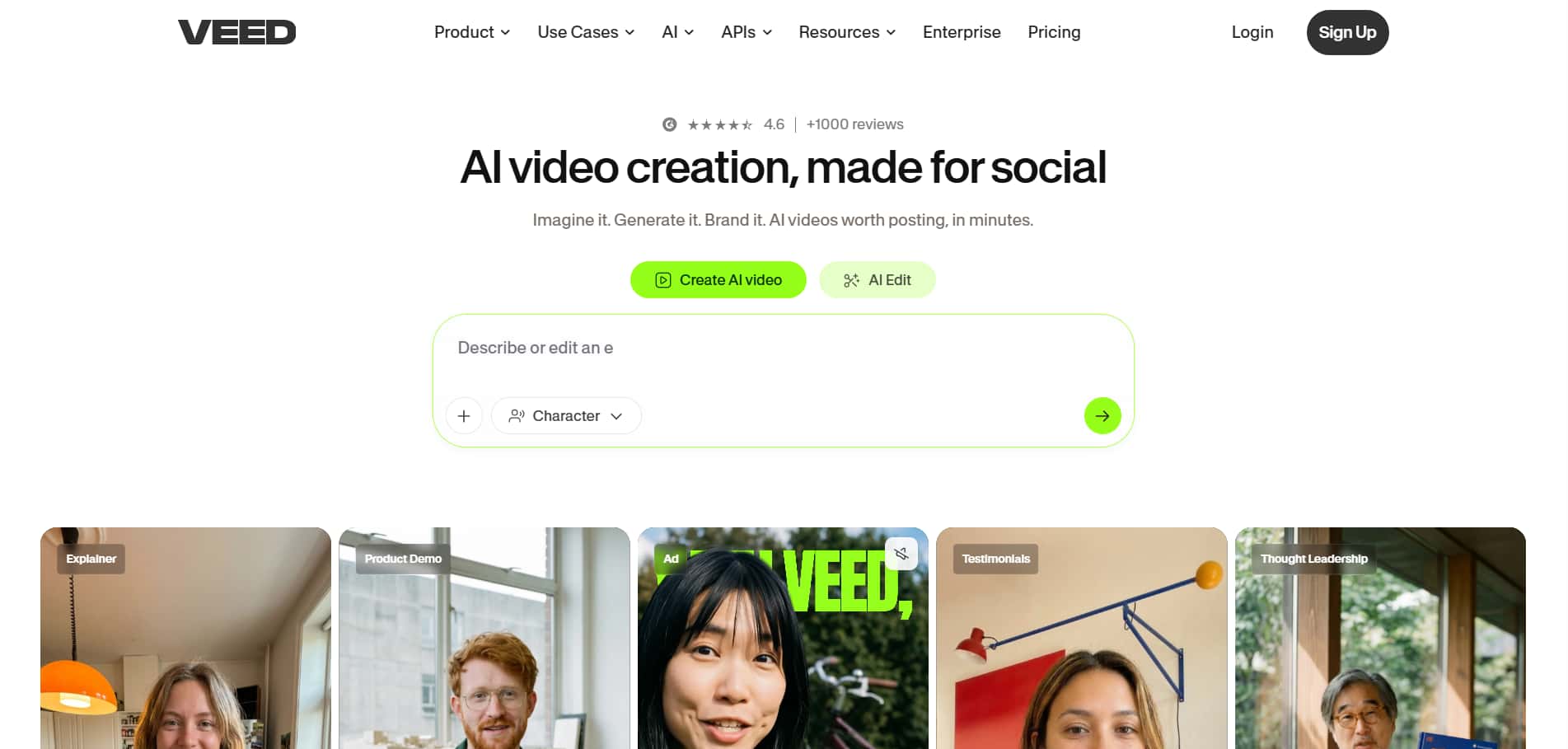
VEED.io is a platform that works on the cloud, started in 2017 in London. The best part is that it runs in your web browser, so you do not need to install anything. Some big names like Sequoia Capital support VEED.io. Companies like Procter & Gamble, Pinterest, and Visa also trust it. With VEED.io, you can. Edit videos on any device you have.
The platform has useful features. You can trim your videos, screen records, add auto-subtitles in over 125 languages, create AI avatars, and use Magic Cut to automatically remove the filler words from your video.
VEED.io is really good at making it easy to add captions. It also helps with media content. They offer four plans. Free Lite, Pro, and Business. These plans are for individuals and teams.
There is a "watermark remover" tool. Some people might think it uses AI to remove the watermark. It actually uses cropping or overlay techniques. This helps hide elements in your videos.
VEED watermark remover tested: the key question answered
Users specifically search "VEED watermark remover": so address it head-on. VEED's approach isn't AI inpainting; it's crop or overlay cover. Here's what that actually means in practice.
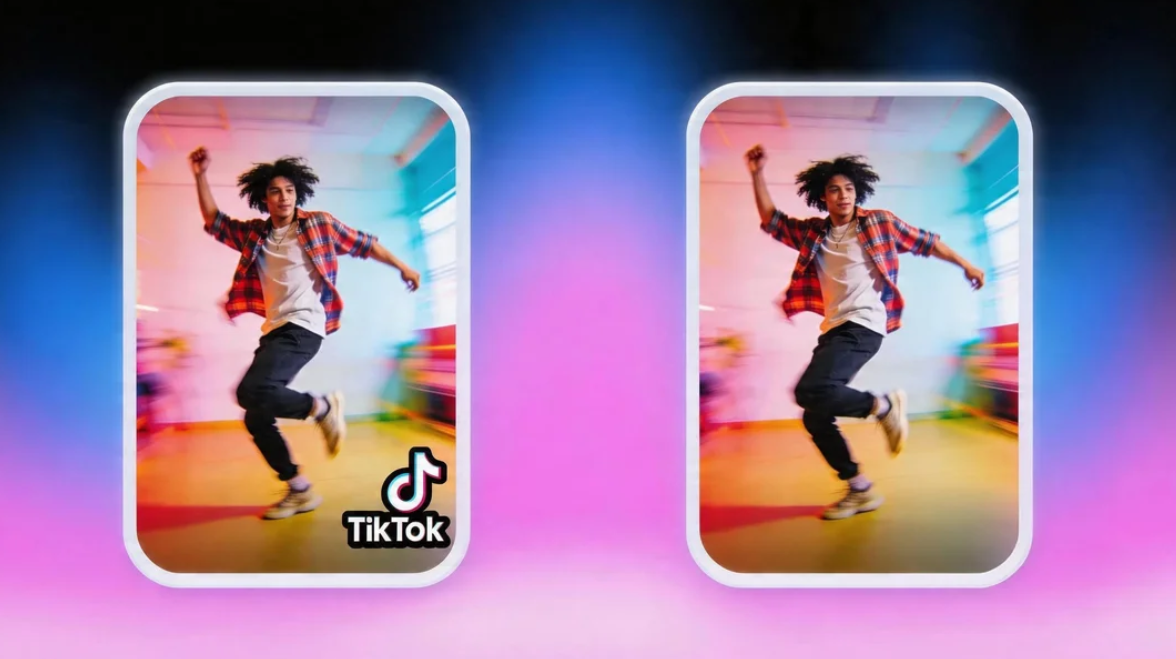
Test 1: TikTok watermark (moving)
-
Result: When using VEED.io to test a moving watermark on TikTok, the website suggests a few things to try. The most prevalent thing is to crop the image or place a sticker over the watermark. Since the watermark constantly moves around, it is not possible to completely remove it in Veed.io. Hence, the video's appearance also changes.
-
Verdict: It is quite clear that Veed.io does not necessarily remove a moving watermark but relies on cropping or overlaying with another sticker. In case of simple videos, this might work, but the dynamic ones may not appear completely professional.
Test 2: Static corner logo
-
Result: When testing a corner logo in VEED.io, the crop tool works really well for removing the logo from the frame. But it also cuts off a part of the video, changing the overall video composition and aspect ratio. Important details near the edges of the video are lost. This is because cropping cuts off parts of the video, such as the static corner logo.
-
Verdict: Veed.io is relevant for static corner images. It comes at the cost of modifying the overall frame. Therefore, it is functional, but it may not be relevant if the user prefers to maintain the original video layout.
Test 3: Subtitles / hardcoded captions
-
Result: Testing hardcoded subtitles in VEED.io revealed that the platform still relies on quick fixes, such as cropping the video frame or placing overlays over the captions. These methods can hide the text, but they often cut off parts of the video or create ugly blocks. This can make the video harder to watch, especially when there is a lot of dialogue on screen.
-
Verdict: Therefore, Veed.io is not a preferable solution for removing burned-in subtitles. It does not reconstruct the underlying video, unlike many AI-driven tools. Hence, it cannot be considered an option for clean, professional solutions.
In a nutshell, watermark removal on VEED.io is not really based on artificial intelligence. This means it cannot rebuild the picture where a watermark is. Instead, it uses ways like cutting out parts of the picture or covering things up. This only works well in certain situations.
If you want to remove watermarks from videos like a professional, it is better to edit your video in VEED.io, then use a tool like Vmake to make it look cleaner. Watermark removal in VEED.io has its limits, so using VEED.io alongside a specialized tool like Vmake is a good approach for professional-grade watermark removal.
VEED features that actually shine
Give credit where it's due: VEED.io is really great at what it does. The editor you can use right in your browser is very easy to use. The artificial intelligence that adds captions to videos is the best. You can get subtitles in more than 125 languages, and it is very fast and accurate. This makes VEED.io a good tool for quickly creating professional-looking videos.
Auto-subtitles (125+ languages)
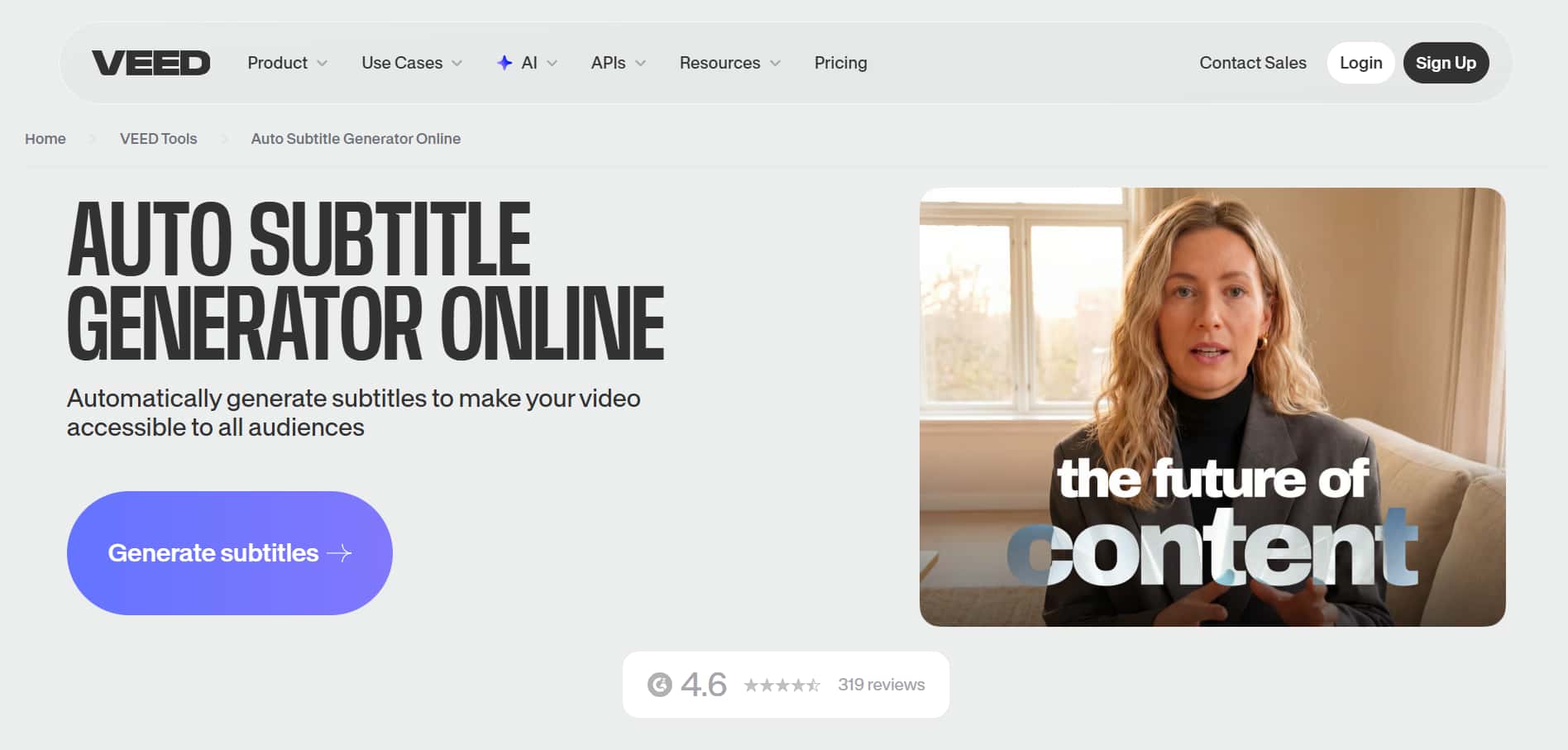
VEED.io automatically adds subtitles to videos in more than 125 languages. The best part is that it understands what people are saying, so you can trust the subtitles are correct. You can also change how the subtitles look to fit your brand, such as choosing fonts and colors. It also facilitates exporting subtitles as SRT files. This makes VEED.io a tool for people who make videos in many different languages. VEED.io and its auto-subtitles feature are very useful for ensuring everyone can understand your videos.
Magic Cut for filler-word removal
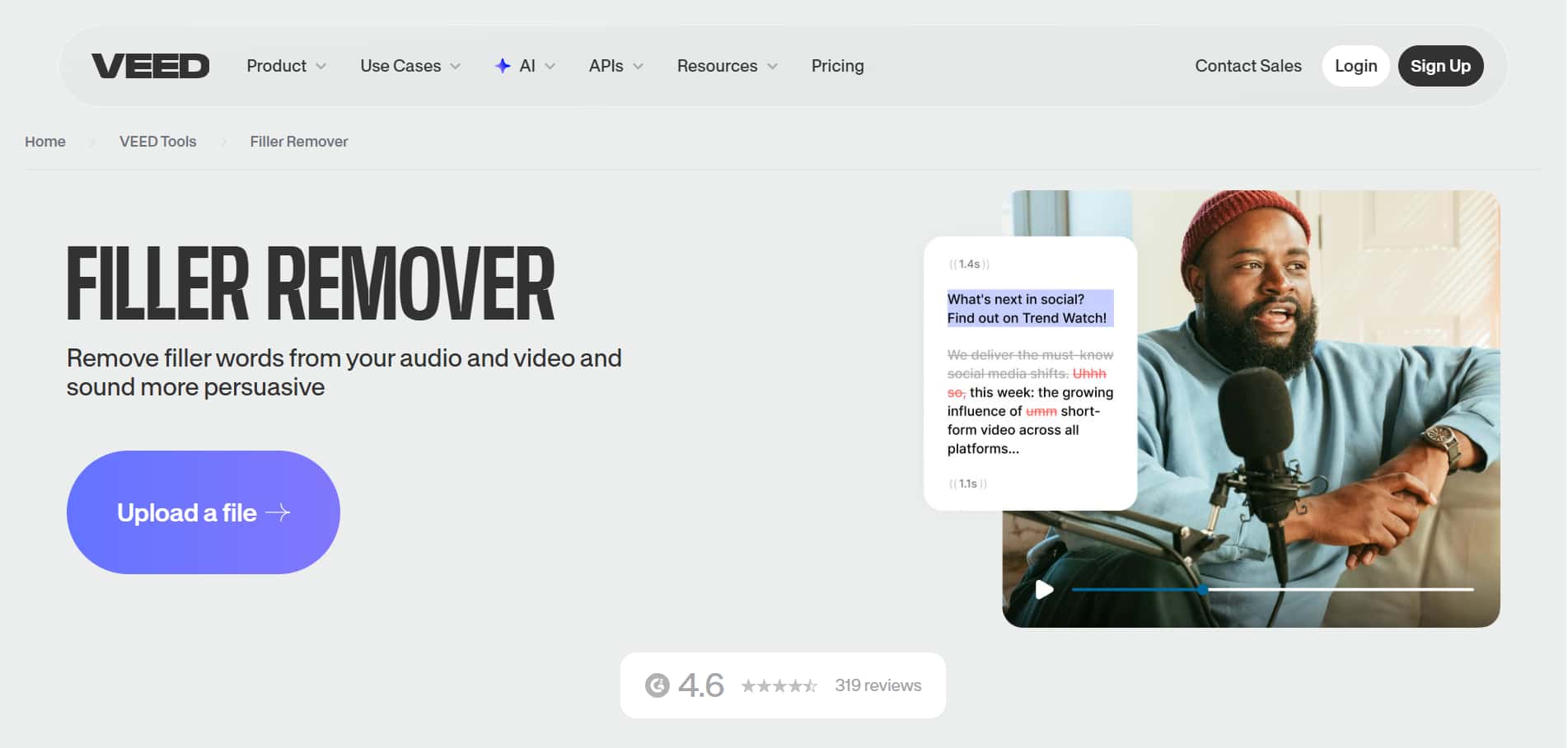
VEED.io's Magic Cut tool automatically removes filler words from videos. These filler words include things like "um," "uh," and long pauses in speech. It is easy because you do not have to manually find and delete them. This is really helpful for videos where someone is talking directly to the camera. It saves a lot of time that would be spent on editing tasks. The end result is more professional-looking content.
AI avatars and dubbing
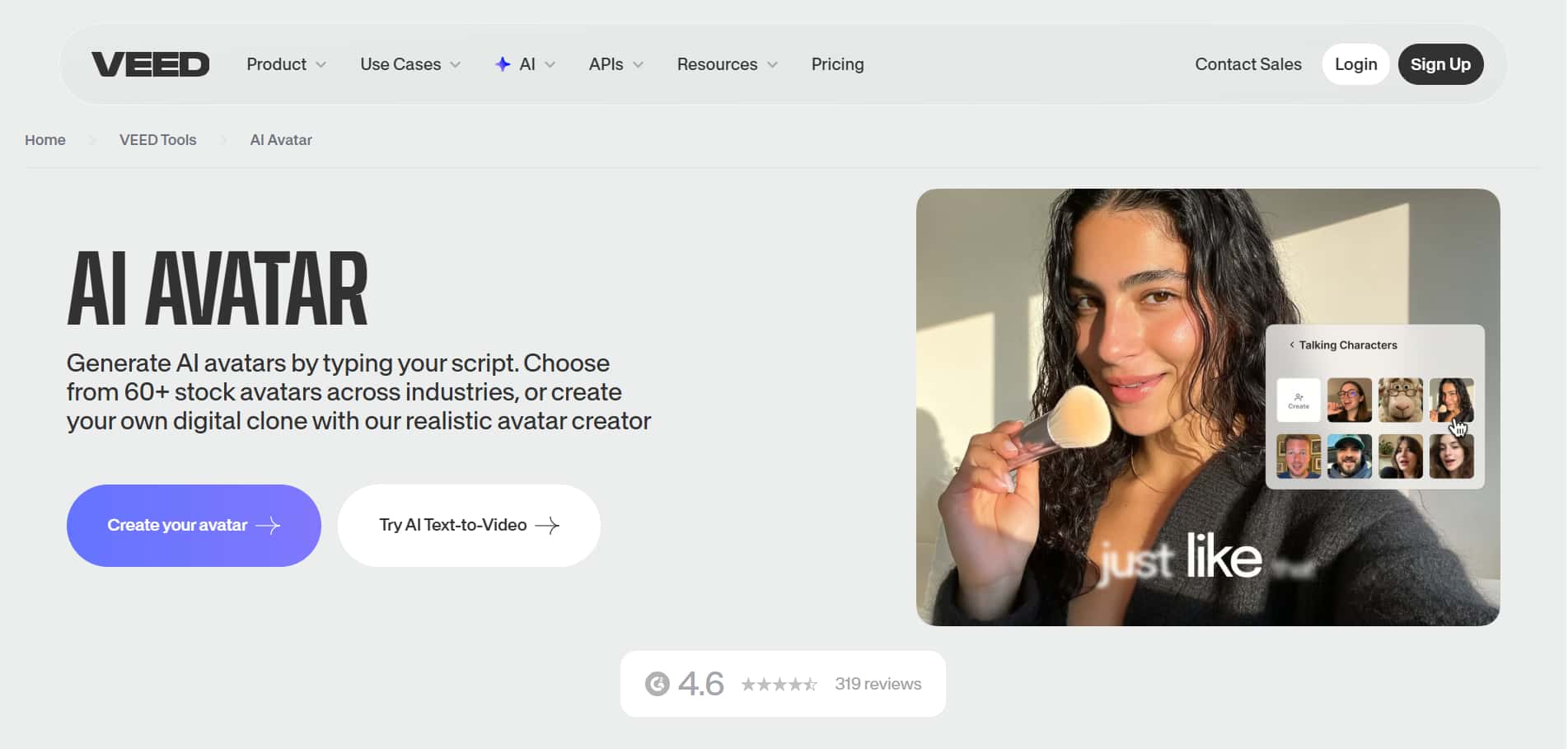
VEED.io has AI avatars and dubbing features. They let you make a copy of your face and voice. First, you need to set it up, which takes around six hours. This makes it good for creating lots of content and repurposing it for different places. Using these features quickly consumes credits, especially if you use them a lot. This makes VEED.io powerful but also expensive.
Screen and webcam recording
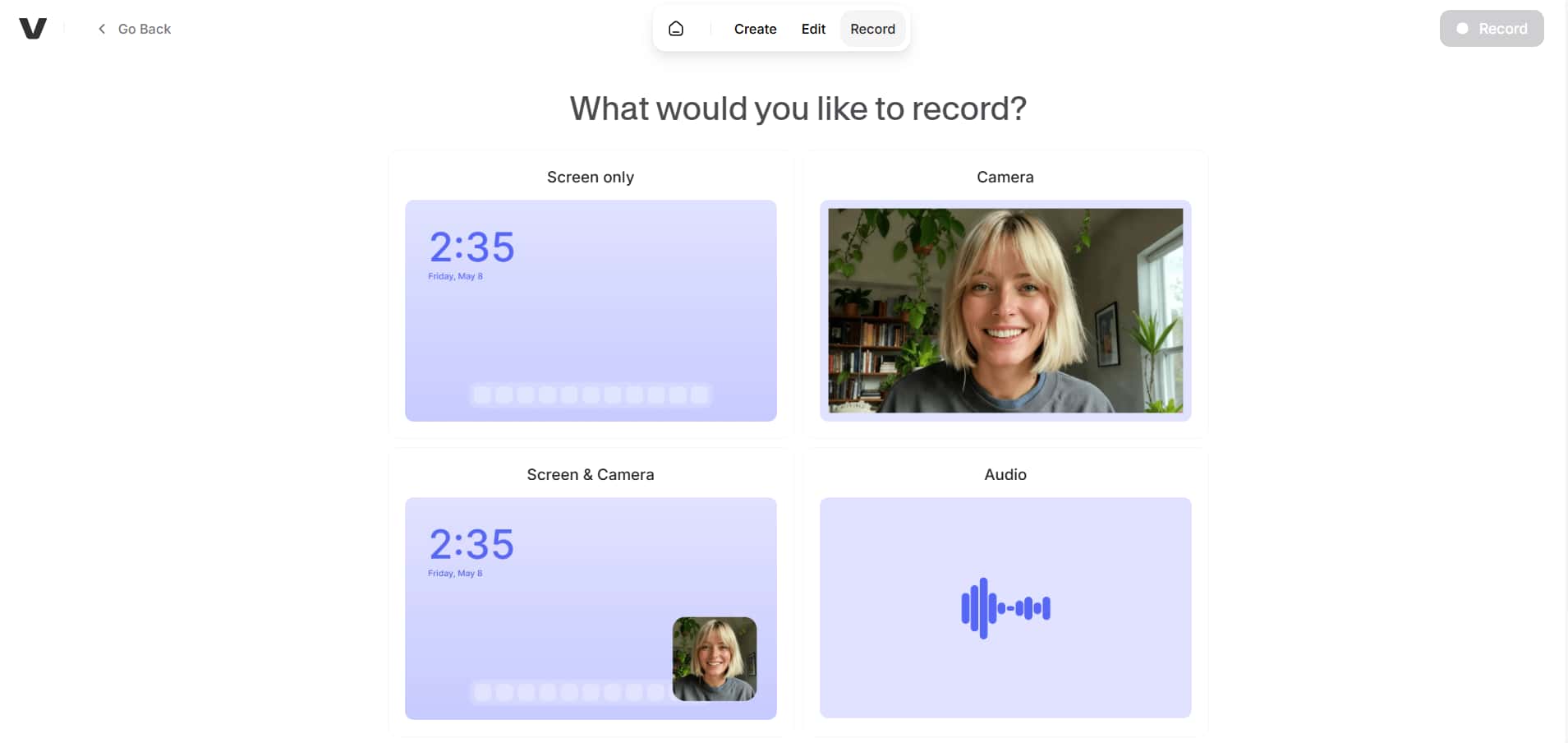
VEED.io has integrated screen and webcam recording, so you don't need other software or extensions. It lets you record presentations, tutorials, or talking-head videos directly in the browser with minimal preparation. Among its other features is eye-contact correction, which helps presenters look more interested and natural on camera without doing much editing.
Team collaboration
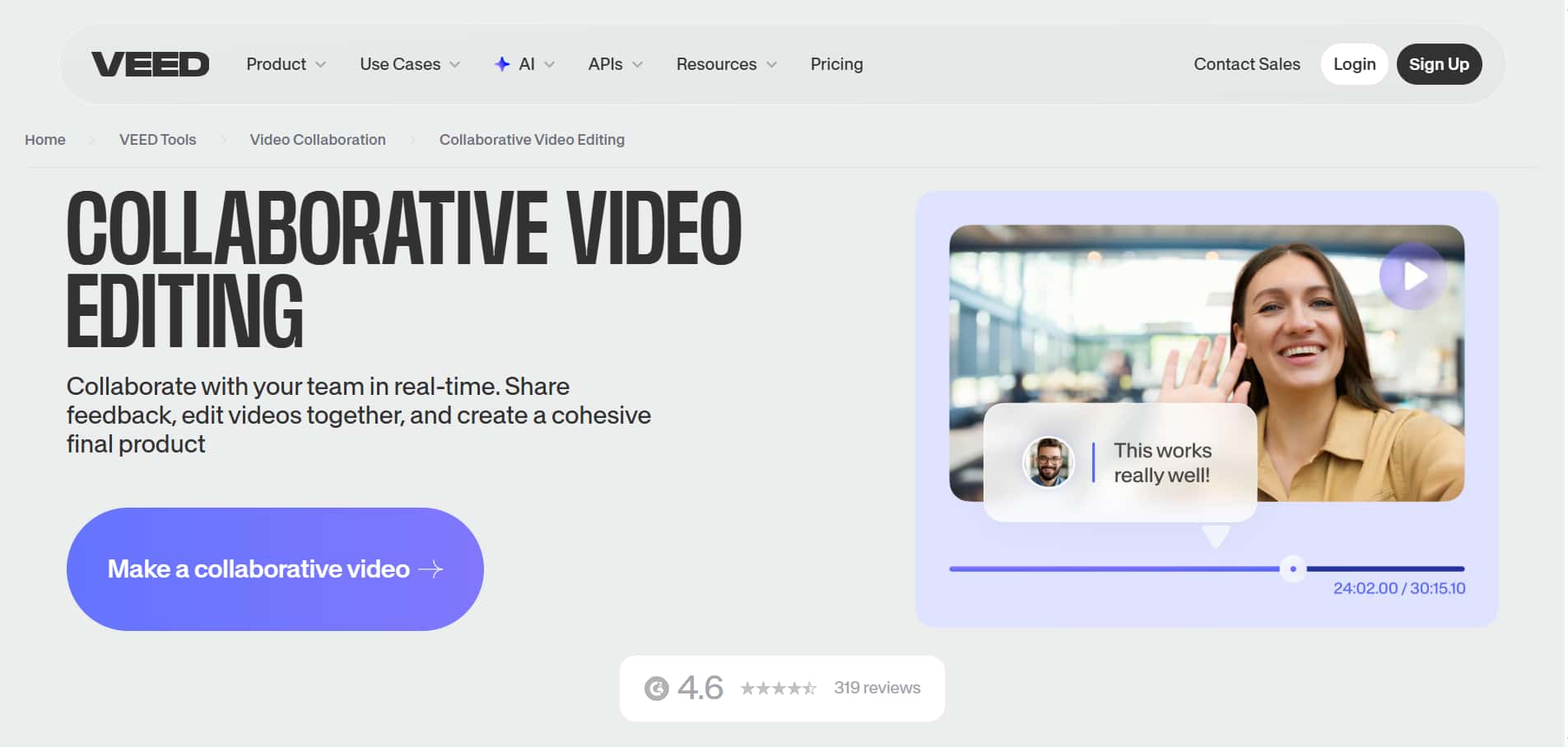
VEED.io facilitates team collaboration by offering features such as shared workspaces, brand kits, and real-time commenting. This not only simplifies the process of gathering feedback but also helps in ensuring that the brand remains consistent. Teams will be able to organize their assets, templates, and styles together to create smooth workflows.
VEED pricing breakdown: Is it worth it?
Veed.io offers excellent value to creators who rely heavily on subtitles, AI features, and browser-based editing. However, casual users might find the free plan quite restrictive and the paid tiers a bit expensive for their advanced needs.
|
Plan |
Price |
Key features |
Best for |
|---|---|---|---|
|
Free |
$0/month |
720p export, watermark, 10-min videos, 5 min subtitles/month |
Testing the platform |
|
Lite |
$12/month (annual) |
No watermark, 1080p, 25-min videos, 144 hrs/year subtitles |
Solo creators |
|
Pro |
$24–29/month |
4K export, unlimited length, full AI suite, avatars, 50+ languages |
Professionals & teams |
|
Business |
Custom |
Brand kits, analytics, team management, support, security |
Teams at scale |
Free: $0/month
The Free plan on VEED.io costs $0 per month. It has basic features, like exporting videos in 720p. The VEED.io watermark will be on these videos. You can only make videos up to 10 minutes long with the Free plan on VEED.io. The Free plan of VEED.io also gives you five minutes of auto-subtitles each month. This isn't much time for auto-subtitles if you use VEED.io all the time.
Best for: Testing the platform, exploring the interface, and understanding the features.
Lite: $12/month (annual billing)
The VEED.io Lite plan costs $12 per month, paid once annually. This plan removes the watermark from your videos. You can export them in 1080p. With the VEED.io Lite plan, you can make videos that're up to 25 minutes long. The VEED.io Lite plan also includes 144 hours of auto-subtitles each year. The VEED.io Lite plan strikes a balance between affordability and the features you need to create content regularly.
Best for: Solo creators with a modest content volume.
Pro: $24-29/month
The Pro plan of VEED.io costs around $24-$28 per month. This plan unlocks the full VEED.io AI suite. The features include 4K exports, unlimited video length, and advanced tools such as avatars and dubbing. The VEED.io Pro plan also supports translations in than 50 languages. You get AI avatars with the VEED.io Pro plan. You can use them for around 4 hours per year. This makes the VEED.io Pro plan a powerful all-in-one solution for people who are serious about creating content with VEED.io.
Best for: professional creators, agencies, and content teams for high-quality output.
Business/Enterprise: custom
The Business plan of VEED.io is for teams that need to grow and have more control. This plan has pricing that is just for them. VEED.io's business plan is great for teams because it offers features like multiple brand kits and video analytics. You also get to manage your team from one place. You get help from the people at VEED.io when you need it. The Business plan of VEED.io also has security, and you can make it work just the way you want.
Best for: teams and brands operating at scale for consistent branding.
VEED pros and cons based on real user reviews
|
Pros |
Cons |
|---|---|
|
Active product development, frequent feature drops. |
While the monthly billing is easier, the annual billing is harder to cancel. |
|
Intuitive for beginners. |
Browser crashes on heavy 4K projects. |
|
Zero-install convenience across devices. |
The free plan's watermark aggressively pushes users into the paid tier. |
|
Subtitle accuracy across 125+ languages. |
No true AI watermark inpainting. |
|
Speed for social content: Reels and Shorts fly. |
AI avatars eat credits fast. |
Who should use VEED (and who should skip it)
-
Best for: VEED.io is best for people who make things for media, marketing teams, teachers and podcasters who want to make videos quickly on the internet. It helps them make videos of their ideas, lessons, or audio easily. VEED.io is very easy to use, which is perfect for people who're not good with technology and for people who need to make content fast. VEED.io makes it simple to turn ideas into looking at videos.
-
Great for: VEED is really good at things like adding subtitles, a feature called Magic Cut, working with a team, and translating with the help of artificial intelligence. These tools really cut down on the time it takes to edit content by hand, making it easier for people to watch and understand videos and helping them reach more people. VEED is especially good for people who make a lot of videos and need to add many captions and create videos in multiple languages.
-
Skip if: It's not the option if you want to remove AI watermarks completely or edit at a very detailed level. It is not good for advanced video editing, such as creating effects, working with complex video timelines, or adding lots of special effects. Also, people who want to pay for a product once might not like that it only offers a subscription.
VEED alternative: Vmake AI the pairing that actually works
For most creators, VEED.io works best when paired with a specialist tool rather than used on its own. While VEED excels in editing, captions, and team workflows, it isn't built for advanced pixel-level tasks. That's where Vmake AI complements it effectively. Together, they form a practical, modern content stack that balances speed and precision. This pairing lets you handle both high-quality editing and complex visual cleanup without switching between too many tools.
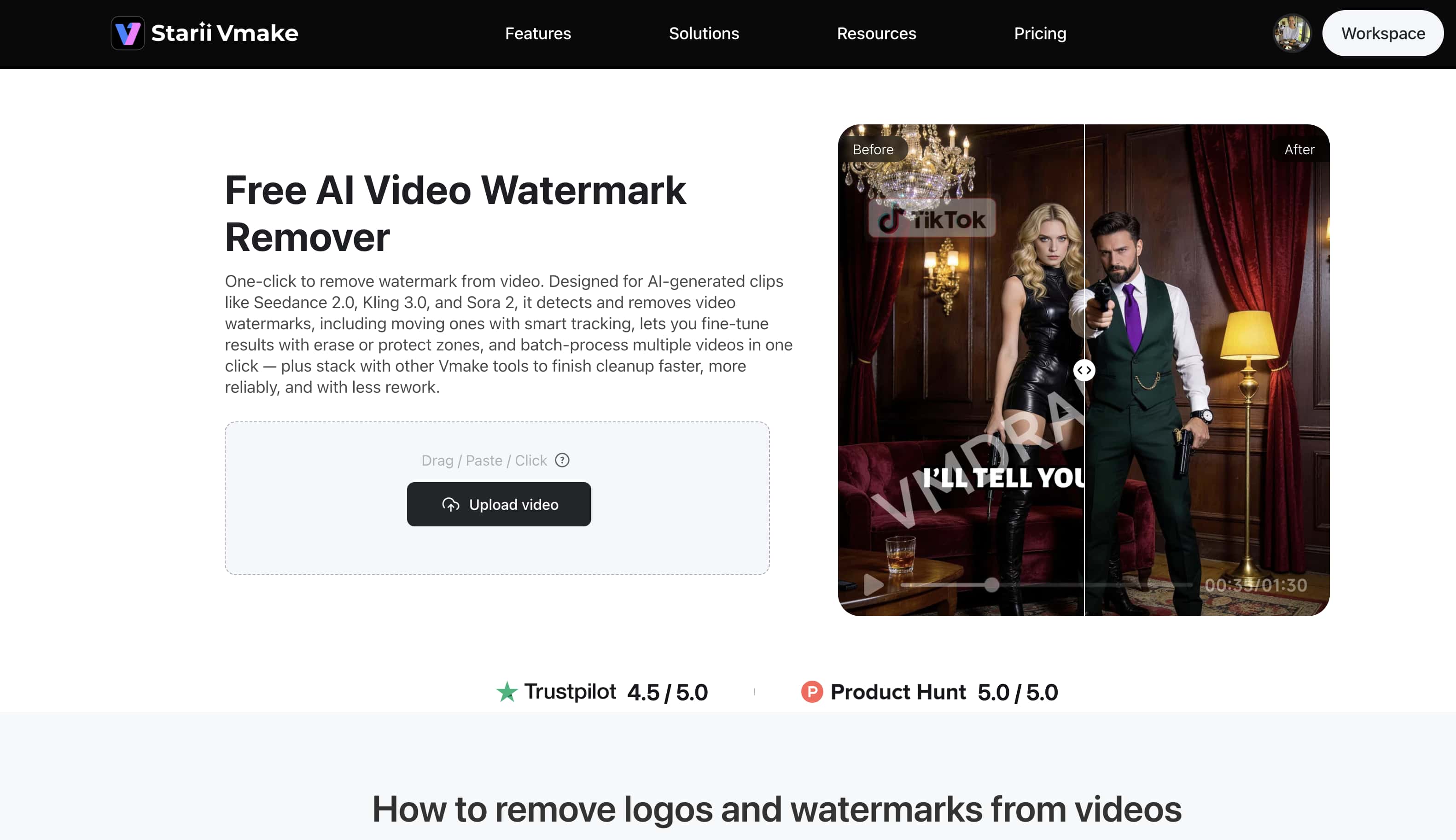
In practice, you can use VEED for editing, auto-subtitles, Magic Cut, and collaboration, then export your video. Next, run it through Vmake AI for tasks such as removing watermarks, text, or objects, using motion tracking and batch processing (up to 30 videos). You can also use Vmake for generating UGC-style videos, especially for ads and e-commerce creatives.
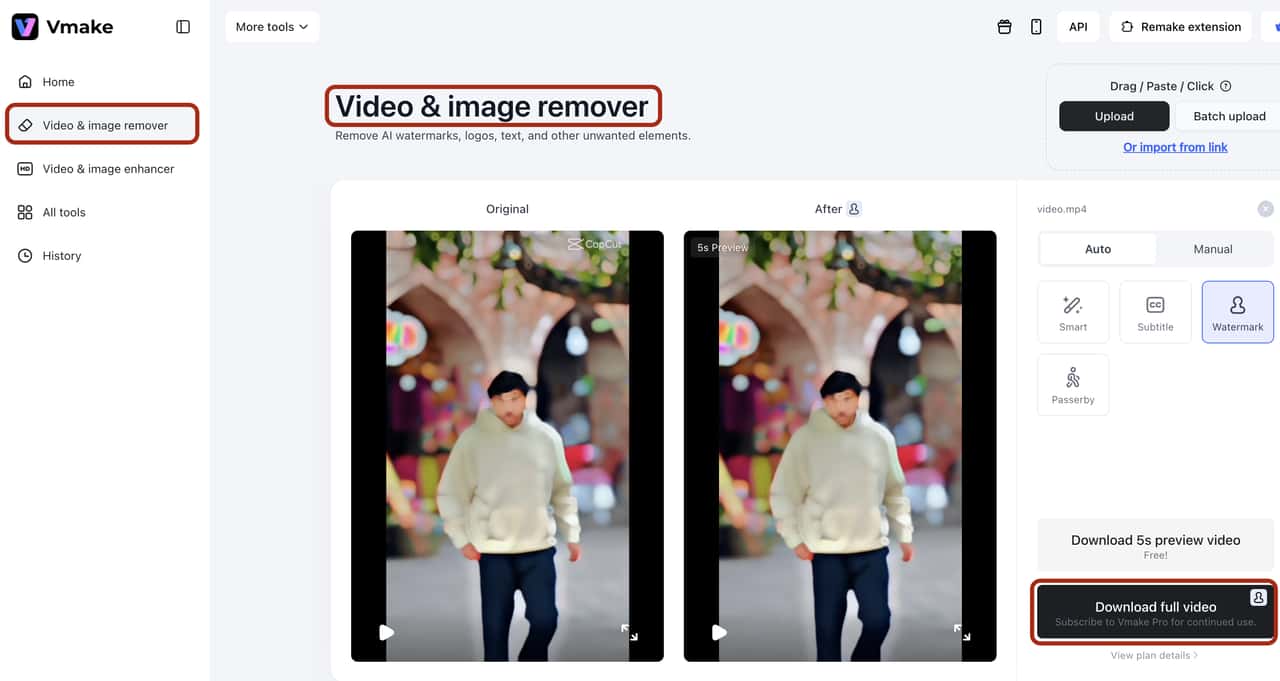
Use VEED for fast editing, captioning, and team-based workflows for social or educational content. Switch to Vmake AI when you need clean removal of watermarks, subtitles, or objects without cropping or blurring. For performance-driven content such as ads or product videos, Vmake is especially relevant for its UGC generation and visual enhancement capabilities.
Conclusion
It is clear that VEED.io is an efficient tool. It works in a browser without users having to go through the hassle of downloading an application. It excels at providing quick captions and edits, making teamwork more feasible. But its shortcomings in areas such as watermarking or object removal indicate that it is not a comprehensive, all-in-one solution.
Therefore, combining it with Vmake AI remedies those shortcomings. It has the potential to provide accurate removal and cutting-edge AI features. The two together form a harmonious, productive workflow for editing and cleaning up. If you're serious about scalable, high-quality video content, using VEED alongside Vmake AI is a smart, practical choice.
FAQ
Is VEED free to use?
There is a free tier available. The videos in this plan have a watermark, a 720p cap, and a 10-minute video limit. Paid plans start at $12/month.
Does VEED have a watermark remover?
VEED offers crop and overlay tools that hide watermarks without using AI inpainting. But if you want legit removal, it is advisable to pair it with Vmake.
Is VEED better than CapCut?
For browser-based teamwork, captions, and AI features: yes. For mobile-first editing and free access to AI tools: CapCut wins.
Can I cancel my VEED subscription easily?
Monthly plans are simple and can be canceled easily. Annual plans are the source of most complaints: set a calendar reminder before renewal.
Is VEED worth the Pro plan?
The plan is worth it for professional creators, small teams, and anyone using auto-subtitles or translations heavily. However, for occasional users, the Lite plan is usually enough.
Does VEED save projects offline?
No, the projects are saved in the cloud, and the users may download the projects regularly to keep it as a backup.

You May Be Interested
123APPS Watermark Remover Review (2026): Pros, Cons, and Pricing
Airbrush Watermark Remover Review (2026): Features and Pricing
Guide on How to download TikTok videos without a watermark
Top 7 Watermark Remover Apps That Actually Work in 2026

Batch Watermark Removal with Vmake AI
How to Remove Seedance 2.0 Watermark from Videos