Photobomb Meaning: What It Is and How to Remove Photobombers
Learn what a photobomb is, discover why photobombing happens, explore funny photobomb moments, and remove unwanted photobombers from your photos with Vmake Labs.

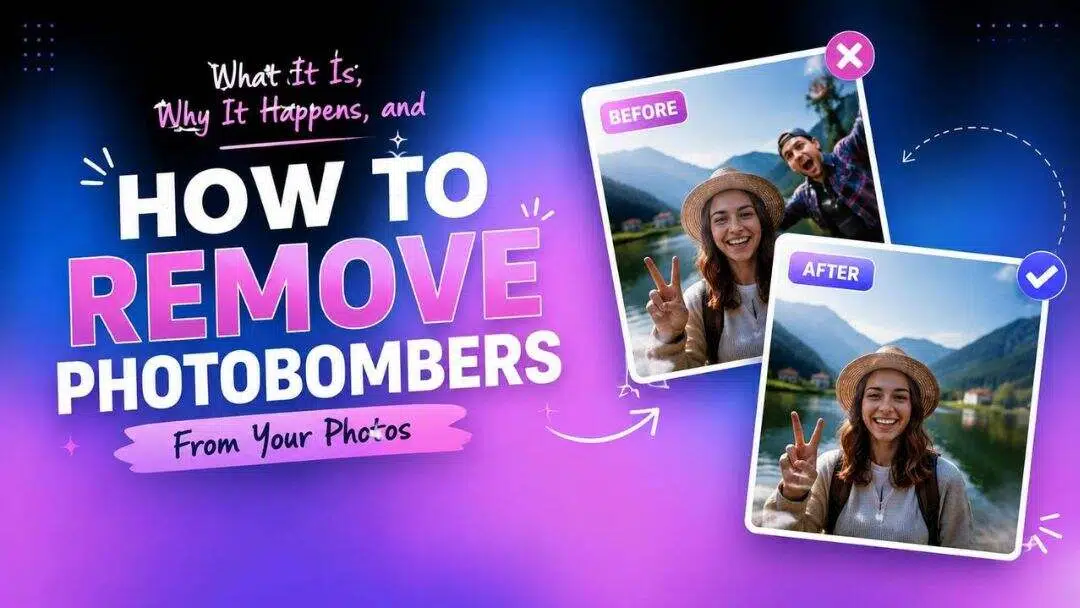
A photobomb can transform an ordinary photo into a funny surprise or an unwanted distraction. Whether it happens intentionally or by accident, photobombing is a common part of modern photography. This guide explains the photobomb meaning, why it happens, and how to remove unwanted photobombers quickly using AI-powered editing tools.
What does photobomb mean?
A photobomb is an unexpected person, animal, or object appearing in a photograph and drawing attention away from the intended subject. According to dictionaries such as Merriam-Webster, Cambridge, and Collins, the word can describe both the final image and the act of unexpectedly entering someone else's photo. While photobombs are often associated with humor, they can also distract viewers from portraits, travel photos, event photography, and other images where the focus is meant to remain on the main subject.
With the development of social media, the word became very popular as impromptu and unexpected moments were often shared on the internet. Often, it is something like a friend pulling a funny face in the background, a stranger walking through a vacation photo, or a curious pet stealing a show that makes ordinary pictures memorable.
Why does photobombing happen?
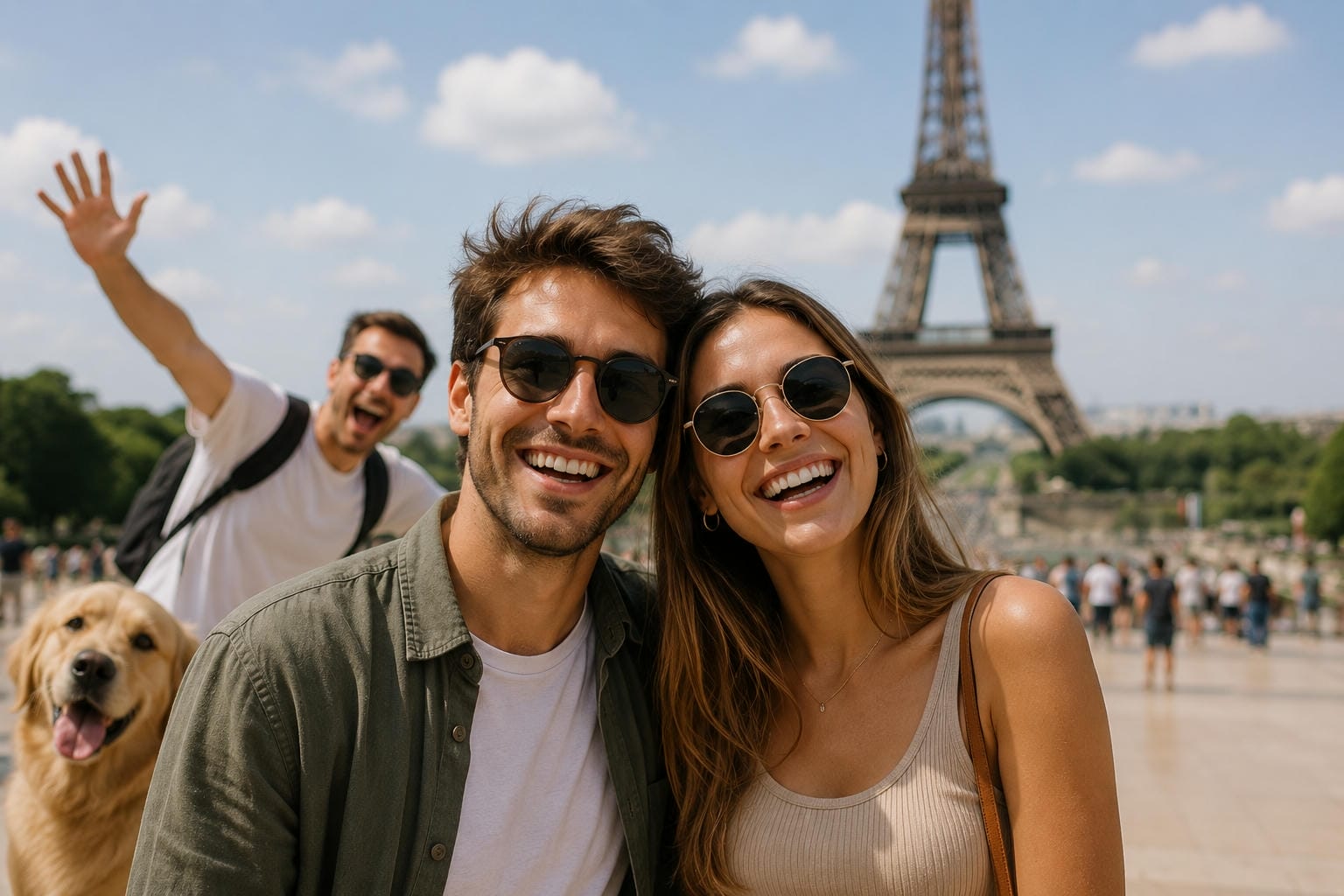
Photobombing happens when someone or something shows up in a picture just before it's taken. Many photobombs are done on purpose for laughs. However, some happen accidentally when people, animals or moving objects pass through the frame in busy places. These surprise appearances, whether it's a playful friend or a random stranger in the background, can either add character to a photo or become an unwanted distraction.
Common types of photobombs
Photobombs can happen in many situations, whether someone intentionally joins the frame or simply walks into the background at the wrong moment. Photobombs can happen in many situations, but a few types appear more frequently than others.
-
Strangers walking into the background: This is common at tourist attractions, parks, beaches, and busy streets where people are constantly moving through the scene.
-
Friends or family joining unexpectedly: A playful sibling or friend may deliberately jump into the frame, turning an ordinary photo into a funny memory.
-
Pets and wildlife: Curious dogs, cats, birds, and other animals often wander into photos, creating spontaneous and memorable moments.
-
Tourist attractions: Crowded landmarks make it difficult to capture an empty background, so accidental photobombs happen frequently.
-
Photography equipment: Selfie sticks, drones, tripods, cameras, or even another photographer's gear can accidentally appear in the shot, especially in crowded sightseeing spots or during events.
-
Random objects entering the frame: Passing vehicles, bicycles, signs, balloons, shopping carts, or delivery scooters can also distract you from the main subject.
Funny photobomb moments
Some photobombs become unforgettable because they capture genuine moments that couldn't have been planned. Celebrity photobombs often go viral, while pets and wildlife can turn an ordinary photo into a memorable one. Weddings, vacations, and family gatherings also produce plenty of funny surprises when children, relatives, or friends unexpectedly steal the spotlight. Although these moments often add humor to casual photos, they may not be suitable for professional portraits or images where the focus should remain on the intended subject.

How to remove photobombers from photos
Unwanted photobombers don't have to ruin a great image. Modern AI editing tools can remove people or distracting objects while rebuilding the surrounding background. Before editing, it's worth taking a moment to evaluate the scene, so you can choose the most suitable removal method.
Before removing a photobomber
Before you start editing, keep these points in mind:
-
Check whether the person overlaps with the main subject. Removing someone standing behind the subject is usually easier than editing a person covering important details.
-
Identify whether the background is simple or detailed. Plain skies or walls are easier to reconstruct than crowds, trees, or patterned surfaces.
-
Decide whether automatic or manual selection will work better. Automatic removal is ideal for simple edits, while manual selection offers greater precision for more complex images.
Get rid of unhappy moments: Remove photobombers with Vmake Labs
If an unwanted person distracts from your photo, Vmake Labs Image Remover offers a simple AI-powered solution that doesn't require advanced editing skills. The online tool can remove photobombers, passersby, text, logos, and other unwanted objects while rebuilding the surrounding background naturally. It also provides automatic and manual editing modes, giving you the flexibility to choose the approach that works best for your image.

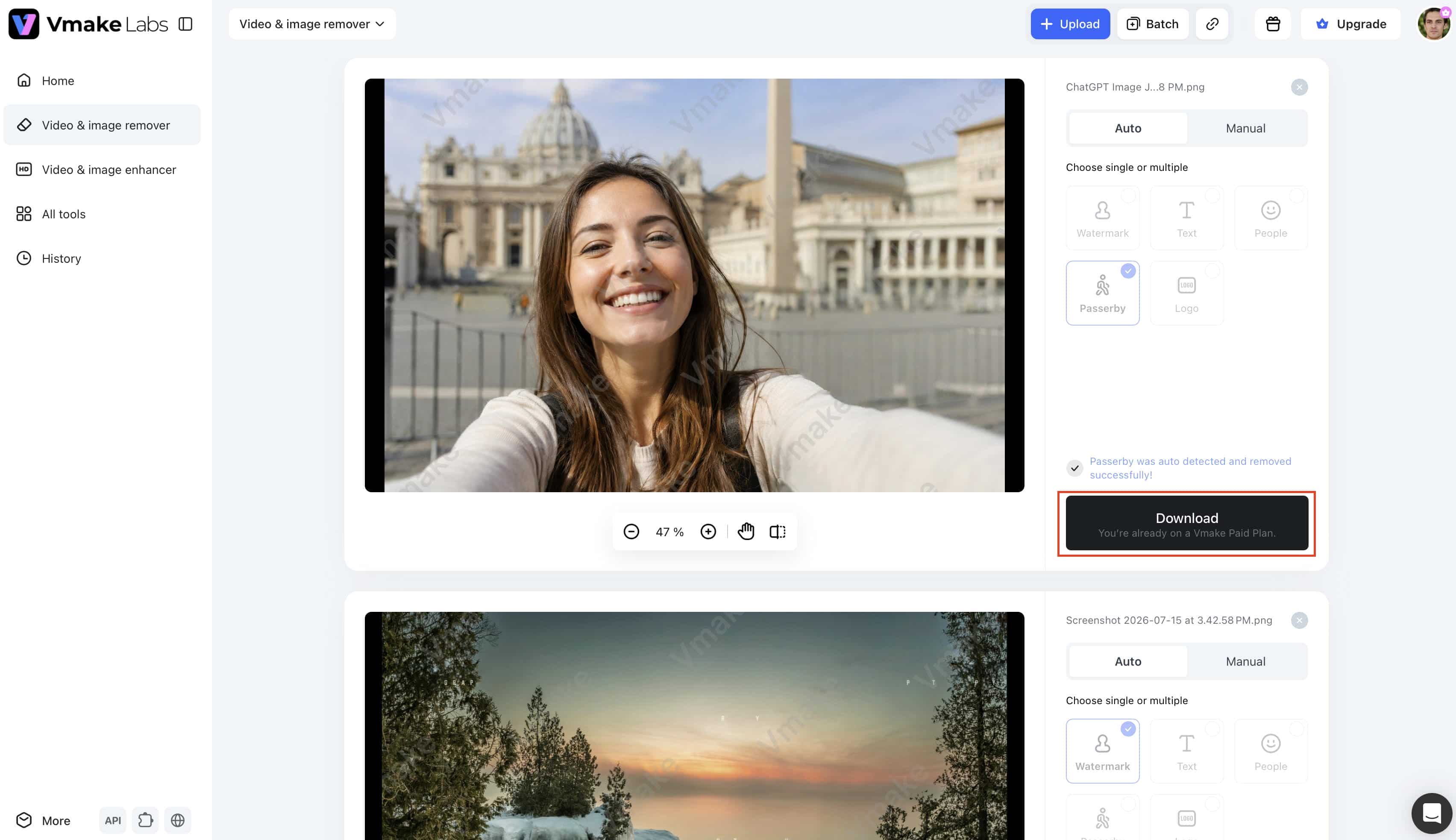
Step 1: Upload your photo
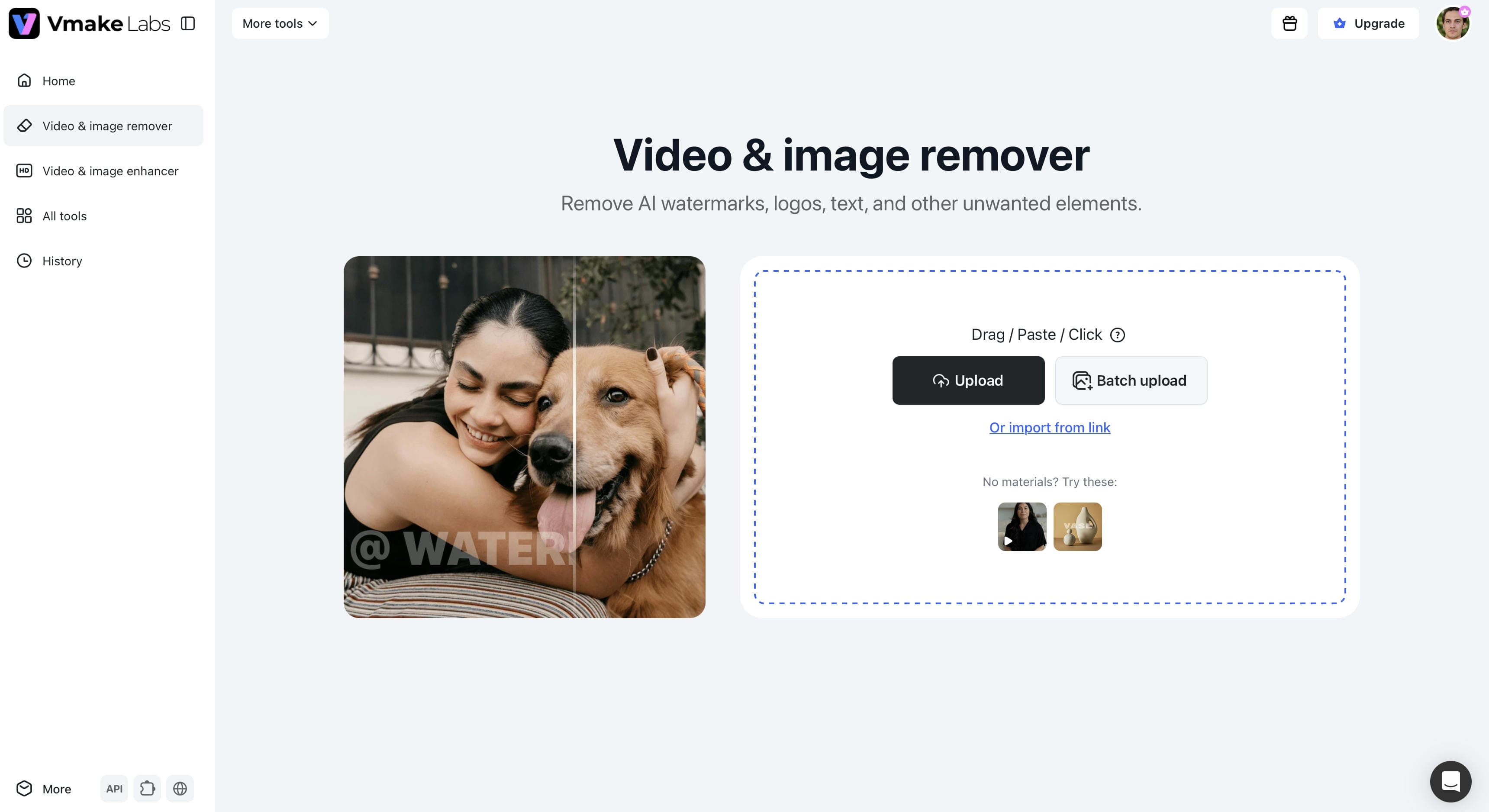
Open Vmake Labs Image Remover and upload the photo you want to edit. The tool supports common image formats, allowing you to start editing in just a few clicks without installing any software.
Step 2: Select and remove the unwanted photobomber
Select the editing mode that is most suitable for your image. You can use automatic detection with People or Passby mode or switch to Manual mode to accurately select the unwanted person using the Brush or Box selection tools. Select a photobomber, and the AI will remove the photobomber and change the background.

Step 3: Preview and download the edited image
Review the edited photo to ensure the background looks natural and no unwanted traces remain. If you're happy with the result, download the edited image. If needed, you can refine the selection before exporting the final version.
Key features of Vmake Labs Image Remover
Vmake Labs Image Remover is designed to make removing unwanted distractions quick and straightforward, whether you're editing a single vacation photo or multiple images at once.
-
AI people and object removal: Automatically detects unwanted distractions and rebuilds the surrounding background, helping you create clean, natural-looking photos without advanced editing skills.
-
People, Passby, and Manual modes: Switch between automatic detection for quick edits or manual selection for greater precision when removing specific people or objects.
-
Brush and box selection tools: Fine-tune the selection area to achieve more accurate edits, especially around detailed edges or complex backgrounds.
-
Remove unwanted people, objects, text, and logos: Clean up more than just photobombers, making it easy to remove signs, watermarks, vehicles, or other distractions from your images.
-
Batch processing for up to 30 images: Save time by editing multiple travel, event, or product photos in a single session instead of processing each image individually.
-
Simple online editing workflow: Upload your image, remove unwanted elements, preview the results, and download the finished photo directly from your browser without installing software.
While the tool is ideal for removing photobombers, it can also remove objects from photos, making it useful for cleaning up signs, vehicles, or other distractions that take attention away from your subject.
Tips for Removing Photobombers Naturally
The editing process includes removing a photobomber. While focusing on image quality, lighting and background details can make for a more convincing image that does not seem to have been obviously edited.
Editing tips
-
Start with the highest-quality image available. Higher-resolution photos provide more detail, making it easier for AI to reconstruct the background accurately.
-
Zoom in before checking edited areas. Small imperfections are often easier to spot at a closer view before exporting the image.
-
Match nearby textures for a natural finish. Pay attention to patterns, shadows, and lighting, so the edited area blends with the rest of the photo.
-
Compare the original and edited versions. Reviewing both versions helps confirm that the photobomber has been removed without affecting the main subject.
Common editing challenges
Some photos are more challenging to edit, especially when the photobomber overlaps important parts of the image.
-
Photobombers overlapping the subject: Removing someone covering part of the main subject may require more precise manual selection.
-
Busy or patterned backgrounds: Trees, buildings, crowds, and repeating textures can make background reconstruction more challenging.
-
Shadows left behind: A removed person may leave subtle shadows that need additional cleanup for a seamless result.
-
Multiple people in the same image: Editing several photobombers may require separate selections to maintain a natural-looking background.
When should you keep or remove a photobomber?
Not every photobomber needs to be removed. The right choice depends on the purpose of the photo and whether the unexpected subject adds to the moment or distracts from it.
|
Situation |
Recommendation |
|---|---|
|
Product photos |
Remove it |
|
Wedding portraits |
Remove it |
|
Travel photos |
Depend on you |
|
Family photos |
Depend on you |
|
Funny group photos |
Keep it if it adds humor |
Conclusion
While photobombs can lead to hilarious moments, they can also be a nuisance by drawing attention away from the intended subject of the photo. Knowing the photobomb meaning, why photobombing happens and when to keep or remove a photobomber helps you make the right editing decision. Some surprise appearances add character to candid shots, but professional portraits, product shots and special memories often look better with a cleaner composition. Vmake Labs Image Remover offers an AI-powered workflow that makes removing unwanted photobombers quick and easy, all without sacrificing the natural look of your photos.
FAQs
Can you remove a photobomber without affecting the background?
Yes, modern AI tools can remove a photobomber while reconstructing the surrounding background to keep the edit looking natural. If you want a quicker editing workflow, Vmake Labs Image Remover uses AI to remove unwanted people with minimal manual effort.
How can I remove a photobomber from a photo?
You can remove a photobomber using AI-powered editing tools or traditional photo editing software. For a faster solution, Vmake Labs Image Remover lets you automatically detect or manually select the unwanted person before generating a clean result.
Can AI remove multiple photobombers from one image?
Yes, many AI editors can remove multiple unwanted people from a single photo, depending on the complexity of the scene. Vmake Labs Image Remover also supports batch processing, making it easier to edit multiple photos in one workflow.
What is the difference between a photobomb and photobombing?
A photobomb is the final image containing an unexpected person, animal, or object, while photobombing refers to the act of entering someone else's photo. The person or object causing the interruption is known as the photobomber.
Can you remove a photobomber from old photos?
Yes, you can remove photobombers from old photos as long as the image has enough detail for editing. If an older image also has fading, scratches, or other damage, using Photo Restoration before or after removing the photobomber can help improve the final result.
What else can Vmake Labs remove from photos besides photobombers?
Vmake Labs Image Remover can remove more than just photobombers. It also removes unwanted people, objects, text, and logos from photos. This makes it a convenient tool for cleaning up distractions and creating polished, professional-looking images.

You May Be Interested
[Updated!] Best 10 Ways to Remove Emoji from Video (Free Included)
Best AI Watermark Remover for Clean, Fast Edits
AniEraser Watermark Remover by Media.io: 2026 Hands-On Review
How to Remove Green Screen from Video: Best Methods and Tools in 2026