Meaning of Pixelation: Definition, Causes & Solutions
 Vmake Labs TeamMay 15, 2026
The meaning of pixelation goes beyond blurry images. It reflects a common digital frustration that affects photos, videos, and graphics across devices. Whether you're editing content, streaming media, or designing visuals, pixelation can ruin clarity and professionalism. It often appears when the resolution is too low, files are over-compressed, or images are enlarged beyond their limits. In this guide, we'll discuss everything about pixelation in videos, the main causes behind the same, and a smart solution to remove pixelation and keep your video clear and professional.
Pixelation in videos: What does it really mean
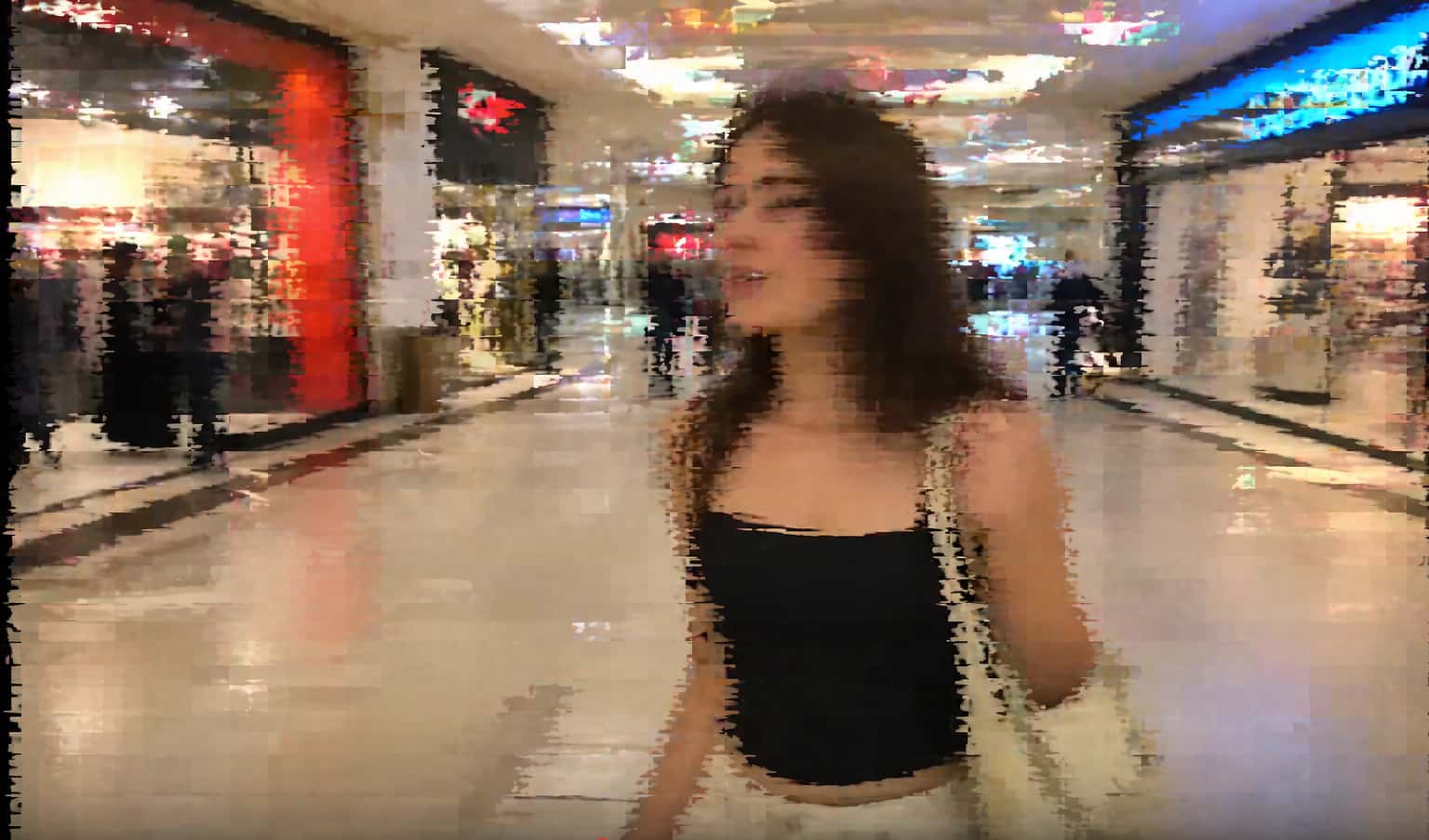
According to the definition of pixelation, it is visible distortion in videos that occurs when the tiny squares that make up a digital image become large enough for the eye to see. The video doesn't have smooth visuals; instead, it looks blocky, blurry, or like a mosaic. This usually happens when the video resolution is too low, heavily compressed, or stretched beyond its original quality.
Pixelation makes things look much worse and can be distracting for viewers. Fine details get fuzzy, edges look jagged, and motion may look uneven or smeared. Pixelation can get worse in fast-moving scenes, making it hard to follow the action or see who is in the picture. For people who make videos, it can make them look unprofessional, and for people who watch them, it can be annoying, especially on bigger screens where pixel flaws are easier to see.
What pixelated videos look like
-
Blocky squares in moving scenes
Pixelated videos often show visible square blocks, especially during fast motion or scene changes. Instead of smooth transitions, parts of the image break into chunky, grid-like sections. These blocks may shift or flicker as the video plays, making motion look unnatural and fragmented.

-
Loss of sharpness and detail
Fine details, like facial features, text, or textures, become unclear or completely lost. Edges that should look crisp appear jagged or soft, and the overall image looks downgraded in quality. This is especially noticeable when a low-resolution video is displayed on a larger screen.

-
Distorted motion or “chunky” visuals
In pixelated videos, movement isn't smooth. Things may seem to "jump" from one place to another or leave behind blocky trails. This makes things look choppy or stuttery, especially in action scenes or when the camera moves quickly.
Difference between pixelation, blur, and noise in videos
Pixelation, blur, and noise are often confused, but they’re distinct issues. Pixelation shows up as large, visible squares caused by low resolution or heavy compression. Blur, on the other hand, smooths out details, making the image look soft without visible blocks, often due to motion or focus issues. Noise appears as random grain or speckles across the image, usually in low-light conditions or high ISO settings.
What are the main causes of pixelation
Now that you know what is pixelation, check out the main causes behind the same to get an accurate idea.
-
Low-resolution videos
Pixelation often starts with low-resolution content, where each frame contains fewer pixels to represent the image. With limited pixel data, fine details cannot be captured accurately, resulting in a rough and blocky appearance. This issue becomes even more noticeable when such videos are played on larger screens.
-
Over-compression problems
Video compression makes files smaller by getting rid of data that isn't as important. However, too much compression can make the quality drop a lot. When too much data is thrown away, the video loses detail and shows artefacts like pixelation.
-
Zooming & upscaling issues
When footage is blown up beyond its original resolution, it can pixelate. When you upscale, the system has to stretch existing pixels instead of adding new ones, which makes the image look blocky. Digital zoom, on the other hand, just makes a part of the image bigger, which lowers the quality. So, if you use digital zoom a lot, you might see pixelation.
-
Low bitrate & streaming issues
Bitrate tells you how much data is used to show each second of video. A low bitrate means that fewer details are kept, which can cause pixelation, especially in scenes with movement or a lot of things going on. When streaming, a bad internet connection may cause adaptive quality reduction, which makes pixelation worse.
-
Poor recording conditions
Recording in low light can add noise and lower the quality of the footage, which makes pixelation more likely. It's hard for cameras with weaker sensors to get enough detail, especially when the lighting is bad. Because of this, the video may look grainy and not be clear.
-
Incorrect export settings
Pixelation can also happen if you don't set the right export settings when you're editing. If you pick the wrong codec, set the bitrate too low, or export at a lower resolution than the original footage, the quality will suffer. Also, rendering or editing the same video over and over again can cause it to lose detail over time, making it look 0more pixelated.
How to remove pixelation with Vmake AI to improve quality (The Easiest Method)
Vmake Video Enhancer is an AI-powered tool designed to improve video quality by reducing pixelation, enhancing resolution, and restoring lost details. It uses smart algorithms to look at each frame and rebuild clarity, making videos that are low-quality or compressed look sharper and more polished. Vmake makes it easy to improve videos, whether they are old, from social media, or made by AI. Its automated features mean that you don't have to do much work yourself. It is a useful tool for creators who want to get professional-looking results quickly and easily because it can improve resolution, reduce noise, and improve visuals.

Step-by-step guide
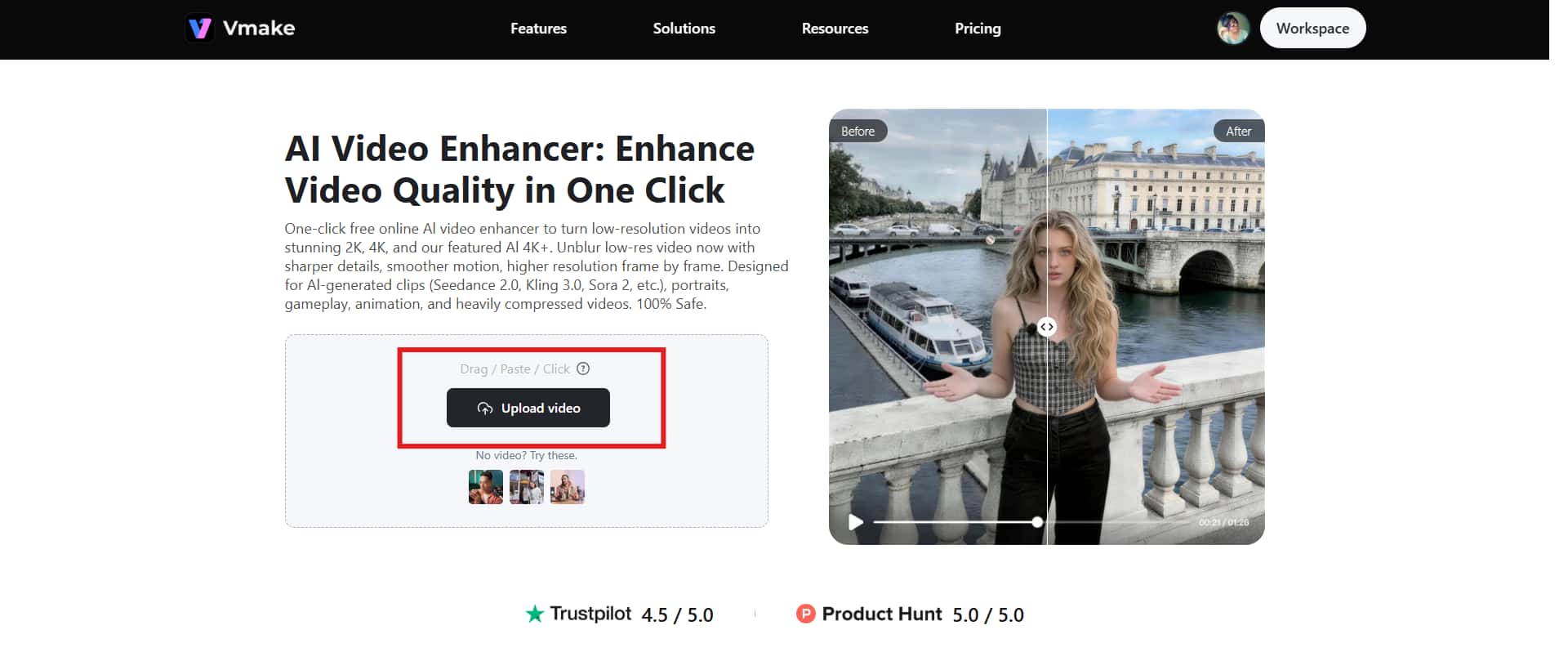
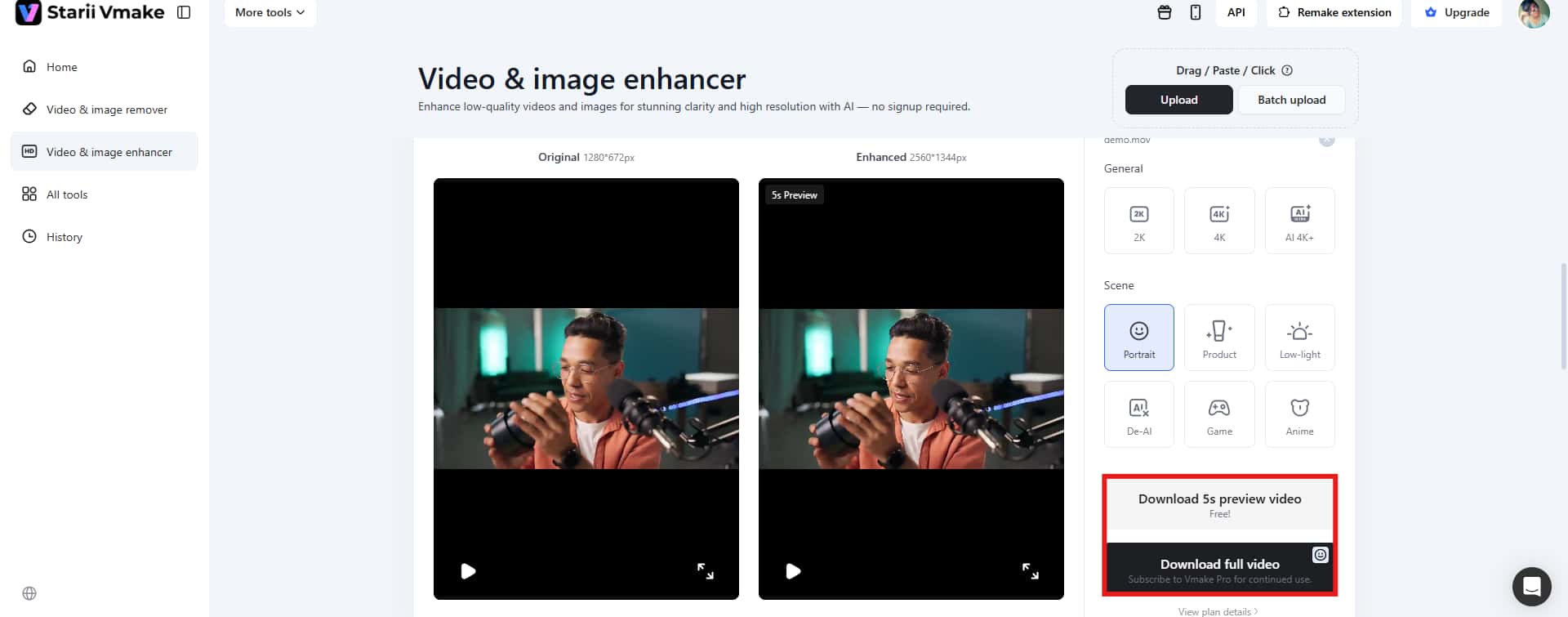
Step 1: Upload your video file
Access the video enhancer feature of Vmake and click the "Upload video" option to upload your video from which you want to remove the pixelation. The tool accepts multiple video formats to ease users.
Step 2: Vmake automatically enhances the video
Once you have uploaded the video, Vmake AI automatically analyzes the pixelation and chooses the enhancement resolution, depending on the original quality of the video.
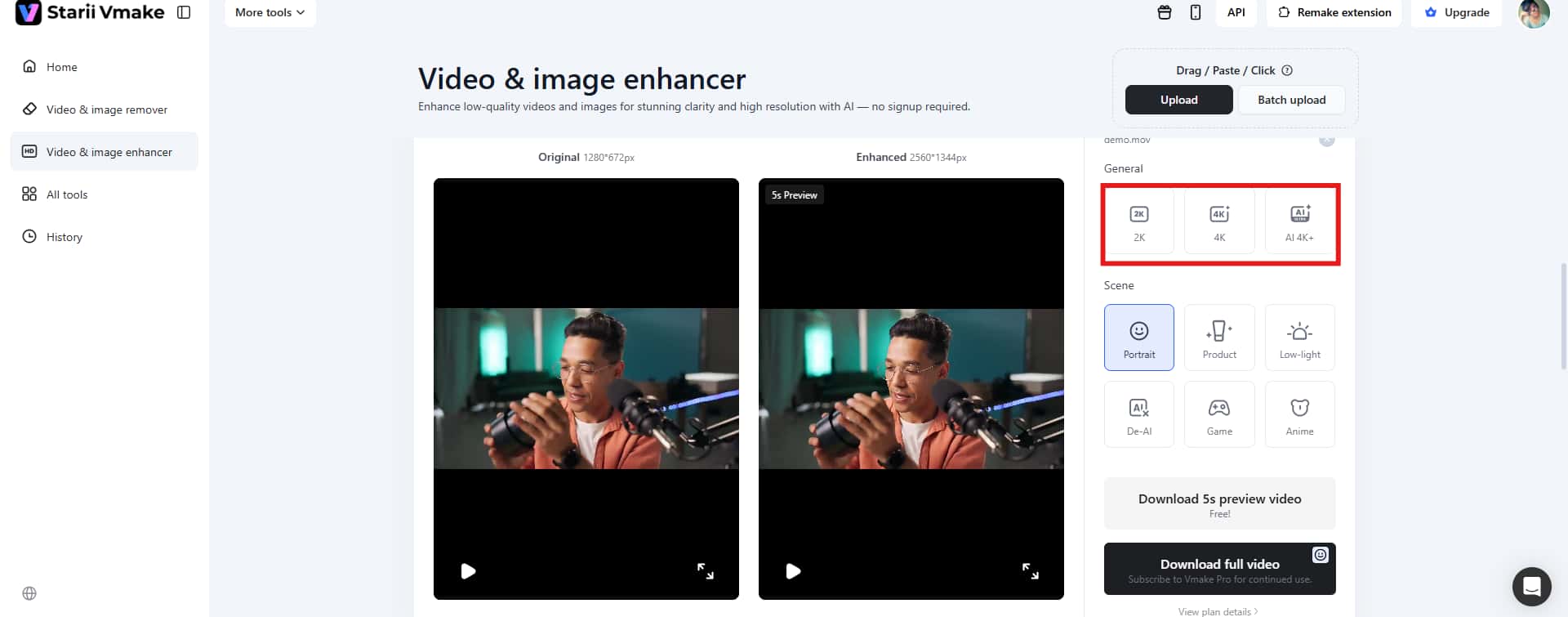
Step 3: Download the video
As soon as it is done, preview the generated video and click the Download option to save your output for further use.
Key features that make Vmake AI stand out
-
AI 4K+ Upscaling: Vmake AI goes beyond basic fixes by intelligently adding pixel-level detail, allowing videos to be enhanced up to 2K, 4K, or AI 4K+ resolution while maintaining clarity.
-
Noise & Artifact Removal: It effectively reduces noise, ringing, rough edges, false contours, and blocky compression artifacts, thus making it especially useful for videos that have been heavily compressed on platforms.
-
Low-Light Video Enhancement: The tool improves poorly lit footage by restoring shadow details, minimizing noise and flicker, and automatically balancing brightness and contrast.
-
Batch Processing: With Vmake, you can upload and enhance multiple videos at once, saving time and making it ideal for large-scale projects or content repurposing.
-
AI-Generated Video Correction: Vmake AI also refines AI-generated footage by reducing over-smoothing and repetitive textures often seen in outputs from tools like Sora, Kling, or Seedance.
How to avoid making pixelated videos
-
Shoot in high resolution (at least 1080p or higher)
When you start with high-resolution footage, you have more pixel data to work with, which makes things clearer and more detailed. If you record at least 1080p or even 4K, your video will stay sharp even after you edit or resize it. Higher resolution also lets you crop or zoom in a little without losing quality.
-
Use proper lighting and a stable camera setup
Good lighting helps your camera get more detail with less noise, which lowers the chance of pixelation. Sensors work better and make clearer videos in well-lit areas. Using a tripod or gimbal to keep the camera steady also helps keep artefacts from moving and keeps the image quality the same throughout the recording.
-
Avoid excessive zooming
Zooming too much, especially with digital zoom, enlarges pixels rather than adding real detail. This leads to a blocky and degraded image. Instead, try to physically move closer to your subject or use optical zoom, which preserves image quality by adjusting the camera lens rather than stretching the pixels
-
Maintain optimal bitrate and compression
Choosing the right bitrate makes sure that your video has enough data to stay clear and detailed. Don't compress too much, because it takes away important visual information and makes things look pixelated. To keep the final output smooth and sharp, it's important to find a good balance between file size and quality.
-
Upload videos in platform-recommended settings
Different platforms have different preferred formats, resolutions, and bitrates. Following these rules when you upload videos can help keep the quality high by avoiding unnecessary recompression. If you follow the recommended settings, your video will have the best chance of keeping its original clarity after being processed online.
Conclusion
The meaning of pixelation is clear - it's just video distortion that can happen for a number of reasons, such as low resolution, too much compression, too much zooming, low bitrate, bad recording conditions, or wrong export settings. It's always better to stop pixelation from happening in the first place than to try to fix it after it happens, because it's hard to get back lost detail. If you focus on making high-quality recordings and use the right export settings from the start, your videos will look sharp, professional, and good on all platforms.
FAQs
Why do videos become pixelated while streaming?
When streaming, videos often get pixelated because the slower or poor internet connection. in such cases, adaptive bitrate technology is used by streaming services to automatically lower the quality of video to avoid buffering. When the bitrate drops, each frame sends fewer details, which makes the pixels look blurry and pixelated.
Can pixelated videos be fixed?
Sometimes you can make pixelated videos better, but you can't fully fix them. Some simple fixes are to increase the resolution while playing, use video enhancement software, or use AI upscaling tools. But if the original data is lost because it was compressed too much or had a low resolution, it can be hard to get back all of the missing information.
Does compression always cause pixelation?
No, pixelation doesn't always happen when you compress. The goal of proper compression is to keep the quality of a file while making it smaller. Pixelation happens when compression is too strong and takes away too much visual data. With high-quality compression settings, you can keep the clarity without losing much.
What is the main cause of pixelation?
The primary cause of pixelation is insufficient visual data, which often comes from low resolution or low bitrate. When there aren’t enough pixels or enough data to represent details accurately, the image breaks into visible blocks, especially when enlarged or displayed on larger screens.
Is pixelating the same as blurring?
No, pixelation and blurring are different. Pixelation creates visible square blocks due to enlarged or insufficient pixels, while blurring smooths out details, making the image appear soft without distinct edges. Pixelation looks structured and blocky, whereas blur appears more gradual and diffused.

You May Be Interested

How to Reduce Noise in Videos: Guide to Clear Audio and Visuals