Otter AI Audio to Text: Features, Pricing, Benefits & Better Alternatives
Explore Otter AI audio to text for meetings, podcasts, and interviews, then see how Vmake Labs helps creators turn audio and video files into accurate transcripts quickly today. For creators today!

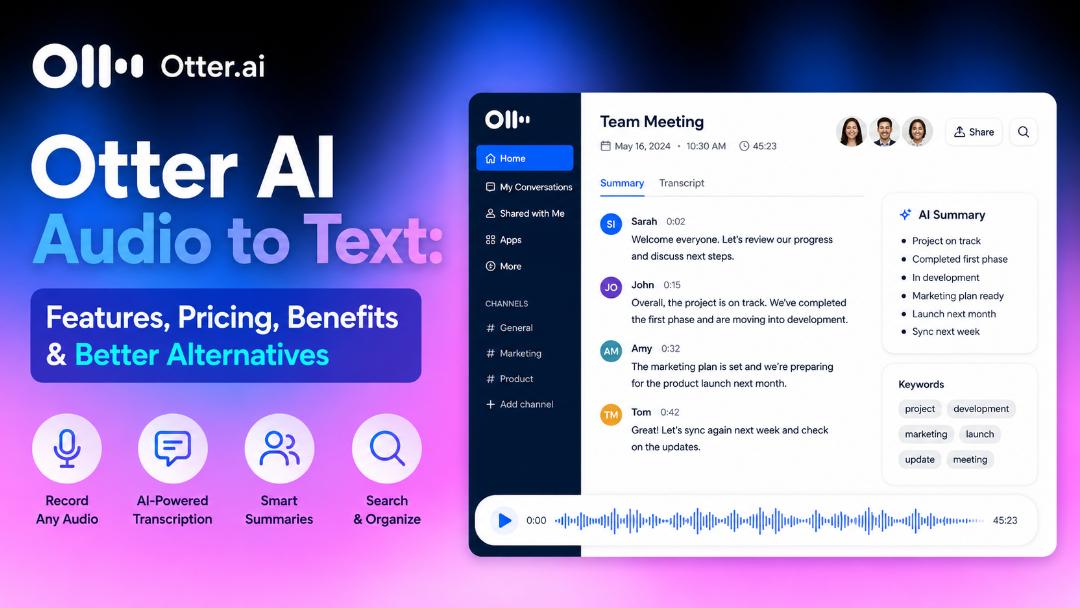
Otter AI helps users convert spoken conversations into accurate, editable transcripts using AI-powered speech recognition. In this review, we'll explore its features, pricing, strengths, limitations, and overall performance to help you decide whether it's the right transcription tool for your needs.
What is Otter AI audio to text and how does it work?
Otter AI audio to text provides instant voice to accurate, editable transcripts. There's AI voice recognition that auto-transcribes the chat, so you can just scroll over the key details afterwards to make it searchable. You can upload old audio files or transcribe voice recordings of today's meetings, interviews, seminars, podcasts, and webinars. Its easy design makes it a wonderful choice for professionals, educators, students, and anyone wanting to save time on manual transcriptions.
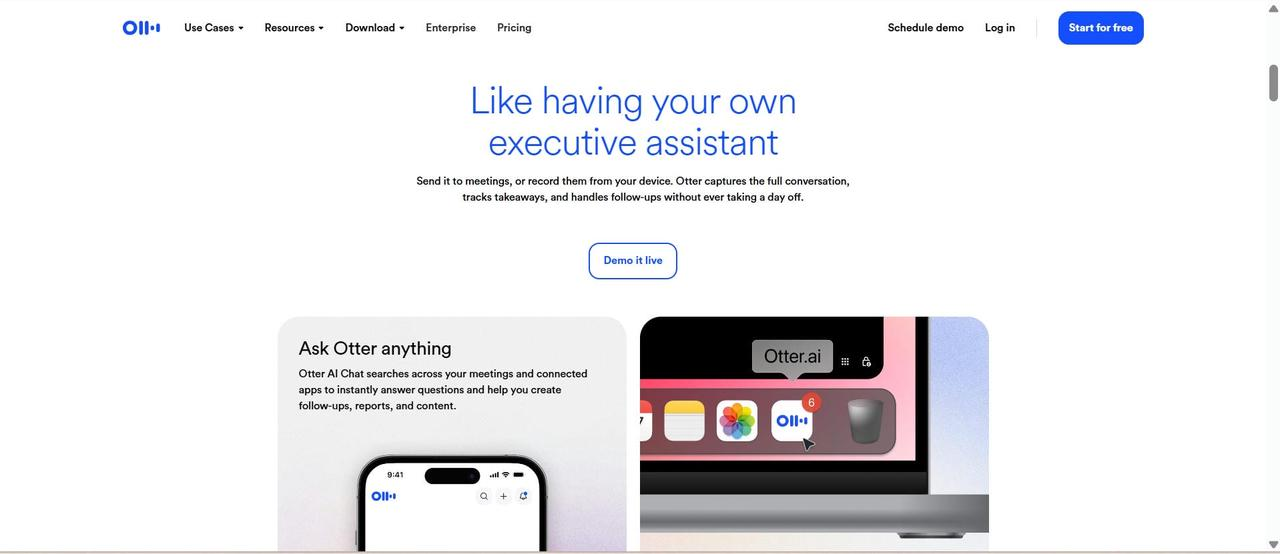
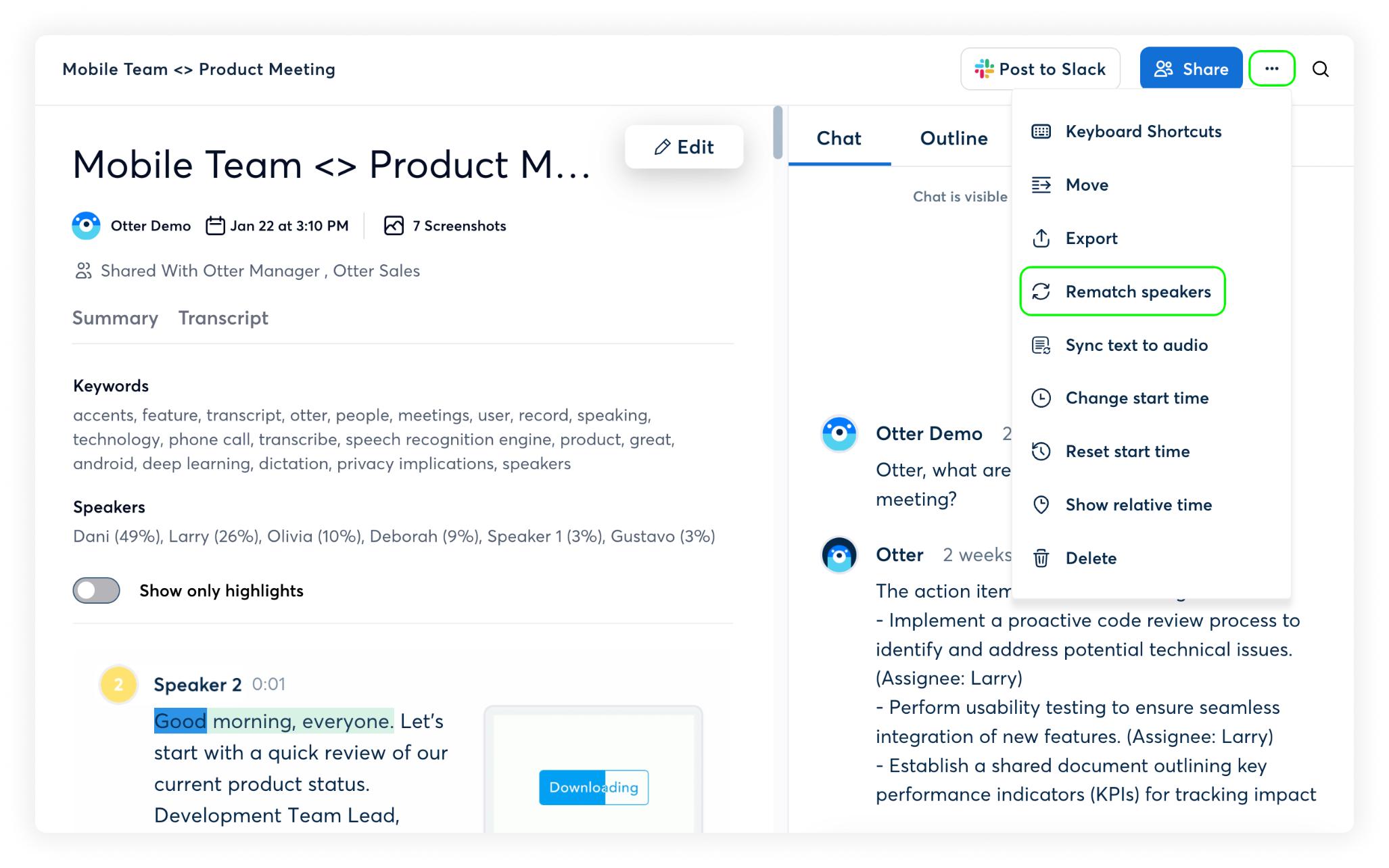
Otter AI's standout feature is its speaker recognition, which automatically identifies different speakers and adds timestamps for a well-organized transcript. It performs well with clear recordings and is especially useful for meetings and interviews. However, transcription accuracy may decrease when recordings contain heavy background noise or strong accents.
Key features that make Otter.ai audio-to-text popular
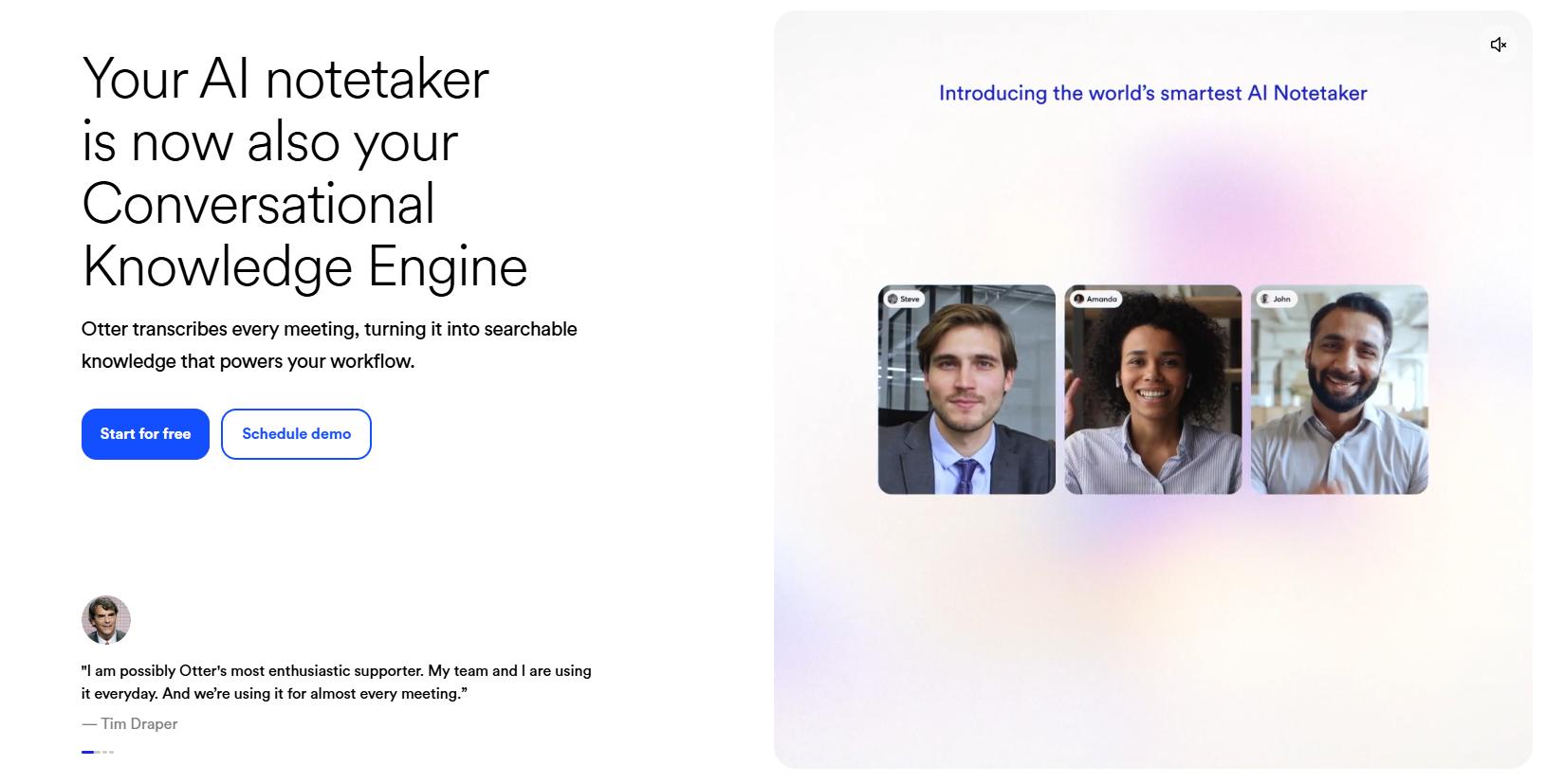
Otter AI is more than just speech-to-text. It's built on the idea that conversations should be simple to document, maintain, and revisit when you need to. It has AI-powered capabilities like live meeting notes and team collaboration that can reduce tedious work and have everyone on the same page:
-
Live meeting transcription: Otter AI transcribes discussions live so you can focus on the conversation instead of writing notes.
-
Automated summaries and action items: When a meeting ends, the AI will give a clear summary, highlight the important points, and highlight action items, making follow-up duties much easier.
-
Speaker labelling: The system identifies individual speakers and automatically adds timestamps, making it easy to find out who said what throughout a conversation.
-
Integrations with key meeting platforms: Otter AI connects with popular productivity tools like Zoom, Google Meet, Microsoft Teams, and more, making it simple to record, transcribe, and arrange meetings in one place.
-
Collaboration & note-taking: Share transcripts with your colleagues, add comments, highlight important sections, and work together on meeting notes without switching between various tools.
How to convert audio to text with Otter AI
Otter AI makes converting audio to text super easy and only takes a few quick steps. The platform's AI processes the upload of a pre-recorded file or a live chat captured on the fly and quickly generates a fully editable transcript. Once it's done, you can jump in at any point to tweak any small details and export the final document. You can easily organise your meeting notes, get quotes fast from an interview, or find inspiration for your next creative project.
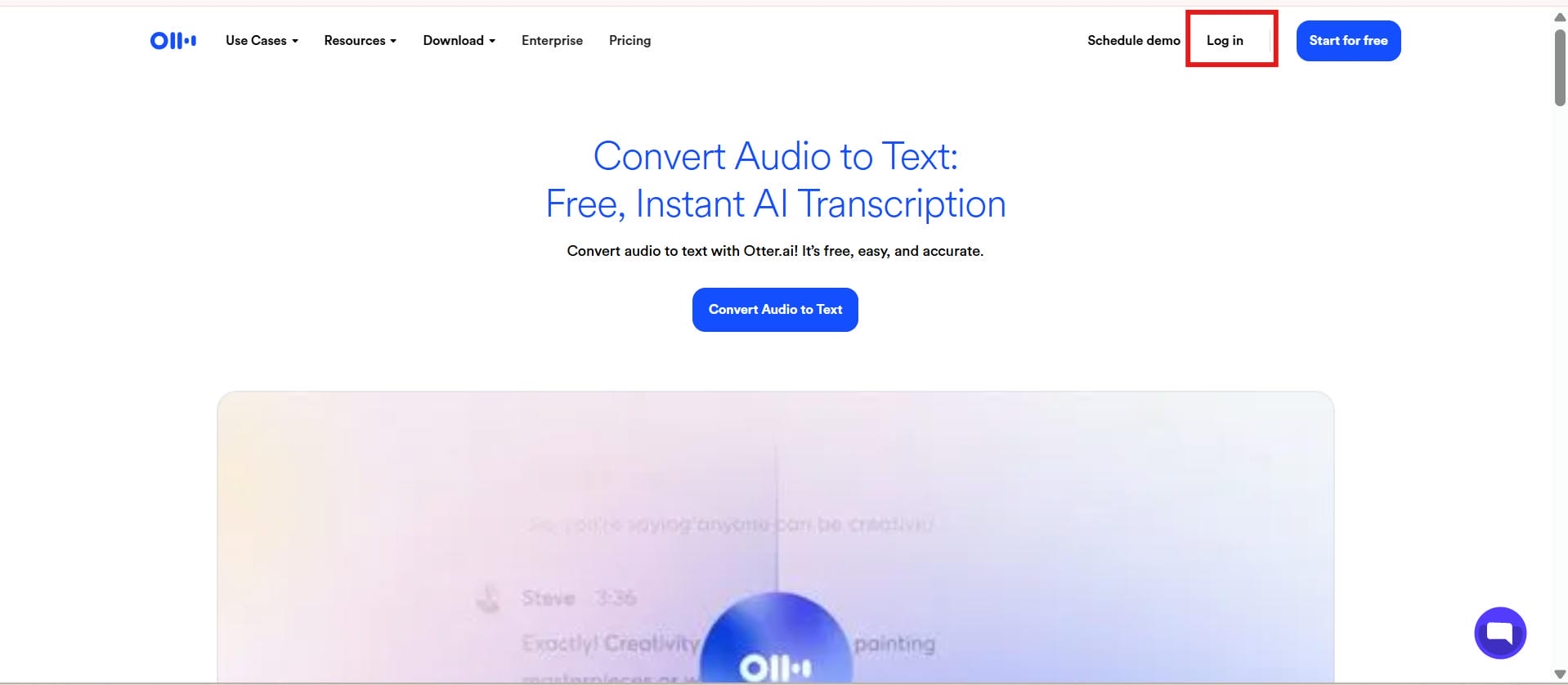
Step 1: Create or log in to your account
Sign up for a free Otter AI account or log in to your existing one. Once you're signed in, you'll be taken to the dashboard where you can start new transcription projects.
Step 2: Import an audio file
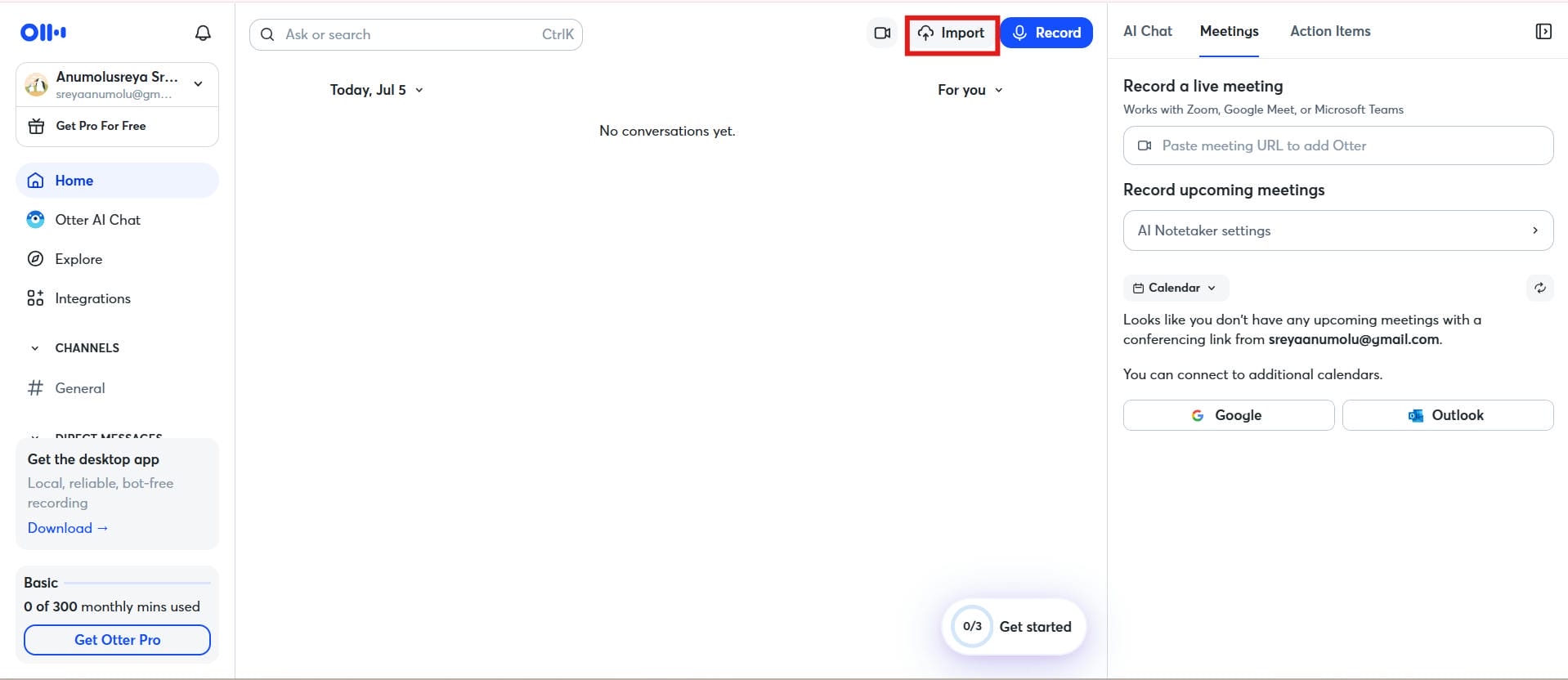
Click Import and select the audio file you want to transcribe. Otter AI supports popular formats like MP3, WAV, and M4A for easy uploading.
Step 3: Generate the transcript
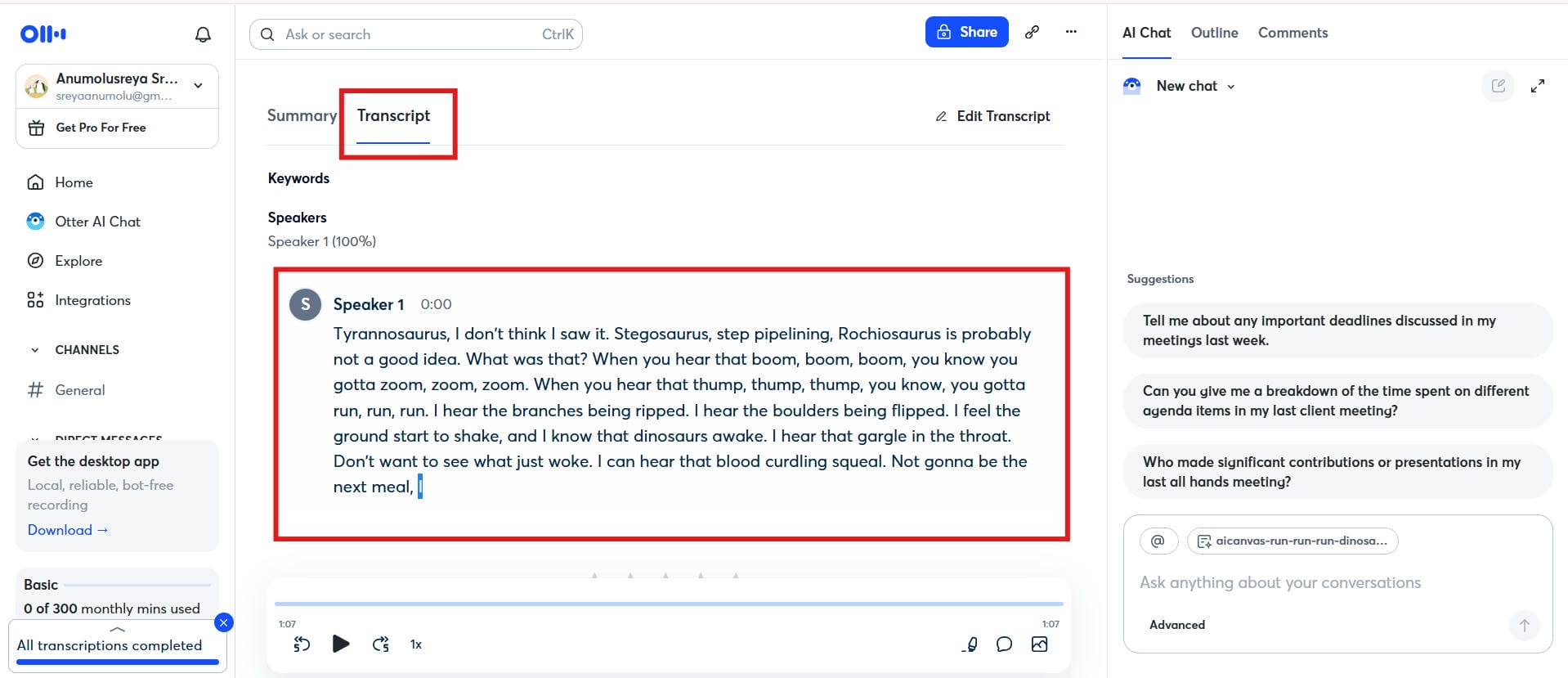
After you import your audio file, Otter AI automatically converts the speech into an editable text transcript. The processing time varies based on the length of your recording.
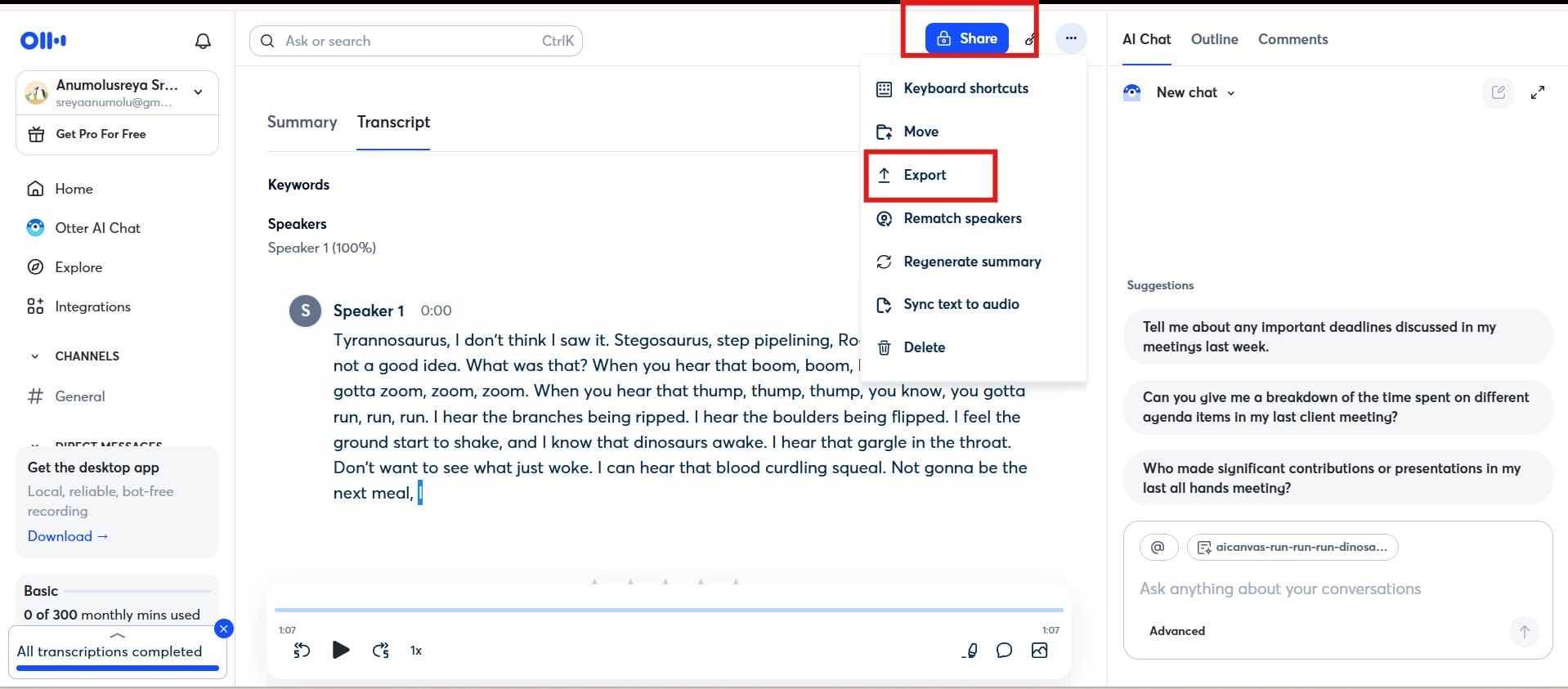
Step 4: Export and share the text
Review the transcript, make any necessary edits, and export it in your preferred format. You can also share the transcript with teammates for collaboration or future reference.
Otter AI pros, cons, and pricing
Before you decide on a platform, it's usually a good idea to think about the big picture. Otter AI is clearly a force for business teams, but it's not a great fit for everyone. Let's be honest about where this technology excels and where it can actually slow you down.
Pros and Cons
|
Pros |
Cons |
|---|---|
|
|
Pricing and Plans
|
Plan |
Price |
|---|---|
|
|
|
|
|
|
Otter AI is a solid option for transcription and cooperation, although it might not fit every creator's process. If you are searching for one that can handle both audio and video files, and ease the content creation process, then Vmake Labs is a more flexible choice for today's artists, marketers, and enterprises.
How Vmake Labs simplifies audio-to-text workflows for modern creators
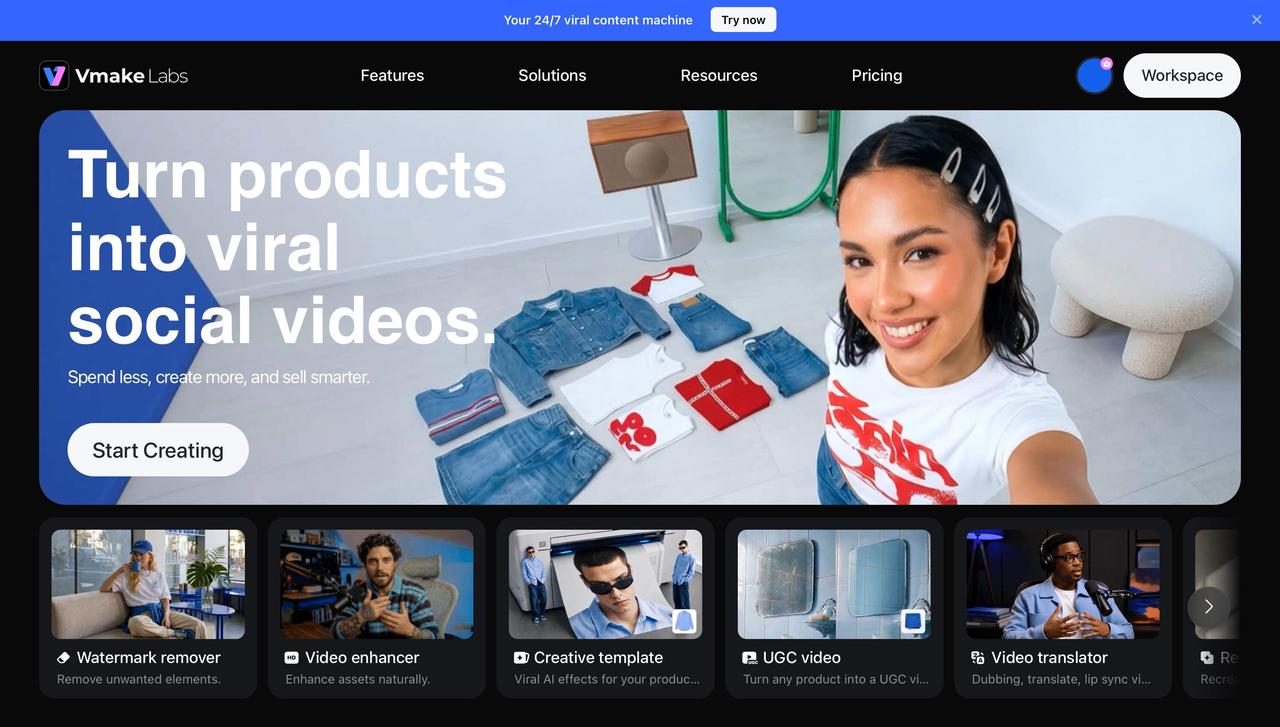
Today, creators require more than a simple transcription tool; they need a solution that can support them through the entire content creation lifecycle. Vmake Labs makes it a breeze to turn audio into text with its video and audio-to-text tool that can quickly convert audio and video into accurate, editable transcripts. Besides transcription, an AI subtitle generator, auto-generated captions, and configurable export choices make it easy for you to create material faster. It's easy to turn your recordings into blogs, summaries, subtitles, and social media material for creators, marketers, agencies, and enterprises.
Key Features
-
AI-powered speech recognition: Convert audio and video files into accurate, editable text transcripts within minutes.
-
Transcribe from files or links: Upload audio and video files or directly transcribe content from supported mainstream links for a faster workflow.
-
Multilingual transcription: Generate transcripts in English, Spanish, Portuguese, Traditional Chinese, and Simplified Chinese.
-
Editable transcripts: Review, edit, and refine transcripts after transcription to improve accuracy and readability.
-
Content repurposing made easy: Transform transcripts into blogs, subtitles, captions, meeting summaries, and social media content.
-
Quick export options: Export transcripts in convenient formats for publishing, documentation, or archiving.
How to convert audio to text with Vmake Labs
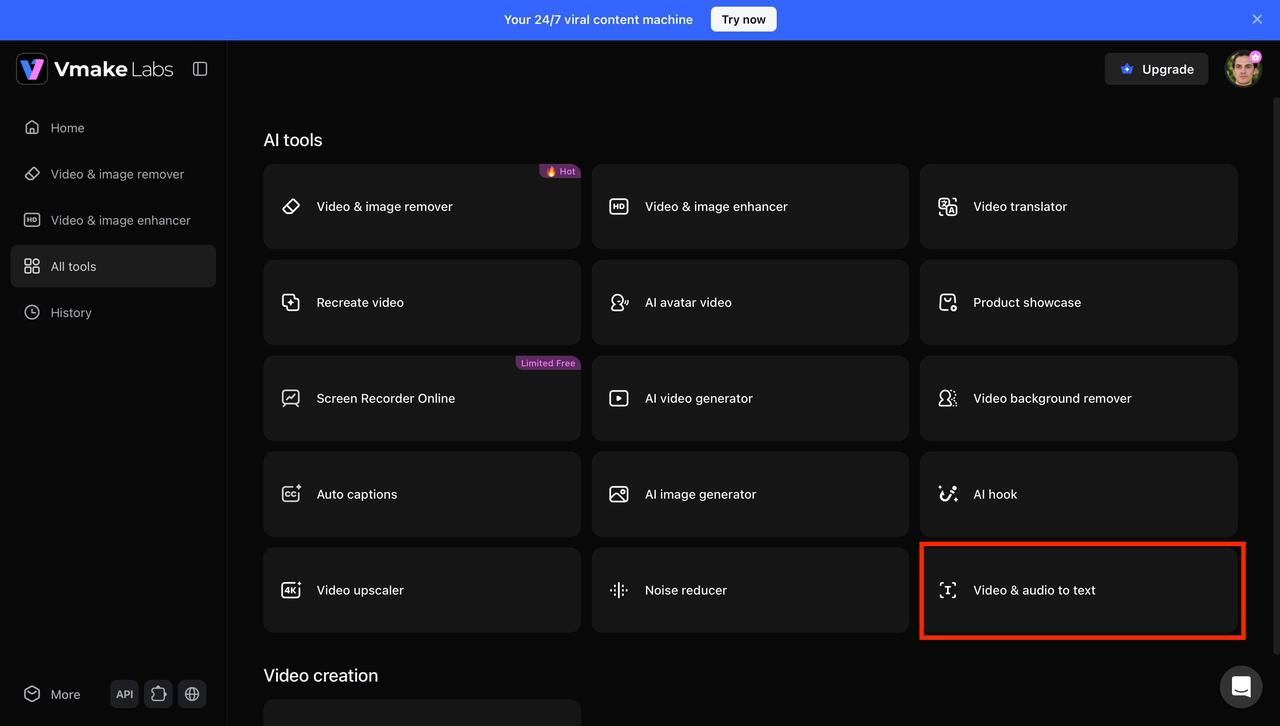
Step1: Open the video & audio to text tool
From the All Tools page, select Video & Audio to Text to open the transcription workspace. This is where you can upload audio or video files and generate AI-powered transcripts and subtitles.
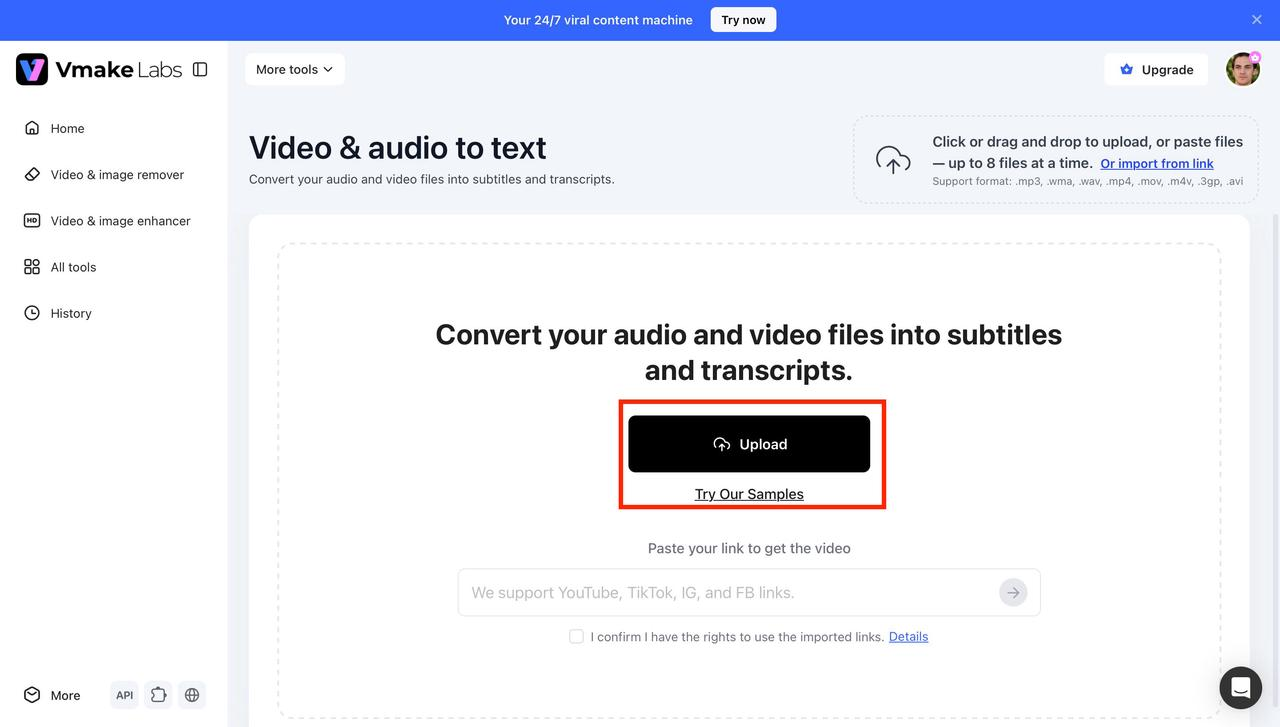
Step 2: Upload your audio file
Click Upload or drag and drop your recording into the workspace. Vmake Labs supports popular audio and video formats, and you can also import files using a supported link if needed.
Step 3: Select the language and start transcription
Choose the language spoken in your file and start the transcription process. Vmake Labs quickly converts your content into accurate, editable text.
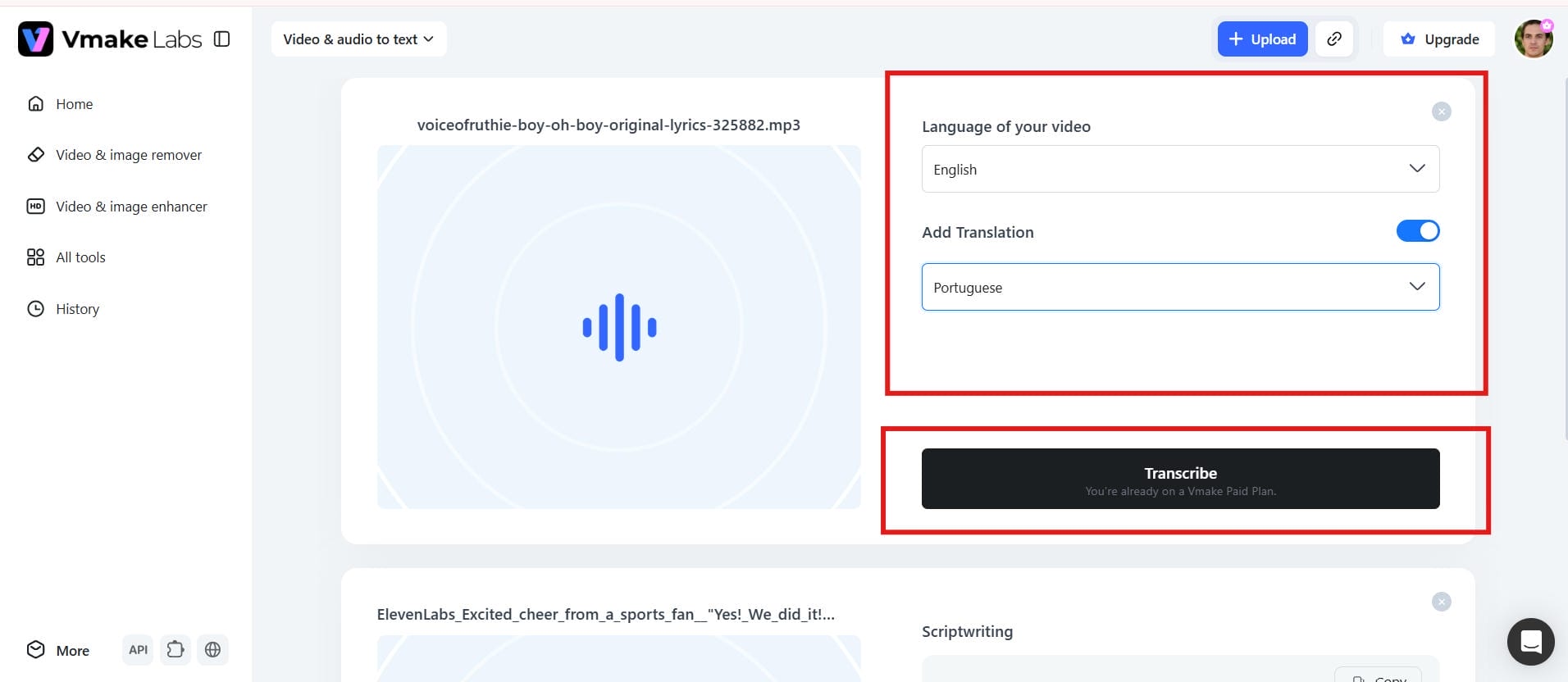
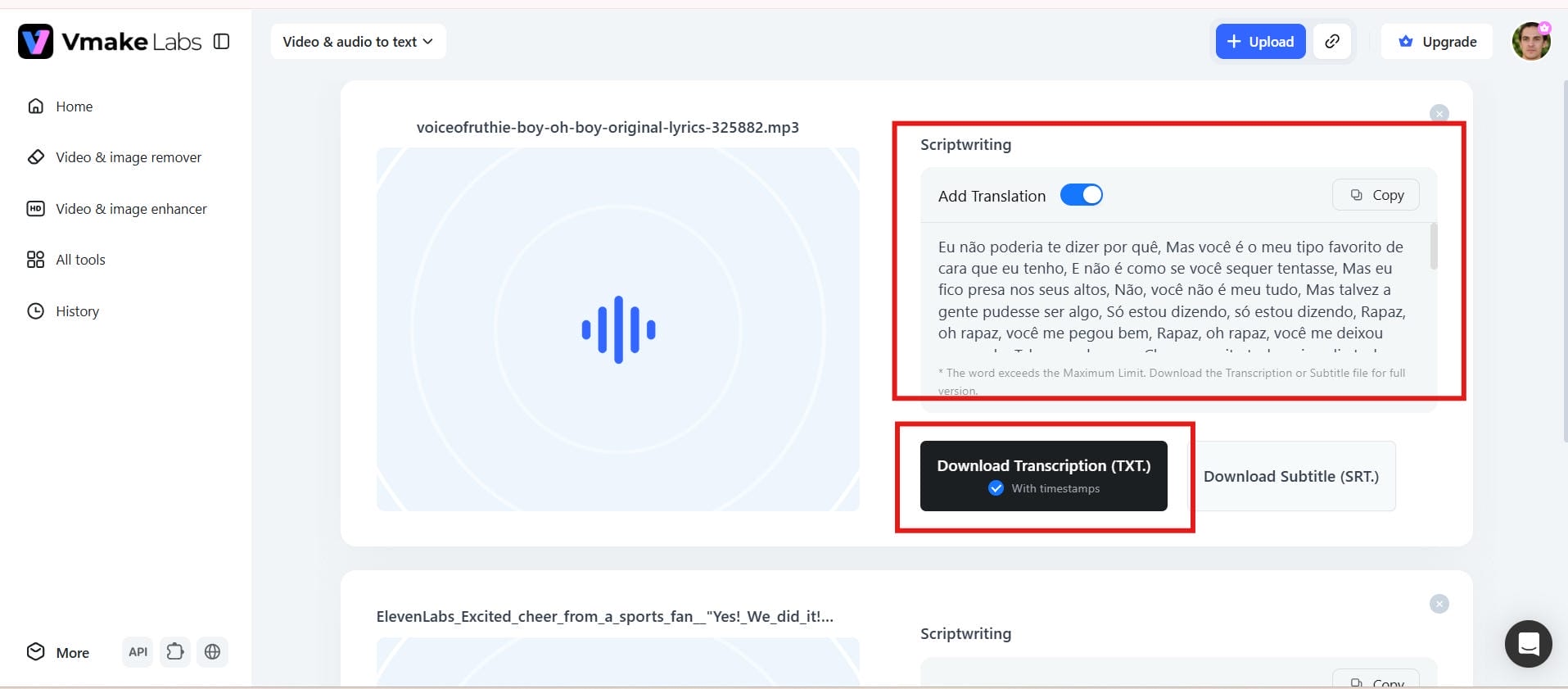
Step 4: Download your content
Review the transcript, make any necessary edits, and download it in your preferred format. Your transcript is ready for subtitles, documentation, or content creation.
Otter AI vs Vmake Labs
Both Otter AI and Vmake Labs are AI tools for easier transcription, although they are built for different processes. Otter AI is great for meetings, interviews, and team collaboration, while Vmake Labs is built to help creators and marketers gain more from their material. If you want a solution that doubles as a video transcript generator, Vmake Labs offers added freedom to repurpose audio and video into blogs, captions, and other material. The comparison below will show you the important differences to help you find the correct option for your needs.
|
Feature |
Otter AI |
Vmake Labs |
|---|---|---|
|
Primary Use |
Meeting transcription and collaboration |
Video and audio transcription with AI-powered content tools |
|
Supported Formats |
MP3, WAV, M4A, Zoom recordings |
MP3, WAV, MP4, MOV, and multiple media formats |
|
Real-Time Transcription |
Yes |
Upload-based processing |
|
Speaker identification |
Advanced speaker labeling |
Limited or file-dependent |
|
Subtitle Export (SRT) |
Yes |
Yes |
|
Text Export Options |
TXT, DOCX, PDF |
TXT, SRT, and editable text formats |
|
Language Support |
Multiple global languages |
Multiple languages and accents |
|
AI Meeting Notes |
Yes |
No |
|
Video Processing Features |
Limited |
Integrated video editing capabilities |
|
Ease of Use |
Best for teams and meetings |
Best for creators, marketers, and content workflows |
|
Free Plan |
Available with monthly limits |
Available with usage restrictions |
|
Ideal For |
Businesses, students, remote teams |
Content creators, agencies, and social media marketers |
Conclusion
It depends on your workflow which transcription tool is right. Otter AI audio-to-text is a good option for transcription and speaker identification in real-time for meetings, lectures, and collaborative note-taking. But creators who work with audio and video content regularly can get more benefit from Vmake Labs. It's a pragmatic solution for modern workflows, with support for numerous media formats, editable transcripts, and content repurposing options. Vmake Labs enables you to rapidly and precisely convert recordings into high-quality text, with significantly less human work, saving you crucial production time whether creating blogs, subtitles, podcasts, or marketing content.
FAQs
How does Vmake compare with Otter AI audio-to-text for creators?
Otter AI is largely designed for meeting transcription, note-taking, and team collaboration. Vmake Labs is built for producers who need to transcribe audio and video, and convert transcripts into blogs, captions, subtitles, summaries, and more content for different platforms.
Can Otter AI convert MP3 recordings into accurate text transcripts?
Yes. Otter AI accepts MP3 files and several other popular audio formats. It automatically creates editable transcripts, but the accuracy can vary depending on the quality of the audio, the clarity of the speaker, and the level of background noise in the recording.
Is Vmake suitable for both audio and video transcription projects?
Yes. Vmake Labs supports a wide range of audio and video formats, so it's a great fit for podcasts, interviews, webinars, online courses, YouTube videos, and marketing content. It also helps streamline content creation with quick, editable transcripts.
What are the limitations of the free Otter AI plan?
The free Otter AI plan offers a limited amount of transcription minutes and access to basic features. Additional AI-powered features, higher usage limits, and advanced collaboration tools are only available through its paid plans.
How accurate is Otter.ai audio-to-text when multiple speakers are involved?
Otter AI works well with recordings that have clear audio and separate speakers. The speaker identification feature helps to organise conversations, but transcription accuracy may be affected by overlapping speech, strong accents or background noise.
Can Vmake help repurpose transcripts for blogs, social media, and marketing content?
Absolutely. Vmake Labs lets you do more than transcribe audio and video. You can easily edit transcripts and repurpose them into blog posts, subtitles, captions, summaries, newsletters, and marketing content, helping you get more value from every recording.

You May Be Interested
How to Remove Background Noise from Audio: Step-by-Step Guide
How to Download Audio from Instagram: Quick Guide for 2025
How to Transcribe Audio to Text: Efficient Guide
How to Transcribe Audio Recording to Text in Minutes