How to Remove Red Eye in Photos: iPhone method & Top Tools
Learn how to remove red eye in photos with simple tips for every device. Fix portraits, restore natural-looking eyes, and enhance your final images effortlessly with Vmake Labs.

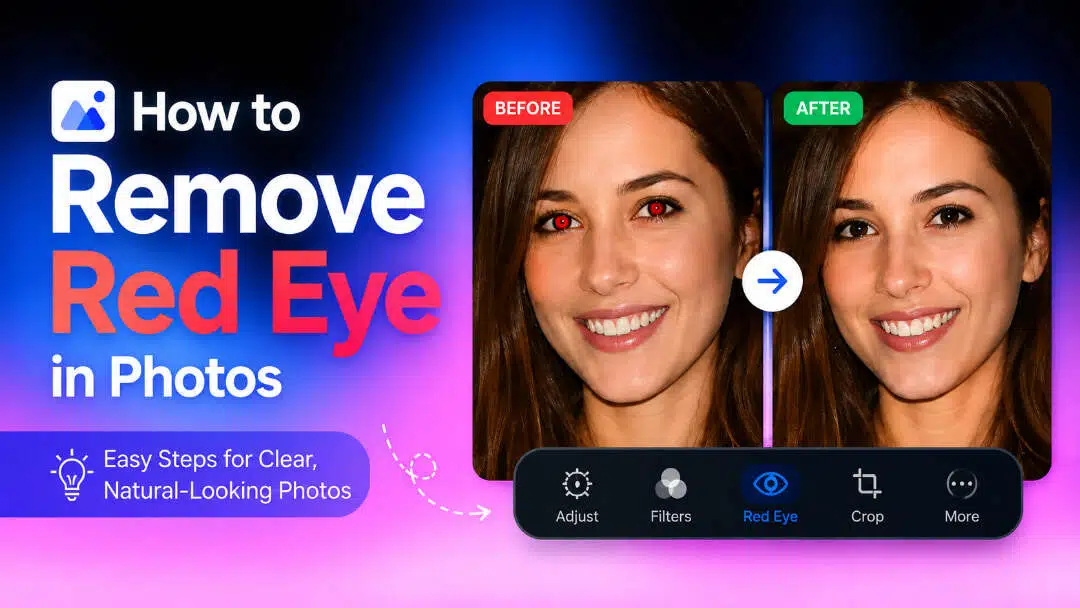
Red eye is a common problem in photography that can make your portraits look unnatural. Fortunately, modern-day artificial intelligence tools and built-in photo editors can fix it in seconds. This guide will cover the causes of red eyes, how to remove them, and the best tools to get natural-looking results.
Quick comparison of the top red eye remover tools
The best red eye removal tool for you will depend on things like how experienced you are at editing, whether the tool will work with your device, what features the tool has, and your budget. In the comparison below, we outline the most popular red eye remover tools, their key features, pricing options, and who they are best suited for.
|
Red Eye Remover Tool |
Best For |
Red Eye Removal |
Free Plan |
Platform |
|---|---|---|---|---|
|
Vmake Labs |
AI-assisted photo editing and portrait enhancement |
Portrait enhancement with AI image enhancement |
Yes |
Web |
|
Adobe Photoshop |
Professional photo retouching |
Dedicated Red Eye Tool |
No |
Windows, Mac, Web |
|
Fotor |
Quick photo editing and portrait retouching |
AI Red Eye Removal |
Yes |
Web, Windows, Mac, Android, iOS |
|
Pixelbin AI |
AI-powered image optimization |
AI Red Eye Removal |
Limited |
Web |
|
Picsart |
Social media photo editing |
AI Red Eye Removal |
Yes |
Web, Android, iOS |
|
Evoto AI |
Portrait retouching and photography |
AI Facial Retouching |
Limited |
Windows, Mac |
|
Imagen AI |
Fast online red-eye correction |
AI Red Eye Removal |
Yes |
Web |
|
GoStudio AI |
Quick browser-based portrait editing |
AI Red Eye Removal |
Yes |
Web |
What is the red eye effect in photos?
Red eye is a photography problem caused when a camera flash reflects off the blood vessels in the back of the eye, and shows up as a red glow in a picture. This often happens when taking photos in a dark setting, since the pupils dilate to allow more light into the eyes. Red eyes don't ruin the photo itself, but can make portraits look unnatural. Fortunately, photo editing software and AI-powered tools can quickly correct this issue and restore a more realistic appearance.
How to remove red eyes in photos on iPhone
iPhone has inbuilt photo editing features that can help you solve red eye issues without installing extra apps. The Photos app has basic correction tools for you to remove unwanted red reflections in portraits taken with flash.
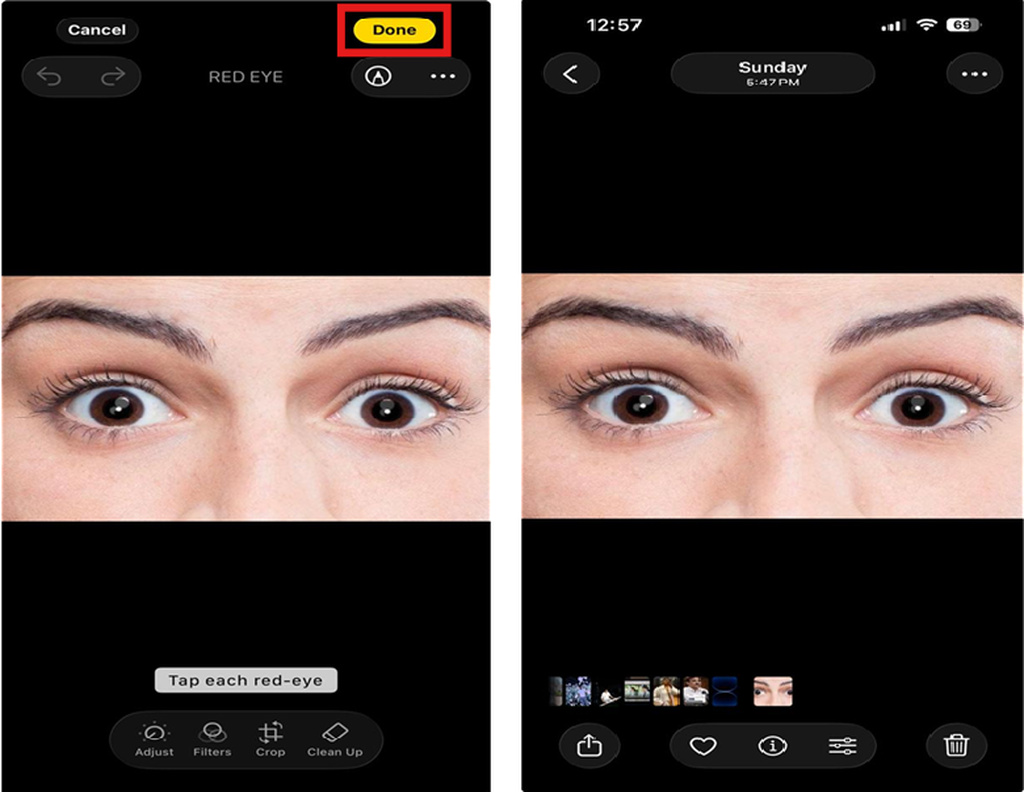
Step 1. Open the Photos app
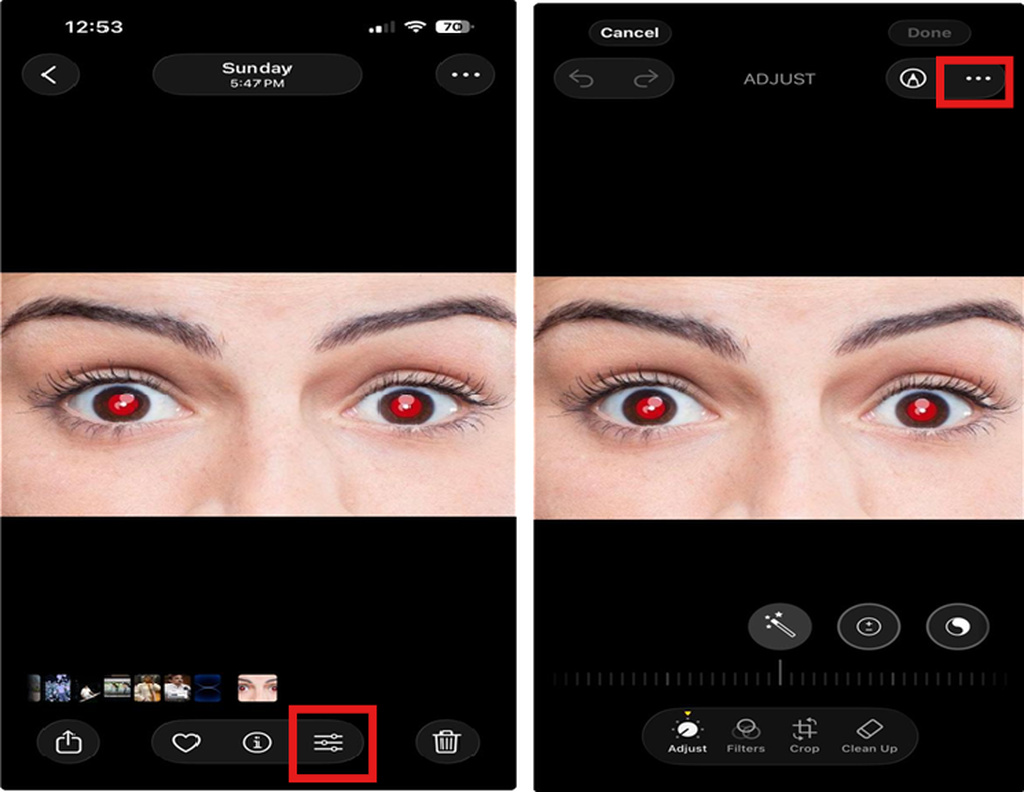
Launch the Photos app on your iPhone and locate the picture that contains the red eye issue. Open the image and tap Edit in the upper-right corner to access available adjustment options.
Step 2. Apply the Red Eye correction tool
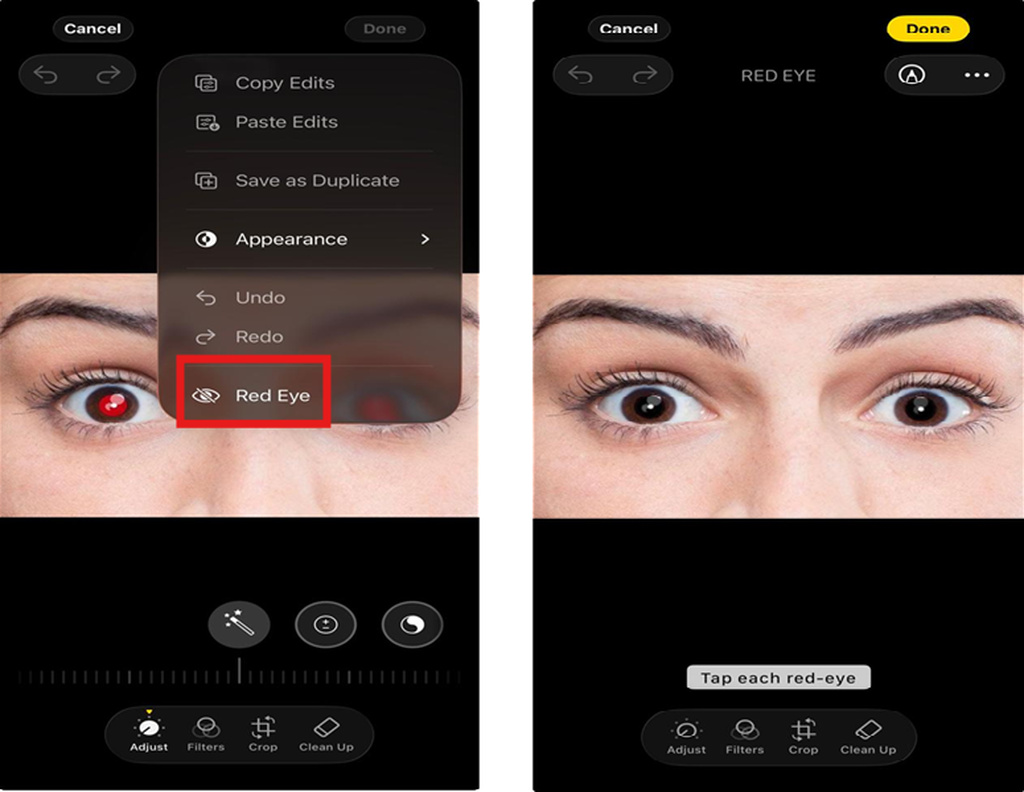
Find the Red Eye correction option, usually represented by an eye icon, and choose it. Tap on each affected eye area in the picture. The red reflection will be corrected automatically and the eyes will look more natural.
Step 3. Save your edited photo
Tap Done to save your changes after reviewing the edited result. The new image will replace the edited one, but you can still access the original photo thru the Revert option if you want to undo the changes later.
How to prevent the red eye effect before taking photos
Removing red eyes after capturing a photo is simple, but preventing the issue during photography can save editing time and produce better results. A few camera adjustments and lighting changes can significantly reduce the chances of red eye appearing.
-
Use alternative lighting instead of direct flash: Direct flash is one of the main reasons red eyes occur. Whenever possible, use natural light, room lighting, or an external light source placed away from the camera to reduce reflections.
-
Improve the surrounding brightness: Shooting in a brighter environment aids in making the pupils smaller, thereby minimizing the amount of light reflected from the retina. Better results can come with more ambient light before taking the portraits.
-
Turn on red eye reduction settings: Many cameras and smartphones include a red eye reduction mode. This feature uses a preliminary flash or light pulse to help the eyes adjust before taking the final picture.
-
Adjust the subject's eye direction: Asking the person to look slightly away from the camera lens can prevent direct reflection. A small change in viewing angle can make portraits appear more natural.
Even after taking precautions, red eyes can still occur in situations such as indoor celebrations, evening events, and flash photography. Modern photo editing tools make it easier to correct these issues quickly. Many AI-powered editors can also improve overall portrait quality by enhancing sharpness, lighting, and facial details, along with removing common photo imperfections.
Best red eye remover tools compared
-
Vmake Labs
Vmake Labs is an AI-powered online photo editor that allows you to improve the quality of your portraits with minimal effort. Although there is no specific manual red-eye correction tool, its AI enhancement technology naturally improves the details of the face, the clarity of the eyes, and the overall quality of the image. If you are working on old portraits or low-quality photos, you can also use the photo restorationfeature to recover details before applying portrait enhancements.

Vmake Labs key features
-
AI-powered photo enhancement with natural results: Improve portrait quality using advanced AI technology that enhances clarity, details, and overall image appearance while maintaining a realistic look.
-
Prompt-based image editing and creative improvements: Transform and refine photos using simple text prompts, allowing users to make creative adjustments and achieve their desired visual style easily.
-
Restore image sharpness and facial details: Enhance blurry, low-quality, or unclear photos by improving textures, facial features, and fine details for a more polished result.
-
Maintain original colors, lighting, and portrait style: Vmake Labs preserves the natural appearance of your photos by keeping the original lighting, tones, and facial characteristics intact.
-
Fast online processing without software installation: Edit and enhance images directly in your browser with a simple workflow that works across different devices.
-
High-resolution image downloads for professional use: Download enhanced images in high quality for use in personal photos, social media content, marketing materials and professional projects.
Step-by-step guide
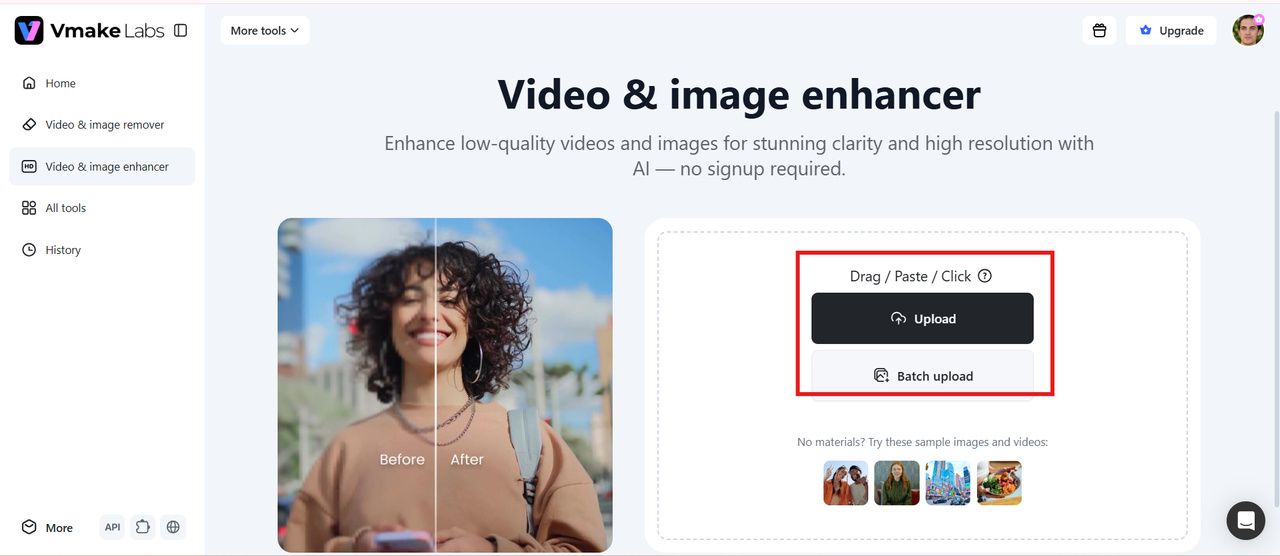
Step 1. Upload your photo
Start by uploading the portrait you want to improve to Vmake Labs. You can select an image from your computer or mobile device and begin the AI enhancement process within seconds.
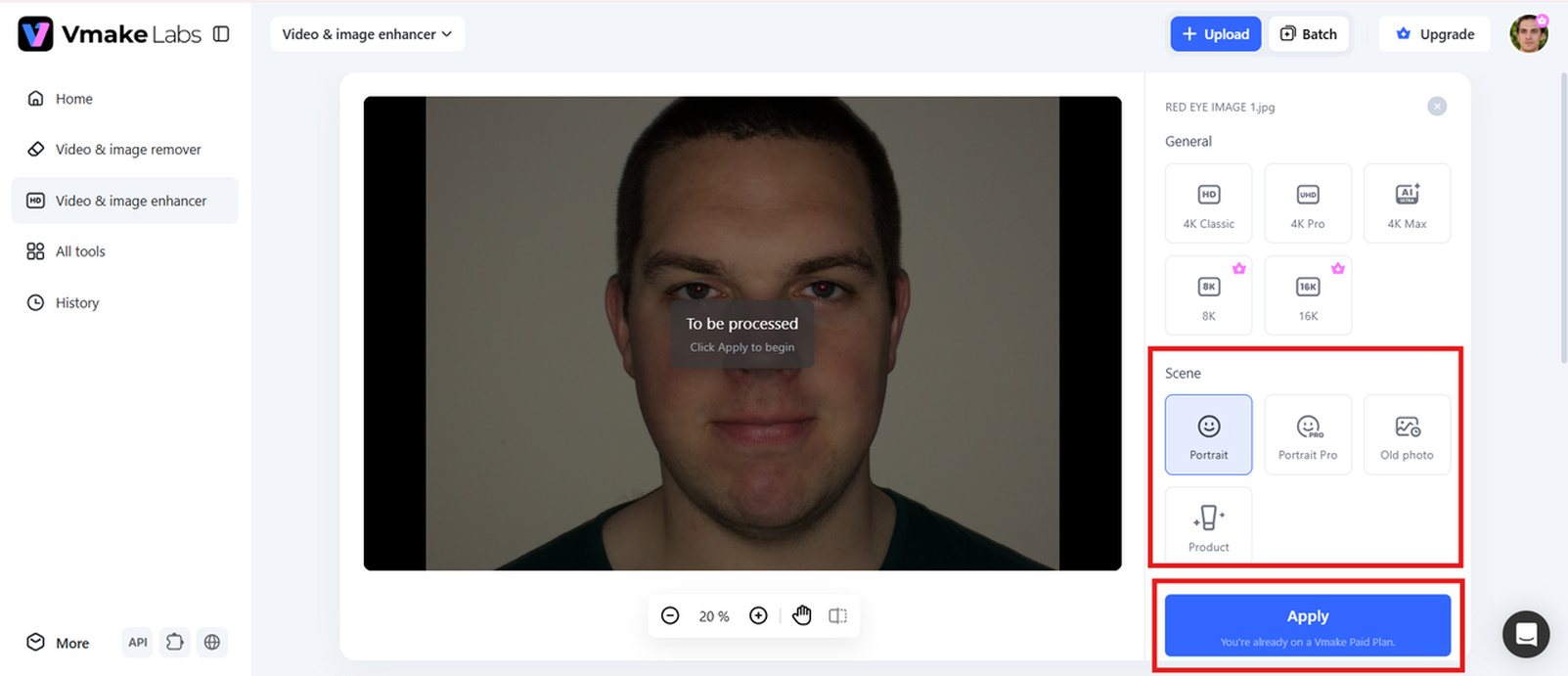
Step 2. Select the Portrait or Repair scene
Select the scene that suits your editing needs. Selfie and face portrait enhancement or Old, blurred, or low-quality photo repair.
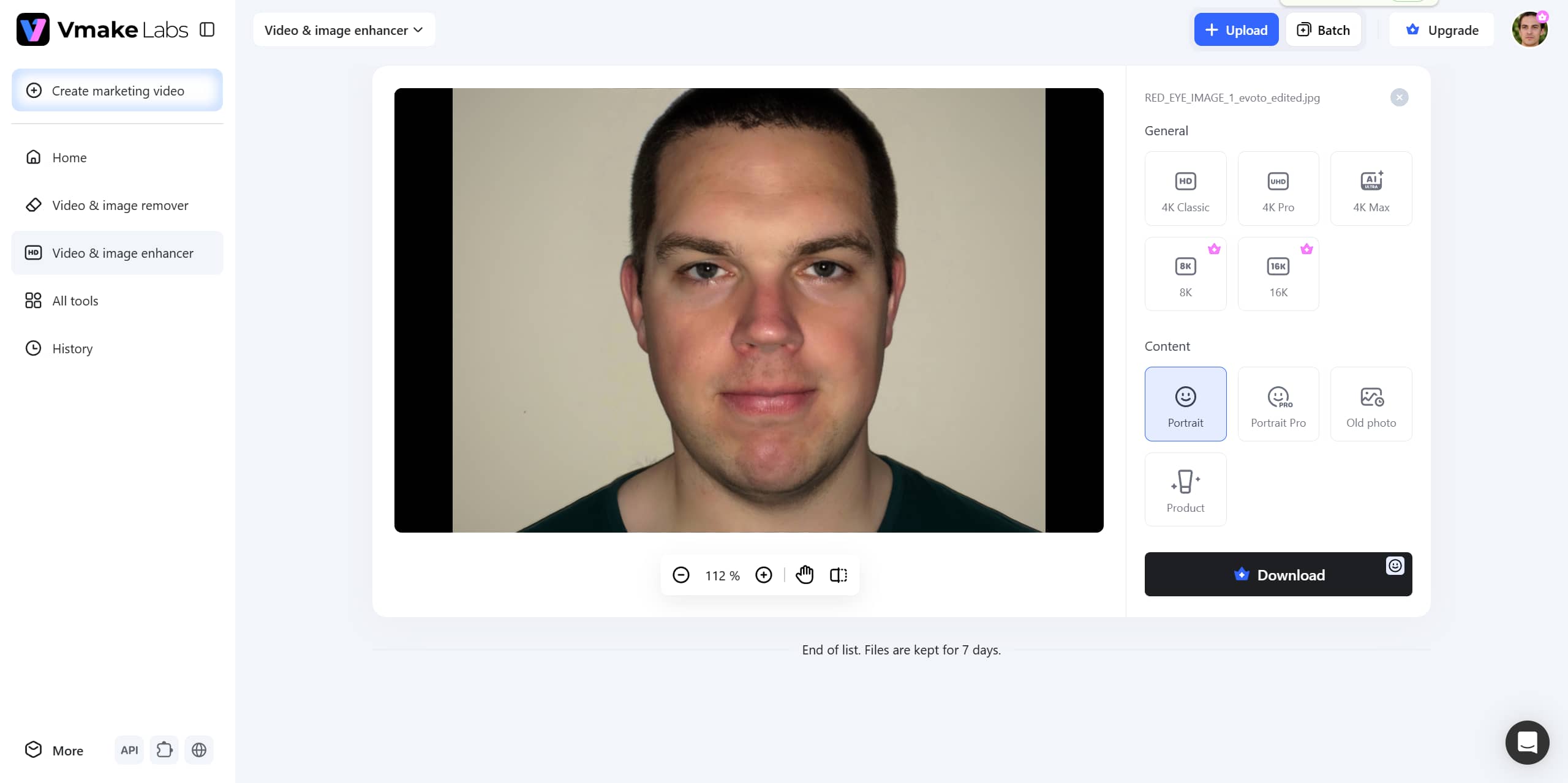
Step 3. Enhance and download your photo
Click Enhance to let Vmake Labs process your image with AI-powered improvements. Preview the final result and download the enhanced photo in high resolution for personal or professional use.
Pros and Cons
|
Pros |
Cons |
|---|---|
|
|
|
|
|
|
Pricing
|
Plan |
Pricing |
Details |
|---|---|---|
|
$0/month |
Includes 50 starter credits, 20 daily credits, and limited model access. Exports include a watermark with standard 720p resolution. |
|
$9.99/month |
Includes 1,000 monthly credits with 1080p export capabilities. Supports up to 10 processing tasks daily across AI enhancement, upscaling, and background removal tools. |
|
$29.99/month |
Includes 4,500 monthly credits with up to 2K/4K high-resolution exports. Supports up to 50 daily tasks with commercial usage rights and full access to advanced AI models. |
Best for
Creators, marketers, designers, businesses, educators, and anyone looking for a versatile AI art tool that can generate high-quality artwork for personal or commercial projects.
-
Adobe Photoshop
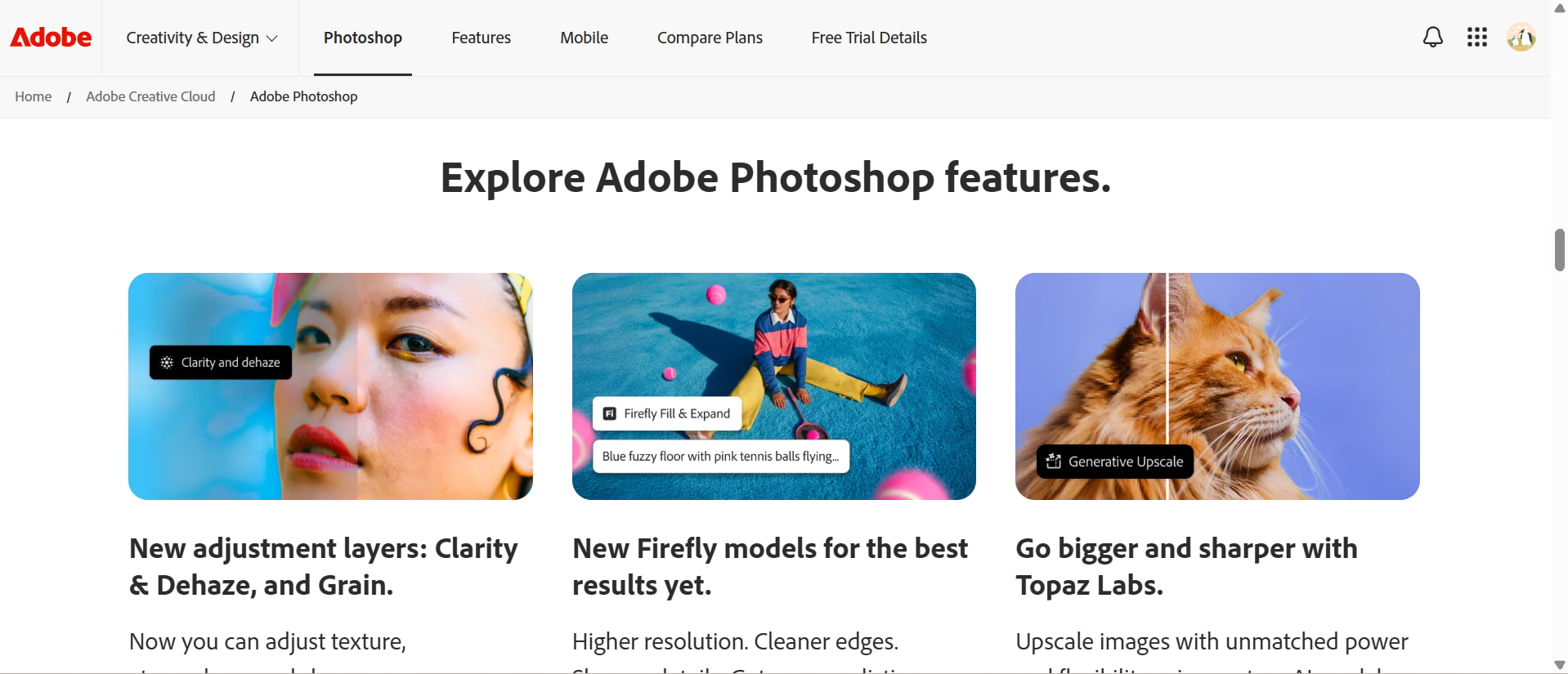
Adobe Photoshop is a professional image editing application that includes a dedicated Red Eye Tool for fixing unwanted eye reflections in portraits. It allows users to make precise adjustments while providing access to advanced retouching features for complete photo enhancement.
Pros and Cons
|
Pros |
Cons |
|---|---|
|
|
|
|
|
|
Pricing
|
Plan |
priccing |
Details |
|---|---|---|
|
$22.99/month |
Includes professional photo editing features, regular updates, cloud storage, Adobe Fonts, Adobe Express Premium access, and support across desktop, web, and iPad. |
Best for
Adobe Photoshop is best for professional photographers, designers and experienced editors who require precise control over red eye correction and advanced image manipulation.
-
Fotor
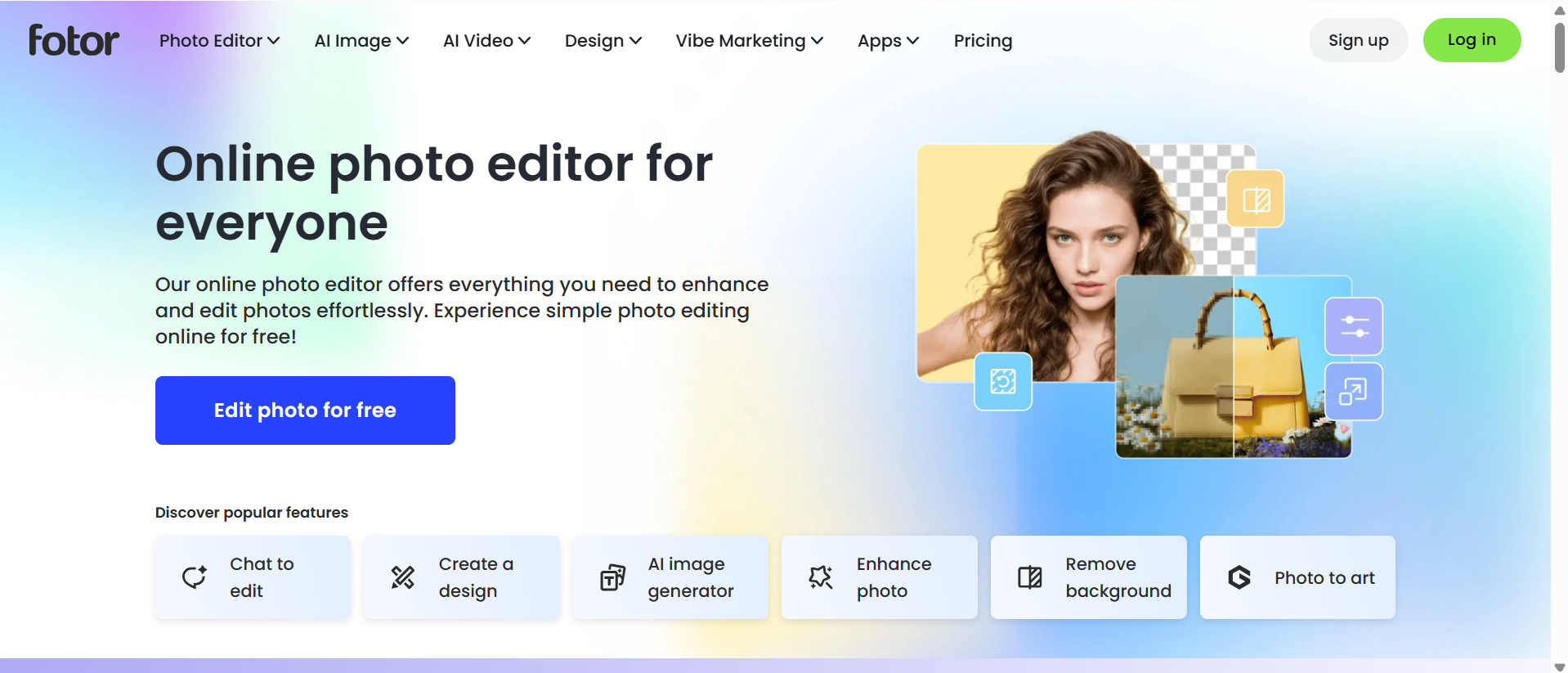
Fotor is a simple online photo editor with AI editing tools like red-eye correction and portrait enhancement tools. It is designed for those who want fast photo improvements without the need to learn complex editing software.
Pros and Cons
|
Pros |
Cons |
|---|---|
|
|
|
|
|
|
Pricing
|
Plan |
Pricing |
Details |
|---|---|---|
|
$0/month |
Provides access to basic editing tools, filters, templates, and limited AI features. |
|
$3.99/month |
Includes premium effects, advanced AI tools, HD downloads, watermark-free exports, and additional creative resources. |
Best for
Fotor works well for casual users who want quick online photo improvements, simple red eye fixes, and basic portrait adjustments.
-
Pixelbin AI
Pixelbin AI is an AI-powered Image Processing platform that automates the optimization and enhancement of large volumes of images with automated workflows. It focuses on image enhancement, processing efficiency and visual content management at scale.
Pros and Cons
|
Pros |
Cons |
|---|---|
|
|
|
|
|
|
Pricing
|
Plan |
Pricing |
Details |
|---|---|---|
|
$15/month |
Designed for individual creators with AI image optimization tools and increased processing limits. |
|
$30/month |
Provides additional usage capacity and enhanced image processing features. |
|
$60/month |
Includes higher processing limits and advanced optimization capabilities for professional users. |
Best for
Pixelbin AI is suitable for businesses, developers, and users who manage large image libraries and need automated image improvement solutions.
-
Picsart
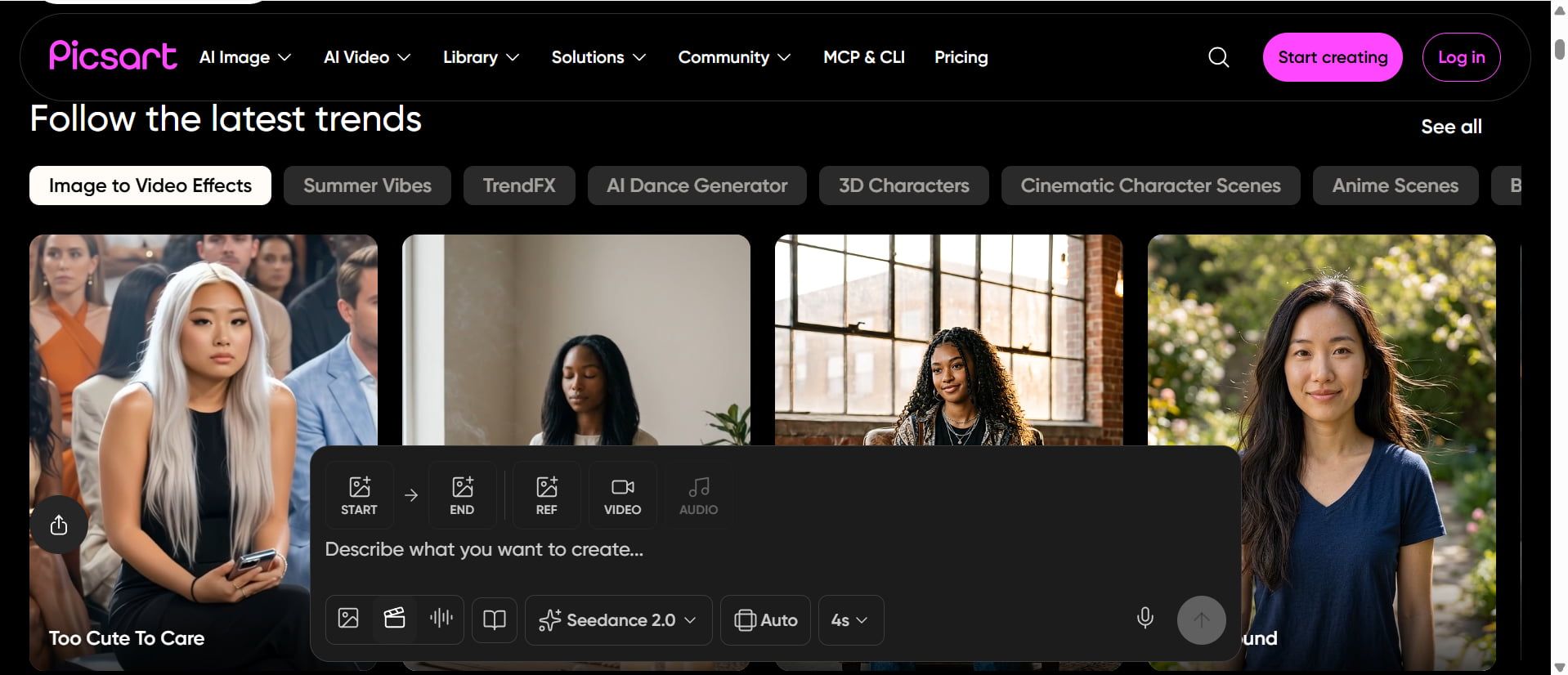
Picsart is a leading creative editing platform that blends AI photo enhancement with design features. It helps users to edit portraits, remove imperfections, add effects and generate social media-ready images from one platform.
Pros and Cons
|
Pros |
Cons |
|---|---|
|
|
|
|
|
|
Pricing
|
Plan |
Pricing |
Details |
|---|---|---|
|
$15/month |
Provides premium editing tools, AI features, templates, and watermark-free exports. |
|
$75/month |
Includes advanced AI capabilities, expanded creative resources, and professional editing features. |
Best for
Picsart is best for social media creators, marketers, and users who want both correction and creative design tools for photos.
-
Evoto AI
Evoto AI is a portrait-focused editing application that uses artificial intelligence to enhance facial features, improve skin appearance, and refine image quality. It is mainly designed for photographers who need efficient portrait processing.
Pros and Cons
|
Pros |
Cons |
|---|---|
|
|
|
|
|
|
Pricing
|
Plan |
Pricing |
Details |
|---|---|---|
|
$6.99/month ($80/year) |
Includes basic AI portrait editing tools. |
|
$11.99/month ($134/year) |
Provides additional editing credits and improved retouching features. |
|
$20.99/month ($242/year) |
Offers more processing capacity and advanced portrait tools. |
|
$43.99/month ($521/year) |
Designed for frequent users requiring higher limits. |
|
$100.99/month ($1,205/year) |
Provides maximum editing capacity for professional workflows. |
Best for
Evoto AI is suitable for photographers, studios, and professionals who need consistent AI-based portrait enhancement.
-
Imagen AI
Imagen AI uses artificial intelligence to automate photo editing workflows, analyzing images and applying adjustments automatically. It helps users improve image quality without requiring much manual editing knowledge.
Pros and Cons
|
Pros |
Cons |
|---|---|
|
|
|
|
|
|
Pricing
|
Plan |
Pricing |
Details |
|---|---|---|
|
$7/monthly base fee |
Provides flexible access with additional usage-based charges. |
|
$165/month |
Offers unlimited editing capabilities for high-volume users. |
Best for
Imagen AI is perfect for users who want quick automated photo fixes and easy red-eye removal without having to make manual edits.
-
GoStudio AI
GoStudio AI is a photo editing tool that runs in your browser and speeds up image enhancement with artificial intelligence (AI) technology. It is focused on simple workflows for users who want quick enhancements and don't want to go through complicated editing processes.

Pros and Cons
|
Pros |
Cons |
|---|---|
|
|
|
|
|
|
Pricing
|
Plan |
Pricing |
Details |
|---|---|---|
|
$3.90/month |
Includes basic AI editing features and standard image processing. |
|
$6.90/month |
Provides additional AI tools and increased processing limits. |
|
$19/month |
Includes advanced editing features and higher usage capacity. |
Best for
GoStudio AI is ideal for beginners who want an easy-to-use online tool for quick photo edits and basic red eye correction.
Tips for removing red eyes from photos effectively
The red eye correction should be successful enough to make the eyes look natural, but still retain the original quality of the portrait. The goal should not be simply to get rid of the red reflection, but to retain facial details, realistic colors, and overall image balance.
-
Choose high-quality images: Clear, high-resolution photos provide more details for editing tools to identify and correct the affected eye area accurately. Low-quality images may produce less natural results.
-
Maintain realistic eye appearance: A good correction should remove the red reflection without changing the person's natural eye color. Avoid edits that make the eyes look too dark, bright, or artificial.
-
Edit with proper zoom levels: Zooming into the eye area allows more accurate corrections and prevents unnecessary changes to nearby facial features.
-
Review the original and edited versions: Comparing both versions helps ensure that the correction looks natural and that no important details were removed during editing.
-
Avoid excessive adjustments: Applying too much correction can make portraits appear unrealistic. Use only the necessary amount of editing to restore a natural look.
-
Improve the complete portrait after correction: Once the red eye is fixed, additional improvements such as sharpening, brightness adjustment, and image enhancement can make the final photo appear cleaner. AI-powered solutions like Vmake Labs can enhance image quality using an image enhancer while maintaining realistic colors and textures.
Conclusion
Red eye is a common problem with flash photography, but it's one of the easiest photo problems to fix. You can use the built-in editor on your iPhone, professional software like Photoshop, or AI-powered online tools to restore natural-looking eyes in just a few steps. If you want to improve portrait clarity, facial details, and overall image quality too, Vmake Labs offers an efficient AI-powered solution to enhance photos. Good photography habits, combined with the right editing tool, can make a portrait look polished, realistic, and ready to share or print with confidence.
FAQs
-
Can Vmake Labs remove red eyes from photos automatically?
Vmake Labs does not currently offer a dedicated red-eye removal feature. However, its AI-powered image enhancement tools can improve portrait quality by enhancing facial details, sharpness, and overall image appearance. It helps create cleaner and more natural-looking photos with minimal editing effort.
-
How do I remove the red eye from a photo without Photoshop?
You can remove the red eye without Photoshop by using built-in phone editors or online photo editing tools with automatic correction features. Many AI-powered editors can detect and fix the red eye quickly while preserving the original quality and appearance of your photo.
-
How do I remove red eyes in photos on my iPhone?
Open the Photos app and select the image you want to edit. Tap Edit and choose the Red Eye correction tool if available. Tap on the affected eyes to remove the red reflection, then save your changes once the photo looks natural.
-
Does red eye removal affect image quality?
A good editing tool usually removes the red eye without harming the image quality. The correction itself is very local to the area of the affected eye, but important details, colors, and textures are preserved. AI-powered editors can look natural and not over-edited.
-
Can I remove red eyes from old scanned photos with Vmake Labs?
Vmake Labs can help improve old scanned photos by enhancing clarity, restoring details, and improving overall image quality. While it does not have a specific red-eye removal feature, its AI enhancement tools can make older portraits look cleaner and more polished.
-
What is the best free red eye remover for portraits?
The best free red-eye remover depends on your editing needs. Smartphone editors work well for quick fixes, while tools like Fotor and Picsart offer simple AI corrections. For improving overall portrait quality, Vmake Labs is a useful option with AI-powered enhancement features.

You May Be Interested
Airbrush Watermark Remover Review (2026): Features and Pricing
Best Sora Watermark Remover: 10 AI Tools Compared (2026)
How to Remove Green Screen from Video: Best Methods and Tools in 2026

How to Remove Mosaic from Video: AI Methods to Improve Pixelated Footage in 2026