How to Remove a Drink from a Photo
Removing a drink from a photo doesn't have to be difficult. Explore the best editing methods, practical tips, and how Vmake Labs can help you clean up images with AI in just a few simple steps.

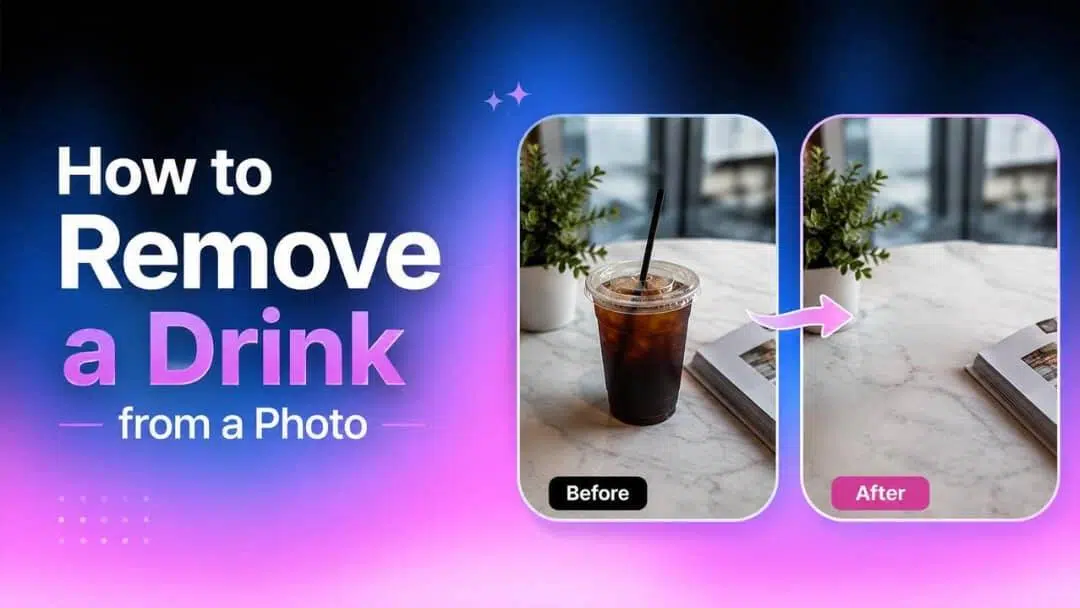
Wondering how to remove a drink from a photo? AI editing tools can quickly erase cups, bottles, and glasses while keeping the image natural. This guide explores the best methods and shows how to edit photos easily with Vmake Labs.
Best ways to remove a drink from a photo
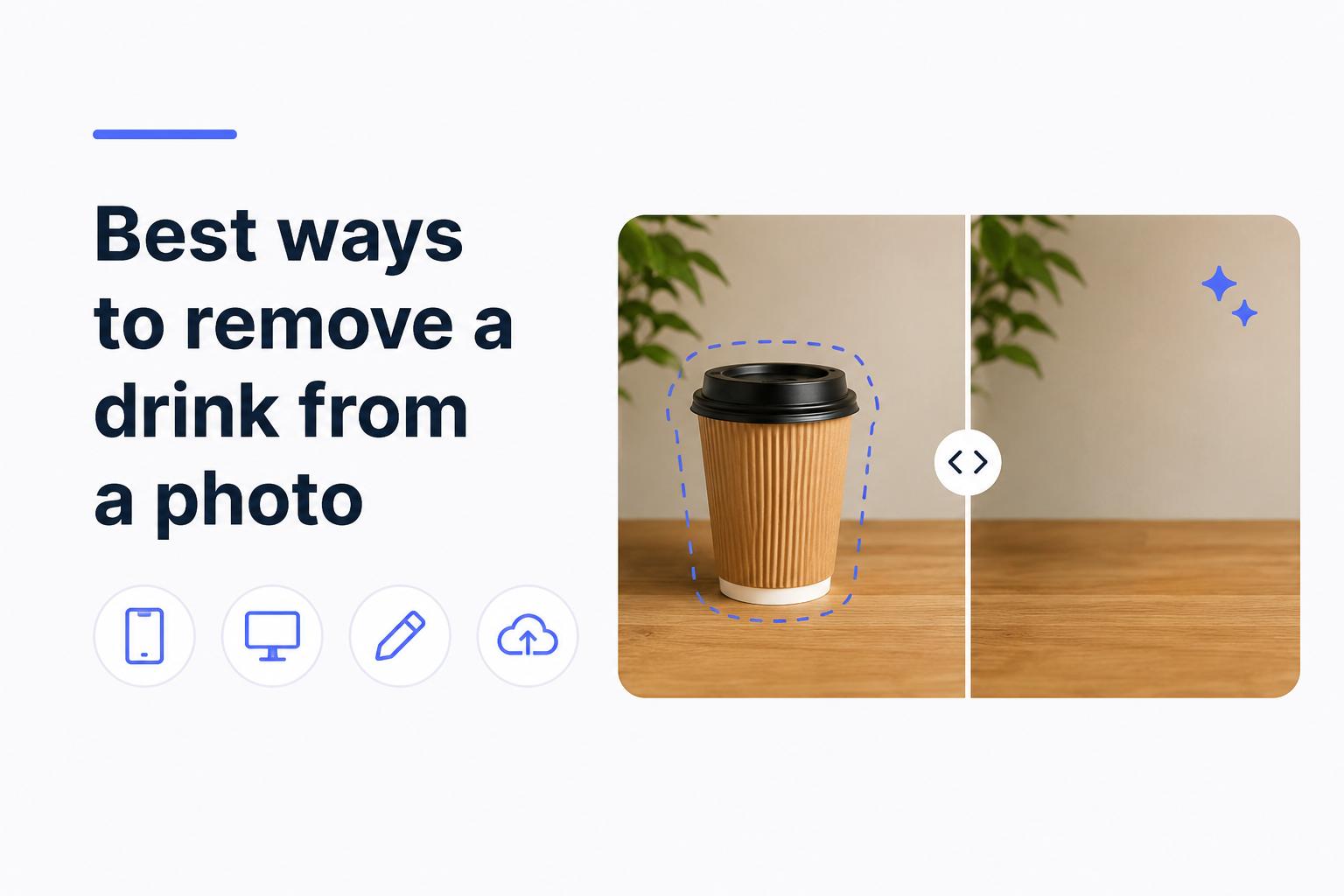
There are a few ways you can learn to take a drink out of a picture, and which is best depends upon your device, how experienced you are with photo editing, and what the picture is. Some are great for fast editing, and others for more precision for detailed photos. Knowing these methods will help you to decide which editing workflow will work best for you.
|
Editing Method |
Best For |
Pros |
Cons |
|---|---|---|---|
|
Third-Party Mobile App |
Casual, on-the-go editing with a bit more AI power. |
|
|
|
Online AI Object Remover |
The ideal balance of speed, accuracy, and ease of use. |
|
|
|
Adobe Photoshop (Manual) |
Complex edits, professional imagery, and precision control. |
|
|
On your Phone: How to remove a drink from a photo with Google Photos
Google Photos lets you remove unwanted objects like a drink from your image using its AI-powered Magic Editor or Magic Eraser. The process is quick and beginner-friendly, making it easy to clean up photos without using professional editing software.
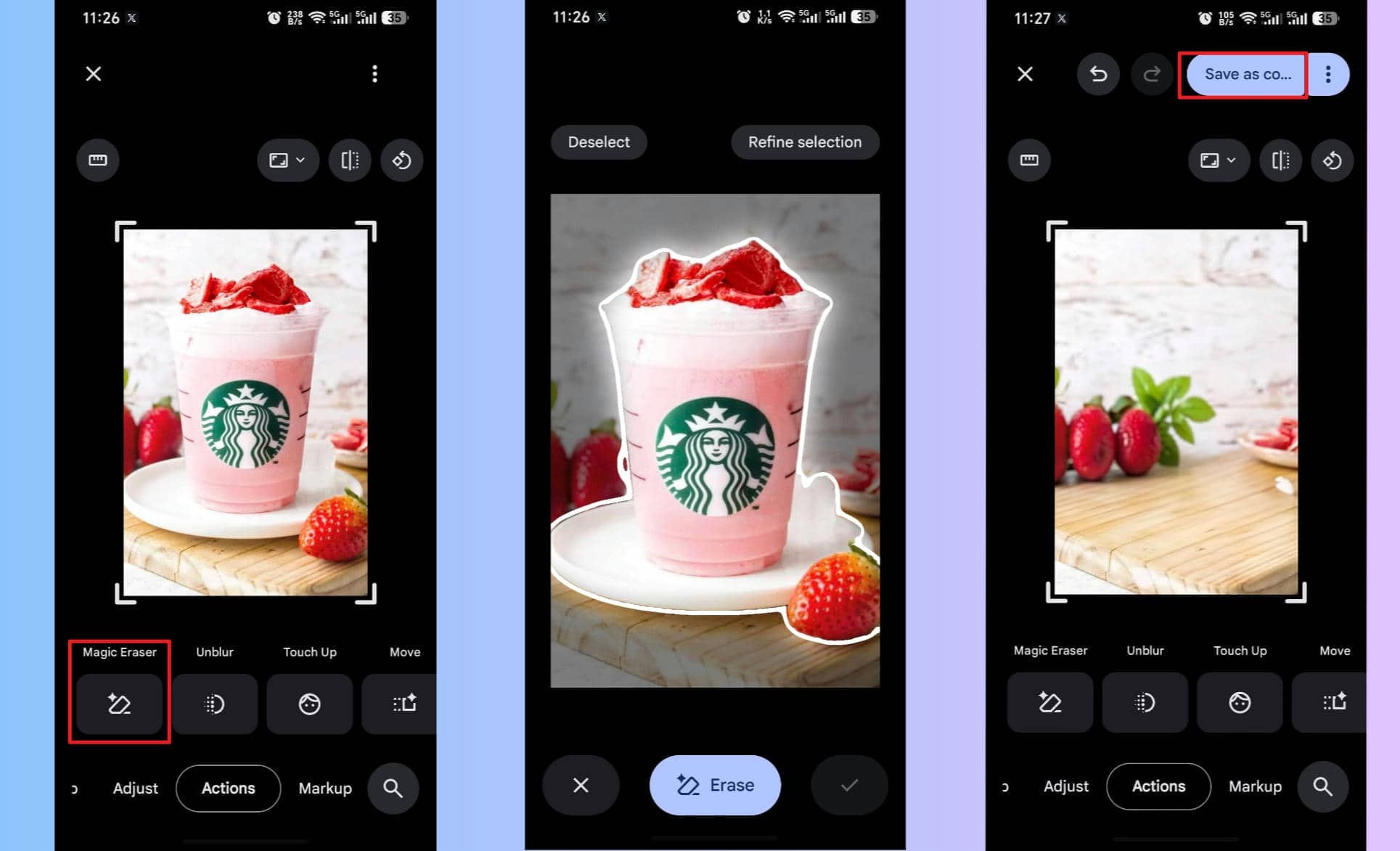
Step 1: Open your photo in Google Photos Launch Google Photos, select the image you want to edit, and tap Edit. Then, choose Action, find and tap Magic Eraser, depending on your device.
Step 2: Select the drink to remove Tap, brush over, or circle the drink. Google Photos will detect the object and use AI to remove it while filling in the surrounding background.
Step 3: Review and save the edited photo Check the final result, make any additional adjustments if needed, and save the edited image or create a copy to keep the original photo.
Note: Magic Eraser and Magic Editor availability varies depending on your device, Google Photos version, and Google AI subscription. These features are available on supported Pixel devices and select Android phones, so some users may see different editing options or limited functionality.
AI resolution: How to remove a drink from a photo with Vmake Labs
Want to know how to get a drink out of a photo with a trace? Vmake Labs has a simple browser-based solution. The AI automatically identifies unwanted objects, but also allows you to manually refine edits if necessary. No software installation or advanced editing skills are required. Simply upload your photo and let AI do the work; you can download a neat, natural-looking output in a few simple steps.
Step 1: Upload your photo
Start by uploading the photo you want to edit. You can drag and drop the image into the upload window, click to browse files from your device, or paste an image link directly. Vmake Labs also supports batch uploads of up to 30 files, making it convenient when editing multiple photos in one workflow.
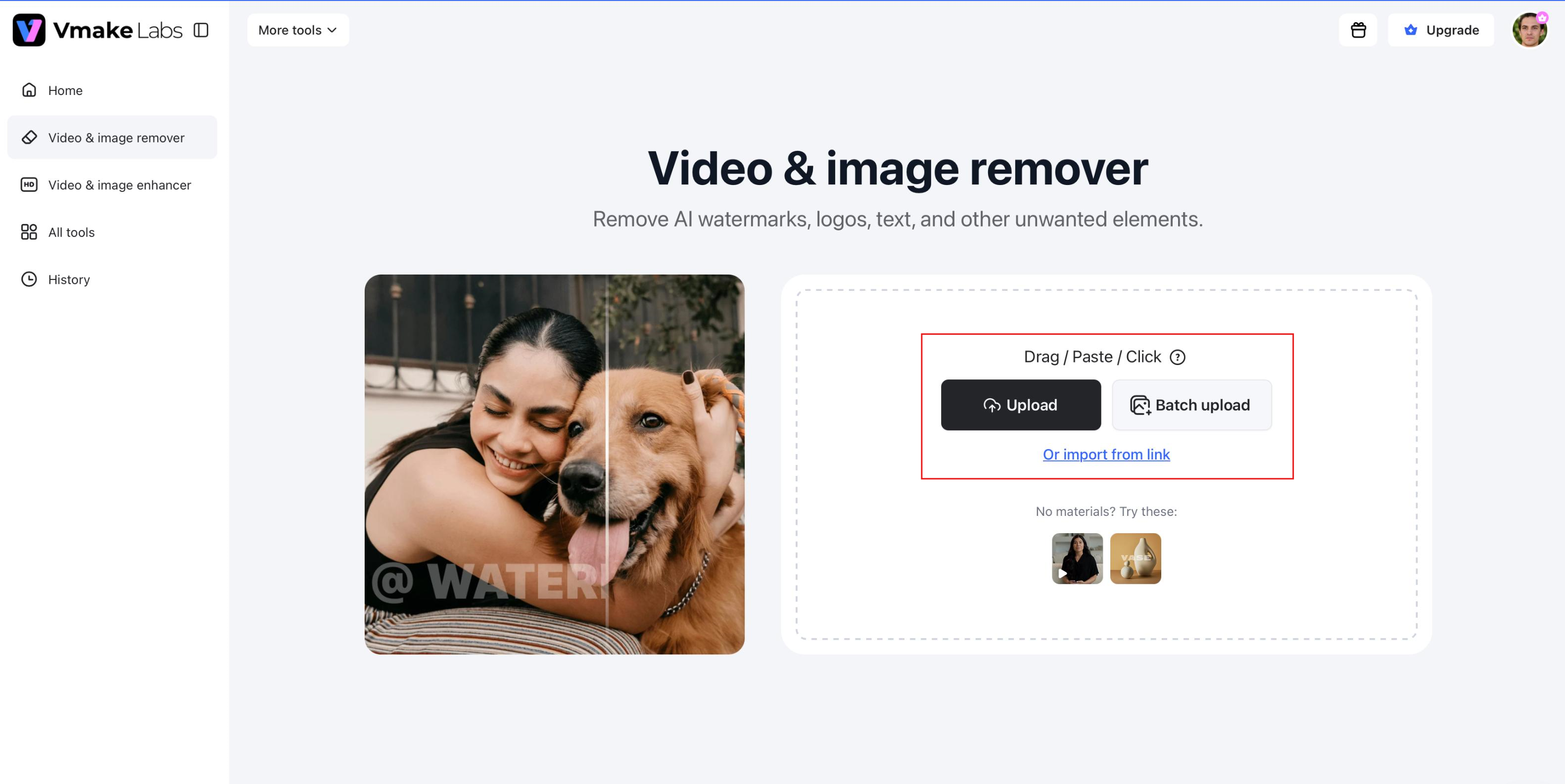
Step 2: Let AI remove the drink
After the image is uploaded, AI automatically detects and removes the selected drink while rebuilding the surrounding background. Automatic mode works best for drinks on clean, uncluttered backgrounds with clear edges. If the photo contains reflections, overlapping objects, shadows, or detailed textures, switch to the manual selection mode to refine the edit and preserve nearby details before generating the final result.
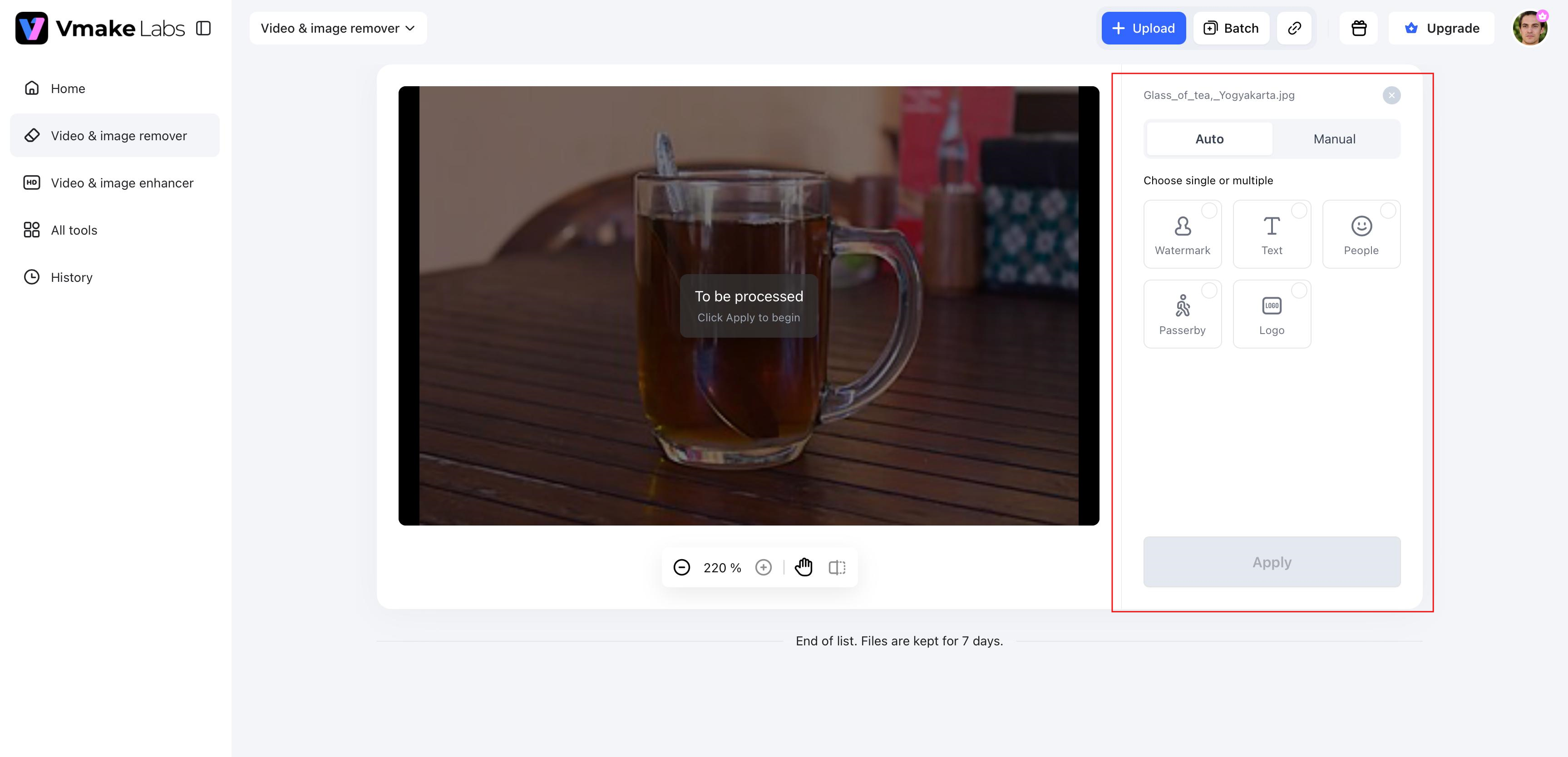
Step 3: Download the edited photo
Before downloading, review the preview carefully to ensure the edited area blends naturally with the surrounding background and that no reflections, edges, or visible artifacts remain. If needed, make additional refinements before saving the final image. You can also improve the overall quality with an image enhancer before downloading. Once you're satisfied with the result, download your cleaned photo, ready for social media, product listings, marketing materials, or personal use.
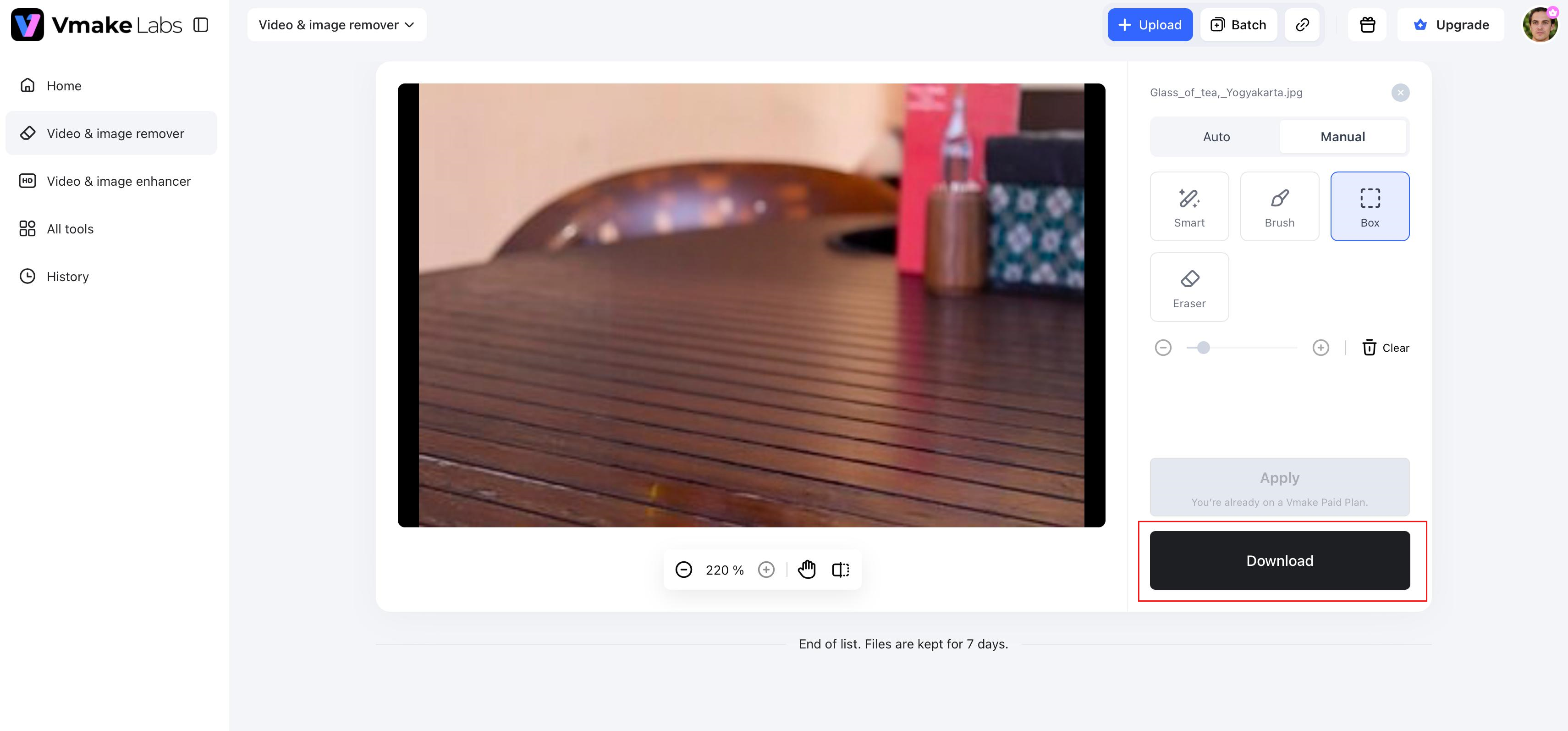
Vmake Labs features
Vmake Labs includes several features that simplify object removal while giving you greater control over the final result.
-
AI-powered precise object removal: Advanced AI identifies unwanted objects such as cups, bottles, and glasses, then intelligently reconstructs the surrounding background. The edited area blends naturally with nearby textures, helping you achieve clean results without extensive manual editing.
-
Manual erase area selection: If the automatic result needs adjustment, you can manually brush over the specific area you want to remove. This gives you greater precision when editing objects near important details or working with complex backgrounds.
-
Protected region editing control: Mark important parts of the image that should remain untouched during editing. This feature helps preserve people, products, or other key elements while AI removes only the selected unwanted object.
-
Images and videos supported: Vmake Labs works with both photos and videos, allowing you to remove unwanted objects across different types of content. This makes it useful for personal projects, social media posts, product visuals, and marketing materials.
-
Multi-object removal support: Remove multiple drinks or other unwanted objects from a single image without repeating the entire editing process. This is especially useful for group photos, event images, or scenes with several distracting items.
-
One-click batch processing: Save time by uploading and processing multiple images together instead of editing them one by one. Batch processing is ideal for creators, businesses, and photographers handling large collections of photos.
Traditional way: How to remove a drink from a photo with Photoshop
Adobe Photoshop offers several AI-powered object removal tools, including the Remove Tool and Generative Fill, making it easy to erase unwanted objects like a drink while preserving a natural-looking background. It's a good choice when editing commercial images, working with highly detailed or patterned backgrounds, or making pixel-level adjustments that require greater precision than most AI-powered tools can provide.
Step 1: Open your photo and select the Remove Tool Launch Photoshop and open the image you want to edit. From the toolbar, choose the Remove Tool (or use Object Selection if preferred) to begin removing the drink.
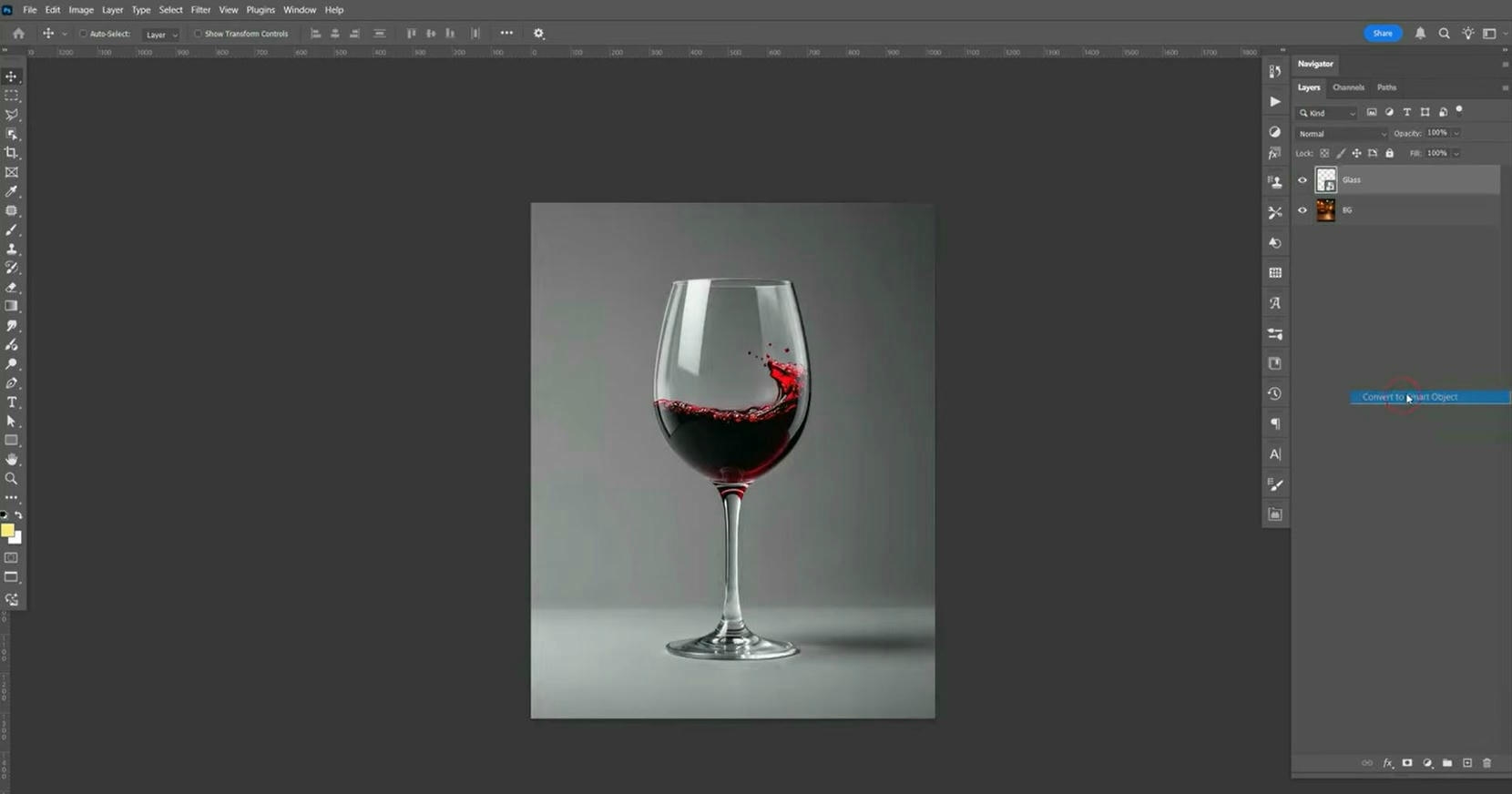
Step 2: Brush over the drink and let Photoshop remove it Paint over the drink, ensuring the entire object is covered. Photoshop's AI will analyze the surrounding area and automatically fill the space with matching background details.
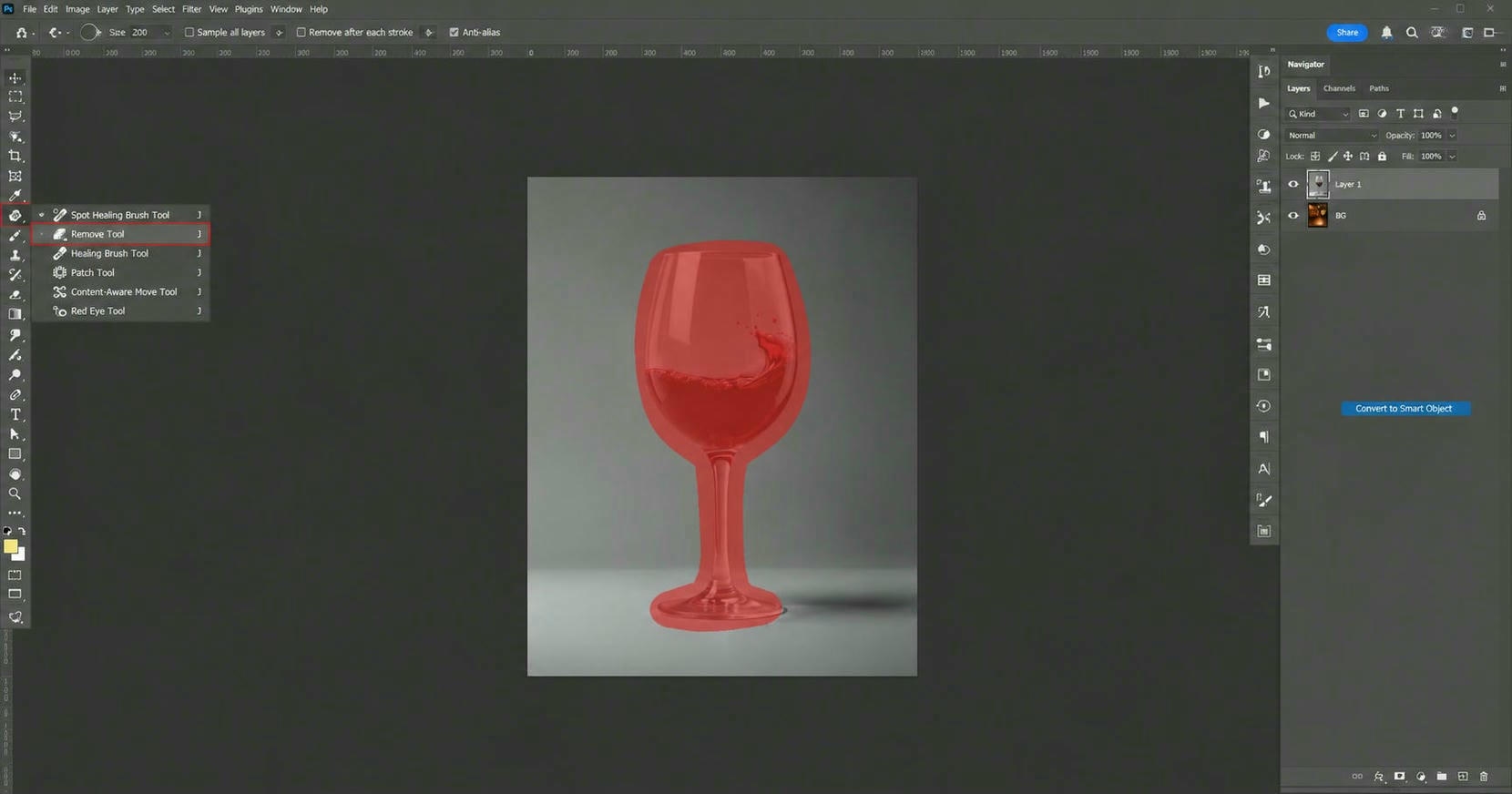
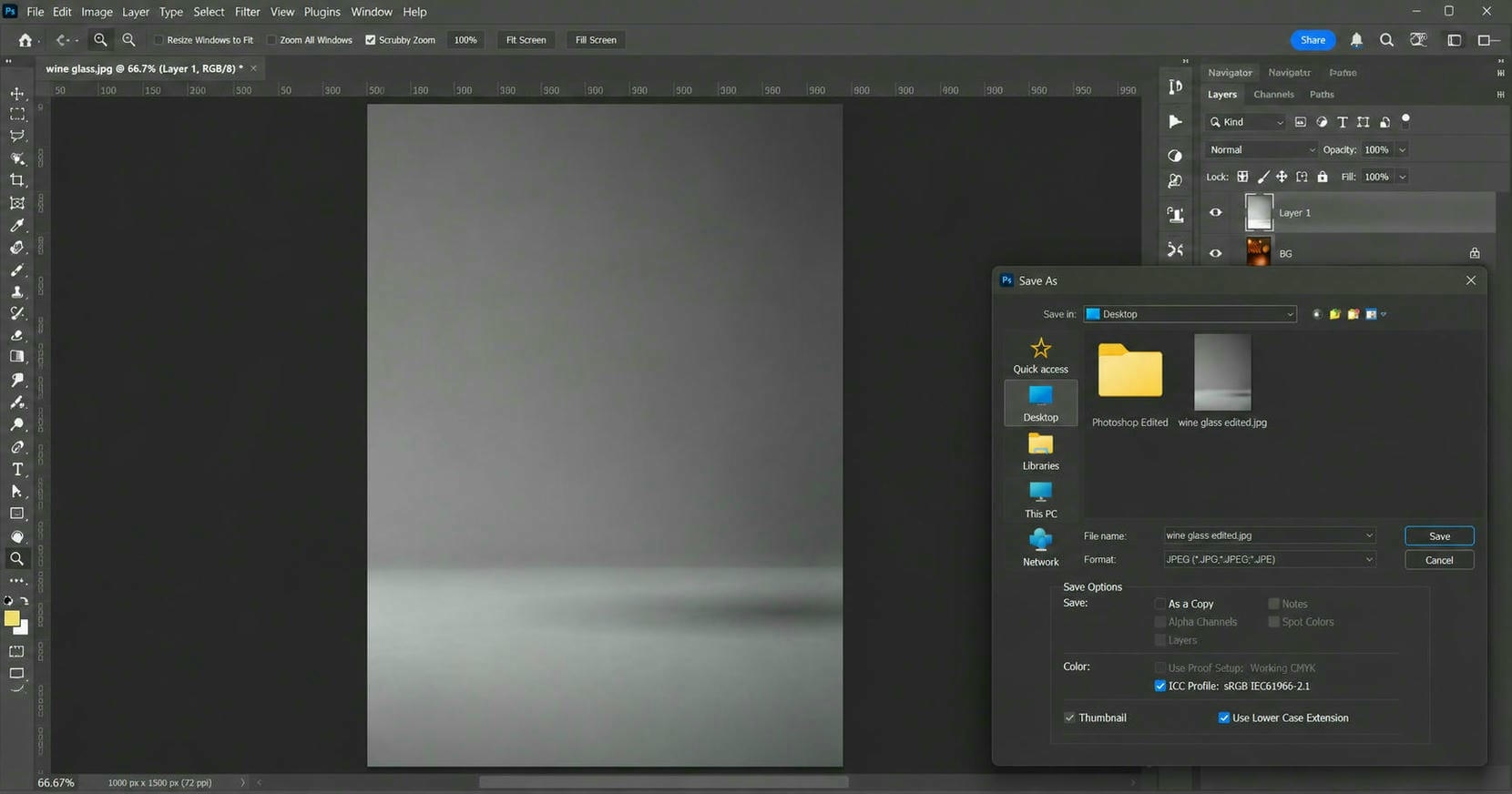
Step 3: Review and save your edited photo Inspect the result and make any refinements if needed using the Remove Tool or Generative Fill. Once you're satisfied, save the edited image in your preferred format.
Tips for getting natural-looking results
Even with AI-powered editing, a few simple techniques can make the final image look more realistic. These tips are useful whether you're editing portraits, food photography, travel pictures, or product images, and they can reduce the need for additional touch-ups before downloading the final result:
-
Select the entire drink, including its shadow: If a noticeable shadow remains after editing, you can also use tools designed to remove shadow from photo for a cleaner finish.
-
Include reflections when removing glass objects: Transparent glasses and bottles often leave reflections on tables or shiny surfaces. Selecting these reflections along with the object helps AI recreate the area more accurately.
-
Use smaller selections around detailed edges: Work with smaller selections when the drink is close to hands, food, or other important objects rather than covering a large area. This preserves nearby details and increases precision.
-
Zoom in before making refinements: Enlarging the image makes it easier to identify small edges, leftover artifacts, or missed areas. Small adjustments can significantly improve the overall quality of the edit.
-
Check the edited area before downloading: Check the final picture carefully to make sure textures, lighting, and colors look natural. If needed, make another pass to refine any areas that still appear slightly inconsistent.
Conclusion
It's easy to learn how to remove a drink from a photo with today's AI editing tools. Most users will find online AI solutions to be the fastest workflow compared to built-in editors, mobile apps, and Photoshop. Vmake Labs makes it easy to remove cups, bottles, and glasses and keep natural backgrounds. Take a good look at the edited image and make any minor adjustments if required. You'll have a clean, distraction-free photo ready to share or use professionally.
FAQs
Can AI remove a drink from a photo without affecting the background?
Yes. Modern AI object removal tools analyze the surrounding area and recreate the background after removing the drink. Tools such as Vmake Labs are designed to preserve nearby details, although highly textured or complex backgrounds may still benefit from minor refinements.
Can I remove cups, bottles, and glasses with the same tool?
Yes. Most AI object removers can erase coffee cups, water bottles, wine glasses, mugs, cans, and similar objects using the same editing process. Vmake Labs supports removing different types of unwanted objects from photos without requiring advanced editing skills.
Does AI work on complex or patterned backgrounds?
Yes, but the quality depends on the image. AI is best with simple backgrounds, but patterned surfaces, reflections, or overlapping objects may need some extra tweaking to get a natural-looking finish.
Can I remove multiple drinks from a single photo?
Yes. Many AI editing tools allow you to remove several unwanted objects from the same image. You can remove multiple distractions and review the results before downloading to make sure the background looks clean and consistent with Vmake Labs.
Can Vmake Labs remove drinks from videos as well?
Yes. Besides editing photos, Vmake Labs also supports AI-powered object removal for videos, making it easier to remove unwanted objects while maintaining a natural appearance throughout the footage.

You May Be Interested
Airbrush Watermark Remover Review (2026): Features and Pricing
AniEraser Watermark Remover by Media.io: 2026 Hands-On Review
Batch Watermark Removal with Vmake AI
Best AI Watermark Remover for Clean, Fast Edits
How to Remove CapCut Watermark