How to Make an Emoji from a Photo: Easy Methods To Follow
Learn how to make an emoji from a photo on iPhone and Android with easy step-by-step methods. Create custom emojis using built-in features and AI tools such as Vmake Labs.

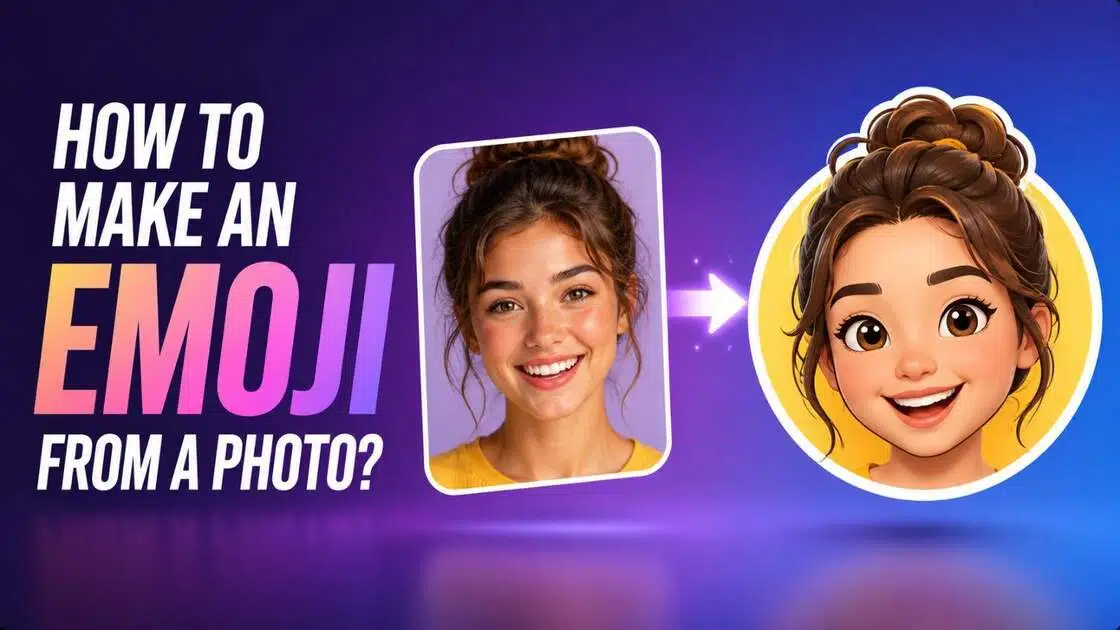
Emojis are small digital icons that represent emotions, objects, people, or ideas, making conversations more expressive and engaging. Today, you can go beyond standard emojis by creating personalized versions of your own photos. Whether you use Apple's Genmoji on an iPhone, Android sticker tools, or AI-powered image generators like Vmake Labs, custom emoji creation has become easier than ever. This guide explains the different methods, practical tips, and creative ideas to help you design unique emoji-style images.
How to make an emoji: what you need before you start
Before creating your custom emoji, it's worth preparing a few essentials. These simple steps improve the final appearance and make the creation process smoother, regardless of the method you choose.
-
Clear single photo: If you're wondering "how to make an emoji from a picture?", then choose a high-resolution image with one clearly visible subject. Good lighting, a sharp face, and minimal background distractions help create cleaner and more recognizable emoji-style graphics.
-
Supported iOS version: If you plan to use Apple's Genmoji, ensure your iPhone supports the feature and is updated to a compatible iOS version. Older devices may not include Genmoji functionality.
-
Optional reference image: Some AI image generators let you upload a reference photo alongside a text prompt. This helps maintain recognizable facial features while transforming the image into a different artistic style.
-
Download or share method: Decide how you'll use your finished creation. Whether saving it as an image, sharing it through messaging apps, or using it as a custom sticker, knowing the destination helps you choose the right format.
How to make an emoji on an iPhone from a picture?
To start creating emoji on an iPhone via Apple's "Genmoji", be sure to follow the recommended steps below for a seamless experience.
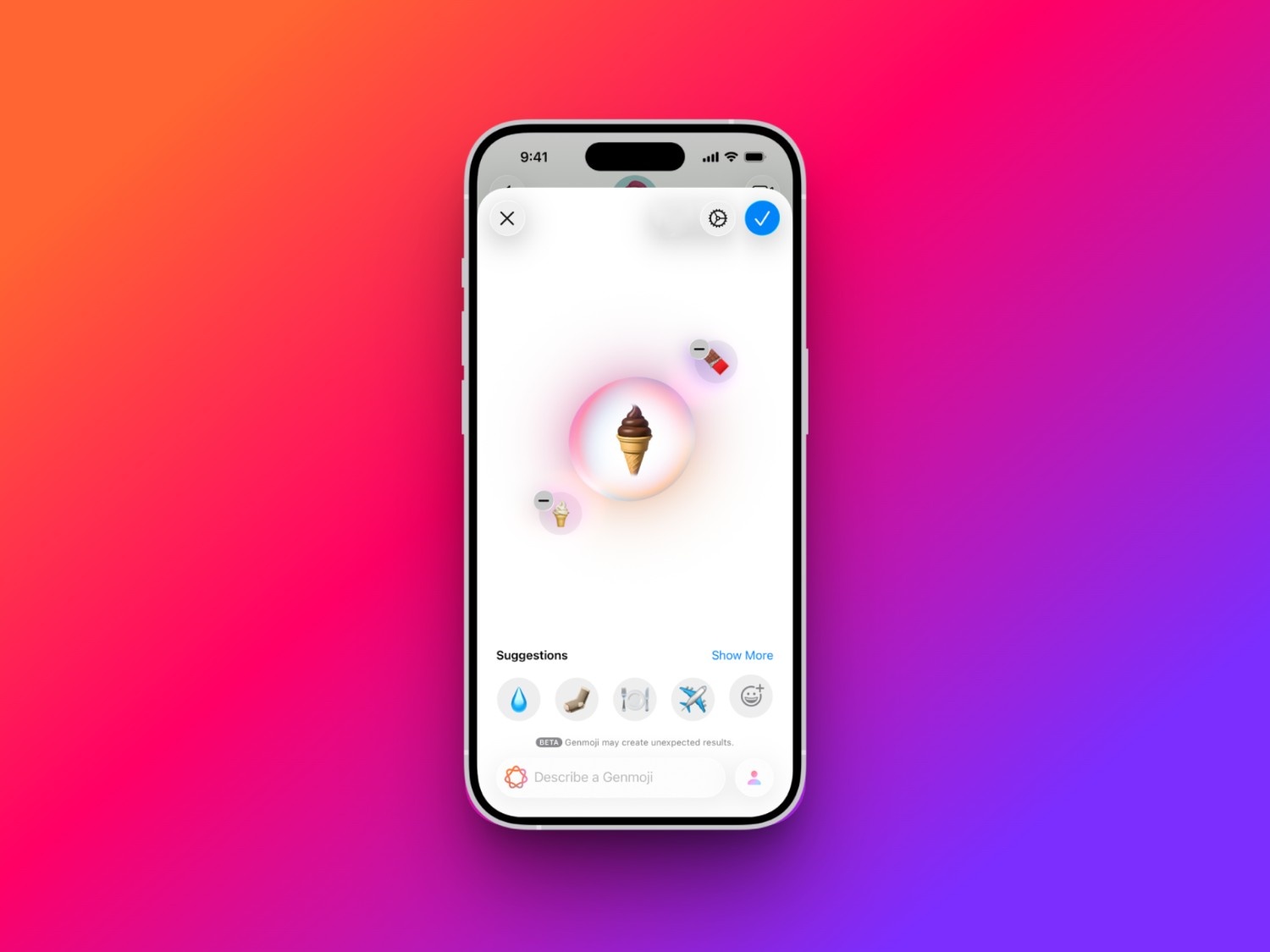
Step 1: Access Apple's Genmoji
Open a compatible Apple app such as "Messages", and tap the emoji keyboard to access Apple's Genmoji. From there, choose the option to create a new Genmoji using Apple Intelligence.
Step 2: Add what you want to Genmoji
Enter a detailed description of the person, facial expression, clothing, or style you want. If available, select a person from your "Photos" library to help Genmoji generate a more personalized result.
Step 3: Refine and save
Review the generated options and choose your favorite version. You can refine the prompt for different expressions or styles, then save the Genmoji and use it in supported Apple apps.
How to make an emoji from a photo on Android?
If you have an Android smartphone and want to create an emoji via Android's "Photomoji" method (on compatible Android devices that support Google Messages Photomoji), then be sure to follow the suggested steps below for a smooth experience.
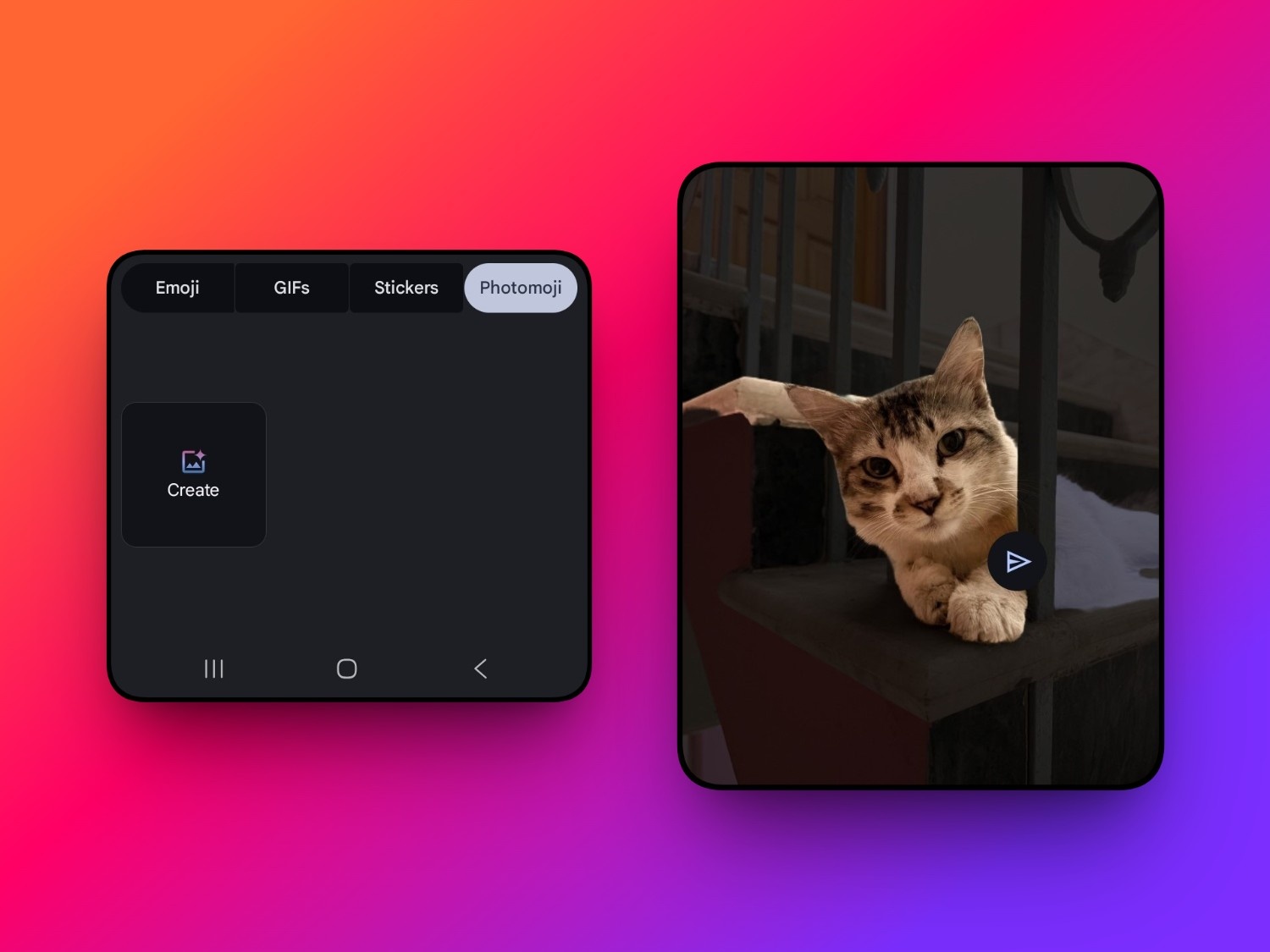
Step 1: Access Android's Photomoji
Begin your journey by first accessing the "Google Messages" app on your Android smartphone and then opening a message conversation (either new or pre-existing). Then tap on the emoji icon and select the "Create" option under "Photomoji".
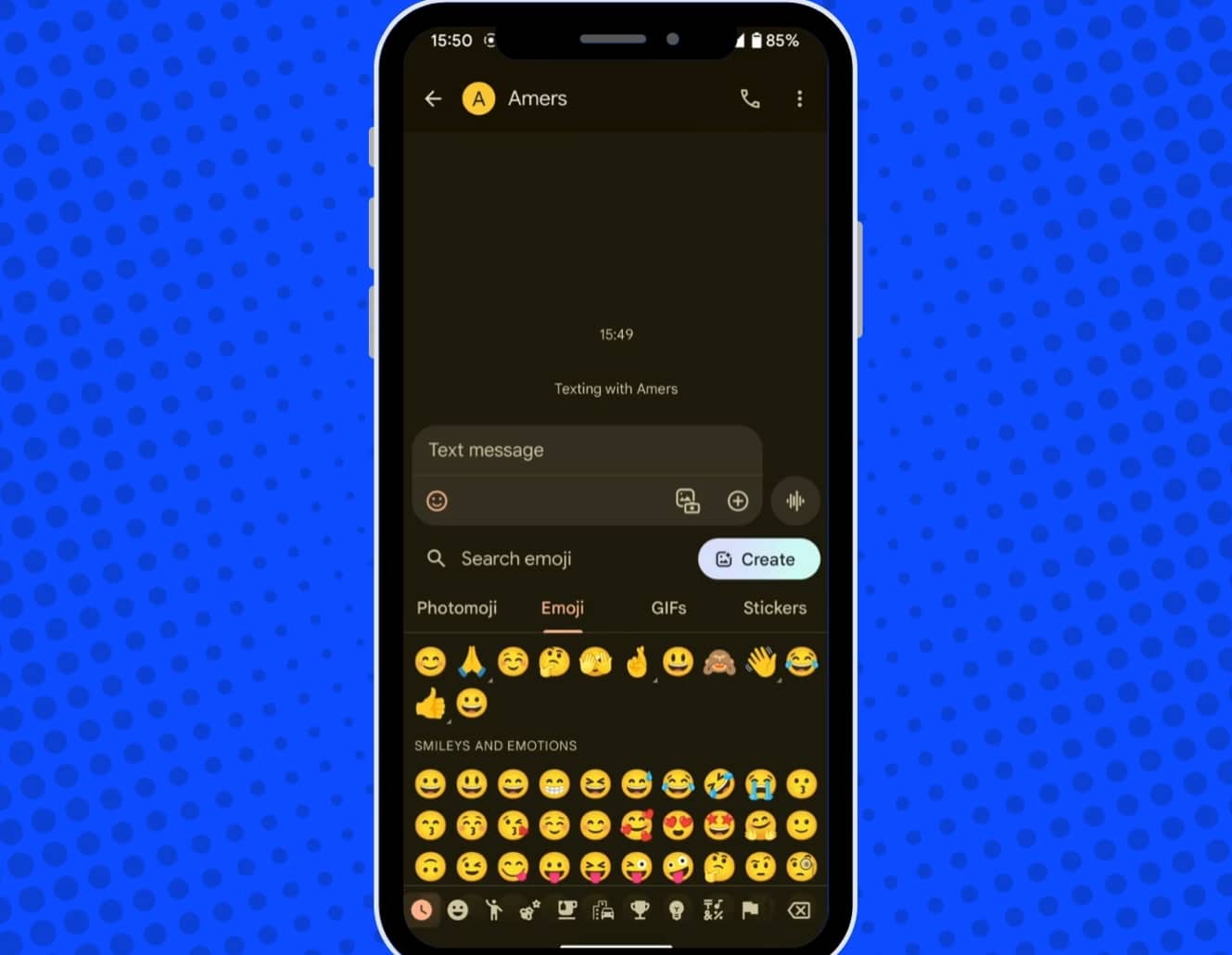
Step 2: Select a photo and create an emoji
In the next step, you will need to select the photo that you want to turn into an emoji. Keep in mind that the subject in the photo must be presented clearly; otherwise, the app won't be able to recognize it. Your photo will automatically be recognized, and the option to send will come up.
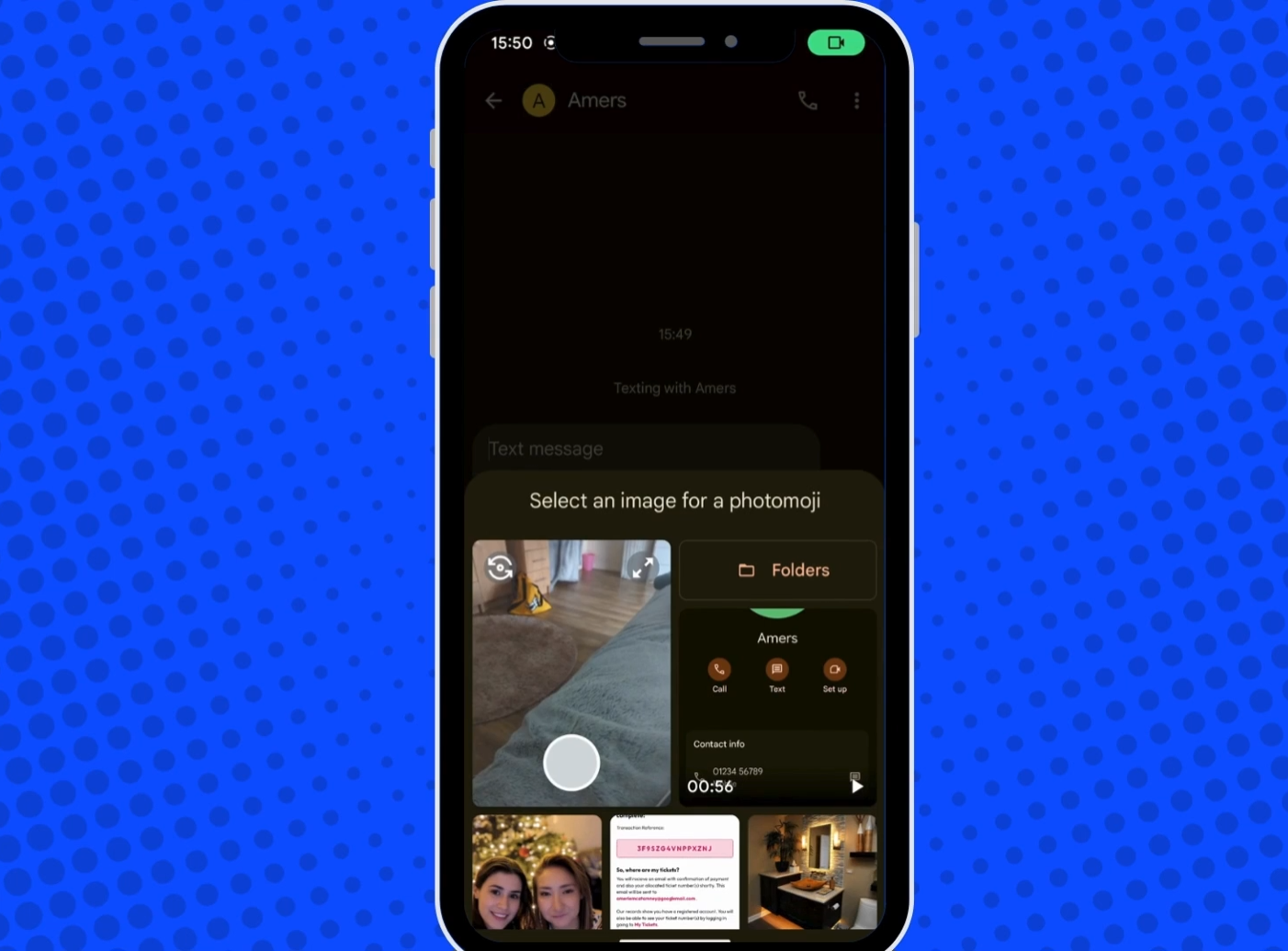
Step 3: Save and send
You can then proceed to send the photomoji you created, and once sent, it will be saved in your created photomojis for future use as well.
Creative emoji ideas and prompt examples
Not sure which emoji style to create? These prompt ideas can help you experiment with different artistic looks. Simply customize each prompt with your preferred facial expression, colors, or accessories to create a personalized emoji-style graphic.
-
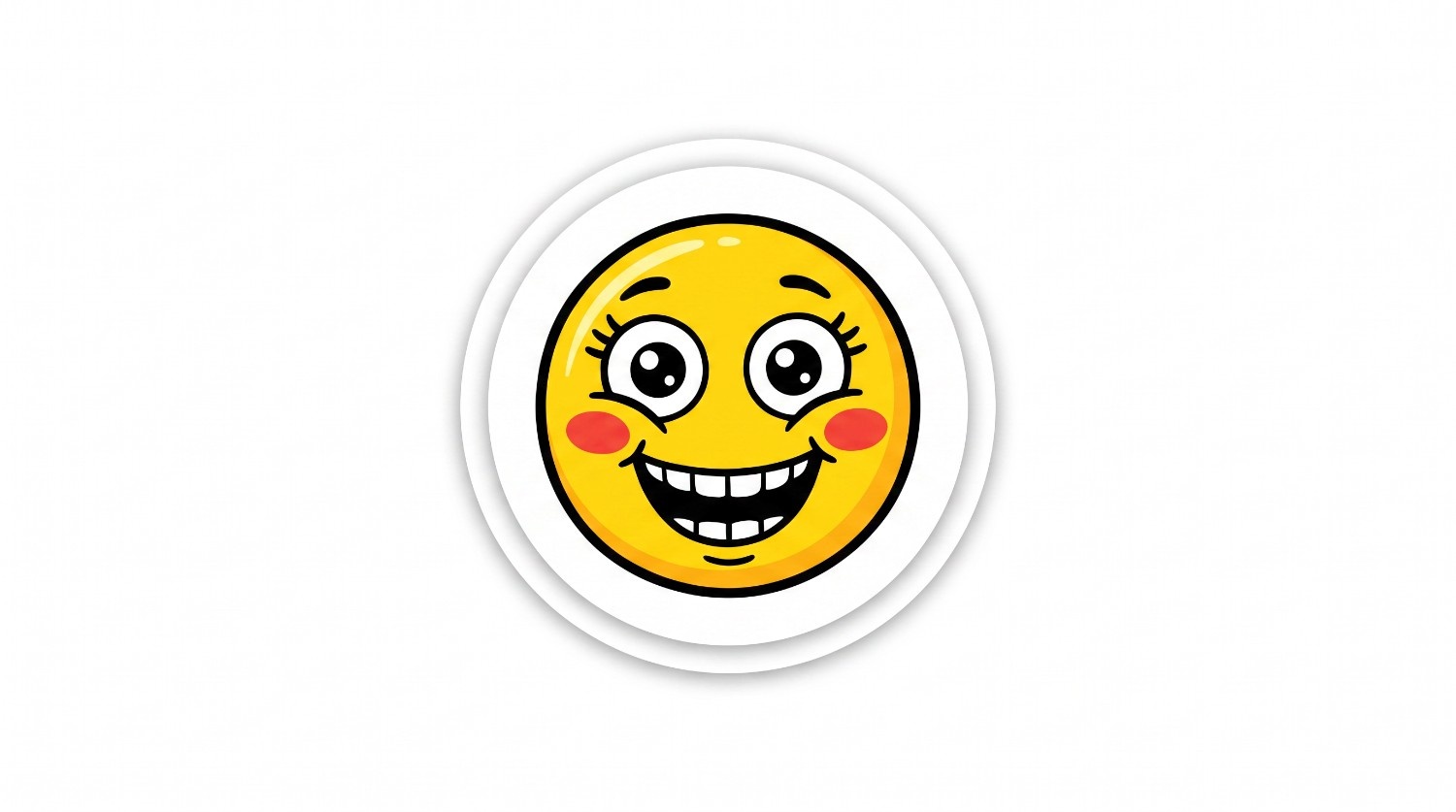
Cartoon face emoji
Prompt: Create a cheerful cartoon-style emoji of a smiling person with rosy cheeks, large expressive eyes, bold outlines, bright colors, and a clean transparent background.
-
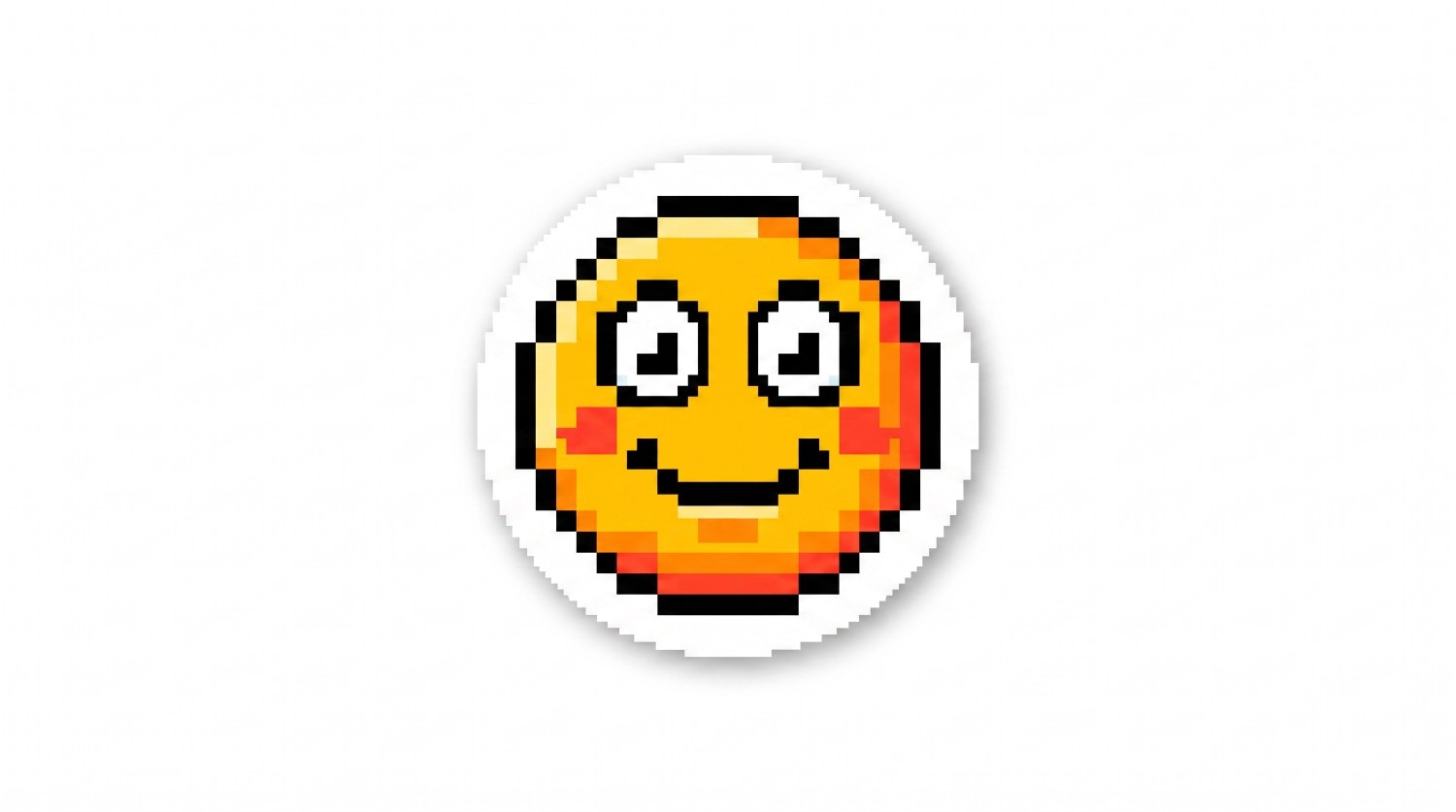
Pixel art emoji
Prompt: Turn this portrait into a retro 16-bit pixel art emoji with a happy expression, vibrant colors, simple shading, and a transparent background.
-
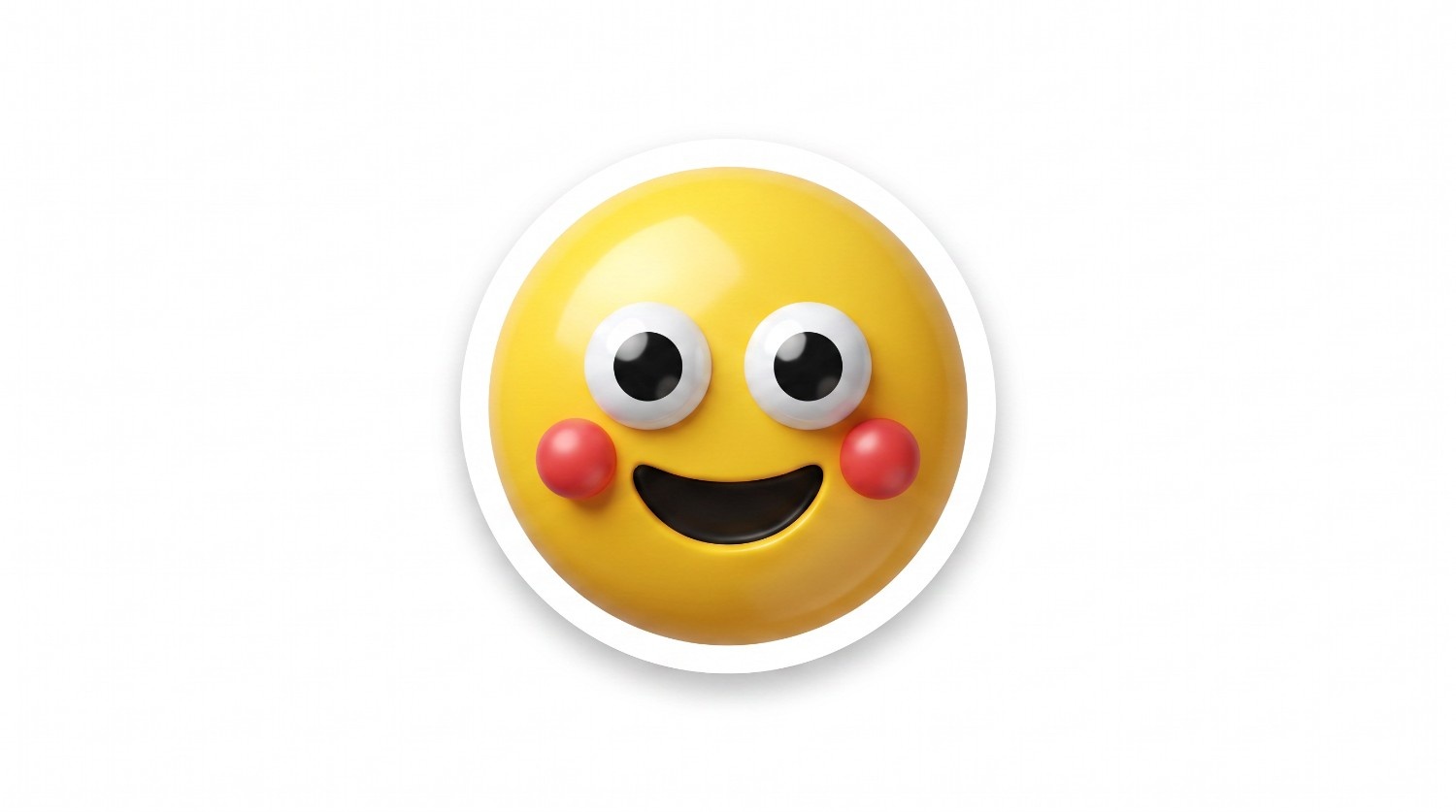
3D emoji style
Prompt: Generate a glossy 3D emoji inspired by this person's face with rounded features, realistic lighting, vibrant colors, and a playful expression on a transparent background.
-
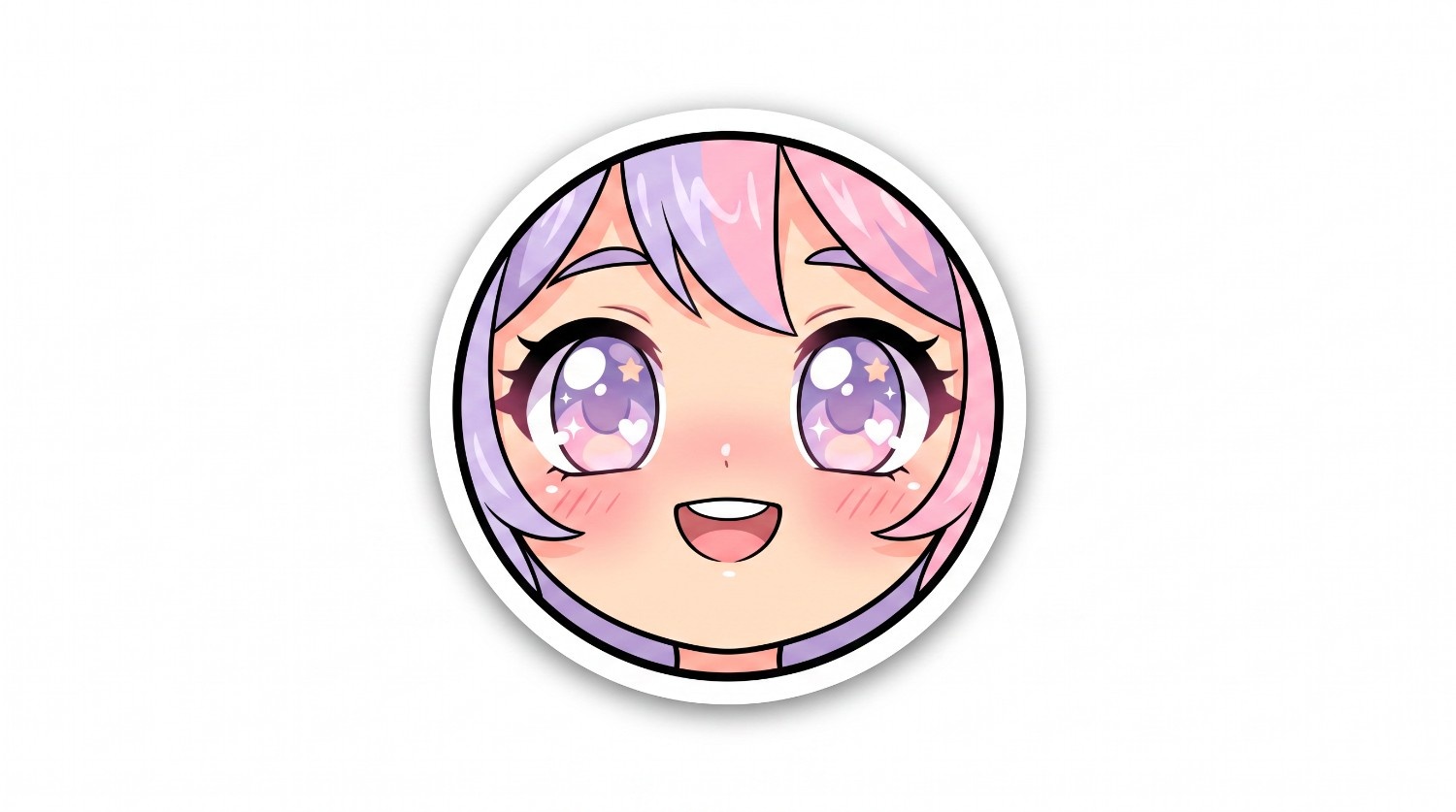
Anime-inspired emoji
Prompt: Create an anime-style emoji featuring oversized sparkling eyes, soft pastel colors, expressive facial features, cel-shaded artwork, and a transparent background.
-
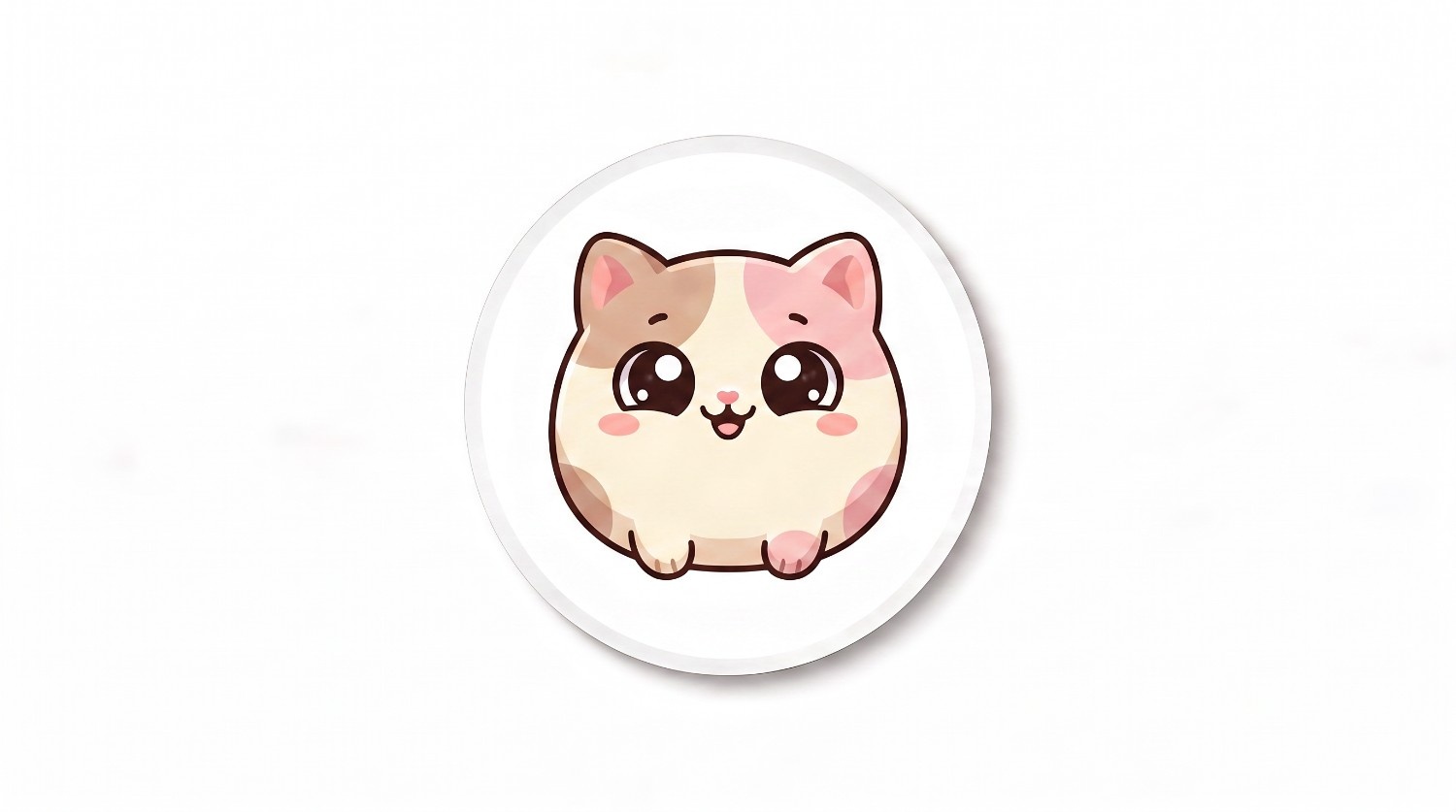
Cute animal emoji
Prompt: Transform this pet into a cute emoji with oversized eyes, tiny paws, rounded proportions, soft colors, a joyful expression, and a transparent background.
-
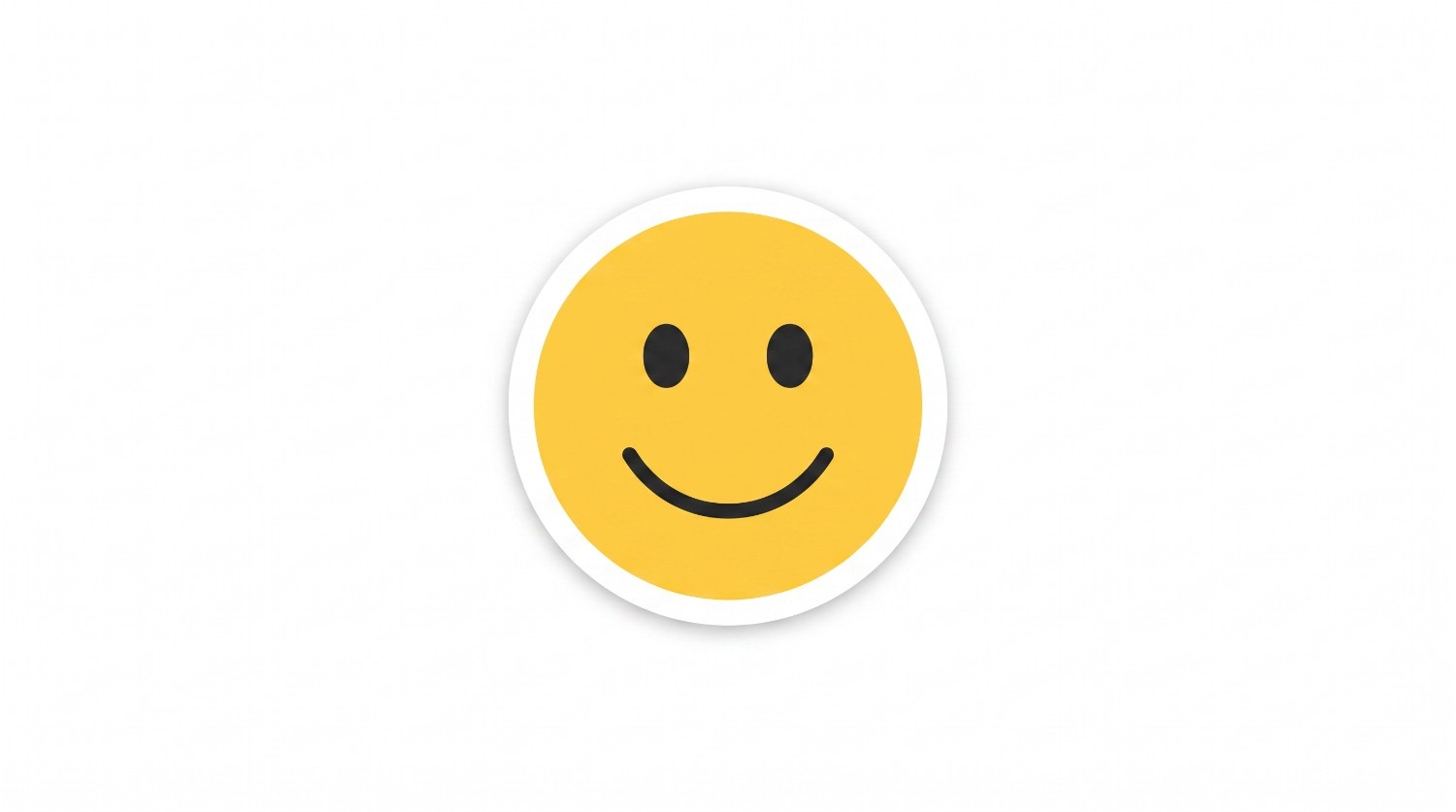
Minimal flat emoji
Prompt: Design a minimalist flat emoji based on this person's face using simple shapes, clean lines, solid colors, subtle facial details, and a transparent background.
Create custom emojis with Vmake Labs AI image generator
If you're looking for more creative freedom beyond built-in emoji tools, Vmake Labs AI image generator offers a flexible way to design emoji-style graphics from text prompts or photos. Instead of creating system keyboard emojis, it generates downloadable images that can be used as custom stickers, profile pictures, social media assets, or digital artwork.
You can experiment with different artistic styles, refine prompts, and create personalized visuals that match your ideas. Whether you're designing a fun avatar or a unique sticker pack, Vmake Labs provides an easy browser-based workflow for creative emoji-inspired images.
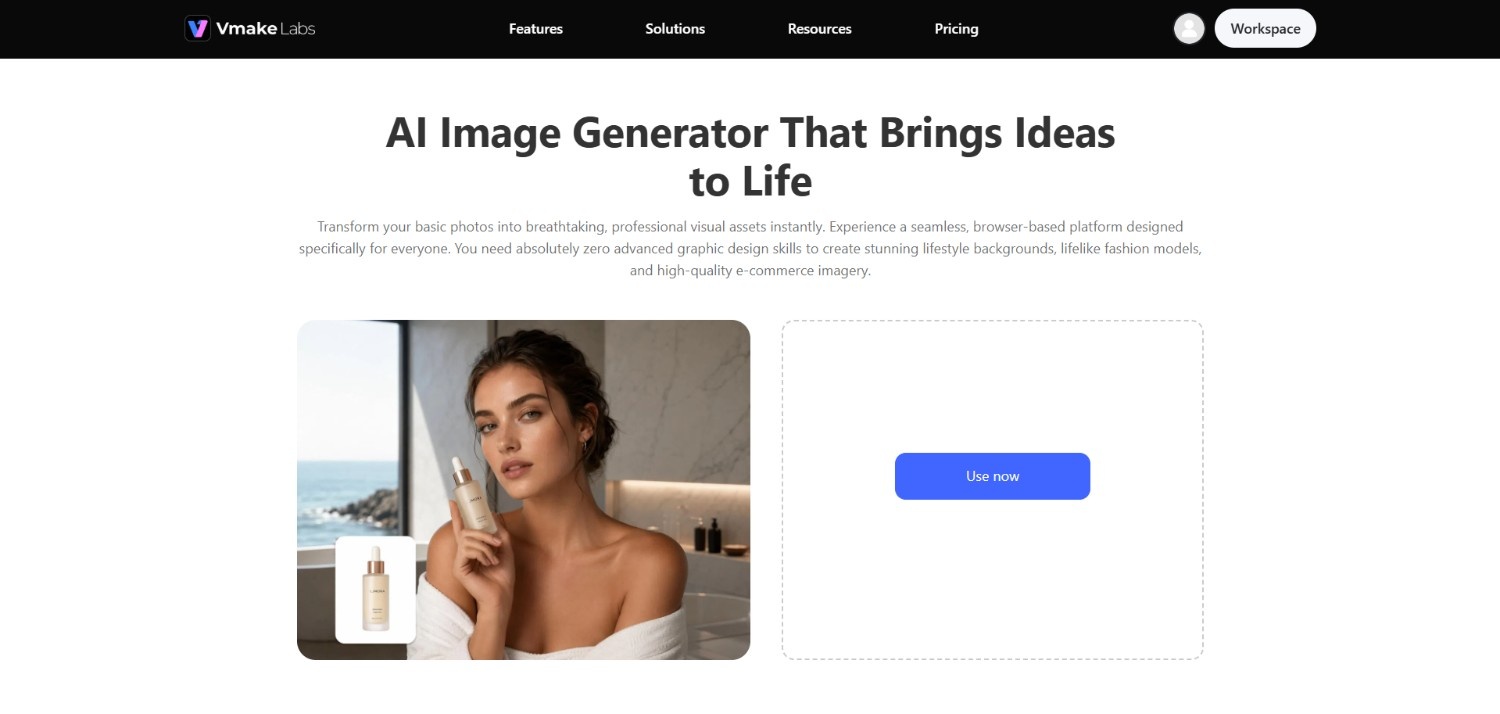
Key features of Vmake Labs for emoji creation
-
Image-to-image AI generation: Upload a portrait or selfie as a reference, and the AI transforms it into an emoji-inspired illustration while preserving recognizable facial features, expressions, and overall character for a personalized result.
-
Text prompt-based creative generation: Create completely original emoji-style characters by simply describing your idea. Detailed prompts allow you to control facial expressions, accessories, colors, artistic direction, and overall visual appearance.
-
Multiple artistic style options: Choose from styles such as cartoon, anime, chibi, pixel art, 3D, or minimalist illustrations. Switching styles lets you create different versions of the same emoji concept with ease.
-
High-resolution downloads for digital use: Download high-quality generated images suitable for custom stickers, profile pictures, presentations, social media graphics, digital artwork, or other creative projects without sacrificing visual clarity.
How to make an emoji with Vmake Labs AI image generator?
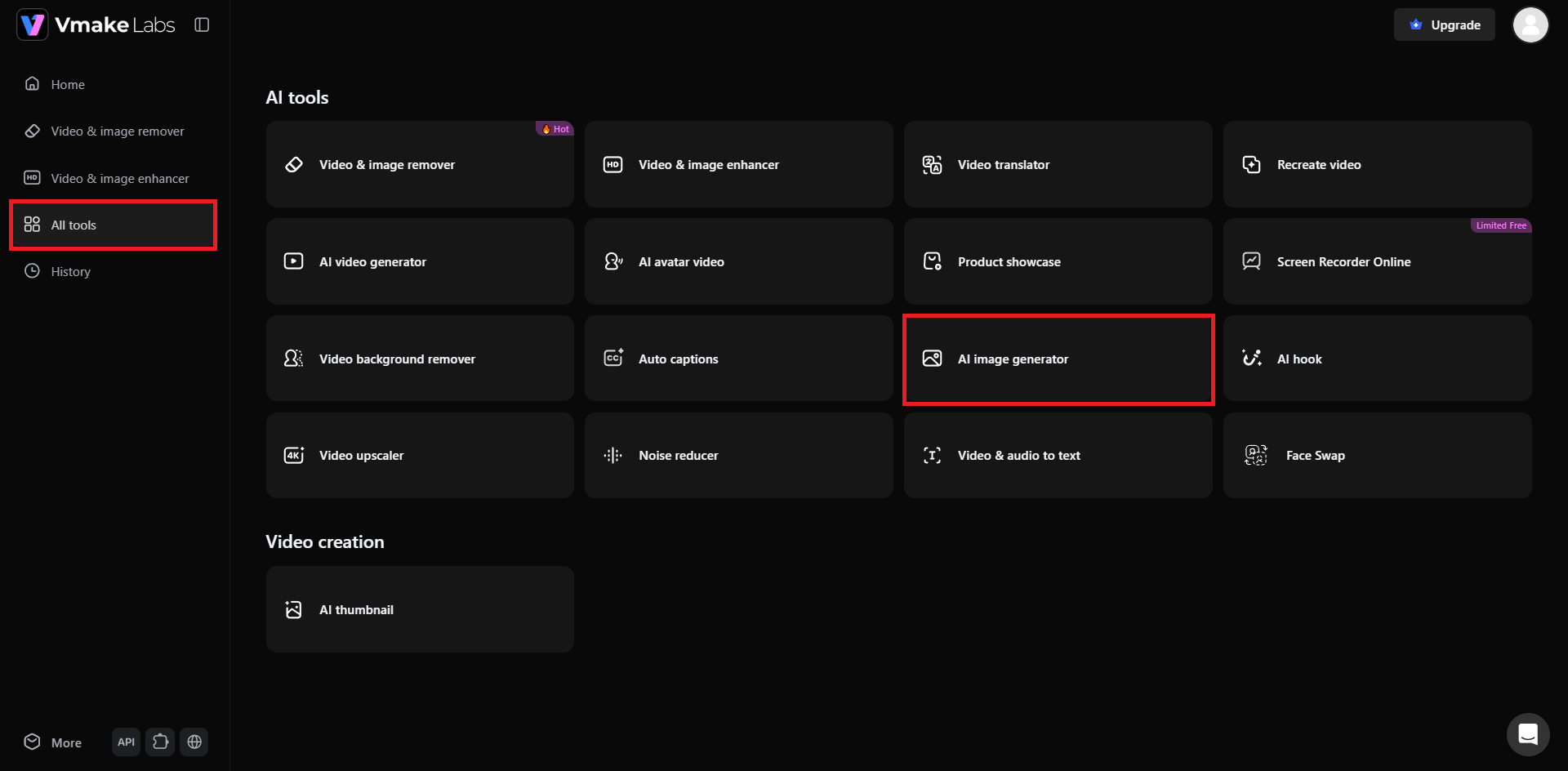
Step 1: Access Vmake Labs "AI image generator" tool
Kickstart the process by first accessing the official website of Vmake Labs and then signing into your account. Once done, visit the "All tools" option from your dashboard and then select the "AI image generator" option from the list of tools.
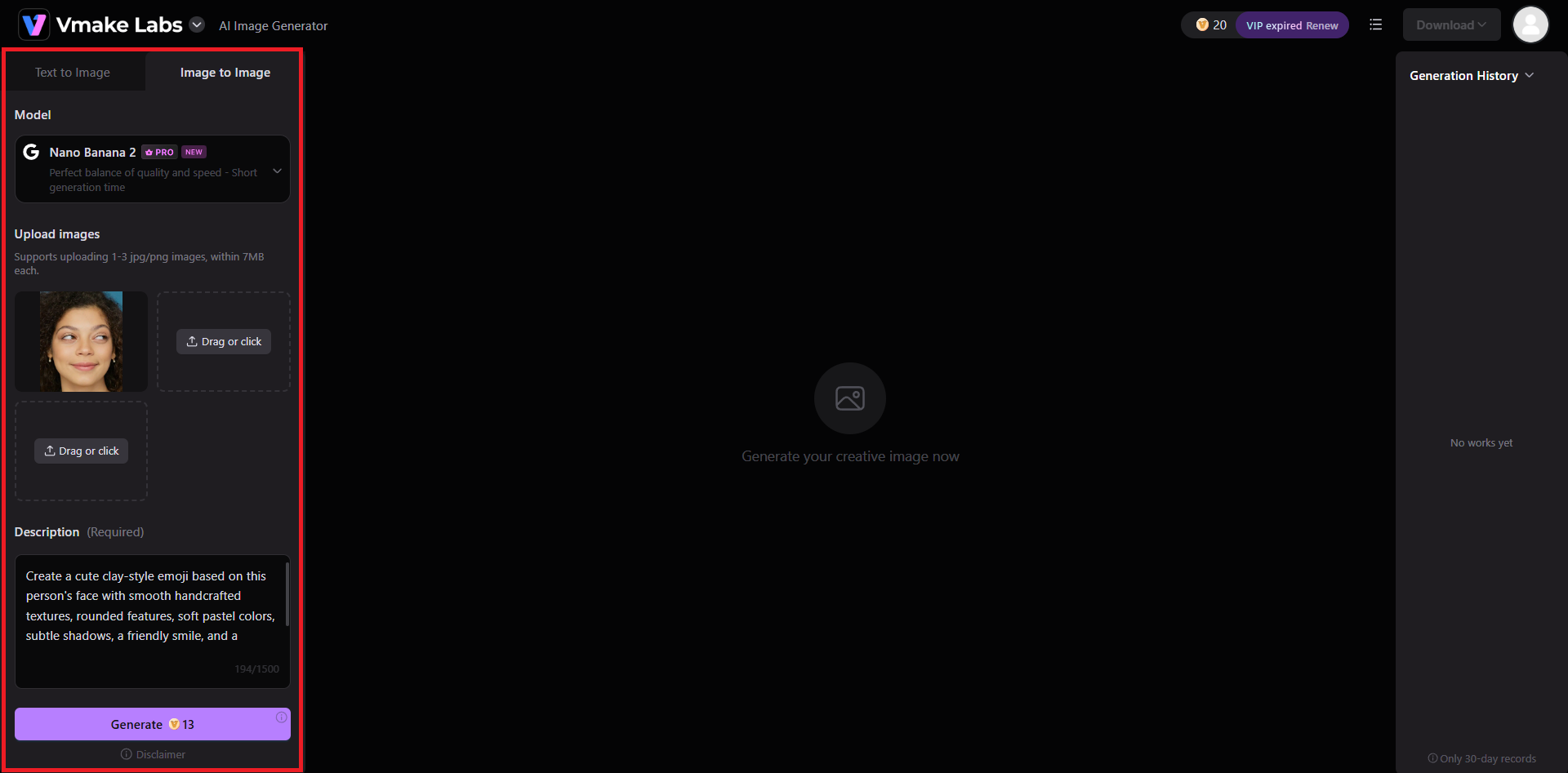
Step 2: Upload photo and provide your detailed prompt for emoji creation
A new web page will open where you will be required to select the process via which you want to create your emoji, either using a text input, or an image-to-image input. We are going ahead with the image-to-image option in our example.
First, you need to select the AI image generator model (we have chosen Nano Banana 2), and then upload the photo you want to convert into an emoji. Once done, provide your detailed prompt as to how you want the emoji to look like, and then choose the desired aspect ratio. Finally, click on "Generate".
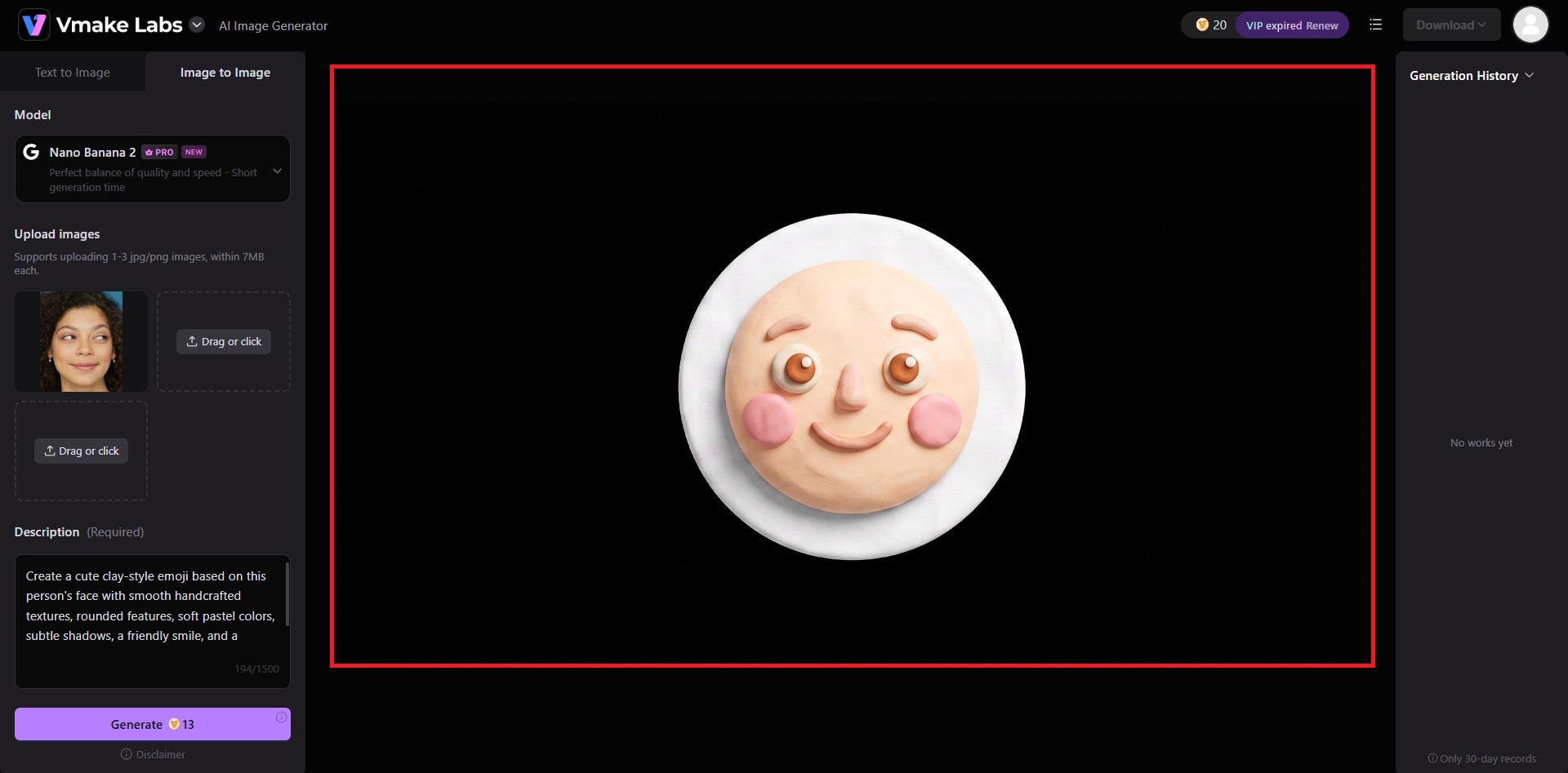
Step 3: Export your created emoji
Vmake Labs will start creating your emoji and once that is completed, the same will be showcased on your canvas. You can then proceed to download it for sharing purposes
Tips for better custom emojis & common mistakes to avoid
Creating a great custom emoji is often about following a few simple best practices while avoiding common design mistakes. The table below provides a quick comparison to help you create cleaner, more expressive, and visually appealing emoji-style graphics.
Best practices |
Common mistakes to avoid |
|---|---|
|
Use High-Quality Photos: Start with a sharp, well-lit image that clearly shows the subject. High-resolution photos preserve facial details and produce cleaner emoji-style graphics. |
Using Low-Resolution Images: Blurry or pixelated photos often result in poor-quality graphics with missing details. Always begin with the clearest image available. |
|
Focus on One Subject: Use a photo featuring a single person or pet. A clear subject helps AI tools generate more recognizable and balanced emoji designs. |
Including Multiple Faces: Photos containing several people can confuse AI generation tools. Crop the image to include only the intended subject before creating your emoji. |
|
Choose Expressive Facial Expressions: Happy, surprised, laughing, or thoughtful expressions make custom emojis more engaging and easier to recognize in conversations. |
Overcomplicating the Design: Excessive accessories, colors, or background elements can reduce clarity. Simpler emoji designs are usually more expressive and recognizable. |
|
Keep Colors Bold and Clear: Bright colors, strong contrast, and simple shading improve visibility, especially when emojis are displayed at smaller sizes. |
Ignoring Transparent Backgrounds: Transparent backgrounds make emoji-style graphics more versatile for stickers, messaging apps, and digital content across different platforms. |
Frequently Asked Questions
-
Can I make an emoji from my own photo?
Yes. You can use features like Apple's Genmoji, Android sticker apps, or AI image generators to transform a personal photo into an emoji-style graphic, sticker, or creative illustration depending on the available tools.
-
How to make a picture an emoji on iPhone without downloading an app?
If your iPhone supports Apple Intelligence and Genmoji, you can create personalized emoji directly within supported Apple apps without installing additional software or third-party emoji creation applications.
-
What's the difference between an emoji and a sticker?
Emojis are standardized Unicode characters supported across operating systems, while stickers are custom images or graphics. AI-generated emoji-style creations are typically used as stickers rather than system keyboard emojis.
-
Can AI create emojis from text prompts?
Yes. AI image generators can produce emoji-inspired graphics from detailed text prompts, allowing you to customize expressions, artistic styles, colors, accessories, and other visual elements without starting from a photo.
-
Which photo works best for creating custom emojis?
A high-resolution photo with one clearly visible subject, good lighting, a natural facial expression, and minimal background distractions usually produces the best results for custom emoji or sticker creation.

You May Be Interested
[Updated!] Best 10 Ways to Remove Emoji from Video (Free Included)

How to Remove an Emoji From a Picture: Step-by-Step Guide
How to Make a Flyer: Easy Step-by-Step Guide for Beginners

How to Make Bigfoot AI Videos: Create Viral Bigfoot Vlogs in Minutes
[2026] How to Make Background Transparent (Free & Easy)