How to Remove an Emoji From a Picture: Simple Methods
Stuck with an emoji covering your favorite photo? Learn how to remove an emoji from a picture with popular methods and explore how Vmake Labs helps you get a clean, natural-looking image back in just a few clicks, free and online.

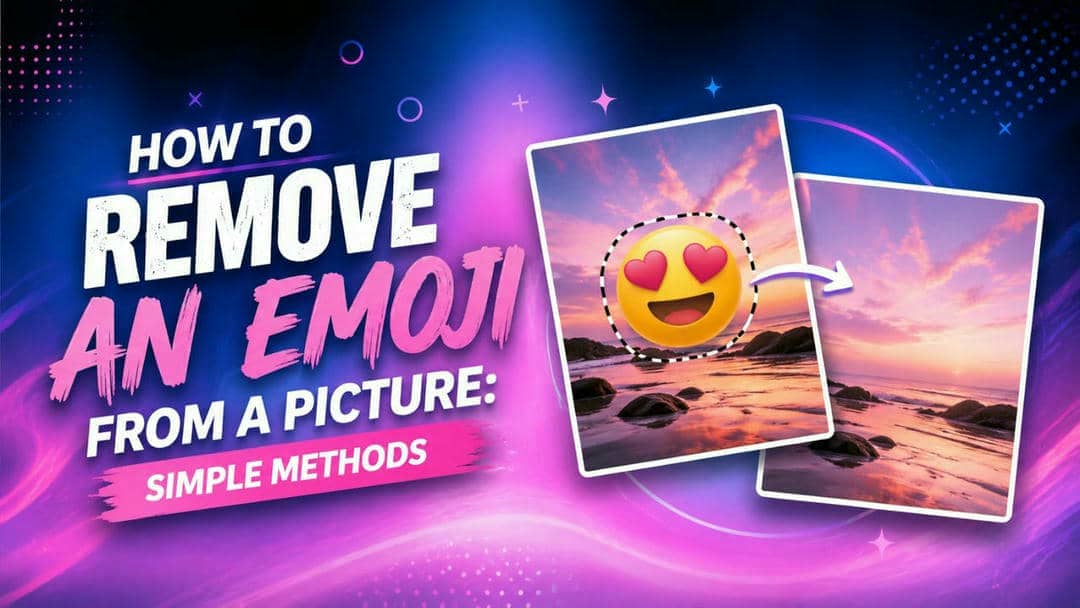
Ever taken a great photo only to realize a sticker or emoji ruins the shot? It happens often. Whether an emoji covers a face, object, or important detail, AI tools make it easy to remove. This guide shows how to remove an emoji from a picture with simple steps and natural-looking results.
Why you might need to remove emojis from photos
There are many reasons why you may want to remove emojis from a photo. Here are some of the most common ones.
-
Cleaning up personal photos: Emojis added by friends or apps often hide faces or details you want to see clearly.
-
Fixing screenshots: Erase emojis that cover important numbers, texts, or chat details you need to read.
-
Restoring old memories: Turn funny edited photos back into their original nice versions for printing or albums.
-
Improving photo quality for sharing: Remove emojis to make pictures look more natural and high-quality on Instagram, Facebook, or other platforms.
-
Creating better visuals: Removing distracting elements helps focus the viewer's eye on the actual subject of the photo.
3 Popular ways to remove emojis from pictures
There are several ways to remove emojis from pictures. The best method depends on your device, editing needs, and desired results.
Method 1: How to remove an emoji from a picture using Photopea
Photopea is a free, browser-based photo editor that works like Photoshop but requires no download or subscription. It's perfect for quick fixes like removing an emoji sticker or overlay from an image. Here's how to do it in three simple steps.
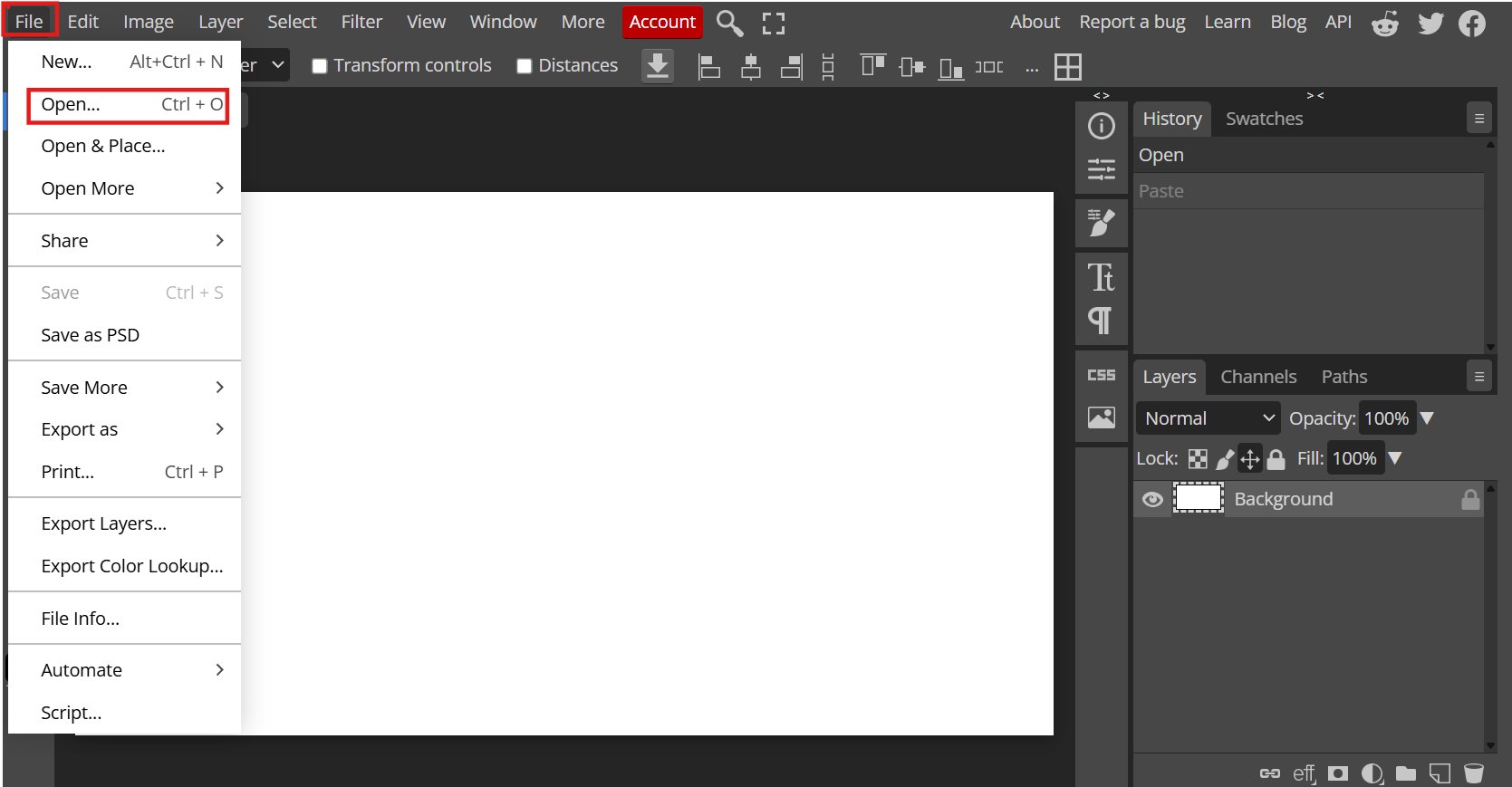
Step 1: Open your image in Photopea
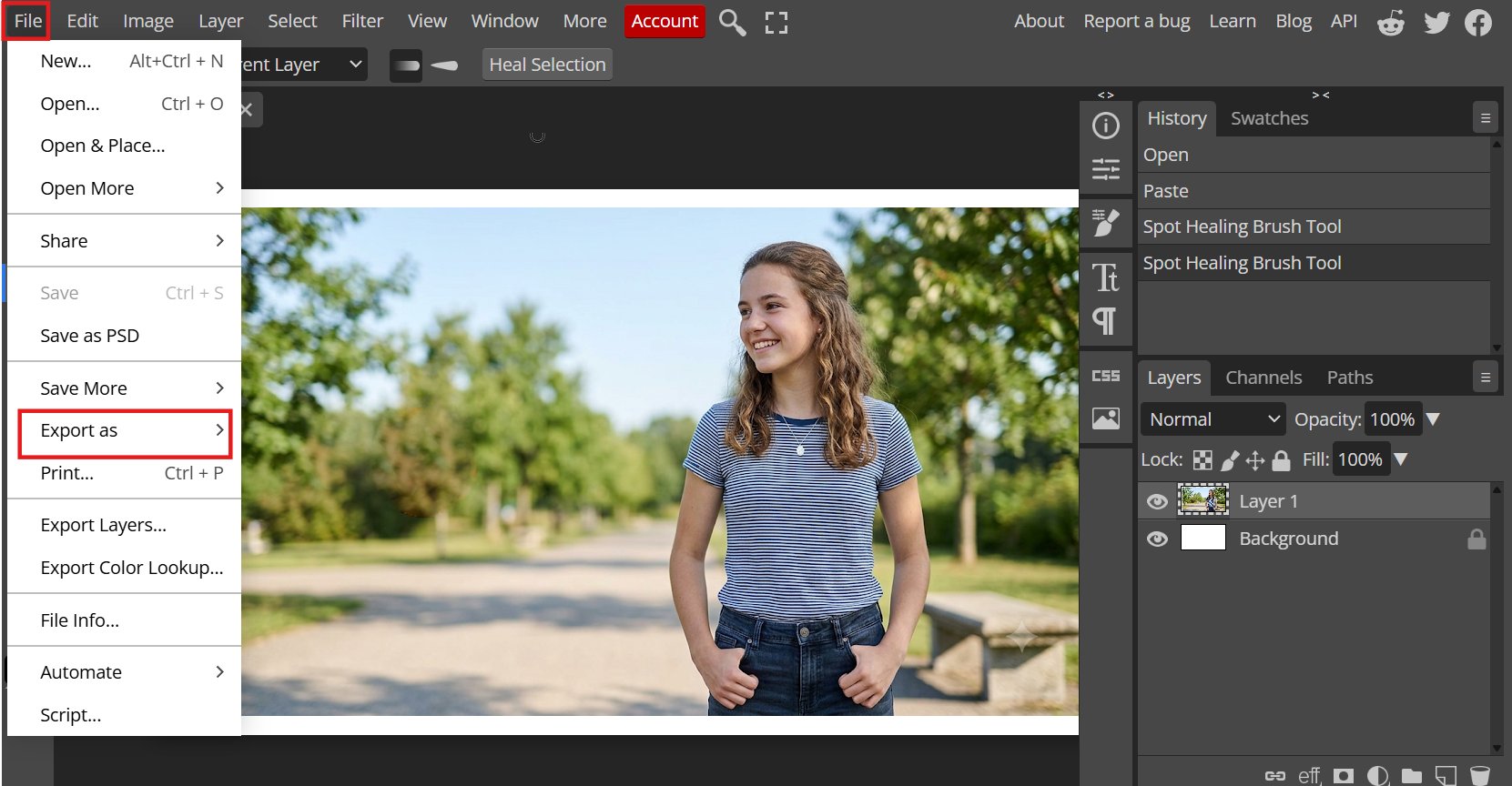
Go to Photopea, and click File > Open, then upload the picture that has the emoji you want to remove. The image will load onto the canvas, ready for editing.
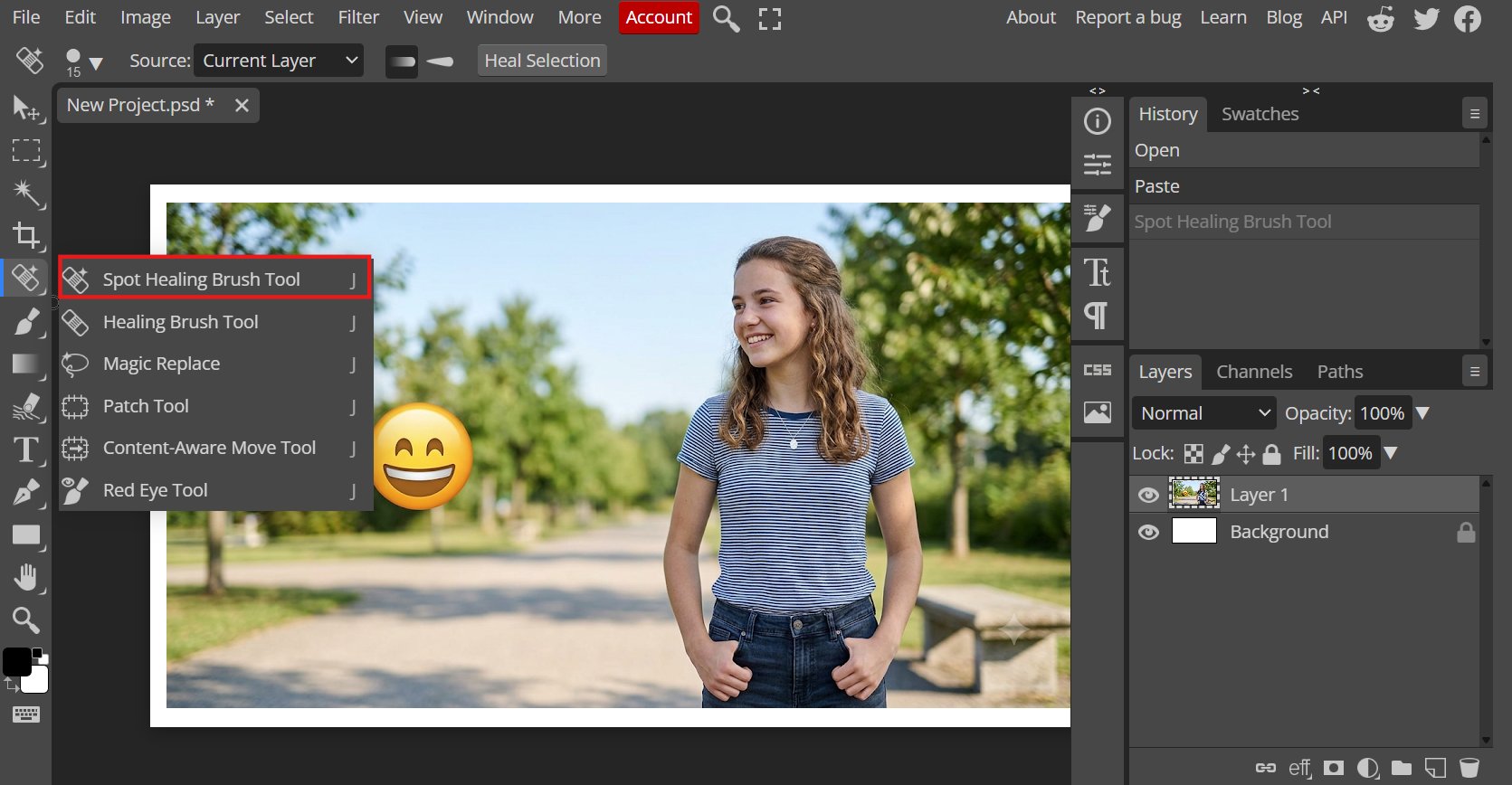
Step 2: Remove the emoji
Select the Spot Healing Brush from the left toolbar. Paint over the emoji using nearby textures and colors to blend the edited area naturally. Switch between tools if needed for better results.
Step 3: Refine and save the image
Use the Blur, Smudge, or Brush Tool to smooth any visible edges or inconsistencies. Once you're satisfied with the result, go to File > Export As and save the edited image in your preferred format.
Method 2: How to remove emojis using a mobile app
If you want to edit photos on your phone, Photoleap is a simple option. Its AI-powered Remove tool helps erase emojis, stickers, and other unwanted objects in just a few taps. You don't need advanced editing skills to get clean and natural-looking results.
Step 1: Upload your photo
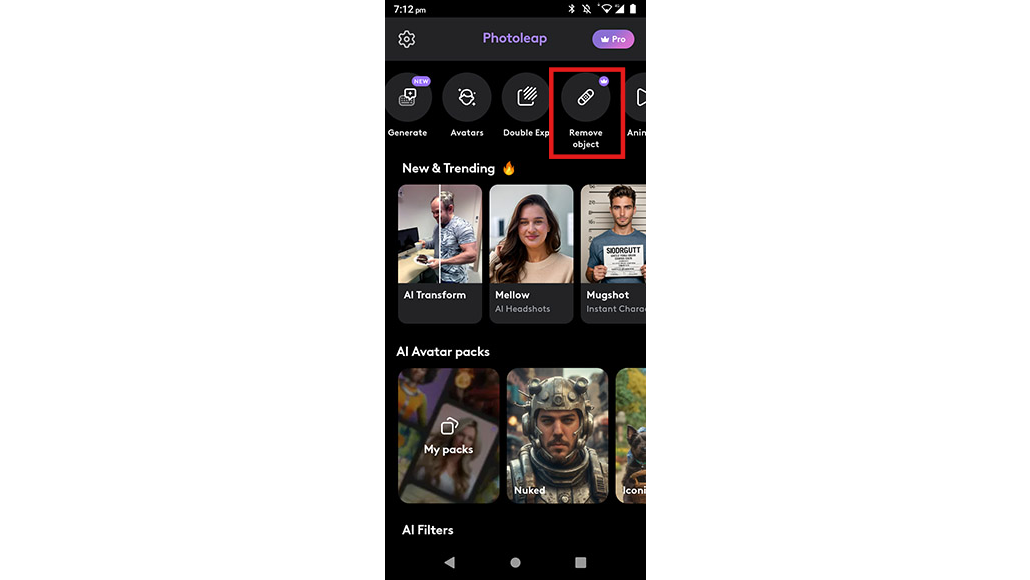
Launch the PhotoLeap app on your device, and choose "Remove Object" from the available options. Upload the image containing the emoji.
Step 2: Brush over the emoji
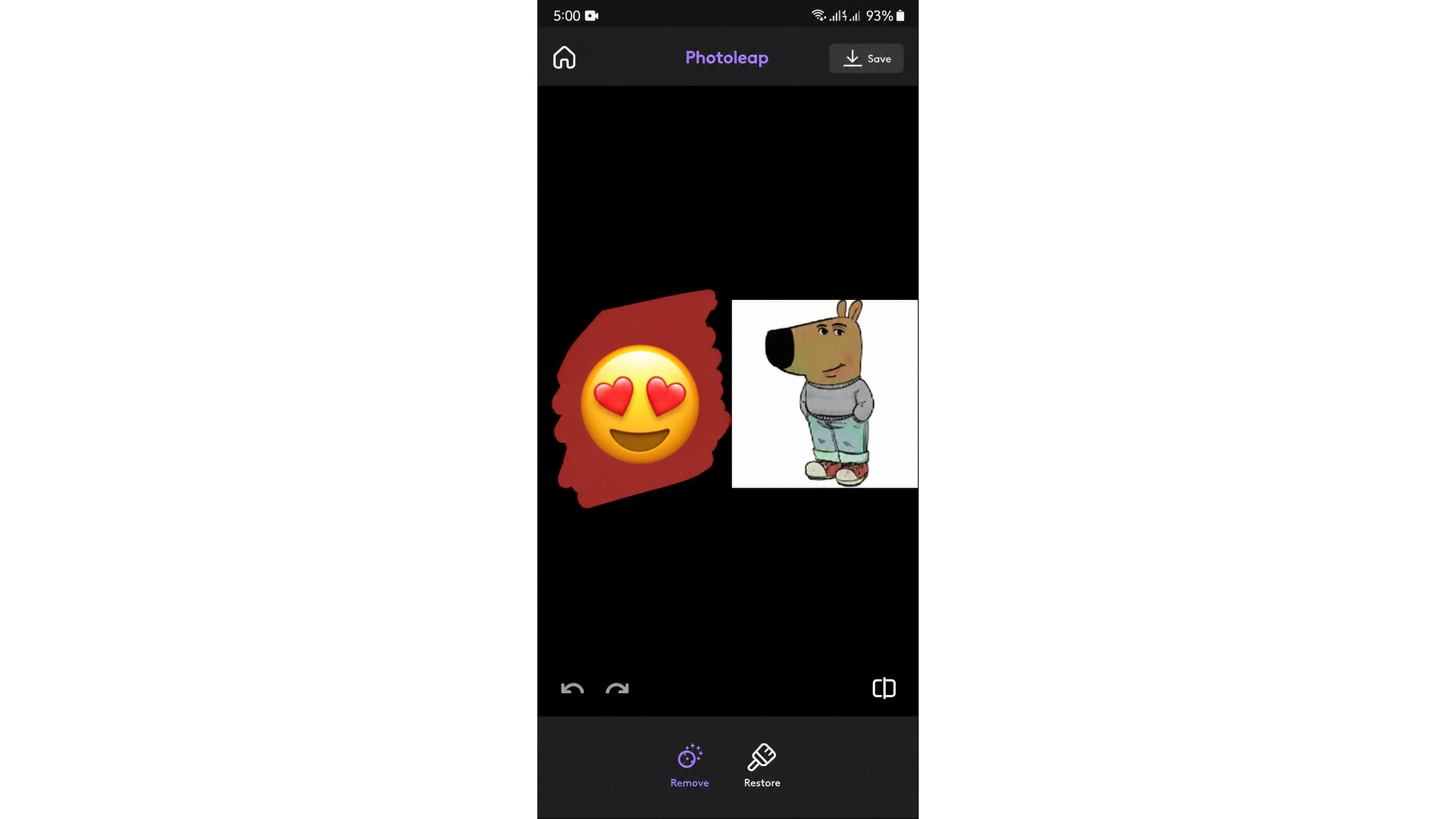
Choose the Remove tool and use your finger to brush completely over the emoji you want to delete.
Step 3: Save the clean image
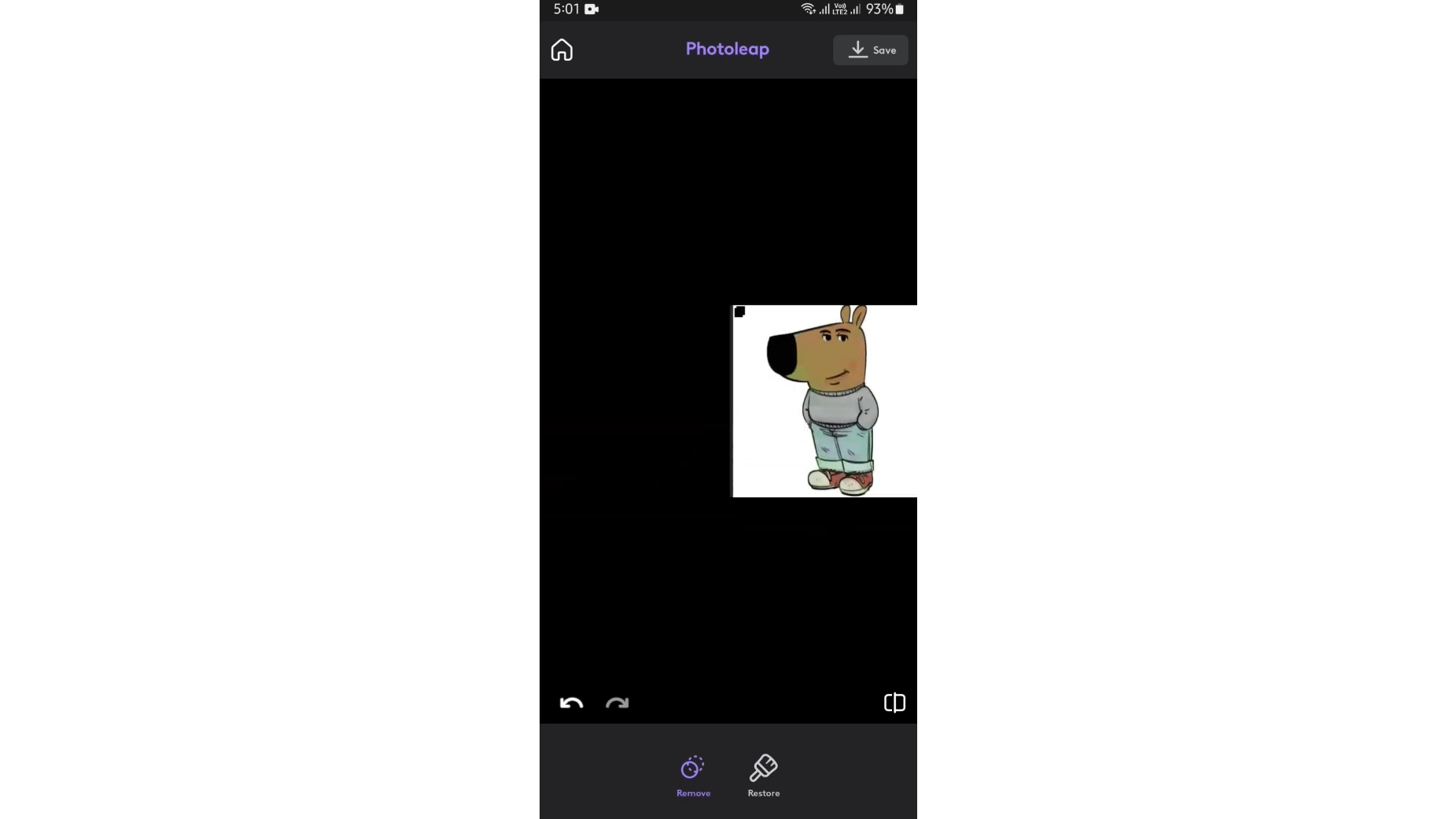
Let the app automatically wipe the emoji away, preview the result, and save the photo to your camera roll.
Method 3: How to remove an emoji from a picture with an AI tool
If you want a fast, free, and incredibly precise tool, Vmake Labs object remover offers a specialized solution. It runs completely online, meaning you do not need to download heavy software to fix your files. The smart platform uses advanced artificial intelligence to analyze the textures and colors surrounding unwanted stickers. Beyond emojis, it can erase logos, watermarks, text, and other unwanted overlays, and it supports photos and videos in the same workspace.
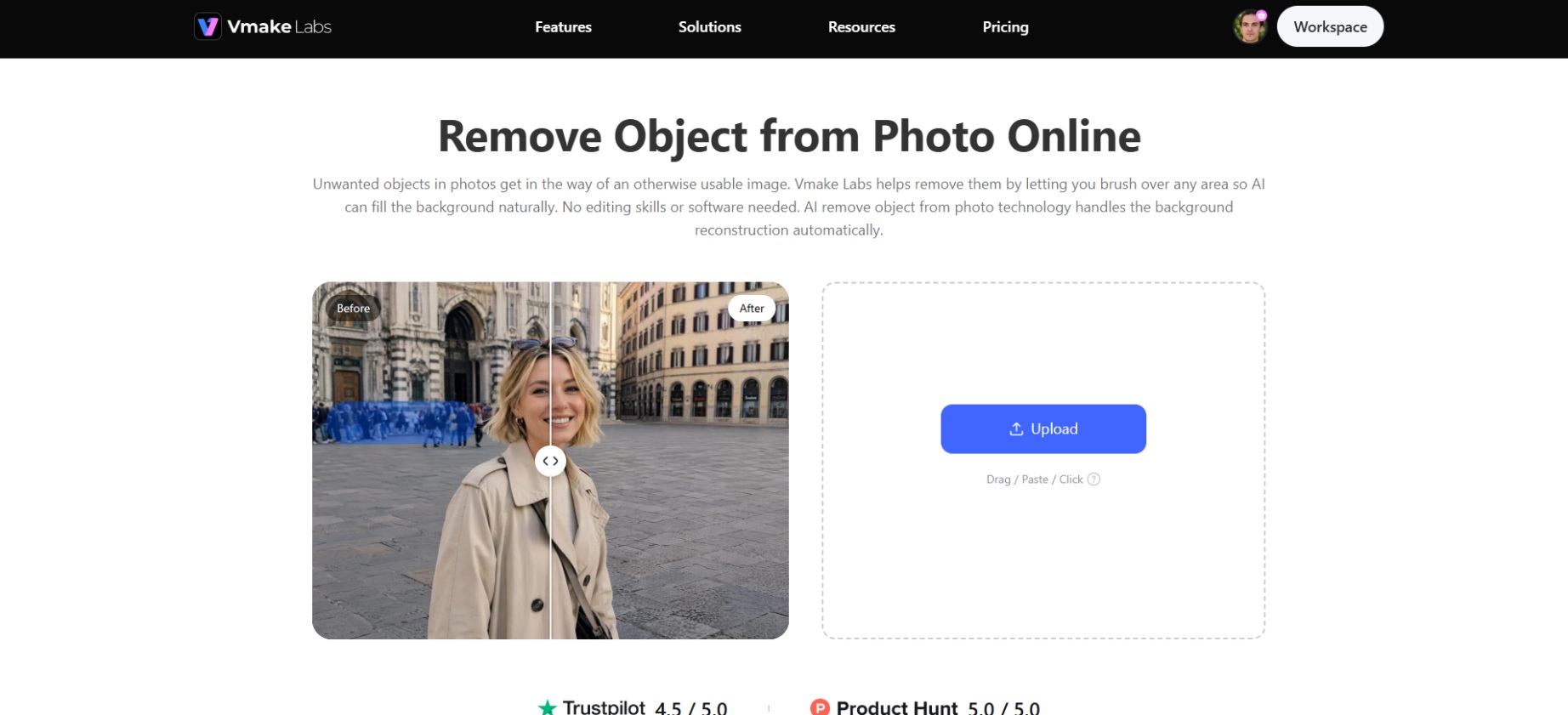
Steps to remove emojis from a picture using Vmake Labs
Step 1: Upload image or link
Open Vmake Labs in your browser, and then click "Upload" to add the photo with the emoji you want to remove. Alternatively, you can upload multiple images at a time with Batch Upload or just paste an image link & start editing without downloading the file.
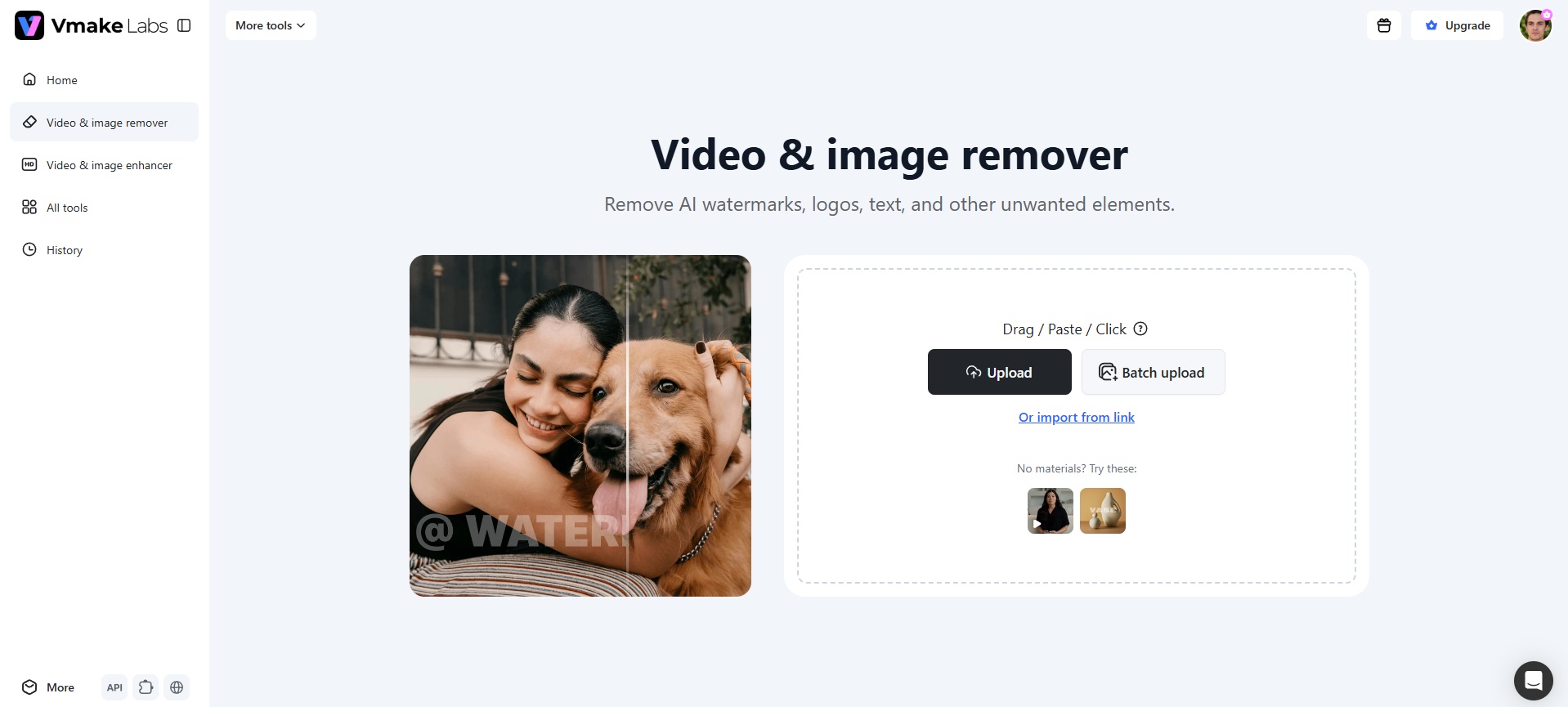
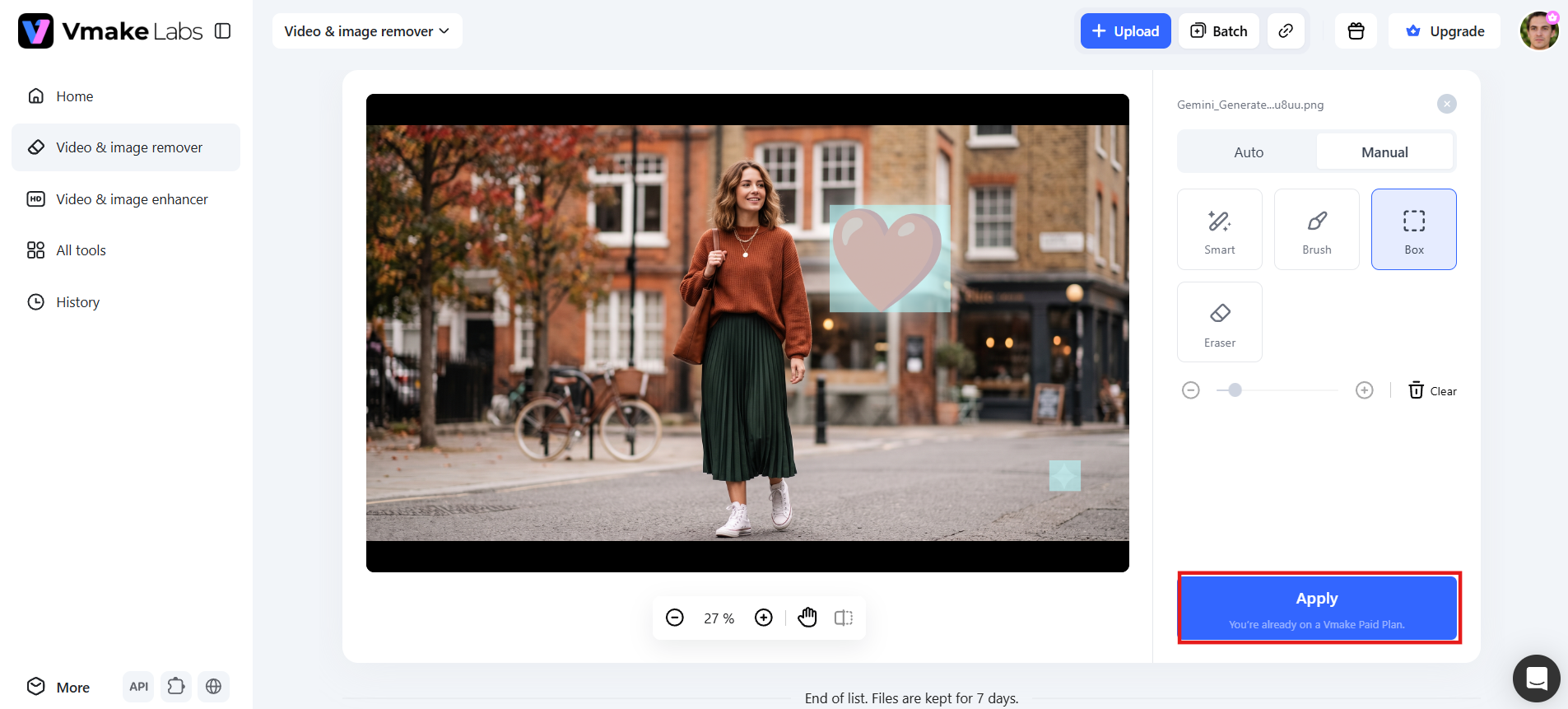
Step 2: Select the emoji
Go to Manual mode and select the Brush tool. Paint on the emoji you want to remove. Click Apply. The AI fills in the empty space and creates a natural-looking background.
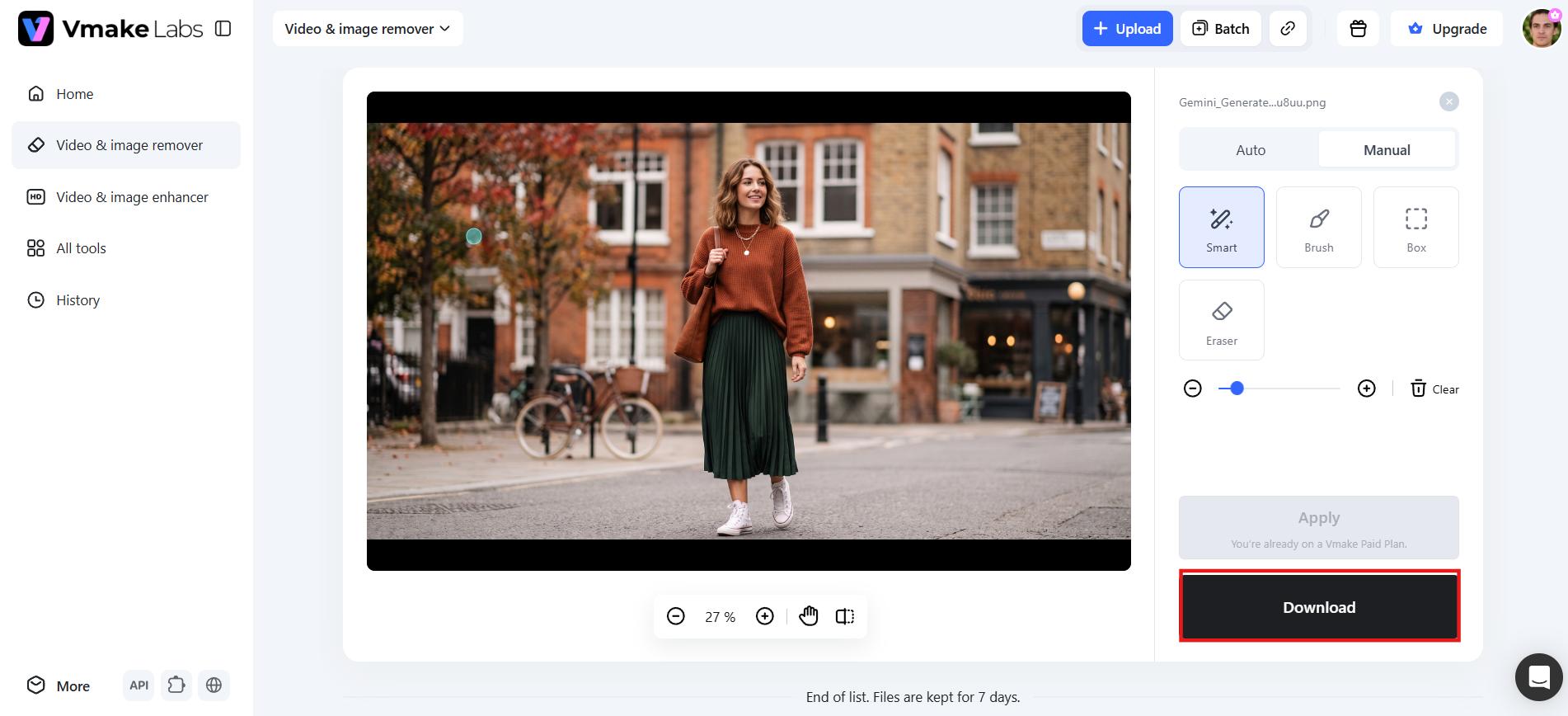
Step 3: Preview and download
Check the edited image to ensure the emoji has been removed cleanly. If you're happy with the result, click Download to save the high-quality image to your device.
Key features of Vmake Labs
-
Smart mode or manual selection for overlays: Emojis and stickers can be handled with Smart mode for a quicker automatic selection, or with the Brush, Box, or Eraser tools for manual control over tricky shapes and edges.
-
Images and videos supported: Remove unwanted overlays from both photos and videos without switching between different editing tools. Enjoy a smooth experience while cleaning up your images and clips in the same simple workspace.
-
Multi-object removal support: Select and remove multiple emojis, stickers, or other unwanted elements from the same image or video in one editing session. Save time by fixing several problems at once.
-
One-click batch processing: Process multiple photos at the same time with just one click. This feature is perfect for handling large numbers of images quickly and efficiently.
AI vs. manual editing: Which emoji eraser is right for you?
Both approaches can get an emoji off your photo, but they suit different needs. Here is how AI tools and manual editing compare, so you can pick the right fit.
|
Feature |
AI Object Remover |
Manual Editing |
|---|---|---|
|
Speed |
Removes emojis in a few seconds |
May take several minutes or longer, depending on the image |
|
Ease of Use |
Very easy and beginner-friendly |
Requires knowledge of photo editing tools |
|
Effort |
Low. Simply upload, select, and remove |
High. Requires careful cloning, healing, or content-aware editing |
|
Quality |
Produces natural-looking results for most photos |
Can achieve excellent results but depends on editing skills |
|
Best For |
Everyday users, quick fixes, and bulk editing |
Professional retouching and complex image restoration |
|
Cost |
Many AI tools offer free plans or affordable subscriptions |
Professional editing software often requires a paid subscription |
Common problems when removing emojis (and how to avoid them)
Even the best AI tools can face challenges when removing emojis. Knowing these common issues can help you achieve cleaner and more natural-looking results.
-
Blurry or smudged results: This can happen particularly with low-quality images or with larger selections. Use a high-resolution photo and select only the emoji to help the AI produce a sharper result.
-
Visible artifacts or color fringes: Small color mismatches may appear around the edited area. Zoom in, refine your selection, and repeat the removal if necessary for a smoother finish.
-
A faint outline left behind: Sometimes a slight outline remains after the emoji is removed. Select the remaining edges and run the AI tool again to blend the area naturally.
-
Unnatural reconstructed details: If an emoji covers a face or important object, AI estimates what should appear there using nearby image information. Smaller covered areas usually produce more realistic results.
-
Loss of image quality after saving: Always download the image in the highest quality available. Stop editing the same file over and over again. This can reduce the overall image quality over time.
Conclusion
Removing an emoji from a photo doesn't have to be complicated. With a dedicated tool like Magic Eraser or a mobile app like Photoleap, it's usually just a matter of a few taps or clicks. Begin with a high-quality photo, avoid overly busy backgrounds, preview the result, and fix rough spots as needed. For stickers, watermarks, and overlays across both photos and videos, Vmake Labs handles the job with real consistency. Ready to try it? Remove an emoji from a picture with Vmake Labs, free and online, in just a few clicks.
FAQs
How to remove an emoji from a picture?
Upload your photo to an AI object remover like Vmake Labs, then use the brush or automatic selection tool to mark the emoji. The AI fills in the space in seconds, giving you a clean, downloadable photo with no software needed.
Can I completely restore the original image behind the emoji?
No. When an emoji covers part of a photo, the original hidden pixels are usually lost. AI does not recover them. Instead, it reconstructs the covered area by analyzing nearby image details to create a realistic replacement.
How long does it take to remove an emoji from a photo?
Most AI tools remove an emoji in just a few seconds. Processing time depends on the image size, internet connection, and the complexity of the area covered by the emoji or sticker.
Can I remove multiple emojis from one photo at once?
Yes. Tools like Vmake Labs allow you to select multiple emojis or stickers in the same photo, and delete them together in one editing pass rather than going through the upload and edit process for each one.
Can I remove emojis from videos as well as photos?
Yes. Advanced tools such as Vmake Labs lets you remove emojis from videos and photos. You can remove emojis and other overlays from video clips using the same simple process.

You May Be Interested
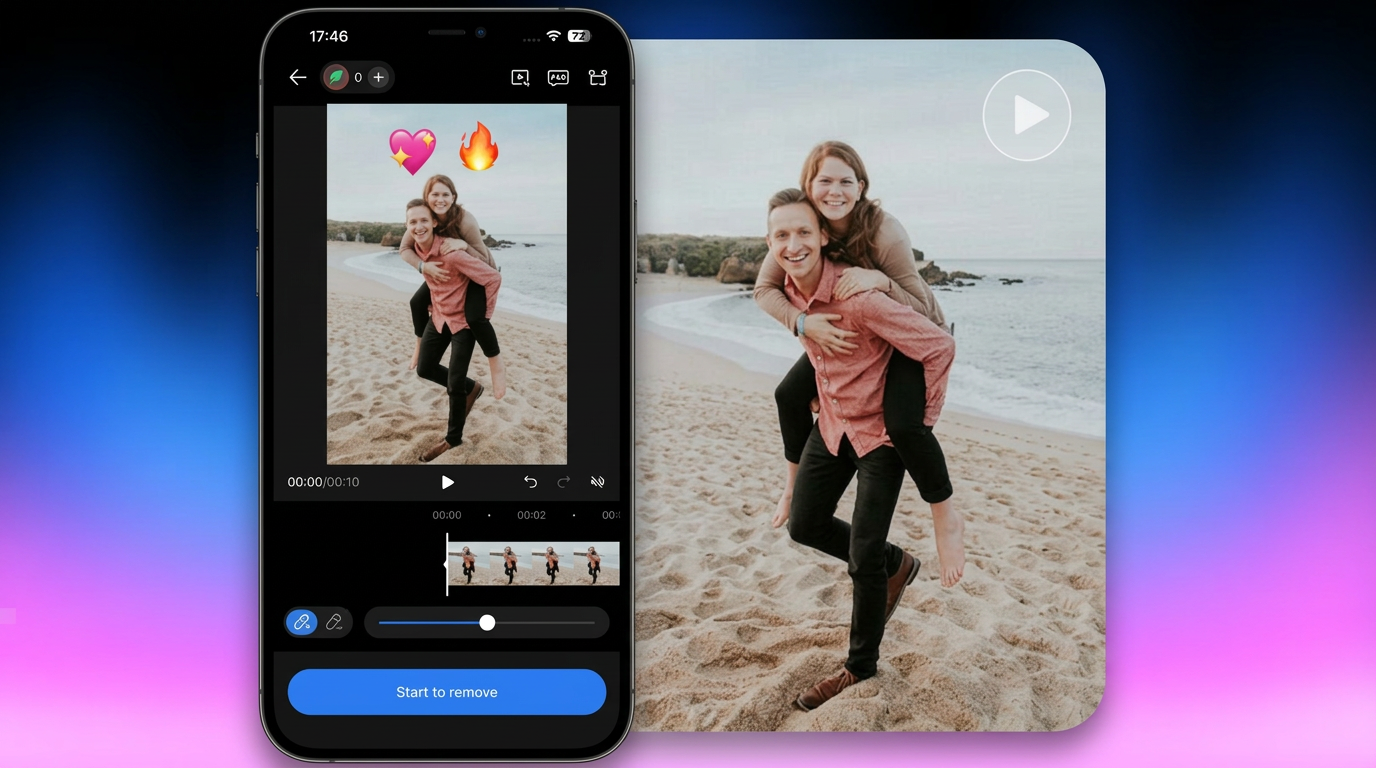
[Updated!] Best 10 Ways to Remove Emoji from Video (Free Included)
Best AI Watermark Remover for Clean, Fast Edits
AniEraser Watermark Remover by Media.io: 2026 Hands-On Review