
How to Make an Instagram Story: Create Scroll-Stopping Insta Stories
New to Instagram? Learn how to make an Instagram story that stands out and instantly captures attention. Master the art with pro tips and learn how tools, like Vmake, can streamline the process.

Instagram stories are where the real connection happens. They give you this low-stakes way to share quick updates and actually show a bit of personality, all without demanding a massive chunk of your audience's time. The guide breaks down how to make an Instagram story, looks at a few solid ideas to get people interacting, and points out some of the common missteps to avoid.
What are Instagram stories: A quick overview
Instagram Stories are short photos and videos that sit right at the top of the app and disappear after 24 hours. They weren't created to replace feed posts. Instead, they give you a quicker, less polished way to share updates, reactions, behind-the-scenes moments, or something random that probably doesn't deserve a permanent spot on your profile.
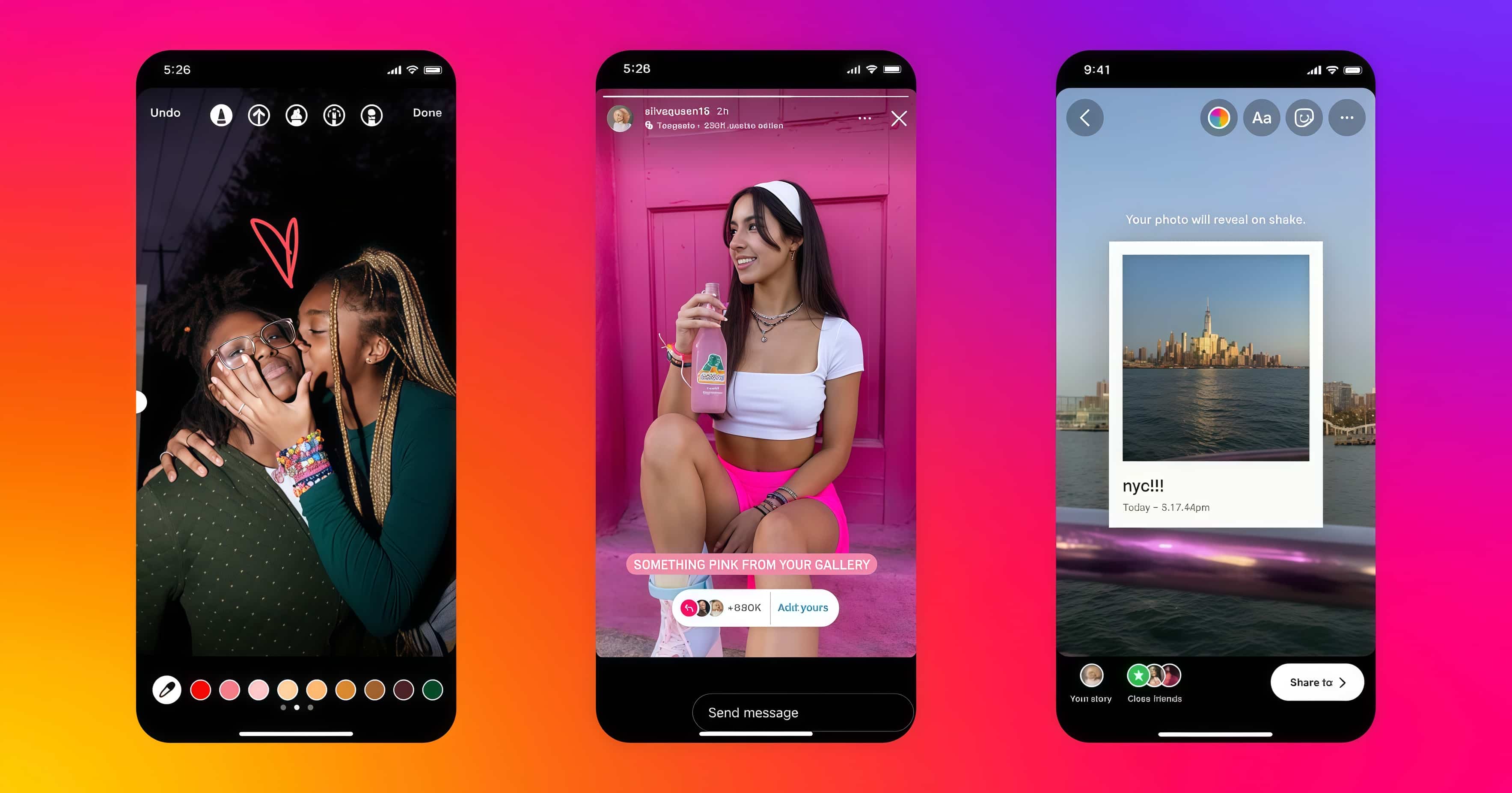
Why Instagram stories matter
Instagram Stories help brands stay visible, engage audiences, and build stronger relationships. Positioned at the top of the app, Stories capture attention quickly, while interactive features like polls and quizzes encourage participation. Their casual format feels authentic, keeps brands top-of-mind through regular updates, and can effectively drive traffic, leads, and sales through promotions and calls to action.
So, how can you create Instagram Stories that consistently attract views and engagement?
How to make Instagram stories
Step 1: Open the Instagram app
First, just pull up Instagram on your phone. Nothing fancy here, obviously. You'll just want to double-check that you're actually logged into the right account before you do anything else.
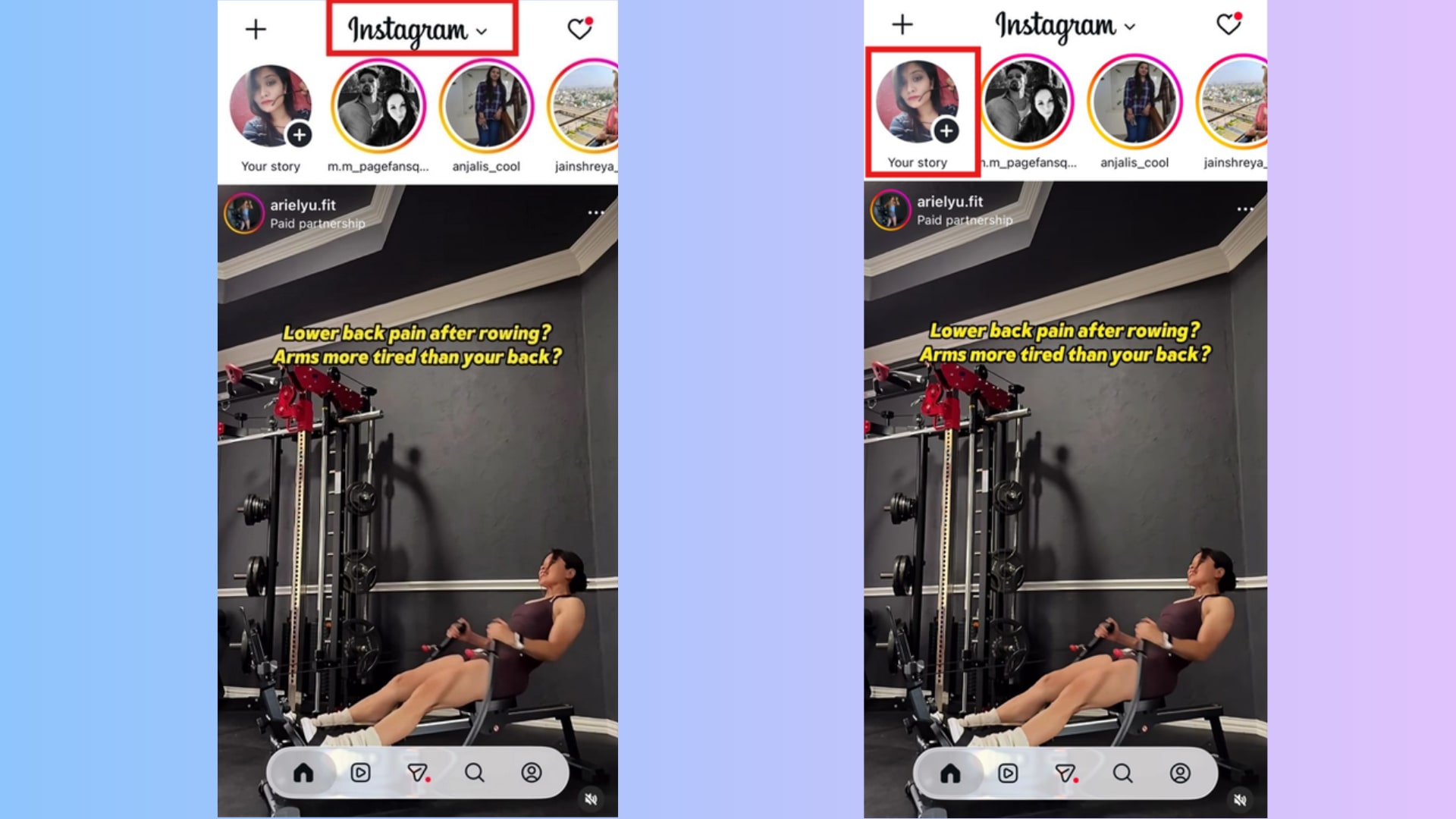
Step 2: Tap Your Story at the top of the home screen, or swipe right from the feed
You'll see the Your Story button near the top of the home screen. Tap it. Another option: swipe right anywhere from your main feed to open the Story camera instantly. Many frequent users prefer this shortcut because it's faster once you get used to it.
Step 3: Create your content
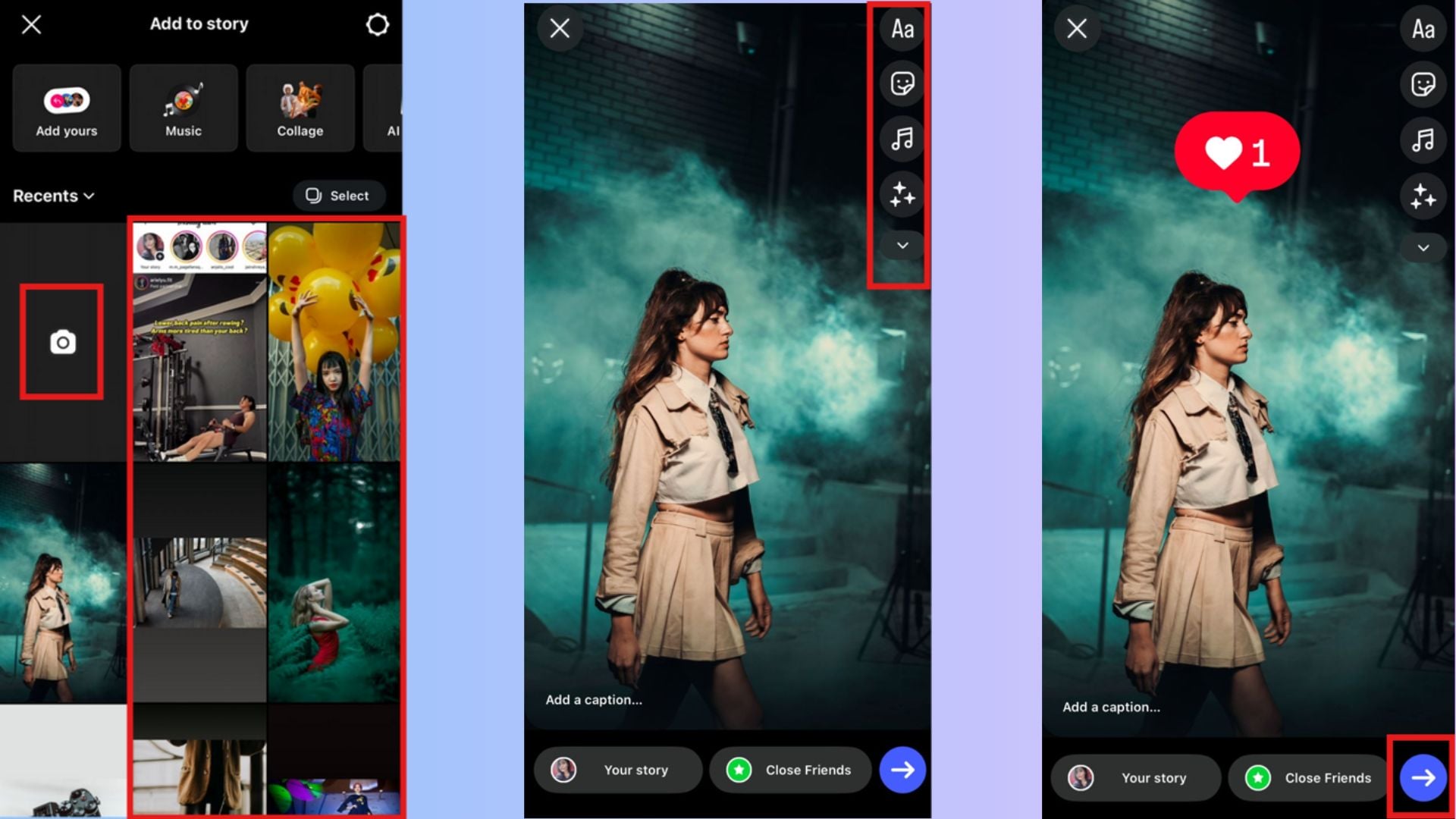
Now you're looking at the Story camera. You can snap a photo, record a video, or upload existing content from your gallery. To access saved photos and videos, swipe up on the screen or tap the gallery icon in the corner. Some of the highest-performing stories are surprisingly simple. A quick behind-the-scenes photo often gets more attention than something that took an hour to create.
Step 4: Customize your Story
Instagram includes a surprising number of creative tools to customize your stories. Tap the text icon and type your message. Use interactive elements, such as polls, questions, music, stickers, etc., to make a story feel more engaging. You can also experiment with Instagram's filters and effects before posting.
Step 5: Tap Share to post it
Once everything looks right, just hit share. That's all there is to it. Your story will pop up right at the top of your followers' feeds, and it'll hang around for exactly 24 hours.
How to make story highlights on Instagram
Step 1: Open your current story
Start by opening the story you want to save. Make sure it's still active. Once a story expires, you'll need to access it through your archive instead.
Step 2: Tap the Highlight icon
At the bottom of your story, you'll see the Highlight icon. Tap it to begin saving the Story to your profile.
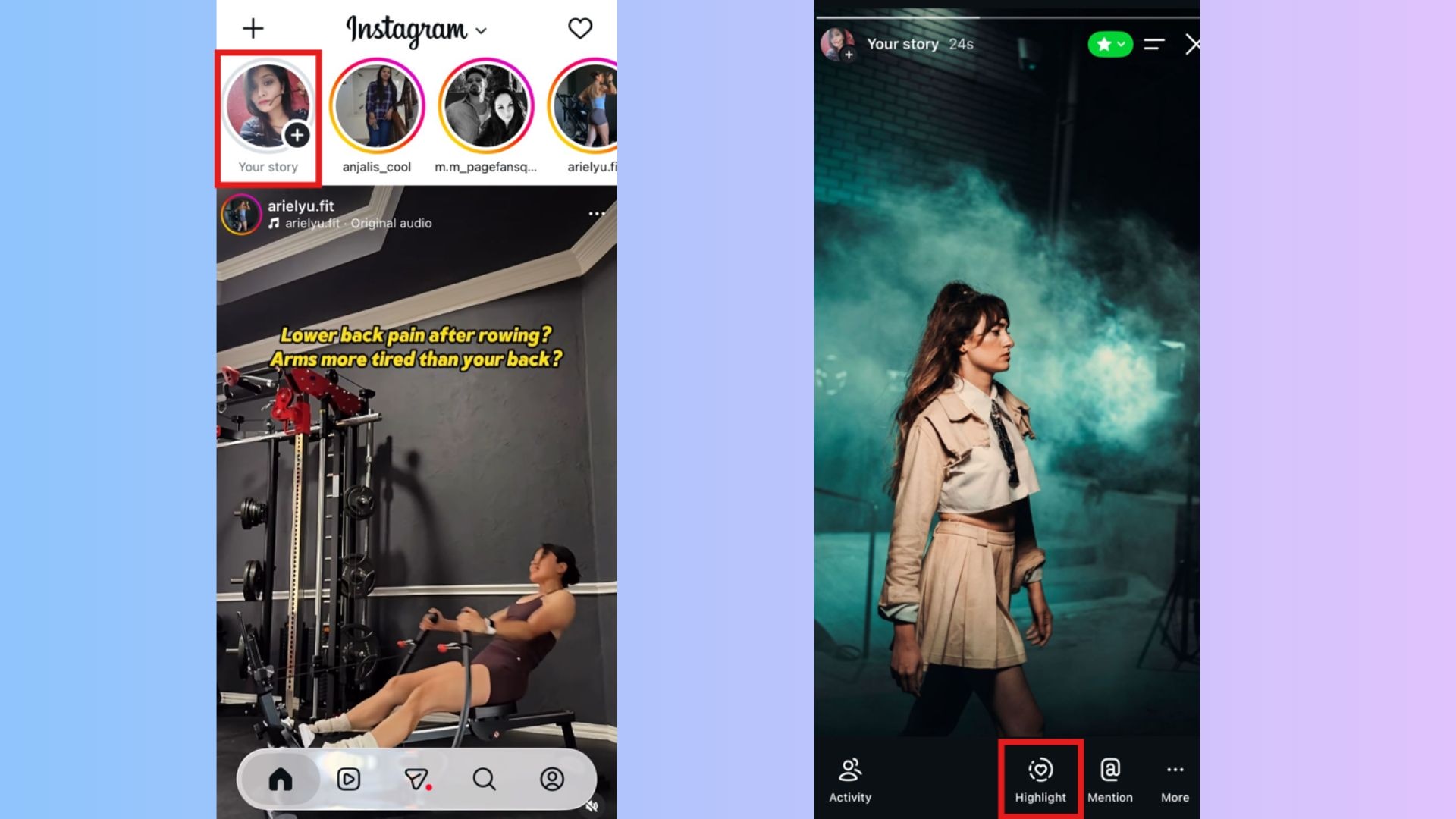
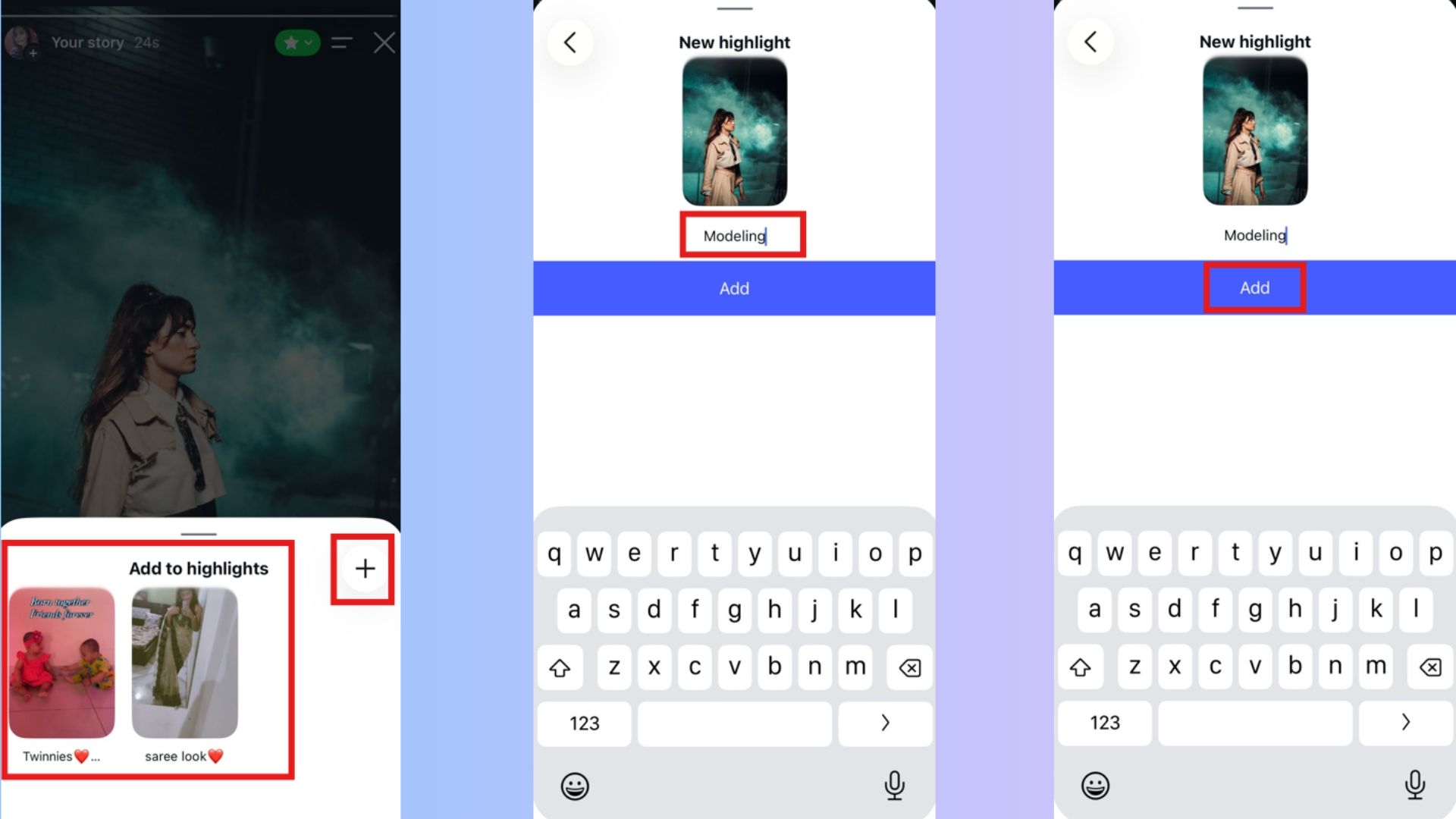
Step 3: Select an existing highlight or create a new one
From there, you can either tuck the story into a Highlight collection you've already set up or just start a fresh one from scratch. If you look at how most businesses handle this, they tend to cluster them by topic, specific products, or services.
Step 4: Name your highlight
Choose a name that's easy to understand at a glance. Short names usually work best. Visitors shouldn't have to guess what's inside before tapping.
Step 5: Tap add to save it
Tap Add, and your Story becomes part of the selected Highlight. It'll stay on your profile until you remove it manually.
Common Instagram stories mistakes to avoid
-
Posting too many stories at once: You have a big story to tell, so you upload ten, fifteen, or twenty slides in one massive burst. It's an easy trap to fall into. But here's the thing: it rarely works. Most viewers won't watch every slide, especially if the content feels repetitive.
-
Using hard-to-read text: You might know exactly what your Story says. Your audience doesn't. Tiny fonts, poor color choices, cluttered backgrounds, and walls of text make stories difficult to read. People move quickly through Instagram, and they rarely stop deciphering a message.
-
Posting low-quality images: Blurry photos and poorly lit videos can hurt engagement before anyone reads a single word. You don't need professional equipment. Most modern smartphones are more than capable. Still, low-resolution uploads, shaky footage, or dark images can make content feel rushed or untrustworthy.
-
Ignoring engagement stickers: Instagram hands you all these built-in tools designed specifically to get people talking, yet it feels like half the accounts out there just completely ignore them. It's a missed opportunity. Throwing in a poll, a question box, quizzes, or even simple emoji sliders gives your audience a reason to participate.
-
Using irrelevant hashtags or tags: Adding random hashtags or tagging unrelated accounts rarely produces good results. Overloading things just makes a story look incredibly spammy. Tags and hashtags only really work when they are directly, genuinely tied to whatever you're posting. Relevance beats sheer quantity every single time.
Popular Instagram story ideas for more engagement
-
Behind-the-scenes content
People are naturally curious about what happens behind the finished product. Show how you create something, prepare for an event, pack orders, brainstorm ideas, or handle day-to-day work. These moments make your content feel more personal because followers get a glimpse of what normally stays hidden. Just don't force it.

-
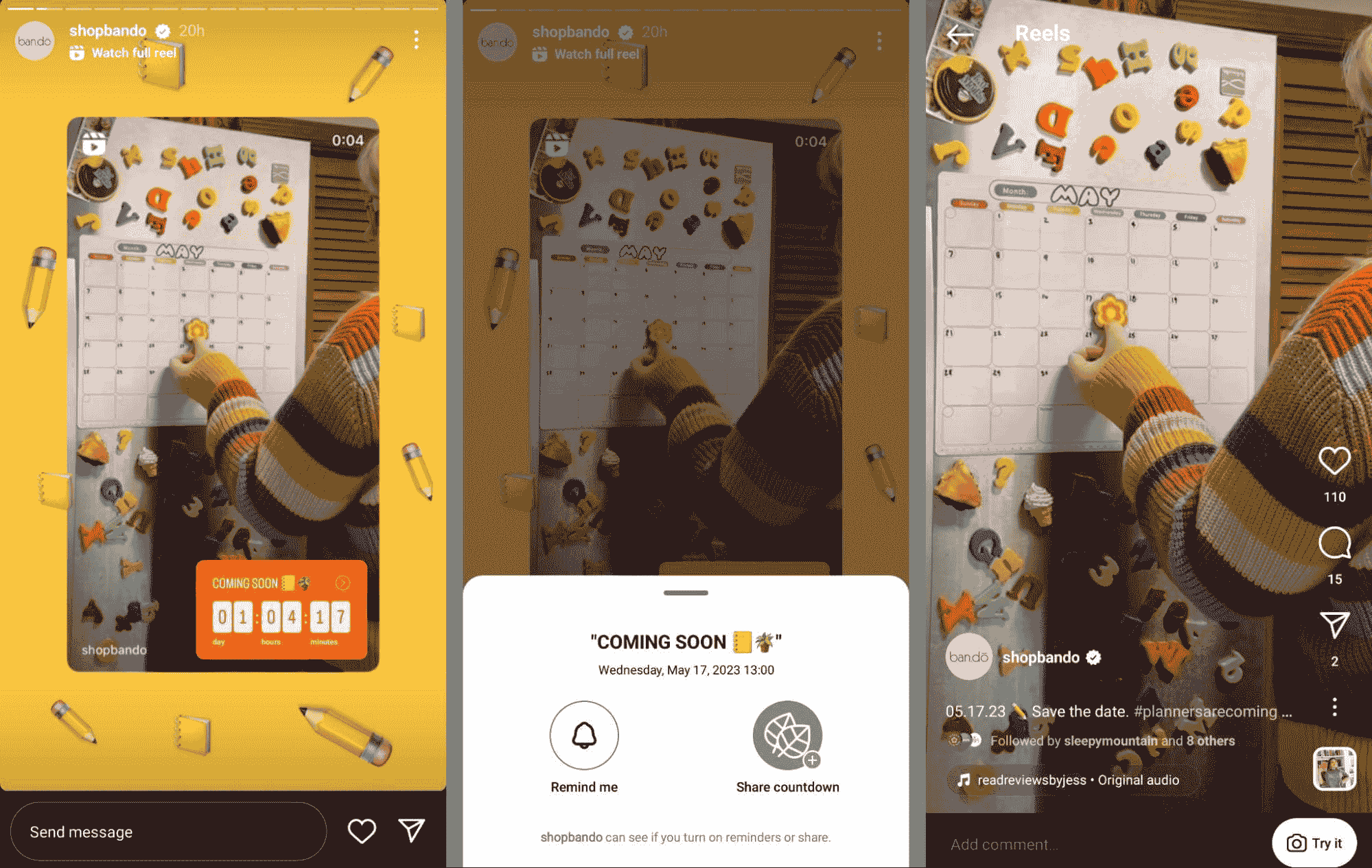
Product launch teasers
A little anticipation goes a very long way. Honestly, dropping a massive project all at once is usually a waste. It's much better to share slow sneak peeks leading up to the actual launch day. Maybe you show a tight close-up of a new product, drop a cryptic hint about a feature, or just slap a countdown sticker on your story. It sounds simple, but it works. People love being in on a secret, and giving them just a taste of what's coming gives them an actual reason to keep coming back.
-
Daily updates
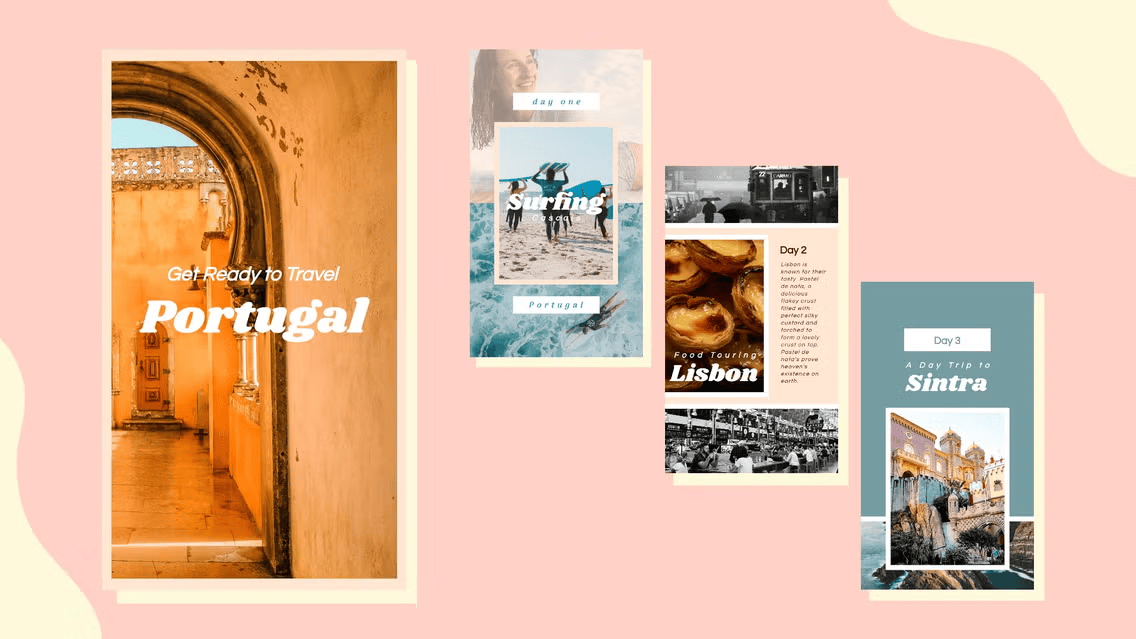
Not every story needs to promote something. Simple daily updates can keep your account active and help followers feel connected to your brand or personality. You might share what you're working on, a quick observation, a company milestone, or even a small win from the day. Some updates won't generate huge engagement numbers, and that's fine. Their value often comes from consistency rather than immediate results.
-
Tutorials and quick tips
People love content that helps them solve a problem quickly. A short tutorial, practical tip, or step-by-step explanation can perform surprisingly well because viewers get something useful in return for their attention. The key is keeping it concise.
-
User-generated content
Whenever a customer, follower, or client takes the time to mention your brand, you should absolutely share it. Don't let those posts just sit there. The truth is, user-generated content gives you an instant layer of social proof that you just can't manufacture yourself. People are naturally skeptical of brand-made ads, but they trust real people.
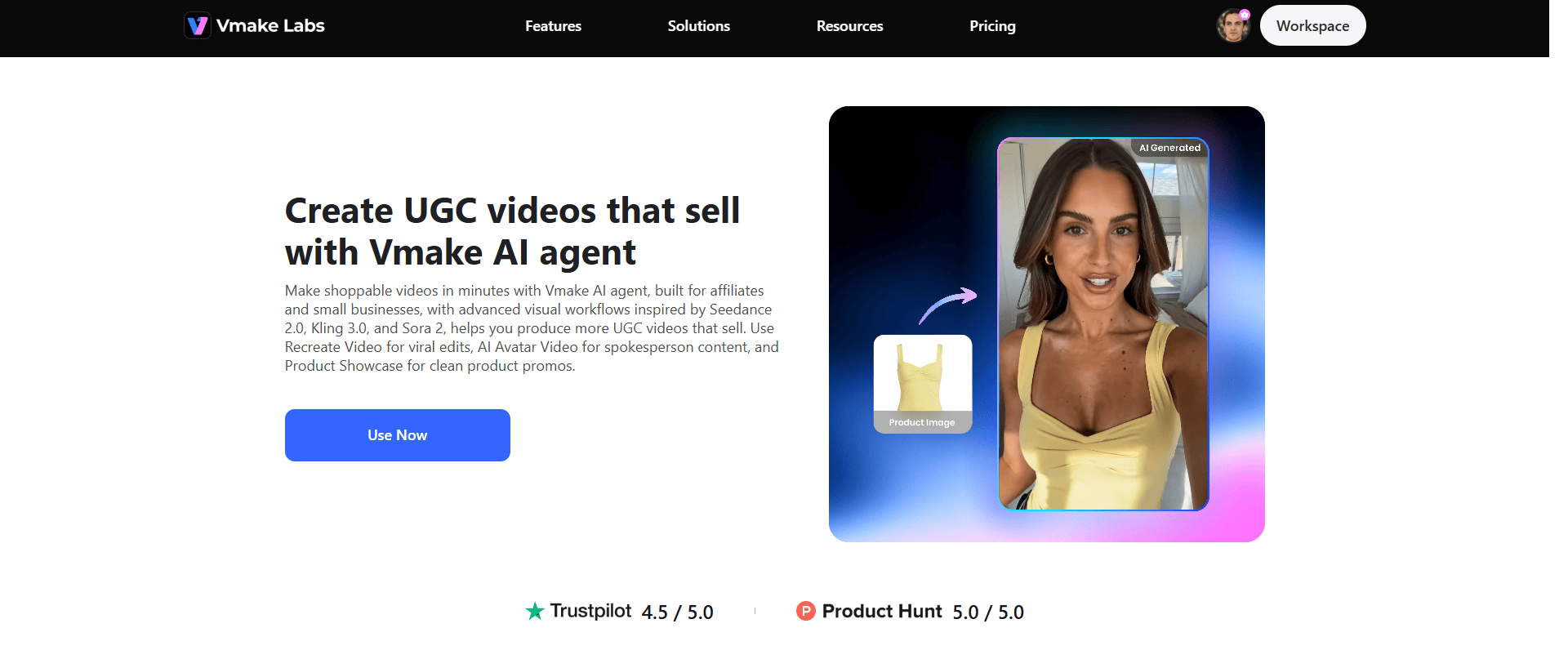
Meet Vmake: Creating viral Instagram stories with AI
Vmake UGC video generator uses AI to turn product images into user-generated-style videos that can be repurposed for Instagram Stories, ads, and other short-form content. Instead of organizing photoshoots, hiring creators, or spending hours editing clips, you can generate multiple video variations from a single product image.
Key features
-
Product showcase videos
Vmake automatically generates engaging visuals and product-focused scenes, helping businesses create high-quality promotional content without the need for filming or advanced editing skills.
-
Clone viral videos
Recreate the style and structure of successful clone viral videos using your own product. Simply upload a product image and a reference video, and Vmake adapts the proven format to generate a similar, brand-ready video.
-
AI Avatar videos
Create realistic spokesperson-style videos using AI avatars. Choose from different avatars, languages, and presentation styles to deliver product information, promotional messages, or brand stories without hiring actors or recording new footage.
Step-by-step guide
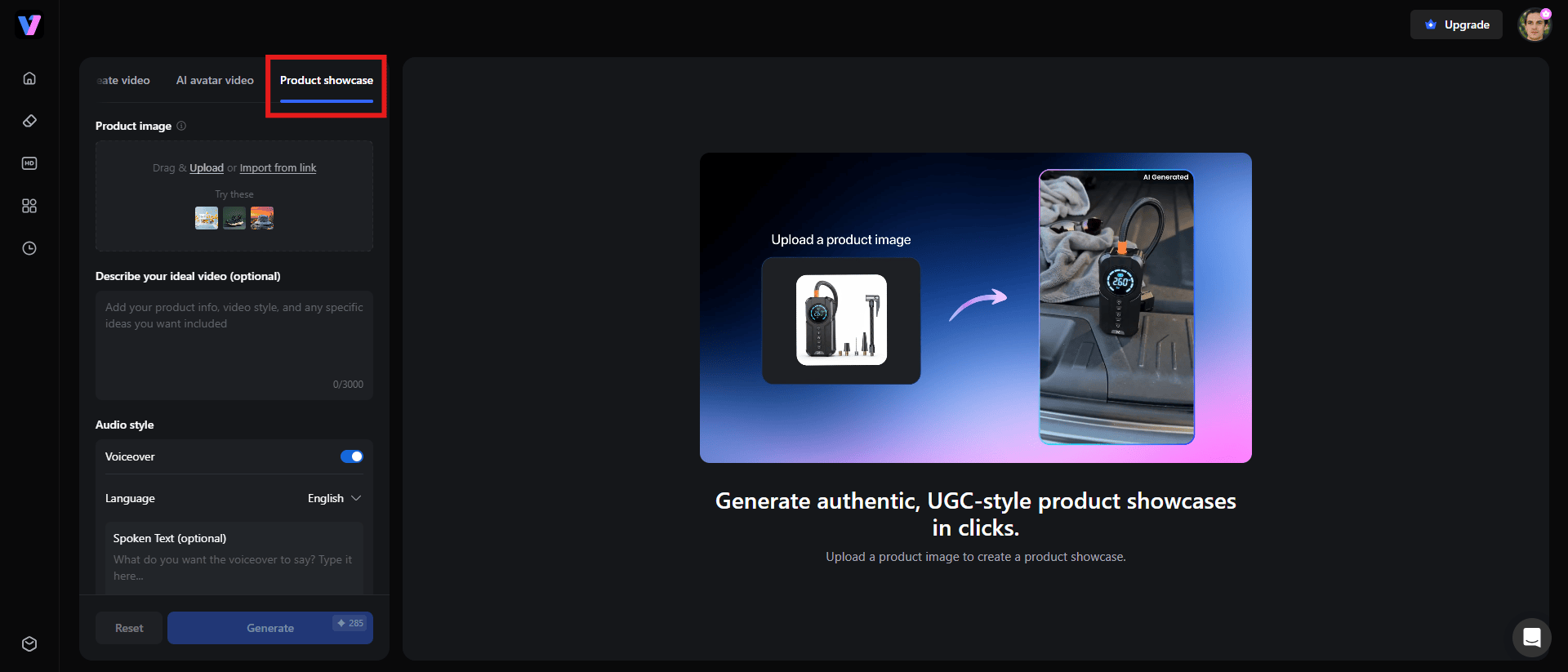
Step 1: Choose your workflow
Begin by selecting the workflow that matches your goal. Vmake UGC video generator offers three options to choose from: AI Avatar, Recreate video, and Product showcase. Choose whatever suits your video requirements.
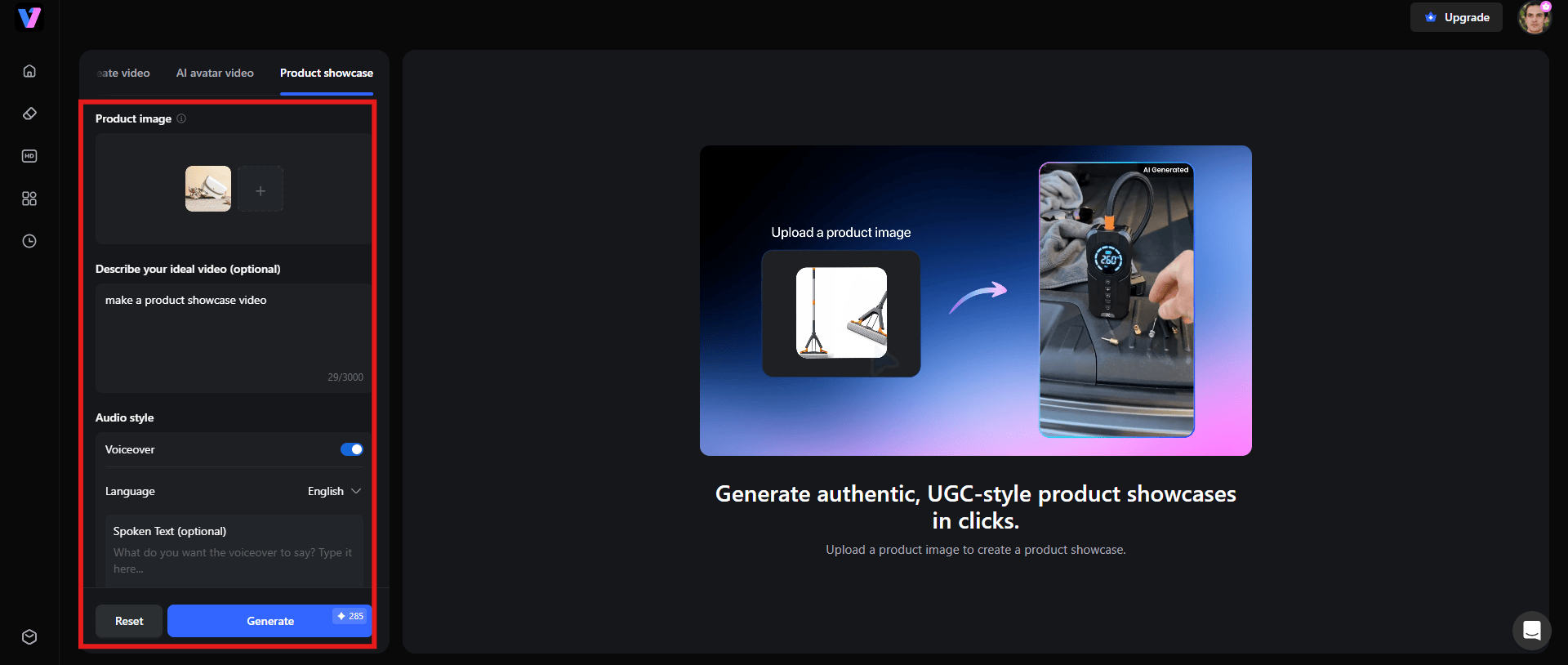
Step 2: Upload product image and generate
Next, upload the product image you'd like to turn into a video. You can also add the product link to get started. No lengthy prompts are required. Besides, you can adjust further settings, like voiceovers, resolution, aspect ratio, etc. Finally, click "Generate" to get started.
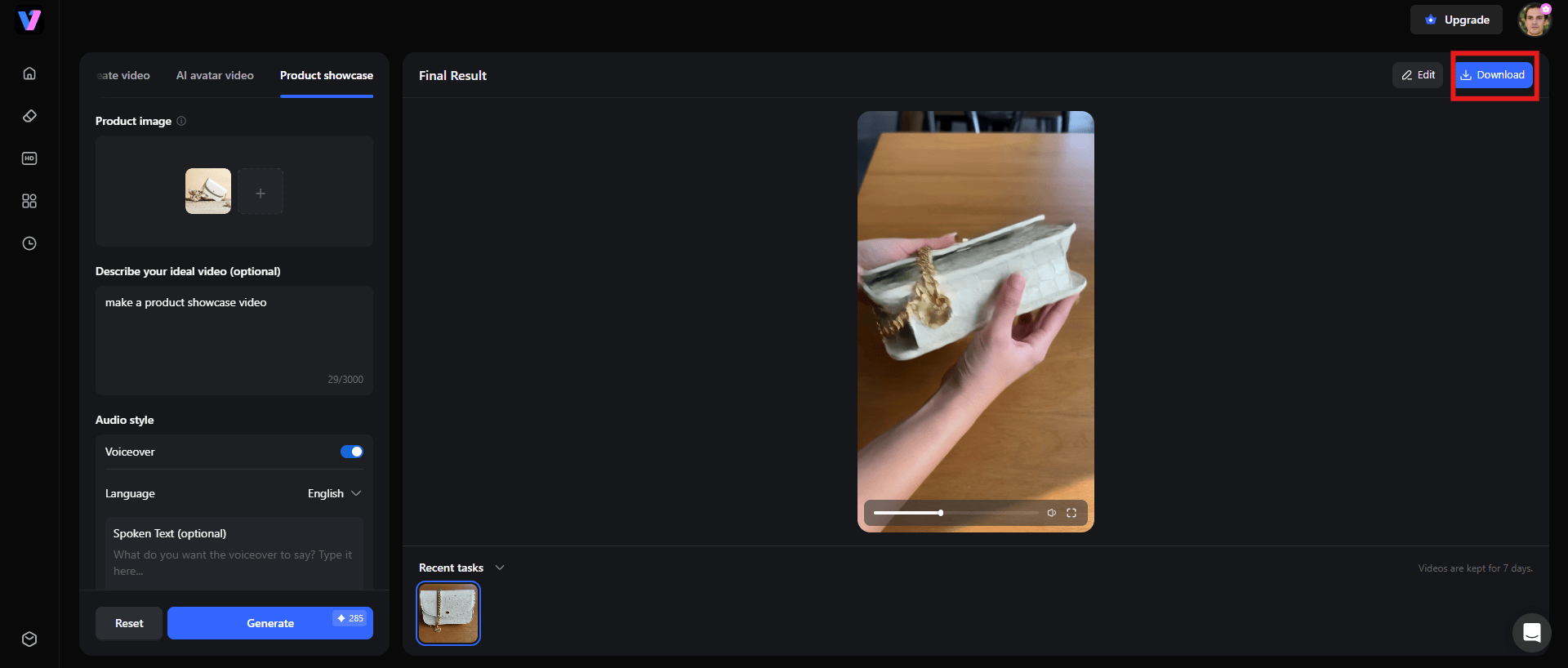
Step 3: Preview and download the video
Take a second to preview the UGC video Vmake spits out. If you're happy with how everything looks, just hit the "Download" button sitting up in the top-right corner.
Conclusion
Honestly, putting a story together on Instagram is the easy part. If you've been wondering how to make an Instagram story that actually gets noticed, you just open up the app, record or upload something, throw some stickers on it, and hit share. The technical buttons are rarely the bottleneck.
What actually makes stories work comes down to being creative, staying consistent, and finding ways to get people talking. A well-timed poll or a raw, behind-the-scenes update usually crushes. That's the stuff that gets people to actually stop and reply.
Lately, though, AI tools are making heavy lifting a lot less painful. If you're short on time, platforms like Vmake can help you churn out different variations of a story or even generate usable content without you having to set up a camera and film every single day. It saves a ton of production time, which, honestly, is a lifesaver when you're trying to post consistently.
FAQs
How do I make an Instagram Story for the first time?
If you're diving into phone's create your very first Instagram story, just open up the app and hit "Your Story" right at the top of your home screen. From there, you can snap a quick photo, film a video on the spot, or just pull something you already have sitting in your phone gallery. Then you can play around by adding some text, stickers, a bit of music, or a filter before you finally hit share.
Can I add multiple photos to one Instagram Story?
You can absolutely pack multiple photos into a single Instagram story. The easiest way to do it is by messing around with Instagram's built-in layout tools or using the photo sticker feature. Of course, you can always just post them as a string of separate, back-to-back story slides instead. Piling a bunch of photos onto one screen is great if you're trying to build a quick collage or do a direct before-and-after comparison.
What size should Instagram Stories be?
If you want your Instagram stories to actually look right, you need to stick to standard vertical dimensions. Ideally, that means aiming for 1080 x 1920 pixels, which works out to a 9:16 aspect ratio. And that matters, because using the exact right size forces your content to cleanly fill up the entire phone screen.
How do I add music to an Instagram Story?
After creating your story, tap the sticker icon and select the Music sticker. From there, you can search Instagram's music library, choose a song, and select the specific portion you want to play. The feature is simple to use, although available songs can vary depending on your location and account type.
Why is my Instagram Story blurry?
There is nothing more annoying than a blurry Instagram story, especially when the original file looks crisp on your phone. Most of the time, the culprit comes down to a few basic things: low-resolution photos, a crappy internet connection when you hit upload, or just using the wrong dimensions.
Can I create professional Instagram Stories without design experience?
Absolutely. You don't even need to know your way around complicated, heavy software. The truth is, people on social media actually prefer things that look a bit more raw and real anyway. The app's built-in tools are surprisingly good for this. You can just lean on basic text overlays, throw in some filters, or use their native interactive features to make something look clean and engaging without spending hours on it.

You May Be Interested

How Long Can Instagram Stories Be? Engagement Tips
