
How to Add a Subtitle in iMovie: Step-by-Step Guide
Learn how to add subtitles in iMovie on Mac, iPhone, and iPad, explore manual and automatic subtitle options, and discover an easier way to generate subtitles with Vmake Labs.

Adding subtitles in iMovie is possible, but the process is mostly manual. On Mac, iPhone, and iPad, you can use iMovie's Titles feature to place subtitle-style text over your video and adjust when it appears. If you need automatic subtitles, you'll need a separate AI subtitle tool.
How to add a subtitle in iMovie on Mac
iMovie does not use a dedicated subtitle track in the same way some professional video editors do. Instead, you add subtitle text as titles placed over your video clips. This works well for short videos or projects with only a few lines of dialogue, but adding subtitles to a long conversation can take time.
Step-by-step: Add subtitles in iMovie on Mac
Step 1: Import your video and select a title style
Open iMovie and create or open the project containing your video. Import the video if it is not already in your media library, then drag the clip to the timeline. Select the Titles option and choose a simple title style that works with subtitles. A basic style is usually easier to read than a decorative one.
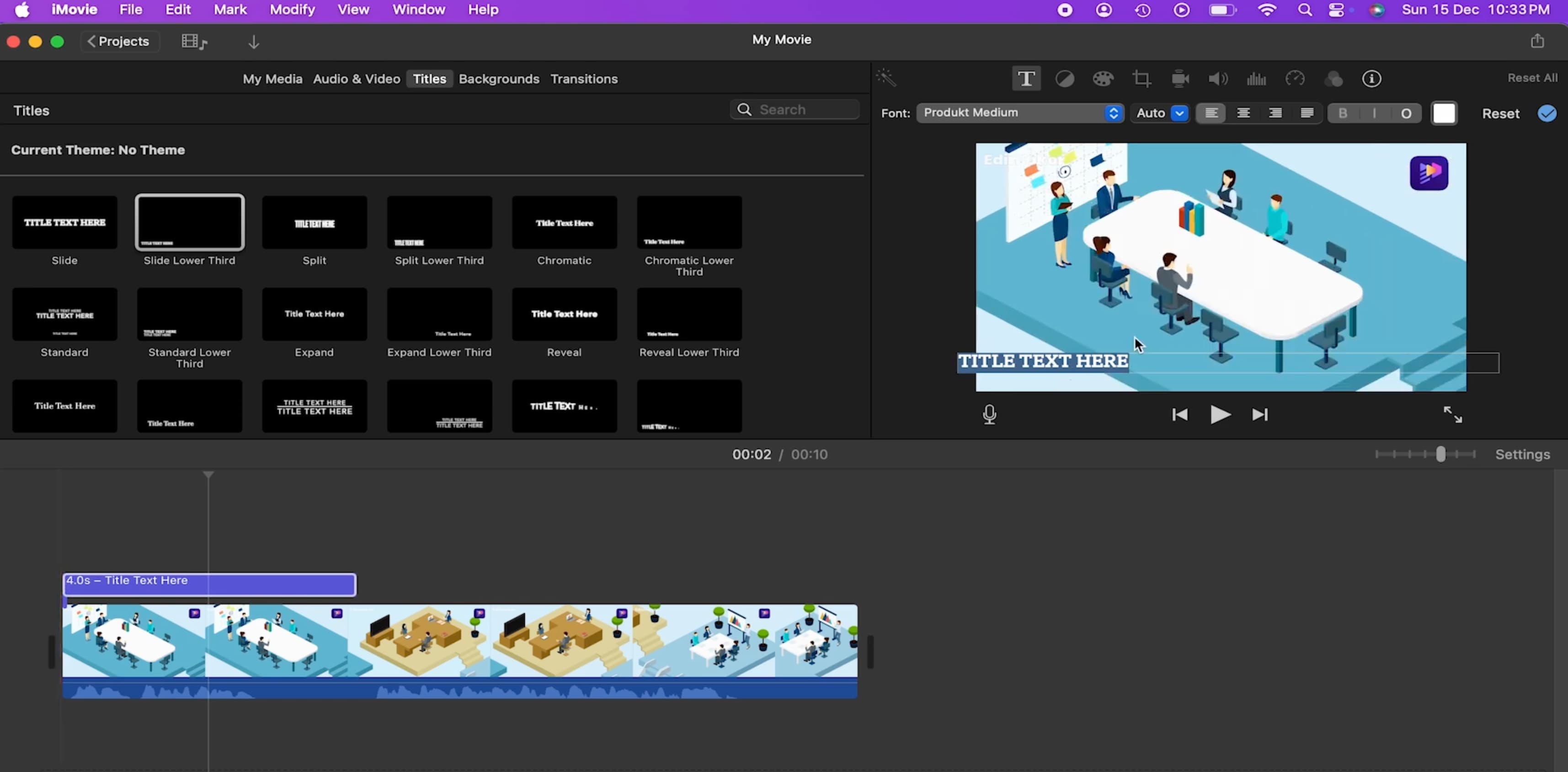
Step 2: Enter your subtitle text and adjust its timing
Place the title in the part of the timeline where the dialog begins. Click on the text area in the preview window and replace the sample text with the words you want to show. Then you move the title along the timeline and change the duration so that the subtitle appears and disappears at the right times in the conversation.
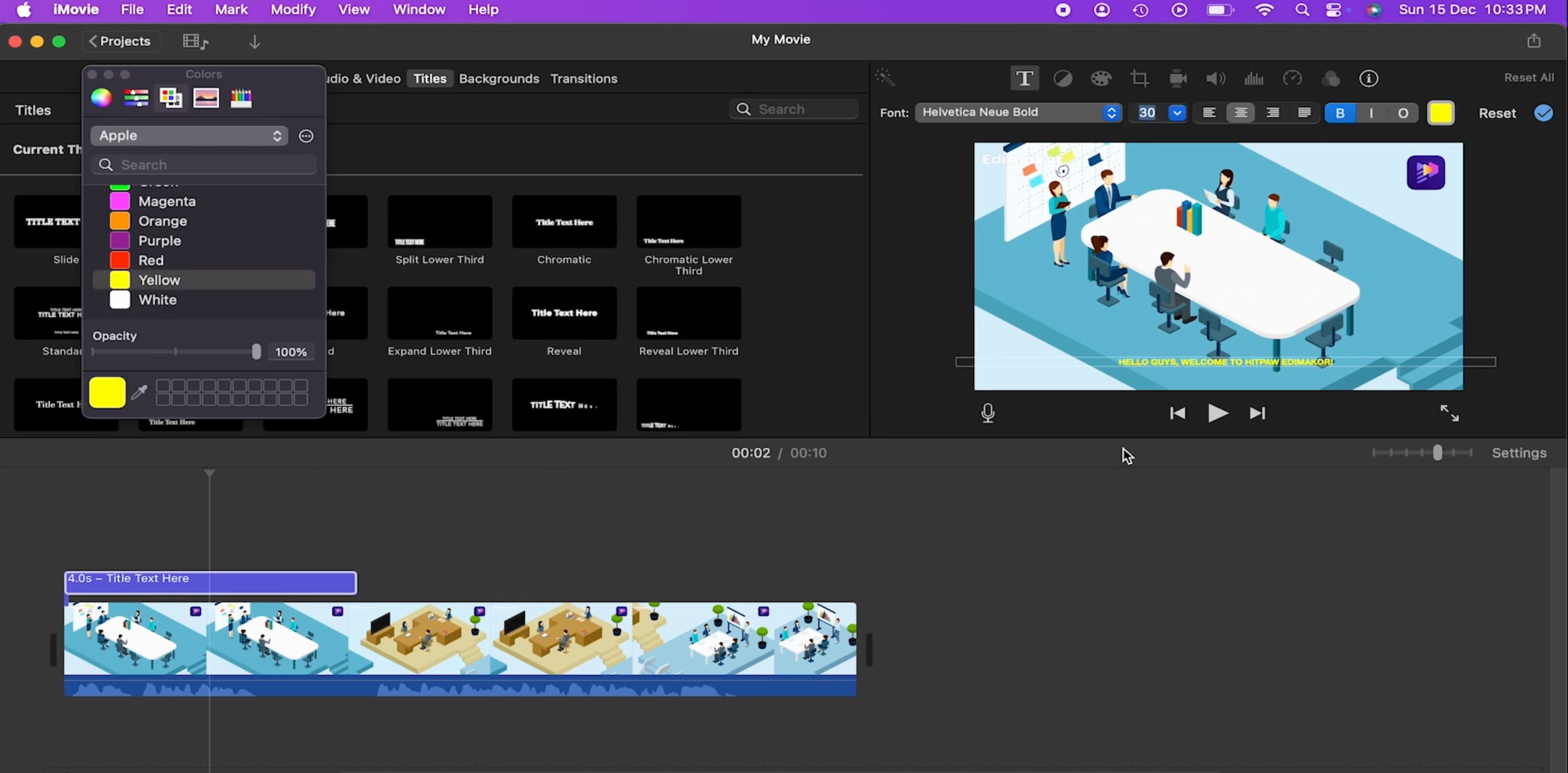
Step 3: Customize the subtitle appearance and repeat the remaining dialogue
Change the font, size, alignment, and other text settings that are available, so the subtitles are still readable against the video. Verify the timing in the clip's preview, then add another title for the following line of dialog. And keep repeating till you have covered the whole conversation.
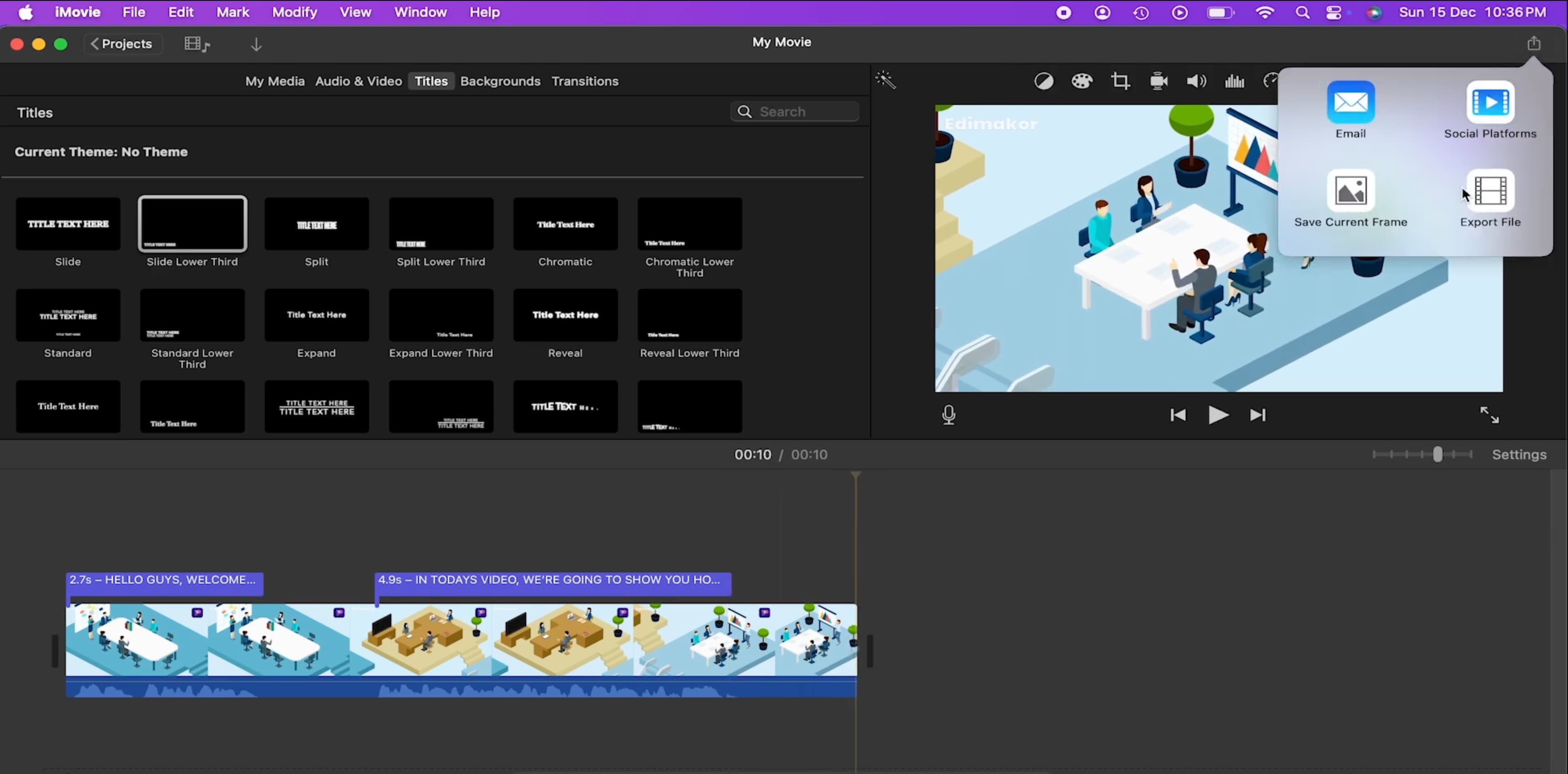
For a short video, this method is manageable. A longer interview, tutorial, or talking-head video can require many individual title elements, so checking every line becomes an important part of the editing process.
How to add subtitles in iMovie on iPhone and iPad
On iPhone and iPad, you can use iMovie's Titles feature to create subtitle-style text. When a single video clip contains multiple lines of dialogue, first split the clip at the points where each subtitle should change. You can then add a title to each section and use Full Clip Duration to keep the title visible for the entire corresponding clip.
-
Select and split the video clip: Open your iMovie project and tap the video clip containing the dialogue. Move the playhead to the point where the first subtitle should end, then tap Split. Repeat this at each dialogue change, so each section of the clip corresponds to a subtitle.
-
Add a title to the first section: Select the first split clip, tap Titles, and choose a readable style. Tap the text in the preview, replace the sample text with the corresponding subtitle, and adjust its position if needed.
-
Use Full Clip Duration: With the title selected, choose Full Clip Duration so the subtitle remains visible for the entire selected clip. Because the clip has already been split according to the dialogue, the title will stay on screen for the appropriate section.
-
Add subtitles to the remaining sections: Select each split clip, add a Title, and replace the sample text with the next subtitle. Set each title to Full Clip Duration so it matches the timing of that clip.
-
Check the timing and readability: Preview the project from the beginning and make sure each subtitle appears with the correct dialogue and disappears when the next subtitle begins. Keep the text large and clear enough to read against the video background.
Can you add automatic subtitles in iMovie?
iMovie does not have a built-in feature for automatically generating subtitles from spoken dialogue. Its Titles feature lets you add subtitle-style text, but you need to type each line yourself and adjust its timing on the timeline. This is manageable for short videos, but longer videos can take much more time because every line has to be entered and synchronized with the speech.
If you want to avoid that manual work, an AI subtitle generator can transcribe the video's speech and create timed subtitles automatically. This gives you a faster way to prepare subtitles before bringing the finished video back into your editing workflow.
Add automatic subtitles to your iMovie video with Vmake Labs
After exporting your video from iMovie, you can use Vmake Labs Subtitle Generator to create subtitles without typing and timing every line manually. It automatically generates captions from the spoken dialogue and lets you review, edit, and style the subtitles before exporting.

Key features
-
Automatic subtitle generation: Generate captions from the spoken dialogue in your video without typing every line manually. The captions are automatically created from the video's audio.
-
Subtitle text editing: Review the generated captions and edit the text when corrections are needed. This helps improve accuracy and readability before you export the video.
-
Subtitle styling: Adjust the appearance of your captions to make them easier to read and better suited to your video. Choose styling options that fit your content and visual presentation.
-
Subtitle timing: Review the timing of generated captions and make adjustments when needed. This helps keep each subtitle aligned with the corresponding spoken dialogue.
-
Flexible export: Export your completed subtitled video or subtitle files when you're finished editing. This gives you flexibility to publish the video or continue working on it elsewhere.
Bonus: Add subtitles with Vmake Labs
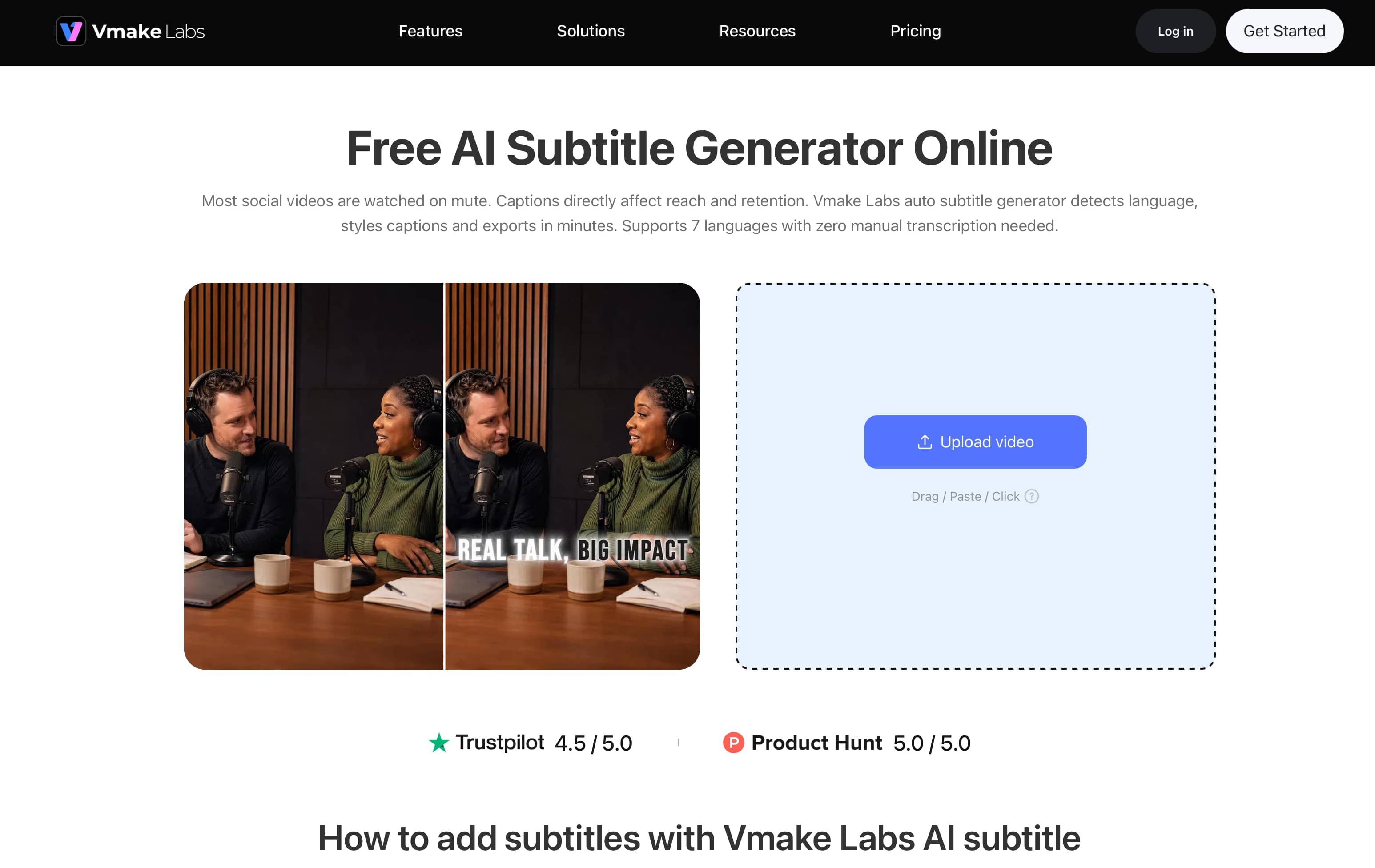
Step 1: Upload your iMovie video
Export your finished video from iMovie and upload it to Vmake Labs Subtitle Generator. Vmake recognizes the spoken language and prepares the video for subtitle generation.
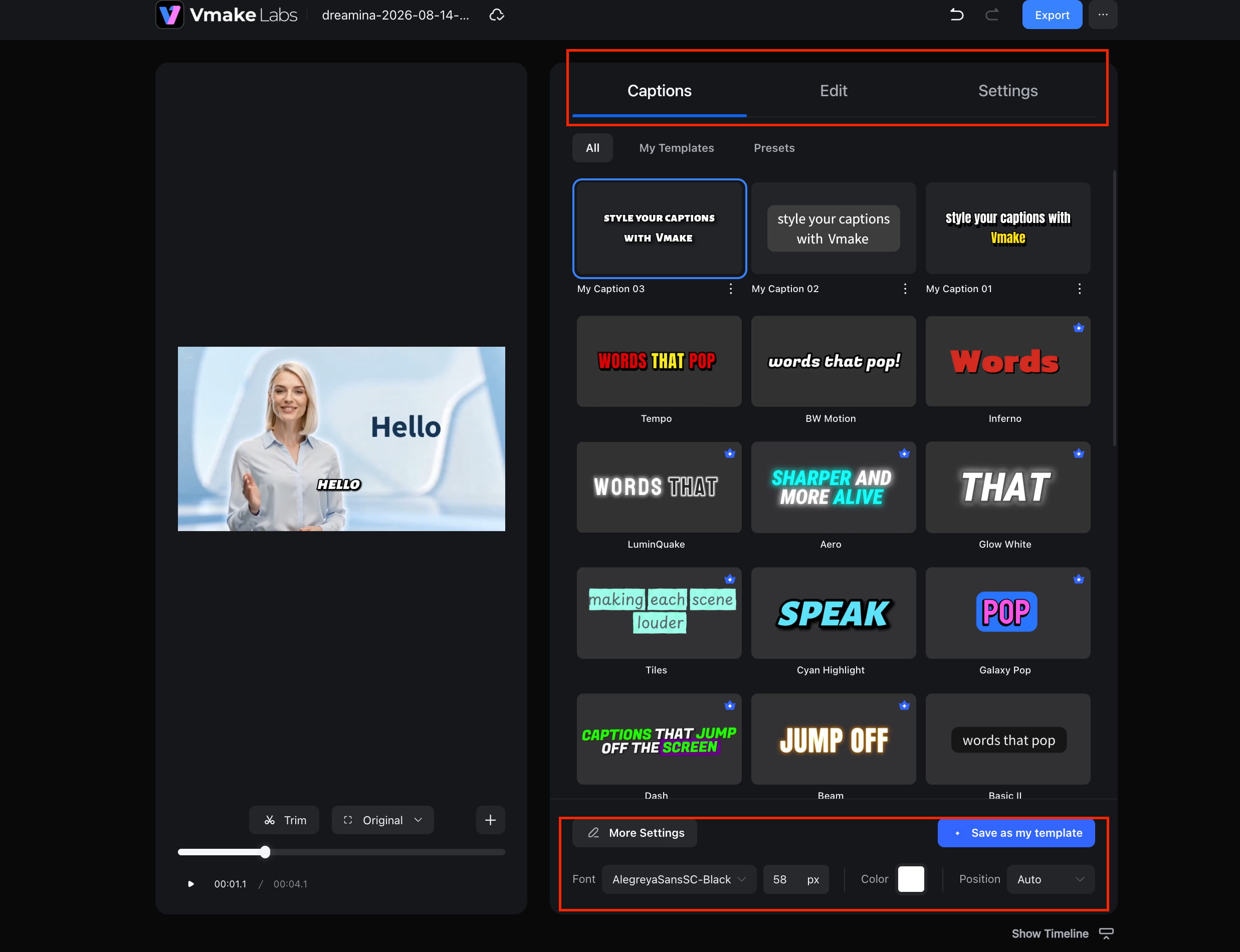
Step 2: Generate and customize
Choose the subtitle function and let Vmake process the dialogue. Review the generated text, correct any mistakes, and make any necessary adjustments before moving to export.
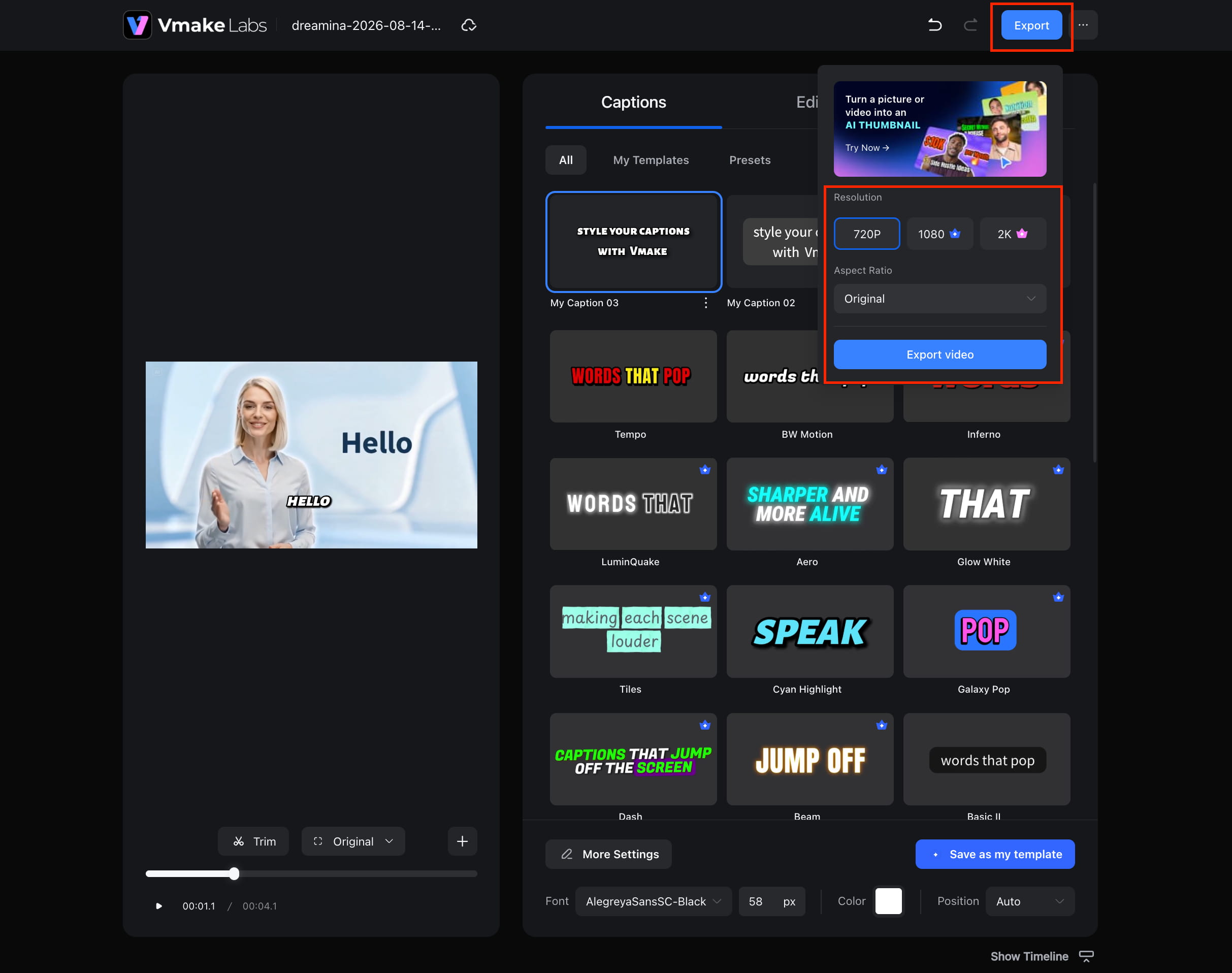
Step 3: Preview and export
Preview the video to check the subtitle timing and readability. Once you're happy with the result, export the subtitled video or subtitle file for publishing or further editing.
For videos that need a written transcript as well as subtitles, you can also use Vmake's video transcript generator. This can be useful when you want the spoken content in text form for editing or repurposing.
iMovie vs. Vmake Labs for adding subtitles
Both tools can help you add subtitles to a video, but they handle the process differently. Here's a quick comparison of their subtitle features.
|
Feature |
iMovie |
Vmake Labs |
|---|---|---|
|
Manual subtitle text |
Yes |
Yes |
|
Automatic subtitle generation |
No |
Yes |
|
Speech transcription |
No |
Yes |
|
Subtitle timing |
Manual |
Automated |
|
Subtitle customization |
Yes |
Yes |
|
Best for |
Short videos and manual text |
Videos that need automatic subtitles |
iMovie works well when you only need to add a few subtitle lines and want to control their placement and timing yourself. Vmake Labs is more suitable when the video contains a lot of dialogue and you want the subtitles generated from the audio rather than entered line by line.
Conclusion
Adding subtitles in iMovie is straightforward when you only have a few lines of dialogue. On Mac, iPhone, and iPad, you can use Titles to enter the text, adjust its timing, and customize how it appears. However, iMovie does not automatically transcribe spoken dialogue, so longer videos require more manual work. If you want a faster option, Vmake Labs can generate synchronized subtitles from your exported video and let you review them before export. You can also use its auto generated captions when you need captions without adding each line yourself.
FAQs
How do I add a subtitle in iMovie?
To add a subtitle in iMovie, use the Titles option, choose a title style, enter your subtitle text, and adjust its duration to match the dialogue. You need to repeat this for each line of the video. If you have a longer video, Vmake Labs can generate subtitles from the spoken audio instead.
Can I add subtitles to a video in iMovie on iPhone?
Yes. On iPhone, you can select your video clip, add a title, enter the subtitle text, and adjust its duration and position. You need to repeat the process for each subtitle line, so an external subtitle tool can save time on videos with more dialogue.
Does iMovie automatically generate subtitles?
No. iMovie does not automatically transcribe spoken dialogue into subtitles. You have to add the text through the Titles feature and set the timing yourself. For automatic transcription, Vmake Labs can generate synchronized subtitles from your video.
How do I add automatic subtitles to an iMovie video?
Export your edited video from iMovie first, then upload it to Vmake Labs Subtitle Generator. It can transcribe the dialogue and create synchronized subtitles, which you can review and edit before exporting the captioned video.
Can I add multiple subtitles to one video in iMovie?
Yes. You can add multiple title elements and enter different subtitle lines for each part of the video. Each title can be positioned and timed to match the dialogue, and you can edit the text as needed. However, adding and timing many lines manually can take more time for longer videos.
How do I change the subtitle style in iMovie?
Select the title containing your subtitles and use iMovie's text controls to adjust the font, size, color, alignment, and position. You can also choose a different title style when adding the subtitles. This lets you keep the subtitle appearance consistent throughout your video.
What is the best alternative to manually adding subtitles in iMovie?
For videos with a lot of dialogue, an automatic subtitle tool can save time compared with adding each line in iMovie. Vmake Labs can transcribe the video's spoken audio, create synchronized subtitles, and let you review and edit the text before exporting the finished video.

You May Be Interested

Best Subtitle Generation Tools in 2025 for Creators and Editors
Best Subtitle Translation Tools in 2026 Compared

How to Add Subtitles in Premiere Pro: A Complete Guide
How to Download Video and Subtitles from YouTube
How to Generate Subtitles for Video: Complete 2026 Guide
