Evernote Transcribe Review: Is It Actually Worth Using?
Need searchable notes from recordings? This guide explains how Evernote transcribe works, its limitations, and how to convert recordings into accurate text more efficiently with AI-powered transcription tools.

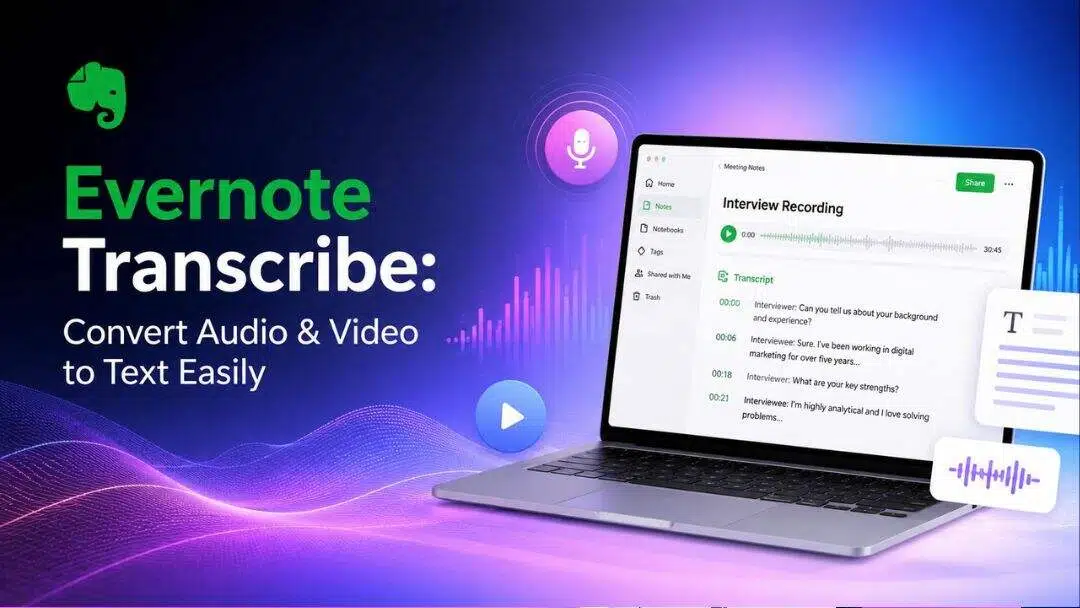
Evernote AI transcribe turns your audio recordings, videos and images into searchable text right inside your notes. Whether you want to record meeting highlights, key points from a lecture, or interview insights, its AI makes it easy to edit spoken content and keeps it organized. It's convenient for Evernote users, but it has practical limits on file size and advanced features.
What is Evernote Transcribe?
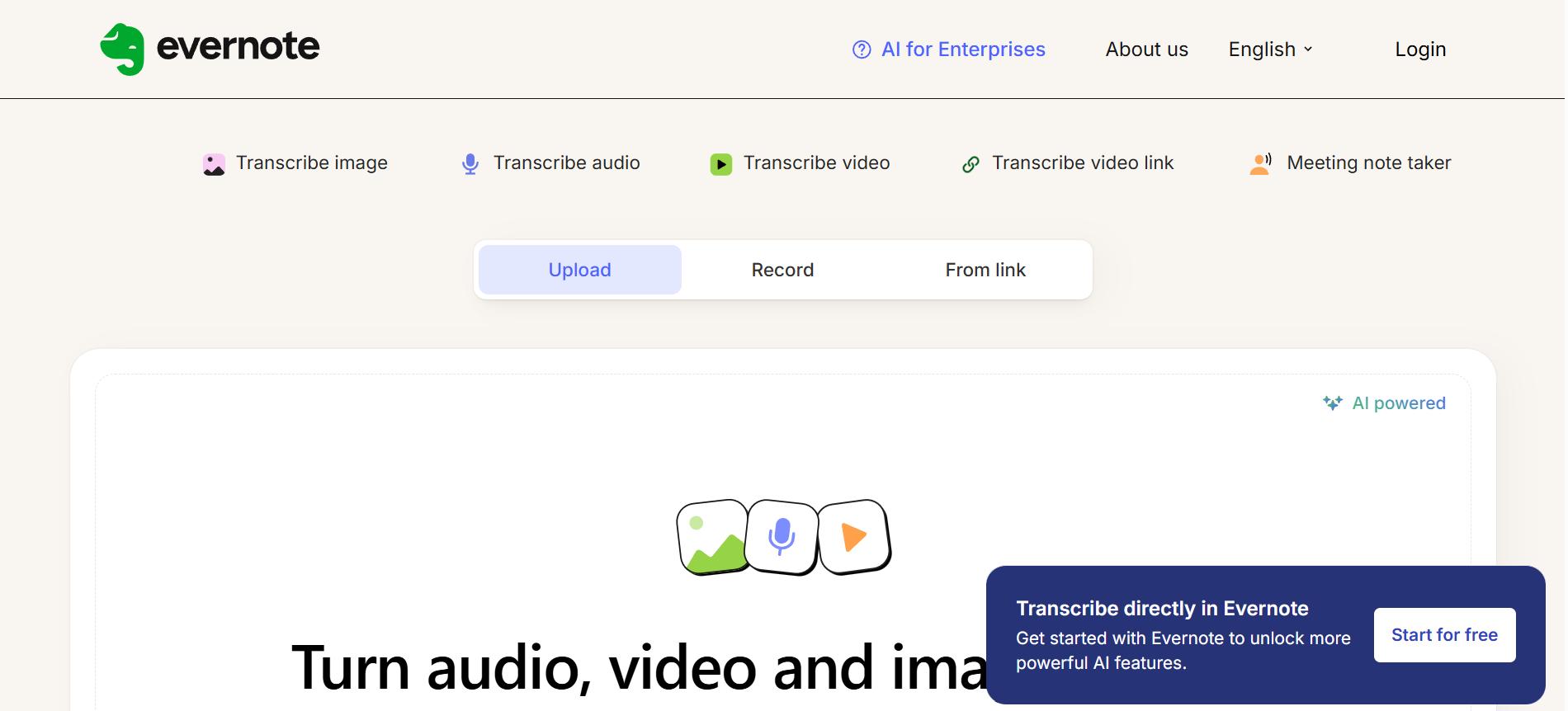
Evernote AI Transcribe is a feature that transcribes spoken audio, video files and images into searchable, editable digital text right inside your notes. It supports multiple languages and processes files up to 60 minutes long.
Common scenarios include turning interview recordings into notes you can search later, capturing key points from a webinar, or making lecture videos referenceable. The AI handles speech recognition across multiple languages and supports a decent range of file types.
Key features of Evernote AI
-
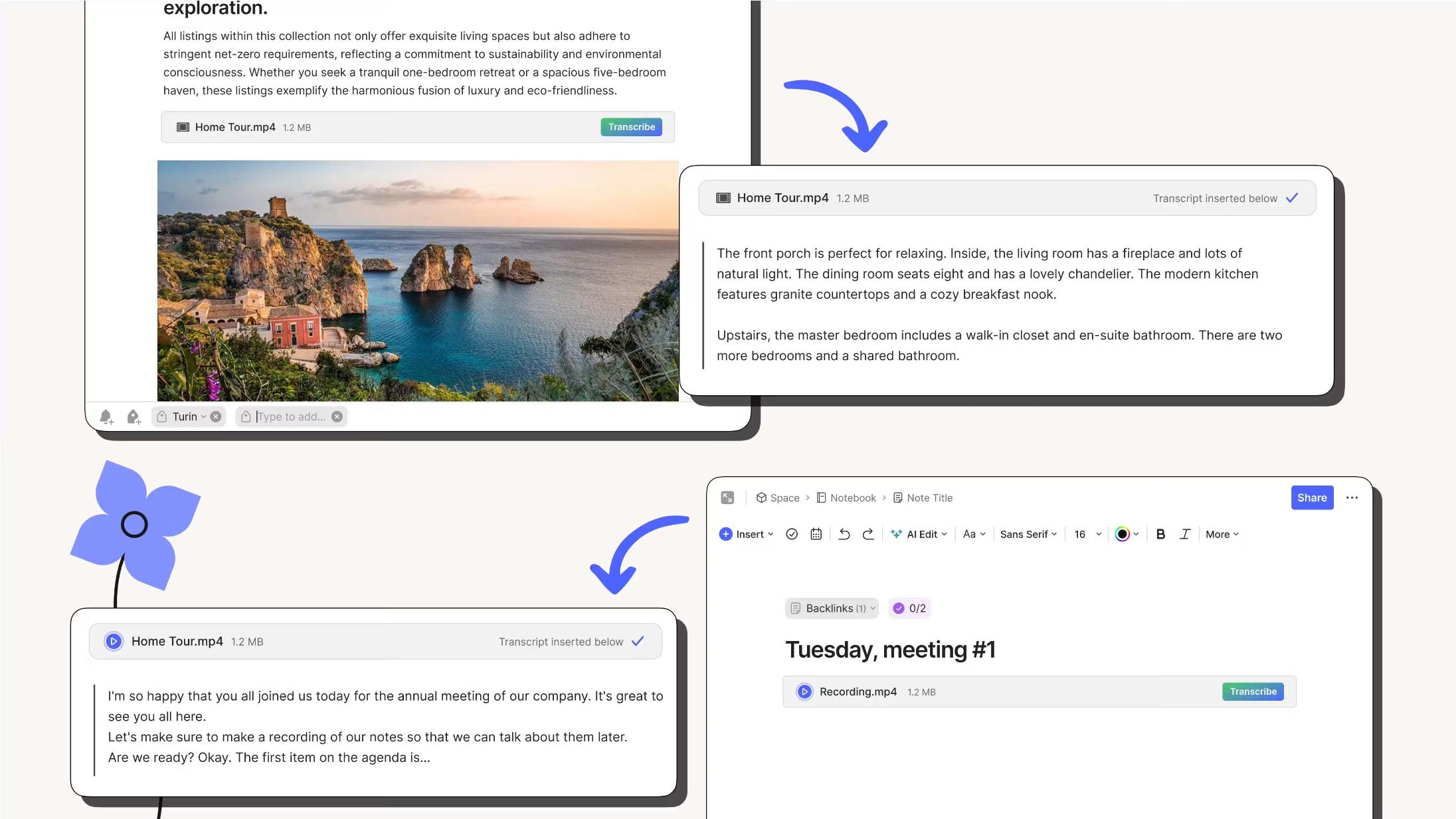
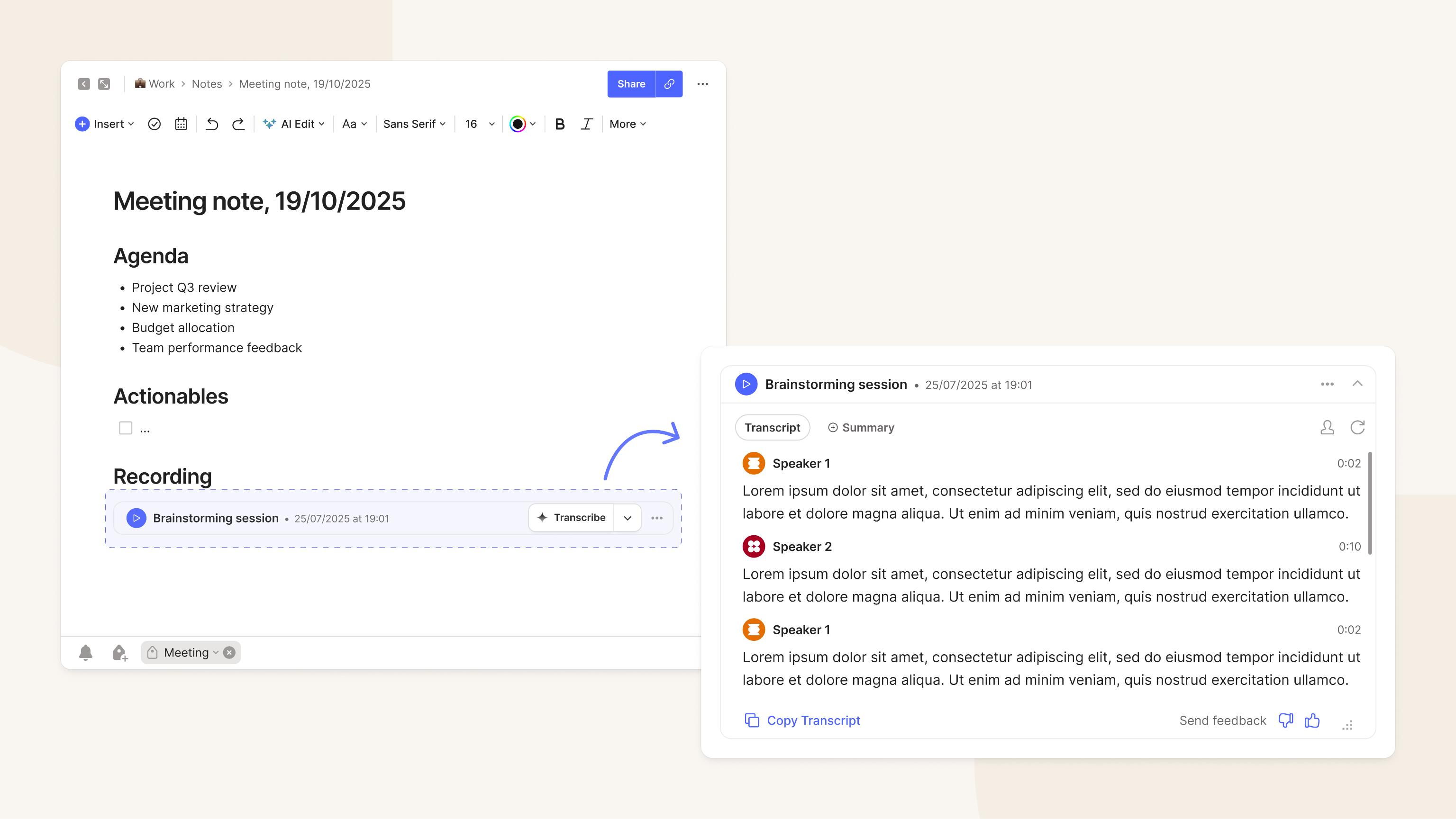
In-note transcription: Evernote transcribes inside your notes, keeping recordings and text together. This makes it easier to search for keywords, add highlights, and edit further without having to export files between applications.
-
Wide format support: The tool is very versatile. It supports popular audio and video formats like MP3, MP4, WAV, M4A, MOV and MKV. It also features optical character recognition (OCR) for converting images to text in JPG, PNG and HEIC files.
-
Accurate AI speech recognition: Its AI engine can convert spoken conversations into readable text with good accuracy. This is especially true when the recordings have clear audio and little background noise. Great for meetings, interviews, lectures and voice notes.
-
Multilingual recognition: The AI recognizes more than 50 languages automatically. It can also translate audio content to another language directly in the app.
How to transcribe audio in Evernote
Turning a voice recording into text inside Evernote takes only a few taps. Whether you are recording live or uploading a file you captured earlier, the process is straightforward.
Step 1: Record or attach your audio
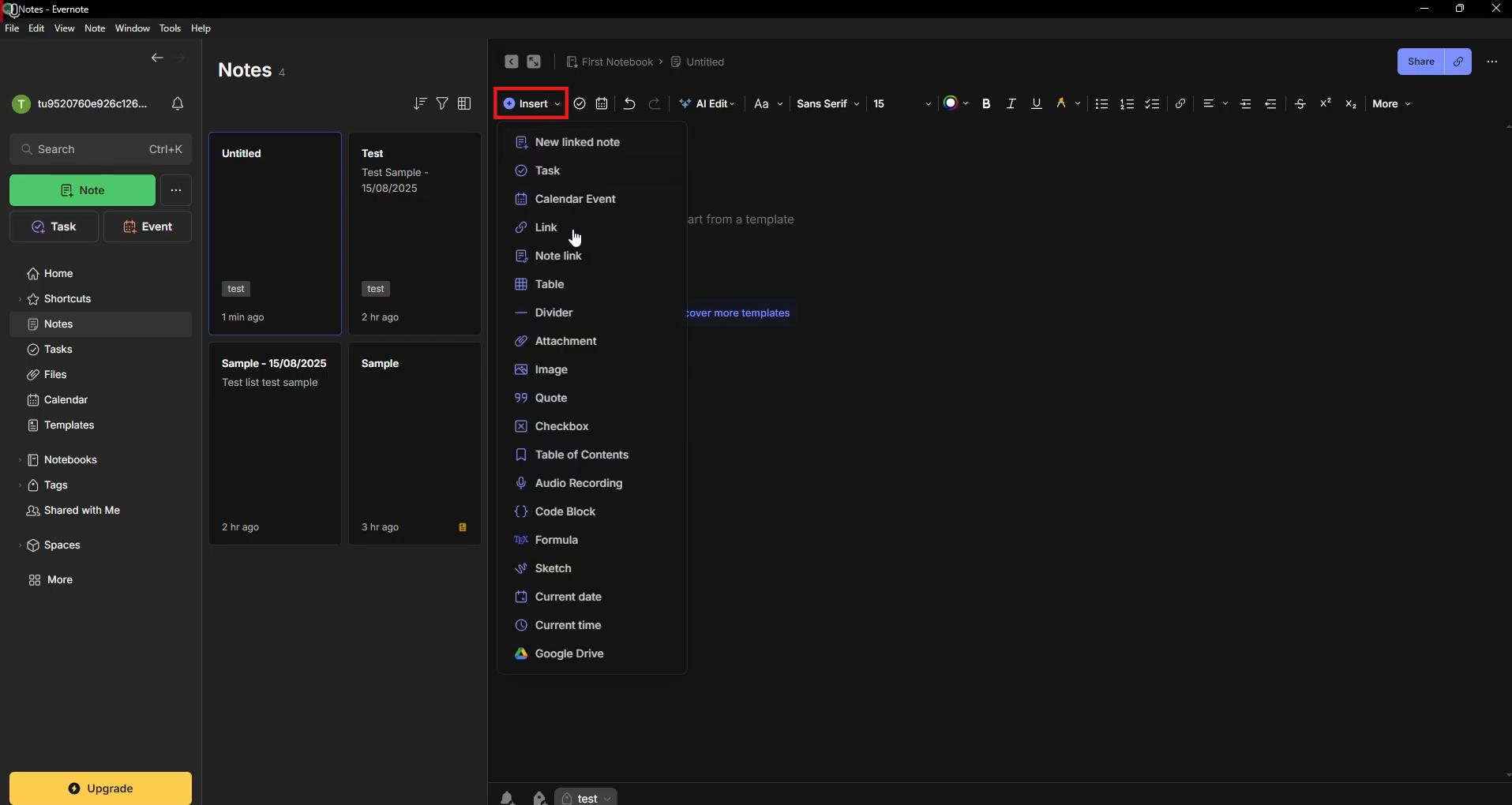
Open a note and select Insert, then Audio Recording, to capture sound directly in Evernote. If you already have a file saved, you can attach it instead. Supported formats include MP3, WAV, M4A, and more.
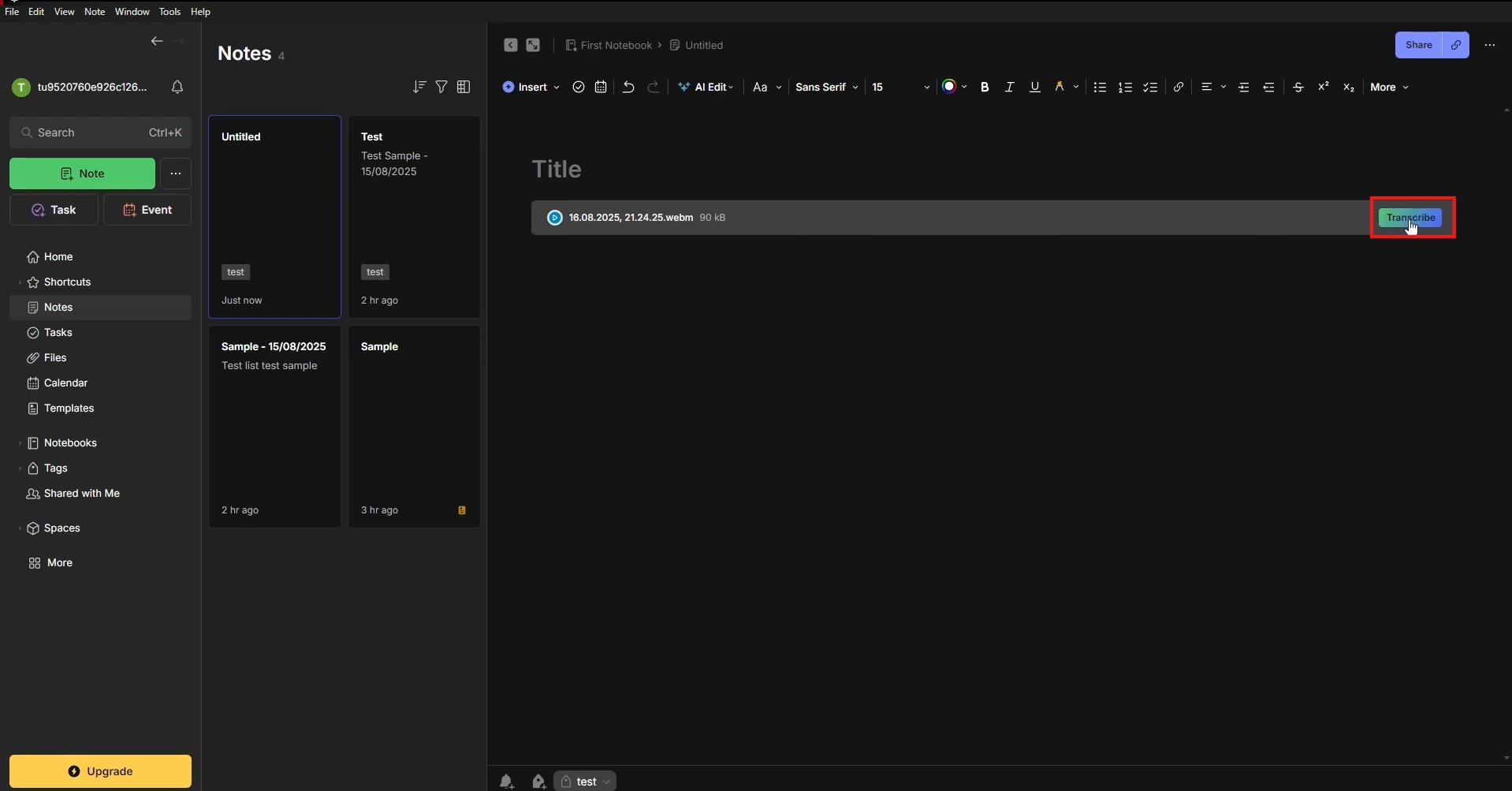
Step 2: Tap "Transcribe"
Select or click on your uploaded audio file. A button that says "Transcribe" will show up. Click this button. The computer will read your file and change the speech to text.
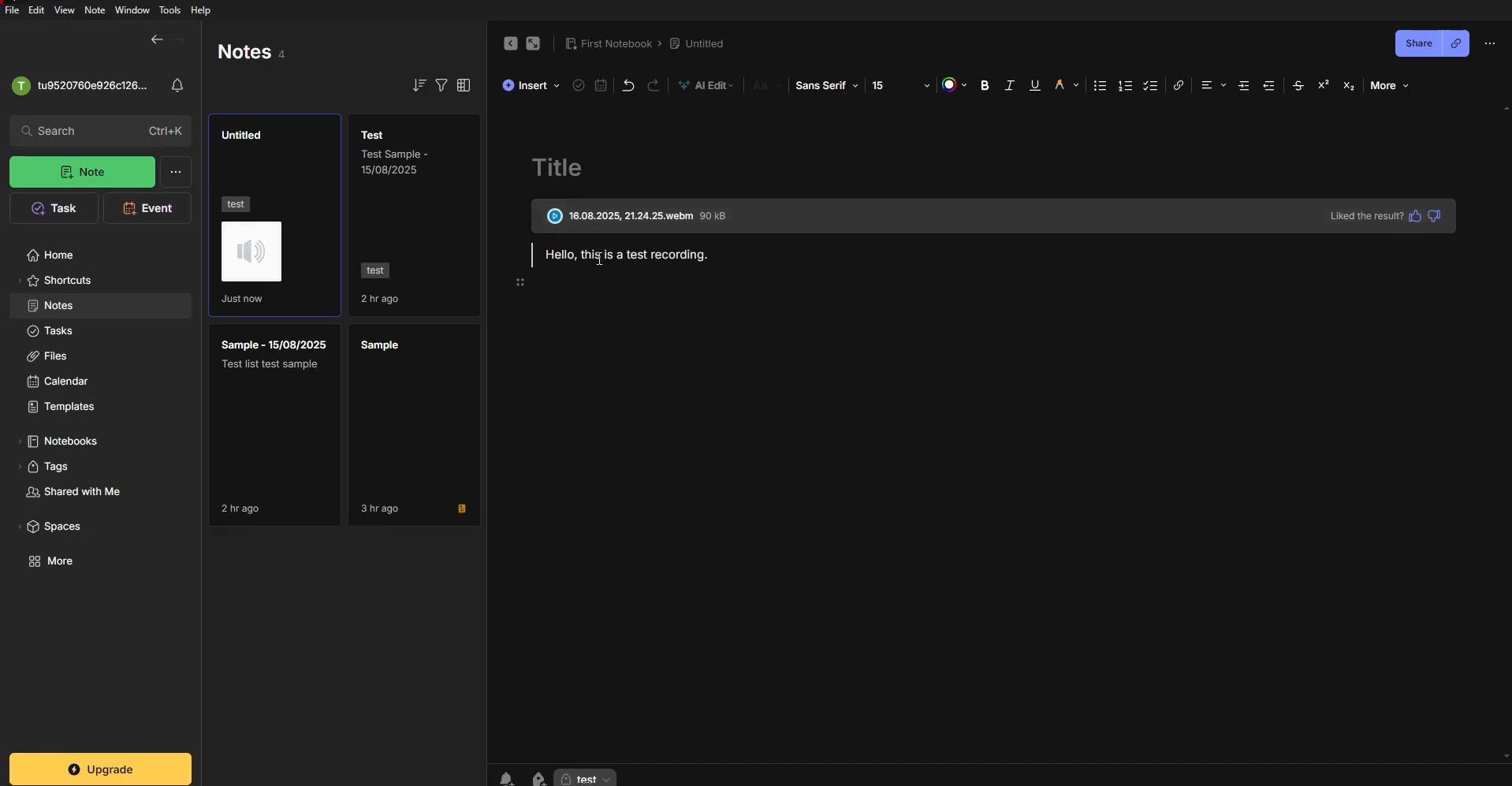
Step 3: Review and use your transcript
The text will pop up below your audio file. Read the text carefully. Fix any words that are wrong. Now you can copy the words and paste anywhere or share with friends.
How to transcribe video to text in Evernote AI
Need to convert a video into text instead? The process is similar. Just upload your video, start the transcription, and review the results.
Step 1: Add your video
Open a note in Evernote and insert your video file, or paste a link if it's hosted online (YouTube links and cloud-hosted videos both work). Supported formats include MP4, MOV, MKV, and M4V.
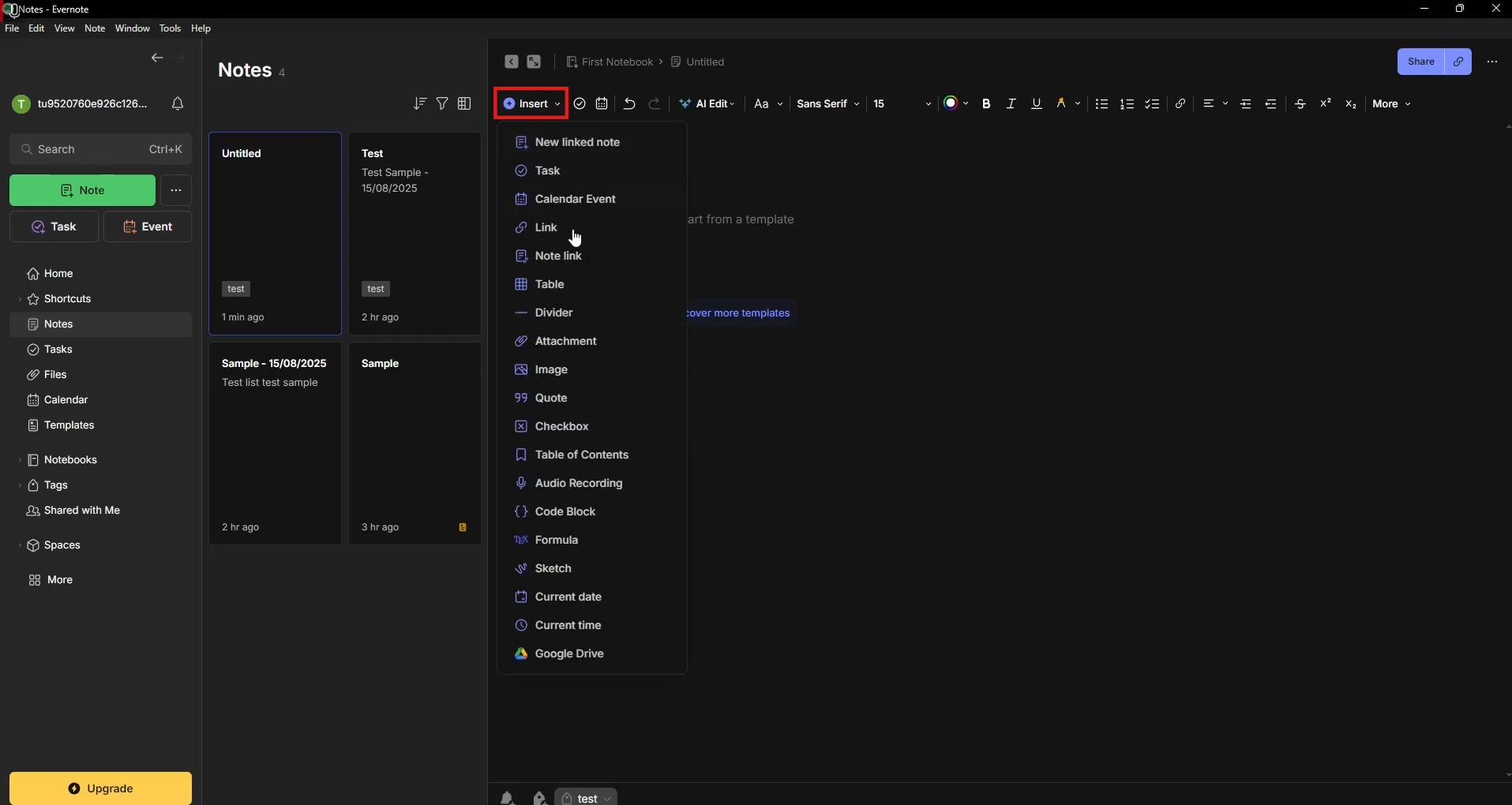
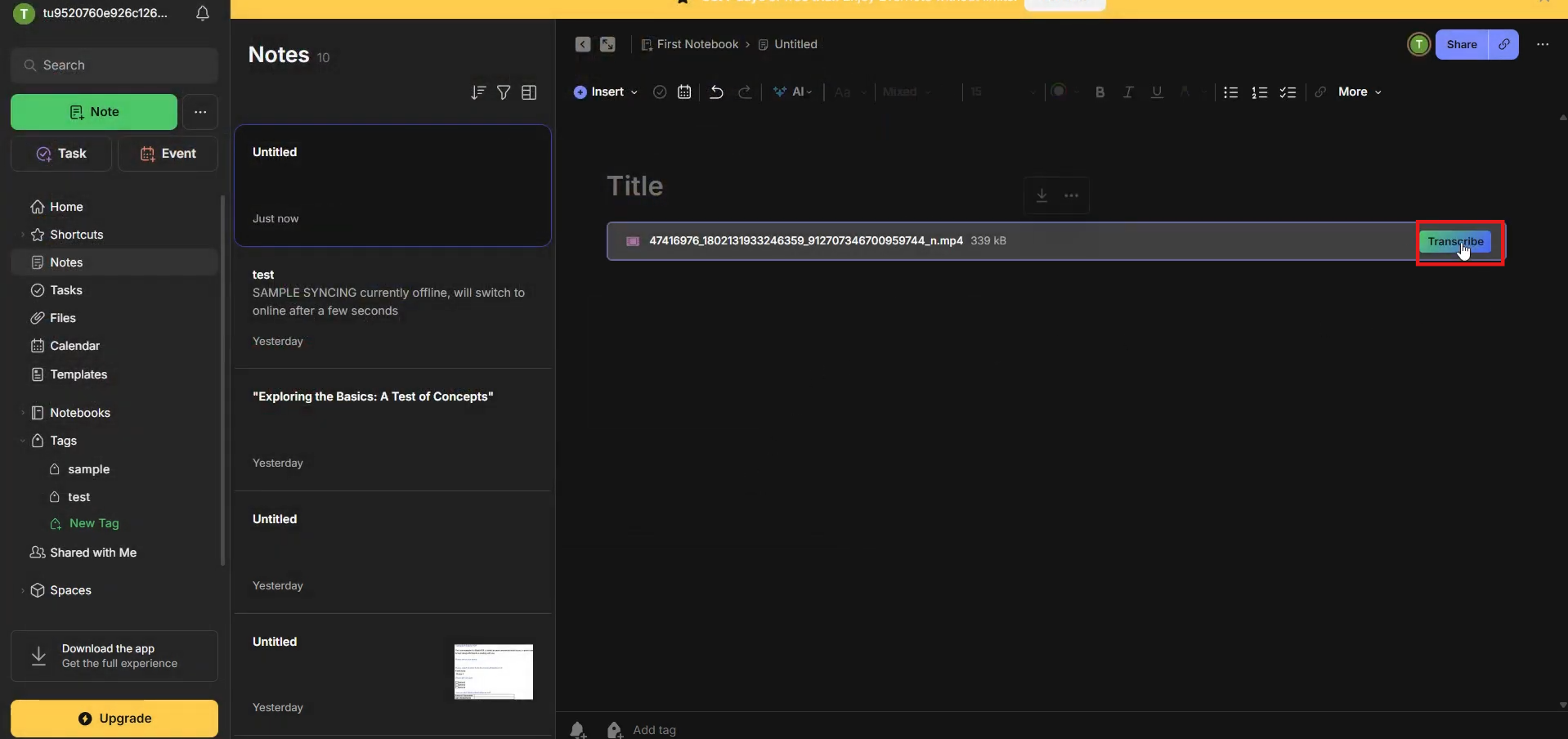
Step 2: Tap "Transcribe"
Once the video is in your note, a "Transcribe" button appears next to it. Tap it, and Evernote's AI converts the spoken audio into text in seconds.
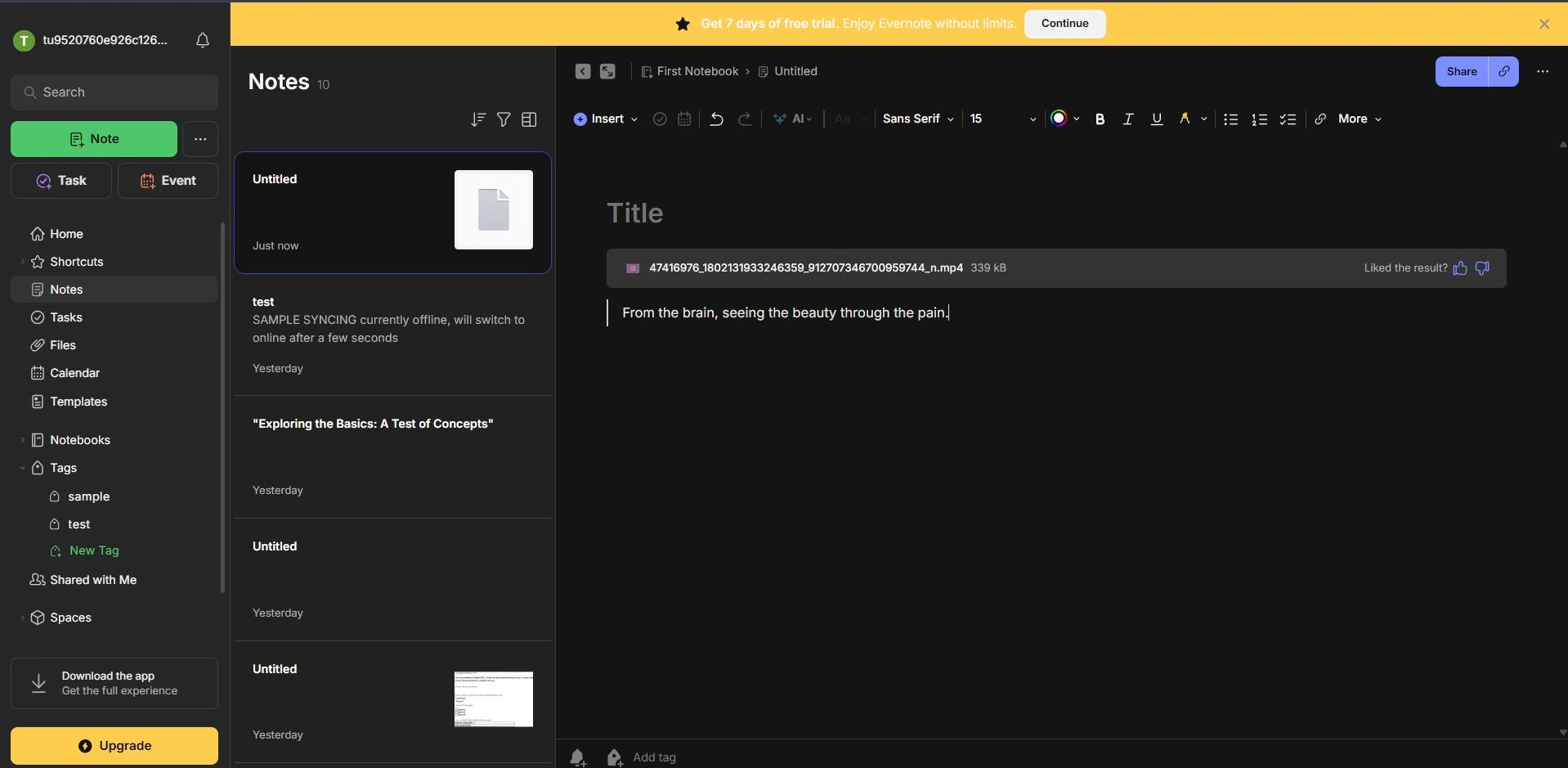
Step 3: Edit and organize your transcript
Your transcript lands in the note as editable text. From here you can clean it up, tag it, move it into a notebook, or pair it with AI Edit to generate a quick summary.
Evernote pricing & Is it free?
Evernote offers a free plan alongside paid subscriptions, but your experience with AI transcription depends on the plan you choose and the AI credits available in your account. While basic note-taking is free, users who regularly transcribe meetings or videos will usually benefit from a paid plan.
| Plan | Price (Billed Annually) | Core Limits | AI Transcription Access |
|---|---|---|---|
| Free Plan | $0 | Capped at 50 notes and 1 notebook; 1 GB monthly upload limit. Single-device sync. | Very limited access. Effectively serves as a restricted trial; the tight note and upload caps quickly block long-term media usage. |
| Starter Plan | ~$8.25/mo ($99/year) | Limited to 1,000 notes and 20 notebooks; 5 GB monthly upload limit. Syncs across 3 devices. | Standard access. Includes AI note tools, but transcription frequency is limited by the strict 5 GB monthly data transfer cap. |
| Advanced Plan | ~$20.83/mo ($249.99/year) | Unlimited notes and notebooks; 20 GB monthly upload limit. Unlimited device sync. | Full access. Unlocks deep AI tools (AI search, summaries, and edits) and provides the storage headroom needed to process bulk media files. |
Pros and cons of Evernote transcription
Evernote AI Transcribe is a decent built-in option, but it's good to know where it shines and where it doesn't before you make it your daily go-to.
|
Pros |
Cons |
|---|---|
|
Built right into your notes: Transcribe audio, video, and even handwritten images without leaving the app, keeping everything organized in one place. |
File size and length limits: Uploads are limited to 100MB or 60 minutes, so longer recordings must be split into smaller parts. |
|
Handles multiple formats: Supports popular audio and video files such as MP3, MP4, WAV, M4A, and MOV, along with direct URL transcription for online videos. |
Speaker recognition is limited: Speaker identification is available through AI Meeting Notes, but it's still in beta and offered to paid users only. |
|
Fast turnaround: Generates transcripts in seconds, even for longer recordings like meetings, lectures, and interviews. |
Login required for full features: An Evernote account is needed to save, download, or fully edit transcripts, adding an extra step for occasional users. |
While Evernote works well for light note-taking, it may not suit every workflow. If you need a faster way to transcribe audio or video, export subtitles, or translate content, Vmake Labs offers a dedicated AI transcription experience designed for creators, professionals, students, and business users.
How to transcribe faster with Vmake Labs
Vmake Labs is a standalone AI transcription tool that converts audio and video into accurate, editable text in a few steps. Simply drop a file or paste a supported link and the AI helps you generate a transcript automatically. You can review the text, edit it, translate it to multiple languages and export it as TXT or SRT. Since there's no note-taking platform, it's perfect for fast transcription and repurposing of content.
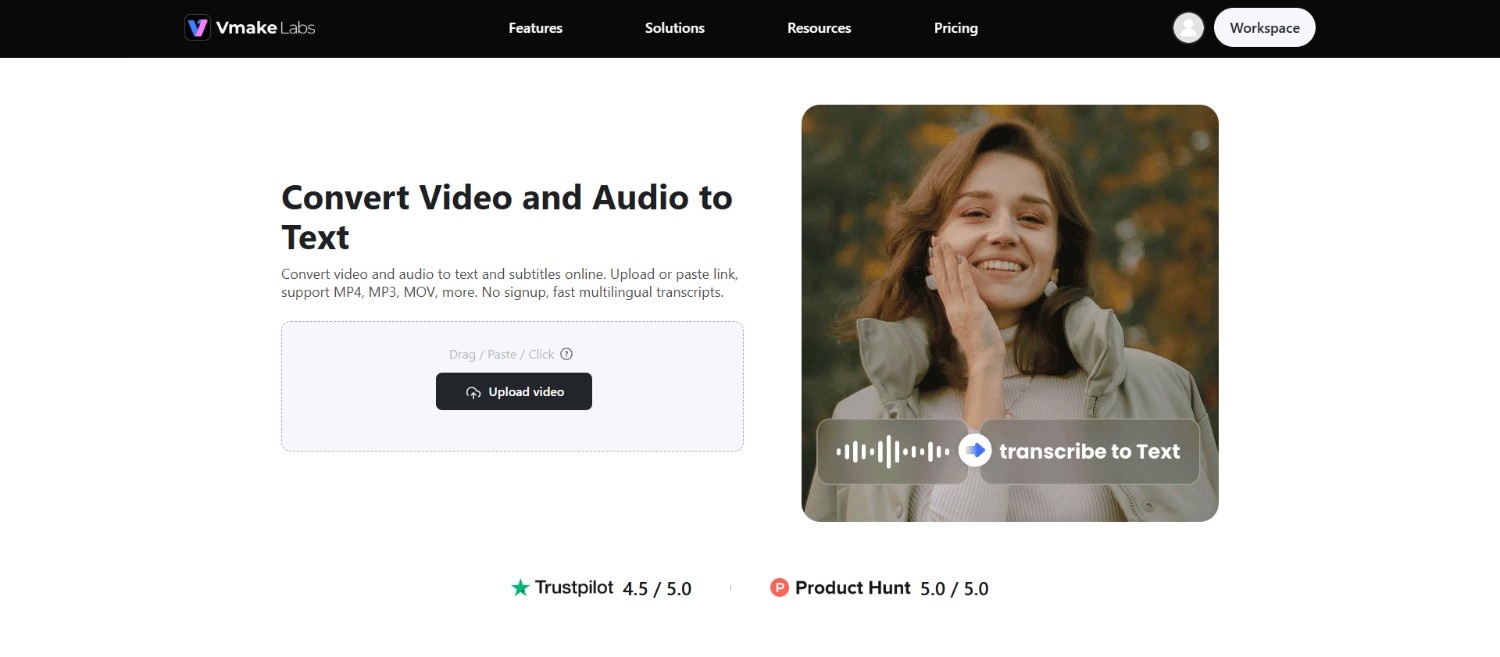
Step 1: Upload your audio or video
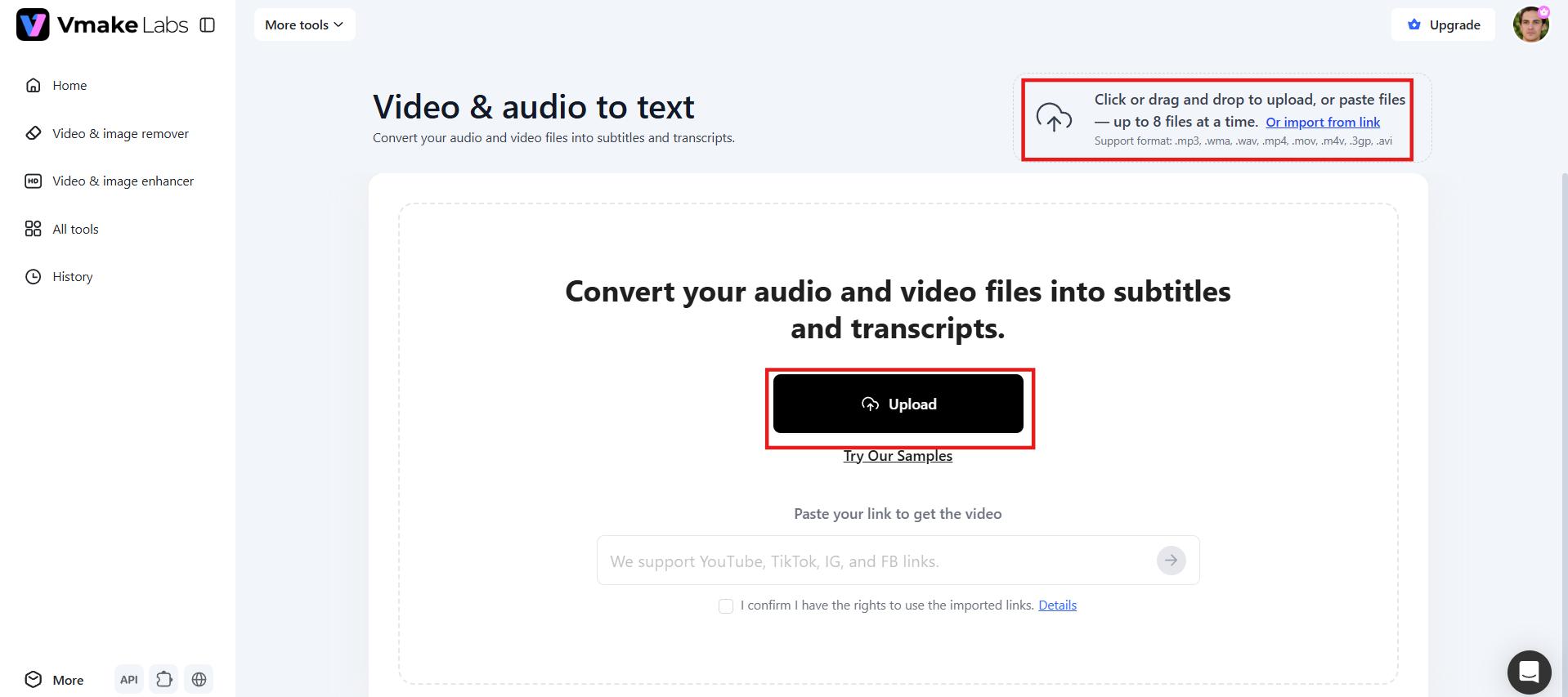
Begin your journey by logging into your Vmake Labs account. Once done, navigate to the "All tools" section and from there, select the "Video & audio to text" tool. Click the "Upload" button to select an audio or video file from your device, or paste a supported link from YouTube, TikTok, Instagram or Facebook. You may add up to 8 files at once.
Step 2: Generate the transcript automatically
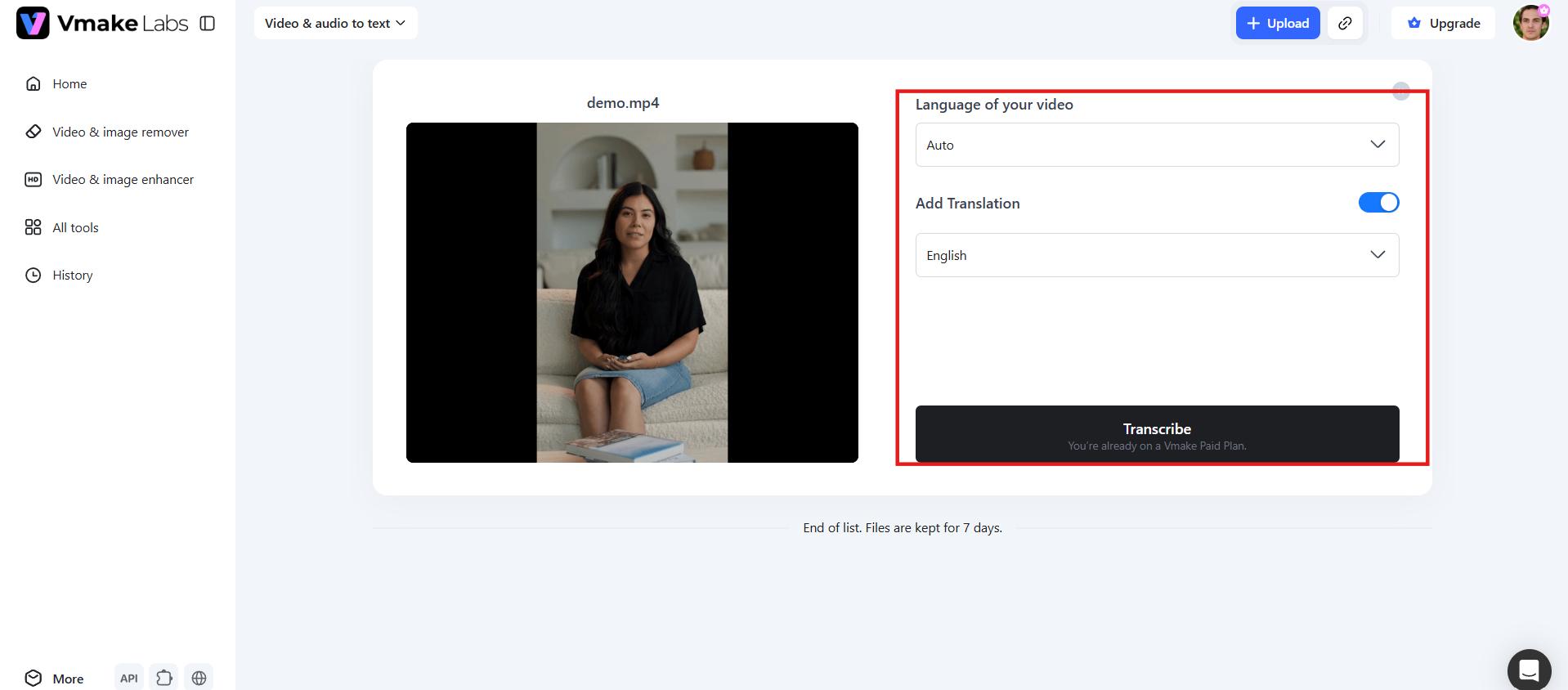
After your file uploads, choose the language of your audio or leave it on Auto. If needed, enable "Add Translation" and select the target language. Then click "Transcribe." Vmake Labs will process your file and generate an accurate transcript automatically.
Step 3: Edit and export your transcript
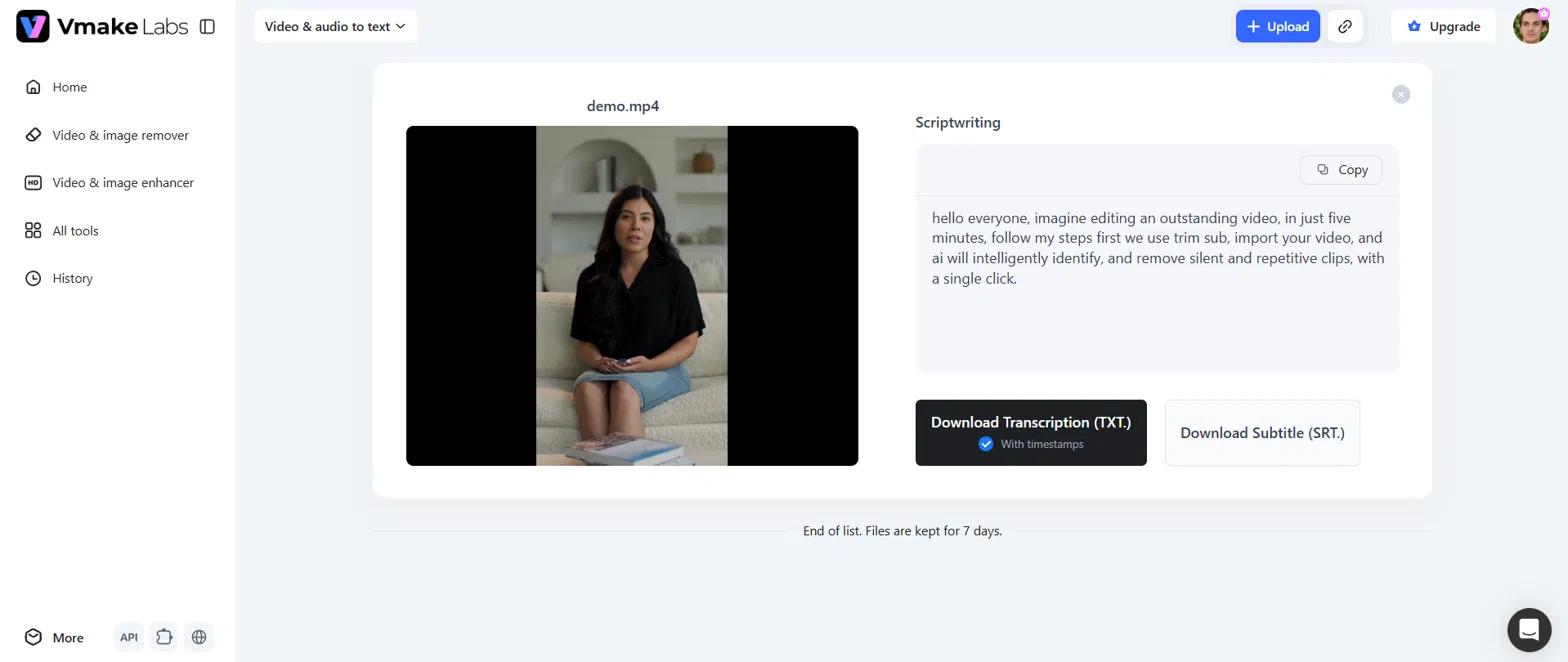
Your transcript shows up under Scriptwriting, ready to copy or edit. When it looks good, download it as a TXT file with timestamps, or grab the SRT subtitle file to drop straight into your video editor.
Key features of Vmake Labs
-
Direct social media link transcription: You don't need to manually download video files from the web first. Simply copy and paste public links from platforms like YouTube, TikTok, Instagram, or Facebook. Vmake Labs instantly extracts the underlying audio track in the cloud, saving you massive amounts of bandwidth and local storage space.
-
Export subtitle-ready SRT files: Along with a plain text version, Vmake Labs generates an SRT file you can drop directly into a video editor or captioning tool. This makes it a natural fit for turning long-form video into short clips with burned-in captions, something Evernote's transcription output isn't built for since it's designed to live inside a note, not a video timeline.
-
Multilingual transcription and translation: Vmake Labs detects the spoken language automatically and can generate a translated version in the same session. Creators working with international audiences can transcribe a video in its original language and get a translated script without running it through a second tool.
-
Batch processing: Upload up to 8 audio or video files together and let Vmake Labs transcribe them all in one pass. This matters for anyone handling a backlog of interviews, podcast episodes, or client videos. Evernote's transcription tools work one file at a time, so Vmake Labs saves real hours for high-volume users.
-
Creator-focused content repurposing: The entire environment is optimized for rapid production workflows. Because the workspace is unbundled from a heavy note-taking platform, you can quickly dump media, pull out clean text blocks, edit them side-by-side, and convert long-form audio into short-form text assets without cluttering a permanent digital archive.
Evernote vs Vmake Labs: Which should you use?
Choosing the right tool comes down to your current workflow and what you plan to do with the text once it is generated.
| Feature | Evernote AI Transcribe | Vmake Labs |
|---|---|---|
| Primary Use Case | Centralized personal knowledge base, text note organization, and quick meeting recaps. | High-speed video/audio production, multi-platform transcription, and rapid content creation. |
| Social Media Links | Limited (supports embedding online videos like YouTube, but processing is restricted). | Yes. Direct cloud audio extraction from YouTube, TikTok, Instagram, and Facebook links. |
| Batch Processing | Limited, one file at a time in most flows | Yes, up to 8 files at once |
| Subtitle Export (SRT) | Limited, not the primary export format | Yes, perfectly timed and downloadable |
| OCR Support | Yes, extracts text from images and handwriting | Focuses on audio and video transcription (no OCR) |
| Translation | Basic multi-language recognition for the primary language spoken. | Yes, built-in transcription plus dynamic translation into target languages during the same session. |
| Speed | Good for short notes | Faster for heavy video workloads |
| Best for | Meeting notes, research, and personal knowledge management | Podcasts, interviews, lectures, meetings, social media, video captions, and content repurposing |
Evernote AI transcribe is a solid choice if you already use Evernote for note-taking and want transcription built into that workflow. It handles audio, video, images, and even handwriting without needing another app.
But if transcription is your main task, especially for longer recordings or subtitle work, Vmake Labs offers more flexibility. It skips the account setup, supports batch processing, and exports clean SRT files ready for video editing.
Conclusion
Evernote AI transcribe offers a convenient way to turn audio and video into text while staying inside your familiar note-taking workspace. It works well for quick captures and organized notes. However, for heavier use, faster processing, or more flexible exports, dedicated tools like Vmake Labs provide a smoother experience with fewer restrictions. Try both and see what fits your needs best.
FAQs
Is Evernote transcribe free to use?
Evernote offers basic transcription features within its free tier, but it is subject to the standard monthly upload limits of the free plan. Heavy usage, larger file uploads, and advanced AI features typically require a paid subscription.
How accurate is Evernote AI transcription?
Evernote AI delivers good accuracy for clear recordings in quiet environments and common accents. Results may drop with background noise, multiple speakers, or technical terms. Always review and edit the transcript for important work. Accuracy also improves with better audio quality.
What file formats does Evernote AI transcribe support?
Evernote transcribe feature supports common audio and video formats including MP3, MP4, WAV, M4A, MOV and MKV. Vmake Labs supports these too, plus a few extras like WMA and 3GP, as well as direct video links from YouTube or TikTok.
Can I save and organize transcripts in Evernote notebooks?
Yes, all transcripts generated in the app are saved directly as an editable note, and you can easily sort them into notebooks and tag them for later keyword searches. If you want to use these transcripts outside of a notebook system, Vmake Labs offers a lightweight alternative where you can export your data directly into standalone files.
Can I edit my transcript after it's generated?
Yes. Transcripts appear as fully editable text inside your note. You can fix errors, reformat sections, add your own notes, or pair the transcript with AI Edit to generate a quick summary of the content.

You May Be Interested
VEED.io Audio to Text: Everything You Need to Know in 2026

ChatGPT Video Generator Review: Features, Pricing & Best Alternative
How to Generate Thumbnails with AI: Guide for Optimized Previews
How to Transcribe Video to Text in 2026: Free Online AI Tool