Canva Image Enhancer: Key Features, Pricing, Guide & Alternative
Read our in-depth Canva Image Enhancer review to see how well it sharpens, restores, and upscales photos. Learn how Vmake Labs can help upscale low-resolution photos instantly.
Whether you're enhancing product photos, restoring old memories, or designing social media graphics, image quality can make or break the final result. We tested Canva Image Enhancer on product photos, portraits, and compressed social media images to evaluate its upscaling quality, sharpening, processing speed, and overall usability. This guide is a hands-on analysis, covering its features, pricing, pros and cons and compares it to Vmake Labs for those users who need more advanced image enhancement.
What is Canva AI image enhancer?
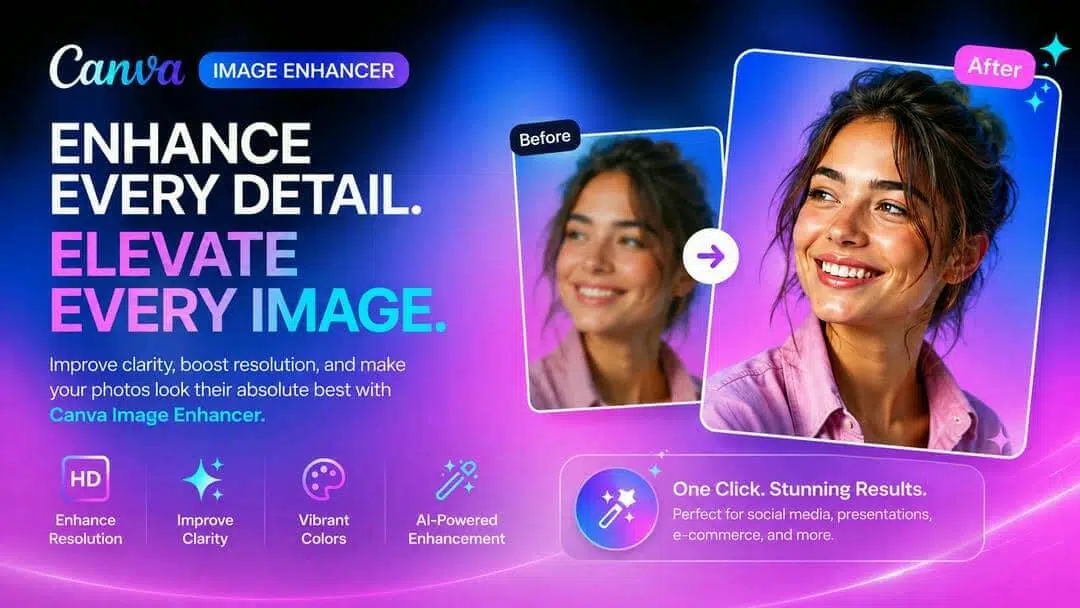
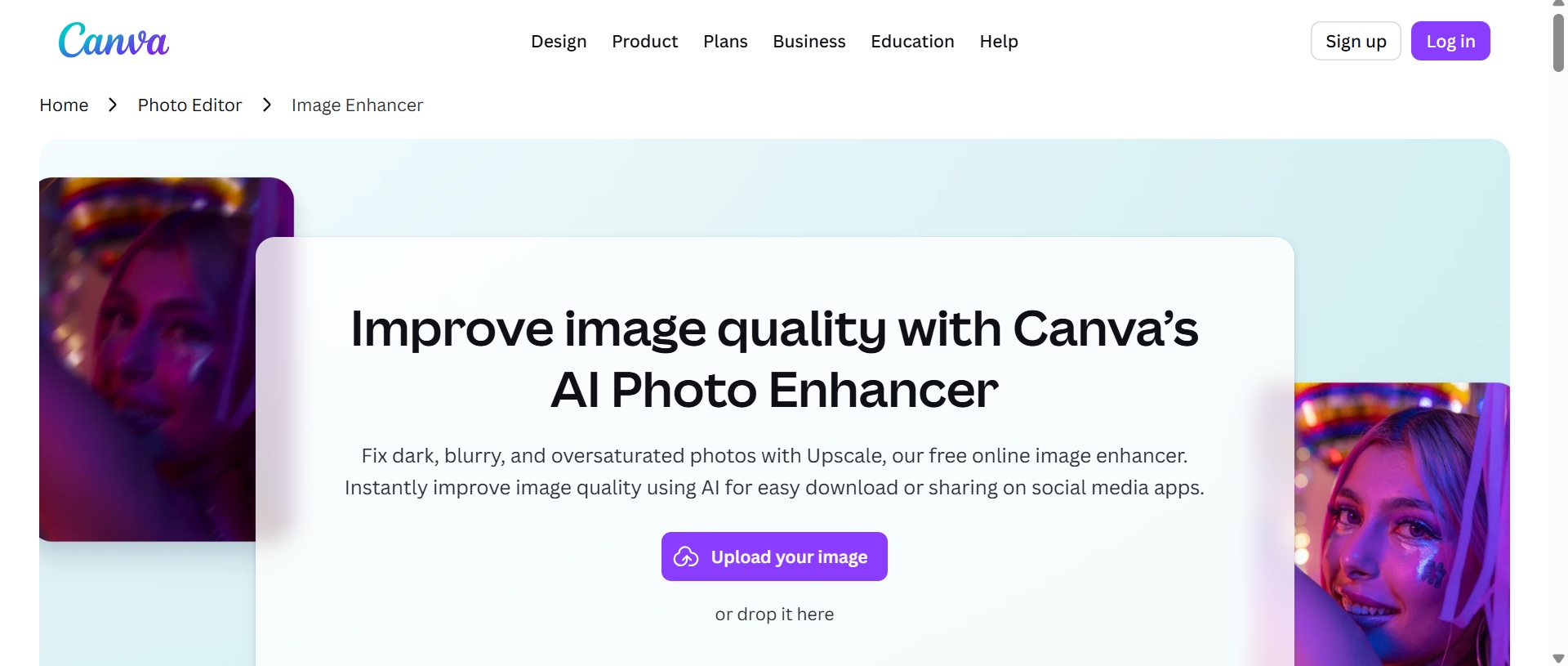
Canva AI Image Enhancer is an AI photo enhancement feature included in Canva's design platform. It automatically analyzes an image and improves its overall quality by increasing clarity, sharpening details, reducing noise and improving its visual appeal instead of manual editing techniques.
However, unlike independent image improvement tools, Canva's AI editing is integrated with its entire graphic design ecosystem. Users can improve an image and immediately continue designing presentations, marketing materials, social posts, thumbnails, posters or product listings without switching applications.
Key features of Canva image upscaler
Canva provides more than just simple photo editing. With the use of its AI-powered enhancing features, users may produce photographs that are clearer, cleaner, and more polished. The key characteristics that make Canva a well-liked option for regular picture enhancement are listed below.
-
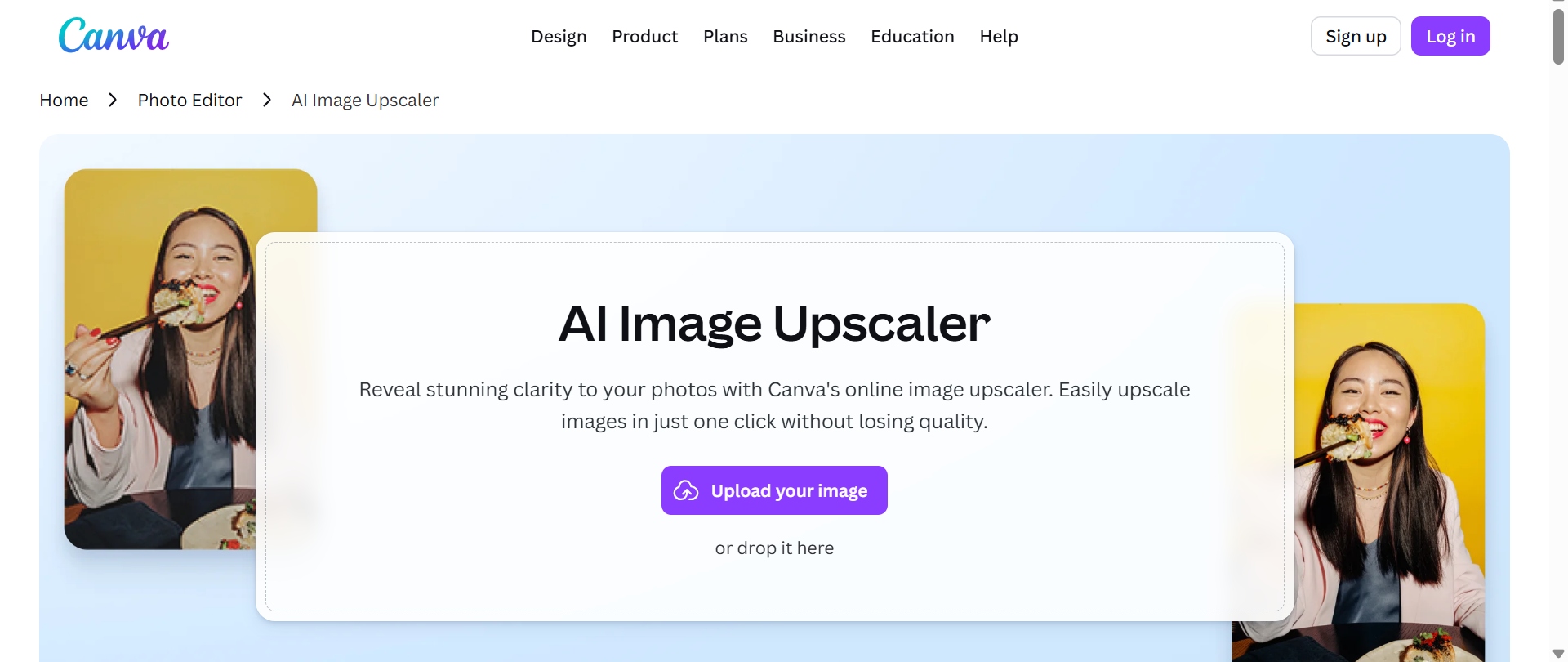
AI upscaling
Intelligent image upscaling is one of Canva's best AI features. AI creates a higher-resolution, sharper image by reconstructing textures and predicting missing information instead of just extending pixels. When increasing low-resolution visuals for posters, presentations, websites, or digital ads, this capability comes in handy. Extremely low-quality photos may still exhibit some artifacts after enlargement, even though it works well on moderately compressed images.
In testing, Canva was able to improve images fairly well using moderate compression, sharpening edges and textures. However, some softness and lack of fine details were still evident in images with very low resolutions and heavy pixelation even after upscaling.
-
Magic Studio
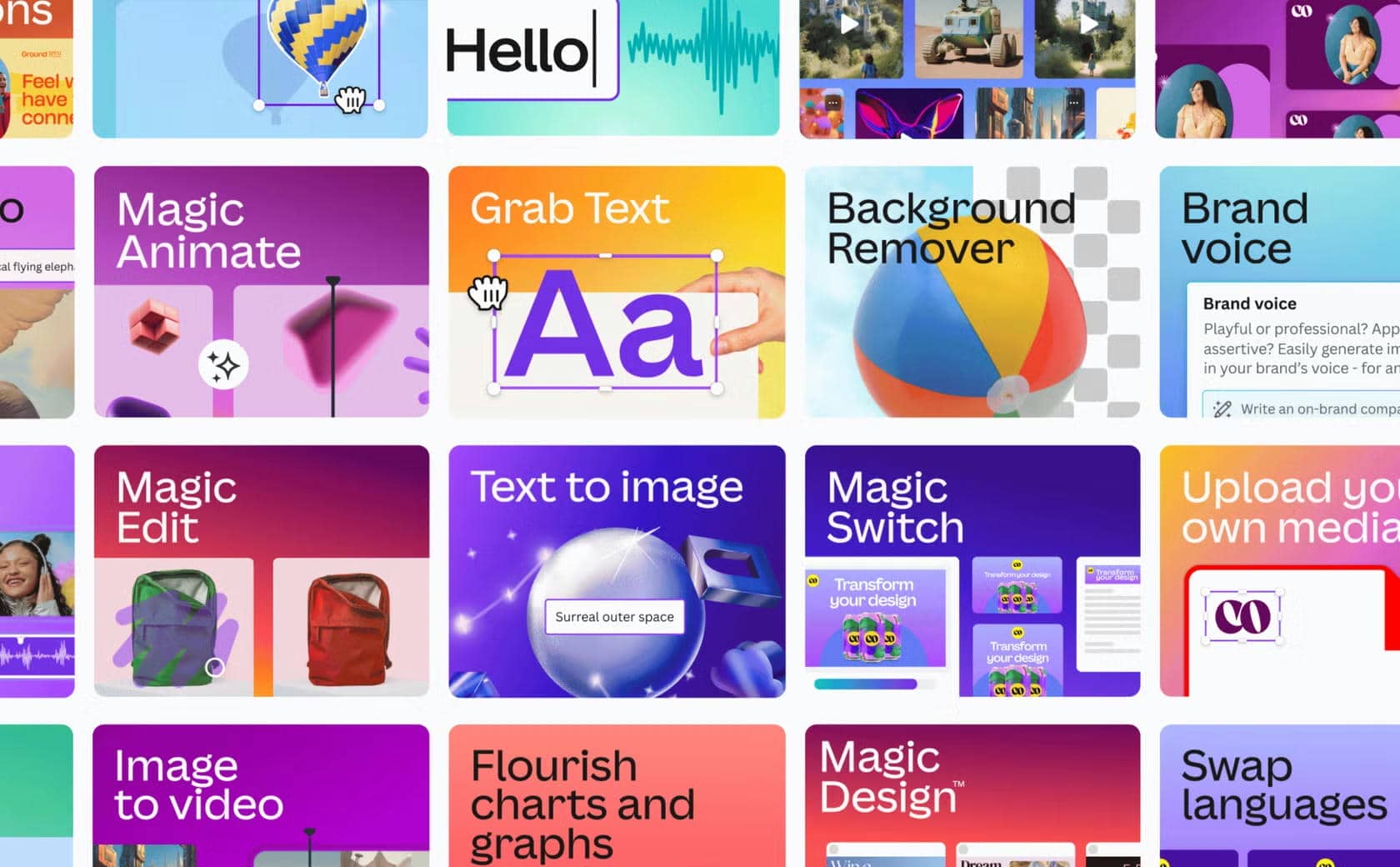
Canva's one-click automated photo enhancing tool is called Magic Studio. Brightness, contrast, color balance, highlights, shadows, and saturation are just a few of the visual properties that it simultaneously modifies. Users may rapidly enhance overall image quality while preserving a natural appearance without having to manually adjust sliders. It is very effective for everyday shots, travel photos, portraiture, and food photography.
Magic Enhance provided nicely balanced improvements for most landscape, food and lifestyle photos in our tests with a single click. The results looked natural overall, but a few brightly lit images looked a little oversaturated and needed some minor manual adjustments.
-
Noise reduction
Digital noise is a common problem with images taken in low-light conditions. Canva's AI removes this image noise, while keeping crucial textures and edges. Noise reduction will clean up your smartphone shots, interior shots, and older digital images without over-smoothing detail.
Canva effectively reduced visible grain in smartphone photos taken indoors or in low light. Fine textures such as hair and fabric were pretty well preserved, although very noisy images were sometimes a little smoother than the original.
-
Image sharpening
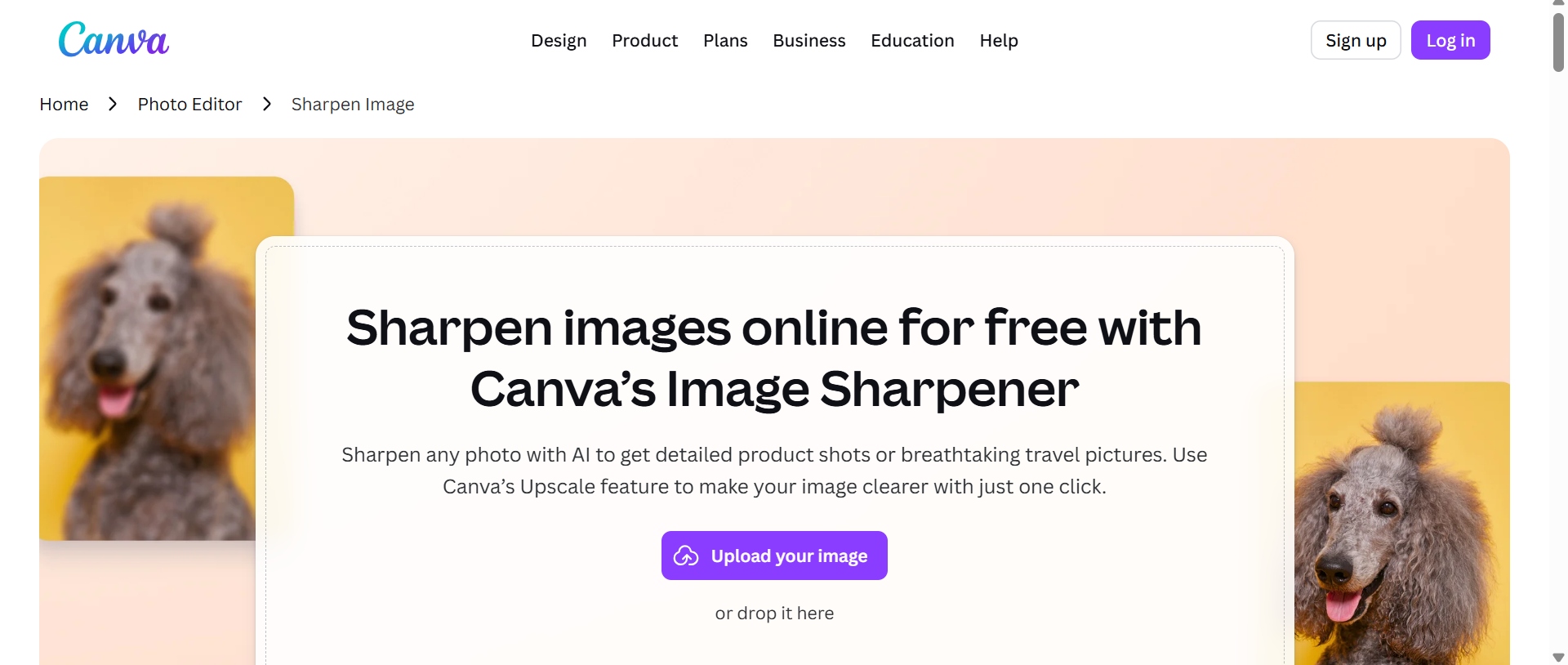
Canva will automatically sharpen soft edges and bring out delicate detail that could have been lost by camera shake, resizing or compressing the image. This feature is particularly useful for product photos, text within graphics, web graphics, and logos, and portraiture photography. Sharper photographs tend to look more professional on digital platforms.
The sharpening feature was very effective in improving clarity of text, product images and architectural details, especially on images that were slightly soft. But it didn't have enough data to pull out all the details from photos with a lot of motion blur or poor focus.
-
AI filters & effects
Canva doesn't only provide simple enhancement. There are tons of AI-generated filters and creative effects that alter the atmosphere and style of an image. Users may easily add creative looks, cinematic color grading, retro aesthetics, black-and-white effects, or trendy social media styles to their edits. As these tools are built into Canva's design editor, users can play in various visual styles without leaving the platform.
AI filters are simple to use and come in a wide range of creative styles for social media and marketing visuals. Most effects yielded good image quality, but some artistic filters altered colors so much that slight adjustments were necessary to maintain a consistent brand look.
How to enhance image quality in Canva: Tutorial
Improving a picture with Canva is quite simple and just takes a few clicks. The platform combines AI-powered editing into its creative workspace, so users can modify photo quality and keep designing without switching apps. Here's how to use Canva to upscale images efficiently.
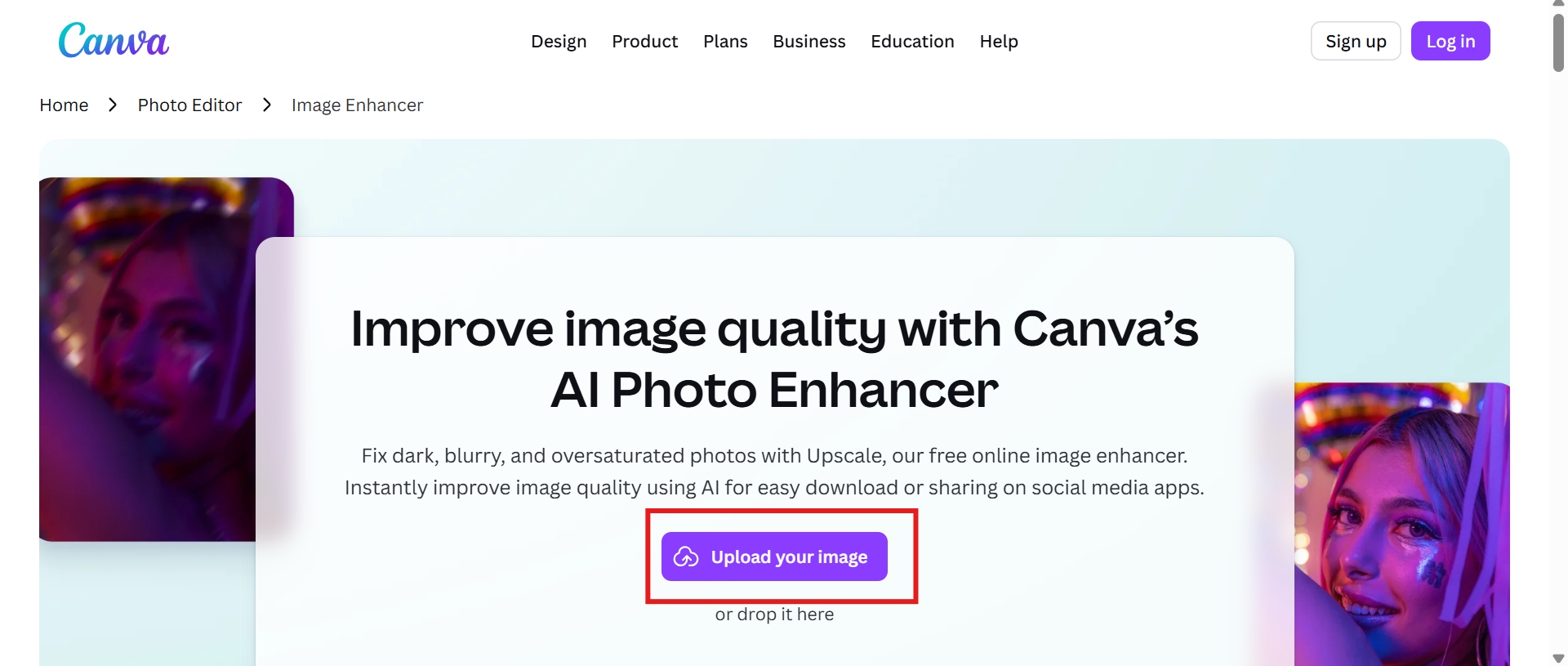
Step 1: Upload an image
Open Canva and start a new design or open an existing design. Click Uploads on the left sidebar and choose the image you wish to enhance from your computer or cloud storage. Upload it, and then drag the image onto the canvas to start editing.
Step 2: Select the image and open the editing tool
Click on the image on the canvas to open up Canva's editing toolbar. Next, choose Edit photo to open a panel containing Canva's AI-powered editing features, effects, and adjustment tools. Here are options to improve images, such as Magic Edit and other AI editing features.
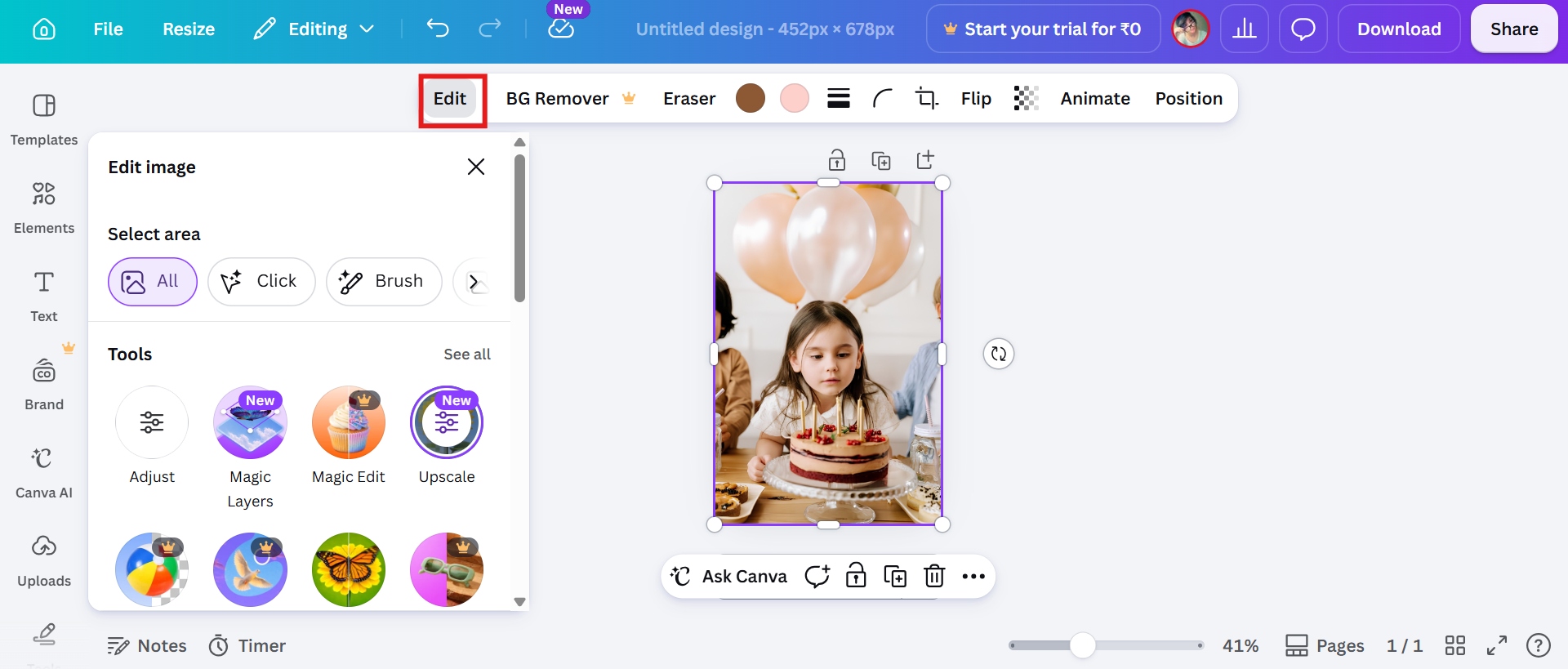
Step 3: Enhance images with AI
Choose the AI enhancement you want to use. Canva will analyze your image and automatically enhance things like sharpness, brightness, color balance, clarity and noise reduction.
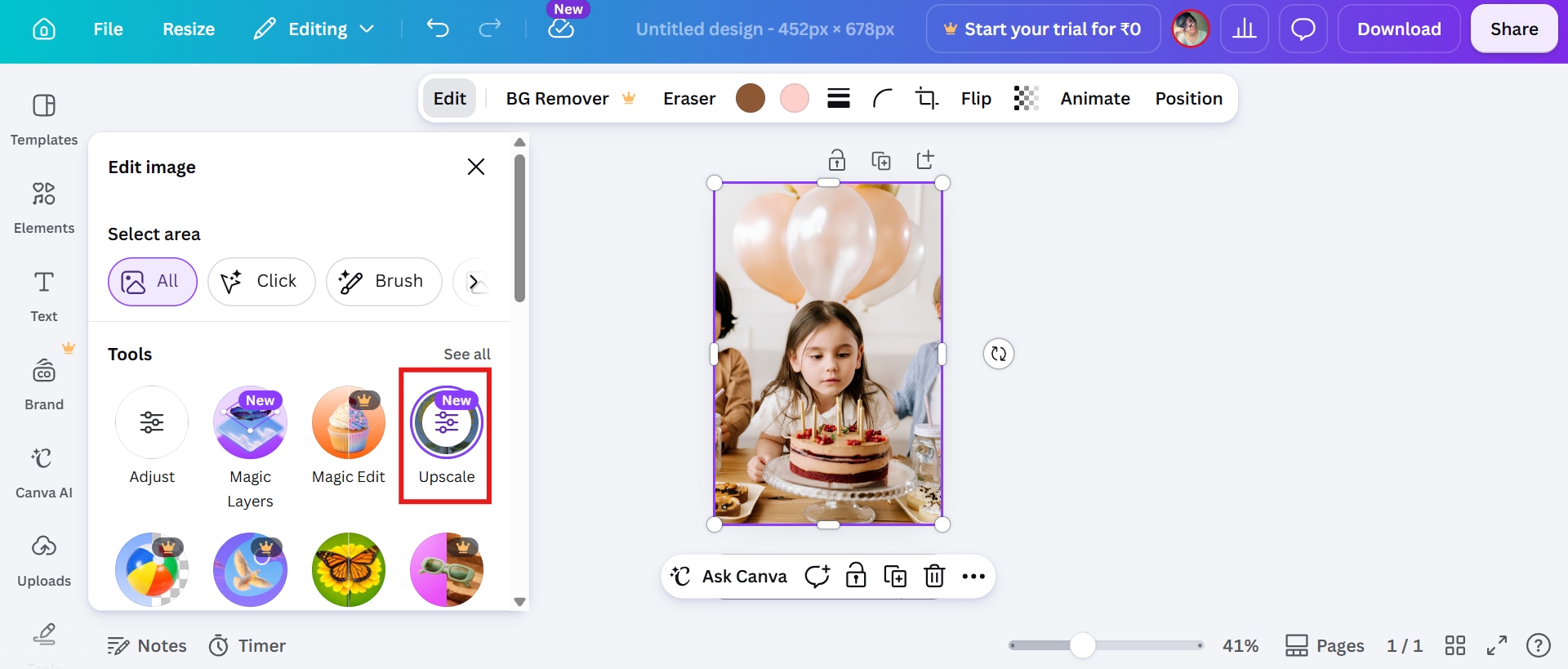
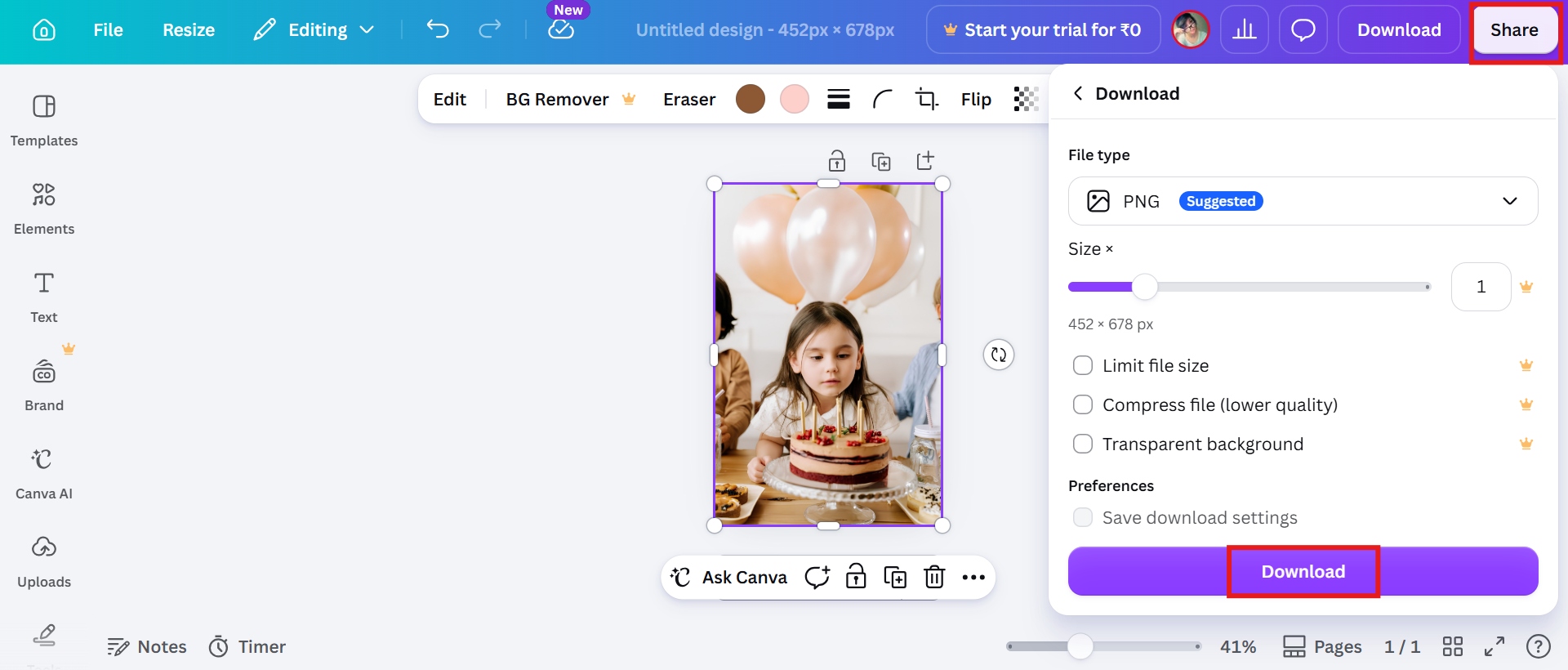
Step 4: Download the image
When you're satisfied with the output, click on the Share button in the upper right corner and choose Download. Select the file type you prefer. PNG is a good option for high-quality images, while JPG is best for reduced file sizes.
Canva AI image upscaler: Pricing, pros and cons
Canva has a few subscription plans, but you don't need all the plans if your main aim is to improve images. For most individual users, comparing the Free and Pro plans is enough, since the Teams (Business) and Enterprise plans essentially only offer more collaboration and admin functions, not better AI image enhancement.
Pricing Plan
|
Free |
Pro |
Business |
Enterprise |
|---|---|---|---|
|
US$0 |
US$144 |
US$250 |
Let's talk |
|
|
|
|
Is Canva Pro worth it for image enhancement?
If your main requirement is to occasionally sharpen or enhance photos for social media, presentations, or personal projects, the free plan is sufficient. It offers access to Canva's editor with basic photo enhancement features, so it's a good option for casual users.
But if you're consistently making marketing content, YouTube thumbnails, product listings, or branded visuals, Canva Pro is a much better value. If you're already using Canva for design work, you get access to Canva's entire AI editing toolkit, premium assets, and a more streamlined creative workflow.
Who should use the Free plan?
If you only need to enhance images occasionally, then the Canva Free plan is a good option. If your aim is to improve images for social media posts, school projects, presentations, or personal use, the free tools are usually enough to produce clean and appealing visuals.
Who should use the Pro plan?
If you regularly enhance images in your content creation workflow, it’s worth looking into Canva Pro. This is particularly useful for marketers, designers, freelancers and companies that produce branded graphics, product images or promotional material on a regular basis.
Pros & Cons
Like AI image editing tools, Canva has its advantages and disadvantages. Its major strength is the combination of AI image enhancement with a complete graphic design platform, which is useful for everyday creative work. However, those seeking professional-level upscaling or expert restoration can find certain limits. Let's take a closer look at the positives and downsides of Canva Image Enhancer.
|
Pros |
Cons |
|---|---|
|
|
Feedback of Canva image resolution enhancer: What people actually say
Overall, users appreciate Canva for its ease of use and seamless design experience, while some note that its AI image enhancement tools are better suited for everyday editing than professional photo restoration.
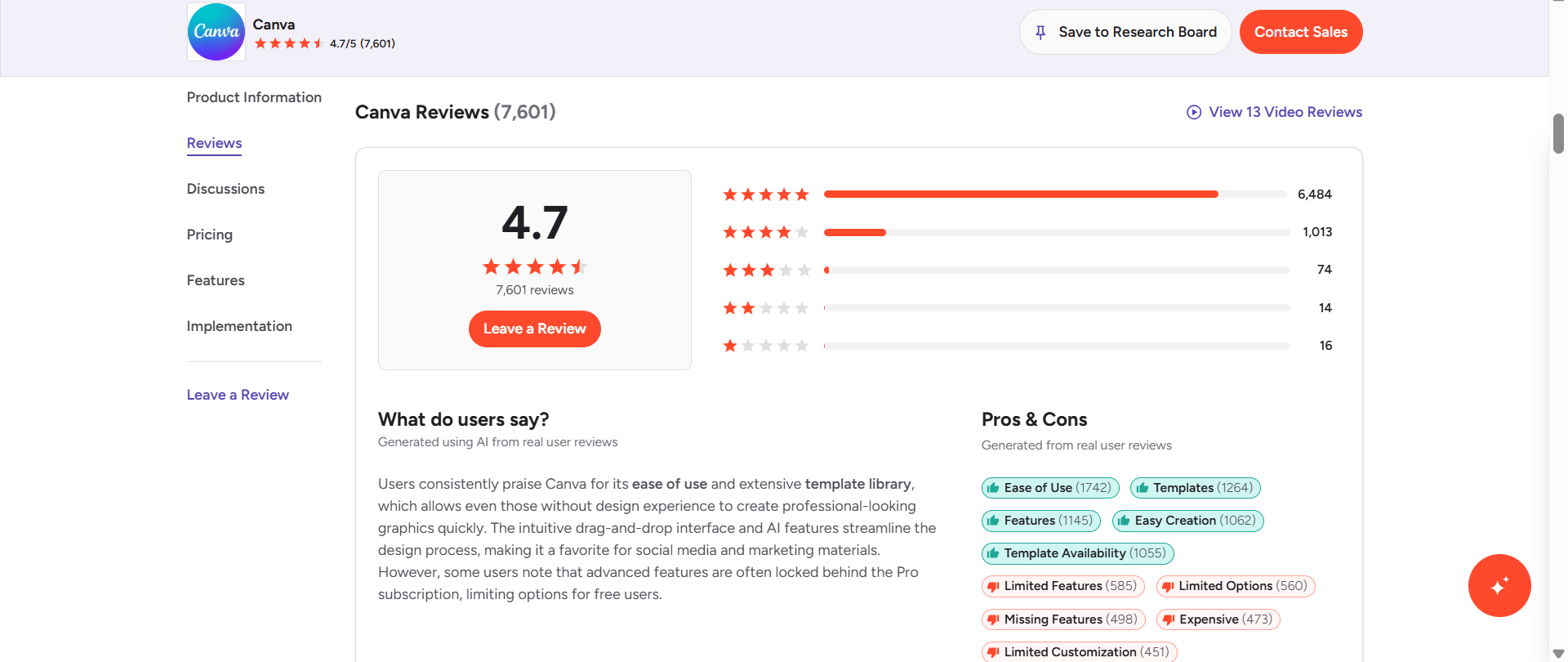
Positives:
Easy to use: Users consistently praise Canva's intuitive interface, saying they can enhance images and create designs without prior editing experience.
Excellent design workflow: Many reviewers appreciate being able to improve images and immediately use them in presentations, social media posts, and marketing materials without switching to another application.
Fast one-click enhancements: Magic Enhance and other AI tools are frequently mentioned for saving time by automatically improving brightness, sharpness, and color.
Negatives:
Limited AI enhancement: Several users mention that Canva's enhancement tools work well for basic improvements but don't produce dramatic results on heavily compressed or low-quality images.
Premium features behind a paywall: Advanced AI editing tools and some enhancement capabilities require a Canva Pro subscription, which some free users find restrictive.
Not suitable for professional restoration: Users looking to restore old photos, recover fine details, or perform advanced AI upscaling often find Canva less capable than dedicated image enhancement software.
Canva image enhancer is a good option for everyday photo editing, especially if you're already designing in Canva. With AI technology, you may improve photos without any advanced photo editing abilities. Ideal for students, content creators, marketers, and small businesses.
However, if you're a user who often restores old photos, upscales images to ultra-high resolutions, or processes big batches of images, then a dedicated AI image-enhancing platform can be a good pick. That's where Vmake Labs powers a few more capabilities.
Meet Vmake Labs: A popular alternative to Canva's image enhancer
Vmake Labs is an AI-driven platform for image enhancement. Unlike Canva, which focuses on overall graphic design, Vmake AI image enhancer focuses on professional-grade AI enhancement that is suitable for photographers, e-commerce sellers, designers, and businesses that deal with a large volume of images. The browser-based workflow, several enhancement modes and support for ultra-high resolution outputs make it a great alternative for customers who need more advanced image processing.
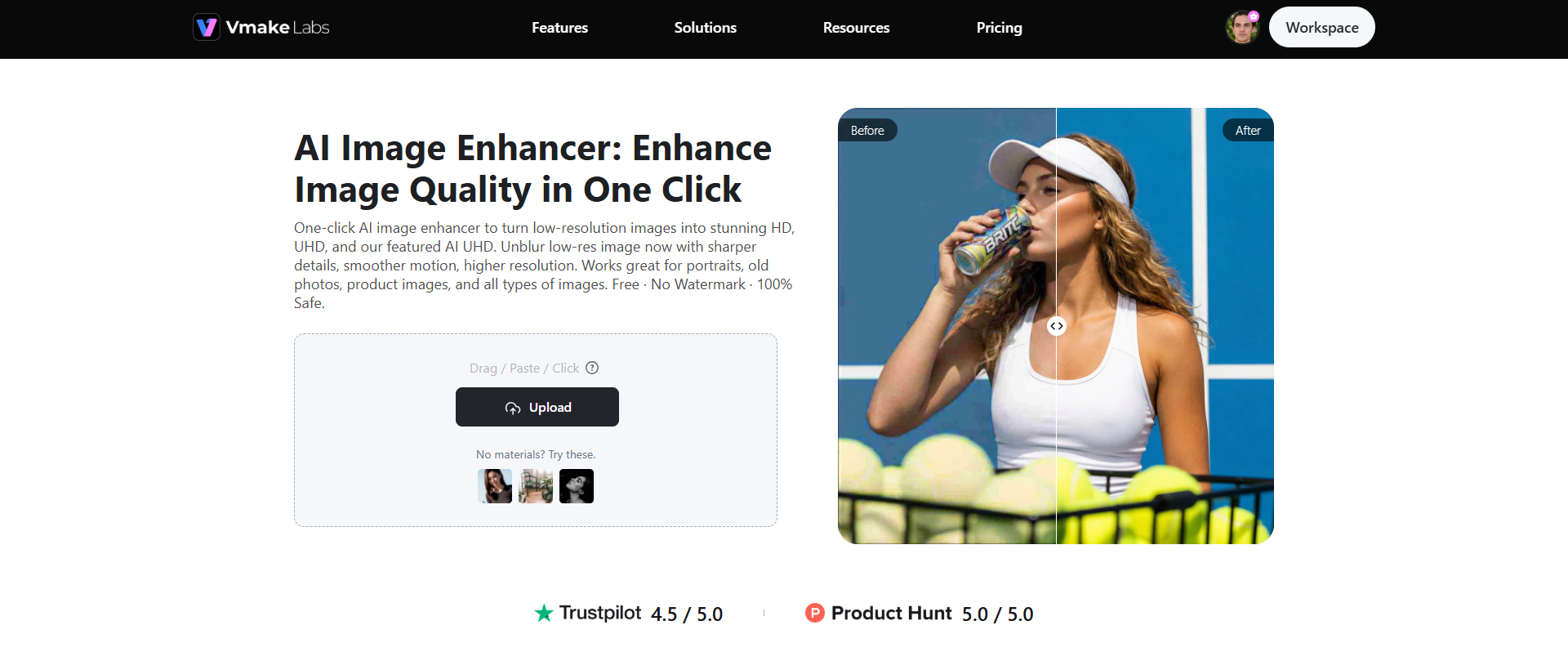
Step-by-step guide
Step 1: Upload an image
Go to Vmake Labs Image Enhancer and add your image by dropping it into the upload box or choosing it on your device. Click "Upload" to import the image you want to enhance.
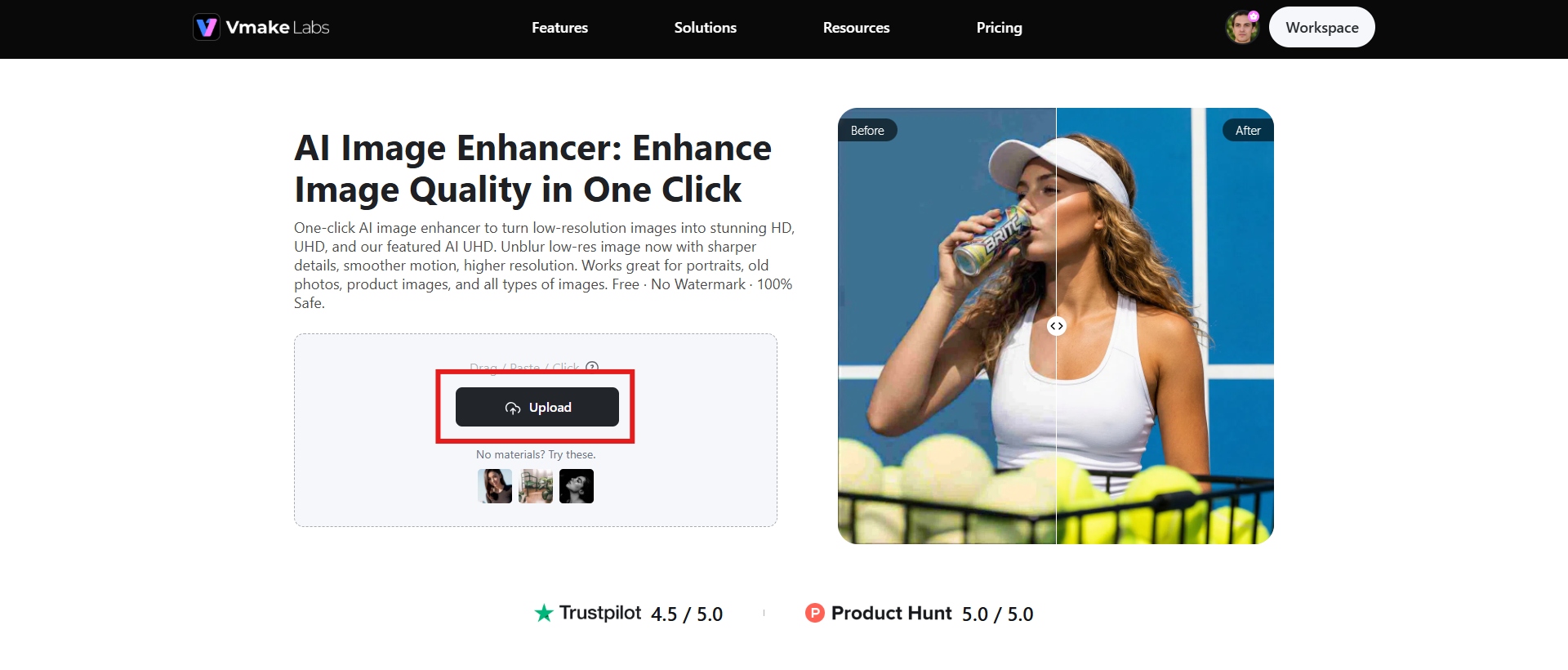
Step 2: Let AI perform image enhancement
Select the mode and type of enhancement you want to perform. Click "Apply", and the AI will automatically increase clarity, reduce noise, sharpen details and increase resolution based on your choices.
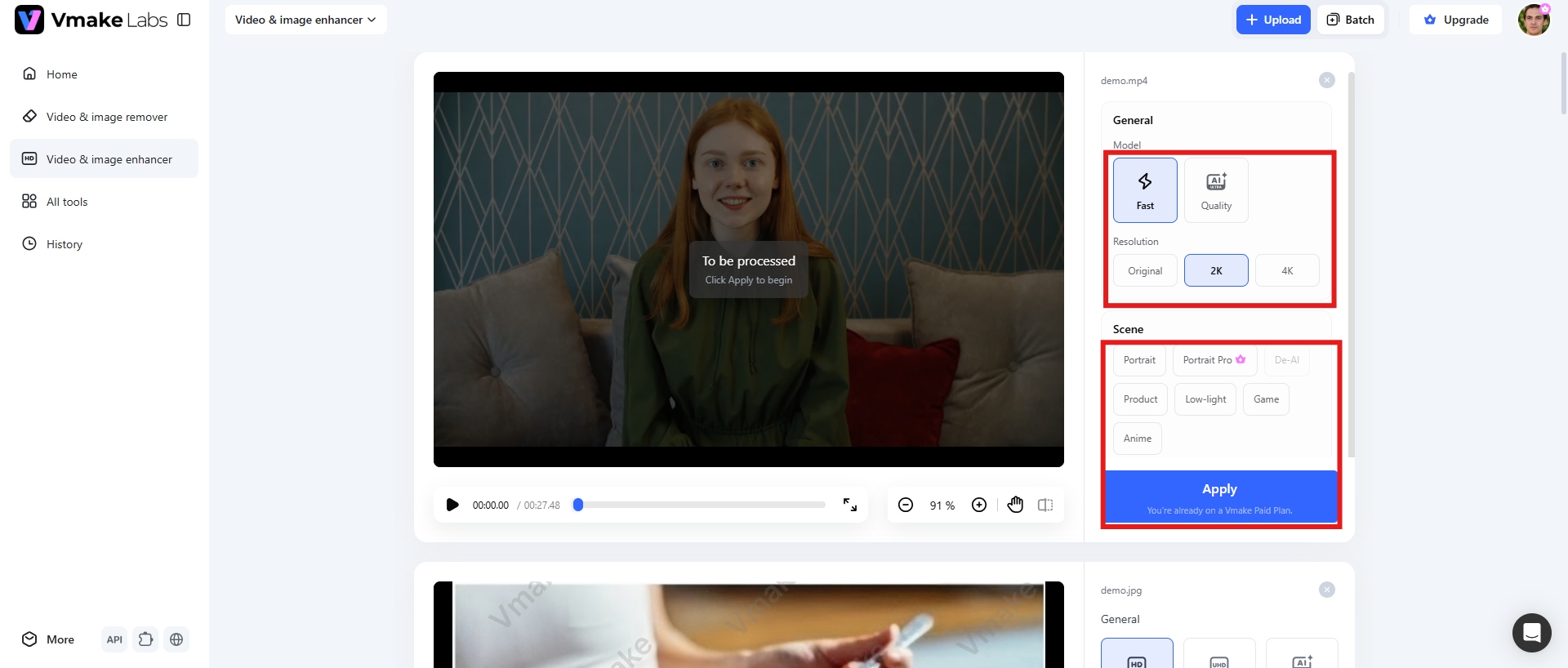
Step 3: Download the image
Preview the improved version, then download the final high-definition image for personal or business use. Click "Download" to save the enhanced image.
Key features
-
Scene mode (Portrait/Portrait Pro, Old Photo, Product)
Vmake has AI models customized for different image types. Instead of applying universal enhancement to all photographs, users can select the method that best fits the image they want to enhance, such as increasing facial details, recovering old photos, or boosting product photos for e-commerce listings.
-
Clarity options (HD, UHD, AI UHD, 8K, 16K)
Unlike many online editors, Vmake offers several levels of output quality. Depending on the project needs, users can upscale photos to HD, UHD, AI UHD, 8K, or even 16K, which is ideal for both digital publishing and large-format printing.
-
Browser-based editing
You don't need to install any software. Vmake is totally browser-based, so users may enhance photos on Windows, macOS, iPads and other supported platforms with a consistent workflow.
-
Batch enhancement
Vmake allows businesses and professionals who deal with multiple images to batch enhance up to 30 images at a time. This cuts down editing time dramatically for product catalogs, photo shoots and marketing campaigns.
Final checklist: Canva image enhancer vs Vmake Labs
|
Features |
Canva |
Vmake Labs |
|---|---|---|
|
Primary purpose |
Graphic design with AI editing |
Dedicated AI image enhancement |
|
Scene-specific AI models |
Limited |
Portrait, Portrait Pro, Product, Old Photo |
|
Design templates |
Design templates |
No templates available |
|
Best for |
Designers, marketers, beginners |
Photographers, e-commerce sellers, professionals |
|
Pricing |
Free trial available Paid plans start from $144 |
Free trial available Paid plans start from $9.99 |
Choose Canva if...
-
You need to create visual layouts: You want access to built-in graphic design templates for marketing assets, social media posts, presentations, or documents.
-
You want a multi-purpose tool: Your goal is to combine text, graphic elements, and basic AI photo edits all within a single application workspace.
-
Your primary audience includes marketing teams or beginners: You need an accessible, beginner-friendly interface built for collaborative design and broad content creation workflows.
Choose Vmake Labs if...
-
You require specialized image enhancement: You need advanced, scene-specific AI models tailored for precision editing, such as high-quality portrait workflows, product photography cleanup, or restoring old photos.
-
You are an e-commerce seller or professional photographer: You already have your own layouts or assets and simply need a dedicated tool to maximize raw image quality and motion realism.
-
You want lower, budget-friendly entry pricing: You prefer a lower starting price point for dedicated AI processing features, with paid tiers starting at $9.99 rather than jumping directly to a higher monthly tier.
Conclusion
The Canva image enhancer is a great all-in-one AI editing solution if you're already designing in Canva. It's an ideal solution for beginners, marketers, teachers and content creators who want quick upgrades without having to learn professional editing software thanks to its intuitive interface, automatic enhancements, and smooth integration with templates. It is great for simplicity, ease of use and design integration, letting users improve photos and continue to create graphics within a single workflow.
But if you need advanced photo restoration, aggressive AI upscaling, ultra-high-resolution output, or large-scale batch processing, then a dedicated enhancement platform may be more suitable. These are cases where Vmake Labs offers specific AI models, more clarity choices up to 16K, and batch enhancement features that are better suited for professional photography and commercial image editing needs.
FAQs
Is Canva image enhancer free?
Yes. The free plan of Canva offers basic image enhancement features. But some of the more complex AI tools, including the Magic Studio features and some of the premium enhancements, do require a Canva Pro or Teams subscription.
Can Canva improve blurry photos?
Yes. Canva has AI-powered enhancement tools that can sharpen slightly blurry images and improve overall clarity. It does a great job on ordinary shots, but not so much on highly blurred images.
What types of images can Canva enhance?
Canva supports a wide array of image types, from portrait images to product shots, social media graphics, landscape images, marketing material, website images and scanned images. In general, the best outcomes are with photographs that already have a fair amount of detail.
Which image enhancer is suitable for professional photography?
Dedicated AI improvement tools will often be useful to professional photographers, including advanced restoration, higher-resolution upscaling and specific processing options. Canva is great for short changes and design projects, but you may want to explore more advanced options such as Vmake Labs for professional image enhancement.
What is the best alternative to Canva's image upscaler?
Vmake Labs is one of the best alternatives to Canva's image upscaler. It provides scene-specific AI enhancement modes, output resolutions of up to 16K, browser-based editing, and batch processing of up to 30 images, making it ideal for professional photography, e-commerce, and high-volume image enhancement workflows.

You May Be Interested
Best AI Image Enhancer in 2026: Top Tools to Upscale and Fix Blurry Images
Airbrush Video Enhancer Review 2026: Features, Pros, and Cons
Best AI Photo Enhancer Tools in 2026 (Free & Online): Improve Image Quality Instantly
Canva Video Enhancer Review [2026]: Pros, Cons, and Pricing