Flixier Review: Features, Pricing & Performance + Top Alternative
 Ken DawsonMay 22, 2026
Creating polished videos no longer requires expensive software or high-end computers. Browser-based editors like Flixier made video enhancement a lot more approachable, especially if you just need cleaner footage for YouTube, TikTok, ads, or client work. You open a tab, upload a clip, tweak a few settings, and it's done. However, this online video enhancer also has its limits, especially when you work with low-quality footage or poorly lit clips. In this Flixier review, we'll learn how Flixier video enhancer works, which features matter and which feel like filler, what the pricing really looks like once you start exporting regularly, and where it starts to fall behind. We'll also compare it with the top, budget-friendly alternative, Vmake AI, so you can make the appropriate choice.
What is Flixier video enhancer
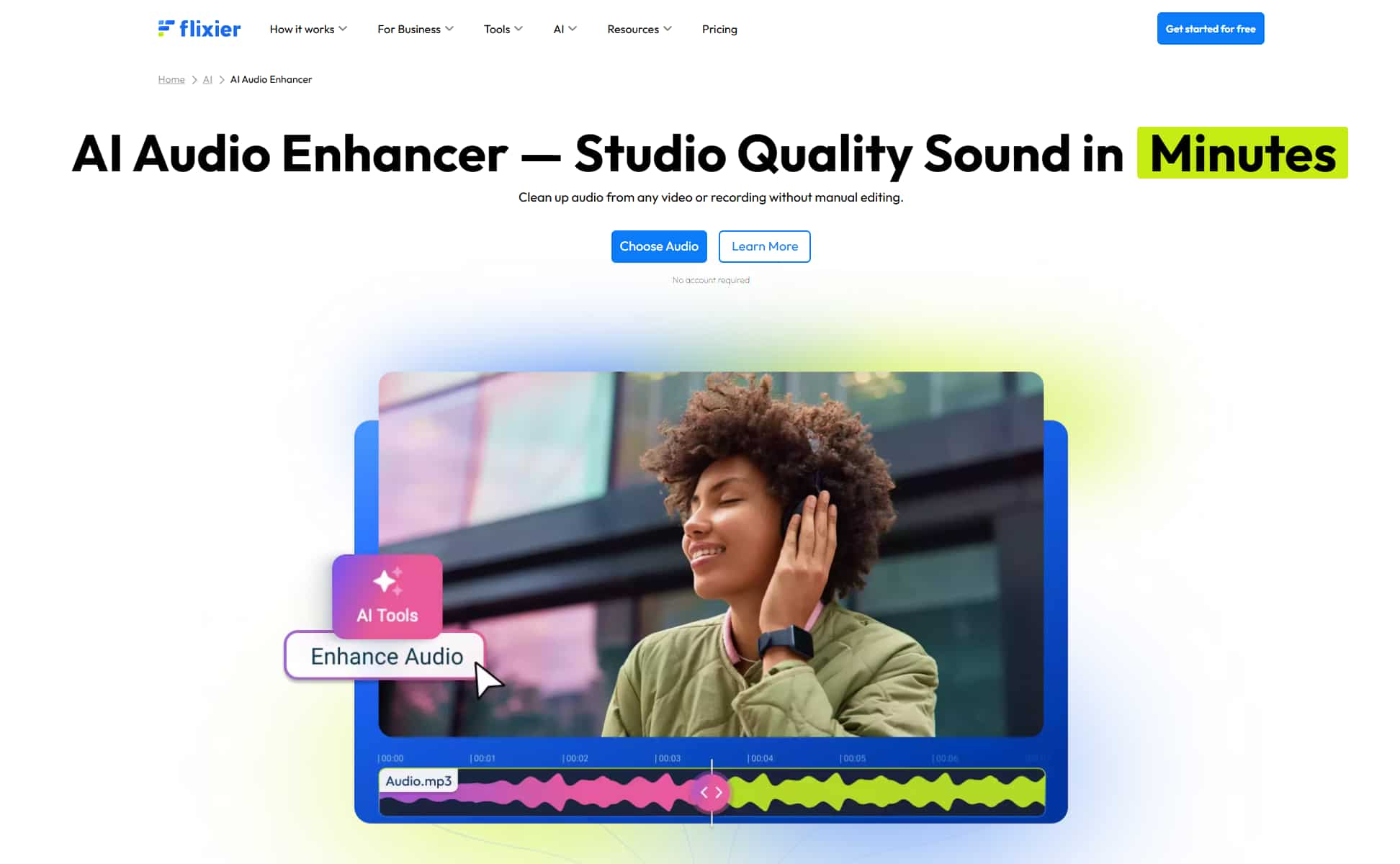
Flixier is an industry-leading, browser-based video enhancer that doesn't require installation. It means that you don't spend an hour updating software before touching your footage. Open your browser, log in, upload a file, and you're already editing within minutes.
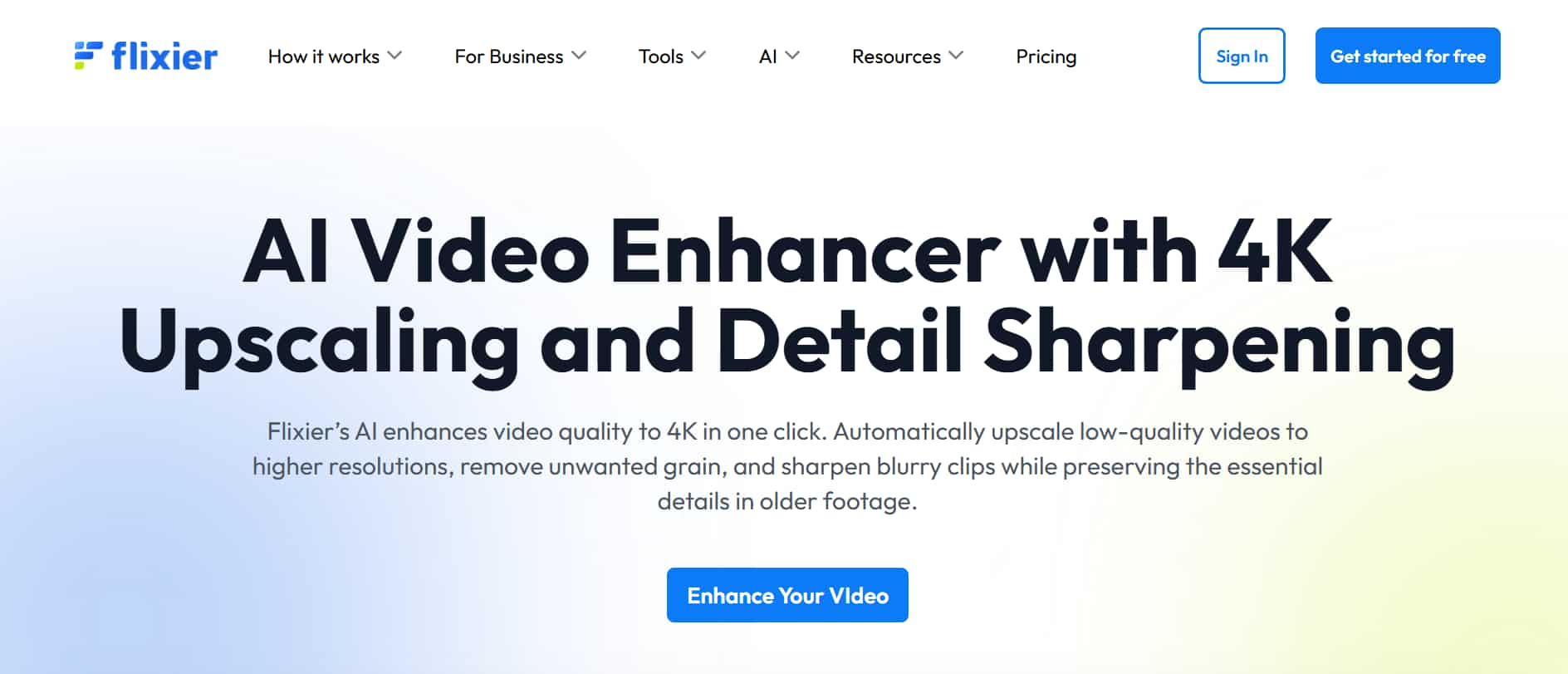
With Flixier video enhancer, the layout is cleaner, the controls are easier to understand, and most features are built around speed instead of precision editing. The biggest selling point is the cloud-based workflow. Your computer doesn't handle most of the rendering workload locally, which means you can edit anywhere. Flixier is mainly built for people who create content constantly and need quick turnaround times more than pixel-perfect control.
However, these enhancement tools work fine for casual cleanup. It's trying to make video editing accessible enough that you actually finish the project instead of abandoning it halfway through.
How does the Flixier AI video enhancer work
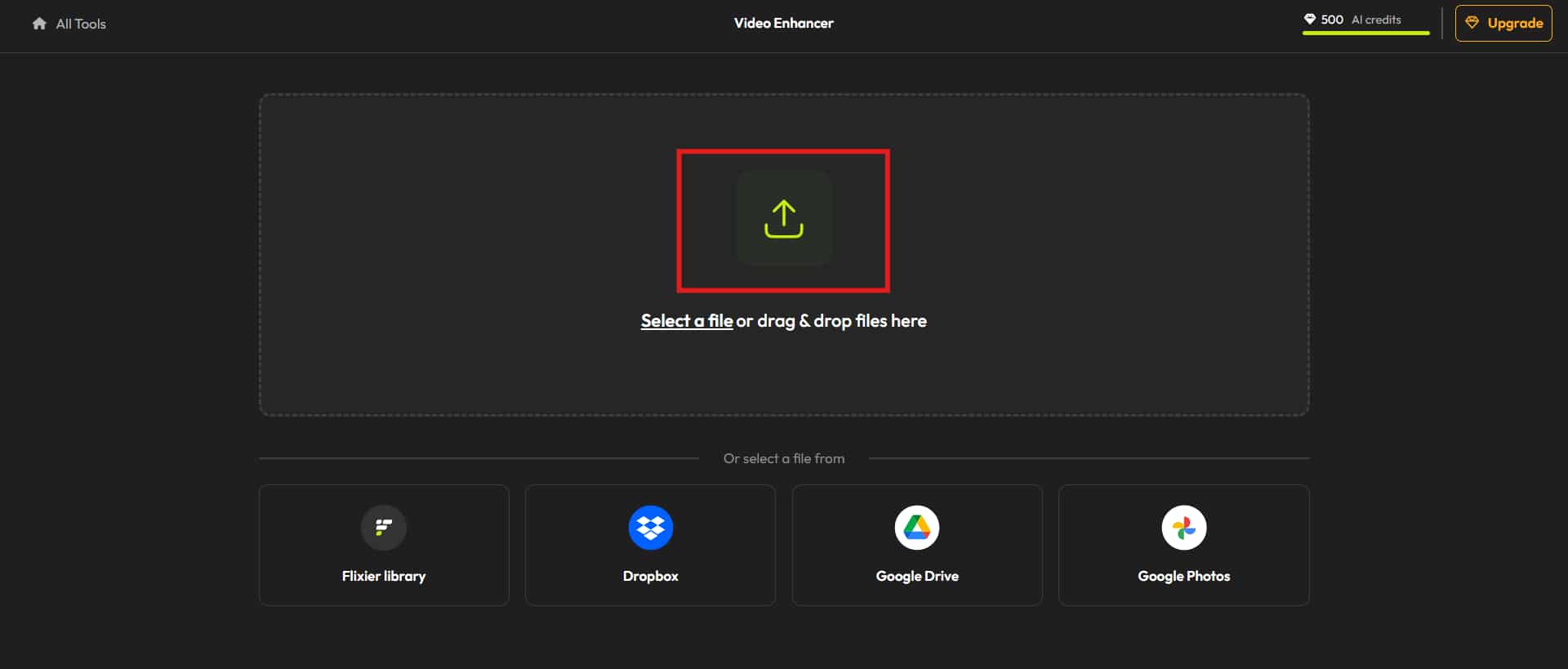
Step 1: Upload a video
You start by uploading your footage directly into the browser. Flixier supports common video formats, so most phone recordings, social clips, webcam videos, and screen captures upload without problems. The platform also connects with cloud storage services, which saves time if your files already live online.
Step 2: Choose an enhancement preset
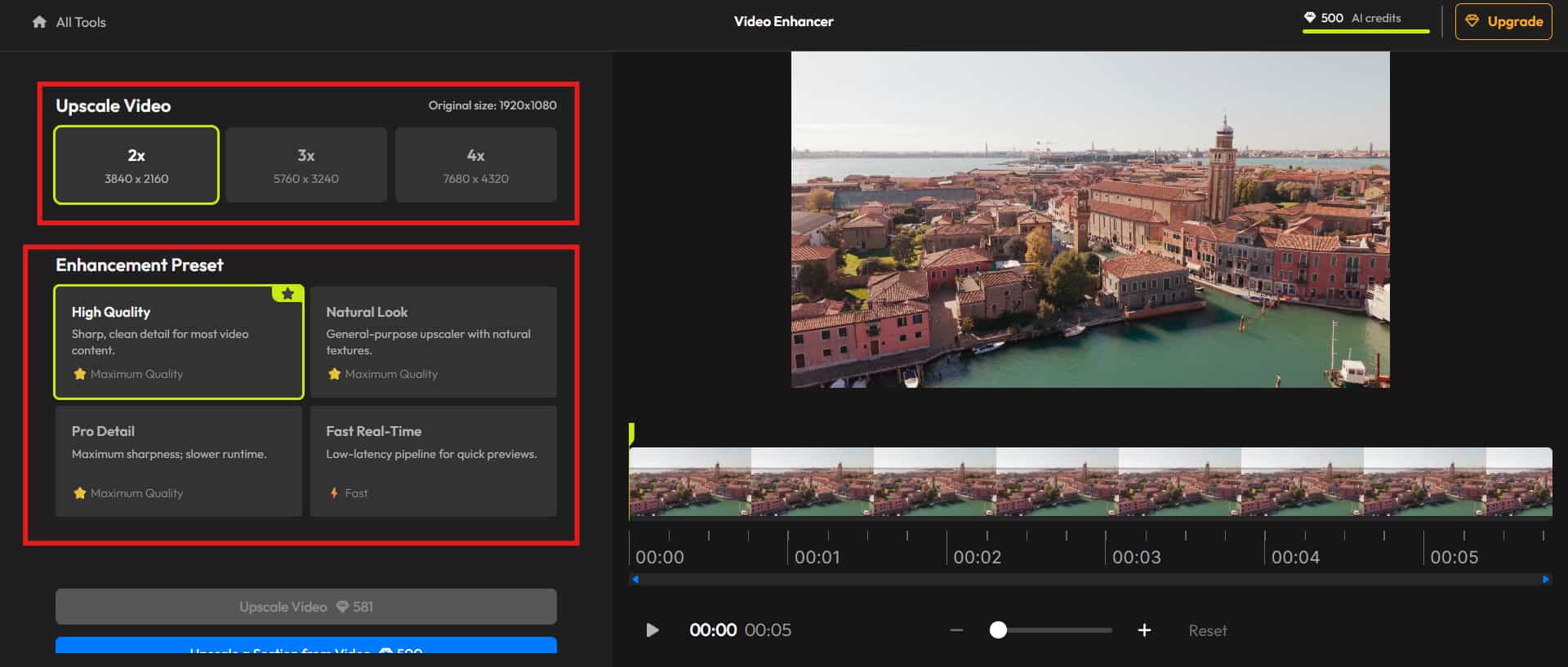
Once your footage finishes uploading, you can start applying enhancement presets. Flixier supports video upscaling up to 4x, which sounds impressive. You'll also see several preset options, including, High Quality, Natural Look, Pro Detail, and Fast Real-Time.
Step 3: Preview your results
Flixier gives you a live preview before exporting, which helps you catch problems early instead of waiting until the final render. You can compare adjustments, tweak filters, and decide if the enhancement actually improved the footage or just made it look artificially processed. Once you're satisfied with the preview, Flixier processes the enhancements in the cloud.
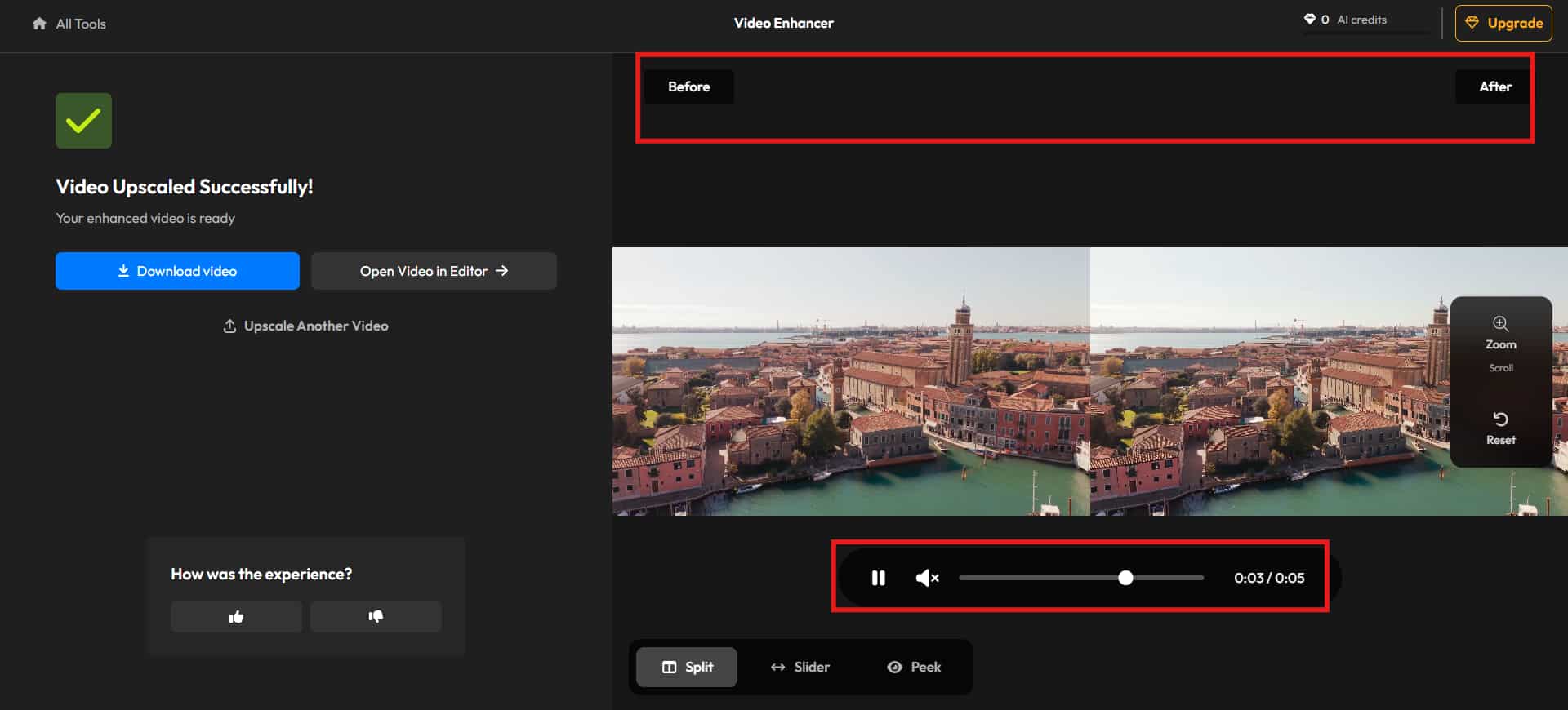
Step 5: Export the video
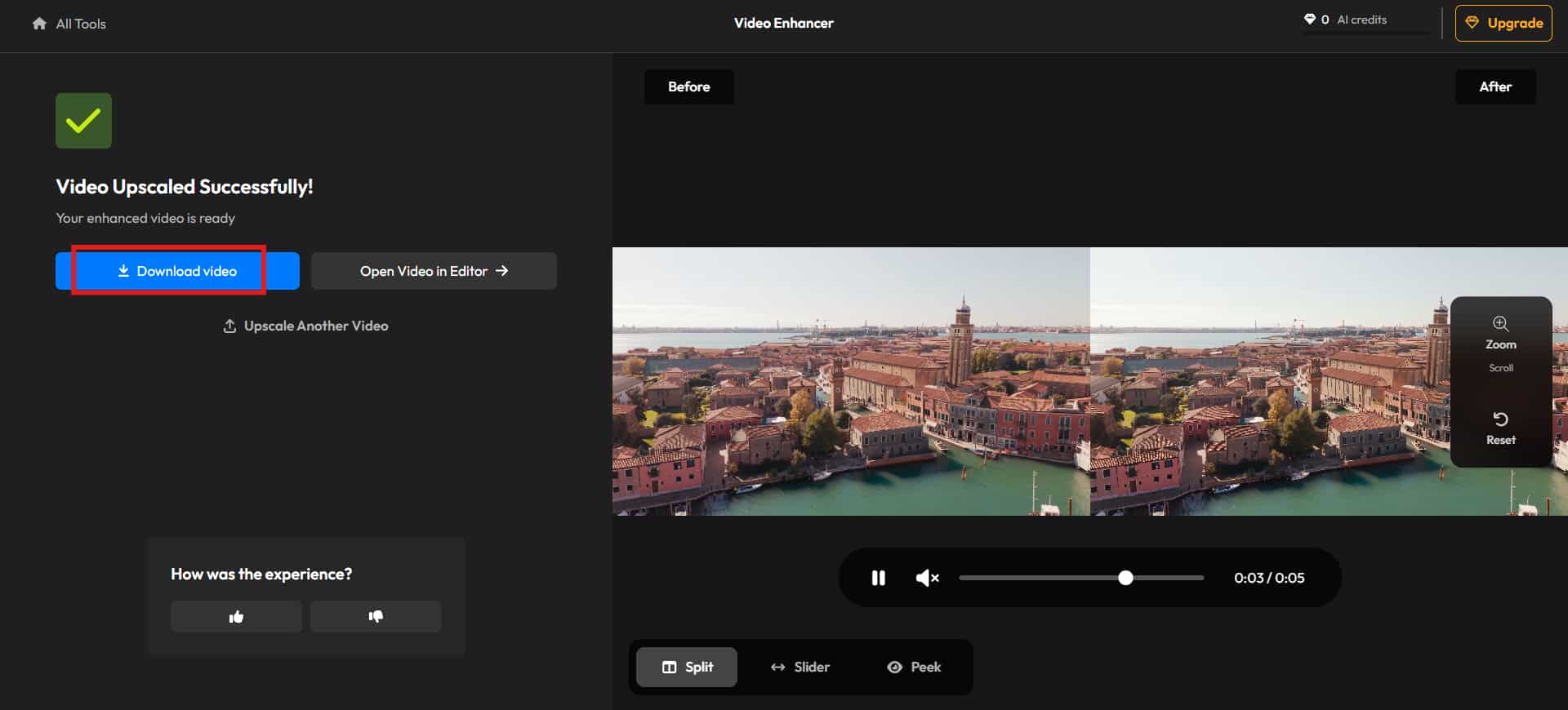
After processing finishes, you export the final video in your preferred format and resolution. The export system itself is straightforward. Click the Download button and save the enhanced video for further use.
Key features of the Flixier video enhancer tool
-
Basic enhancement controls
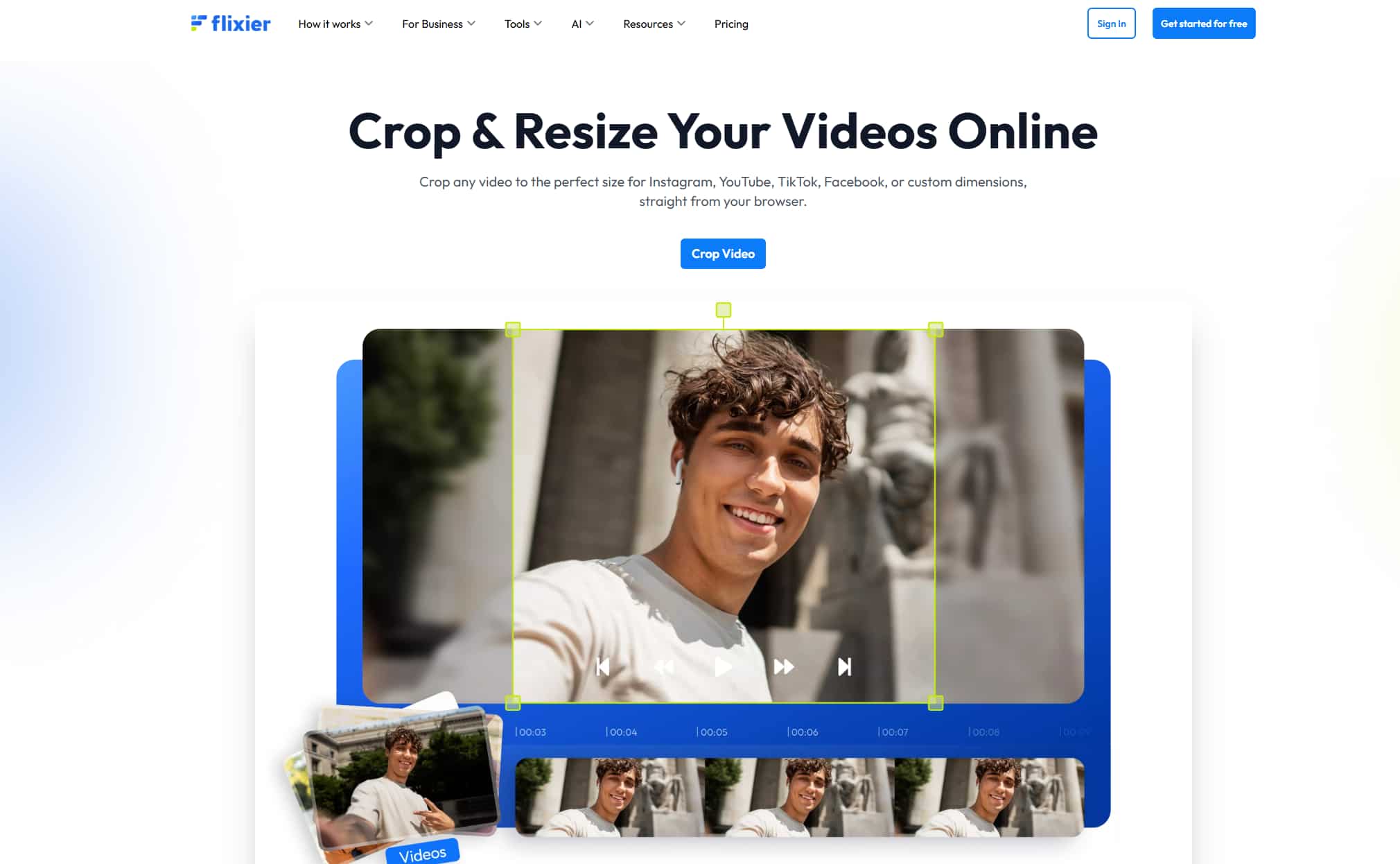
Flixier covers pretty much everything most people actually use day to day. Brightness, contrast, saturation, sharpness, and color balance. Everything stays fairly visible and beginner-friendly, which honestly makes the platform less exhausting than traditional editing software that buries simple adjustments under five separate tabs. For regular content, the tools work well enough.
-
Resolution & export quality
Flixier supports HD and 4K video exports, though the higher resolutions depend on which subscription plan you're paying for. Free users hit limits pretty quickly. The export system itself is fairly straightforward. You choose your resolution, export settings, and render the project directly through the browser. Flixier's higher-resolution exports usually hold up well for YouTube uploads, presentations, product videos, and general content creation.
-
One-click enhancement presets
One-click presets are probably the most beginner-friendly feature inside Flixier. Instead of manually adjusting every visual setting yourself, you can apply automatic enhancement presets that instantly modify the footage. For casual creators, this saves a ridiculous amount of time. Available presets typically include High Quality, Natural Look, Pro Detail, and Fast Real-Time.
-
Cloud-based processing for enhancements
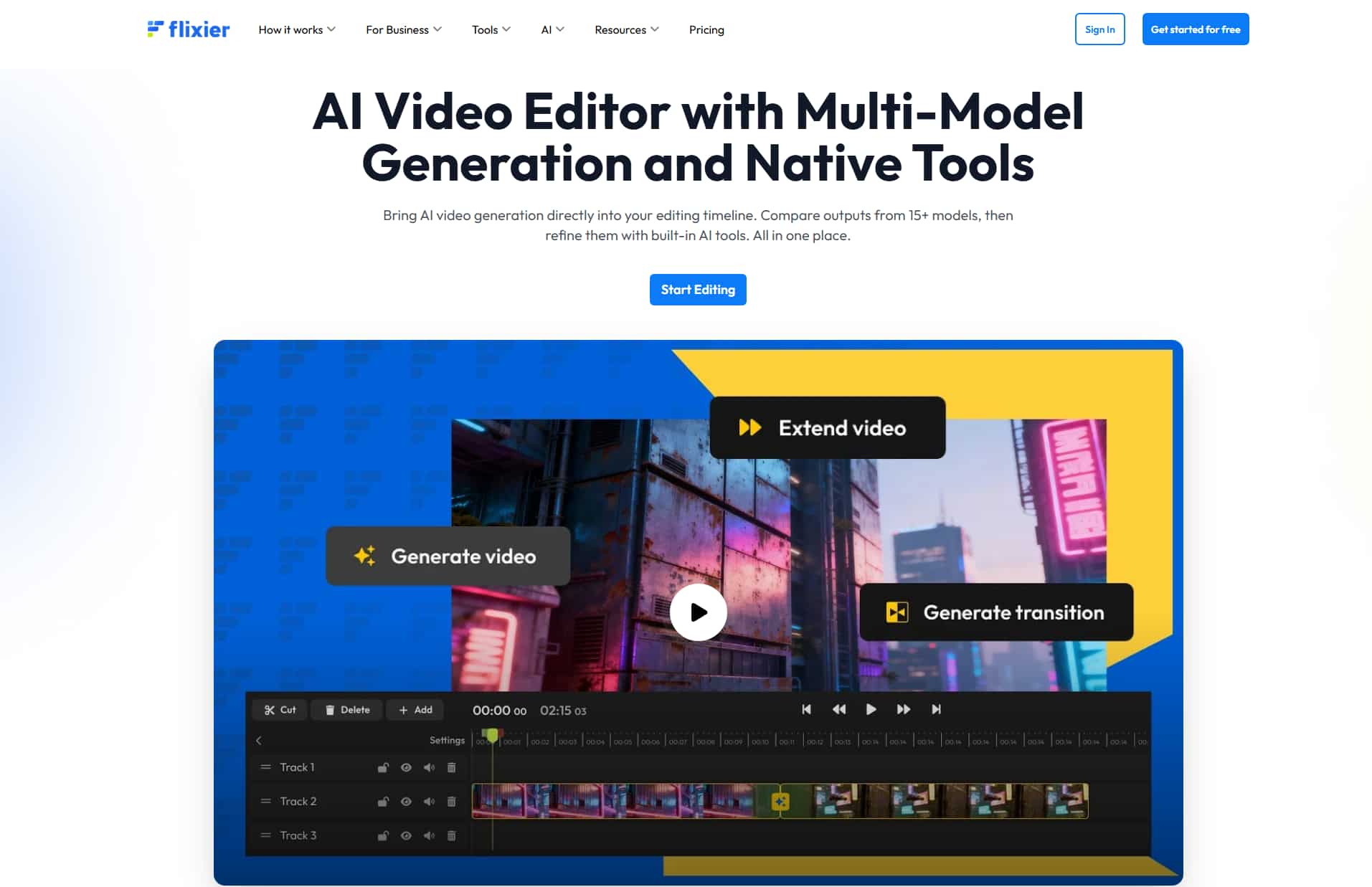
Cloud processing is probably Flixier's biggest technical advantage. Instead of forcing your computer to handle rendering locally, most processing happens remotely on Flixier's servers. One of the biggest advantages of Flixier is that your computer doesn't need to do all the heavy lifting locally. You don't need a massive editing setup sitting under your desk. No expensive workstation. No dedicated GPU just to trim clips or enhance short videos. Even older laptops can manage basic editing projects surprisingly well.
-
AI-assisted features
Flixier includes several AI-assisted tools beyond basic enhancement, and honestly, some of them are more useful than video enhancement features themselves. The platform currently offers automatic subtitle generation, AI transcription tools, text-to-speech functionality, timeline-based editing, and basic AI-assisted workflows.
Flixier online video enhancer pricing explained
|
Free |
Pro |
Business |
|---|---|---|
|
$0 |
$23 |
$43 |
|
|
|
-
Free plan
The free plan is mainly there so you can test the platform without spending money up front. And honestly, that's probably the best way to approach it. Use it first. See if the workflow actually fits how you edit. You get access to basic editing and enhancement tools, along with limited exports capped at 720p resolution.
-
Pro plan starting at $23
The Pro plan is where Flixier starts feeling more practical for regular creators and small teams. At around $23 per seat per month, you unlock significantly higher export limits along with Full HD output, more cloud storage, and access to AI tools that aren't really usable at scale on the free plan. For creators producing short-form content regularly, this plan makes a lot more sense than the free tier. The Full HD export option alone is probably enough reason for many people to upgrade.
-
Business plan starting at $43
The Business plan pushes Flixier more toward agencies, production teams, and companies handling larger content volumes. At roughly $43 per seat per month, you get expanded export limits, 4K support, additional cloud storage, and collaborative features aimed at team-based workflows. The 4K export support matters if you create higher-resolution content for YouTube, advertising, or commercial projects.
Flixier video enhancer pros and cons: A quick recap
|
Pros |
Cons |
|---|---|
|
|
According to Flixier review, the tool is built for speed first, deep enhancement second. The cloud-based setup also makes a noticeable difference. Still, the limitations become obvious once you push the platform harder. The enhancement tools are fairly basic compared to dedicated AI video restoration software. Sharpness controls help a little, and color correction works fine. But heavily blurry footage, serious compression damage, or low-light noise can still look rough after processing.
So the platform ends up sitting on an interesting middle ground. It's easier than professional editing software, but not advanced enough for users chasing cinematic-level enhancement quality. That's where Vmake AI starts becoming a very interesting alternative. Unlike Flixier, Vmake focuses much more heavily on AI-driven video enhancement itself rather than full editing workflows. The platform puts more attention into sharpening blurry footage, improving visual detail, cleaning up lower-quality clips, and enhancing overall image quality automatically.
Vmake AI: The best alternative to Flixier video enhancer
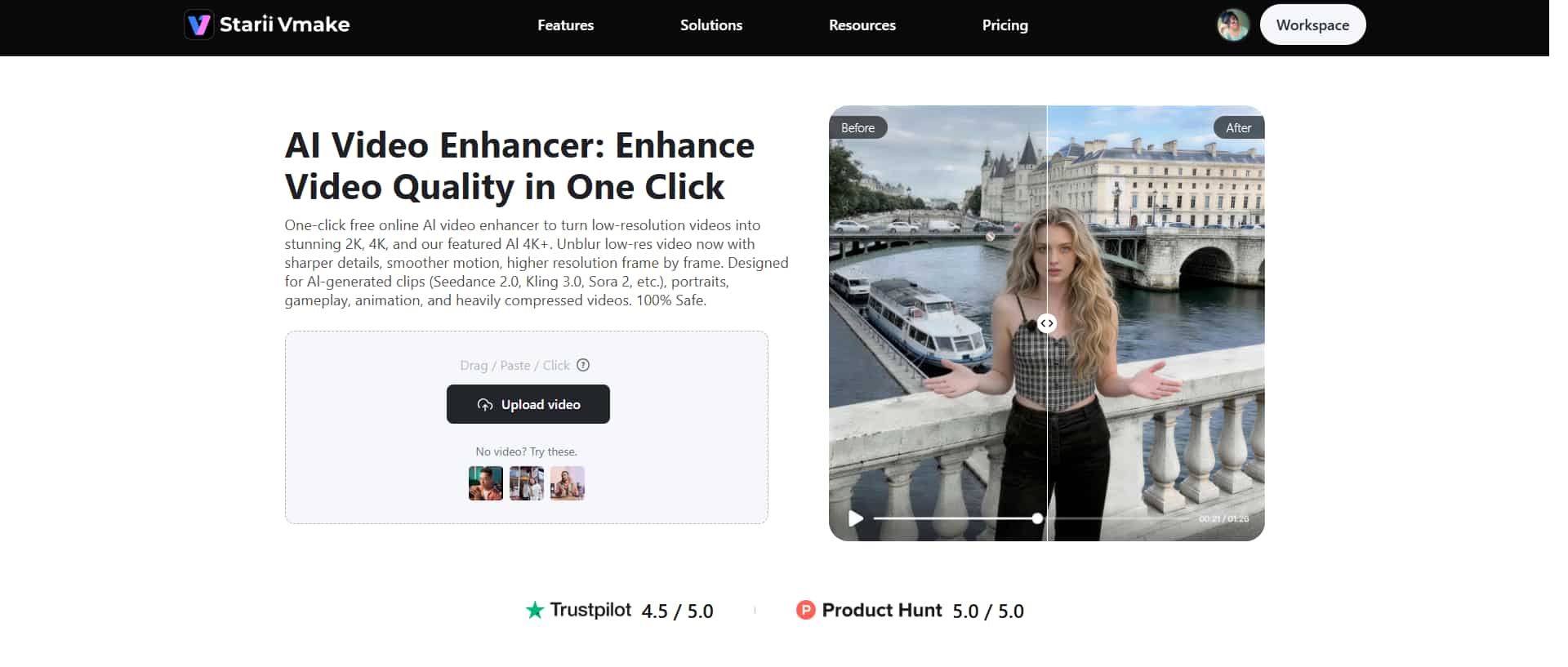
Vmake AI video enhancer is built around AI-based enhancement rather than timeline editing. The platform focuses on sharpening blurry footage, removing noise from video, improving resolution, cleaning up low-quality visuals, and making videos look noticeably clearer with minimal manual work. The tool allows you to choose among different resolution presets to deliver top AI-enhancing results.
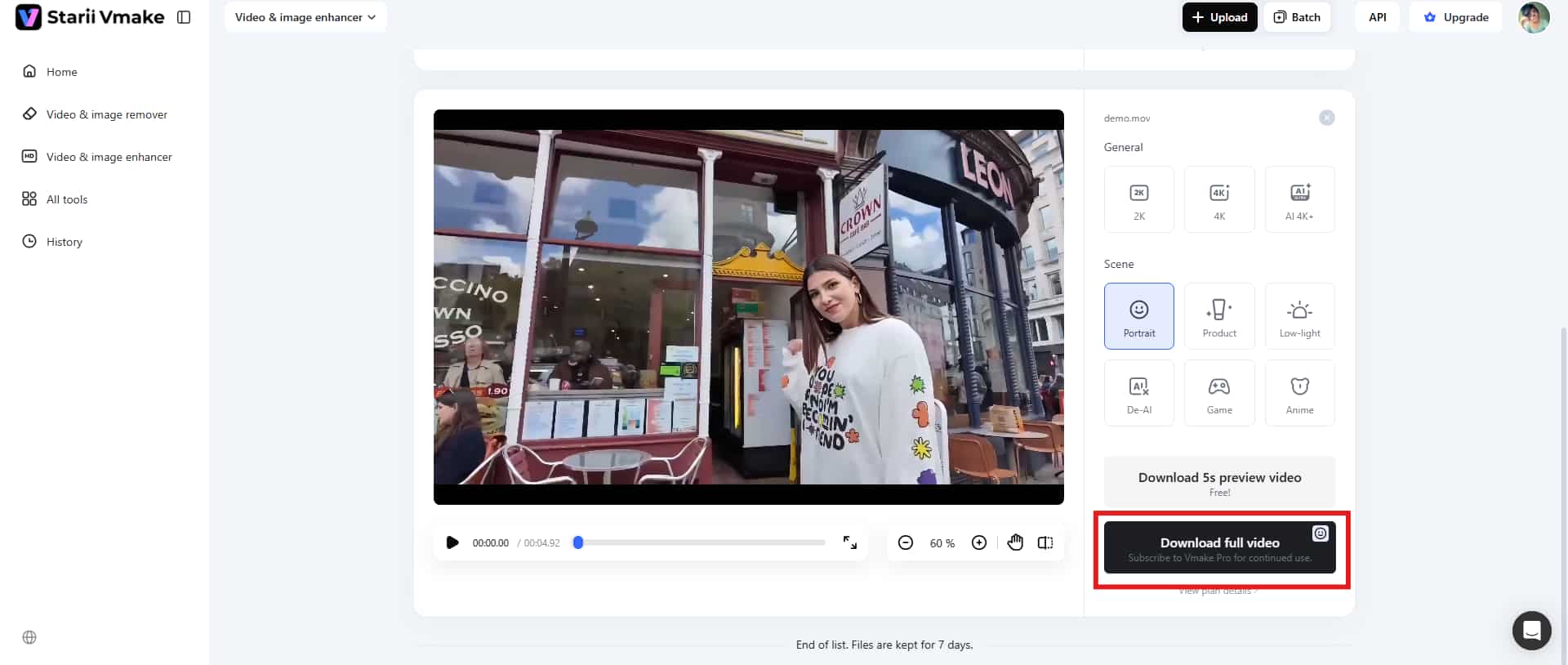
Step-by-step guide
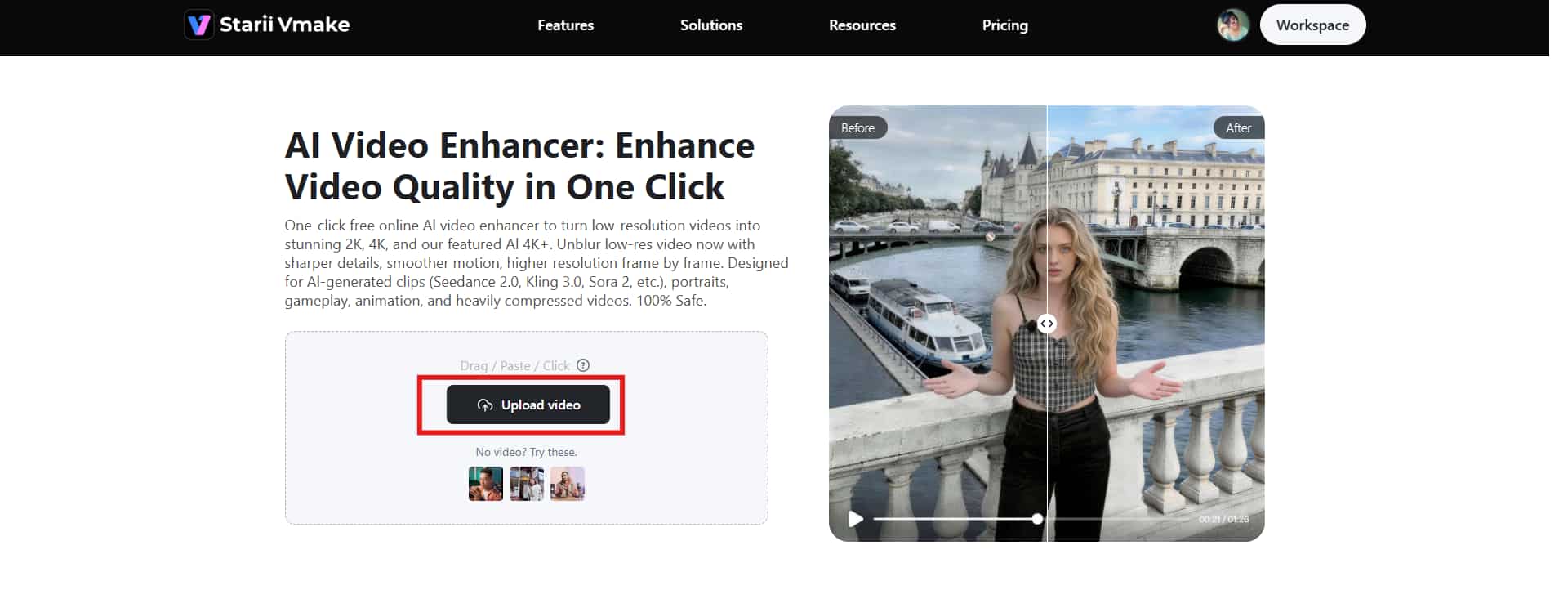
Step 1: Import the video
The process starts by uploading your video directly onto the platform. You can upload footage by dragging files directly into the browser or importing them manually from your computer. Vmake AI supports most common video formats, so phone recordings, ecommerce clips, social media content, and short-form videos usually upload without problems.
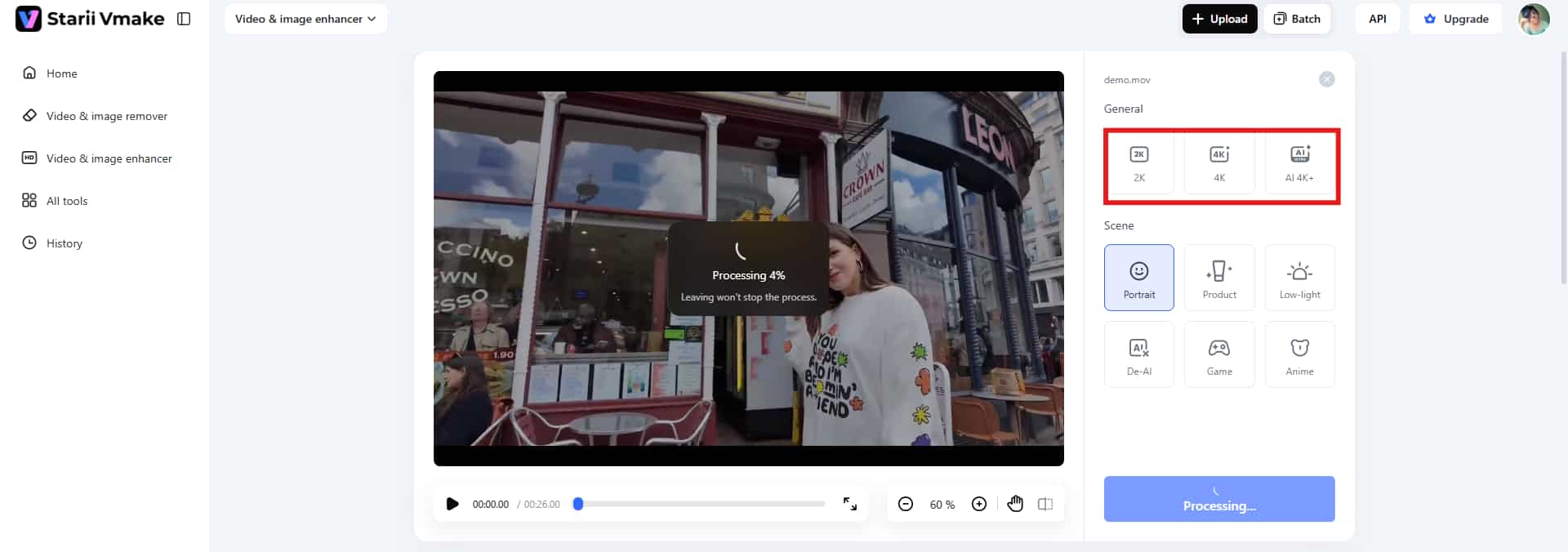
Step 2: Choose the resolution preset
After the upload finishes, you pick the enhancement or resolution preset you want the AI system to apply. This is where Vmake AI handles most of the actual processing work behind the scenes. Instead of manually tweaking sharpness, clarity, scaling, texture recovery, and detail settings one slider at a time, the platform applies automated presets based on the output quality you choose.
Step 3: Download the final video
Once processing finishes, you can preview the enhanced output and download the final version. The rendering speed depends on video size and resolution. Click the Download button to save the video for further use.
Key features
-
AI video upscaling: AI video upscaling is the core feature behind Vmake AI. Instead of simply stretching low-resolution footage to larger dimensions, the platform uses AI models to improve sharpness, recover detail, and clean videos with AI.
-
Product enhancement mode: This feature focuses specifically on ecommerce and promotional content. The product enhancement mode automatically improves lighting, sharpness, and visual presentation for product-focused videos and imagery.
-
Add-free interface: Vmake AI keeps the interface much cleaner. The platform feels calmer and easier to focus on, especially if you're trying to process multiple clips quickly.
Conclusion
That's all about the Flixier review. The tool does a good job of making video editing feel less intimidating. Flixier handles quick edits well. But once you move beyond basic enhancement, the cracks start showing. Pricing can eventually become a sticking point, too. That's where Vmake AI starts becoming a stronger alternative for certain workflows. Unlike Flixier, Vmake puts much more focus on the enhancement side itself.
So the better choice really depends on what you need most. If you want a browser-based editor that handles quick social content, subtitles, simple enhancement, and collaborative workflows, Flixier is a solid option. However, if your priority is sharper footage, AI upscaling, product enhancement, and stronger visual recovery, Vmake AI probably gives you more noticeable results for enhancement-focused work.
FAQs
Is Flixier completely free?
Not entirely. Flixier does have a free plan, and for testing the platform, it's honestly useful enough. You can upload footage, try the editing tools, experiment with enhancement presets, and get a feel for how the browser workflow actually performs before spending money. But the limitations show up fast once you start creating content regularly.
Can Flixier improve blurry videos?
Yes, but only to a certain extent. Flixier includes basic enhancement presets that can make slightly blurry footage look cleaner. The platform isn't really built for deep AI restoration or advanced detail reconstruction. Severe motion blur, compression damage, or extremely low-quality recordings still tend to look limited after processing.
Does Flixier support 4K enhancement?
Flixier supports 4K video exports on higher-tier subscription plans, which means you can render and download projects in 4K resolution. Flixier mainly focuses on editing, color correction, and light enhancement. It doesn't perform advanced AI reconstruction the way specialized upscaling platforms do. If your original footage is low-quality, exporting it at 4K won't suddenly introduce missing detail or cinematic sharpness.
What presets are available in the Flixier video enhancer?
Flixier includes several quick enhancement presets aimed at beginner-friendly editing workflows. Common presets include High Quality, Natural Look, Pro Detail, and Fast Real-Time. These presets are meant to speed things up rather than give you deep manual control. You apply a preset, preview the changes, and export the video without spending ages adjusting technical settings.
What is the best alternative to Flixier for enhancement?
If your main priority is video quality enhancement rather than editing workflows, Vmake AI is one of the strongest alternatives currently available. The biggest difference is focus. Flixier works primarily as a browser-based editor with enhancement tools added on top. Vmake AI focuses much more heavily on improving visual quality itself through AI upscaling, sharpness recovery, and automated enhancement processing.

You May Be Interested
Airbrush Video Enhancer Review 2026: Features, Pros, and Cons
Picwand Video Enhancer 2026 Review: Features & Alternatives
Video Color Correction vs. Color Grading: What's the Difference?
Airbrush Video Enhancer Review 2026: Features, Pros, and Cons
2026 Fotor Video Enhancer Review: Features and Top Alternatives