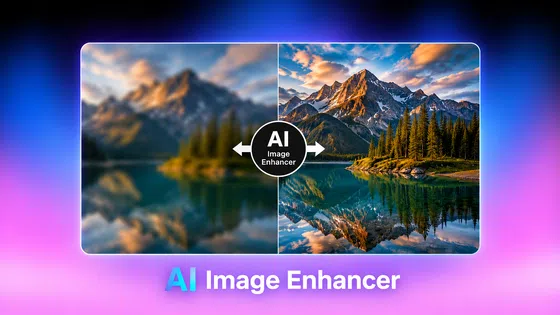
AI Editing Images Remove Paper Creases: A Complete Guide
Discover how AI editing images remove paper creases from scanned photos and documents. Improve image quality, restore damaged images, and achieve clean, professional results with Vmake Labs.

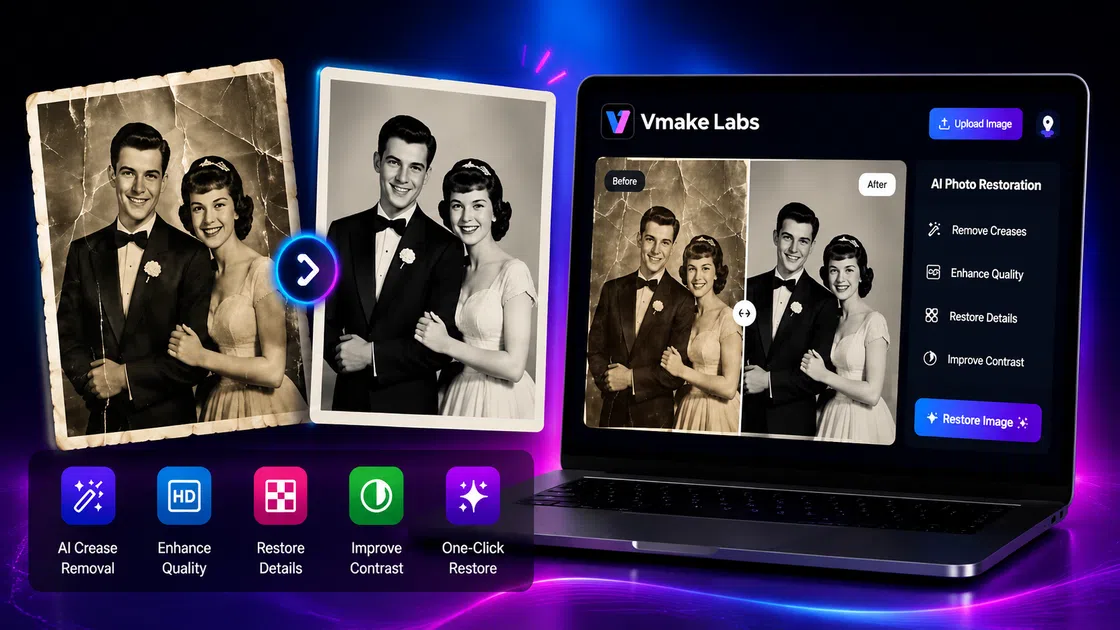
Old photographs and scanned documents often develop visible paper creases that reduce image quality and hide important details. Fortunately, AI editing images removes paper creases quickly by restoring damaged areas while preserving the original content. This guide explains how AI crease removal works, its benefits, and how to restore photos and documents with Vmake Labs.
What Is AI Paper Crease Removal?
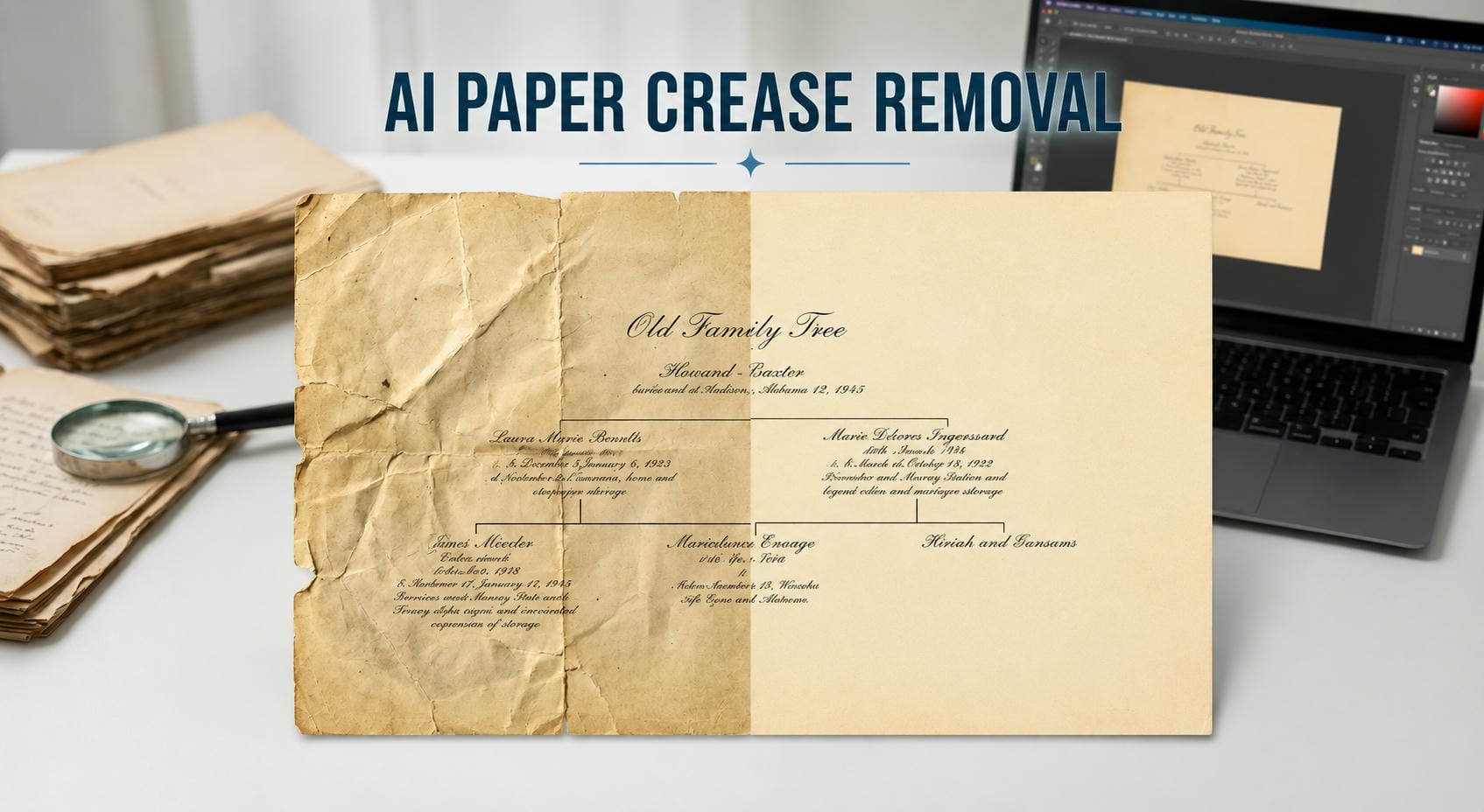
AI editing images remove paper creases by detecting wrinkles, folds, and other damaged areas in scanned photos or documents, then repairing those sections using AI image restoration technology. Instead of spending time manually retouching every crease, the AI analyzes the surrounding image to rebuild damaged areas and improve the overall appearance. The results are usually much cleaner, although heavily creased or torn images may still need a few manual adjustments.
What Causes Paper Creases in Images?
Paper creases usually develop when photos or documents are folded, bent, or stored without proper protection for long periods. They can also appear after documents are mailed in envelopes, kept in tightly packed photo albums, exposed to humidity or moisture, or handled frequently over the years. Older photographs that have been scanned multiple times may show existing folds and wrinkles even more clearly. You may hardly notice these marks on the original paper, but once the image is scanned or photographed, the creases often become much more obvious. While minor wrinkles are usually easier to repair, deeper folds, tears, or damaged areas can still be more challenging for AI to restore completely.
Two Methods of Removing Paper Creases
There are two common ways to remove paper creases from old photographs and scanned documents. Traditional photo editing software offers precise manual control, while AI-powered restoration automates much of the process. The best option depends on the condition of your image, your editing experience, and how much time you want to spend.
Method 1: Manual Restoration with Photoshop
Manual restoration uses editing tools such as the Clone Stamp, Healing Brush, and Content-Aware Fill to repair creases one section at a time. This approach gives experienced users precise control and can produce excellent results on valuable or heavily damaged images. However, it often requires photo editing skills, patience, and significant time, especially when restoring large or complex creases.
Method 2: AI Paper Crease Removal
AI-powered restoration automatically detects paper creases, folds, and wrinkles, then repairs the damaged areas while preserving surrounding details. Compared with manual editing, AI is much faster and easier for beginners because it requires little or no editing experience. While heavily damaged images may still benefit from small manual touch-ups, AI restoration is a practical solution for quickly improving most old photos and scanned documents.
How to Remove Paper Creases with Vmake Labs
Restoring damaged photos and scanned documents doesn't have to involve complicated editing software. Vmake Labs uses AI to detect paper creases and improve the appearance of your image in just a few steps. While the results are usually impressive, heavily damaged or low-resolution images may still benefit from a quick manual review after restoration.

Step 1. Upload Your Image
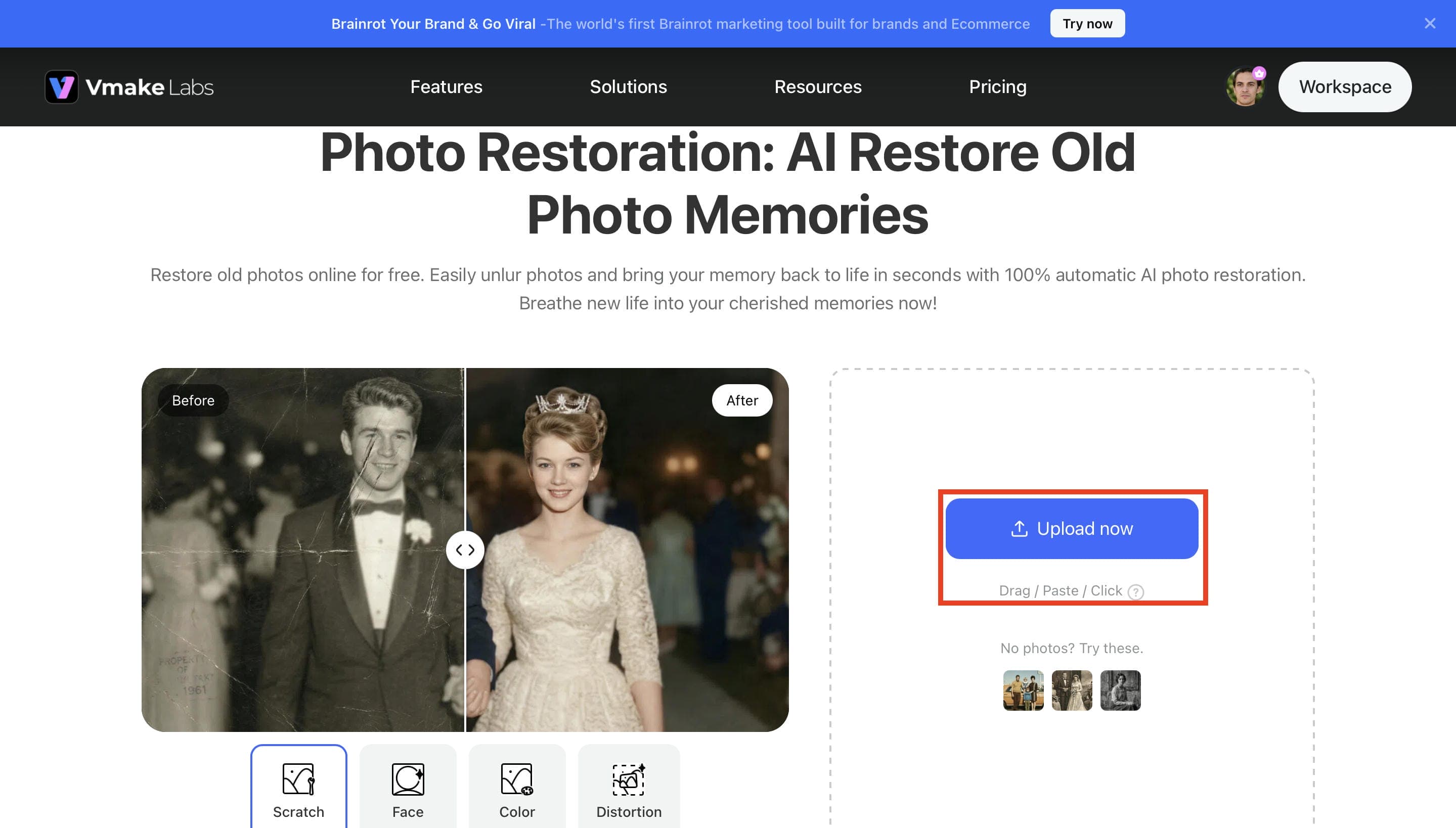
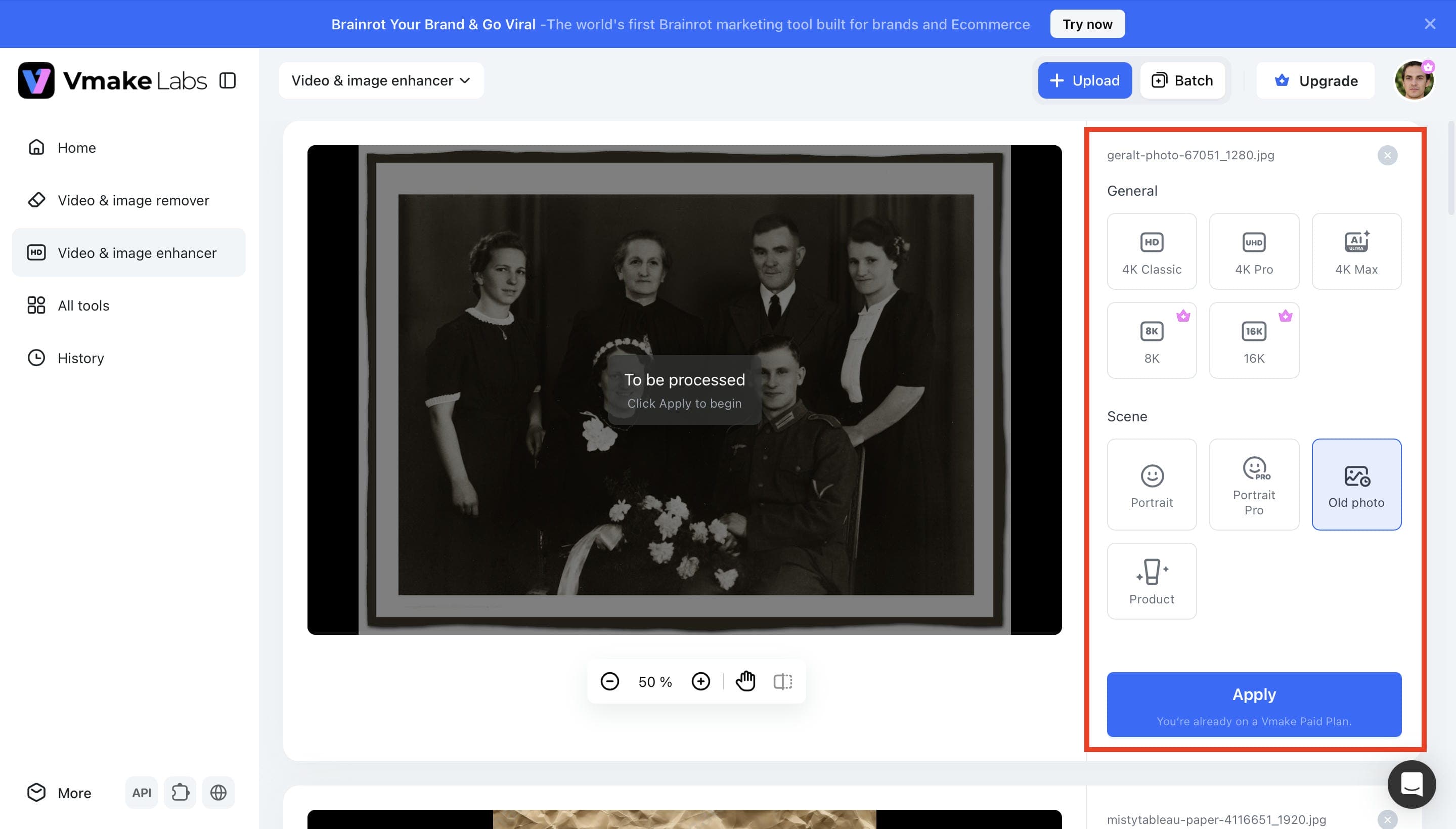
Open the Vmake Labs Photo Restoration tool and click Upload Now to add the photo or scanned document you want to restore. Images with visible paper creases, folds, wrinkles, or other signs of wear can all be uploaded. Starting with a high-resolution image usually gives the AI more detail to work with, which often leads to better restoration results.
Step 2. Restore the Image with AI
Once your image has been uploaded, choose the appropriate enhancement settings and select the Old Photo scene before clicking Apply to start the restoration. The AI analyzes the image, detects visible damage, and improves the affected areas while preserving as much of the original detail as possible. Results can vary depending on the condition of the original image, so heavily damaged photos may still retain a few minor imperfections.
Step 3. Preview and Download
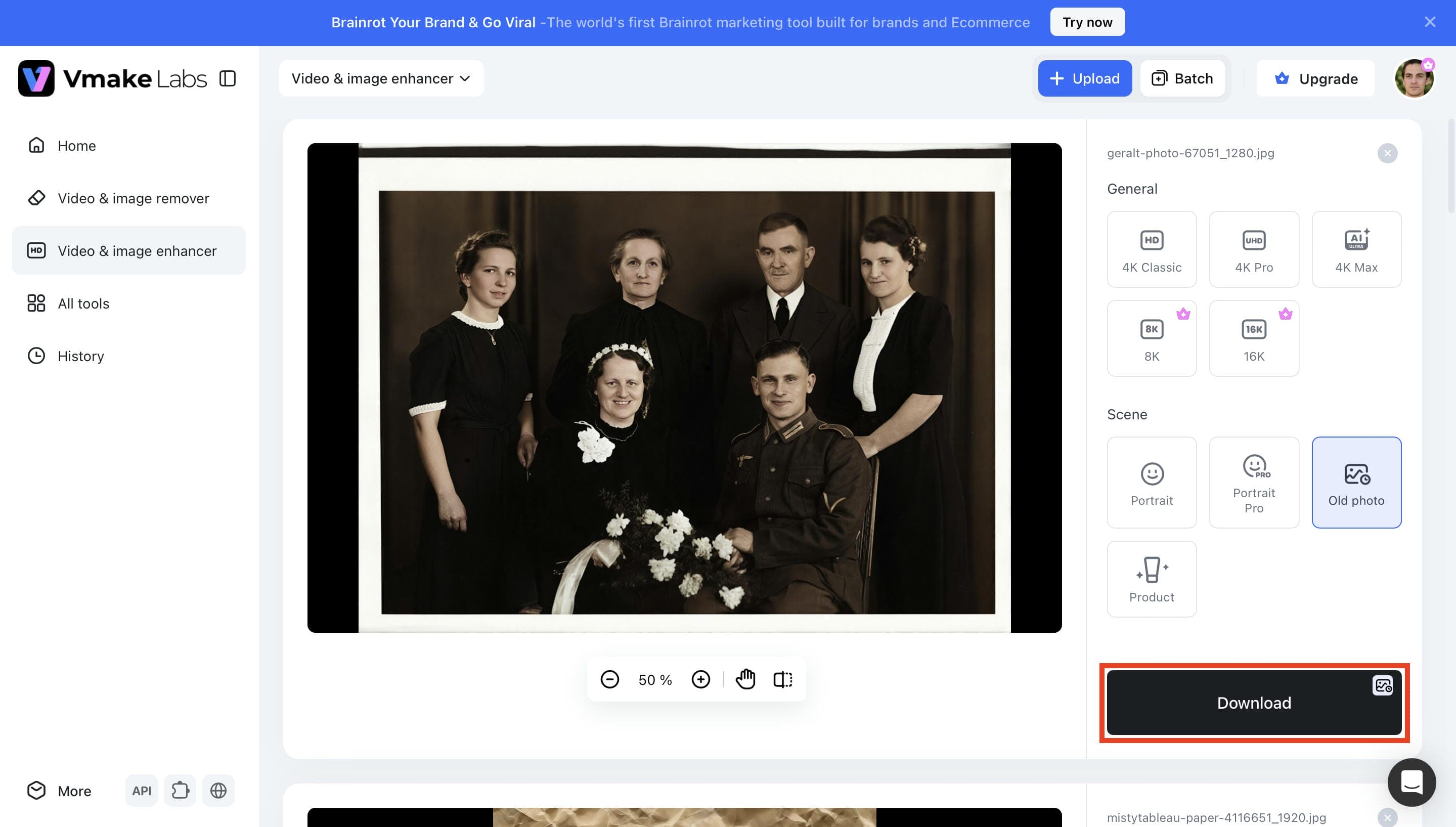
After the restoration is complete, compare the enhanced image with the original to see how the paper creases and other visible damage have been reduced. Take a moment to check important details like faces, text, or graphics before downloading the final image. If you're satisfied with the result, click Download to save the restored photo for printing, archiving, or sharing.
Why Use AI to Remove Paper Creases?
AI restoration makes repairing damaged photos and documents much faster than editing them by hand. It reduces visible creases while preserving important image details, making restoration more practical for everyday use. The table below highlights the main benefits of using AI paper crease removal.
|
Benefit |
Description |
|---|---|
|
Save Time |
Automatically detects and reduces visible paper creases much faster than manual editing, helping restore photos and scanned documents in less time. |
|
Non-Destructive Restoration |
Repairs damaged areas while preserving as much of the original image, text, and visual details as possible. |
|
Improve Image Quality |
Reduces visible folds and wrinkles to create cleaner, sharper images that look more natural. |
|
Reduce Manual Editing |
Minimizes time spent using cloning, healing, or retouching tools by restoring damaged sections automatically. |
|
Ready for Printing and Sharing |
Produces cleaner images suitable for digital sharing, archiving, presentations, or high-quality printing. |
What AI Cannot Fully Repair
AI restoration can significantly reduce paper creases and improve image quality, but it cannot completely reconstruct information that is no longer present. Missing paper fragments, severe tears, burned or water-damaged areas, and extremely blurred or low-resolution scans may still show imperfections after restoration. While AI can enhance many damaged images, some cases may require manual editing to achieve the best possible results.
Tips for Better AI Paper Crease Removal
Getting the best results isn't just about the AI tool you use. The quality of the original image also plays a big role in how accurately paper creases can be detected and restored. These simple tips can help improve the final output.
-
Use High-Resolution Images: Begin with the best quality image you have; high-resolution photos and scans are more detailed, so artificial intelligence can more easily recognize paper creases and repair damaged areas without affecting adjacent textures. You can still restore low-res images, but the final product might not look as neat.
-
Capture Images with Proper Lighting: If you're photographing a document instead of scanning it, use even, natural lighting and avoid strong shadows or glare. Good lighting helps the AI distinguish actual paper creases from lighting reflections, resulting in a cleaner and more accurate restoration.
-
Review the Restored Image Before Exporting: Don't download the first result without looking closer. Check important details such as text, faces and graphics to make sure everything looks natural after the restoration. The AI does a good job most of the time, but small imperfections can still slip through. A fast review now can save you from making mistakes down the road.
Conclusion
Artificial intelligence comes in handy as an AI image fixer, because fixing creased photographs and scanned documents by hand takes longer than most people think. It can reduce folds, wrinkles, and other visible damage while keeping much of the original image, so you don't have to start over every time. Some images with deep tears, missing parts, or badly damaged sections may still need manual cleanup to look their best. If you want to restore old photos and documents faster, Vmake Labs is a good alternative with natural-looking, cleaner results.
FAQs
Can AI restore heavily creased images?
Yes, it can improve many heavily creased photos and documents by reducing visible folds and repairing damaged areas. The results often depend on how severe the creases are and the overall quality of the original image, so heavily damaged sections may still need a little manual touch-up. That's fairly common with older photos that have deep folds or missing details. If you're restoring damaged images, Vmake Labs can help make the process faster with AI-powered photo restoration.
What image formats can I use for AI paper crease removal?
Most AI restoration tools support common image formats such as JPG, JPEG, PNG, and WEBP. Using a high-resolution image usually produces better restoration results because the AI has more visual information to work with. Vmake Labs supports popular image formats for quick and convenient restoration.
Can AI remove paper creases without affecting text or graphics?
In many cases, yes. AI restoration is designed to reduce visible paper creases while preserving surrounding text, graphics, and image details as much as possible. The results may vary depending on the amount of damage, so reviewing the restored image before downloading is always recommended. Vmake Labs lets you preview the results before exporting.
Is AI paper crease removal suitable for scanned documents?
Yes. AI paper crease removal works well for scanned documents, printed photographs, certificates, and other paper-based materials with visible folds or wrinkles. Cleaner scans generally produce better restoration results, especially when the document has been captured at a high resolution. Vmake Labs can help restore scanned documents with just a few steps.
Can AI remove paper creases from handwritten documents?
Yes, in many cases it can. AI can reduce visible paper creases while preserving most handwritten notes, letters, and other documents. The results are usually good, but if the handwriting runs through heavily damaged or folded areas, a few imperfections may remain. That's why it's always worth giving the restored document a quick review before saving it. If you need to make further improvements, Vmake Labs can help restore handwritten documents while keeping them as readable as possible.

You May Be Interested
[Updated!] Best 10 Ways to Remove Emoji from Video (Free Included)
Best AI Watermark Remover for Clean, Fast Edits
AniEraser Watermark Remover by Media.io: 2026 Hands-On Review
How to Remove Green Screen from Video: Best Methods and Tools in 2026