PhotoGrid Watermark Remover: Full Review & Alternative
Discover the PhotoGrid watermark remover in this honest review. Learn how its free AI tool removes logos, text, and watermarks seamlessly. Compare it with Vmake Labs as a powerful alternative for high-quality, batch results without quality loss.

Removing watermarks without leaving visible traces can be challenging, especially on detailed images. We tested the PhotoGrid watermark remover to evaluate its AI performance, editing quality, ease of use, and limitations. This review also compares it with Vmake Labs to help you choose the better option for cleaner, more natural-looking results.
What is PhotoGrid watermark remover?
PhotoGrid watermark remover is a web-based AI utility designed to identify and remove unwanted text, timestamps, logos and graphic overlays from digital photos. Part of PhotoGrid's broader web ecosystem, it aims to deliver a quick, no-login-required tool for creators, online sellers and casual editors who want to tidy up visuals without the need for complex software.

Key features of PhotoGrid watermark remover
-
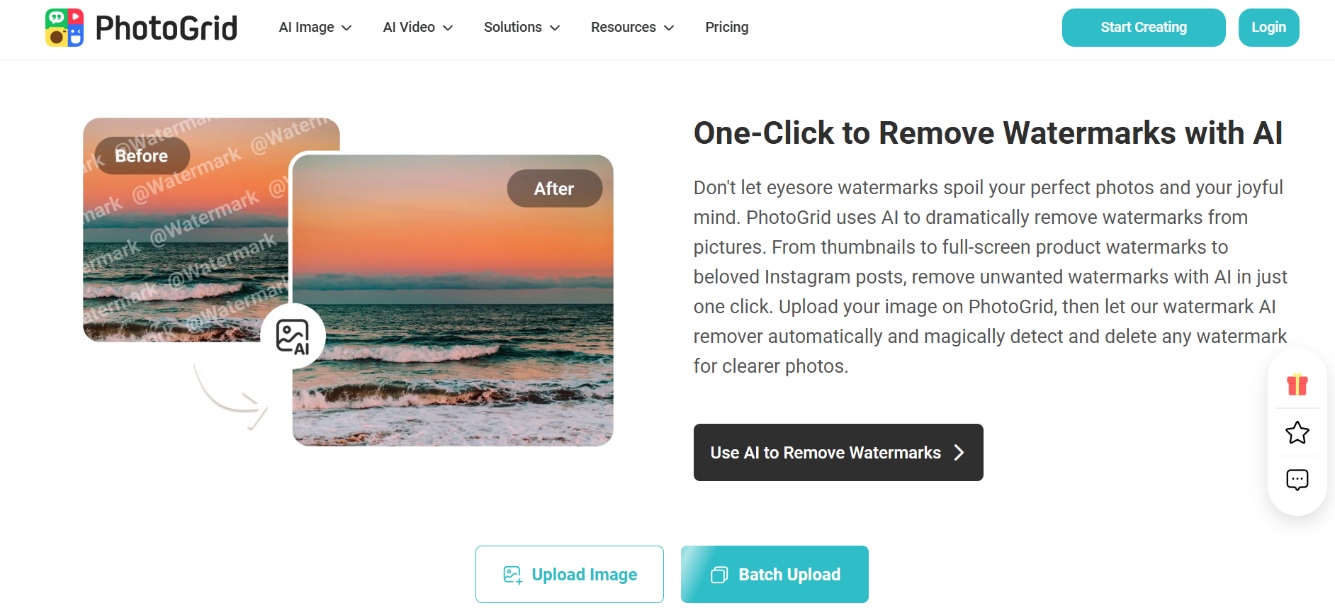
One-click AI auto removal: PhotoGrid uses AI to automatically detect and remove watermarks, logos, text and trademarks from your photos. Upload your photo and let the tool do the heavy lifting. No editing experience or technical skills required.
-
Batch processing support: You can upload up to 20 images at once, and PhotoGrid works through them for you, so you don't have to sit and remove each watermark one by one. This is useful for creators, online vendors, and anyone working with large image collections.
-
High-quality 4K output: Removes watermarks while keeping your original image sharp and clear. It preserves full resolution, colors, and fine details with no blur or quality loss. You get professional-looking photos every time.
-
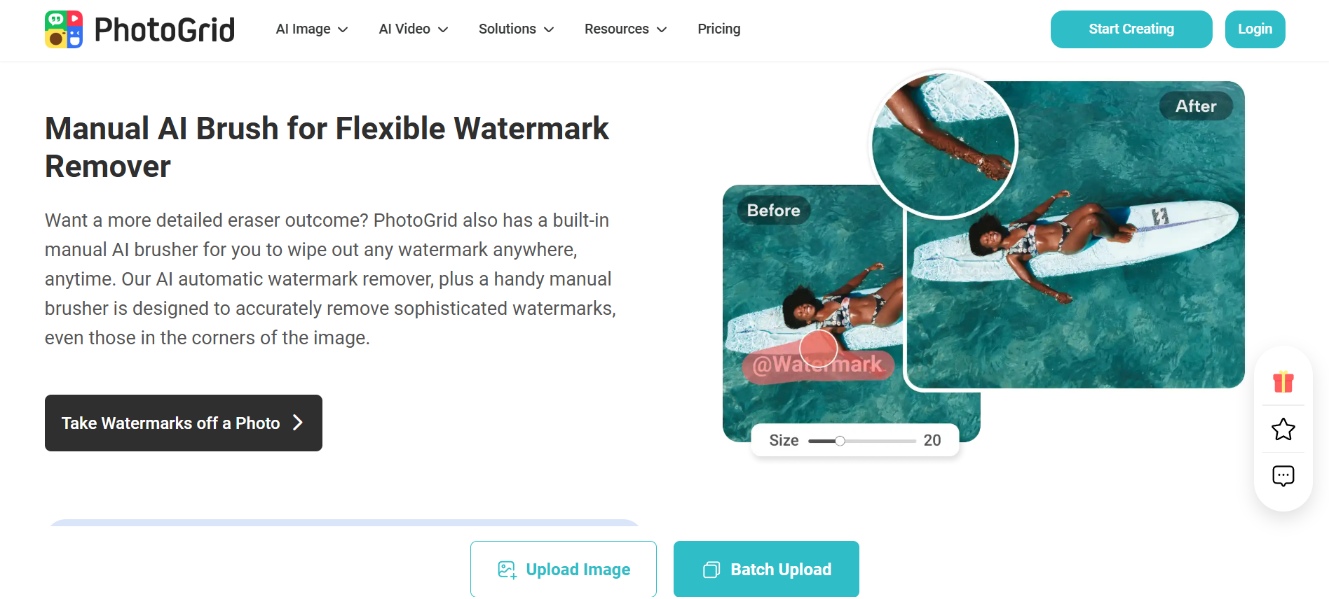
Manual AI brush tool: Sometimes the automatic mode misses a tricky watermark, like one on a busy or complex background. For these cases, you can switch to manual mode. Use the brush to paint over the mark, or draw a rectangle around it, for more precise, hands-on control.
-
All-in-one image editor integration: Do everything in one place. Combine watermark removal with background remover, object remover, image upscaler, and other tools. It makes photo editing smooth and convenient without switching apps.
How to remove watermarks on PhotoGrid
Getting started is straightforward. Follow these three simple steps to remove watermarks with PhotoGrid and download a clean, high-quality image.
Step 1: Upload Your Image
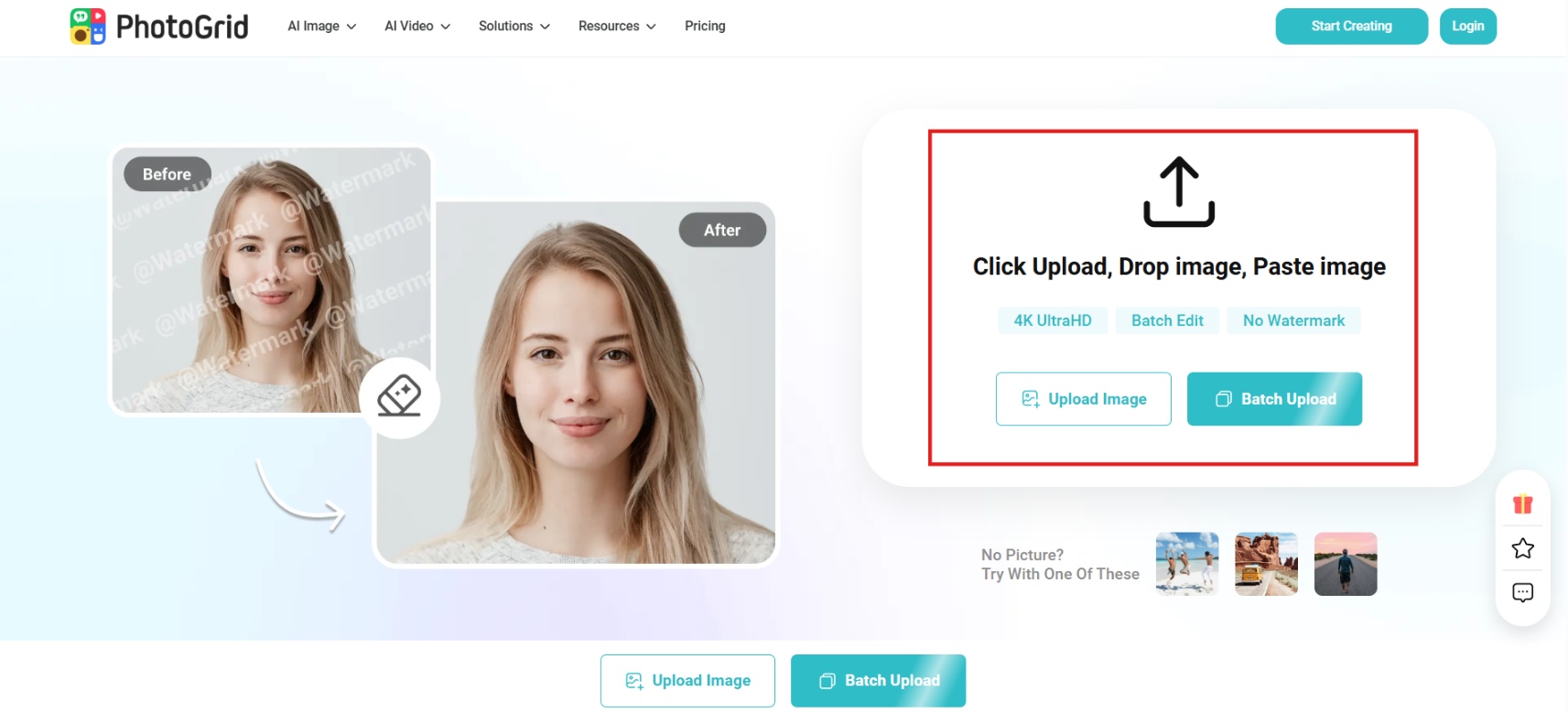
Open the PhotoGrid watermark remover and click Upload Image or Batch Upload, drag and drop your photo or paste an image (JPG, JPEG, PNG, WebP supported). You can upload a single image or multiple images at a time.
Step 2: Select and remove the watermark
After uploading the file, choose Auto mode for the AI to detect and remove the watermark automatically. Or go to manual mode: Use the brush tool to paint over the watermark or draw a rectangle around it. The AI will intelligently fill in the area while keeping the background and details.
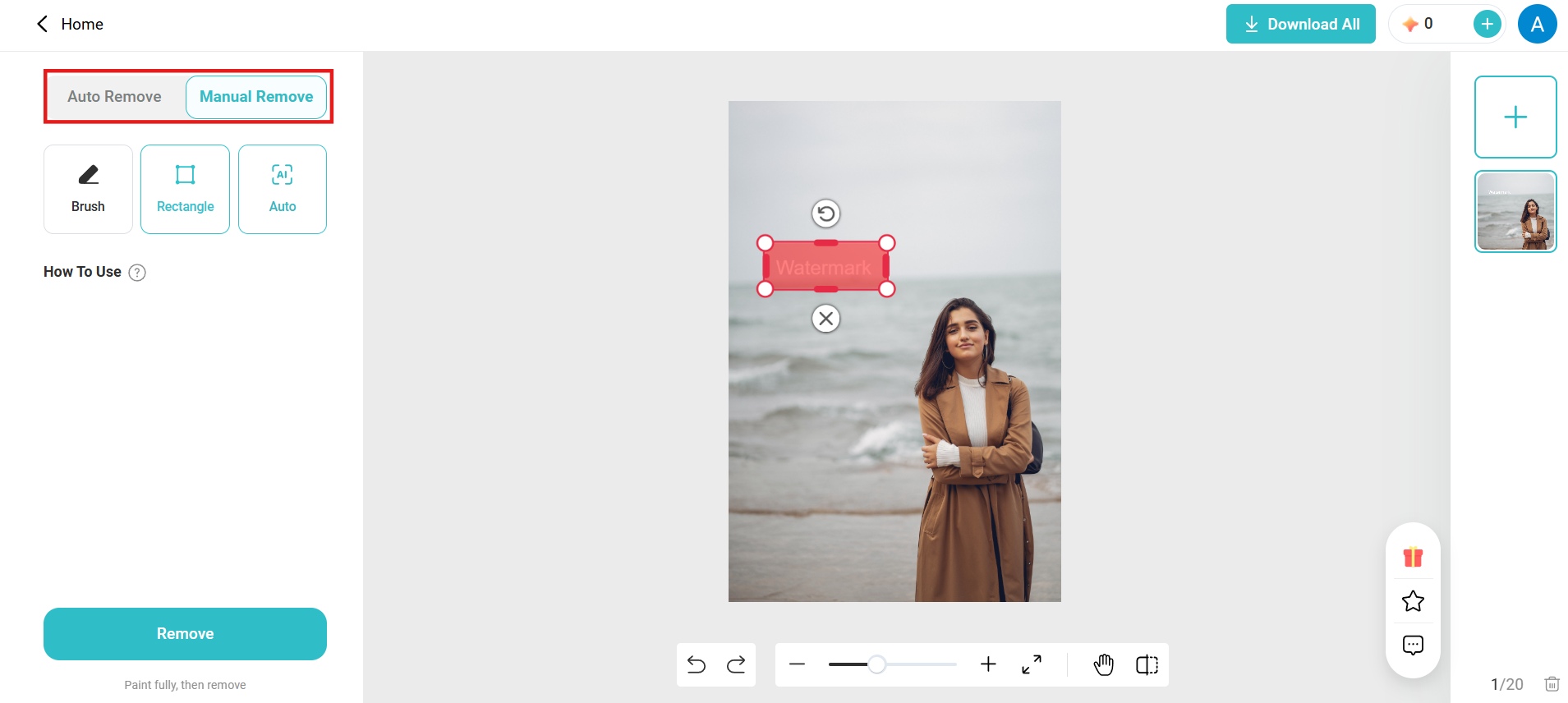
Step 3: Download and share
Preview the result, make any final adjustments if needed (e.g., combine with other tools like upscaler), then click Download to save the watermark-free image in high-quality (4K supported).
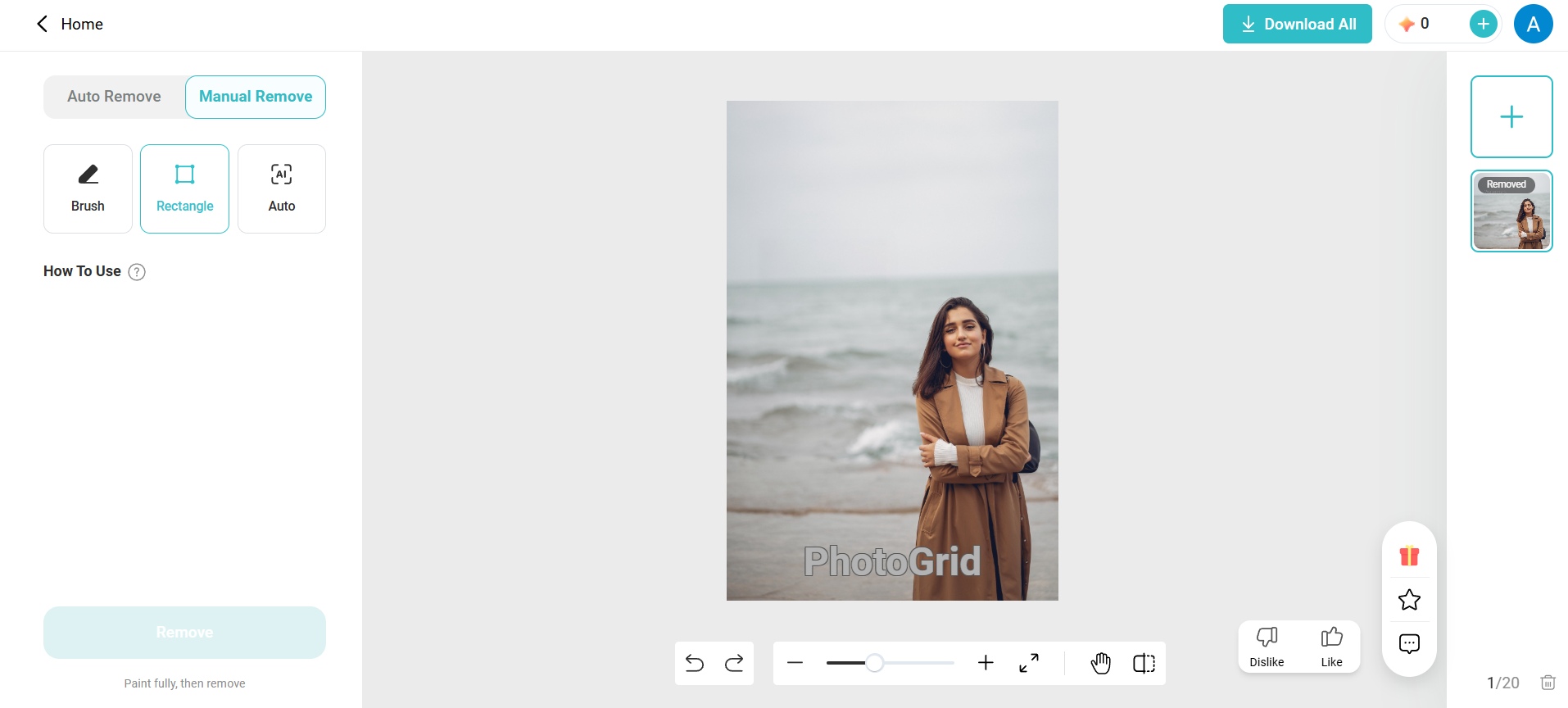
Our hands-on experience
We tested PhotoGrid watermark remover on a variety of images, including simple corner logos, semi-transparent watermarks, text overlays, and photos with detailed backgrounds such as foliage, buildings, and textured surfaces. The browser-based interface was easy to navigate, and we were able to start editing without creating an account.
For simple watermarks, the AI removed the mark cleanly in about 8–15 seconds per image, preserving most of the original image quality. The manual brush and rectangle tools also helped improve results when the automatic detection wasn't precise enough.
The tool struggled more with large or semi-transparent watermarks placed over complex backgrounds. In these cases, we noticed occasional smudging, slight texture distortion, and some faint watermark traces that required manual touch-ups.
Overall, PhotoGrid is a reliable choice for quick, occasional edits, but creators handling large batches or complex images may benefit from a more advanced solution before moving on to the pros and cons.
PhotoGrid watermark remover pricing
PhotoGrid offers both free and paid plans. Here's what each tier includes, along with the features, limitations, and who it's best suited for.
|
Plan |
Price |
What's Included |
|---|---|---|
|
Free |
$0/month |
Standard photo editing tools, basic collage and layout tools, free templates, 100 MB cloud storage, watermarked exports |
|
VIP |
$7.99/month |
Approximately 180 AI credits per month (about 180 images or 18 videos), core AI models, no-watermark downloads, batch editing for up to 10 images, 1,000 cloud projects, commercial usage rights |
|
Pro |
$15.99/month |
Approximately 500 AI credits per month, access to all AI models, priority processing, batch editing for up to 20 images, 5,000 cloud projects, commercial usage rights |
|
Ultra |
$59.99/month |
Approximately 2,000 AI credits per month, priority access to new AI models, fastest processing speeds, batch editing for up to 50 images, 30,000 cloud projects, premium customer support |
PhotoGrid offers a free version, but not every watermark removal feature is unlimited. Manual mode is completely free for both single-image and batch uploads, allowing you to remove watermarks using the brush or rectangle selection tools without spending AI credits. However, Auto AI removal requires AI credits, so you'll need a paid plan once your free credits are exhausted.
The Free plan includes standard photo editing tools, basic collage and layout features, free templates, and 100 MB of cloud storage. Images exported from the free plan include a PhotoGrid watermark. Upgrading to the VIP, Pro, or Ultra plan unlocks watermark-free exports, additional AI credits, more cloud storage, commercial usage rights, and access to more advanced AI features.
Batch editing is supported in all plans, but the number of images you can process increases with each tier. VIP supports up to 10 images, Pro supports up to 20 images, and Ultra supports up to 50 images per batch. Paid plans also provide priority processing and broader access to AI models, making them a better fit for users who edit images frequently or manage larger projects.
Pros and cons of PhotoGrid watermark remover
After spending some time testing PhotoGrid on different watermark styles, we found several strengths along with a few limitations worth knowing before you use it.
Pros |
Cons |
|---|---|
|
Free, no login needed: We started removing watermarks right away, no account, no paywall, no hidden step. It's about as low-friction as these tools get. One-click AI detection: Auto mode handled simple logos and text watermarks well during our testing. In many cases, the AI removed them without requiring any manual adjustments. Manual brush and rectangle tools: When the AI couldn't fully nail it, we had a fallback. The brush and rectangle options let us take precise control over tricky spots. Batch upload support: Uploading up to 20 images at once saved time compared with editing files individually, making repetitive tasks much easier to manage. Good image quality: Most edited images remained sharp after watermark removal, and support for HD and 4K exports helped preserve overall image quality on simple edits. |
Bulk upload, not true bulk processing: We loaded 20 images expecting them all to finish together. They didn't. It's really a queue, not true parallel processing, so "batch" is a bit generous here. Slower processing: Each image took roughly 8 to 15 seconds to process. That added up fast once we were working through a full batch. Smudging on complex watermarks: Larger or more layered watermarks left behind smudged or slightly distorted patches, especially over busy backgrounds. Missed faint watermarks: Auto-detect isn't foolproof. We saw low-contrast or very faint watermarks slip past it entirely, leaving us to catch them manually. |
Let's be honest: PhotoGrid is great for quick, free watermark removal, but its slow, one-by-one queue and tendency to smudge busy backgrounds will stall you if you have a ton of files. If you need a faster workflow, switching to Vmake AI is a massive upgrade. It handles parallel batch processing to clear out your backlog, and uses scene-aware AI to rebuild backgrounds. Let's take a close look at this new option.
Meet Vmake Labs: A robust alternative to PhotoGrid watermark remover
While PhotoGrid works well for quick, single-image edits, its limitations, such as texture smudging on detailed backgrounds, slower batch processing, and difficulty removing faint watermarks, can become noticeable when handling larger or more demanding projects.
That is where Vmake Labs image watermark remover stands out. Designed to address these challenges, it uses advanced AI natural fill technology to rebuild textures more realistically after removing watermarks. Whether you are removing semi-transparent overlays, editing multiple images in one batch, or cleaning watermarks close to important subjects, Vmake Labs delivers cleaner, faster, and more natural-looking results.
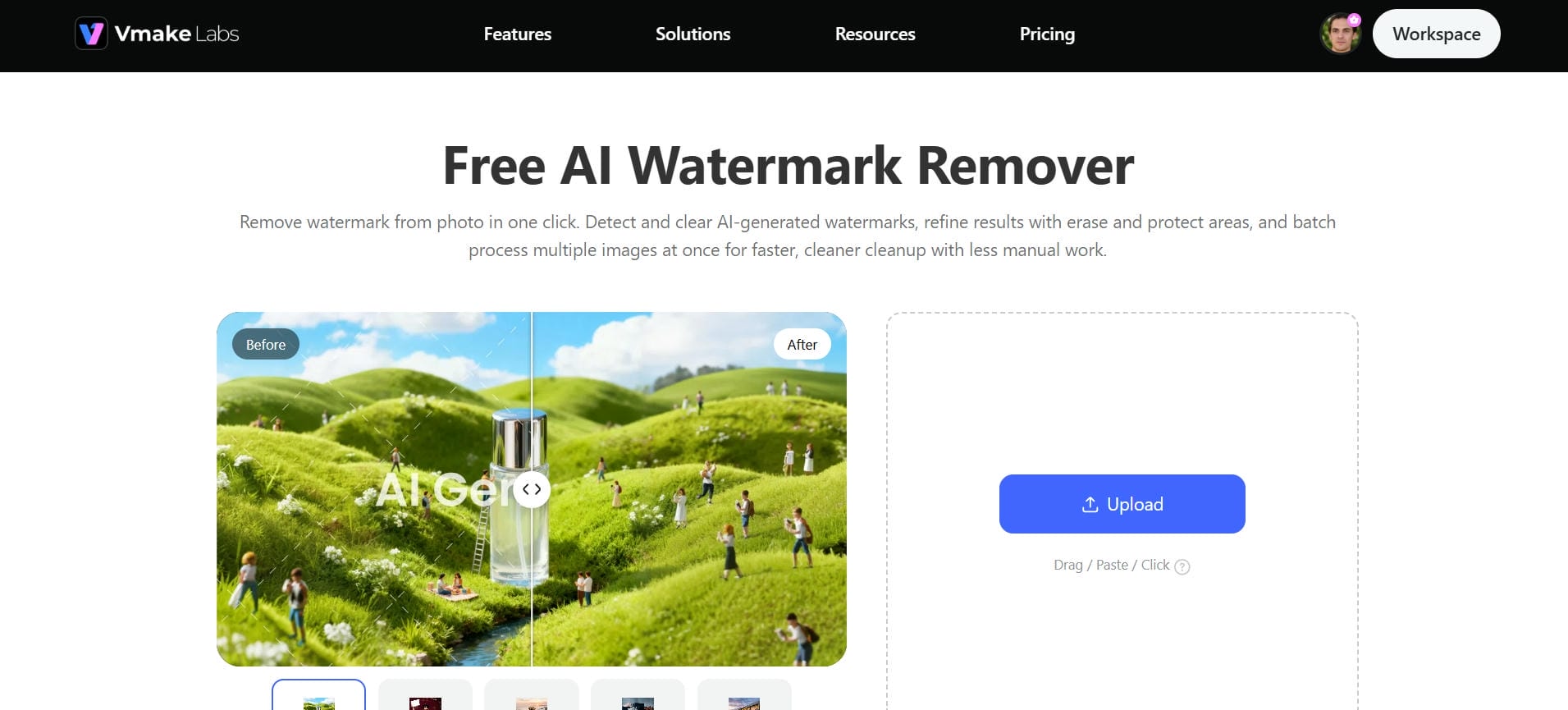
Key features of Vmake Labs watermark remover
-
AI smart watermark detection: Automatically detects and removes different watermark types, including platform logos, corner marks, semi-transparent overlays, and layered watermarks. The AI cleans the image while preserving its natural appearance, so the edited area blends smoothly with the surrounding details.
-
Manual selection for precise control: Lets you manually select the exact area to remove and protect the parts you want to keep, which is especially useful for complex backgrounds or tricky details near the main subject.
-
Batch processing: Processes up to 30 files in a single fast, parallel execution. This offers far superior catalog productivity compared to PhotoGrid's 20-image limit and slow, sequential queuing.
-
Removes more than just watermarks: Vmake Labs can remove more than watermarks. It also erases text, logos, unwanted objects, photobombers, and passersby, making it a versatile AI editing tool for cleaning up different types of images.
-
Natural fill technology: After removing a watermark, the AI rebuilds the missing area using natural fill technology. The reconstructed textures and colors blend more smoothly with the rest of the image, reducing obvious edits or blurry patches.
-
All-in-one AI editing platform: In addition to watermark removal, Vmake Labs offers AI tools for image enhancement, photo restoration, object removal, background removal, and other image editing tasks from a single platform.
Steps to remove watermarks using Vmake Labs
Removing watermarks with Vmake Labs takes only a few clicks. Follow these three simple steps to get clean, natural-looking results.
Step 1: Upload image
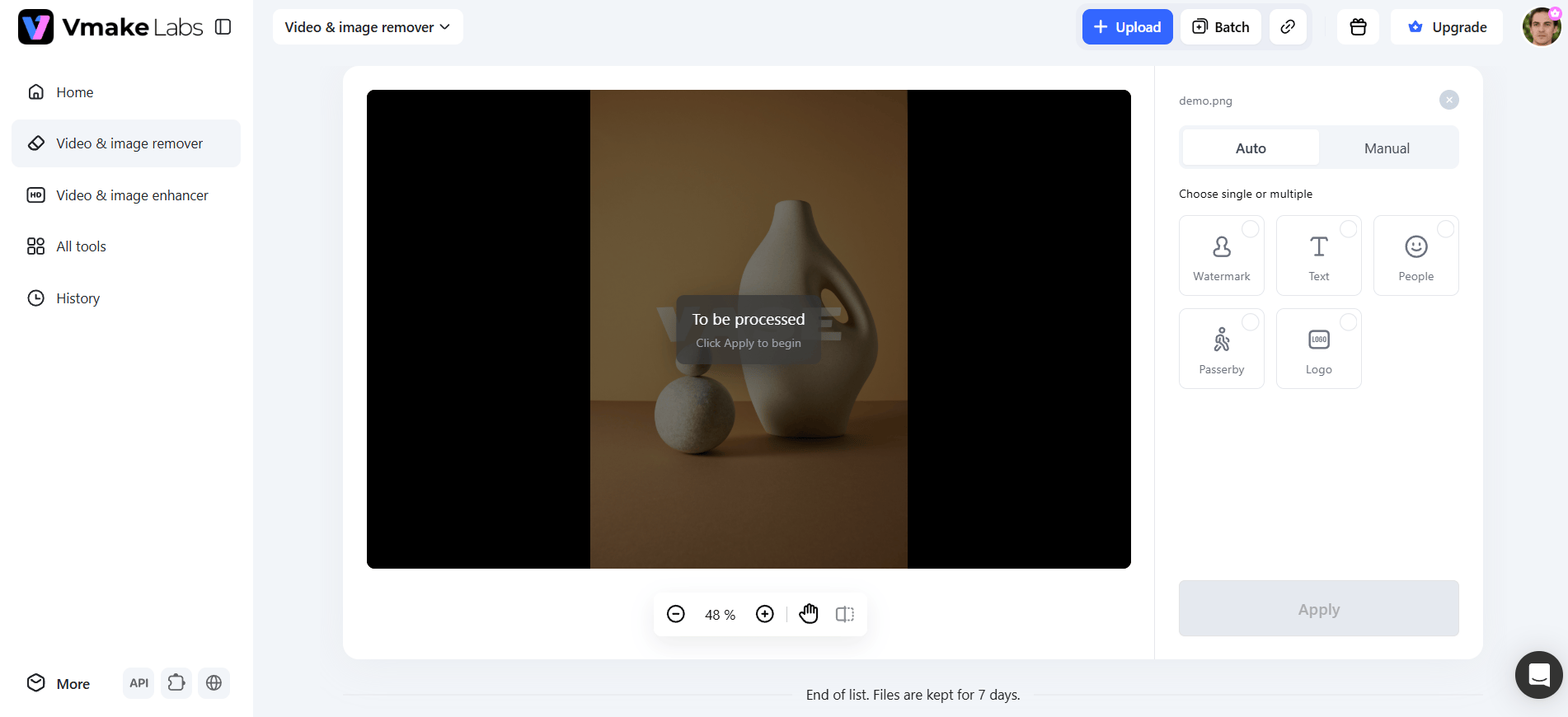
Go to the Vmake Labs "Video & image remover" tool. Drag and drop your photo, paste it directly, or click "Upload" to select it from your device. If you're clearing watermarks from several images at once, use "Batch Upload" instead. You can also import an image directly from a link.
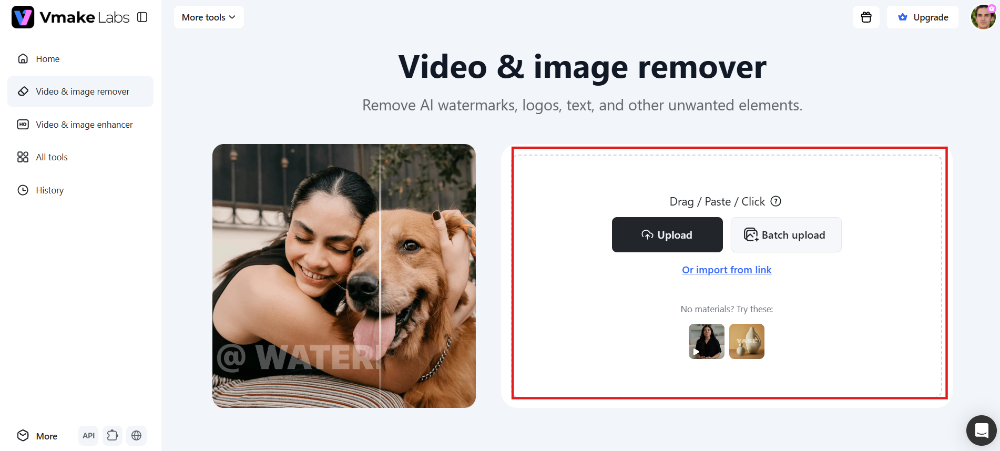
Step 2: Choose a mode
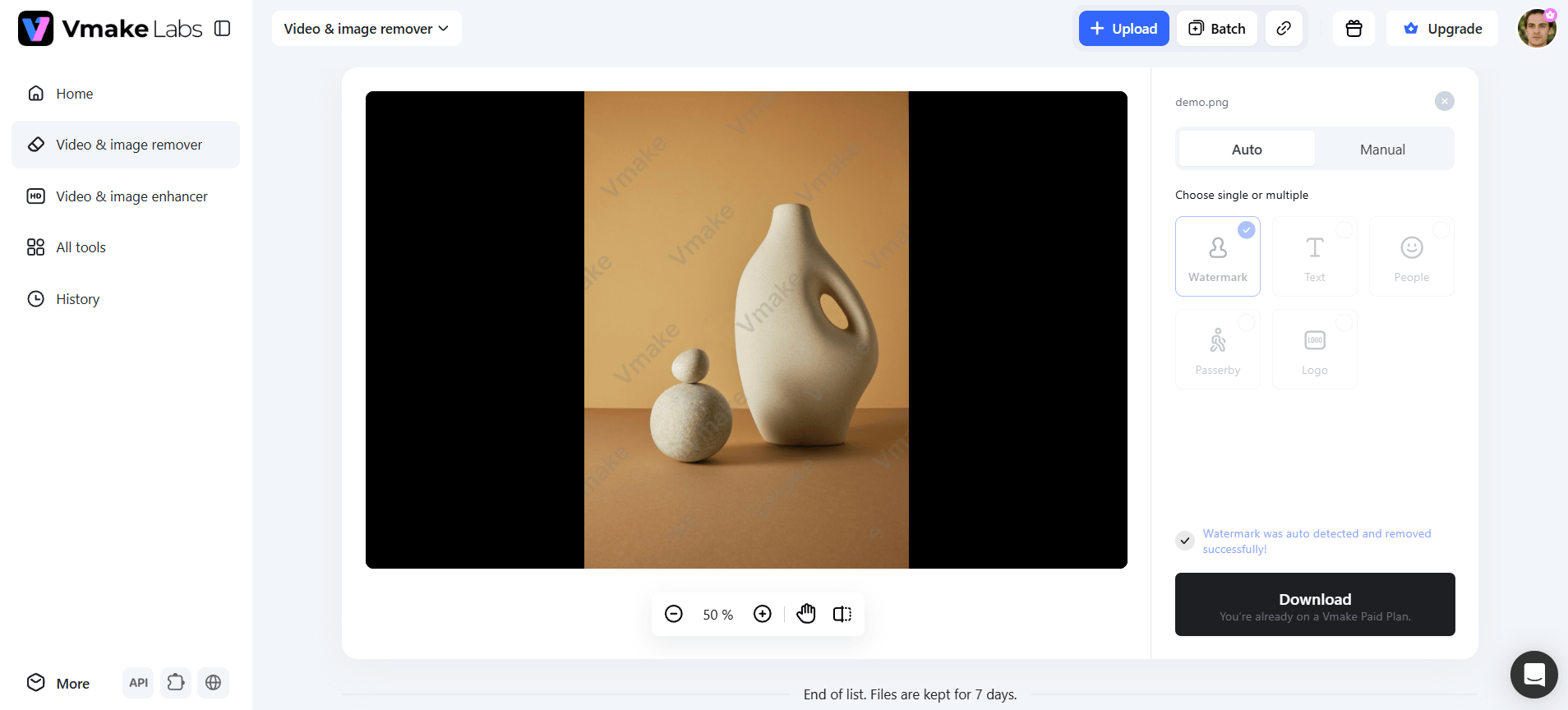
Select Auto mode to let the tool detect and remove the watermark automatically, or switch to Manual mode if you want more precise control. Simply mark the area you want to remove, and the AI will rebuild it with natural-looking textures.
Step 3: Download and share
Preview the edited image to make sure you're happy with the result. Once everything looks clean and natural, click "Download" to save your watermark-free image in high-quality, then use it for social media, ecommerce, marketing, or personal projects.
PhotoGrid vs. Vmake Labs watermark remover
To help you choose the right tool, here is a quick head-to-head breakdown comparing PhotoGrid and Vmake Labs side-by-side:
|
Feature |
PhotoGrid |
Vmake |
|---|---|---|
|
Price |
Free, no login required |
Free to start, no signup needed |
|
AI auto-detection |
Yes, one-click auto removal |
Yes, smart detection for corner marks, overlays, and layered watermarks |
|
Manual controls |
Brush and rectangle tools |
Manual selection with erase and protect areas |
|
Batch processing |
Upload up to 20 images (bulk upload, not full bulk processing) |
True batch processing for multiple images at once |
|
Beyond watermarks |
Logos, text, objects, background |
Watermarks, text, logos, objects, and passersby |
|
Output quality |
HD/4K export, can smudge on complex or large watermarks |
Natural fill designed to avoid blur, even on detailed backgrounds |
|
Supported formats |
JPG, JPEG, PNG, WebP |
JPG, PNG, WEBP |
|
Speed |
~8–15 seconds per image |
A few seconds per image (varies with resolution/complexity) |
|
Platform |
Browser-based, no app install |
Browser-based, no app install |
|
Privacy |
Not specifically highlighted |
Explicitly markets privacy-first image handling |
|
Best for |
Quick, simple one-off watermark removal |
Ecommerce, creators, and marketers needing precision + repeat/batch use |
Which one should you use:
Choose PhotoGrid watermark remover if:
-
You only need to remove watermarks occasionally.
-
You want a free, browser-based tool with no login required.
-
You mainly work with simple logos, text, or corner watermarks.
-
Editing one image or a small batch is enough for your workflow.
-
You also want access to basic AI editing tools in the same platform.
Choose Vmake Labs watermark remover if:
-
You need higher quality and more natural-looking results, especially on complex backgrounds.
-
You work with many images and want reliable batch processing.
-
You remove tricky watermarks, objects, people, or text often.
-
You want advanced AI that blends edits seamlessly without blur or artifacts.
-
You regularly edit product photos, marketing assets, or large image collections.
Conclusion
PhotoGrid watermark remover gets the job done for quick, simple watermarks, especially if you're already inside its editor for other tweaks. But once you're dealing with layered marks, busy backgrounds, or a real batch of images, its limits start to show. Vmake Labs is built for exactly those harder cases, delivering cleaner results without smudging or slowdowns. If you want watermark-free photos that actually hold up, it's worth the switch.
FAQs
Is PhotoGrid watermark remover free?
Yes, the PhotoGrid AI watermark remover is completely free. You can erase text, logos, and unwanted objects on your images without paying or logging in. It also supports batch editing for up to 20 images at once.
How long does PhotoGrid take to remove a watermark?
In our testing, most images were processed in about 8 to 15 seconds. The exact time depends on image size, watermark complexity, internet speed, and whether you are editing one image or multiple files.
Does PhotoGrid reduce image quality after removing a watermark?
For simple, straightforward watermarks, quality usually holds up well with HD or 4K export. But larger or more complex watermarks can leave behind smudging or slightly distorted patches, especially over busy backgrounds.
What image formats does PhotoGrid support?
PhotoGrid watermark remover supports JPG, JPEG, PNG, and WebP image formats. These widely used formats make it easy to upload, edit, and download photos without needing additional file conversion for most everyday editing tasks.
What is the best alternative to PhotoGrid watermark remover?
Vmake Labs is one of the best alternatives to PhotoGrid. It offers more natural AI reconstruction, supports batch processing, removes text and objects, and includes image enhancement, restoration, and background removal tools in one platform.

You May Be Interested

Airbrush Watermark Remover Review (2026): Features and Pricing

AniEraser Watermark Remover by Media.io: 2026 Hands-On Review

Batch Watermark Removal with Vmake AI

Best AI Watermark Remover for Clean, Fast Edits

How to Remove CapCut Watermark