How to Remove Seedance 2.0 (Dreamina) Watermark with Vmake
Remove the Dreamina watermark from Seedance 2.0 videos with Vmake. Clean exports, batch mode, and enhance quality with De-AI upscaling for ad-ready results.

Seedance 2.0 (often used via Dreamina) is a popular choice for generating short AI videos fast. The downside: many outputs come with a visible Dreamina watermark, which can distract viewers and reduce how “premium” your content looks—especially if you’re using the video for ads, product pages, or social media.
In this guide, you’ll learn a clean, practical workflow to remove the Dreamina watermark from Seedance 2.0 videos using Vmake Video Watermark Remover, plus a few tips to keep the final result looking natural.
Why removing the Dreamina watermark matters
A watermark may seem small, but it can hurt performance in real-world use:
-
UGC-style ads look less authentic when a platform watermark is visible
-
Brand content looks less professional on landing pages and PDPs
-
Repurposing across channels is harder (TikTok / Reels / Shorts / Facebook / ads)
-
Viewers can get distracted and drop off early—especially in the first 1–2 seconds
If you’re generating content with Seedance 2.0 for marketing, removing the watermark is one of the quickest quality upgrades you can make.
What you need before you start
-
A Seedance 2.0 video export from Dreamina
-
The watermark is typically located in a corner (often bottom-right), but it can vary
-
Access to Vmake Web (or your usual Vmake workflow)
Step-by-step: Remove Seedance 2.0 (Dreamina AI) watermark using Vmake
Step 1: Open Vmake Watermark Remover
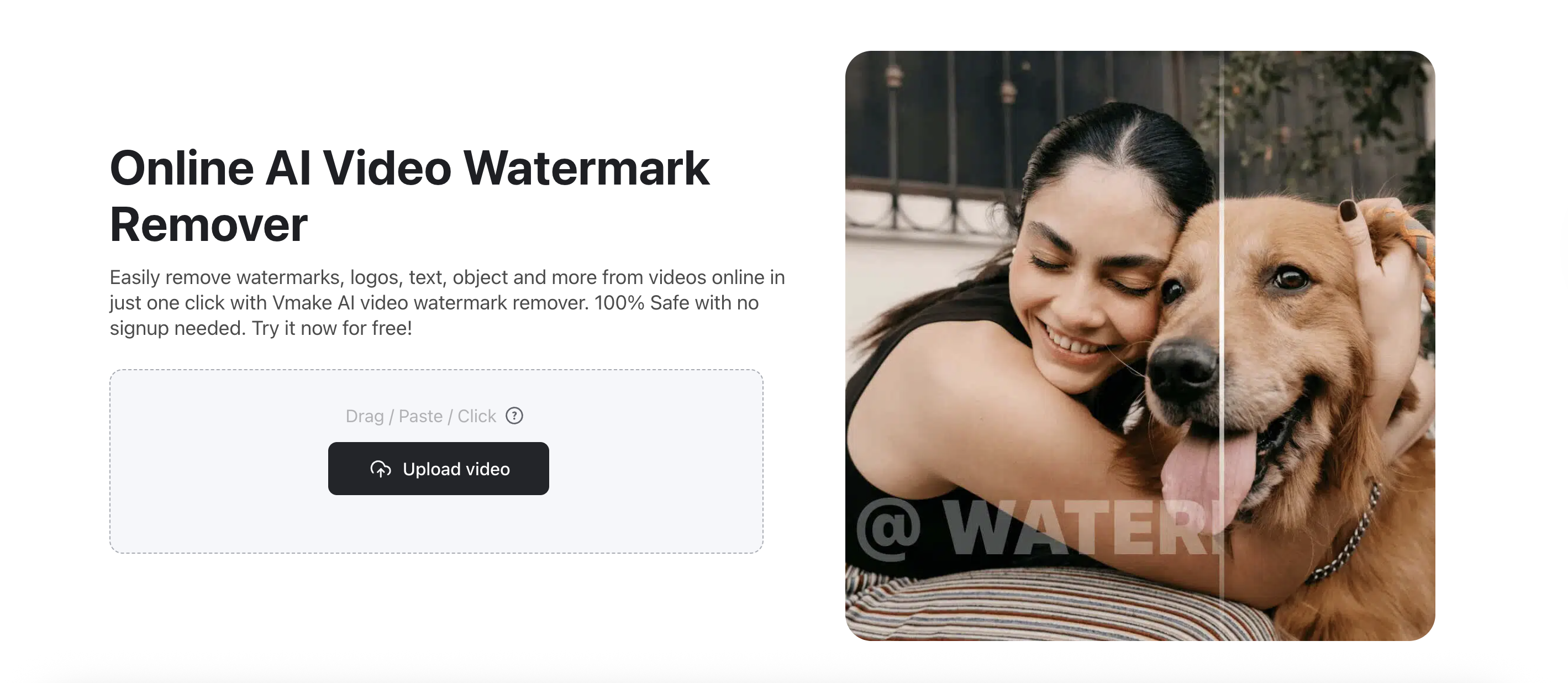
Go to Vmake‘s video watermark remover.
Step 2: Upload your Seedance 2.0 video
Upload your video file into Vmake.
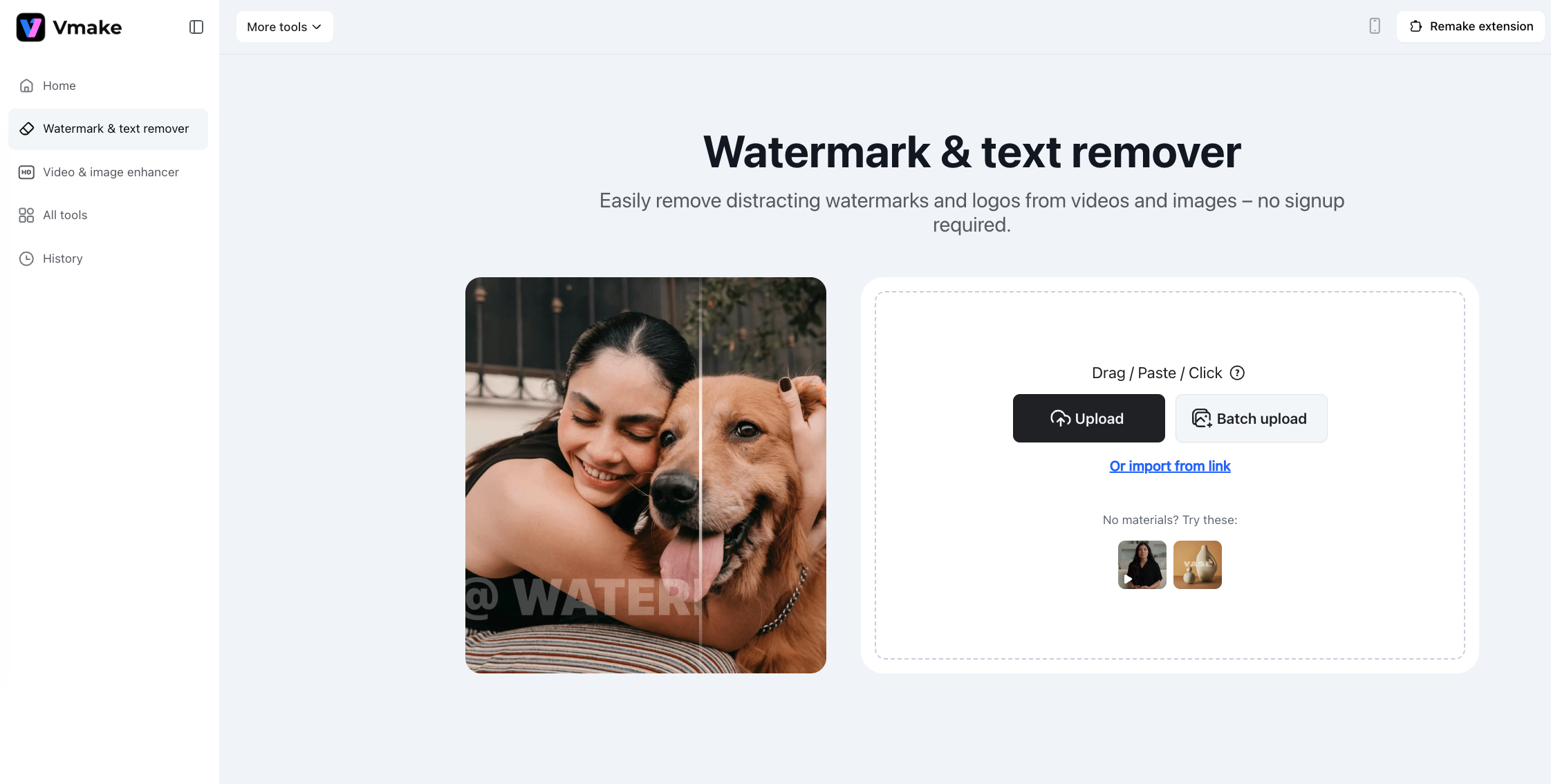
Pro Tip: If you have multiple video files, you can also click Batch Upload to upload and remove watermarks in bulk — super convenient.
Step 3: Choose Smart mode
Once your video is uploaded, simply select the Smart option — and let Vmake handle the rest. It’s that easy.
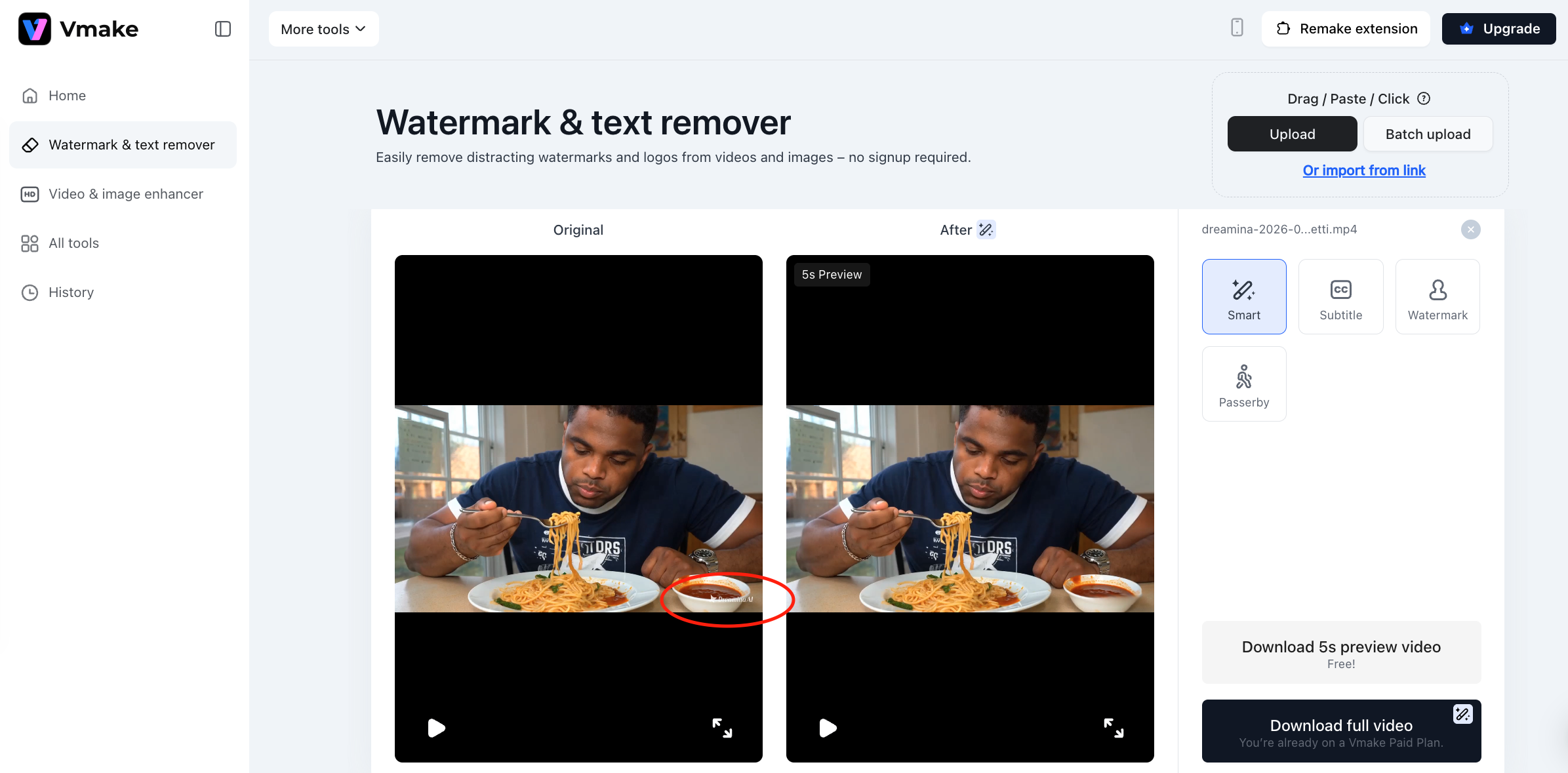
Step 4: Export the watermark-free video
Once it looks clean, export your final video.
Step 5: The Elite Finish - Enhance Quality and "De-AI" Your Video
Removing the watermark is a great first step, but AI-generated videos from Seedance 2.0 can sometimes suffer from slight blurring or that tell-tale "uncanny" AI texture. To truly make your content stand out, you can take it a step further using Vmake’s Video Enhancer.
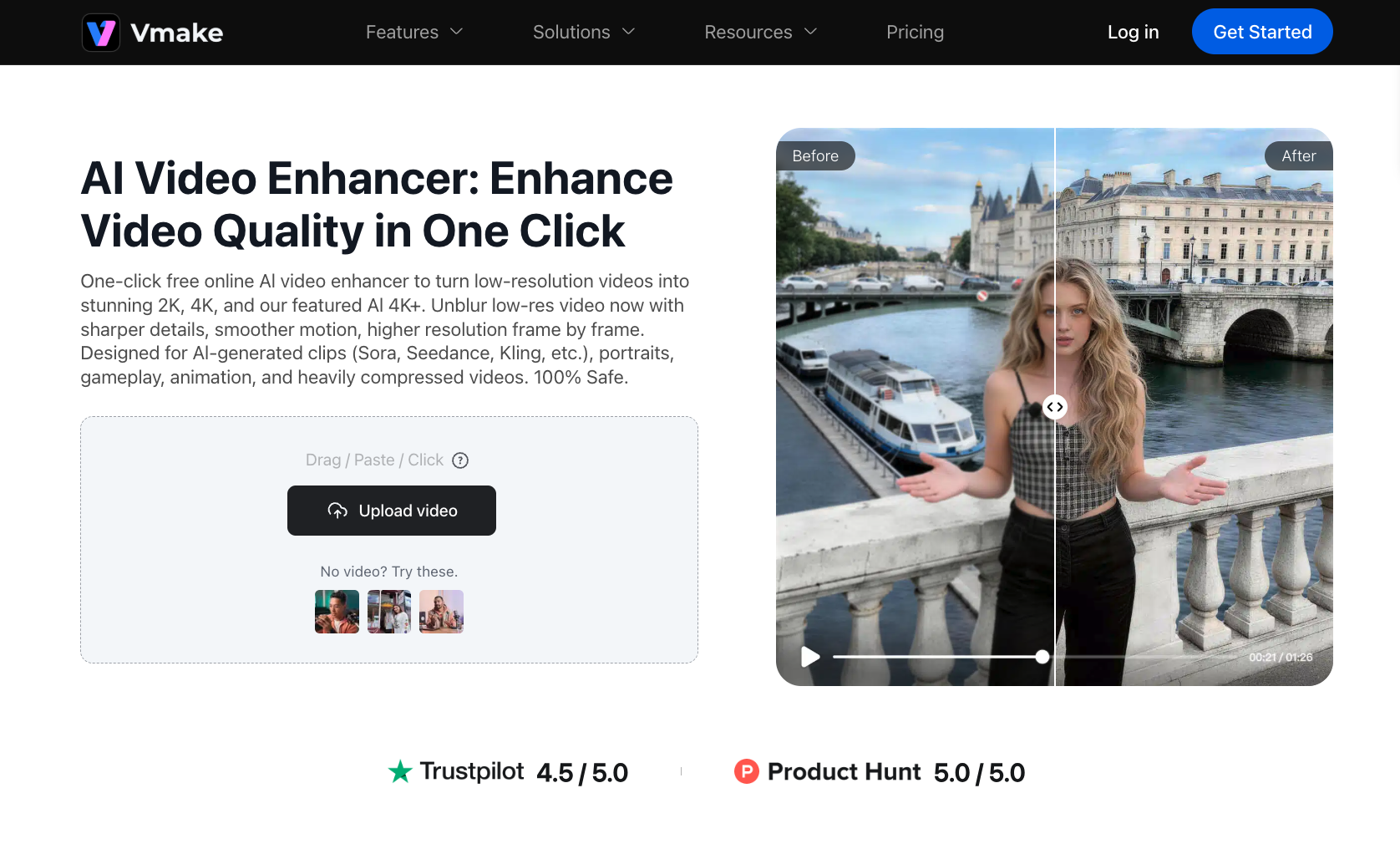
This tool is a game-changer for two reasons:
- Resolution Upscaling: It sharpens the edges and textures that might have been softened during the watermark removal process.
- The "De-AI" Mode: By refining facial details and smoothing out jittery artifacts, it removes the "AI look," making the footage appear as if it were shot on a professional camera.
How to use Vmake Video Enhancer:
- Upload your watermark-free video (the one you just exported).
- Select the De-AI mode.
- Apply the enhancement and watch as the AI jitters disappear, replaced by high-definition clarity.
For a deep dive into mastering this tool, check out our dedicated guide: How to Upscale Seedance 2.0 Videos & Remove the "AI Look" (De-AI Guide)
Final Thoughts
By stripping away the Dreamina watermark and layering on Vmake’s visual enhancements, you’re doing more than just editing—you’re brand-building. You’re taking a fast AI output and turning it into a professional asset that builds trust, commands attention, and scales your marketing effortlessly.

You May Be Interested

Seedance 2.0: What's New & How to Use It

Seedance 2.0 vs Sora 2: Which AI Video Generator Wins in 2026?