
How to Add Subtitles to Video: Easy Online Methods in 2026
Learn how to add subtitles to video with AI transcription, customizable caption styles, and easy editing. Create polished, accessible, social-ready videos with Vmake Labs today, easily and for free.

Adding subtitles to videos can make your content easier to understand, more accessible, and more engaging. Whether you create YouTube tutorials, social media clips, ads, or educational videos, subtitles help viewers follow along. This guide covers simple online methods, including manual editing, SRT files, and AI-powered subtitle generation.
What are subtitles and why should you add them to a video?
Subtitles are text on a video that represents what is being said. They assist viewers in comprehending what speakers are saying, especially when watching in a quiet area, with the sound turned down, or in a language they are still learning. These phrases are commonly used interchangeably. However, subtitles and captions are not precisely the same.
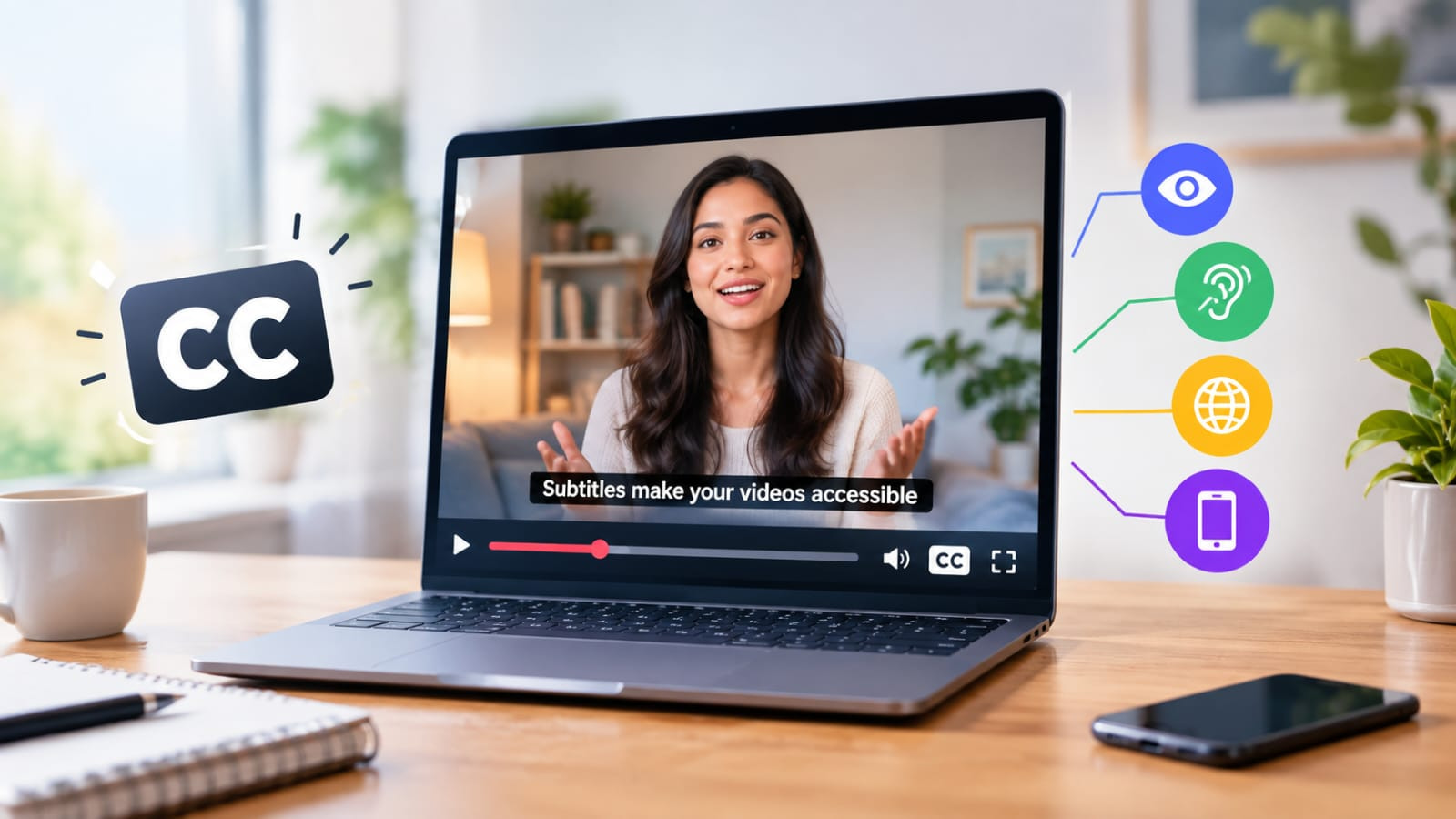
Subtitles vs captions vs closed captions
|
Type |
What it includes |
Main purpose |
|---|---|---|
|
Subtitles |
Primarily spoken dialogue |
Help viewers understand what people are saying, especially when they speak a different language or audio is unavailable. |
|
Captions |
Spoken dialogue plus relevant sounds such as music, laughter, or other important audio cues |
Make video content more accessible and easier to follow. |
|
Closed captions |
Subtitles or captions that can be turned on or off |
Give viewers control over whether captions are displayed. |
|
In everyday use |
These terms are often used interchangeably |
The important thing is choosing a format that helps your intended audience understand and follow the video. |
Benefits of adding subtitles to videos
Adding subtitles can improve the viewing experience in several practical ways:
-
Help viewers watch without sound: Many people watch videos in public places or situations where audio is inconvenient.
-
Improve accessibility: Text helps viewers who are deaf or hard of hearing follow the content.
-
Make dialogue easier to understand: Subtitles can help when speakers talk quickly, use accents, or when the audio quality is not perfect.
-
Reach multilingual audiences: Translated subtitles can make content easier to understand for viewers who speak other languages.
-
Support different types of content: Subtitles are useful for YouTube videos, TikTok videos, Instagram Reels, advertisements, tutorials, courses, interviews, and educational content.
How to add subtitles to a video for free
There is no one technique to add subtitles. It is contingent upon how much control you want and how much time you want to spend editing. You can type the subtitles yourself, upload an existing SRT file, or use AI to automatically transcribe the spoken audio in the video.
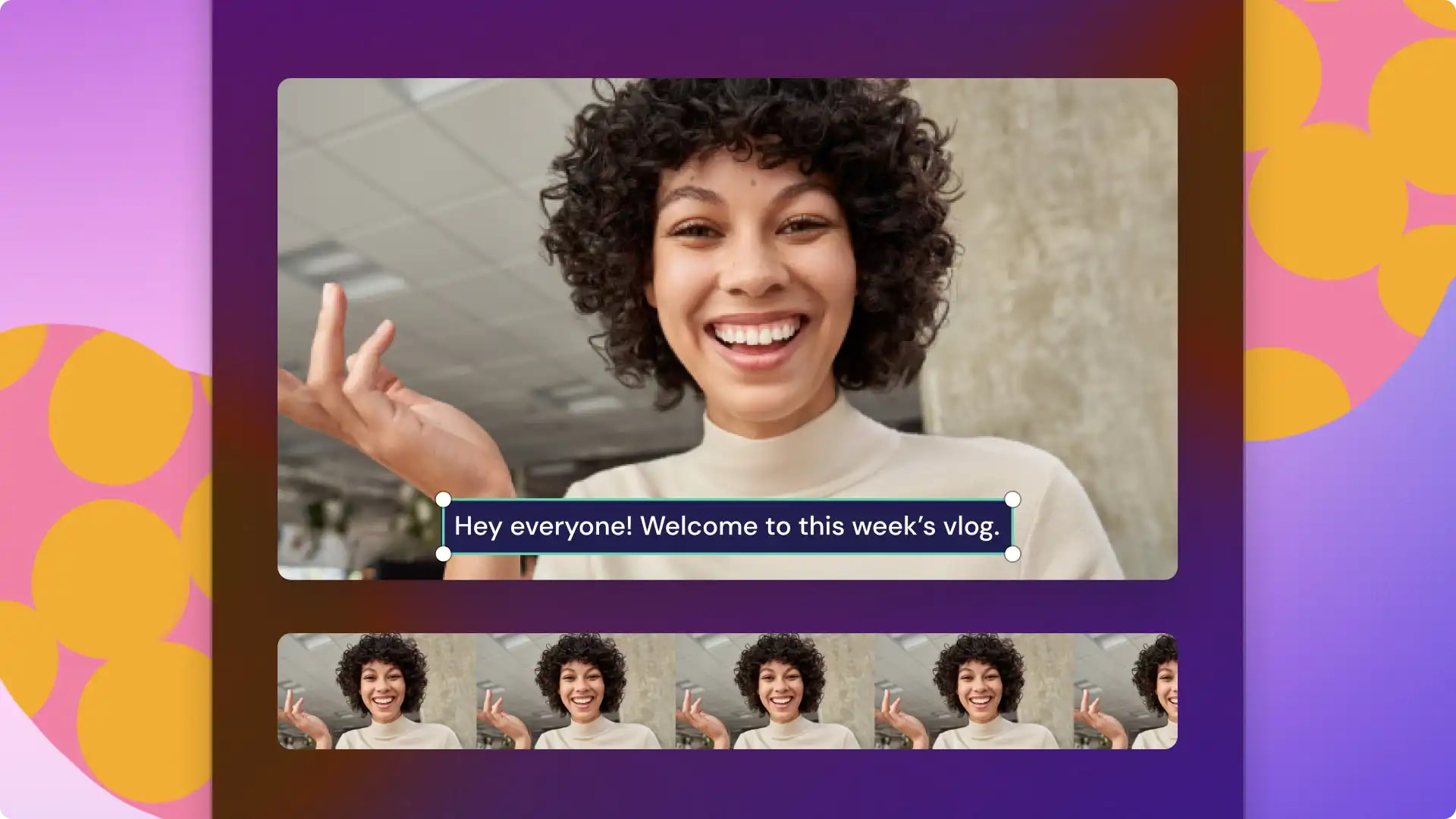
Method 1: Add subtitles manually
Upload your video to a video editor and transcribe each subtitle line of audio dialog. Set the in and out times so that each line comes up at the right time. Check synchronization by reviewing the video carefully and exporting the finished video.
Method 2: Upload an SRT subtitle file
Prepare an SRT file containing the subtitle text and its timestamps, then import it into a compatible video editor. Check the timing, formatting, and placement to make sure everything appears correctly. Make any necessary adjustments before exporting the final subtitled video.
Method 3: Use an AI subtitle generator
Upload your video to an AI subtitle generator, and it will automatically transcribe the spoken audio. Please check the created subtitles and repair mistakes in the text or time. You can then change the style and appearance of the subtitles before exporting the finished film.
If you want to save time but not give up control, an AI-powered workflow can make creating subtitles a lot easier. Instead of typing and timing each line, you may use AI to do the pass transcription and syncing. Vmake Labs has integrated all these stages into one online workflow that makes it easy to generate, tweak, and export subtitles. Here's the thing.
How to add subtitles to a video with Vmake Labs
Vmake Labs provides a quicker method of creating subtitles without the manual typing and timing of each line. It has an AI subtitle generator that can auto-detect the spoken language, generate captions, and let you adjust the timing and style of the captions. The YouTube video subtitle generator is an easy way to create and customize subtitles for video content for YouTube creators. Then you can check the captions, and you can export the finished video or subtitle file.
Create and customize video subtitles with Vmake Labs
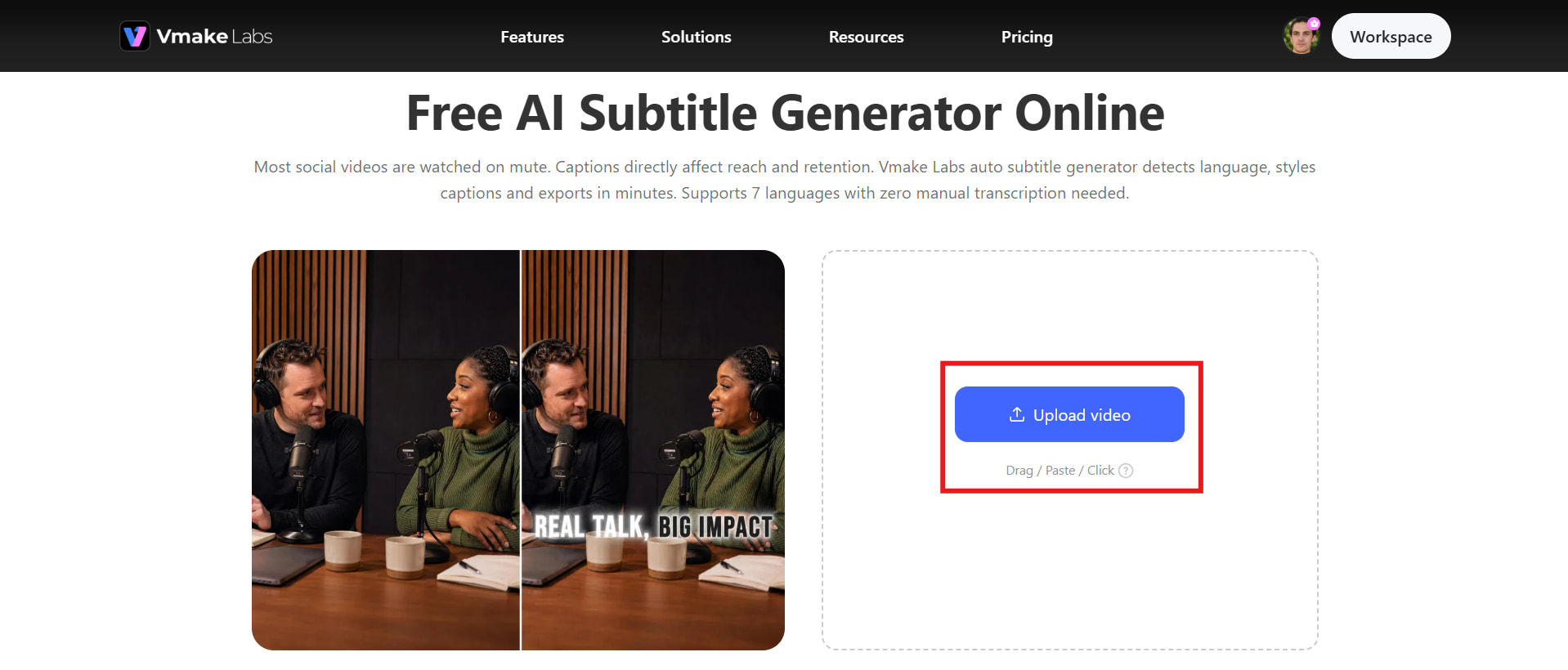
Step 1: Upload your video
Once the video is submitted, Vmake Labs analyzes the audio to detect the spoken language and generates the initial transcript. This provides you with a subtitle track ready for editing without having to type out each line. Then you may continue styling and editing the captions.
Step 2: Style your captions
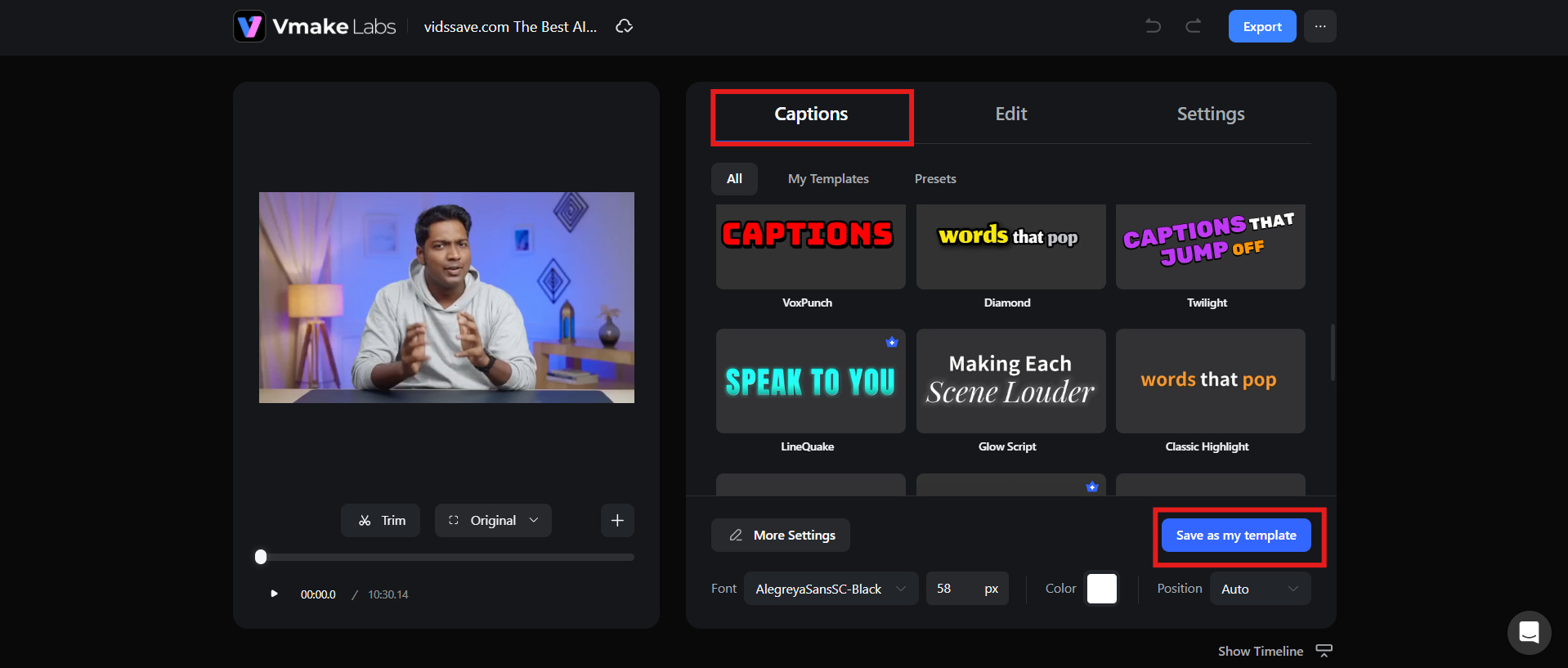
Open the Captions tab and select a template from the available styles. You can adjust the font, size, color, and position to make the subtitles fit your video's visual style. You can also save a preferred style as a personal template for future videos.
Step 3: Edit and export
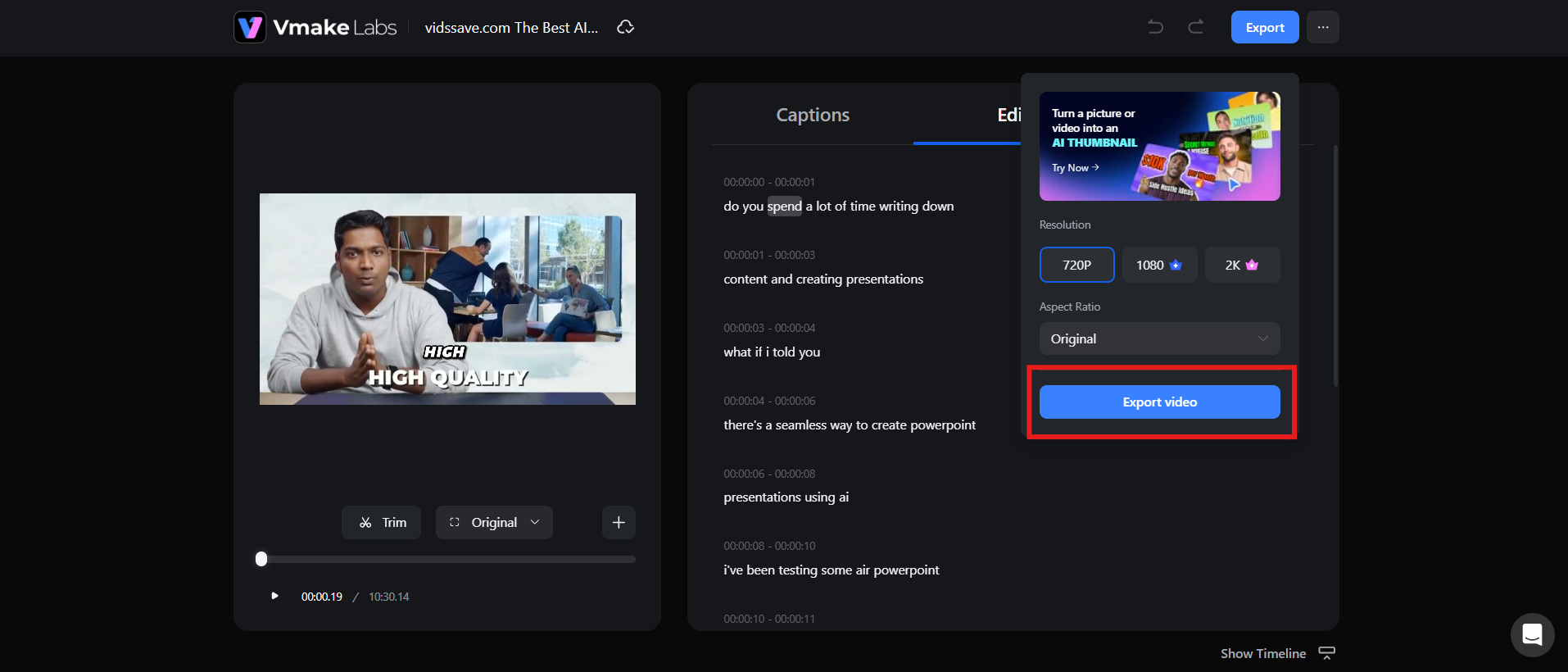
Open the edit tab to see each line of subtitles and fix text/timestamps. You can also change variables such as denoising and audio tweaks. Once you're happy that everything is perfect, select your output ratio and resolution and hit export.
Step 4: Preview and download your final video
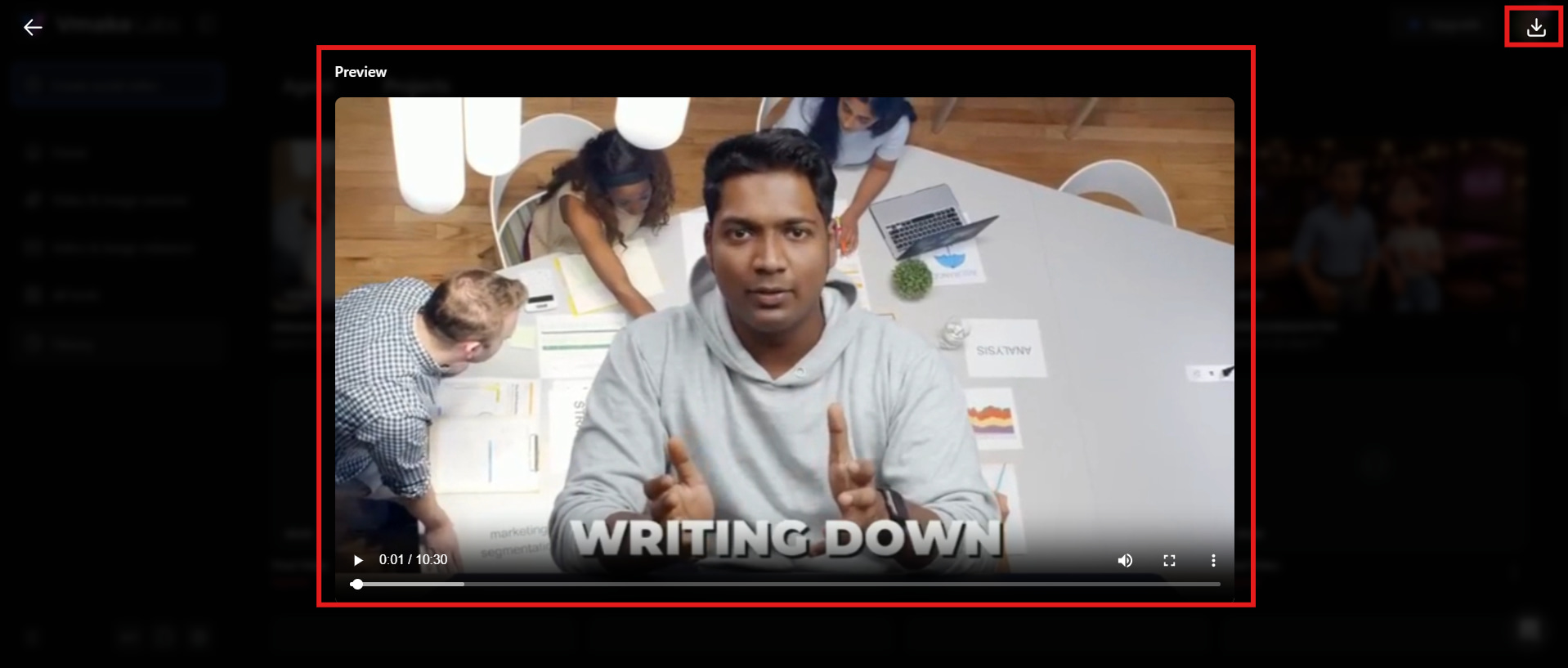
Watch the video from start to finish before you post it. Make sure that the subtitles are in sync with the spoken language, appear at the proper time, and do not conceal crucial visual elements. Make any last edits and download the finished video or subtitle file.
Key features
-
AI-powered subtitle generation: Automatically converts spoken words into accurately timed subtitles, eliminating the need to create captions manually. This speeds up the editing process and makes it easier to prepare videos with readable, synchronized subtitles.
-
Automatic language detection: Detects the language spoken in your video to simplify the subtitle creation process. This is useful when creating subtitles for videos in different languages or working with varied content.
-
Editable captions and timestamps: Review generated subtitles, correct errors, and adjust timestamps when needed for better synchronization. This gives you greater control over subtitle accuracy and ensures the text matches the spoken dialogue.
-
Custom caption templates and styling: Customize subtitle fonts, sizes, colors, positions, and other styling elements to match your video's visual design. This helps you create captions that are clear, visually appealing, and consistent with your content style.
-
Reusable caption templates: Save your preferred caption design and apply it to future videos without recreating the style from scratch. This helps maintain a consistent subtitle appearance across multiple videos and social media content.
-
Video and SRT export: Export your completed video with subtitles included or save the subtitles separately as an SRT file. This gives you flexibility to use the subtitles across different platforms, video editors, and publishing workflows.
How to attach subtitles to a video with an SRT file
An SRT file contains subtitle text along with timestamps that determine when each line appears and disappears. To attach subtitles to a video, upload the video and import the SRT file into a compatible video editor, then check that the subtitles match the spoken content. Adjust the timing, formatting, or position if needed. Use an SRT file when you want subtitles to remain as a separate, editable track, while burned-in subtitles are permanently embedded into the video and cannot be turned off.
How to make subtitles easier to read and follow
Subtitles are easier to follow when the text is clear, concise, and displayed at a comfortable reading speed. Use readable fonts, strong contrast, consistent positioning, and avoid placing too much text on the screen at once. Always review the final video to ensure the subtitles are properly timed and easy to read.
-
Keep lines short: Avoid filling the screen with large blocks of text.
-
Match timing to speech: Subtitles should appear and disappear naturally with the dialogue.
-
Use readable fonts: Choose a font size that works on both desktop and mobile screens.
-
Maintain contrast: Make sure the text stands out against the background.
-
Avoid important visuals: Don't place subtitles over faces, product details, or other key information.
-
Proofread AI subtitles: AI can occasionally misunderstand names, technical terms, accents, or unclear speech.
-
Identify speakers when needed: This is particularly useful for interviews and group conversations.
-
Add relevant sound descriptions: If you're creating true closed captions, include meaningful non-speech audio information.
-
Stay consistent: Use a consistent subtitle style throughout the video, so your content looks polished.
Conclusion
Subtitling need not be a time-consuming part of video editing. You can create them manually, import an SRT file, or use AI tools to speed up the process. Vmake Labs also offers a simple way to design, customize, edit, and export auto-generated captions all in one place. If you are making YouTube videos, TikToks, Reels, tutorials, or educational content, good subtitles can assist you in making videos easier to comprehend. Carefully review the finished subtitles, utilize a simple style, and choose a format that suits your topic, platform, and audience.
FAQs
-
Can subtitles be added to any video format?
Most common video formats can support subtitles, either as a separate subtitle track or as permanently embedded text. The exact options depend on the video editor or platform you use. Before exporting, check that your chosen tool supports both your video format and subtitle format.
-
Can I add subtitles to a video on my mobile?
Yes, you can add subtitles to videos directly from many mobile video-editing apps and online tools. You can type subtitles manually or use AI-powered tools to generate them automatically. Vmake Labs can also help simplify the subtitle creation process when working with supported video content.
-
Can I generate subtitles from a YouTube video without downloading it?
Yes, you can generate subtitles from a YouTube video without downloading it. For your own videos, YouTube studio lets you add or edit subtitles directly. You can also paste a YouTube link into Vmake Labs Video & Audio to Text, review the transcript, and export it as an SRT file. This is different from the caption Generator, which uses uploaded videos and allows you to adjust subtitle styles.
-
Can I create subtitles from an audio-only file?
Yes, subtitles can be generated from an audio file if the tool supports audio transcription. The software analyzes the spoken content and converts it into timed text. Vmake Labs can automatically detect spoken language and generate subtitles from supported media, making transcription more convenient.
-
Can I add subtitles to a video after uploading it to YouTube?
Yes. Subtitles can be added or edited in YouTube Studio once a video has been uploaded. You can upload a ready subtitle file like SRT, or use YouTube's available caption tools. If you prepare your subtitles and check them before uploading, you will have more control over the words and the timing.
-
Can Vmake Labs generate subtitles automatically?
Yes, Vmake Labs can automatically generate subtitles by analyzing the spoken audio in your uploaded video. It can detect the spoken language and create timed captions that you can review and edit. You can also customize their appearance before exporting the final video or subtitle file.

You May Be Interested
Best Subtitle Generation Tools in 2025 for Creators and Editors
Best Subtitle Translation Tools in 2026 Compared
How to Add Subtitles in Premiere Pro: A Complete Guide
How to Download Video and Subtitles from YouTube
How to Generate Subtitles for Video: Complete 2026 Guide
